
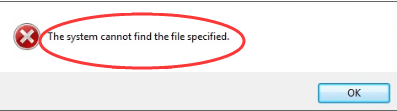
If you encounter error “The system cannot find the file specified” when installing driver, don’t worry. The solutions here will solve the problem.
The problem would occur mostly due to a missing driver file. Even though the cause is unknown clearly, there are solutions to solve the problem.
Solution 1: Use Antivirus software to scan your computer
The problem can be caused by some threat and antivirus. Run the antivirus software if you have one. Use it to scan your computer and clean the system if necessary.
Solution 2: Check the System Log file to locate the problem driver file
Follow these steps:
1. Navigate to C:/Windows/inf.
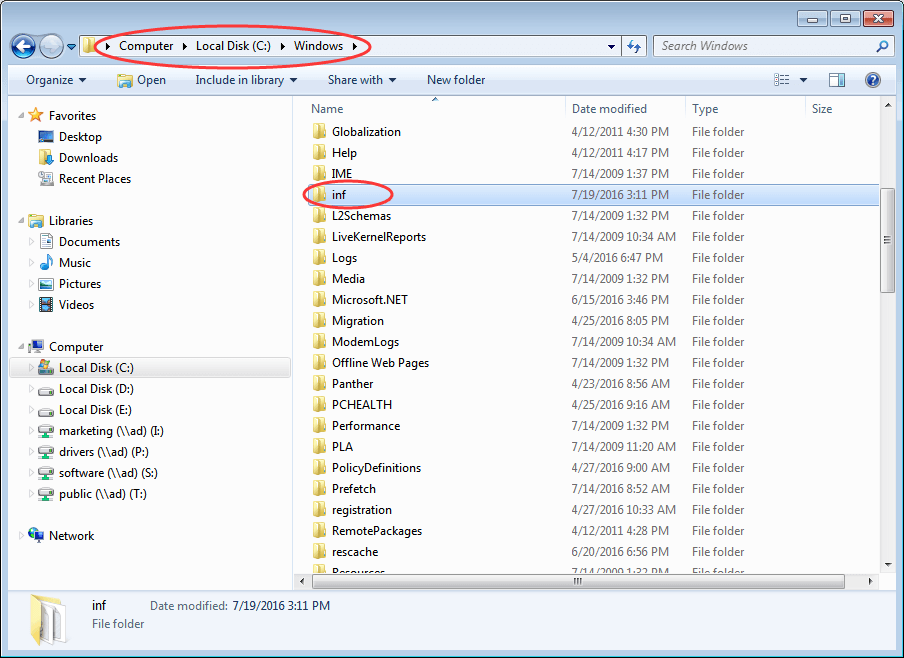
2. Open inf folder and find file “setupapi.dev” (In some cases, the file would be “setupapi.dev.log”.). Double-click on it to open the file.

3. Press Ctrl key and F key at the same time to open Find box. Type cannot find the file in the search box then start the search.
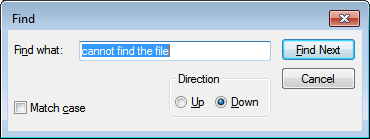
4. Then the missing file will be located.
5. Drop the file into Windows/inf.
6. Reinstall the driver.
Solution 3: Install the driver using inf file
If you download the driver from manufacturer’s website and meet this problem, try these steps:
1. Exact the downloaded driver file.
2. In the extracted folder, find the .inf file. There might be more than one .inf file. The Type of proper .inf file is “Setup Information”.
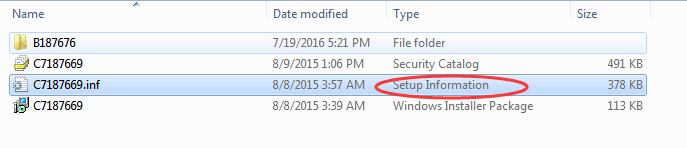
3. Right-click on the file and select Install from the context menu.
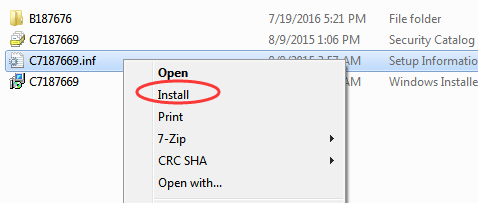
Note that not all .inf files are self-installer. If the .inf file does not support this method of installation, you would get a prompt message like this.

Solution 4: Uninstall the driver and reinstall the driver again
Follow steps below to uninstall a driver.
1. Go to Device Manager.
2. Expand the category and locate the device you wish to uninstall. (Here let’s take uninstalling video driver for example.)
Right-click on the device name and select Uninstall on the context menu.
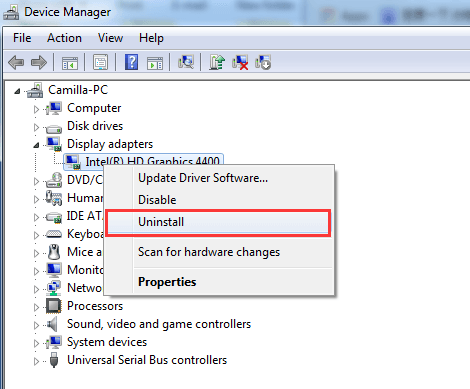
3. Windows will prompt you to confirm the uninstallation. Check the box next to “Delete the driver software for this device.” then click “OK” button.
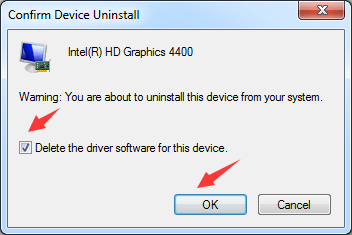
4. After uninstalling the driver, install the driver again.
Solution 5: Update the driver using Driver Easy
If the downloaded driver is unsigned or corrupted, the problem may occur. When you update drivers manually, please make sure the driver you downloaded has no problem. If the problem persists, you can use Driver Easy to update the driver.
Driver Easy can detect all problem drivers in your computer in several seconds and give you a list of new drivers. All drivers provided by Driver Easy are official from manufacturers. With Driver Easy, you can expect that all drivers will be installed successfully. It provides Free version and Professional version. If you use Free version to update drivers, you can refer to Update Drivers with Free Version. If you use the Professional version, all you need to do is click your mouse 2 times.
1. Click Scan Now button. After a few seconds, you will be given a list of new drivers to update.
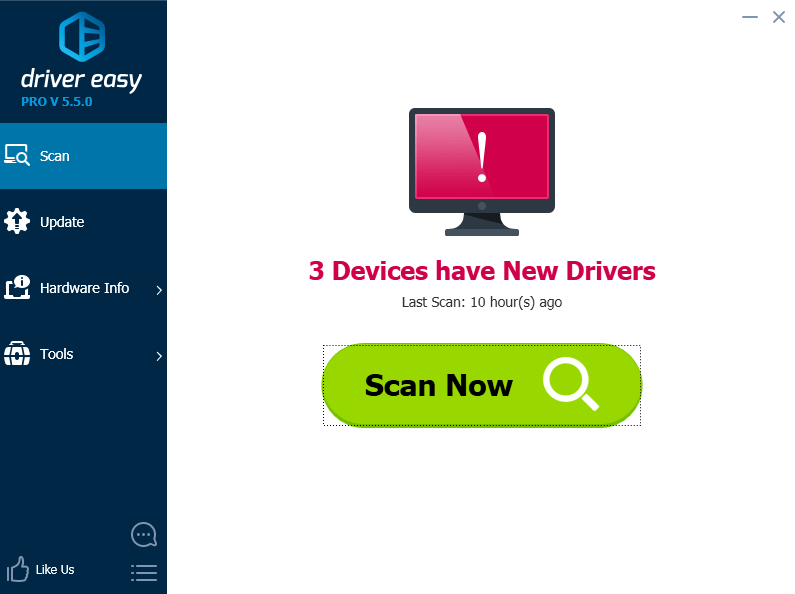
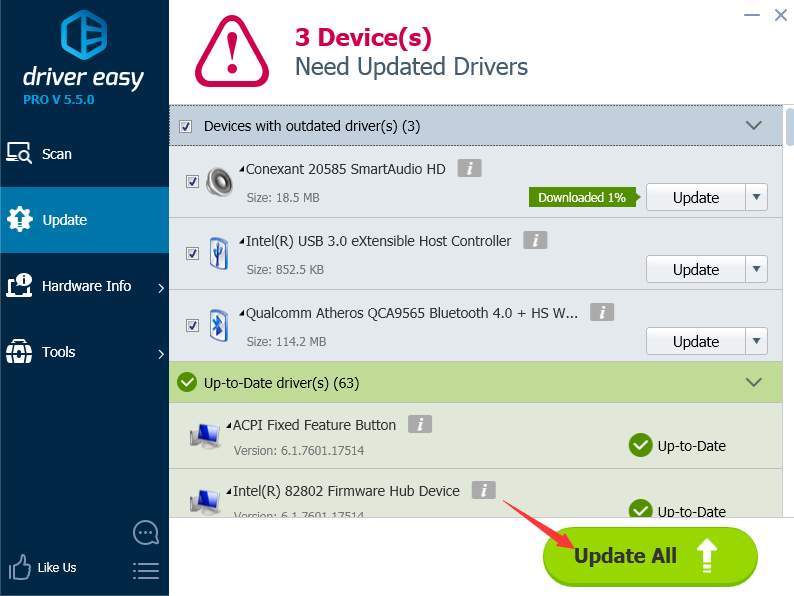
2. Click Update All button. Then all drivers will be downloaded and installed automatically.
If you encounter error “The system cannot find the file specified” when installing driver, don’t worry. The solutions here will solve the problem.
The problem would occur mostly due to a missing driver file. Even though the cause is unknown clearly, there are solutions to solve the problem.
Solution 1: Use Antivirus software to scan your computer
The problem can be caused by some threat and antivirus. Run the antivirus software if you have one. Use it to scan your computer and clean the system if necessary.
Solution 2: Check the System Log file to locate the problem driver file
Follow these steps:
1. Navigate to C:/Windows/inf.
2. Open inf folder and find file “setupapi.dev” (In some cases, the file would be “setupapi.dev.log”.). Double-click on it to open the file.
3. Press Ctrl key and F key at the same time to open Find box. Type cannot find the file in the search box then start the search.
4. Then the missing file will be located.
5. Drop the file into Windows/inf.
6. Reinstall the driver.
Solution 3: Install the driver using inf file
If you download the driver from manufacturer’s website and meet this problem, try these steps:
1. Exact the downloaded driver file.
2. In the extracted folder, find the .inf file. There might be more than one .inf file. The Type of proper .inf file is “Setup Information”.
3. Right-click on the file and select Install from the context menu.
Note that not all .inf files are self-installer. If the .inf file does not support this method of installation, you would get a prompt message like this.
Solution 4: Uninstall the driver and reinstall the driver again
Follow steps below to uninstall a driver.
1. Go to Device Manager.
2. Expand the category and locate the device you wish to uninstall. (Here let’s take uninstalling video driver for example.)
Right-click on the device name and select Uninstall on the context menu.
3. Windows will prompt you to confirm the uninstallation. Check the box next to “Delete the driver software for this device.” then click “OK” button.
4. After uninstalling the driver, install the driver again.
Solution 5: Update the driver using Driver Easy
If the downloaded driver is unsigned or corrupted, the problem may occur. When you update drivers manually, please make sure the driver you downloaded has no problem. If the problem persists, you can use Driver Easy to update the driver.
Driver Easy can detect all problem drivers in your computer in several seconds and give you a list of new drivers. All drivers provided by Driver Easy are official from manufacturers. With Driver Easy, you can expect that all drivers will be installed successfully. It provides Free version and Professional version. If you use Free version to update drivers, you can refer to Update Drivers with Free Version. If you use the Professional version, all you need to do is click your mouse 2 times.
1. Click Scan Now button. After a few seconds, you will be given a list of new drivers to update.
2. Click Update All button. Then all drivers will be downloaded and installed automatically.
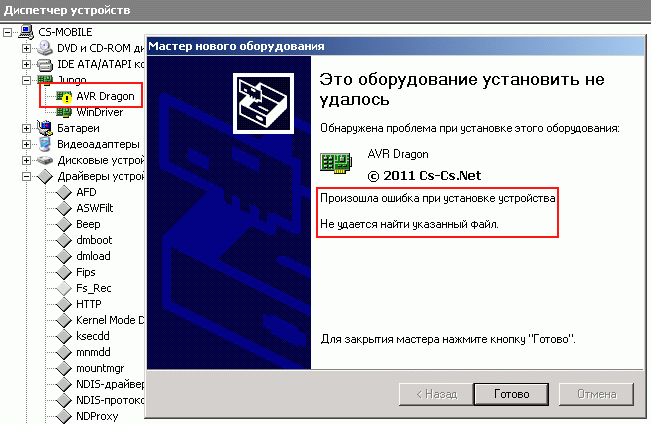
Ошибка при установке устройства: не удаётся найти указанный файл
Иногда при установке драйверов под Windows возникает глупая ошибка «Не удаётся найти указанный файл». Когда-то я плотно засел с ней и никак не могу найти её решения. Всё что предлагалось мега-админчегами — восстановление системы или переустановка Windows. Решение попалось на каком-то из форумов, и где-то далеко в яндексе. Решил поделиться с народом.
Итак, ставим для примера AVR Dragon и получаем ошибку. Перезагрузка не помогает, переподключение — тоже. Система бесконечно пытается поставить устройство. Другие драйвера при установке через Inf-файлы тоже не ставятся с такой же ошибкой. Иногда удаётся поправить положение после установки каких-нибудь программ или драйверов через их штатный установщик Setup.Exe. Раньше у меня когда-то роль чинилки выполнял установщик драйверов для ZyXel OMNI USB. ^_^
Оказывается, установщик Inf-файлов после выполнения секции копирования файлов пытается обратиться к разделу реестра HKEY_LOCAL_MACHINE SOFTWARE Microsoft Windows CurrentVersion RunOnce (записан через пробелы чтобы не было проблем с переносом строк), независимо от того нужен ли он конкретно этому установщику или нет. Если раздела не существует — такая ошибка и возникает. А называется она про «Не удаётся найти указанный файл» только потому что если ключ в реестре не найден, функция Reg(Open|Create)KeyEx возвращает ошибку ERROR_FILE_NOT_FOUND. А системная FormatMessage как раз и выдаёт для неё текст про файл.

Раздел RunOnce в корне реестра HKEY_LOCAL_MACHINE
Раздел в реестре могут выносить всякие чистилки автозагрузки и прочие подобные программы. А я иногда по дурости выносил пустые разделы реестра и сам — если там нечему запускаться, то нахрена он нужен? Оказалось — нужен! Ну а какой-нибудь Setup.Exe хотел туда например записать какие-то действия для обновления софта при следующей загрузке системы — и создавал его. Вот и весь секрет. Восстанавливаем раздел назад — и вуаля. Без перезагрузки, шаманства и переустановки системы — драйвера вдруг встали как надо.
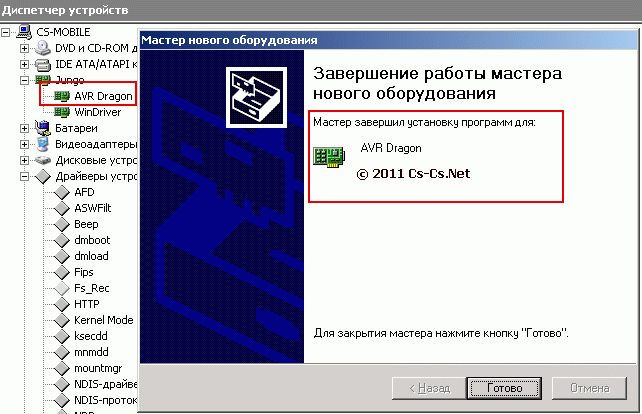
После восстановления раздела — всё в порядке
Вот и всё!
Здравствуйте! Помогите пожалуйста решить проблему.
На днях, после установки обновлений, «слетели» все драйвера звуковых устройств (стали с восклицательными знаками в диспетчере устройств). У меня 3 таких устройства: звуковая карта Realtec, HDMI Nvidia и беспроводная USB-гарнитура.
На звуковую карту и HDMI я драйверы переустановил и эти устройства заработали, но для гарнитуры драйверы от производителя не предусмотрены, она использует стандартные драйверы Windows и при попытке их переустановить через диспетчер устройств возникает
ошибка «Система Windows обнаружила драйверы для этого устройства, но при попытке установки этих драйверов произошла ошибка. Не удаётся найти указанный файл». Та же ошибка возникает и со звуковой картой, если не устанавливать драйверы производителя
(а ведь она должна и без них прекрасно работать), так что видимо что-то со стандартным звуковым драйвером Windows.
Что пробовал: первым делом попытался восстановить систему из точки восстановления, но не вышло — после попытки восстановления выпадает ошибка, что восстановление не удалось, т.к. какие-то файлы не найдены или повреждены (точно не помню,
могу уточнить если необходимо). Не знаю, связана ли эта проблема со звуком, но в общем восстановить не удалось (пробовал несколько точек).
Выполнил sfc/scannow — ошибок не найдено. Попытался выполнить проверку драйверов c помощью Verifier.exe, но при перезапуске с ним ОС не загружается, выпадает синий экран DRIVER_VERIFIER_IOMANAGER_VIOLATION.
Больше ничего в голову не пришло, очень надеюсь на помощь, уж очень не хочется переустанавливать систему.
P.S: Может возможно как-то сделать лог установки драйвера, чтобы узнать с каким именно файлом проблема?
Update: Новые точки восстановления, сделанные после сбоя, работают.
-
Изменено
15 марта 2015 г. 9:58