
Ошибка 0x80073d0d возникает у тех, кто использует Microsoft Store в своей Windows 10 для загрузки игр и приложений. Она может мешать установке практически всех приложений, но часто пользователи ссылаются на Forza 7 Ultimate Edition. К счастью, у проблемы есть вполне понятная причина и простой способ исправления, который работает практически у всех.
Причина ошибки 0x80073d0d
Проблема заключается в том, что у вас есть несколько жестких дисков или SSD. Подключение дополнительных устройств приводит к нарушению реестра в отношении пути установки. Даже несмотря на попытки изменить путь инсталляции, порой это не срабатывает и приходится принудительно все менять через редактор реестра.
Как исправить ошибку с кодом 0x80073d0d?
Самое эффективное решение – зайти в реестр и вручную поработать с адресами. Более простое исправление – через «Параметры» системы изменить путь для установки приложений. Если их подкорректировать, установка и обновление любых приложений должно пройти успешно. Конечно же, все решения подразумевают, что на выбранном диске достаточно места.
Инструкция:
- Нажимаем комбинацию Win + R, вводим в строку regedit и жмем Enter.
- Идем по пути HKEY_LOCAL_MACHINESOFTWAREMicrosoftWindowsCurrentVersionAppxPackageVolumes.
- Проверяем параметры, в которых есть ссылки на несуществующий том памяти (обычно это подключаемый диск). Когда такие найдутся, их можно удалить.
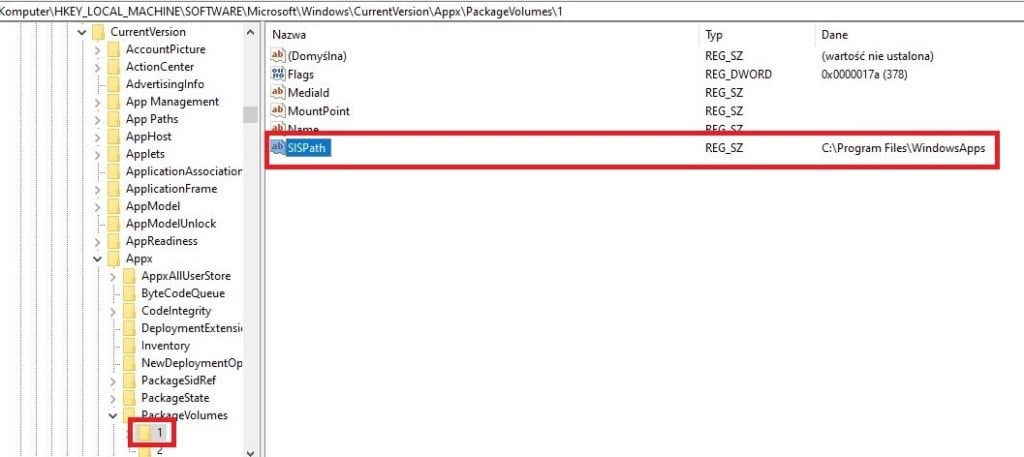
Еще один вариант – изменить папку установки через параметры системы на новый диск. Там должно быть сгенерировано несколько папок, в том числе WindowsApps и ее содержимое. Можно ее скопировать и вставить с заменой на старый диск, а также изменить путь обратно.
Подобные процедуры можно выполнить и с помощью командной строки. Вам потребуется 3 команды, вводите их последовательно, после каждой нажимая Enter:
Get-AppXPackage -AllUsers -Name Microsoft.WindowsStore | Foreach {Add-AppxPackage -DisableDevelopmentMode -Register “$($_.InstallLocation)AppXManifest.xml” -Verbose}
Get-AppXPackage | Foreach {Add-AppxPackage -DisableDevelopmentMode -Register “$($_.InstallLocation)AppXManifest.xml”}
PowerShell -ExecutionPolicy Unrestricted -Command “& {$manifest = (Get-AppxPackage Microsoft.WindowsStore).InstallLocation + ‘AppxManifest.xml’ ; Add-AppxPackage -DisableDevelopmentMode -Register $manifest}”
Надеемся, что эта статья помогла вам исправить ошибку 0x80073d0d в Windows 10 при работе с Microsoft Store вне зависимости от наличия подписки Xbox Game Pass. Однако мы нуждаемся в ваших откликах, чтобы узнать больше об ошибке. Так мы вместе придем к самому эффективному и быстрому решению ошибки.
As a Windows 11 or Windows 10 PC user, you’re bound to occasionally run into Microsoft Store errors like Error Code(s) 0x8D050002, 0x80073d0a, 0x00000190, 0x87E10BD0, 0x80073D12, 0x80004003, and so on. In this post, we provide the most suitable solutions to successfully fix Microsoft Store Error Code 0x80073D0D when you try to download and install a game or app on your device.
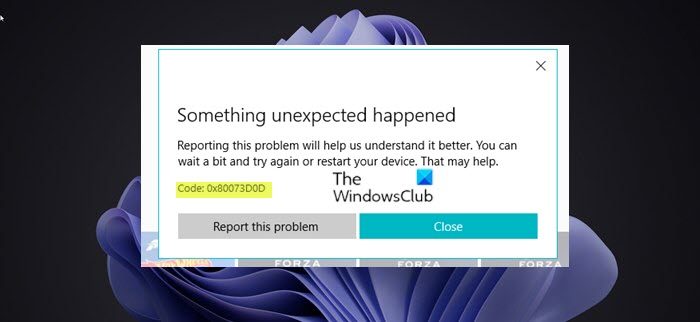
Similar to Error code 0x80073cf4, you may also encounter this error code when you’re trying to move inbuilt system apps from one location to another.
If you have encountered the Microsoft Store Error Code 0x80073D0D when trying to download or install apps on Windows 11/10, you can try our recommended solutions below in no particular order and see if that helps to resolve the issue on your device.
- Run Windows Store Apps Troubleshooter
- Repair or Reset Microsoft Store
- Reinstall Windows Store using PowerShell
- Repair Windows Store and update components.
Let’s take a look at the description of the process involved concerning each of the listed solutions.
Before you proceed with the solutions below, keep in mind that this error could be due to a transient issue at Microsoft end – so, as suggested on the error prompt, you can wait a while and then try again or restart your PC and make sure there are no connectivity issues.
1] Run Windows Store Apps Troubleshooter
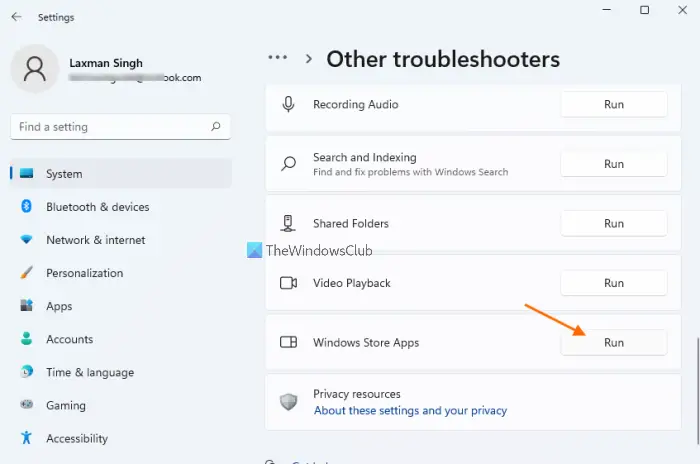
You can begin troubleshooting to fix the Microsoft Store Error Code 0x80073D0D that occurred on your Windows 11/10 PC by running the Windows Store Apps Troubleshooter and see if that helps.
To run Windows Store Apps Troubleshooter on your Windows 11 device, do the following:
- Press Windows key + I to open Settings app.
- Navigate to System > Troubleshoot > Other troubleshooters.
- Under the Other section, find Windows Store Apps.
- Click Run button.
- Follow on-screen instructions and apply any recommended fixes.
To run the Windows Store Apps Troubleshooter on your Windows PC, do the following:
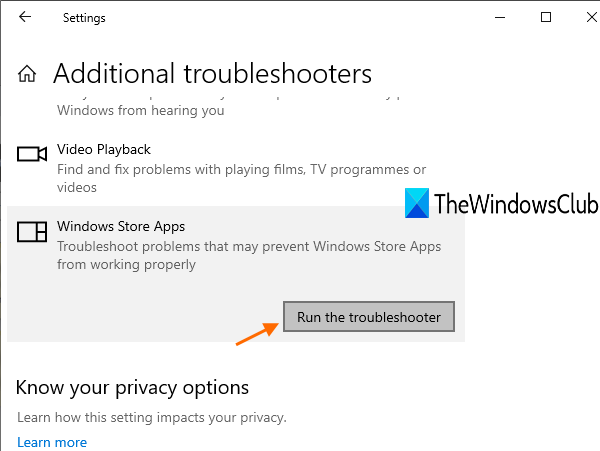
- Press Windows key + I to open Settings app.
- Go to Update and Security.
- Click the Troubleshooter tab.
- Scroll down and click on Windows Store Apps.
- Click the Run the troubleshooter button.
- Follow on-screen instructions and apply any recommended fixes.
2] Repair or Reset Microsoft Store
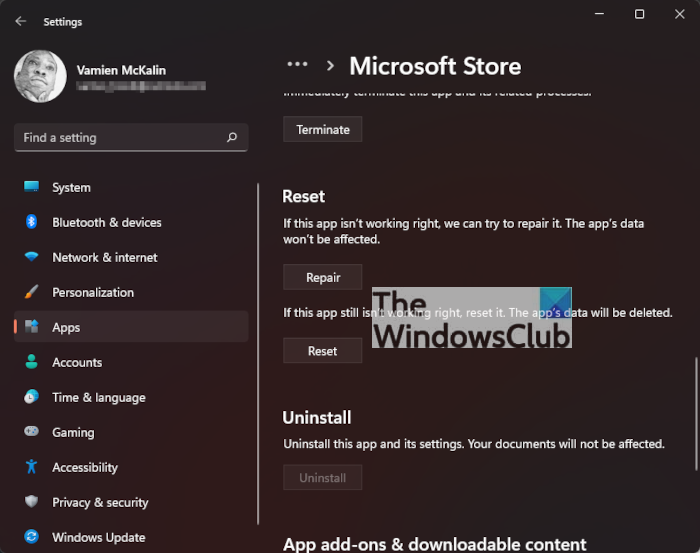
You may Repair or Reset Microsoft Store via Settings.
2] Reinstall Windows Store using PowerShell
To reinstall Windows Store using PowerShell on your Windows 11/10 computer, do the following:
- Press Windows key + X to open Power User Menu.
- Tap A on the keyboard to launch PowerShell (Windows Terminal) in admin/elevated mode.
- In the PowerShell console, type or copy and paste in the command below and hit Enter.
Get-AppxPackage -allusers Microsoft.WindowsStore | Foreach {Add-AppxPackage -DisableDevelopmentMode -Register “$($_.InstallLocation)\AppXManifest.xml”}
After the command executes, restart your computer and on boot, try opening Microsoft Store and see if the error reoccurs when you try to download/install a game/app. If so, try the next solution.
4] Repair Windows Store and update components
To repair Windows Store and update components on your Windows 11/10 device, do the following:
- Launch PowerShell (Windows Terminal) in admin/elevated mode.
- In the PowerShell console, type or copy and paste in the commands below and hit Enter after each line.
net stop bits
net stop wuauserv
net stop appidsvc
net stop cryptsvc
Del "%ALLUSERSPROFILE%Application DataMicrosoftNetworkDownloader*.*"
rmdir %systemroot%SoftwareDistribution /S /Q
rmdir %systemroot%system32catroot2 /S /Q
regsvr32.exe /s atl.dll
regsvr32.exe /s urlmon.dll
regsvr32.exe /s mshtml.dll
netsh winsock reset
netsh winsock reset proxy
net start bits
net start wuauserv
net start appidsvc
net start cryptsvc
- Once done restart PC.
On boot, check if the issue in hand is resolved.
Any of these solutions should work for you!
Why is my Microsoft Store saying error?
There could be a number of reasons why you’re encountering Microsoft Store errors on your Windows 11/10 device. The error code/message normally helps to narrow it down and as well determine the most appropriate solutions which generally includes checking for connection problems and making sure that you’re signed in with a Microsoft account and Windows is updated.
Why can’t I install from Microsoft Store?
If you’re having issues installing games or apps from Microsoft Store on your PC, you can try the following suggestions:
- Try running the Windows Store apps Troubleshooter at Settings > Update & Security > Troubleshoot.
- Try resetting the Store cache.
- Go to Settings > Apps and highlight Microsoft Store, choose Advanced Settings, then Reset. After the app resets, restart the PC.
Is Microsoft App Store safe?
Yes. Apps are safe because they are approved by a team of developers and engineers at Microsoft. If you submit an app, the functioning, code, and other usability aspects will be verified by the team. Moreover, apps are also checked for the presence of harmful viruses.
Why does my Microsoft Store not download?
The most common and root cause of the app download failure you’re experiencing on the Microsoft Store on your Windows 11/10 PC is an outdated or bug-ridden Windows version/build. So make sure you install the latest update on your computer; go to Settings > Update & Security > Windows Update and click Check for Updates.
As a Windows 11 or Windows 10 PC user, you’re bound to occasionally run into Microsoft Store errors like Error Code(s) 0x8D050002, 0x80073d0a, 0x00000190, 0x87E10BD0, 0x80073D12, 0x80004003, and so on. In this post, we provide the most suitable solutions to successfully fix Microsoft Store Error Code 0x80073D0D when you try to download and install a game or app on your device.
Similar to Error code 0x80073cf4, you may also encounter this error code when you’re trying to move inbuilt system apps from one location to another.
If you have encountered the Microsoft Store Error Code 0x80073D0D when trying to download or install apps on Windows 11/10, you can try our recommended solutions below in no particular order and see if that helps to resolve the issue on your device.
- Run Windows Store Apps Troubleshooter
- Repair or Reset Microsoft Store
- Reinstall Windows Store using PowerShell
- Repair Windows Store and update components.
Let’s take a look at the description of the process involved concerning each of the listed solutions.
Before you proceed with the solutions below, keep in mind that this error could be due to a transient issue at Microsoft end – so, as suggested on the error prompt, you can wait a while and then try again or restart your PC and make sure there are no connectivity issues.
1] Run Windows Store Apps Troubleshooter
You can begin troubleshooting to fix the Microsoft Store Error Code 0x80073D0D that occurred on your Windows 11/10 PC by running the Windows Store Apps Troubleshooter and see if that helps.
To run Windows Store Apps Troubleshooter on your Windows 11 device, do the following:
- Press Windows key + I to open Settings app.
- Navigate to System > Troubleshoot > Other troubleshooters.
- Under the Other section, find Windows Store Apps.
- Click Run button.
- Follow on-screen instructions and apply any recommended fixes.
To run the Windows Store Apps Troubleshooter on your Windows PC, do the following:
- Press Windows key + I to open Settings app.
- Go to Update and Security.
- Click the Troubleshooter tab.
- Scroll down and click on Windows Store Apps.
- Click the Run the troubleshooter button.
- Follow on-screen instructions and apply any recommended fixes.
2] Repair or Reset Microsoft Store
You may Repair or Reset Microsoft Store via Settings.
2] Reinstall Windows Store using PowerShell
To reinstall Windows Store using PowerShell on your Windows 11/10 computer, do the following:
- Press Windows key + X to open Power User Menu.
- Tap A on the keyboard to launch PowerShell (Windows Terminal) in admin/elevated mode.
- In the PowerShell console, type or copy and paste in the command below and hit Enter.
Get-AppxPackage -allusers Microsoft.WindowsStore | Foreach {Add-AppxPackage -DisableDevelopmentMode -Register “$($_.InstallLocation)\AppXManifest.xml”}
After the command executes, restart your computer and on boot, try opening Microsoft Store and see if the error reoccurs when you try to download/install a game/app. If so, try the next solution.
4] Repair Windows Store and update components
To repair Windows Store and update components on your Windows 11/10 device, do the following:
- Launch PowerShell (Windows Terminal) in admin/elevated mode.
- In the PowerShell console, type or copy and paste in the commands below and hit Enter after each line.
net stop bits
net stop wuauserv
net stop appidsvc
net stop cryptsvc
Del "%ALLUSERSPROFILE%Application DataMicrosoftNetworkDownloader*.*"
rmdir %systemroot%SoftwareDistribution /S /Q
rmdir %systemroot%system32catroot2 /S /Q
regsvr32.exe /s atl.dll
regsvr32.exe /s urlmon.dll
regsvr32.exe /s mshtml.dll
netsh winsock reset
netsh winsock reset proxy
net start bits
net start wuauserv
net start appidsvc
net start cryptsvc
- Once done restart PC.
On boot, check if the issue in hand is resolved.
Any of these solutions should work for you!
Why is my Microsoft Store saying error?
There could be a number of reasons why you’re encountering Microsoft Store errors on your Windows 11/10 device. The error code/message normally helps to narrow it down and as well determine the most appropriate solutions which generally includes checking for connection problems and making sure that you’re signed in with a Microsoft account and Windows is updated.
Why can’t I install from Microsoft Store?
If you’re having issues installing games or apps from Microsoft Store on your PC, you can try the following suggestions:
- Try running the Windows Store apps Troubleshooter at Settings > Update & Security > Troubleshoot.
- Try resetting the Store cache.
- Go to Settings > Apps and highlight Microsoft Store, choose Advanced Settings, then Reset. After the app resets, restart the PC.
Is Microsoft App Store safe?
Yes. Apps are safe because they are approved by a team of developers and engineers at Microsoft. If you submit an app, the functioning, code, and other usability aspects will be verified by the team. Moreover, apps are also checked for the presence of harmful viruses.
Why does my Microsoft Store not download?
The most common and root cause of the app download failure you’re experiencing on the Microsoft Store on your Windows 11/10 PC is an outdated or bug-ridden Windows version/build. So make sure you install the latest update on your computer; go to Settings > Update & Security > Windows Update and click Check for Updates.
Microsoft Store вызывает проблемы у некоторых пользователей. Чаще всего ошибка с кодом ошибки: 0x80073D0D появляется, когда пользователи открывают Магазин Microsoft или пытаются загрузить какие-либо приложения из Магазина. Чтобы выяснить причину такой ошибки, мы обнаружили, что это может быть связано с такими факторами, как включенный брандмауэр, поврежденные системные файлы или перенос встроенных приложений в другую папку. Причин может быть множество, и вот как исправить ошибку Microsoft Store с кодом 0x80073D0D.
Чтобы устранить ошибку с кодом 0x80073D0D, мы собрали список исправлений из различных надежных источников, которые помогут вам решить эту проблему. Попробуйте исправления и посмотрите, что работает для вас.
Исправить # 1 – Сбросить и/или восстановить Microsoft Store
Как и в случае с любым другим приложением в Windows, существуют варианты их сброса или восстановления. Было бы разумно сначала восстановить Microsoft Store, а если что-то не работает, продолжить и выполнить сброс. Чтобы сделать это в Microsoft Store, выполните следующие действия. Нажмите “Windows + I” клавиши > затем перейдите в “Приложения” > перейдите в “Приложения & особенности” > прокрутите вниз до “Microsoft Store” > нажмите на него > выберите “Дополнительные параметры” > прокрутите вниз до “Сброс” и “Ремонт” варианты >нажмите “Восстановить” или “Сброс” в зависимости от ситуации, чтобы исправить код ошибки 0x80073D0D.
Fix# 2 – Очистить файлы кеша
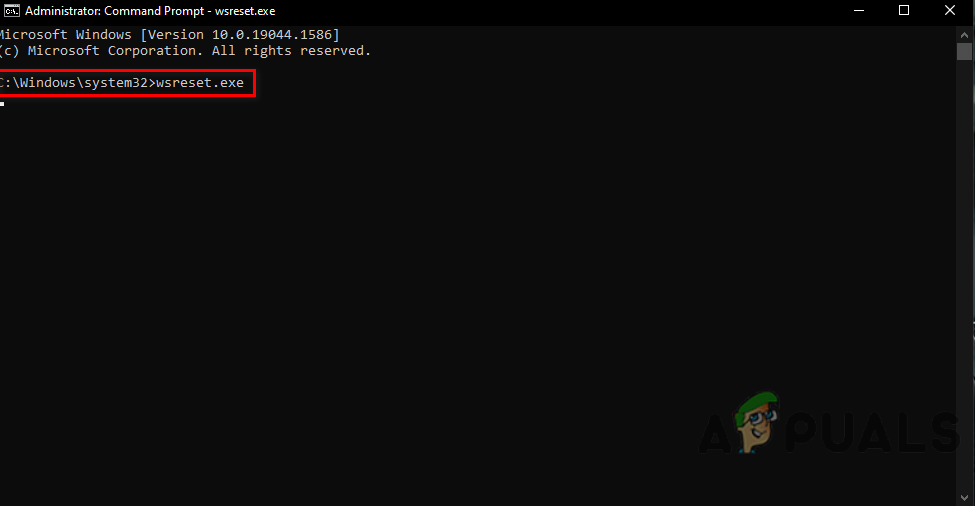
Кэш-файлы довольно легко накапливаются на вашем компьютере. Не беспокойтесь, от них также относительно легко избавиться. Чтобы продолжить, нажмите кнопку “Windows” , в поле поиска введите “Командная строка”, откройте командную строку от имени администратора, одновременно нажав клавиши ctrl + shift + enter, введите команду “wsreset”, наконец, закройте окно командную строку и проверьте, сохраняется ли ошибка.
Исправить# 3 – Отключите Защитник Windows
Как упоминалось ранее, включенный брандмауэр Windows может препятствовать нормальной работе программного обеспечения Microsoft. Чтобы временно отключить брандмауэр Windows, нажмите клавишу Windows, в строке поиска введите “Панель управления” и откройте его, нажмите «Брандмауэр Защитника Windows», затем нажмите «Включить или выключить брандмауэр Защитника Windows», нажмите «Отключить брандмауэр Защитника Windows». И это почти все, чтобы отключить брандмауэр Защитника Windows.
На первый взгляд может показаться сложной задачей избавиться от кода ошибки Магазина Microsoft: 0x80073D0D Магазина Microsoft, но если вы будете внимательно следовать каждому шагу, это довольно простая работа. Если вы сталкиваетесь с ошибками и проблемами, связанными с другими компьютерными играми или с вашим ПК, посетите наш центр часто встречающихся ошибок ПК и способов их устранения.
The 0x80073D0D error is a Microsoft store error that often appears when we try to open Microsoft Store. This error might also occur when we attempt to download apps from Microsoft Store.
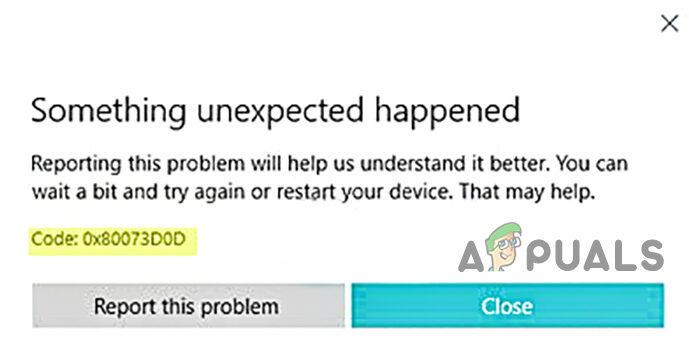
There are several causes for this error to occur most of them are below:-
- Transfer apps to another location- If you try to transfer inbuild apps from one location to another then you might encounter the 0x80073D0D error.
- Corrupted Microsoft store files- If your system files were corrupted or deleted because of the abruptly of the Windows operating system.
- Enabled firewall- Sometimes the error can appear because of the enabled firewall. firewall can break a connection between the Microsoft store and the servers.
Now that we know the causes, let’s jump into some effective troubleshooting methods that helped users fix this 0x80073D0D error.
Before we get into it we suggest you restart your computer because sometimes the error could arrive due to the Windows bugs or your Microsoft files could not load properly to provide you a better user experience.
Clear Microsoft Store Cache Files
The most common reason for corrupted cache files is a power failure and a sudden shutdown of the Windows operating system. Cache files are the temporary files that save in Windows operating system, clearing the Microsoft cache will fix the error.
Here is how you can delete Microsoft Store cache files:-
- Press the Windows key and type the Command Prompt in the search box.
- Open command prompt as administrator by pressing the ctrl + shift + enter keys together.
- Insert the following command to clear the Microsoft cache.
wsreset

Run command wsreset Run command wsreset - Close the command prompt and check if the error persists.
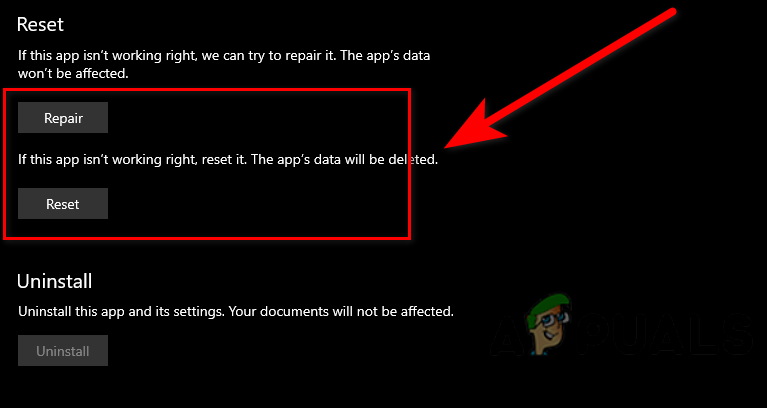
Reset/Repair Microsoft Store
Microsoft products come with a repair option and reset option, We can use these options to repair and reset the Microsoft apps. We recommend you to use the repair option first, if the error will not resolve then use the reset option.
To reset/repair Microsoft Store follow the steps below:-
- Open settings by pressing the Windows + I keys.
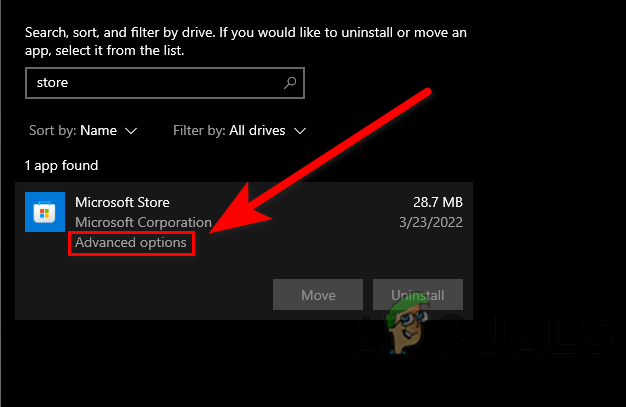
- Click on Apps>Apps & features.
- Find the Microsoft Store in the installed applications.
- Click on the Microsoft Store then select Advance options for further settings.

Click advance option Select advance option - At the bottom, you will see reset and repair buttons.

Select repair and reset option from the advance option - Click on the repair option first, if the error is not resolved then click on the reset option.
Run Windows Apps Troubleshooter
Windows includes the Windows app troubleshooter program that automatically scans and fixes the issues regarding Microsoft apps. Most of the problems like corrupted files or missing files can be resolved by using a Windows app troubleshooter.
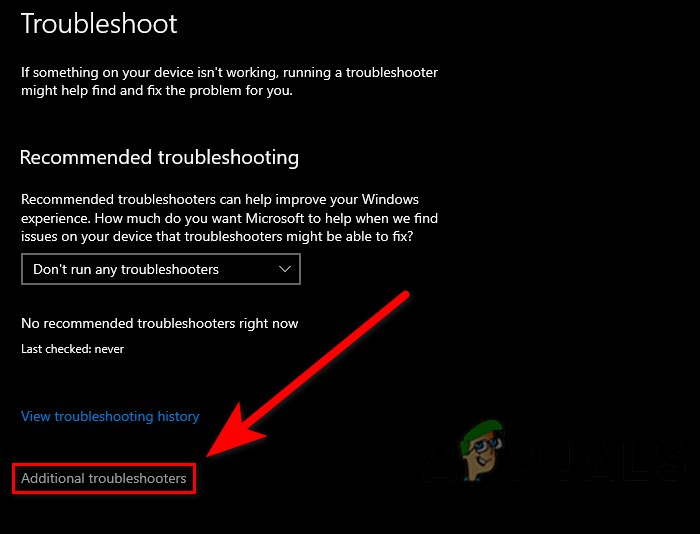
Here is how you can use the Windows Apps Troubleshooter:-
- Open settings by pressing the Windows + I keys.
- Click on Update & security.
- You will find the Troubleshoot option on the left pane, click on it.
- Click on Additional troubleshooters for advanced troubleshooting options.

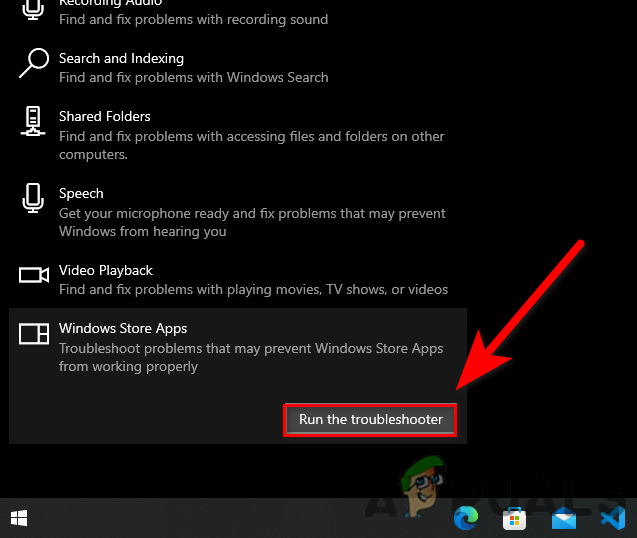
Additional troubleshooters Additional troubleshooters - You can find the Windows Store Apps option under the Find and fix other problems, click on it.
- Then, click on Run the troubleshooter.

Click on Run the Windows app troubleshooter - It should start the troubleshooting process once done check if the error persists.
Reinstall Microsoft Store
You can simply reinstall the Microsoft store by inserting some commands in the PowerShell, you cant uninstall the Microsoft Store by the normal method like with the control panel or the settings, for that, you have to put the below commands to uninstall the Microsoft Store.
Here is how you can reinstall Microsoft Store:-
- Click on the start menu and type the Windows PowerShell in the search box.
- Open Windows PowerShell as administrator by pressing the ctrl + shift + enter keys together.
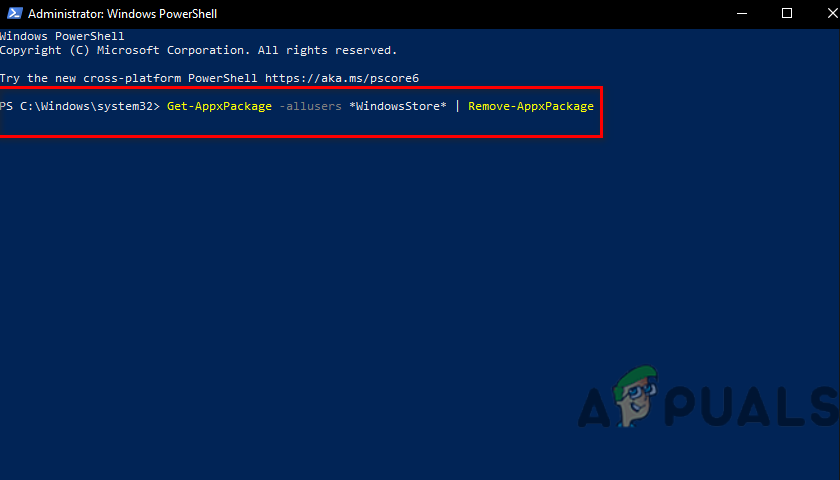
- Insert the below command to uninstall Microsoft Store,
Get-AppxPackage -allusers *WindowsStore* | Remove-AppxPackage

Input the command uninstall the Microsoft Store Input the command uninstall the Microsoft Store - Restart your computer.
- open PowerShell again and insert the below command to reinstall Microsft Store
Get-AppxPackage -allusers *WindowsStore* | Foreach {Add-AppxPackage -DisableDevelopmentMode -Register “$($_.InstallLocation)AppXManifest.xml”}
Perform System Restore
If the error is still occurring then you can simply perform the system restore. System restore can help you to get rid of corrupted files, and it will also fix the other problems and make your computer in a healthy state.
Follow the steps to perform a system restore:-
- First, you have to create a restore point.
- Press the Windows key and search create a restore point in the search box, and open the restore setting.
- If the protection is disabled then you have to enable it to proceed with the further settings.
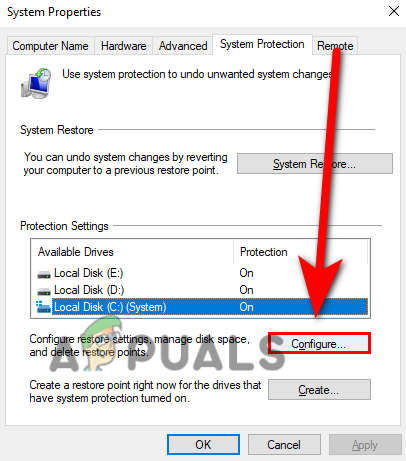
- Select the local disk then click on the configure button.

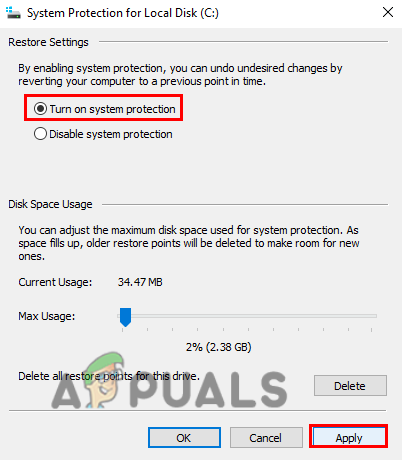
Click on configure button to enable the protection - Check the turn on system protection and click on the Apply button to apply the settings and press OK.

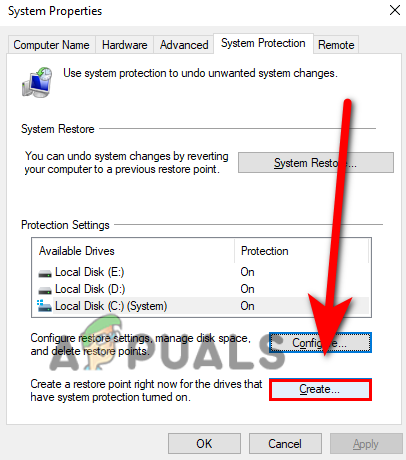
Click on the Turn on system protection - Create a restore point by clicking on the Create button then type the name of the restore point in the upcoming Window then click on create.

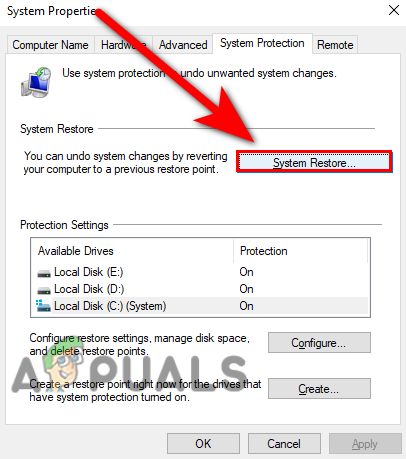
Create a restore point by clicking on the create - After creating a restore point, click on the System Restore button.

Click on system restore button - A Windows should popup just press Next.
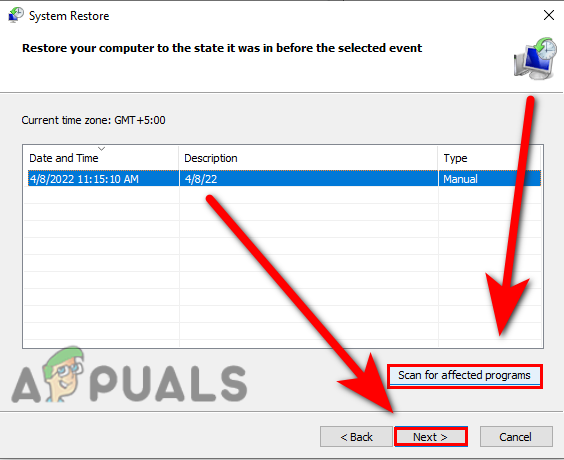
- In the next Window, select the restore point then scan all programs by clicking on the scan for a affected programs, and press Next.

Select the restore point and click on the scan for affected programs then press next - Click on the Finish button to start the restore process.
Disable Windows Defender
The Windows Firewall can prevent the connection between the Microsoft Store and the servers, for that reason, you can temporarily disable the Windows defender firewall, if you have any third-party antivirus software then disable it.
Follow the steps to disable the Windows defender.
- Press the Windows key and search Control Panel.
- Open the Control panel and click on the dropdown menu of View By on the top-right, select the Large icons option.
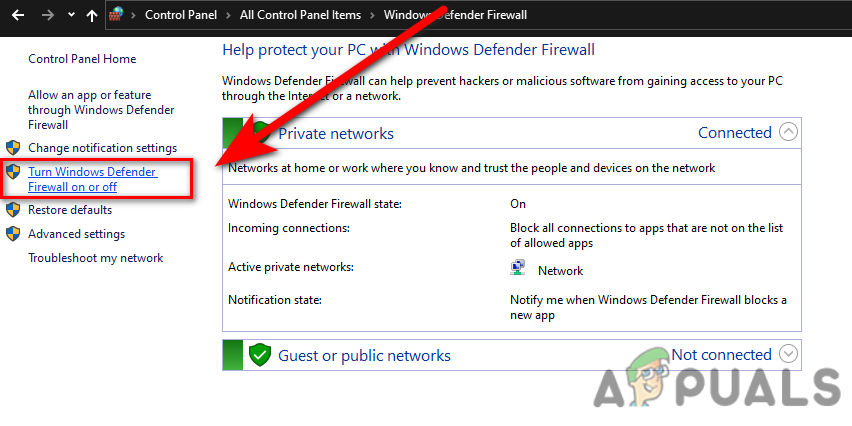
- Click on the Windows Defender Firewall then click Turn Windows Defender Firewall on or off.

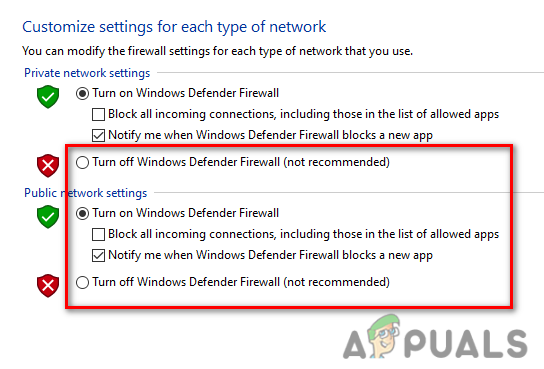
Click on Turn Windows defender firewall on or off - In the next Window, turn off the Windows Firewall by clicking on the Turn off Windows Defender Firewall.

Turn off Windows Defender Firewall
Run System File Checker
The System File Checker is developed by Microsoft for Windows Operating System. It is a utility that allows the user to scan all your system files, and replace the corrupted files with cached copy files.
Follow the steps to run the system file checker:-
- Press the Windows key and type the Command Prompt in the search box.
- Open command prompt as administrator by pressing the ctrl + shift + enter keys on the keyboard.
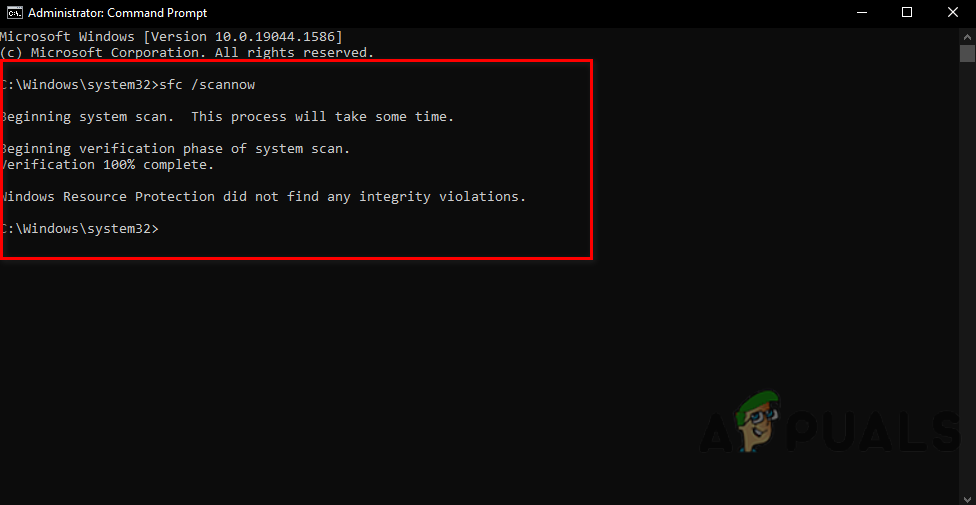
- Insert the below command to run the system file checker.
sfc/scannow

Run sfc/scannow in command prompt - Once done, reboot your computer and check if the error is resolved.
Hopefully, you have successfully solved the 0x80073D0D error, if you have any doubts about this issue we would like to hear in the comments.

Muhammad Zubyan
Zubyan is a certified Google IT Support Professional with extensive experience spanning over 7 long years. Having worked on 1500+ computers, he gained many valuable insights and is currently able to detect and troubleshoot any Windows related issue/error no matter how complicated its root cause is. When he is not managing Appuals as a Senior Editor, he is working on his own Game Optimization program to facilitate both gamers and casual users alike.