
Roblox Corporation has gone ahead and curated an IP that’s just meant to be fun. Widespread availability on various platforms and a whole ton of different ways to play perfectly sum up this company’s front-running IP. However, when issues such as the Roblox an unknown error occurred login surface, things don’t remain so fun.
Being a live service game that constantly has to stay online, don’t expect things to always go swimmingly with Roblox. A few hiccups here and there can often lead the title to mess up at times, but the good news is that these pertinent problems can almost always be resolved with certain workarounds.
Key Highlights
- Roblox players are quite familiar with the “Roblox an unknown error occurred” which is usually caused by window/firewall restriction, third-party antivirus software, or the Roblox servers being down.
- First of all make sure that the Roblox servers are not facing any downtime. In case they are, wait for servers to come back online.
- Resetting your Roblox password is another great method for fixing this issue which can be done on any console or platform of your choice.
- A simple and effective way to deal with this error is to use a different Internet Browser to log into Roblox.
- Make sure to add Roblox to the list of apps that firewall allows in case the firewall is treating Roblox as a threat to the system.
- Turn off any sort of antivirus or third party apps that may hinder the running of roblox.
- If nothing works out, try contacting the Roblox Support team regarding your ongoing issue.
In this guide, we’ll learn the nature of the issue and what different methods have worked across the spectrum for players running into the same login error. Be sure to read until the end to leave here knowledgeably well-equipped.
What Is The Roblox “An Unknown Error Occurred” Problem?
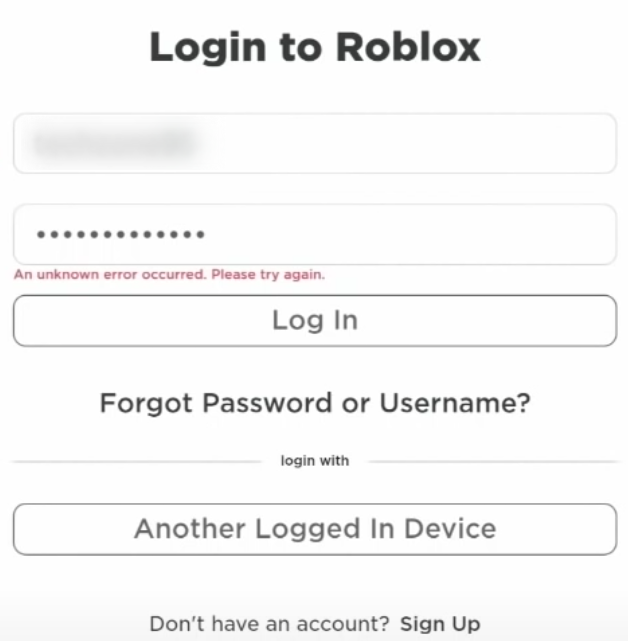
Although the issue can pop up on any platform regardless, the screenshot that you visualize above has been taken from a mobile phone. The solutions in the next section will cover Roblox for PC as well so do rest assured. Just in case you didn’t know, Roblox is available on all the latest consoles, PC, macOS, Android, and iOS.
As for the nature of what we have here, the “an unknown error occurred please try again Roblox login” issue is nothing but an irksome bother that surfaces due to no solid reason. You’ll just try logging in at any given time only to discover that the game isn’t budging from the log-in point.
This is, of course, not the least desirable, so you’ll have to take matters into your own two hands to get down to the bottom of the matter. Several players seem to report that they were playing just fine a couple of hours before the problem popped up.
One user even said that they were trying to get the in-game chat to work when it instantly stopped working. Upon logging out, they couldn’t sign back in, thereby leading to the error in question. Now that you’ve been briefed about the scenario, let us waste no further time in digging out the source of the issue and fixing it accordingly.
How To Fix An Unknown Error Occurred Roblox Login Issue
The following is our cherry-picked collection of the best-known fixes that work for the problem at hand. Make sure not to skip any potential solution since you never know what particular solution will work on your end. With that said, do restart your system a couple of times before getting started.
Check Whether Roblox Is Down
Roblox has a dedicated status page on its website that allows players to check out the current status of the game’s online servers. This makes it effortless to be wary of existing issues beforehand so that you can avoid potential hiccups right from the get-go.
Check out Roblox Status and evaluate whether all systems are operational or not. An unknown error occurred please try again Roblox login problem can also be surfacing due to this very reason.
Reset Your Roblox Password – Definitive Fix
One of the best ways you can get to grips with the “an unknown error occurred please try again login on Roblox” issue is by simply resetting the password that you use to log into the platform. This potential fix can be carried out on any platform—PC or mobile—so choose the one that’s best suited to your convenience.
Illustrating the whole procedure are the following steps that will show you how to reset your Roblox password without breaking a sweat.
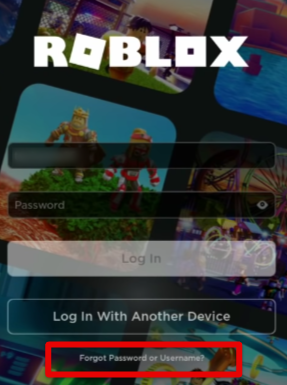
- The first step is to go to the log-in screen where you’re repeatedly being met with the issue in question. Click on the “Forgot Username or Password” option to get started from here on out.

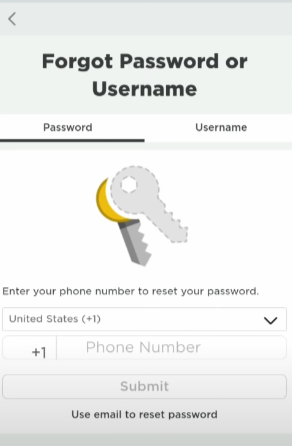
Clicking on the “Forgot Password or Username” Option - After clicking on the aforementioned option, you’ll be taken straight to the password resetting interface of the platform. Here, choose the “Password” option which should be set by default, and proceed toward confirming how you’d like to receive the reset email. You can either opt for an email option or phone number.

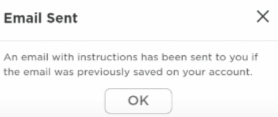
Entering the Right Credentials to Reset Password - As soon as you enter the credentials required by Roblox, an email will be sent to the provided email address. You’ll even receive a confirmation prompt, looking similar to the one in the screenshot below.

Password Reset Email Sent - After you’ve checked your email and clicked on the provided link, you’ll be taken to the following screen. Simply decide what you’re going to set your new password to and click on the “Submit” button to finalize the process.

Setting a New Password for Roblox
That’s a wrap! Now that you’ve successfully set a new Roblox password, go back to the main log-in screen of the platform. Type in your username and newly-created password to finally restore playability and resolve the “an unknown error occurred. Please try again. Roblox login” issue.
However, in case you still haven’t been able to work out a solution, keep on reading to discover what to do next. There are plenty of solutions still left to go, so don’t fret just yet.
Use A Different Internet Browser To Log Into Roblox
Pretty simple and effective. In case you’ve been using Google Chrome to get into Roblox incessantly, it’s high time to try out a different internet browser to confirm whether you can log onto the platform. Mozilla Firefox, Opera, or Brave Browser—choose whatever from the swath of different options.
You may as well use Microsoft Edge on your Windows PC if you have it installed. The same goes for any other browsers that already exist on your end, thereby negating the need to install any extra browser. When you’re ready with the secondary web crawler, head over to the official log-in page of Roblox and enter your credentials.
Click on the “Log in” button or press the “Enter” key to attempt connecting to the platform’s online servers. You should be able to get going with the game, now that you’re using another browser to play Roblox potentially. Still, in the case that none of the solutions have worked up until now, keep on reading to try more fixes.
Add Roblox To The List Of Allowed Firewall Apps
Next up, it’s essential to make sure that Roblox isn’t being dismissed from Windows Firewall. That way, you’ll be able to avoid a truckload of issues on your end right from the get-go, not to mention the Roblox an unknown error occurred login issue just as well.
In the case that you’re foggy on how to test whether it is Windows Firewall that isn’t letting the world’s best game launcher breathe in peace, follow the steps given ahead. However, do note that this potential solution only works for the executable Roblox app installed on your PC.
If you’re playing the game through the Chrome browser, please skip to the next section. For now, though, let’s get into the process of allowing an app through the Windows Firewall program.
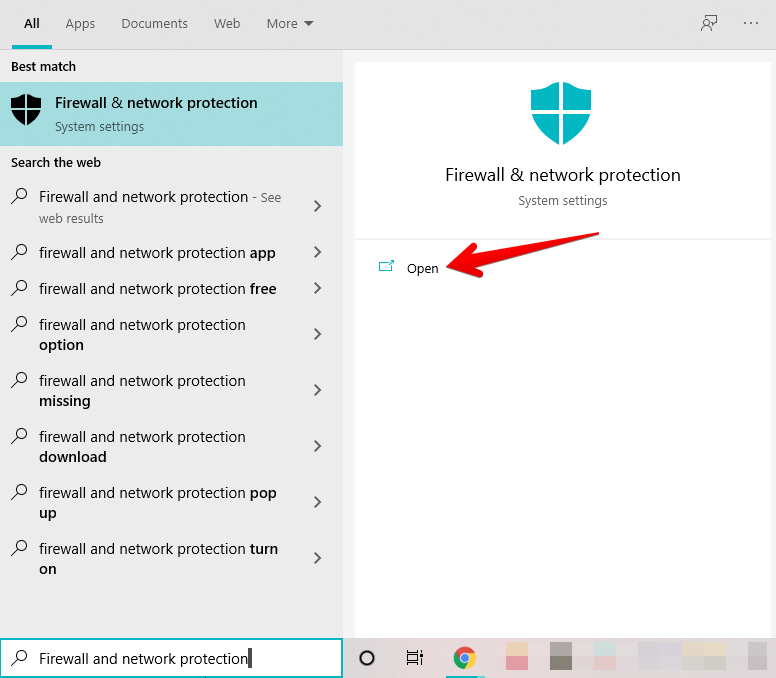
- Your first task is to open the “Firewall and network protection” section of Windows Security on your PC. You can do that by simply searching for it using the Windows Start menu.

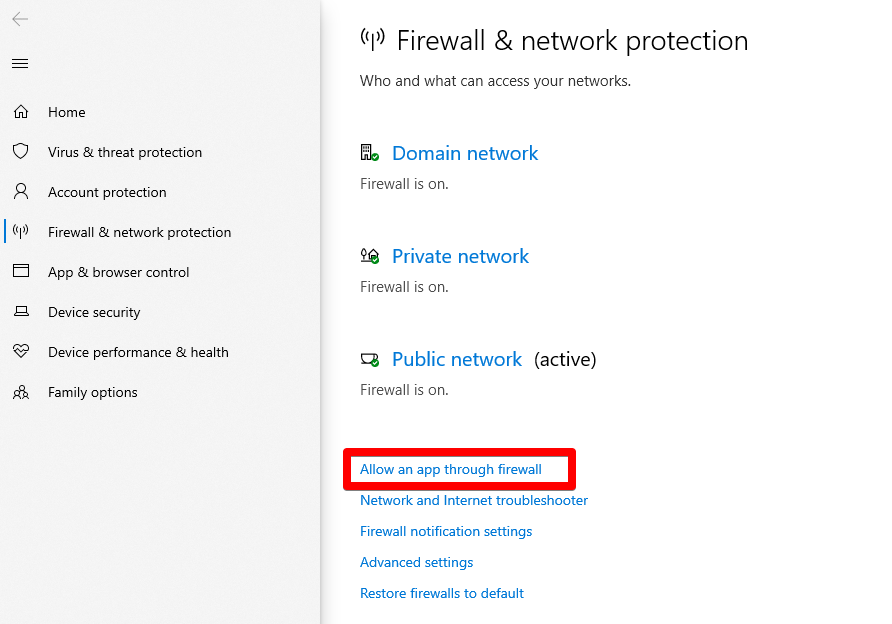
Opening “Firewall and network protection” - Once done, a new window will launch and it’ll be a part of the Windows Security department, as mentioned earlier. You now have to click on “Allow an app through firewall” to get to the next step.

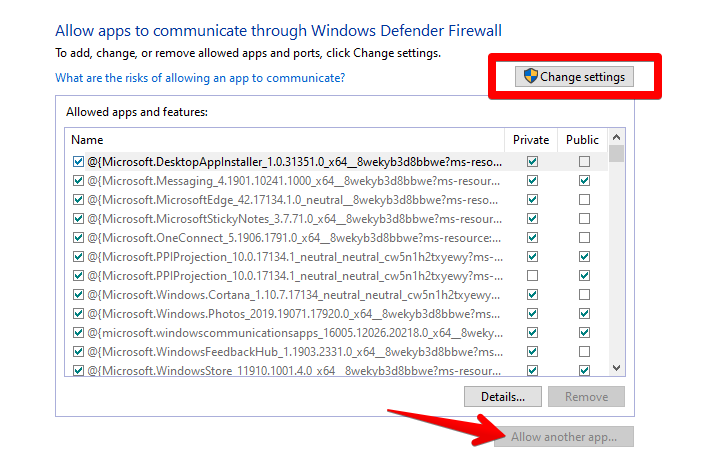
Clicking on “Allow an app through firewall” - You now have to make a couple of clicks in the following window that opens after completing the last step. Click on “Change settings” first to make the “Allow another app” option accessible. Once done, click on the latter and see yourself opening another window.

Setting Up the App to be Allowed Through Firewall - A small-scale window will open up just after you complete the next step. This is where you’ll have to click on “Browse” and search your computer for the main Roblox executable file application. From what we can gather, you only have to add a single distinct process of the game to the designated area in this step.
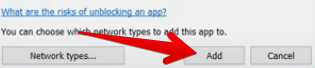
- As soon as you have found the Roblox app that needs to be allowed through Firewall, select and add it to the list of inclusive apps. This will take you back to the previous small-scale window where the game file will be listed with a specific name under the “Apps” section. Click on “Add” to allow the game app through Windows Firewall. You’ve made most of the progress completing this step.

Adding Roblox to Windows Firewall - You now just have to go through one more simple step now to finalize the process. Check the box for “Public” and “Private” connections for Windows Firewall on the “Allowed apps” window. You have to do this for the Roblox executable file. Lastly, don’t forget to click on “OK” as soon as you’re done.
We’re done here. Now that you’ve finally allowed the game app through Windows Firewall, launch it on your end to see whether it brings favorable results. In the case that you still can’t get the better of the error, try out the next fix we’ve curated for you ahead.
Disable Any Installed Antivirus For Roblox
Turning off the antivirus software, both Windows Defender and any third-party program that you might have installed on your PC is another possible solution to the “an unknown error occurred please try again Roblox login” issue.
A whole swath of users reporting on forums and pages online claims that programs like Avast Antivirus and even Norton Security somehow cause the error code at hand to pop up. Upon disabling the software entirely, the game lets you log in again like a walk in the park.
Therefore, we highly encourage uninstalling any third-party antivirus that you might have installed on your Windows PC. Don’t care for security threats since we’ll only be doing this for a brief while in order to confirm the antivirus program’s link to the issue in question.
Search for “Remove apps and programs” in the Windows Search bar and you’ll get taken straight to the area from where you can uninstall your Windows software. Select the antivirus that you have installed on the system and remove it from the device.
Once done, restart your PC to shut down the Roblox app or the Chrome browser in the case that it’s running still, and refresh the computer. Launch the platform as soon as the PC boots back up to see if the bug exists. Keep up the hustle in case you’re still not able to resolve the matter.
Get In Touch With The Developers
Roblox support is celebrated for its friendly behavior and unflinching professionalism. The representative heads do not take long to get back to your queries, no matter the issue it is that you’re facing.
There’s even a specialized Contact Us page that will walk you through whatever you need to enter for the developers to get back to you. Fill out the scenario in detail and also jot down everything you’ve tried to fix the game so far.
As soon as you’re done, wait for the good folks over at Roblox HQ to get back to you. It won’t take them more than a couple of business days to cater to the issue you’re facing. Let us know how it goes in the comments section if you ever get a reply from them.
It’s certainly exhilarating to test what the online-centric platform can do for you, but things do tend to go south every once in a while without prior notice, similar to what you’ve faced with the Roblox an unknown error occurred login issue. The problem has prevented a hefty ton of players from getting into the title online.
Typically, there are certain reasons the problem occurs, and one of them pertains to official server downtime. In that case, there’s not much you can do except contact the developers of Roblox. Other than that, we’ve outlined all the different strategies you can apply to resolve the matter on your own as quickly as possible.
Do let us know down in the comments section what went down. As always, eXputer wishes you good luck!
- Before You Go: Roblox Error Code 529.
Was this article helpful?
Thanks! Do share your feedback with us. ⚡
How could we improve this post? Please Help us. ✍
Содержание
- Roblox An Unknown Error Occurred Login [FIXED]
- Get back into Roblox painlessly with these tip-top solutions
- What Is The Roblox “An Unknown Error Occurred” Problem?
- How To Fix An Unknown Error Occurred Roblox Login Issue
- Check Whether Roblox Is Down
- Reset Your Roblox Password – Definitive Fix
- Use A Different Internet Browser To Log Into Roblox
- Add Roblox To The List Of Allowed Firewall Apps
- Disable Any Installed Antivirus For Roblox
- Get In Touch With The Developers
- Ошибка — An error occurred while starting roblox
- Как исправить ситуацию?
Roblox An Unknown Error Occurred Login [FIXED]
Get back into Roblox painlessly with these tip-top solutions
Roblox Corporation has gone ahead and curated an IP that’s just meant to be fun. Widespread availability on various platforms and a whole ton of different ways to play perfectly sum up this company’s front-running IP. However, when issues such as the Roblox an unknown error occurred login surface, things don’t remain so fun.
Being a live service game that constantly has to stay online, don’t expect things to always go swimmingly with Roblox. A few hiccups here and there can often lead the title to mess up at times, but the good news is that these pertinent problems can almost always be resolved with certain workarounds.
In this guide, we’ll learn the nature of the issue and what different methods have worked across the spectrum for players running into the same login error. Be sure to read until the end to leave here knowledgeably well-equipped.
What Is The Roblox “An Unknown Error Occurred” Problem?
Although the issue can pop up on any platform regardless, the screenshot that you visualize above has been taken from a mobile phone. The solutions in the next section will cover Roblox for PC as well so do rest assured. Just in case you didn’t know, Roblox is available on all the latest consoles, PC, macOS, Android, and iOS.
As for the nature of what we have here, the “an unknown error occurred please try again Roblox login” issue is nothing but an irksome bother that surfaces due to no solid reason. You’ll just try logging in at any given time only to discover that the game isn’t budging from the log-in point.
This is, of course, not the least desirable, so you’ll have to take matters into your own two hands to get down to the bottom of the matter. Several players seem to report that they were playing just fine a couple of hours before the problem popped up.
One user even said that they were trying to get the in-game chat to work when it instantly stopped working. Upon logging out, they couldn’t sign back in, thereby leading to the error in question. Now that you’ve been briefed about the scenario, let us waste no further time in digging out the source of the issue and fixing it accordingly.
How To Fix An Unknown Error Occurred Roblox Login Issue
The following is our cherry-picked collection of the best-known fixes that work for the problem at hand. Make sure not to skip any potential solution since you never know what particular solution will work on your end. With that said, do restart your system a couple of times before getting started.
Check Whether Roblox Is Down
Roblox has a dedicated status page on its website that allows players to check out the current status of the game’s online servers. This makes it effortless to be wary of existing issues beforehand so that you can avoid potential hiccups right from the get-go.
Check out Roblox Status and evaluate whether all systems are operational or not. An unknown error occurred please try again Roblox login problem can also be surfacing due to this very reason.
Reset Your Roblox Password – Definitive Fix
One of the best ways you can get to grips with the “an unknown error occurred please try again login on Roblox” issue is by simply resetting the password that you use to log into the platform. This potential fix can be carried out on any platform—PC or mobile—so choose the one that’s best suited to your convenience.
Illustrating the whole procedure are the following steps that will show you how to reset your Roblox password without breaking a sweat.
- The first step is to go to the log-in screen where you’re repeatedly being met with the issue in question. Click on the “Forgot Username or Password” option to get started from here on out.
 Clicking on the “Forgot Password or Username” Option
 - After clicking on the aforementioned option, you’ll be taken straight to the password resetting interface of the platform. Here, choose the “Password” option which should be set by default, and proceed toward confirming how you’d like to receive the reset email. You can either opt for an email option or phone number. Entering the Right Credentials to Reset Password
 Password Reset Email Sent
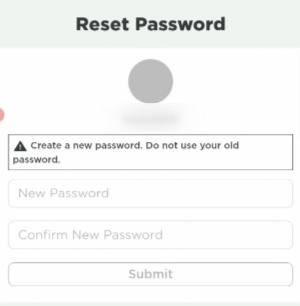 Setting a New Password for Roblox
That’s a wrap! Now that you’ve successfully set a new Roblox password, go back to the main log-in screen of the platform. Type in your username and newly-created password to finally restore playability and resolve the “an unknown error occurred. Please try again. Roblox login” issue.
However, in case you still haven’t been able to work out a solution, keep on reading to discover what to do next. There are plenty of solutions still left to go, so don’t fret just yet.
Use A Different Internet Browser To Log Into Roblox
Pretty simple and effective. In case you’ve been using Google Chrome to get into Roblox incessantly, it’s high time to try out a different internet browser to confirm whether you can log onto the platform. Mozilla Firefox, Opera, or Brave Browser—choose whatever from the swath of different options.
You may as well use Microsoft Edge on your Windows PC if you have it installed. The same goes for any other browsers that already exist on your end, thereby negating the need to install any extra browser. When you’re ready with the secondary web crawler, head over to the official log-in page of Roblox and enter your credentials.
Click on the “Log in” button or press the “Enter” key to attempt connecting to the platform’s online servers. You should be able to get going with the game, now that you’re using another browser to play Roblox potentially. Still, in the case that none of the solutions have worked up until now, keep on reading to try more fixes.
Add Roblox To The List Of Allowed Firewall Apps
Next up, it’s essential to make sure that Roblox isn’t being dismissed from Windows Firewall. That way, you’ll be able to avoid a truckload of issues on your end right from the get-go, not to mention the Roblox an unknown error occurred login issue just as well.
In the case that you’re foggy on how to test whether it is Windows Firewall that isn’t letting the world’s best game launcher breathe in peace, follow the steps given ahead. However, do note that this potential solution only works for the executable Roblox app installed on your PC.
If you’re playing the game through the Chrome browser, please skip to the next section. For now, though, let’s get into the process of allowing an app through the Windows Firewall program.
- Your first task is to open the “Firewall and network protection” section of Windows Security on your PC. You can do that by simply searching for it using the Windows Start menu. Opening “Firewall and network protection”
- Once done, a new window will launch and it’ll be a part of the Windows Security department, as mentioned earlier. You now have to click on “Allow an app through firewall” to get to the next step. Clicking on “Allow an app through firewall”
- You now have to make a couple of clicks in the following window that opens after completing the last step. Click on “Change settings” first to make the “Allow another app” option accessible. Once done, click on the latter and see yourself opening another window. Setting Up the App to be Allowed Through Firewall
- A small-scale window will open up just after you complete the next step. This is where you’ll have to click on “Browse” and search your computer for the main Roblox executable file application. From what we can gather, you only have to add a single distinct process of the game to the designated area in this step.
- As soon as you have found the Roblox app that needs to be allowed through Firewall, select and add it to the list of inclusive apps. This will take you back to the previous small-scale window where the game file will be listed with a specific name under the “Apps” section. Click on “Add” to allow the game app through Windows Firewall. You’ve made most of the progress completing this step. Adding Roblox to Windows Firewall
- You now just have to go through one more simple step now to finalize the process. Check the box for “Public” and “Private” connections for Windows Firewall on the “Allowed apps” window. You have to do this for the Roblox executable file. Lastly, don’t forget to click on “OK” as soon as you’re done.
We’re done here. Now that you’ve finally allowed the game app through Windows Firewall, launch it on your end to see whether it brings favorable results. In the case that you still can’t get the better of the error, try out the next fix we’ve curated for you ahead.
Disable Any Installed Antivirus For Roblox
Turning off the antivirus software, both Windows Defender and any third-party program that you might have installed on your PC is another possible solution to the “an unknown error occurred please try again Roblox login” issue.
A whole swath of users reporting on forums and pages online claims that programs like Avast Antivirus and even Norton Security somehow cause the error code at hand to pop up. Upon disabling the software entirely, the game lets you log in again like a walk in the park.
Therefore, we highly encourage uninstalling any third-party antivirus that you might have installed on your Windows PC. Don’t care for security threats since we’ll only be doing this for a brief while in order to confirm the antivirus program’s link to the issue in question.
Search for “Remove apps and programs” in the Windows Search bar and you’ll get taken straight to the area from where you can uninstall your Windows software. Select the antivirus that you have installed on the system and remove it from the device.
Once done, restart your PC to shut down the Roblox app or the Chrome browser in the case that it’s running still, and refresh the computer. Launch the platform as soon as the PC boots back up to see if the bug exists. Keep up the hustle in case you’re still not able to resolve the matter.
Get In Touch With The Developers
Roblox support is celebrated for its friendly behavior and unflinching professionalism. The representative heads do not take long to get back to your queries, no matter the issue it is that you’re facing.
There’s even a specialized Contact Us page that will walk you through whatever you need to enter for the developers to get back to you. Fill out the scenario in detail and also jot down everything you’ve tried to fix the game so far.
As soon as you’re done, wait for the good folks over at Roblox HQ to get back to you. It won’t take them more than a couple of business days to cater to the issue you’re facing. Let us know how it goes in the comments section if you ever get a reply from them.
It’s certainly exhilarating to test what the online-centric platform can do for you, but things do tend to go south every once in a while without prior notice, similar to what you’ve faced with the Roblox an unknown error occurred login issue. The problem has prevented a hefty ton of players from getting into the title online.
Typically, there are certain reasons the problem occurs, and one of them pertains to official server downtime. In that case, there’s not much you can do except contact the developers of Roblox. Other than that, we’ve outlined all the different strategies you can apply to resolve the matter on your own as quickly as possible.
Do let us know down in the comments section what went down. As always, eXputer wishes you good luck!
Источник
Ошибка — An error occurred while starting roblox
Иногда приложения и игры могут давать сбой. Одной из распространенных ошибок в Роблоксе стало «an error occurred while starting roblox». Возникает тогда, когда пользователь запустил игру, но произошла системная ошибка. Решить её можно при помощи нескольких методов.
Как исправить ситуацию?
Первый способ, который помог множеству игроков – удалить и переустановить игру. Чтобы избавиться от всех программных компонентов, пользователь должен зайти в «Удаление или изменение программ» и отыскать среди списка Роблокс. После этого пройтись по всем папкам, где может находиться игра. Полное удаление гарантирует, что переустановить снова можно верно и без различных проблем.
Второй способ: отключение антивируса. Как и в первом, переустановить игру придется. Иногда программы по защите компьютера от различных вредоносных файлов, могут отреагировать на самые безобидные объекты. Если Роблокс был установлен, то его можно занести в безопасные приложения и открыть при помощи прав Администратора. В некоторых случаях проблема заключается в обновлении игры.
Третий метод: отключить прокси-сервер. Такая проблема встречается не у всех, но может повлиять на возможность запуска. Решается на примере Windows : зайти в настройки сети в нижней панели и перейти в «Центр управления сетями и общим доступом». В открывшемся окне найти пункт «Свойства браузера» и перейти на вкладку «Подключение». В разделе «Настройка сети», снять галочку с пункта «Использовать прокси-сервер». Если же отметка не была установлена, то нажать два раза и перезапустить устройство.
Источник
«Please Confirm Your Identity. An Unknown Error Occurred Please Try Again.» Roblox players encounter when they want to log in. encountering the error, his access to the game is restricted.
Roblox players are restricted from accessing the game by encountering the «Please Confirm Your Identity. An Unknown Error Occurred Please Try Again.» issue after opening the game. If you are facing suchaproblem, you can findasolution by following the suggestions below.
What is Roblox Please Confirm Your Identity Error?
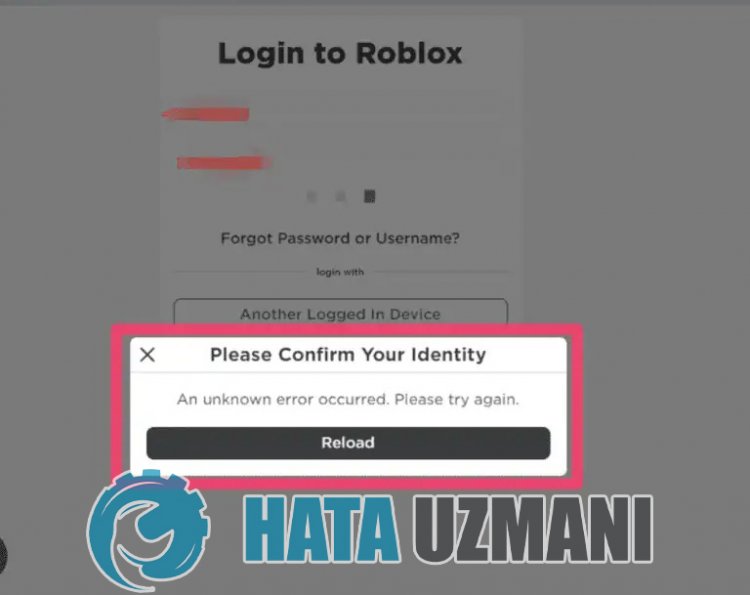
This error occurs due to many problems, restricting our access to the game. We canlist the possible causes of the Roblox Error Code 533 issue as follows:
- The server may be under maintenance.
- Privacy setting may be restricted.
- There may beanetwork problem.
- Microsoft Store and Xbox can be problematic.
- Cache and cookies can be problematic.
- Antivirus may be blocking the game.
We’velisted the possible causeslisted above. Now we will try to solve the problem by giving you information on how to fix this problem.
How To Fix Roblox Please Confirm Your Identity Error
1-) Check Servers
Roblox developers are updating the game every day, carrying out new add-ons and tests. These tests and plugins may of course cause some menus or plugins to be disabled. One of them is the avatar plugin. The problem that occurs in the newly added update may cause problems by blocking the Avatar plugin. For this, we can be aware of such errors from the Roblox Status page prepared by Roblox developers. For this, you can be aware of some errors of the game by accessing thelink below.
Click to Visit Roblox Status Page
2-) Disable Browser Security Setting
Having browser security enabled will cause you to allow access for manylinks. Therefore, the browser may block any site in the background for security reasons. To fix this error, we can check if the problem persists by turning off browser security.
- Openabrowser and access the settings menu.
- Let’s open the «Privacy and security» menu in the menu.
- Let’s go to the «Security» menu in the menu and check the «No protection» option.
After this process, you can check if the problem persists.
3-) Clear Browser Cache
Files in the browser’s temporary cache may be problematic or incorrectly loaded. To solve this problem, we can eliminate the problem by clearing the browser cache.
- Runabrowser.
- After the browser opens, let’s press the «CTRL+SHIFT+DELETE» key combination.
- Set the «Time range» option to «Always» in the new window that opens.
- Then check «Cookies and other site data» and «cache images and files» to clear them.
After performing this operation, you can check if the problem persists.
4-) Clear Roblox Temporary Cache File
An error or corruption in the Roblox temporary cache file can cause us to encounter various problemslike this. For this, we can eliminate the problem by clearing the temporary cache files.
- Type «Run» into the start search screen and open it.
- Type «%localappdata%» in the new window that opens and run it.
- After this action, delete the «Roblox» folder.
After deleting the folder, run the Roblox game and check if the problem persists.
5-) Check Your Connection
The problem with the internet connection can cause many errors. If your internet connection is slowing down or disconnected, let’s giveafew suggestions to fix it.
- If your internet speed is slowing down, turn your modem off and then on again. This process will relieve your internet alittle bit.
- We can eliminate the problem by clearing the Internet cache.
Clear DNS Cache
- Type cmd in the start search screen and run as administrator.
- Type the followinglines of code in order on the command prompt screen and press enter.
- ipconfig /flushdns
- netsh int ipv4 reset
- netsh int ipv6 reset
- netsh winhttp reset proxy
- netsh winsock reset
- ipconfig /registerdns
- After this operation, it will show that your dns cache and proxies have been cleared successfully.
After this process, you can open the game by restarting the computer. If the problem persists, let’s move on to another suggestion.
6-) Turn Your Modem Off and On
Turn off your modem, wait 20 seconds and turn it back on. During this process, your ip address will change and will prevent various network problems.
7-) Register Another DNS Server
We can eliminate the problem by registering another dns server on the computer.
- Open the Control Panel and select the option Network and Internet
- Open the Network and Sharing Center on the screen that opens.
- Click on Change adapter settings on the left.
- Right-click on your Connection Type to open the Properties menu.
- Double-click Internet Protocol Version 4 (TCP /IPv4).
- Let’s apply the settings by typing the Google DNS server we will give below.
- Preferred DNS server: 8.8.8.8
- Other DNS server: 8.8.4.4
- Then click on Verify settings on exit and press the OK button and apply the actions.
After this process, restart the computer and run the Roblox game.
Reset Microsoft Store
 Reset Microsoft Store
Various problems that occur on the
Microsoft Store can cause suchaproblem. For this, we can solve such problems by resetting Microsoft Store.
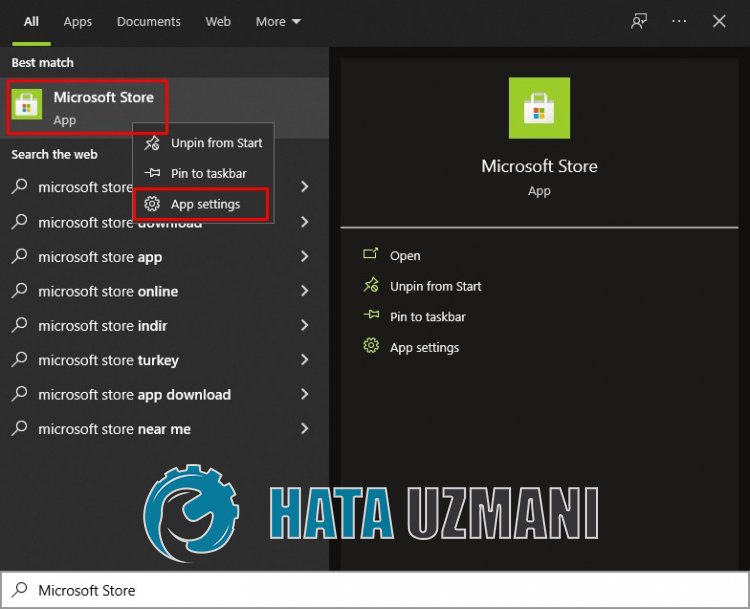
- Type «Microsoft Store» in the start search screen and right click on it and click «Application Settings«.
- Start the reset process by pressing the «Reset» button on the screen that opens.
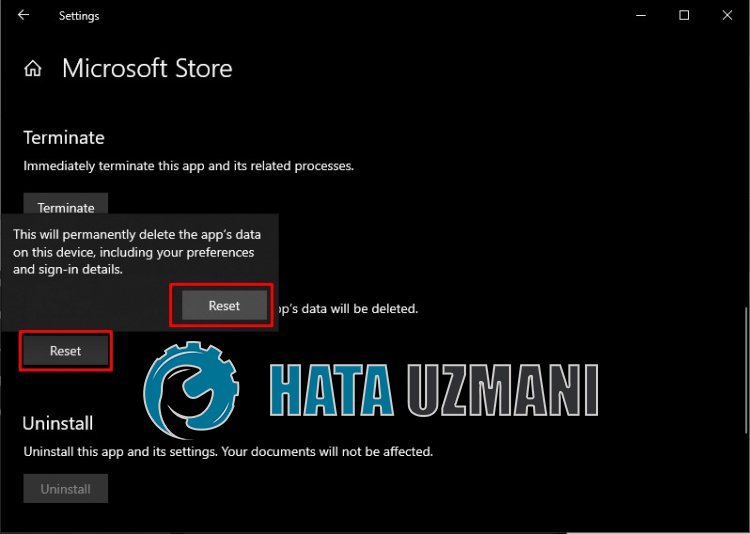
After this process, check if the problem persists by logging into the application.
9-) Repair XBOX App
Various problems on the
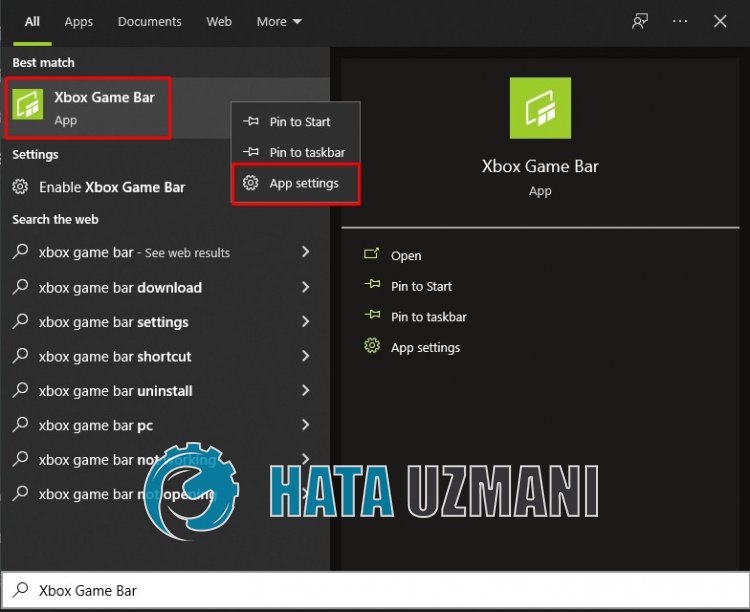
Xbox Game Bar can cause suchaproblem. To do this, we can fix such problems by repairing the Xbox Game Bar.
- Type «Xbox Game Bar» in the start search screen and right click on it and click «Application Settings«.
- Start the reset process by clicking the «Repair» button on the screen that opens.
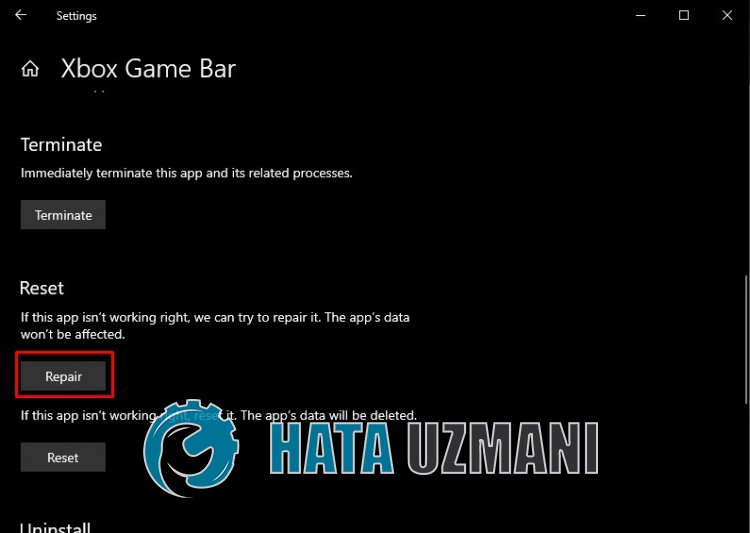
If this process did not solve it for you, perform the above process again and press the «Reset» button to reset the processes. After this process, run the application again and check if the problem persists.
Yes, friends, we have solved our problem under this title. If your problem persists, you can ask about the errors you encounter by entering our FORUM platform that we have opened.