
Ошибки 520, 521, 522, 524 связаны с проблемами в работе сервиса CloudFlare.
CloudFlare — сервис для перенаправления трафика на сайт с помощью облачного прокси-сервера, который обеспечивает дополнительную защиту от DDoS-атак и ускоряет загрузку вашего сайта.
Ошибка 520 Unknown Error
Что означает ошибка 520? Система CloudFlare выдаёт 520 ошибку, если не может обработать ответ от веб-сервера, на котором расположен сайт:
Причины появления ошибки:
- сброс соединения (после успешного запроса сервер разорвал соединение);
- заголовок запроса превышает ограничение размера заголовка Cloudflare (более 8 КБ). Если у вас много файлов cookie или они очень большие, это может привести к увеличению размера заголовков. Так как у Cloudflare есть ограничение на размер заголовка в 8 КБ, он не может обработать длинный заголовок;
- пустой ответ от сервера. Это происходит, когда DNS домена указывают на неправильный сервер.
- некорректный ответ от сервера;
- система безопасности блокирует запросы. Укажите IP-адреса Cloudflare в белом списке, чтобы система не блокировала запросы.
Способы устранения ошибки:
- Отключить CloudFlare. Так вы сможете понять, где находится ошибка (на сервере или в CloudFlare).
- Удалить плагины. Для плагинов иногда требуется много файлов cookies. Если на сайте много плагинов, это может повлиять на размер заголовков. Они могут быть слишком большими по размеру, и Cloudflare не справится с ними. Чтобы исправить ошибку, отключите плагины один за другим. Если ошибка пропадёт, удалите некоторые из плагинов.
- Проверьте настройки DNS в CloudFlare. Убедитесь, что запись A указывает на правильный IP-адрес.
Подробные рекомендации по исправлению ошибки 520 даны в справке CloudFlare.
Ошибка 521 Web Server Is Down
Код ошибки 521 возникает, когда веб-сервер обрывает соединение с CloudFlare:
Это может произойти в двух случаях:
- сервер не отвечает или недоступен. Необходимо проверить работоспособность сервера;
- веб-сервер блокирует запросы CloudFlare. Поскольку CloudFlare работает как обратный прокси-сервер, все запросы к серверам поступают от IP-адресов CloudFlare. Иногда система безопасности хостинга принимает постоянные подключения с одних и тех же IP-адресов за DDoS-атаку. В результате на IP-адреса CloudFlare накладывается блокировка/ограничения по скорости.
Диапазон IP-адресов CloudFlare вы можете увидеть по ссылке.
Рекомендации по исправлению ошибки 521 даны в справке CloudFlare.
Ошибка 522 Connection timed out
Ошибка 522 возникает, если превышено время ожидания ответа от веб-сервера и пользователь не может попасть на страницу:
Основные причины:
- веб-сервер перегружен и не ответил на запрос,
- на веб-сервере стоит система защиты, которая блокирует запросы от CloudFlare,
- веб-сервер недоступен,
- некорректный IP-адрес, установленный в настройках DNS на CloudFlare (Запрос от CloudFlare был отправлен на другой IP),
- проблемы с маршрутизацией сети между CloudFlare и веб-сервером.
Что делать? Для решения проблемы удостоверьтесь, что ваш веб-сервер активен и принимает HTTP-запросы. Проверьте, корректны ли настройки DNS в Личном кабинете на CloudFlare.
Подробные рекомендации по исправлению ошибки 522 даны в справке CloudFlare.
Как исправить ошибку 522 в Google Chrome
Методы решения:
- Очистите кеш браузера. Браузер может быть переполнен данными о посещении сайтов. Освободите место в кэше браузера по инструкции.
- Удалите расширение браузера, которое нарушает соединение с сервером. Отключайте расширения по очереди, чтобы найти то, которое выдает ошибку.
- Проверьте подключение к интернету. Низкая скорость интернета или перебои при подключении может повлиять на время получения ответа сервера. Из-за этого и появляется ошибка 522.
Как проверить подключение к интернету
-
1.
Откройте командную строку. Для этого введите в поисковую строку «Командная строка» и выберите появившееся приложение:
-
2.
Введите в командной строке:
Готово, вы получите сообщение с количеством переданных и полученных пакетов. Если потерянных пакетов нет, значит, у вас хорошее соединение с интернетом и проблема в другом. Если потерянные пакеты есть, свяжитесь с интернет-провайдером, чтобы улучшить интернет-соединение.
4. Очистите кеш DNS. Проблемы с соединением могут возникнуть из-за несоответствия IP-адреса сервера сайта в кэше компьютера с реальным адресом. Такое происходит, когда владельцы сайтов по какой-либо причине меняют IP-адреса сервера. Чтобы устранить эту проблему, воспользуйтесь инструкцией.
Ошибка 524 A timeout occurred
Ошибка 524 возникает, когда подключение с веб-сервером установлено, но он не ответил за установленное время ожидания соединения:
Время ожидания HTTP-ответа на CloudFlare — 100 секунд. Если веб-сервер не предоставил ответ, система выдаст 524 ошибку.
Основные причины:
- длительная работа PHP-процесса или запроса к базе данных;
- веб-сервер перегружен. Проверьте доступные ресурсы сервера, в том числе процессор и оперативную память.
Если вы регулярно выполняете тяжёлые запросы, которые могут занять больше 100 секунд, переместите эти процессы на субдомен, который не проксимируется в Cloudflare.
Рекомендации по исправлению ошибки 524 даны в справке CloudFlare.
Техническая поддержка
Специалисты REG.RU не оказывают техническую поддержку по сервису CloudFlare. Для устранения ошибки обратитесь в техническую поддержку CloudFlare. Если некорректная работа сайта связана с хостингом REG.RU, напишите заявку в службу технической поддержки.
Ошибки 520-524 требуют много знаний о сервере и его работе, поэтому самый верный способ решить проблему ― обратиться к хостинг-провайдеру, администратору сайта или к технической поддержке CloudFlare (если проблема на стороне их сервиса).
Ошибки 520, 521, 522, 524 могут появляться на сайте в том случае, если вы используете для своего сайта сервисы Cloudflare. Cloudflare — сервис, перенаправляющий трафик. Он позволяет увеличить скорость загрузки сайта и обеспечивает защиту от хакерских и DDoS-атак.
Ошибка 520 (Web server is returning an unknown error)
Если Cloudflare не удается обработать ответ сервера, на котором размещен сайт, то он выдает эту ошибку.
Причины появления ошибки 520
- Разрыв соединения, когда запрос к серверу был успешным.
- Превышение размера заголовка запроса (больше 8 КБ).
- Ответ сервера не содержит информацию.
- Ответ сервера некорректен.
Способы устранения ошибки 520 Web server is returning an unknown error
Если любое из вышеперечисленных условий исходит от веб-сервера, на котором размещен сайт, нужно обратиться в техподдержку хостинг-провайдера.
Правила ограничения скорости Cloudflare или другие запросы фильтрации иногда могут вызывать проблемы в работе сайта. Важно проверить и протестировать ваш сайт после подключения сервисов Cloudflare. Если на сервере хостинга используются системы безопасности, блокирующие запросы к сайту, обязательно укажите IP-адреса Cloudflare в белом списке, чтобы исключить вероятность блокировки запросов.
Список диапазонов IP-адресов Cloudflare
Ошибка 521 (Web Server Is Down)
Браузер показывает ошибку 521, когда веб-сервер неожиданно обрывает соединение с Cloudflare.
Причины появления ошибки 521
- Невозможно получить ответ от сервера.
- Система безопасности веб-сервера внесла запросы Cloudflare в черный список. Это связано с тем, что система работает по принципу обратного прокси-сервера. Ваша система безопасности могла принять периодические подключения от статических IP-адресов за DDoS-атаку. Из-за этого адреса блокируются или ограничиваются по скорости.
Способы устранения ошибки 521 Web Server Is Down
Возможно, веб-сервер отключен или работает с перебоями. В таком случае:
- Убедитесь, что ваш веб-сервер работает нормально.
- Просмотрите журналы ошибок сервера, чтобы выявить причину ошибки.
Если веб-сервер или хостинг-провайдер блокируют запросы Cloudflare, внесите в белый список все диапазоны IP-адресов сервиса в брандмауэре сервера или другом программном обеспечении безопасности.
Ошибка 522 (Connection timed out)
Появляется в случае, когда превышено время ожидания ответа от веб-сервера.
Причины появления ошибки 522
- Веб-сервер не может ответить на запрос из-за высокой загруженности.
- Система защиты веб-сервера блокирует запросы Cloudflare.
- Нет доступа к веб-серверу.
-
Некорректно указаны настройки DNS на Cloudflare: запросы отправляются по другому адресу.
-
Неверная настройка маршрутизации между Cloudflare и веб-сервером.
Способы устранения ошибки 522 Connection timed out
Убедитесь, что:
- IP-адреса Cloudflare не блокируются в брандмауэре.
- Ваш хостинг-провайдер не ограничивает скорость и не блокирует запросы от Cloudflare.
- Веб-сервер не перегружен.
Неисправную маршрутизацию в сети между Cloudflare и исходным веб-сервером устранить сложнее. Прежде чем перейти к этому пункту, исключите предыдущие. Если вы считаете, что причиной могут быть проблемы с сетью, отправьте заявку в службу поддержки Cloudflare.
Ошибка 524 (A timeout occurred)
Браузер покажет эту страницу, когда подключение к веб-серверу будет установлено, но его ответ превысит лимит ожидания. Cloudflare ожидает HTTP-ответ в течение 100 секунд.
Причины появления ошибки 524
- Проблемы в работе PHP-скриптов или сбой базы данных.
- Высокая загруженность веб-сервера.
Способы устранения ошибки 524 A timeout occurred
Проверьте доступные ресурсы веб-сервера, включая процессор, оперативную память и общий уровень трафика. Высокий уровень использования памяти память или высокая загрузка процессора могут сигнализировать о проблеме с ресурсами.
Если вы регулярно отправляете HTTP-запросы, выполнение которых занимает более 100 секунд (например, экспорт больших данных), рассмотрите возможность перемещения этих длительных процессов в поддомен, который не проксируется Cloudflare.
Служба поддержки RU-CENTER не оказывает техническую поддержку по сервису Cloudflare. Для устранения ошибок, пожалуйста, обратитесь в техническую поддержку Cloudflare. Если неполадки в работе сайта связаны с хостингом RU-CENTER, пожалуйста, отправьте заявку в нашу службу технической поддержки.
 Туториал: как исправить ошибки сервера
 Туториал: как исправить ошибки сервера
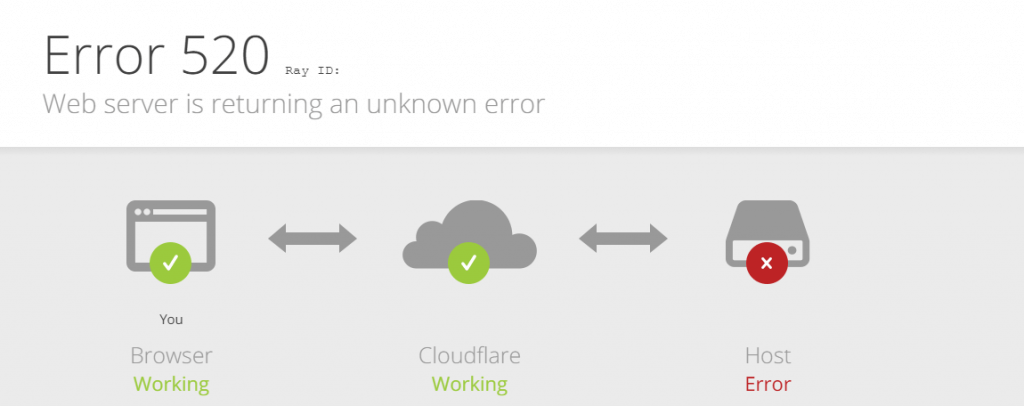
When your Cloudflare server receives an invalid connection request so bungled that it can’t even classify the issue, it returns the annoyingly vague Error 520: Web Server Is Returning An Unknown Error.
No time to spare? Click here to jump to straight to how to fix this error.
What is Cloudflare Error 520: Web Server is Returning An Unknown Error?
Cloudflare Error 520 is a server-side diagnostic message indicating that even though a request reached the origin web server, the server received an invalid HTTP response or didn’t know how to interpret the request at all and was unable to proceed.
The most common causes for this are either a program or system task that was running out of resources and needed to be terminated, or the server was overloaded.
How To Fix Cloudflare Error 520: Web Server is Returning an Unknown Error
- Search Error Logs For Device Resets
- Restart PHP Applications On Your Origin Server
- Whitelist Your Cloudflare Origin Server IP Address
- Check Response Headers From Your Cloudflare Origin Web Server
- Lighten Your Cookie Load
- Correct Your Cloudflare Origin Server DNS Settings
- Examine Your Server Traffic
- Check For Non-HTTP Errors In Your Cloudflare Logs
1. Search Error Logs For Device Resets

If the origin web server or any of your networking equipment is updated or reset after a successful TCP handshake, headers from that connection will be out of date and the server won’t know how to handle further requests.
Typically, error 520 quickly clears on its own after the visitor refreshes the page.
This means if your users are regularly seeing the 520 error status code, it might mean that one of your devices is resetting unexpectedly.
Your Cloudflare origin web server logs can show you each instance of error 520 and different connection resets.
You can compare this data to the uptime listed in your firewall, load balancer, origin server, or other network hardware.
If this is the issue, reconfigure your device’s update or reboot schedule to coincide with your routine maintenance times.
Restart your Cloudflare origin server with this new schedule to force any existing sessions to reconnect.
2. Restart PHP Applications On Your Origin Server
While you’re checking out your origin web server error logs, you can also find out whether any of your PHP applications are crashing or overconsuming system resources.
Since your PHP applications may support critical services on your site from the application layer, users may encounter error 520 when applications at this OSI layer crash even though there’s a connected session in progress.
Restarting the affected application should clear the 520 error.
Services that are always online are more prone to overloading and crashing, so an important preventative measure is to schedule reboots during a routine maintenance period.
You can create a cron job to automatically perform these reboots to prevent always-online services from becoming overloaded and avoid issues with error 520.
3. Whitelist Your Cloudflare Origin Server IP Address
As a part of Cloudflare’s built-in security protocols, you have to whitelist your origin web server IP addresses in your Cloudflare dashboard.

Sometimes Cloudflare returns a more descriptive error code when an IP address is explicitly blocked.
But if a connection isn’t whitelisted at all and can’t be identified, the server won’t know how to handle it and throws the 520 error.
All you have to do is correct your A records to whitelist the appropriate IP addresses.
Be sure that your CNAME records are accurate and that all CNAMEs associated with your web server are whitelisted in your DNS settings, otherwise you may encounter error 520 or similar error messages.
4. Check Response Headers From Your Cloudflare Origin Web Server
Missing response headers and empty response headers coming from your Cloudflare server are common causes of the 520 error.
Check your origin response headers in your Cloudflare server’s HAR (HTTP Archive) files.
You can use this guide to find & access your HAR files (note that these may contain sensitive data).
Missing response headers can come from many different sources.
Use a debugger like Wireshark or Fiddler to debug further as these tools can attempt to trace requests and the data that makes them up.
If you see a response from an outdated user agent (web browser) it may be a signal that the connection is coming from an old version of Internet Explorer or Safari.
Make sure your site is compatible with common web browsers, although fringe user agent connections will sometimes appear no matter what.
5. Lighten Your Cookie Load

The more complex your web service, the more cookies you might be relying on to handle requests efficiently.
The problem is cookies increase the HTTP response header size attached to the request they’re sent over, and Cloudflare’s header size limit restricts headers to 8KB or less.
If you exceed Cloudflare’s header size limit, your origin web server won’t be able to parse the full connection request and will reply with a protocol violation warning or a timed-out HTTP response (due to rate-limiting rules).
You can access your server’s HAR files to review response header data to see if you’re using too many cookies (or cookies that are too big).
The HTTP archive shows you an example output of your headers
If your headers exceed the 8KB host HTTP header limit, you’ll need to work with your web developer to optimize your cookies.
6. Correct Your Cloudflare Origin Server DNS Settings
If you’re receiving an empty response from your web server, it means that your site doesn’t have any HTTP status code information or response body data.
This often indicates your web server configuration for your hosting provider is incorrect or outdated.
Contacting your hosting provider is the easiest way to determine whether you have the right DNS information.
Be aware that your corrected Cloudflare DNS settings can take up to 72 hours to propagate throughout your site depending on your hosting provider, especially if they must escalate a support ticket to do so.
Your host provider may have to flush your DNS cache on their end, which can lengthen this wait.
If missing or invalid HTTP response headers are the result of DNS errors, prepare your team and your users for your site to experience outages for up to 3 days.
Don’t forget to clear your site’s cache after updating any DNS settings. This also means clearing the DNS cache and the cache of any WordPress plugins installed on your site.
7. Examine Your Server Traffic

First, check for unusual traffic on your server.
Ensure you’re filtering requests on port 80 to restrict suspicious traffic and blocking spammy connections since this kind of overload can cause issues like errors 520 or 503.
If you see chunks of the same IP address and ray ID in a short period of time, block these connections.
Cloudflare proxied traffic must be whitelisted, so make sure to check your error log for any blocked connections from proxy IP addresses you want to permit.
If permitted traffic on port 80 has valid headers but it takes too long to receive a response from the origin server, you may experience a timeout unrelated to rate-limiting settings on your server.
Unexpected timeouts can result in error message 520, and you can turn to your HAR records again to see if any requests contain bulky or corrupted response bodies.
8. Check For Non-HTTP Errors In Your Cloudflare Logs
Error 520 is essentially a catch-all response for situations where your server can’t even recognize an incoming request.
Since every common HTTP issue has its own error code, you’ll often see error 520 when non-HTTP errors are preventing a successful server connection or causing a gateway timeout error.
Review your system resources and your network hardware for any stalled or crashed services.
You can look up the search term “520” to try and locate the Cloudflare response code in a given device’s error logs.
If you’re still seeing error 520 after reviewing all of your devices and your traffic, open a support ticket with Cloudflare and your hosting provider to see if any errors appear on their end.
If you’re looking for (free) tips to optimize your site speed with Cloudflare and rank higher on Google,
you can follow me on Twitter 👉🏻 @bitofseo.
Please DM me if you have any questions about this Cloudflare article (or have some feedback to make it better 😄️).
When your site’s visitors see error 520 in their browser, it means Cloudflare is sending the message because your server returned an empty, unknown, or unexpected response.
The 520 error can be approached through troubleshooting first to find the cause and then fixed following these steps.
Let’s jump right in:
Troubleshooting Error 520
Since the 520 error is coming up because of an issue on your server, you can troubleshoot the issue by looking in your error log.
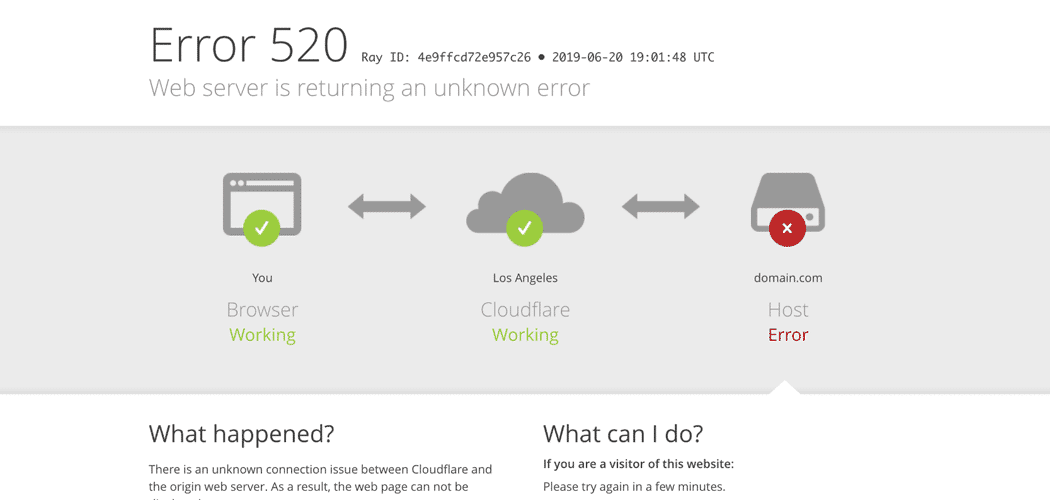
Disable Cloudflare
Before you start troubleshooting, it’s necessary to disable Cloudflare. This helps isolate the problem by ensuring the issue can be replicated without Cloudflare being a factor.
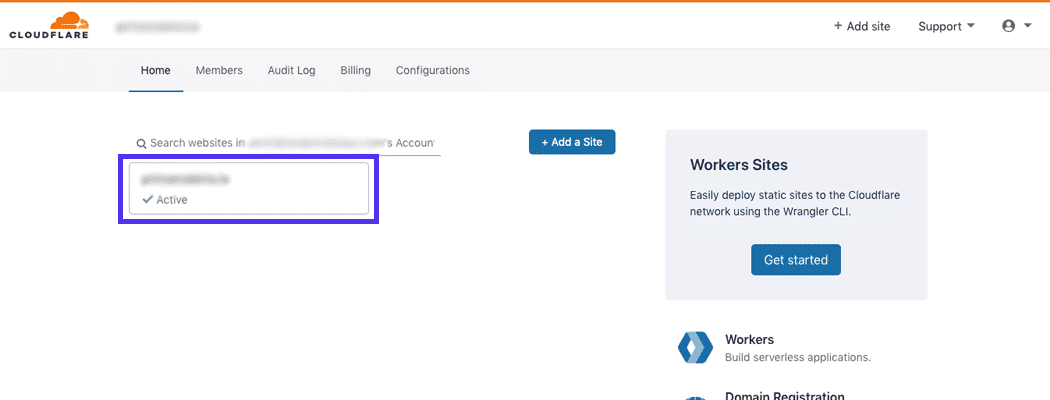
Step 1
Start by logging into Cloudflare. Then, find your site on the list and click on it.
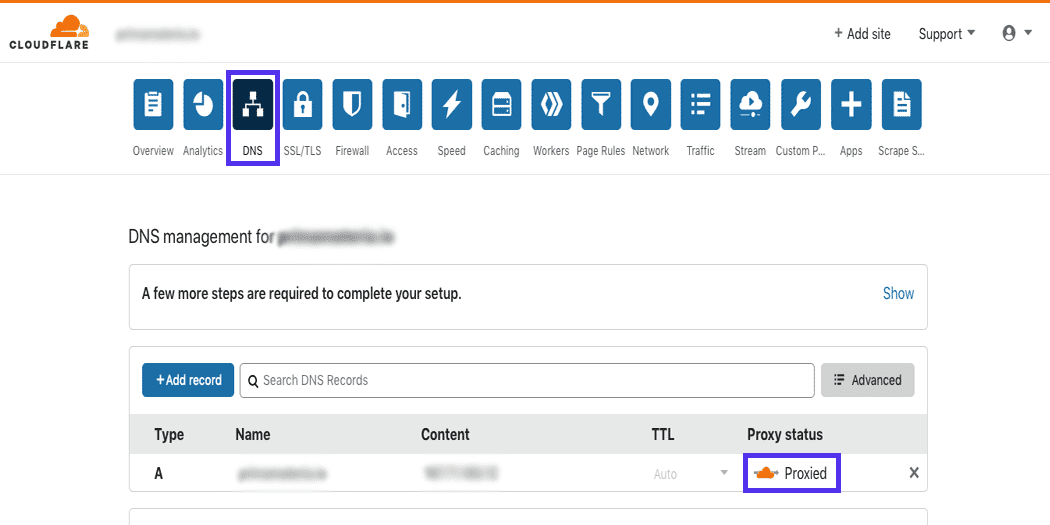
Step 2
Next, click on the DNS tab, then on the orange cloud under the Proxy status section in the table. You’ll know Cloudflare was disabled because the cloud will have turned gray.
Pause Cloudflare
Alternatively, you can choose to pause Cloudflare after logging in.
Step 1
Click on your connected site from the list.
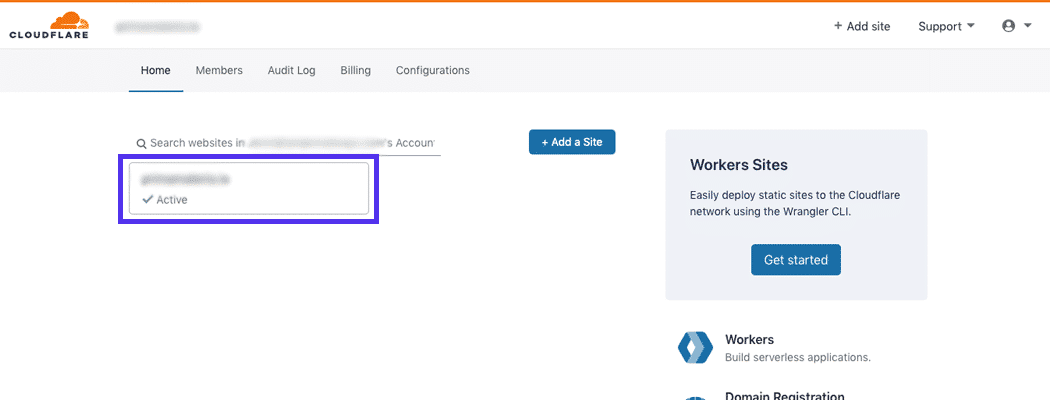
Step 2
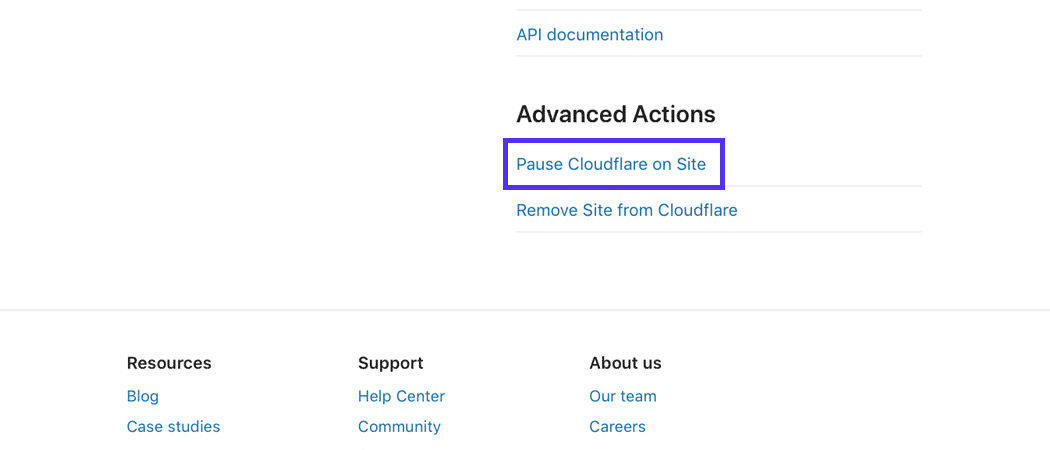
Then, scroll down until you see the Advanced Actions section in the sidebar. Click on the Pause Cloudflare on Site link.
Step 3
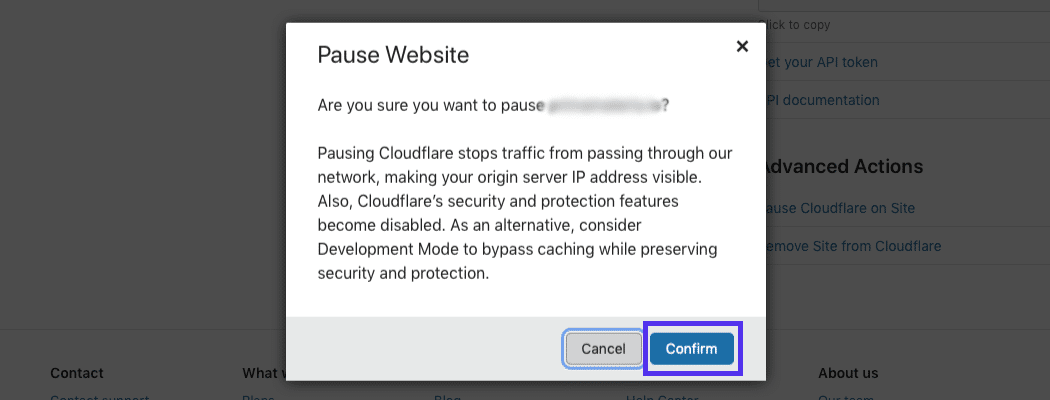
A pop-up will be displayed on the page that asks you to confirm you want to pause Cloudflare. Go ahead and click the Confirm button.
Go into Development Mode
If you don’t want to pause or disable Cloudflare, you can keep it running, but place it in development mode so you can still troubleshoot error 520.
Step 1
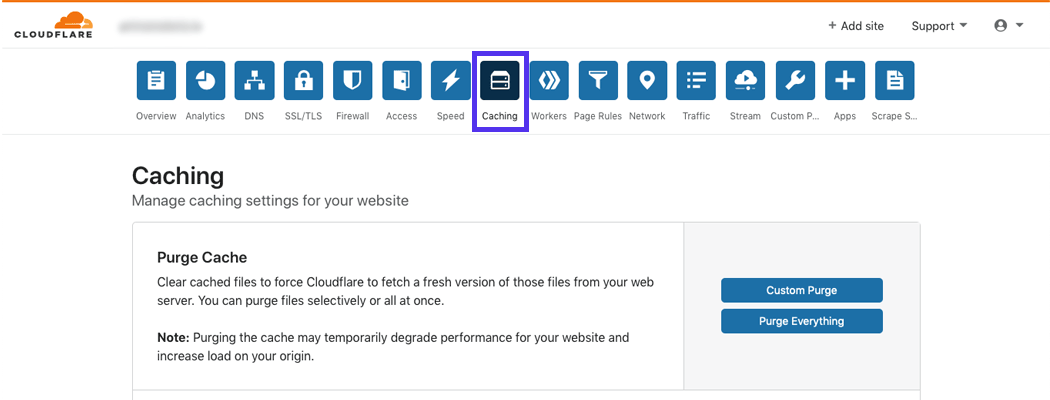
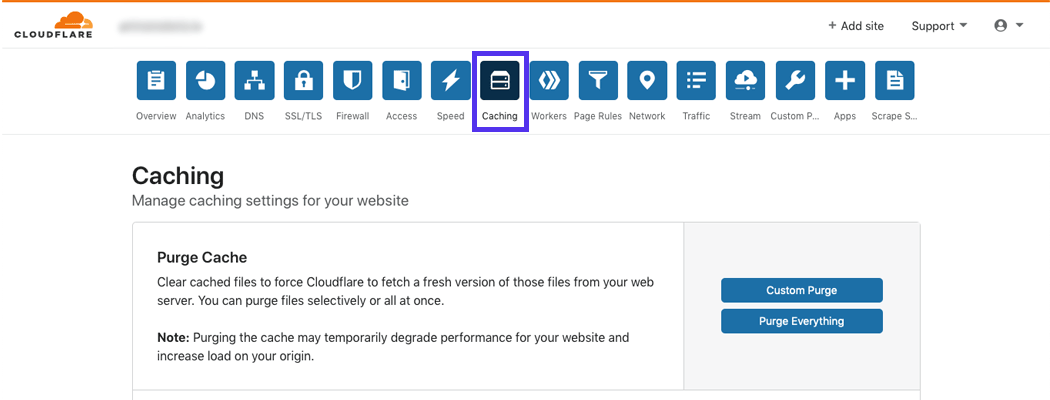
After logging into Cloudflare, click the Caching tab toward the top of the page.
Step2
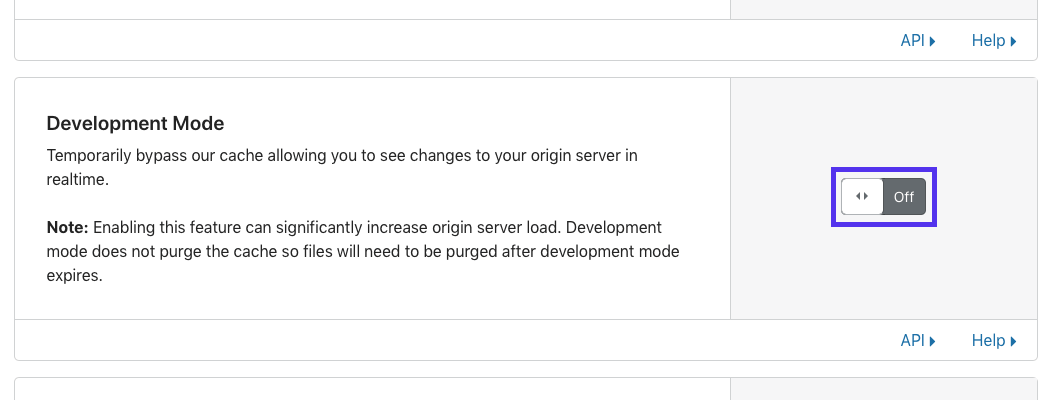
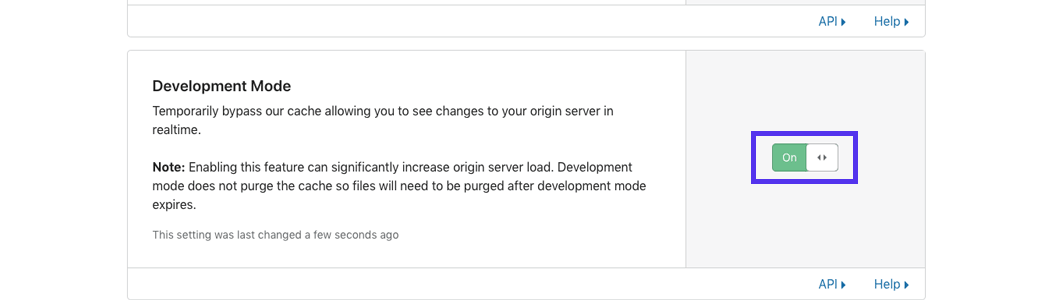
Next, scroll down to the Development Mode section and click the Off toggle button. It should now say “On.”
Checking Your Server’s Error Logs
Now that you have disabled, paused or put Cloudflare into development mode, you can troubleshoot error 520 by checking your server’s error logs.
Finding your error log can vary between hosts so check with yours if you’re unsure of where to find your error logs.
If your hosting provider uses cPanel, you can follow the steps below.
Step 1
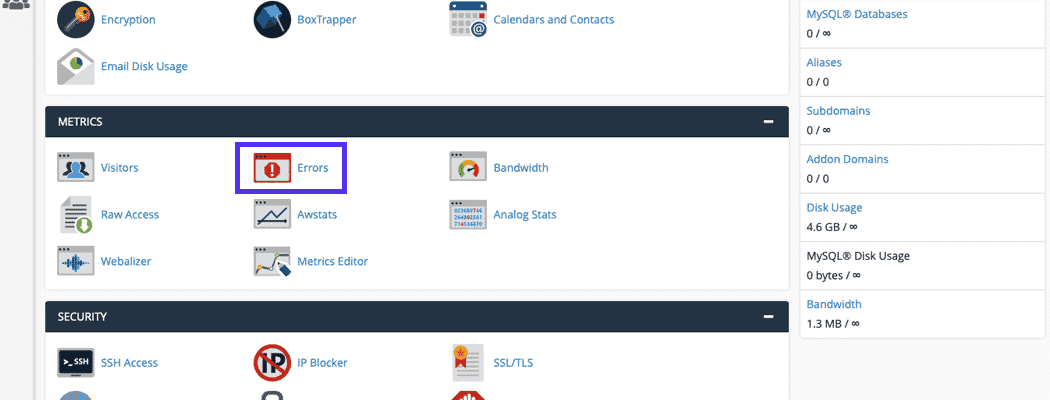
Log into cPanel and in the dashboard, go to the Metrics section. Then, click the Errors button.
Step 2
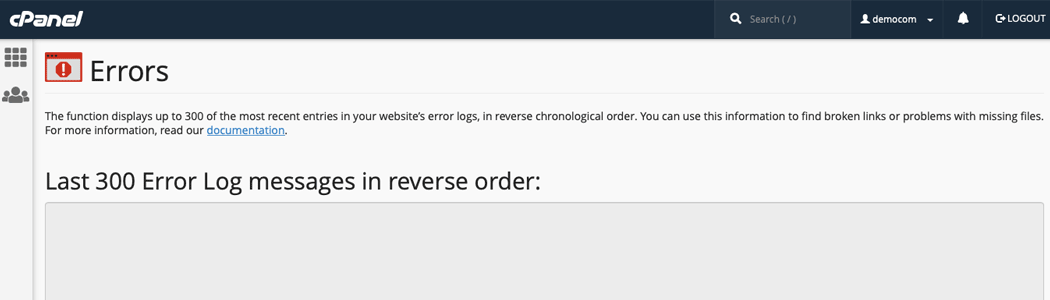
The error log page displays errors in reverse chronological order as well as up to 300 of the most recent messages. The error log may display more messages if you or your host adjusted the settings.
Checking Your Log for Error 520 Using MyKinsta
If you host your WordPress site with Kinsta, you can follow the steps below to check your error log.
Step 1
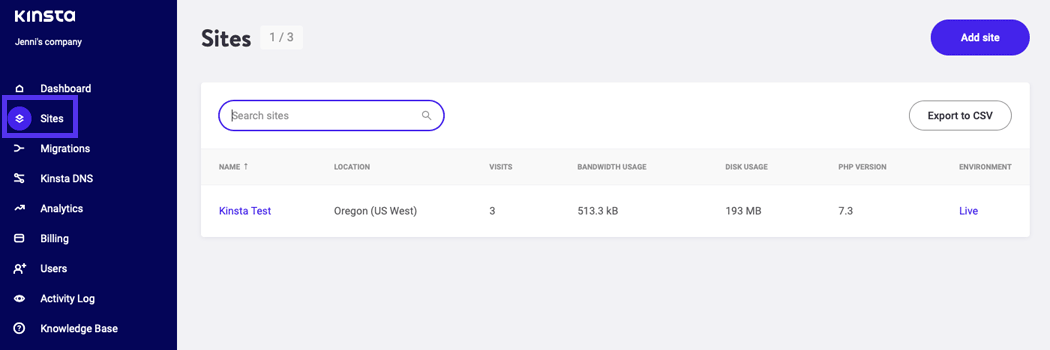
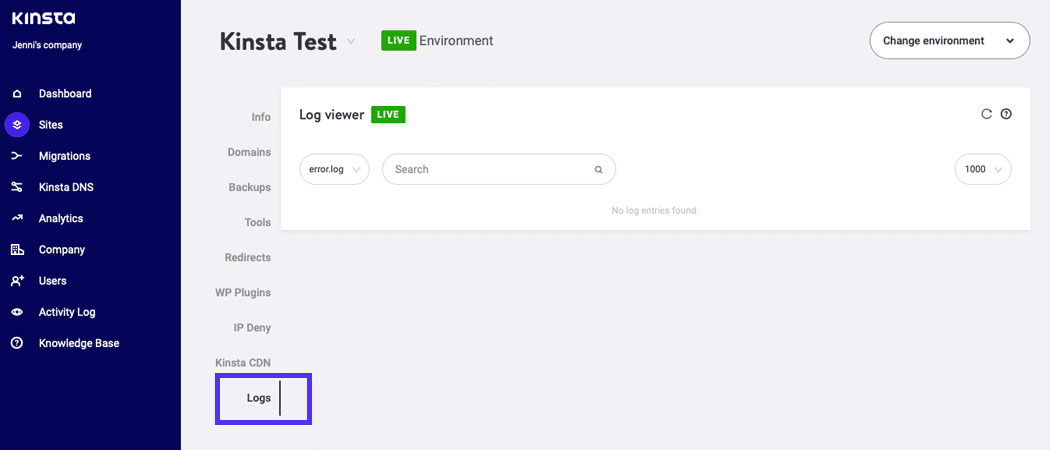
Log into MyKinsta and click on Sites in the menu on the left. Then, select the site you want to troubleshoot from the list on the page.
Step 2
Click on the Logs tab. By default, the error log is displayed. If you don’t see anything listed, it’s due to the fact that no errors on your site have occurred.
How to Interpret the Error Log
Each message in an error log has a structure. If you understand it, you can interpret the error messages that come up.
[Fri Oct 11 17:00:30 2019] [error] [client 123.4.56.7] error description: /path/to/file/with/errorThe date and time of the message are listed first followed by the LogLevel directive which tells you about the severity level of the message.
Next up is the IP address of the client. This is who made the issue appear.
Finally, the actual message is displayed and may contain a path to the affected file.
Here are the LogLevel severity levels which could be listed in your error log’s messages:
- Emerg – This lets you know the issue is an emergency and the server is unavailable.
- Alert – Action should be taken immediately if you see this level.
- Crit – This denotes a critical condition.
- Error – This means an error has occurred.
- Warn – A message with this level is a warning about an issue that requires your attention, but isn’t critical.
- Notice – This means your server is normal, but there are significant details about the condition of your server that is available.
- Info – General information is available with this level.
- Debug – These messages contain details when you have debugging enabled.
Use a cURL Command to Troubleshoot Error 520
You can also use a cURL command to troubleshoot error 520 by testing against the origin server.
curl -vso /dev/null --user-agent "Mozilla 5.0" -H "Host: your-site.com" http://123.45.6.789/wp-login.phpBe sure to change “you-site.com” to your actual domain. You also need to update “123.45.6.789” with your site’s IP address. If you changed your login page, you should also change the “wp-login.php” part.
A successful response header would look similar to the example below:
* Hostname was NOT found in DNS cache
*   Trying 123.45.6.789...
* Connected to 123.45.6.789 (123.45.6.789) port 80 (#0)
> GET /login HTTP/1.1
> User-Agent: Mozilla 5.0
> Accept: */*
> Host: your-site.com
>
< HTTP/1.1 200 OK
< Content-Type: text/html
< Date: Day, DD, Month Year Hour:Minute:Second Timezone
{ [12345 bytes data]
* Connection #0 to host 123.45.6.789 left intact
If you see something like this, it means everything’s okay and the site was reached without an error 520 response.
On the other hand, if you see a response header similar to the example below, it means the 520 error has occurred when Cloudflare was active:
* Hostname was NOT found in DNS cache
*   Trying 123.45.6.789...
* Connected to 123.45.6.789 (123.45.6.789) port 80 (#0)
> GET /login HTTP/1.1
> User-Agent: Mozilla 5.0
> Accept: */*
> Host: your-site.com
>
* Empty reply from server
* Connection #0 to host 123.45.6.789 left intact
How to Generate a HAR File
A HAR is an HTTP archive file. It contains archives for requests that are going to the server of origin and also through Cloudflare.
It can help you with troubleshooting because it compares response headers coming from the origin server and Cloudflare when it’s used as a proxy.
It’s also used to confirm that the headers are too large if that’s why error 520 has appeared.
You can create a HAR file with your browser with the steps below:
Chrome
Step 1
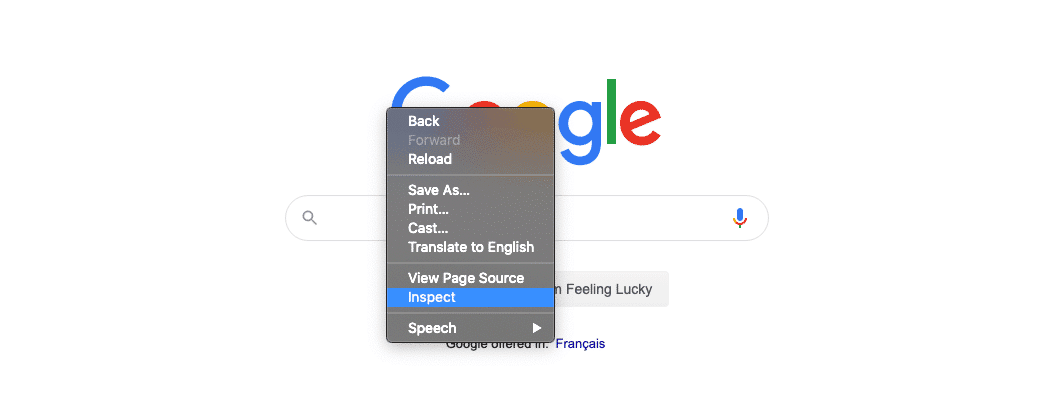
Open your browser and right-click on the page. Then, select Inspect.
Step 2
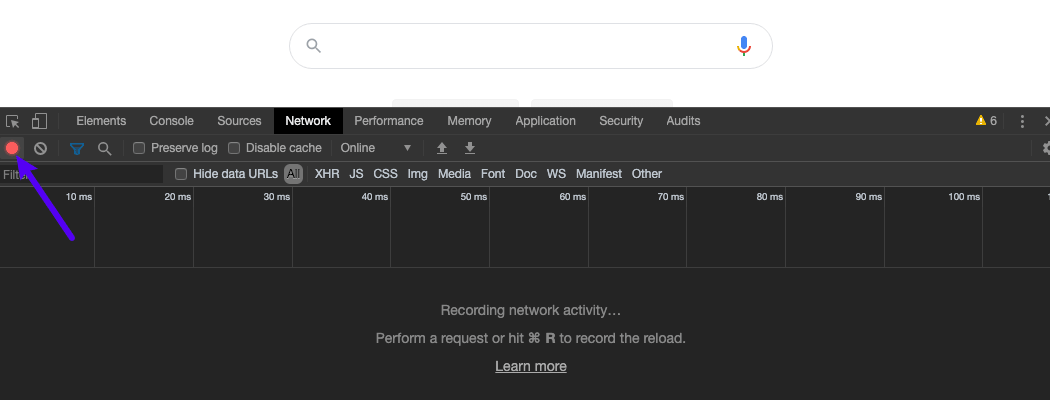
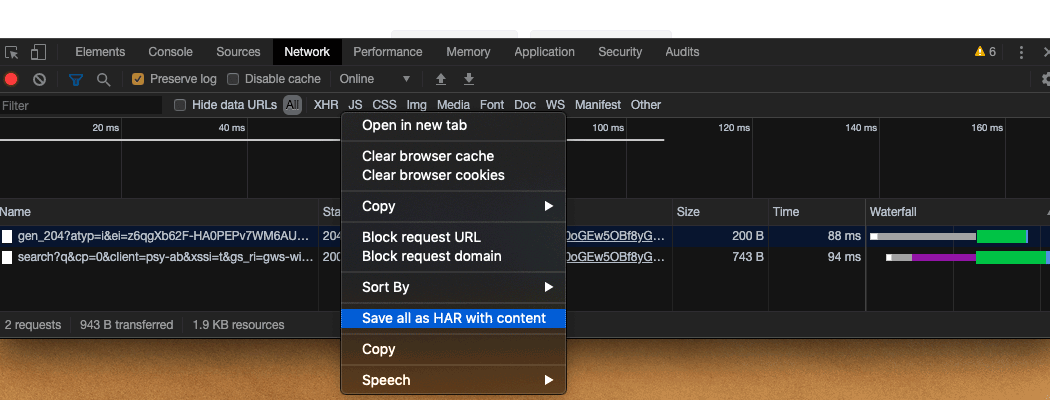
Once the panel has opened, click the Network tab and make sure there’s a red circle button toward the top, left-hand side of the panel. If it’s gray, click it.
Step 3
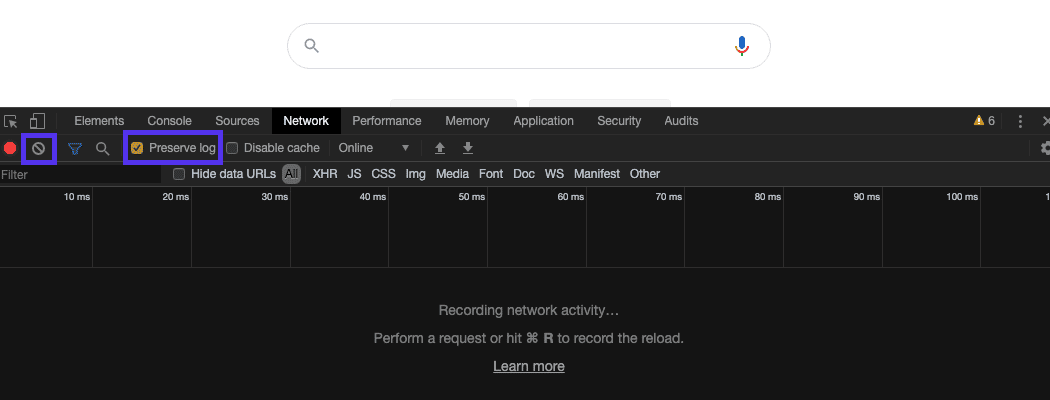
Check the Preserve log option next to the record button and then click the clear button.
Step 4
Load the page that’s bringing up error 520. Then, right-click anywhere in the messages area of the Chrome developer tool.
Select the Save as HAR with Content and save the file to your computer.
Firefox
Step 1
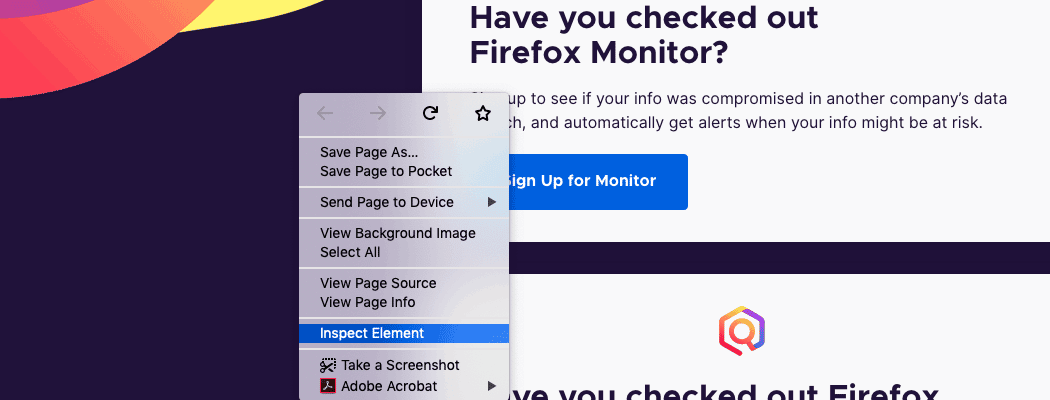
Open Firefox and right-click anywhere on the page. Then, select Inspect Element.
Step 2
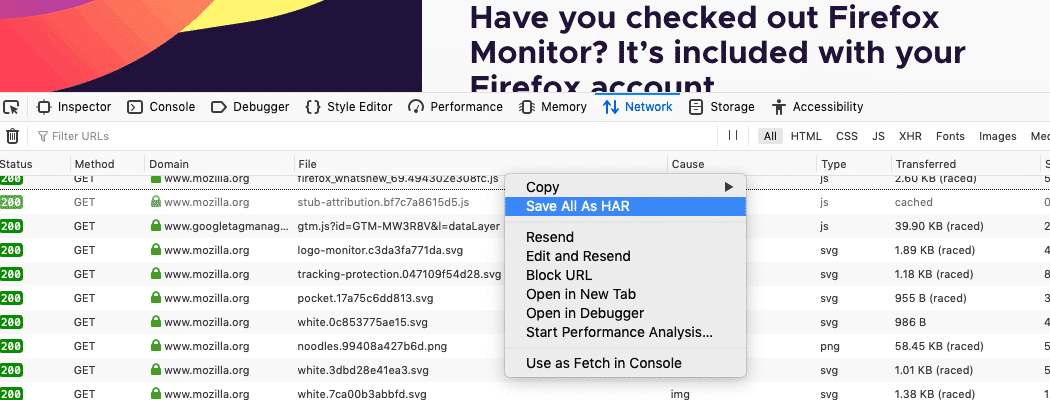
Go to the Network tab and visit the page that has the 520 error coming up. Right-click on messages in the panel and select the Save All as HAR option.
Save the file to your computer.
Edge
Step 1
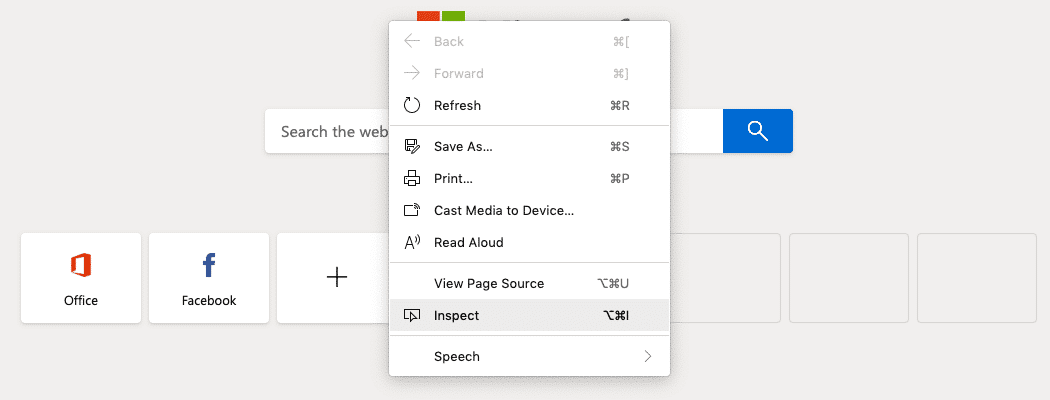
Open the Edge browser and right-click the page. Select Inspect from the list.
Step 2
Go to the Network tab and ensure the circular record button is red. If it’s not, click it. Check the Preserve log option, then the icon to clear the current messages.
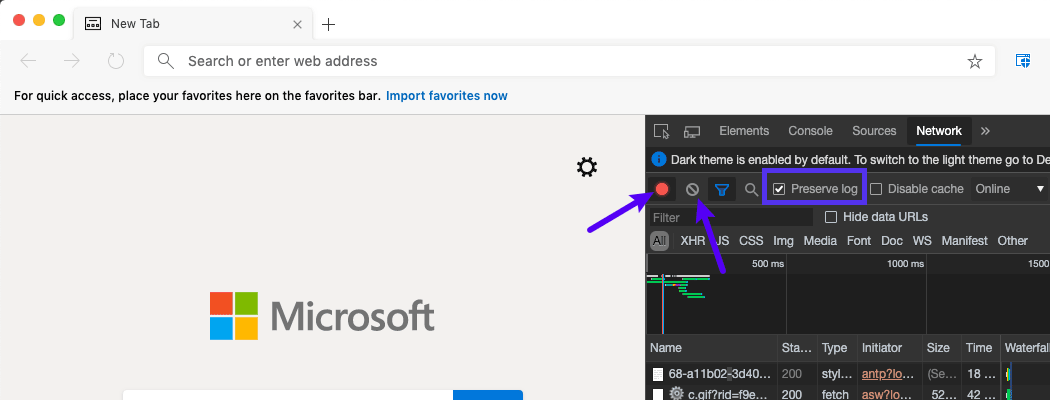
Step 3
Go to the page where you’re experiencing error 520. Then, right-click on the messages in the developer tool panel and select the Save all as HAR with content option.
Save the file to your computer.
Safari
Step 1
Open Safari and right-click on the page for Windows or press CMD on your keyboard and click for Mac. Select Inspect Element from the list.
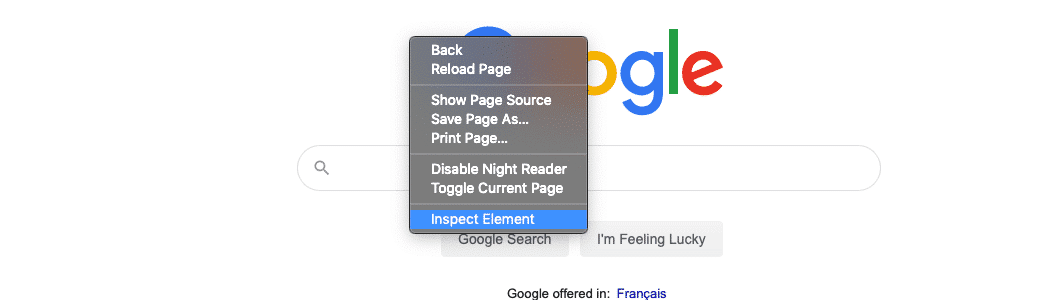
Step 2
Go to the Network tab. Check the Preserve Log option, then go to the page with the error 520 issue.
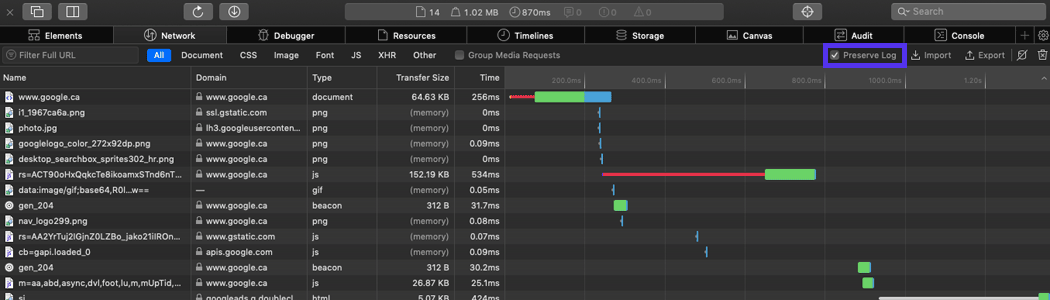
Step 3
Click the Export button and save the HAR file to your computer.
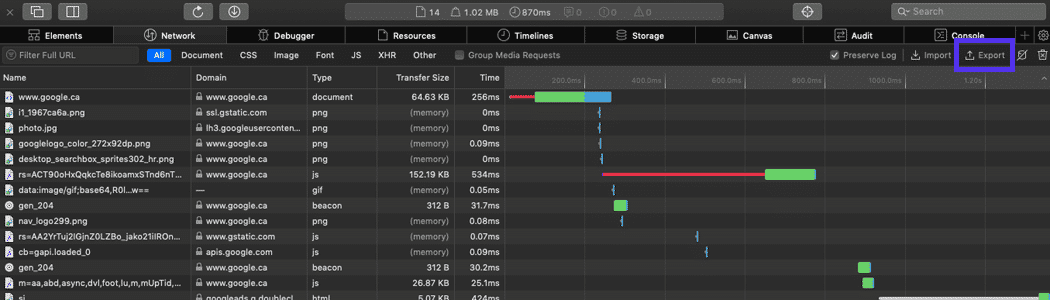
Resolving the Common Reasons for Error 520
Now that you have your error log, search through it and see if you notice any one of the issues below. Then, follow the steps below to resolve the issue.
Origin Server PHP Application Crashed
One common issue that causes error 520 is that one of the PHP applications have crashed on your server. Restarting PHP will fix the error.
Step 1
Using SSH, you can enter the command below for Apache servers:
apache2ctl restartFor Nginx servers, you can restart PHP using the command below:
service nginx restartRestart PHP in MyKinsta
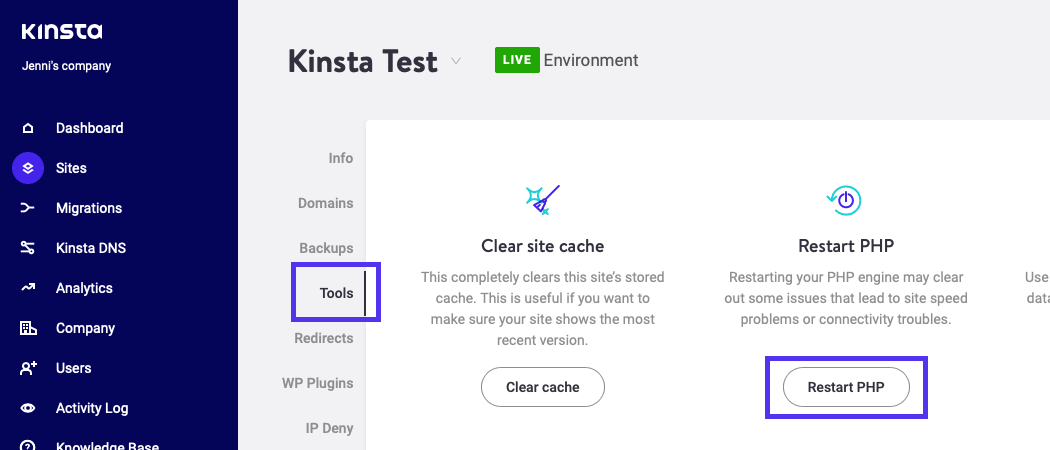
If your site is hosted with Kinsta, you can restart PHP in a few clicks.
Step 1
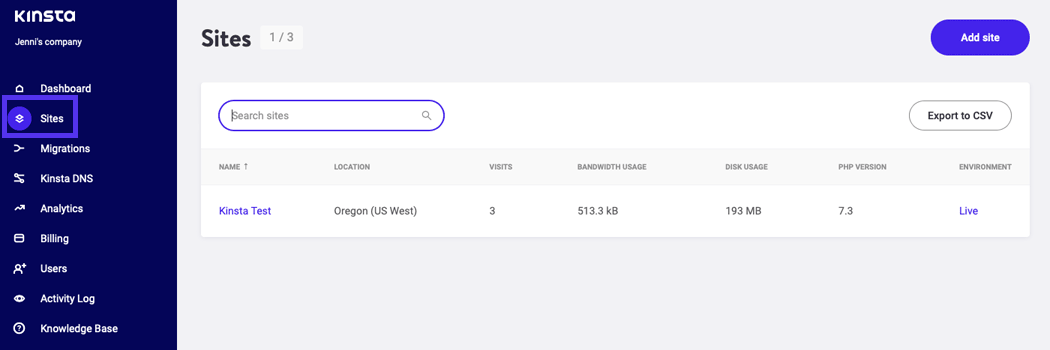
Log into MyKinsta and click on Sites on the left. Then, click on your site from the list.
Step 2
Go to the Tools tab and click the Restart PHP button.
Cloudflare IP Addresses Aren’t Whitelisted
Another reason why the 520 error can occur is if Cloudflare’s IP addresses aren’t whitelisted. You can whitelist them, but the steps vary between hosting providers.
If you’re not sure how to whitelist IPs, contact your host, especially if you don’t find any settings for it.
At Kinsta, Cloudflare’s IP addresses are whitelisted by default so there’s no need to worry about this cause of the error. It also won’t impact the other reasons why the error occurs.
TCP Idle Timeouts Are Shorter Than 300 Seconds
The Transmission Control Protocol (TCP) could also be the cause of error 520.
TCP is a standard protocol that establishes and maintains a network connection. If the TCP is set to timeout in under 300 seconds, it could cause the 520 error to pop up.
You can change the TCP service timeout using a CLI command:
set service Service-HTTP-1 -svrTimeout 500Headers Exceed 8 KB
This issue is typically due to too many cookies or cookies that are too large. The HAR file that you downloaded during the troubleshooting process will show you if this is the problem.
Cloudflare has a limit of 8 KB that can be used for headers.
If you authored a plugin that requires too many cookies or has too much data in its cookies, try to reduce them. Or, if you’re using a lot of plugins that all need cookies, remove some of them (you should always use quality plugins).
Elementor Users
When you try to edit your WordPress site using Elementor and you get the 520 error – “Web server is returning an unknown error” – you can check the following.
First, you can try a different web browser.
If the problem still exists and your site is behind Cloudflare you may have a problem with Cloudflare’s Rocket Loader feature.
The issue was caused by Rocket Loader automatically changing the scripts to load asynchronously, which breaks the site editor and prevents you making changes.
By creating rules in Cloudflare you can solve this issue.
For Elementor pages: Site URL/*elementor*
For Elementor templates: Site URL/?elementor_library=*
Empty Response from Your Server
This problem occurs when your site lacks an HTTP status code or response body. To resolve it, make sure your DNS settings are set correctly for your site’s domain.
The steps involved to check your settings depends on your DNS host. If your hosting plan has DNS bundled with it, then check with your hosting provider.
It may be important to note that if you updated your DNS settings, it may take up to 72 hours for your site to propagate. This means your site may be unavailable for up to three days.
After changing your DNS settings, you need to clear your site’s cache. If you have a caching plugin installed on your WordPress site, you can check its documentation if you’re unsure of how to clear your site’s cache from the plugin’s settings.
You can also clear your site’s cache through your hosting provider. Be sure to check with them if you need to know how to do this for your site.
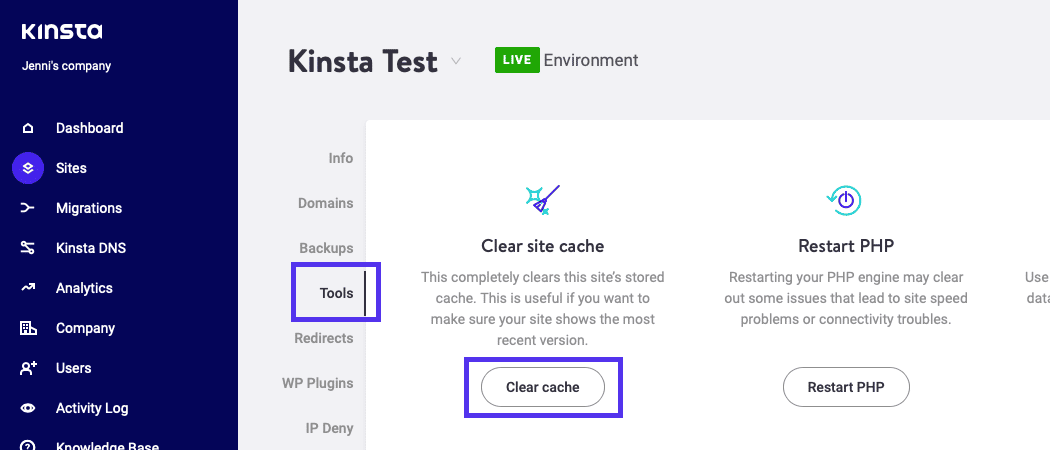
If your site is hosted with Kinsta, you can click Sites in the menu, then on your listed site.
Then, click the Tools tab and click the Clear cache button.
If you have updated your DNS settings, your site is available again, you cleared your site’s cache and you still are experiencing error 520, restart your server.
If you don’t find the option in your settings, contact Kinsta’s support team and we’ll help you with this.
Missing Response Headers
According to Mozilla,
“A response header is an HTTP header that can be used in an HTTP response and that doesn’t relate to the content of the message. Response headers, like Age, Location or Server are used to give a more detailed context of the response.”
Missing response headers can be caused by a multitude of reasons.
Your best bet with this issue is to use a debugging tool like Fiddler to debug the issue and see exactly what the problem is so you can fix it.
Server not Returning Proper HTTP Error Responses
When your server sent an invalid error response, it could have caused the 520 error. This means the message didn’t fit in with the standard list of HTTP response codes.
It’s caused by your server or it could also be something on your server such as PHP applications or possibly plugins used on your WordPress site.
If you can’t find the source for the improper error code to fix it, try contacting support for further help.
Enabling Cloudflare Again
Check to see if you receive the error again. If you do, keep Cloudflare disabled and continue troubleshooting.
If the 520 error has been resolved, enable Cloudflare again.
Step 1
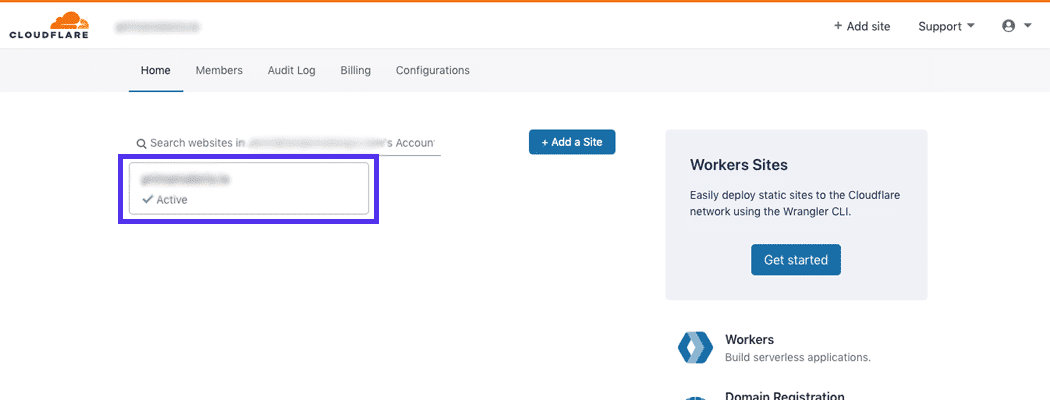
To do this, log into Cloudflare and if you disabled Cloudflare by turning the cloud gray in your account, start by selecting your site from the list.
Step 2
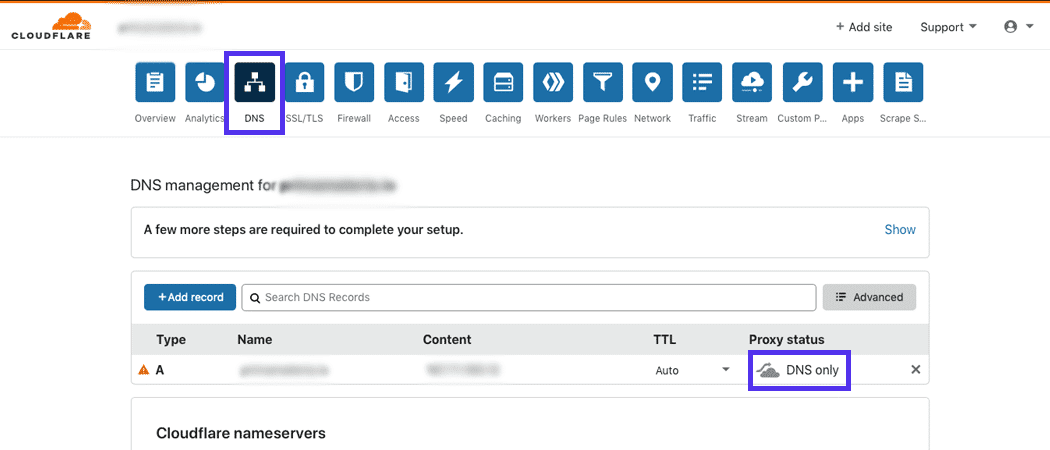
Click the DNS tab, then click the gray cloud to re-enable Cloudflare.
Restoring Cloudflare After Pausing It
Step 1
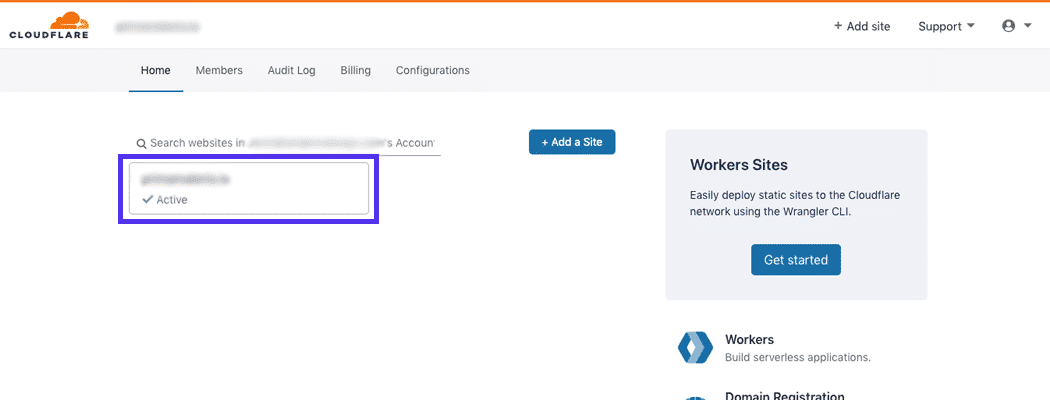
If you paused Cloudflare earlier, restore it by logging into Cloudflare and click on your listed site in the dashboard.
Step 2
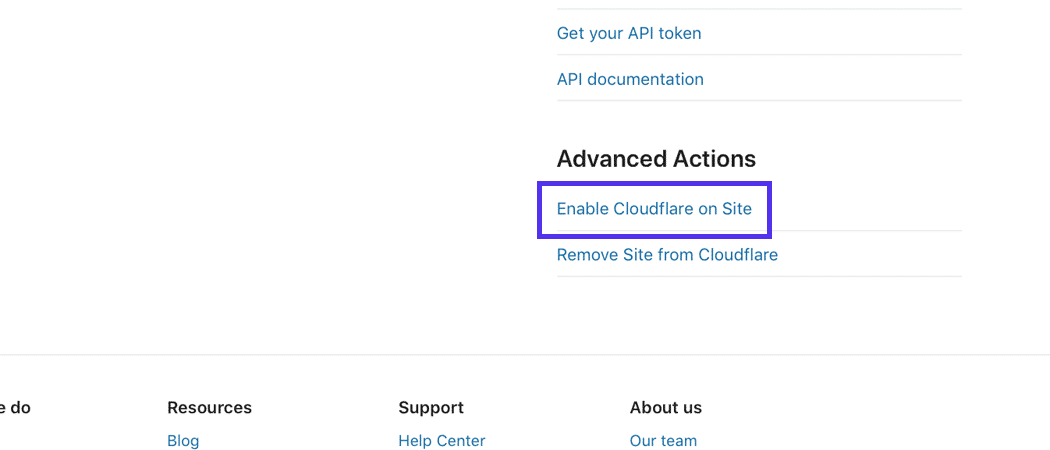
Then, go to the Overview tab and scroll down to the bottom of the page until you see the Advanced Actions sections in the sidebar on the right-hand side of the page.
Click the Enable Cloudflare on Site link.
Turning off Development Mode
Step 1
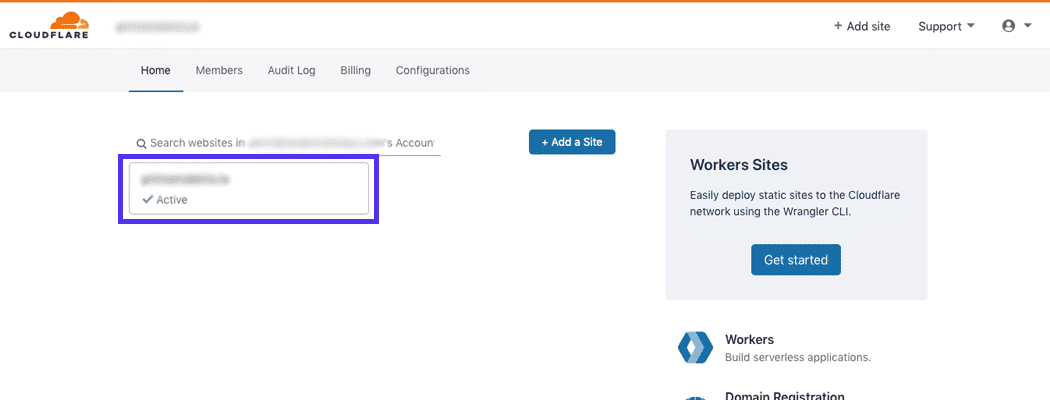
If you have previously turned on Cloudflare’s development mode, you can turn it off by logging in. Then, click your site that’s listed on the page.
Step 2
Next, go to the Caching tab.
Step 3
Scroll down to the Development Mode section and click the toggle button that’s currently set to “On.”
What to Do If All Else Fails
If you’re still seeing issues, contact Cloudflare support.
Provide them with the following details:
- Full URL(s) of the requested resource when the error occurred.
- Cloudflare’s Ray ID from the page where you saw the error 520 message.
- The output from http://your-site.com/cdn-cgi/trace, but be sure to replace “your-site.com” with your actual domain name.
- Two HAR files: One from when Cloudflare was enabled for your site and one more from when you had Cloudflare disabled.
Is #Cloudflare giving you the Error 520? Here’s how to troubleshoot it and get this issue fixed! 🌧️🌈Click to Tweet
Summary
The 520 error can seem confusing, especially since it’s a Cloudflare error. But, it has to do with an error with your server that causes Cloudflare to not connect.
The steps above are the solutions to the most common causes of error 520. If you’re still having issues after trying them, you might want to contact Cloudflare or your hosting support.
Suggested reading: How to Set up Cloudflare APO for WordPress.
Get all your applications, databases and WordPress sites online and under one roof. Our feature-packed, high-performance cloud platform includes:
- Easy setup and management in the MyKinsta dashboard
- 24/7 expert support
- The best Google Cloud Platform hardware and network, powered by Kubernetes for maximum scalability
- An enterprise-level Cloudflare integration for speed and security
- Global audience reach with up to 35 data centers and 275 PoPs worldwide
Test it yourself with $20 off your first month of Application Hosting or Database Hosting. Explore our plans or talk to sales to find your best fit.
Cloudflare 520 error is a common error that triggers when the origin server returns an empty or unexpected response. This happens mainly when the server is unable to send a timely response due to a resource-intensive process.
As a part of our Server Management Services, we have helped online service providers to fix several similar Cloudflare errors.
Today, let’s discuss some tips to fix the error “Web server is returning an unknown error”.
What causes Cloudflare 520 error?
Cloudflare error 520 triggers when the origin server returns an empty, unknown, or unexpected response to Cloudflare. When a program, cron job, or resource is taking up more resources than it should, the server may not be able to respond to all requests properly. As a result, it triggers “Error 520: Web server is returning an unknown error”.

The possible reasons for this error include:
- Origin web server application crashes: One of the major reasons for this error is the webserver application crash at the origin server. Execution of a resource-intensive script is the most probable reason that leads webserver application crash. As a result, the server will not be able to respond to the requests in a timely manner.
- Cloudflare IPs not allowed at the origin: Origin server’s firewall can cause a hindrance while connecting through the IP address that is not whitelisted. Hence, if Cloudflare’s IP address is not whitelisted, it can, in turn, lead to the 529 error. Whitelisting it can fix the issue.
- The origin web server TCP idle timeouts shorter than 300 seconds: TCP protocol establishes and maintains a network connection. If its timeout value is too low, it can trigger the unknown error.
- Headers that exceed Cloudflare’s header size limit (8kb): Excessive use of cookies or the use of cookies that are large will increase the size of the headers. As Cloudflare has a limit of 8kb for the header size limit, it won’t be able to process the header.
- Empty response from the origin web server that lacks an HTTP status code or response body: This generally happens when the DNS of the domain is pointing to a wrong server.
How to fix the Cloudflare 520 error?
Lets now look at some tips to fix this error.
Disable Cloudflare:
The first step in fixing the 520 error is to isolate the Cloudflare factor from it. There are several methods to perform this. We could either disable it from the Cloudflare Home page. We could also try turning off the Cloudflare DNS cloud to grey or pause the Cloudflare option.
Once it is turned off we could then search for the error logs to find further details of the error for the crash.
Restart the webserver
The major reason for the 520 error is the failure of the web server application. It primarily happens due to excessive resource usage in the server. We already have several blogs that discuss handling excessive resource usages.
Remove plugins
Larger header sizes can be related to excessive use of plugins that requires too many cookies. Some of them also store too much data in cookies. This makes the headers heavy and Cloudflare may not be able to handle them.
The fix here would be to try disabling those plugins one by one. If there are quite a lot of plugins that need cookies, it is also a preferred to remove some of them.
Ensure DNS is set properly in Cloudflare
An empty response from the origin web server generally happens due to an improper configuration of DNS entry at Cloudflare end. Thus it is not a bad idea to cross-check the existing DNS records added to the domain. Ensure that the A record points to the correct IP address.
[Need assistance to fix Cloudflare errors? We’ll help you.]
Conclusion
In short, the 520 error in Cloudflare happens when the origin server returns an empty, unknown, or unexpected response to Cloudflare. Today we discussed some tips that our Support Engineers follow to fix the Web server is returning an unknown error message.
PREVENT YOUR SERVER FROM CRASHING!
Never again lose customers to poor server speed! Let us help you.
Our server experts will monitor & maintain your server 24/7 so that it remains lightning fast and secure.
GET STARTED
var google_conversion_label = «owonCMyG5nEQ0aD71QM»;
- Unknown Error — ошибка 520
- Web Server Is Down — ошибка 521
- Connection timed out — ошибка 522
- A timeout occurred — Ошибка 524
520, 521, 522, 524 — это нестандартные типы ошибок, которые можно встретить при использовании сервиса CloudFlare. CloudFlare — сервис, с помощью которого можно перенаправить трафик на сайт, ускорить загрузку его страниц и настроить дополнительную защиту от DDoS-атак. Cloudflare работает как обратный прокси-сервер для сайта.
Unknown Error — ошибка 520
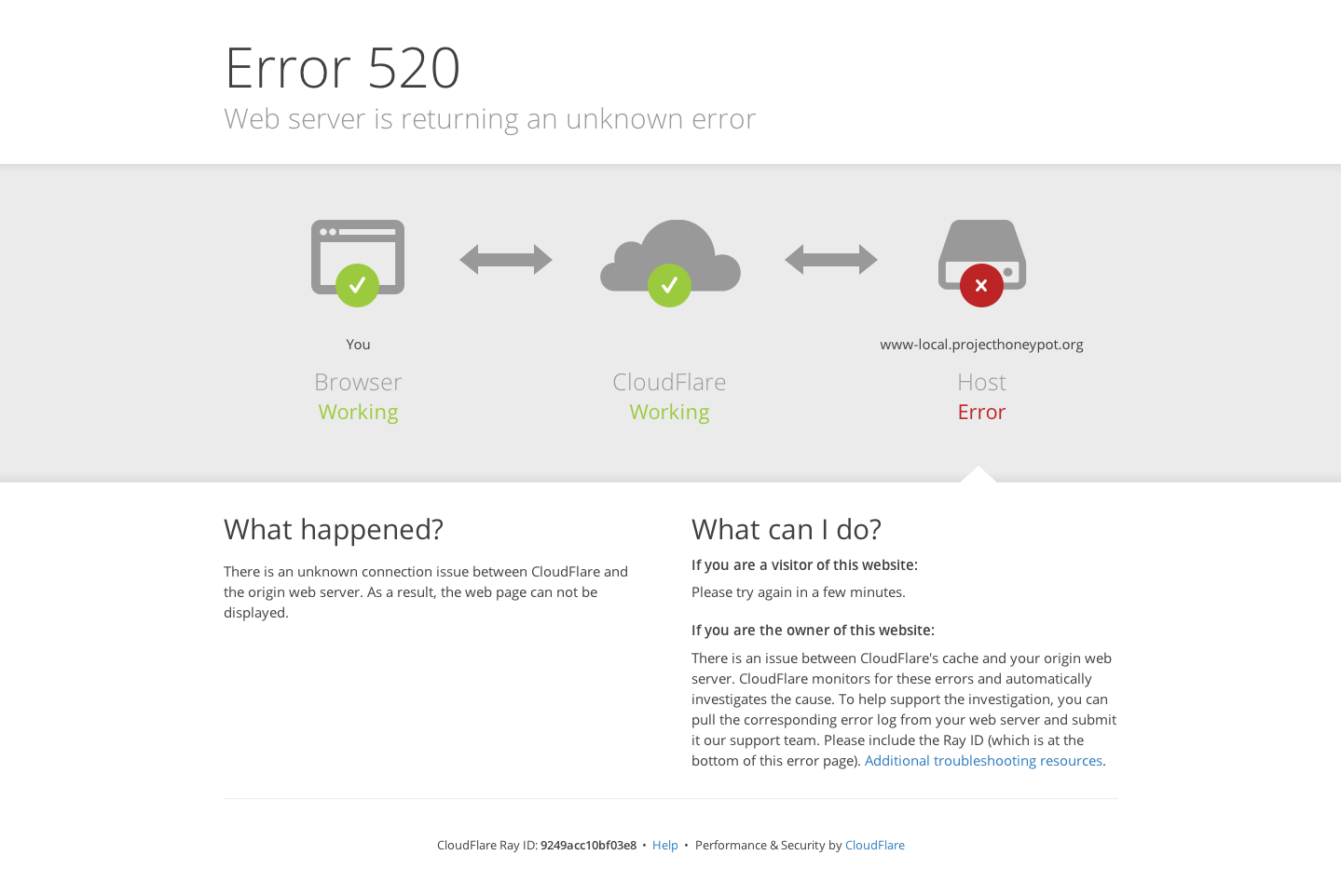
Если CloudFlare не может обработать ответ от веб-сервера, на котором расположен сайт, вы увидите ошибку 520:
Возможные причины ошибки:
- сервер дает некорректный ответ;
- приходит пустой ответ от сервера;
- сервер разорвал соединение после успешного запроса;
- заголовок запроса превышает ограничение размера (более 8 КБ).
Исправить ошибку 520 можно с помощью инструкций в справке CloudFlare.
Web Server Is Down — ошибка 521
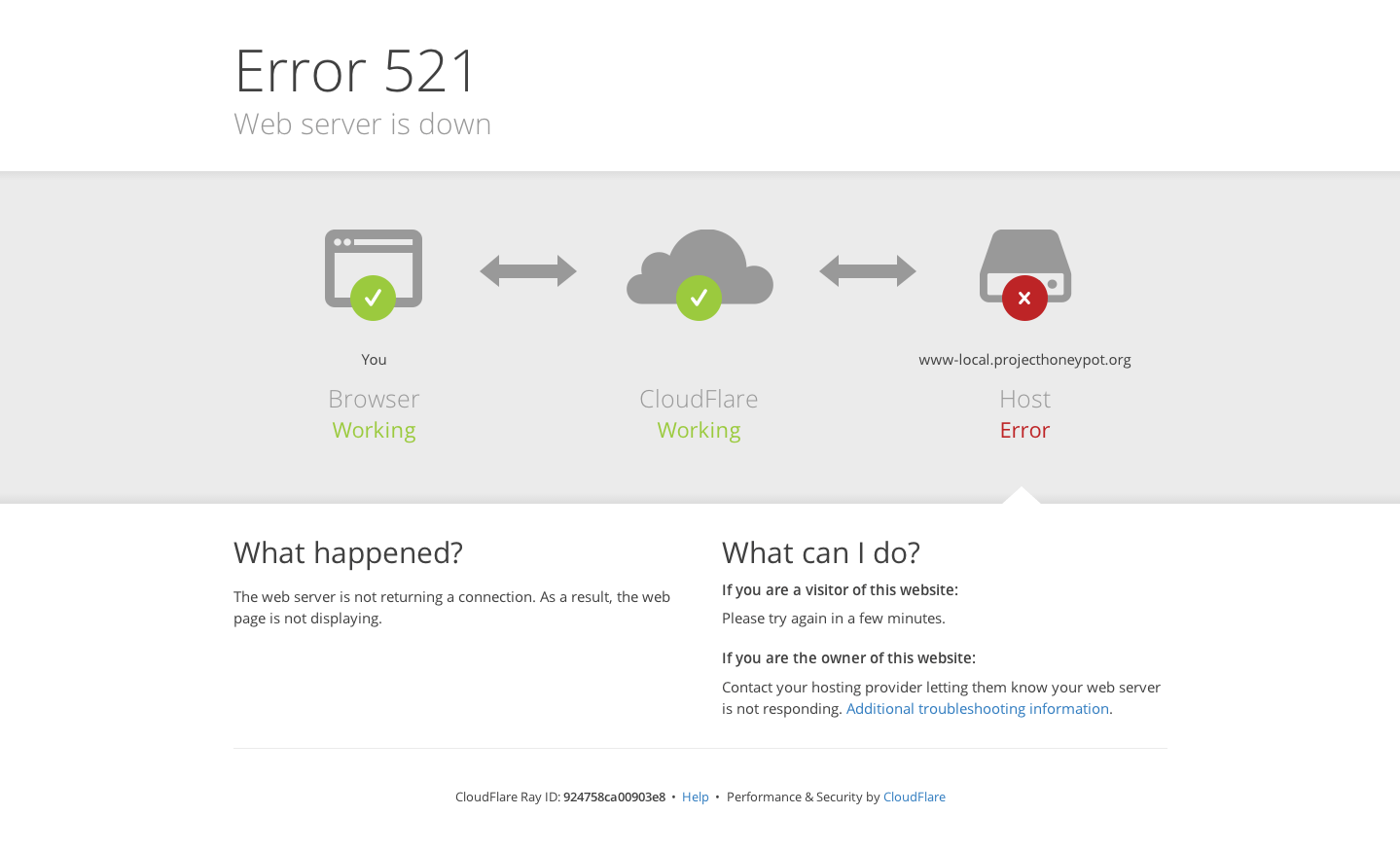
Если между веб-сервером и CloudFlare оборвалось соединение, вы увидите ошибку 521:
Основные причины ошибки:
- сервер недоступен или не отвечает — проверьте работоспособность сервера;
- веб-сервер блокирует все запросы. Поскольку CloudFlare работает по принципу обратного прокси-сервера, все запросы приходят от IP-адресов системы. Система безопасности принимает регулярные подключения с одинаковых адресов IP за DDoS-атаку. Из-за этого накладываются ограничения по скорости.
На официальном сайте можно увидеть диапазон IP-адресов CloudFlare. Ошибку 521 можно исправить с помощью инструкций в справке CloudFlare.
Connection timed out — ошибка 522
Если время ожидания ответа от веб-сервера превышено, вы увидите ошибку 522:
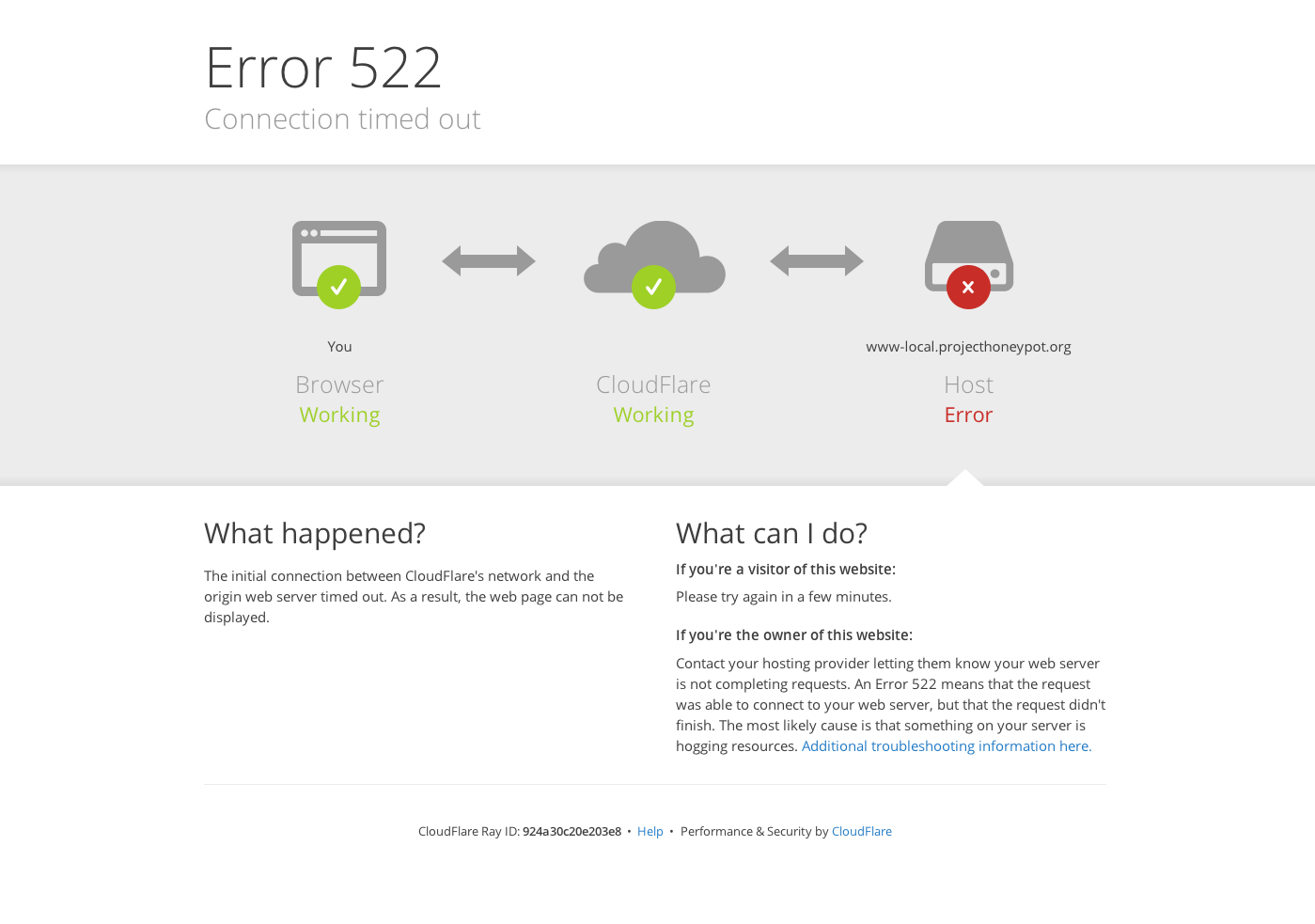
Ошибка может возникнуть, если:
- веб-сервер недоступен;
- веб-сервер перегружен и не отвечает;
- запросы от CloudFlare блокирует система защиты веб-сервера;
- некорректные настройки маршрутизации между веб-сервером и CloudFlare;
- в настройках DNS на CloudFlare установлен некорректный IP-адрес.
Перед решением проблемы убедитесь, что ваш веб-сервер принимает HTTP-запросы. Также проверьте, что DNS в Личном кабинете на CloudFlare настроены корректно. Ошибку 522 можно исправить с помощью инструкций в справке CloudFlare.
A timeout occurred — Ошибка 524
В случае когда подключение с веб-сервером установлено, но он не успел ответить за установленное время ожидания, может возникнуть ошибка 524. Время ожидания HTTP-ответа на CloudFlare — 100 секунд.
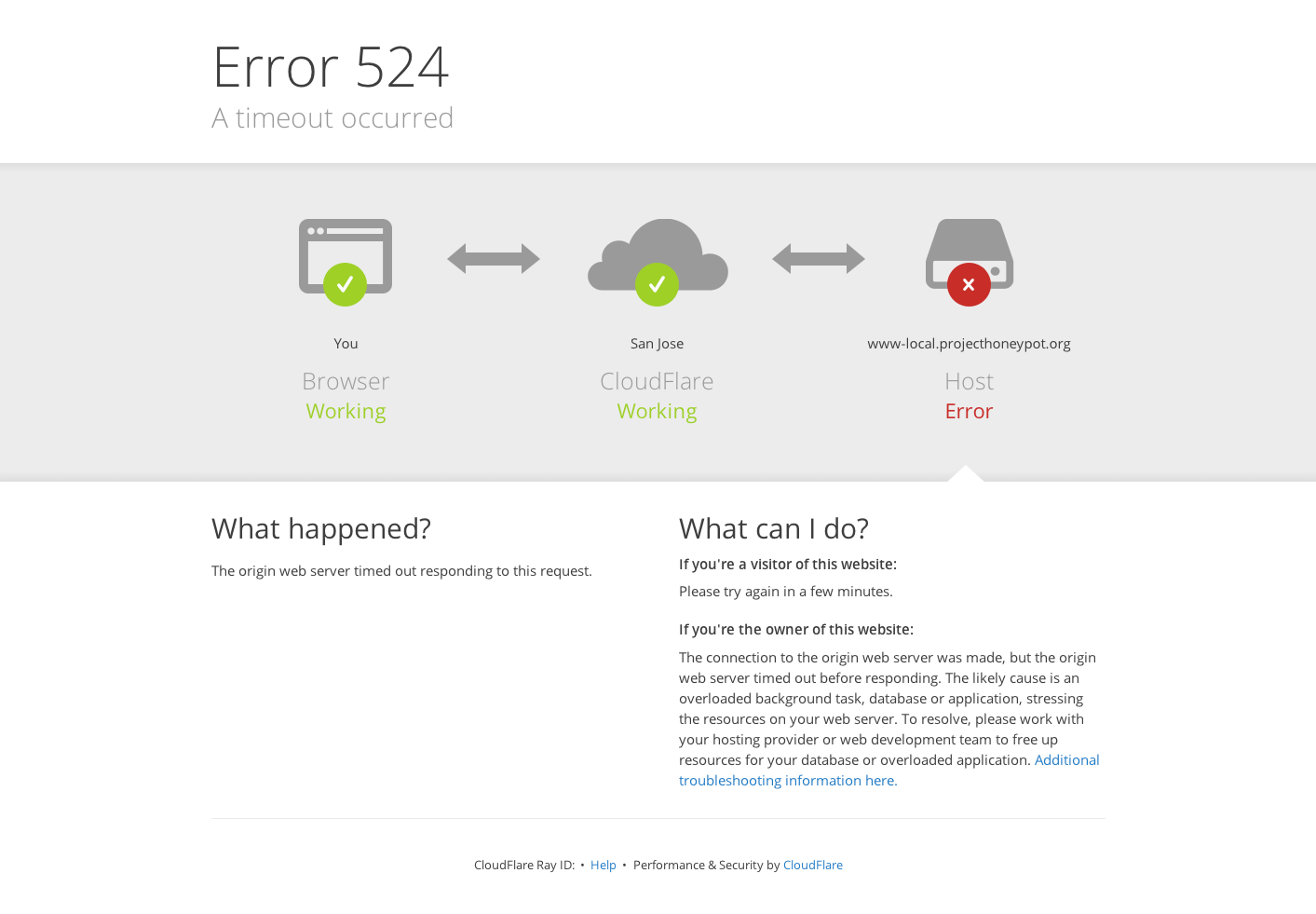
Основные причины ошибки:
- перегружен веб-сервер (проверьте процессор, оперативную память и другие ресурсы сервера);
- задержка запроса к базам данных или PHP-процесса.
Ошибку 522 можно исправить с помощью инструкций в справке CloudFlare.
Обратите внимание!
Специалисты 2domains не оказывают техническую поддержку по сервису CloudFlare. По вопросам возникновения ошибок обращайтесь в техническую поддержку CloudFlare. Если некорректная работа сайта связана с хостингом 2domains, оставьте заявку в клиентскую службу.
If you don’t know or didn’t get any right or simple guides or the Website for how to fix and solve Cloudflare Error 520 code problem from your PC, then you have to check out our below post once so that you will definitely get the natural, simple best solution methods & the Guide for easily fixing and solving this type of error problem from you altogether.
This shows an error code message like,
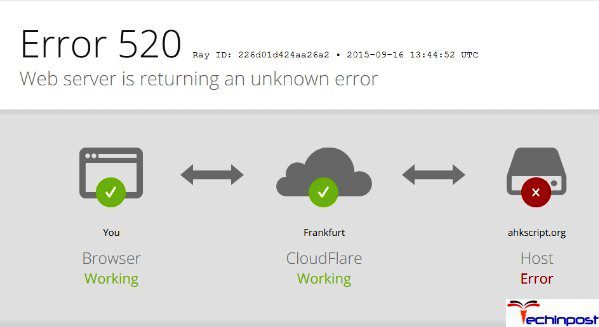
Cloudflare Error 520 Web server is returning an unknown error
This Error Code 20 problem includes the system PC freezes, crashes & possible virus infection. This error 520 also indicates the problem with the origin server and the possible request timeout error.
Causes of Cloudflare Error 520 Issue:
- Cloudflare error issue
- Unknown error
- PC problem
So, here are some quick tips and tricks for easily fixing and solving this type of Cloudflare Error 520 Code problem from you forever.
How to Fix Cloudflare Error 520 Code Problem Issue
1. Change Windows Proxy Settings on your Windows PC –

- Go to the start menu
- Search or go to the PC settings there
- Click on the ‘Show advanced settings option
- Now, click on the ‘Network Settings‘ there
- & click on the ‘Change Proxy Settings‘ option there
- Now, a Pop-up will open there &
- Go to the Connections tab there
- Click on their ‘LAN Settings‘ there &
- Tick the “Use a Proxy Server for this connection.”
(These settings will not apply to other connections). - After completing, close the tab
- That’s it, done
By changing the windows, proxy settings can also eliminate this Cloudflare Error 520 WordPress code problem from your PC.
2. Renew the IP Addresses in the CMD (Command Prompt) on your PC –
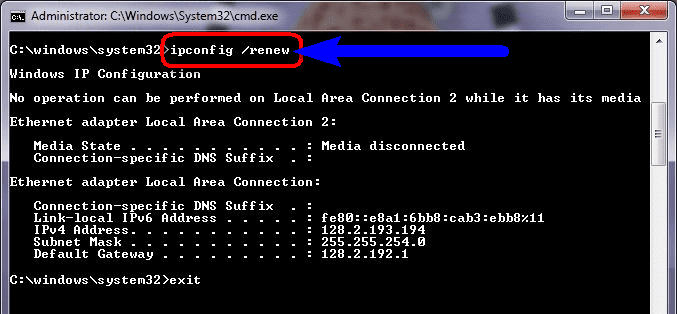
- Go to the start menu
- Search or go to the Cmd (Command Prompt)
- Right-click on it & click on the ‘Run as Administrative‘ option there
- Type the following command there
ipconfig/release - Now, press Enter there
- Type the following command now
ipconfig/renew - Then, Press Enter there
- After doing both these command
- Restart or Reboot your PC
- That’s it, done
By replacing the IP addresses of your PC, it can quickly help how to fix the Error 520 nexus code problem.
3. Uninstall unwanted Extensions from your Internet Browser –

- Go to the start menu
- Search or go to your Browser
- Click on it and opens it there
- After that, click on the three dots signs there
- & click on ‘More Tools‘ there
- Now, click on the ‘Extensions‘ option there
- Click on the extension which you do not want (Unwanted)
- Click on the Trash sign there to remove it from the browser
- After removing, close the tab
- That’s it, done
Uninstalling unwanted extensions from your browser can quickly fix and solve this HTTP Error 520 CloudFlare code problem from your PC browsers.
4. Reinstall your Google Chrome Internet Browser to fix –
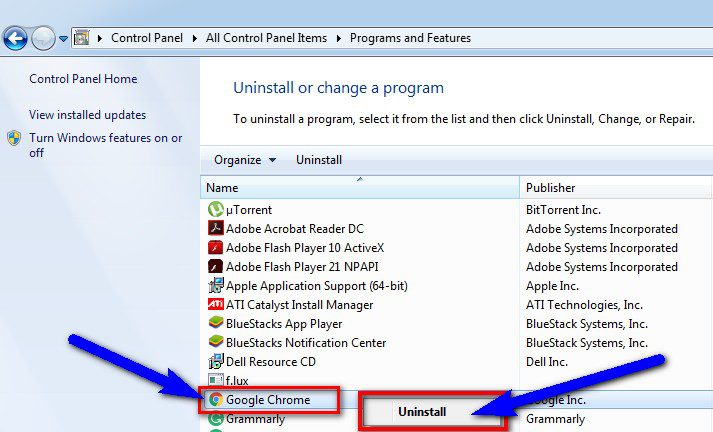
- Go to the start menu
- Search or directly go to the Control Panel
- Scroll down & go to the ‘Programs and Features‘ option there
- Click on it and opens it
- Now, go to the ‘Google Chrome‘ tab &
- Right-click on it & click on the “Uninstall” option there
- Wait for some minutes to uninstall
- After completing, reinstall it again
- After finishing, close the tab there
- That’s it, done
Reinstalling your Google Chrome browser or browser can also quickly fix and solve the What is Error 520 Utorrent code problem.
5. Allow Google Chrome Browser through Windows Firewall on your PC –
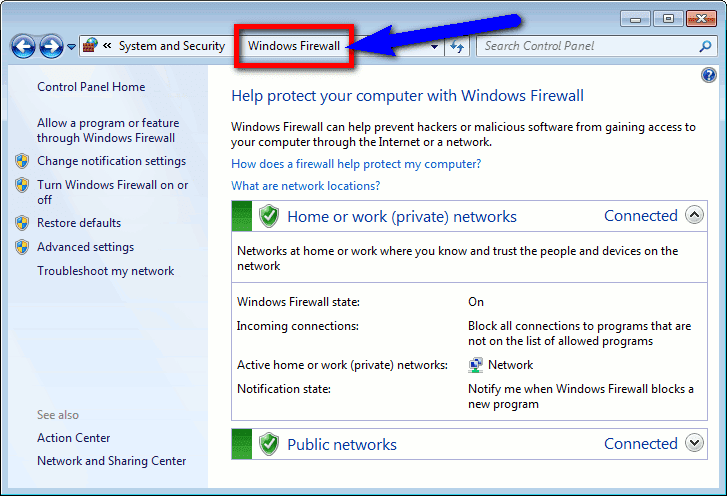
- Go to the start menu
- Search or go to the Control Panel
- Go to the ‘Internet and Network‘ option
- Click on “Configure” on the right
- In the section titled ‘Firewall Protection is enabled.’
- Click on the Advanced tab there.
- Select the ‘Program Permissions‘ from the home list on the left
- Click on the “Add Allowed Program” button there on the right
- Use the ‘Windows Explorer‘ to browse & locate your application “.Exe“
- Click on the OK button and close the Security Center
- After finishing, close the tab
- That’s it, done
By allowing the Google Chrome browser through Windows, Firewall can quickly fix this Cloudflare Error 520 Kraken problem.
6. Clear your Internet Browsing Cookies and Cache on your PC –
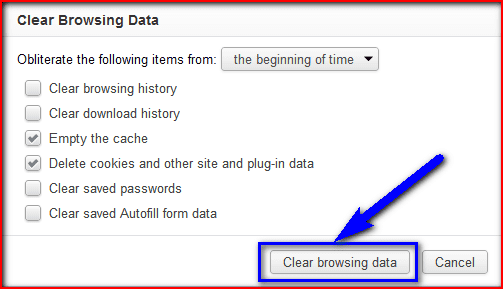
- Go to your Browser
- Click on the Settings tab or click on the History option
- Go to the “Clear Browsing Data” option there
- Tick the ‘Cookies‘ and ‘Caches‘ options there
- If you want any more to delete, then tick that option too
- Now click on their drop-down menu
- Select the ‘from the beginning‘ option there
- Now, click on the “Clear Browsing Data” button there
- Wait for some minutes to delete it
- Now, close the tab
- That’s it, done
By clearing your browser’s browsing data, you can get rid of this What is Error Code 520 problem from you.
Conclusion:
These are the quick and best methods to get rid of this Cloudflare Error 520 Crunchyroll Code problem from you entirely. Hopefully, these solutions will help you get back from this server Error 520 problem.
If you are facing or falling into this Cloudflare Error 520 Code problem or any error problem, then comment down the problem below so that we can fix and solve it too with our top best quick methods guides.
Ошибки 520, 521, 522, 524 связаны с проблемами в работе сервиса CloudFlare.
CloudFlare — сервис для перенаправления трафика на сайт с помощью облачного прокси-сервера, который обеспечивает дополнительную защиту от DDoS-атак и ускоряет загрузку вашего сайта.
Ошибка 520
Система CloudFlare выдаёт 520 ошибку, если не может обработать ответ от веб-сервера, на котором расположен сайт.
Причины появления ошибки:
- Сброс соединения (после успешного запроса, сервер разорвал соединение);
- Некорректный ответ от сервера;
- Система безопасности блокирует запросы. Укажите IP-адреса Cloudflare в белом списке, чтобы система не блокировала запросы;
- Заголовок запроса превышает ограничение размера заголовка Cloudflare (более 8 КБ). Если у вас много файлов cookie или они очень большие, это может привести к увеличению размера заголовков. Так как у Cloudflare есть ограничение на размер заголовка в 8 КБ, он не может обработать длинный заголовок;
- Пустой ответ от сервера. Это происходит, когда DNS домена указывают на неправильный сервер.
Ошибка 521 Web Server Is Down
Код ошибки 521 возникает, когда веб-сервер обрывает соединение с CloudFlare.
Это может произойти из за того, что:
- Сервер не отвечает или недоступен. Необходимо проверить работоспособность сервера;
- Веб-сервер блокирует запросы CloudFlare. Поскольку CloudFlare работает как обратный прокси-сервер, все запросы к серверам поступают от IP-адресов CloudFlare. Иногда система безопасности хостинга принимает постоянные подключения с одних и тех же IP-адресов за DDoS-атаку. В результате на IP-адреса CloudFlare накладывается блокировка/ограничения по скорости.
Ошибка 522 Connection timed out
Ошибка 522 возникает, если превышено время ожидания ответа от веб-сервера.
Основные причины:
- На веб-сервере стоит система защиты, которая блокирует запросы от CloudFlare;
- Проблемы с маршрутизацией сети между CloudFlare и веб-сервером;
- Некорректный IP-адрес, установленный в настройках DNS на CloudFlare (Запрос от CloudFlare был отправлен на другой IP);
- Веб-сервер перегружен и не ответил на запрос;
- Веб-сервер недоступен.
Для решения проблемы удостоверьтесь, что ваш веб-сервер активен и принимает HTTP-запросы. Проверьте, корректны ли настройки DNS в Личном кабинете на CloudFlare.
Как исправить ошибку 522 в Google Chrome
Методы решения:
- Очистите кеш браузера. Браузер может быть переполнен данными о посещении сайтов;
- Удалите расширение браузера, которое нарушает соединение с сервером или отключайте расширения по очереди, чтобы найти то, которое выдает ошибку;
- Проверьте подключение к интернету. Низкая скорость интернета или перебои при подключении может повлиять на время получения ответа сервера;
- Очистите кэш DNS.
DNS-кэш — это временная база данных вашего компьютера, которая хранит IP-адреса часто посещаемых веб-сайтов. Такая база данных ускоряет связь с сервером.
Вы можете изменить DNS, однако данные из кэша отправляют на старый IP-адрес. После очистки браузер начнёт обращаться к новому IP-адресу. Чаще всего проблема несоответствия DNS приводит к ошибке 502, но также может появиться ошибка 400.
ОС Windows:
-
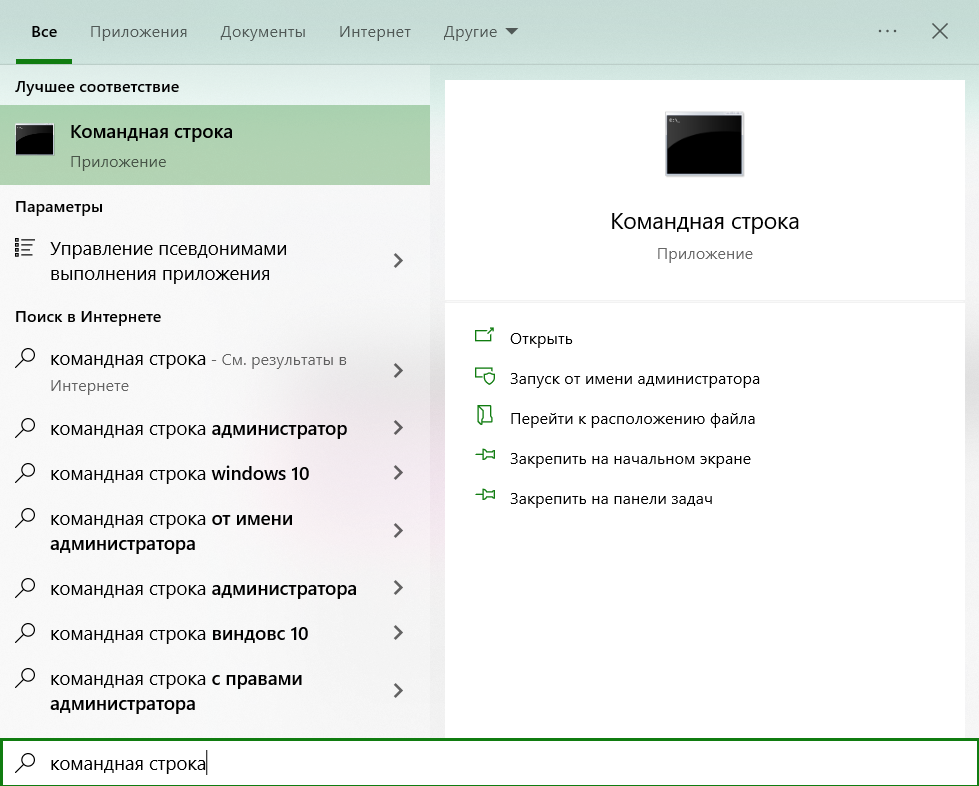
Откройте командную строку. Для этого введите в поисковую строку
Командная строкаилиcmdи выберите появившееся приложение;
-
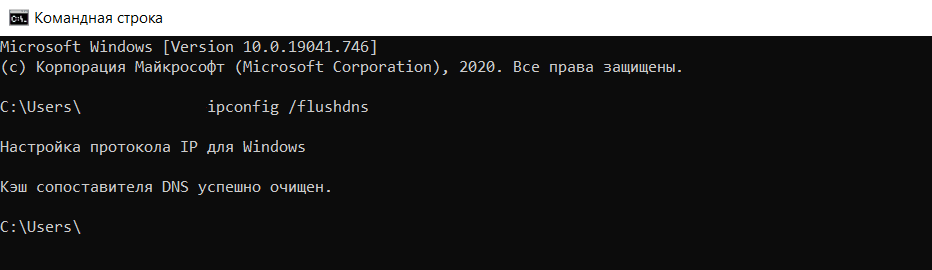
Введите команду:
ipconfig /flushdns
Дождитесь сообщения об очистке кэша;
Linux:
- Откройте терминал клавишами
Ctrl+Alt+T; -
Введите команду:
-
Для Ubuntu:
sudo service network-manager restart
-
Для других дистрибутивов:
sudo /etc/init.d/nscd restart
-
macOS:
- Войдите в терминал. Для этого нажмите клавиши
Command + Space. Введите Терминал и нажмите на найденное приложение; -
Введите команду:
sudo killall -HUP mDNSResponder
Ошибка 524 A timeout occurred
Ошибка 524 возникает, когда подключение с веб-сервером установлено, но он не ответил за установленное время ожидания соединения.
Время ожидания HTTP-ответа на CloudFlare — 100 секунд. Если веб-сервер не предоставил ответ, система выдаст 524 ошибку.
Основные причины:
- Длительная работа PHP-процесса или запроса к базе данных;
- Веб-сервер перегружен. Проверьте доступные ресурсы сервера, в том числе процессор и оперативную память.
Если вы регулярно выполняете тяжёлые запросы, которые могут занять больше 100 секунд, переместите эти процессы на субдомен, который не проксимируется в Cloudflare.
Удачной работы! Если возникнут вопросы — напишите нам, пожалуйста, тикет из панели управления хостингом, раздел «Помощь и поддержка».