
Меню сайта
Компьютеры и железо
Инструменты
Информационные справочники
Облако тегов
1С Google PHP SEO TrustRank Индексация Интернет магазин Поисковая оптимизация Поисковый робот Продвижение блога Продвижение интернет магазина Продвижение сайта Разработка сайта Раскрутка блога Раскрутка интернет магазина Раскрутка сайта Создание блога Создание сайта
BNAME.RU » Код ошибки HTTP 499 Client Closed Request
Что означает ошибка 499 Client Closed Request?
Код используется компанией Nginx. Этот код был введен для определения ситуаций, когда клиент закрывает соединение во время обработки запроса сервером. Таким образом, сервер не может отправить назад заголовок HTTP.
Если Вам помогла информация размещенная на странице «HTTP коды» — Вы можете поддержать наш проект.
«1xx» — Информационные коды HTTP
100 — Continue (Продолжай)
«Продолжить». Этот промежуточный ответ указывает, что запрос… Читать далее
Подробнее
101 — Switching Protocol (Переключение протоколов)
«Переключение протокола». Этот код присылается в ответ на за… Читать далее
Подробнее
102 — Processing (Идёт обработка)
«В обработке». Этот код указывает, что сервер получил запрос… Читать далее
Подробнее
103 — Early Hints (Ранняя метаинформация)
«Ранние подсказки». В ответе сообщаются ресурсы, которые мог… Читать далее
Подробнее
«2xx» — Успешные коды HTTP
200 — OK (Хорошо)
«Успешно». Запрос успешно обработан. Что значит «успешно», з… Читать далее
Подробнее
201 — Created (Создано)
«Создано». Запрос успешно выполнен и в результате был создан… Читать далее
Подробнее
202 — Accepted (Принято)
«Принято». Запрос принят, но ещё не обработан. Не поддержива… Читать далее
Подробнее
203 — Non-Authoritative Information (Информация не авторитетна)
«Информация не авторитетна». Этот код ответа означает, что и… Читать далее
Подробнее
204 — No Content (Нет содержимого)
«Нет содержимого». Нет содержимого для ответа на запрос, но … Читать далее
Подробнее
205 — Reset Content (Сбросить содержимое)
«Сбросить содержимое». Этот код присылается, когда запрос об… Читать далее
Подробнее
206 — Partial Content (Частичное содержимое)
«Частичное содержимое». Этот код ответа используется, когда … Читать далее
Подробнее
207 — Multi-Status (Многостатусный)
Код 207 (Multi-Status) позволяет передавать статусы для неск… Читать далее
Подробнее
208 — Already Reported (Уже сообщалось)
Относится к DAV и был ранее включен в 207 ответ. Там поныне … Читать далее
Подробнее
226 — IM Used (Использовано IM)
Расширение HTTP для поддержки «дельта кодирования» ( delta e… Читать далее
Подробнее
«3xx» — Коды перенаправлений (HTTP Редиректы)
300 — Multiple Choice (Множество выборов)
«Множественный выбор». Этот код ответа присылается, когда за… Читать далее
Подробнее
301 — Moved Permanently (Перемещено навсегда)
«Перемещён на постоянной основе». Этот код ответа значит, чт… Читать далее
Подробнее
302 — Found / Moved Temporarily (Найдено / Перемещено временно)
«Найдено». Этот код ответа значит, что запрошенный ресурс вр… Читать далее
Подробнее
303 — See Other (Смотреть другое)
«Просмотр других ресурсов». Этот код ответа присылается,&nbs… Читать далее
Подробнее
304 — Not Modified (Не изменялось)
«Не модифицировано». Используется для кэширования. Это код о… Читать далее
Подробнее
305 — Use Proxy (Использовать прокси)
«Использовать прокси». Это означает, что запрошенный ресурс … Читать далее
Подробнее
306 — Switch Proxy (Сменить прокси)
Больше не использовать. Изначально подразумевалось, что » по… Читать далее
Подробнее
307 — Temporary Redirect (Временное перенаправление)
«Временное перенаправление». Сервер отправил этот ответ… Читать далее
Подробнее
308 — Permanent Redirect (Постоянное перенаправление)
«Перенаправление на постоянной основе». Это означает, что ре… Читать далее
Подробнее
«4xx» — Коды ошибок на стороне клиента
400 — Bad Request (Некорректный запрос)
«Плохой запрос». Этот ответ означает, что сервер не понимает… Читать далее
Подробнее
401 — Unauthorized (Не авторизован)
«Неавторизовано». Для получения запрашиваемого ответа нужна … Читать далее
Подробнее
402 — Payment Required (Необходима оплата)
«Необходима оплата». Этот код ответа зарезервирован для буду… Читать далее
Подробнее
403 — Forbidden (Запрещено)
«Запрещено». У клиента нет прав доступа к содержимому, поэто… Читать далее
Подробнее
404 — Not Found (Не найдено)
«Не найден». Сервер не может найти запрашиваемый ресурс. Код… Читать далее
Подробнее
405 — Method Not Allowed (Метод не поддерживается)
«Метод не разрешен». Сервер знает о запрашиваемом методе, но… Читать далее
Подробнее
406 — Not Acceptable (Неприемлемо)
Этот ответ отсылается, когда веб сервер после выполнения ser… Читать далее
Подробнее
407 — Proxy Authentication Required (Необходима аутентификация прокси)
Этот код ответа аналогичен коду 401, только аутентификация т… Читать далее
Подробнее
408 — Request Timeout (Истекло время ожидания)
Ответ с таким кодом может прийти, даже без предшествующего з… Читать далее
Подробнее
409 — Conflict (Конфликт)
Этот ответ отсылается, когда запрос конфликтует с текущим со… Читать далее
Подробнее
410 — Gone (Удалён)
Этот ответ отсылается, когда запрашиваемый контент удален с … Читать далее
Подробнее
411 — Length Required (Необходима длина)
Запрос отклонен, потому что сервер требует указание заголовк… Читать далее
Подробнее
412 — Precondition Failed (Условие ложно)
Клиент указал в своих заголовках условия, которые сервер не … Читать далее
Подробнее
413 — Request Entity Too Large (Полезная нагрузка слишком велика)
Размер запроса превышает лимит, объявленный сервером. Сервер… Читать далее
Подробнее
414 — Request-URI Too Long (URI слишком длинный)
URI запрашиваемый клиентом слишком длинный для того, чтобы с… Читать далее
Подробнее
415 — Unsupported Media Type (Неподдерживаемый тип данных)
Медиа формат запрашиваемых данных не поддерживается сервером… Читать далее
Подробнее
416 — Requested Range Not Satisfiable (Диапазон не достижим)
Диапозон указанный заголовком запроса Range не может бы… Читать далее
Подробнее
417 — Expectation Failed (Ожидание не удалось)
Этот код ответа означает, что ожидание, полученное из заголо… Читать далее
Подробнее
418 — I’m a teapot (Я — чайник)
I’m a teapot — Этот код был введен в 1998 году как одна из т… Читать далее
Подробнее
419 — Authentication Timeout (not in RFC 2616) (Обычно ошибка проверки CSRF)
Authentication Timeout (not in RFC 2616) — Этого кода нет в … Читать далее
Подробнее
420 — Enhance Your Calm (Twitter) (Подождите немного (Твиттер))
Возвращается Twitter Search и Trends API, когда клиент отпра… Читать далее
Подробнее
421 — Misdirected Request (Неверный запрос)
Misdirected Request — запрос был перенаправлен на сервер, не… Читать далее
Подробнее
422 — Unprocessable Entity (Необрабатываемый экземпляр)
Запрос имел правильный формат, но его нельзя обработать из-з… Читать далее
Подробнее
423 — Locked (Заблокировано)
Целевой ресурс из запроса заблокирован от применения к нему … Читать далее
Подробнее
424 — Failed Dependency (Невыполненная зависимость)
Не удалось завершить запрос из-за ошибок к предыдущем запрос… Читать далее
Подробнее
425 — Too Early (Слишком рано)
Too Early — сервер не готов принять риски обработки «ранней … Читать далее
Подробнее
426 — Upgrade Required (Необходимо обновление)
Указание сервера, клиенту, обновить протокол. Заголовок отве… Читать далее
Подробнее
428 — Precondition Required (Необходимо предусловие)
Precondition Required — сервер указывает клиенту на необходи… Читать далее
Подробнее
429 — Too Many Requests (Слишком много запросов)
Too Many Requests — клиент попытался отправить слишком много… Читать далее
Подробнее
430 — Would Block (Будет заблокировано)
Код состояния 430 would Block — это код, который сервер мог … Читать далее
Подробнее
431 — Request Header Fields Too Large (Поля заголовка запроса слишком большие)
Request Header Fields Too Large — Превышена допустимая длина… Читать далее
Подробнее
434 — Requested host unavailable (Запрашиваемый адрес недоступен)
Сервер к которому вы обратились недоступен… Читать далее
Подробнее
444 — No Response (Nginx) (Нет ответа (Nginx))
Код ответа Nginx. Сервер не вернул информацию и закрыл соеди… Читать далее
Подробнее
449 — Retry With (Повторить с…)
Retry With — возвращается сервером, если для обработки запро… Читать далее
Подробнее
450 — Blocked by Windows Parental Controls (Microsoft) (Заблокировано родительским контролем Windows (Microsoft))
Расширение Microsoft. Эта ошибка возникает, когда родительск… Читать далее
Подробнее
451 — Unavailable For Legal Reasons (Недоступно по юридическим причинам)
Unavailable For Legal Reasons — доступ к ресурсу закрыт по ю… Читать далее
Подробнее
499 — Client Closed Request (Клиент закрыл соединение)
Нестандартный код состояния, представленный nginx для случая… Читать далее
Подробнее
«5xx» — Коды ошибок на стороне сервера
500 — Internal Server Error (Внутренняя ошибка сервера)
«Внутренняя ошибка сервера». Сервер столкнулся с ситуацией, … Читать далее
Подробнее
501 — Not Implemented (Не реализовано)
«Не выполнено». Метод запроса не поддерживается сервером и н… Читать далее
Подробнее
502 — Bad Gateway (Плохой шлюз)
«Плохой шлюз». Эта ошибка означает что сервер, во время рабо… Читать далее
Подробнее
503 — Service Unavailable (Сервис недоступен)
«Сервис недоступен». Сервер не готов обрабатывать запрос. За… Читать далее
Подробнее
504 — Gateway Timeout (Шлюз не отвечает)
Этот ответ об ошибке предоставляется, когда сервер действует… Читать далее
Подробнее
505 — HTTP Version Not Supported (Версия HTTP не поддерживается)
«HTTP-версия не поддерживается». HTTP-версия, используемая в… Читать далее
Подробнее
506 — Variant Also Negotiates (Вариант тоже проводит согласование)
Из-за не верной конфигурации, выбранный вариант указывает са… Читать далее
Подробнее
507 — Insufficient Storage (Переполнение хранилища)
Не хватает места для выполнения текущего запроса. Проблема м… Читать далее
Подробнее
508 — Loop Detected (Обнаружено бесконечное перенаправление)
Сервер обнаружил бесконечный цикл при обработке запроса…. Читать далее
Подробнее
509 — Bandwidth Limit Exceeded (Исчерпана пропускная ширина канала)
Данный код статуса, используется в случае превышения веб пло… Читать далее
Подробнее
510 — Not Extended (Не расширено)
У сервера отсутствует расширение, которое пытается использов… Читать далее
Подробнее
511 — Network Authentication Required (Требуется сетевая аутентификация)
Необходимо выполнить аутентификацию, при этом в ответе должн… Читать далее
Подробнее
520 — Unknown Error (Неизвестная ошибка)
Unknown Error, возникает когда сервер CDN не смог обработать… Читать далее
Подробнее
521 — Web Server Is Down (Веб-сервер не работает)
Web Server Is Down, возникает когда подключения CDN отклоняю… Читать далее
Подробнее
522 — Connection Timed Out (Соединение не отвечает)
Connection Timed Out, возникает когда CDN не удалось подключ… Читать далее
Подробнее
523 — Origin Is Unreachable (Источник недоступен)
Origin Is Unreachable, возникает когда веб-сервер недостижим… Читать далее
Подробнее
524 — A Timeout Occurred (Время ожидания истекло)
A Timeout Occurred, возникает при истечении тайм-аута подклю… Читать далее
Подробнее
525 — SSL Handshake Failed (Квитирование SSL не удалось)
SSL Handshake Failed, возникает при ошибке рукопожатия SSL м… Читать далее
Подробнее
526 — Invalid SSL Certificate (Недействительный сертификат SSL)
Invalid SSL Certificate, возникает когда не удаётся подтверд… Читать далее
Подробнее
527 — Error: Railgun Listener to origin error (Ошибка прослушивателя рейлгана для источника)
Нестандартный код CloudFlare — указывает на прерванное соеди… Читать далее
Подробнее
530 — Origin DNS Error (Ошибка исходного DNS)
Нестандартный код CloudFlare. Ошибка HTTP 530 возвращается с… Читать далее
Подробнее
598 — Network read timeout error (Ошибка тайм-аута сетевого чтения)
Используется прокси-серверами Microsoft HTTP для передачи си… Читать далее
Подробнее
599 — Network connect timeout error (Ошибка тайм-аута сетевого подключения)
Используется прокси-серверами Microsoft HTTP для передачи си… Читать далее
Подробнее
Copyright © BNAME.RU 2006 – | Все права защищены.
Последние комментарии

Dina — Вчера, 10:49
PHP преобразовать первый символ в верхний регистр — функция mb_ucfirst() в многобайтных кодировках и юникода
Fabulous, what a web site it is! This webpage provides useful facts to us, keep it up. Best Website To Buy Second
Esmeralda — Вчера, 03:49
PHP преобразовать первый символ в верхний регистр — функция mb_ucfirst() в многобайтных кодировках и юникода
It’s a pity you don’t have a donate button! I’d certainly donate to this superb blog! I suppose for now i’ll settle
Demi — Вчера, 01:13
PHP преобразовать первый символ в верхний регистр — функция mb_ucfirst() в многобайтных кодировках и юникода
I have read several good stuff here. Certainly worth bookmarking for revisiting. I surprise how so much attempt you set
Lida — Вчера, 00:40
PHP преобразовать первый символ в верхний регистр — функция mb_ucfirst() в многобайтных кодировках и юникода
Excellent way of explaining, and pleasant article to obtain facts concerning my presentation focus, which i am going to
Marisa — 10 февраля 2023 23:14
PHP преобразовать первый символ в верхний регистр — функция mb_ucfirst() в многобайтных кодировках и юникода
Недорогой ремонт инструментов в Минске http://mirhimii.ru/index.php?subaction=userinfo&user=ininug
Все комментарии
Онлайн статистика
5 посетителей на сайте. Из них:
Гости4
Роботы1
At the end of last week I noticed a problem on one of my medium AWS instances where Nginx always returns a HTTP 499 response if a request takes more than 60 seconds. The page being requested is a PHP script
I’ve spent several days trying to find answers and have tried everything that I can find on the internet including several entries here on Stack Overflow, nothing works.
I’ve tried modifying the PHP settings, PHP-FPM settings and Nginx settings. You can see a question I raised on the NginX forums on Friday (http://forum.nginx.org/read.php?9,237692) though that has received no response so I am hoping that I might be able to find an answer here before I am forced to moved back to Apache which I know just works.
This is not the same problem as the HTTP 500 errors reported in other entries.
I’ve been able to replicate the problem with a fresh micro AWS instance of NginX using PHP 5.4.11.
To help anyone who wishes to see the problem in action I’m going to take you through the set-up I ran for the latest Micro test server.
You’ll need to launch a new AWS Micro instance (so it’s free) using the AMI ami-c1aaabb5
This PasteBin entry has the complete set-up to run to mirror my test environment. You’ll just need to change example.com within the NginX config at the end
http://pastebin.com/WQX4AqEU
Once that’s set-up you just need to create the sample PHP file which I am testing with which is
<?php
sleep(70);
die( 'Hello World' );
?>
Save that into the webroot and then test. If you run the script from the command line using php or php-cgi, it will work. If you access the script via a webpage and tail the access log /var/log/nginx/example.access.log, you will notice that you receive the HTTP 1.1 499 response after 60 seconds.
Now that you can see the timeout, I’ll go through some of the config changes I’ve made to both PHP and NginX to try to get around this. For PHP I’ll create several config files so that they can be easily disabled
Update the PHP FPM Config to include external config files
sudo echo '
include=/usr/local/php/php-fpm.d/*.conf
' >> /usr/local/php/etc/php-fpm.conf
Create a new PHP-FPM config to override the request timeout
sudo echo '[www]
request_terminate_timeout = 120s
request_slowlog_timeout = 60s
slowlog = /var/log/php-fpm-slow.log ' >
/usr/local/php/php-fpm.d/timeouts.conf
Change some of the global settings to ensure the emergency restart interval is 2 minutes
# Create a global tweaks
sudo echo '[global]
error_log = /var/log/php-fpm.log
emergency_restart_threshold = 10
emergency_restart_interval = 2m
process_control_timeout = 10s
' > /usr/local/php/php-fpm.d/global-tweaks.conf
Next, we will change some of the PHP.INI settings, again using separate files
# Log PHP Errors
sudo echo '[PHP]
log_errors = on
error_log = /var/log/php.log
' > /usr/local/php/conf.d/errors.ini

sudo echo '[PHP]
post_max_size=32M
upload_max_filesize=32M
max_execution_time = 360
default_socket_timeout = 360
mysql.connect_timeout = 360
max_input_time = 360
' > /usr/local/php/conf.d/filesize.ini
As you can see, this is increasing the socket timeout to 3 minutes and will help log errors.
Finally, I’ll edit some of the NginX settings to increase the timeout’s that side
First I edit the file /etc/nginx/nginx.conf and add this to the http directive
fastcgi_read_timeout 300;
Next, I edit the file /etc/nginx/sites-enabled/example which we created earlier (See the pastebin entry) and add the following settings into the server directive
client_max_body_size    200;
client_header_timeout   360;
client_body_timeout     360;
fastcgi_read_timeout    360;
keepalive_timeout       360;
proxy_ignore_client_abort on;
send_timeout            360;
lingering_timeout       360;
Finally I add the following into the location ~ .php$ section of the server dir
fastcgi_read_timeout 360;
fastcgi_send_timeout 360;
fastcgi_connect_timeout 1200;
Before retrying the script, start both nginx and php-fpm to ensure that the new settings have been picked up. I then try accessing the page and still receive the HTTP/1.1 499 entry within the NginX example.error.log.
So, where am I going wrong? This just works on apache when I set PHP’s max execution time to 2 minutes.
I can see that the PHP settings have been picked up by running phpinfo() from a web-accessible page. I just don’t get, I actually think that too much has been increased as it should just need PHP’s max_execution_time, default_socket_timeout changed as well as NginX’s fastcgi_read_timeout within just the server->location directive.
Update 1
Having performed some further test to show that the problem is not that the client is dying I have modified the test file to be
<?php
file_put_contents('/www/log.log', 'My first data');
sleep(70);
file_put_contents('/www/log.log','The sleep has passed');
die('Hello World after sleep');
?>
If I run the script from a web page then I can see the content of the file be set to the first string. 60 seconds later the error appears in the NginX log. 10 seconds later the contents of the file changes to the 2nd string, proving that PHP is completing the process.
Update 2
Setting fastcgi_ignore_client_abort on; does change the response from a HTTP 499 to a HTTP 200 though nothing is still returned to the end client.
Update 3
Having installed Apache and PHP (5.3.10) onto the box straight (using apt) and then increasing the execution time the problem does appear to also happen on Apache as well. The symptoms are the same as NginX now, a HTTP200 response but the actual client connection times out before hand.
I’ve also started to notice, in the NginX logs, that if I test using Firefox, it makes a double request (like this PHP script executes twice when longer than 60 seconds). Though that does appear to be the client requesting upon the script failing
At the end of last week I noticed a problem on one of my medium AWS instances where Nginx always returns a HTTP 499 response if a request takes more than 60 seconds. The page being requested is a PHP script
I’ve spent several days trying to find answers and have tried everything that I can find on the internet including several entries here on Stack Overflow, nothing works.
I’ve tried modifying the PHP settings, PHP-FPM settings and Nginx settings. You can see a question I raised on the NginX forums on Friday (http://forum.nginx.org/read.php?9,237692) though that has received no response so I am hoping that I might be able to find an answer here before I am forced to moved back to Apache which I know just works.
This is not the same problem as the HTTP 500 errors reported in other entries.
I’ve been able to replicate the problem with a fresh micro AWS instance of NginX using PHP 5.4.11.
To help anyone who wishes to see the problem in action I’m going to take you through the set-up I ran for the latest Micro test server.
You’ll need to launch a new AWS Micro instance (so it’s free) using the AMI ami-c1aaabb5
This PasteBin entry has the complete set-up to run to mirror my test environment. You’ll just need to change example.com within the NginX config at the end
http://pastebin.com/WQX4AqEU
Once that’s set-up you just need to create the sample PHP file which I am testing with which is
<?php
sleep(70);
die( 'Hello World' );
?>
Save that into the webroot and then test. If you run the script from the command line using php or php-cgi, it will work. If you access the script via a webpage and tail the access log /var/log/nginx/example.access.log, you will notice that you receive the HTTP 1.1 499 response after 60 seconds.
Now that you can see the timeout, I’ll go through some of the config changes I’ve made to both PHP and NginX to try to get around this. For PHP I’ll create several config files so that they can be easily disabled
Update the PHP FPM Config to include external config files
sudo echo '
include=/usr/local/php/php-fpm.d/*.conf
' >> /usr/local/php/etc/php-fpm.conf
Create a new PHP-FPM config to override the request timeout
sudo echo '[www]
request_terminate_timeout = 120s
request_slowlog_timeout = 60s
slowlog = /var/log/php-fpm-slow.log ' >
/usr/local/php/php-fpm.d/timeouts.conf
Change some of the global settings to ensure the emergency restart interval is 2 minutes
# Create a global tweaks
sudo echo '[global]
error_log = /var/log/php-fpm.log
emergency_restart_threshold = 10
emergency_restart_interval = 2m
process_control_timeout = 10s
' > /usr/local/php/php-fpm.d/global-tweaks.conf
Next, we will change some of the PHP.INI settings, again using separate files
# Log PHP Errors
sudo echo '[PHP]
log_errors = on
error_log = /var/log/php.log
' > /usr/local/php/conf.d/errors.ini

sudo echo '[PHP]
post_max_size=32M
upload_max_filesize=32M
max_execution_time = 360
default_socket_timeout = 360
mysql.connect_timeout = 360
max_input_time = 360
' > /usr/local/php/conf.d/filesize.ini
As you can see, this is increasing the socket timeout to 3 minutes and will help log errors.
Finally, I’ll edit some of the NginX settings to increase the timeout’s that side
First I edit the file /etc/nginx/nginx.conf and add this to the http directive
fastcgi_read_timeout 300;
Next, I edit the file /etc/nginx/sites-enabled/example which we created earlier (See the pastebin entry) and add the following settings into the server directive
client_max_body_size    200;
client_header_timeout   360;
client_body_timeout     360;
fastcgi_read_timeout    360;
keepalive_timeout       360;
proxy_ignore_client_abort on;
send_timeout            360;
lingering_timeout       360;
Finally I add the following into the location ~ .php$ section of the server dir
fastcgi_read_timeout 360;
fastcgi_send_timeout 360;
fastcgi_connect_timeout 1200;
Before retrying the script, start both nginx and php-fpm to ensure that the new settings have been picked up. I then try accessing the page and still receive the HTTP/1.1 499 entry within the NginX example.error.log.
So, where am I going wrong? This just works on apache when I set PHP’s max execution time to 2 minutes.
I can see that the PHP settings have been picked up by running phpinfo() from a web-accessible page. I just don’t get, I actually think that too much has been increased as it should just need PHP’s max_execution_time, default_socket_timeout changed as well as NginX’s fastcgi_read_timeout within just the server->location directive.
Update 1
Having performed some further test to show that the problem is not that the client is dying I have modified the test file to be
<?php
file_put_contents('/www/log.log', 'My first data');
sleep(70);
file_put_contents('/www/log.log','The sleep has passed');
die('Hello World after sleep');
?>
If I run the script from a web page then I can see the content of the file be set to the first string. 60 seconds later the error appears in the NginX log. 10 seconds later the contents of the file changes to the 2nd string, proving that PHP is completing the process.
Update 2
Setting fastcgi_ignore_client_abort on; does change the response from a HTTP 499 to a HTTP 200 though nothing is still returned to the end client.
Update 3
Having installed Apache and PHP (5.3.10) onto the box straight (using apt) and then increasing the execution time the problem does appear to also happen on Apache as well. The symptoms are the same as NginX now, a HTTP200 response but the actual client connection times out before hand.
I’ve also started to notice, in the NginX logs, that if I test using Firefox, it makes a double request (like this PHP script executes twice when longer than 60 seconds). Though that does appear to be the client requesting upon the script failing
When managing and maintaining a website, there are a handful of HTTP status codes to be aware of. Some, such as the HTTP 499 error, can cause a timeout that interrupts your workflow. Therefore, you’ll need to ensure that your site is configured properly to avoid this issue.
Whether you’re seeing the HTTP 499 status code frequently or for the first time, it may indicate an issue with your website that needs to be addressed. The good news is that there are multiple steps you can take to resolve it.
Check Out Our Video Guide to Fixing the 499 Error
In this post, we’ll explain the HTTP 499 status code and what can cause the error. Then we’ll walk you through five potential solutions you can use to fix it. Let’s get started!
What the HTTP 499 Status Code Means
The HTTP 499 status code, also known as a “client closed request,” is a special case of the 502 Bad Gateway Error. It indicates that the client has closed the connection while the server is still processing the request.
HTTP 499 falls within the category of client-based errors. This means the issue is on the client side. Other common errors in this category include HTTP 400 Bad Request and HTTP 404 Not Found. With these errors, the problems are usually easy to define. However, HTTP 499 is more general.
The HTTP 499 error can happen on both Nginx and Apache servers. However, it is more common on Nginx servers because it was created by Nginx.
HTTP 499 is more common on Nginx because the server software handles client connections differently than Apache. With Nginx, each client connection is processed in a separate thread. Therefore, if one client connection takes a long time to process, it won’t slow down the other clients.
However, with Apache, all client connections are processed in the same thread. This can cause problems if one client connection takes a long time to process because it will slow down all other clients.
The HTTP 499 error can cause a timeout that interrupts your workflow- but with a little help from this guide, you can get right back on track 👩💻Click to Tweet
What Causes the HTTP 499 Error
Typically, the HTTP 499 error appears in Nginx logs. This can happen for several reasons, but most commonly, it’s due to either a browser timing out or a user canceling the request.
For example, a website may encounter an HTTP code 499 when it’s loaded with too much traffic. Alternatively, the error can happen when the request comes from algorithms that create issues within the site.
In some cases, this status code may also display when there is no response from the server, and the client has timed out waiting for a response. In these cases, it’s usually best to just try again later. However, if you are consistently getting this status code from a particular server, it may be worth investigating further to see if there is an overarching issue.
How To Fix the HTTP 499 Error (5 Potential Solutions)
Now that we understand more about the HTTP 499 error, let’s look at how to resolve it. Below are five potential solutions for the HTTP 499 status code!
1. Clear Your Browser Cache and Try Again
As we mentioned earlier, this error may be a temporary issue that can be resolved by simply trying to load the page again. It might be that your host or server is overloaded. Therefore, we recommend clearing your browser cache and trying again.
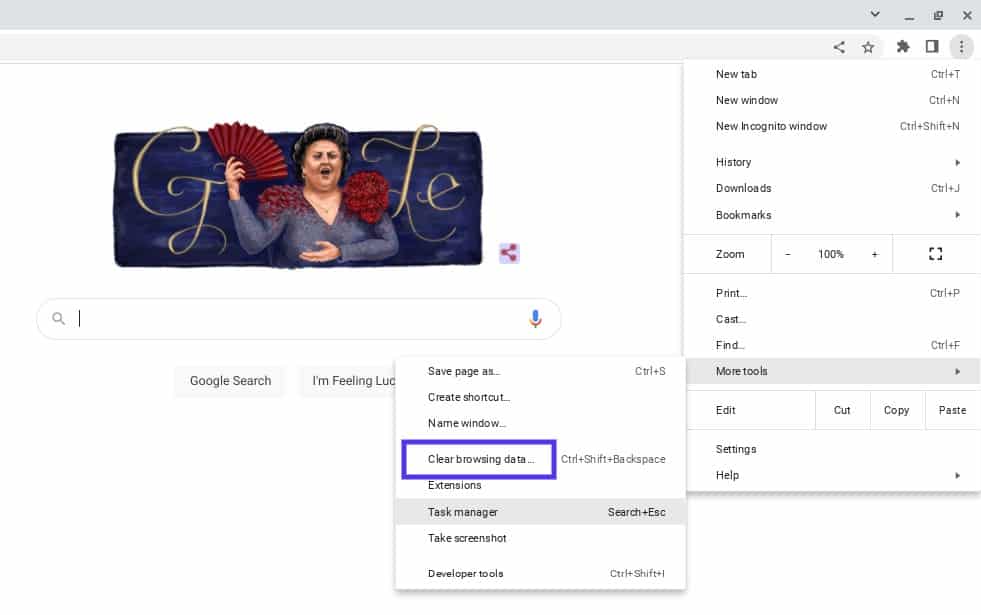
The process for clearing the cache will vary depending on your browser. If you’re using Google Chrome, you can navigate to the three vertical dots in the upper right-hand corner of the window, then go to More tools > Clear browsing data:
You’ll then be prompted to choose which data to clear from your browser cache:
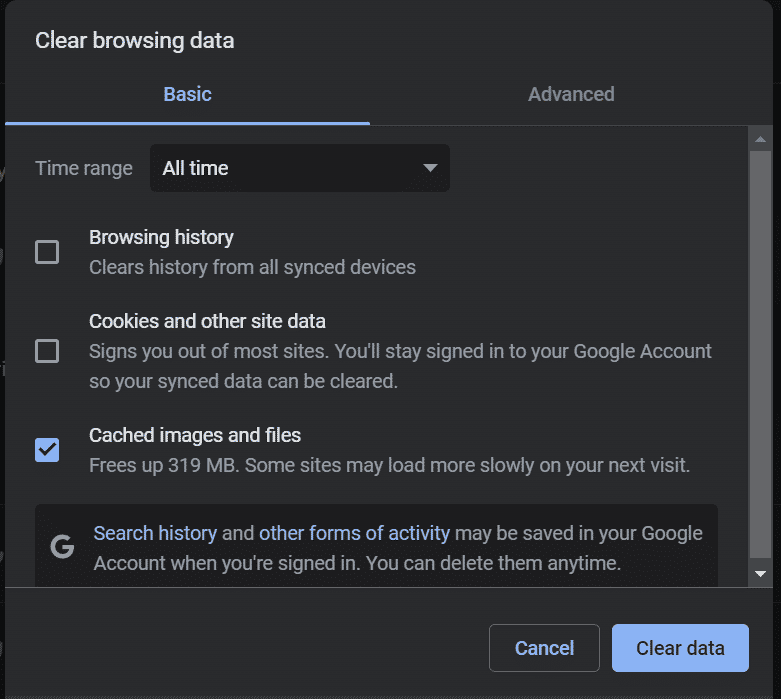
When you’re done, reload your browser. You can also try using a different browser in the meantime. Then revisit your site to see whether the error message is still showing.
2. Disable Your Plugins and Extensions
Some users have reported that certain plugins cause the HTTP 499 status code error. Therefore, we recommend temporarily disabling your plugins to see if this resolves the issue.
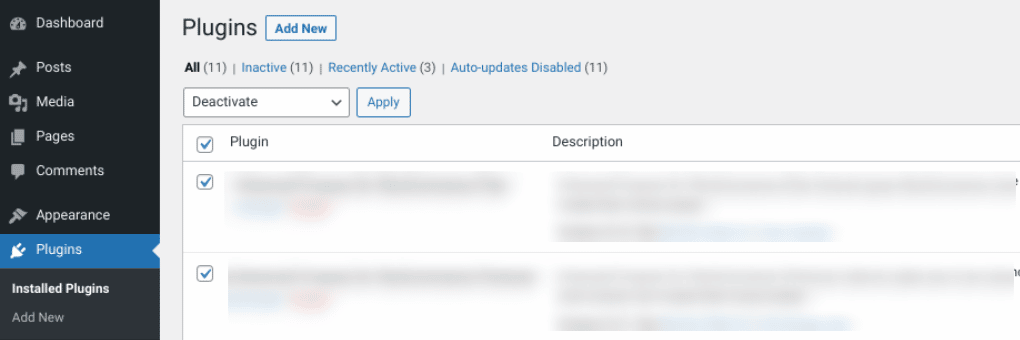
You can do this by navigating to your Plugins screen in the WordPress dashboard, selecting all of them, then clicking on Deactivate > Apply from the bulk actions menu:
You can also connect to your site via a File Transfer Protocol (FTP) client or File Manager, then navigate to your plugins folder (wp_content > plugins). Right-click on the plugins folder and rename it to something such as “plugins_old.”
This will deactivate all of the plugins on your WordPress site. You can revisit your website to see whether the error message is still showing. If not, you can try activating your plugins one by one until you find the tool causing the issue.
3. Check Your Error Logs
When troubleshooting the HTTP 499 code, it’s essential to leverage your error logs. This approach will make it easier to narrow down the issue and determine whether it results from a specific plugin or tool.
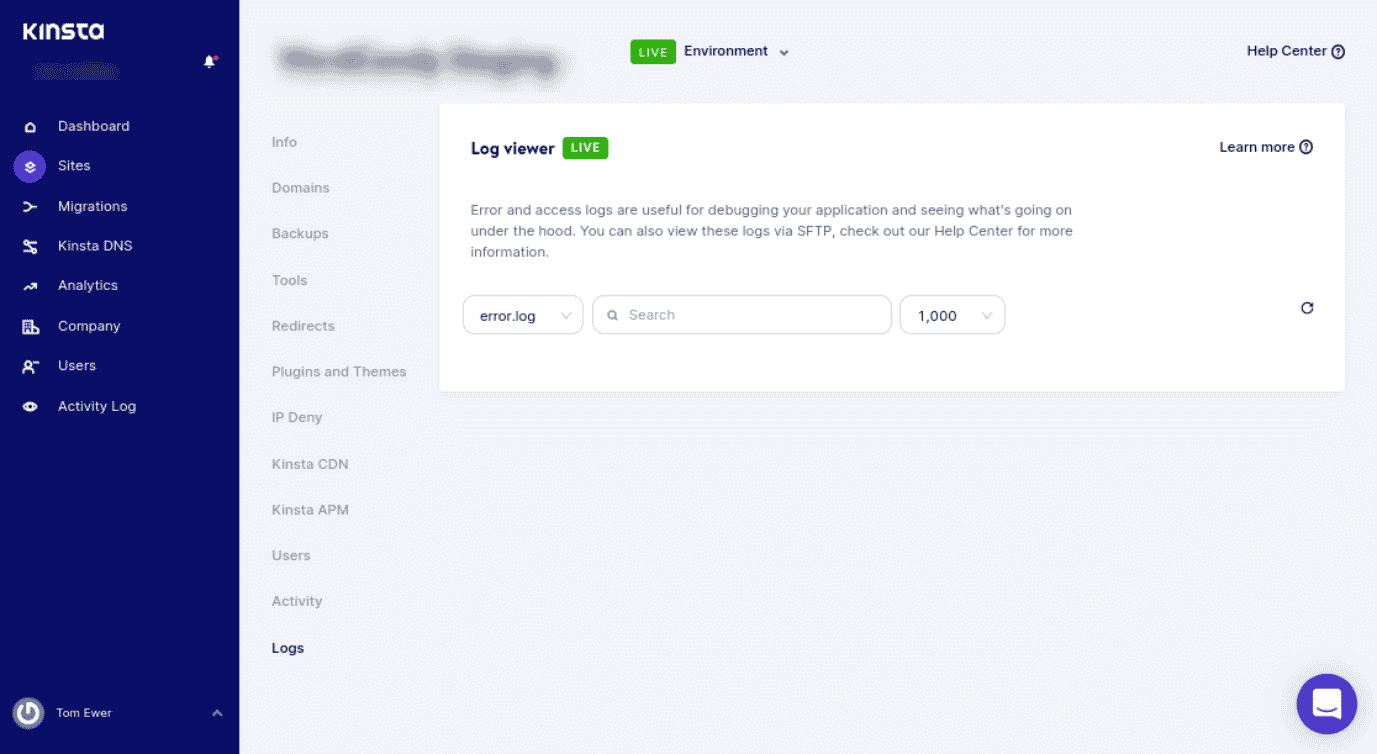
If you’re not a Kinsta user, you can enable and view error logs by turning on WordPress debugging mode. However, if you’re a Kinsta user, you can quickly and easily see errors in the Log viewer from your MyKinsta dashboard:
You can also check your log files in Nginx (/var/log/nginx.error.log) and Apache (/var/log/apache2/error.log). Furthermore, Kinsta users can take advantage of our analytics tool to take a closer look at errors on your site. Then you can understand how often they’re occurring and whether the HTTP 499 error is an ongoing issue.
4. Use an Application Performance Monitoring (APM) Tool
When managing a website, it’s important to have reliable solutions for identifying and troubleshooting errors on your site. We recommend using an Application Performance Monitoring (APM) tool.
APM tools can help you narrow down which script or plugin may lead to various errors, such as HTTP 499. We include our Kinsta APM, as well as a variety of other DevKinsta tools, with all of our plans:
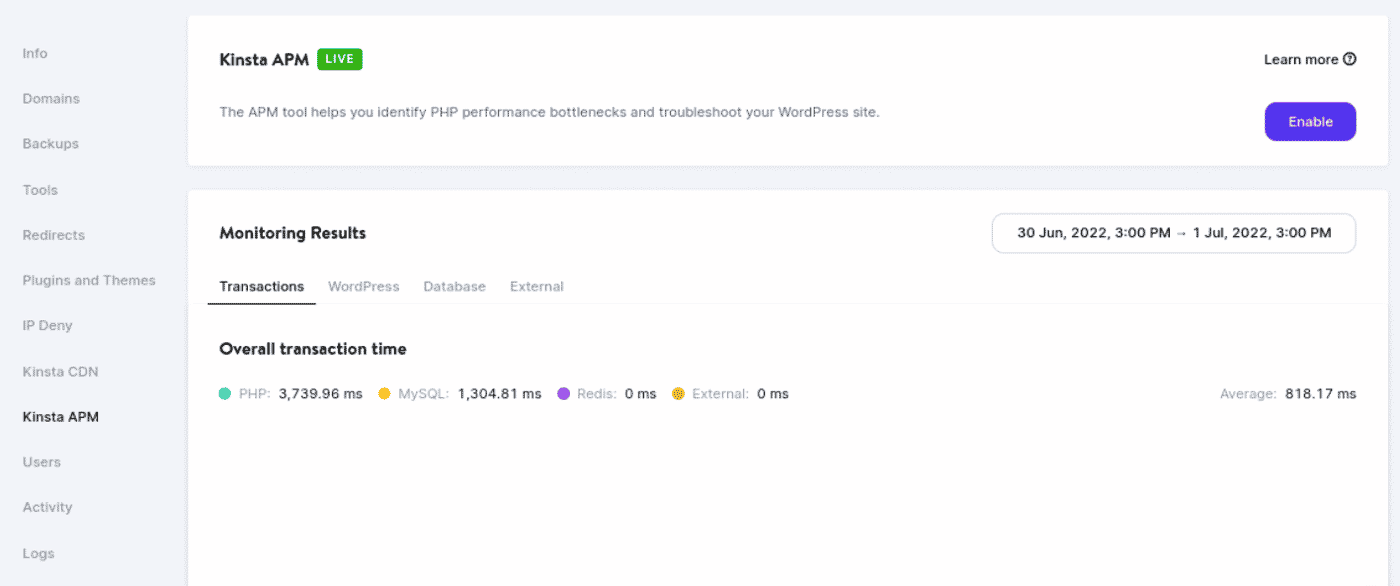
For example, your APM tool can help you collect valuable data and determine which applications are causing delays. Once enabled, you can use KinstaAPM to view the slowest transactions on your site, trace their timelines, and figure out the causes of issues. Our APM also provides insight into your PHP processes, MySQL queries, external HTTP requests, and more.
5. Contact Your Web Host and Request a Timeout Increase
As we’ve discussed, sometimes HTTP 499 errors can occur when a request is canceled because it’s taking too long. Some hosting providers use a ”kill script”.
In short, a kill script forces a request to be terminated after a certain amount of time. This script is often used in shared hosting environments to prevent long requests from impacting other sites.
If you’re a Kinsta user, this isn’t something you need to worry about. Each site hosted on our platform runs on an isolated software container that includes all resources and software. Everything is completely private, and none of your resources are shared, so we don’t run kill scripts.
However, when it comes to the HTTP 499 error, it’s important to note that the “client” may be a proxy, such as a Content Delivery Network (CDN) or load balancer. A load balancing service can act as a client to the Nginx server and proxy data between your server and users. This can cause a timeout that cancels the request to the Nginx server.
PHP timeouts happen if a process runs longer than the maximum execution time (max_execution_time) or max_input_time specified in your server’s PHP configuration. You may encounter timeouts if you have a busy website or scripts that need longer execution times. Therefore, it might be necessary to extend your timeout value.
Let’s say you have a request that is expected to take 20 seconds to complete. If you have an application with a timeout value of 10 seconds, the application will probably time out before completing the request. You’ll likely see the HTTP 499 status code in such an instance.
Therefore, it’s wise to check with your host about the values set on your server. At Kinsta, the default max_execution_time and max_input_time values are set to 300 seconds (5 minutes). The maximum PHP timeout values vary depending on your plan.
If necessary, you can reach out to your hosting provider to request a timeout increase. As a Kinsta user, you can open a ticket with our support team.
With help from this guide, you can ensure your site is properly configured to avoid seeing this error in the future. ✅ Here’s how… 🚀Click to Tweet
Summary
There are a wide variety of HTTP status codes to be aware of as a website owner. Some of the trickiest are client-based errors, such as the HTTP 499 code. The good news is that you can take a handful of steps to resolve this issue.
In this post, we discussed five potential solutions you can use to fix the HTTP 499 status code error. All of them are viable options; if one doesn’t work, another one should.
Do you want to troubleshoot and resolve issues in WordPress as painlessly as possible? Check out Kinsta hosting plans to learn how our APM tool and other solutions can streamline your website maintenance and management!
Get all your applications, databases and WordPress sites online and under one roof. Our feature-packed, high-performance cloud platform includes:
- Easy setup and management in the MyKinsta dashboard
- 24/7 expert support
- The best Google Cloud Platform hardware and network, powered by Kubernetes for maximum scalability
- An enterprise-level Cloudflare integration for speed and security
- Global audience reach with up to 35 data centers and 275 PoPs worldwide
Test it yourself with $20 off your first month of Application Hosting or Database Hosting. Explore our plans or talk to sales to find your best fit.
In my case, I was impatient and ended up misinterpreting the log.
In fact, the real problem was the communication between nginx and uwsgi, and not between the browser and nginx. If I had loaded the site in my browser and had waited long enough I would have gotten a «504 — Bad Gateway». But it took so long, that I kept trying stuff, and then refresh in the browser. So I never waited long enough to see the 504 error. When refreshing in the browser, that is when the previous request is closed, and Nginx writes that in the log as 499.
Elaboration
Here I will assume that the reader knows as little as I did when I started playing around.
My setup was a reverse proxy, the nginx server, and an application server, the uWSGI server behind it. All requests from the client would go to the nginx server, then forwarded to the uWSGI server, and then response was sent the same way back. I think this is how everyone uses nginx/uwsgi and are supposed to use it.
My nginx worked as it should, but something was wrong with the uwsgi server. There are two ways (maybe more) in which the uwsgi server can fail to respond to the nginx server.
1) uWSGI says, «I’m processing, just wait and you will soon get a response». nginx has a certain period of time, that it is willing to wait, fx 20 seconds. After that, it will respond to the client, with a 504 error.
2) uWSGI is dead, or uWSGi dies while nginx is waiting for it. nginx sees that right away and in that case, it returns a 499 error.
I was testing my setup by making requests in the client (browser). In the browser nothing happened, it just kept hanging. After maybe 10 seconds (less than the timeout) I concluded that something was not right (which was true), and closed the uWSGI server from the command line. Then I would go to the uWSGI settings, try something new, and then restart the uWSGI server. The moment I closed the uWSGI server, the nginx server would return a 499 error.
So I kept debugging with the 499 erroe, which means googling for the 499 error. But if I had waited long enough, I would have gotten the 504 error. If I had gotten the 504 error, I would have been able to understand the problem better, and then be able to debug.
So the conclusion is, that the problem was with uWGSI, which kept hanging («Wait a little longer, just a little longer, then I will have an answer for you…»).
How I fixed that problem, I don’t remember. I guess it could be caused by a lot of things.
В конце прошлой недели я заметил проблему на одном из моих средних экземпляров AWS, где Nginx всегда возвращает ответ HTTP 499, если запрос занимает более 60 секунд. Запрошенная страница представляет собой скрипт PHP
Я провел несколько дней, пытаясь найти ответы, и попробовал все, что я могу найти в Интернете, включая несколько записей здесь, в Stack Overflow, ничего не работает.
- $ _SERVER не дает значения
- Nginx переписать не работает с расширением .php
- Ошибка nginx подключиться к php5-fpm.sock не удалось (13: отказ от прав)
- php-fpm разбился, когда curl или file_get_contents запросили https-url
- Сложность Ioncube с PHP 5.5
Я пробовал изменять настройки PHP, настройки PHP-FPM и настройки Nginx. Вы можете увидеть вопрос, который я поднял на форумах NginX в пятницу ( http://forum.nginx.org/read.php?9,237692 ), хотя он не получил ответа, поэтому я надеюсь, что я смогу найти ответьте здесь, прежде чем я вынужден вернуться к Apache, который, как я знаю, работает.
Это не та же проблема, что и ошибки HTTP 500 в других записях.
Я смог реплицировать проблему с помощью нового экземпляра micro AWS NginX с использованием PHP 5.4.11.
Чтобы помочь любому, кто хочет увидеть проблему в действии, я собираюсь провести вас через настройку, которую я запускал для последнего тестового сервера Micro.
Вам нужно будет запустить новый экземпляр AWS Micro (поэтому он бесплатный) с помощью AMI ami-c1aaabb5
Эта запись PasteBin имеет полную настройку для запуска, чтобы отразить мою тестовую среду. Вам просто нужно изменить example.com в конфигурации NginX в конце
http://pastebin.com/WQX4AqEU
Как только вы настроитесь, вам просто нужно создать образец файла PHP, который я тестирую, с которым
<?php sleep(70); die( 'Hello World' ); ?> Сохраните это в webroot, а затем проверьте. Если вы запустите скрипт из командной строки, используя php или php-cgi, он будет работать. Если вы получите доступ к скрипту через веб-страницу и закроете журнал доступа /var/log/nginx/example.access.log , вы заметите, что получите ответ HTTP 1.1 499 через 60 секунд.
Теперь, когда вы можете увидеть таймаут, я рассмотрю некоторые изменения конфигурации, которые я сделал как для PHP, так и для NginX, чтобы попытаться обойти это. Для PHP я создам несколько файлов конфигурации, чтобы их можно было легко отключить
Обновите PHP FPM Config, чтобы включить внешние файлы конфигурации
sudo echo ' include=/usr/local/php/php-fpm.d/*.conf ' >> /usr/local/php/etc/php-fpm.confвsudo echo ' include=/usr/local/php/php-fpm.d/*.conf ' >> /usr/local/php/etc/php-fpm.conf
Создайте новую конфигурацию PHP-FPM для переопределения таймаута запроса
sudo echo '[www] request_terminate_timeout = 120s request_slowlog_timeout = 60s slowlog = /var/log/php-fpm-slow.log ' > /usr/local/php/php-fpm.d/timeouts.conf
Измените некоторые глобальные настройки, чтобы обеспечить интервал аварийного перезапуска 2 минуты
# Create a global tweaks sudo echo '[global] error_log = /var/log/php-fpm.log emergency_restart_threshold = 10 emergency_restart_interval = 2m process_control_timeout = 10s ' > /usr/local/php/php-fpm.d/global-tweaks.conf
Затем мы изменим некоторые параметры PHP.INI, снова используя отдельные файлы
# Log PHP Errors sudo echo '[PHP] log_errors = on error_log = /var/log/php.log ' > /usr/local/php/conf.d/errors.ini sudo echo '[PHP] post_max_size=32M upload_max_filesize=32M max_execution_time = 360 default_socket_timeout = 360 mysql.connect_timeout = 360 max_input_time = 360 ' > /usr/local/php/conf.d/filesize.ini
Как вы можете видеть, это увеличивает тайм-аут сокета до 3 минут и помогает регистрировать ошибки.
Наконец, я отредактирую некоторые параметры NginX, чтобы увеличить тайм-аут той стороны
Сначала я редактирую файл /etc/nginx/nginx.conf и добавляю его в директиву http fastcgi_read_timeout 300;
Затем я редактирую файл / etc / nginx / sites-enabled / example, который мы создали ранее (см. Запись pastebin), и добавьте следующие параметры в директиву сервера
client_max_body_size 200; client_header_timeout 360; client_body_timeout 360; fastcgi_read_timeout 360; keepalive_timeout 360; proxy_ignore_client_abort on; send_timeout 360; lingering_timeout 360;
Наконец, я добавляю следующее в раздел ~ .php $ сервера dir
fastcgi_read_timeout 360; fastcgi_send_timeout 360; fastcgi_connect_timeout 1200;
Прежде чем повторять сценарий, запустите nginx и php-fpm, чтобы убедиться, что новые настройки были подняты. Затем я пытаюсь получить доступ к странице и все еще получаю запись HTTP / 1.1 499 в файле NginX example.error.log.
Итак, где я иду не так? Это просто работает на apache, когда я устанавливаю максимальное время выполнения PHP до 2 минут.
Я вижу, что настройки PHP были подобраны, запустив phpinfo () с веб-страницы. Я просто не понимаю, я действительно думаю, что слишком много было увеличено, так как это должно было просто потребовать изменения max_execution_time PHP, default_socket_timeout, а также fastcgi_read_timeout от NginX только в директиве location-> server .
Обновление 1
Проведя еще один тест, чтобы показать, что проблема заключается не в том, что клиент умирает, я модифицировал тестовый файл
<?php file_put_contents('/www/log.log', 'My first data'); sleep(70); file_put_contents('/www/log.log','The sleep has passed'); die('Hello World after sleep'); ?>
Если я запустил скрипт с веб-страницы, я увижу, что содержимое файла будет установлено в первую строку. Через 60 секунд в журнале NginX появляется ошибка. Через 10 секунд содержимое файла изменяется на вторую строку, доказывая, что PHP завершает процесс.
Обновление 2
Установка fastcgi_ignore_client_abort; изменяет ответ от HTTP 499 на HTTP 200, хотя ничего не возвращается конечному клиенту.
Обновление 3
Установив Apache и PHP (5.3.10) на поле прямо (используя apt), а затем увеличивая время выполнения, проблема также возникает и на Apache. Симптомы такие же, как и у NginX, ответ HTTP200, но фактическое время соединения с клиентом перед раздачей.
Я также начал замечать в журналах NginX, что если я тестирую с помощью Firefox, он делает двойной запрос (например, этот PHP-скрипт выполняется дважды, когда он длится более 60 секунд ). Хотя, похоже, это клиент, запрашивающий при неудачном сценарии
- SSH-туннель через PhpMyAdmin
- Файл не найден при запуске PHP с Nginx
- Запросы маршрутизации через index.php с nginx
- Почему $ _SERVER показывает HTTP / 1.0, когда клиент говорил HTTP / 1.1
- Неверные учетные данные при отправке почты с помощью sendgrid
Причиной проблемы является эластичная балансировка нагрузки на AWS. Они, по умолчанию, тайм-аут после 60 секунд бездействия, что и вызывало проблему.
Так что это не NginX, PHP-FPM или PHP, а балансировка нагрузки.
Чтобы исправить это, просто зайдите на вкладку «Описание» ELB, прокрутите страницу вниз и нажмите ссылку «(Изменить)» рядом со значением, обозначающим «Idle Timeout: 60 секунд»,
Я думал, что оставлю свои два цента. Сначала проблема не связана с php (все еще может быть связано с php, php всегда меня удивляет: P). Это уж точно. в основном это вызвано сервером, проксированным для себя, в частности, имена имен хостов / псевдонимов, в вашем случае это может быть балансировка нагрузки, запрашивающая nginx, и nginx обращается к балансировщику нагрузки и продолжает идти таким образом.
Я столкнулся с аналогичной проблемой с nginx в качестве балансировки нагрузки и apache в качестве веб-сервера / прокси-сервера
Вам нужно найти, в каком месте проблемы жить. Я не знаю точного ответа, но просто попробуем его найти.
У нас есть 3 элемента: nginx, php-fpm, php. Как вы сказали, одинаковые настройки php под apache в порядке. Разве это не такая же настройка? Вы пытались apache вместо nginx на той же ОС / хосте / и т. Д.?
Если мы увидим, что php не подозревает, у нас есть два подозреваемых: nginx & php-fpm.
Чтобы исключить nginx: попробуйте настроить ту же «систему» на рубине. См. https://github.com/garex/puppet-module-nginx, чтобы получить представление об установке простейшей рубиновой установки. Или используйте google (возможно, это будет еще лучше).
Мой главный подозреваемый здесь – php-fpm.
Попробуйте сыграть с этими настройками:
- php-fpm `request_terminate_timeout
- nginx`s fastcgi_ignore_client_abort
На самом деле я столкнулся с той же проблемой на одном сервере, и я понял, что после изменений конфигурации nginx я не перезапустил сервер nginx, поэтому с каждым ударом nginx-url я получал ответ 499 http. После перезапуска nginx он начал нормально работать с ответами HTTP 200.
Нажмите выше“Код Сельское хозяйство Программирование Усовершенствованные ноты”,выбирать»Top или Star Standard”
Что такое nginx 499
499 — ошибка 4xx, расширенная nginx, и цель должна быть записана, и нет фактического ответа.
Посмотрите на определение NGINX SOURCE NGX_HTTP_REQUEST.H до 499:
/*
* HTTP does not define the code for the case when a client closed
* the connection while we are processing its request so we introduce
* own code to log such situation when a client has closed the connection
* before we even try to send the HTTP header to it
*/
#define NGX_HTTP_CLIENT_CLOSED_REQUEST     499
Как видно из вышеперечисленного, nginx 499 представляет собой клиентский запрос не вернулся, а клиент активно отключается.
Nginx Record 499.
В рамках онлайн-поиска связанная информация, обучение и понимание, вы суммируете приблизительную причину, заключается в том, что запрос не может быть подключен в указанное время без закрытия соединения. Проблема проблемы — это два: 1. Указанное время; 2, производительность обработки программы.
Проблема времени
В начале высказал NGINX 499, заключается в том, что клиент активно отключил соединение. Клиентская концепция здесь, мое понимание состоит в том, чтобы запросить сервис ниже по течению во время процесса подключения, такой как соединение между браузером и NGINX, браузер — это клиент; nginx — это служба, которая распределяется, NGINX — это клиент. PHP- FPM можно считать клиентом.
На этот раз в указанное время описано выше время, обычно определяется для тайм-аута, возможные причины этоВремя короткоеNS.
Примите запуск запроса скручиваемости, максимально допустимое время передачи данных указывается параметром -m.
Например:
curl -m 20 "http://somewebsite.com"
Если максимально допустимое время тайм-аута передачи данных, скручиваемость отключает запрос, а веб-сервер все еще обрабатывается, а NGINX будет записывать 499;
Поскольку NGINX используется в качестве обратного агента, Nginx будет распространять запрос на соответствующий сервер обработки, есть две пары параметров тайм-аута:
proxy_send_timeoutиproxy_read_timeout ;
fastcgi_send_timeoutиfastcgi_read_timeout。
Две пары параметров соответствуютngx_http_proxy_moduleиngx_http_fastcgi_module Параметр модуля.Две пары параметров Таймус по умолчанию составляет 60 с. В случае NGINX появляется 499, можно сравнить время, потребляемое по времени, потребляющим время, а также две пары установленного времени, а также при обработке Proxy_Pass или FastCGI_PASS, заданное время ожидания.
Другое время похоже на точку времени работы PHP. Откройте Php.ini View.max_execution_time и max_input_time Два параметра. Обами являются максимальное время и форма, совершенное выполнением программы PHP.
Если балансировка нагрузки доступна в Backend Service, таких как упругие балансы нагрузки и т. Д. На AWS. Набор тайм-аута на Nginx очень большой, Nginx также записывает 499 статус, затем можно удалить балансировку нагрузки после времени по умолчанию (обычно 60 ы). В этом случае конфигурация балансировки нагрузки может быть изменена в соответствии с конфигурацией Nginx.
Проблема производительности
Проблемы с производительностью относительно широкие, не легко исключить, могут иметь случаи:
1, CPU и использование памяти
В Linux вы можете использовать лучшую команду для просмотра использования процессоров и памяти.
top - 16:59:03 up 334 days, 23:10,  1 user,  load average: 0.06, 0.08, 0.07
Tasks: 114 total,   2 running, 112 sleeping,   0 stopped,   0 zombie
%Cpu(s):  0.5 us,  0.3 sy,  0.0 ni, 98.5 id,  0.7 wa,  0.0 hi,  0.0 si,  0.0 st
KiB Mem :  2916192 total,   516184 free,  1540972 used,   859036 buff/cache
KiB Swap:        0 total,        0 free,        0 used.   999988 avail Mem


  PID USER      PR  NI    VIRT    RES    SHR S  %CPU %MEM     TIME+ COMMAND
11475 work      20   0  157680   2188   1520 R   0.7  0.1   0:00.34 top
12206 elastic+  20   0 3685272 980.1m    272 S   0.7 34.4   1027:58 java
24451 mysql     20   0 1745372 275176   2892 S   0.3  9.4 761:20.55 mysqld
    1 root      20   0  232328  46328   1324 S   0.0  1.6  33:03.32 systemd
    2 root      20   0       0      0      0 S   0.0  0.0   0:00.80 kthreadd
    3 root      20   0       0      0      0 S   0.0  0.0   0:37.02 ksoftirqd/0
    5 root       0 -20       0      0      0 S   0.0  0.0   0:00.00 kworker/0:0H
    7 root      rt   0       0      0      0 S   0.0  0.0   0:20.47 migration/0
    8 root      20   0       0      0      0 S   0.0  0.0   0:00.00 rcu_bh
    9 root      20   0       0      0      0 S   0.0  0.0   0:00.00 rcuob/0
   10 root      20   0       0      0      0 S   0.0  0.0   0:00.00 rcuob/1
   11 root      20   0       0      0      0 R   0.0  0.0 126:24.86 rcu_sched
Третья строка, информация о состоянии CPU, конкретное описание атрибута выглядит следующим образом:
0,5% нами — процент пространства пользователя занимает процессор;
0,3% SY — процент процессора в пространстве ядра;
0,0% Ni — изменить процесс приоритета занимать процент процессора;
ID 98,5% — процент простоя КПУ;
0,7% WA — IO ждет процент процессора;
0,0% Hi — аппаратный IRQ является процентным процессором;
0,0% Si — прерывания программного обеспечения занимают процент процессора.
Четвертая строка, состояние памяти, конкретная информация выглядит следующим образом:
2916192K Total — общая физическая память (2,9 ГБ);
1540972K используется — общая память в использовании (1,5 ГБ);
516184K Free — Общая монтажная память (0,5 ГБ);
859036K буферов — сумма памяти кэша (859 м).
2, количество процедур обработчика FastCGI, таких как PHP-FPM недостаточно
Параметры, которые необходимо понимать: PM, PM.MAX_CHILDREN, PM.START_SERVER, PM.MIN_SPARE_SERVERS, PM.MAX_SPARE_SERVERS.
PM представляет собой контрольный режим количества процессов, который является статическим (статическим) и динамическим (динамическим).
PM = Dynamic Как контролировать дочерние процессы, варианты со статическими и динамическими
 PM.MAX_CHILDREN: количество процессов PHP-FPM в статическом режиме
 PM.max_requests: максимальное количество запросов на подпрограмм PHP-FPM можно обрабатывать
 PM.START_SERVERS: количество запуска процессов PHP-FPM в динамическом режиме
 PM.MIN_SPARE_SERVERS: Минимальный процесс PHP-FPM в динамическом режиме
 PM.max_spare_servers: количество максимальных процессов PHP-FPM в динамическом режиме
3, MySQL и другие процессы запросов данных медленно
Log MySQL Log — это запись журнала, предоставляемая MySQL. Используется для записи оператора, который отвечает в MySQL, превышает пороговой пол, и то, что в частности означает, что время выполнения превышает SQL значения Long_Query_Time, он будет записан в медленном Вопрос журнала. Значение по умолчанию Long_Query_time составляет 10, что означает запущенное более 10 и более операторов. По умолчанию база данных MySQL не запускает журнал медленного запроса, вам нужно вручную установить этот параметр. В частности, см. Сводка журнала MySQL Slow Query.
4, Программа обработки логики не в порядке
Этот элемент требует логической обработки программы запросов имеет слишком много повторяющихся или избыточных процессов. : Улыбка улыбка:
Решение, данное другими
Решение, которое можно запрашивать в сети, в основном добавляется в блоке HTTP NGINX.conf.proxy_ignore_client_abort on;。
Этот параметр закрыт по умолчанию. Параметр, заданный официальным веб-сайтом NGINX, заключается в следующем:
Determines whether the connection with a proxied server should be closed when a client closes the connection without waiting for a response.
Основные средства состоит в том, подключен ли NGINX к серверу распределения после того, как клиент активно отключает соединение.
При использованииproxy_ignore_client_abort on; NGINX ждет задней панели обработки (или тайм-аута), затем запишите «Информацию о возврате Back-End» в журнал. Итак, если бэкэнда возвращает 200, записывайте 200; если задний конец положен обратно в 5xx, записано 5xx.
Если время ожидания (по умолчанию 60-х годов может быть установлено с Proxy_Read_Timeout), Nginx активно отключается, записывает 504.
Вышеуказанный способ, индивидуальные мыслиния просто решает проблему записи NGINX 499, и не имеет проблем, которые клиент не получает ответ запроса. Решить проблему.
Сводка ссылки
[1]: Лучшая команда Linux
[2]: Оптимизация номера процесса PHP-FPM
еслиВы заинтересованы в этой статье, помогитеПовернутьОтправитьПринять его или нажмите на нижний правый угол статьисуществоватьСмотретьОтказ Спасибо!Обратите внимание на публичный счет, ответ «Введите группуМожет войти.Без рекламных технологий Exchange Group。
