
В Ватсапе можно поставить свой звук уведомления для каждого индивидуального чата в вашем WhatsApp аккаунте. Ниже вы найдете шаги, описывающие то, как можно изменить звук или мелодию уведомления в Whatsapp на андроид е и айфоне.
 Зачем менять звук уведомления в WhatsApp?
 Зачем менять звук уведомления в WhatsApp?
Когда из телефона постоянно раздаются звуки уведомлений от различных приложений, то трудно понять, от какого именно приложения он исходит. Именно поэтому вам, возможно, захочется изменить звук уведомления WhatsApp на какой-нибудь другой, не похожий на звуки уведомлений от других приложений, и тогда вы точно поймете, что это уведомление пришло от Ватсап не глядя в телефон.
По правде говоря, в WhatsApp есть функция, которая позволяет устанавливать различные звуки уведомлений на разные контакты, и вы сразу определите, кто пытается связаться с вами через WhatsApp даже не глядя на имена.
Меняем звук уведомления о сообщении в WhatsApp на iPhone
Какие шаги нужно выполнить, чтобы изменить звук уведомления на iPhone или iPad
1 Откройте WhatsApp на iPhone или iPad.
2 Затем откройте чат, для которого нужно изменить звук уведомления.
3 В открывшемся окне нажмите на имя чата.

4 На странице с профилем контакта нажмите на опцию Пользовательский звук.
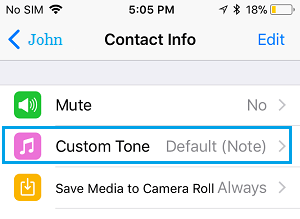
5 На следующем экране нажмите на звук, который вам нравится и нажмите сохранить в правом верхнем углу экрана.
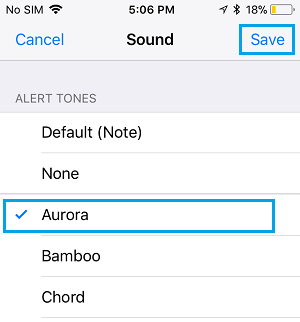
Примечание: при нажатии на звук вы сможете прослушать мелодию, поэтому вы можете пробежаться по мелодиям для того, чтобы выбрать ту, которая соответствует вашему вкусу и затем сохраните ее.
Меняем звук уведомления WhatsApp на телефоне Андроид
1 Откройте WhatsApp на телефоне или планшете Андроид.
2 Затем откройте чат, для которого вы хотите изменить звук уведомления.
3 В следующем окне нажмите на имя чата вверху.
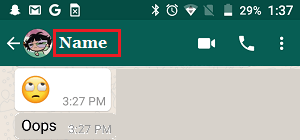
4 На странице с информацией о чате нажмите на Пользовательский звук.
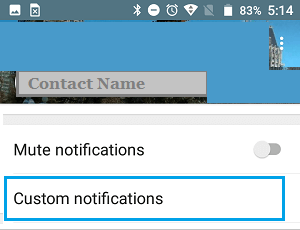
5 В следующем окне убедитесь, что использование пользовательских уведомлений включено.
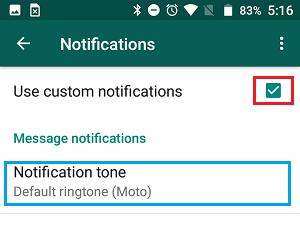
6 Нажмите на мелодию уведомления, расположенную под Уведомления о сообщениях.
7 Появится всплывающее окно, в котором нужно выбрать мелодию уведомления для данного чата в Ватсап и нажмите ок, чтобы сохранить внесенные изменения.
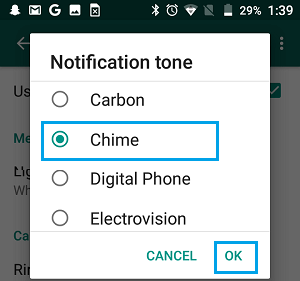
Примечание: Прослушайте несколько разных мелодий и выберите ту, которая наиболее соответствует вашему вкусу.
На чтение 4 мин Просмотров 4.1к.
Некоторых пользователей может интересовать, почему не меняется звук уведомлений в WhatsApp. Зная, как устранить эту неполадку, можно установить мелодию для оповещений о сообщениях и входящих звонках в данном мессенджере.
Содержание
- Возможно ли изменить мелодию уведомлений и звонков в WhatsApp
- Инструкция, как установить свой рингтон на разных устройствах
- iPhone
- Установка собственной мелодии для WhatsApp на iPhone
- Android
- Обзор
Если мессенджер обновлен и работает на поддерживаемой версии Android или iOS, то звуковые сигналы для одиночных чатов, групп и входящих звонков в WhatsApp (WA) можно настроить через официальное приложение.
Все параметры уведомлений в «Ватсапе» на смартфонах сгруппированы по категориям в одном окне.
Это повышает удобство персонализации мессенджера. Отличия в настройке аудиооповещений WA на iPhone заключаются в невозможности поставить отдельный рингтон и задать интервал вибрации.
Среди причин, по которым не меняется звук уведомления в WhatsApp, можно выделить отсутствие разрешений на доступ к хранилищу мультимедиа в Android и отозванный допуск к оповещениям в системе iOS. Кроме того, если аудиофайл не поддерживается, его нельзя установить как рингтон.
Инструкция, как установить свой рингтон на разных устройствах
В качестве сигнала о входящем сообщении WhatsApp можно поставить как системный звук, находящийся в хранилище мультимедиа на Android или iOS, так и собственный аудиофайл. Последний должен иметь формат MP3 или OGG.
Если планируется в WA назначить свой рингтон, то он не должен иметь нежелательной тишины в начале и конце, иначе у пользователя, которому поступает звонок по данному мессенджеру, создастся ошибочное впечатление, что вызов сорвался. Убедиться в том, что аудиосигнал WA установился корректно, можно во время получения нового месседжа.
iPhone
В «Ватсапе» для iPhone допускается выбрать сигнал принятого сообщения в одиночном или групповом чате.
Чтобы аудиооповещения корректно работали, нужно предварительно настроить iOS следующим образом:
- Открыть общие параметры уведомлений от всех установленных приложений.
- Найти «Ватсап» в соответствующем списке.
- Активировать допуск к уведомлениям, нажав на переключатель.
- Проставить все галочки в открывшемся блоке предупреждений.
- Нажать на тумблер, активирующий оповещения WA.
После активации уведомлений из «Вотсапа» на уровне iOS потребуется вернуться в мессенджер и в его главном окне нажать на шестеренку. Затем коснуться пункта, отвечающего за конфигурирование оповещений. После этого нажать на тумблер, разрешающий вывод уведомлений о новых сообщениях, и установить музыку из предложенных вариантов.
.jpg)
Установка собственной мелодии для WhatsApp на iPhone
Чтобы поставить свой сигнал о сообщении в «Ватсапе», нужно воспользоваться утилитами iDevice Manager и Total MP3 Audio Converter. Первая программа отвечает за доступ к скрытой папке мессенджера на «айфоне», а вторая – за преобразование звукового файла в формат CAF.
Когда iPhone будет присоединен к ПК, следует:
- Запустить iDevice Manager.
- В главном окне этого менеджера разрешить доступ к устройству.
- Найти во внутреннем хранилище iPhone папку WhatsApp.app.
- В данный каталог вставить созданный в Total MP3 Audio Converter аудиофайл формата CAF.
- Закрыть iDevice Manager, отсоединить «айфон» и перезагрузить его.
Пользовательский сигнал сообщения должен появиться в соответствующем списке WA.
Android
Чтобы настроить звук для входящих звонков и сообщений WA, потребуется:
- Перейти в настройки мессенджера.
- Нажать на пункт «Уведомления».
- Убедиться в том, что проигрывание звуковых оповещений разрешено соответствующим переключателем.
- Коснуться кнопки выбора аудиофайла для сообщений.
- Выбрать желаемый сигнал из появившегося списка и нажать на «ОК».
- Вернуться в список бесед и ждать, пока придет новый месседж.
.jpg)
Аналогичным образом я настраиваю сигнал для групповых чатов, а также задаю рингтон в «Ватсапе». Для этого прокручиваю список параметров, пока нужный пункт не окажется на виду. Кроме того, я могу активировать вибрацию и настроить ее интервалы для каждой категории оповещений по отдельности.
Для добавления своих аудиоуведомлений в «Андроид»-версии WA я копирую требуемый файл с компьютера в папку Notifications внутреннего хранилища смартфона. После этого убеждаюсь в том, что заголовок нового сигнала показывается в списке общих оповещений.
В завершение настройки звуковых сигналов «Вотсапа» на «Самсунге» и других «Андроид»-смартфонах я деактивирую режим «Не беспокоить» и устанавливаю ненулевую громкость аудиоуведомлений. Для этого нажимаю соответствующую кнопку на корпусе мобильного устройства.
Обзор
Многие пользователи изъявляют желание изменить звук уведомления в мессенджере WhatsApp. Это действительно очень удобная функция, ведь если человек зарегистрировался в нескольких социальных сетях, из них тоже могут приходить оповещения. Чтобы не путаться в звуках от разных приложений, можно настроить его в Ватсапе, чтобы отличать от посторонних уведомлений.
В статье мы рассмотрим, можно ли поменять звук сообщений в мессенджере WhatsApp, как это сделать на устройстве Android и на iOS.
Можно ли в Ватсапе менять звуки сообщений, звонков и системные звуки
Разработчики сервиса позаботились о комфорте клиентов: можно менять не только мелодии, но и задавать тон уведомления, подбирать оригинальный звук на каждый контакт отдельно. Это значит, что пользователи могут полностью контролировать уровень шума, который приходит из приложения. Система работает не только для звонков и сообщений, но и для системных звуков. Например, можно отрегулировать уровень громкости уведомлений от определенного собеседника, а по желанию – полностью отключить уведомления.
В настройках мессенджера есть стандартные звуки, которые можно настроить в любой момент. Если клиент предпочтет выбрать какой-то индивидуальный звук уведомления в WhatsApp, его придется загрузить из памяти устройства в приложение.
Как изменить звук уведомлений в WhatsApp на айфоне
Чтобы изменить стандартный звук сообщений и звонков в WhatsApp на айфоне, не придется скачивать никаких сторонних приложений. Пользователь может воспользоваться предложенными вариантами оповещений, а также загрузить оригинальные мелодии по желанию. Чтобы поменять стандартный звук уведомления, достаточно следовать инструкции.
Как поменять звук уведомления в WhatsApp на iPhone:
- Запустить официальный мессенджер на устройстве, перейти во вкладку «Настройки».
- Кликнуть по разделу «Уведомления».
- Выбрать один из предложенных вариантов: рингтон, сообщения или уведомления. В Ватсапе клиенты могут самостоятельно настроить громкость и мелодию не только на звонки, но и на другие оповещения. Как только звуки будут выбраны, можно кликать по кнопке «Сохранить» в правом верхнем углу экрана.
- Перезапустить устройство для корректной работы и сохранения настроек.
Описанная выше пошаговая инструкция поможет пользователям определить звук и громкость для всех чатов. Получается, что все уведомления и оповещения из WhatsApp будут звучать так, как их настроил клиент. Если хочется выбрать для каждого чата отдельный рингтон или громкость, порядок действий будет немного отличаться.
Настройка оригинального звука уведомления на отдельный контакт в Ватсапе:
- Открыть мессенджер, перейти во вкладку «Чаты».
- Выбрать один контакт, кликнув по экрану. В появившемся диалоговом окне пользователю следует нажать на фотографию (аватар) собеседника. Таким образом он перейдет в настройки этого чата, где можно проводить изменения.
- Кликнуть по опции «Пользовательский звук». На экране высветятся такие же настройки, как в случае общих настроек оповещений. Можно регулировать сообщения, выставить нестандартную мелодию или вообще отключить уведомления на некоторое время. Как только настройки будут готовы, нужно сохранить изменения в правом углу экрана.
- Перезагрузить айфон для корректной работы и сохранения новых уведомлений.
Как поменять звук входящих сообщений в Ватсапе на Андроиде
Схема действий на Андроиде не сильно отличается от других операционных систем. Пользователям также стоит знать, что изменение звуков сообщений в WhatsApp можно регулировать бесконечное количество раз. Например, если клиент хочет поставить одну из мелодий от сервиса на звонки, он может их сначала прослушать, а после – определиться с выбором. Если загружается оригинальный звук из памяти устройства, можно выбрать определенный момент трека. Как и в предыдущем случае, задача пользователя – выполнить пошаговую инструкцию.
Как поменять звук уведомления в Ватсапе на Андроиде:
- Запустить официальную версию WhatsApp, перейти во вкладку «Настройки».
- Далее кликнуть по кнопке «Уведомления». На смартфонах с ОС Android она изображена в виде зеленого колокольчика.
- В появившемся окне отредактировать мелодию оповещений. Здесь клиент может изменить звуки сообщений, групп и звонков. В этих же настройках пользователь может включить или отключить вибрацию, всплывающие уведомления и их цветовую палитру.
- Перейти во вкладку «Звук уведомления» («Мелодия»). Теперь можно смело настраивать любые звуки не только из приложения, но и из памяти устройства. Как и в других случаях, после внесения изменений следует их сохранить (галочка в правом верхнем углу экрана).
- Перезапустить смартфон для корректной работы.
Если пользователь хочет изменить звук уведомлений у определенного контакта, для этого нужно пройти несколько этапов:
- запустить приложение WhatsApp;
- перейти во вкладку «Чаты», выбрать собеседника»;
- кликнуть по его никнейму или фотографии;
- в появившемся окне перейти в раздел «Пользовательский звук»;
- настроить мелодию уведомлений по своему желанию;
- сохранить и перезапустить устройство.
Как можно заметить, схема работы на устройствах Андроид достаточно проста, тем более загружать оригинальные звуки здесь немного проще. Если сравнивать удобство использования мессенджера, то большинство пользователей считают, что интерфейс на Android более удобен для восприятия, если сравнивать его с интерфейсом от Apple.
Итак, поменять звук оповещений в мессенджере WhatsApp может любой пользователь, независимо от его устройства. Все действия происходят через настройки, где клиенты могут не только выбирать мелодии, но и регулировать громкость сообщений и частоту вибраций. Это достаточно удобная функция, особенно если хочется отличать уведомления от разных социальных сетей. Чтобы отредактировать звук в определенном чате, достаточно открыть вкладку «Пользовательский звук», где пользователь может поставить даже оригинальный рингтон из памяти своего устройства. Пользуясь пошаговыми инструкциями, каждый клиент может создавать комфортные условия для использования мессенджера WhatsApp.
Количество пользователей не пользующихся мессенджерами, вероятно, один на миллион. Мессенджеры давно вытеснили обычные СМСки. В этом нет ничего удивительного, так как это бесплатно, вы можете общаться в группах, отправлять фотографии, звуки и наклейки, а также вы получаете уведомление о прочтении.

Тем не менее, есть одна вещь в мессенджерах, которая сильно раздражает — почти никто не меняет звук уведомлений о входящих сообщениях. Вот почему везде слышны одни и тоже звуки, иногда даже кажется, что сообщение пришло вам. Как быть? Изменить звук уведомлений мессенджера, конечно. Ниже инструкция, как изменить мелодии и звуки уведомлений в двух самых популярных мессенджера Viber и WhatsApp.
Обратите внимание, что руководство предназначена для пользователей Андроид.
Как поменять звук уведомления в Вайбере
Чтобы изменить звук уведомлений в Вайбере, вам нужно открыть сэндвич-меню, расположенное в верхнем левом углу. Тут найдите пункт «Настройки» и зайдите в него. Оказавшись там выберите «Уведомление».
Здесь, вам нужно обратить внимание на опцию «Использовать системные звуки». Viber не имеет интерфейса для выбора пользовательских рингтонов и уведомлений, но если вы включите «Использовать системные звуки», вы сможете изменить звуки Viber через настройки телефона.
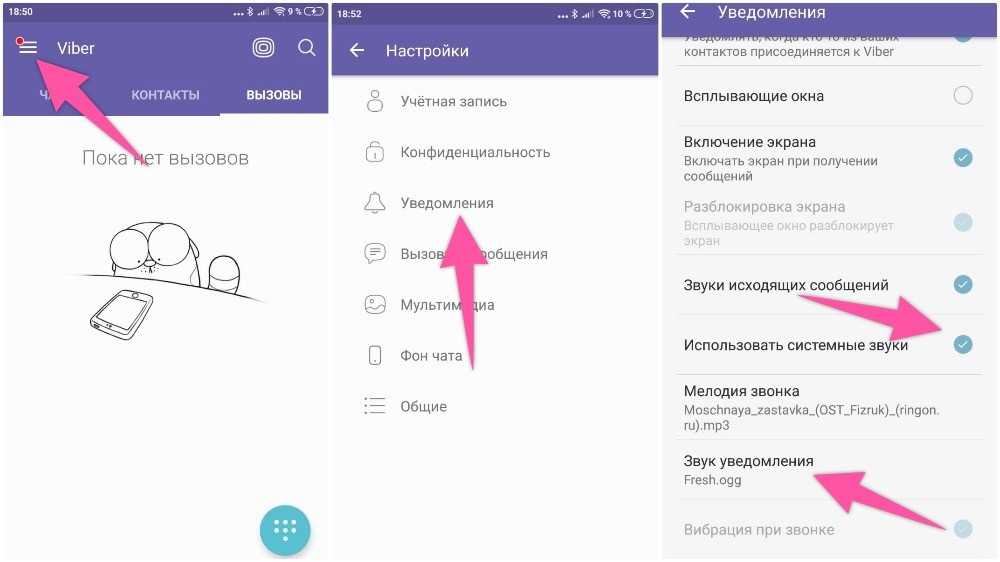
В моем конкретном примере я использую Xiaomi (MIUI 10), поэтому стандартное меню может отличаться от вашего. Так, что не беспокойтесь, если мои скриншоты отличаются от того, что вы видите на экране.
Как поменять звук уведомления в Ватсапе
Чтобы поменять звук уведомлений в WhatsApp, вам нужно нажать на меню из трех точек в правом верхнем углу. Тут нажмите на пункт «Настройки» и выберите «Уведомления».
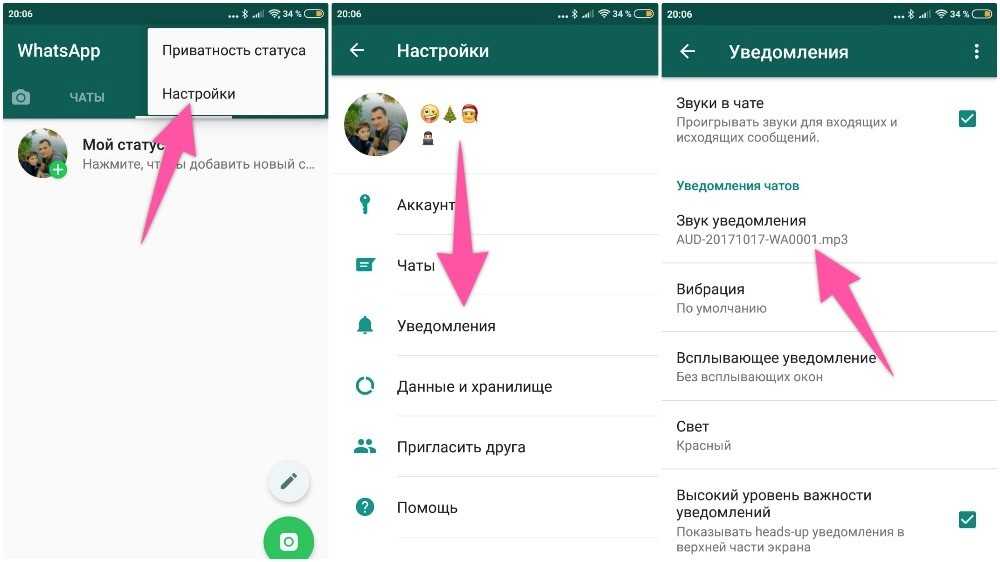
Дальше все достаточно просто. Однако замечу, что вам нужно прокрутить почти в самый низ, чтобы найти пункт выбора рингтона.
Заключение
Дорогие друзья! Если у вас остались вопросы относительно изменения звука уведомлений в Вассале и Вайбере, задавайте их комментариях. Буду весьма признателен, если поделитесь этой статьей в социальных сетях.
Обязательно узнайте эти — 21 лайфхака в WhatsApp, о которых вы не знали.

gorbanhttps://xpcom.ru
Старший редактор xpcom.ru. Ему нравится все, что связано с технологиями, включая планшеты, смартфоны и все, что между ними.
24.07.2020
1
Инструкция по установке уникальных звуков уведомлений для разных контактов.
В популярном мессенджере WhatsApp есть много полезных функций, о которых знают далеко не все пользователи. Одна из этих опций — индивидуальный звук уведомлений.
Пользователь может установить на каждый контакт определенный звук. Благодаря этому можно узнать, от кого именно пришло сообщение: от брата, жены или лучшего друга. Это удобно — все делается через стандартные настройки приложения. Также не нужно загружать музыку — все звуки доступны в стандартной библиотеке WhatsApp.
Как установить уникальное уведомление на WhatsApp?
Первым делом нужно запустить приложение WhatsApp на смартфоне. Далее откройте переписку с нужным человеком. Откройте информацию о собеседнике или группе — для этого нажмите на имя контакта. В открывшемся меню есть раздел «Индивидуальные уведомления», который и нужно открыть.
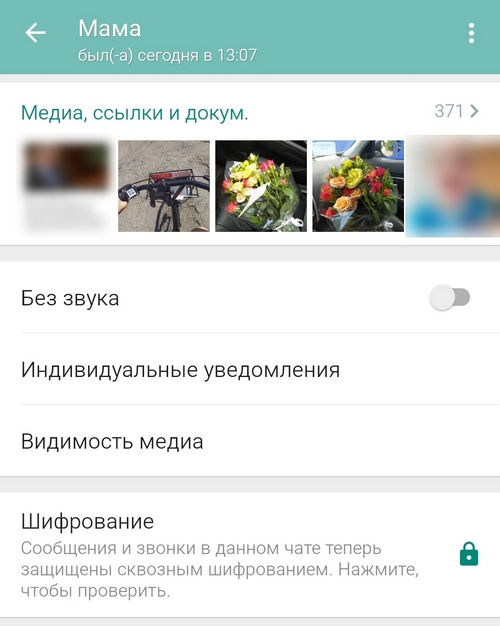
В это меню настроек есть много полезных опций для настройки и чатов, и звонков:
Звук уведомления контакта.
- Вибрация.
- Свет.
- Опция «Приоритетные уведомления».

После выбора нужной мелодии и настроек ждите сообщений. Когда выбранный человек напишет сообщение или позвонит по WhatsApp, в качестве оповещения будет использоваться индивидуальная музыкальная композиция. Аналогичным образом можно установить индивидуальное уведомление для групповых чатов.
(Image credit: Luke Filipowicz/iMore)
Your phone is probably constantly buzzing, beeping, and vibrating because of various alerts that pop up from other apps on your phone. It can be hard to know which alerts are coming from which apps. WhatsApp allows you to customize the notifications and alerts you receive, so it’s easy to know who is contacting you without even having to look at their name. You can change the notifications and alerts for individual contacts, all messages, all group messages, and more that come through WhatsApp.
- How to customize individual contact notifications
- How to customize all message notifications in WhatsApp for iPhone
- How to reset notifications settings in WhatsApp for iPhone
- How to customize in-app notifications in WhatsApp for iPhone
If you have a couple of people that you talk to all the time, or you are waiting for important information from someone, it may be useful to be able to tell the difference of their notifications from all the rest. You can set all of your WhatsApp contacts to have different notifications, which will make it easy to tell who is trying to get a hold of you without even glancing at your phone. You can customize the sound of messages or the ringtone.
How to customize the message sound for a specific contact in WhatsApp for iPhone
- Launch WhatsApp.
- Tap the Chats tab.
- Tap the search bar at the top of the screen.
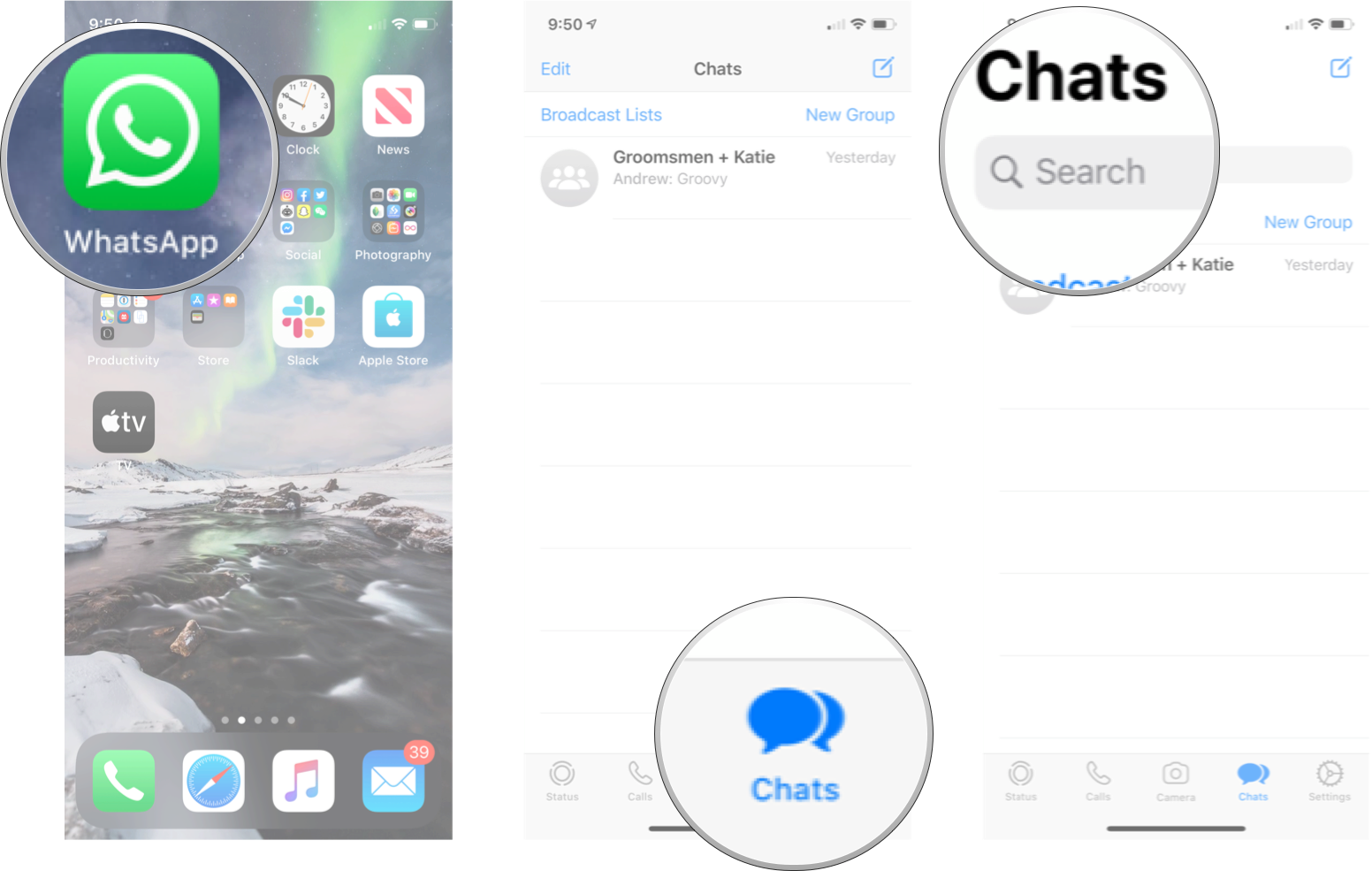
- Enter the name of the contact you want.
- Tap the more info button for that contact. It’s the little blue «i» on the right side.
- Tap Custom Tone.
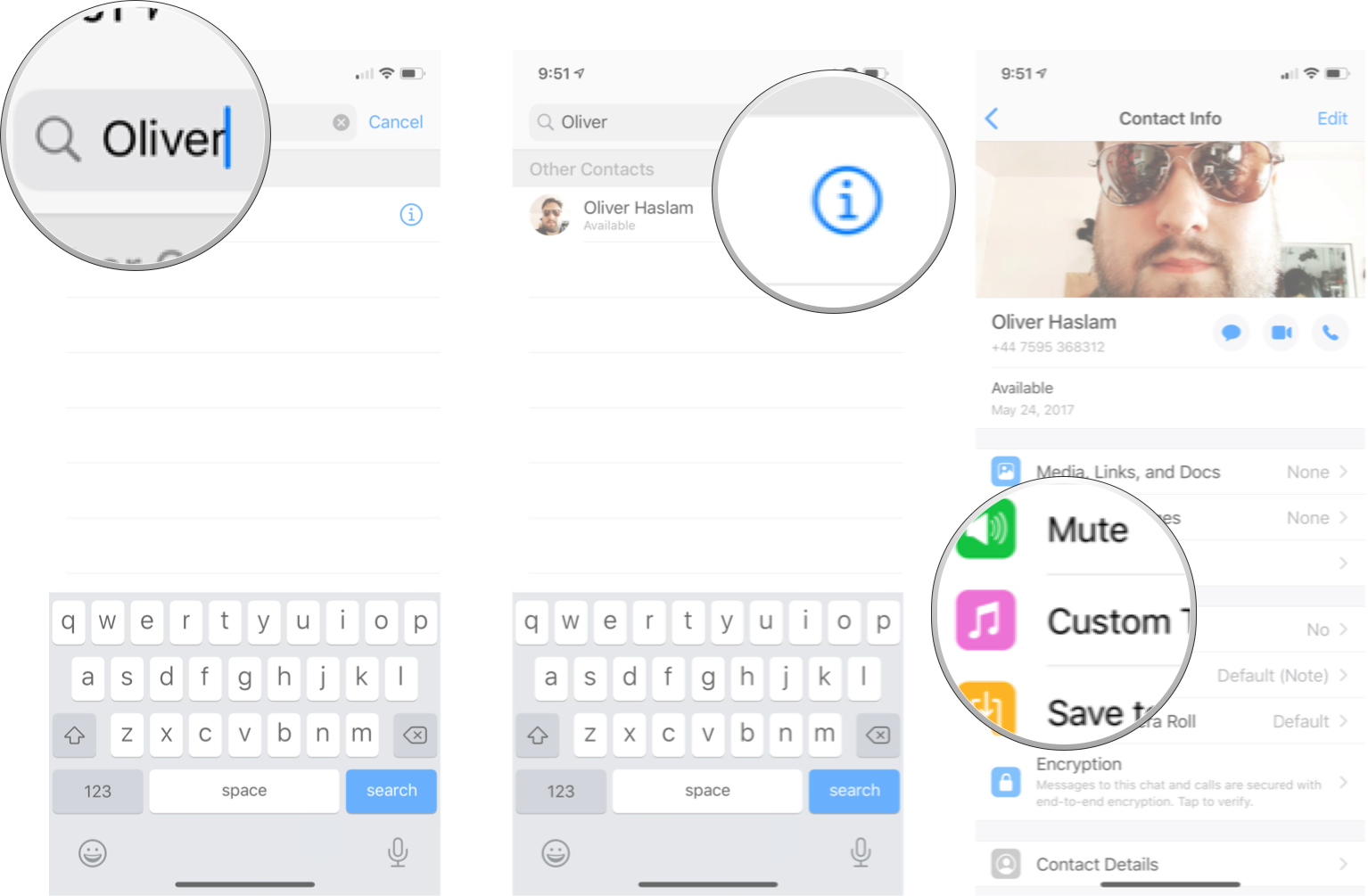
- Tap the tone you want.
- Tap Save.
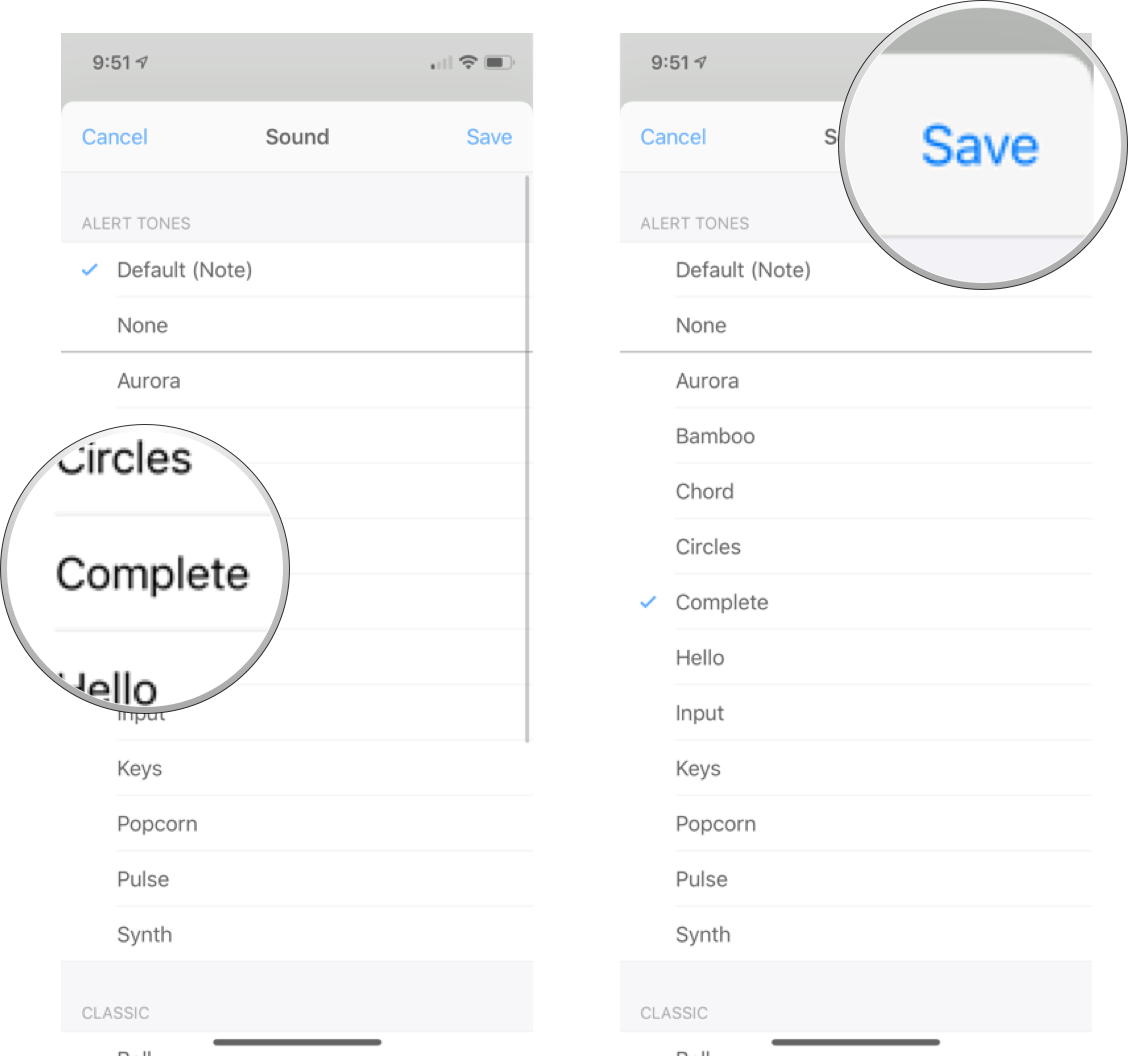
This will change the sound of any message you get from that specific contact. You could do this to every contact if you wanted, so go nuts!
How to customize the ringtone for a specific contact in WhatsApp for iPhone
If you want to customize the ringtone for a specific contact in WhatsApp, thanks to third-party call integration, you do it through the iOS contact settings.
- Launch Contacts.
- Tap the contact you want.
- Tap Edit in the top right corner.
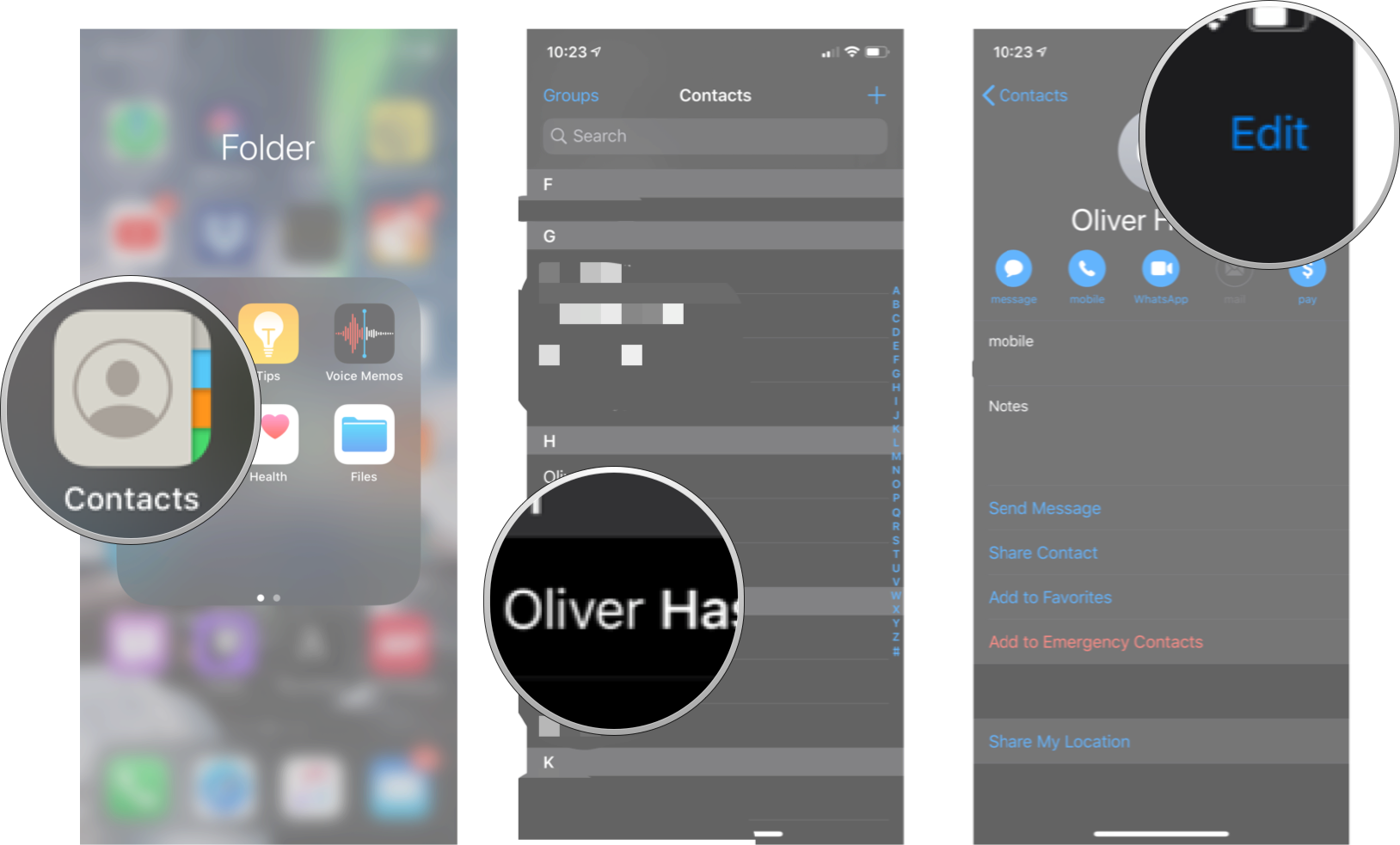
- Tap Ringtone.
- Tap the sound you want.
- Tap Done.
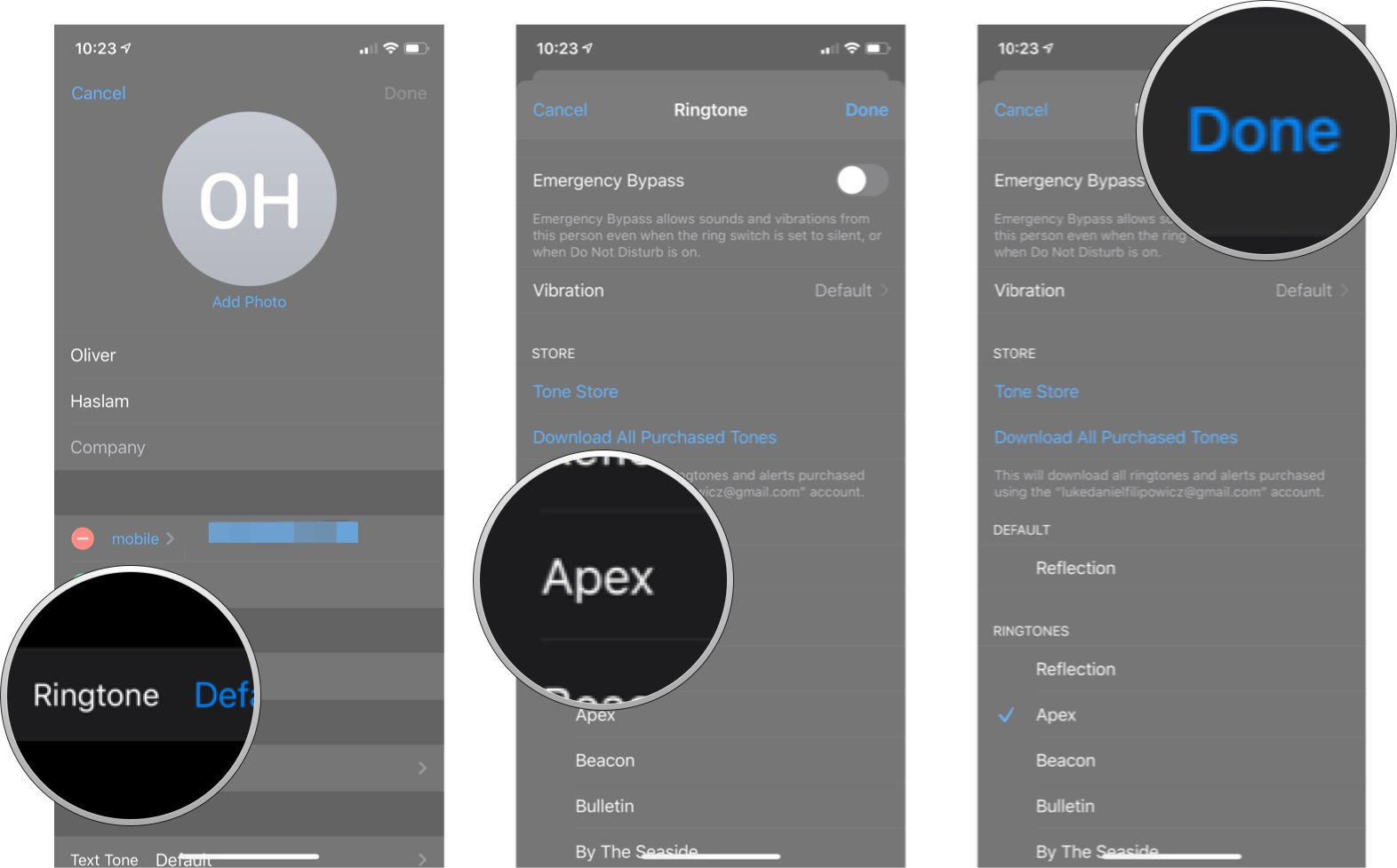
Now anytime this contact calls you through WhatsApp, it will use the ringtone you selected!
How to customize all message notifications in WhatsApp for iPhone
Not only can you play with individual notifications — you can change your WhatsApp messaging notifications across the entire app. You can turn them off or on, as well as change the sound for all of your WhatsApp contacts.
How to turn message notifications on or off in WhatsApp for iPhone.
- Launch WhatsApp.
- Tap the Settings tab. It is the gear icon in the bottom right corner of the screen.
- Tap Notifications.
- Tap the Show Notifications On/Off switch under the Message Notifications section. When the switch is gray, notifications will be turned off.
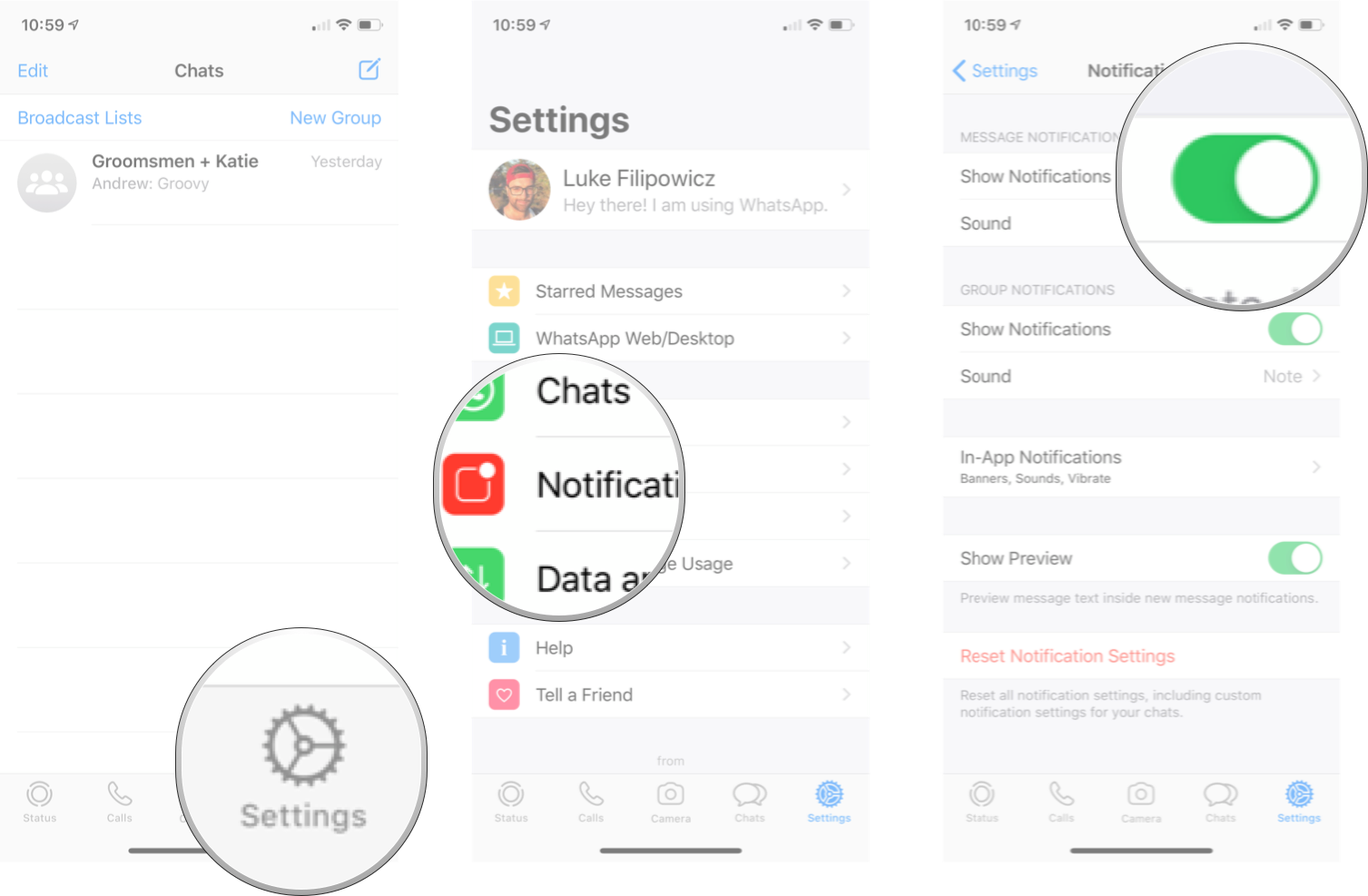
You can turn on notifications again by following the same steps listed above.
How to customize the sound for message notifications in WhatsApp for iPhone
- Launch WhatsApp.
- Tap the Settings tab. It is the gear icon in the bottom right corner of the screen.
- Tap Notifications.

- Tap Sound under the Message Notifications section.
- Tap the sound you want.
- Tap Save.
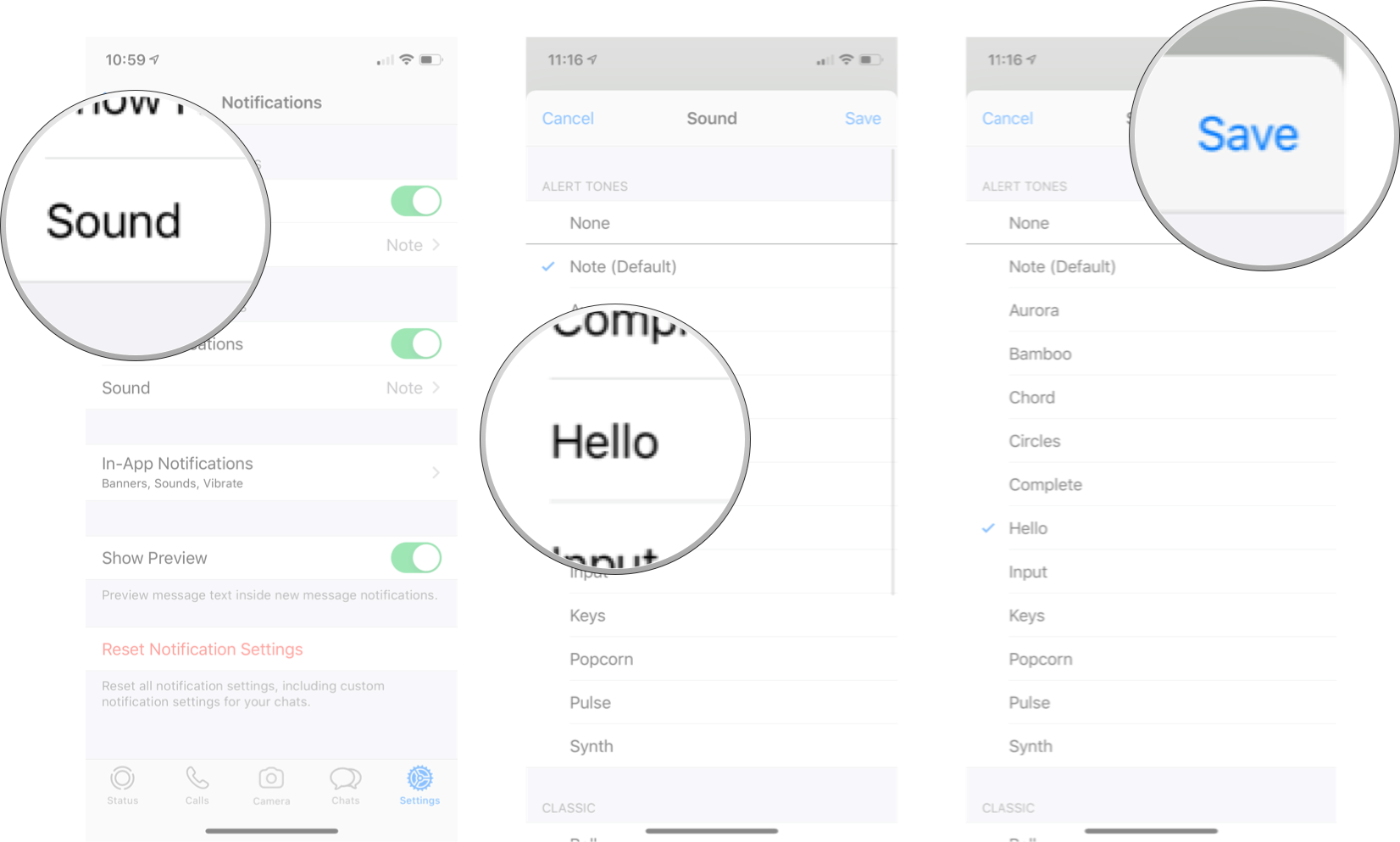
Now all messages from WhatsApp will have the sound you’ve selected unless you’ve chosen a specific tone for a specific contact.
How to turn group notifications on or off in WhatsApp for iPhone
- Launch WhatsApp.
- Tap the Settings tab. It is the gear icon in the bottom right corner of the screen.
- Tap Notifications.
- Tap the Show Notifications On/Off switch under the Group Notifications section. When the switch is gray, notifications will be turned off.
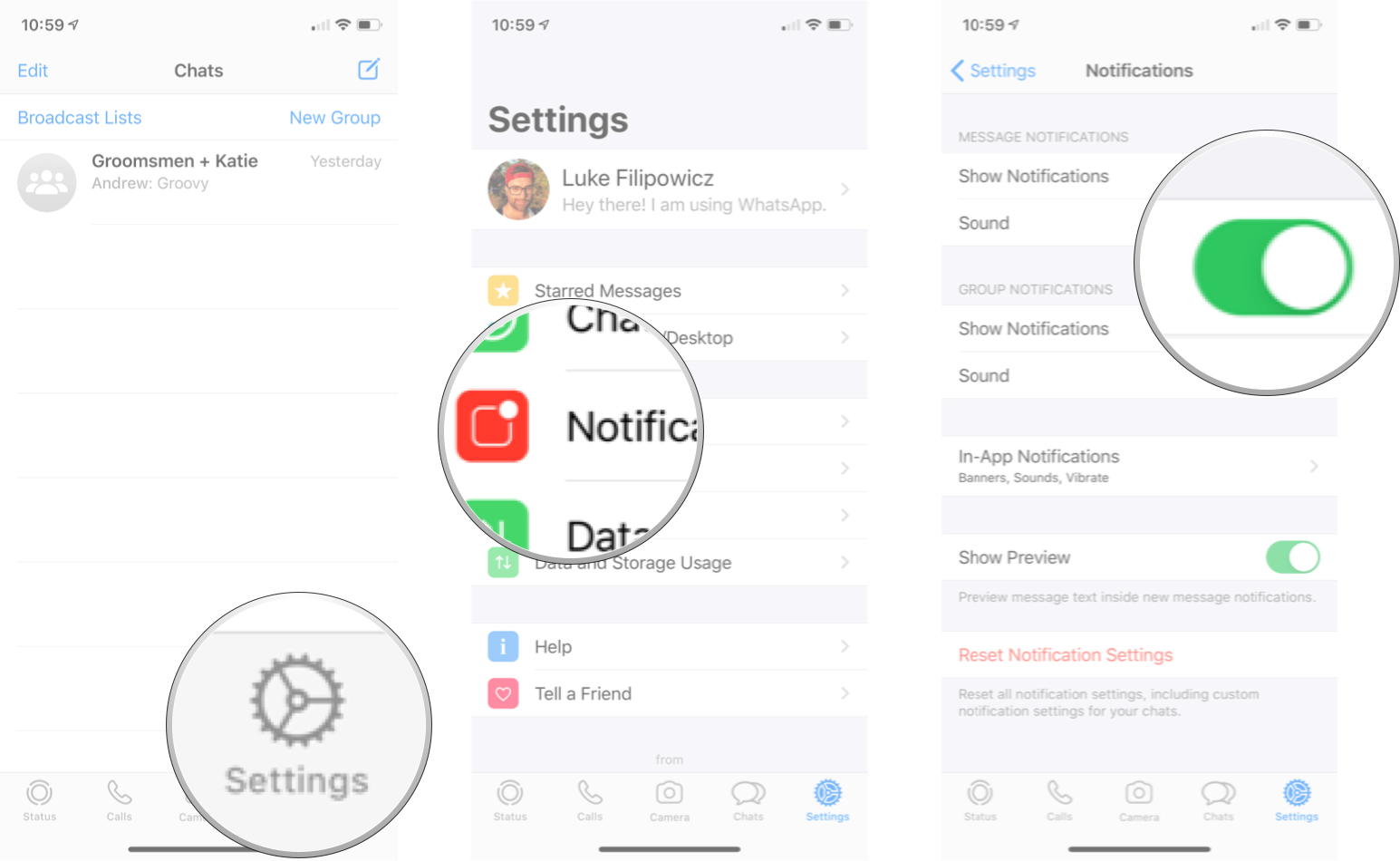
You can turn on group notifications again by following the same steps listed above.
How to customize the sound for group notifications in WhatsApp for iPhone
- Launch WhatsApp.
- Tap the Settings tab. It is the gear icon in the bottom right corner of the screen.
- Tap Notifications.
- Tap Sound under the Group Notifications section.
- Tap the sound you want.
- Tap Save.
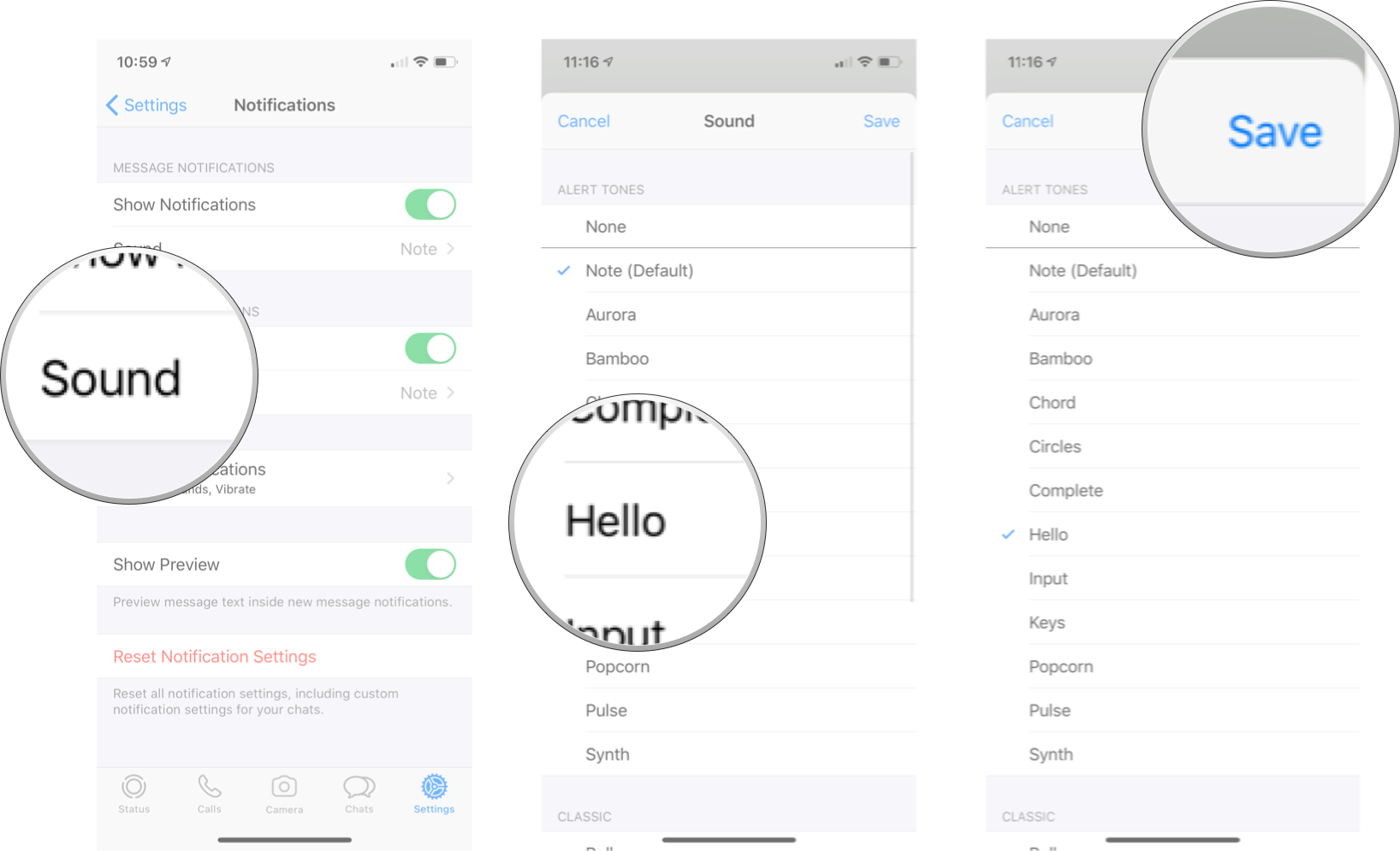
Now all your group messages will play the tone you’ve selected.
How to customize in-app notifications in WhatsApp for iPhone
Like most apps on the iPhone, notifications are a little different when you are actually in the app. If you are chatting with your friends or editing your contact list, you don’t want to miss important notifications from people. You can customize these in-app notifications in WhatsApp with just a few simple taps on the screen.
How to change the alert style of in-app notifications in WhatsApp for iPhone
You can change how WhatsApp notifications will appear on your phone when you are in WhatsApp.
- Launch WhatsApp.
- Tap the Settings tab. It is the gear icon in the bottom right corner of the screen.
- Tap Notifications.
- Tap In-App Notifications.
- Tap the alert style you want. Your choices are:
- None
- Banners
- Alerts
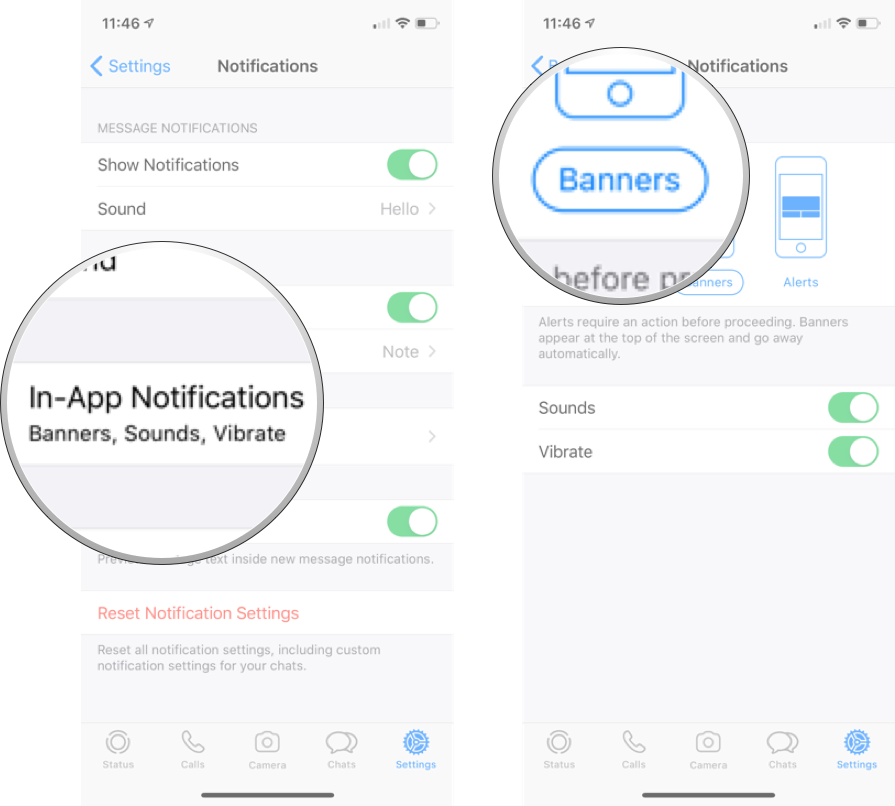
This will affect the type of visual notification you will see when you are in WhatsApp, but not when you are on the Home screen or anywhere else on your phone.
How to turn sounds on or off for in-app notifications in WhatsApp for iPhone
- Launch WhatsApp.
- Tap the Settings tab. It is the gear icon in the bottom right corner of the screen.
- Tap Notifications.
- Tap In-App Notifications.
- Tap the Sound On/Off switch. When the switch is gray, the sound will be turned off.
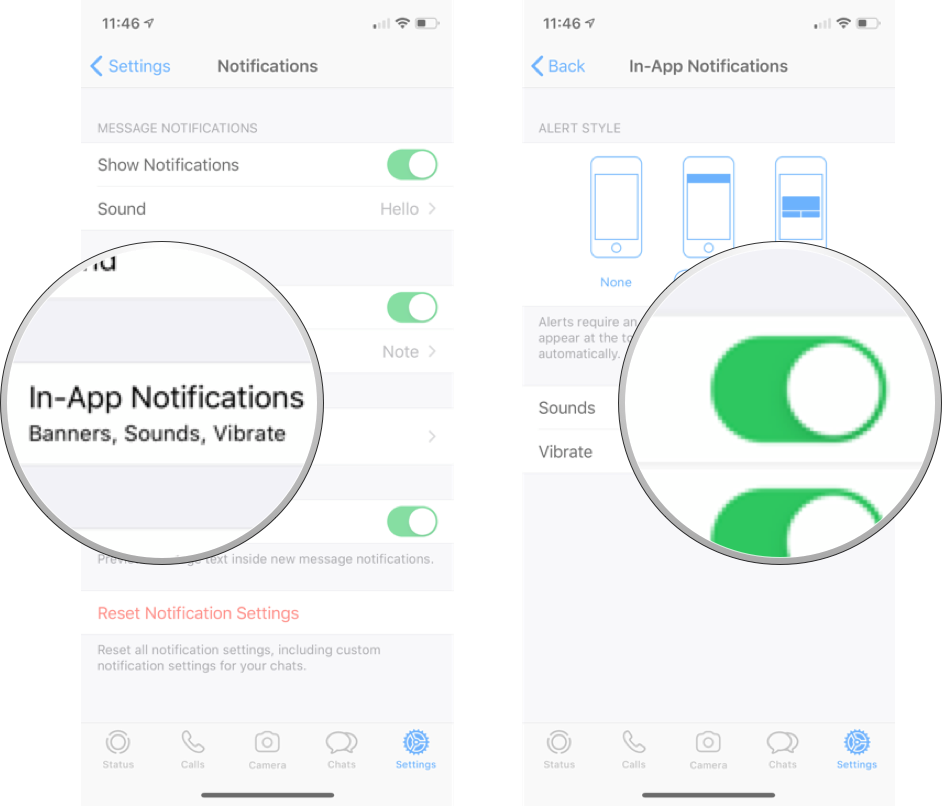
You can turn the sound back on for in-app notifications by following the same steps listed above.
How to turn vibration on or off for in-app notifications in WhatsApp for iPhone
- Launch WhatsApp.
- Tap the Settings tab. It is the gear icon in the bottom right corner of the screen.
- Tap Notifications.
- Tap In-App Notifications.
- Tap the Vibrate On/Off switch. When the switch is gray, the vibration will be turned off.
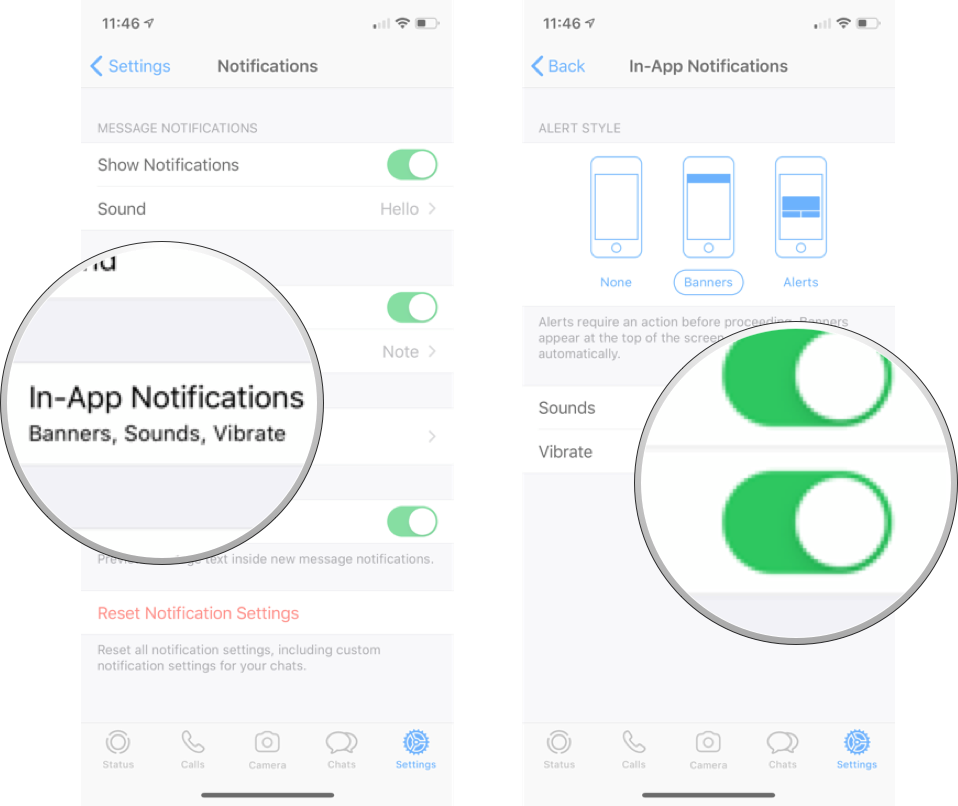
You can turn the vibration back on for in-app notifications by following the same steps listed above.
How to turn off message previews in WhatsApp
If you don’t want WhatsApp message to show any previews of what incoming messages say when you get a notification, you can turn that feature off in settings.
- Launch WhatsApp.
- Tap the Settings tab. It is the gear icon in the bottom right corner of the screen.
- Tap Notifications.
- Tap the Show Preview On/Off switch. When the switch is gray, the feature is off.
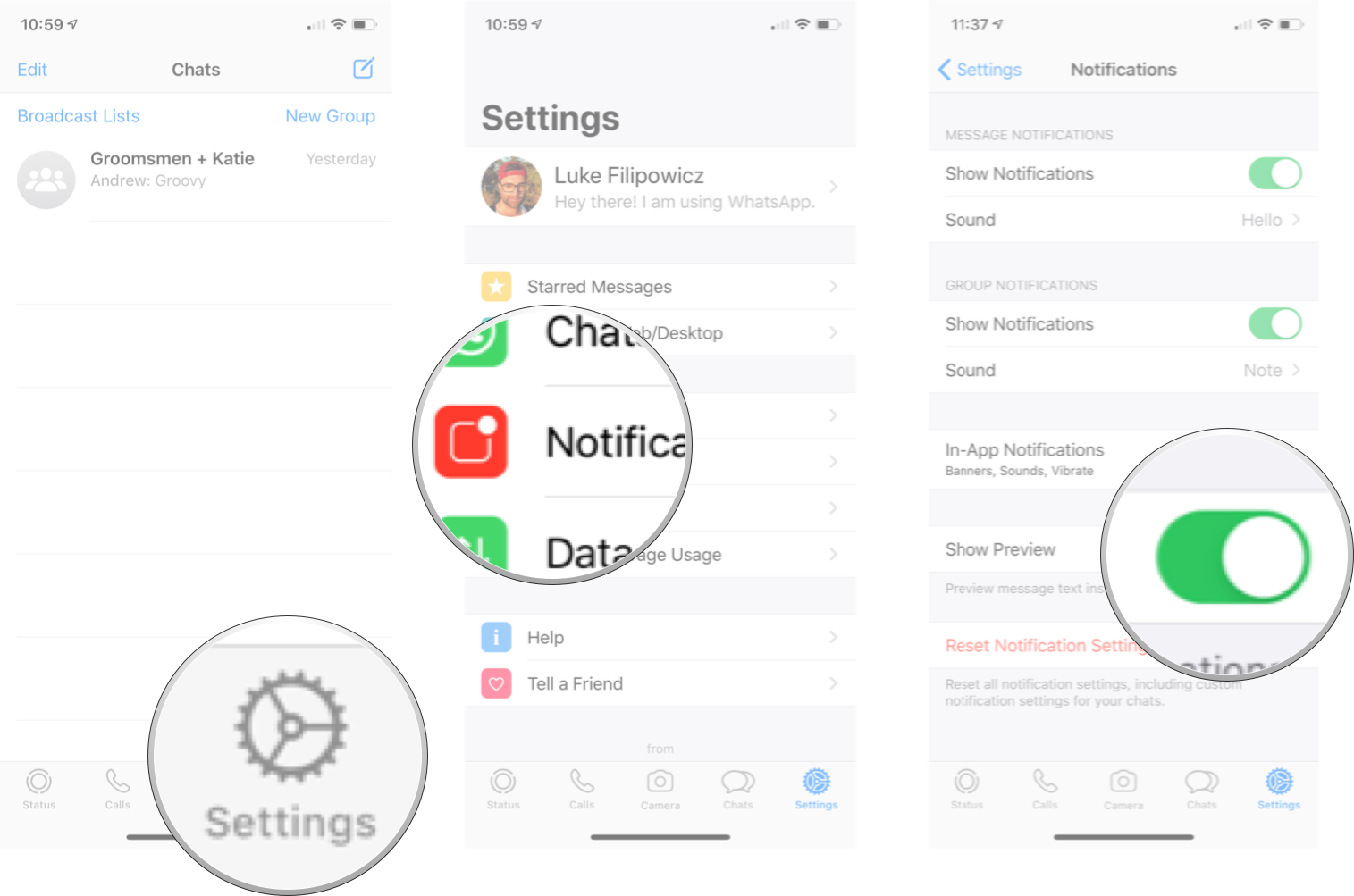
You can turn on message previews again by following the same steps listed above.
How to reset notifications settings in WhatsApp for iPhone
If you want to restore all your notifications settings to the default WhatsApp settings, you can do so through the settings tab.
- Launch WhatsApp.
- Tap the Settings tab. It is the gear icon in the bottom right corner of the screen.
- Tap Notifications.
- Tap **Reset Notification Settings*
- Tap Reset.
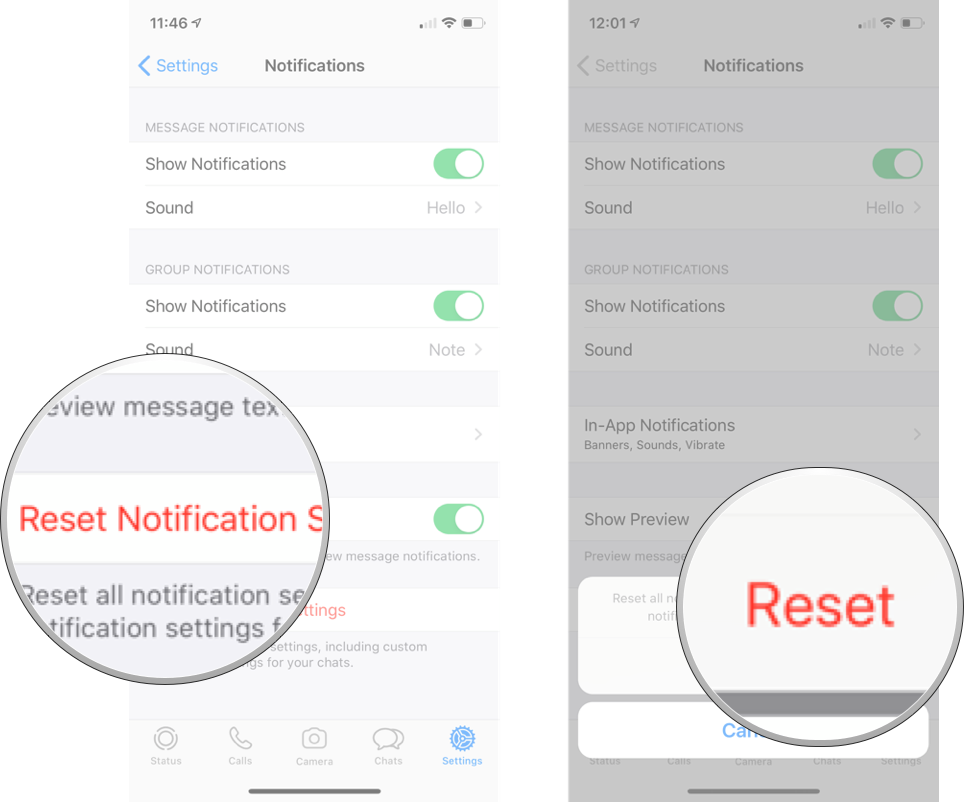
Any questions?
Let us know in the comments down below.
Updated February 2020: Updated for the most recent version of WhatsApp on iOS.
Get the best of iMore in in your inbox, every day!
Luke Filipowicz has been a writer at iMore, covering Apple for nearly a decade now. He writes a lot about Apple Watch and iPad but covers the iPhone and Mac as well. He often describes himself as an «Apple user on a budget» and firmly believes that great technology can be affordable if you know where to look. Luke also heads up the iMore Show — a weekly podcast focusing on Apple news, rumors, and products but likes to have some fun along the way.
Luke knows he spends more time on Twitter than he probably should, so feel free to follow him or give him a shout on social media @LukeFilipowicz.
(Image credit: Luke Filipowicz/iMore)
Your phone is probably constantly buzzing, beeping, and vibrating because of various alerts that pop up from other apps on your phone. It can be hard to know which alerts are coming from which apps. WhatsApp allows you to customize the notifications and alerts you receive, so it’s easy to know who is contacting you without even having to look at their name. You can change the notifications and alerts for individual contacts, all messages, all group messages, and more that come through WhatsApp.
- How to customize individual contact notifications
- How to customize all message notifications in WhatsApp for iPhone
- How to reset notifications settings in WhatsApp for iPhone
- How to customize in-app notifications in WhatsApp for iPhone
If you have a couple of people that you talk to all the time, or you are waiting for important information from someone, it may be useful to be able to tell the difference of their notifications from all the rest. You can set all of your WhatsApp contacts to have different notifications, which will make it easy to tell who is trying to get a hold of you without even glancing at your phone. You can customize the sound of messages or the ringtone.
How to customize the message sound for a specific contact in WhatsApp for iPhone
- Launch WhatsApp.
- Tap the Chats tab.
- Tap the search bar at the top of the screen.
- Enter the name of the contact you want.
- Tap the more info button for that contact. It’s the little blue «i» on the right side.
- Tap Custom Tone.
- Tap the tone you want.
- Tap Save.
This will change the sound of any message you get from that specific contact. You could do this to every contact if you wanted, so go nuts!
How to customize the ringtone for a specific contact in WhatsApp for iPhone
If you want to customize the ringtone for a specific contact in WhatsApp, thanks to third-party call integration, you do it through the iOS contact settings.
- Launch Contacts.
- Tap the contact you want.
- Tap Edit in the top right corner.
- Tap Ringtone.
- Tap the sound you want.
- Tap Done.
Now anytime this contact calls you through WhatsApp, it will use the ringtone you selected!
How to customize all message notifications in WhatsApp for iPhone
Not only can you play with individual notifications — you can change your WhatsApp messaging notifications across the entire app. You can turn them off or on, as well as change the sound for all of your WhatsApp contacts.
How to turn message notifications on or off in WhatsApp for iPhone.
- Launch WhatsApp.
- Tap the Settings tab. It is the gear icon in the bottom right corner of the screen.
- Tap Notifications.
- Tap the Show Notifications On/Off switch under the Message Notifications section. When the switch is gray, notifications will be turned off.
You can turn on notifications again by following the same steps listed above.
How to customize the sound for message notifications in WhatsApp for iPhone
- Launch WhatsApp.
- Tap the Settings tab. It is the gear icon in the bottom right corner of the screen.
- Tap Notifications.
- Tap Sound under the Message Notifications section.
- Tap the sound you want.
- Tap Save.
Now all messages from WhatsApp will have the sound you’ve selected unless you’ve chosen a specific tone for a specific contact.
How to turn group notifications on or off in WhatsApp for iPhone
- Launch WhatsApp.
- Tap the Settings tab. It is the gear icon in the bottom right corner of the screen.
- Tap Notifications.
- Tap the Show Notifications On/Off switch under the Group Notifications section. When the switch is gray, notifications will be turned off.
You can turn on group notifications again by following the same steps listed above.
How to customize the sound for group notifications in WhatsApp for iPhone
- Launch WhatsApp.
- Tap the Settings tab. It is the gear icon in the bottom right corner of the screen.
- Tap Notifications.
- Tap Sound under the Group Notifications section.
- Tap the sound you want.
- Tap Save.
Now all your group messages will play the tone you’ve selected.
How to customize in-app notifications in WhatsApp for iPhone
Like most apps on the iPhone, notifications are a little different when you are actually in the app. If you are chatting with your friends or editing your contact list, you don’t want to miss important notifications from people. You can customize these in-app notifications in WhatsApp with just a few simple taps on the screen.
How to change the alert style of in-app notifications in WhatsApp for iPhone
You can change how WhatsApp notifications will appear on your phone when you are in WhatsApp.
- Launch WhatsApp.
- Tap the Settings tab. It is the gear icon in the bottom right corner of the screen.
- Tap Notifications.
- Tap In-App Notifications.
- Tap the alert style you want. Your choices are:
- None
- Banners
- Alerts
This will affect the type of visual notification you will see when you are in WhatsApp, but not when you are on the Home screen or anywhere else on your phone.
How to turn sounds on or off for in-app notifications in WhatsApp for iPhone
- Launch WhatsApp.
- Tap the Settings tab. It is the gear icon in the bottom right corner of the screen.
- Tap Notifications.
- Tap In-App Notifications.
- Tap the Sound On/Off switch. When the switch is gray, the sound will be turned off.
You can turn the sound back on for in-app notifications by following the same steps listed above.
How to turn vibration on or off for in-app notifications in WhatsApp for iPhone
- Launch WhatsApp.
- Tap the Settings tab. It is the gear icon in the bottom right corner of the screen.
- Tap Notifications.
- Tap In-App Notifications.
- Tap the Vibrate On/Off switch. When the switch is gray, the vibration will be turned off.
You can turn the vibration back on for in-app notifications by following the same steps listed above.
How to turn off message previews in WhatsApp
If you don’t want WhatsApp message to show any previews of what incoming messages say when you get a notification, you can turn that feature off in settings.
- Launch WhatsApp.
- Tap the Settings tab. It is the gear icon in the bottom right corner of the screen.
- Tap Notifications.
- Tap the Show Preview On/Off switch. When the switch is gray, the feature is off.
You can turn on message previews again by following the same steps listed above.
How to reset notifications settings in WhatsApp for iPhone
If you want to restore all your notifications settings to the default WhatsApp settings, you can do so through the settings tab.
- Launch WhatsApp.
- Tap the Settings tab. It is the gear icon in the bottom right corner of the screen.
- Tap Notifications.
- Tap **Reset Notification Settings*
- Tap Reset.
Any questions?
Let us know in the comments down below.
Updated February 2020: Updated for the most recent version of WhatsApp on iOS.
Get the best of iMore in in your inbox, every day!
Luke Filipowicz has been a writer at iMore, covering Apple for nearly a decade now. He writes a lot about Apple Watch and iPad but covers the iPhone and Mac as well. He often describes himself as an «Apple user on a budget» and firmly believes that great technology can be affordable if you know where to look. Luke also heads up the iMore Show — a weekly podcast focusing on Apple news, rumors, and products but likes to have some fun along the way.
Luke knows he spends more time on Twitter than he probably should, so feel free to follow him or give him a shout on social media @LukeFilipowicz.