

-
#21
Прошу если советы помогают отписываться дабы после Вас этот вопрос мог быстро принести пользу другим
-
#22
У вас есть главная страница магазина… тайтл берется с нее в начале… например если главная страница товаров у вас начинается со слова Товары то в тайтл будет Товары — трам прарарам если вы замените название страницы магазина например на Продажа то будет Продажа — трам парарам
Где это можно поменять, искал не нашел? Если поменять страницу магазина на другу, то и тайтл встает такой же как называется страница. Значит это меняется где-то в плагине woocommerce, а вот где перерыл все и не нашел!
-
#23
Где это можно поменять, искал не нашел? Если поменять страницу магазина на другу, то и тайтл встает такой же как называется страница. Значит это меняется где-то в плагине woocommerce, а вот где перерыл все и не нашел!
Главная страница магазина выставлена в настройках плагина как раз Лошади.
-
#24
Главная страница магазина выставлена в настройках плагина как раз Лошади.
И страница именуется Лошади
-
#25

Вот тут ссылка на базовую страницу магазина.
Она есть в страницах…
Как она называется?
-
#26
Вот страница магазиа
а вот настройки woocommerc
-
#28
Странно… Тайтл берется из названия главной страницы. Будьте добры скрин на все страницы Ваши. Или точнее на Главную страницу которая в админке
Главная самого сайта
-
#29
Если на главную магазин скидывал в этом посте
-
#30
вроде вот ваше решение
смотрите тут /wp-content/plugins/woocommerce/templates/single-product в файле title.php
-
#31
Я как бы понять не могу почему у Вас заголовок не парсится … специально посмотрел все функции.
-
#32
Передумал всякое попробуйте такую конструкцию
/wp-content/plugins/woocommerce/templates/single-product в файле title.php
the_title( ‘<h1 itemprop=»name» class=»product_title entry-title»>’, ‘</h1>’ );
Заменить на это
$custom_tl = get_post_meta($post->ID, 'custom_tl', true);

if ( $custom_tl ) {
    echo '<h1 itemprop="name" class="product_title entry-title">' . $custom_tl . '</h1>';
} else {
    the_title( '<h1 itemprop="name" class="product_title entry-title">', '</h1>' );
Далее в нужном месте заходите и в произвольном поле ставите custom_tl и его значение.
Проверяйте
(не знаю с чем у Вас связанно… если я меняю Название главной страницы магазина то выводится Название главной-имя продукта или страницы)
-
#33
Сео выглядит так

-
#34
petrov, Спасибо вам за иллюстрации, так гораздо понятнее суть проблемы.
А так же огромное спасибо вам за придание мне ускорения. Давно хотел поставить ограничения загружаемых размеров картинок и сделать ЧаВо. Вы просто побили рекорд по загрузке не оптимизированных картинок за короткое время. Теперь можете изучить как загружать картинки на форум.
-
#35
Передумал всякое попробуйте такую конструкцию
/wp-content/plugins/woocommerce/templates/single-product в файле title.phpthe_title( ‘<h1 itemprop=»name» class=»product_title entry-title»>’, ‘</h1>’ );
Заменить на это
$custom_tl = get_post_meta($post->ID, 'custom_tl', true);

if ( $custom_tl ) {
    echo '<h1 itemprop="name" class="product_title entry-title">' . $custom_tl . '</h1>';
} else {
    the_title( '<h1 itemprop="name" class="product_title entry-title">', '</h1>' );
Далее в нужном месте заходите и в произвольном поле ставите custom_tl и его значение.
Проверяйте(не знаю с чем у Вас связанно… если я меняю Название главной страницы магазина то выводится Название главной-имя продукта или страницы)
Скажу что это проблема началась вчера, до этого тайтл был какой должен быть.
-
#36
Спасибо! Я нашел ответ.
Не нужно лезьте в код, во всем виноват плагин Yoast SEO
Всё дело в том, что разработчики плагина Yoast SEO, почему-то загнали главную страницу магазина в разряд архивов. А логика их плагина не позволяет менять теги title и description обычным путём у данного типа записей.
Используем самое простое решение, а именно идём на вкладку «Заголовки и метаданные» плагина Yoast SEO. И там пролистываем страницу до пункта «Архивы пользователеских типов записей» и вносим свои значения в поля title (Название), description (Мета описание).
Всё это сохраняем и смотрим на результат. Собственно это всё.
Viewing 5 replies — 1 through 5 (of 5 total)
Plugin Support
 Mirko P.
(@rainfallnixfig)
Hi @dmag55,
With a basic installation of WordPress, WooCommerce and the default Storefront theme my Shop page title reflects the Site Title and the Tagline as shown under WP dashboard > General > General Settings:

There are ways to change the Shop page title in WooCommerce and here’s an article that is describing how you can do it using a plugin or programmatically:
Hope this helps.
Thread Starter
 dmag55
(@dmag55)
The article deals with page title of a shop page, my question is about title tag contained within the head tag in page’s html markup.
After adding add_theme_support(‘title-tag’) to my functions.php, the title tag for my shop page becomes as follows:
<title>Products - My Site Title</title>
Whereas it’s supposed to be:
<title>Artworks - My Site Title</title>
Since the shop page in WP Dashboard > Pages is titled “Artworks”.
The title tag is generated by add_theme_support(‘title-tag’) functionality, but for some reason it generates title “Products” instead of shop page’s actual title.
Plugin Support
Mirko P.
(@rainfallnixfig)
Hi @dmag55,
You may want to review the Title Tag Codex documentation here:
https://codex.wordpress.org/Title_Tag
Since this is a theme feature and is a more development-oriented issue, I’ll go ahead and leave this thread open for a while in case anyone else wants to chime in, but in the meantime, I can also recommend the following resources for help:
- WooCommerce Slack Community
- Advanced WooCommerce group on Facebook
Cheers.
Thread Starter
dmag55
(@dmag55)
Thank you. The link you provided led me to document_title_parts filter, which is exactly what I was looking for.
-
This reply was modified 1 year ago by
 dmag55.

Thanks for letting us know, happy to know my colleague helped you out.
If you have any further questions, I recommend creating a new thread since this now is already tagged as resolved.
Thanks 🙂
Viewing 5 replies — 1 through 5 (of 5 total)
Viewing 5 replies — 1 through 5 (of 5 total)
Plugin Support
Mirko P.
(@rainfallnixfig)
Hi @dmag55,
With a basic installation of WordPress, WooCommerce and the default Storefront theme my Shop page title reflects the Site Title and the Tagline as shown under WP dashboard > General > General Settings:
There are ways to change the Shop page title in WooCommerce and here’s an article that is describing how you can do it using a plugin or programmatically:
Hope this helps.
Thread Starter
dmag55
(@dmag55)
The article deals with page title of a shop page, my question is about title tag contained within the head tag in page’s html markup.
After adding add_theme_support(‘title-tag’) to my functions.php, the title tag for my shop page becomes as follows:
<title>Products - My Site Title</title>
Whereas it’s supposed to be:
<title>Artworks - My Site Title</title>
Since the shop page in WP Dashboard > Pages is titled “Artworks”.
The title tag is generated by add_theme_support(‘title-tag’) functionality, but for some reason it generates title “Products” instead of shop page’s actual title.
Plugin Support
Mirko P.
(@rainfallnixfig)
Hi @dmag55,
You may want to review the Title Tag Codex documentation here:
https://codex.wordpress.org/Title_Tag
Since this is a theme feature and is a more development-oriented issue, I’ll go ahead and leave this thread open for a while in case anyone else wants to chime in, but in the meantime, I can also recommend the following resources for help:
- WooCommerce Slack Community
- Advanced WooCommerce group on Facebook
Cheers.
Thread Starter
dmag55
(@dmag55)
Thank you. The link you provided led me to document_title_parts filter, which is exactly what I was looking for.
-
This reply was modified 1 year ago by dmag55.
Thanks for letting us know, happy to know my colleague helped you out.
If you have any further questions, I recommend creating a new thread since this now is already tagged as resolved.
Thanks 🙂
Viewing 5 replies — 1 through 5 (of 5 total)
Are you wondering how to change the shop page title in WooCommerce?
The shop page is one of the most significant pages in your store because it is where you present your products. As a result, it should have a visually appealing and user-friendly design.
You can change the WooCommerce shop page title either from the WordPress settings or using a code snippet in your functions.php file.
In this article, we’ll show you how to change the WooCommerce shop page title with ease. So without further ado, let’s get started.
Table Of Contents
- Changing WooCommerce Shop Page Title – Video Tutorial
- Why Change the Shop Page Title in WooCommerce?
- How to Change the WooCommerce Shop Page Title?
- How to Change SEO Title for WooCommerce Shop Page?
- Conclusion
1 Changing WooCommerce Shop Page Title – Video Tutorial
Don’t want to read? You can learn how to change the WooCommerce shop page title with our video tutorial.
According to WooCommerce, a shop page is “a placeholder for a post type archive for products.” It’s the page on which you display your products, and it’s essential to your company’s success. Let’s look at why you should personalize the WooCommerce shop page before getting into how you can do it.
Consider going into a store to make a purchase. What factors influence your buying experience satisfaction? The way the products are organized and how easy it is to find what you’re looking for are two of the most important factors.
People prefer to shop online since it is more convenient and faster. As a result, how you arrange your products on your WooCommerce shop page and how you present them to your clients might make a significant difference in terms of conversions, money, and your store’s reputation.
By default, the WooCommerce shop page is named ‘Shop..’ You can change the default title to be more creative and engaging and improve the customer experience. The aim is to create a visually appealing and user-friendly design that simplifies the purchasing process. Let us now see different ways to change the WooCommerce shop page title.
3 How to Change the WooCommerce Shop Page Title?
3.1 Using the WordPress Settings
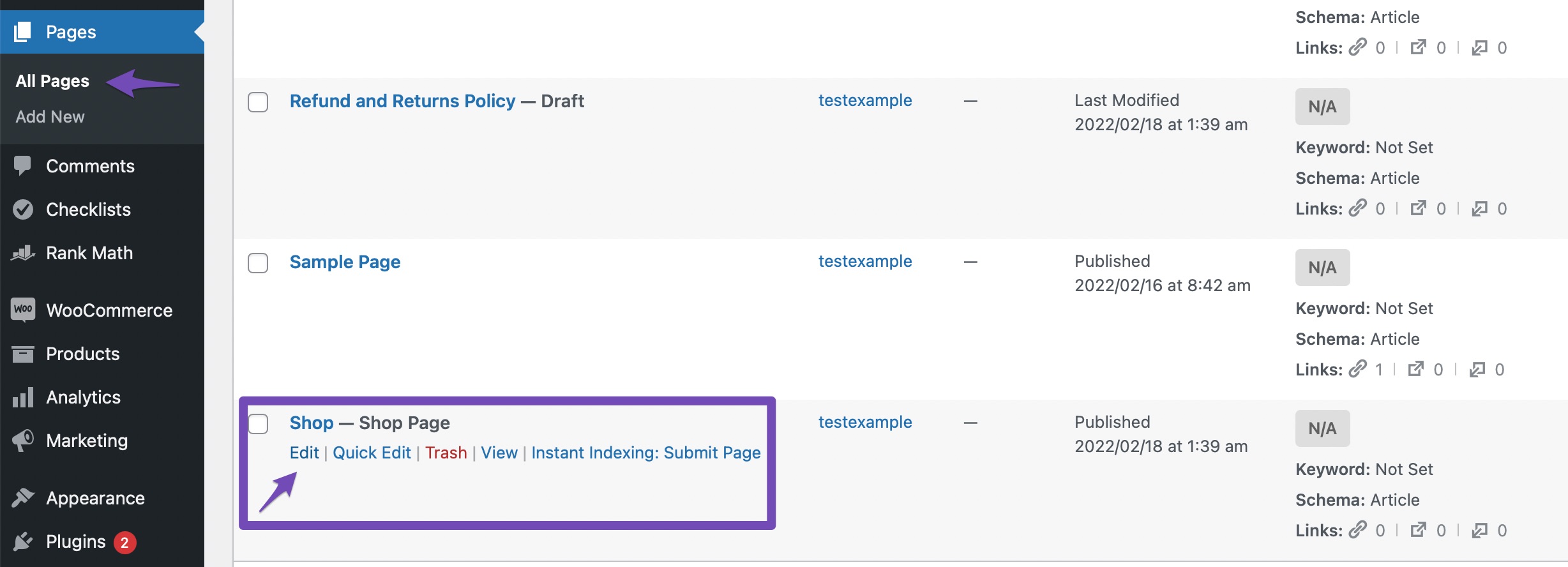
The easiest way to change the WooCommerce shop page title is by using the built-in WordPress settings. To do so, navigate to Pages > All Pages from your WordPress dashboard. Find the ‘Shop – Shop Page’ and click the Edit button.
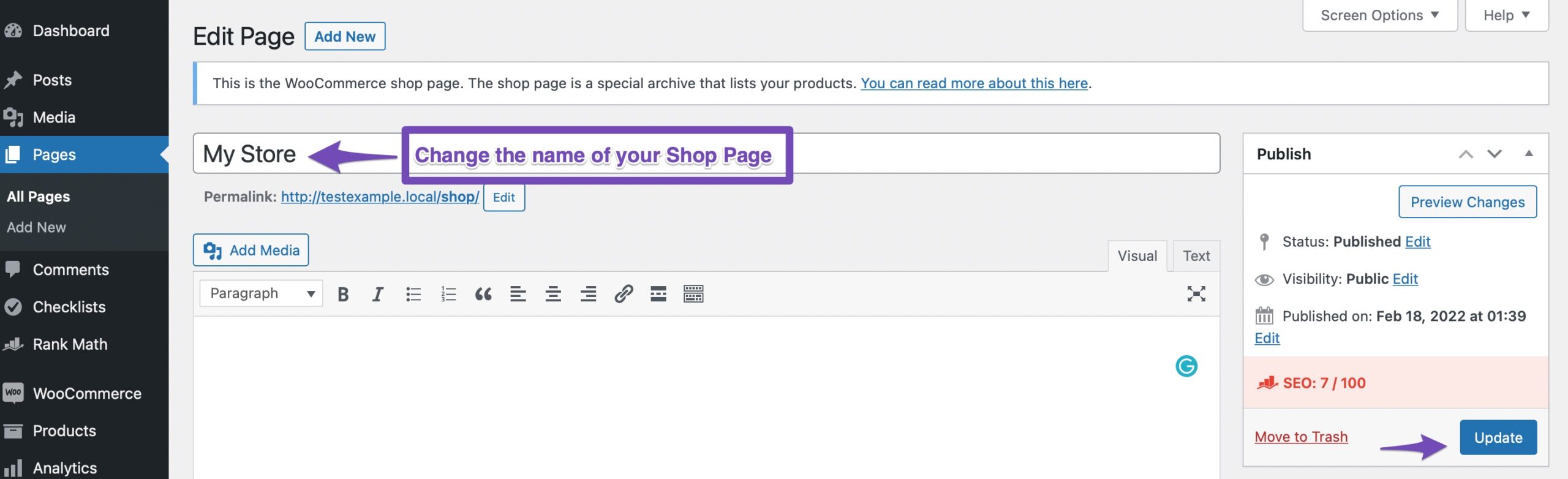
You can then change your shop page title as shown below. Once done, click on the Update button to save your changes.
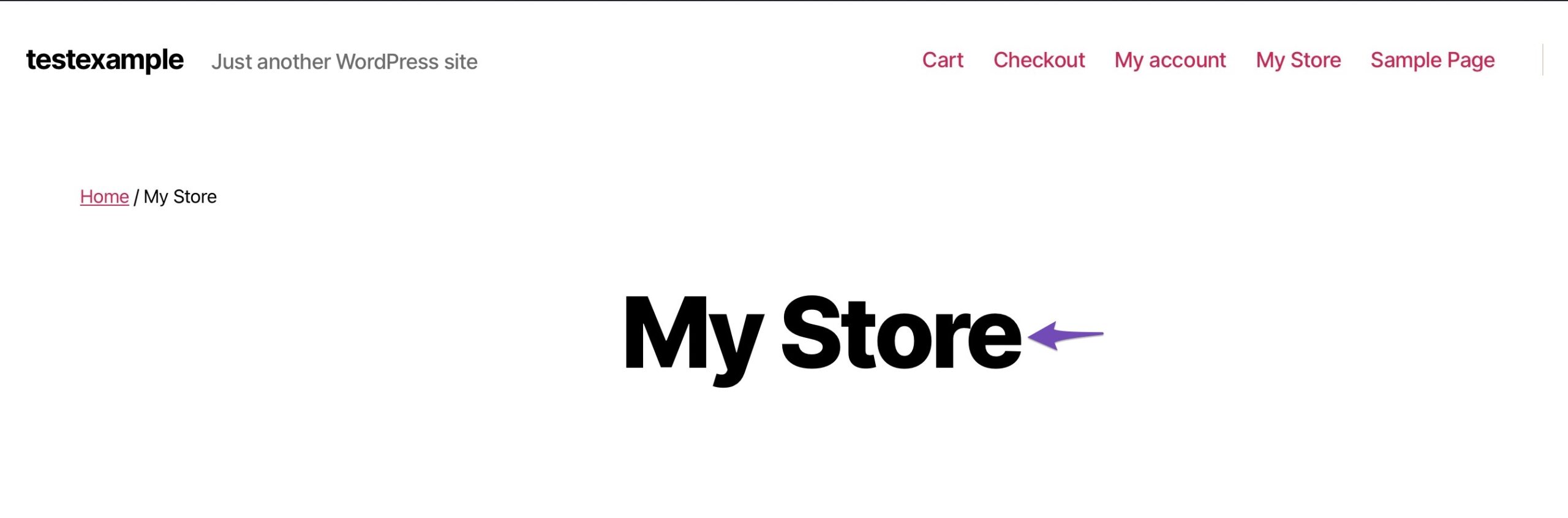
Once you’ve updated your shop page, you can view the new shop page title. Changing the shop page title with the help of WordPress settings will also update the breadcrumbs and the navigation menu.
3.2 Adding Code to WordPress
You may not be able to change the title of your shop page in some WooCommerce themes. You’ll need to add code to WordPress to accomplish this. Add the following code snippet to your theme’s functions.php file to change the title of your shop page.
/**
 * Filter to Change WooCommerce Page Title.
 */
add_filter( 'woocommerce_page_title', 'new_woocommerce_page_title' );

function new_woocommerce_page_title( $page_title ) {
	if ( $page_title == 'Shop' ) {
		return 'New Shop Title'; // Add your title here.
	}
}
In the above code snippet, make sure to replace ‘New Shop Title’ with your own shop page title.
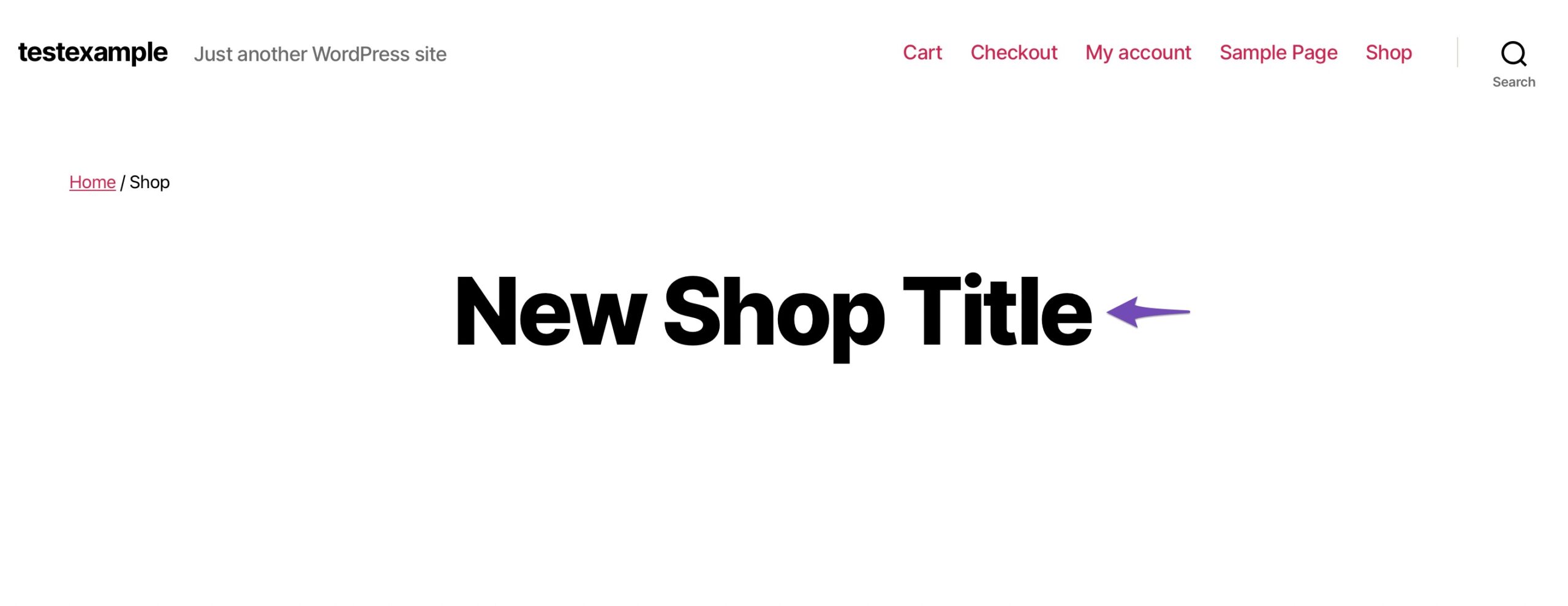
You may now see your new title in action by going to your online store page. You’ll notice that this method changes the title on the page, not the shop page URL or WooCommerce breadcrumbs.
4 How to Change SEO Title for WooCommerce Shop Page?
In addition to changing the WooCommerce Shop page title, you should consider changing the shop title that appears in search engines, often known as the SEO title or title tag. This is an excellent strategy to increase traffic and target more relevant keywords for your online store.
The easiest way to do this is by using the Rank Math plugin. It’s the best SEO plugin available, which offers many features that save you from countless hours of repetitive work.
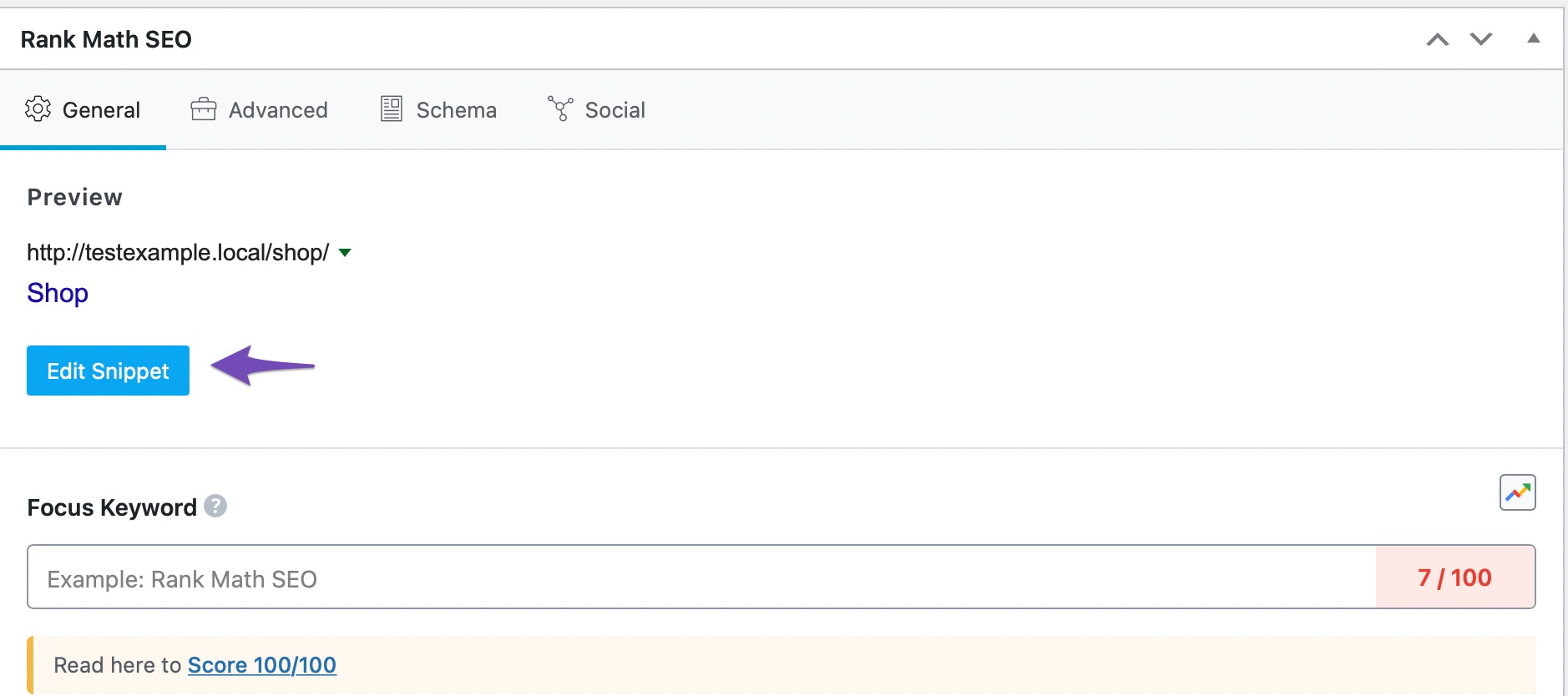
First, install and activate the Rank Math plugin on your WordPress site. Once done, you can easily change your shop page SEO title by opening up your shop page and scrolling down to the Rank Math SEO meta box. Click on Edit Snippet as shown below.
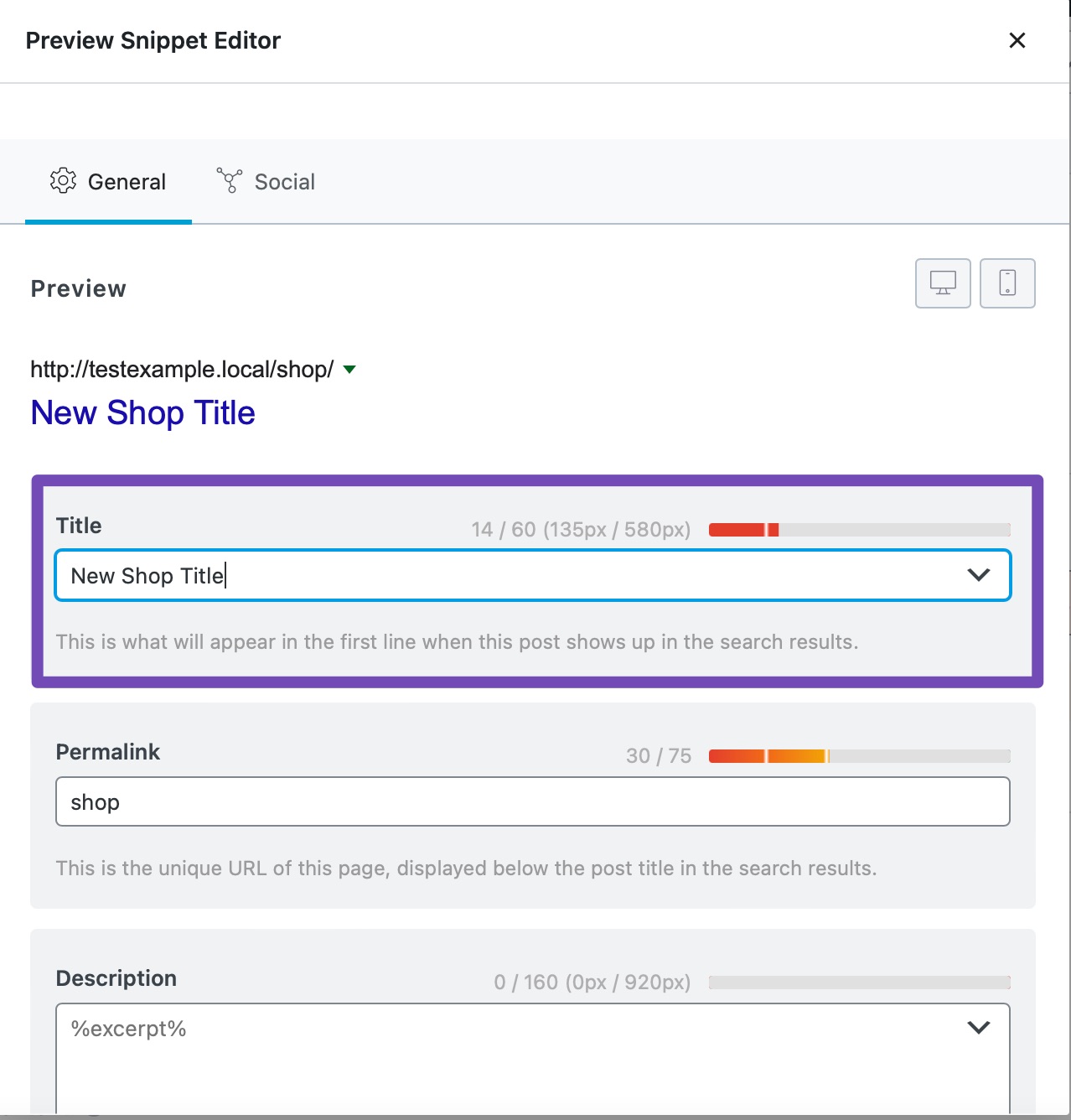
Add your new shop page title in the Title section and update the page.
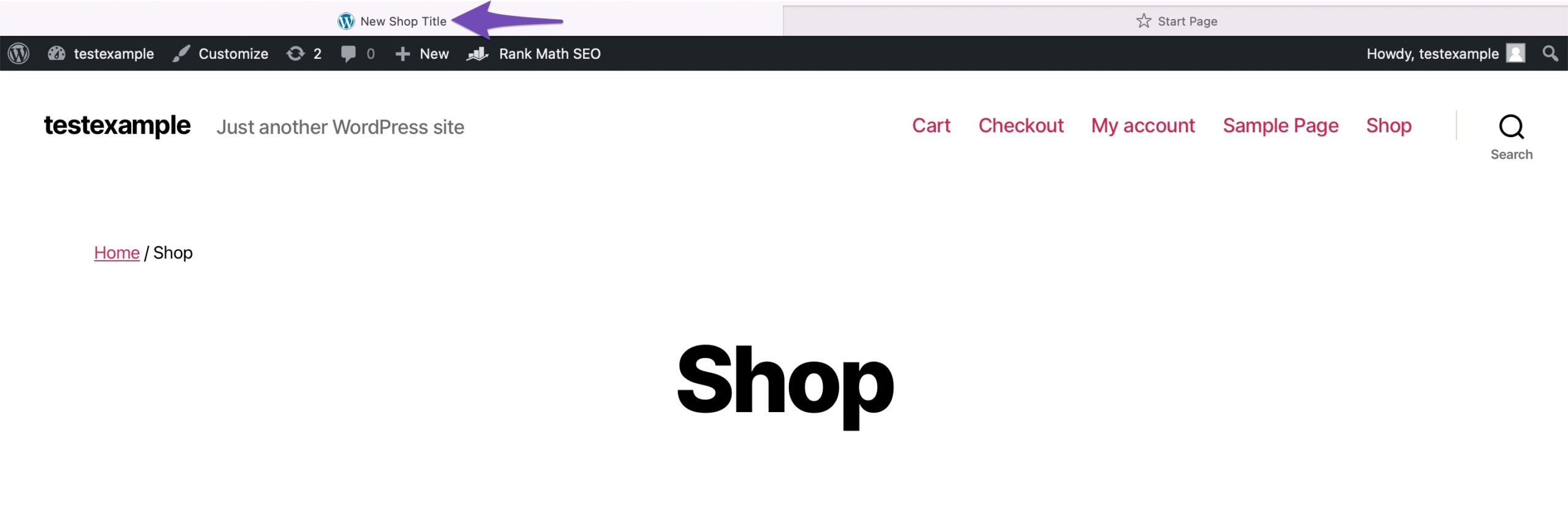
You can then view your new shop page title on your online store.
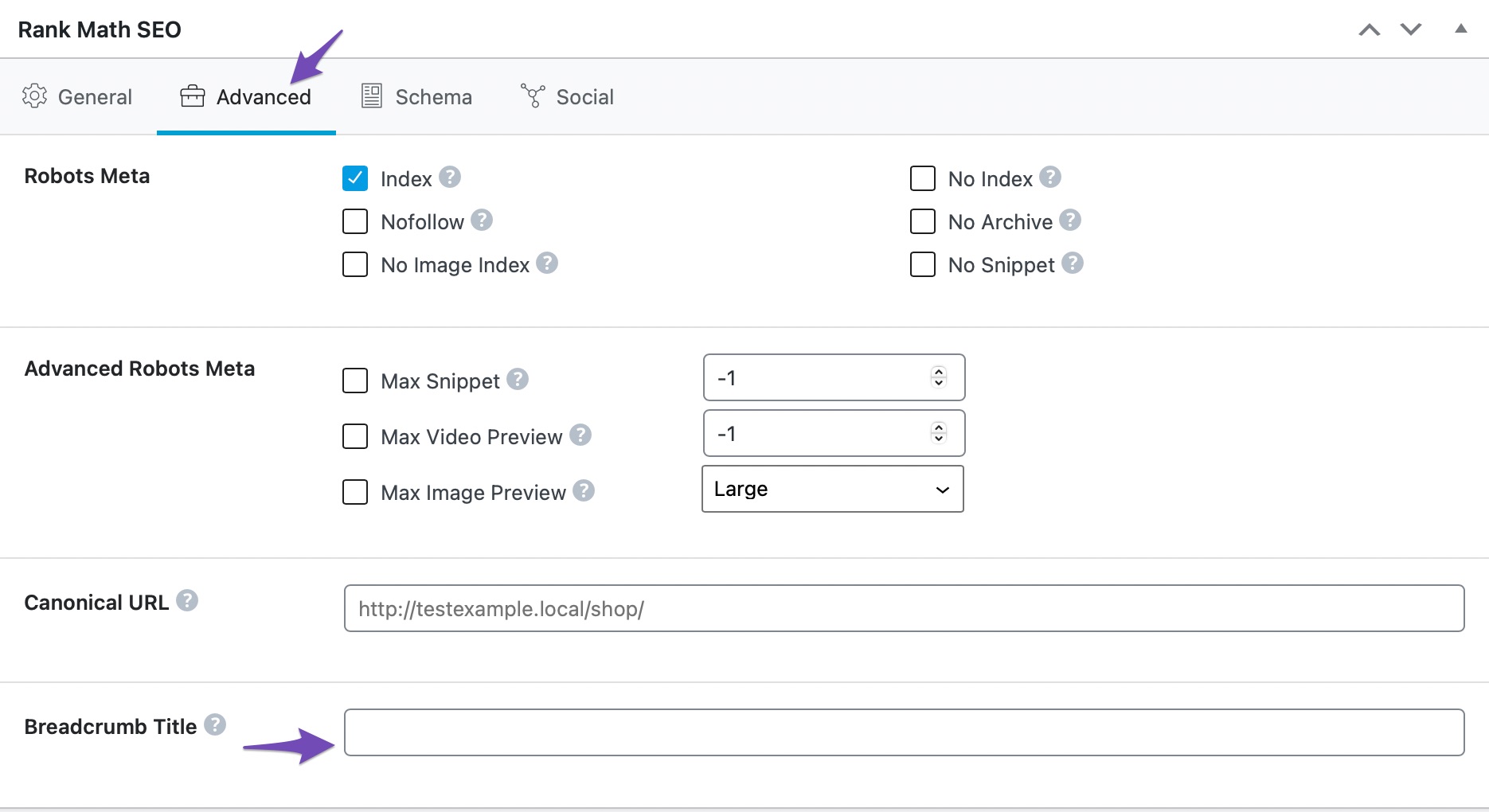
If the breadcrumbs are added by Rank Math and not by WooCommerce, you can change it from the Advanced tab of Rank Math as shown below.
5 Conclusion
Overall, the store page’s design and how you present your products can significantly impact your conversions. The shop page in WooCommerce is pre-built, and while there are some choices to change its look, they’re limited.
Using one of the approaches mentioned in this post to customize it will help you stand out from the crowd. Furthermore, it will better represent your brand and demonstrate professionalism to your consumers.
It’s now up to you to make the most of it by optimizing your WooCommerce store page. Have you tried any of these methods before? Which of these is your personal favourite? Let us know by Tweeting @rankmathseo. 💬
Я попытался использовать этот код ниже, чтобы изменить URL слова «Магазин», но, похоже, ничего не делает:
add_filter( 'woocommerce_page_title', 'woo_shop_page_title');
function woo_shop_page_title( $page_title ) {
if( 'Shop' == $page_title) {
return "My new title";
}
}

Я не хочу, чтобы пользователи заходили на главную страницу «Магазин» и настраивали много категорий.
К сожалению, я не смог найти способ удалить или изменить URL этой «хлебной крошки». официальные документы только упомянуть, как изменить «Домашний» URL, а не «Магазин».
Ваша помощь приветствуется.
1
Решение
к переименовать любой элемент крошки и изменить свою ссылку, использование woocommerce_get_breadcrumb фильтр-хук таким образом:
add_filter( 'woocommerce_get_breadcrumb', 'custom_get_breadcrumb', 20, 2 );
function custom_get_breadcrumb( $crumbs, $breadcrumb ){
if( ! is_shop() ) return $crumbs; // Only shop page

// The Crump item to target
$target = __( 'Shop', 'woocommerce' );

foreach($crumbs as $key => $crumb){
if( $target === $crumb[0] ){
// 1. Change name
$crumbs[$key][0] = __( 'Name', 'woocommerce' );

// 2. Change URL (you can also use get_permalink( $id ) with the post Id
$crumbs[$key][1] = home_url( '/my-link/' );
}
}
return $crumbs;
}
Код помещается в файл function.php вашей активной дочерней темы (или активной темы). Проверено и работает.
1
Другие решения
Пожалуйста, отметьте этот код на домашней замене. Запустите chenag в woocommerce.
function woocommerce_breadcrumb ($ args = array ()) {
$ args = wp_parse_args ($ args, apply_filters (‘woocommerce_breadcrumb_defaults’, массив (
‘delimiter’ => ‘/’,
‘wrap_before’ => »,
‘wrap_after’ => »,
‘before’ => »,
‘after’ => »,
‘home’ => _x (‘Home’, ‘breadcrumb’, ‘woocommerce’),
)));
    $breadcrumbs = new WC_Breadcrumb();
$args['home'] = "Start"; // home replace start set
if ( ! empty( $args['home'] ) ) {
$breadcrumbs->add_crumb( $args['home'], apply_filters( 'woocommerce_breadcrumb_home_url', home_url() ) );
}

$args['breadcrumb'] = $breadcrumbs->generate();
0
Хлебная крошка «магазина» исходит от ваших страниц «магазина». Просто измените настройку страницы магазина на любую, какую хотите, или если это вообще другая страница, тогда в настройках woocommerce вы устанавливаете страницу магазина на новую страницу. URL всегда будет слагом страницы.
-1
I am trying to change the content of the < title > tag if it’s shop. I leave here an example of what I have done:
function custom_title() {
    if ( is_shop() ) {
        // do stuff to change <title>text</title>
    }
}
add_action ('wp_head', 'custom_title');
Not sure if I am in the right way. Of course I tried to change the title on the shop page, but keeps the as «Product Archives — [site title]». Also tried to use the plugin SEO by Yoast with no results.

LoicTheAztec
219k22 gold badges329 silver badges373 bronze badges
asked Apr 8, 2016 at 8:03

I found the solution with the plugin SEO by Yoast.
Just go to «titles and meta tags» section, and then go to tab «Post types». Below there is a section with the following note: «instead of templates these are the actual titles and meta descriptions for these custom post type archive pages».
Just change the meta info on that cell and that’s it.
See you!
answered Apr 8, 2016 at 8:49
This should work:
function wc_custom_shop_archive_title( $title ) {
    if ( is_shop() && isset( $title['title'] ) ) {
        $title['title'] = 'My Title';
    }

    return $title;
}
add_filter( 'document_title_parts', 'wc_custom_shop_archive_title' );
answered Feb 6, 2020 at 14:46

This works for me:
function wp_head_wpaction0() {
    if ( is_shop() ) { ?>
        <title>Custom title</title>
    <?php }
}
add_action( 'wp_head', 'wp_head_wpaction0', 0 );
answered Mar 27, 2018 at 14:19
Try this, This will work for sure.
function wc_custom_shop_archive_title( $title ) {
        if ( is_shop() ) {
           return str_replace( __( 'Products', 'woocommerce' ), 'Your Title', $title );
        }
        return $title;
    }
    add_filter( 'wp_title', 'wc_custom_shop_archive_title' );
answered Jan 13, 2021 at 16:55

1
have you tryed to make a variable $page_title make this?
$page="title";
include_once"page.php";
echo <title>$page</title>
answered Apr 8, 2016 at 8:14

skatedanskatedan
1031 silver badge9 bronze badges
0