
Существует огромное количество способов увеличения времени автономной работы iOS-устройств, начиная от самых простеньких и заканчивая радикальными, которые будут ограничивать функционал iPhone и iPad. Сегодня мы поговорим о времени, по истечении которого происходит автоматическая блокировка яблочных гаджетов, расскажем как его изменить и что на него может повлиять.
Дисплей iPhone, iPad и любых других гаджетов вне зависимости от производителя является одним из самых энергозатратных компонентов. Его яркость и продолжительность работы существенно влияют на время работы устройств от одного заряда.
Для экономии энергии можно приглушить яркость и активировать функцию «Автояркость», пройдя в Настройки → Экран и яркость.
Начиная с iOS 11 этот переключатель перенесен по пути Настройки → Универсальный доступ → Дисплей и размер текста.


♥ ПО ТЕМЕ: Как на iPhone убрать бейджи (красные кружки) уведомлений на иконках приложений.
Как изменить время автоблокировки на Айфоне и Айпаде или отключить ее
Не менее важным параметром является время, после которого будет происходить автоматическая блокировка iPhone и iPad и, соответственно, дисплей будет тухнуть. У всех этот показатель изначально установлен на одну минуту.
Произвести корректировку этого параметра можно пройдя в Настройки → Экран и яркость → Автоблокировка.
Временной интервал может варьироваться от 30 секунд и до пяти минут, а также есть опция, позволяющая полностью отключить автоматическую блокировку, правда, пользоваться ей мы рекомендуем только в исключительных случаях .


♥ ПО ТЕМЕ: Как быстро переводить сайты (веб-страницы) в Safari на iPhone и iPad: 4 способа.
Почему автоблокировка на Айфоне бывает не активна?
Не менее популярной функцией в iOS 9 стал режим энергосбережения, благодаря которому операционная система частично ограничивает работу некоторых сервисов. Так вот, в случае, когда он активирован (сделать это можно пройдя в Настройки → Аккумулятор или из Пункта управления) возможность изменить время блокировки дисплея будет отключена, а показатель автоматически выставится на 30 секунд.

♥ ПО ТЕМЕ: Желтый индикатор батареи на iPhone или iPad, что это значит и как исправить?
После отключения режима энергосбережения, параметр вернётся в исходное значение (например, на одну минуту).
Смотрите также:
- Как регулировать яркость подсветки клавиатуры на Mac.
- Как очистить память на iPhone или iPad: 40 способов.
- Если заняты руки: как автоматически перевести входящий iPhone-звонок на громкую связь.
Turn off Auto-Brightness and Night Shift to take back control
What to Know
- To turn off Auto-Dimming: Open Settings > Accessibility > Display & Text Size, and tap the Auto-Brightness toggle.
- To turn off Night Shift: Open Settings > Display & Brightness > Night Shift, and tap the Scheduled toggle.
- Your iPhone display will also dim when Low Power Mode activates due to the battery running low.
This article explains how to prevent an iPhone display from dimming automatically, including how to turn off Auto-Brightness and the Night Shift feature.
How Do I Stop My iPhone From Dimming Automatically?
If you want to stop your iPhone from dimming on its own and take complete manual control over the brightness of the screen, then the first step is to disable Auto-Brightness. That will prevent your iPhone from automatically adjusting its screen brightness based on ambient light conditions. If you want to take total control, you’ll need to also disable the Night Shift feature.
Reducing screen brightness is one way to save battery on an iPhone. Disabling Auto-Brightness may result in needing to charge your iPhone more often.
Here’s how to disable Auto-Brightness on an iPhone:
-
Open Settings.
-
Tap and drag to scroll down the list of settings.
-
Tap Accessibility.
-
Tap Display & Text Size.
-
Tap the Auto-Brightness toggle to turn it off.
-
Your iPhone will no longer dim in response to ambient light conditions.
How to Turn Off the iPhone Night Shift Feature
In addition to the Auto-Brightness feature, the brightness of an iPhone display can also be reduced by the Night Shift feature. Turning off both Auto-Brightness and this feature will prevent the iPhone display from adjusting automatically at all, so you will have to adjust it yourself using the Control Center.
Here’s how to turn off Night Shift on an iPhone:
-
Open Settings.
-
Tap Display & Brightness.
-
Tap Night Shift.
-
Tap the Scheduled toggle to turn it off.
-
Tap Back to verify Night Shift is off, and Night Shift will no longer adjust your display at night.
How to Adjust Your iPhone Brightness Manually
When you turn off Auto-Brightness and Night Shift, your iPhone will no longer adjust its brightness in response to lighting conditions or the time of day. You may find the display is too bright at night after making these changes, or it’s difficult to see in bright sunlight. If so, you’ll have to adjust the brightness manually each time you want the display to be brighter or find it to be too bright.
Here’s how to adjust your iPhone display brightness:
-
Open the Control Center.
Swipe down from the top right corner of the screen, or swipe up from the bottom depending on which iPhone you have.
-
Slide your finger down to decrease the brightness.
-
Slide your finger up to increase the brightness.
Why Does My iPhone Keep Lowering the Brightness?
Your iPhone is designed to automatically change its brightness throughout the day based on the current conditions. Depending on the time of day and your current lighting conditions, either one of these features could be responsible for your phone lowering brightness. There is also a low power mode that kicks in when your battery is close to running out.
Here are the features that can lower the brightness of an iPhone:
- Auto-Brightness: This feature uses the light sensor that’s built into your iPhone to match screen brightness to your current lighting conditions. If you’re in a brightly lit room, this feature will adjust your display to be brighter. In a darker room, the brightness will go down. This can help reduce eye strain.
- Night Shift: This feature adjusts the brightness and color temperature of your iPhone screen based on the time of day and your location. When it’s on, the brightness will lower and the screen temperatures will shift at sunset to reduce eye strain.
- Low Power Mode: This feature activates when your battery drops below a critical level. Low Power Mode adjusts a number of settings to increase battery life, which includes lowering screen brightness. You can turn this mode off in battery settings, or plug your phone in and let it charge.
FAQ
-
How do I stop my iPhone lock screen from dimming?
If you have an iPhone with Face ID and the screen dims too quickly even when you’re looking at it, turn off Attention Aware from Settings > Face ID & Passcode > Attention Aware Features. If you’d like your screen to stay on longer before dimming or never dim, adjust the auto-lock mode from Settings > Display & Brightness > Auto-Lock.
-
How do I stop my iPhone from dimming music when a notification arrives?
You can work around this built-in behavior by putting your iPhone in Silent Mode. Flip the hardware switch on the side of your device to silence notifications. Another option is to set up Do Not Disturb on your iPhone, which you can access from the Control Center or Settings > Do Not Disturb.
Thanks for letting us know!
Get the Latest Tech News Delivered Every Day
Subscribe
Turn off Auto-Brightness and Night Shift to take back control
What to Know
- To turn off Auto-Dimming: Open Settings > Accessibility > Display & Text Size, and tap the Auto-Brightness toggle.
- To turn off Night Shift: Open Settings > Display & Brightness > Night Shift, and tap the Scheduled toggle.
- Your iPhone display will also dim when Low Power Mode activates due to the battery running low.
This article explains how to prevent an iPhone display from dimming automatically, including how to turn off Auto-Brightness and the Night Shift feature.
How Do I Stop My iPhone From Dimming Automatically?
If you want to stop your iPhone from dimming on its own and take complete manual control over the brightness of the screen, then the first step is to disable Auto-Brightness. That will prevent your iPhone from automatically adjusting its screen brightness based on ambient light conditions. If you want to take total control, you’ll need to also disable the Night Shift feature.
Reducing screen brightness is one way to save battery on an iPhone. Disabling Auto-Brightness may result in needing to charge your iPhone more often.
Here’s how to disable Auto-Brightness on an iPhone:
-
Open Settings.
-
Tap and drag to scroll down the list of settings.
-
Tap Accessibility.
-
Tap Display & Text Size.
-
Tap the Auto-Brightness toggle to turn it off.
-
Your iPhone will no longer dim in response to ambient light conditions.
How to Turn Off the iPhone Night Shift Feature
In addition to the Auto-Brightness feature, the brightness of an iPhone display can also be reduced by the Night Shift feature. Turning off both Auto-Brightness and this feature will prevent the iPhone display from adjusting automatically at all, so you will have to adjust it yourself using the Control Center.
Here’s how to turn off Night Shift on an iPhone:
-
Open Settings.
-
Tap Display & Brightness.
-
Tap Night Shift.
-
Tap the Scheduled toggle to turn it off.
-
Tap Back to verify Night Shift is off, and Night Shift will no longer adjust your display at night.
How to Adjust Your iPhone Brightness Manually
When you turn off Auto-Brightness and Night Shift, your iPhone will no longer adjust its brightness in response to lighting conditions or the time of day. You may find the display is too bright at night after making these changes, or it’s difficult to see in bright sunlight. If so, you’ll have to adjust the brightness manually each time you want the display to be brighter or find it to be too bright.
Here’s how to adjust your iPhone display brightness:
-
Open the Control Center.
Swipe down from the top right corner of the screen, or swipe up from the bottom depending on which iPhone you have.
-
Slide your finger down to decrease the brightness.
-
Slide your finger up to increase the brightness.
Why Does My iPhone Keep Lowering the Brightness?
Your iPhone is designed to automatically change its brightness throughout the day based on the current conditions. Depending on the time of day and your current lighting conditions, either one of these features could be responsible for your phone lowering brightness. There is also a low power mode that kicks in when your battery is close to running out.
Here are the features that can lower the brightness of an iPhone:
- Auto-Brightness: This feature uses the light sensor that’s built into your iPhone to match screen brightness to your current lighting conditions. If you’re in a brightly lit room, this feature will adjust your display to be brighter. In a darker room, the brightness will go down. This can help reduce eye strain.
- Night Shift: This feature adjusts the brightness and color temperature of your iPhone screen based on the time of day and your location. When it’s on, the brightness will lower and the screen temperatures will shift at sunset to reduce eye strain.
- Low Power Mode: This feature activates when your battery drops below a critical level. Low Power Mode adjusts a number of settings to increase battery life, which includes lowering screen brightness. You can turn this mode off in battery settings, or plug your phone in and let it charge.
FAQ
-
How do I stop my iPhone lock screen from dimming?
If you have an iPhone with Face ID and the screen dims too quickly even when you’re looking at it, turn off Attention Aware from Settings > Face ID & Passcode > Attention Aware Features. If you’d like your screen to stay on longer before dimming or never dim, adjust the auto-lock mode from Settings > Display & Brightness > Auto-Lock.
-
How do I stop my iPhone from dimming music when a notification arrives?
You can work around this built-in behavior by putting your iPhone in Silent Mode. Flip the hardware switch on the side of your device to silence notifications. Another option is to set up Do Not Disturb on your iPhone, which you can access from the Control Center or Settings > Do Not Disturb.
Thanks for letting us know!
Get the Latest Tech News Delivered Every Day
Subscribe
iPhone 14 Pro и iPhone 14 Pro Max оснащены новым постоянно включенным дисплеем, что означает, что ваше устройство остается тускло освещенным даже в спящем режиме, показывая дату и время, обои экрана блокировки и уведомления. Однако некоторые говорят, что эта функция отвлекает. Вот как отключить постоянно включенный дисплей.
Дисплей Always-On использует новую технологию экрана, которая запускает экран в режиме пониженного энергопотребления, обновляя экран только один раз в секунду и уменьшая яркость экрана. Как и Apple Watch, это позволяет экрану оставаться включенным, даже когда iPhone спит.
В тусклом состоянии ваш iPhone покажет экран блокировки с красочными обоями, виджетами, любыми новыми уведомлениями, а также текущими датой и временем. Вы можете коснуться экрана или использовать функцию «Поднятие для пробуждения», чтобы в любой момент вернуть iPhone на полную яркость. Конфиденциальные данные не отображаются в этом постоянно включенном режиме.
Как отключить и отключить постоянно включенный дисплей iPhone 14 Pro?
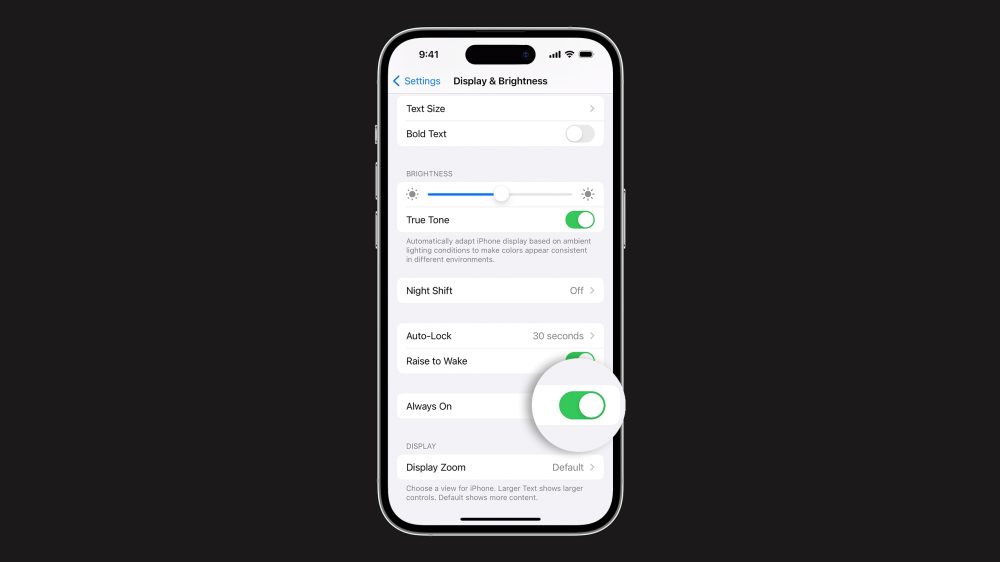
Некоторые люди говорят, что они считают красочный насыщенный постоянно включенный экран блокировки iPhone 14 Pro слишком отвлекающим. Если вы не хотите использовать постоянно включенный дисплей, вот как отключить его навсегда.
Откройте «Настройки» на своем iPhone 14 Pro или iPhone 14 Pro Max. Нажмите Дисплей и яркость. Прокрутите вниз, чтобы найти параметр «Всегда включен». Коснитесь переключателя, чтобы отключить его. Коснитесь его еще раз, если хотите снова включить его.
Если вы не хотите использовать постоянно включенный дисплей ночью, вы можете использовать Sleep Focus. Есть также некоторые другие случаи, когда система временно отключает функцию постоянного отображения.
Когда Always-On Display отключается автоматически?
В некоторых случаях iPhone 14 Pro автоматически отключает функцию Always-On, когда считает, что она вам не нужна. Если вы положите свой iPhone 14 Pro на стол лицевой стороной вниз или он обнаружит, что он был помещен в карман или сумку, дисплей станет черным, чтобы сэкономить заряд батареи (поскольку вы все равно не видите экран телефона). Если вы носите Apple Watch, экран iPhone 14 Pro также полностью отключится, если ваш телефон заметит, что ваши часы отошли от него далеко; дисплей автоматически проснется, когда вы снова приблизитесь.
Если вы используете спящий режим системы с Sleep Focus, функции Always-On также будут отключены. Это означает, что iPhone не будет ярко светить ночью, когда вы спите.
Если вы используете режим низкого энергопотребления, постоянно включенный режим также будет отключен. Несмотря на то, что режим Always-On является энергоэффективным, он по-прежнему использует некоторое время автономной работы, а режим низкого энергопотребления делает все возможное для экономии энергии. При обычном использовании, даже при постоянно включенном дисплее, вы должны ожидать, что ваш iPhone 14 Pro проработает примерно столько же, сколько и ваш предыдущий iPhone.
Из соображений экономии энергии ваш iPhone также отключит постоянно включенный дисплей, если вы в последнее время не использовали свой телефон. Так что, если положить его на длительное хранение в ящик стола, постоянно включенный дисплей через некоторое время отключится.
Могу ли я настроить постоянно включенный экран блокировки?
При запуске пользователи не могут изменить внешний вид своего iPhone в постоянно включенном режиме. Он отражает состояние вашего текущего экрана блокировки, такое же, как когда ваше устройство не спит, за исключением значительно затемненного состояния. Фотографии людей затемнены специально, чтобы сохранить детали тона кожи. Тем не менее, нет возможности, например, выбрать более минимальный черно-белый постоянно включенный экран блокировки. Возможно, Apple добавит это в будущем обновлении программного обеспечения, но на сегодняшний день компания не объявила о таких планах.
Настройка тайм-аута экрана на iPhone определяет, в течение какого времени iPhone будет автоматически блокироваться. По умолчанию установлено 30 секунд. Это может не быть проблемой, так как вы можете разблокировать его, когда захотите. Но когда кто-то другой использует ваш iPhone, он будет возвращать его вам снова и снова, чтобы разблокировать.
Это может расстраивать! К счастью, вы можете продлить это время до 5 минут. Для этого нужно всего лишь несколько прикосновений к вашему iPhone или iPad.
Как увеличить или уменьшить время ожидания экрана на вашем iPhone или iPad
- Откройте «Настройки» → «Дисплей и яркость».
- Коснитесь Автоблокировки.
- Выберите любой из временных ограничений на экране:
Выберите «Никогда», чтобы экран вашего устройства не переходил в спящий режим все время, пока им пользуется кто-то другой.. - Наконец, нажмите «Назад» в левом верхнем углу.
Вот и все! Вы можете настроить эти параметры тайм-аута в любое время, когда захотите увеличить или уменьшить время автоматической блокировки на вашем iPhone.
Примечание: Вышеуказанные настройки влияют только на автоматическую блокировку iPhone. Ваше устройство все равно заблокируется, когда вы нажмете боковую кнопку.
Хотя я показал вам, как настроить тайм-аут экрана на вашем iPhone или iPad, оставление экрана вашего устройства на долгое время может значительно повлиять на время автономной работы. Поэтому я не рекомендую тайм-аут экрана дольше 2 минут, если у вас на это есть причина. Кроме того, более длительные тайм-ауты иногда представляют угрозу конфиденциальности.
Но, как я уже сказал, вы всегда можете уменьшить или расширить его по своему усмотрению. В идеале всегда лучше настраивать тайм-аут экрана по мере использования. Тем не менее, многие другие факторы могут сократить время автономной работы вашего iPhone. К счастью, есть много способов решить проблемы с разрядкой батареи на iPhone.
Функция тайм-аута экрана пригодится всякий раз, когда вы делитесь своим iPhone с ребенком или другим человеком. Для детей это заставляет их быть занятыми. И для друзей это не убивает удовольствия от использования вашего iPhone.
Вам легко каждый раз настраивать тайм-аут? И как часто вы это делаете? Дайте мне знать в разделе комментариев ниже.
Читать далее: