
In Windows 11 or Windows 10, a Theme may specify the accent color for apps and window frames and may include one or several desktop backgrounds, a set of sounds, mouse cursors, and desktop icons. In this post, in addition to changing the theme via the Settings app, we will show you 5 other ways to change the Theme in Windows 11/10. You can change Windows Themes via Command Prompt, PowerShell, Control Panel, Explorer, etc.
A theme file is a classic text file containing parameters, values and resources such as wallpapers are usually located in a subdirectory. Microsoft uses the Themepack and Deskthemepack archive (ZIP or CAB) package files that contain all the theme resources to simplify theme sharing and for their redistribution via the Microsoft Store. There are three types of themes stored in different locations in Windows 11/10 viz;
- My Themes — manually created or saved, or downloaded and installed from a themepack file or Microsoft Store. These themes are saved in the
%localappdata%MicrosoftWindowsThemesfolder. - Windows Default Themes — pre-installed themes on your Windows OS. These themes are stored in the
C:WindowsResourcesThemesfolder. - High Contrast Themes — specially made for people with vision problems and are part of the Ease of Access feature. These themes can be found in the
C:WindowsResourcesEase of Access Themesfolder.
There are several ways to change the theme in Windows 11/10. We will discuss these methods as follows:
1] Change Theme via Desktop

The easiest method to change the theme in Windows 11/10 is via the desktop. To change the Theme via Desktop, do the following:
- Right-click on an empty area on the Desktop.
- Select Personalise from the context menu.
- In the Personalisation window, under the Select a theme to apply section, simply click the theme you want.
2] Change Theme via File Explorer
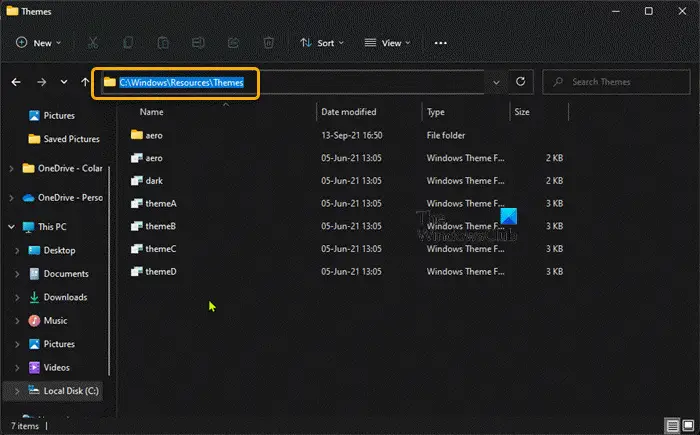
To change Theme via File Explorer in Windows 11/10, do the following:
- Press Windows key + E to open File Explorer.
- Navigate to the folder below or any other folder containing the theme you want to apply
C:WindowsResourcesThemes
- At the location, double-click the theme file for the theme you want.
- Close the Settings app that automatically opens once you double-click the theme file.
- Close File Explorer.
3] Change Theme via Command Prompt
To change Theme via Command Prompt in Windows 11/10, do the following:
- Press Windows key + R to invoke the Run dialog.
- In the Run dialog box, type cmd and hit Enter to open Command Prompt.
- In the command prompt window, type or copy and paste the path below OR the full path to the theme file you want and hit Enter:
start "" "C:WindowsResourcesThemesaero.theme"
The theme will be applied and the Personalisation page in Settings app will automatically open. you can close the Settings app. If you want the theme to be applied without you having to interact with extra windows, run the modified command as follows:
start "" "C:WindowsResourcesThemesaero.theme" & timeout /t 3 & taskkill /im "systemsettings.exe" /f
When the command executes, it will apply the theme, wait for 3 seconds with the timeout command, and forcibly close the Settings app with the taskkill app.
4] Change Theme via PowerShell
To change Theme via PowerShell in Windows 11/10, do the following:
- Press Windows key + X to open Power User Menu.
- Tap I on the keyboard to launch PowerShell (Windows Terminal).
- In the PowerShell console, type or copy and paste the path below OR the full path to the theme file you want and hit Enter:
start-process -filepath "C:WindowsResourcesThemesaero.theme"
The theme will be applied and the Personalisation page in Settings app will automatically open. you can close the Settings app. If you want the theme to be applied without you having to interact with extra windows, run the modified command as follows:
start-process -filepath "C:WindowsResourcesThemesaero.theme"; timeout /t 3; taskkill /im "systemsettings.exe" /f
5] Change Theme via Control Panel
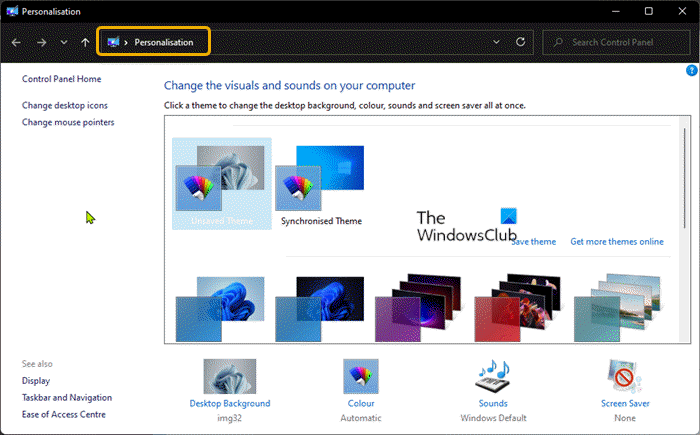
To change Theme via Control Panel in Windows 11/10, do the following:
- Press Windows key + R to invoke the Run dialog.
- In the Run dialog box, copy and paste the shell command below and hit Enter:
shell:::{ED834ED6-4B5A-4bfe-8F11-A626DCB6A921}
- In the Personalisation window, click the desired theme under the My Themes, Windows Default Themes, or High Contrast Themes sections.
- Exit Control Panel when done.
That’s it on the 5 ways to change Theme in Windows 11/10! Let us know in the comments section below if you know any other method to perform this task.
Tip: PC users can personalize your computing experience, and can make your system faster, and private using our Ultimate Windows Tweaker 5.
Related post: How to prevent users from changing the Theme
Does Windows 10 themes work on Windows 11?
Most of the themes are old ones from Windows 10 and they have been adapted for Windows 11 but that’s still a huge selection to consider. You can right-click anywhere on your desktop and click on Personalize > select Themes to apply any of the installed themes on your PC, or click on Browse themes to find some more themes on the Microsoft Store.
Are Windows 10 themes safe?
Themes from Microsoft are generally fine; but be cautious of any other source. Some ‘themes’ include screensavers that contain malware. Make sure your Windows 11/10 PC is running an active and updated antivirus software.
Read next: Best Free Windows 11 Themes and Skins to Download from Microsoft Store.
In Windows 11 or Windows 10, a Theme may specify the accent color for apps and window frames and may include one or several desktop backgrounds, a set of sounds, mouse cursors, and desktop icons. In this post, in addition to changing the theme via the Settings app, we will show you 5 other ways to change the Theme in Windows 11/10. You can change Windows Themes via Command Prompt, PowerShell, Control Panel, Explorer, etc.
A theme file is a classic text file containing parameters, values and resources such as wallpapers are usually located in a subdirectory. Microsoft uses the Themepack and Deskthemepack archive (ZIP or CAB) package files that contain all the theme resources to simplify theme sharing and for their redistribution via the Microsoft Store. There are three types of themes stored in different locations in Windows 11/10 viz;
- My Themes — manually created or saved, or downloaded and installed from a themepack file or Microsoft Store. These themes are saved in the
%localappdata%MicrosoftWindowsThemesfolder. - Windows Default Themes — pre-installed themes on your Windows OS. These themes are stored in the
C:WindowsResourcesThemesfolder. - High Contrast Themes — specially made for people with vision problems and are part of the Ease of Access feature. These themes can be found in the
C:WindowsResourcesEase of Access Themesfolder.
There are several ways to change the theme in Windows 11/10. We will discuss these methods as follows:
1] Change Theme via Desktop
The easiest method to change the theme in Windows 11/10 is via the desktop. To change the Theme via Desktop, do the following:
- Right-click on an empty area on the Desktop.
- Select Personalise from the context menu.
- In the Personalisation window, under the Select a theme to apply section, simply click the theme you want.
2] Change Theme via File Explorer
To change Theme via File Explorer in Windows 11/10, do the following:
- Press Windows key + E to open File Explorer.
- Navigate to the folder below or any other folder containing the theme you want to apply
C:WindowsResourcesThemes
- At the location, double-click the theme file for the theme you want.
- Close the Settings app that automatically opens once you double-click the theme file.
- Close File Explorer.
3] Change Theme via Command Prompt
To change Theme via Command Prompt in Windows 11/10, do the following:
- Press Windows key + R to invoke the Run dialog.
- In the Run dialog box, type cmd and hit Enter to open Command Prompt.
- In the command prompt window, type or copy and paste the path below OR the full path to the theme file you want and hit Enter:
start "" "C:WindowsResourcesThemesaero.theme"
The theme will be applied and the Personalisation page in Settings app will automatically open. you can close the Settings app. If you want the theme to be applied without you having to interact with extra windows, run the modified command as follows:
start "" "C:WindowsResourcesThemesaero.theme" & timeout /t 3 & taskkill /im "systemsettings.exe" /f
When the command executes, it will apply the theme, wait for 3 seconds with the timeout command, and forcibly close the Settings app with the taskkill app.
4] Change Theme via PowerShell
To change Theme via PowerShell in Windows 11/10, do the following:
- Press Windows key + X to open Power User Menu.
- Tap I on the keyboard to launch PowerShell (Windows Terminal).
- In the PowerShell console, type or copy and paste the path below OR the full path to the theme file you want and hit Enter:
start-process -filepath "C:WindowsResourcesThemesaero.theme"
The theme will be applied and the Personalisation page in Settings app will automatically open. you can close the Settings app. If you want the theme to be applied without you having to interact with extra windows, run the modified command as follows:
start-process -filepath "C:WindowsResourcesThemesaero.theme"; timeout /t 3; taskkill /im "systemsettings.exe" /f
5] Change Theme via Control Panel
To change Theme via Control Panel in Windows 11/10, do the following:
- Press Windows key + R to invoke the Run dialog.
- In the Run dialog box, copy and paste the shell command below and hit Enter:
shell:::{ED834ED6-4B5A-4bfe-8F11-A626DCB6A921}
- In the Personalisation window, click the desired theme under the My Themes, Windows Default Themes, or High Contrast Themes sections.
- Exit Control Panel when done.
That’s it on the 5 ways to change Theme in Windows 11/10! Let us know in the comments section below if you know any other method to perform this task.
Tip: PC users can personalize your computing experience, and can make your system faster, and private using our Ultimate Windows Tweaker 5.
Related post: How to prevent users from changing the Theme
Does Windows 10 themes work on Windows 11?
Most of the themes are old ones from Windows 10 and they have been adapted for Windows 11 but that’s still a huge selection to consider. You can right-click anywhere on your desktop and click on Personalize > select Themes to apply any of the installed themes on your PC, or click on Browse themes to find some more themes on the Microsoft Store.
Are Windows 10 themes safe?
Themes from Microsoft are generally fine; but be cautious of any other source. Some ‘themes’ include screensavers that contain malware. Make sure your Windows 11/10 PC is running an active and updated antivirus software.
Read next: Best Free Windows 11 Themes and Skins to Download from Microsoft Store.
Некоторые из пользователей Windows интересуются, существуют ли альтернативные способы быстрой смены установленных в системе тем оформления. Да, конечно, такие инструменты есть и позволяют они не только сменять, но и устанавливать новые темы. Вот, например, одна из них — Winaero Theme Switcher — маленькая портативная утилита, предназначенная для быстрой смены и установки тем оформления на компьютерах под управлением Windows 7, 8.1 и 10.
Утилита бесплатна, не нуждается в установке и предельно проста в использовании.
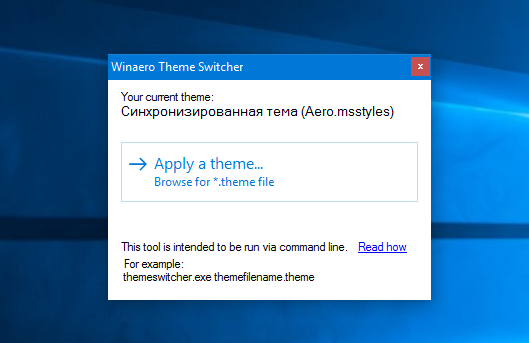
Winaero Theme Switcher имеет графический интерфейс, но по словам самого разработчика, ориентирована она на работу из командной строки, косвенным подтверждением чему является отсутствие в окошке утилиты кнопок или полей для непосредственного доступа к каталогам тем.
А поддерживает утилита следующие пути:
%windir%ResourcesThemes
%windir%ResourcesEasy of Access Themes
%userprofile%AppDataLocalMicrosoftWindowsThemes
То есть, как вы поняли, файл темы THEME с сопутствующими элементами может находиться в любой из этих директорий. Синтаксис же работы программки в командной строке выглядит так:
themeswitcher.exe {путь к файлу темы}
При этом файл утилиты желательно забросить в системный каталог C:WindowsSystem32, чтобы каждый раз не прописывать к ней путь в командной строке. Это максимально упростит команду.
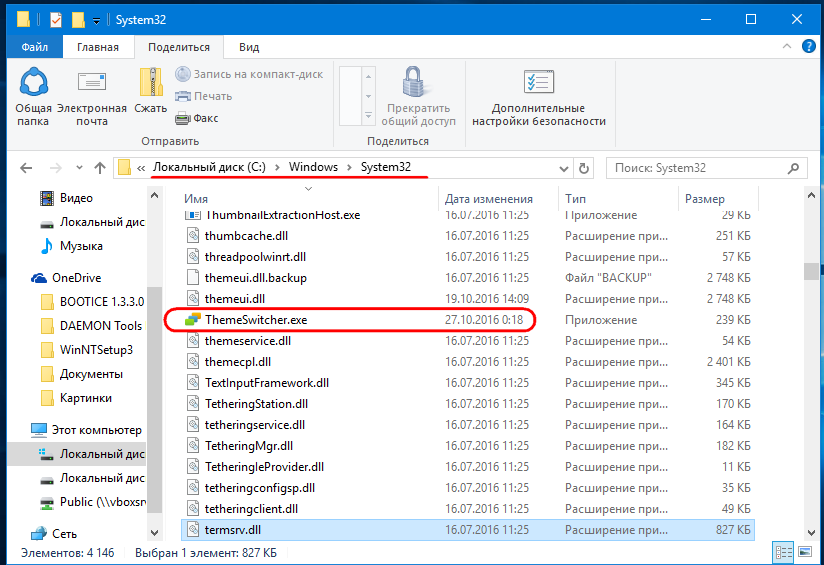
Сменим для примера стандартную тему Windows 10 на тему оформления Сastle:
themeswitcher castle
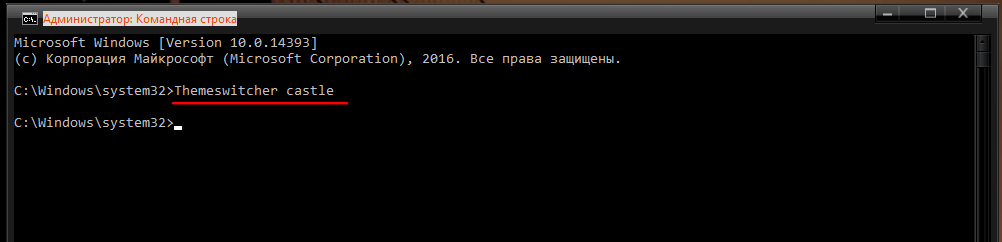
Как видите, ни расширений, ни путей указывать не нужно, изменения будут применены сразу. А теперь вернём всё обратно:
themeswitcher aero
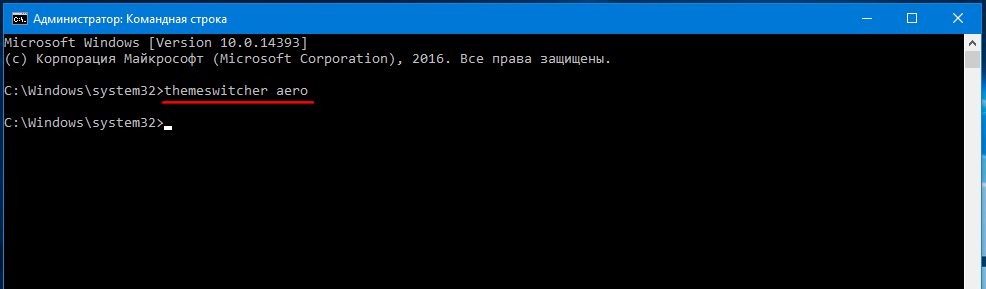
В принципе, программку можно применять для установки новых тем, но всё же будет лучше, если предварительно скопировать файл темы и его папку в одну из трёх поддерживаемых директорий (вторая по умолчанию отсутствует), а потом уже применить её из командной строки, к тому же сторонние темы нередко требую выполнения дополнительных действия. Исключение составляет Windows 8.1 с её поддержкой формата тем DESKTHEMEPACK, в ней программу можно использовать без ограничений.
Сайт разработчика: winaero.com/download.php?view.55
 Загрузка…
В Windows 11 есть несколько способ изменить тему оформления, включая возможность сменить тему из командной строки. В дополнение к опции «Персонализация» в приложении «Параметры» мы рассмотрим, как для этого использовать проводник, командную строку и PowerShell, классическую Панель управления и еще несколько методов.
Тема в Windows 11 может включать в себя один или несколько фонов рабочего стола, набор звуков, курсоры мыши, значки рабочего стола. Тема также определяет цвет акцента для приложений и оконных рамок.
Пользователь может устанавливать новые темы из Магазина Microsoft или из локально загруженного файла. Такие файлы могут иметь расширения *.theme, *.themepack и *.deskthemepack.
Файл *.theme — это классический текстовый файл с секциями параметров и их значениями. Все его ресурсы, такие как обои, обычно находятся в подкаталоге.
Файлы Themepack и Deskthemepack представляют собой архивы (ZIP или CAB), содержащие все ресурсы темы. Microsoft использует эти пакеты, начиная с Windows 7, для упрощения обмена темами и их распространения через Магазин.
В Windows 11 у вас могут быть темы следующих трех типов.
- «Мои темы» — это темы, которые вы создали («сохранили») вручную или установили из файла *.themepack или Microsoft Store. Windows сохраняет их в папке %localappdata%MicrosoftWindowsThemes.
- Темы Windows по умолчанию — это предустановленные темы. Вы найдете их в папке C:WindowsResourcesThemes.
- Высококонтрастные темы — эти темы являются частью функции Ease of Access. Они сделаны специально для людей с проблемами зрения. Проверьте содержимое папки C:WindowsResourcesEase of Access Themes.
Самый простой способ изменить тему в Windows 11 — щелкнуть правой кнопкой мыши рабочий стол и выбрать «Персонализация» в контекстном меню.
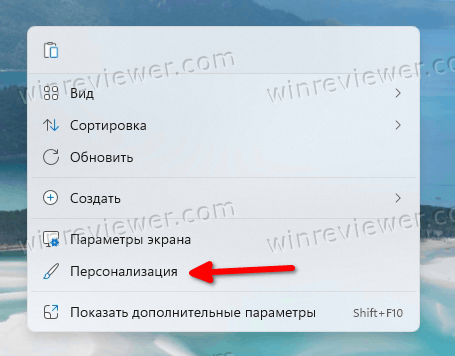
В следующем окне просто нажмите на понравившуюся тему, и все готово.
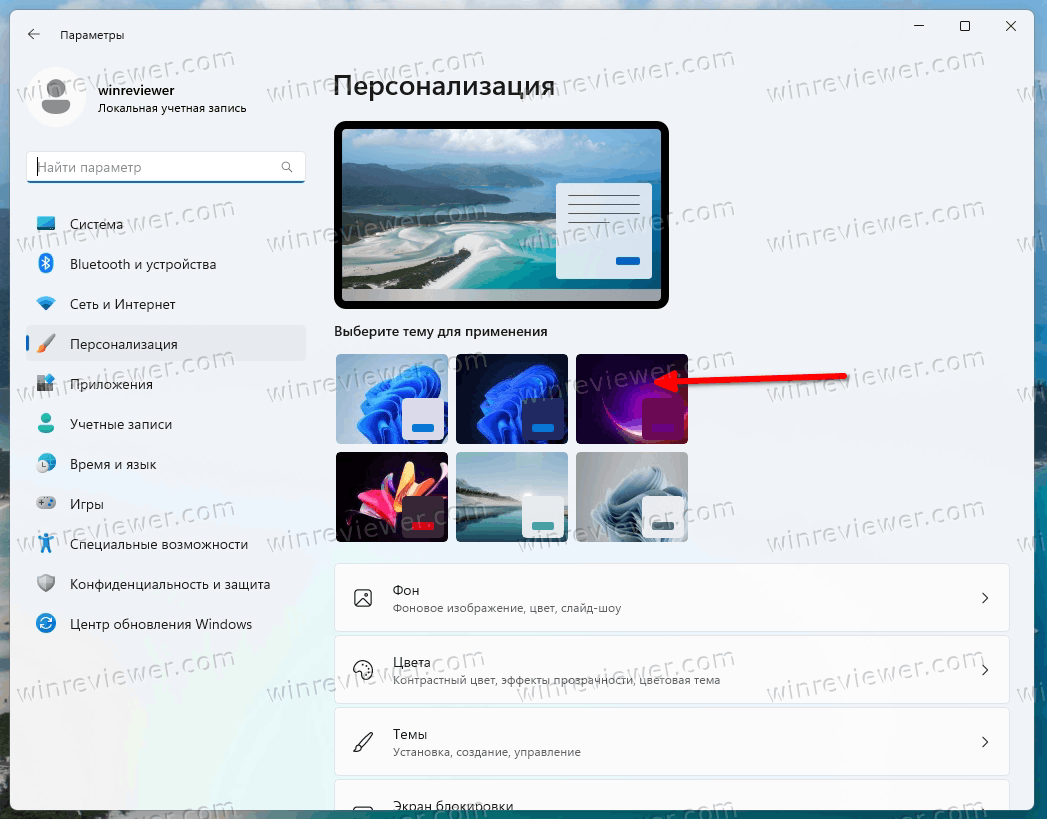
В качестве альтернативы вы можете использовать приложение «Настройки», проводник, командную строку и даже устаревшую панель управления для того же. Рассмотрим эти методы подробно.
Изменить тему Windows 11 в Параметрах
- Откройте приложение «Параметрах», нажав Win + I или используя ярлык меню «Пуск».
- Нажмите Персонализация слева.
- Справа щелкните миниатюру предварительного просмотра темы, чтобы сразу применить ее.
- Если вы не видите нужную тему, нажмите кнопку Темы ниже.

- На следующей странице выберите тему, которая вам нравится. Windows 11 изменит текущую тему на выбранную.
- Наконец, вы можете добавить дополнительные темы из Магазина, нажав кнопку «Обзор тем».
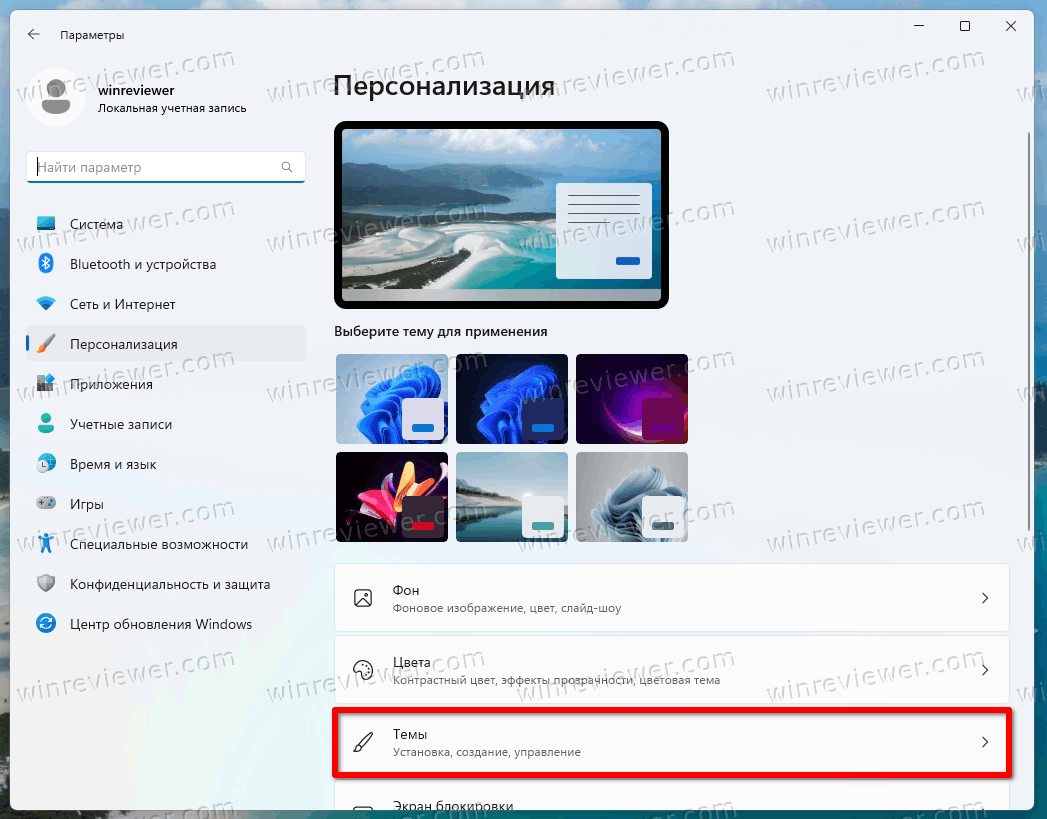
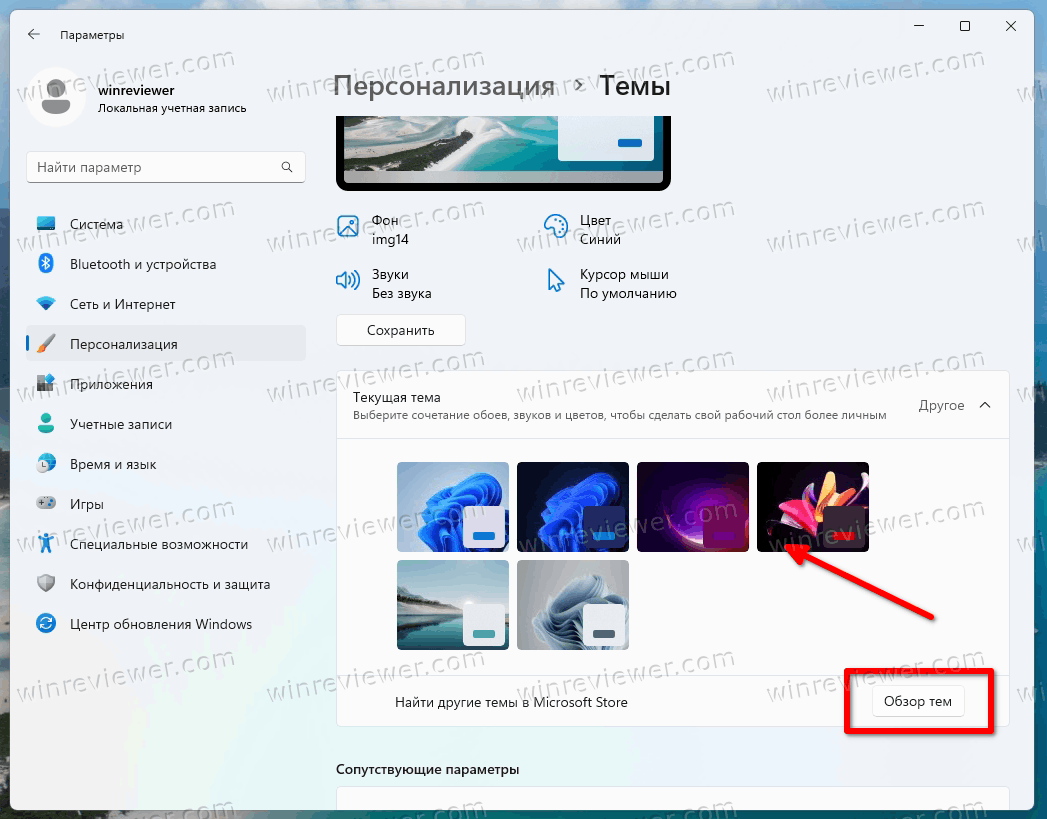
На той же странице вы можете настроить текущую тему, изменив ее отдельные параметры, такие как фоновое изображение, курсоры и цвета, с помощью кнопок под предварительным просмотром темы.
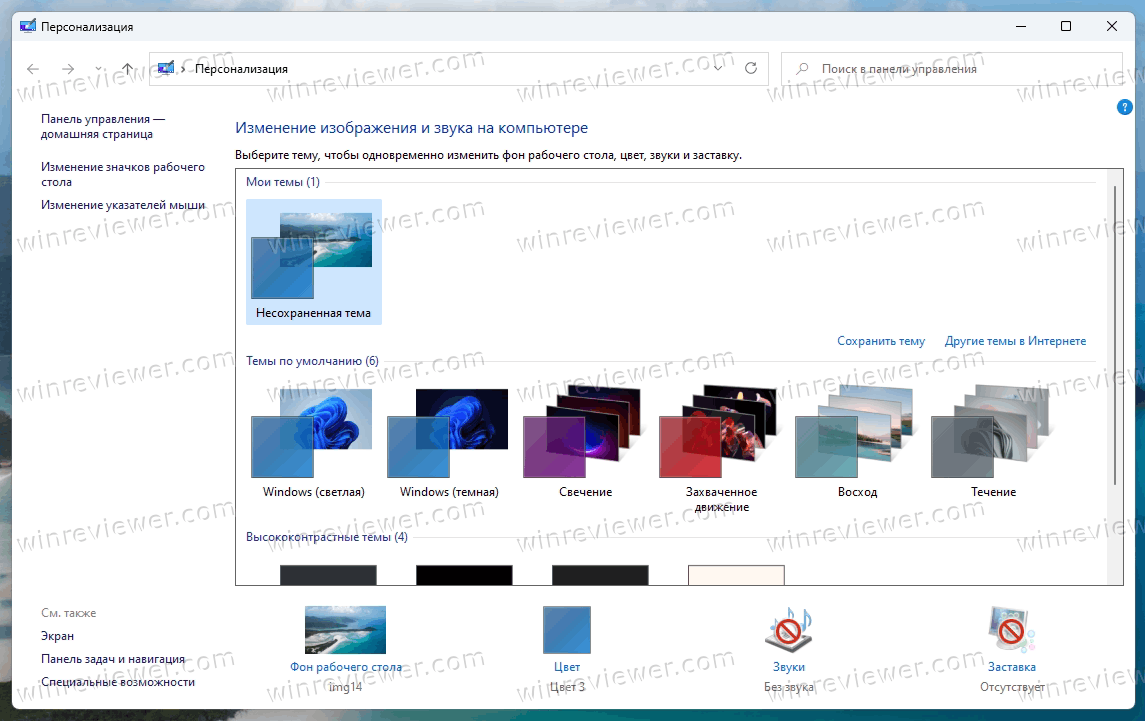
Кроме того, вы можете использовать классический диалог «Персонализация». Он по-прежнему доступен в Windows 11, но скрыт от пользователя. Для открытия нужно использовать специальную команду.
Использование классической Панели управления
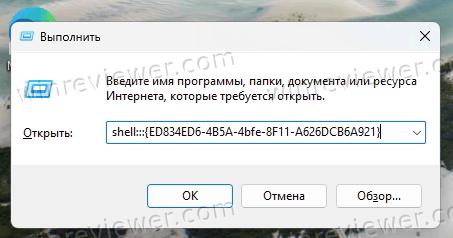
- Нажмите Win + R, чтобы открыть окно «Выполнить».
- Скопируйте и вставьте следующую команду и нажмите Enter:
shell:::{ED834ED6-4B5A-4bfe-8F11-A626DCB6A921}.
- Щелкните нужную тему в разделах «Мои темы», «Темы Windows по умолчанию» или «Темы высокой контрастности».

- Как только Windows 11 изменит тему, вы можете закрыть окно Панели управления.
Изменить тему из Проводника
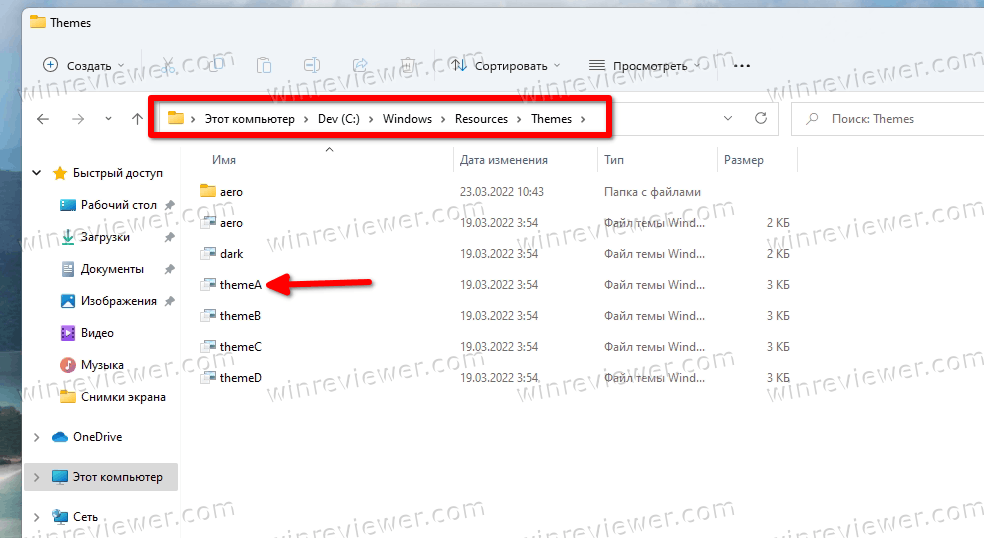
Поскольку все три каталога тем известны, вы можете открыть их в Проводнике и напрямую щелкнуть файл *.theme, чтобы применить его. Сделайте следующее.
- Откройте Проводник, нажав Win + E или щелкнув его ярлык на панели задач или в меню «Пуск».
- Перейдите в папку, содержащую тему, которую вы хотите применить, например. C:WindowsResourcesThemes.

- Дважды щелкните файл *.theme нужной темы.

- Закройте приложение «Параметры», которое автоматически открывается после двойного щелчка по файлу темы.
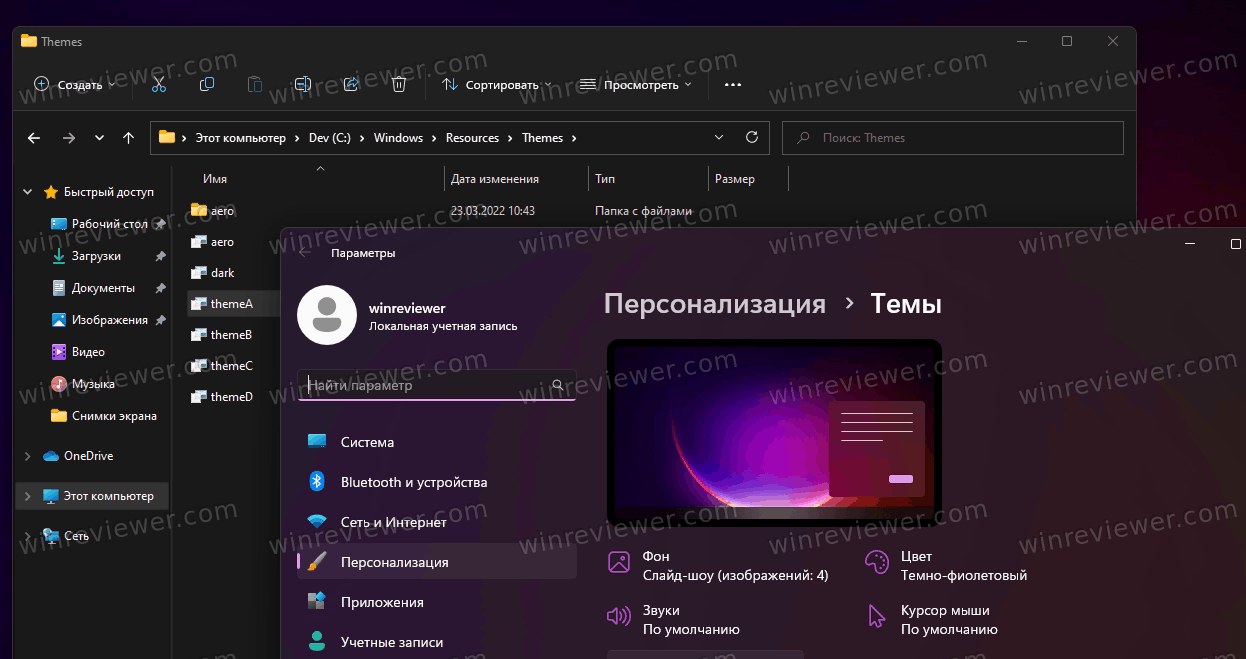
Единственным недостатком этого метода является то, что вам придется закрывать настройки каждый раз, когда вы нажимаете на файл темы. Откроется раздел «Персонализация».
Изменить тему Windows 11 из командной строки
- Откройте новое окно командной строки.
- Введите start «» «<путь к файлу темы>» и нажмите Enter. Например,
start "" "C:WindowsResourcesThemesaero.theme". - Windows 11 применит тему, а также откроет приложение «Параметры».

- Теперь закройте приложение «Параметры».
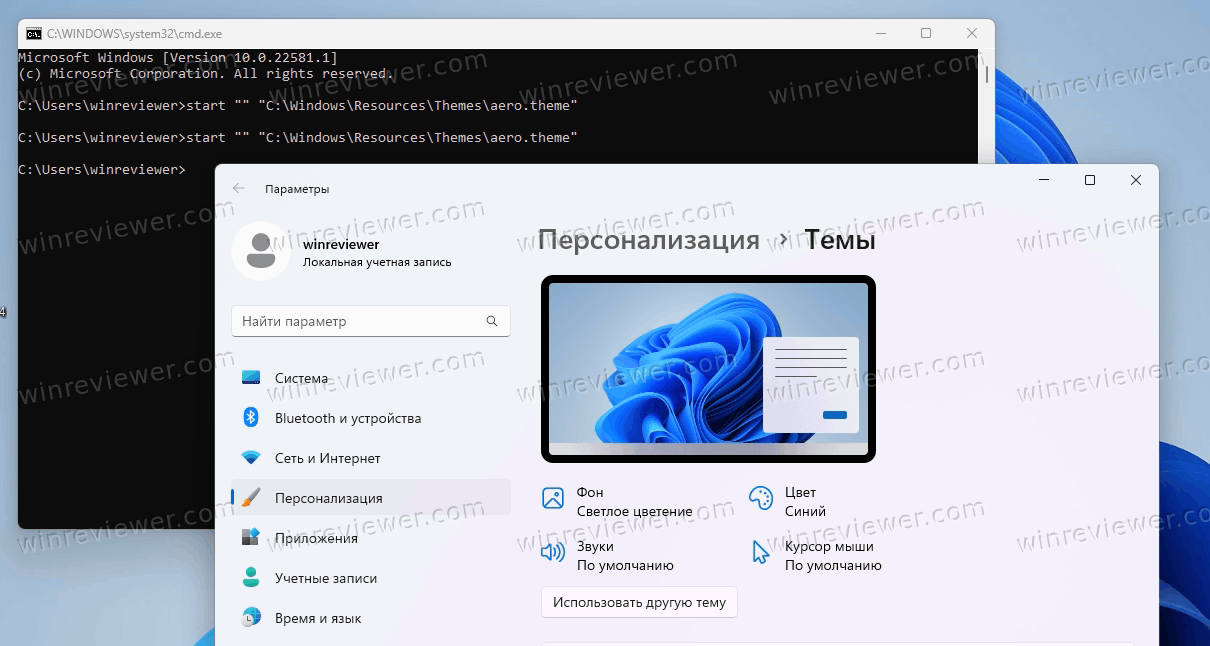
Если вас раздражает появление приложения «Параметры» после изменения темы из командной строки, измените команду следующим образом.
start "" "C:WindowsResourcesThemesaero.theme" & timeout /t 3 & taskkill /im "systemsettings.exe" /f.
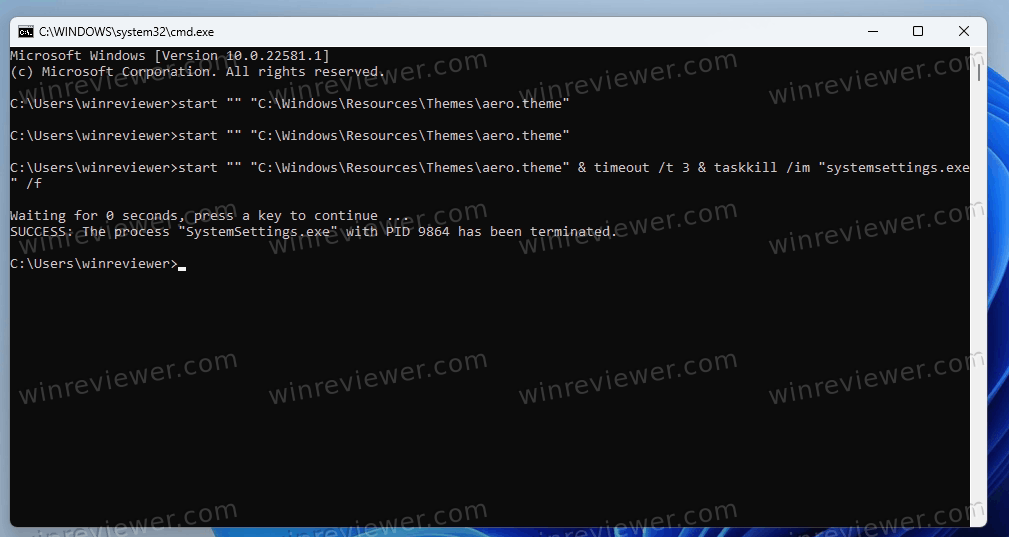
Эта команда применит тему, сделает паузу 3 секунды с помощью команды timeout и принудительно закроет приложение «Параметры» с помощью приложения taskkill.
Таким образом, тема будет применена без манипуляций открывшимися окнами со стороны пользователя. Это может быть полезно для автоматизации смены темы оформления.
Точно так же вы можете применить новую тему из PowerShell.
Как поменять тему из PowerShell
- Откройте PowerShell, например, запустив Windows Terminal.
- Введите следующую команду:
start-process -filepath "C:WindowsResourcesThemesaero.theme". - Укажите правильный путь к файлу *.theme.
- Windows 11 изменит тему и откроет приложение «Параметры» на странице «Персонализация».

- Чтобы изменить тему и автоматически закрыть настройки, используйте следующую команду
start-process -filepath "C:WindowsResourcesThemesaero.theme"; timeout /t 3; taskkill /im "systemsettings.exe" /f.
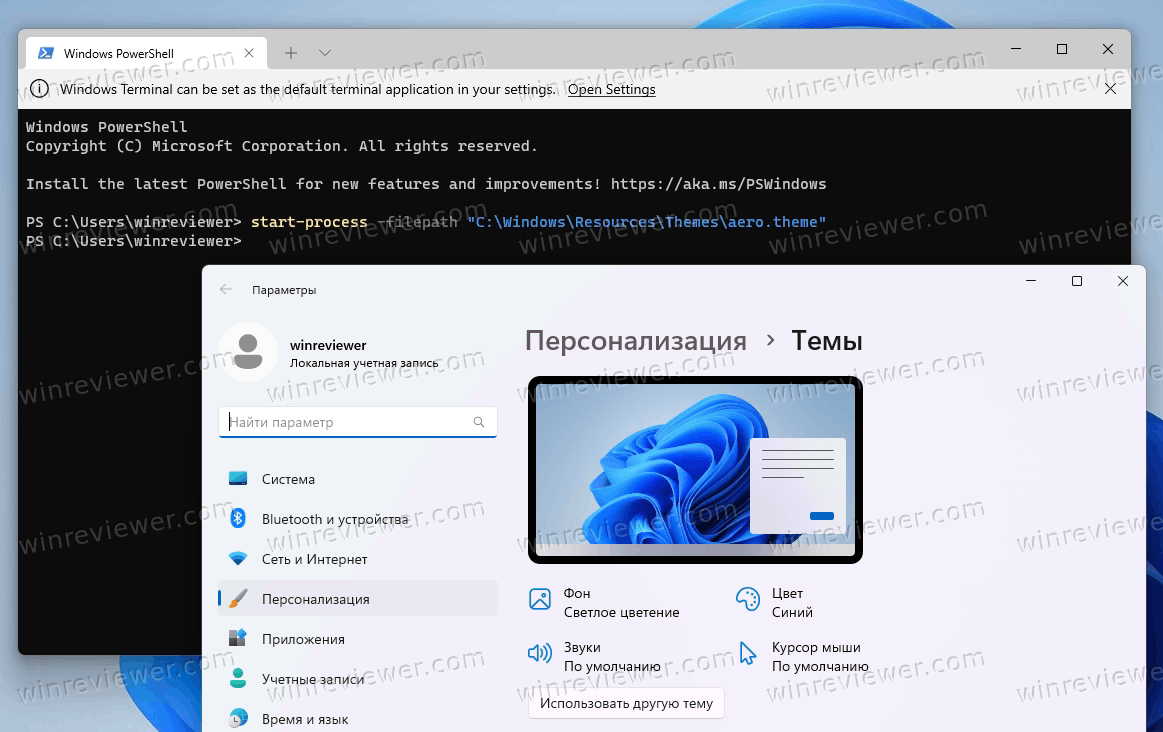
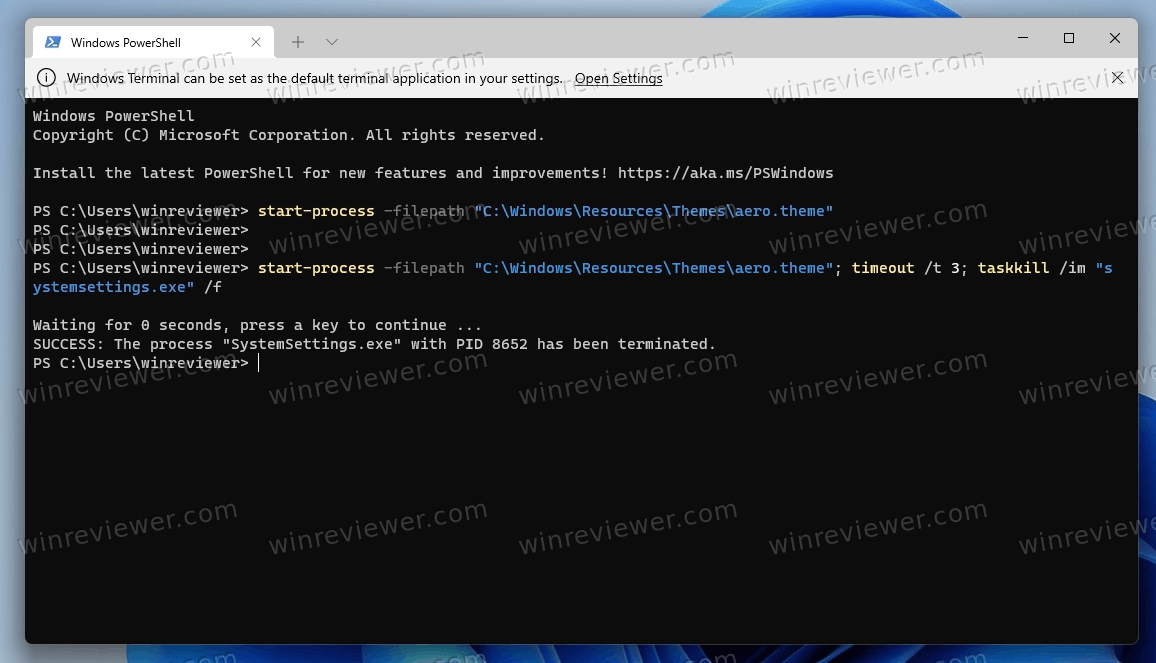
Готово. Последняя команда вызывает инструменты, которые мы уже рассмотрели в предыдущей главе. Только синтаксис команды изменился, чтобы соответствовать PowerShell.
Использование приложения Theme Switcher
Бесплатная программа Theme Switcher позволяет применять темы, не открывая Параметы/Персонализацию. Он поддерживает все версии Windows, начиная с Windows 7.
Загрузите Theme Switcher по этой ссылке и распакуйте приложение в любую папку. Программа не требует установки.
Запустите файл ThemeSwitcher.exe.
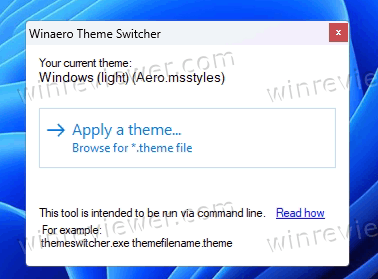
Программа показывает, какая тема используется в данный момент и какой файл msstyles в ней применяется.
Нажмите кнопку «Apply theme», чтобы открыть файл *.theme и быстро установить его в качестве текущей темы.
Параметры командной строки ThemeSwitcher
Основное предназначение Theme Switcher — переключение тем из командной строки. Файл темы нужно передать в качестве аргумента командной строки. Вы можете запустить его следующим образом
ПутькThemeSwitcher.exe Путьквашей теме.theme
Или просто ПутькThemeSwitcher.exe вашей теме.theme
В последнем примере приложение будет автоматически искать соответствующий файл темы в известных каталогах, упомянутых в предыдущих главах.
Например, в Windows 11 вы можете быстро переключаться между темной и светлой темами с помощью следующих команд соответственно:
ThemeSwitcher.exe dark.theme
ThemeSwitcher.exe aero.theme
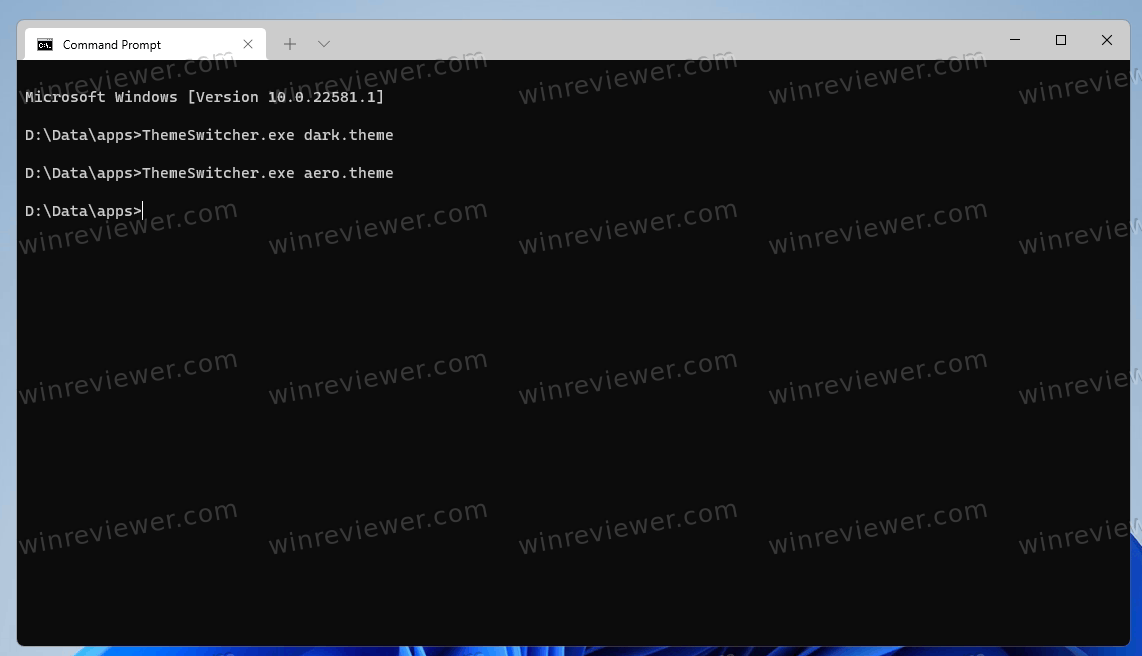
Наконец, вы можете создать ярлык на рабочем столе для themeswitcher.exe и указать нужную тему в качестве аргумента командной строки. Тогда вы сможете применить его одним щелчком мыши, не открывая приложение «Параметры».
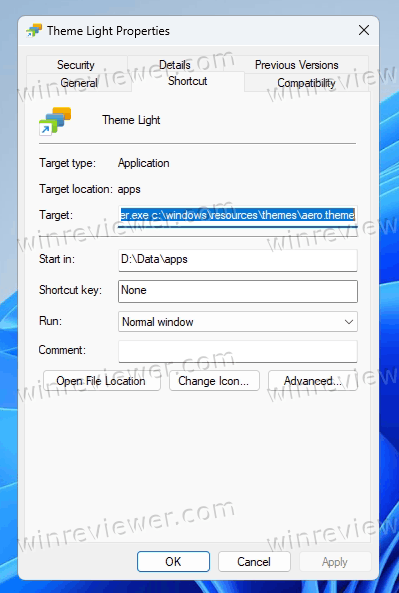
Также, создав пару таких ярлыков, вы сможете быстро переключаться между темной и светлой темами.

Основная идея приложения Theme Switcher — быть удобным инструментом для переключения между темами с минимальным взаимодействием с пользователем. Это хорошая замена двум консольным методам, рассмотренным выше, поскольку для закрытия настроек не требуется выполнять дополнительные команды.
Вот и все.
Источник: Winaero
💡Узнавайте о новых статьях быстрее. Подпишитесь на наши каналы в Telegram и Twitter.
Судя по тому, что вы читаете этот текст, вы дочитали эту статью до конца. Если она вам понравилась, поделитесь, пожалуйста, с помощью кнопок ниже. Спасибо за вашу поддержку!