
Статья, в которой рассмотрим, какие в jQuery есть методы для чтения и изменения содержимого HTML элементов.
В jQuery имеются три метода, которые позволяют напрямую работать с контентом элемента:
html– для чтения и изменения HTML содержимого элемента;text– для чтения и изменения текстового содержимого элемента;val– для чтения и изменения значения элементов формы.
Например, получим HTML содержимое элемента с идентификатором (id) contact:
// сохраним HTML контент элемента в переменную contactHTML
var contactHTML = $('#contact').html();
Если выборка содержит несколько элементов, то данный метод вернёт HTML контент только первого элемента:
<p>Содержимое 1...</p>
<p>Содержимое 2...</p>
...
<script>
  var htmlContent = $('p').html();
  console.log(htmlContent);
</script>
Для того чтобы получить HTML контент всех найденных элементов необходимо воспользоваться циклом (например, each):
$('p').each(function(){
  // выведем содержимое текущего элемента в консоль
  console.log($(this).html());
});
Изменение HTML контента элемента
Например, заменим содержимое элемента ul:
<ul>
  <li>молоко 1 литр</li>
  <li>яйца 2 шт.</li>
  <li>мука  270 гр.</li>
</ul>
...
<script>
  $('ul').html('<li>молоко 500 мл литр</li><li>яйца 3 шт.</li><li>мука  200 гр.</li>');
</script>
Если на странице будет несколько элементов ul, то данный метод заменит содержимое каждого из них.
Если необходимо изменить контент только у одного элемента на странице, то наиболее просто это сделать через id.
<ul id="ingredients">
  ...
</ul>
...
<script>
  $('#ingredients').html('Новый HTML контент...');
</script>
Использование функции для замены HTML контента элемента:
<h2>Название 1...</h2>
<h2>Название 2...</h2>
<h2>Название 3...</h2>
...
<script>
$('h2').html(function(index, oldhtml) {
  // index – индекс элемента в выборке
  // oldhtml – контент элемента
  var newhtml = (index+1) + '. ' + oldhtml;
  return newhtml;
});
</script>
Например, изменим контент элементов (зачеркнём старый контент и добавим рядом новый):
<div class="number">75</div>
<div class="number">37</div>
<div class="number">64</div>
<div class="number">17</div>
<div class="number">53</div>
...
<script>
var newNumber = [];
for (var i = 0; i <= 4; i++) {
  newNumber[i] = Math.floor(Math.random() * 99) + 1;
};
$('.number').html(function(index, oldhtml) {
  // index – индекс элемента в выборке
  // oldhtml – контент элемента
  // this – текущий элемент
  // изменим фон текущего элемента на случайный
  $(this).css('background-color','yellow');
  var newhtml = '<s>'+oldhtml+'</s> '+ newNumber[index];
  return newhtml;
});
</script>
Получение текстового содержимого элемента
В jQuery получение содержимого элемента в виде обычного текста осуществляется с помощью метода text. При этом все HTML теги, если они присутствуют в контенте, будут вырезаны.
Например, получим текстовое содержимое элемента p и выведем его в контент другого элемента:
<p id="output"></p>
<button id="get-text">Получить текстовый контент элемента p</button>
<p id="text">Этот параграф содержит <a href="#">ссылку</a>.</p>
...
<script>
$('#get-text').click(function() {
  var textContent = $('#text').text();
  $('#output').text(textContent);
});
</script>
Метод text также как и html возвращает содержимое только первого элемента выборки (если в ней присутствуют несколько элементов).
Замена контента элемента указанным текстом
Метод text может использоваться не только для чтения, но и для изменения содержимого указанного элемента. При этом HTML теги (если они присутствуют в тексте) будут закодированы с помощью спецсимволов.
<div id="info">
  Некоторый контент...
</div>
...
<script>
  $('#info').text('<p>Другой контент...</p>');
</script>
После выполнения, элемент div с классом info будет иметь следующий HTML код:
<div id="info"> <p>Другой контент...</p> </div>
На экране данный элемент будет выглядеть так:
<p>Другой контент...</p>
Если в выборке присутствует несколько элементов, то метод text заменит содержимое каждого из них:
<p>Контент 1 ...</p>
<p>Контент 2 ...</p>
<p>Контент 3 ...</p>
...
<script>
  $('p').text('Новый контент...');
</script>
Использование в качестве параметра метода text функции (добавим в скобках к содержимому каждого выбранного элемента длину его текстовой информации):
<p class="text">Некоторое содержимое...</p>
<p class="text">Ещё некоторый контент...</p>
...
<script>
$('.text').text(function(index,text) {
  // параметры функции: index (порядковый номер элемента в выборке), text (его текущее содержимое)
  var textLength = text.length;
  return text + ' ('+ text.length +')';
});
</script>
Удаление контента элемента
В jQuery для удаления содержимого элемента имеется метод empty. Данный метод не только удаляет элементы, но и другие его дочерние узлы, включая текст.
Например, удалим содержимое всех элементов с классом vote:
<div class="vote">Контент...</div>
...
<script>
  $('.vote').empty();
</script>
Получение значения элемента формы
В jQuery чтение значений элементов input, select и textarea осуществляется посредством метода val.
Например, получим значение элемента input:
<input type="text" id="quantity" name="quantity" value="3" />
...
<script>
// сохраним значение в переменную quantity
var quantity = $('#quantity').val();
// выведем значение переменной quantity в консоль
console.log(quantity);
</script>
Метод val, если в коллекции присутствует несколько элементов, вернёт значение только первого из них.
<input name="color" type="radio" value="white"> Белый<br>
<input name="color" type="radio" value="green" checked> Зелёный<br>
<input name="color" type="radio" value="brown"> Коричневый<br>
...
<script>
  // получим значение первого элемента в коллекции
  var valColor = $('input[name="color"]').val();
  console.log(valColor); // white
  // получим значение выбранной (checked) радиокнопки
  var valCheckedColor = $( "input[type=radio][name=color]:checked" ).val();
  console.log(valCheckedColor); // green
</script>
Для получения значения выбранного элемента (select, checkbox, или radio кнопок) используйте :checked.
// получить значение выбранной опции select
$('select.color option:checked').val();
// получить значение выбранного select
$('select.size').val();
// получить значение отмеченного (checked) checkbox
$('input[type="checkbox"][name="answers"]:checked').val();
// получить значение установленной радиокнопки
$('input[type="radio"][name="rating"]:checked').val();
Если коллекции нет элементов, то метод val возвращает значение undefined.
Например, получим значение элемента textarea, имеющего имя description:
var valDescription =  $('textarea[name="description"]').val();
if (valDescription !== undefined) {
  console.log('Значение элемента textarea: ' + valDescription);
} else {
  console.log('Элемент textarea с именем description на странице не найден!');
}
Получим значение элемента select:
<select id="volume">
  <option>16Gb</option>
  <option>32Gb</option>
</select>
...
<script>
// получим значение выбранной опции элемента select
var volume = $('#volume').val();
// выведем это значение в консоль
console.log(volume);
// выведем значение в консоль при изменении select
$('#volume').change(function(){
  var volume = $(this).val();
  console.log(volume);
});
</script>
Если элемент select имеет множественный выбор (атрибут multiple), то метод val возвратит в качестве результата массив, содержащий значение каждой выбранной опции (option). Если ни одна опция не отмечена, то данный метод вернёт в качестве ответа пустой массив (до версии jQuery 3 значение null).
<select id="brands" multiple="multiple">
  <option selected="selected">Acer</option>
  <option>Samsung</option>
  <option selected="selected">Asus</option>
</select>

<script>
// var brands = $('#brands').val() || []; // до версии jQuery 3
var brands = $('#brands').val(); // для версии jQuery 3
// преобразуем массив в строку, используя разделитель ", "
var output = brands.join( ", " );
// выведем строку в консоль
console.log(output);
</script>
Установка значения элементу формы
Изменение значения элемента формы в jQuery осуществляется с помощью метода val.
Например, при клике на кнопку установим элементу input её текст:
<div>
  <button>Кнопка 1</button>
  <button>Кнопка 2</button>
  <button>Кнопка 3</button>
</div>
<input type="text" value="Нажмите на кнопку!">
...
<script>
$('button').click(function() {
  var text = $(this).text();
  $('input').val(text);
});
</script>
Данный метод устанавливает значение для всех элементов набора, к которому он применяется.
Например, преобразуем все буквы значения элемента input после потеря фокуса в прописные:
<input type="text" value="Некоторое значение поля">
...
<script>
$('input').on('blur', function() {
  // установим значение полю
  $(this).val(function(index, value) {
    return value.toUpperCase();
  });
});
</script>
Например, поменяем значение элемента select:
<select name="color">
  <option value="red">Красный</option>
  <option value="green" selected>Зелёный</option>
  <option value="blue">Синий</option>
</select>

<script>
// 1 вариант (установим в качестве значения select значение опции blue)
$('select[name="color"] option[value="blue"]').attr('selected', 'selected');
// 2 вариант
$('select[name="color"]').val('blue');
</script>
Например, присвоим значения элементу select с множественным выбором (multiple):
<select id="language" multiple="multiple">
  <option value="english" selected="selected">Английский</option>
  <option value="french">Французский</option>
  <option value="spanish" selected="selected">Испанский</option>
  <option value="china">Китайский</option>
</select>
...
<script>
  $('#language').val(['french', 'china']);
</script>
Изменим, значение checkbox:
<input type="checkbox" name="language" value="english"> Вы знаете английский
...
<script>
  $('input[name="language"]').val('en');
</script>
.replaceWith( newContent )Returns: jQuery
Description: Replace each element in the set of matched elements with the provided new content and return the set of elements that was removed.
-
version added: 1.2.replaceWith( newContent )
-
newContent
The content to insert. May be an HTML string, DOM element, array of DOM elements, or jQuery object.
-
-
version added: 1.4.replaceWith( function )
-
function
A function that returns content with which to replace the set of matched elements.
-
The .replaceWith() method removes content from the DOM and inserts new content in its place with a single call. Consider this DOM structure:
|
1 2 3 4 5 |
|
The second inner <div> could be replaced with the specified HTML:
|
1 |
|
This results in the structure:
|
1 2 3 4 5 |
|
All inner <div> elements could be targeted at once:
|
1 |
|
This causes all of them to be replaced:
An element could also be selected as the replacement:
|
1 |
|
This results in the DOM structure:
|
1 2 3 4 |
|
This example demonstrates that the selected element replaces the target by being moved from its old location, not by being cloned.
The .replaceWith() method, like most jQuery methods, returns the jQuery object so that other methods can be chained onto it. However, it must be noted that the original jQuery object is returned. This object refers to the element that has been removed from the DOM, not the new element that has replaced it.
Additional Notes:
-
The
.replaceWith()method removes all data and event handlers associated with the removed nodes. -
Prior to jQuery 1.9,
.replaceWith()would attempt to add or change nodes in the current jQuery set if the first node in the set was not connected to a document, and in those cases return a new jQuery set rather than the original set. The method might or might not have returned a new result depending on the number or connectedness of its arguments! As of jQuery 1.9,.after(),.before(), and.replaceWith()always return the original unmodified set. Attempting to use these methods on a node without a parent has no effect—that is, neither the set nor the nodes it contains are changed.
Examples:
On click, replace the button with a div containing the same word.
|
1 2 3 4 5 6 7 8 9 10 11 12 13 14 15 16 17 18 19 20 21 22 23 24 25 26 27 28 29 30 31 32 33 34 35 36 |
|
Demo:
Replace all paragraphs with bold words.
|
1 2 3 4 5 6 7 8 9 10 11 12 13 14 15 16 17 18 19 |
|
Demo:
On click, replace each paragraph with a div that is already in the DOM and selected with the $() function. Notice it doesn’t clone the object but rather moves it to replace the paragraph.
|
1 2 3 4 5 6 7 8 9 10 11 12 13 14 15 16 17 18 19 20 21 22 23 24 25 26 27 28 29 30 31 32 33 34 35 |
|
Demo:
On button click, replace the containing div with its child divs and append the class name of the selected element to the paragraph.
|
1 2 3 4 5 6 7 8 9 10 11 12 13 14 15 16 17 18 19 20 21 22 23 24 25 26 27 28 29 30 31 32 33 34 35 36 37 38 |
|
Demo:
- Связанные категории:
-
Manipulation
» DOM Insertion, Inside
Возвращает или изменяет текстовое содержимое выбранных элементов.
-
version added: 1.0.text()
return: string
Получает текст выбранного элемента в наборе. Если таких элементов несколько, получит содержимое всех элементов, разделенные пробелом
-
version added: 1.0.text( textString )
return: jQuery
Получает текст выбранного элемента в наборе. Если таких элементов несколько, получит содержимое всех элементов, разделенные пробелом
-
version added: 1.4.text( function(index, text) )
return: jQuery
Заменяет содержимое каждого выбранного элемента в наборе на возвращенное функцией function текст. Функция вызывается, для каждого из выбранных элементов.
Параметры функции:
index — позиция элемента в наборе,
value — текущей текст элемента.
Пример 1. Получим текстовое-содержимое элемента div:
HTML:
  <div class="example">Привет! я <strong>div</strong>-ный элемент на странице. Во мне много всякого html-а, <p>параграфы</p>, <h4>заголовок h4</h4>, <strong>strong</strong>, <a href="#">ссылка</a>
  </div>
  <div class="example"><strong>Второй div</strong></div>
  <button>Получить текстовое-содержимое элемента <strong>div</strong></button>
JS:
$(function (){
    $('button').click(function(){
       var html = $('.example').text();
       alert(html);
    });
});
Пример 2. Заменим содержимое элемента div на введенный текст:
HTML:
  <div>Привет! я <strong>div</strong>-ный элемент на странице. Во мне много всякого html-а, <p>параграфы</p>, <h4>заголовок h4</h4>, <strong>strong</strong>, <a href="#">ссылка</a>
  </div>
  <p>Введите текст: <input type="text" /></p>
  <button>Заменить содержимое элемента <strong>div</strong> на введенный текст</button>
JS:
$(function (){
    $('button').click(function(){
       var text = $('input').val();
       $('div').text(text);
    });
});
Обратите внимание, что метод .text( textString ) преобразует htm-теги в их сущности, аналогично функции htmpspecialchars в php. Для проверки в примере выше попробуйте вставить какой-либо html-код.
Пример 3. Заменим HTML-содержимое элементов div c помощью функции, которая вернет первые 20 символов начального текста, полученный текст обернем в параграф, полученная строка вернется и заменит собой исходную:
HTML:
  <style>
    body{
        line-height: 100%;
    }
    div{
        margin-bottom: 20px; padding: 5px; border: solid 1px #ccc;
    }
  </style>
  <div class="example">Привет! я <strong>div</strong>-ный элемент на странице. Во мне много всякого html-а, <p>параграфы</p>, <h4>заголовок h4</h4>, <strong>strong</strong>, <a href="#">ссылка</a>
  </div>
  <div class="example">Привет! я <strong>второй div</strong>-ный элемент на странице. Во мне тоже много всякой-всячины</a>
  </div>
  <button>Выбрать первые 20 символов в текстах каждого <strong>div</strong>-а</button>
JS:
$(function (){
    $('button').click(function(){
       $('.example').text(function(index, text){
                text = text.substr(0,20);
           return text;
       });
    });
});
Связанные уроки:
-

15 особенностей jQuery 1.4
jQuery постоянно развивается. Релиз версии 1.4 состоялся в январе. jQuery 1.4 получила много новых функций, расширений и имеет значительно лучшую производительность. Данная статья посвящена описанию основных улучшений jQuery 1.4.
-
Доступ к элементам контента с помощью jQuery
jQuery даёт возможность работать с элементами HTML и их содержимым различными способами. Например, вы можете добавить новые элементы внутрь, вокруг, до и после существующих элементов; вы можете заменить один элемент другим (или другими); вы можете читать и заменять содержимое элементов.



Introduction to jQuery replace div contents
The jQuery replace div contents is the data contents that can be used on the <div> tag and replacing the contents wherever we needed using jQuery method like replaceWith() or any other replace methods we want to replace the datas that can be covered on the innerHTML using the div element or any other html elements. The data contents are declared and passed it as the innerHTML tags like <div> tag and it is to be calling on the jQuery selector while the replaceable contents is to be inserted on the DOM level using jQuery replace child methods like replaceWith() the contents are splitted and replaced with the new datas.
Syntax
The jQuery library has many default methods and classes, widgets for used on creating the web based application. The HTML will combine with jQuery for adding the data contents on the both script and UI code. Mostly the <div> element will have parameter like id and some other child tags by using the id or the div element as the jQuery selector and calling the methods like replaceWith() etc.
<html>
<head>
<script src=https://ajax.googleapis.com/ajax/libs/jquery/3.5.1/jquery.min.js>
</script>
</head>
<body>
<div id="demo">
<div class="name">
---Datas with html tags if needed ---
</div>
</div>
<script>
$("name").click(function(e){
e.preventDefault();
var eg=;
$('#demo').replaceWith('<div class="name">' + eg + '</div>');
});
</script>
</body>
</html>
The above codes are the basic syntax for utilising the <div> tag and replaceWith() method on the html page.
How to replace div contents in jQuery?
The above paragraph in syntax section we discussed on the <div> tag in html page. We used n number of <div> tags based on the UI needs we called the div tag elements on the each other section of the html page. But the id of the <div> tag element is to be passing on the jQuery selector once we passed the datas are pulled to the jQuery library. We can declare the replaced values as the separate variable and the variable is to called on the replaceWith() method. The method will contain both <div> tag elements and replaced text or variable as the parameter arguments. The elements from the html will replaced with the DOM level so after replacement operation the one DOM element is to be replaced with another DOM Element. When we declared any return type that time it returns the parent Node property the parent node of the specific defined node as the Node object, in case there is no parent it returns null value. It can also possible for to replace the child Nodes which is having no parent Node on the script. The function which replaces the inner contents of the selected html div elements however we can add the html tags using inside with the help of html() method for to replace the selected HTML element.
Examples of jQuery replace div contents
Here are the following examples mention below
Example #1
Code:
<!DOCTYPE html>
<html>
<head>
<title> Welcome to My Domain it’s a first Example for div tag using jQuery Replace concept</title>
<style>
body {
display: block;
margin-top: 17%;
}
h1 {
color:blue;
text-align:center;
}
div { border:3px green;
color:violet;
margin:7px;
cursor:pointer;
}
p { border:3px green;
color:blue;
margin:3px;
cursor:pointer;
}
</style>
<script src="http://code.jquery.com/jquery-latest.js"></script>
</head>
<body bgcolor="red">
<p>Have a Nice Day Users</p>
<p>Thank you spending you time in our application kindly stay on this</p>
<p>Please find the below our Updates on this application</p>
<p>The div tag data contents are used and shown on the screen by using the html web pages</p>
<p>With the help of jQuery replaceWith() method the datas are replaced with the new html dom elements</p>
<div>Your replaced contents will be shown on the web screen</div>
<script>
$("p").click(function () {
$(this).replaceWith($("div"));
});
</script>
</body>
</html>
Output:
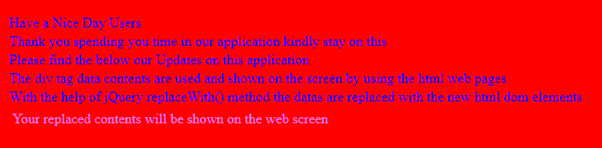

In the above example, we used the div contents with the replaceWith() method for replacing the one dom element with another element.
Example #2
Code:
<html xmlns="http://www.w3.org/1999/xhtml" >
<head>
<title>Welcome To My Domain its a Second Example for replacing the elements by using the div tag elements</title>
<script type="text/javascript"
src="http://ajax.googleapis.com/ajax/libs/jquery/1.4.2/jquery.min.js">
</script>
<style>
body {
font-family: Arial, TimesNewRoman,Helvetica, sans-serif;
background-color: blue;
color: green;
text-decoration: none;
padding: 23px 33px;
position: center;
display: inline-block;
border-radius: 5px;
}
.demo {
position: center;
top: -23px;
right: -23px;
padding: 7px 13px;
border-radius: 47%;
background-color: pink;
color: yellow;
}
</style>
<script type="text/javascript" language="javascript">
$(function () {
$("#first").click(function () {
$("#demo").html($("#demo").html().replace("Welcome", "raman"));
});
});
</script>
</head>
<body>
<div id="demo">Welcome
<div class=”name”>
Welcome Users its the second example for replacing div contents by using the jQuery replace() method its one of the scenario we used
</div>
<div class="name">
Welcome Raman Have a Nice Day Thank you for spending the time for this occasion
</div>
<div class="name">
Welcome Siva Have a Nice Day Thank you for spending the time for this occasion
</div>
</div><br />
<input id="first" type="button" value="Replace Value" />
</body>
</html>
Output:
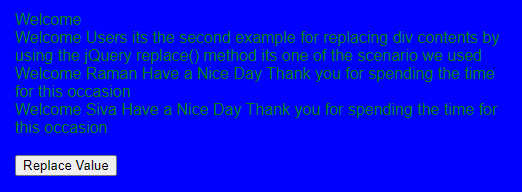
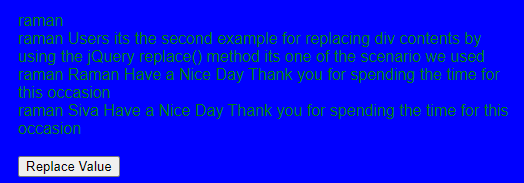
In the second example, we used the html contents on the page additionally the button element was used on the script to replace the specific contents on the web page.
Example #3
Code:
<!DOCTYPE html>
<html>
<head>
<title>Welcome to My Domain it’s a Third Example for regarding the div contents on the replace method</title>
<style>
img {
width: 540px;
height: 530px;
}
</style>
<script type="text/javascript"
src="http://ajax.googleapis.com/ajax/libs/jquery/1.4.2/jquery.min.js">
</script>
<script src="https://code.jquery.com/jquery-3.5.0.min.js">
</script>
<script  type="text/javascript" language="javascript">
$(function () {
$("#first").click(function () {
$("#demo").html($("#demo").html().replace("Welcome you", "raman"));
});
});
</script>
</head>
<body>
<div id="demo">Welcome you users
<div class="name">
<img id="second" src='website.jpg' alt="values" />
<marquee>Thank you users have a nice day</marquee>
</div>
</div>
<input id="first" type="button" value="Replace Value" />
<script>
$(document).ready(function() {
$('img').on({
'click': function() {
let vars = ($(this).attr('src') === 'one.jpg') ?
'website.jpg' :
'one.jpg';
$(this).attr('src', vars);
}
});
});
</script>
</body>
</html>
Output:
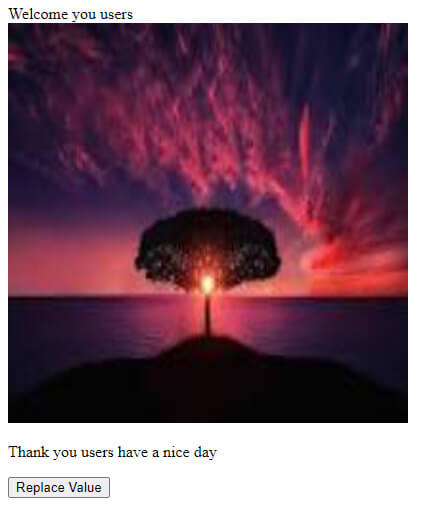

In the final example, we used additional images in the script for changing the images when we click the image on the page. Also, we click the button for replacing the contents.
Conclusion
In jQuery library has default methods and keywords for creating a web application with user-friendly nature. Additionally, the html elements like <div> tag and other tag elements are combined and called the data contents to the jQuery selectors for performing the operations like replace() the contents from one DOM element to the another DOM element.
Recommended Articles
This is a guide to jQuery replace div contents. Here we discuss How to replace div contents in jQuery along with the examples and outputs. You may also have a look at the following articles to learn more –
- jQuery Visibility
- jQuery move element
- jQuery eq()
- jQuery Scroll Down