
The Linux administrators that work with web hosting know how is it important to keep correct character encoding of the html documents.
From the following article you’ll learn how to check a file’s encoding from the command-line in Linux.
You will also find the best solution to convert text files between different charsets.
I’ll also show the most common examples of how to convert a file’s encoding between CP1251 (Windows-1251, Cyrillic), UTF-8, ISO-8859-1 and ASCII charsets.
Cool Tip: Want see your native language in the Linux terminal? Simply change locale! Read more →
Use the following command to check what encoding is used in a file:
$ file -bi [filename]
| Option | Description |
|---|---|
-b, --brief |
Don’t print filename (brief mode) |
-i, --mime |
Print filetype and encoding |
Check the encoding of the file in.txt:
$ file -bi in.txt
text/plain; charset=utf-8
Change a File’s Encoding
Use the following command to change the encoding of a file:
$ iconv -f [encoding] -t [encoding] -o [newfilename] [filename]
| Option | Description |
|---|---|
-f, --from-code |
Convert a file’s encoding from charset |
-t, --to-code |
Convert a file’s encoding to charset |
-o, --output |
Specify output file (instead of stdout) |
Change a file’s encoding from CP1251 (Windows-1251, Cyrillic) charset to UTF-8:
$ iconv -f cp1251 -t utf-8 in.txt
Change a file’s encoding from ISO-8859-1 charset to and save it to out.txt:
$ iconv -f iso-8859-1 -t utf-8 -o out.txt in.txt
Change a file’s encoding from ASCII to UTF-8:
$ iconv -f utf-8 -t ascii -o out.txt in.txt
Change a file’s encoding from UTF-8 charset to ASCII:
Illegal input sequence at position: As UTF-8 can contain characters that can’t be encoded with ASCII, the iconv will generate the error message “illegal input sequence at position” unless you tell it to strip all non-ASCII characters using the -c option.
$ iconv -c -f utf-8 -t ascii -o out.txt in.txt
| Option | Description |
|---|---|
-c |
Omit invalid characters from the output |
You can lose characters: Note that if you use the iconv with the -c option, nonconvertible characters will be lost.
Very common situation for ones who work inside the both Windows and Linux machines.
This concerns in particular Windows machines with Cyrillic.
You have copied some file from Windows to Linux, but when you open it in Linux, you see “Êàêèå-òî êðàêîçÿáðû” – WTF!?
Don’t panic – such strings can be easily converted from CP1251 (Windows-1251, Cyrillic) charset to UTF-8 with:
$ echo "Êàêèå-òî êðàêîçÿáðû" | iconv -t latin1 | iconv -f cp1251 -t utf-8
Какие-то кракозябры
List All Charsets
List all the known charsets in your Linux system:
$ iconv -l
| Option | Description |
|---|---|
-l, --list |
List known charsets |
Содержание
Описание проблемы
Ubuntu по умолчанию использует кодировку текстовых файлов UTF-8, однако некоторые операционные системы используют другие кодировки (например, русская версия Microsoft Windows использует CP-1251). Из-за разницы в кодировках могут возникнуть проблемы при открытии текстовых файлов в редакторе Gedit — они будут нечитаемыми. Данная статья предлагает несколько простых способов решения этой проблемы.
Настройка Gedit на автоопределение кодировки
Gedit может автоматически определить нужную кодировку. Для этого его нужно немного настроить.
Есть 3 варианта:
-
Для редактора dconf-editor1)
-
Для редактора gconf-editor2)
-
Способ, в котором нужно выполнить всего-лишь одну команду в Терминале.
Вариант 1.
Запускаем dconf-editor и переходим в
/org/gnome/gedit/preferences/encodings/
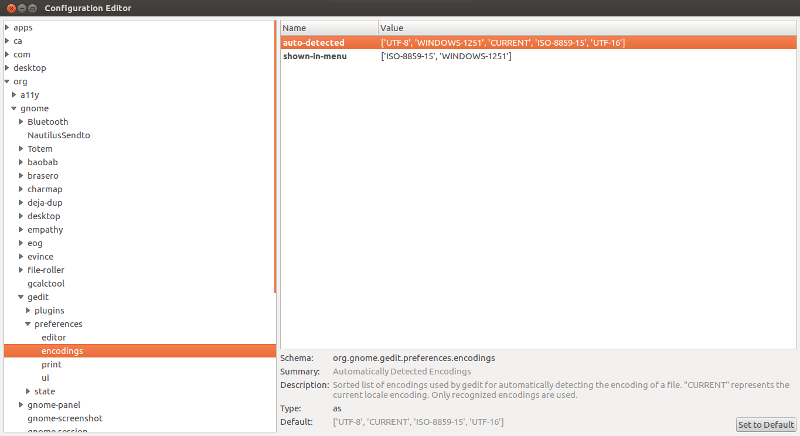
Редактируем ключ auto_detected3), вписывая нужную нам кодировку
WINDOWS-1251
Пример строки
['UTF-8', 'WINDOWS-1251', 'CURRENT', 'ISO-8859-15', 'UTF-16']
Вариант 2.
Выполните в терминале команду:
gconf-editor /apps/gedit-2/preferences/encodings
Откроется Редактор Конфигурации GNOME. В нем откройте для редактирования ключ auto_detected4).
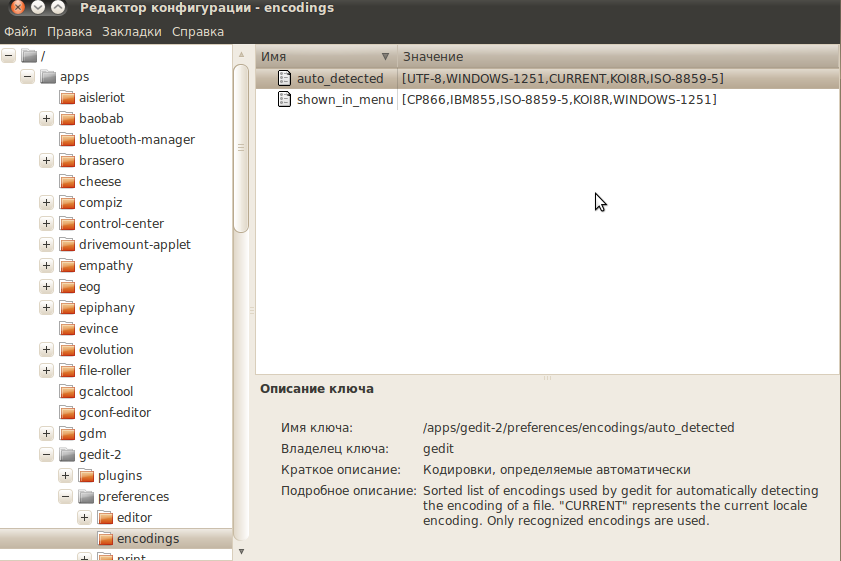
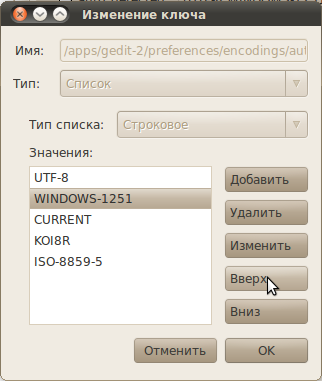
В появившемся окне редактирования переместите нужную вам кодировку вверх, так, чтобы она находилась сразу после UTF-8. Нажмите OK и закройте редактор.
Вариант 3.
Выполните в терминале команду:
gsettings set org.gnome.gedit.preferences.encodings auto-detected "['UTF-8', 'WINDOWS-1251', 'CURRENT', 'ISO-8859-15', 'UTF-16']"
Для Ubuntu 16.04:
gsettings set org.gnome.gedit.preferences.encodings candidate-encodings "['UTF-8', 'WINDOWS-1251', 'KOI8-R', 'CURRENT', 'ISO-8859-15', 'UTF-16']"
Для Ubuntu Mate 16.04:
gsettings set org.mate.pluma auto-detected-encodings "['UTF-8', 'WINDOWS-1251', 'KOI8-R', 'CURRENT', 'ISO-8859-15', 'UTF-16']"
Данный способ является самым быстрым.
Теперь, если вы откроете файл с кодировкой WINDOWS-1251 — он будет правильно отображаться в Gedit.
Смена кодировки открытого файла
С помощью системы плагинов можно добавить возможность выбора кодировки уже открытого файла.
-
Если для распаковки используется стандартный менеджер архивов переименуйте архив в из encoding.tar.gz в encoding.tar (проверялось в Ubuntu 8.10 и 10.4)
-
Распаковываем его в ~/.local/share/gedit/plugins (если такой папки нет, то её нужно создать)
-
Запускаем Gedit и включаем в нём модуль «Кодировка» (Правка→Параметры→Модули)
После этого в главном меню Файл появляется пункт «Encoding», который позволяет менять кодировку в уже открытом документе.
Ссылки
In this guide, we will describe what character encoding and cover a few examples of converting files from one character encoding to another using a command line tool. Then finally, we will look at how to convert several files from any character set (charset) to UTF-8 encoding in Linux.
As you may probably have in mind already, a computer does not understand or store letters, numbers or anything else that we as humans can perceive except bits. A bit has only two possible values, that is either a 0 or 1, true or false, yes or no. Every other thing such as letters, numbers, images must be represented in bits for a computer to process.
In simple terms, character encoding is a way of informing a computer how to interpret raw zeroes and ones into actual characters, where a character is represented by set of numbers. When we type text in a file, the words and sentences we form are cooked-up from different characters, and characters are organized into a charset.
There are various encoding schemes out there such as ASCII, ANSI, Unicode among others. Below is an example of ASCII encoding.
Character  bits
A               01000001
B               01000010
In Linux, the iconv command line tool is used to convert text from one form of encoding to another.
You can check the encoding of a file using the file command, by using the -i or --mime flag which enables printing of mime type string as in the examples below:
$ file -i Car.java
$ file -i CarDriver.java

The syntax for using iconv is as follows:
$ iconv option
$ iconv options -f from-encoding -t to-encoding inputfile(s) -o outputfile
Where -f or --from-code means input encoding and -t or --to-encoding specifies output encoding.
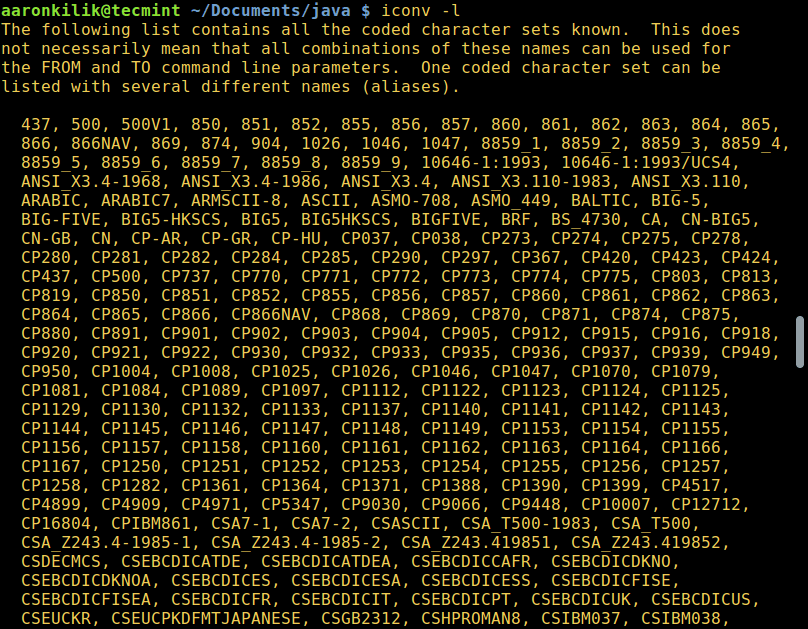
To list all known coded character sets, run the command below:
$ iconv -l
Convert Files from UTF-8 to ASCII Encoding
Next, we will learn how to convert from one encoding scheme to another. The command below converts from ISO-8859-1 to UTF-8 encoding.
Consider a file named input.file which contains the characters:
� � � �
Let us start by checking the encoding of the characters in the file and then view the file contents. Closely, we can convert all the characters to ASCII encoding.
After running the iconv command, we then check the contents of the output file and the new encoding of the characters as below.
$ file -i input.file
$ cat input.file
$ iconv -f ISO-8859-1 -t UTF-8//TRANSLIT input.file -o out.file
$ cat out.file
$ file -i out.file
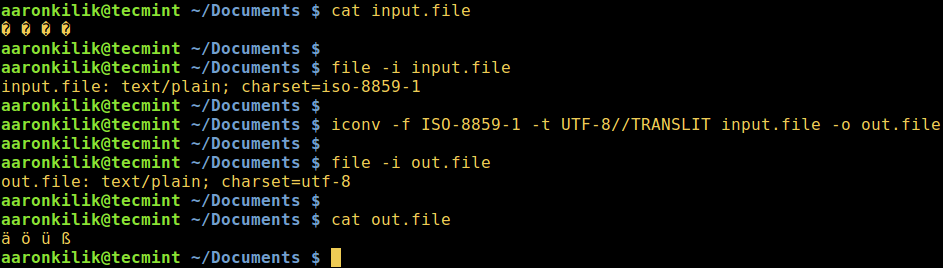
Note: In case the string //IGNORE is added to to-encoding, characters that can’t be converted and an error is displayed after conversion.
Again, supposing the string //TRANSLIT is added to to-encoding as in the example above (ASCII//TRANSLIT), characters being converted are transliterated as needed and if possible. Which implies in the event that a character can’t be represented in the target character set, it can be approximated through one or more similar looking characters.
Consequently, any character that can’t be transliterated and is not in target character set is replaced with a question mark (?) in the output.
Convert Multiple Files to UTF-8 Encoding
Coming back to our main topic, to convert multiple or all files in a directory to UTF-8 encoding, you can write a small shell script called encoding.sh as follows:
#!/bin/bash
#enter input encoding here
FROM_ENCODING="value_here"
#output encoding(UTF-8)
TO_ENCODING="UTF-8"
#convert
CONVERT=" iconv  -f   $FROM_ENCODING  -t   $TO_ENCODING"
#loop to convert multiple files
for  file  in  *.txt; do
     $CONVERT   "$file"   -o  "${file%.txt}.utf8.converted"
done
exit 0
Save the file, then make the script executable. Run it from the directory where your files (*.txt) are located.
$ chmod  +x  encoding.sh
$ ./encoding.sh
Important: You can as well use this script for general conversion of multiple files from one given encoding to another, simply play around with the values of the FROM_ENCODING and TO_ENCODING variable, not forgetting the output file name "${file%.txt}.utf8.converted".
For more information, look through the iconv man page.
$ man iconv
To sum up this guide, understanding encoding and how to convert from one character encoding scheme to another is necessary knowledge for every computer user more so for programmers when it comes to dealing with text.
Lastly, you can get in touch with us by using the comment section below for any questions or feedback.
If You Appreciate What We Do Here On TecMint, You Should Consider:
TecMint is the fastest growing and most trusted community site for any kind of Linux Articles, Guides and Books on the web. Millions of people visit TecMint! to search or browse the thousands of published articles available FREELY to all.
If you like what you are reading, please consider buying us a coffee ( or 2 ) as a token of appreciation.

We are thankful for your never ending support.