
Windows Command Prompt is a powerful utility that offers a simple yet effective way to interact with your system and the applications. That said, when it comes to aesthetics, Command Prompt isn’t exactly pleasing on the eyes.
Even during the recent Windows design refresh, Microsoft has kept CMD virtually untouched. Despite that, you can tweak a few key aspects of the command processor, including the font, layout, and colors, to give it a personal touch. And doing so is relatively easy as well.
How to Customize the Command Prompt in Windows 10
.jpg)
All the customization options for the Command Prompt are available in the Properties section. To do this, launch Command Prompt, right-click on the top bar and select Default or Properties.
- Changes made via the Default mode will not affect the current session. However, it will apply to all the new CMD sessions, irrespective of the Command Prompt shortcut you use.
- Changes made via the Properties’ mode will affect the current session and CMD shortcut’s properties you customize.
How to Change the Command Prompt Font’s Size and Type
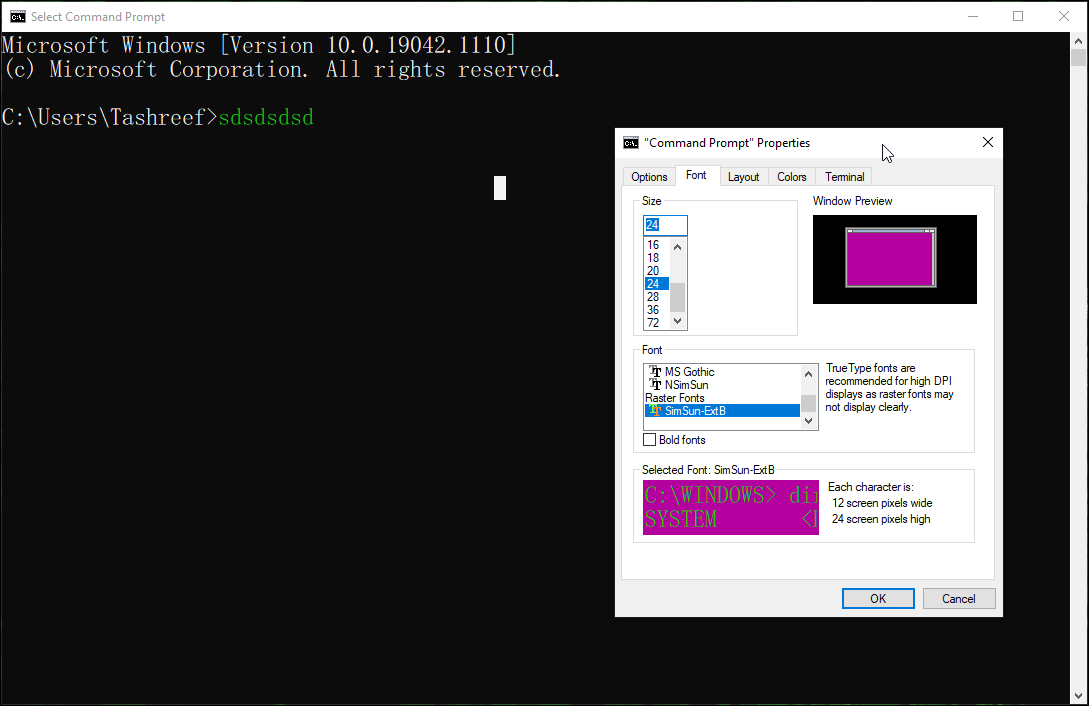
If you prefer bold and bigger fonts for your Command Prompt, you can change the font type and size for the tool.
To change CMD Font Type and Size:
- Open the Font tab in the Properties window.
- Under the Size section, select the font size you want to set as default. You can trim it down to five pixels and go as large as 72 pixels.
- Next, select the font type you want to set for CMD. Microsoft recommends using a True Type font on a High DPI display for better visibility.
- You can see the selected font and size in the preview window.
- Click OK to save the changes.
How to Change the Command Prompt Layout in Windows
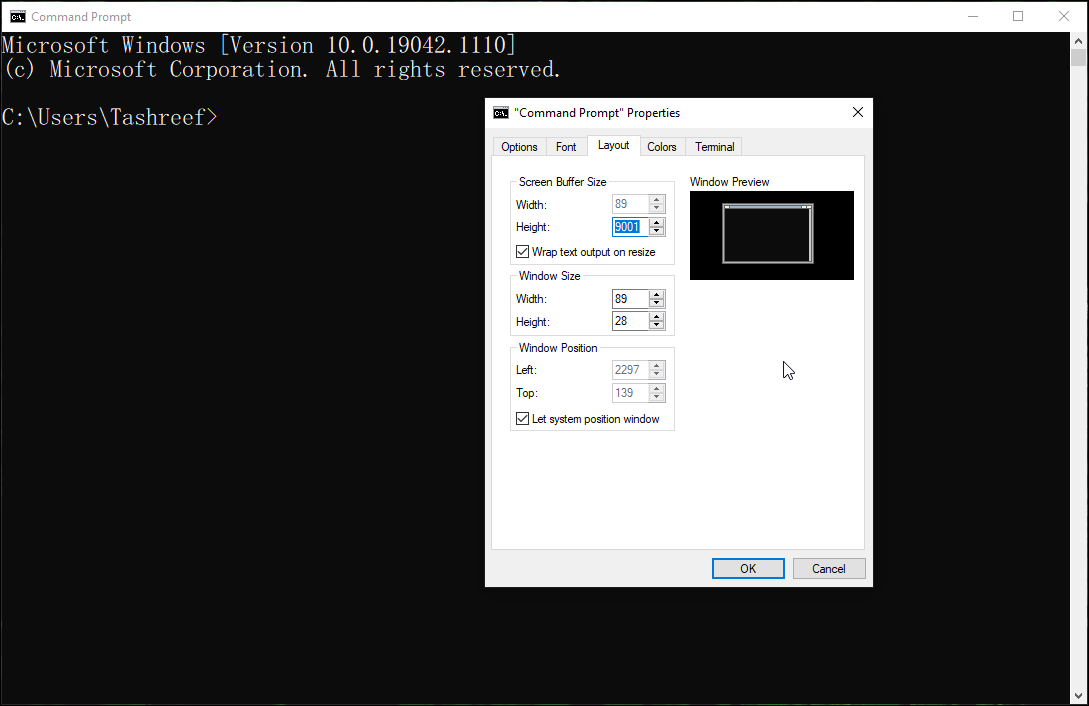
If you don’t like the default CMD window position or the screen buffer size, you can change it from the Layout tab.
- In the CMD Properties window, open the Layout tab.
- In the Screen Buffer Size section, change the value to specify how much content you can view. Leave it as default if you are unsure of what it does.
- Next, under the Window Size section, you can make the CMD console large or smaller.
- Under the Window Position section, you can specify the window’s start position by changing the Left and Top values.
- Check the Let system position window box to let Windows decide the best start position.
- Click OK to save the changes.
How to Change the Command Prompt’s Background and Text Color
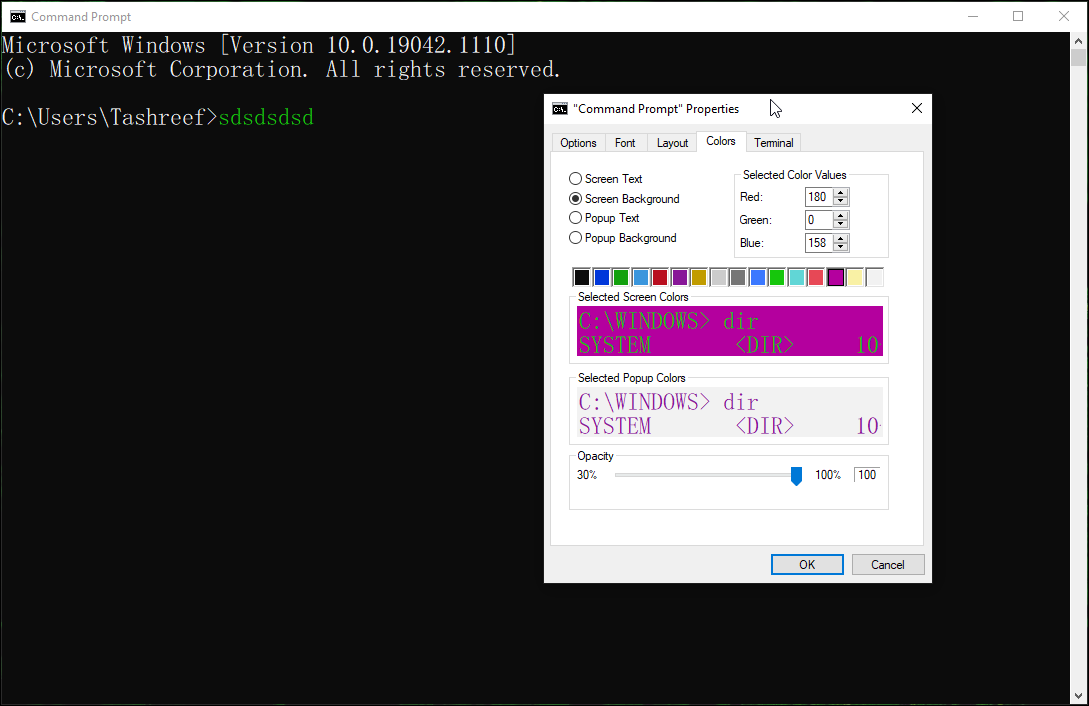
You can also customize the Command Prompt’s background and text color, whether you want to make it more readable or just look nice.
- In the Colors tab, select the value you want to change.
- You can customize the Screen Text, Screen Background, Popup Text, and Popup Backgrounds.
- Next, click on one of the predefined color elements to select the color. Change the selected color value to set your RGB color combination. If you want to set a specific color or shade that is not available in the Colors tab, use an online color picker tool to find the exact Red, Green, and Blue values and make the changes accordingly.
- Click OK to apply the changes.
How to Customize the Background Color Using Command Prompt Commands
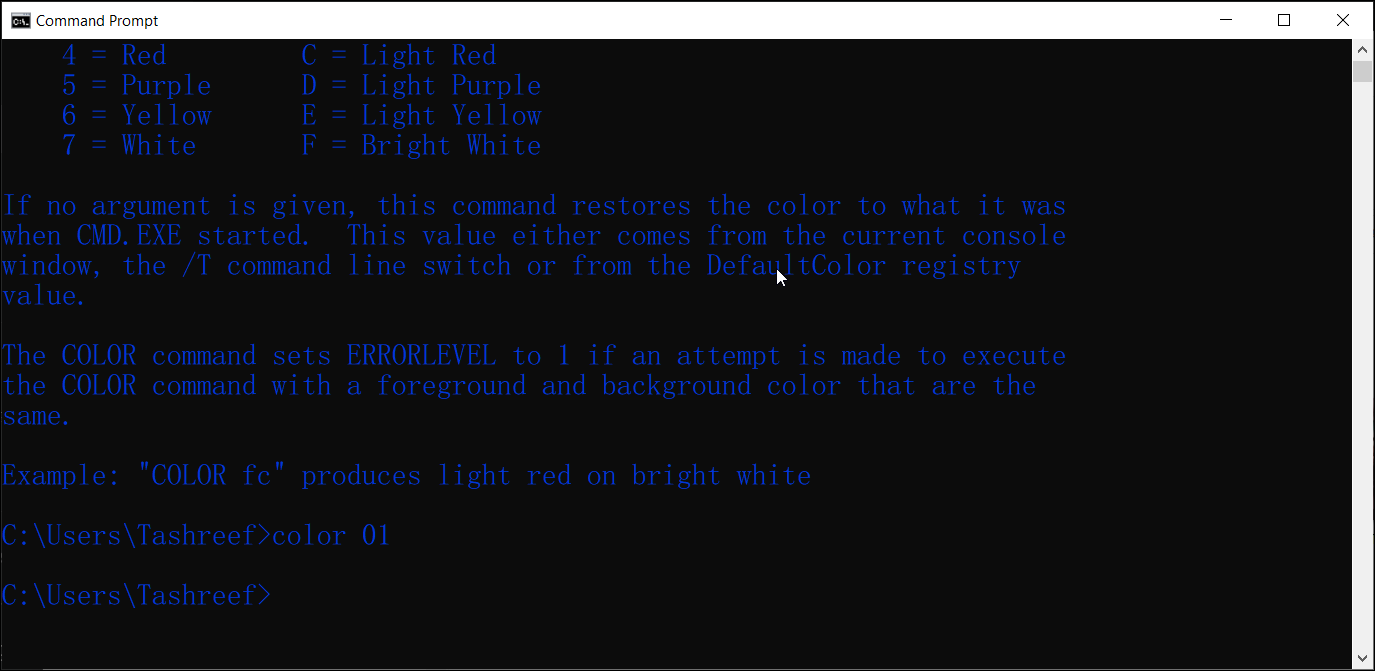
You can use the color command to change the Command Prompt background and text color on the go without changing the default settings. Here’s how to do it.
- Open the Command Prompt and type the following command to get the available color attributes:
color /? - Color attributes are specified by two hex digits — the first corresponds to the background; the second is the foreground. You can choose any color from the specified value as long as the background and text colors are different.
- For example, if you want to set a black background with blue text, enter the following command:
color 01 - To restore the default color scheme, enter the following command:
color
How to Make the Command Prompt Window Transparent
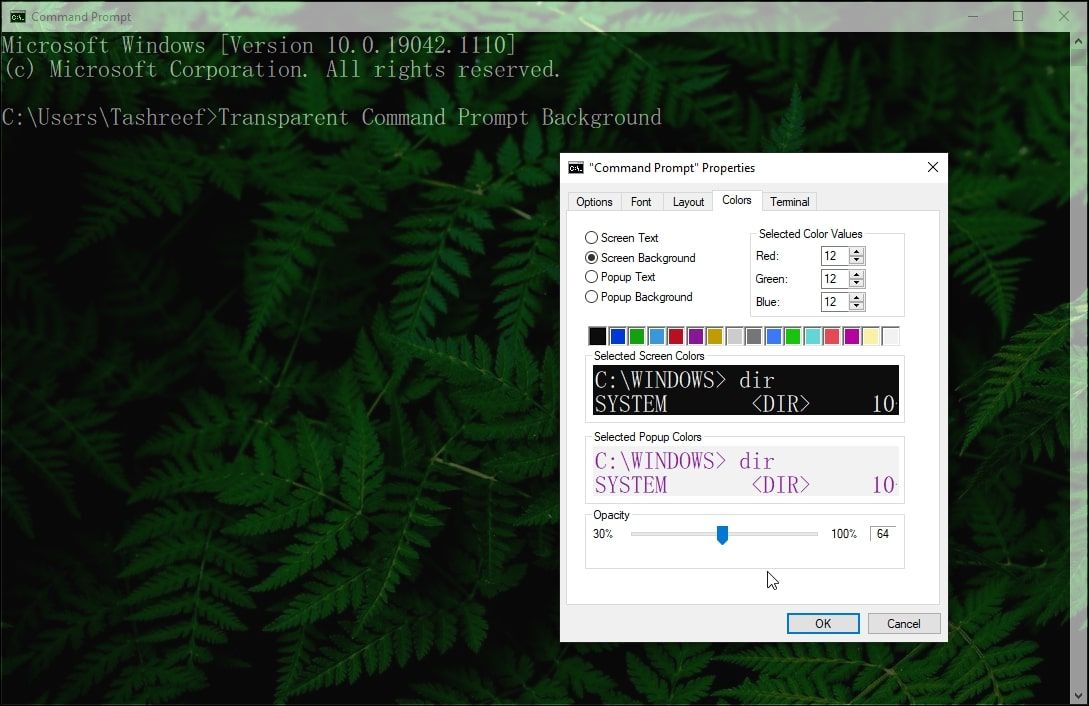
If you are tired of the default blank look of the Command Prompt, you can make it transparent. This would not only allow you to maximize your screen space but add a rich background from your desktop or apps.
To make Command Prompt transparent:
- Right-click on the top bar of Command Prompt and select Properties.
- In the Properties window, open the Colors tab.
- At the bottom, drag the Opacity slider to adjust the transparency. Feel free to experiment with the slider to achieve the best look.
- Click OK to save the changes.
Additionally, you can use the keyboard shortcuts to change the transparency settings. With the Command Prompt window open, press and hold Ctrl + Shift + Mouse Wheel Up/Down to change the transparency level. Useful if you want to change transparency settings for the active sessions only.
How to Customize the Command Prompt Using Terminal Settings
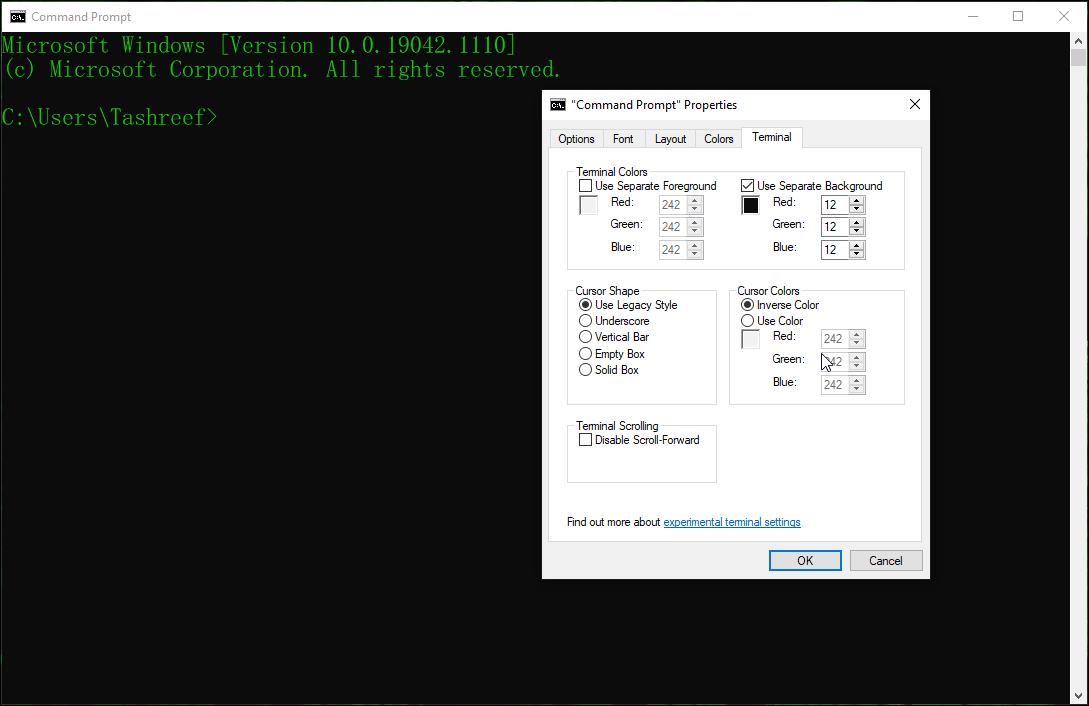
The Windows 10 May 2019 update added new experimental console features, which included a Terminal tab. This allows you to customize and change cursor shape, color, and more for the terminal.
To customize the terminal settings:
- Open the Terminal tab in the Command Prompt’s Properties window.
- Next, in the Terminal Colors section, select the options you want to change. Experiment with the Red, Green, and Blue color settings to choose the RGB color for the Separate Background and Separate Foreground.
- You can also change the cursor type to Underscore, Vertical Bar, Empty Box, or Legacy Style.
- Under the Cursor Colors section, select Inverse Color to automatically set an inverted color of the cursor based on the background color. If not, select Use color and change the RGB color values to set your color combination.
- To turn off infinite scrolling, check the Disable Scroll-Forward option in the Terminal Scrolling section.
- Click OK to save the changes.
How to Customize Command History and Edit Options in Command Prompt
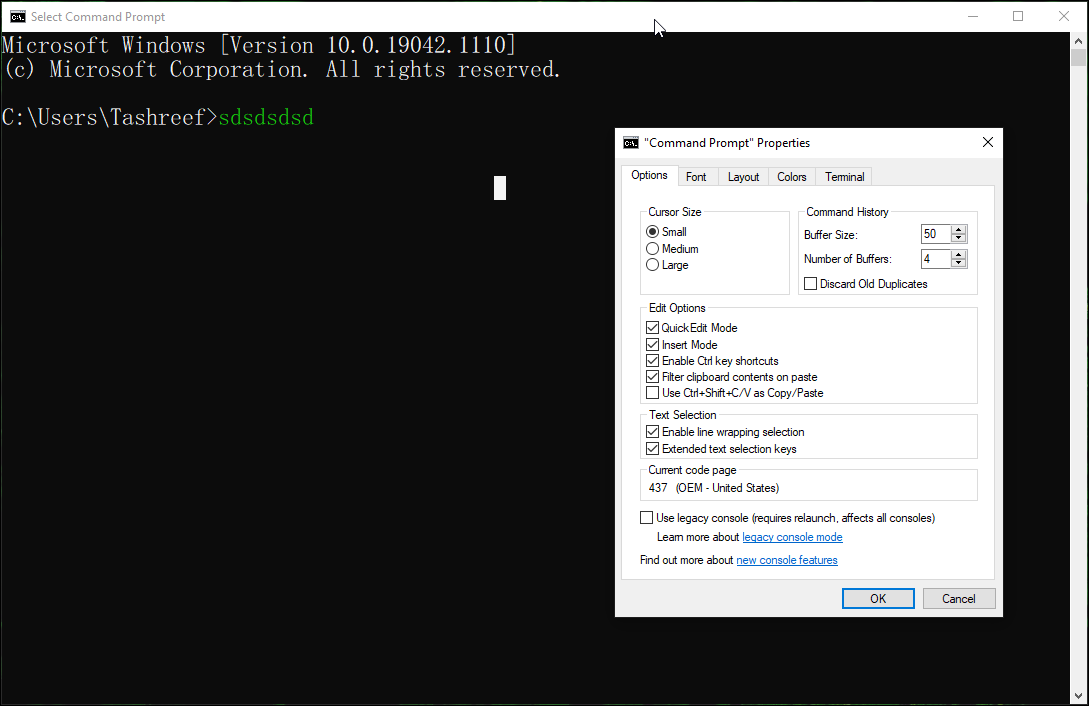
If you want to dig deeper, you can customize other sets of Command Prompt properties using the Options tab. It comprises options to change the cursor size, and Command History to increase or decrease the buffer size and the number of buffers.
In the Edit Options section, you can enable or disable the QuickEdit Mode, Insert Mode, Ctrl key shortcuts, filter clipboard contents on paste, and use Ctrl + Shift + C/V as Copy/Paste.
Under the Text Selection section, you can enable line wrapping selection and extended text selection keys.
Customizing the Command Prompt to Match Your Style
Whether you want to change the default boring black background and white text, or you want to make the CMD window transparent to add a vibrant background, these settings will help you give Command Prompt the makeover it deserves.
Windows Command Prompt is a powerful utility that offers a simple yet effective way to interact with your system and the applications. That said, when it comes to aesthetics, Command Prompt isn’t exactly pleasing on the eyes.
Even during the recent Windows design refresh, Microsoft has kept CMD virtually untouched. Despite that, you can tweak a few key aspects of the command processor, including the font, layout, and colors, to give it a personal touch. And doing so is relatively easy as well.
How to Customize the Command Prompt in Windows 10
All the customization options for the Command Prompt are available in the Properties section. To do this, launch Command Prompt, right-click on the top bar and select Default or Properties.
- Changes made via the Default mode will not affect the current session. However, it will apply to all the new CMD sessions, irrespective of the Command Prompt shortcut you use.
- Changes made via the Properties’ mode will affect the current session and CMD shortcut’s properties you customize.
How to Change the Command Prompt Font’s Size and Type
If you prefer bold and bigger fonts for your Command Prompt, you can change the font type and size for the tool.
To change CMD Font Type and Size:
- Open the Font tab in the Properties window.
- Under the Size section, select the font size you want to set as default. You can trim it down to five pixels and go as large as 72 pixels.
- Next, select the font type you want to set for CMD. Microsoft recommends using a True Type font on a High DPI display for better visibility.
- You can see the selected font and size in the preview window.
- Click OK to save the changes.
How to Change the Command Prompt Layout in Windows
If you don’t like the default CMD window position or the screen buffer size, you can change it from the Layout tab.
- In the CMD Properties window, open the Layout tab.
- In the Screen Buffer Size section, change the value to specify how much content you can view. Leave it as default if you are unsure of what it does.
- Next, under the Window Size section, you can make the CMD console large or smaller.
- Under the Window Position section, you can specify the window’s start position by changing the Left and Top values.
- Check the Let system position window box to let Windows decide the best start position.
- Click OK to save the changes.
How to Change the Command Prompt’s Background and Text Color
You can also customize the Command Prompt’s background and text color, whether you want to make it more readable or just look nice.
- In the Colors tab, select the value you want to change.
- You can customize the Screen Text, Screen Background, Popup Text, and Popup Backgrounds.
- Next, click on one of the predefined color elements to select the color. Change the selected color value to set your RGB color combination. If you want to set a specific color or shade that is not available in the Colors tab, use an online color picker tool to find the exact Red, Green, and Blue values and make the changes accordingly.
- Click OK to apply the changes.
How to Customize the Background Color Using Command Prompt Commands
You can use the color command to change the Command Prompt background and text color on the go without changing the default settings. Here’s how to do it.
- Open the Command Prompt and type the following command to get the available color attributes:
color /? - Color attributes are specified by two hex digits — the first corresponds to the background; the second is the foreground. You can choose any color from the specified value as long as the background and text colors are different.
- For example, if you want to set a black background with blue text, enter the following command:
color 01 - To restore the default color scheme, enter the following command:
color
How to Make the Command Prompt Window Transparent
If you are tired of the default blank look of the Command Prompt, you can make it transparent. This would not only allow you to maximize your screen space but add a rich background from your desktop or apps.
To make Command Prompt transparent:
- Right-click on the top bar of Command Prompt and select Properties.
- In the Properties window, open the Colors tab.
- At the bottom, drag the Opacity slider to adjust the transparency. Feel free to experiment with the slider to achieve the best look.
- Click OK to save the changes.
Additionally, you can use the keyboard shortcuts to change the transparency settings. With the Command Prompt window open, press and hold Ctrl + Shift + Mouse Wheel Up/Down to change the transparency level. Useful if you want to change transparency settings for the active sessions only.
How to Customize the Command Prompt Using Terminal Settings
The Windows 10 May 2019 update added new experimental console features, which included a Terminal tab. This allows you to customize and change cursor shape, color, and more for the terminal.
To customize the terminal settings:
- Open the Terminal tab in the Command Prompt’s Properties window.
- Next, in the Terminal Colors section, select the options you want to change. Experiment with the Red, Green, and Blue color settings to choose the RGB color for the Separate Background and Separate Foreground.
- You can also change the cursor type to Underscore, Vertical Bar, Empty Box, or Legacy Style.
- Under the Cursor Colors section, select Inverse Color to automatically set an inverted color of the cursor based on the background color. If not, select Use color and change the RGB color values to set your color combination.
- To turn off infinite scrolling, check the Disable Scroll-Forward option in the Terminal Scrolling section.
- Click OK to save the changes.
How to Customize Command History and Edit Options in Command Prompt
If you want to dig deeper, you can customize other sets of Command Prompt properties using the Options tab. It comprises options to change the cursor size, and Command History to increase or decrease the buffer size and the number of buffers.
In the Edit Options section, you can enable or disable the QuickEdit Mode, Insert Mode, Ctrl key shortcuts, filter clipboard contents on paste, and use Ctrl + Shift + C/V as Copy/Paste.
Under the Text Selection section, you can enable line wrapping selection and extended text selection keys.
Customizing the Command Prompt to Match Your Style
Whether you want to change the default boring black background and white text, or you want to make the CMD window transparent to add a vibrant background, these settings will help you give Command Prompt the makeover it deserves.
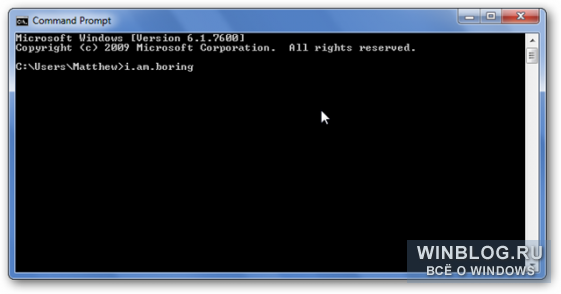
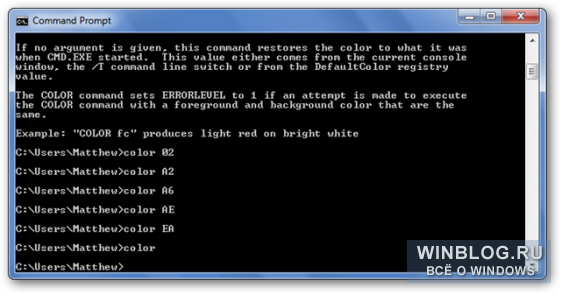
По умолчанию командная строка в Windows – это белый текст на черном фоне. Функционально, но можно и покрасочней.
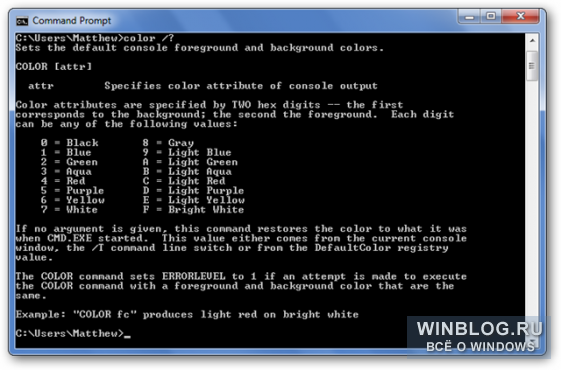
Чтобы посмотреть, как можно расцветить командную строку, введите вот такую команду:
color /?
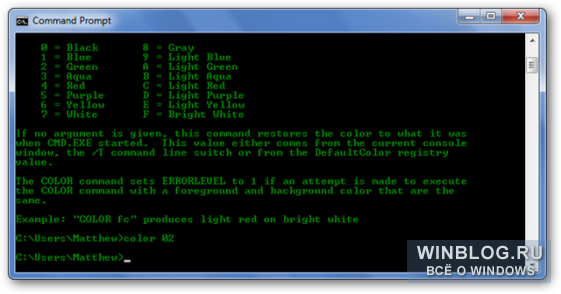
Чтобы применить нужный цвет, введите команду «color» (без кавычек), номер цвета фона и номер цвета текста. Например, сделаем классический зеленый текст на черном фоне с помощью вот такой команды:
color 02
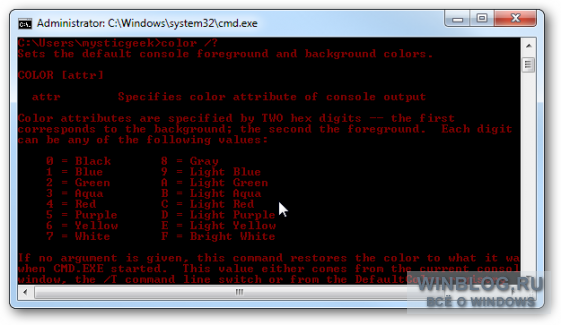
Комбинаций масса. Вот, например, красный текст на черном фоне:
color 04
И не бойтесь что-нибудь испортить. Задать один и тот же цвет для фона и текста, сделав его нечитаемым, не получится. А чтобы вернуть стандартный дизайн, просто выполните еще раз команду «color» без опций – и снова увидите простой белый текст на черном фоне.
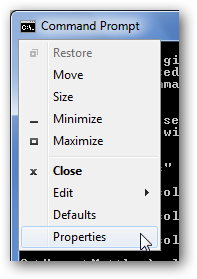
Персонализация командной строки без команд
Если желание поменять цвет есть, но с командами возиться не хочется, просто нажмите правой кнопкой мыши на значке командной строки в левом верхнем углу окна и выберите пункт «Свойства» (Properties).
Откройте вкладку «Цвета» (Colors) и выберите нужные цвета для текста и фона. Можно создать собственную цветовую комбинацию RGB.
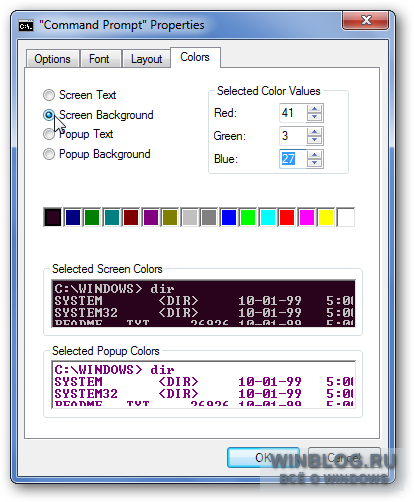
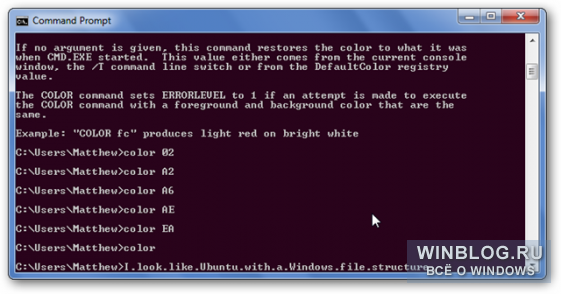
Мы, например, ввели значения RGB, соответствующие фиолетовому цвету фона, как в Ubuntu 10.04.
В окне свойств также можно изменить начертание текста на вкладке «Шрифт» (Font). Можно выбрать любой из трех предложенных вариантов.
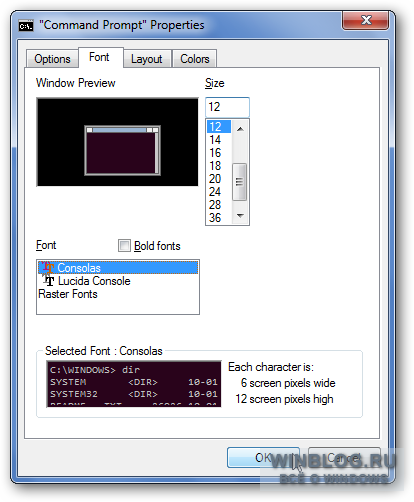
Изменения, сделанные в окне свойств, сохраняются и действуют при каждом использовании командной строки. А настройки, заданные с помощью команды «color» применяются только к текущему сеансу – при следующем запуске окно командной строки будет выглядеть как обычно.
Заключение
Эти настройки позволяют придать командной строке оригинальное оформление, и не важно, хотите ли вы раскрасить ее во все цвета радуги или сделать настолько классической, что даже операторам мэйнфреймов не снилось.
Автор: Matthew
Перевод
SVET
Оцените статью: Голосов
На чтение 3 мин. Просмотров 541 Опубликовано 03.09.2019
Командная строка – одна из самых мощных функций Microsoft Windows. Мы используем его для выполнения более или менее сложных действий, связанных с системой, для исправления различных проблем и т. Д. Обычно этот инструмент используется технически подкованными пользователями Windows, но есть ряд действий, которые могут выполнять и обычные пользователи.
Эта функция также имеет один из самых простых пользовательских интерфейсов во всей экосистеме Windows. Это главным образом потому, что пользователи не обращают особого внимания на дизайн командной строки, а вместо этого сосредотачиваются на том, что она может делать. Однако интерфейс и визуальные функции командной строки можно изменить, поэтому, если вам наскучил стандартный черный интерфейс командной строки, вы можете персонализировать его.
Как изменить внешний вид командной строки в Windows 10
Чтобы персонализировать командную строку в Windows 10 и любой другой версии Windows, вам просто нужно открыть ее как администратор и ввести ее свойства. Там вы сможете изменить цвет шрифта, размер шрифта, цвет фона, макет и многое другое.
Чтобы открыть командную строку от имени администратора и открыть раздел «Свойства», выполните следующие действия.
- Нажмите правой кнопкой мыши на меню Пуск и выберите Командная строка (администратор).
- Теперь просто щелкните правой кнопкой мыши строку заголовка командной строки и выберите Свойства.
Открыв окно «Свойства», вы можете настроить командную строку по своему желанию. Вы найдете окна Параметры , Шрифт , Макет и Цвета , в которых вы можете изменить различные функции и визуальные элементы. функции. Давайте посмотрим, что предлагает окно свойств командной строки, вкладка за вкладкой.
Первая вкладка – это Параметры вкладка . Здесь вы можете настроить размер курсора и изменить различные параметры текста. Вы можете включить быстрый режим, режим вставки, перенос текста и многое другое. Вы также можете переключиться на устаревшую консоль, которая является предыдущей версией командной строки. Чтобы увидеть изменения между Legacy Console и последней версией, ознакомьтесь с этой статьей.

Следующим является окно шрифта . Как следует из названия, вы можете изменить семейство шрифтов и размер консоли в этом окне. После изменения размера шрифта окно командной строки также изменится. Однако есть только два семейства шрифтов, которые вы можете выбрать: Consolas и Lucida Console. Вы также можете установить жирные шрифты в этом окне.

В Окне макета вы можете изменить размер окна, размер экранного буфера и положение окна. Но эти параметры не так важны, потому что вы можете изменить размер Windows вручную, с помощью мыши.

И, наконец, вкладка Цвета позволяет выбирать различные цвета для консоли. Вы можете выбрать цвет фона, цвет текста, цвет всплывающего текста и цвет фона всплывающего окна. Выбор нового цвета для командной строки может быть освежающим, поскольку вы, вероятно, привыкли к его стандартной черно-белой среде. Вы даже можете изменить непрозрачность окна, чтобы почти смешаться с фоном.

Итак, хотя эти настройки довольно малы, вы все равно можете придать командной строке какой-то индивидуальный подход. Вариантов персонализации не так много, в основном потому, что Microsoft представила командную строку как самый мощный инструмент в Windows, а не самый красивый.
Используете ли вы персональные настройки для командной строки на вашем компьютере? Или вы предпочитаете традиционный вид? Напишите нам в комментариях.
Многие пользователи Windows даже не подозревают о всех способностях этой операционной системы, когда дело касается настройки пользовательского интерфейса. Сегодня мы хотим рассказать о том, как поменять цвет в командной строке со стандартного на любой другой.
Кто-то из пользователей вообще не пользуется командной строкой, а кто-то использует ее постоянно. Категория последних пользователей знает, что стандартные цвета довольно скучные и очень быстро надоедают. В стандартном исполнении командная строка имеет черный фон и белый шрифт.
Как поменять цвет в командной строке?
Чтобы поменять cmd, можно воспользоваться двумя способами:
можно использовать специальные инструкции внутри командной строки;
можно использовать пользовательский интерфейс.
Как поменять цвет в командной строке при помощи инструкций
В данном случае алгоритм действий такой:
Откройте командную строку любым удобным способом. Это можно сделать через основное меню или через командное окно «Выполнить», если ввести в нем команду: «cmd».
В командной строке введите команду: «color -help». С помощью этой команды вы выведите список доступных цветов, поддерживаемых командной строкой. Но самое главное, что каждому цвету будет закреплено обозначение в виде цифры и буквы латинского алфавита.
После того как вы определитесь с идентификаторами цветов для шрифта и фона, можете в командной строке задать команду, которая сменит цвета. Команда строится по такому шаблону: «color <идентификатор цвета фона> <идентификатор цвета шрифта>».
К примеру команда может выглядеть так:
«color 46» — будет задан красный фон и желтый цвет текста;
«color 02» — будет задан черный фон и зеленый цвет текста;
«color 24» — будет задан зеленый фон и красный цвет текста;
и другие комбинации.
Как видно, ничего сложного в таком способе изменить цвет командной строки нет, однако он может показаться сложным. Поэтому можно использовать другой способ — задействовать пользовательский интерфейс командной строки.
Как поменять цвет командной строки с помощью пользовательского интерфейса
В данном случае алгоритм действий будет следующий:
Запустите командную строку любым удобным способом.
Кликните по рамке командной строки правым кликом мыши, чтобы вызвать меню.
В открывшемся меню выберите пункт «Свойства», чтобы вам открылось дополнительное окно настройки.
В открывшемся окне настроек выберите вкладку «Цвета». В этой вкладке можно будет поменять цвет фона и текста командной строки. Причем, все доступные цвета будут располагаться тут же. Вам останется только выбрать что вы хотите отредактировать: фон или шрифт и определить им цвет. Тут же будет располагаться небольшое демонстрационное окно, где вы сможете сразу увидеть созданную комбинацию цветов в деле.
После всех манипуляций нужно будет сохранить изменения.
Заключение
После прочтения этой статьи до конца, перед вами уже не будет стоять вопрос, как поменять цвет фона или текста командной строки. Если вы отлично дружите с командной строкой, тогда можете воспользоваться первым способом, который состоит специальны командных инструкций. Если вам «ближе» пользовательский интерфейс, тогда можете поменять цвет в cmd вторым способом.