
On Mac computers, there are two dates displayed in Finder: the date the file was created and the date it was last modified. When you download a file or create a new file, the date and time are displayed as the Created date. If you edit the file, the Modified date changes but not the Created date. If you need to change either of these date stamps in macOS Big Sur, you can do so easily using Mac’s Terminal app, without the need to download any third-party software.
Warning
Changing file dates on financial legal documents could, in some circumstances, constitute fraud. Keep in mind that forensic software can easily detect when file timestamps have been tampered with.
Using the Touch Command
Use the Touch command in Terminal to change the Modified timestamp to anything you want and to change the Created timestamp to an earlier date than it is currently. The Touch command does not change the Created timestamp to a later date. To change the Created timestamp from an older date to a more recent date, you need to use Xcode.
The Touch command in Mac OS X is basically the same as the Touch command used in Linux, which is explained in detail by TecMint. Think of it as «touching» the contents of the file to modify its Modified timestamp. There are two attributes, or tags, that you can use with the Touch command on a Mac to change the Modified timestamp:
- -m changes the Modified timestamp to the current date and time.
- -t changes the Modified timestamp to any date and time you specify.
An important point about the Touch command is that if you change the Modified timestamp to any time before the file was created, the Created timestamp changes as well. The Mac doesn’t allow you to have a Modified timestamp predate a Created timestamp. Otherwise, the Created timestamp is unaffected.
Using Touch to Change File Timestamps
To use Touch, you first open Terminal, which is located in the Applications folder, inside the Utilities folder. It’s faster to open if you press «Cmd-Space,» type «terminal» and press «Enter.» Once Terminal is open, locate the file you want to change in Finder.
To change the Modified timestamp to the current date and time, type «touch -m» in Terminal, followed by one space. Then drag the file from Finder into Terminal and press «Enter.»
To change the Modified timestamp to any other date and time, use the following format to specify the year, month, day, hour and minute:
touch -t YYYYMMDDhhmm
Your Mac uses a 24-hour clock, so if you want to change the timestamp to January 15, 2021, at 11:50 pm, you type: touch -t 202101152350
Enter a space after the time and drag the file into the Terminal window. Press «Enter» to make the change. To change the timestamps on multiple files to the same date, select them all and drag them all into the Terminal window at the same time.
If you want to change the Created timestamp to one date and the Modified timestamp to another, use the -t attribute twice. For example, suppose you want to change the Created timestamp from January 2020 to 2019, but you want the Modified timestamp to stay as January 2020. Use the -t attribute to change both to 2019 and then use it again for 2020. The Modified timestamp is updated, leaving the Created timestamp at 2019.
Using Xcode to Change the Created Timestamp
To change a file’s Created date forward in time to a later date, use Xcode’s setfile command. If you haven’t installed Xcode on your Mac yet, you have to do that first. To do this, type «xcode-select —install» into Terminal and press «Enter.»
When the dialogue box opens, follow the on-screen prompts to verify that you want to install it. After a couple of minutes, your Mac confirms that Xcode has been installed. There’s no need to close Terminal or restart your Mac.
As G. Melikov explains on his website, the setfile «-d» attribute changes the file’s Created timestamp. For example, to reset the creation date to January 13 just before midnight, you would use:
setfile -d «01/13/2021 24:59:59»
After typing this command in Terminal with the date and time you want, click the Space bar once, drag the file onto the Terminal window and press the «Enter» key.
Note that setfile doesn’t affect the Modified date. You could now have a file that says it was created two years after it was last modified. To change the Modified date, use the Touch command.
On Mac computers, there are two dates displayed in Finder: the date the file was created and the date it was last modified. When you download a file or create a new file, the date and time are displayed as the Created date. If you edit the file, the Modified date changes but not the Created date. If you need to change either of these date stamps in macOS Big Sur, you can do so easily using Mac’s Terminal app, without the need to download any third-party software.
Warning
Changing file dates on financial legal documents could, in some circumstances, constitute fraud. Keep in mind that forensic software can easily detect when file timestamps have been tampered with.
Using the Touch Command
Use the Touch command in Terminal to change the Modified timestamp to anything you want and to change the Created timestamp to an earlier date than it is currently. The Touch command does not change the Created timestamp to a later date. To change the Created timestamp from an older date to a more recent date, you need to use Xcode.
The Touch command in Mac OS X is basically the same as the Touch command used in Linux, which is explained in detail by TecMint. Think of it as «touching» the contents of the file to modify its Modified timestamp. There are two attributes, or tags, that you can use with the Touch command on a Mac to change the Modified timestamp:
- -m changes the Modified timestamp to the current date and time.
- -t changes the Modified timestamp to any date and time you specify.
An important point about the Touch command is that if you change the Modified timestamp to any time before the file was created, the Created timestamp changes as well. The Mac doesn’t allow you to have a Modified timestamp predate a Created timestamp. Otherwise, the Created timestamp is unaffected.
Using Touch to Change File Timestamps
To use Touch, you first open Terminal, which is located in the Applications folder, inside the Utilities folder. It’s faster to open if you press «Cmd-Space,» type «terminal» and press «Enter.» Once Terminal is open, locate the file you want to change in Finder.
To change the Modified timestamp to the current date and time, type «touch -m» in Terminal, followed by one space. Then drag the file from Finder into Terminal and press «Enter.»
To change the Modified timestamp to any other date and time, use the following format to specify the year, month, day, hour and minute:
touch -t YYYYMMDDhhmm
Your Mac uses a 24-hour clock, so if you want to change the timestamp to January 15, 2021, at 11:50 pm, you type: touch -t 202101152350
Enter a space after the time and drag the file into the Terminal window. Press «Enter» to make the change. To change the timestamps on multiple files to the same date, select them all and drag them all into the Terminal window at the same time.
If you want to change the Created timestamp to one date and the Modified timestamp to another, use the -t attribute twice. For example, suppose you want to change the Created timestamp from January 2020 to 2019, but you want the Modified timestamp to stay as January 2020. Use the -t attribute to change both to 2019 and then use it again for 2020. The Modified timestamp is updated, leaving the Created timestamp at 2019.
Using Xcode to Change the Created Timestamp
To change a file’s Created date forward in time to a later date, use Xcode’s setfile command. If you haven’t installed Xcode on your Mac yet, you have to do that first. To do this, type «xcode-select —install» into Terminal and press «Enter.»
When the dialogue box opens, follow the on-screen prompts to verify that you want to install it. After a couple of minutes, your Mac confirms that Xcode has been installed. There’s no need to close Terminal or restart your Mac.
As G. Melikov explains on his website, the setfile «-d» attribute changes the file’s Created timestamp. For example, to reset the creation date to January 13 just before midnight, you would use:
setfile -d «01/13/2021 24:59:59»
After typing this command in Terminal with the date and time you want, click the Space bar once, drag the file onto the Terminal window and press the «Enter» key.
Note that setfile doesn’t affect the Modified date. You could now have a file that says it was created two years after it was last modified. To change the Modified date, use the Touch command.

Это очень простое руководство о том, как «» и «» на .
Примечание:
Я использую MacBook Air, а текущая операционная система — Big Sur. Приведенный ниже метод определенно будет работать в последних версиях Mac OS.
Видео с ютуба:
Это ключи формата даты по умолчанию:ГГГГ — для года. ММ — месяц года от 1 до 12 ДД — от 1 до 31.чч — для часов от 0 до 23. (Mac OS использует 24-часовой формат) мм — от 0 до 59.
Вы должны использовать эти форматы даты в своих командах, чтобы изменить дату создания и изменения на вашем Mac.
Вы можете легко изменить дату создания и изменения любого файла на вашем MacBook. Вам просто нужно выполнить пару простых шагов, чтобы сделать это.
Когда вы создаете или сохраняете документ, изображение или файл любого типа в Mac OS, Finder создает два типа дат: один, когда он сохраняется или создается, и другой, когда вы обновили или изменили какие-либо атрибуты этого файла.
Проще говоря, когда вы импортируете, сохраняете, загружаете или создаете новый файл на своем Macbook или iMac, Finder отображает «Дату создания», а когда вы обновляете любое текущее сохраненное изображение или документ на вашем Mac, он отображает «Дата изменения». ».
Шаг 1: Терминал
Откройте приложение «Терминал» на вашем MacBook.
Вы можете открыть Terminal в Finder >> Applications или
Вы также можете найти Терминал в Spotlight и открыть его.

Шаг 2: введите команду

Введите команду, чтобы изменить дату изменения файла
сенсорный -mt ГГГГММДДччмм

Введите данные следующим образом: 199103162215 1991 — год 03 — месяц 16 — дата 22 — часы, а 15 — секунды Теперь, открыть другое окно поиска и найти файл вы хотите изменить дату изменения. Теперь просто перетащить это в Окно терминала после набранной команды. Нажмите Enter, и дата изменения любого файла файла документа будет изменена.
Как изменить «дату создания» файла на Mac?
Это изменит как дату создания, так и измененные атрибуты изображения, документов или любого другого файла в вашей Mac OS.touch -t 201310211011
Теперь вам нужно перетащить файл в терминал. Просто убедитесь, что вы делаете это после команды, а не перед ней.
Как просто изменить дату создания файла?
Очень интересно, но в такой «массивной» программе как Windows нет элементарных функций, которые, казалось бы, совсем не нужны рядовому пользователю.
Например, изменение атрибутов файлов — мы часто сталкиваемся с всякими вирусами, которые прячут наши файлы в скрытые папки (вместо папок — ярлыки) или время и дата создания/изменения файла на компьютере или флешке.
Конечно, изменение даты создания файла нам требуется не часто, и я даже не буду задаваться вопросом, зачем это Вам, но по своему личному опыту скажу — это иногда ОЧЕНЬ нужно, поэтому хочу познакомить Вас с рядом специальных программ, которые помогут Вам в данном случае.
Программы для изменения даты и времени файла Windows
FileDate Changer v1.1
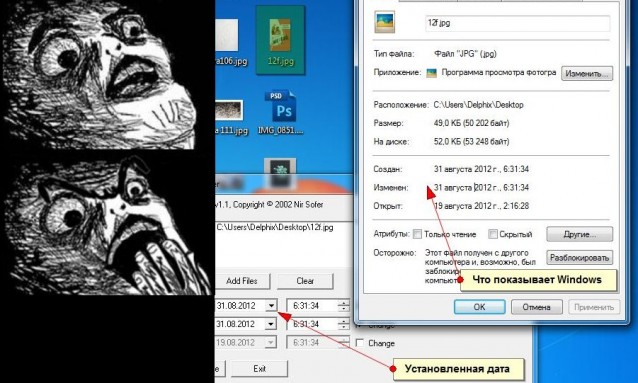
Программа Нира Софера была написана в 2002 году и с тех пор особо не менялась. ПО позволяет менять дату создания, дату изменения и дату открытия файла или нескольких файлов на данном ПК, а также время этих действий.
Интерфейс программы элементарный, но на английском. Вот пример того, как можно получить файл из «будущего» (кто не помнит, сегодня — 19 августа 2012 года от РХ):
Ссылка на программу — File data changer
Set File date 2.0
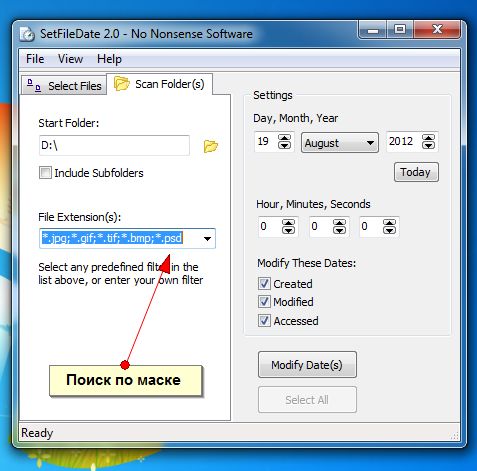
Ещё одна программа для изменения даты создания файла называется Set File Date производства компании No Nonsence Software более продвинутая и имеет даже инсталляционный файл (setup который).
В отличие от FDC может искать файлы в заданном каталоге по маске расширений (картинки, музыку, документы, сохранённые вебстраницы). Чтобы задать свою маску пишите её по аналогии с поиском Windows, например поиск по маске «*.cdr» найдёт все файлы программы Corel Draw:
Ссылка на программу — Set File Date 2.0
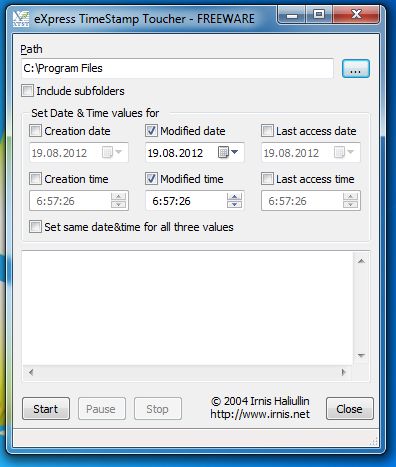
eXpress Timestamp Toucher
Ещё одна миниатюрная программа, которая не требует установки. Поможет выполнять поиск всех файлов в папке, включая подпапки. Для поиска нельзя использовать маску, но в отличие от SFD может сразу три показателя разными значениями — отдельно дата и время создания, открытия и изменения:
Ссылка на программу ExpressTT
Все три программы бесплатные.
Способ изменения даты создания и времени доступа к файлу на Ubuntu Linux
Блог Usefree.com.ua дал способ изменения даты и времени файла в Linux подобных системах. Вот инструкции:
Например, нужно установить последний доступ в 19.06.2010 в 12 часов 43 минуты и 35 секунд всех файлов и папок в папке в linux.
Для этого нужно перейти в эту папку в терминале:
cd /some/folder
и выполнить команду:
touch -t 201006191243.35 *
Программа для изменения даты и времени файла Mac
Для макинтош также есть подобная утилита — A better finder atrributes 5.18 для MacOS 10.7. Правда стоит она — 15 долларов.
Ссылка на программу BFA 5.18
Main
Top
Interesting
500 ideas
Help
Follow us:
-
Follow us on Vkontakte
-
Follow us on Telegram
-
Follow us on Pinterest
-
Follow us on Odnoklassniki
Applications
-
iOS
-
Android
-
Huawei
COMPANY
-
About
-
News
-
Help
PRODUCTS
-
Checklists
-
Button «Share»
-
Media program
COMMUNITY
-
Afisha LJ
-
Frank
-
Stylish merch
CHOOSE LANGUAGE
-
Privacy Policy
-
User Agreement
-
Help
LiveJournal — v.637.1
?
LiveJournal
Top
 ru_mac
—
189 position in common rating
-
Readability
-
 ru_mac
189 position in common rating
Archive
Filter by author
Readability

Log in
No account?
Create an account
Remember me
Forgot password
If this type of authorization does not work for you, convert your account using the link
-

-
tribal_sky wrote in ru_mac
December 4 2010, 13:08
 tribal_sky
Изменить дату создания файла
Можно как нибудь поменять дату создания и изменения файла на дату из будущего? A Better Finder Attributes не может так сделать, может есть какой то другой софт для этого или команда в терминале?
os x (системные вопросы)
Как изменить дату создания файла. Щелкнув файл правой кнопкой мыши и получив доступ к его свойствам, мы можем найти много интересной информации: дату его создания, дату последнего открытия или изменения и многое другое. Может быть, не все это знают, но можно произвольно изменять некоторые из этих свойств, эффективно маскируя фактические даты создания или изменения файла.
Надо сказать, что это не этически корректная операция, но в некоторых случаях она может быть полезной, и поэтому сегодня я здесь, чтобы объяснить, как это делать.
Если вы хотите знать, как изменить дату создания файла, все, что вам нужно сделать, это следовать моим инструкциям. Ниже приведены некоторые применения а также некоторые команды терминала, которые позволяют изменять дату создания и / или дату модификации файла чрезвычайно простым и быстрым способом.
Индекс
- 1 Как изменить дату создания файла в Windows
-
- 1.0.1 Изменить дату создания
- 1.0.2 Прочие изменения
-
- 2 Изменить дату создания файла на Mac
Как изменить дату создания файла в Windows
Если хочешь изменить дату создания файла и вы используете ПК с Windows, я рекомендую вам связаться с BulkFileChanger Это бесплатное и переносимое приложение (то есть не требующее утомительных процедур установки), которое позволяет изменять дату создания, изменения и дату последнего доступа к любому типу файла. Поддерживает создание старых дат и установку будущих дат, что делает его полезным для любых целей.
Чтобы загрузить BulkFileChanger на свой компьютер, подключитесь к его официальному сайту и нажмите на одну из ссылок, расположенных в нижней части страницы: Скачать BulkFileChanger (в файле ZIP) если вы используете Операционная система 32-битный или Загрузите BulkFileChanger из 64 биты (В Почтовый файл) Если вы используете 64-разрядную операционную систему.
После завершения загрузки откройте почтовый файл вы только что загрузили, извлеките содержимое в папку по вашему выбору и запустите исполняемый файл Массовый обмен файлами.ехе.
В открывшемся окне нажмите на желтый значок папки, расположенный в верхнем левом углу ( Добавить файлы ) и выберите файлы, для которых вы хотите изменить дату создания, последнего доступа или изменения.
На этом этапе используйте мышь для выбора файлов в окне BulkFileChanger (чтобы выбрать все файлы, удерживайте левую кнопку мыши и перетащите указатель на значки), выберите параметр Изменить время / атрибуты Меню действия расположите сверху и приступайте к желаемым изменениям.
Изменить дату создания
Если вы хотите изменить только дату создания файлов, поставьте галочку рядом с элементом созданный, напишите в соседнем текстовом поле дату создания, которую вы хотите связать с последним, и нажмите кнопку сделать это для Guardar перемены.
Если вы также хотите изменить время создания файла, установите флажок рядом с полем времени (расположенном рядом с полем даты) и примените желаемые изменения.
Чтобы изменить даты последнего изменения и последнего доступа, вы можете выполнить ту же процедуру, однако поставьте галочку рядом с пунктами. модифицированный y Консультировался.
Прочие изменения
Вы хотите изменить дату создания, изменения или дату последнего доступа для всех файлов определенного типа, содержащихся в одной папке (например, все файлы PDF содержится в папке с рабочими файлами)? Нет проблем, с BulkFileChanger вы тоже можете.
Процедура, которой вы должны следовать, очень проста. После запуска BulkFileChanger, вам нужно нажать на иконку желтая папка со звездочкой в центре расположен в верхнем левом углу, вы должны нажать на кнопку (…) и вы должны выбрать папку, в которой находятся файлы, которые вы хотите изменить свойства.
Тогда нужно убрать последнюю звездочку ( * ) находится в текстовом поле, расположенном в центре окна, вы должны заменить его на расширение файла, которое вы хотите изменить (например, PDF ) и вы должны нажать на кнопку принять. Теперь следуйте описанной выше процедуре, чтобы изменить дату создания, изменения или открытия файлов, и все готово.
После использования BulkFileChanger, чтобы проверить изменение даты создания, открытия или изменения файла, щелкните по нему правой кнопкой мыши и выберите пункт собственность из появившегося меню. В открывшемся окне у входа в Дата создания, Последнее изменение y Последний вход Вы должны найти даты, которые вы установили в BulkFileChanger.
Изменить дату создания файла на Mac
Использовать Мак ? В этом случае вы можете изменить дату создания и последнего изменения файла, просто используя тот же терминал. Это означает, что вам не нужно устанавливать сторонние приложения и вы можете сделать все очень быстро.
Единственная проблема заключается в том, что вы не можете установить даты после сегодняшнего дня в качестве даты создания. Однако для даты последнего изменения нет проблем, вы также можете использовать будущие даты.
Чтобы изменить дату создания файла, откройте терминал macOS, выбрав значок папки больше с панели запуска. Затем введите команду touch -t AAAAMMGGhhmm поставить один пустое место, перетащите в Терминал значок файла, дату создания которого вы хотите изменить, и нажмите Enter, чтобы сохранить изменения.
Формат команды touch -t AAAAMMGGhhmm утверждает, что вместо АААА, MM y GG есть год, месяц и день создания, который вы хотите установить для файла, а не hh y mm время выражается в часах и минутах.
Например, чтобы изменить дату создания файла, настроив его в Январь 1 1989 вы должны использовать команду touch -t 198901010800 /percorsofile/nomefile.xyz, Важно поставить пробел между датой и путем к файлу.
Использование команды Touch -T дата создания и дата последнего изменения файла изменяются одновременно. Чтобы изменить только дату последней модификации файла, оставив дату создания без изменений, используйте команду коснуться -mt (Формат, который будет использоваться для даты и пути изменяемого файла, остается таким же, как описано выше).
После изменения, чтобы выяснить, действительно ли дата создания и / или изменения файла действительно изменилась, щелкните значок соответствующего файла и нажмите комбинацию клавиш. CMD + I в клавиатура Mac, чтобы открыть окно со свойствами выбранного объекта. Даты создания и последнего изменения указаны в поле Генеральная окна, которое открывается.
При желании вы также можете изменить дату создания или последнего изменения всех файлов в папке. Для этого все, что вам нужно сделать, это использовать приведенные выше команды, введя путь к папке, а не к файлу в конце команды (например, touch -t 198901010800 /percorso/). Для ускорения операции рекомендую запись команда Touch -T o коснуться -mtдата создания или изменения, которая будет применяться к файлам в папке и копировать значок папки непосредственно в окне терминала (оставляя пустое пространство между датой и путем).
Наконец, я отмечаю, что с помощью команды touch -t AAAAMMGGhhmm /percorso/*.xyz или команда touch -mt AAAAMMGGhhmm /percorso/*.xyz Вы можете изменить дату создания или изменения всех файлов определенного типа, присутствующих в той же папке (вместо хуг Вы должны ввести расширение типа файла, который вы хотите изменить, например, touch -t AAAAMMGGhhmm /percorso/*.pdf изменить только дату создания PDF файлы). Легко, правда?
Screenshots
Change’s a files and folders modified and created date time.
Simple to use.
set the modified date and or created date.
set the modified time and or created time.
then drop a file/s or folder onto the app.
Folder processing options, allow just the folder you drop to be process or set the folder depth to the depth required, to process all subfolders set dir depth to 0.
What’s New
Added support to change folder dates
Ratings and Reviews
Very efficient, once you learn it
It does exactly what it says on the tin. As another reviewer mentioned, the app features no «confirm» button. You set up your changes first – you can choose to modify modified and/or creation (or sync them with the same change), date and/or time, and directory depth (you probably want this higher than the default value of 1). Then drag in any and all files whose dates you want to change.
The downside of this approach is it’s a little unusual. The upside is you can make changes very quickly, using the keyboard to quickly change values before dragging in the next batch of files, and never having to stop to hit a button. Having used it on close to 300 files and directories now, I’m not sure it’s a bad method.
Thanks for the review.
Unexpectedly helpful, in more ways than one
I expected File Date Modifier to be something I’d use on occasion. I wound using it every day, often a number of times every day. I use it to change dates so groups of files appear together, in order, when I open a folder and sort it by date. Like most people, I get distracted, I multitask, files get saved (webloc browser files, for example) to my desktop in chaotic fashion. I keep an alias of my Desktop folder on my desktop, so I can open it quickly and see all the files I’ve piled up on my desktop, but in a nice clean list. I can then find related files that are out of chronological order, set File Date Modifier to the desired date and time to fix that, and, one by one (or however many), drag them onto File Date Modifier, and, bingo, they’re all reset to the desired time to appear when listed in the desired chronological order.
Also surprisingly helpful has been its developer … at least compared to a few others I’ve had occasion to contact. Shaun not only responded very quickly to a suggestion I sent him, but he actually implemented it. I’ve had others tell me my suggestion was a great idea, that they would add it to their next release, but they never do. Shaun did. I’m still impressed.
It Works
It’s a lot easier to use this than entering Terminal commands.
However, the date and time picker sometimes o NOT accept double-digit entries. Fortunately, as I read in another review, you can simply use the arrow keys on your keyboard to increment to the value you want.
Otherwise, it has a very clear interface and good granularity for both modified as well as created dates and times.
App Privacy
The developer, Shaun Hirst, indicated that the app’s privacy practices may include handling of data as described below. For more information, see the developer’s privacy policy.
Data Not Collected
The developer does not collect any data from this app.
Privacy practices may vary, for example, based on the features you use or your age. Learn More
Information
- Seller
- Shaun Hirst
- Size
- 3.6 MB
- Category
-
Utilities
- Compatibility
-
- Mac
- Requires macOS 10.13 or later.
- Age Rating
- 4+
- Copyright
- © Creakyhat
- Price
- $0.99
-
App Support
-
Privacy Policy
-
App Support
-
Privacy Policy
Supports
-
Family Sharing
Up to six family members can use this app with Family Sharing enabled.

More By This Developer
