
В этом руководстве мы покажем вам различные способы исправления ошибки запуска планировщика заданий со значением 2147943785 в Windows 11. С каждой новой итерацией ОС мы видим, что добавляется довольно много новых функций, а некоторые удаляются. Тем не менее, некоторым из них удалось остаться на плаву и в трудные, и в трудные времена. Одной из них является функция планировщика заданий, которая впервые появилась в Windows 95 и до сих пор присутствует в последней сборке Windows 11.
Что касается сценария использования, это один из самых полезных инструментов для автоматизации задач, которые должны выполняться в заранее определенные сроки. Вы можете либо создать свою собственную задачу и поручить ей запустить нужную программу и сценарий в определенное время, либо настроить и отредактировать те, которые созданы вашей системой или различными сторонними приложениями. Однако, несмотря на все приложенные плюсы, он не свободен от своей доли проблем.
На данный момент различные пользователи выразили обеспокоенность по поводу того, что они получают сообщение «Планировщик заданий не смог запустить задачу «Name» для пользователя «Domainusername». Дополнительные данные: Значение ошибки: 2147943785» Значение ошибки 2147943785 на их ПК с Windows 11. Если вы тоже находитесь в одной лодке, то это руководство расскажет вам о нескольких изящных обходных путях решения этой проблемы. Следуйте вместе.
Рекомендуется попробовать каждый из перечисленных ниже обходных путей, а затем посмотреть, какой из них принесет вам успех. Итак, имея это в виду, давайте начнем.
ИСПРАВЛЕНИЕ 1. Назначение управления правами пользователей
Единственной самой большой причиной этой ошибки является тот факт, что ваша учетная запись может не иметь правильного назначения прав пользователя. Итак, давайте назначим его вашей учетной записи, используя приведенные ниже инструкции:
- Для начала включите локальную политику безопасности на ПК с Windows 11.
- Затем перейдите в меню «Пуск» и запустите локальную политику безопасности.
- После этого перейдите в «Локальные политики» > «Управление правами пользователей» в меню слева.
- Теперь дважды щелкните политику «Вход в систему как пакетное задание» с правой стороны.
- Затем нажмите Добавить пользователя или группу.
- Введите имя своей учетной записи и нажмите «Проверить имена».
- Теперь должно появиться имя вашей учетной записи. Нажмите «ОК».
- Проверьте, исправляет ли он, что планировщик заданий не смог запустить значение ошибки 2147943785 в Windows 11.
ИСПРАВЛЕНИЕ 2. Остановите существующий экземпляр задачи
В некоторых случаях запланированная задача может быть повреждена и, в свою очередь, может вызвать ошибку, с которой мы сейчас имеем дело. Чтобы исправить это, вам придется остановить существующий экземпляр этой задачи, а затем позволить ему запустить новый с нуля. Вот как это можно сделать
- Для начала запустите планировщик заданий из меню «Пуск».
- Затем щелкните правой кнопкой мыши задачу, вызывающую эту проблему, и выберите «Свойства».
- После этого перейдите на вкладку «Настройки» и выберите «Остановить существующий экземпляр» в раскрывающемся меню.
- Наконец, нажмите OK, чтобы сохранить изменения. Теперь попробуйте снова выполнить задачу, которая ранее показывала эту ошибку. На этот раз ошибок не будет.
Таким образом, это были два разных метода исправления того, что планировщик заданий не смог запустить значение ошибки 2147943785 в Windows 11. Сообщите нам, какой из них сработал в вашу пользу. Кроме того, все ваши вопросы приветствуются в разделе комментариев ниже.
- Remove From My Forums

Task Scheduler failed to start — Additional Data: Error Value: 2147943785
-
Question
-
Hi,
Scheduled job failes with the below error message.
«Task Scheduler failed to start «<task.name>» task for user «<domainusername>». Additional Data: Error Value: 2147943785.»
Last logon Result;
Logon failure:the user has not been granted requested logon type at thi computer. (0x80070569).
Could any help me fix this.
Thanks
Mahesh
Answers
-
Hi
This problem may occur if the task account doesn’t have «logon as a batch job» privilege. Click Start, type «gpedit.msc», try to configure the following policy:
[Computer ConfigurationWindows SettingsSecurity SettingsLocal PoliciesUser Rights Assignment]
-Log on as a batch job.Add the domainusername account and any others you may need.
Retry the task.
If you find you can’t change the security options locally then there might be a group policy that is setting this at the domain or ou level.
Cheers
Douks
-
Marked as answer by
Wednesday, April 11, 2012 5:50 AM
-
Marked as answer by
-
Hello,
As some supplements to Douks’s reply, I also found that this error might occur when the security policy settings prevent the user from logging on using a local user account.
Open gpedit.msc, Admin tools -> Local Security Policy -> User rights Assignnment -> Allow Local login. Please add the account that you configured for the task. Please try and let us know the result.
Thanks
Zhang-
Marked as answer by
Boo_MonstersInc
Wednesday, April 11, 2012 5:50 AM
-
Marked as answer by
- Remove From My Forums
Task Scheduler failed to start — Additional Data: Error Value: 2147943785
-
Question
-
Hi,
Scheduled job failes with the below error message.
«Task Scheduler failed to start «<task.name>» task for user «<domainusername>». Additional Data: Error Value: 2147943785.»
Last logon Result;
Logon failure:the user has not been granted requested logon type at thi computer. (0x80070569).
Could any help me fix this.
Thanks
Mahesh
Answers
-
Hi
This problem may occur if the task account doesn’t have «logon as a batch job» privilege. Click Start, type «gpedit.msc», try to configure the following policy:
[Computer ConfigurationWindows SettingsSecurity SettingsLocal PoliciesUser Rights Assignment]
-Log on as a batch job.Add the domainusername account and any others you may need.
Retry the task.
If you find you can’t change the security options locally then there might be a group policy that is setting this at the domain or ou level.
Cheers
Douks
-
Marked as answer by
Wednesday, April 11, 2012 5:50 AM
-
Marked as answer by
-
Hello,
As some supplements to Douks’s reply, I also found that this error might occur when the security policy settings prevent the user from logging on using a local user account.
Open gpedit.msc, Admin tools -> Local Security Policy -> User rights Assignnment -> Allow Local login. Please add the account that you configured for the task. Please try and let us know the result.
Thanks
Zhang-
Marked as answer by
Boo_MonstersInc
Wednesday, April 11, 2012 5:50 AM
-
Marked as answer by
I’m trying to schedule my C# program to run on Windows scheduler. I’m using, Windows 7 Professional.
I can create the task security options set to run whether or not the user is logged in, gave it high privileges, it is to launch an exe on a remote path which I have access to.
«Error Value: 2147943785» your help would be much appreciated.
Here’s the XML for the error
- <Event xmlns="http://schemas.microsoft.com/win/2004/08/events/event">
- <System>
  <Provider Name="Microsoft-Windows-TaskScheduler" Guid="{DE7B24EA-73C8-4A09-985D-          5BDADCFA9017}" />
  <EventID>101</EventID>
  <Version>0</Version>
  <Level>2</Level>
  <Task>101</Task>
  <Opcode>101</Opcode>
  <Keywords>0x8000000000000001</Keywords>
  <TimeCreated SystemTime="2013-01-10T12:44:20.882178000Z" />
  <EventRecordID>51522</EventRecordID>
  <Correlation />
  <Execution ProcessID="652" ThreadID="1892" />
  <Channel>Microsoft-Windows-TaskScheduler/Operational</Channel>
  <Computer>pcb.co.za</Computer>
  <Security UserID="S-1-5-18" />
  </System>
- <EventData Name="TaskStartFailedEvent">
  <Data Name="TaskName">Naedo</Data>
  <Data Name="UserContext">DomaninUser31r</Data>
  <Data Name="ResultCode">2147943785</Data>
  </EventData>
  </Event>

Lewis Norton
6,7911 gold badge19 silver badges28 bronze badges
asked Jan 10, 2013 at 13:41

The user that is configured to run this scheduled task must have «Log on as a batch job» rights on the computer that hosts the exe you are launching. This can be configured on the local security policy of the computer that hosts the exe. You can change the policy (on the server hosting the exe) under
Administrative Tools -> Local Security Policy -> Local Policies ->
User Rights Assignment -> Log On As Batch Job
Add your user to this list (you could also make the user account a local admin on the machine hosting the exe).
Finally, you could also simply copy your exe from the network location to your local computer and run it from there instead.
Note also that a domain policy could be restricting «Log on as a batch job» rights at your organization.
answered Jan 10, 2013 at 13:50

JesseJesse
1,4861 gold badge9 silver badges13 bronze badges
8
Had the same issue but mine was working for weeks before this. Realised I had changed my password on the server.
Remember to update your password if you’ve got the option selected ‘Run whether user is logged on or not’
answered Apr 11, 2018 at 8:40

Dan WittzDan Wittz
3012 silver badges2 bronze badges
1
Just adding this for anyone with the same problem as me, I was getting the «Task Start Failed» error because I had changed my Windows password so I had to open the task properties and save with the new password.
answered May 7, 2021 at 8:17

Teo J.Teo J.
4266 silver badges9 bronze badges
Had the same issue today. I added the user to:
Administrative Tools -> Local Security Policy -> Local Policies -> User Rights Assignment -> Log on as a batch job
But was still getting the error. I found this post, and it turns out there’s also this setting that I had to remove the user from (not sure how it got in there):
Administrative Tools -> Local Security Policy -> Local Policies -> User Rights Assignment -> Deny log on as a batch job
So just be aware that you may need to check both policies for the user.
answered Jun 11, 2020 at 19:24

deadlydogdeadlydog
21.8k14 gold badges106 silver badges117 bronze badges
2
I have the same today on Win7.x64, this solve it.
Right Click MyComputer > Manage > Local Users and Groups > Groups > Administrators double click > your name should be there, if not press add…
answered Dec 9, 2016 at 18:49

ZakariZakari
4054 silver badges15 bronze badges
I have changed the method of execution of the task and now it performs it without problems

answered Aug 4, 2021 at 8:27

I’m trying to schedule my C# program to run on Windows scheduler. I’m using, Windows 7 Professional.
I can create the task security options set to run whether or not the user is logged in, gave it high privileges, it is to launch an exe on a remote path which I have access to.
«Error Value: 2147943785» your help would be much appreciated.
Here’s the XML for the error
- <Event xmlns="http://schemas.microsoft.com/win/2004/08/events/event">
- <System>
  <Provider Name="Microsoft-Windows-TaskScheduler" Guid="{DE7B24EA-73C8-4A09-985D-          5BDADCFA9017}" />
  <EventID>101</EventID>
  <Version>0</Version>
  <Level>2</Level>
  <Task>101</Task>
  <Opcode>101</Opcode>
  <Keywords>0x8000000000000001</Keywords>
  <TimeCreated SystemTime="2013-01-10T12:44:20.882178000Z" />
  <EventRecordID>51522</EventRecordID>
  <Correlation />
  <Execution ProcessID="652" ThreadID="1892" />
  <Channel>Microsoft-Windows-TaskScheduler/Operational</Channel>
  <Computer>pcb.co.za</Computer>
  <Security UserID="S-1-5-18" />
  </System>
- <EventData Name="TaskStartFailedEvent">
  <Data Name="TaskName">Naedo</Data>
  <Data Name="UserContext">DomaninUser31r</Data>
  <Data Name="ResultCode">2147943785</Data>
  </EventData>
  </Event>
Lewis Norton
6,7911 gold badge19 silver badges28 bronze badges
asked Jan 10, 2013 at 13:41
The user that is configured to run this scheduled task must have «Log on as a batch job» rights on the computer that hosts the exe you are launching. This can be configured on the local security policy of the computer that hosts the exe. You can change the policy (on the server hosting the exe) under
Administrative Tools -> Local Security Policy -> Local Policies ->
User Rights Assignment -> Log On As Batch Job
Add your user to this list (you could also make the user account a local admin on the machine hosting the exe).
Finally, you could also simply copy your exe from the network location to your local computer and run it from there instead.
Note also that a domain policy could be restricting «Log on as a batch job» rights at your organization.
answered Jan 10, 2013 at 13:50
JesseJesse
1,4861 gold badge9 silver badges13 bronze badges
8
Had the same issue but mine was working for weeks before this. Realised I had changed my password on the server.
Remember to update your password if you’ve got the option selected ‘Run whether user is logged on or not’
answered Apr 11, 2018 at 8:40
Dan WittzDan Wittz
3012 silver badges2 bronze badges
1
Just adding this for anyone with the same problem as me, I was getting the «Task Start Failed» error because I had changed my Windows password so I had to open the task properties and save with the new password.
answered May 7, 2021 at 8:17
Teo J.Teo J.
4266 silver badges9 bronze badges
Had the same issue today. I added the user to:
Administrative Tools -> Local Security Policy -> Local Policies -> User Rights Assignment -> Log on as a batch job
But was still getting the error. I found this post, and it turns out there’s also this setting that I had to remove the user from (not sure how it got in there):
Administrative Tools -> Local Security Policy -> Local Policies -> User Rights Assignment -> Deny log on as a batch job
So just be aware that you may need to check both policies for the user.
answered Jun 11, 2020 at 19:24
deadlydogdeadlydog
21.8k14 gold badges106 silver badges117 bronze badges
2
I have the same today on Win7.x64, this solve it.
Right Click MyComputer > Manage > Local Users and Groups > Groups > Administrators double click > your name should be there, if not press add…
answered Dec 9, 2016 at 18:49
ZakariZakari
4054 silver badges15 bronze badges
I have changed the method of execution of the task and now it performs it without problems
answered Aug 4, 2021 at 8:27
Содержание
- FIX: Task Scheduler Failed to Start Error Value 2147943785
- What Causes Task Scheduler Failed To Start Error Value 2147943785?
- Check for Account Status
- Assigning the User Right Assignment
- Configuring the Task Scheduler
- Additional data error value 2147943785
- Answered by:
- Question
- Answers
- Additional data error value 2147943785
- Answered by:
- Question
- Answers
- Additional data error value 2147943785
- Answered by:
- Question
- Answers
- Additional data error value 2147943785
- Лучший отвечающий
- Вопрос
- Ответы
- Все ответы
FIX: Task Scheduler Failed to Start Error Value 2147943785
The task scheduler failed to start error value 2147943785 is generally related to the permission issues. If you have ever tried to schedule a task using Windows Task Scheduler and it won’t run, then you may have come up with this error. It occurs due to the user does not have the User Rights Assignment which is Logged on as a batch job. This error pops up with a small message “Task Scheduler failed to start “Task Name” task for user “Domainusername”. Additional Data: Error Value: 2147943785”.
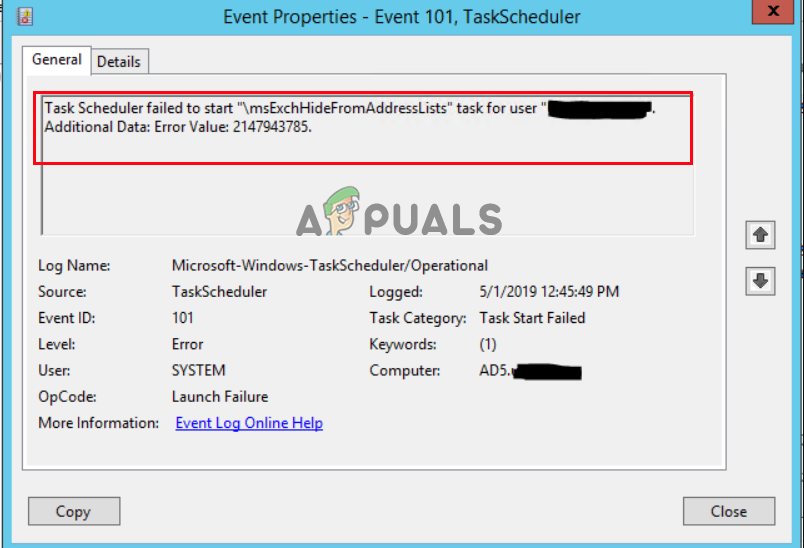 Task scheduler failed to start error value 2147943785
Therefore, we investigated it and found that Error 2147943785 is the denied permission error and is triggered when there is a mismatch with the permissions given. Fortunately, this is not as notorious as it seems and does not require performing complex troubleshooting steps. You can quickly fix the error by performing potential troubleshooting step-by-step instructions to get past the error. But before heading towards its potential solutions, let’s just first get to know about its culprits.
What Causes Task Scheduler Failed To Start Error Value 2147943785?
- Not Having User Right Assignment– It has been found that not having the user proper assignment is the main culprit of this error. When the user doesn’t have a proper login right then, the Windows Task Scheduler flashes this error message. Therefore, you must have proper user authority rights to avoid such errors.
- Change in User Password – In most instances, it has been recorded that this issue might also cause when there is a change in the password for the user that is meant to run the scheduled task. If this is the scenario, you can resolve the problem by configuring the task scheduler to stop the existing instance.
- The account is locked or deactivated – In many cases, it is seen that if in case the account is locked or not deactivated, then it starts causing issues, and you are likely to see Scheduled task failed to run and show the error message on the screen.
Now, as you are aware of the leading causes behind this error, you will be easily able to fix this error in no time.
Check for Account Status
The very first thing suggested to fix the error is to check for the Account status if it is expired or locked, or deactivated. So, if your account is locked or expired, it is most likely to cause issues when establishing connections, and, as a result, you cannot log in or access it.
So, it is suggested to check if all the tasks are running under your account and check if the account is locked or deactivated. Also, this is not good preparation for having user-based accounts when configuring the tasks. Despite this, you can also try creating the service account keen to the scheduled tasks and make the password never expire.
Assigning the User Right Assignment
It has been reported by the majority of users that assigning the User Right Assignment resolved the issue. So, if you are looking for a permanent and long-lasting solution, try considering using an “applicative” user. But if you use your own account, it might frequently change your password, which will result in applying this fix all over again. However, using an “applicative” account will help you to resolve the issue from its root.
To do so, follow the guided steps mentioned accordingly:
- Press Windows Key + R key to open the Run box and in the Run box type shell:common administrative tools command and hit Enter
- This will open the Administrative Tools window
- After that, look for the option Local Security Policy and tap on it.
 Local Security Policy
 - Under Local Security Policy, locate the User Rights Assignment option and click on it.
- Now select the option Log on as a batch job. Click on Logon as a batch job.
- Lastly, add the user to the list and save the changes.
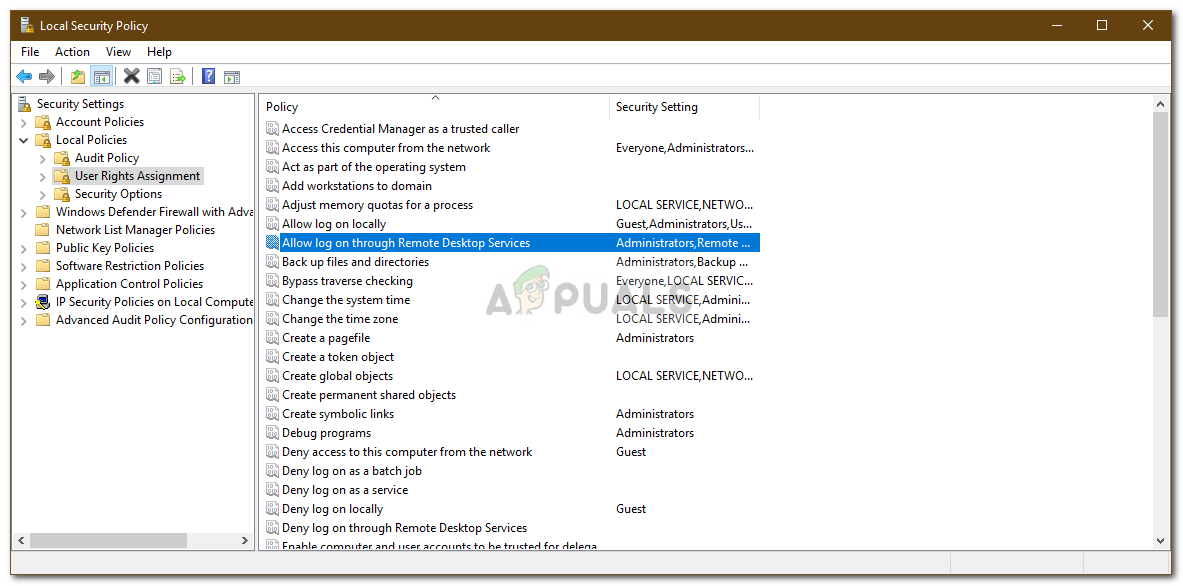 Local Security Policy
Moreover, you can also try the below-given steps to convey an applicative account for the task which is causing the error:
- Hold the Windows key + R key to launch the Run dialog box and in the Rub box, type “taskschd.msc” and hit Enter to open up the Task Scheduler utility.Type taskschd.msc in the Run to open Task Scheduler
- Then inside the Task Scheduler, head to the task generating the issue and right-clicks on it, and then choose Properties from the context menu. Viewing the properties of the affected task
- Next, in the Properties screen of the exaggerated task, choose the General tab. After that go to Security Options and then click the Change User or Group button. Changing the User or Group that is being used
- Afterward, inside the Select User or Group window option, type Users and click on the option Check Names for validating the applicative object name.
- And as the “Users” is altered to the correct address, click Ok to save the changes. Modifying the default user
- If you were asked for the authentication credentials, provide details for completing the operation.
- Repeat the process triggering the error earlier and then check if the error has been fixed.
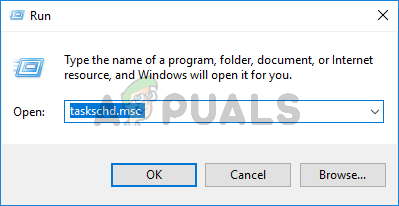 Type taskschd.msc in the Run to open Task Scheduler
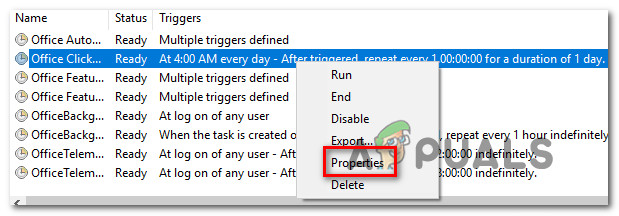 Viewing the properties of the affected task
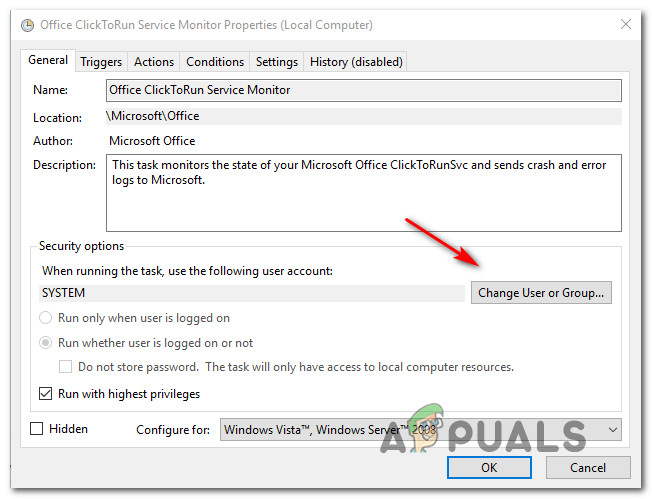 Changing the User or Group that is being used
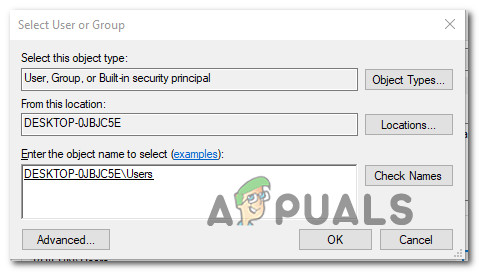 Modifying the default user
Now, if you are on the domain controller, you just need to do this on the Group Policy.
- Press Windows + R simultaneously and in the run box, type “gpedit.msc” and hit Enter. Open up the gpedit.msc utility
- Now head to the Computer Configuration window and choose the Windows Settings option.
- Next, you need to click on the Security Settings and the Local Policies option.
- Make approval on the User Rights Assignment options; log on as the batch job.
- Then add the domain, username account, and other information you require adding.
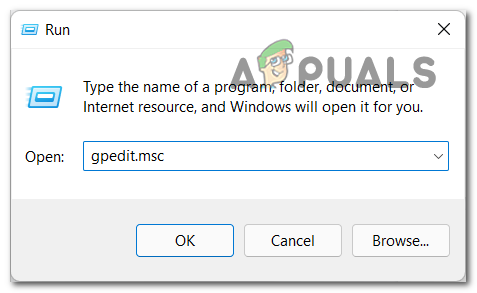 Open up the gpedit.msc utility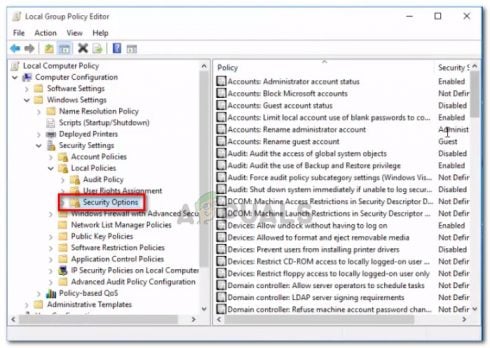
Check if the error is resolved, or head to the next possible solution. You can check our article on how to fix Task Scheduler Error Value 2147943726.
Configuring the Task Scheduler
As already discussed above, there might be instances where problems may cause due to password changes. So, if on being found that this is the exact cause applicable in your case, then try configuring the Task Scheduler to stop the existing instance.
Below is a quick guide to doing so:
- Open the Run Dialog by pressing the Win+R keys altogether. Then, type “taskschd.msc” on the box and hit Enter to launch Task Scheduler. Type taskschd.msc in the Run to open Task Scheduler
- Now on Task Scheduler, search for the task creating the problem. Once found, right-click on it and go for Properties. Viewing the properties of the affected task
- Under Properties, go for the Settings tab and change the drop-down menu at the bottom to Stop the existing instance.Changing task ending rule
- Now tap on OK, repeat the action previously causing the Task Scheduler Error Value 2147943785, and check if the issue has been resolved.
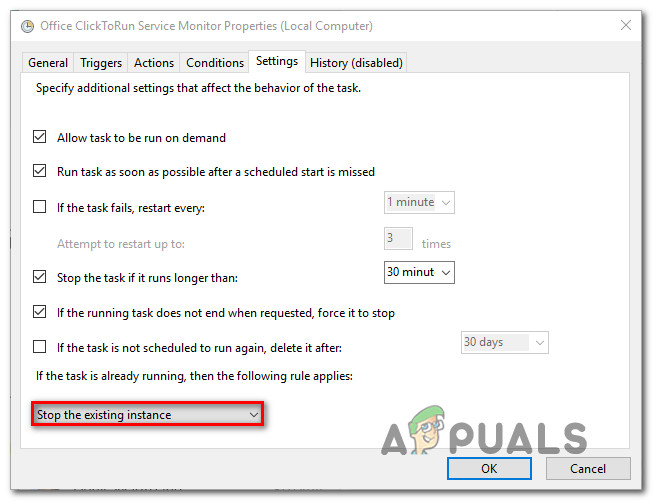 Changing task ending rule
Well, such errors are primarily temporary and won’t last long. However, at times they become annoying as they won’t allow you to schedule a task on the Windows Task Scheduler. So, such problems need to be resolved first-hand. Here it is suggested not to forget to update the policy via GPUPDATE/Force.
I hope you find this blog helpful as it covers the error’s most probable causes as well as the potential solutions to fix the problem of the task scheduler failing to start error value 2147943785.
Источник
Additional data error value 2147943785
This forum has migrated to Microsoft Q&A. Visit Microsoft Q&A to post new questions.
Answered by:

Question
Scheduled job failes with the below error message.
«Task Scheduler failed to start « » task for user » «. Additional Data: Error Value: 2147943785.»
Last logon Result;
Logon failure:the user has not been granted requested logon type at thi computer. (0x80070569).
Could any help me fix this.
Answers
This problem may occur if the task account doesn’t have «logon as a batch job» privilege. Click Start, type «gpedit.msc», try to configure the following policy:
[Computer ConfigurationWindows SettingsSecurity SettingsLocal PoliciesUser Rights Assignment]
-Log on as a batch job.
Add the domainusername account and any others you may need.
If you find you can’t change the security options locally then there might be a group policy that is setting this at the domain or ou level.
Источник
Additional data error value 2147943785
This forum has migrated to Microsoft Q&A. Visit Microsoft Q&A to post new questions.
Answered by:
Question
Scheduled job failes with the below error message.
«Task Scheduler failed to start « » task for user » «. Additional Data: Error Value: 2147943785.»
Last logon Result;
Logon failure:the user has not been granted requested logon type at thi computer. (0x80070569).
Could any help me fix this.
Answers
This problem may occur if the task account doesn’t have «logon as a batch job» privilege. Click Start, type «gpedit.msc», try to configure the following policy:
[Computer ConfigurationWindows SettingsSecurity SettingsLocal PoliciesUser Rights Assignment]
-Log on as a batch job.
Add the domainusername account and any others you may need.
If you find you can’t change the security options locally then there might be a group policy that is setting this at the domain or ou level.
Источник
Additional data error value 2147943785
This forum has migrated to Microsoft Q&A. Visit Microsoft Q&A to post new questions.
Answered by:
Question
Scheduled job failes with the below error message.
«Task Scheduler failed to start « » task for user » «. Additional Data: Error Value: 2147943785.»
Last logon Result;
Logon failure:the user has not been granted requested logon type at thi computer. (0x80070569).
Could any help me fix this.
Answers
This problem may occur if the task account doesn’t have «logon as a batch job» privilege. Click Start, type «gpedit.msc», try to configure the following policy:
[Computer ConfigurationWindows SettingsSecurity SettingsLocal PoliciesUser Rights Assignment]
-Log on as a batch job.
Add the domainusername account and any others you may need.
If you find you can’t change the security options locally then there might be a group policy that is setting this at the domain or ou level.
Источник
Additional data error value 2147943785

Лучший отвечающий
Вопрос
Создал gMSA, в качестве УЗ передал ей группу с серверами DC, учетной записи gMSA выдал права Domain Admins, установил УЗ на сервере, подготовил скрипт powershell, создал задачу в планировщике заданий на DC, пытаюсь запустить её и получаю следующую ошибку:
Task Scheduler failed to start «TASK» task for user «DOMAINACCOUNTNAME$». Additional Data: Error Value: 2147943785.
Поскольку по подобной ошибке говорят на просторах интернета, что необходимо включить через политику «Log on as a batch job», сделал и это, но ничего не изменилось, ошибка та же, хотя права Domain Admins / Administrators должны подразумевать это право.
Может кто сталкивался с этой проблемой, знает, как её решить?
Ответы
Вот еще, что удалось найти: Server 2012 R2 domain controller backup using Windows Server Backup with gMSA fails — Put gMSAs in the «Log on as a Service» node if using them in scheduled tasks to get around the «Error Value: 2147943785» issue.
Если Вам помог чей-либо ответ, пожалуйста, не забывайте жать на кнопку «Предложить как ответ» или «Проголосовать за полезное сообщение» Мнения, высказанные здесь, являются отражение моих личных взглядов, а не позиции корпорации Microsoft. Вся информация предоставляется «как есть» без каких-либо гарантий.
Все ответы
Некоторые пишут, что еще в добавок надо изключить из — Administrative Tools -> Local Security Policy -> Local Policies -> User Rights Assignment -> Deny log on as a batch job, так как иногда еще туда включается пользователь.
Если Вам помог чей-либо ответ, пожалуйста, не забывайте жать на кнопку «Предложить как ответ» или «Проголосовать за полезное сообщение» Мнения, высказанные здесь, являются отражение моих личных взглядов, а не позиции корпорации Microsoft. Вся информация предоставляется «как есть» без каких-либо гарантий.
Сейчас думаю, а как можно проверить, что УЗ gMSA действительно работает?
Через psexec не получается получить к ней доступ, выполняя команду
.PsExec64.exe -i -u domaingMSAAccount$ -p
Выдаётся ошибка:
PsExec could not start cmd.exe on Server:
Logon failure: the user has not been granted the requested logon type at this computer
Процесс создания gMSA был таков:
1) New-ADGroup ServerGroup -path ‘OU=Managed Service Accounts Groups,DC=domain,DC=loc’ -GroupScope Global -PassThru -Verbose
2) Add-AdGroupMember -Identity ServerGroup -Members Server1, Server2, Server3
3) New-ADServiceAccount -Name gMSAAccount -DNSHostName gMSAAccount.domain.loc -PrincipalsAllowedToRetrieveManagedPassword gMSAAccount -verbose
Хотя при выполнении на сервере команды
Test-ADServiceAccount gMSAAccount
Источник
Планировщик задач код ошибки 2147943645
Исходные данные: Windows Server 2012R2 или Windows Server 2008, необходимо запускать Powershell скрипт раз в неделю в воскресение. Мы создаем задание, сохраняем его и при нажатии кнопки ОК в планировщике заданий вы получаете ошибку 2147943785. В английской версии операционной системы ошибка звучит как — Task Scheduler failed to start …….. Additional Data: Error Value: 2147943726.

Ошибка запуска планировщика 2147943785 решение №1
Учетная запись из под которой вы запускаете задание должна входить в группу локальных администраторов сервера (группа Администраторы в русской версии или Administrators в Английской.
Ошибка запуска планировщика 2147943785 решение №2 ( Task Scheduler)
Учетной записи, из под которой запускается задание не хватает прав для запуска заданий. Есть два варианта как решить эту проблему:
Ошибка запуска планировщика 2147943785 решение №2 ( Task Scheduler) решение 3.
Вероятно у учетной записи из под которой вы запускает задание сменился или истек пароль.
Решение: Проверить пароль, при необходимости сбросить его или разблокировать учетную запись.
.The next windows task scheduler error we’re going to talk about today is “2147943645”. Any user can encounter this error while their task is running smoothly and this is mainly due to some settings that have been altered.
The error message received is “Task Scheduler failed to start “YourScript” task for user “yourUser”. Additional Data: Error Value: 2147943645.

task scheduler 2147943645
Some users try some trick to export and import the task again with a different name but still it doesn’t execute the task as required. It just shows that there is something wrong with your windows task manager configuration. The error message doesn’t say much about the problem. When you analyze the scheduled task you’ll notice that the task is still running but isn’t executing.
Task Scheduler Error 2147943645 – How to FIX
What’s The Cause Of These Error?
Most of the time it’s due to the change of user domain, IT management support can change your user access at any time. Initially, the task is running successfully and then suddenly you start receiving the error message. That means someone probably change the user domain. Let’s outline the possible fixes to the problem to help you clear the problem fast.
How To Fix Windows Task Scheduler Error 2147943645?
Change Your Configurations In Windows Task Scheduler
When you’re facing this error chances are you’re trying to run the job with the option “only when the user is logged on”. You need to change that from windows scheduler.
So go ahead and check windows task scheduler properties and under general tab you’ll notice a sentence that says ‘when running the task, use the following user account’. You need to change the option that says ‘run only when user is logged on’. The proper option you should choose is ‘run whether user is logged on or not’
If you’re still logged in as the configured user you don’t need to change this setting, you might need to try another fix which we’ll also share in a moment.
Other Additional Solutions:
If you however still like to leave the option as ‘run only when user is logged on’ you can try this trick that work for some people; Click on ‘change user’ and select yourself again, save your options and if you’re lucky it will work. If there are other people who are accessing your Pc, chances are someone had changed the SID, this happens especially computer accessed by IT staffs during management. Also if you’ve changed your login credentials this error will show up. You need to still go back and change to the new user id you’ve created in windows task scheduler.
So in a nutshell here is how to ensure the problem is fixed;
These few fixes have helped a lot of people solve the problem about task scheduler error 2147943645 and we believe it will rectify the problem for you as well. So give them a try and let us know how things have worked for you in the comment box below.
Как исправить значение ошибки планировщика заданий 2147943726

Значение ошибки планировщика заданий 2147943726
Что вызывает ошибку значения планировщика заданий 2147943726?
Мы исследовали эту конкретную проблему, изучив различные пользовательские отчеты и стратегии исправления, которые обычно используются для решения этой конкретной проблемы. Как выясняется, есть несколько различных сценариев, которые могут вызвать это сообщение об ошибке в средстве просмотра событий:
Для достижения наилучших результатов мы рекомендуем вам следовать методам в том порядке, в котором они представлены, поскольку они упорядочены по эффективности и серьезности. Один из методов, приведенных ниже, должен решить проблему независимо от виновника, который ее вызвал.
Способ 1: переназначение пользователя на аппликативный аккаунт
Подавляющее большинство пользователей, которые столкнулись с этой проблемой, сообщили, что проблема была решена после того, как они переназначили пользователя в разделе ( Изменить пользователя или группу ) на последнюю информацию о Active Directory пользователя.
Если вы хотите долгосрочного решения, рассмотрите возможность использования «аппликативного» пользователя вместо обычного пользователя, который может меняться чаще и чаще. В случае, если вы используете свою учетную запись, она может менять ваш пароль время от времени, а это значит, что вам нужно будет снова применить это исправление.
Но если вы используете «аппликативную» учетную запись, скорее всего, исправление будет продолжаться до следующей установки Windows.
Вот краткое руководство по назначению аппликативной учетной записи для задачи, которая вызывает ошибку:


Если проблема все еще не решена, перейдите к следующему способу ниже.
Способ 2: настройка задачи для остановки существующего экземпляра
Если проблема вызвана изменением пароля (для пользователя, который должен запустить запланированное задание). Подавляющее большинство пользователей, которые столкнулись с этой проблемой, сообщили, что им удалось решить ее, настроив планировщик задач для остановки существующего экземпляра в конце цикла.
Источники:
https://systemdays. com/2020/01/22/%D0%BE%D1%88%D0%B8%D0%B1%D0%BA%D0%B0-%D0%B7%D0%B0%D0%BF%D1%83%D1%81%D0%BA%D0%B0-%D0%B7%D0%B0%D0%B4%D0%B0%D0%BD%D0%B8%D1%8F-%D0%BF%D0%BB%D0%B0%D0%BD%D0%B8%D1%80%D0%BE%D0%B2%D1%89%D0%B8%D0%BA%D0%B0-2147/
https://www. get-itsolutions. com/task-scheduler-error-2147943645/
https://ru. aapionline. org/kak-ispravit-znachenie-oshibki-planirovshika-zadanii-2147943