
Перейти к содержанию
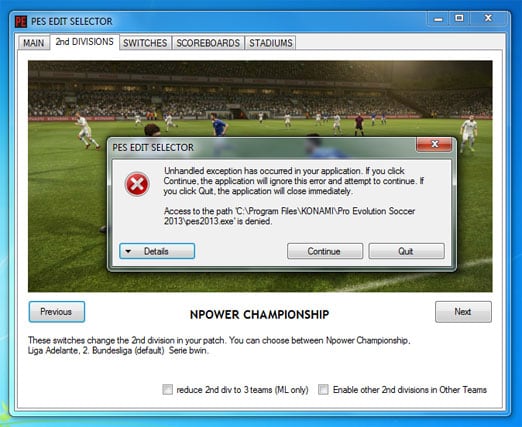
При запуске различных программ пользователь может встретиться с сообщением «Unhandled exception has occurred in your application», после чего программа обычно просит нажать на кнопку «Continue» для продолжения работы. При этом после нажатия на данную кнопку приложение обычно бывает закрыто. Данный материал призван помочь пользователю исправить эту ошибку, я расскажу, что это за проблема, и как каковы способы её решения на вашем ПК.
Содержание
- Суть проблемы Unhandled exception has occurred
- Как устранить ошибку
- Заключение
Суть проблемы Unhandled exception has occurred
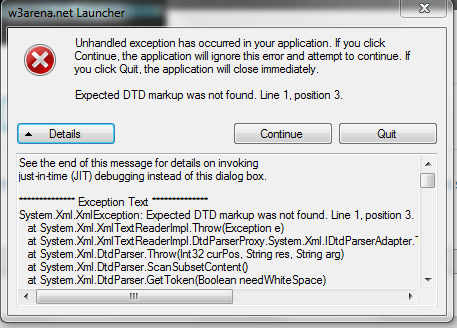
В переводе с английского данное сообщение выглядит как «В вашем приложении произошло необработанное исключение». Если вы нажмёте на «Continue», то приложение проигнорирует эту ошибку и попытается продолжить работу. Если вы нажмёте на «Quit», приложение будет немедленно закрыто».
Появление такого сообщения имеет широкую вариативность причин, связанную с повреждением файлов, обслуживающих работу приложения, а также с проблемами в их отлаженном функционале. Ошибку с сообщением Unhandled exception has occurred можно встретить как при запуске множества игр, так и при работе различных служебных приложений и других специализированных программ.
Как устранить ошибку
Чтобы исправить данную дисфункцию нужно сделать следующее:
- Перезагрузите ваш компьютер, иногда это помогает;
- Запускайте проблемное приложение с правами администратора, в некоторых случаях это оказалось эффективным;
- Проверьте вашу систему на наличие вирусов, иногда причиной возникновения данной дисфункции является повреждение зловредами тела программы. Используйте проверенные антивирусные программы уровня Dr.Web CureIt!, Trojan Remover и другие;
- Проведите восстановление программы NET Framework (зайдите в список установленных программ, найдите NET Framework, и, кликнув на неё дважды выберите «Repair»). После проведения процедуры восстановления попробуйте вновь запустить требуемое приложение;
- Переустановите приложение Visual C++, проблемы в его работе также могут вызывать проблему «Unhandled exception has occurred in your application»;
- Переустановите с нуля проблемное приложение, а также попробуйте другой взлом к нему (при пиратской версии);
- Загрузите ваш компьютер в безопасном режиме (safe mode) и попробуйте запустить приложение. Несмотря на то, что в данном режиме функционал системы существенно ограничен, для некоторых проблемных приложений это может быть хорошим лакмусом в выявлении корня проблемы. Если приложение запустилось, убедитесь в свежести драйверов для компонентов вашего ПК, а также проверьте, нет ли конфликтов между компонентами системы в диспетчере устройств;
- Если в безопасном режиме ошибка повторяется, тогда выполните чистую загрузку (clean boot) системы.
Как исправить ошибку в зависимости от вашей операционной системы описано здесь.
Заключение
Описываемая выше ошибка «Unhandled exception has occurred» имеет широкую вариативность причин своего возникновения. Очень часто в этом виноваты вирусные программы, а иногда программа плохо функционирует из-за некорректно произведённого взлома. Попробуйте весь список предложенных мной советов, один из них обязательно окажется для вас наиболее действенным и эффективным.
Опубликовано 05 октября 2016 Обновлено 02 февраля 2021
Содержание
- Unhandled exception has occurred in your application что делать?
- Суть проблемы Unhandled exception has occurred
- Как устранить ошибку
- Заключение
- Ошибка «В вашем приложении возникло необработанное исключение» — как исправить?
- В чем причина ошибки «Unhandled exception has occurred in your application» в Windows и что делать?
- Установка или устранение неисправностей в Microsoft.NET Framework
- Какие действия нужно выполнить для установки или восстановления Microsoft.NET Framework:
- Как выполнить безопасную загрузку?
- Выполните поиск неисправностей аппаратного обеспечения
- 5 способов исправить ошибку Application.exe в Windows 10 (01.15.23)
- YouTube видео: 5 способов исправить ошибку Application.exe в Windows 10
Unhandled exception has occurred in your application что делать?
При запуске различных программ пользователь может встретиться с сообщением «Unhandled exception has occurred in your application», после чего программа обычно просит нажать на кнопку «Continue» для продолжения работы. При этом после нажатия на данную кнопку приложение обычно бывает закрыто. Данный материал призван помочь пользователю исправить эту ошибку, я расскажу, что это за проблема, и как каковы способы её решения на вашем ПК.
Суть проблемы Unhandled exception has occurred
В переводе с английского данное сообщение выглядит как «В вашем приложении произошло необработанное исключение». Если вы нажмёте на «Continue», то приложение проигнорирует эту ошибку и попытается продолжить работу. Если вы нажмёте на «Quit», приложение будет немедленно закрыто».
Появление такого сообщения имеет широкую вариативность причин, связанную с повреждением файлов, обслуживающих работу приложения, а также с проблемами в их отлаженном функционале. Ошибку с сообщением Unhandled exception has occurred можно встретить как при запуске множества игр, так и при работе различных служебных приложений и других специализированных программ.
Как устранить ошибку
Чтобы исправить данную дисфункцию нужно сделать следующее:
- Перезагрузите ваш компьютер, иногда это помогает;
- Запускайте проблемное приложение с правами администратора, в некоторых случаях это оказалось эффективным;
- Проверьте вашу систему на наличие вирусов, иногда причиной возникновения данной дисфункции является повреждение зловредами тела программы. Используйте проверенные антивирусные программы уровня Dr.Web CureIt!, Trojan Remover и другие;
- Проведите восстановление программы NET Framework (зайдите в список установленных программ, найдите NET Framework, и, кликнув на неё дважды выберите «Repair»). После проведения процедуры восстановления попробуйте вновь запустить требуемое приложение;
- Переустановите приложение Visual C++, проблемы в его работе также могут вызывать проблему «Unhandled exception has occurred in your application»;
- Переустановите с нуля проблемное приложение, а также попробуйте другой взлом к нему (при пиратской версии);
- Загрузите ваш компьютер в безопасном режиме (safe mode) и попробуйте запустить приложение. Несмотря на то, что в данном режиме функционал системы существенно ограничен, для некоторых проблемных приложений это может быть хорошим лакмусом в выявлении корня проблемы. Если приложение запустилось, убедитесь в свежести драйверов для компонентов вашего ПК, а также проверьте, нет ли конфликтов между компонентами системы в диспетчере устройств;
- Если в безопасном режиме ошибка повторяется, тогда выполните чистую загрузку (clean boot) системы.
Как исправить ошибку в зависимости от вашей операционной системы описано здесь.
Заключение
Описываемая выше ошибка «Unhandled exception has occurred» имеет широкую вариативность причин своего возникновения. Очень часто в этом виноваты вирусные программы, а иногда программа плохо функционирует из-за некорректно произведённого взлома. Попробуйте весь список предложенных мной советов, один из них обязательно окажется для вас наиболее действенным и эффективным.
Источник
Ошибка «В вашем приложении возникло необработанное исключение» — как исправить?
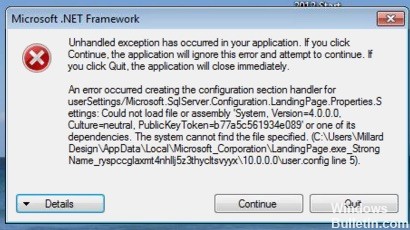
Случается, что при запуске компьютера с операционной системой Windows появляется такая проблема, как необрабатываемое исключение в приложении net framework. Само сообщение об ошибке выглядит так и отображается в окне платформы microsoft.NET Framework:
Необрабатываемое исключение в приложении. При нажатии кнопки «Продолжить» приложение проигнорирует ошибку и попытаеться продолжить работу. При нажатии кнопки «выход» приложение немедленно завершит работу.
Ниже, тоже сообщение, но на английском языке
В чем причина ошибки «Unhandled exception has occurred in your application» в Windows и что делать?
Существует несколько простых причин из-за которых возникает эта проблема и устранить их достаточно легко, если правильно их выявить. Посмотрите список ниже:
Дело в антивирусе. Некоторые антивирусные программы, такие как Panda Antivirus, могут вызывать такую ошибку. Для того, чтобы проверить в антивирусе ли дело, временно отключите его или установите другой.
На компьютере могут быть установлены некоторые вредоносные программы или вирусы. Проверьте ваш компьютер и, если есть вирусы, удалите их.
Microsoft.NET Framework был неправильно установлен. Например из-за того, что файлы установщика содержали ошибку. В этом случае можно попробовать установить программу еще раз, скачать более новую версию с официального сайта Майкрософт.
Если это не поможет, выполните сканирование SFC (проверка и восстановление целостности системных файлов Windows).
Для этого в меню «Пуск»-«Выполнить» наберите cmd, а затем в командной строке команду: sfc /scannow. Система начнет сканировать файлы и через некоторое время выдаст результат.
Установка или устранение неисправностей в Microsoft.NET Framework
Нужно проверить состояние Microsoft.NET Framework — установлен ли он на компьютере? После чего, его можно либо установить (если установка не была проведена) или восстановить («отремонтировать»)
Какие действия нужно выполнить для установки или восстановления Microsoft.NET Framework:
Закройте все открытые программы.
Нажмите кнопку «Пуск» и выберите пункт «Выполнить». (Если у вас Windows10, используйте комбинацию клавиш на клавиатуре Win+R, где Win — клавиша с эмблемой Windows )
Наберите команду «control» в окне «Открыть» и нажмите кнопку «ОК». Откроется «Панель управления».
Выберите пункт «Программы и компоненты»
Просмотрите список программ, найдите Microsoft.NET Framework (на картинке ниже Microsoft.NET Framework установлен):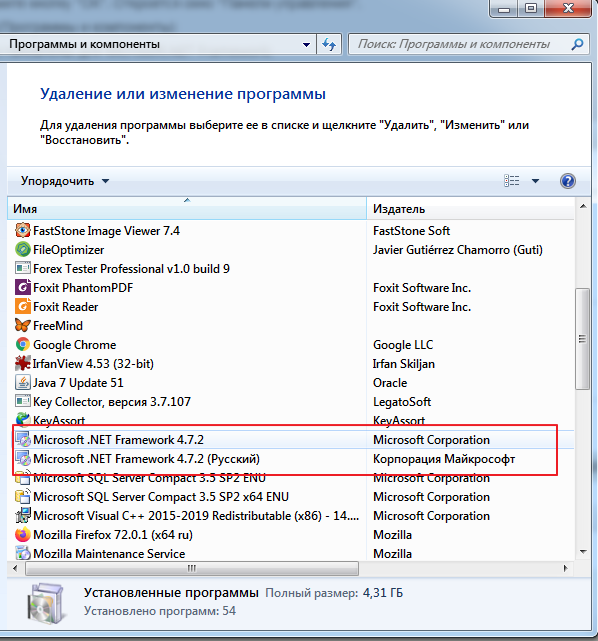
Если вы не нашли программу в списке, значит Microsoft.NET Framework у вас не установлен. Нажмите ]]> здесь ]]> , чтобы загрузить последнюю версию Microsoft .NET Framework с веб-сайта Microsoft. После чего проведите установку.
Если вы видите программу в списке (как на рисунке выше) и она не работает (работает неправильно, с ошибкой «необрабатываемое исключение в приложении net framework»), то нужно ее исправить (переустановить). Для этого:
Выберите Microsoft.NET Framework, а затем кликните правой кнопкой мыши и выберите «Изменить/Удалить».
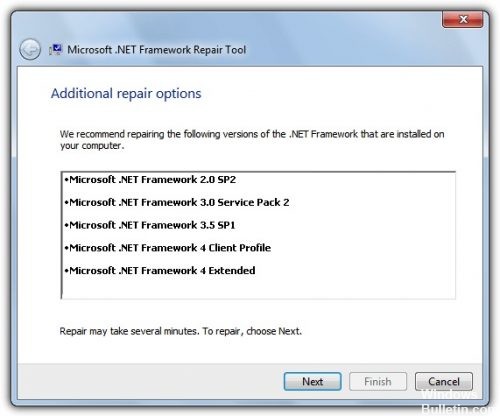
В отрывшемся окне выберите команду «Восстановить исходное состояние .NET Framework», а затем нажмите «Далее».
Следуйте инструкциям, и потом перезагрузите компьютер
Если проблема не решена, попробуйте безопасную загрузку Windows.
Как выполнить безопасную загрузку?
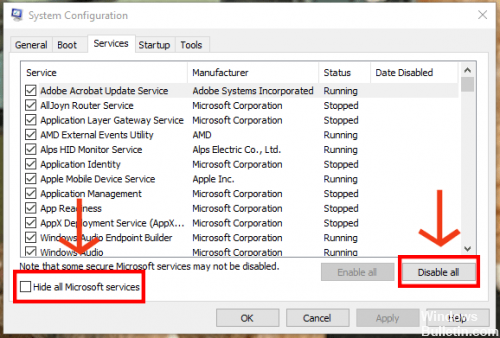
Чтобы воспользоваться параметром безопасной загрузки, выполните следующие действия.
Нажмите перезагрузить и во время перезагрузки нажимайте клавишу F8 на клавиатуре.
Выберите опцию с помощью клавиш со стрелками на клавиатуре, когда появится меню дополнительных параметров Windows, а затем нажмите клавишу ENTER.
Мы рекомендуем запустить Windows в чистой среде загрузки, чтобы убедиться, что эта проблема не вызвана фоновой программой (выберите параметры как на рисунке выше).
После запуска компьютера проверьте, решена ли проблема с установкой Microsoft.NET Framework
Выполните поиск неисправностей аппаратного обеспечения
Любые аппаратные проблемы также могут быть причиной ошибки. Поэтому очень важно выполнить анализ аппаратных средств и устройств, чтобы исключить возможность того, что аппарат или устройство могут влиять на работу программы.
- Чтобы определить это оборудование, введите в окне запуска (Пуск -> Выполнить или WIN+R) следующую команду: «%systemroot%system32msdt.exe -id DeviceDiagnostic» и нажмите клавишу Enter или нажмите кнопку OK

- Следуйте инструкциям на экране, чтобы определить неисправное оборудование.
- Вы также можете исправить аппаратные проблемы на странице настроек, как показано на рисунке ниже.
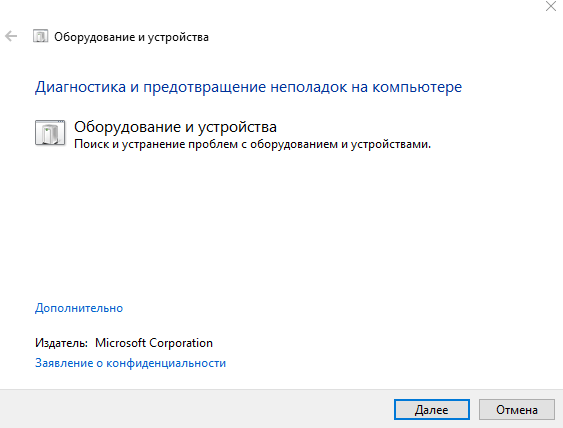
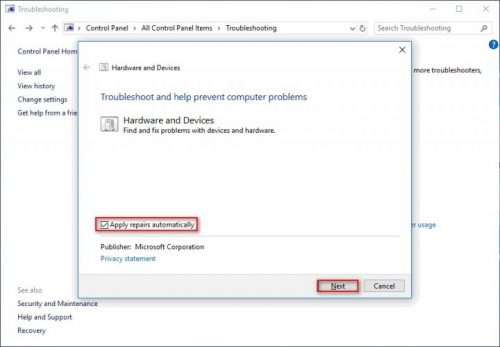
Зайдите «Панель управления», кликните кнопкой мышки на стрелочку возле надписи и выберите «Все элементы панели управления», далее нажмите «Устранение неполадок» и следуйте инструкциям.
Источник
5 способов исправить ошибку Application.exe в Windows 10 (01.15.23)
Приложения часто дают сбой, и это может быть вызвано целым рядом факторов, независимо от операционной системы. Некоторые сбои приложений характеризуются зависанием пользовательского интерфейса, из-за чего пользователю сложно закрыть приложение обычными методами. Некоторые приложения просто закрываются автоматически, а другие просто не загружаются. Также бывают сбои приложений, которые возвращают ошибку, например, ошибка «Application.exe перестала работать» в Windows 10.
Согласно нескольким отчетам пользователей, ошибка «Application.exe перестала работать» на Windows 10 обычно происходит после обновления операционной системы, особенно сборки 1903 и других крупных обновлений. Похоже, проблема возникает из-за несовместимости приложения и обновленной операционной системы. Программа не запускается должным образом из-за проблем с программным обеспечением, в результате чего она перестает работать и вызывает ошибку «Application.exe перестал работать».
Эта проблема может показаться обычной ошибкой, которую можно легко исправить, перезапустив приложение, но затронутые пользователи в конечном итоге понимают, что с этой ошибкой справиться намного сложнее, чем с обычными сбоями приложения. Это правда, что большинство сбоев приложений можно легко устранить, перезапустив приложение, но это не относится к тем экземплярам, которые связаны с ошибкой «Application.exe перестал работать». Когда появляется эта ошибка, это означает, что причина сбоя — не просто сбой или другая незначительная проблема.
В зависимости от версии Windows, которую вы используете, вот некоторые из вариантов ошибки сообщения, с которыми вы можете столкнуться:
Совет для профессионалов: просканируйте свой компьютер на наличие проблем с производительностью, ненужных файлов, вредоносных приложений и угроз безопасности
, которые могут вызвать системные проблемы или снизить производительность.
Бесплатно Сканирование на наличие проблем с ПК Совместимость с: Windows 10, Windows 7, Windows 8
Специальное предложение. Об Outbyte, инструкции по удалению, лицензионное соглашение, политика конфиденциальности.
- Application.exe перестал работать
Возникла проблема, из-за которой программа перестала работать правильно. Закройте программу.
Закройте программу. - Application.exe перестал работать
Windows может проверить в Интернете решение проблемы.
-Поиск решения в Интернете и закройте программу
-Закройте программу
Что вызывает ошибку «Application.exe перестает работать»?
Как упоминалось ранее, несовместимость является основной причиной сбоя приложения и появления ошибки Windows 10 под названием «Application.exe перестало работать». Эта ошибка особенно часто встречается после установки на компьютер крупного обновления системы. Некоторые пользователи Windows специально упомянули обновление 1903 года, но в других отчетах сообщалось, что такая же ошибка возникает после установки других основных обновлений функций Windows. Ошибка «Application.exe перестала работать» появляется в Windows 10, особенно сразу после установки, и все другие программы не были обновлены. Устаревшее приложение плохо работает с обновленной версией ОС, что приводит к его сбою.
Но если вы недавно не устанавливали никаких обновлений и получаете сообщение «Application.exe перестал работать» ошибка в Windows 10, вам следует рассмотреть другие элементы, которые могут вызывать эту проблему. Эти факторы включают:
- заражение вирусами / вредоносными программами;
- временные файлы
- Поврежденные записи реестра
- Поврежденные системные файлы
Хорошая новость заключается в том, что такого рода ошибки можно легко устранить. Есть много способов исправить ошибку Windows 10 «Application.exe перестало работать», и мы обсудим шаги один за другим.
Как исправить ошибку «Application.exe перестала работать» в Windows 10?
Если вы думаете, что простой повторный запуск приложения устранит эту ошибку, вас ждет большое разочарование. Это потребует большего, чем простое закрытие и повторный запуск приложения, чтобы ошибка исчезла. Но прежде, чем вы решите эту проблему, вот несколько контрольных списков, которые вам нужно пройти в первую очередь, чтобы убедиться, что все ваши усилия по устранению неполадок не пойдут неправильно.
- На время исправления этой ошибки отключите антивирусное программное обеспечение. . Не забудьте снова включить его после того, как проблема будет решена.
- Удалите ненужные файлы, которые могут мешать вашим процессам, с помощью надежного инструмента для восстановления ПК.
- Удалите приложения или программы, которые вы больше не используете.
- Убедитесь, что у вас достаточно места для хранения и памяти для правильной работы приложений.
Как только у вас будет выполнив описанные выше действия, выполните следующие действия:
Исправление №1: перезапустите программу.
Если в приложении произошел сбой, и вы получаете сообщение об ошибке «Application.exe перестало работать» в Windows 10 для В первый раз все, что вам нужно сделать, это закрыть отчет о сбое, а затем снова попробовать перезапустить приложение. Это работает только для одноразовых ошибок, вызванных неожиданным повреждением или временным отсутствием перезагрузки компьютера. Перед повторным открытием обязательно полностью закройте программу, включая ее процессы. Вы можете остановить процессы, перейдя в диспетчер задач и выйдя из всех процессов, связанных с программой, в которой возникла ошибка.
Вы также можете попробовать перезагрузить компьютер, чтобы обновить систему. После того, как вы полностью закроете приложение и перезагрузите компьютер, попробуйте снова запустить неисправное приложение. Если он загружается правильно, значит, ошибка временная. Но если этот метод не работает, значит, у вас есть более серьезная проблема. В этом случае перейдите к следующему шагу.
Исправление №2: обновите приложение.
Windows обычно доставляет обновления системы и приложений через службу Windows Update. К сожалению, некоторые разработчики приложений не выпускают свои обновления таким способом. Если программа, с которой у вас возникли проблемы, не может быть обновлена с помощью Центра обновления Windows, вы можете посетить веб-сайт разработчика и загрузить оттуда последний патч. Если ошибка «Application.exe перестала работать» вызвана проблемами несовместимости, обновление ваших программ должно помочь.
Исправление №3: настройте параметры совместимости приложения.
В большинстве случаев программы разрабатываются с учетом совместимости с последней версией операционной системы. Итак, если приложение, которое вы используете, было выпущено, когда Windows 7 была популярной, его следует оптимизировать для работы с Windows 7. То же самое и с программами, выпущенными вместе со старыми версиями Windows. Но большинство компьютеров сейчас работают под управлением Windows 10 после того, как Microsoft прекратила поддержку Windows 7 в начале этого года. Это вызывает проблемы совместимости для приложений, которые были разработаны для предыдущих версий Windows.
К счастью, в Windows есть встроенная функция, с помощью которой вы можете настроить старое программное обеспечение или игры для совместимости с Windows 10. Итак, если ваш приложение имеет проблемы с запуском на компьютере с Windows 10, вы можете настроить параметры совместимости, чтобы вы могли запускать приложение без проблем. Это также предотвратит частые сбои ваших приложений.
Выполните следующие действия, чтобы изменить настройки совместимости рассматриваемого приложения:
Перейдите в папку установки неисправного приложения. Все установленные программы должны быть найдены в Program Files. Свойства , чтобы подтвердить изменения.
Если вы выбрали Windows 7, ваше приложение теперь будет работать так, как если бы оно находилось в среде Windows 7. Это должно помочь уменьшить количество сбоев приложения и устранить ошибку «Application.exe перестал работать» в Windows 10.
Исправление №4: запускать от имени администратора.
Некоторые программы работают правильно только в том случае, если у пользователя достаточно прав администратора. . Вы должны убедиться, что приложение запускается с правами администратора, чтобы решить эту проблему. Для этого:
Чтобы восстановить файлы Windows, вам нужно открыть окно Командная строка с повышенными привилегиями. В окне CMD введите следующую команду: sfc / scannow . . Нажмите Enter , чтобы выполнить команду, и ваша система автоматически запустит сканирование. Вам нужно будет дождаться завершения всего процесса, больше ничего делать не нужно. После завершения вам будет представлен список проблем, которые были исправлены, а также другие инструкции.
Если инструмента проверки системных файлов недостаточно для восстановления ваших системных файлов, вы можете продолжить Инструмент обслуживания образов развертывания и управления ими (DISM) . Вот команды, которые вам нужно ввести в окне CMD:
- Dism / Online / Cleanup-Image / CheckHealth
- Dism / Online / Cleanup-Image / ScanHealth
- DISM / Online / Cleanup-Image / RestoreHealth
Заключение
Ошибка «Application.exe перестала работать» в Windows 10 не является критической проблемой, но это не означает, что вы также должны игнорировать ее. Вы не сможете использовать неисправное приложение, которое вызывает эту ошибку, если не выполните описанные выше методы, чтобы исправить это. Если ни один из них не работает, последний вариант — удалить и переустановить новую копию приложения.
YouTube видео: 5 способов исправить ошибку Application.exe в Windows 10
Источник
The “An unhandled win32 exception occurred in *application_name*‘ error typically occurs when the user tries to launch an application that was built in Visual Studio. Most reported instances of this error are associated with Uplay, Internet Explorer and several Legacy games initially built for older Windows versions.
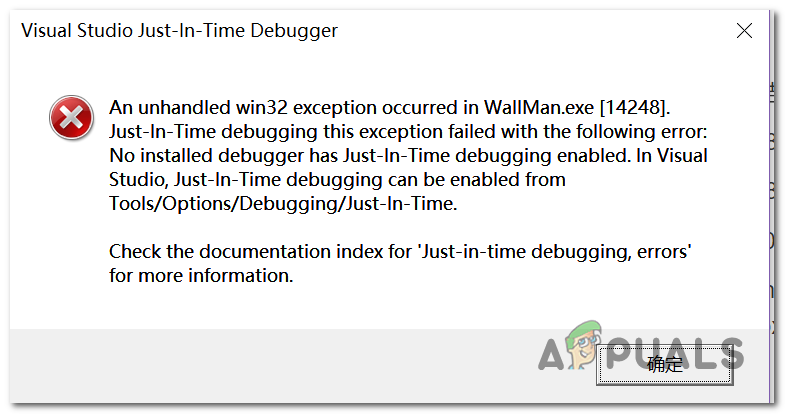
Note: Here’s how to fix a Runtime Library related to Visual C++.
There are several simple causes of this problem and the problem can be effectively tackled if you are able to recognize your scenario simply based on identifying the correct cause. Check out the list below:
- Your antivirus may be the culprit – Some antivirus tools such as Panda Antivirus are known to have caused this issue so make sure you replace them.
- Certain programs or malware may be running – If an installed program or malware is running on your computer, you might want to get rid of it. Make sure you boot into clean boot to see if that is the correct cause.
- Microsoft .NET Framework installation is corrupt – If its core files are corrupt, you can either try repairing its installation, installing a newer version, or performing an SFC scan.
- Script debugging is enabled via Registry – As it turns out, a particular registry key can contribute to the apparition of this issue. To take care of it, you’ll need to disable Script Debugging Via Registry Keys.
- Access violation in Msvcr92.dll – An exceeding source buffer or an improper final byte are also potential causes of this issue. To address them, you will need to install every pending Windows update.
- Deleting the Ubisoft launcher registry key – If you see this error while trying to launch Uplay.exe, it’s due to a bug with the Ubisoft Game Launcher. This issue can also be resolved via registry by deleting the value belonging to this launcher.
- System file corruption – A system file inconsistency can also create this issue. Light corruption can be resolved by simple DISM and SFC scans. In more severe circumstances, a clean install or repair install should help you in resolving the issue.
Solution 1: Install every pending Windows Update
One of the most common causes that will end up causing the “An unhandled win32 exception occurred‘ error is an application that was built for the x64 platform using the MSVCR90.DLL that ends up calling the strncpy function.
In this case, an access violation triggered in Msvcr92.DLL file will most likely cause the application to stop responding in the strncpy function. An exceeding source buffer or an improper final byte are the most likely causes of this issue.
Fortunately, Microsoft is already aware of this issue and has released a hotfix for this issue that will automatically resolve it. To take advantage of it, all you need to do is update your OS version to the latest version available.
Note: This hotfix was pushed within a revision of Visual Studio 2008, which Windows automatically updates, so the steps below are universal and should work regardless of your OS version.
Here’s a quick guide on updating your Windows build to the latest version in order to install the hotfix for Visual Studio 2008 and resolve the issue:
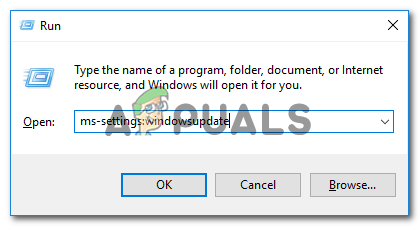
- Press Windows key + R to open up a Run dialog box. Next, type ‘ms-settings:windowsupdate’ and press Enter to open up the Windows update tab of the Settings app.

Opening the Windows Update screen Note: In case you encounter this issue on Windows 7 or Windows 8.1. use the ‘wuapp’ command instead.
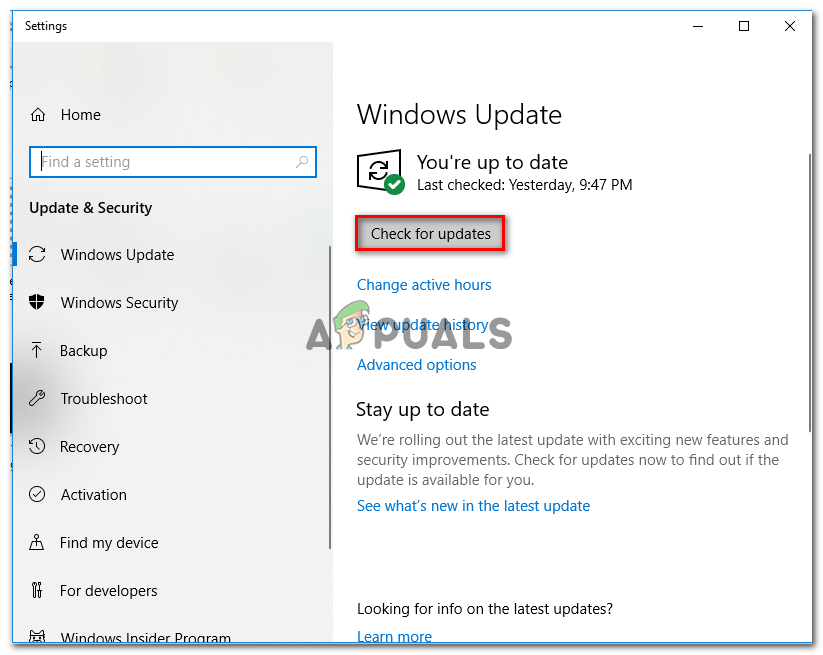
- After you manage to arrive inside the Windows Update screen, start by clicking on Check for updates. Then, start following the on-screen prompts to complete the installation of every Windows Update that is currently waiting to be installed.

Installing every pending Windows update Note: Keep in mind that it’s crucial that you install every update, not just the critical ones. Since the hotfix is included in a revision of Visual Studio, you might find the update in question under Optional, so make sure to install all of them.
- In the event that you’re prompted to restart before you get the chance to install every available update, do so. But make sure to return to this same screen after the next startup is complete in order to complete the installation of the rest of the updates.
- Once every pending update is installed, restart your computer one final time and then repeat the action that was previously causing the error message to see if the problem is fixed.
In case you’re still encountering the “An unhandled win32 exception occurred‘ error, move down to the next method below.
Solution 2: Replace Your Antivirus
Free antivirus tools can be quite helpful and they can do their job protecting your computer but sometimes they just don’t get along well with other things on your computer. Consider replacing your antivirus if it causes this problem while it’s turned on!
- Click on the Start menu and open Control Panel by searching for it. Alternatively, you can click on the gear icon in order to open settings if you are using Windows 10.
- In Control Panel, select to View as – Category at the top right corner and click on Uninstall a Program under the Programs section.
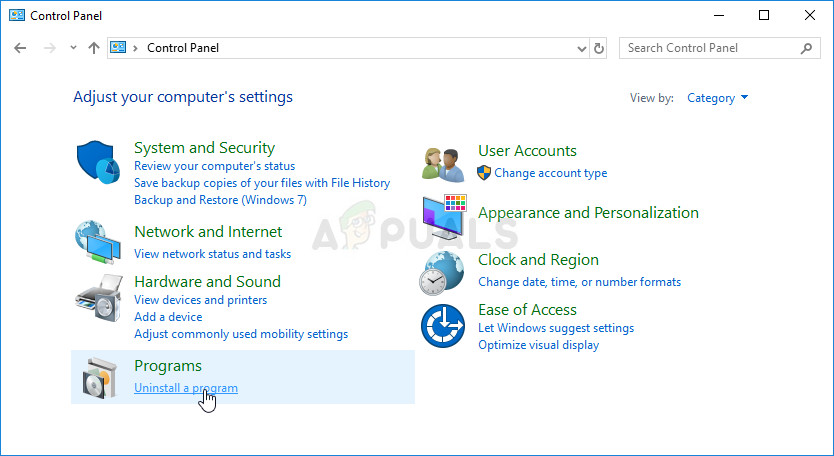
- If you are using the Settings app, clicking on Apps should immediately open a list of all installed programs on your PC.
- Locate your antivirus tool in Control Panel or Settings and click on Uninstall.
- Its uninstall wizard should open so follow the instructions to uninstall it.
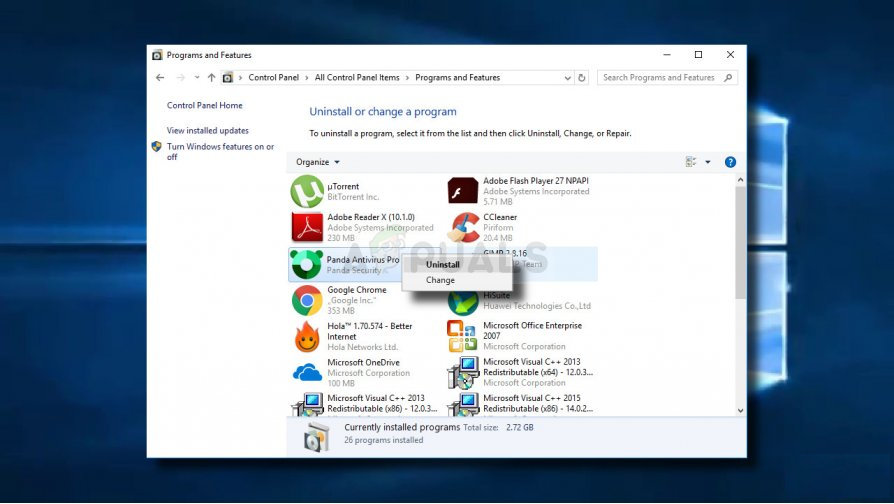
- Click Finish when the uninstaller completes the process and restart your computer to see whether errors will still appear. Make sure you choose a better antivirus option.
Solution 3: Deleting the Launcher Registry value (if applicable)
If you’re encountering the “An unhandled win32 exception occurred‘ error when trying to launch Uplay.exe or a different application belonging to Ubisoft, it’s most likely due to a bug with their Ubisoft Game Launcher.
As it turns out, this seems to be a widespread issue on Windows 10, especially among users that have both Steam and Uplay installed at the same time.
Several affected users that we’re struggling to resolve this issue have managed to get it fixed by using the Registry Editor to find the string registry value belonging to the launcher and deleting it. This supposedly eliminates the conflict, allowing both applications to function properly under the same machine.
Here’s a quick guide on deleting the Registry value associated with the Uplay launcher:
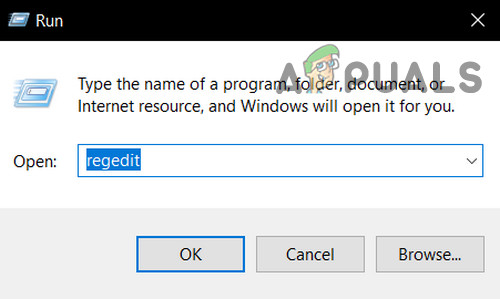
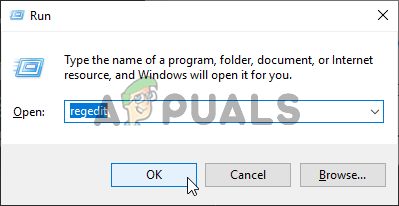
- Press Windows key + R to open up a Run dialog box. Inside the text box, type ‘regedit’ and press Enter to open up the Registry Editor. When you are prompted by the UAC (User Account Control) prompt, type Yes to grant administrative privileges.

Open Regedit - Once you’re inside the Registry Editor, use the left-hand side section of the window to navigate to the following location:
ComputerHKEY_LOCAL_MACHINESOFTWAREWOW6432NodeUbisoft
Note: You can either navigate there manually or you can paste the location directly into the navigation bar at the top and press Enter to get there instantly.
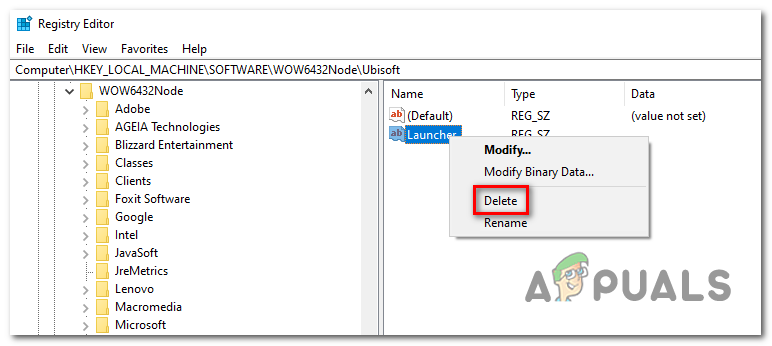
- After you manage to land in the correct location, move down to the right-hand section of the screen, right-click on Launcher and choose to Delete to get rid of it.

Deleting the Launcher value Note: In case you can delete the key, here’s how to take ownership of registry keys.
Note: After you delete it, the launcher will be forced to create a new Launcher string value with fresh data, which should resolve the issue.
- Once the key has been deleted, close Registry Editor and restart your computer.
- At the next computer startup, repeat the action that was previously causing the “An unhandled win32 exception occurred‘ error and see if the problem is resolved.
In case the same issue is persisting, move down to the next potential fix below.
Solution 4: Reset Internet Explorer (if applicable)
Another potential instance with the potential of creating this issue is a series of corrupted Internet Explorer (IE). If you’re encountering the “An unhandled win32 exception occurred in iexplore.exe’ error chances are it appears after a failing script.
To fix this issue, you should reset your Internet Explorer settings via the Internet Options menu. This operation was confirmed to be successful by a lot of users that were dealing with this error.
Here’s a quick guide on resetting Internet Explorer in order to resolve the “An unhandled win32 exception occurred‘ error:
- Ensure that Internet Explorer, Edge or any other associated instance is turned off and no background process is running.
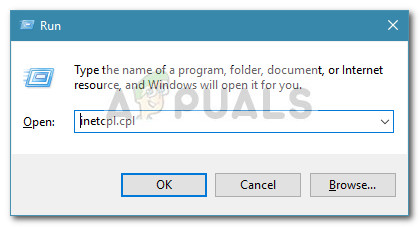
- Press Windows key + R to open up a Run dialog box. Inside the text box, type ‘inetcpl.cpl’ and press Enter to open up the Internet Options menu.
Run dialog: inetcpl.cpl Note: If you are prompted by the UAC (User Account Control), click Yes to grant administrative privileges.
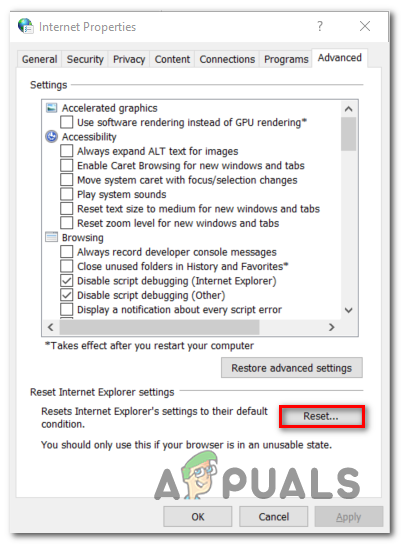
- After you manage to get inside the Internet Properties screen, select the Advanced tab from the horizontal menu at the top. Next, go to the Reset Internet Explorer settings and click on the Reset button.

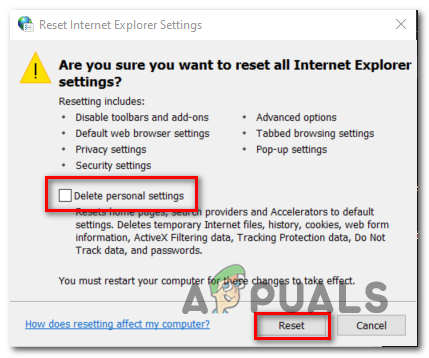
Resetting the Internet Explorer settings - Once you see the confirmation screen, ensure that the box associated with Delete personal settings is checked, then click on the Reset button.

Resetting the personal settings of Internet Explorer - Wait until the operation is complete, then restart your machine and see if the issue is resolved at the next computer startup.
In case the same “An unhandled win32 exception occurred in iexplore.exe’ error is still occurring, move down to the next method below.
Solution 5: Disable Script Debugging and associated Registry Keys (if applicable)
If you’re encountering the issue with Internet Explorer on a machine that has VS installed on it, the issue can also occur due when Script Debugging is enabled and the registry entries end up containing corrupted data.
Several affected users that encountered this issue have confirmed that the issue was resolved after they accessed the Internet Options menu to disable Script Debugging and then deleted the associated keys using Registry Editor.
Here’s a quick guide on doing this in order to fix the “An unhandled win32 exception occurred in iexplorer.exe’ error:
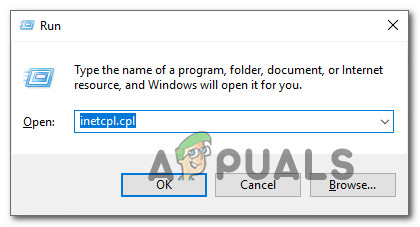
- Press Windows key + R to open up a Run dialog box. Next, inside the text box, type ‘inetcpl.cpl’ and press Enter to open up the Internet Options menu. If you are prompted by the User Account Control (UAC), click Yes to grant administrative privileges.
Opening the Internet Properties screen - Once you manage to find yourself inside the Internet Properties screen, use the menu at the top to select the Advanced tab.
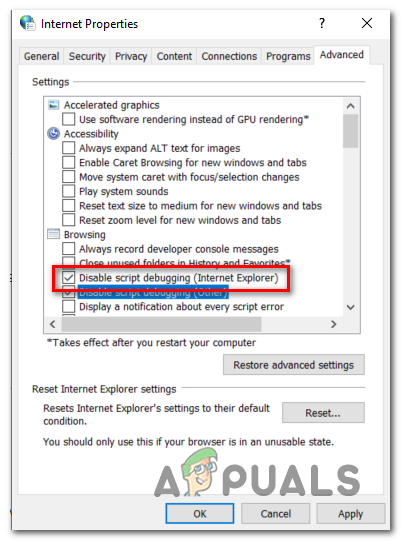
- Inside the Internet Properties screen, scroll down through the Settings menu and check the box associated with Disable script debugging (Internet Explorer).

Disable - Once the modification is enforced, hit Apply to save the changes, then close the Internet Properties window.
- Press Windows key + R once again to open up another dialog box. This time, type ‘regedit’ and press Enter to open up Registry Editor. You will need to grant admin access, so click Yes when prompted by the User Account Control window.

Opening the Registry Editor - Inside the Registry Editor, navigate to the following location using the left-hand menu:
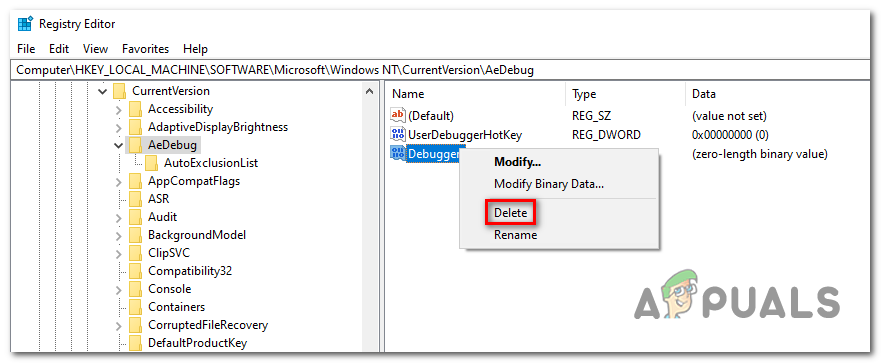
HKEY_LOCAL_MACHINESOFTWAREMicrosoftWindows NTCurrentVersionAeDebug  (32 - Bit Machine)
HKEY_LOCAL_MACHINESOFTWAREWow6432NodeMicrosoftWindows NTCurrentVersionAeDebug (64 - Bit Machine)
Note: The location of the file we need to delete is different depending on the Windows version that you’re using. If you have a 32 – bit Windows version use the first location, else, use the second.
- Once you arrive to the correct location, move down to the right-section, right-click on Debugger and choose Delete from the context menu.

Deleting the Debugger registry value - Once this key is deleted, navigate to this second location:
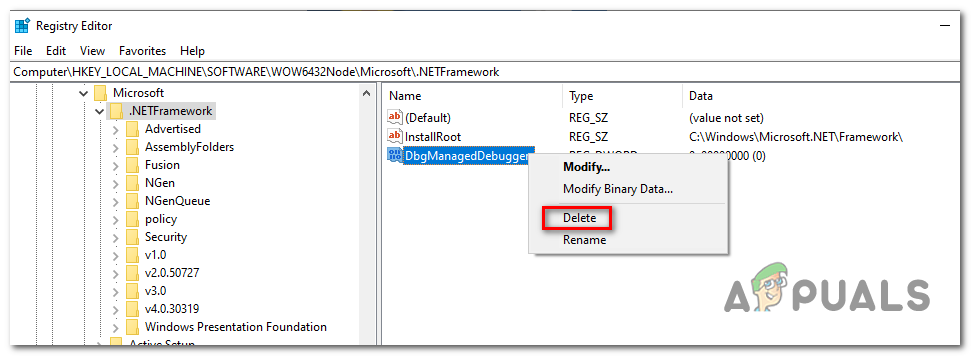
HKEY_LOCAL_MACHINESOFTWAREMicrosoft.NETFramework (32 - Bit Machine)
HKEY_LOCAL_MACHINESOFTWAREWow6432NodeMicrosoft.NETFramework (64 - Bit Machine)
Note: Access the registry key associated with your Windows bit version that you’re using.
- When you arrive at the correct location, move over to the right-hand section and delete the DbgManagedDebugger value by right-clicking on it and choosing Delete from the context menu.

Deleting the DbManagedDebugger - After you manage to delete the value, close the Registry Editor and restart your computer.
- Once the next startup is complete, see if the same issue is still occurring.
In case the “An unhandled win32 exception occurred’ error is still occurring, move down to the next method below.
Solution 6: Install the Latest Version of NET Framework and Repair it
Having NET Framework installed on your computer is vital and plenty of modern games and programs depend on you having it installed. Before repairing it, follow the steps below in order to install the latest version on your computer.
Navigate to this link and click the red download button in order to download the latest version of the Microsoft .NET Framework. After the download has finished, locate the file you downloaded and run it. Note that you will need to have constant access to the Internet. Follow the instructions on-screen to proceed with the installation.
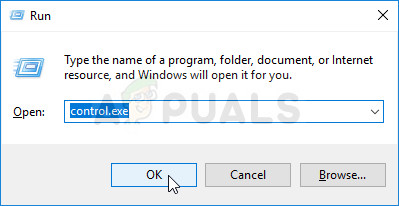
- After installing the latest version, it’s time to check its integrity. On your keyboard, use the Windows Key + R key combination to open the Run dialog box.
- Type in control.exe and click OK in order to open it.
- Click the Uninstall a Program option and click Turn Windows features on or off. Make sure you locate the .NET Framework 4.x.x entry and make sure it’s enabled. ‘x.x’ marks the latest version available for your operating system.
- If the checkbox next to .NET Framework 4.x.x is not enabled, enable it by clicking the box. Click OK to close the Windows Feature window and reboot the computer.
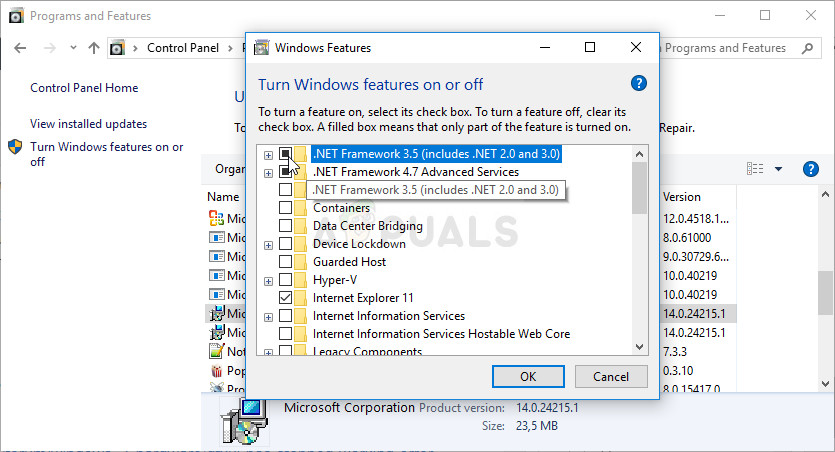
- If .Net Framework 4.x.x is already enabled, you can repair .Net Framework by clearing the box and rebooting the computer. After the computer has restarted, re-enable .Net Framework and restart the computer again.
Solution 7: Perform a Clean Boot
There are various other programs and services which can affect the proper functionality of the Microsoft .NET Framework suite. In most cases, the cause is the antivirus you have installed and you can try disabling it to see if the error persists. However, to make sure nothing can interfere with the installation, we recommend you perform a clean boot which will disable all non-Microsoft programs and services from starting up. This way, you can easily deduct just which program causes this error to happen!
- Use the Windows + R key combination on your keyboard. In the Run dialog box type MSCONFIG and click OK.
- Click on the Boot tab and uncheck the Safe Boot option (if checked).
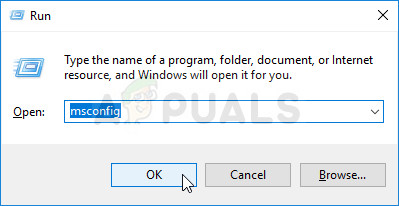
- Under the General tab in the same window, click to select the Selective startup option, and then click to clear the Load startup items check box to make sure it’s not checked.
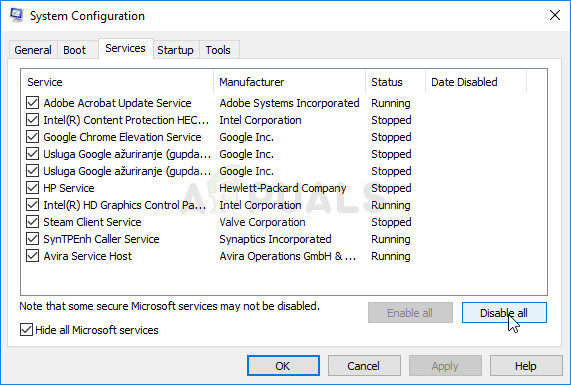
- Under the Services tab, click to select the Hide all Microsoft services check box, and then click Disable all.
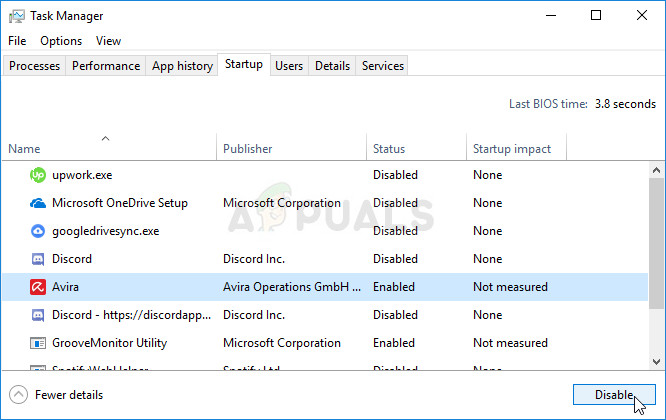
- On the Startup tab, click Open Task Manager. In the Task Manager window under the Startup tab, right click on each startup item which is enabled and select Disable.
- After this, you will need to perform some of the most boring processes and that is enabling the Startup items one by one and restarting your computer. After that, you need to check whether the problem appears again. You will need to repeat the same process even for the Services which you have disabled in Step 4.
- Once you locate the problematic startup item or service, you can undertake action in order to solve the problem. If it is a program, you can reinstall it or repair If it is a service, you can disable it, etc.
Solution 8: Use SFC to Scan for Memory Leaks
It has been reported that the Microsoft .NET Framework corruption is related to faulty system files. These problems are rooted deep inside the system files and the only way to try to resolve them is by running the System File Checker (SFC). It will scan your system files for errors and possible repair or replace them. Follow the steps below in order to do so!
- Search for “Command Prompt” by typing it either right in the Start menu or by pressing the search button right next to it. Right-click the first entry which will pop up as a search result and select the “Run as administrator” context menu entry.
- Additionally, you can also use the Windows Logo Key + R key combination in order to bring up the Run dialog box. Type in “cmd” in the dialog box which appears and use the Ctrl + Shift + Enter key combination for admin Command Prompt.
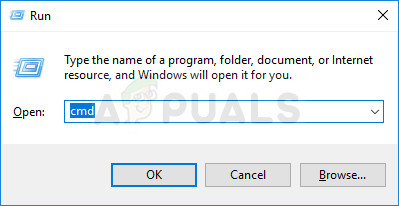
- Type in the following commands in the window and make sure you press Enter after typing each one. Wait for the “Operation completed successfully” message or something similar to know that the method worked.
sfc /scannow
- Try to restart your computer and check to see if the Unhandled Exception has Occurred in your Application error continues to appear on your computer.
Solution 9: Performing a Clean Install
If none of the methods presented below have managed to help you in resolving the issue, it’s very likely that you’re dealing with some kind of Windows inconsistency that cannot be resolved conventionally.
If this scenario is applicable, you should be able to fix the issue by resetting every component associated with your Windows installation. If you want to go this route, you have two ways forward. It all boils down to the procedure that you want to follow:
- Repair install (in-place repair) – This procedure is the best approach when you need to refresh every OS component, but some users might end up considering it a little too tedious for their taste. Keep in mind that you will need a compatible installation media in order to enforce this fix, but the major advantage is that all your personal data (including games, applications and personal media) will be preserved even if you don’t back up your computer.
- Clean install – If you’re looking for the simplest solution, this is the way to go. You will not need an installation media to enforce it (it’s all done through the Windows GUI). But unless you back up your data in advance, be prepared for total data loss.
An unhandled exception has occurred in your application if you click continue the application will is a visual studio error. When a user tries to launch any project or the application built in the visual studio and the application fails to launch with, an error. Furthermore, when users reboot their PC, after the welcome screen, the error appears in a box titled Microsoft.NET Framework. So from these two scenarios, we can clearly see that the error is occurring because of issues with the visual studio and .net framework. In this troubleshooting guide, we will be going over some methods to fix this issue.
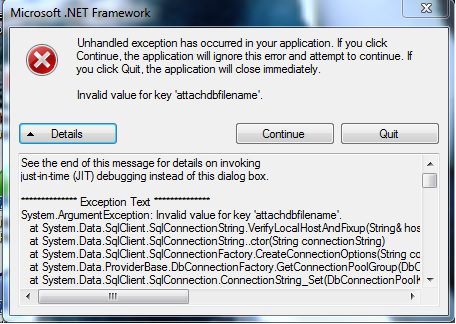
Causes of Unhandled Exception Has Occurred In Your Application Error
Users who have faced the issue, claim certain reasons that can be the causes why this error appears. Users have reported that using third party antivirus applications and antimalware programs can trigger the error. Possibilities are that your system is infected with any virus or malware. Furthermore, corrupted system files of the .NET framework or any other system file corruption can trigger the error. Below is the list of all such causes, go through them.
- Third-Party Antivirus applications
- .NET system files corrupted
- Virus or malware in the system
- Pending System Updates
- Ubisoft launcher
- Script debuting is enabled
Similar Types of Unhandled Exception Has Occurred In Your Application Error
- X360ce
- Mi flash
- Batman: Arkham asylum
- An unhandled exception has occurred in a component in your application AutoCAD
- Origin
- An unhandled exception has occurred and the application is terminating
- An exception has occurred meaning
- Fifa 14 unhandled exception has occurred fix
- Microsoft.net framework unhandled exception jit debugging
- Minecraft unhandled exception
In this section, we will be covering all the possible solutions to fix Error.
1. Update Your Windows
A lot of users who have faced this error recommend that updating your windows fixes the issue. So in this Unhandled Exception Has Occurred In Your Application if you click continue the application will method, we will demonstrate the steps for updating your windows.
- STEP 1. Head to the Start Menu, on the left click on the Gear icon
- STEP 2. Setting window will open up, now click on Update and Security settings
- STEP 3. Now on the left click on the Windows update tab
- STEP 4. On the right click on Check for Update
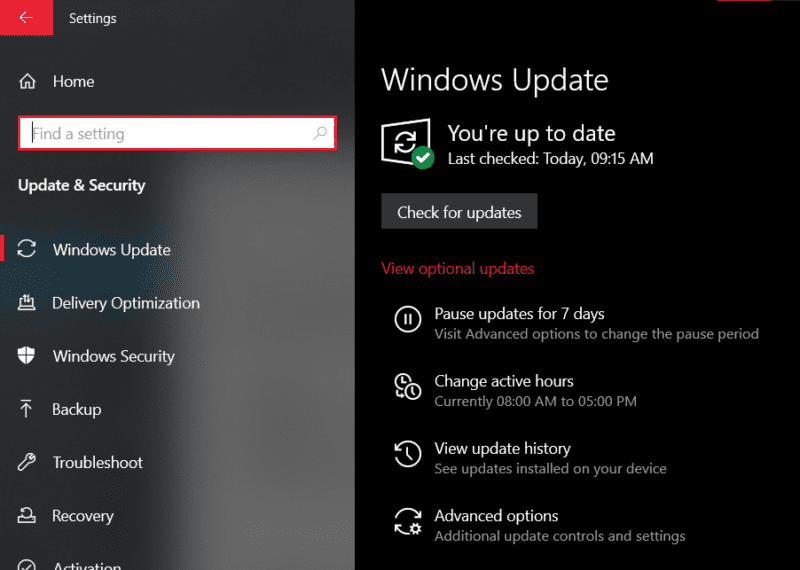
- STEP 5. Make sure that you are connected to the Internet
- STEP 6. If there are any pending updates, finish them
- STEP 7. After updating, restart your systems and check if the error appears
2. Remove Third-Party Antivirus
If you have installed any third-party antivirus, special Panda antivirus then the Unhandled Exception Has Occurred In Your Application. if you click continue the application will error seems to appear. There are some issues with this particular app and maybe the same issue is with your antivirus application too. So, uninstall it by following the steps below.
- STEP 1. Open up a Run window by pressing the Windows+R key
- STEP 2. Now type appwiz.cpl and hit enter
- STEP 3. Now in this window, locate antivirus causing the issue
- STEP 4. Right-click on it and hit Uninstall

- STEP 5. Now restart your system and see if the error occur
3. Using Registry (Ubisoft Launcher Issue)
If the above two methods are not working for you, try this method if you have installed the Ubisoft launcher and facing issues while launching it follows the Microsoft .net Framework Unhandled Exception Has Occurred In Your Application steps.
- STEP 1. Open up a Run window by pressing the Windows+R key
- STEP 2. Now type regedit and hit enter
- STEP 3. In the registry window, navigate to the following path
ComputerHKEY_LOCAL_MACHINESOFTWAREWOW6432NodeUbisoft
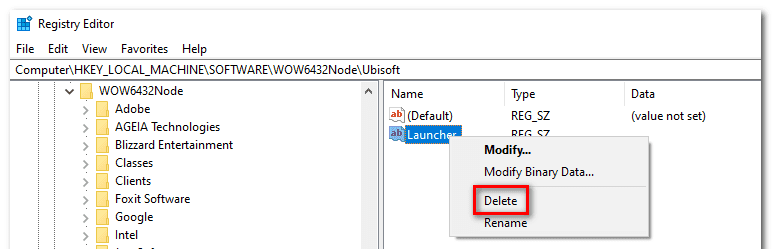
- STEP 4. While the Ubisoft folder is selected, on the right delete the launcher registry
- STEP 5. Restart your system and your error will be gone
4. Install latest .NET
If you are getting the Unhandled Exception Has Occurred In Your Application Windows 10 error statement within a .NET titled window. Follow the steps.
- STEP 1. Open up your browser and visit this link
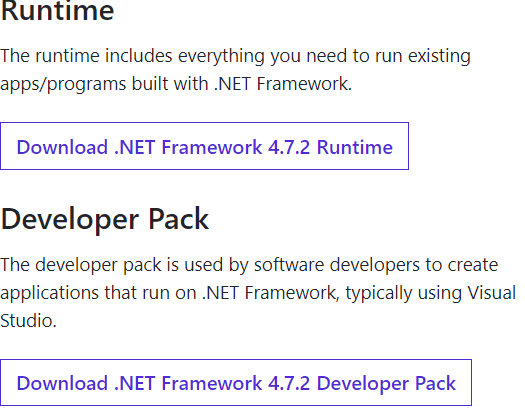
- STEP 2. Download the setup file and then install it
- STEP 3. After installing restart your system
5. Reset Internet Explorer
Another way to resolve the Unhandled Exception Has Occurred In Your Application .net framework windows 10 issue is by resetting Internet Explorer. A lot of users have found this method to be working. Follow the steps now.
- STEP 1. Open up a Run window by pressing the Windows+R key
- STEP 2. Now type inetcpl.cpl and hit enter
- STEP 3. The Internet Properties window will open up, head to the advanced tab
- STEP 4. And, below click on the Reset button
- STEP 5. A new popup window will appear, make sure to mark Delete personal settings, then click on the Reset button
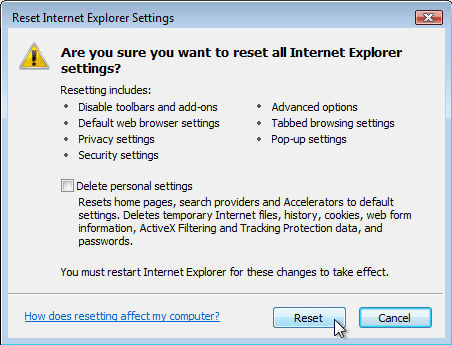
6. Disable Script Debugging & Registry Keys
If you are using visual studio and the above methods failed to work, this method will surely work. The Unhandled Exception Has Occurred In Your Application .net framework windows 7 issue here is scrip debugging is enabled and their associate registry is running. We have to disable the script debugging and delete the registries.
- STEP 1. Follow STEP 1-3 from Method 5, now under Browsing section, locate Disable script debugging (Internet Explorer) and uncheck it
- STEP 2. Open up registry editor and navigate to,
HKEY_LOCAL_MACHINESOFTWAREMicrosoftWindows NTCurrentVersionAeDebug (32 - Bit Machine)
- STEP 3. While the AeDebug folder is selected, on the right delete the Debugger registry
- STEP 4. Perform the same for the below path
HKEY_LOCAL_MACHINESOFTWAREWow6432NodeMicrosoftWindows NTCurrentVersionAeDebug (64 - Bit Machine)
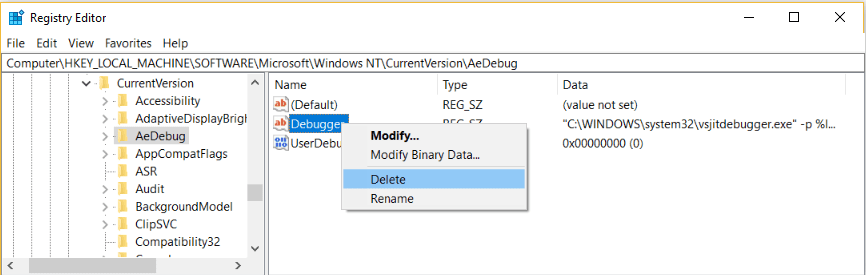
- STEP 5. Once done restart your system, and your error will be gone
Conclusion:
With this being the end of the troubleshooting guide on unhandled exception has occurred in your application. We have tried to demonstrate all the ways by which you can resolve this issue.
We hope that your Unhandled Exception Has Occurred In Your Application issue has been fixed by now. For more guides, tips, and other tech stuff follow us. Thank you!
Have you received the “unhandled exception has occurred in your application” error on your computer? Don’t worry. MiniTool software provides you with 5 simple methods to solve this Microsoft .NET Framework unhandled exception.
About Microsoft .NET Framework Unhandled Exception Error
According to the reports on the forum, the “unhandled exception has occurred in your application” error often occurs as soon as the computer starts up. If you receive this error, your computer might get frozen or display other symptoms.
This error is usually displayed in a window of Microsoft .NET Framework and is accompanied with an error message, just as the following picture shows.
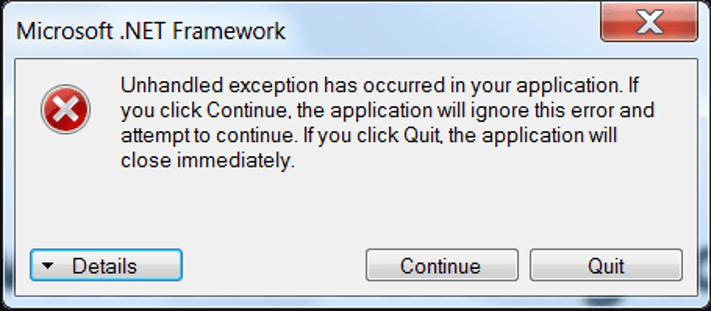
Focusing on this problem, I will show you 5 solutions with the detailed steps. You should be able to fix the Microsoft .NET Framework unhandled exception error quickly.
Method 1: Scan for Virus
At first, you can make a full scan for your computer to get rid of the possibility of virus attacks. You can use your trusted third-party antivirus program, or Windows Defender.
To scan for virus with Windows Defender, just go to Update & Security > Windows Security > Virus & threat protection, and choose to perform a Full scan.
Method 2: Temporarily Disable Your Antivirus
Besides, your antivirus programs or Windows Defender might also be responsible for this “unhandled exception has occurred in your application” error. For example, some antivirus tools such as Panda Antivirus are known to be a reason for this error.
Thus, it is not a bad idea to temporarily disable all your installed security software.
If the error disappears after disabling your antivirus, it’s time to uninstall your original antivirus and replace it with a reliable and safe one. If the error still exists, you can enable your antivirus again and try the following methods.
Method 3: Clean Boot Your Computer
Apart from your antivirus, other programs or services might also affect the proper functionality of Microsoft .NET Framework suite. To find out the problematic program or service quickly, you can clean boot your computer.
Step 1: Press Windows + R to invoke Run dialog. Input msconfig and click OK to access System Configuration.
Step 2: In General tab, choose Selective startup. The three options of it are enabled by default, and you need to uncheck Load startup items.
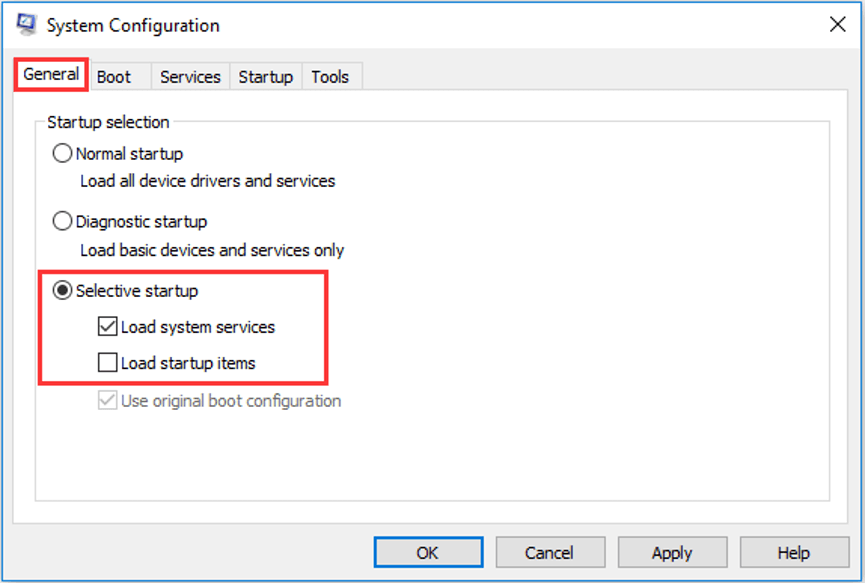
Step 3: Switch to Services tab, check Hide all Microsoft services and click Disable all.
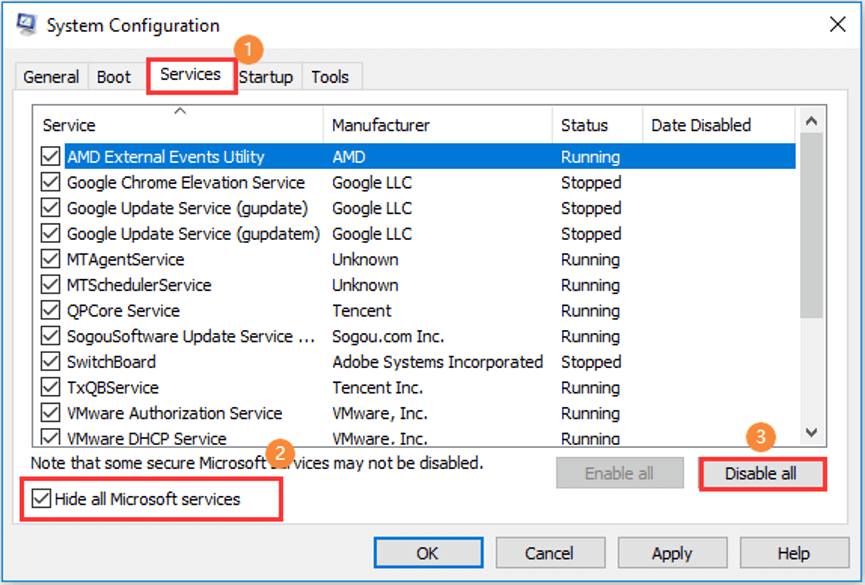
Step 4: Go to Startup tab and click Open Task Manager. When you get the following window, highlight each listed startup item which is enabled and click Disable.
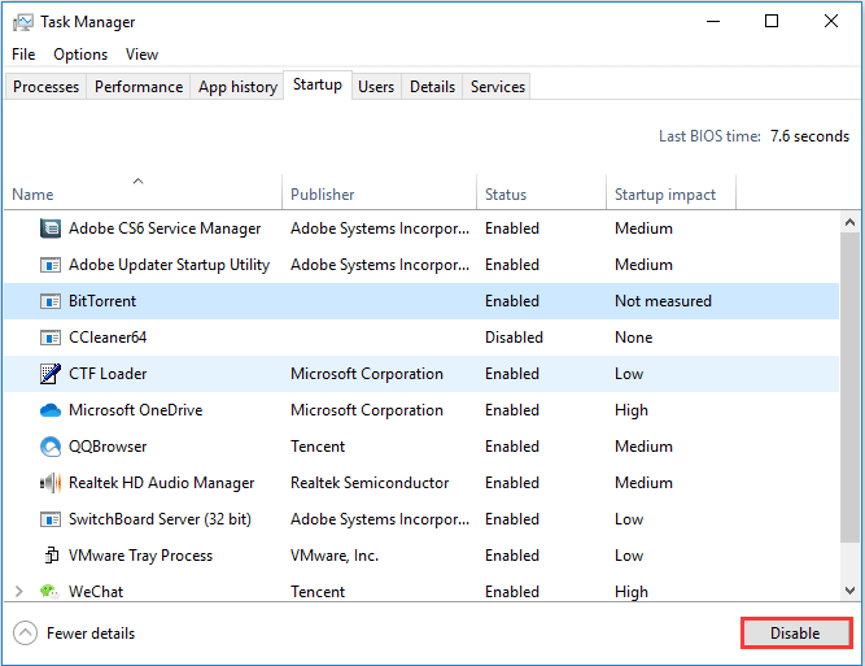
After that, restart your computer to check if the problem disappears.
If the error has been removed, you need to enable these items which are disabled above one by one to find the problematic one. Then, you can disable or uninstall it.
If the error message come forth again, this error should not be caused by your programs or services, but your corrupted Microsoft .NET Framework installation. In this case, you can try following methods.
Method 4: Perform SFC Scan
It has been proven that the corruption of certain important system files can result in that Microsoft .NET Framework gets corrupted. As for the system files issue, you can use System File Check (SFC) to scan and repair your system files.
Step 1: After invoking Run window, input cmd and press Ctrl + Shift + Enter to open Command Prompt as administrator.
Step 2: Type the command sfc /scannow and press Enter.
Step 3: After the operation is completed successfully, restart your computer and check if the error has been fixed successfully.
Method 5: Install the Latest Version of NET Framework
If you cannot fix the “unhandled exception has occurred in your application” error with SFC scan, you might need to install the latest version of NET Framework and then repair it.
Just go to Microsoft official website to download the latest version and run it on your computer. Then, follow the steps below to check its integrity.
Step 1: Type control.exe in Run window and click OK to open Control Panel.
Step 2: Go to Uninstall a program and click Turn Windows features on or off.
Step 3: In the pop-up window, check the entry of your latest version of .NET Framework to enable it and click OK. (What to do if .NET Framework 3.5 Missing in Windows 10?)
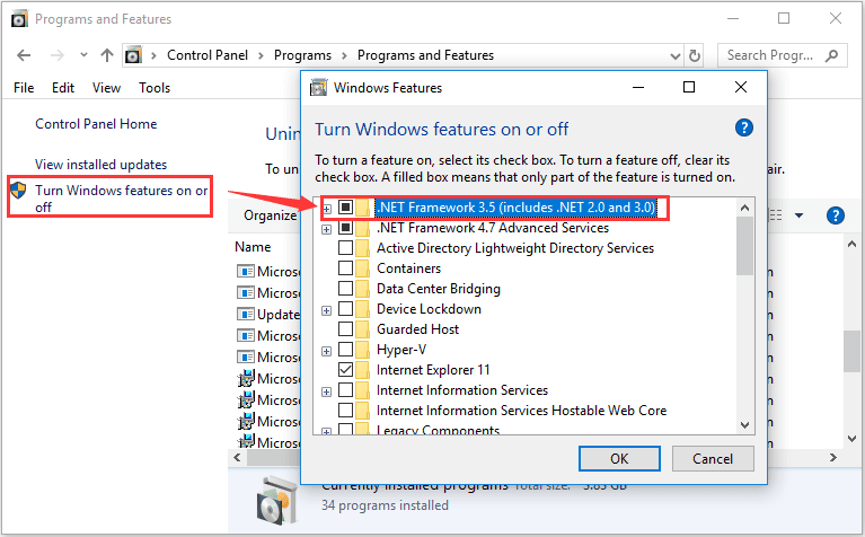
After that, reboot your computer and check if this solution works.
Note: If the entry is already enabled, you need to uncheck the entry and restart your computer. Then, re-enable the entry and restart the computer again.