
I run npm install lodash but it throws Error: EACCES: permission denied error. I know it is permission issue but as far as I know, sudo permission is not required for installing node module locally. If I run it with sudo, it gets installed inside ~/node_modules folder. drwxrwxr-x is the file permission of existing folder. I can’t figure out what might have gone wrong.
Below is the error message.
npm ERR! tar.unpack untar error /home/rupesh/.npm/lodash/4.13.1/package.tgz
npm ERR! Linux 3.13.0-88-generic
npm ERR! argv "/usr/local/bin/node" "/usr/local/bin/npm" "install" "lodash"
npm ERR! node v4.3.1
npm ERR! npm  v2.14.12
npm ERR! path /home/rupesh/node_modules/lodash
npm ERR! code EACCES
npm ERR! errno -13
npm ERR! syscall mkdir

npm ERR! Error: EACCES: permission denied, mkdir '/home/rupesh/node_modules/lodash'
npm ERR!     at Error (native)
npm ERR!  { [Error: EACCES: permission denied, mkdir '/home/rupesh/node_modules/lodash']
npm ERR!   errno: -13,
npm ERR!   code: 'EACCES',
npm ERR!   syscall: 'mkdir',
npm ERR!   path: '/home/rupesh/node_modules/lodash',
npm ERR!   fstream_type: 'Directory',
npm ERR!   fstream_path: '/home/rupesh/node_modules/lodash',
npm ERR!   fstream_class: 'DirWriter',
npm ERR!   fstream_stack:
npm ERR!    [ '/usr/local/lib/node_modules/npm/node_modules/fstream/lib/dir-writer.js:35:25',
npm ERR!      '/usr/local/lib/node_modules/npm/node_modules/mkdirp/index.js:47:53',
npm ERR!      'FSReqWrap.oncomplete (fs.js:82:15)' ] }
npm ERR!
npm ERR! Please try running this command again as root/Administrator.

npm ERR! Please include the following file with any support request:
npm ERR!     /home/rupesh/Desktop/es6/npm-debug.log

Panda
1,23121 silver badges27 bronze badges
asked Jul 12, 2016 at 8:41

6
This command fix the issue. It worked for me:
sudo npm install -g --unsafe-perm=true --allow-root
answered Sep 3, 2018 at 9:05

7
I have same issue with webpack server installation on globally, Use steps from this Url Solved my issue, my be work for you.
Steps mention above There:
Back-up your computer before you start.
Make a directory for global installations:
1.
mkdir ~/.npm-globalConfigure npm to use the new directory path:
2.
npm config set prefix '~/.npm-global'Open or create a ~/.profile file and add this line:
3.
export PATH=~/.npm-global/bin:$PATHBack on the command line, update your system variables:
4.
source ~/.profile
Test: Download a package globally without using sudo.
npm install -g jshint
Instead of steps 2-4, you can use the corresponding ENV variable (e.g. if you don’t want to modify ~/.profile):
NPM_CONFIG_PREFIX=~/.npm-global
answered Apr 8, 2018 at 5:58

Vishal PatelVishal Patel
1,65516 silver badges26 bronze badges
4
I had problem on Linux. I wrote
chown -R myUserName /home/myusername/myfolder
in my project folder.
WARNING: this is NOT the right way to fix it; DO NOT RUN IT, if you aren’t sure of what could be the consequences.

IsmailS
10.7k20 gold badges81 silver badges133 bronze badges
answered Jun 8, 2018 at 14:27

SergeySergey
9078 silver badges10 bronze badges
5
Try to give all permission to your project folder with below command
sudo chmod -R 777 /yourProjectDirectoryName
run with
sudo npm install lodash
answered Aug 28, 2019 at 13:47

Raj GohelRaj Gohel
9235 silver badges14 bronze badges
4
It doesn’t have write permissions for others (r-x). Try with
chmod a+w <folder>
and repeat.
answered Jul 12, 2016 at 8:54

Juanjo SalvadorJuanjo Salvador
1,0551 gold badge12 silver badges33 bronze badges
4
Creating package.json using npm init solved my issue.
answered Jul 12, 2016 at 16:24
xruptronicsxruptronics
2,5173 gold badges11 silver badges17 bronze badges
4
A related issue:
Wasted 3 hours spanning several days.
On a AWS EC2 machine, below worked:
sudo chown -R $(whoami) /home/ubuntu/.cache
sudo chown -R $(whoami) /home/ubuntu/.config
sudo chown -R $(whoami) /home/ubuntu/.local
sudo chown -R $(whoami) /home/ubuntu/.npm
sudo chown -R $(whoami) /home/ubuntu/.pm2
Hope that helps.
answered Feb 1, 2020 at 4:34

1
This solved my issue straight away — mac Mojave 10.14.6 — PhpStorm.
Unhandled rejection Error: EACCES: permission denied, mkdir
‘/Users/myname/.npm/_cacache/index-v5/fb/5a’
sudo chown -R $USER:$GROUP ~/.npm
sudo chown -R $USER:$GROUP ~/.config
Original post:
https://stackoverflow.com/a/50639828
answered Aug 28, 2019 at 7:16

ulittleulittle
1561 silver badge6 bronze badges
sudo chown -R $(whoami) /usr/local/bin
Makes current user owner of the /usr/local/bin folder. Permissions on this folder were the trouble.
answered Jul 4, 2021 at 3:29

Cedric IpkissCedric Ipkiss
5,2992 gold badges41 silver badges67 bronze badges
3
LUBUNTU 19.10 / Same issue running: $ npm start
dump:
Error: EACCES: permission denied, open ‘/home/simon/xxx/pagebuilder/resources/scripts/registration/node_modules/.cache/@babel/register/.babel.7.4.0.development.json’
at Object.fs.openSync (fs.js:646:18)
at Object.fs.writeFileSync (fs.js:1299:33)
at save (/home/simon/xxx/pagebuilder/resources/scripts/registration/node_modules/@babel/register/lib/cache.js:52:15)
at _combinedTickCallback (internal/process/next_tick.js:132:7)
at process._tickCallback (internal/process/next_tick.js:181:9)
at Function.Module.runMain (module.js:696:11)
at Object. (/home/simon/xxxx/pagebuilder/resources/scripts/registration/node_modules/@babel/node/lib/_babel-node.js:234:23)
at Module._compile (module.js:653:30)
at Object.Module._extensions..js (module.js:664:10)
at Module.load (module.js:566:32)
Looks like my default user (administrator) didn’t have rights on node-module directories.
This fixed it for me!
$ sudo chmod a+w node_modules -R ## from project root
answered Nov 18, 2019 at 1:45

Simon PSimon P
3273 silver badges8 bronze badges
1
From what i can see in your logs you posted:
npm ERR!   code: 'EACCES',
npm ERR!   syscall: 'mkdir',
npm ERR!   path: '/home/rupesh/node_modules/lodash',
npm ERR!   fstream_type: 'Directory',
npm ERR!   fstream_path: '/home/rupesh/node_modules/lodash',
npm ERR!   fstream_class: 'DirWriter',
directory /home/rupesh/node_modules/ doesn’t have necessary permissions to create directory so run chown -r rupesh:rupesh /home/rupesh/node_modules/ this should solve it.

d-_-b
20.9k40 gold badges143 silver badges242 bronze badges
answered Jul 12, 2016 at 9:42

AJSAJS
1,97316 silver badges26 bronze badges
4
If you getting an error like below
Error: EACCES: permission denied, mkdir '/usr/local/lib/node_modules/<PackageName>/vendor'
I suggest using the below command to install your global package
sudo npm install -g <PackageName> --unsafe-perm=true --allow-root
answered Oct 27, 2020 at 11:17

Nisharg ShahNisharg Shah
14.8k10 gold badges62 silver badges69 bronze badges
1
FWIW I had the same symptoms, but with a different package. Creating package.json and running npm init did NOT solve my issue.
On this system, apparently new folders in this location were being created with root permissions. During npm install, new folders are created. This caused npm install to fail partway, even with sudo.
The solution was to run npm install app in a different location with no root umask.
answered Feb 27, 2018 at 19:32

I solved this issue by changing the permission of my npm directory. I went to the npm global directory for me it was at
/home/<user-name>
I went to this directory by entering this command
cd /home/<user-name>
and then changed the permission of .npm folder by entering this command.
sudo chmod -R 777 ".npm"
It worked like a charm to me. But there is a security flaw with this i.e your global packages directory is accessible to all the levels.
answered May 15, 2019 at 21:54

2
Try using this:
On the command line, in your home directory, create a directory for global installations:
mkdir ~/.npm-global
Configure npm to use the new directory path:
npm config set prefix '~/.npm-global'
In your preferred text editor, open or create a ~/.profile file and add this line:
export PATH=~/.npm-global/bin:$PATH
On the command line, update your system variables:
source ~/.profile
Test installing package globally without using sudo, Hope it helps
answered Dec 3, 2019 at 6:12

0
After trying anything, I followed this video from NPM.
It solved for me smoothly!
https://www.youtube.com/embed/bxvybxYFq2o
Instructions as follow (on older Mac):
- In the terminal, inside your user directory, create this folder
mkdir .npm-global. This will be the new folder where all your global NPM installations will go, instead of the default .npm which has permission issues. cd .npm-global/- Run
npm config set prefix /Users/your_user/.npm-global - Set the Path for the system to know where to find the packages: Run
vi ~/.profile. If you don’t have this file, runtouch ~/.profilefirst, thenvi ~/.profile. Writeexport PATH=/Users/your_user/.npm-global/bin:$PATHat the very top. You could also open this file with a text editor (as it’s a hidden file, use SHIFT + CMD + . to show it). - Back to the terminal, inside the /.npm-global folder, run
source ~/.profile
You should now be ready to install your package globally.
However, the above seems not to be working on newer OS, like BigSure.
This should solve:
sudo chown -R `whoami` ~/.npm
sudo chown -R `whoami` /usr/local/lib/node_modules
answered Jul 1, 2021 at 1:24

Pat RaccoPat Racco
3031 gold badge2 silver badges9 bronze badges
2
First install without -g (global) on root. After try using -g (global) It worked for me.

Alex M
2,6787 gold badges27 silver badges34 bronze badges
answered Aug 8, 2017 at 11:35

1
Here’s the solution for GNU/Linux (Debian) users (Replace USERNAME with your username):
sudo chown -R $USER:$(id -gn $USER) /home/USERNAME/.config
answered Oct 22, 2019 at 18:22

J-SnorJ-Snor
791 silver badge6 bronze badges
I tried most of these suggestions but none of them worked. Then I ran npm clean-install and it solved my issues.
answered Aug 27, 2020 at 1:57

MoKGMoKG
2663 silver badges13 bronze badges
Remove dist folder and this solve my problem!!
answered Nov 17, 2018 at 7:51

HekmatHekmat
1535 bronze badges
On Windows it ended up being that the port was already in use by IIS.
Stopping IIS (Right-click, Exit), resolved the issue.
answered Jan 21, 2020 at 1:38

Atron SeigeAtron Seige
2,5633 gold badges30 silver badges36 bronze badges
Just change the owner of the global node_modules directory to be your user:
sudo chown -R $USER:$GROUP /usr/local/lib/node_modules
answered Apr 16, 2020 at 9:32

didildidil
6938 silver badges22 bronze badges
node recommends executing following:
sudo chown -R $USER:$(id -gn $USER) /home/venkatesh/.config
If you execute
npm config
You will see something like this
│                   npm update check failed                   │
│             Try running with sudo or get access             │
│            to the local update config store via             │
│ sudo chown -R $USER:$(id -gn $USER) /home/venkatesh/.config │
It worked for me.
answered Aug 28, 2020 at 6:00

Opening CMD(Windows WSl in this case) as Administrator worked out for me.I am using NodeJS Version 14.15.1
answered Feb 22, 2021 at 10:53

Sihat AfnanSihat Afnan
6956 silver badges14 bronze badges
The permission denied error was persistent after all chown command. However, updating npm sudo npm install -g npm@8.3.2 and changing path to PATH="$PATH" worked for me.
answered Jan 25, 2022 at 10:44

Install nvm
curl -sL https://raw.githubusercontent.com/nvm-sh/nvm/v0.35.0/install.sh -o install_nvm.sh
Install a version of node v14 using
nvm install 14
Then use the node version
nvm use 14
Now you can remove / delete your node_modules folder and package-lock.json file and reinstall the packages using npm install and that’s it you should be okay now
answered Nov 24, 2022 at 16:29

JabaJaba
212 bronze badges
Permission denied on using-bind-mounts #14
Comments
toro- commented Apr 15, 2020
Recently decided to try and find out more about containers and Dockers. Finding this tutorial well written, however I am finding some difficulty with the following command:
docker run -dp 3000:3000
-w /app -v $PWD:/app
node:12-alpine
sh -c «yarn install && yarn run dev»
Docker creates an ID, check docker ps — nothing is running
Check docker logs -f and I see the that permission has been denied:
yarn install v1.22.4
info No lockfile found.
[1/4] Resolving packages.
[2/4] Fetching packages.
[3/4] Linking dependencies.
[4/4] Building fresh packages.
error Could not write file «/app/yarn-error.log»: «EACCES: permission denied, open ‘/app/yarn-error.log’»
error An unexpected error occurred: «EACCES: permission denied, mkdir ‘/app/node_modules’».
info Visit https://yarnpkg.com/en/docs/cli/install for documentation about this command.
I’ve been back over the tutorial a couple of times to ensure that I haven’t missed a step and as far as I can tell, all steps have been followed.
Running this under Linux. If you need any info, let me know.
The text was updated successfully, but these errors were encountered:
toro- commented Apr 16, 2020 •
I’ve tried again on Docker Playground and it appears to work flawlessly.
I’ve deleted all the files on my own machine and started again, still getting permissions error, but seems to be specifically related to package.json. I chmoded this to 777 (I know this is not what you should do, but this is for testing) and it still gives a permissions error.
Re-ran the command with sudo (I am not running this as a root user, but as a user with membership of the «docker» group), same error in docker logs -f
EDIT: went through this again as root, but still getting permissions error
EDIT 2: Installed Docker Desktop for Windows and this appears to work without issue. This, therefore, appears to be some issue with my environment, but I cannot work out what that might be.
toro- commented Apr 17, 2020
Some additional information: I have also tried running the command with the actual path instead of using $PWD in case that the variable was causing issues. It appears not to have mattered.
I am attempting to run this under CentOS 7.7 and I have also tried under ArchLinux and getting no where fast.
mikesir87 commented Apr 17, 2020
I’ll admit I’m not as versed in the various linux distros, so forgive me if something is obvious. Kinda semi-sorta brain-dump/thinking going on here.
- The container is running as the root user
- Your filesystem is being mounted into the container
- The root user should be able to access anything, as it is root. So, something is blocking the access.
To me, it sounds like an SELinux issue. Might want to look at this StackOverflow answer to see if it helps.
toro- commented Apr 17, 2020 •
I must admit SELinux isn’t something that I had considered.
Upon some digging in to it, I find ArchLinux doesn’t support SELinux and it isn’t active in my install.
It is, however, active in my CentOS install. So after checking the StackOverflow link you kindly provided, I issued the command to temporarily make it permissive, but alas, the same error.
I’ll continue looking in to it — I cannot imagine that I’m the only person to have come across similar issue.
toro- commented Apr 17, 2020 •
I believe that I have solved it. at the very least I have it working on my Arch and CentOS installs.
Slight change to the command.
docker run -dp 3000:3000 -w /app -v «$(pwd)»:/app node:12-alpine sh -c «yarn install && yarn run dev»
Note the change of $PWD to «$(pwd) .
mikesir87 commented Apr 17, 2020
Interesting. Is $PWD not defined in your shells? Your workaround works for, I believe, all Linux environments, but I do t think would work in PowerShell. This is one of the few times I can say, “I wish I had a Windows machine to test on.” 😆
toro- commented Apr 17, 2020
If I do
echo $PWD
it returns the same as the pwd command. So I’ve no idea why it wasn’t working.
I’ll try to test on Windows machine tomorrow and let you know
mikesir87 commented Apr 18, 2020
Ok. What happens if you do the docker run with curly brackets around the PWD ( $:/app )?
toro- commented Apr 18, 2020
in Linux:
/usr/bin/docker-current: Error response from daemon: invalid volume spec «:/app»: invalid volume specification: ‘:/app’. See ‘/usr/bin/docker-current run —help’.
In Windows:
It runs without issue
Side note: Windows does not care if it is or
Источник
No traceback for: EACCES: permission denied, unlink #6058
Comments
domenkozar commented Jul 2, 2018
Yarn throw an error without a trace, making it really hard to know where it’s coming from.
The text was updated successfully, but these errors were encountered:
CreativeNative commented Sep 22, 2019
Is there any progress here? I have a virtual machine with Ubuntu Server (Linux), but the files come from a shared folder of a Windows OS. Possible?
Rajdeep-TG commented Aug 31, 2021
@CreativeNative The Error might be due to Linux’s File System Permission issue. Please try to use the command with sudo
CreativeNative commented Sep 1, 2021
Thanks for your response. It’s indeed a problem with the Linux file system permissions. I use this option now, and it works for me.
yarn upgrade —no-bin-links
Rajdeep-TG commented Sep 2, 2021
@CreativeNative Then you should close this issue!
CreativeNative commented Sep 2, 2021
@Rajdeep-TG I didn’t create the issue, so I can’t close it. -_-
Rajdeep-TG commented Sep 2, 2021
@domenkozar It seems that you’re using Linux or macOS (as per the file includes / ).
If its Linux then it can be due to Linux File system issues please try again with sudo .
merceyz commented Sep 2, 2021
Not much to go off here so I’ll close this
jtojnar commented May 23, 2022
Running random commands as root just to fix permission issue is not really acceptable. It only takes one bad script to mess up your system.
This issue is about the fact that the error message does not really provide any hints as to what could be causing the permission issue in the first place.
Rajdeep-TG commented May 24, 2022
@jtojnar The error message shows EACCES: permission denied which means yarn is unable to unlink that file due to permission issue and that’s because the file is in /nix/store/j0xn98mmavzazn7q0md8jc9jmfkkrmlp-offline/semver-5.5.0.tgz and it’s owned by root (so the user does only have read permission and no write permission). And in Linux, they’re ways to fix it (both needs sudo ):
- Change Permissions for that specific file: sudo chmod 777 /nix/store/j0xn98mmavzazn7q0md8jc9jmfkkrmlp-offline/semver-5.5.0.tgz . If you do it, it may show the error again but for some other module which it needs to unlink too.
- Run the same command with sudo . This way, everything is run as root and it’s not recommended if you don’t know what you’re actually doing (the OP didn’t tell which command he actually ran).
jtojnar commented May 24, 2022 •
/nix/store is mounted as read only so the error is not surprising, and changing permissions is not possible.
What I wonder about is why the file is being deleted in the first place. /nix/store/j0xn98mmavzazn7q0md8jc9jmfkkrmlp-offline is a read-only directory that contains the dependency tarballs listed in the lockfile and we point yarn-offline-mirror to it.
Looking at the source code, it should actually points us to a yarn-error.log file that contains the trace, and looking at the full log, it does:
But unfortunately, the “trace” in the yarn-error.log offers no more context:
So this issue is really about improving the debugging information by providing full stack trace in the error message.
Edit: Searching for yarn-offline-mirror , I found the blog post introducing it, which mentions a suspicious yarn-offline-mirror-pruning configuration key. But that should be disabled by default according to the blog post and setting that to false explicitly does not help.
Источник
Akeneo V4 install error — Yarn EACCES #11623
Comments
joaotnlima commented Feb 24, 2020 •
I’m reporting a Bug
Running install of akeneo V4.
After composer successfully install deps I ran make dev and:
make dependencies
docker-compose run -u node —rm node yarn install
yarn install v1.21.1
error An unexpected error occurred: «EACCES: permission denied, mkdir ‘/home/node/.yarn/v6′».
info If you think this is a bug, please open a bug report with the information provided in «/srv/pim/yarn-error.log».
info Visit https://yarnpkg.com/en/docs/cli/install for documentation about this command.
Makefile:21: recipe for target ‘node_modules’ failed
make[1]: *** [node_modules] Error 1
make[1]: Leaving directory ‘/****/akeneo’
Makefile:65: recipe for target ‘dev’ failed
make: *** [dev] Error 2
Docker Version
Docker version 19.03.6, build 369ce74a3c
Docker-Compose Version
docker-compose version 1.25.4, build 8d51620a
The text was updated successfully, but these errors were encountered:
aligent-lturner commented Feb 25, 2020
The .yarn folder is set up as a volume — by default using
/.cache/yarn , or $ if you’ve set it. Check the permissions on that folder.
soestm commented Feb 25, 2020
@aligent-lturner I had the same issue. Changed the permissions of
Источник
Postinstall script permission denied #300
Comments
drewjs commented Jun 20, 2017 •
Trying to install the sdk on the latest originate/exosphere-base docker image. Any ideas for a fix or workaround?
postinstall: exosphere-sdk@0.22.1 > exosphere-sdk@0.22.1 postinstall /usr/local/lib/node_modules/exosphere-sdk > bin/yarn-install installing subproject dependencies. error An unexpected error occurred: «EACCES: permission denied, mkdir ‘/root/.config/yarn/global’». child_process.js:526 throw err; ^ Error: Command failed: yarn error An unexpected error occurred: «EACCES: permission denied, mkdir ‘/root/.config/yarn/global’». at checkExecSyncError (child_process.js:483:13) at execSync (child_process.js:523:13) at setupProject (/usr/local/lib/node_modules/exosphere-sdk/bin/yarn-install:20:15) at Object. (/usr/local/lib/node_modules/exosphere-sdk/bin/yarn-install:26:3) at Module._compile (module.js:556:32) at Object.Module._extensions..js (module.js:565:10) at Module.load (module.js:473:32) at tryModuleLoad (module.js:432:12) at Function.Module._load (module.js:424:3) at Module.runMain (module.js:590:10) npm info lifecycle exosphere-sdk@0.22.1
postinstall: Failed to exec postinstall script npm ERR! Linux 4.9.27-moby npm ERR! argv «/usr/local/bin/node» «/usr/local/bin/npm» «i» «-g» «exosphere-sdk» npm ERR! node v6.7.0 npm ERR! npm v3.10.3 npm ERR! code ELIFECYCLE»>
The text was updated successfully, but these errors were encountered:
Источник
A permission denied error when build reaction-next-starterkit_web docker instance #34
Comments
AaronZhangL commented Dec 21, 2018 •
/4_github/reaction-platform ‹master›
╰─➤ docker ps
CONTAINER ID IMAGE COMMAND CREATED STATUS PORTS NAMES
3f589f838ebb reaction_reaction «bash -c ‘meteor npm…» 12 minutes ago Up 11 minutes 0.0.0.0:3000->3000/tcp reaction_reaction_1_1970da1e0177
68f94f331cc9 mongo:3.6.3 «docker-entrypoint.s…» 12 minutes ago Up 11 minutes 0.0.0.0:27017->27017/tcp reaction_mongo_1_e0567a067498
0217caa13c68 oryd/hydra:v1.0.0-beta.9-alpine «hydra serve all —d…» 21 minutes ago Up 21 minutes 0.0.0.0:4444-4445->4444-4445/tcp, 0.0.0.0:5555->5555/tcp reaction-hydra_hydra_1_34d2587d34bc
309d41fddaf1 postgres:10.3 «docker-entrypoint.s…» 21 minutes ago Up 21 minutes 0.0.0.0:32768->5432/tcp reaction-hydra_postgres_1_7af56bb4ca8f
╭─user-name@localhost.localhostdomain
/4_github/reaction-platform ‹master›
╰─➤ docker ps -a
CONTAINER ID IMAGE COMMAND CREATED STATUS PORTS NAMES
4c7487757c8b reaction-next-starterkit_web «/usr/local/src/reac…» 9 minutes ago Exited (1) 9 minutes ago reaction-next-starterkit_web_1_88ee16b41a8e
3f589f838ebb reaction_reaction «bash -c ‘meteor npm…» 12 minutes ago Up 12 minutes 0.0.0.0:3000->3000/tcp reaction_reaction_1_1970da1e0177
68f94f331cc9 mongo:3.6.3 «docker-entrypoint.s…» 12 minutes ago Up 12 minutes 0.0.0.0:27017->27017/tcp reaction_mongo_1_e0567a067498
0217caa13c68 oryd/hydra:v1.0.0-beta.9-alpine «hydra serve all —d…» 21 minutes ago Up 21 minutes 0.0.0.0:4444-4445->4444-4445/tcp, 0.0.0.0:5555->5555/tcp reaction-hydra_hydra_1_34d2587d34bc
2dff2f0d8ac3 oryd/hydra:v1.0.0-beta.9-alpine «hydra migrate sql -e» 21 minutes ago Exited (0) 21 minutes ago reaction-hydra_hydra-migrate_1_c52a17cc4fa9
309d41fddaf1 postgres:10.3 «docker-entrypoint.s…» 21 minutes ago Up 21 minutes 0.0.0.0:32768->5432/tcp reaction-hydra_postgres_1_7af56bb4ca8f
6d7d5002a481 hello-world «/hello» 6 weeks ago Exited (0) 6 weeks ago unruffled_einstein
╭─user-name@localhost.localhostdomain
/4_github/reaction-platform ‹master›
╰─➤ docker logs 4c7487757c8b
/4_github/reaction-platform ‹master›
╰─➤ uname -a
Linux localhost.localhostdomain 4.18.19-100.fc27.x86_64 #1 SMP Wed Nov 14 22:04:34 UTC 2018 x86_64 x86_64 x86_64 GNU/Linux
╭─user-name@localhost.localhostdomain
/4_github/reaction-platform ‹master›
╰─➤ cat /etc/redhat-release
Fedora release 27 (Twenty Seven)
╭─user-name@localhost.localhostdomain
/4_github/reaction-platform ‹master›
╰─➤ git branch -a
- master
remotes/origin/HEAD -> origin/master
remotes/origin/fix-32-multiline-define-syntax
remotes/origin/master
remotes/origin/reaction-users
╭─user-name@localhost.localhostdomain
/4_github/reaction-platform ‹master›
╰─➤ date
2018年 12月 22日 土曜日 08:38:54 JST
╭─user-name@localhost.localhostdomain
/4_github/reaction-platform ‹master›
╰─➤
The text was updated successfully, but these errors were encountered:
Источник
Typically when installing a new npm packages globally in your system, you will encounter an error something like Error: EACCESS permission denied something.
Don’t worry, it’s natural I’m here to help you to fix this kind of error.

Normally I’m using node version manager (nvm) to handle my node versions, so I can easily switch to any version I prefer but we will not discuss it here. I’ll create a separate blog post for that on how to set up a multiple node version using NVM (node version manager).
So let’s take a look the error that most probably something like this below:
Error:
npm ERR! Error: EACCES, open '/Users/letscodepare/.npm/-/all/.cache.json'
npm ERR!  { [Error: EACCES, open '/Users/letscodepare/.npm/-/all/.cache.json']
npm ERR!   errno: 3,
npm ERR!   code: 'EACCES',
npm ERR!   path: '/Users/letscodepare/.npm/-/all/.cache.json' }
npm ERR! Please try running this command again as root/Administrator.
.....
.....
Solution:
- Open up your favorite terminal and run this code
sudo chown -R $(whoami) ~/.npmSo what does it do?

chown is a unix command which means «change owner». From that definition based on our code above we are going to change the owner of our folder ~/.npm which for sure the «root» user is applied.
We’re going to assign this folder recursively to our own username using this command whoami so that it will be easy to read and write anything we want.
NOTE: Somehow, even when we change the owner of ~/.npm folder, we still encounter an EACCES error. To Fix that, we should change the owner of our node_modules folder.
sudo chown -R $(whoami) /usr/local/lib/node_modules/Voila
Now you can finally install npm packages without sudo.

Next Featured
Explore our new Tips and Tricks tutorial.
Explore our Tips and Tricks
Voila!!!
I hope you enjoy our tutorial, Let me know incase you encounter any error I would love to answer that. Don’t forget to subscribe to my Youtube Channel at Let’s Code Pare — Youtube Channel

Share Now
Stuck with “Error: EACCES: permission denied with npm”? We can help you.
This error is typically seen while trying to install a new npm package globally in a system.
Here at Bobcares, we often handle requests from our customers to fix similar errors as a part of our Server Management Services.
Today we will see how our support engineers fix this for our customers.
How to fix “Error: EACCES: permission denied with npm”
A typical error looks like the one given below:
npm ERR! Error: EACCES, open '/Users/letscodepare/.npm/-/all/.cache.json'
npm ERR! { [Error: EACCES, open '/Users/letscodepare/.npm/-/all/.cache.json']
npm ERR! errno: 3,
npm ERR! code: 'EACCES',
npm ERR! path: '/Users/letscodepare/.npm/-/all/.cache.json' }
npm ERR! Please try running this command again as root/Administrator.
.....
.....
We can either reinstall npm with a node version manager or manually change npm’s default directory.
1. Reinstalling npm with a node version manager
To publish and install packages to and from the public npm registry we must install Node.js and the npm command-line interface.
We can do this either with a Node version manager or a Node installer.
Note: npm Enterprise requires npm 4.4.x or greater. To download the latest version of npm, on the command line, run the following command:
npm install -g npmThe steps to follow are given below:
1. Checking version of npm and Node.js
We can use the following commands for this:
node -v
npm -v
2. Using a Node version manager to install Node.js and npm
Node version managers allow us to install and switch between multiple versions of Node.js and npm.
Some of the OSX or Linux Node version managers are nvm and n. Likewise some of the Windows Node version managers are nodist and nvm-windows
3. Using a Node installer to install Node.js and npm
If we are unable to use a Node version manager, we can use a Node installer to install both Node.js and npm on our system.
OS X or Windows Node installers
We can use one of the installers from the Node.js download page. Also, we must ensure to install the version labeled LTS. Other versions have not yet been tested with npm.
Linux or other operating systems Node installers
If you’re using Linux or another operating system, use one of the following installers:
- NodeSource installer.
- One of the installers on the Node.js download page.
2. Manually change npm’s default directory (Linux)
To minimize the chance of permissions errors, we can configure npm to use a different directory.
In this example, we will create and use the hidden directory in the home directory.
Following are the steps to do:
1. Firstly, take a backup of the computer.
2. Then from the command line, in the home directory, we need to create a directory for global installations.
We can use the following:
mkdir ~/.npm-global3. For configuring npm to use the new directory path, we can use the following path:
npm config set prefix '~/.npm-global'4. Then, In a text editor, open or create a ~/.profile file and add the following line:
export PATH=~/.npm-global/bin:$PATH5. After that we have to update the system variables using the following:
source ~/.profile6. Now, to test the new configuration, install a package globally without using sudo:
npm install -g jshint[Need assistance? We can help you]
Conclusion
In short, we saw how our Support Techs fix “Error: EACCES: permission denied with npm” for our customers.
PREVENT YOUR SERVER FROM CRASHING!
Never again lose customers to poor server speed! Let us help you.
Our server experts will monitor & maintain your server 24/7 so that it remains lightning fast and secure.
GET STARTED
var google_conversion_label = «owonCMyG5nEQ0aD71QM»;
Содержание
- Ошибка: EACCES: разрешение отклонено, доступ ‘/ usr / local / lib / node_modules’ реагирует
- 7 ответов
- Unable to start Kestrel — System.Net.Sockets.SocketException (10013): An attempt was made to access a socket in a way forbidden by its access permissions #12573
- Comments
- Resolved Error: EACCES: permission denied, access ‘/usr/local/lib/node_modules’
- [Error: EACCES: permission denied, access ‘/usr/local/lib/node_modules’] < errno: -13, code: ‘EACCES’, syscall: ‘access’, path: ‘/usr/local/lib/node_modules’>
- Resolved Error: EACCES: permission denied
- Resolve ‘EACCES: permission denied’ problem:
- Change the user:
- Conclusion:
- Support our IDKBlogs team
- Welcome to IDKBlogs.
- Windows + Conda permission problem: PermissionError(13, ‘Access is denied’) #3363
- Comments
- How to reproduce the problem
- Your Environment
- Core access permission error
- Asked by:
- Question
- All replies
Ошибка: EACCES: разрешение отклонено, доступ ‘/ usr / local / lib / node_modules’ реагирует
Что может вызвать ошибку Error: EACCES: permission denied, access ‘/usr/local/lib/node_modules’ ?
7 ответов
измените права на файл.. как это
сначала проверить, кто владеет каталогом
он запрещает доступ, поскольку папка node_module принадлежит root
поэтому это нужно изменить, изменив root на пользователя, но сначала запустите команду ниже, чтобы проверить вашего текущего пользователя. Как получить имя активного пользователя через командную строку в OS X?
затем изменить владельца
попробуйте добавить sudo перед любой командой, которую вы пытаетесь выполнить.
например: sudo npm install
Использование sudo с помощью команды в Linux/UNIX обычно повышает ваши права на уровни суперпользователя. В Windows учетная запись суперпользователя обычно называется «Администратор». В Linux/Unix учетная запись суперпользователя обычно называется «root».
У пользователя root есть разрешение на доступ, изменение или удаление почти любого файла на вашем компьютере. Обычные учетные записи пользователей могут получать, изменять или удалять гораздо меньше файлов. Ограничения на обычную учетную запись защищают ваш компьютер от несанкционированных или вредоносных программ или пользователей. В некоторых процессах вам необходимо выполнить действия над файлами или папками, к которым у вас обычно нет разрешений для доступа. Одним из таких действий является установка программы, доступной каждому из пользователей.
В вашем случае запуск команды установки с помощью sudo дает вам права суперпользователя и позволяет вам изменять файлы, которые ваш обычный пользователь не имеет разрешения на изменение.
Источник
Unable to start Kestrel — System.Net.Sockets.SocketException (10013): An attempt was made to access a socket in a way forbidden by its access permissions #12573
Random start up error after a restart of app service. A restart is required to fix the issue.
Steps to reproduce the behavior:
- transient, cannot reproduce on command, but happens consistently
- running asp.net core 2.2 with Azure S2 App Service.
- out of process hosting
- not all instances will experience, can be just 1 out of x instances after restart
Error:
The text was updated successfully, but these errors were encountered:
Just experienced the same thing, using VS 2019 latest preview release, with a solution on preview-6 (global.json)
This feels like ANCM out of process is giving a port to the app and the app can’t listen to it. However, it’s odd that the app said it was able to listen to http://127.0.0.1:23508. Are these logs from the same process, or from different processes? ANCM will try to restart the app multiple times, so it should eventually succeed.
Do you have any event logs from ANCM here?
Based on the event logs, it looks like the third try did succeed (and the stack trace above).
So, maybe this is something I don’t need to worry about as it will eventually resolve itself.
start — 7/19
1001 4 0 Keywords 20200468 Application RD00155D4CDD6D Application ‘/LM/W3SVC/1905298837/ROOT’ started process ‘19892’ successfully and process ‘0’ is listening on port ‘23508’. Process Id: 15088. File Version: 12.2.19081.4. Description: IIS ASP.NET Core Module V2 Request Handler. Commit: 5cb615fcbe8559e49042e93394008077e30454c0 «>
shutdown — 7/24
1030 4 0 Keywords 454643937 Application RD00155D4CDD6D Application ‘/LM/W3SVC/1905298837/ROOT’ with physical root ‘D:homesitewwwroot’ shut down process with Id ‘19892’ listening on port ‘23508’ Process Id: 15088. File Version: 12.2.19081.4. Description: IIS ASP.NET Core Module V2 Request Handler. Commit: 5cb615fcbe8559e49042e93394008077e30454c0 «>
So, maybe this is something I don’t need to worry about as it will eventually resolve itself.
Yeah, I believe so. From what I can tell, the process is always logging to the same file. The first attempt fails due to a port already in use, but the second time succeeds.
As long as that instance wasn’t returning invalid responses, this is expected and would resolve itself. Can you see if before the first event log (the one where it started on port 23508), ANCM wrote an event log where it said something along the lines of failed to start the application?
I looked at our synthetic traffic etc and did not see any failed requests (500’s) during this time period. I think it worked as stated. I have attached the event log.
This is mostly expected (but unfortunate) behavior based on the random port colliding with an existing binding. ANCM should be doing the right thing and re-starting and picking a new port. It sounds like that’s the case, so I’m closing this. Let me know if I’m misinterpreting!
I would be careful with closing of this issue. Since I use v2.2, I’m getting this error very often and cannot speak about coincidence. Sometimes even machine restart doesn’t help.
We are heaving troubles with Azure App Services replacing instances for our .NET Core 2.1 web API. See also this issue. Today it escalated again and I learned about the eventlog.xml in the Kudo portal.
This shows the following logs:
dotnet.exe
CoreCLR Version: 4.6.27817.1
Description: The process was terminated due to an unhandled exception.
Exception Info: System.Net.Sockets.SocketException: An attempt was made to access a socket in a way forbidden by its access permissions
at System.Net.Sockets.Socket.UpdateStatusAfterSocketErrorAndThrowException(SocketError error, String callerName)
at System.Net.Sockets.Socket.Listen(Int32 backlog)
at Microsoft.AspNetCore.Server.Kestrel.Transport.Sockets.SocketTransport.BindAsync()
at Microsoft.AspNetCore.Server.Kestrel.Core.KestrelServer.<>c__DisplayClass22_0 1. g__OnBind|0>d.MoveNext() — End of stack trace from previous location where exception was thrown — at Microsoft.AspNetCore.Server.Kestrel.Core.Internal.AddressBinder.BindEndpointAsync(ListenOptions endpoint, AddressBindContext context) at Microsoft.AspNetCore.Server.Kestrel.Core.ListenOptions.BindAsync(AddressBindContext context) at Microsoft.AspNetCore.Server.Kestrel.Core.Internal.AddressBinder.AddressesStrategy.BindAsync(AddressBindContext context) at Microsoft.AspNetCore.Server.Kestrel.Core.Internal.AddressBinder.BindAsync(IServerAddressesFeature addresses, KestrelServerOptions serverOptions, ILogger logger, Func 2 createBinding)
at Microsoft.AspNetCore.Server.Kestrel.Core.KestrelServer.StartAsync[TContext](IHttpApplication`1 application, CancellationToken cancellationToken)
at Microsoft.AspNetCore.Hosting.Internal.WebHost.StartAsync(CancellationToken cancellationToken)
at Microsoft.AspNetCore.Hosting.WebHostExtensions.RunAsync(IWebHost host, CancellationToken token, String shutdownMessage)
at Microsoft.AspNetCore.Hosting.WebHostExtensions.RunAsync(IWebHost host, CancellationToken token)
at Microsoft.AspNetCore.Hosting.WebHostExtensions.Run(IWebHost host)
For what we’ve seen now, this happens the most when Azure replaces our instances. See also this issue I’ve raised: #13866
@anurse because comments on closed issues might not be tracked, see my previous comment. Can you point us in the right direction on this?
@tweek82 I’d suggest you open a new issue, for exactly the reason you mention (closed issues don’t get a lot of attention). I’m on leave until Monday and not really able to investigate further. Opening a new issue ensures it’ll get my attention when I’m back, and even before then it ensures the whole team sees it.
This might be completely unrelated but adding UseIIS() fixed it for me.
Источник
Resolved Error: EACCES: permission denied, access ‘/usr/local/lib/node_modules’
[Error: EACCES: permission denied, access ‘/usr/local/lib/node_modules’] < errno: -13, code: ‘EACCES’, syscall: ‘access’, path: ‘/usr/local/lib/node_modules’>
Shubham Verma July 24, 2020

ometime, while installing anything using npm, you can see the Error: Error: EACCES: permission denied, access ‘/usr/local/lib/node_modules’ on your CMD or Terminal who prevent the installation. In this article we will see about the issue «EACCES: permission denied».
Resolved Error: EACCES: permission denied
In this article, we will resolved the error: EACCES: permission denied, access ’/usr/local/lib/node_modules’, This error comes due to the correct permission of files or folder to do any specific operation like READ, WRITE etc.’,
Here I am trying to install the angular CLI but I was getting the error as:
see the below snapshot:
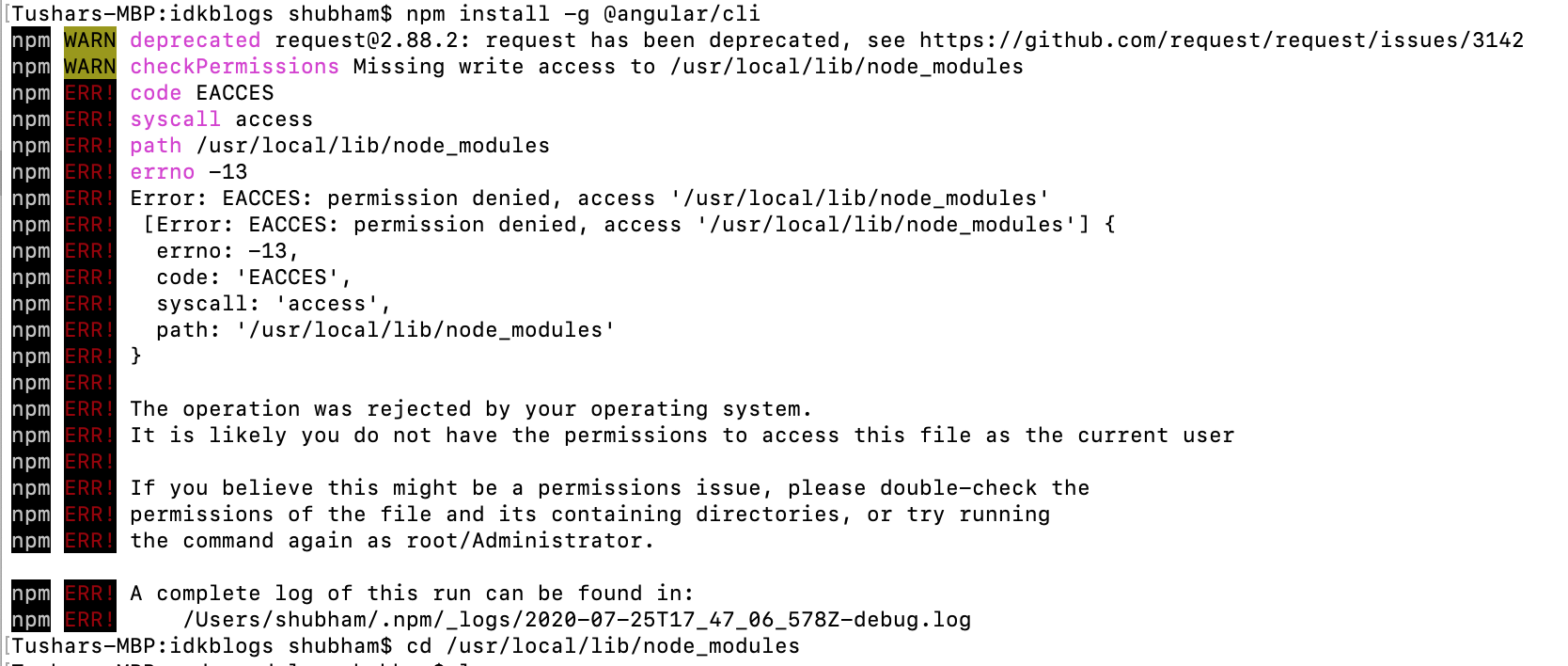
Error: EACCES: permission denied, access ‘/usr/local/lib/node_modules’
Resolve ‘EACCES: permission denied’ problem:
First you should check the file/folder permission by running below command:
See the snapshot:
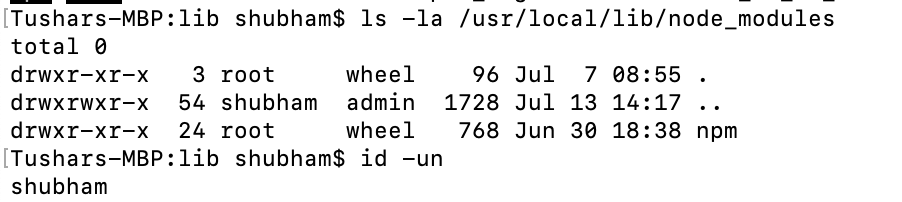
Error: EACCES: permission denied, access ‘/usr/local/lib/node_modules’
You can see in the above snapshot, it is denying access just because of the node_module folder is owned by root
Now this permission needs to be changed by changing the root to your user, you need to know the current username of your system.
To get the username run the below command:
Now you can see the current username as: 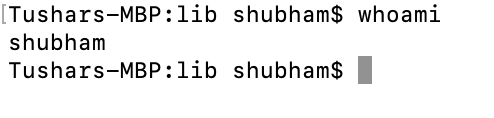
Error: EACCES: permission denied, access ‘/usr/local/lib/node_modules’
Change the user:
Now its time to change the user (owner) and remove the problem.
To change the user (owner) of this folder, run the below command:
After this command, it will ask for password, enter the password and you’r done.
To confirm, check the below command to see the permission and user of that file/folder ( as you did earlier ):
See the snapshot:
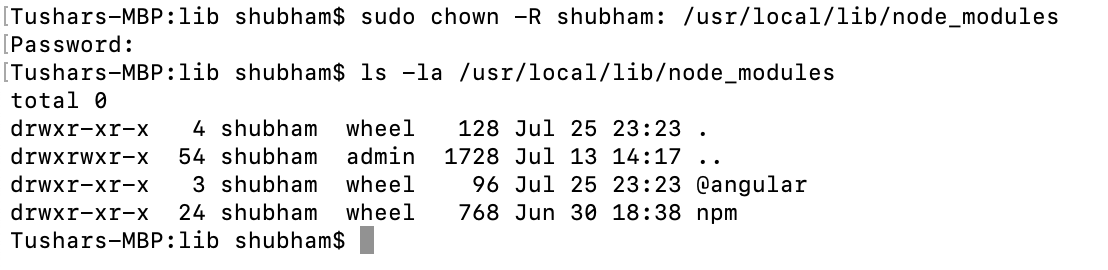
Error: EACCES: permission denied, access ‘/usr/local/lib/node_modules’
Now your problem should be solved, let’s check by installing the angular CLI:
See the snapshot:

Error: EACCES: permission denied, access ‘/usr/local/lib/node_modules’
In the above image, you can see the Error: EACCES: permission denied, access ‘/usr/local/lib/node_modules’ is resolved now.
Conclusion:
In this article, we saw how we can resolve the Error: EACCES: permission denied, access ‘/usr/local/lib/node_modules’ problem and we can change the permission of any file/folder and also saw how we can get the current username of the system.
Support our IDKBlogs team
Welcome to IDKBlogs.
If our contents help you and you learned from this platform, please consider supporting what we do.
Источник
Windows + Conda permission problem: PermissionError(13, ‘Access is denied’) #3363
How to reproduce the problem
I am using Anaconda Navigator, and in turn conda to manage packages in Python.
I can’t successfully install Spacy.
Workflow: open Anaconda Navigator GUI> base(root) — Open Terminal> conda install -c conda-forge spacy
Print out of what I see on command line after :
Rolling back transaction: done
PermissionError(13, ‘Access is denied’)
Your Environment
- Operating System: Windows 10
- Python Version Used: 3.7.1
- spaCy Version Used: none, trying to install
- Environment Information: Conda
The text was updated successfully, but these errors were encountered:
Can you install other packages?
I get the same error when installing other packages from the command line (example below), but I can install packages while in Jupyter Notebook:
conda install -c anaconda pandas
Solving environment: done
==> WARNING: A newer version of conda exists. 2018.11.29-py37_0 anaconda conda: 4.5.12-py37_0 —> 4.6.7-py37_0 anaconda openssl: 1.1.1a-he774522_0 —> 1.1.1a-he774522_0 anaconda pandas: 0.23.4-py37h830ac7b_0 —> 0.23.4-py37h830ac7b_0 anaconda qt: 5.9.7-vc14h73c81de_0 —> 5.9.7-vc14h73c81de_0 anaconda [vc14]»>
Rolling back transaction: done
PermissionError(13, ‘Access is denied’)
However (confusingly to me), I can import other packages from Jupyter Notebook:
The below line runs without errors:
import pandas as pd
In contrast, importing spacy does not work in the same way from Jupyter Notebook:
gives error:
ModuleNotFoundError: No module named ‘spacy’
Okay, this sounds like an issue with your environment maybe? (At least, if it affects other packages, we know that it’s not a problem with spaCy directly.) If you can install from within the notebook, you might actually be executing a different Python environment there? The environment in your notebook may already have pandas pre-installed, which is why that import works and others don’t. Or maybe the permissions are correct for the notebook and not on the command line?
I googled the error and found the following threads:
Some solutions described there included: running the Anaconda prompt as administrator and reinstalling Anaconda, changing from «for all users» to «for myself». I’ll close this issue since it’s not specific to spaCy, but I hope you’ll be able to fix your conda installation 🙂
Источник
Core access permission error
This forum has migrated to Microsoft Q&A. Visit Microsoft Q&A to post new questions.
Asked by:

Question
I am a developer and I need to be able to install new COM+ Applications on my desktop; however, when I click on the COM+ Application branch under My Computer on the Component Services MSC snap-in I get the following error: You do not have permission to perform the requested action. If security is enabled on the System Application of the target computer make sure you are included on the appropriate roles . My domain login is a member of the local Administrators group which should be the only requirement to able to view installed COM+ Applications. I cannot check the rights of the System Application for the same reason. The error in the event log is
Event ID 4434 Category Security
A method call to an object in a COM+ application was rejected because the caller is not properly authorized to make this call. The COM+ application is configured to use Application and Component level access checks, and enforcement of these checks is currently enabled. The remainder of this message provides information about the component method that the caller attempted to invoke and the identity of the caller.Svc/Lvl/Imp = 10/6/2, Identity = >
Is there some other way to set the security on the System Application or a way to reinstall COM+ on Windows 7? Any help would be greatly appreciated. I have run out of ideas.
Jim Lesure
Washington DC
- Moved by Lisa M- Microsoft Support Friday, January 29, 2010 10:42 PM (From:Windows 7 Security, Privacy, and User Accounts)
In the snap-in, please right-click on Computer, and choose Properties. Then select the COM Security tab. Please make sure that your account is allowed to access the components.
If the issue persists, please temporary disable antivirus and check the result again. Arthur Xie — MSFT
I have a similar issue (caller.Svc/Lvl/Imp = 10/6/2) followed by ‘1000/Application error/migwiz/msvcrt.dll’. Right clicking on Computer/Properties at the components snapIn does not show up ‘Properties’.
I have a similar issue (caller.Svc/Lvl/Imp = 10/6/2) followed by ‘1000/Application error/migwiz/msvcrt.dll’. Right clicking on Computer/Properties at the components snapIn does not show up ‘Properties’.
Thank you Arthur
Sorry, there is a mistake in my Post.
I wanted to say: Right clicking on ‘Computer’ item at the components snapIn only brings up ‘Open new window here/Refresh/Help’ but no ‘Properties’.
Sorry for the mistake in my post. We can expand “Computers” in the mmc console, and right-click on My Computer, then choose Properties. We could change the permission there.
Arthur Xie — MSFT
Thank you Arthur
I’m talking about the ‘Component services’ SnapIn on ‘W7/64 Enterprise’ which i start using ‘comexp.msc’ or ‘dcomcnfg.exe’. Also do you?
I do not get ‘Properties’ available on the context menu of ‘Computers/My computer’. And i am locally logged in as an admin.
This is the same Problem as Jim described in his initiating post:
. however, when I click on the COM+ Application branch under My Computer on the Component Services MSC snap-in I get the following error: You do not have permission to perform the requested action. If security is enabled on the System Application of the target computer make sure you are included on the appropriate roles .
Is there a way to post images (printscreens) here?
I do appreciate very much your care taking.
I’ve felt on the *same* problem.
It appears that this may be a side effect of a bug in «windows easy transfert» (did you used it by chance?)
No solution found yet, apart from reinstalling from scratch (repair install does not work) but this implies *not* using easy transfert after the reinstall: go figure!
Thread on this topic here
I have the exact same issue, and also used «Windows Easy Transfer» from an XP Pro system. I’ve performed three new installations of Windows 7 and the only computer with this problem is the one where I used Easy Transfer. I’ve tried everything short of a bare metal install which I would sure like to avoid. I’ve found links on reinstalling DTC, repairing a corrupt catalog (although none of those articles applied to Windows 7), SFC /SCANNOW, and as of today — even an in-place upgrade of the OS. Same problem. Its affecting many operations including performing backups which I have been unable to do since Jan. So needless to say, I can’t mess around with this for much longer.
I’m not sure if Easy Transfer messed with the SIDs, or certificates, or what, but I’m certain COM+ was function before its use.
I don’t see any options to reinstall COM+, and like the others here, I cannot change the role security of the SystemApplication because the problem makes that area inaccessible.
Hi. I have had the same problem. What we’ve figured out is that in our case, it is caused by USMT. We have an in-place upgrade from XP to 7 and on some systems, when USMT restores a users profile, we have this issue. (USMT is basically an automated Easy Transfer, if you didn’t know.) What’s wierd is that it’s only happening with some of our users. I rebuilt my box last week in-place and I am working just fine but my boss did the same and he is not working.
You can fix this by rebuilding the users profile. Just copy all of your docs, favorites, desktop, downloads, etc to another location, log on as a different user and delete your profile. Log back in as yourself (or the user) and copy everything back in. That should fix it. We are currently using this fix, but looking for a better solution. If anyone finds anything please let me know.
You can fix this by rebuilding the users profile. Just copy all of your docs, favorites, desktop, downloads, etc to another location, log on as a different user and delete your profile. Log back in as yourself (or the user) and copy everything back in. That should fix it. We are currently using this fix, but looking for a better solution. If anyone finds anything please let me know.
By reading your fix, I have deduced that the problem should not be present on a *newly created account*.
I’ve made the test by creating a new user: unfortunately the problem also appears inside a session logged under that new account.
Can you explain it?
Are other Windows 7 systems in your enterprise able to browse Com+ applications?
I have used WET from XP*32 Enterprise to create a migration file of my former XP*32 Enterprise Computer on a USB drive and i used WET from the subsequently clean set up W7*64 on the sam computer to restore users, files and settings from this file.
No obvious troubles during these activities.
New account on my Computer does have the same Problem as those transferred by WET.
Well, I was able to narrow the problem down even further. I took the migapp.xml and migsys.xml files out of my USMT loadstate and the problem did not recurr. Those 2 files are responsible for migrating operating system settings and application settings, but migsys.xml is no longer used, so I can leave that one out. I think I am going to need to keep migapp.xml though, so hopefully I can modify the file so that it the problem does not persist.
Unfortunately, this is only a workaround for me, I still don’t know how to actually fix the problem.
I have a similar problem with COM+ Applications — «An error occurred while processing the last operation. Error code 80040154 — Class not registered.» Also an error with the VSS (Unexpected error calling routine CoCreateInstance. hr=0x80040154). To add to the problem am unable to run «VSSadmin List Writers». The return msg. «A Volume Shadow Copy Service component encountered an unexpected error.»
i’ve been through two level of MS support with no resolution other than to reinstall. However, as with other on this list along with postings by others on alternate lists, this doesn’t solve the problem. It appears there is a problem with COM+ that is common to the errors my system generates. Can’t find a way to reinstall just COM+.
Will check out the migsys.xml and migapp.xml suggestion. Also will try the modification to user profiles.
I’m in this boat too. I’ve tried a few things, without luck, including:
- Adjusting permissions for COM+
- Adjusting permission in the registry per http://support.microsoft.com/?kbid=327507
- Making sure my logon was in just about any group that MIGHT make a difference (it’s already a local admin, though)
- Running Process Explorer to look for the error . none was observed.
So I’m hosed. Can’t find a workaround . building a new logon doesn’t work. I’d prefer not to start over again. Is this ABSOLUTELY because we used the transfer tool (which I did)? Or just a theory at this point?
Yes, I have done extensive testing and the problem is transfered via either USMT or the Easy Transfer util. If I do a bare metal install via SCCM, the problem does not occur. However, if I use USMT at all, it happens. I thought eliminating certain .xml files would fix the problem, but USMT 4.0 uses manifest files to do a lot of it’s work, so leaving out .xml files has no effect. I have also recreated the problem by using Easy Transfer. So if you back up your files only, and do a bare metal install, it should work.
I’ve attempted to add my local admin user account under COM Security > Access Permissions > Edit Default, but MMC crashes when clicking OK or Apply. Odd thing is, the local administrator group is already added to the list, so I should have no issues accessing COM+ Applications.
I’ve also used Windows Easy Transfer to transfer files and settings from Win 7 Enterprise x86 to Win 7 Enterprise x64. I have 50+GB of data to backup/recover, so I don’t plan on doing a bare metal install any time soon especially since I just performed one just recently.
Ok, I figured out a workaround for this issue. I still don’t know how to actually fix it, once introduced, but I know how to not introduce it in the first place. This is for USMT 4.0 (probably the same for USMT 3), I’m not sure how you would integrate this into Easy Transfer.
You need to create a config.xml file and specify it on the command line of scanstate.exe and loadstate.exe. It should also work if you only use it on the loadstate.exe step, since it will simply exclude the corrupt settings. You can create the file by typing this at a command prompt:
scanstate /genconfig:config.xml /i:miguser.xml /i:migapp.xml /v:13 /l:scan.log
Of course, you need to be in the directory where scanstate.exe and the xml files are located. Once you have the config.xml, you can specify which Windows settings you want to exclude from the migration. To be safe, I excluded all core Windows settings, which include complus settings, and it worked. I have not tried to go back and just exclude complus, but I think it would probably work. Following is the section that you need to modify. Notice that I only need to set migrate=”no” to the parent “ Windows Core Settings.” This causes USMT to skip the entire section. If you look near the bottom of this section, you will see 3 components related to ComPlus. You can try just excluding those 3 if you want to migrate other core Windows settings. In my case, I don’t need to, so I just skip the whole section.
Hope this helps. Let me know if you have any questions. Oh, and these xml files are much easier to view using a good text editor. I use the editor that comes with AutoIT 3.
Источник