
Запуская какую-либо программу (обычно игровую) пользователь может столкнуться с отказом программы от запуска, что сопровождается сообщением «Another instance is already running». Обычно это означает, что такая же программа уже была запущена ранее, и пользователь пытается запустить её вновь. В нашем материале мы разберём, что это за ошибка, какими причинами она вызвана, и как её можно исправить.

Содержание
- Another instance is already running – что это означает?
- Удалите процесс из Диспетчера задач
- Перезагрузите ваш ПК
- Удалите Ad-Aware Web Companion
- Обновите вашу ОС
- Заключение
Another instance is already running – что это означает?
В переводе текст данного уведомления выглядит как «Другой образец уже запущен». Это означает, что процесс данной программы был уже ранее запущен пользователем или системой, и работает в фоне вашей ОС. При запуске вами данной программы её новый процесс обнаруживает уже работающий идентичный процесс в фоне, и автоматически закрывается, поскольку не настроен на параллельную работу двух одинаковых процессов. Впрочем, для некоторых программ бывают и исключения.
Также другими причинами появления сообщения «Another instance is already running» могут быть следующие:
- Другая версия данной программы ранее была установлена на компьютер. В некоторых случаях такая программа стартует с запуском ПК и работает в фоне;
- Инсталляция данной программы была выполнена некорректно, и её процесс остался работать в фоне;
- На вашем ПК установлена программа «Ad-Aware Web Companion». Данный софт является частым фактором появления сообщения «Another instance is already running»;
- Также причиной ошибки в редких случаях может выступать устаревшая версия Виндовс;
- В редких случаях причиной может выступать приложение «lolpatcher» при запуске игры «League of Legends».
Давайте разберём, как исправить ошибку «Another instance is already running».

Удалите процесс из Диспетчера задач
Первым и наиболее эффективным способом устранить ошибку «Another instance is already running» — это удаление процесса программы, которую вы запускаете, из Диспетчера задач. Выполните следующие действия:
- Нажмите на сочетание клавиш Ctrl+Shift+Escape;
- В открывшемся Диспетчере задач во вкладке «Процессы» найдите процесс, имя которого совпадает с именем запускаемой вами программы, во время работы которой вы получаете рассматриваемую ошибку;
- Кликните на данный процесс, после чего нажмите внизу на кнопку «Снять задачу»;

- Выполните данную процедуру для всех процессов, с именем запускаемой вами программы;
- Затем попробуйте запустить нужную программу. В большинстве случаев она запустится без каких-либо проблем.
Перезагрузите ваш ПК
Довольно простым и эффективным способом борьбы с ошибкой «Another instance is already running» является перезагрузка вашего ПК. Перезагрузите ваш компьютер стандартным образом, и рассматриваемая нами ошибка может пропасть.

Как упоминалось выше, часто встречающимся источником проблемы является приложение «Ad-Aware Web Companion», поставляемая с антишпионским инструментом «Ad-Aware». Удаление данного софта должно решить данную проблему.
Выполните следующие действия:
- Нажмите на Win+R;
- В появившейся табличке введите команду appwiz.cpl и нажмите ввод;
- Найдите в перечне программ «Web Companion», кликните на него и удалите программу с вашего ПК.
Обновите вашу ОС
Также сообщение «Another instance is already running» может возникнуть в случае, если версия вашей ОС Виндовс устарела. Обновление вашей ОС до последней версии может устранить возникшую проблему. Выполните следующее:
- Нажмите на сочетание клавиш Win+R;
- Введите там команду ms-settings:windowsupdate и нажмите на клавишу Энтер;

- Запустится Центр обновления Виндовс;
- Нажмите там на кнопку проверки наличия обновлений;

- ОС Виндовс проверит, есть ли какие-либо обновления, ожидающие установки. При наличии таковых установите их в системе. После этого рассматриваемая нами ошибка может пропасть.
Это полезно знать: Произошла ошибка. Перезапустите игру, чтобы использовать эту возможность в КС:ГО.
Заключение
В нашем материале мы разобрали, что за ошибка «Another instance is already running», какими причинами она вызвана, и как исправить возникшую проблему. Обычно фактором ошибки выступает процесс запускаемой программы, работающий в фоновом режиме операционной системы. Достаточно удалить данный процесс в Диспетчере задач, после чего указанное сообщение перестанет вам досаждать.
Опубликовано 16.03.2022 Обновлено 16.03.2022
Содержание
- Ошибка Another instance is already running — как исправить?
- Another instance is already running – что это означает?
- Удалите процесс из Диспетчера задач
- Перезагрузите ваш ПК
- Удалите Ad-Aware Web Companion
- Обновите вашу ОС
- Заключение
- How to troubleshoot the “App Already Running” error in Steam
- Why Does Steam Say My Game Is Running When It’s Not?
- How to Fix the “Failed to Start Game (App Already Running)” Error in Steam
- Use the Task Manager
- Log out of Steam and log in
- Make sure the game isn’t running on another user account
- Launch the game as an administrator
- Follow these steps:
- Opt out of Steam’s beta program
- Opt out of the beta program to check if it’s the cause of the problem. Follow these steps:
- Update Steam
- Verify the integrity of the game’s files
- Prevent your antivirus software program from blocking the game
- Delete the GameOverlayRenderer.log file
- It would be best to restart your computer before performing this fix. Follow the instructions below:
- Disable overlay programs
- Disable the Discord overlay:
- Disable the Steam overlay:
- You can also disable the Steam overlay feature for individual games. Follow these steps:
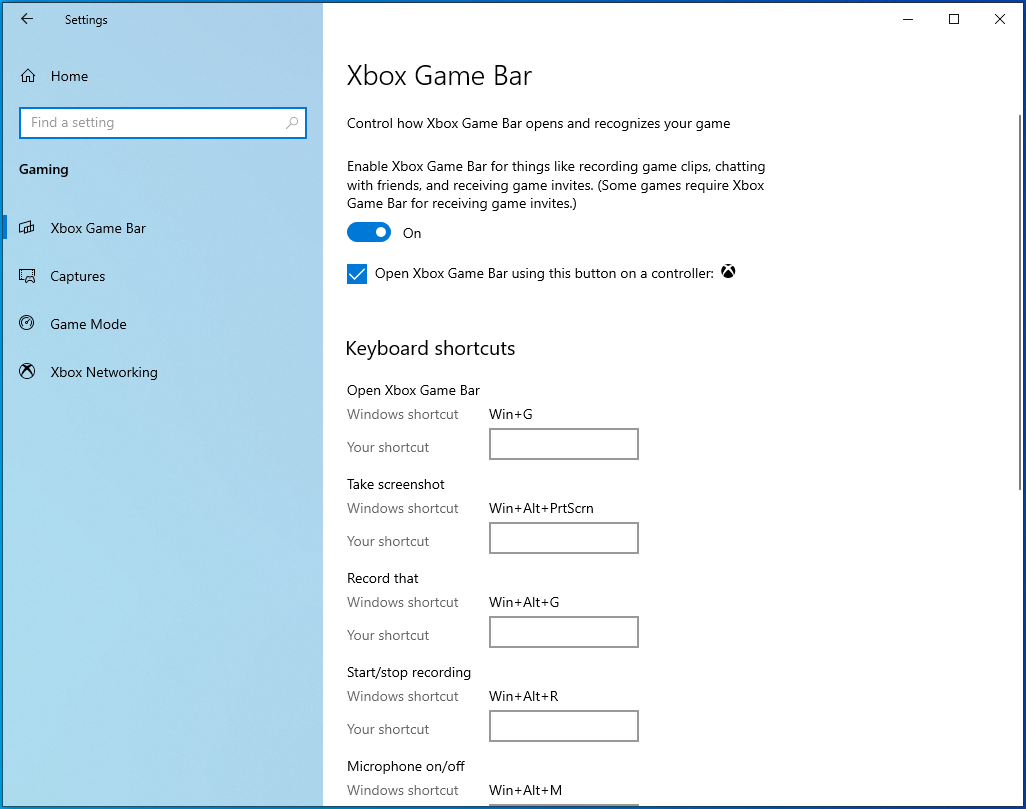
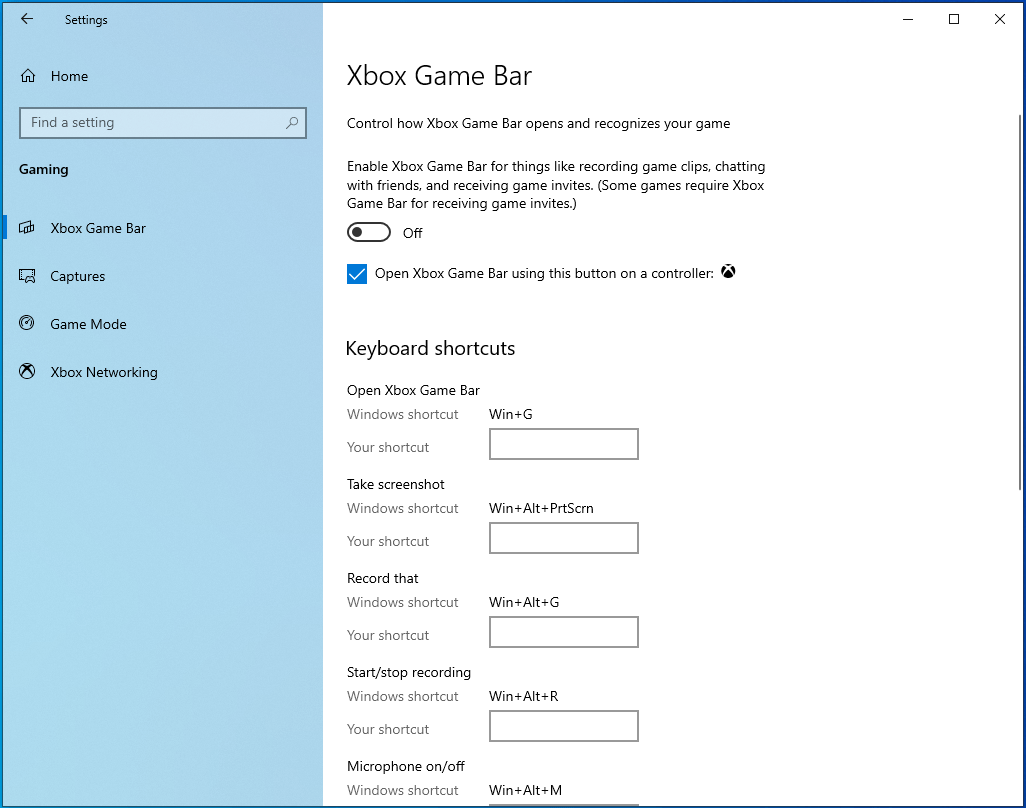
- Here is how to disable Xbox Game Bar:
- Turn off NVIDIA Overlay in GeForce Experience:
- Launch the game from the Steam folder and close it
- Perform a clean boot
- Follow these steps to perform a clean boot:
- Firstly, disable startup programs:
- Next, disable startup services:
- Conclusion
- Parting Tip
Ошибка Another instance is already running — как исправить?
Запуская какую-либо программу (обычно игровую) пользователь может столкнуться с отказом программы от запуска, что сопровождается сообщением «Another instance is already running». Обычно это означает, что такая же программа уже была запущена ранее, и пользователь пытается запустить её вновь. В нашем материале мы разберём, что это за ошибка, какими причинами она вызвана, и как её можно исправить.
Another instance is already running – что это означает?
В переводе текст данного уведомления выглядит как «Другой образец уже запущен». Это означает, что процесс данной программы был уже ранее запущен пользователем или системой, и работает в фоне вашей ОС. При запуске вами данной программы её новый процесс обнаруживает уже работающий идентичный процесс в фоне, и автоматически закрывается, поскольку не настроен на параллельную работу двух одинаковых процессов. Впрочем, для некоторых программ бывают и исключения.
Также другими причинами появления сообщения «Another instance is already running» могут быть следующие:
- Другая версия данной программы ранее была установлена на компьютер. В некоторых случаях такая программа стартует с запуском ПК и работает в фоне;
- Инсталляция данной программы была выполнена некорректно, и её процесс остался работать в фоне;
- На вашем ПК установлена программа «Ad-Aware Web Companion». Данный софт является частым фактором появления сообщения «Another instance is already running»;
- Также причиной ошибки в редких случаях может выступать устаревшая версия Виндовс;
- В редких случаях причиной может выступать приложение «lolpatcher» при запуске игры «League of Legends».
Давайте разберём, как исправить ошибку «Another instance is already running».
Удалите процесс из Диспетчера задач
Первым и наиболее эффективным способом устранить ошибку «Another instance is already running» — это удаление процесса программы, которую вы запускаете, из Диспетчера задач. Выполните следующие действия:
- Нажмите на сочетание клавиш Ctrl+Shift+Escape;
- В открывшемся Диспетчере задач во вкладке «Процессы» найдите процесс, имя которого совпадает с именем запускаемой вами программы, во время работы которой вы получаете рассматриваемую ошибку;
- Кликните на данный процесс, после чего нажмите внизу на кнопку «Снять задачу»;

Перезагрузите ваш ПК
Довольно простым и эффективным способом борьбы с ошибкой «Another instance is already running» является перезагрузка вашего ПК. Перезагрузите ваш компьютер стандартным образом, и рассматриваемая нами ошибка может пропасть.
Как упоминалось выше, часто встречающимся источником проблемы является приложение «Ad-Aware Web Companion», поставляемая с антишпионским инструментом «Ad-Aware». Удаление данного софта должно решить данную проблему.
Выполните следующие действия:
- Нажмите на Win+R;
- В появившейся табличке введите команду appwiz.cpl и нажмите ввод;
- Найдите в перечне программ «Web Companion», кликните на него и удалите программу с вашего ПК.
Обновите вашу ОС
Также сообщение «Another instance is already running» может возникнуть в случае, если версия вашей ОС Виндовс устарела. Обновление вашей ОС до последней версии может устранить возникшую проблему. Выполните следующее:
- Нажмите на сочетание клавиш Win+R;
- Введите там команду ms-settings:windowsupdate и нажмите на клавишу Энтер;


Заключение
В нашем материале мы разобрали, что за ошибка «Another instance is already running», какими причинами она вызвана, и как исправить возникшую проблему. Обычно фактором ошибки выступает процесс запускаемой программы, работающий в фоновом режиме операционной системы. Достаточно удалить данный процесс в Диспетчере задач, после чего указанное сообщение перестанет вам досаждать.
Источник
How to troubleshoot the “App Already Running” error in Steam
Download and try Outbyte PC Repair right now to see what it can do for your Windows.
Developed for Windows 10/11 (8, 7, Vista, XP)
Special offer. See more information about Outbyte and uninstall instructions. Please review EULA and Privacy Policy.

Dealing with a Steam issue isn’t always easy. However, your task won’t be Herculean if the problem affects a single game.
The “App already running” error is one of those Steam issues that show up when you try to launch a game. While the problem is usually triggered by one game, sometimes it shows up when you try to open any Steam title on your computer.
The error message reads as follows:
“Failed to start game (app already running).”
If you’re on this webpage because you’re yet to figure out how to fix the problem, you’re in luck. We’ve gathered different guides on how to get rid of the error, some of which you might have come across. But rest assured you’ll get the solution you’ve been scouring the Internet for right here.
Why Does Steam Say My Game Is Running When It’s Not?
This is the question that troubles every gamer facing this problem.
Steam recognizes that the game is running in the program because it probably is. In most situations, the error is the result of a soft crash. The game might have failed to shut down properly after your last session. It could also be running under a different user profile on your system.
Another possible cause of the error is a launch glitch. This is mostly the case when the error keeps showing up after your second attempt at launching the game.
How to Fix the “Failed to Start Game (App Already Running)” Error in Steam
There are different ways to get rid of the problem, but what works for you depends on the cause of the error in your system. The guides below will show you how to remove the “Failed to start game (app already running)” notification in Steam by helping you get rid of its underlying causes.
Use the Task Manager
Your PC video game or some of its processes could still be running in the background despite it crashing on you. Open the Task Manager to completely close it, then run it again to check if the issue has been resolved. Follow these steps:
- Press the CTRL + Shift + Esc keyboard combo to open the Task Manager or right-click on the taskbar and click on Task Manager from the context menu.

- After the Task Manager window shows up, switch to the Processes tab. If you don’t see any tabs on the first page of the Task Manager, click on More Details.
- Now, locate the game’s process, click on it, and then click on the End Task button.
- After that, launch the game and check if the error message pops up.
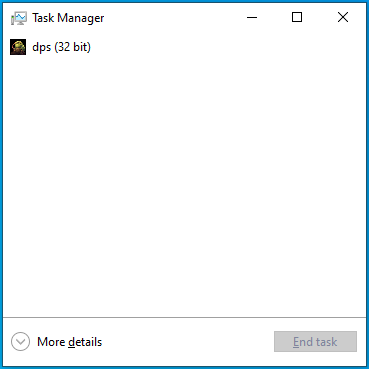
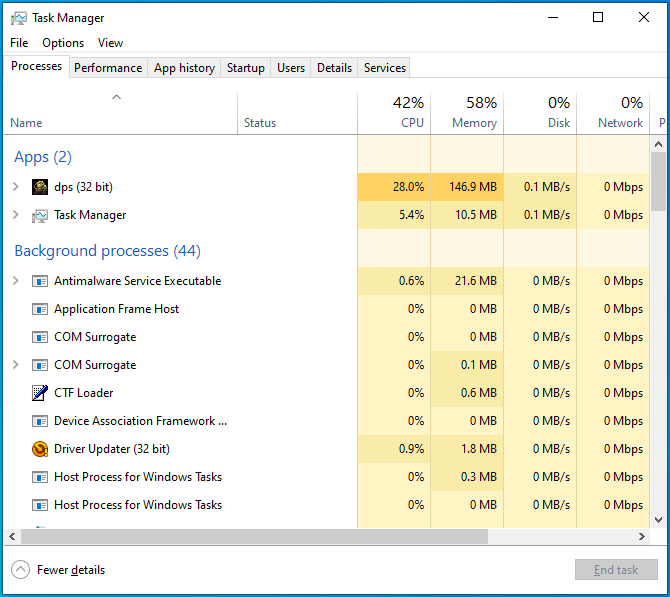
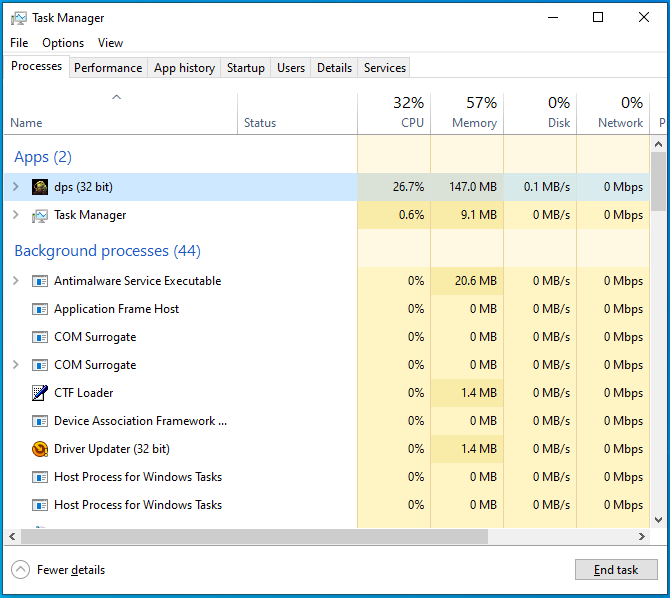
You can also reboot your system and launch the game. That way, you’re shutting down every active app and clearing the system memory.
Make sure you use the Restart option. Shutting down your system may not prove useful, especially if Fast Startup is enabled on your computer.
Log out of Steam and log in
If ending the game via the Task Manager and restarting your device doesn’t solve the problem, log out of your Steam account and sign in again. Doing that will force the client to restart your game library and reinitialize everything. Follow these steps:
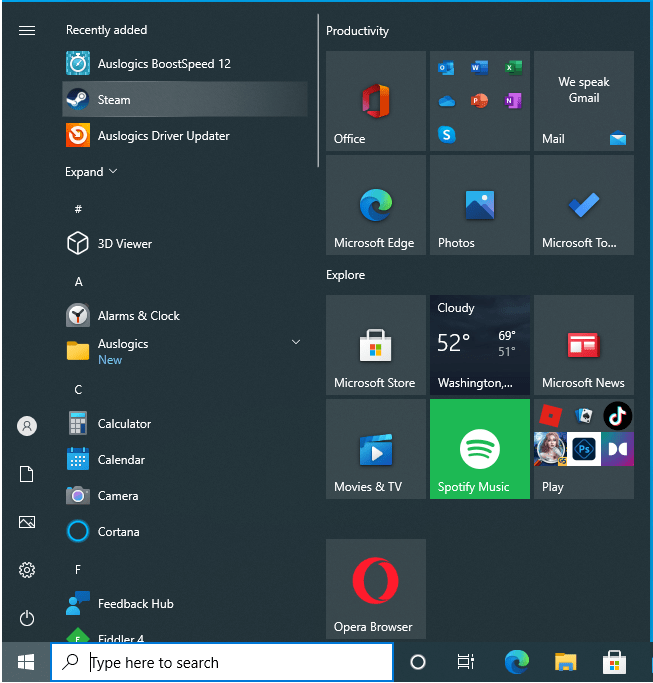
- Go to the Start menu and launch the Steam client.
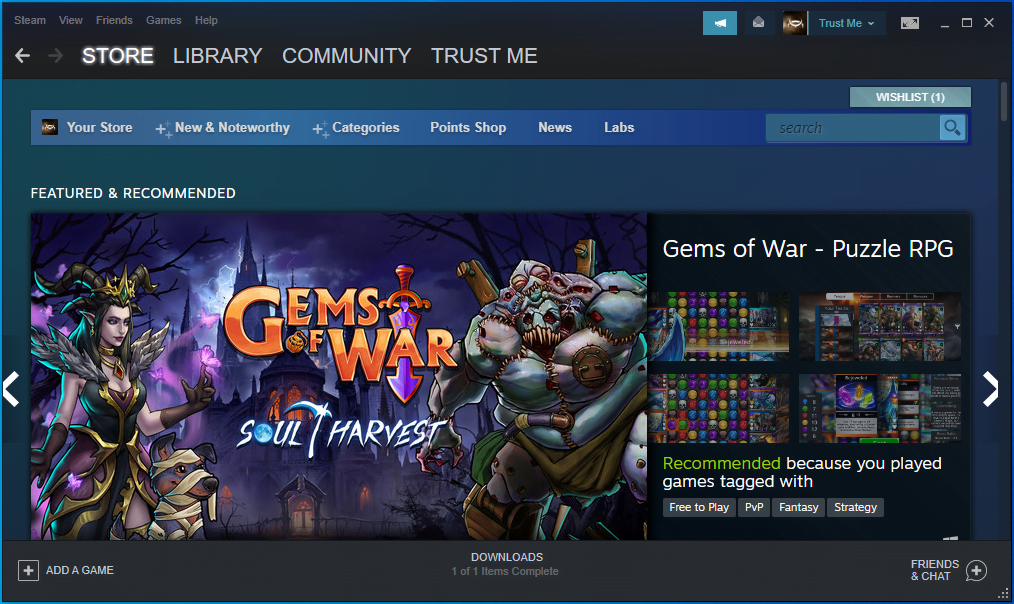
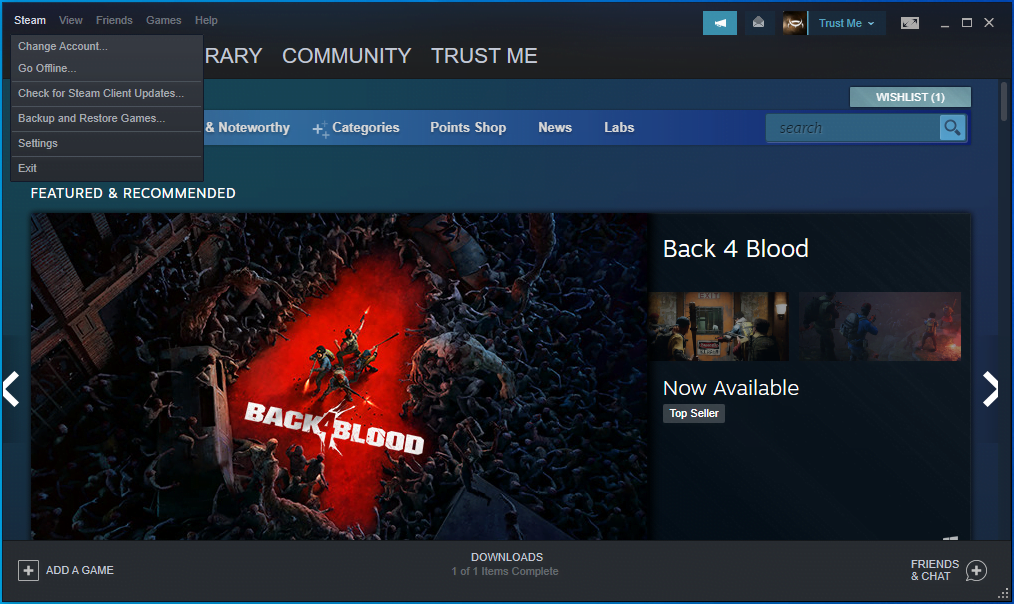
- After Steam opens, go to the top-left corner and click on Steam.
- Select Change Account from the menu.
- Click on LOGOUT.
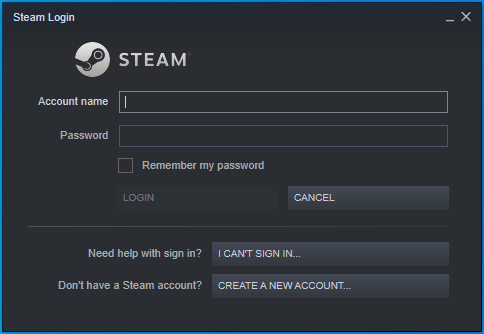
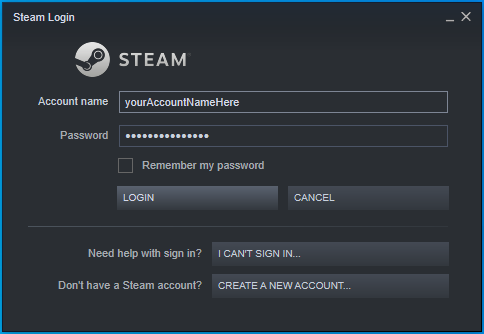
- The login screen will now appear.
- Enter your login credentials to sign in.
- After signing in, run the game.
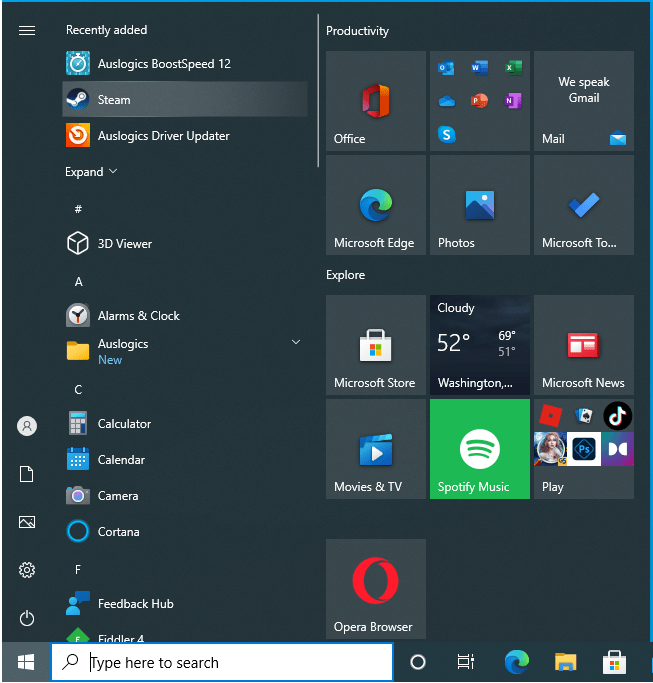
Make sure the game isn’t running on another user account
If you have more than one user account on your computer, make sure the rest aren’t active. Another user might have launched the game. Shutting down your computer should do the trick, but first, make sure you log out of every open user account.
To do that, right-click on the Start button to open the Power User menu. After the menu shows up, hover your mouse cursor over “Shut down or sign out” and click on Sign Out. Once you get to the user account selection page, sign in to the other user account that might be open. Now, head to the taskbar and right-click on the Start button. Hover your mouse cursor over “Shut down or sign out” in the Power User menu and click on Sign Out.
Launch the game as an administrator
The game’s launch issues might be occurring because it doesn’t have admin privileges to access some protected system resources that it depends on. Grant it access, and the problem should be resolved once and for all.
Now, before you grant the game admin rights, you have to make sure you’re logged into an administrator account. After getting that out of the way, locate the game’s installation folder and adjust the executable file.
Follow these steps:
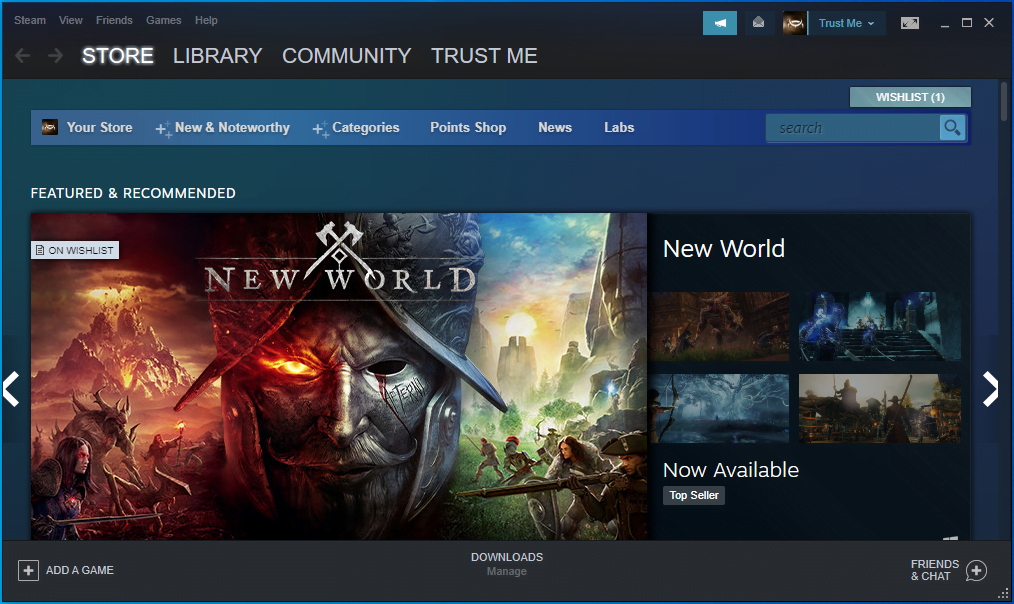
- First, launch the Steam client.
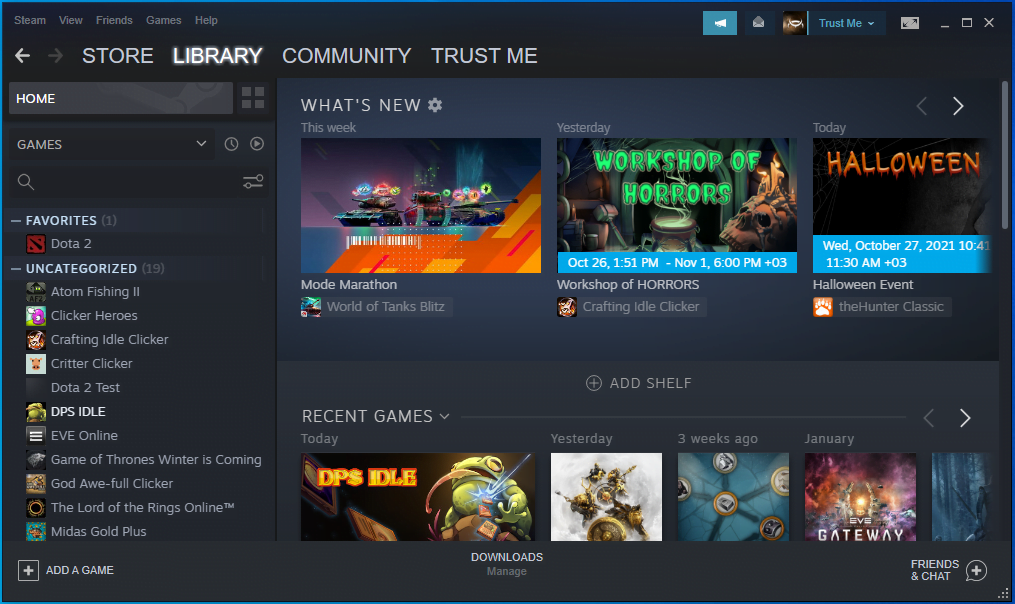
- Open the game library by clicking on Library at the top of the screen.
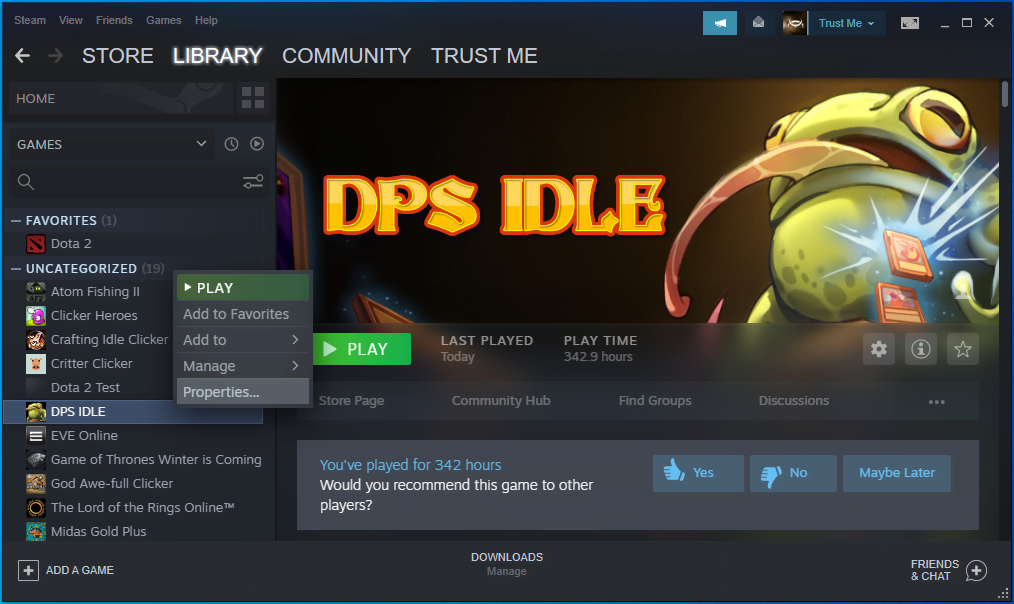
- After the list of games shows up on the left side of the screen, locate the game with the problem, right-click it, and select Properties.
- The Properties options will now populate the right side of the window.
- Switch to the Local Files tab.
- Click on the “Browse” button.
- The game’s installation folder should now appear.
- Locate its executable file and right-click it.
- Click on Properties in the context menu.
- The Properties dialog window will pop up.
- Go to the Compatibility tab.
- Tick the box beside “Run this program as an administrator” and click the OK button.
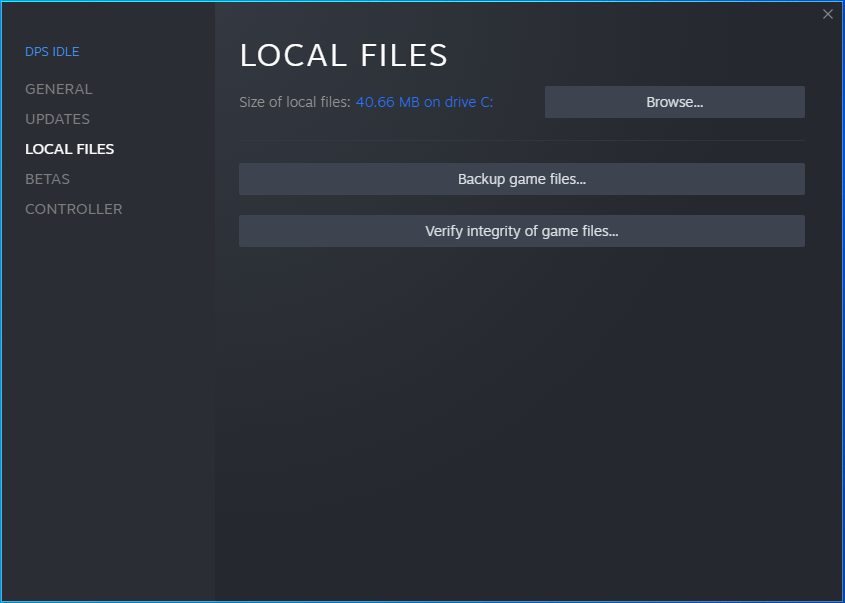
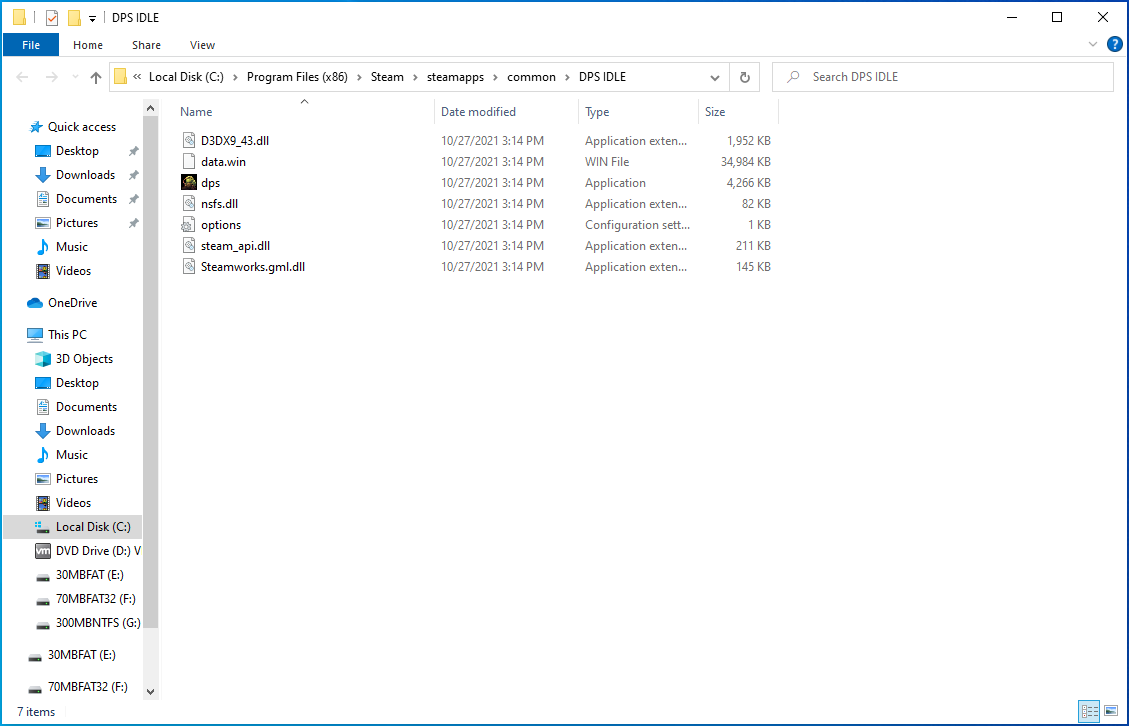
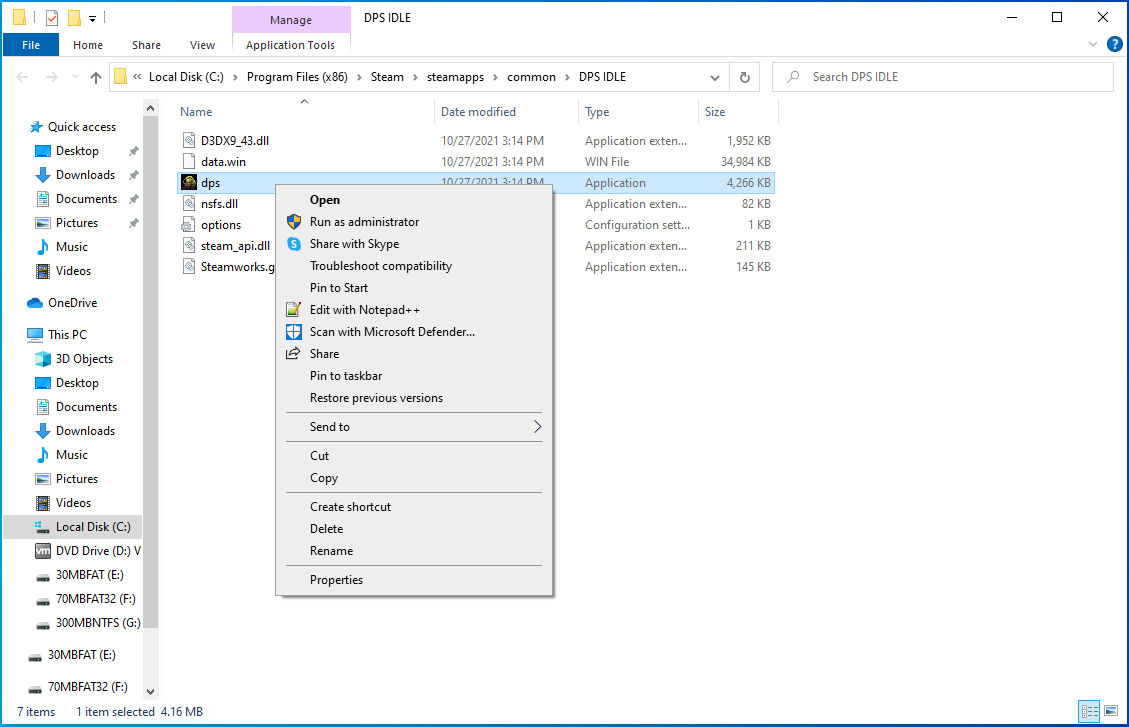
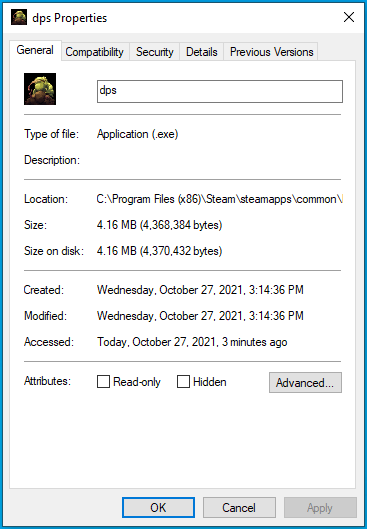
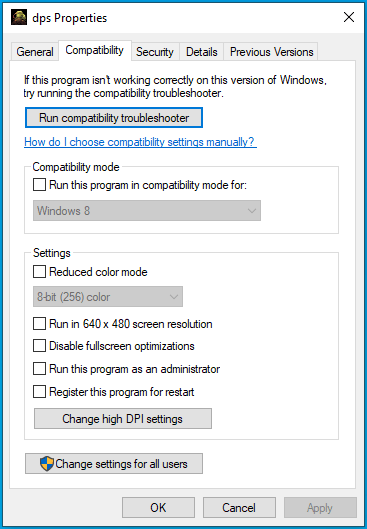
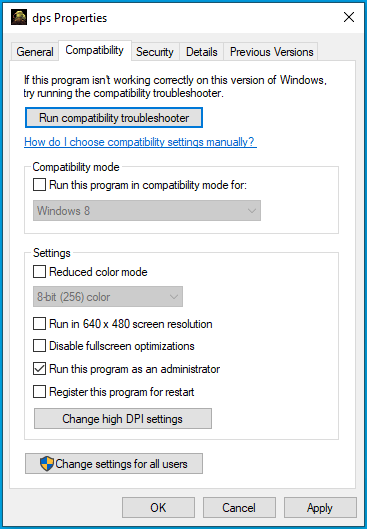
You should also run the Steam client as an administrator. You can right-click on its desktop shortcut and click on Properties, then check the “Run this program as an administrator” box under the Compatibility tab and click on OK.
Opt out of Steam’s beta program
Steam runs a beta program to get users to test upcoming features. The point of the beta program is to get users to find and report bugs and vulnerabilities, such as the issue you’re facing. While features in the beta stage don’t disrupt gaming in a general sense, they can affect individual games. This could be the cause of the error notification.
Opt out of the beta program to check if it’s the cause of the problem. Follow these steps:
- Go to the Start menu and launch the Steam client.
- Wait until Steam opens.
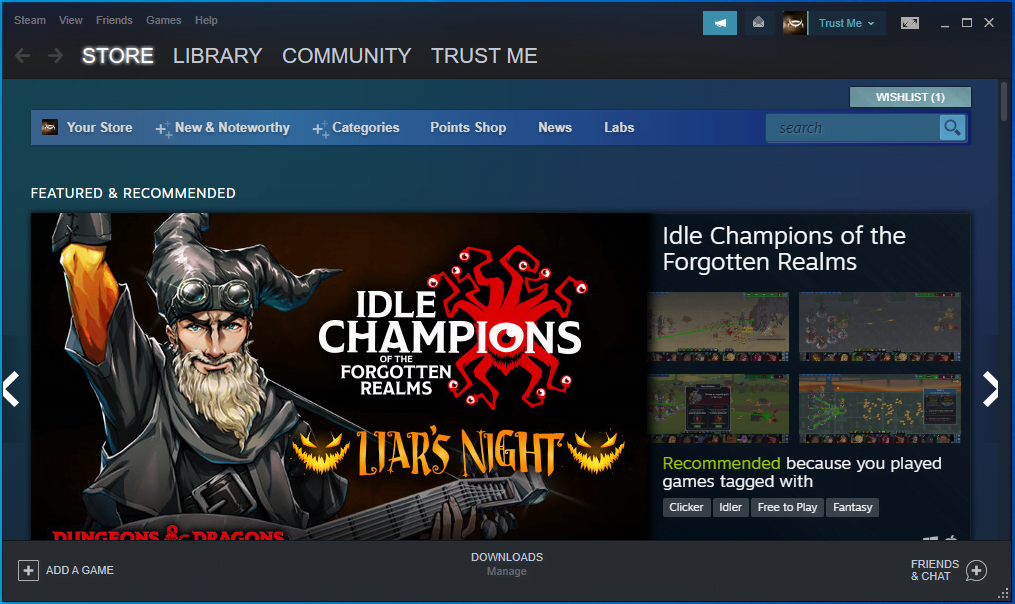
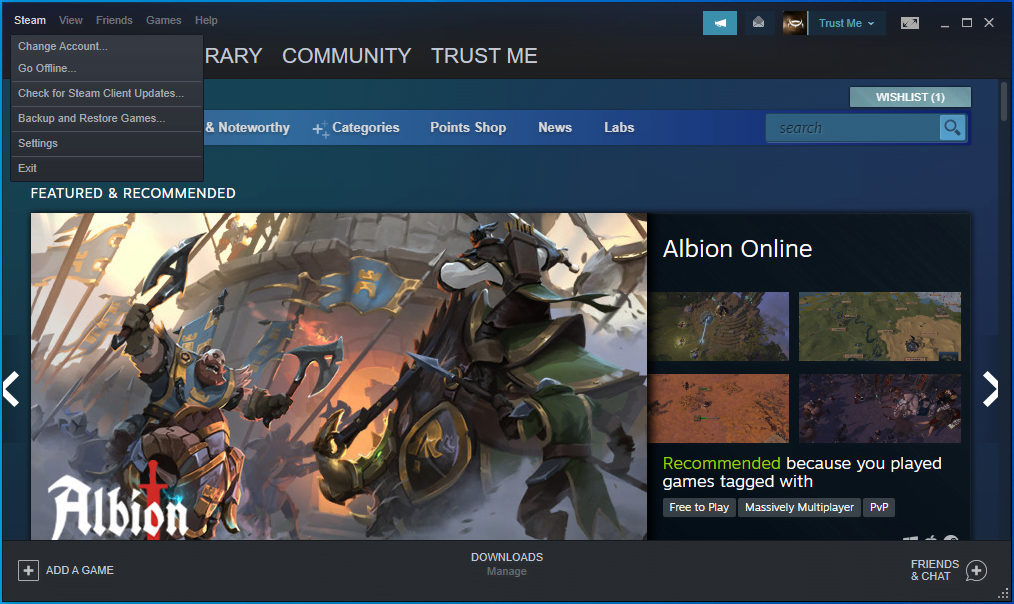
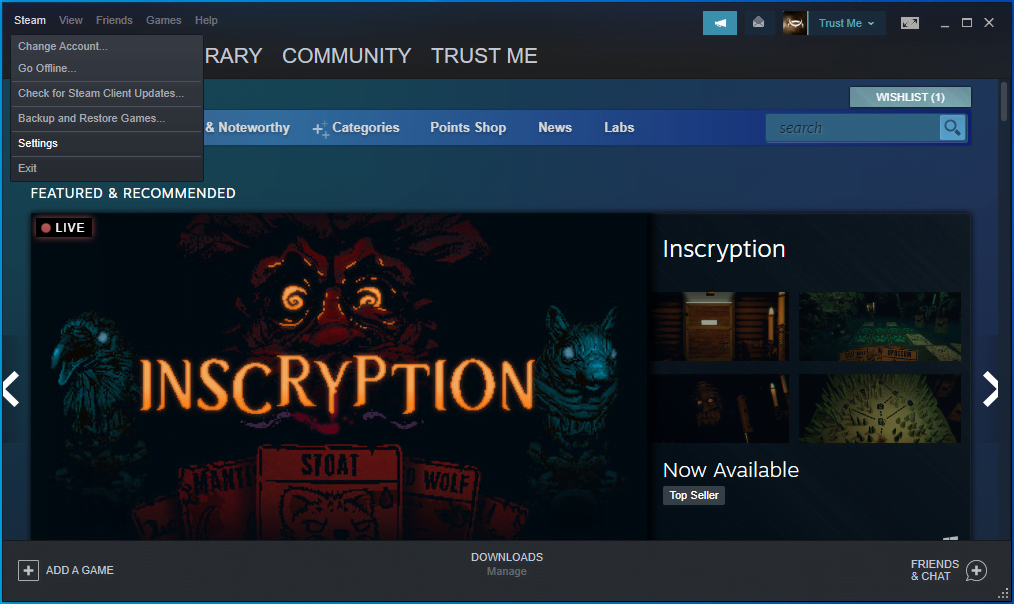
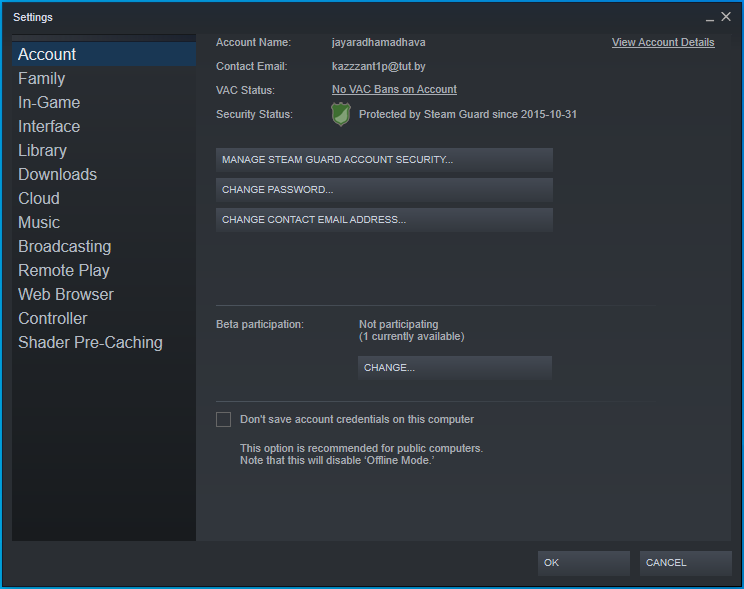
- Go to the top-left corner and click on Steam.
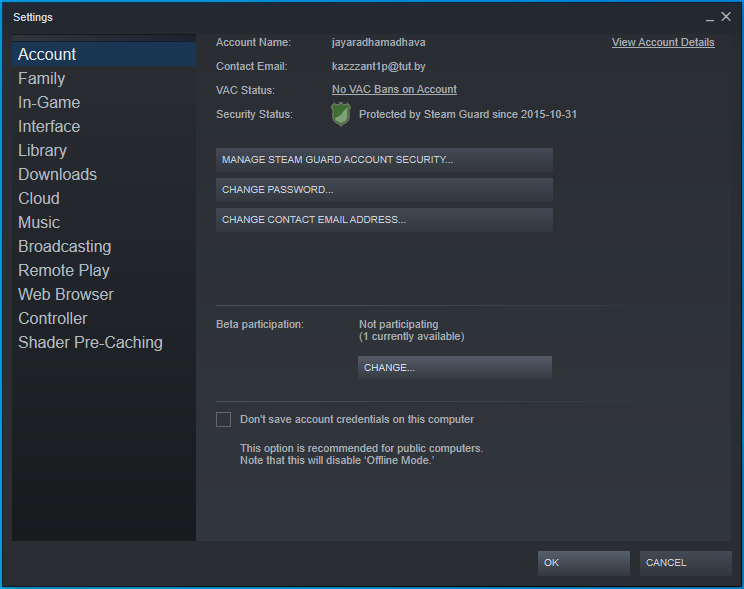
- Choose Settings in the menu that drops down under Steam.
- Select Account on the left side of the window to switch to the Account tab.
- Go to “Beta participation” and click the Change button.
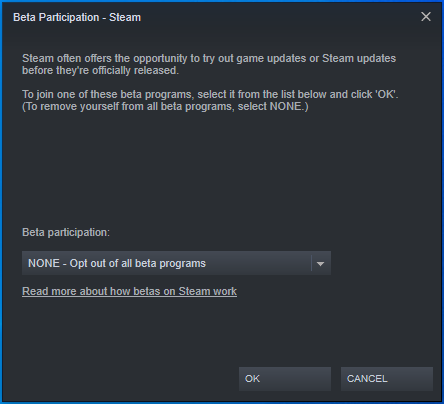
- Once the drop-down menu shows up, select “NONE – Opt out of all beta programs.”
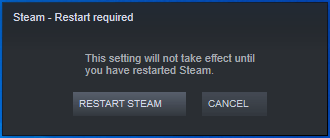
- A pop-up will now prompt you to restart the client. Click on Restart Steam.
Update Steam
You could be struggling with the “App already running” error because you’re using an old version of Steam. Check for the updated version and install it, then check to see if the error has been resolved.
To check for updates, do the following:
- Launch the Steam client.
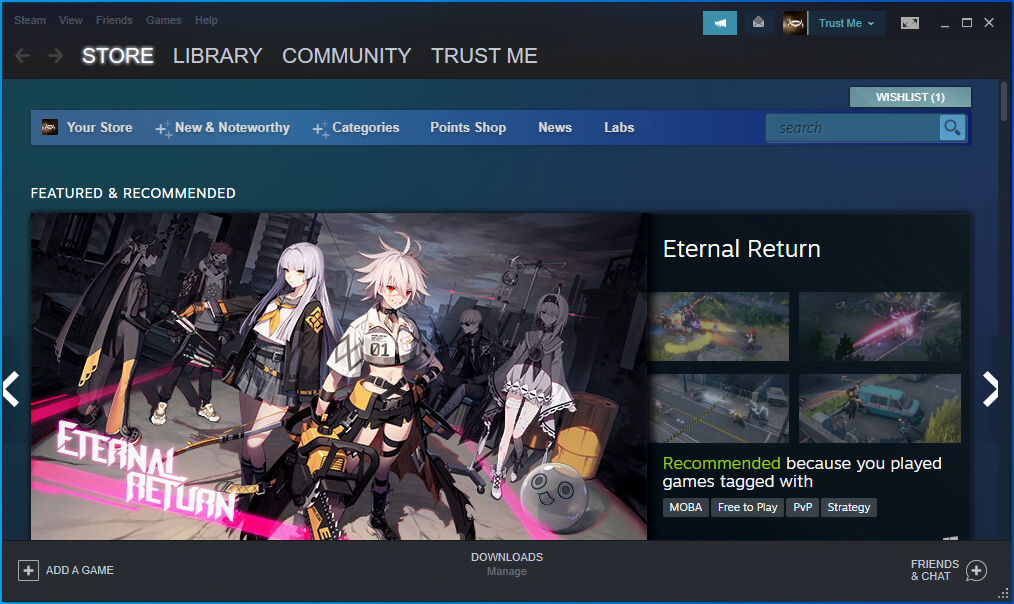
- Click on Steam at the top of the window and select “Check for Steam Client Updates.”
- Restart Steam if prompted.
- Check if Steam is updated.
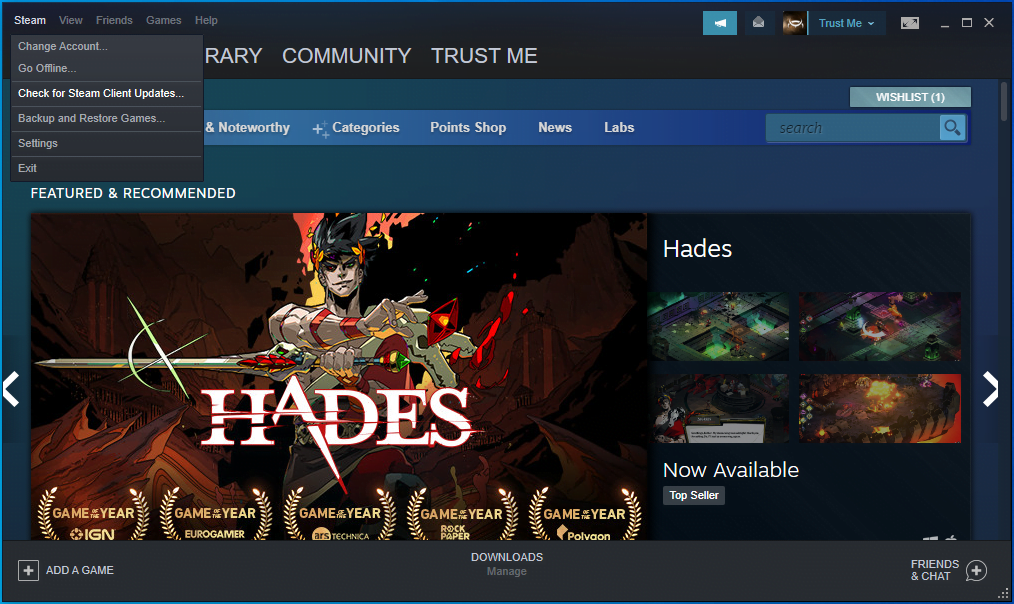
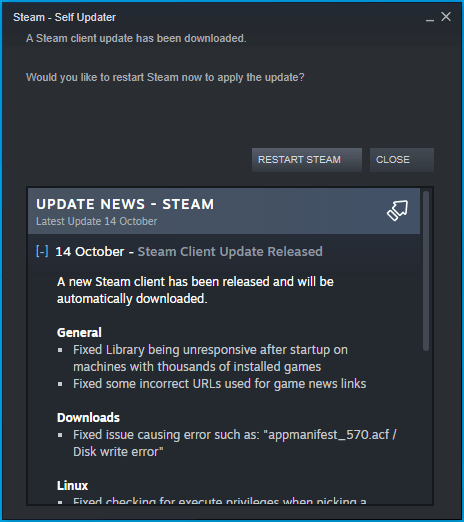 Check if Steam is updated.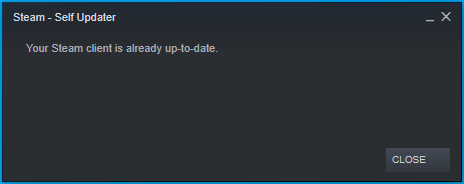
Verify the integrity of the game’s files
Many launch problems can be traced back to damaged or missing game files. You can’t run any game if its files aren’t complete. Even if you get past the start screen, it will crash mid-game, causing the Steam client to produce the error once you try to launch it again.
Game files are often compromised by malware or incomplete installations or updates. Game mods could also mess some gaming files up. Another cause of game file corruption is abrupt shutdowns in the middle of gameplay.
To resolve this problem, open Steam and verify the game’s files. The client will check for missing and corrupt files and replace them. Follow these steps:
- First, launch the Steam client.
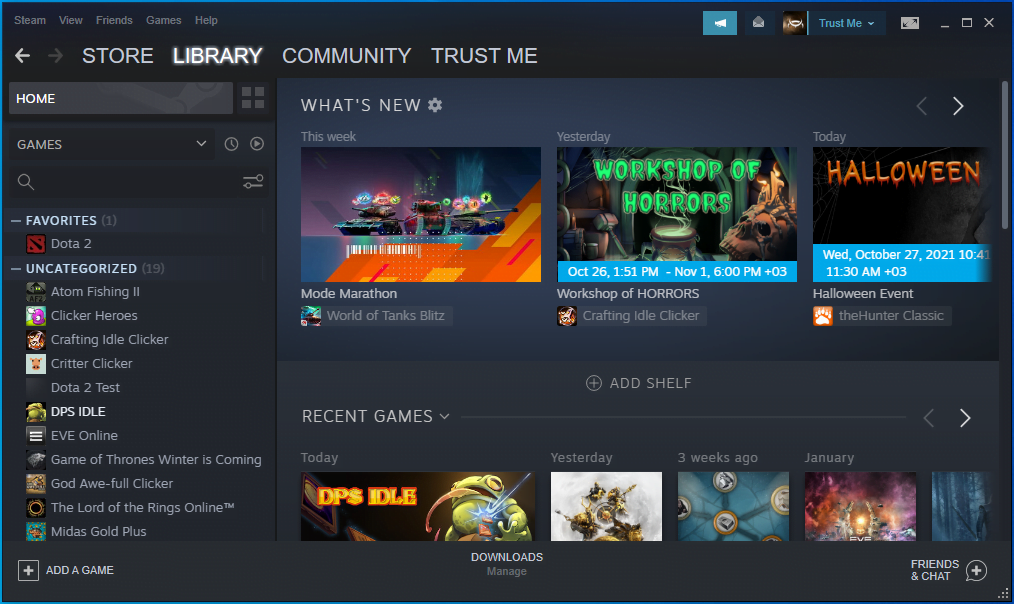
- Open the game library by clicking on Library at the top of the screen.
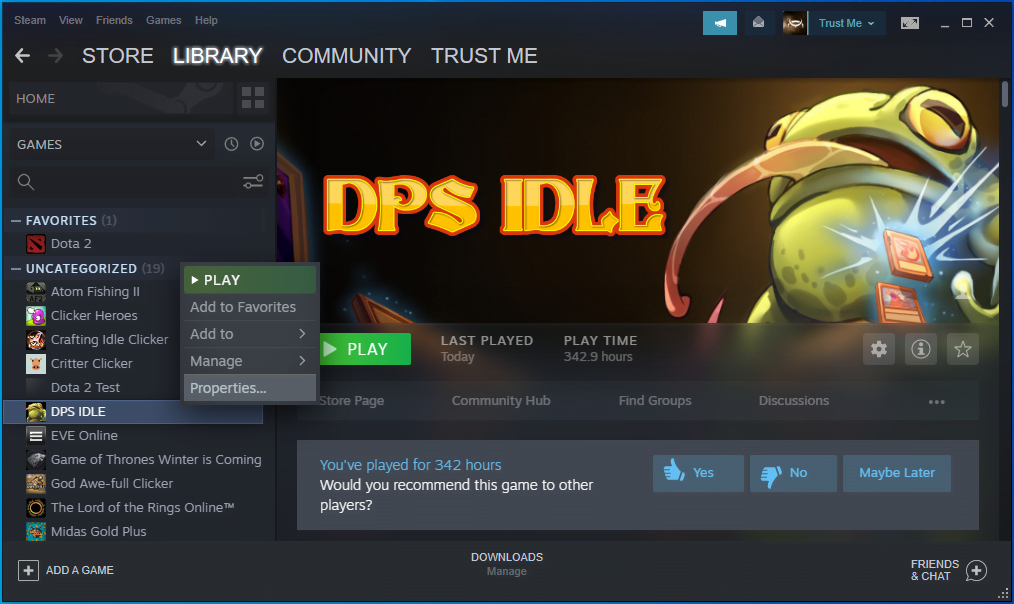
- After the list of games shows up on the left side of the window, locate the game with the problem, right-click it, and select Properties.
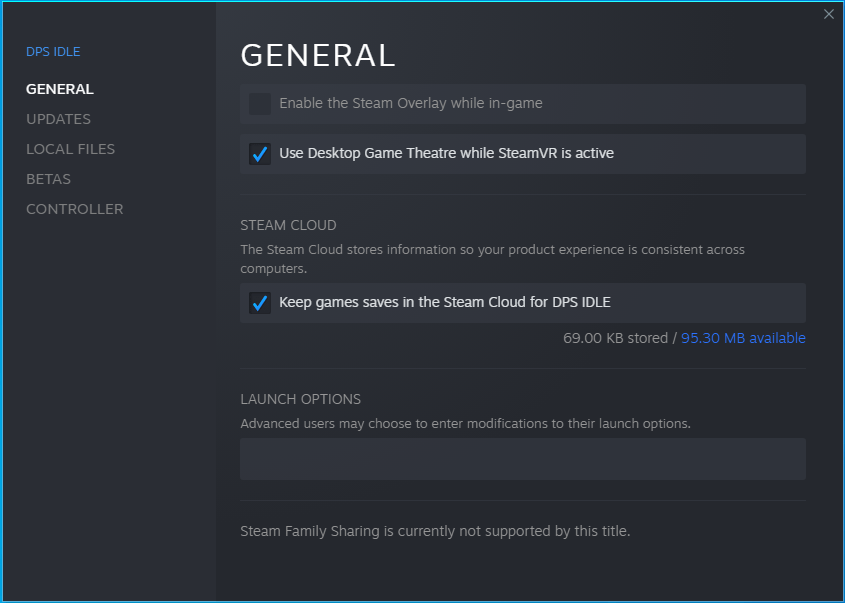
- The Properties options will now populate the right side of the window.
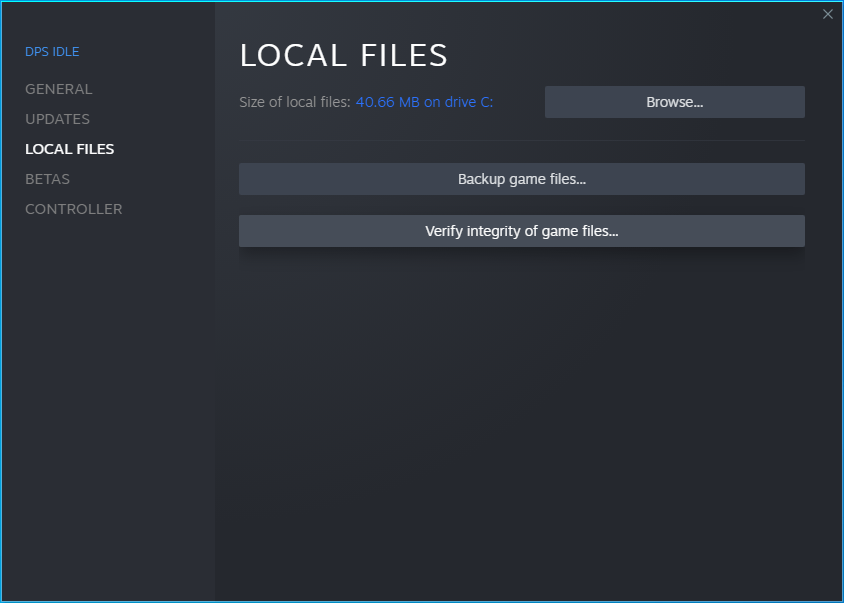
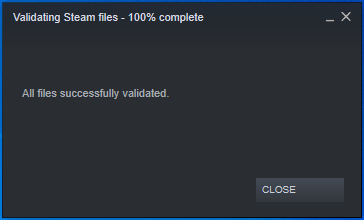
- Switch to the Local Files tab and click on the “Verify Integrity of Game Files” button.
- Steam will now scan your game’s installation folder to check for files that aren’t consistent with updated versions on Steam servers. The client will replace any file with integrity violations.
- The duration of the verification and repair process depends on your system’s processing power, its internet connection speed, and the size of the files being scanned and repaired.
- Once the process is complete, restart Steam and check for the error.
Prevent your antivirus software program from blocking the game
Your antivirus program might be blocking the game you’re trying to launch because it sees it as a security threat. Video games are often the victims of false-positive situations where antivirus programs mistake legitimate and safe programs and files for malware.
Add the problematic game as an exception to your protection program and check for the error. The process depends on the antivirus program you use. You can check the program’s website to find out how to apply this fix. However, if you use Windows Defender as your main antivirus program, these steps will walk you through the process:
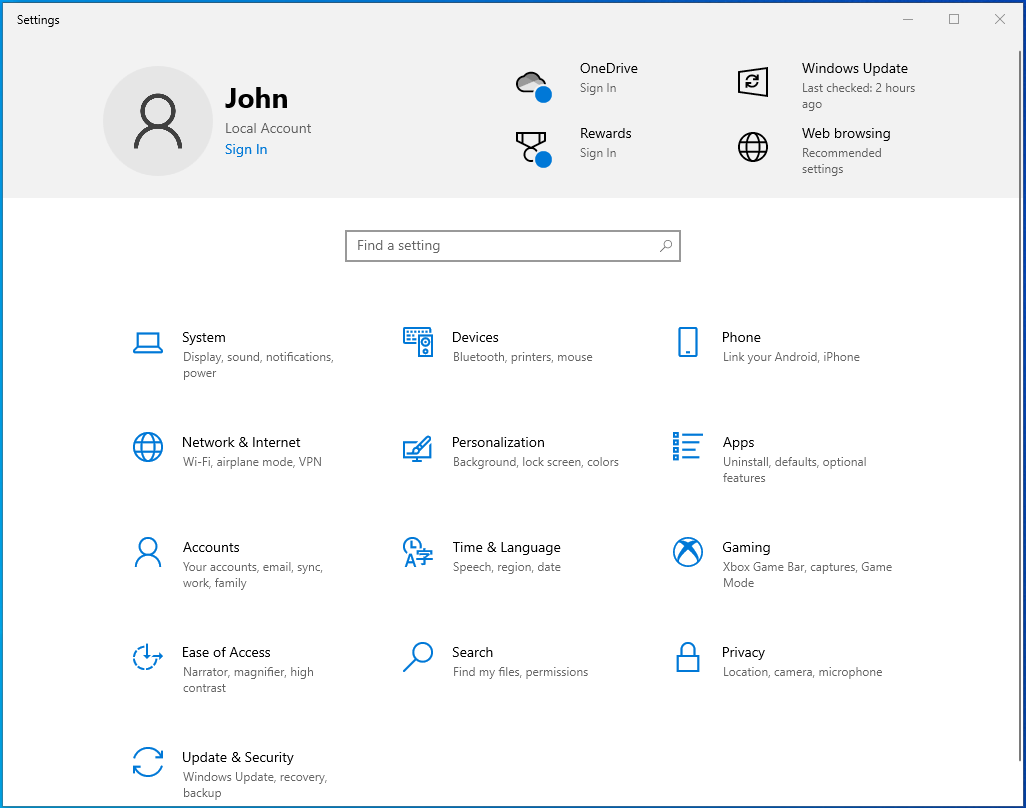
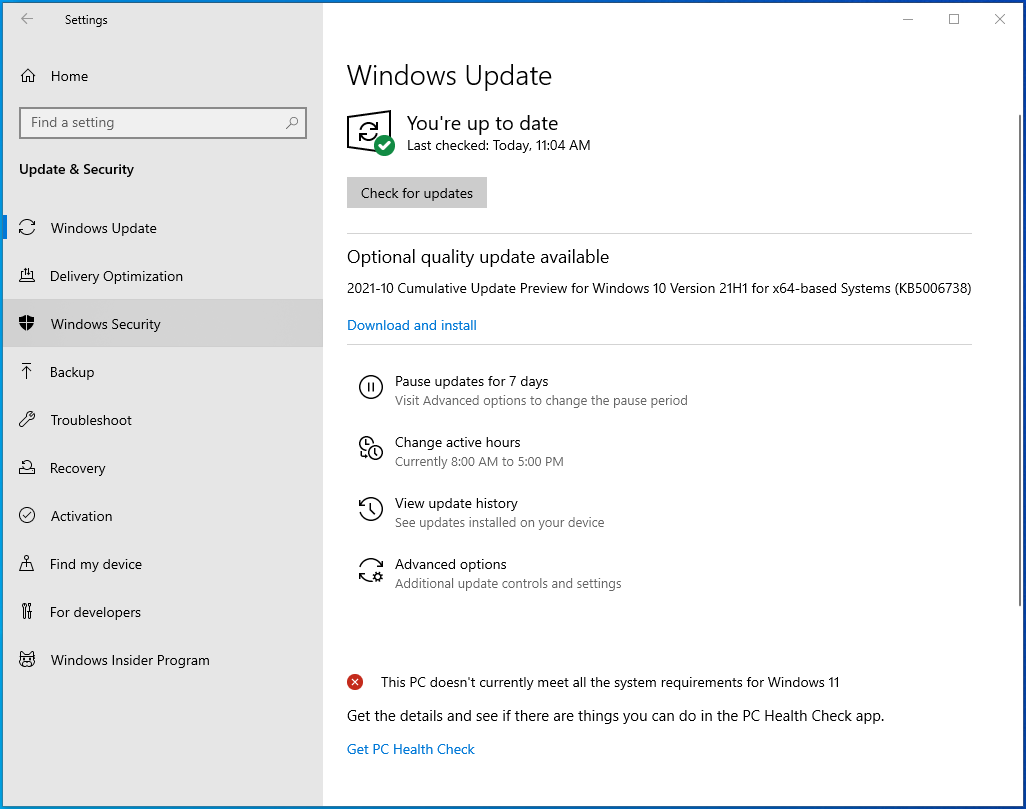
- Go to the Start menu and click on the cogwheel icon or press the Windows and I keyboard buttons together to open Settings.
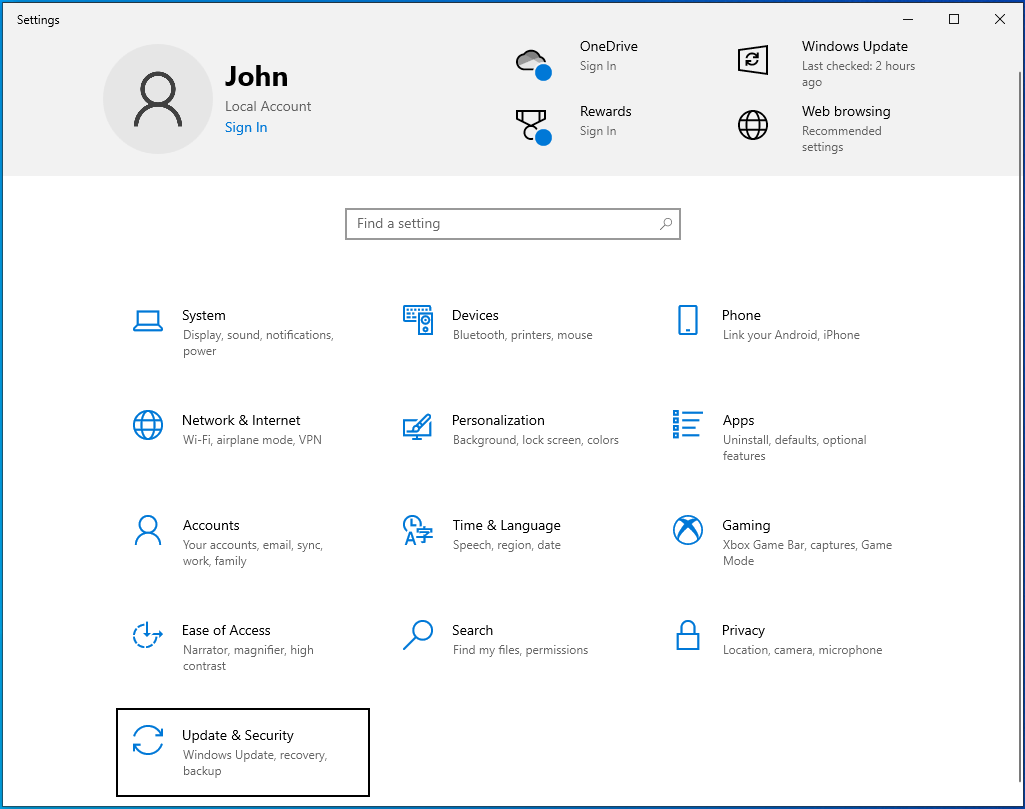
- Once Settings shows up, click on the Update & Security icon located at the bottom of the home screen.
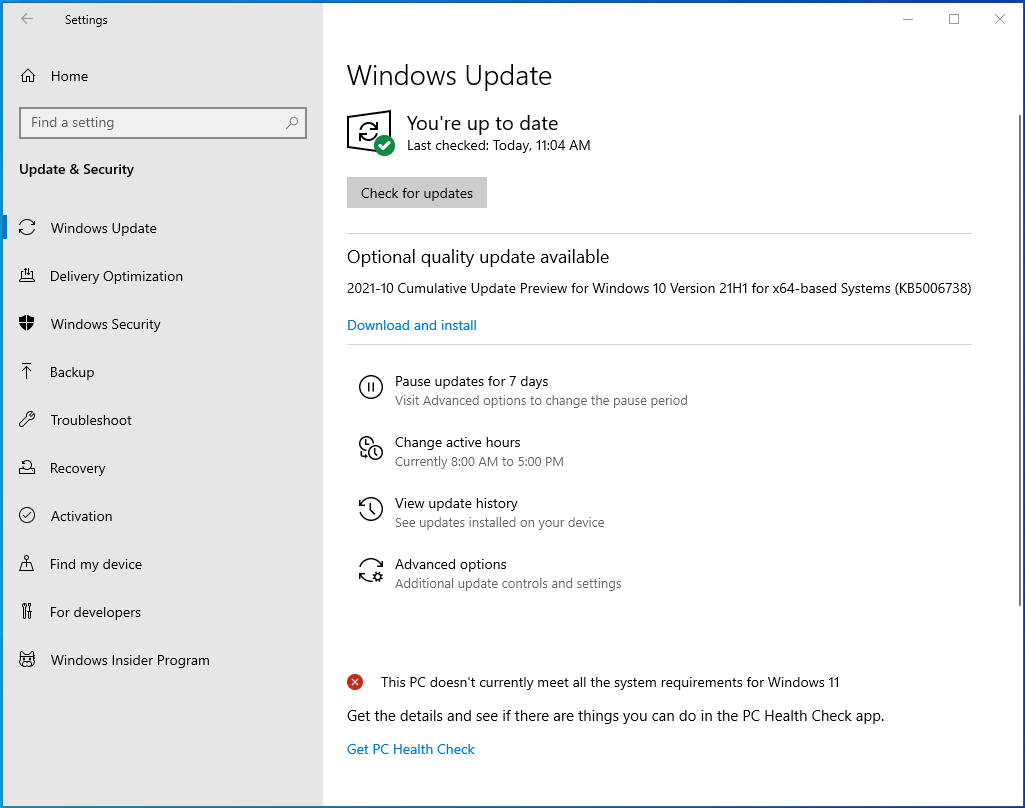
- The Update & Security page will open.
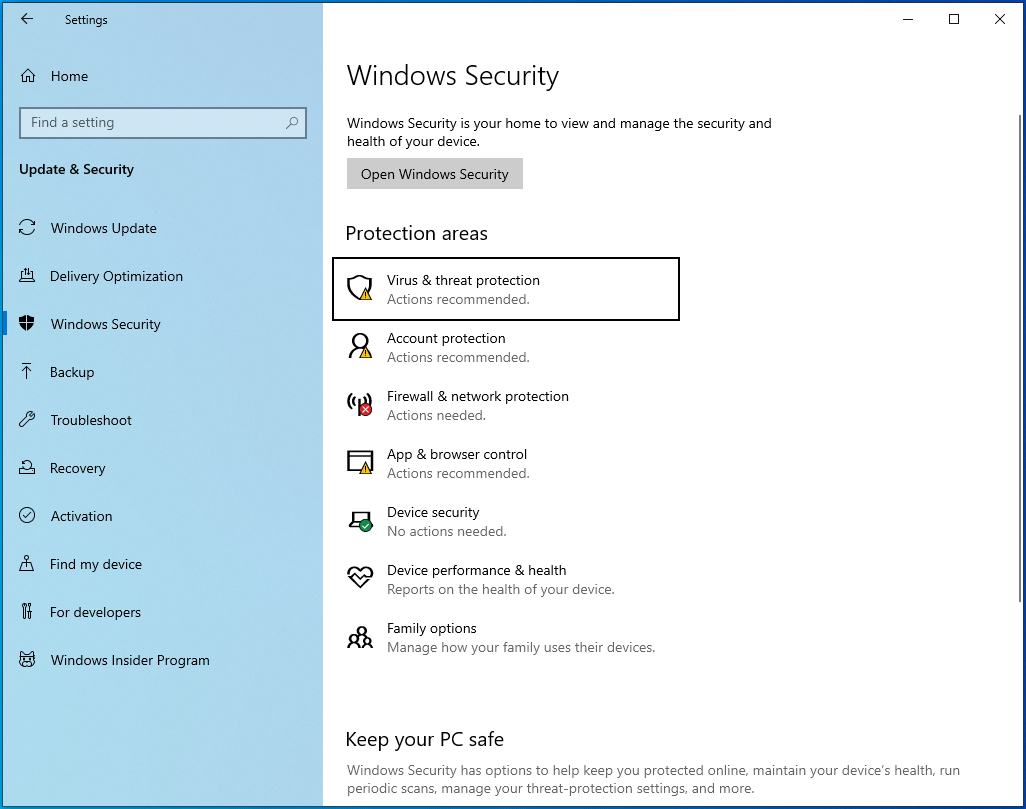
- Head to the left side and click on Windows Security.
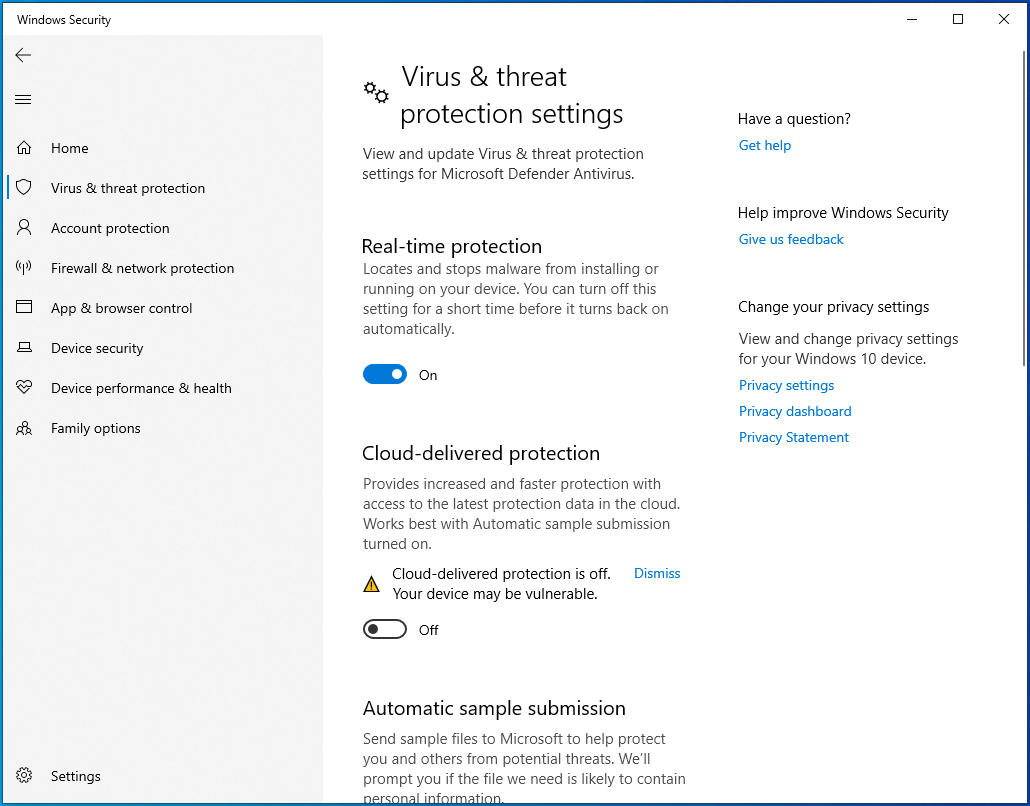
- Go to the Windows Security page and click on Virus & Threat Protection under the Protection Areas section.
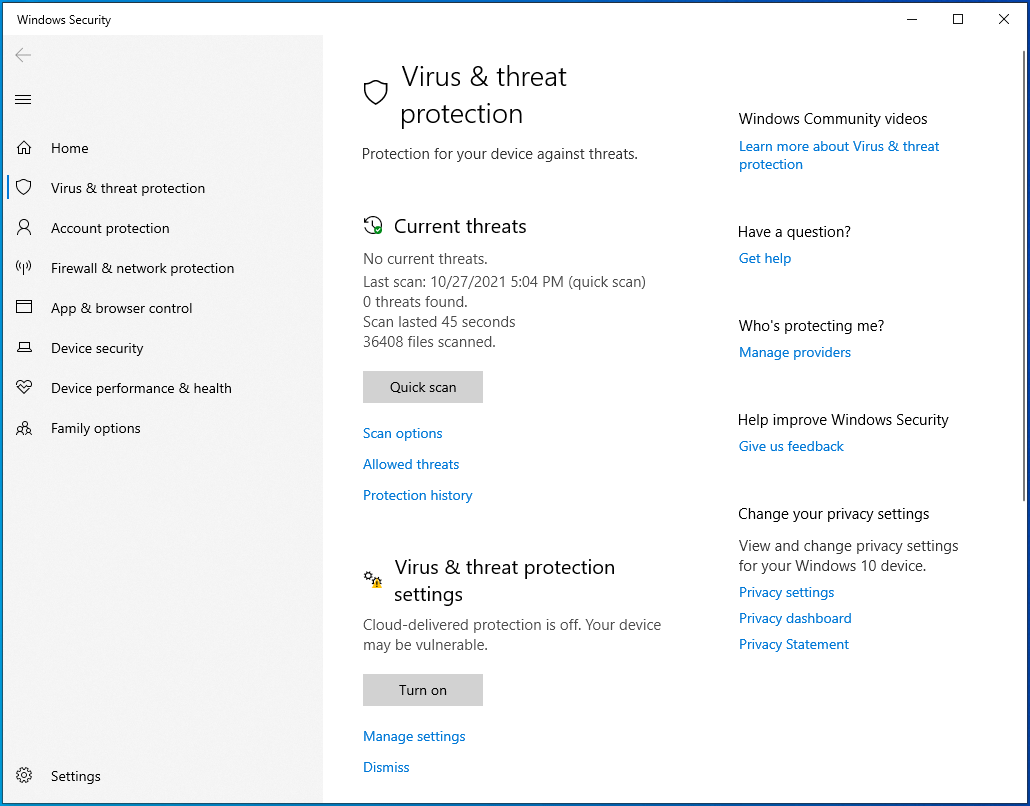
- The Virus & Threat Protection window will now show up.
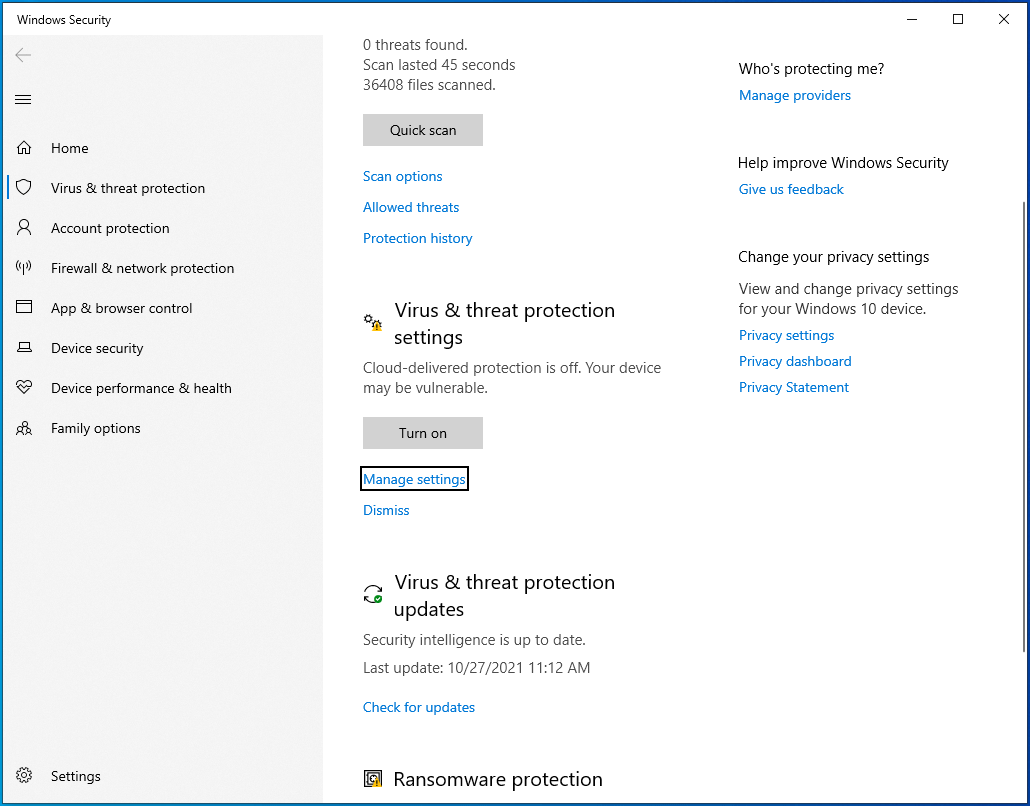
- Next, scroll down to the Virus & Threat Protection Settings section and select Manage Settings.
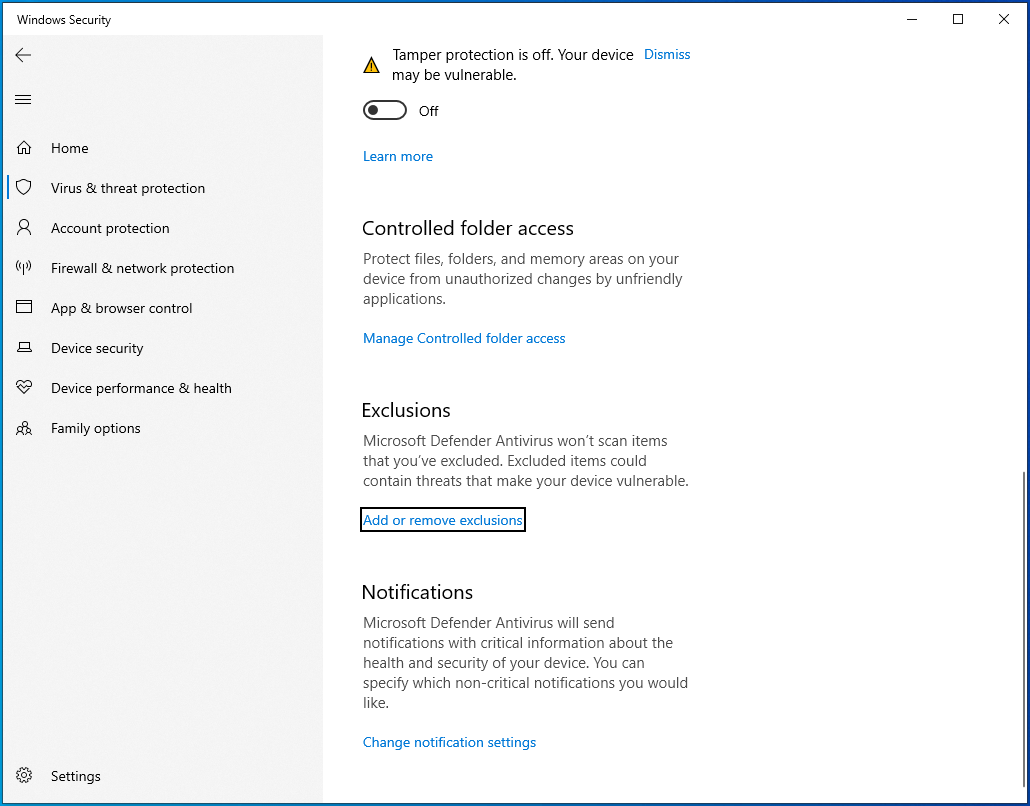
- The Virus & Threat Protection Settings window will open.
- Scroll down to the Exclusions section and click on “Add or remove exclusions.”
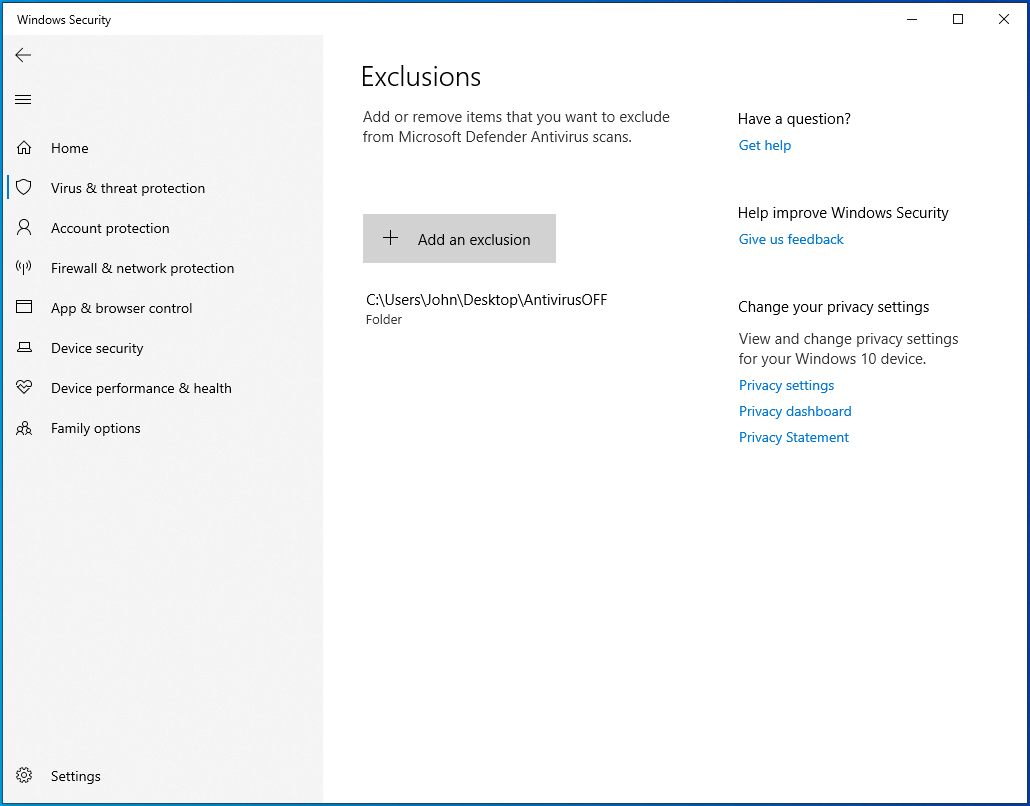
- The Exclusions page will open.
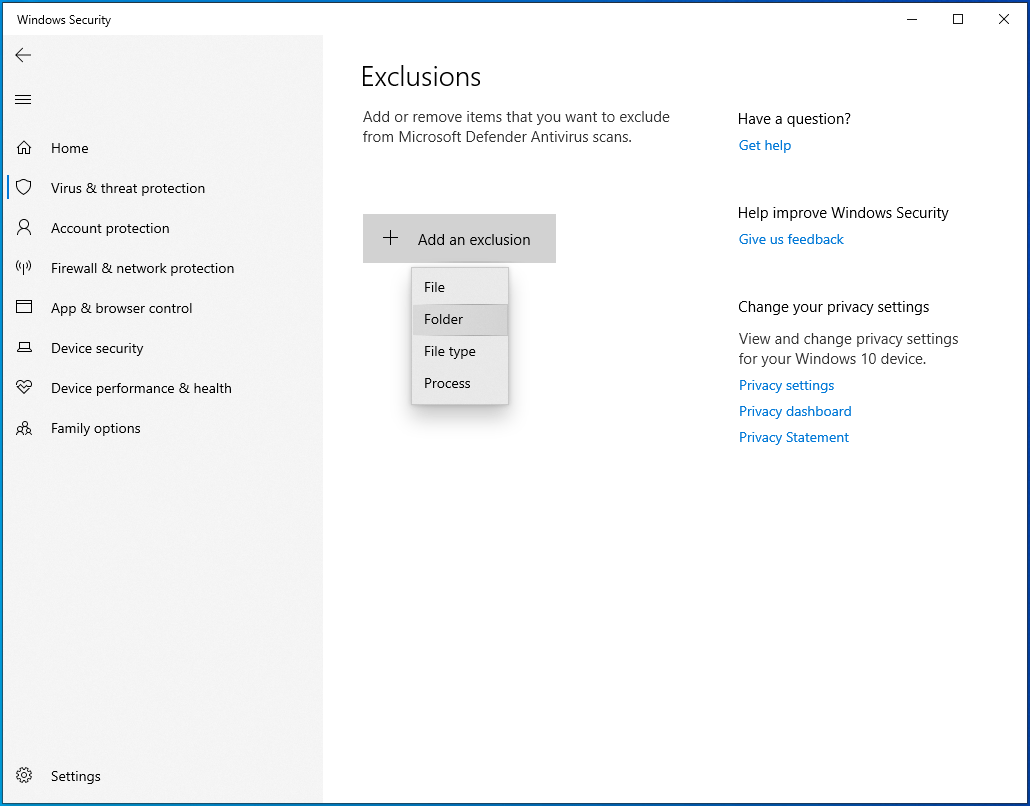
- Click on “Add an exclusion” on the Exclusions page and click on Folder in the drop-down menu.
- Browse to the game’s folder in the Select Folders dialog and select it.
- Launch Steam and run the game to check for the error.
Delete the GameOverlayRenderer.log file
The GameOverlayRenderer.log file is related to the Steam overlay. Sometimes, it gets in the way of gameplay and prevents games from launching. According to some players, the “App already running” error went away after they deleted the file. You’ll have to shut down the Steam client before deleting the file.
It would be best to restart your computer before performing this fix. Follow the instructions below:
- Restart your device.
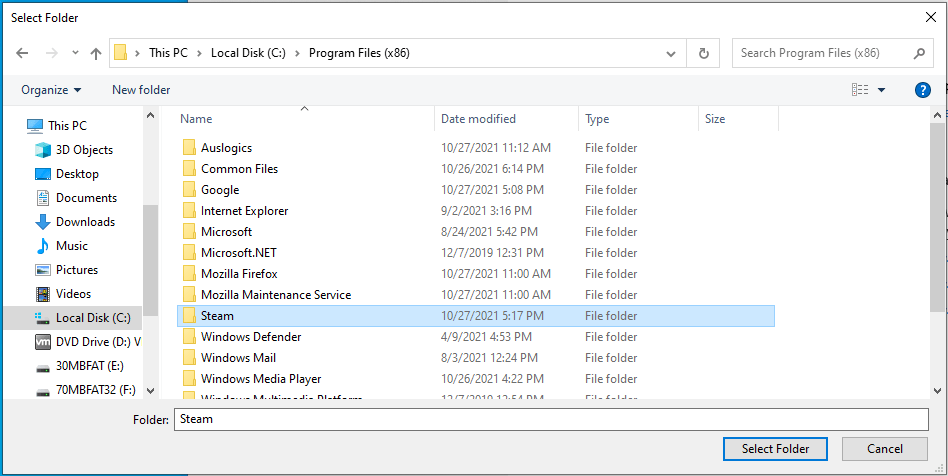
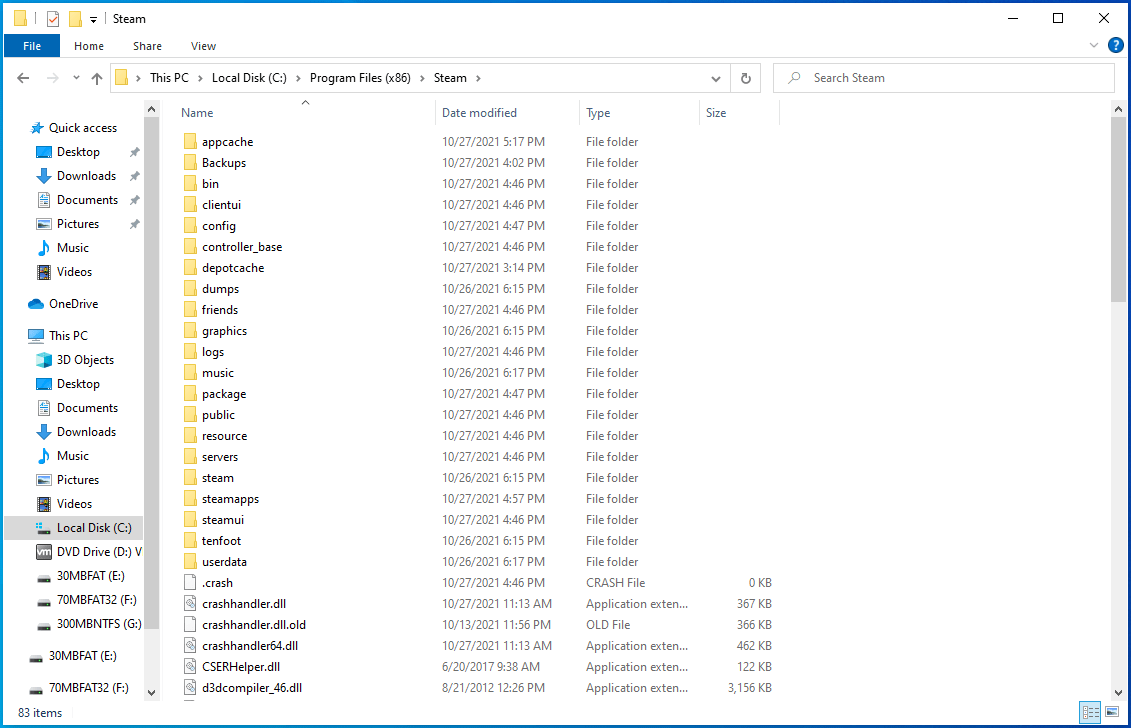
- After your device comes on, open a File Explorer window (Win + E) and head to the Steam folder. You can find Steam in C:Program Files or C:Program Files (x86).
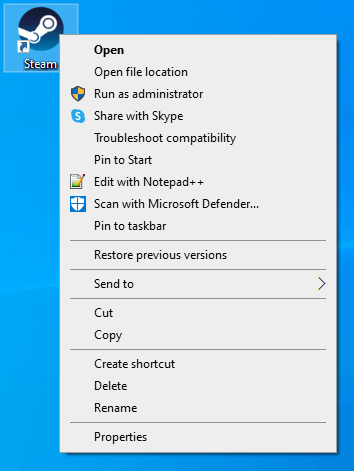
- If you installed Steam in a different location, right-click on its desktop shortcut and click on Open File Location or use the search function in the File Explorer window.
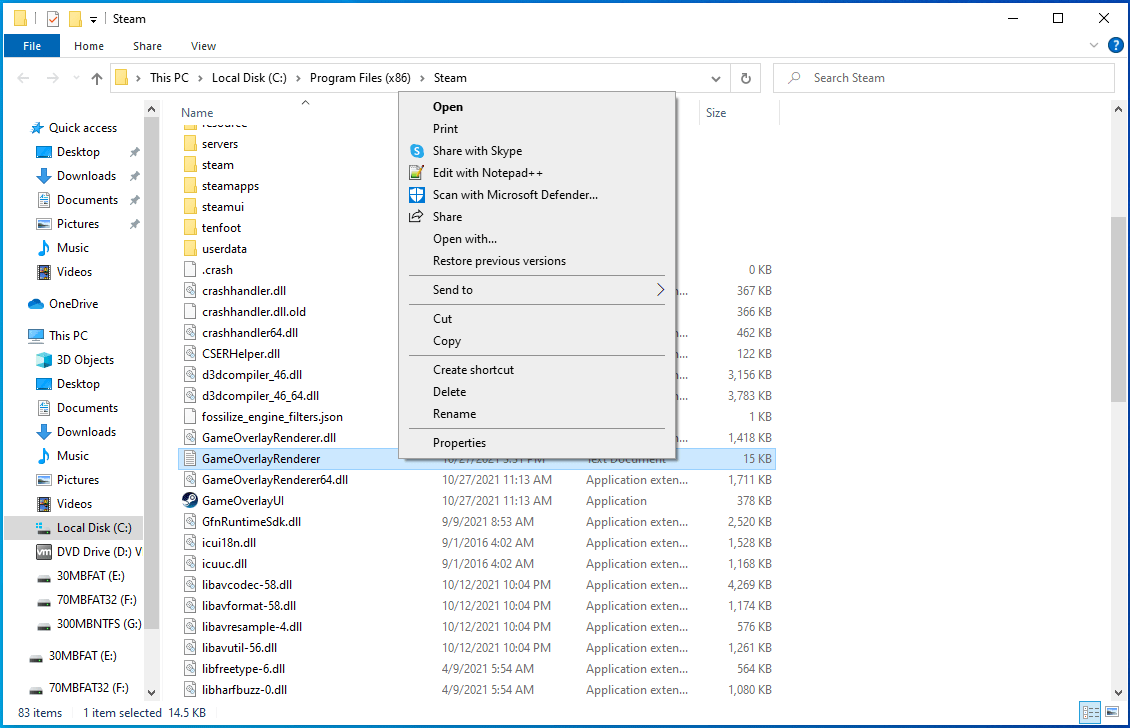
- Once you get to the Steam folder, locate the GameOverlayRenderer.log file and delete it.
- After that, launch the client and check for the problem.
Disable overlay programs
Overlay programs such as Xbox Game Bar, the Discord overlay, and the Steam overlay can cause launch problems for Steam games. These overlay programs allow you to chat with friends during gameplay, browse the web, broadcast and record game footage, and take gaming snapshots.
Sometimes, clashes occur and cause your game to crash, leaving you with the “App already running” error when you try to run it again. Other overlay programs can also clash with Steam’s overlay and trigger the launch error.
To resolve the problem, disable any active overlay program on your system. We’ll show you how to disable the overlay features in Discord, Steam, NVIDIA GeForce Experience, and Xbox Game Bar.
Disable the Discord overlay:
- Launch Discord.
- Once the program opens, head to the bottom-left corner of your screen and click on the cogwheel icon.
- The User Settings page will show up.
- Go to the left-hand side and click on Game Overlay under Activity Settings.
- Go to the right side of the window and locate Enable In-Game Overlay.
- Toggle off the switch for it.
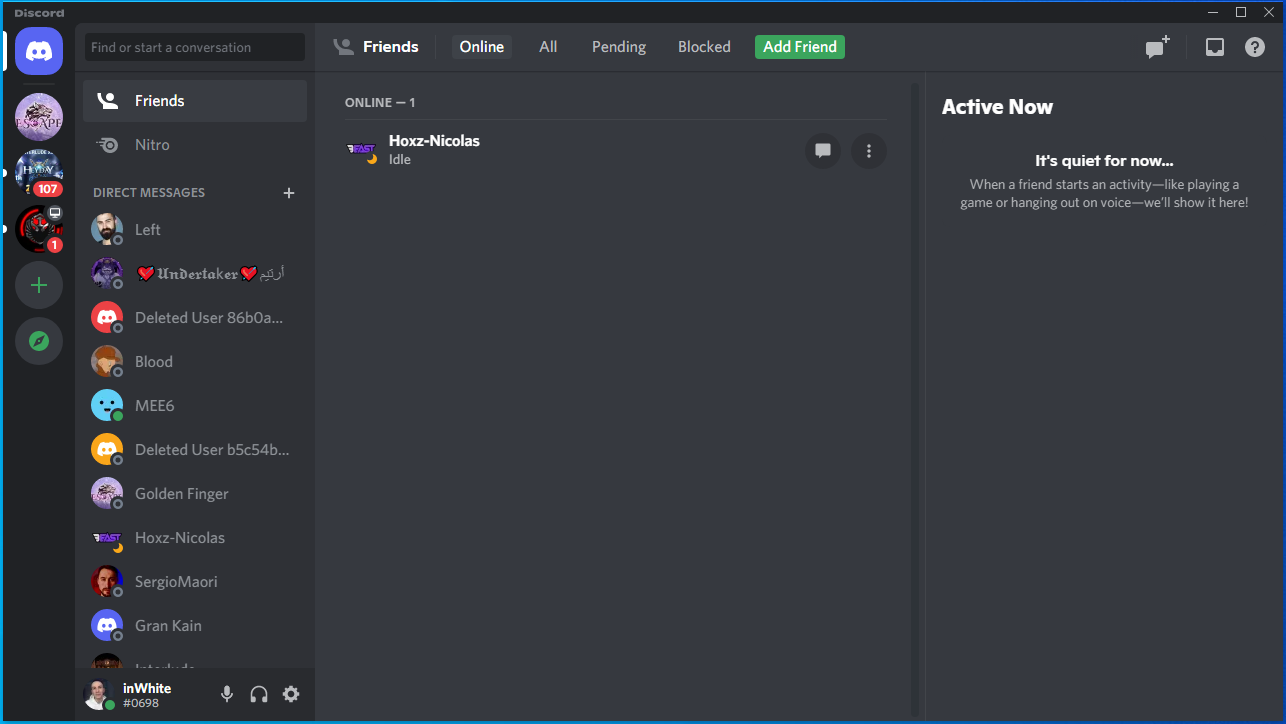
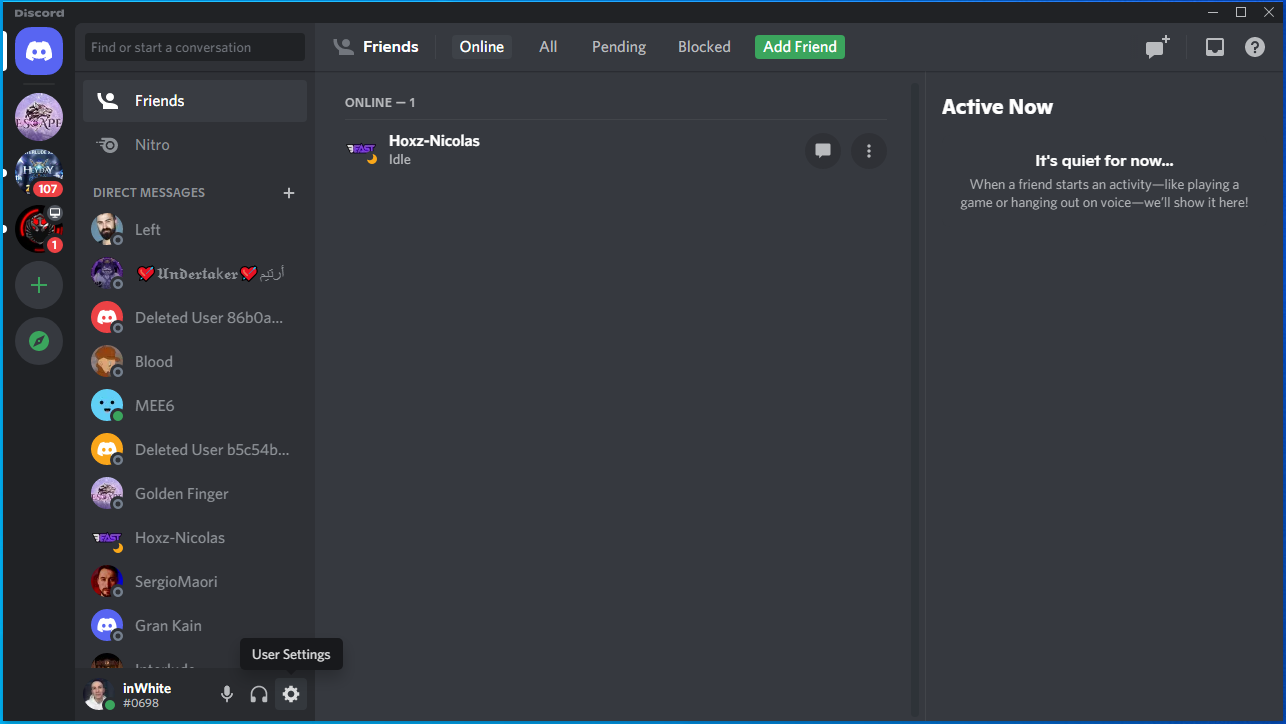
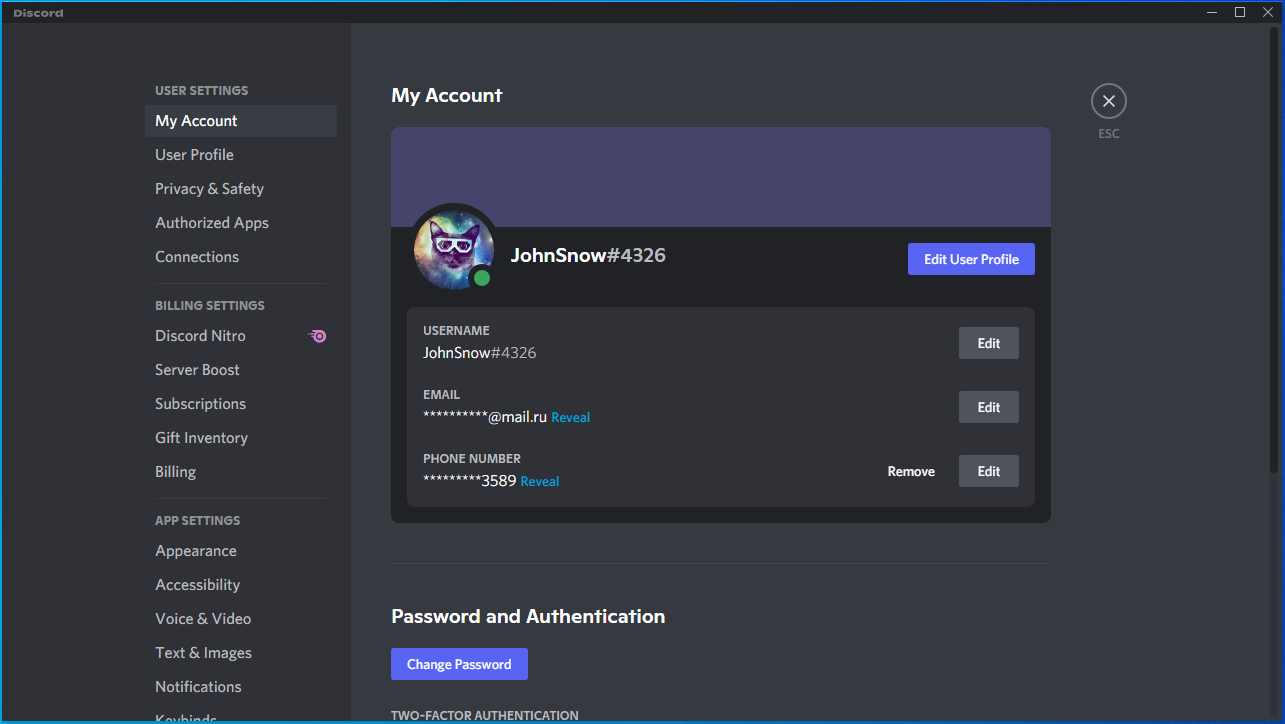
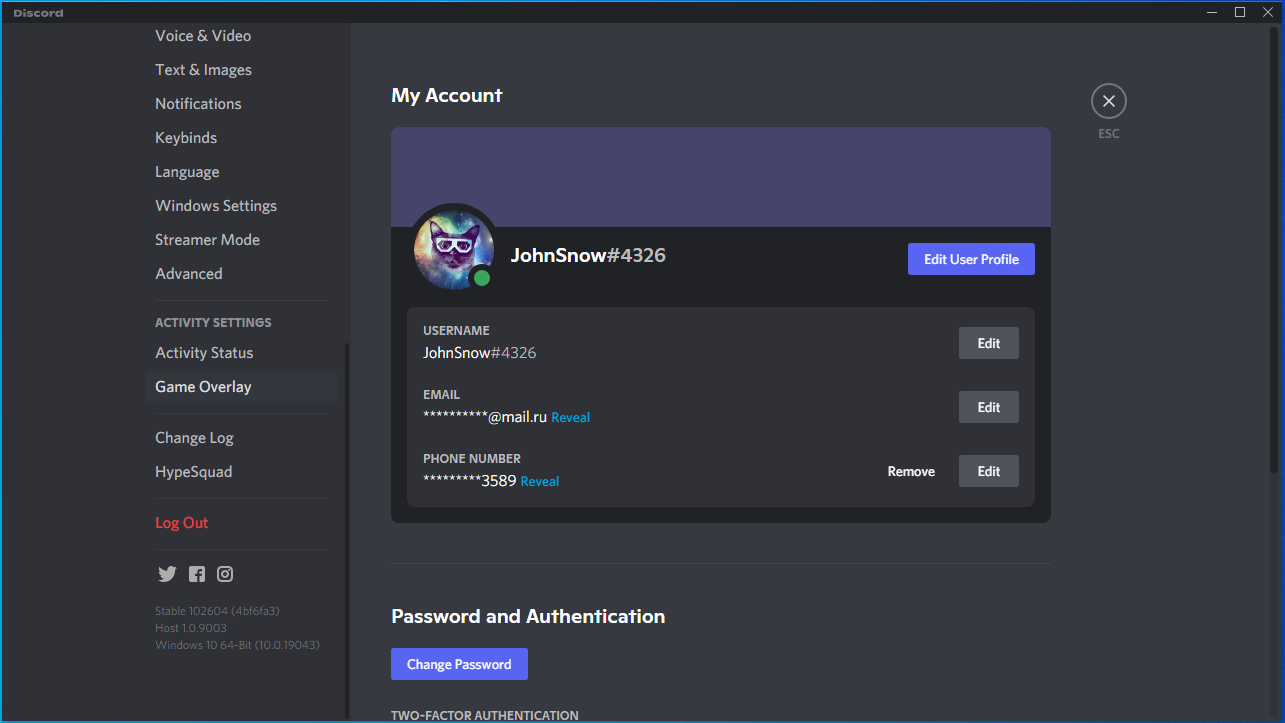
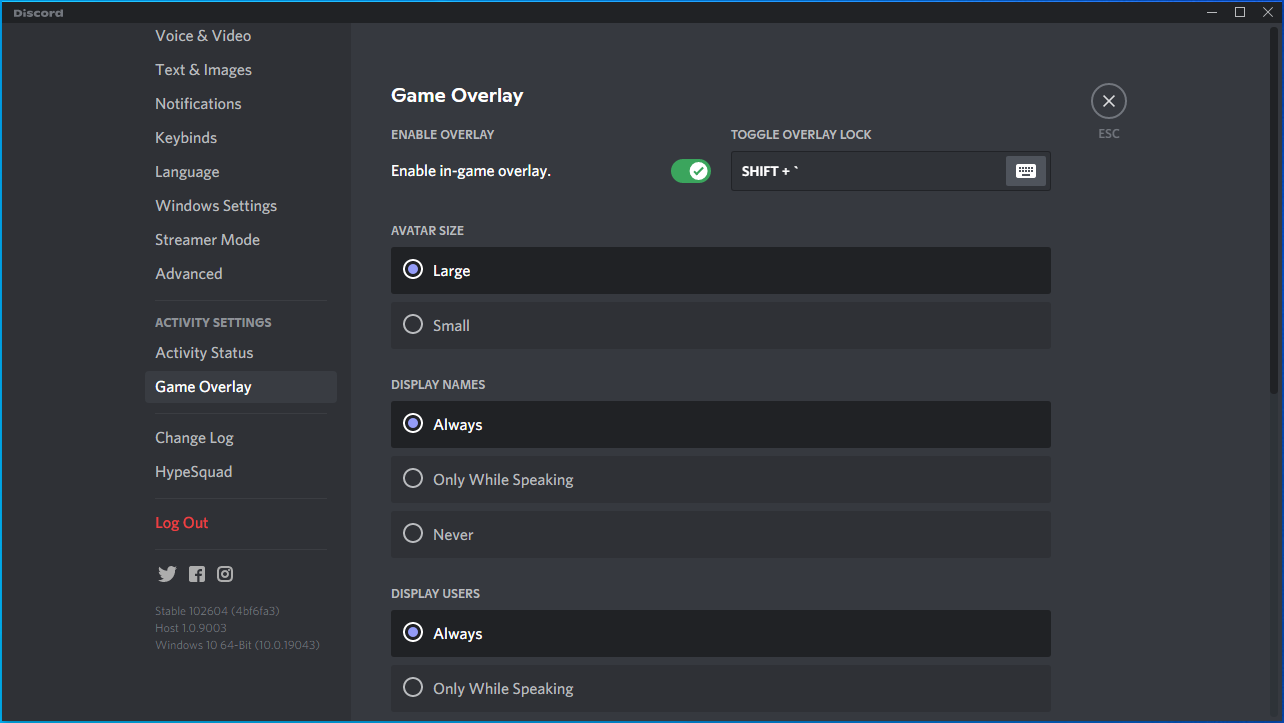
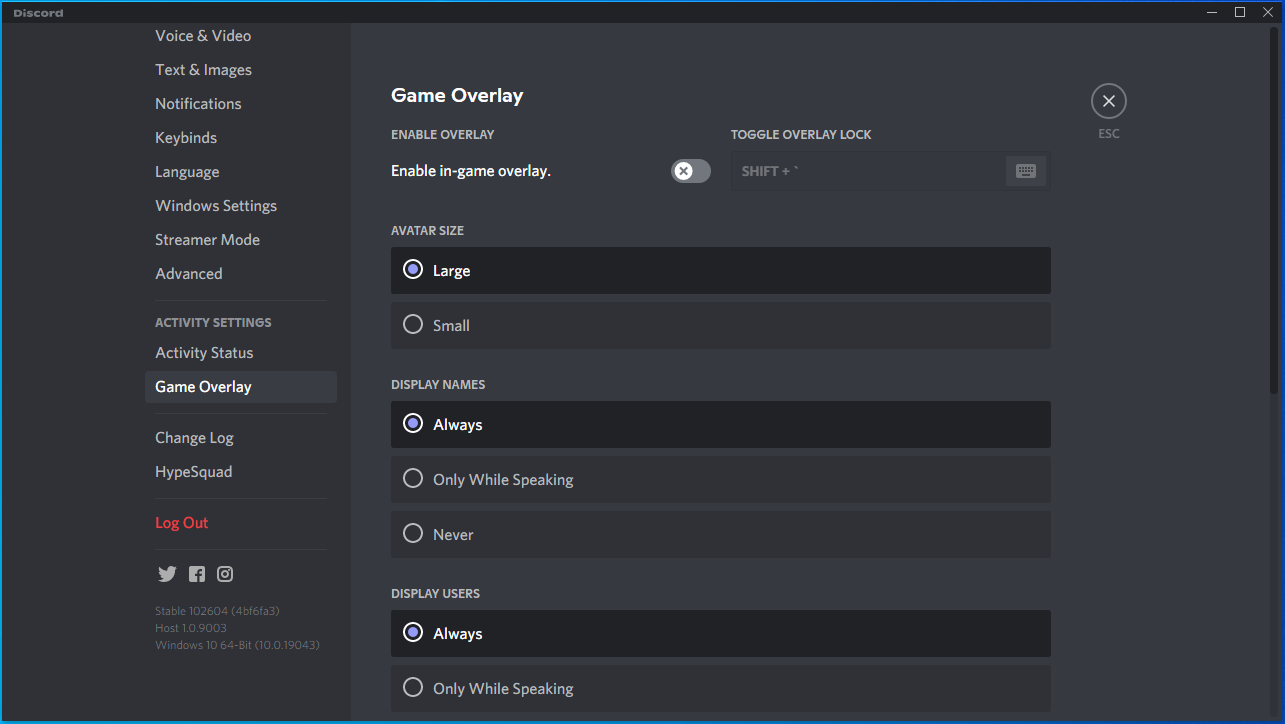
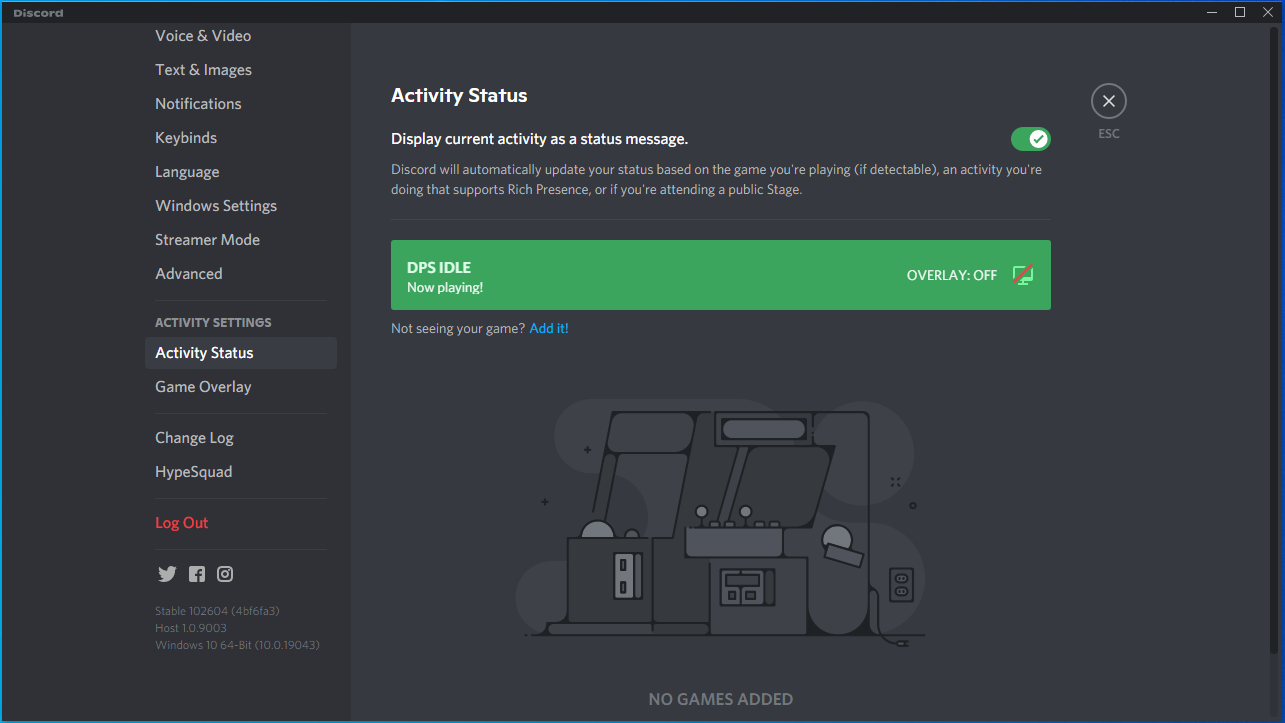
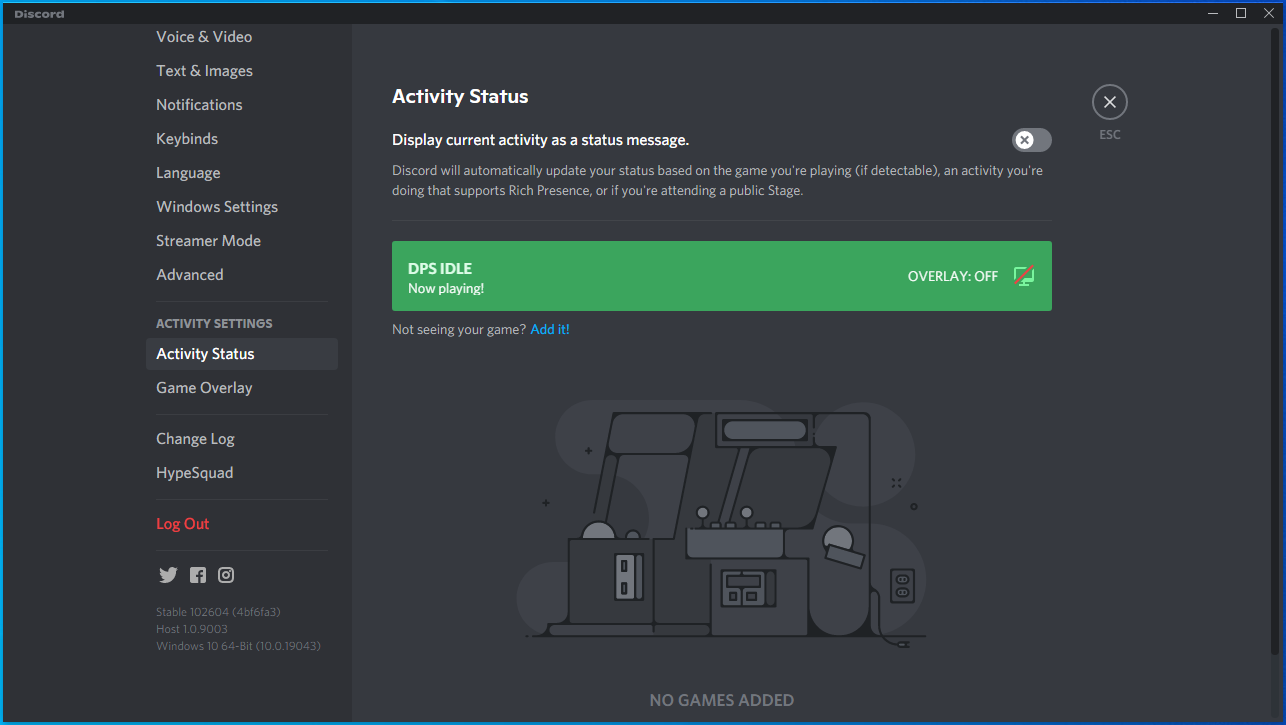
Turning off the switch for Enable In-Game Overlay disables Discord’s overlay feature for all your games. If you want to disable the feature for one game, here’s what you have to do:
- Go to the left pane of the User Settings page.
- Click on Activity Status under Activity Settings.
- After that, head to the right side of the window.
- Toggle off the overlay feature for the game you’re struggling to launch.
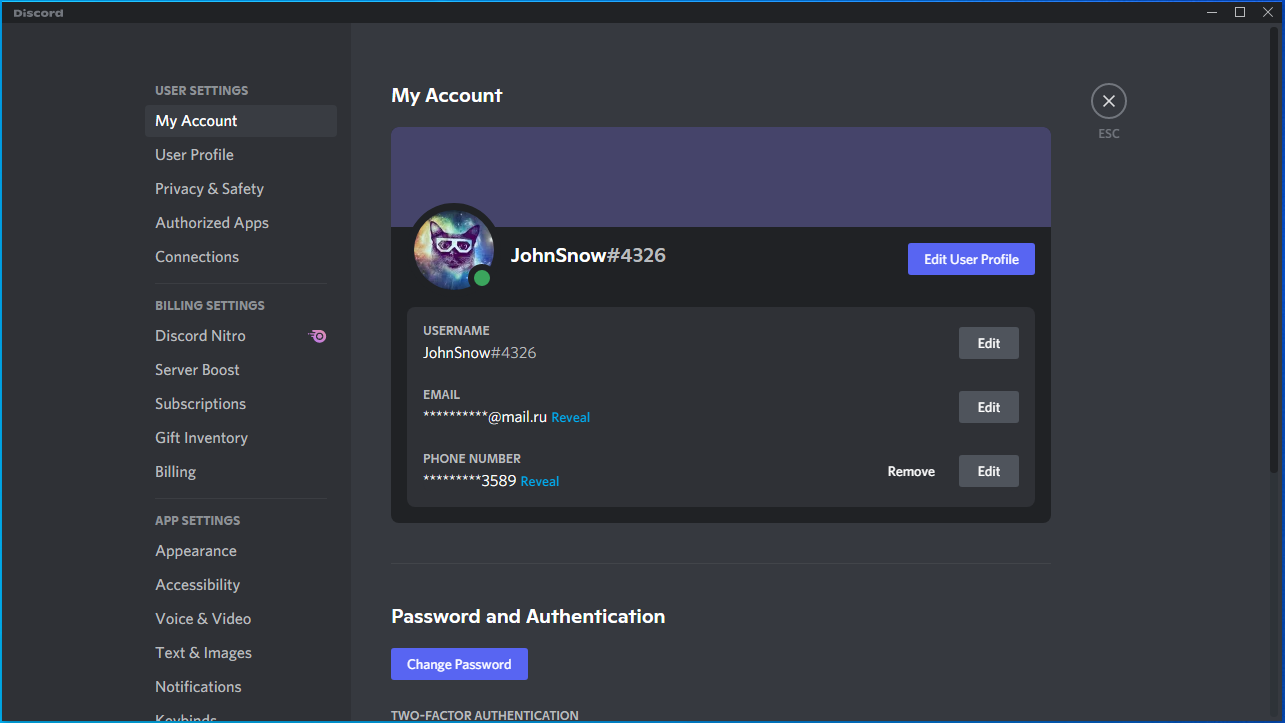
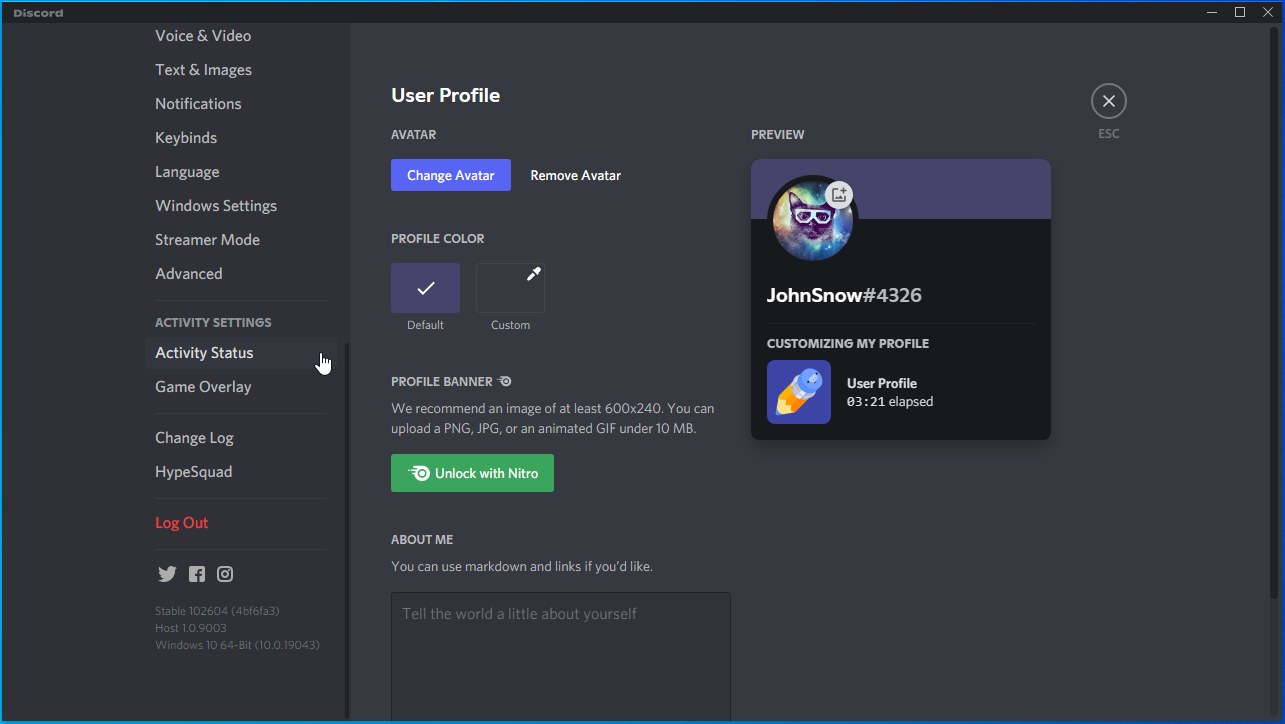
Disable the Steam overlay:
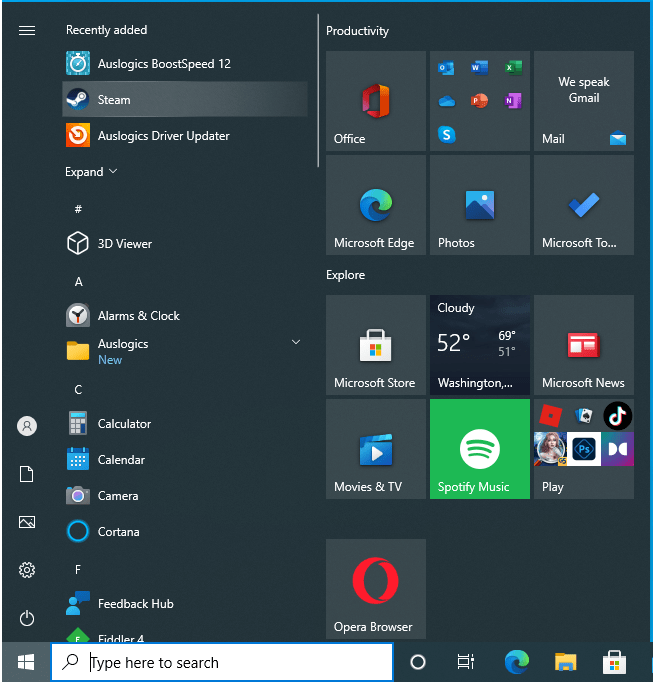
- Go to the Start menu and locate Steam.
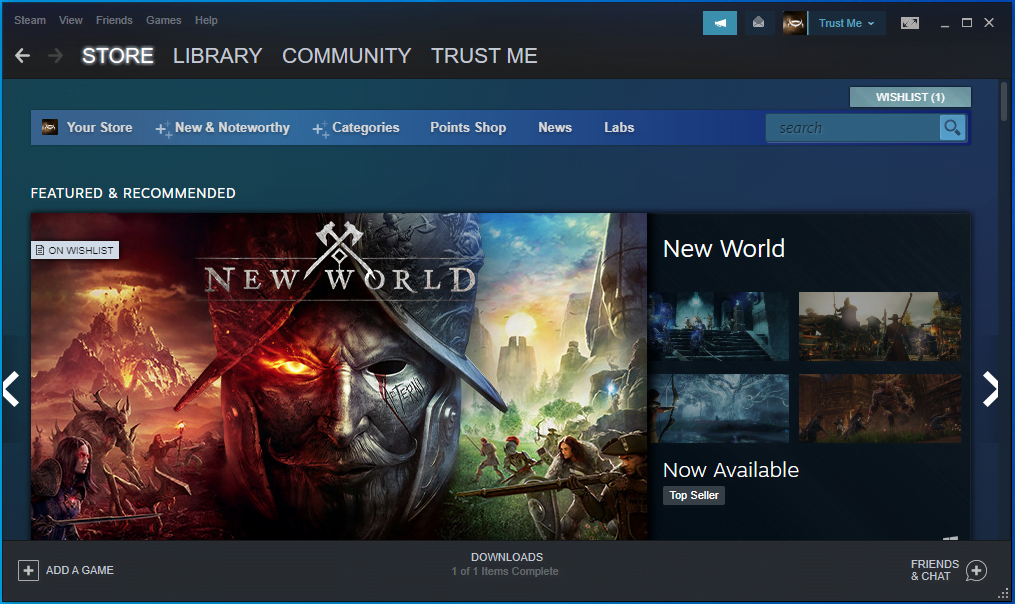
- Launch the Steam client.
- After Steam opens, go to the top-left corner and click on Steam.
- Choose Settings in the menu that drops down under Steam.
- The Settings page will open.
- Head to the left pane and click on In-Game.
- Next, head to the right side of the window and uncheck the box for “Enable the Steam Overlay while in-game.”
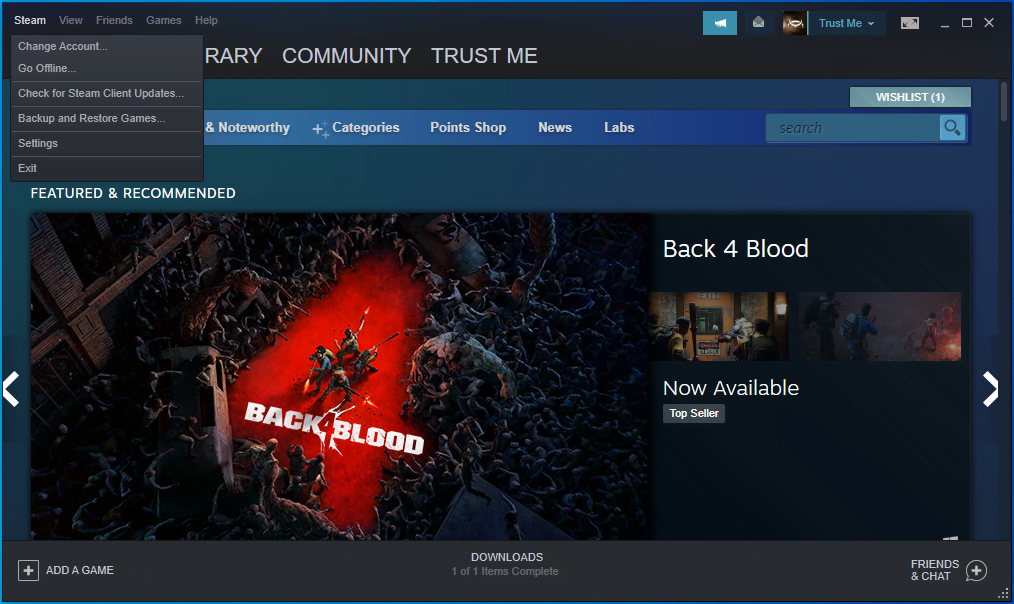
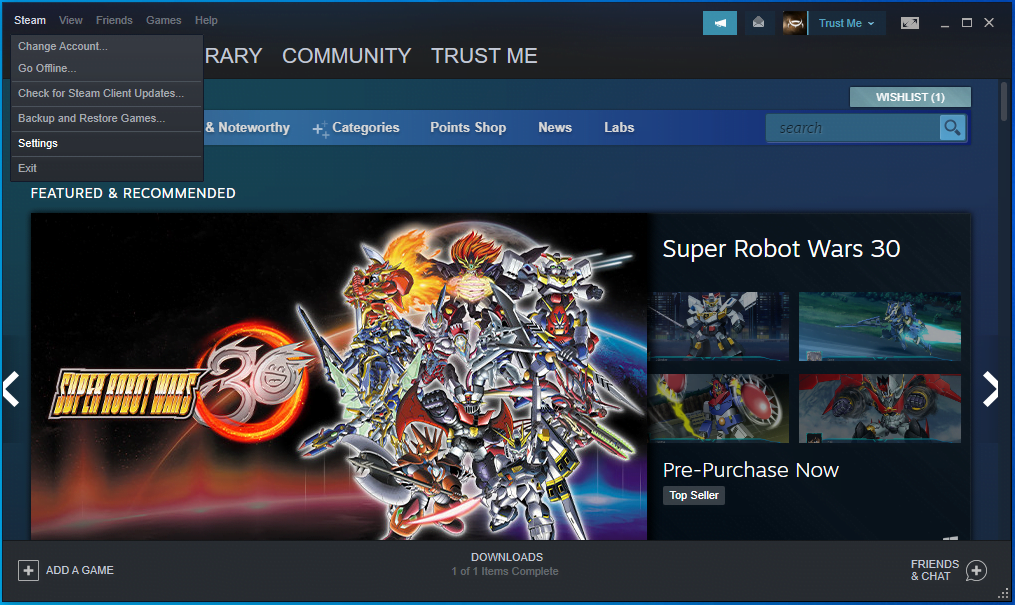
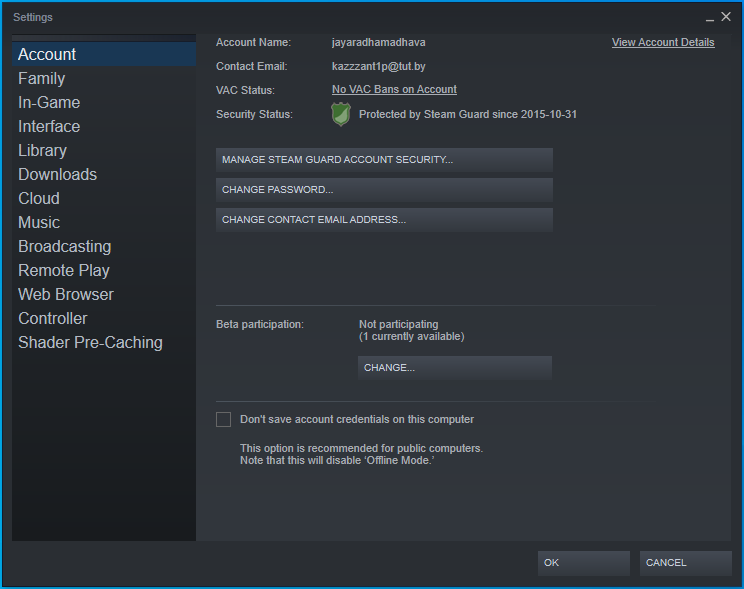
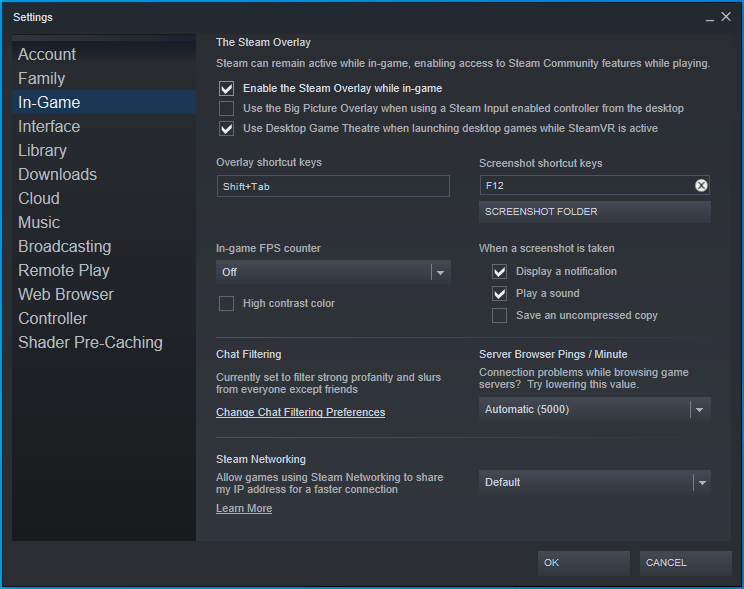
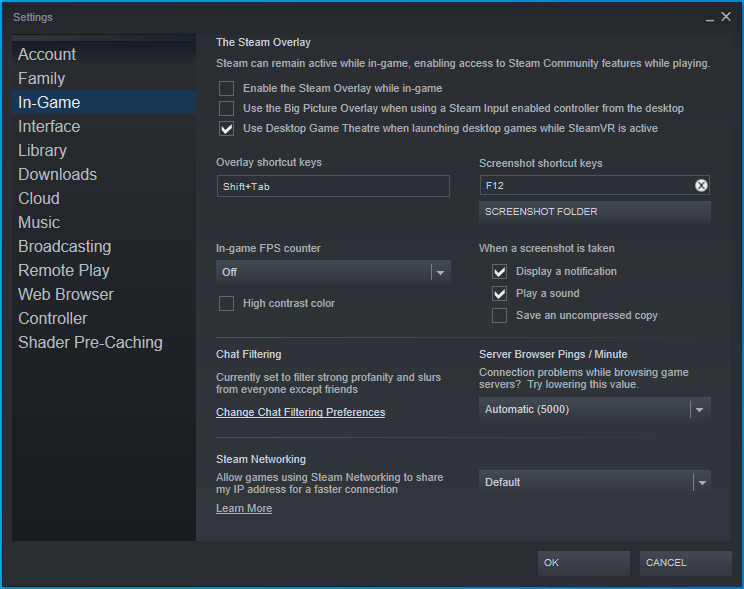
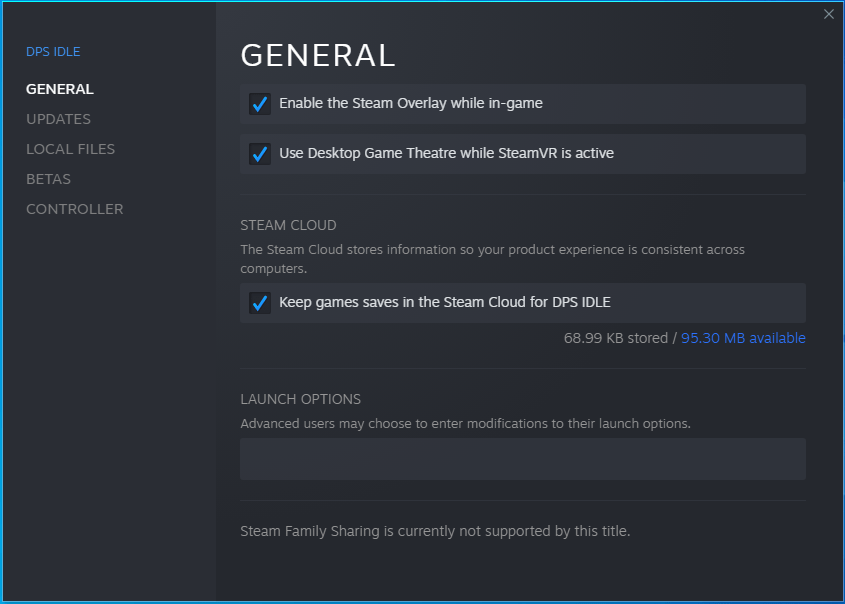
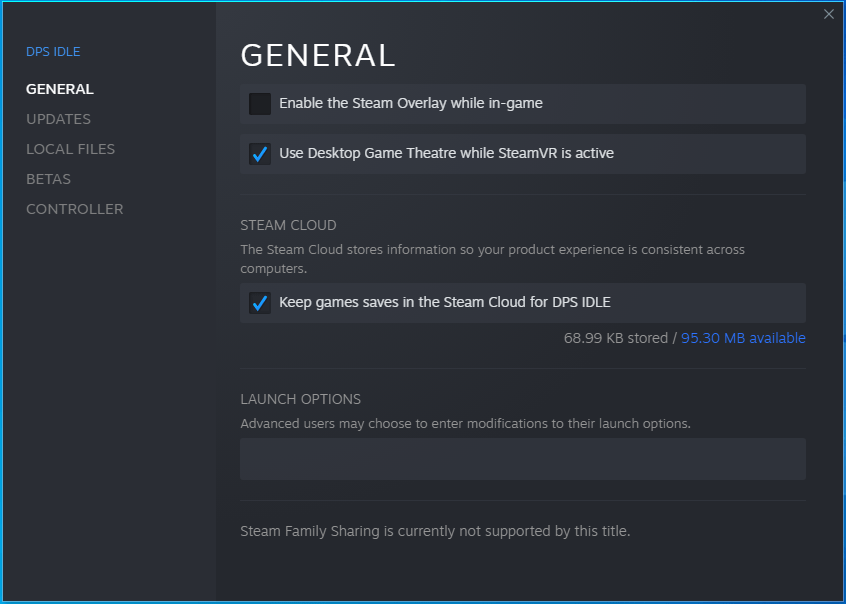
You can also disable the Steam overlay feature for individual games. Follow these steps:
- Go to the top of Steam’s home page.
- Click on Library.
- Once the game library shows up, locate the game in the left pane, right-click it, and click on Properties.
- You will see the game’s Properties options.
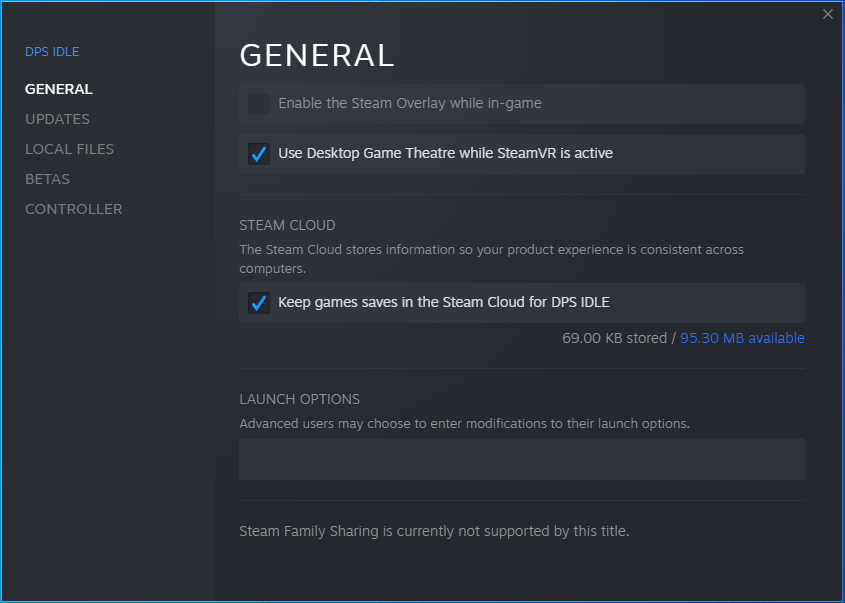
- On the right side of the window, uncheck the box for “Enable the Steam Overlay while in-game.”
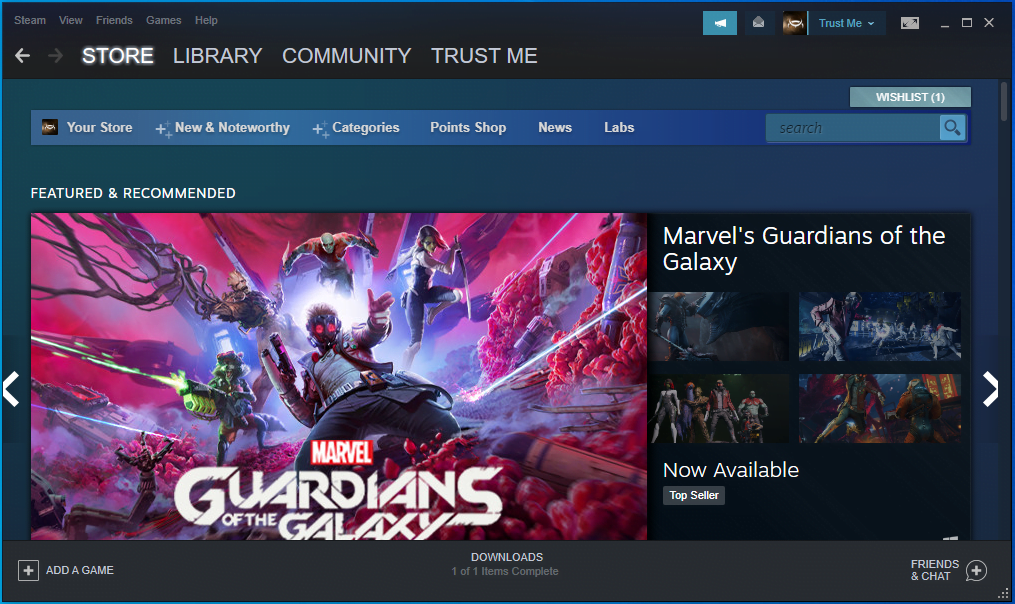
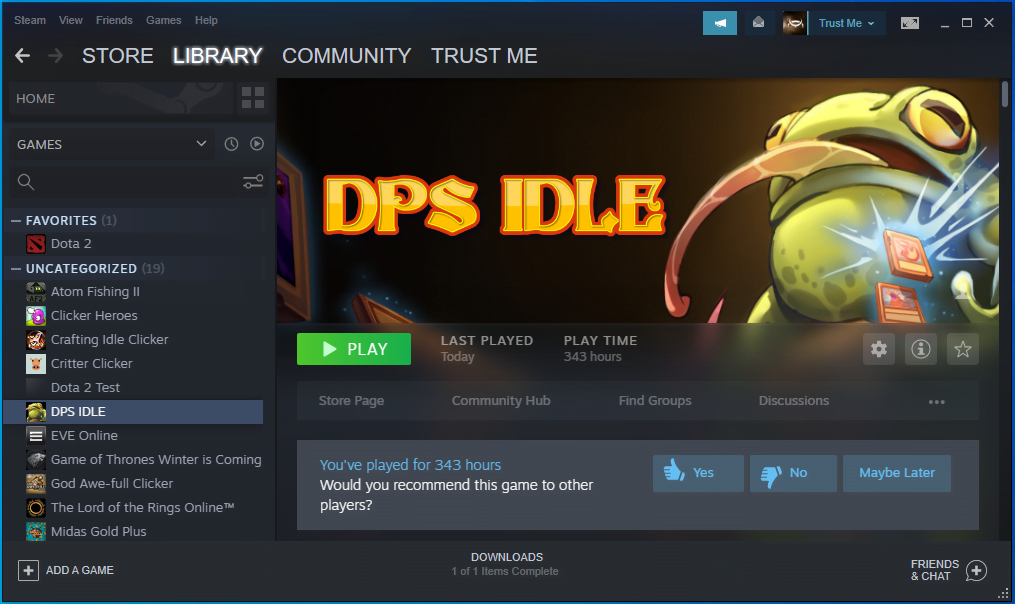
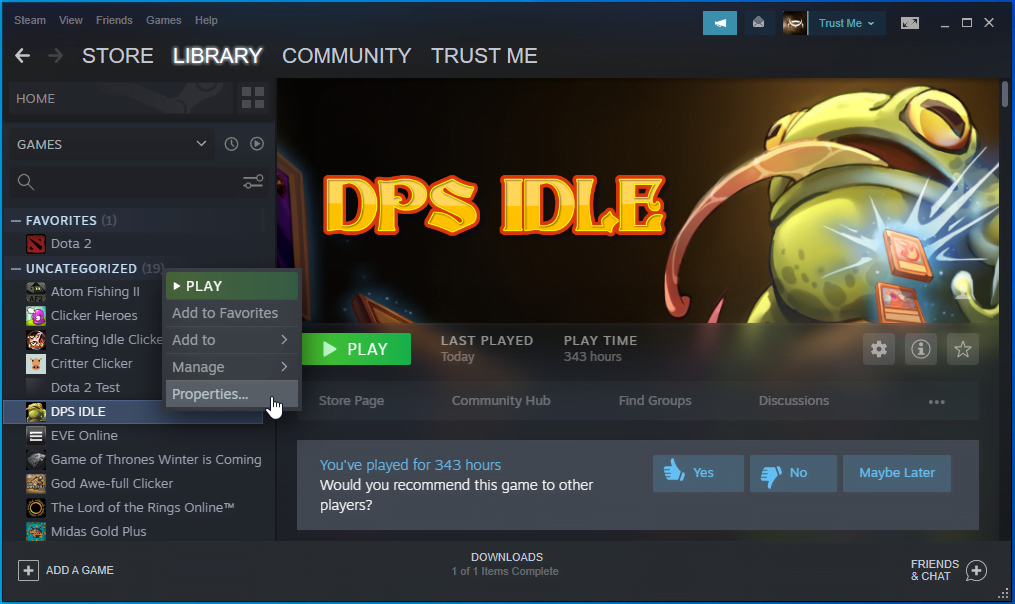
Here is how to disable Xbox Game Bar:
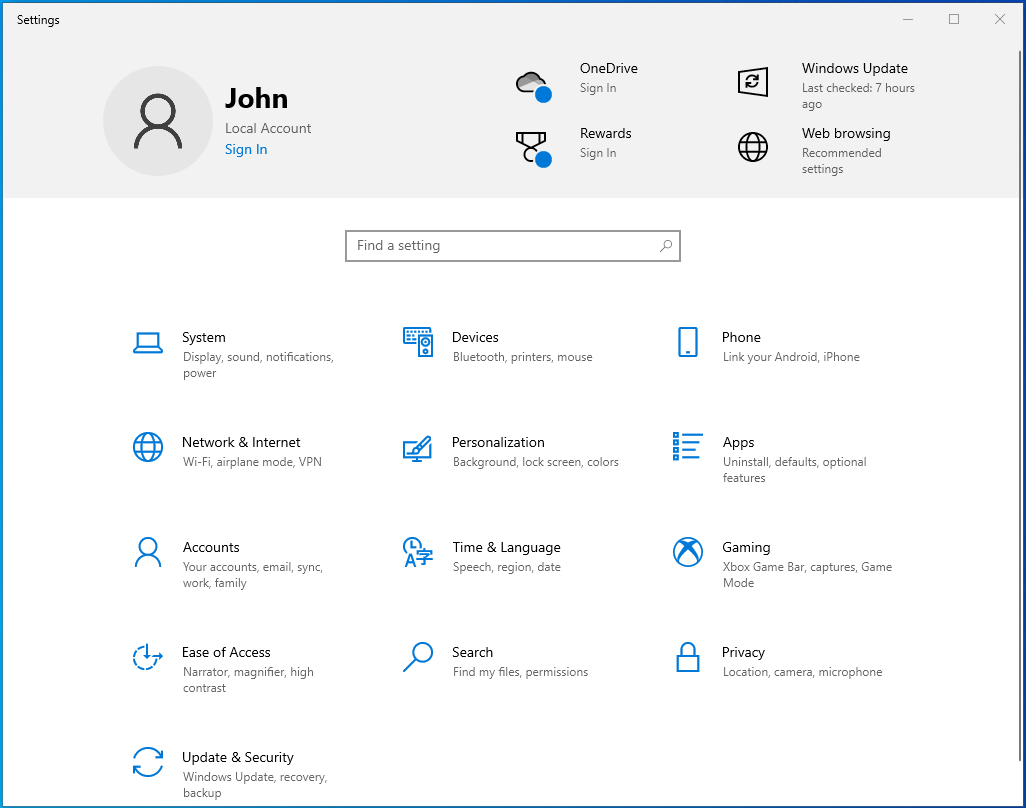
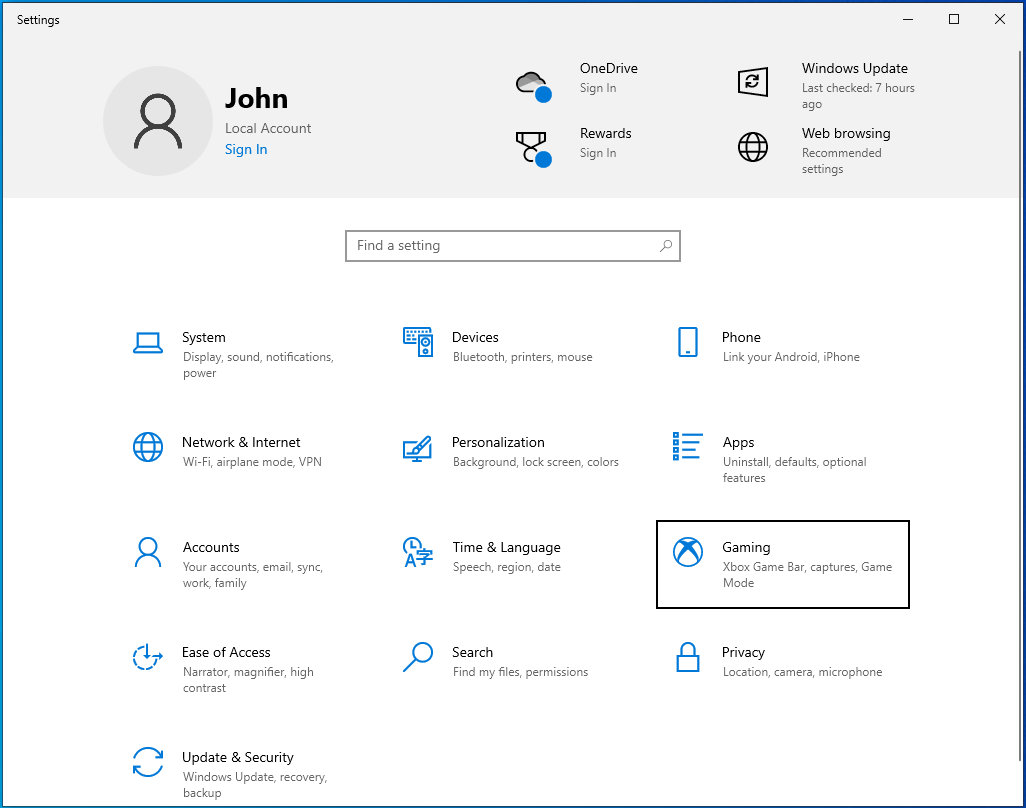
- Go to the Start menu and click on the cogwheel icon or press the Windows logo and I keyboard buttons together to open Settings.
- Once Settings shows up, click on Gaming.
- Once the Gaming page opens, go to the Xbox Game Bar page.
- Toggle off the switch under “Enable Xbox Game Bar for things like recording game clips, chatting with friends, and receiving game invites. (Some games require Xbox game bar for receiving game invites.)”
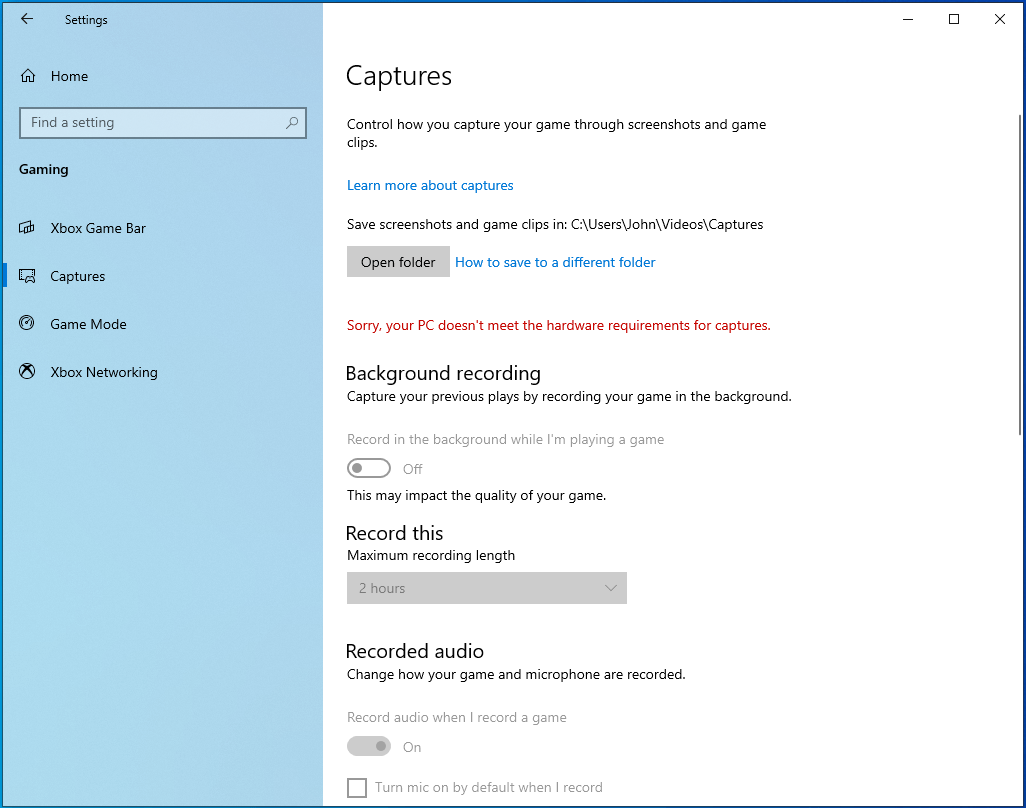
- Next, go to the left side of the screen, click on Captures, go to Background Recording, and turn off the switch under “Record in the background while I’m playing a game.”
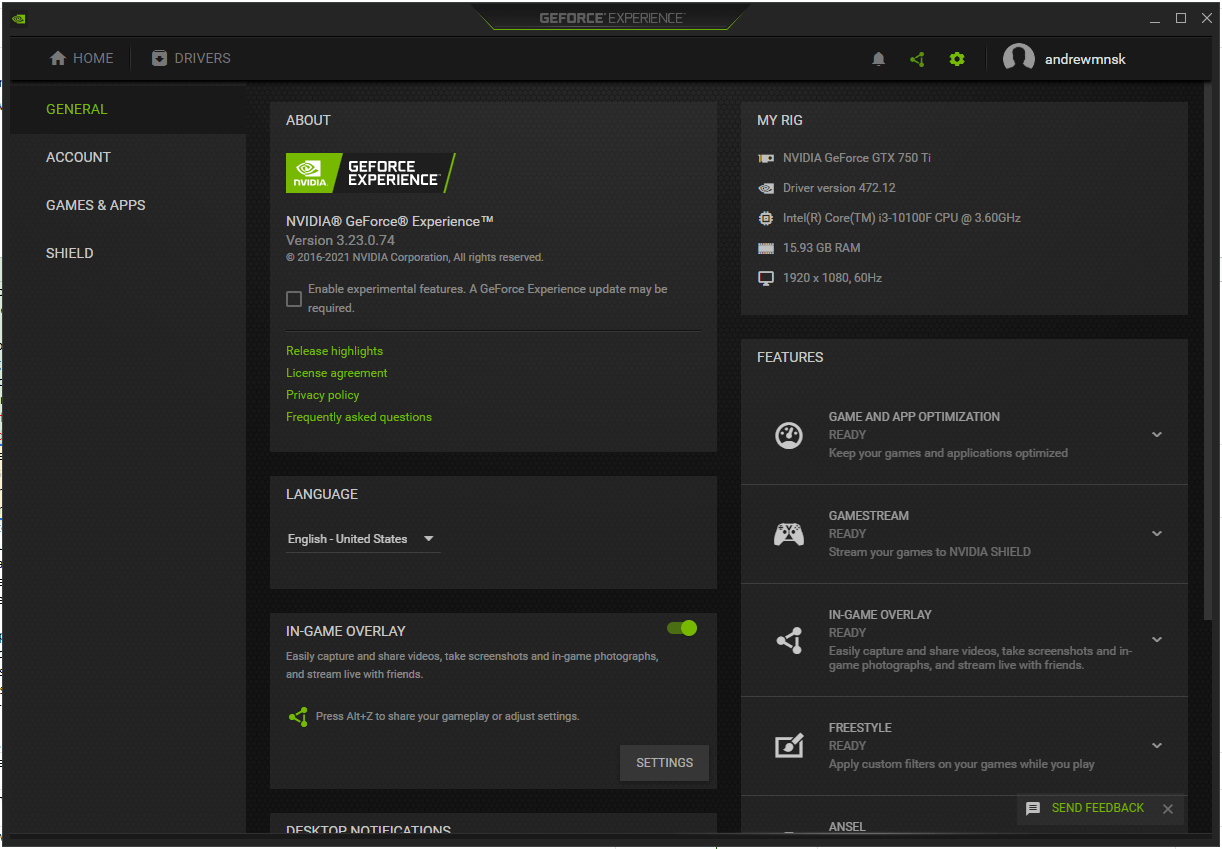
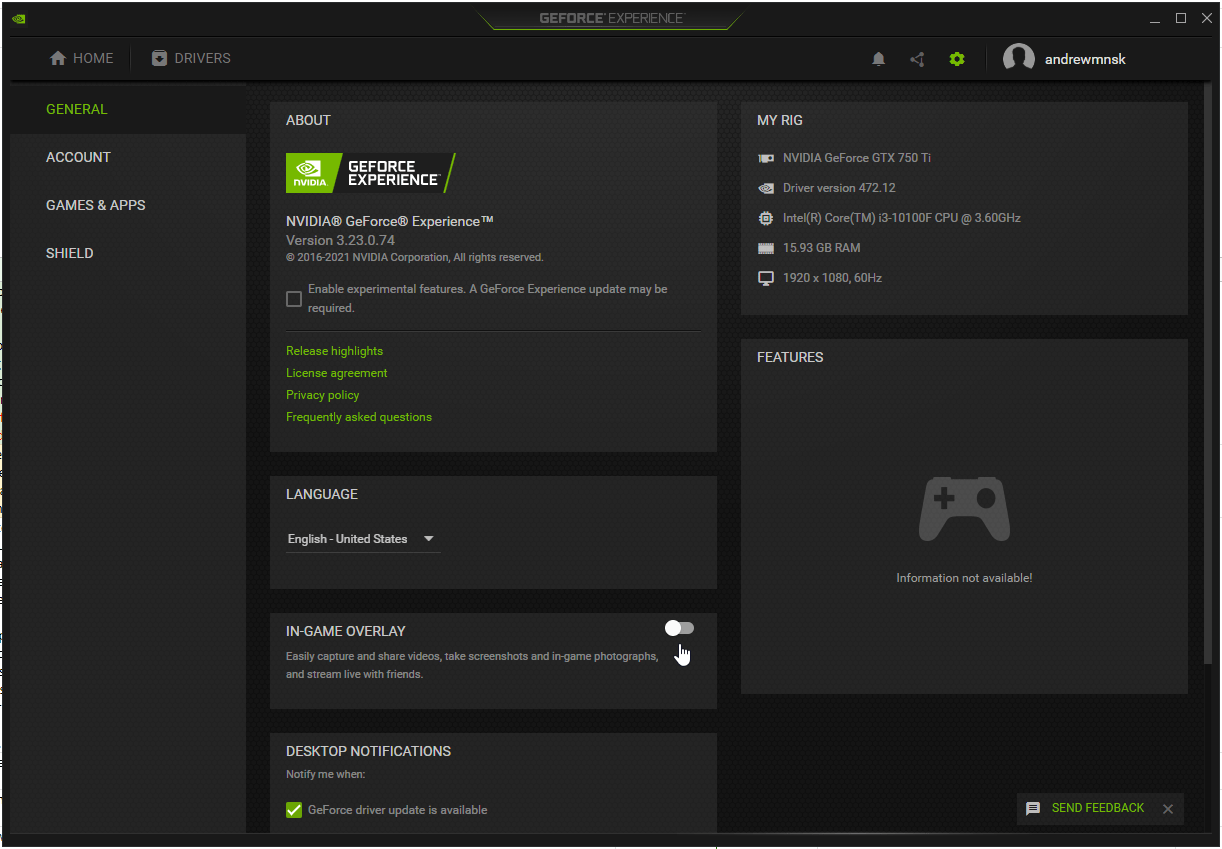
Turn off NVIDIA Overlay in GeForce Experience:
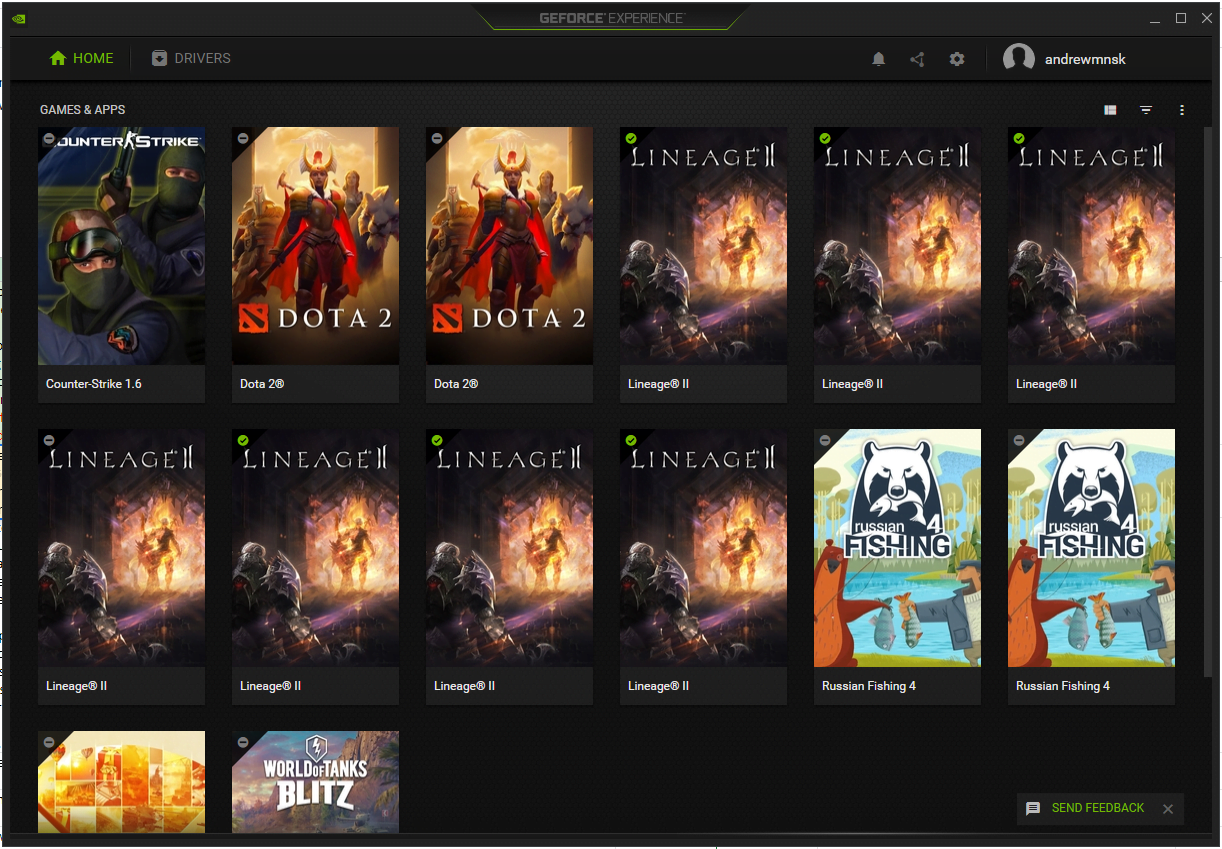
- Launch NVIDIA GeForce Experience and click on the Settings gear icon in the top-right corner.
- Stay in the General tab and switch to the right side of the window.
- Toggle off In-Game Overlay.
Launch the game from the Steam folder and close it
According to some users, running the game’s EXE file instead of running it via the Steam client may fix the problem.
Steam games are installed in C:Program FilesSteamsteamapps by default. If you installed the game in a different directory, open Steam, click on Library, right-click on the game, and select Properties, then head to the Local Files tab on the right and click on Browse Local Files. Close the Steam client and double-click the game’s EXE file.
After the game shows up, close it. Head to the Task Manager to make sure none of the game’s processes are still running.
You can now open the Steam client and relaunch the game.
Perform a clean boot
Background programs and services that launch once Windows starts running can prevent games from launching properly. If your game shows a black screen and crashes whenever you try to launch it, a background application is likely the culprit.
To find the program causing the launch problem, you have to perform a clean boot. The clean boot process involves disabling startup items (apps and services that launch once Windows starts) and checking for the problem. If the error doesn’t show up after you start your computer in a clean boot state, you can then check the startup items one after the other to find the responsible application.
Follow these steps to perform a clean boot:
Firstly, disable startup programs:
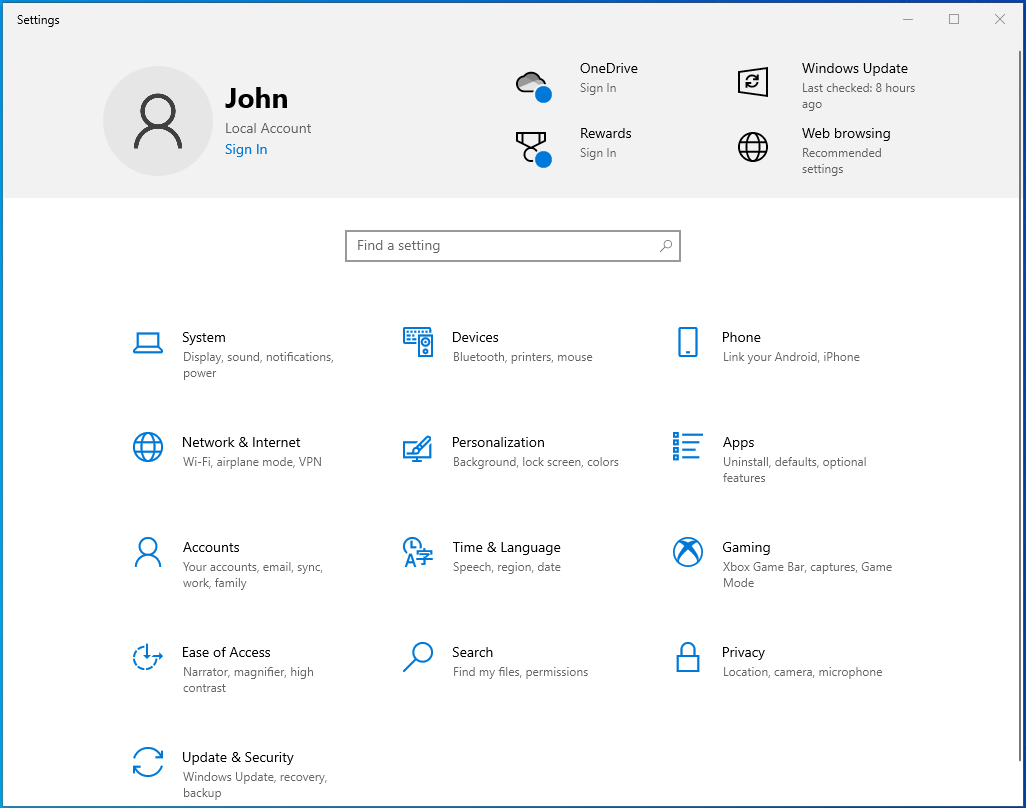
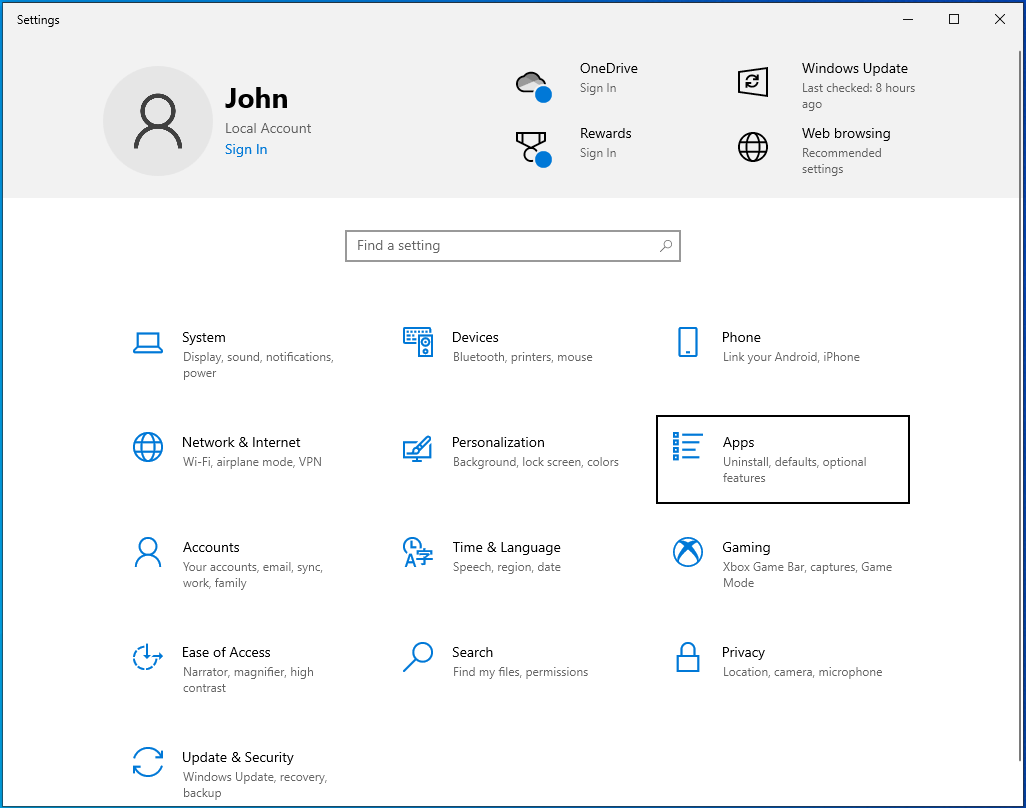
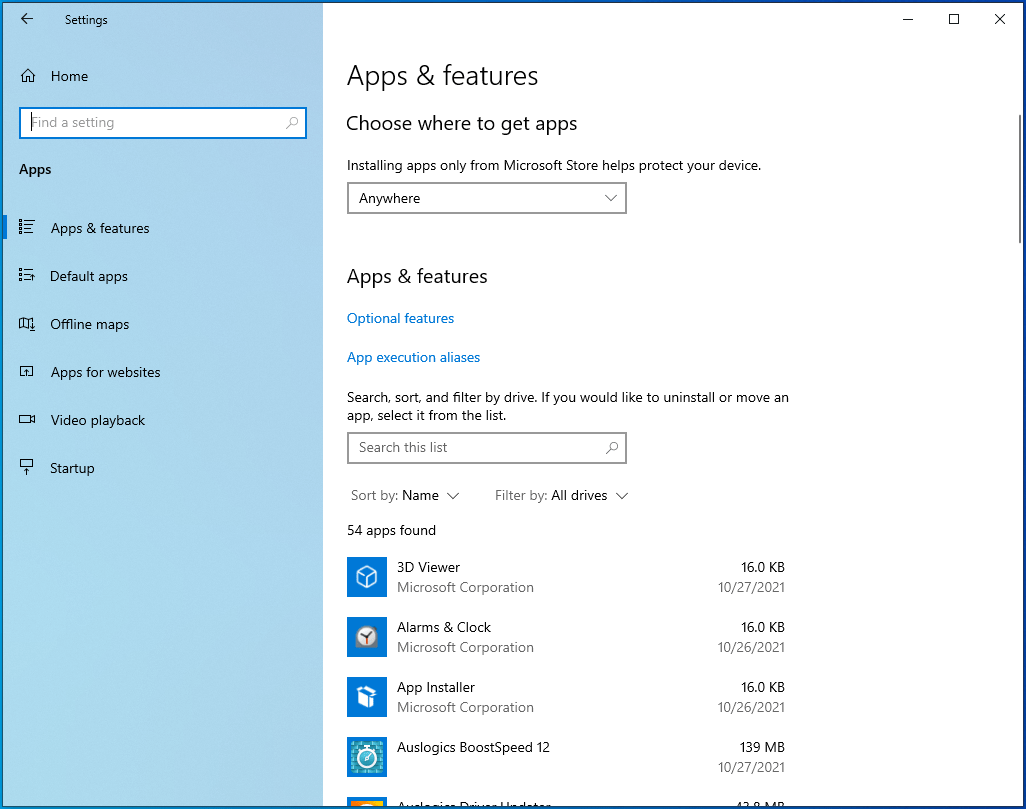
- Press Win + I to launch the Settings app.
- Once Settings opens, click on Apps.
- The Apps & Features screen will open.
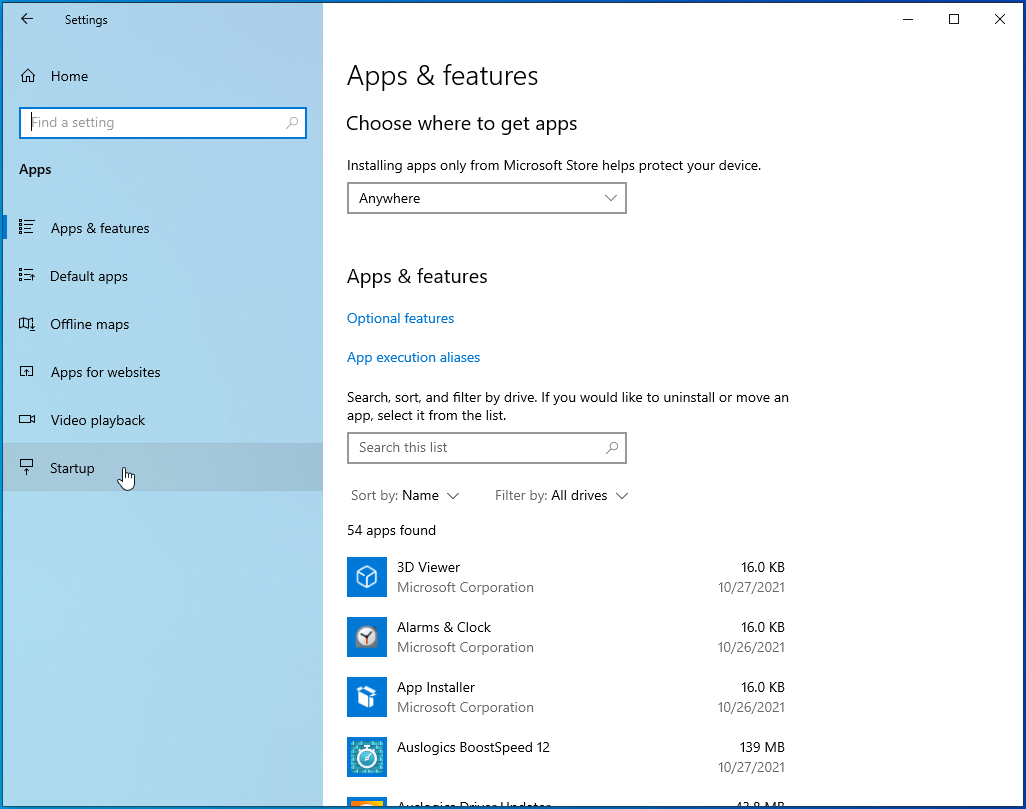
- Go to the left side of the screen and click on Startup.
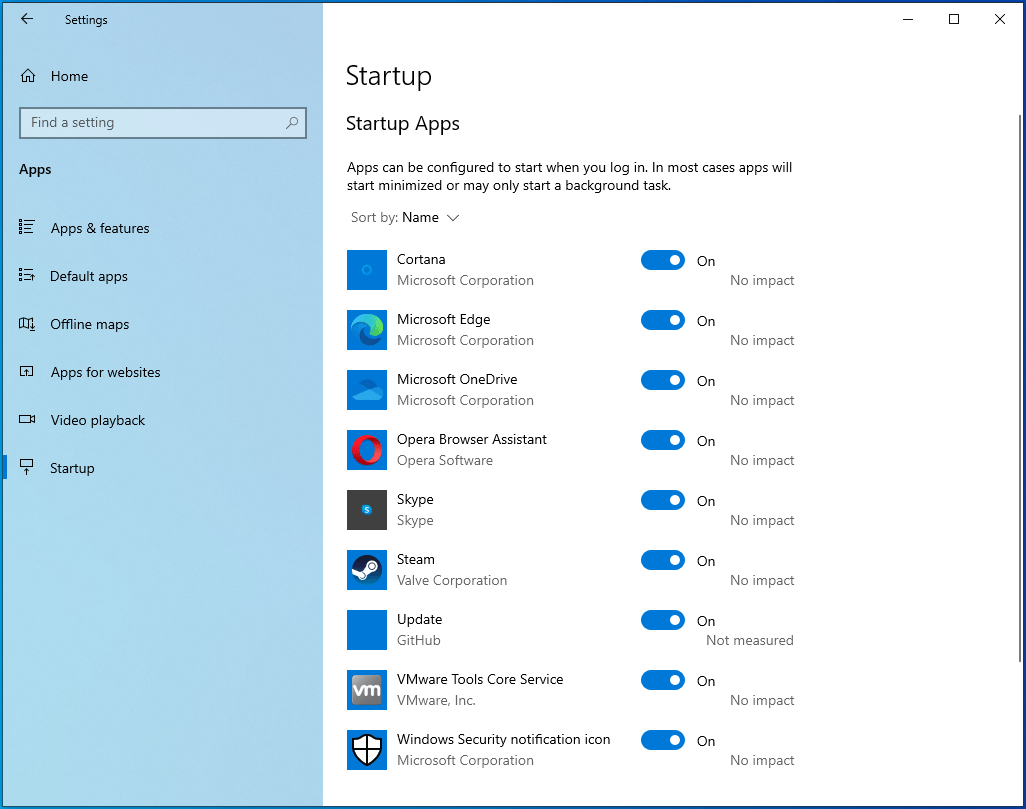
- The Startup page will open.
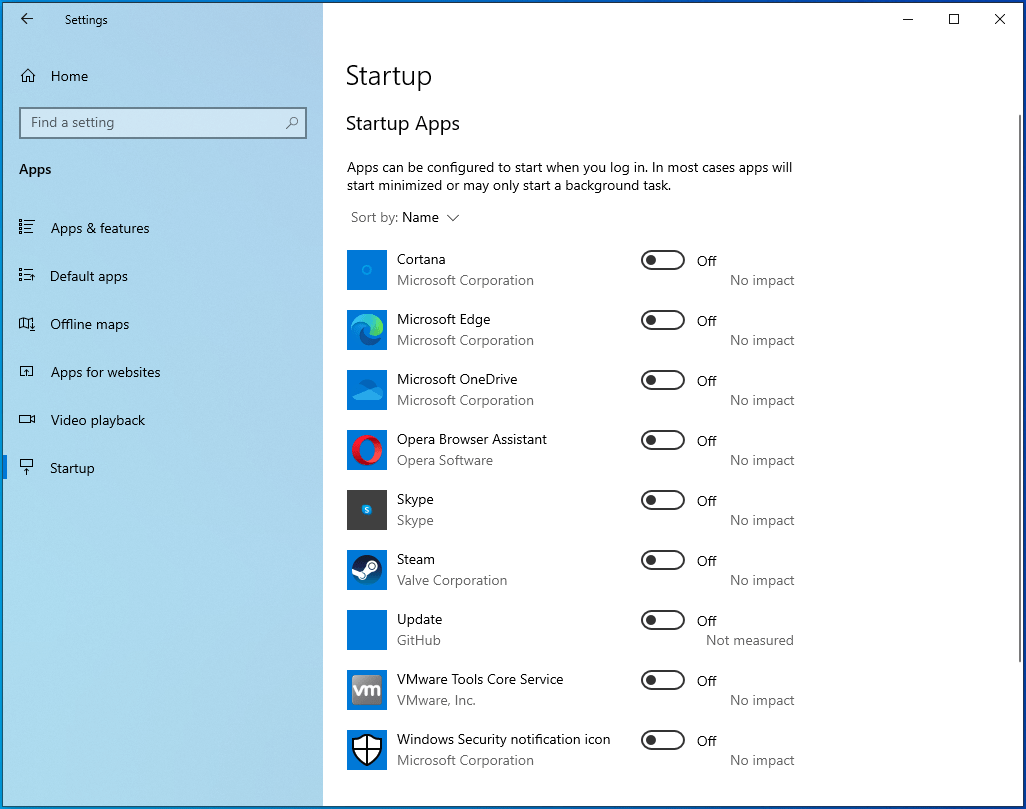
- Toggle off the switches for the programs under Startup Apps.
Next, disable startup services:
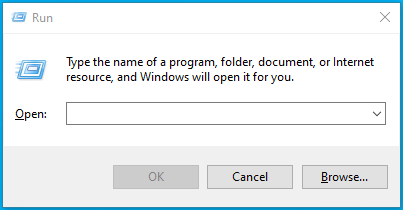
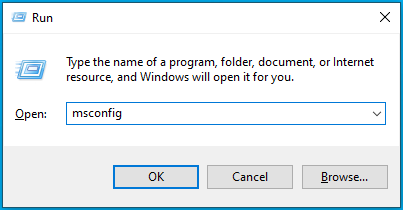
- Press Win + R to open the Run dialog box.
- After Run appears, go to the text box, type “msconfig,” and click on the OK button.
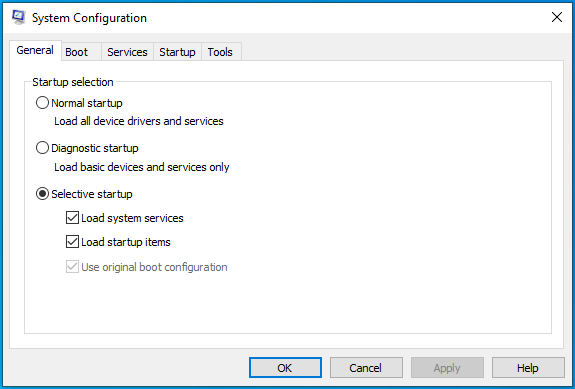
- The System Configuration dialog window will open.
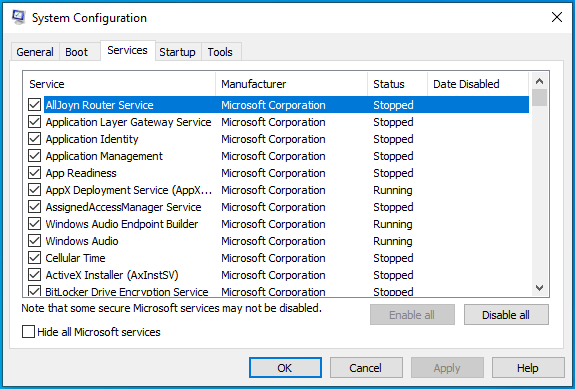
- Go to the Services tab.
- Check the box for “Hide all Microsoft services,” then click on the Disable All button.
- Click on OK.
- Restart your device.
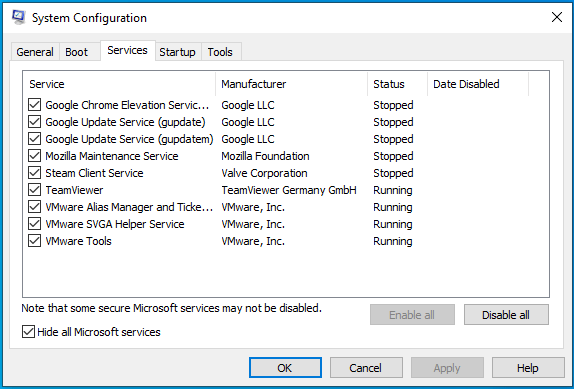
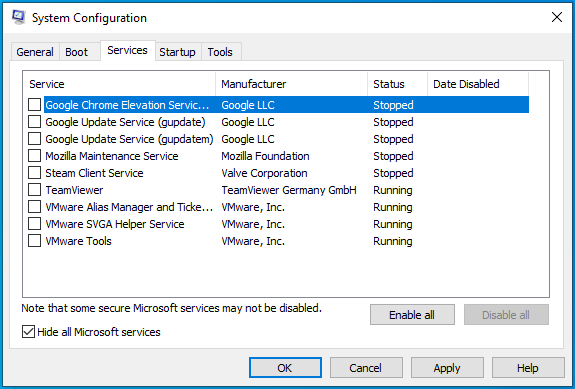
After your computer starts, launch Steam and open the game. If the game runs without the error message popping up, one of the services or programs you just disabled has been the cause of the problem.
To find the culprit, you have to enable one of them, restart your system, and check for the error. If the first service or program does not trigger the “App already running” error, enable the next one. Continue going through the services and programs one after the other (make sure you restart your system after enabling each) until one of them triggers the error again.
Conclusion
That’s how to fix Steam’s “App already running” error on Windows 10.
Parting Tip
You can always keep your system running at its peak performance by using Auslogics BoostSpeed to keep junk files and problematic registry keys out.
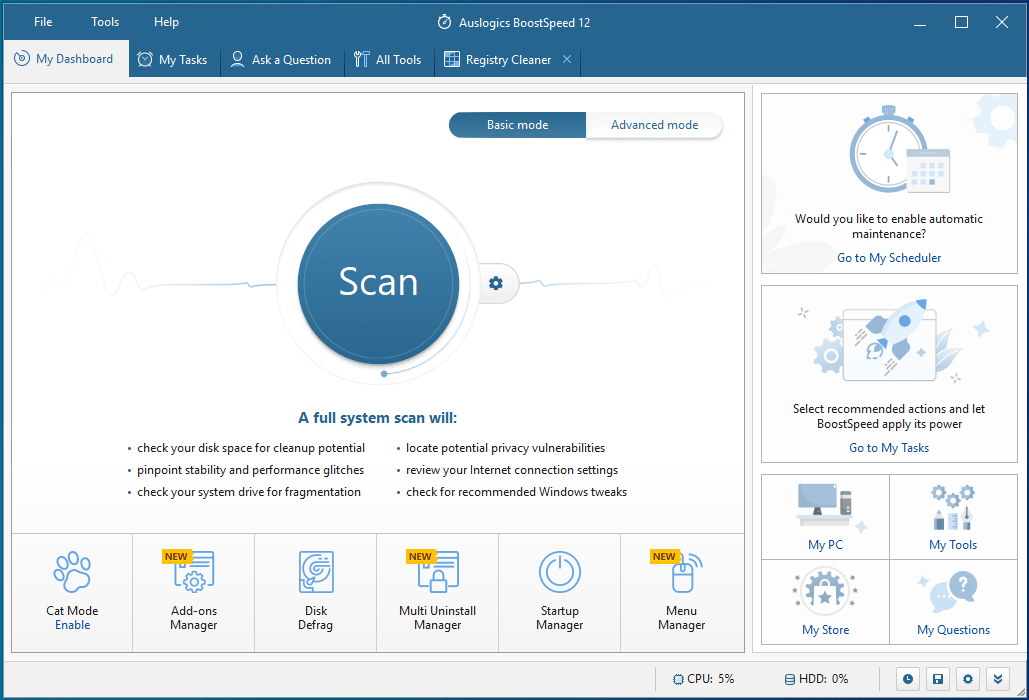
The program is compatible with Windows 10, and it does its job efficiently without causing conflicts of any kind.
Final Fix: Run a dedicated PC optimization tool to get rid of incorrect settings, junk files, harmful apps, and security threats that can cause system issues or slow performance.
Источник
Сегодня расскажем как исправить ошибку при запуске игры Euro Truck Simulator 2 «Another instance is already running». Инструкция так же подойдёт для других игрушек с площадки Стим и других клиентов. В начале кратко расскажем о возможных причинах такой ошибки, а ниже дадим рекомендации как исправить проблему.

Another instance is already running error
Причины ошибки
Кому интересен перевод ошибки? Окно с предупреждение сообщает: «Ошибка запуска. Копия приложения уже запущена». Причин тут несколько:
- Вы уже запустили игру двойным кликом или из лаунчера, а потом запустили игру второй раз. Таким образом в системе появилось два процесса.
- В системе завис процесс игры ETS 2 или «TruckersMP лаунчера».
- Если у вас слабый ПК нажмите ОК и ждите запуска либо перезапускаем компьютер. Если ошибка повторяется — читаем дальше.
Если дело в зависшем процессе — откройте Диспетчер задач (Ctrl+alt+Del) или клик ПКМ на панели задач — «Диспетчер задач». Находим процесс TruckersMP, нажимаем правой и выбираем «Завершить процесс» или «закрыть задачу» в зависимости от версии операционной системы.

Запускаем Диспетчер задач
Поскольку ошибку вызывает зависший процесс — самый простой способ перезагрузка ПК. После перезагрузки сначала запускаем Steam, а потом пробуем запустить лаунчер игры, саму игру.
Если процесс зависают каждый раз тут лучше перестраховаться и поступить как советуют на форумах и переустановить лаунчер.
- Нажимаем клавишу Виндовс + R на клавиатуре. Или Пуск — Выполнить.
- Набираем в строке «%programdata%» и жмем Enter(набираем без кавычек).
- Находим и удаляем папку «TruckersMP».
- Далее открываем папку C:Program Files и удаляем оттуда лаунчер «TruckersMP Launcher».
- Идем на сайт truckersmp.com загружаем его и переустанавливаем.
- Запускаем лаунчер с правами Администратора и нажимаем «Установить доступные обновления».
- Перезапускаем компьютер и пробуем запустить игру.
Так же игроки пигут, что помогает загрузка и установка Microsoft Directx 9, скачать можно по этой ссылке с официального сайта Майрософт: Microsoft DirectX® 9.0c. Русский язык присутствует.
Заключение
Надеюсь вы разобрались как исправить оршибку при запуске ETS 2 «Another instance is already running error». Похожим образом можно исправить ошибки при запуске игр из Стима. Первым делом проверяем и завершаем процесс игры или лаунчера. Потом обновляем их, перезагружаем ПК и пробуем запустить. Напишите в комментариях какой из способов помог вам. Если у вас схожие ошибки- пишите в комментарии к этой странице и мы поможем найти решение.

Евгений Загорский
IT специалист. Автор информационных статей на тему Андроид смартфонов и IOS смартфонов. Эксперт в области решения проблем с компьютерами и программами: установка, настройка, обзоры, советы по безопасности ваших устройств. В свободное время занимается дизайном и разработкой сайтов.
Оценка статьи:


 (4 оценок, среднее: 3,50 из 5)
 Загрузка…
Самое читаемое:
 08.02.2023
Ошибка в Роблоксе Error Code: 529 – что обозначает, решение
Если вы столкнулись с ошибкой Error Code: 529 в игре Roblox, знайте, что причин ее возникновения может быть две. Первая —…
Далее
 08.02.2023
Ошибка 277 в Роблокс – что это, как исправить?
Ошибка Error Code: 277 является одной из самых распространенных, с которой сталкиваются игроки Roblox. Обычно она…
Далее
 08.02.2023
Ошибка 273 в Роблокс – что значит, как исправить?
Игроки Roblox нередко сталкиваются с ошибкой Error C0de: 273, которая приводит к отключению от серверов и невозможностью…
Далее
 03.02.2023
Госуслуги произошла неизвестная ошибка – что делать?
«Госуслуги» — это сервис, который пользуется широким спросом среди отечественных пользователей. Кто-то с его…
Далее
- Remove From My Forums
-
Question
-
I’ve had this problem for ages with the Password Reset — I keep hoping it will go away with each new version, but it’s still there with the RTM client.
When a user logs in they get prompted to register for password reset, but the registration executable tries to run twice, so they also get the error message «An instance of this application is already running».
The workstation is XP and has had versions of the client going back to RC1 installed. I uninstall the client each time before installing the new one, but I always have this problem.
I’ve looked at the run key in the registry and MsPwdRegistration.exe is only listed once, so I really don’t understand why it runs twice. I’d rather fix it than rebuild at this point as I’m working remotely to my lab, and rebuilding is a pain. Any ideas?
Carol
http://www.wapshere.com/missmiis
Answers
-
Did you install an even earlier version once upon a time? There was an issue with pre-RC1 clients that they also added themseleves to:
HKEY_LOCAL_MACHINESOFTWAREMicrosoftWindows NTCurrentVersionWinlogon Userinit
This was never removed during uninstallation and customers who once had RC0 installed had the exact problem you have.
If not, a quick search for MsPwdRegistration in the registry should turn up something useful.
/Andreas
This posting is provided «AS IS» with no warranties, and confers no rights.
Use of included script samples are subject to the terms specified at
http://www.microsoft.com/info/copyright.htm-
Marked as answer by
Thursday, April 8, 2010 8:21 PM
-
Marked as answer by
Обновлено: 08.02.2023
Недавно скачал игру ETS 2 M. Начал карьеру в Британии (г. Ливерпуль). Нормально играл 2-3 дня, по Британии, купил машину в кредит, и решил взять груз в Голландию. И всегда, когда прохожу через океан, игра выкидывает. И когда хочу зайти заново, она пишет:
«Another instance is already running». Надоело! С друзьями не могу нормально поиграть. Уже 4-5 раза так.
P.S : Захожу в Steam, написано что игра уже запущена. Все время приходится перезагрузку делать!
вот перевод твоей ошибки (Another instance is already running — Другой экземпляр уже запущен) проверь сколько раз ты запустил игру возможно 2,3 раза нажал на ярлык мультиплеера

Another instance of Total War ROME 2 is running
Заключение
Евгений Загорский
IT специалист. Автор информационных статей на тему Андроид смартфонов и IOS смартфонов. Эксперт в области решения проблем с компьютерами и программами: установка, настройка, обзоры, советы по безопасности ваших устройств. В свободное время занимается дизайном и разработкой сайтов.
Причины ошибки
Кому интересен перевод ошибки? Окно с предупреждение сообщает: «Ошибка запуска. Копия приложения уже запущена». Причин тут несколько:
- Вы уже запустили игру двойным кликом или из лаунчера, а потом запустили игру второй раз. Таким образом в системе появилось два процесса.
- В системе завис процесс игры ETS 2 или «TruckersMP лаунчера».
- Если у вас слабый ПК нажмите ОК и ждите запуска либо перезапускаем компьютер. Если ошибка повторяется — читаем дальше.
Если дело в зависшем процессе — откройте Диспетчер задач (Ctrl+alt+Del) или клик ПКМ на панели задач — «Диспетчер задач». Находим процесс TruckersMP, нажимаем правой и выбираем «Завершить процесс» или «закрыть задачу» в зависимости от версии операционной системы.
Запускаем Диспетчер задач
Поскольку ошибку вызывает зависший процесс — самый простой способ перезагрузка ПК. После перезагрузки сначала запускаем Steam, а потом пробуем запустить лаунчер игры, саму игру.
Если процесс зависают каждый раз тут лучше перестраховаться и поступить как советуют на форумах и переустановить лаунчер.
Так же игроки пигут, что помогает загрузка и установка Microsoft Directx 9, скачать можно по этой ссылке с официального сайта Майрософт: Microsoft DirectX® 9.0c. Русский язык присутствует.
Заключение
Евгений Загорский
IT специалист. Автор информационных статей на тему Андроид смартфонов и IOS смартфонов. Эксперт в области решения проблем с компьютерами и программами: установка, настройка, обзоры, советы по безопасности ваших устройств. В свободное время занимается дизайном и разработкой сайтов.
Another instance is already running error
ПРИ ЗАПУСКЕ ИГРЫ ПИШЕТ :ANOTHER INSTANCE IS ALREADY RUNNING,ЧТО ДЕЛАТЬ?
Иногда при запуске какой либо игры можно получить ошибку «Another instance of game already running». Часто, для устранение данной ошибки пользователи прибегают к проверенному традиционному способу, а именно, перезагрузке ПК. Однако ошибка устраняется весьма просто.
Стоит зайти в Диспетчер задач (Ctrl+ Alt+ Delet) и в списке процессов найти процесс игры и завершить его. Теперь можно вновь запускать игру и ошибка не возникнет.
Причины ошибки
- Вы могли запустить игру, подождали загрузки и попробовали запустить заново. Потом каждый раз появляется ошибка. Причиной этому служит зависший в системе процесс игры.
- Вторая причина — несовместимость версии игры с файлами операционной системы, версией сервис пака.
- Ошибка в версиях игры или лаунчера.
- В очень редких случаях игра вылетает из-за несовместимости с железом.
Самое простое решение зайти в Диспетчер задач, найти зависший процесс и завершить его.
Запускаем Диспетчер задач
- Если вы запускаете Total War:Attila найдите в Диспетчере задач процесс Attila.exe*32.
- При ошибках в игре Euro Truck Simulator нужно найти процесс TruckersMP и завершить его.
- Так же при несовместимости игры с Windows — качаем другую проверенную сборку игры. Перед загрузкой смотрите внимательно на разрядность системы: 32 и 64.
- Если ошибка в игре от Стима — помогает переустановка лаунчера игры и клиента.
Читайте также:
- Как играть в тайм аут
- Кто такой кадавр в майнкрафте
- Сталкер фотограф наблюдатели кто они
- Джо rdr 2 кто такой
- Интенсивность hdr в сталкере что это