
The 504 gateway timeout in WordPress is one of the worst errors you can have. Not because it’s difficult to fix but because it impacts service. It usually results in downtime and affects the customer experience.
That’s why they are so important to fix.
The 504 gateway timeout error is a common one. It’s one of many 5xx HTTP errors you’ll see while online because the internet depends on so many interconnected systems all working in concert.
Any interruption to one of those systems can cause issues.
That’s the case here.
This post is going to explain what the error is, what causes a 504 gateway timeout in WordPress and what to do if it happens to you.
Let’s get going!
Table Of Contents
- What Is the WordPress 504 Gateway Timeout Error?
- What Causes 504 Errors in WordPress?
- How Do 504 Errors Impact Your Website?
- How to Fix 504 Errors in WordPress
- Can You Prevent 504 Errors in WordPress
- Final Thoughts
What Is the WordPress 504 Gateway Timeout Error?
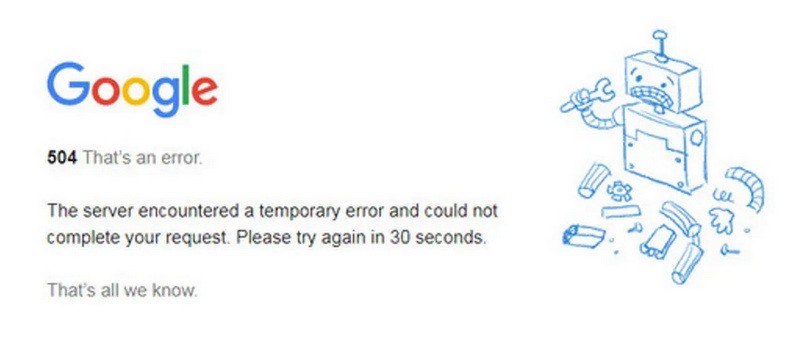
The WordPress 504 gateway timeout error is an HTTP error. It is caused by a proxy or gateway server not receiving a response from the server that hosts your website.
Picture the scene. You type in a URL in your browser, there’s a pause and then the website appears. It’s like magic, type in the URL, wait a second or two and the page loads.
What you don’t see is the process behind that query from your browser.
All web queries will work a little like this:
- The browser queries DNS and is directed towards your web host so it can deliver a copy of the requested web page.
- Your host will have a proxy server that handles requests and then forwards them on to your web server. Every visitor to your website will land on this proxy server.
- The proxy will look up the IP address or domain, find the physical server and route the traffic to the web server that hosts your website.
When everything works well, this process is seamless and takes a second or two.
If the proxy cannot contact your web server for any reason, it will return an HTTP 504 error to your browser.
To help keep the internet flowing, HTTP has a timer built into it. Once an HTTP query is sent, there is a finite amount of time for the web server to respond.
If it responds in time, it’s all good and your web page loads.
If the server doesn’t respond in time, the proxy flags an HTTP error. In this case, HTTP 504.
Proxy Servers
Proxy servers are used a lot in networking. It’s a catch-all name for servers that can perform several functions:
- They act as gatekeeper to networks and will often run firewalls that work alongside network appliances for defense in depth.
- They work as load balancers, dividing traffic across multiple network servers.
- They can act as mini VPNs, adding a layer of privacy to communications.
- They can divide networks along with routers, keeping internal IP addresses private while allowing the public to access web servers.

Hello! My name is Sujay and I’m CEO of Astra.
We’re on a mission to help small businesses grow online with affordable software products and the education you need to succeed.
Leave a comment below if you want to join the conversation, or click here if you would like personal help or to engage with our team privately.
What Causes 504 Errors in WordPress?
So, you now know how the basic server architecture works, what could cause a proxy to not be able to communicate with a web server?
It could be a number of things, including:
- Physical fault with the web server
- Fault with the link between the web server and the network
- Data mismatch between the IP address of the proxy and the IP address of the web server
- Planned work within the organization
- DDoS attacks on the web host
- Web server simply too busy to respond in time
The one thing you need to remember if you see a 504 error is that it isn’t usually your browser or your computer. It’s most often a network error on an external network.
However, as you’ll see in a minute, there are tests you can run locally to make sure the error is network and not your device.
How Do 504 Errors Impact Your Website?

The reason WordPress 504 gateway timeouts are serious is because they impact visitors. They won’t be able to visit your site, which has the obvious consequences.
If the cause of the error is a busy server, a portion of your visitors will get through, so will cause a reduction in service.
If the cause is a fault, planned work, data mismatch or something else, chances are nobody will get through. That means a total loss of service on your website.
Not only do 504 gateway timeouts in WordPress impact visitors, they can also impact your SEO. If you don’t notice the error and your site is crawled while it’s not contactable, or Google is notified via a bot, it can delist the page.
That’s a worst-case scenario but we use it to illustrate just how serious a 504 gateway timeout in WordPress can be.
List of HTTP 5xx Codes
There are 12 commonly used HTTP 5xx codes. All of them refer to some kind of network issue that prevents the relevant server performing its tasks.
Those codes are:
- 500 – Internal server error. Displayed when a request cannot be fulfilled but there isn’t enough information to identify why.
- 501 – Not implemented. A rare error that is shown when the server doesn’t recognize the query or cannot respond properly.
- 502 – Bad gateway. Where the server received an incorrect or invalid response from the upstream (web) server.
- 503 – Service unavailable. The server is physically unavailable due to maintenance or is overloaded.
- 504 – Gateway timeout. Where the gateway (proxy) server didn’t receive a reply in time from the upstream (web) server.
- 505 – HTTP version not supported. The server doesn’t support the protocol requested.
- 506 – Variant also negotiates. Incorrect server configuration for the query.
- 507 – Insufficient storage. The proxy server is unable to store the browser query and/or response.
- 508 – Loop detected. The server detected an infinite loop within the query.
- 509 – Bandwidth exceeded. Unofficial HTTP code used by web hosts to control bandwidth use by customers.
- 510 – Not extended. The HTTP request includes an extension the proxy server cannot support.
- 511 – Network authentication required. Client needs to authenticate to contact the upstream server.
How to Fix 504 Errors in WordPress
If an HTTP 5xx error is a network error, is there anything you can do about it?
A couple of things actually. You can:
- Troubleshoot locally to make sure it isn’t an issue with your browser or device
- Troubleshoot your website to make sure it isn’t a configuration issue
- Check with your web host to check it isn’t a physical problem on their network
You can do these checks in any order you like but we recommend this order. Checking locally takes a couple of minutes. Checking your website doesn’t take long and not all web hosts are as forthcoming as they should be when it comes to downtime.
Feel free to switch steps 2 and 3 around if you prefer though!
The 504 gateway timeout error isn’t specific enough to tell us whether the proxy server didn’t get a response from the web server or your website. Therefore, we can do some basic troubleshooting ourselves to try to identify the source of the error.
If you don’t fix it by the end of this article, it’s time to report the error to your web host.
Before we get into that, first it’s often useful to spend a minute checking the fault isn’t local to you. While the 504 error is network, it’s up to the browser to manage communication and it isn’t unknown for a browser to get a little mixed up.
Browsers also cache pages for efficiency. If it caches the 504 page, even if your website is back up, it could still be showing you the cached version.
That’s why we check the local situation first.
So, before we go troubleshooting your website, let’s make sure it’s not your browser or computer!
1. Reload the Web Page
The easiest way to assess the 504 error is to retry the website. Give it a few seconds and then try to revisit the website.
If the error was a result of server or network load, retrying may work.
If it doesn’t, force a page refresh in your browser to request a new copy of the page.
For a browser refresh use:
- Chrome on Windows: Ctrl + F5
- Chrome on Mac: Command + Shift + R
- Firefox on Windows: Ctrl + F5
- Firefox on Mac: Command + Shift + R
- Safari: Command + Option + R
- Microsoft Edge: Ctrl + F5
You could also try a different browser just in case it’s a cookie or cache issue.
2. Reboot Your Devices
While rare, you could also reboot your phone or computer to make sure there isn’t an internal issue causing issues with networking. It’s rarely the cause of a 504 error but as it’s easy to do and relatively painless, it’s worth a try.
If you still see the error after a device reboot, you could also reboot your router just to make sure.
3. Disconnect From Your VPN
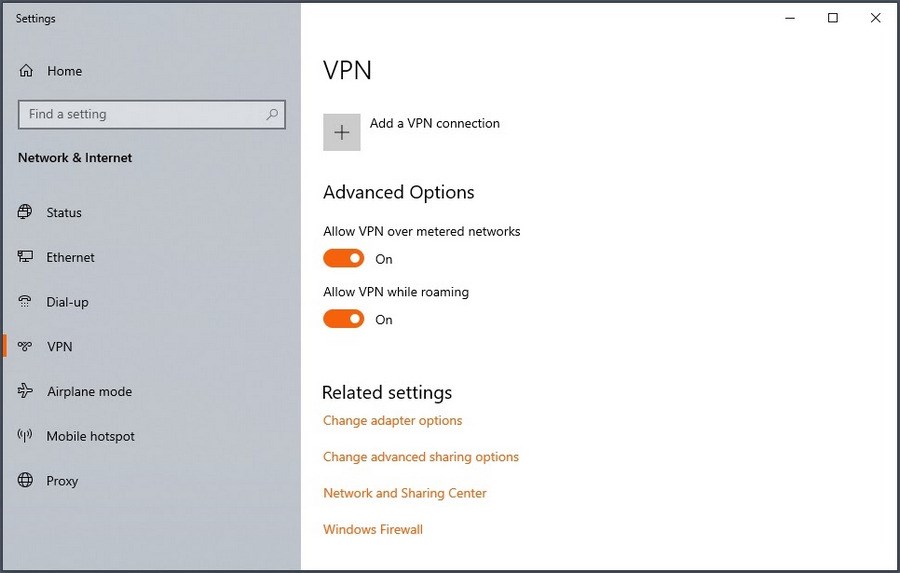
If you use a VPN, disconnect from it and retest. VPNs use a version of a proxy server at your end so can occasionally cause errors.
Disconnect from your VPN and retry the website. If necessary, try the force reload method above to request a fresh copy of the page to make sure the website is live again.
4. Check Your DNS
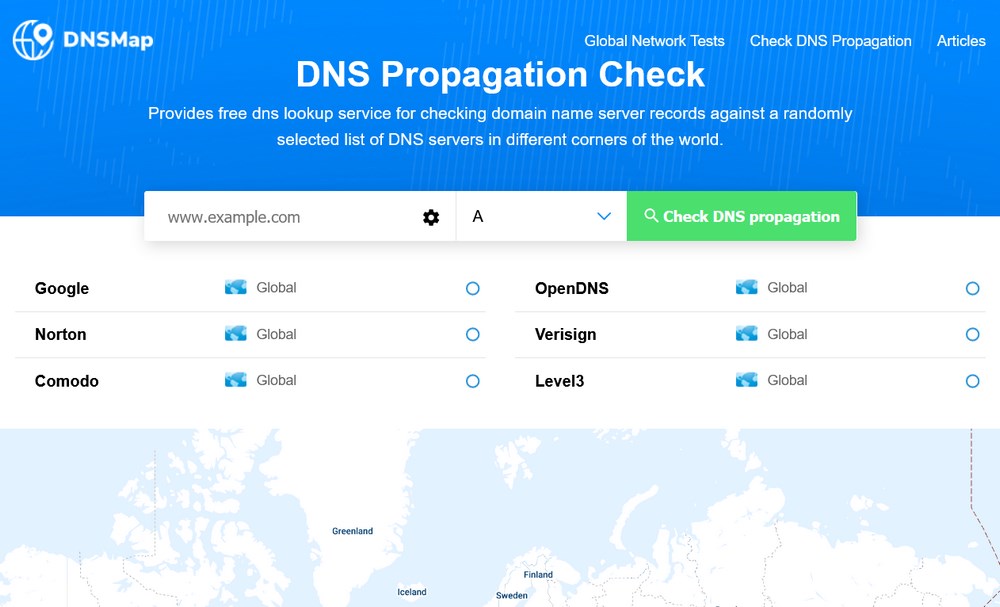
As a website visitor, you would expect any issues with your DNS settings to also impact other websites.
As a website owner, if you have just moved your website to a new host, the DNS settings may not have propagated yet or there may be a mismatch in the settings.
Any DNS change can take up to 48 hours to work its way across DNS servers and you may be within that period.
There is an exceptionally useful website, DNSMap that can show you the status of any DNS propagation across the globe.
If your change has propagated, log into your web host and double check the DNS settings and name server set for your website.
Those are all the checks you can do locally to remedy 504 errors. Now we’ll start checking your web host and website for issues.
5. Check Your Server Logs if You Have Them
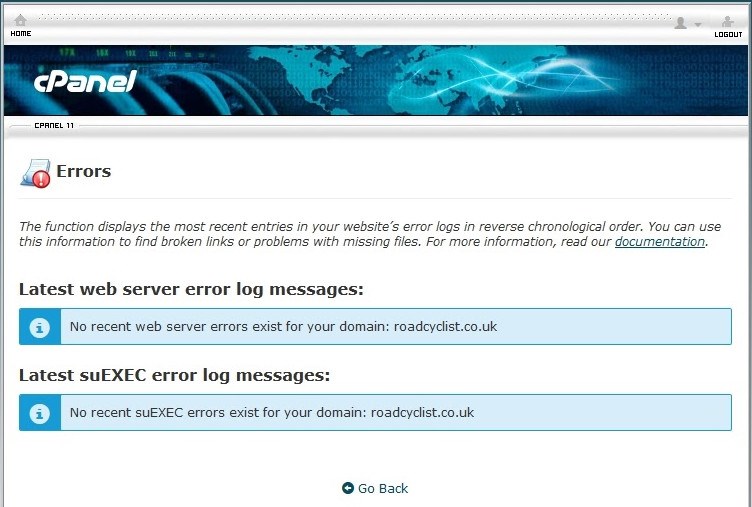
Logs are both intimidating and amazingly useful in troubleshooting. If your web host provides access to server logs on your hosting plan, it’s a good idea to use them.
If your host uses cPanel, accessing logs is simple.
- Log into cPanel
- Navigate to Metrics and select Errors
If the server picked up errors, they should appear in the new window that opens up.
If you don’t see any logs, don’t take it as everything is good. Different web hosts handle logs differently. Some will include them by default while others will offer minimal logs.
If your web host doesn’t use cPanel, there should be an area for logs within your hosting dashboard.
If you use a WordPress log plugin, don’t forget to check those too!
6. Check the WordPress Firewall
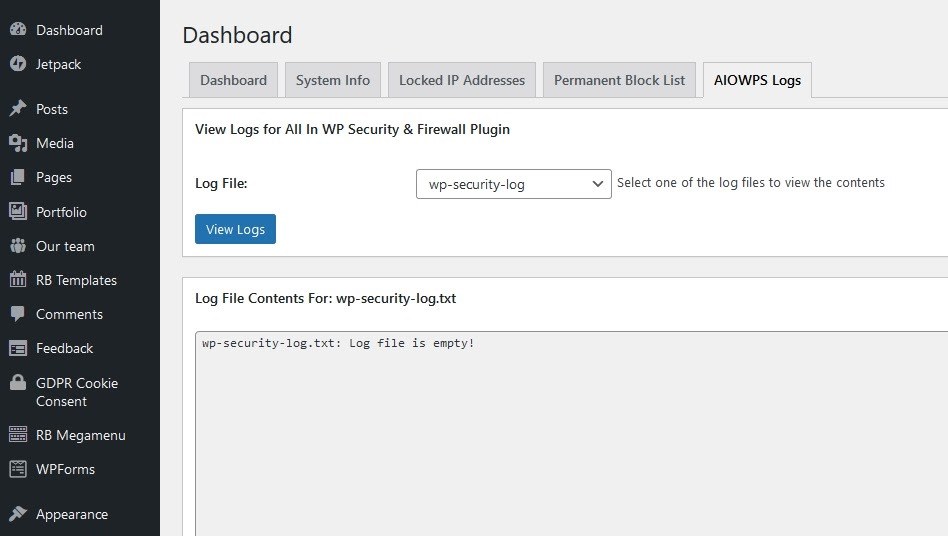
If you use a WordPress security plugin that has a firewall, you can check it isn’t causing the 504 gateway timeout in one of two ways.
You can look at the logs within the plugin or you can disable it temporarily to see if service resumes.
Much will depend on how comfortable you are with logs or whether your security plugin supports them or not.
The easiest way to check if the firewall is causing the 504 gateway timeout in WordPress is to disable the security plugin and retest.
If you can connect to your website properly, something within the plugin is stopping traffic.
If the error is still apparent, it isn’t your security plugin so feel free to enable it again.
7. Check Any New WordPress Plugins
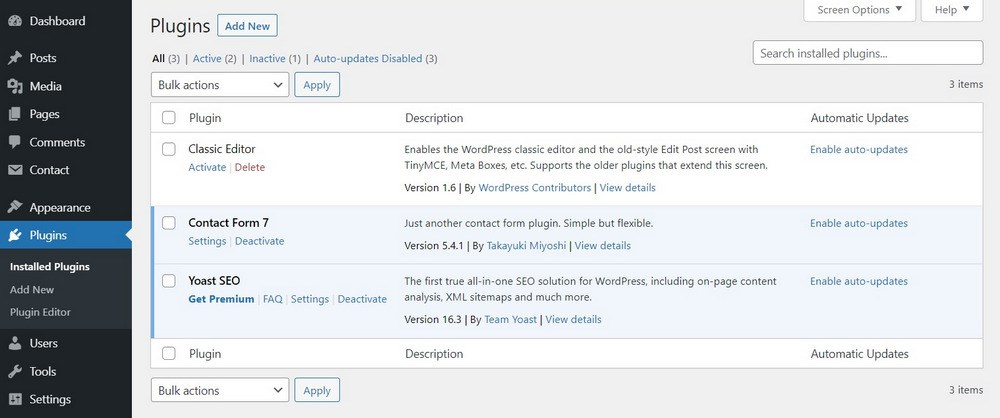
Have you added any new WordPress plugins lately? Added a new security or firewall plugin? Added a CDN plugin or any type of plugin that would impact traffic?
If so, disable the plugin and retry the website. The plugin itself may have caused the error or many have added an entry in your .htaccess file that could be stopping responses from your website to the proxy server.
Disabling the plugin should also remove that .htaccess file entry.
8. Disable All WordPress Plugins
Let’s take that a step further and disable all the plugins on your website. If you have been using them from before the error happened, chances are it isn’t a plugin causing the issue but it’s useful to check.
However, if a plugin was recently updated and that update introduced an error, it could be causing gateway timeouts.
Fortunately, newer versions of WordPress have a neat tool to do that.
- Navigate to Plugins and Installed Plugins
- Check the box at the top next to the word Plugin.
- Select the Bulk Actions menu and select Deactivate
- Select the Apply button next to it
This process will deactivate all your WordPress plugins at once. Now you can retest to see if the error is still present or not.
If the error is still present, you can repeat the above but select Activate instead of Deactivate.
If the error disappears, you should enable one plugin at a time and retest. As soon as you begin seeing the error again, undo the last step, retest and you should have identified the cause of the error.
9. Test Your WordPress Theme
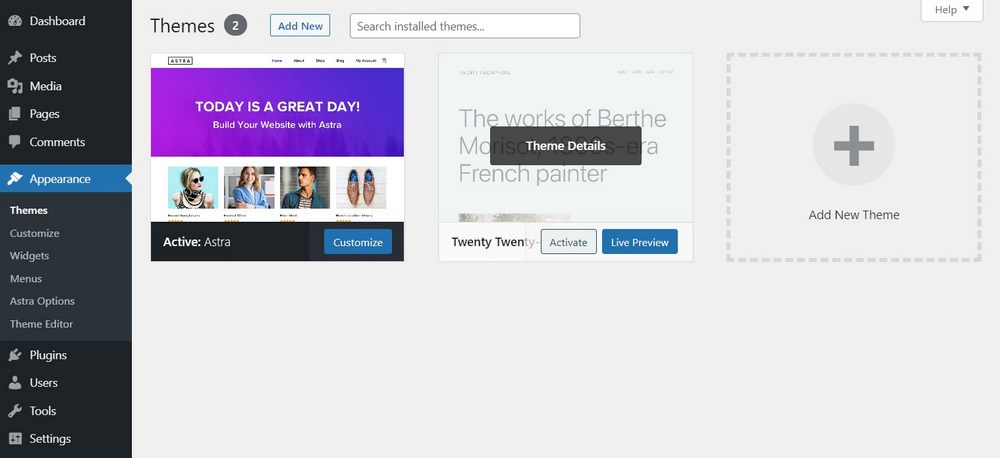
It is unlikely that your WordPress theme is causing 504 gateway timeouts, but it’s a simple test to make.
All you’ll need to do is activate the default Twenty Twenty-One theme, test and enable your theme again.
- Select Appearance and Themes in your WordPress dashboard
- Hover over Twenty Twenty-One and select Activate
- Wait until the new theme has activated and retest in your browser. If the error remains, you can switch back your theme.
If the error disappears, there is something in it that is stopping your website functioning normally.
A theme should never impact a website in this way. If yours interrupted service, consider switching to Astra.
10. Check Your Website’s htaccess File
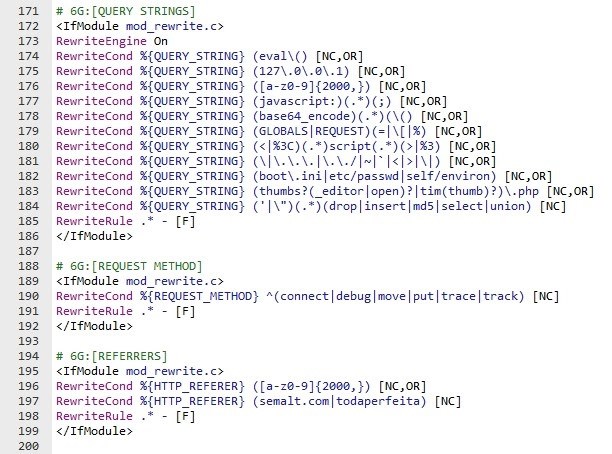
We mentioned a moment ago that plugins can add entries into your .htaccess file as part of their normal operation. Disabling a plugin should remove any entries and is good enough for testing.
As .htaccess file controls who can access your website, it can also cause a 504 gateway timeout in WordPress.
Let’s check the file now.
You’ll need access to your web host’s file manager for this to work.
- Log into your web host and navigate to the file manager
- Navigate to the public_html folder and look inside
- You should see WordPress files including .htaccess
- Select the .htaccess file and right click
- Select Copy and name the copy .htaccess.bk
- Select the original .htaccess file, replace everything with the code below and save the change
# BEGIN WordPress
<IfModule mod_rewrite.c>
RewriteEngine On
RewriteBase /
RewriteRule ^index.php$ - [L]
RewriteCond %{REQUEST_FILENAME} !-f
RewriteCond %{REQUEST_FILENAME} !-d
RewriteRule . /index.php [L]
</IfModule>
# END WordPress
Now retest access to your website to see if the 504 gateway timeout error is still there.
If it is, you can delete the .htaccess file and rename .htaccess.bk back to .htaccess and everything will be as it was.
If the 504 gateway timeout error has gone, there is an entry in there stopping your website working normally.
You can work through it line by line or disable your plugins and enable them again one at a time so they rewrite to the file.
It’s important to perform these steps one at a time and retest to identify the plugin that’s adding the erroneous entry. Once you identify the plugin, find an alternative or look on the plugin’s forum for advice.
11. Check Your Website’s CDN
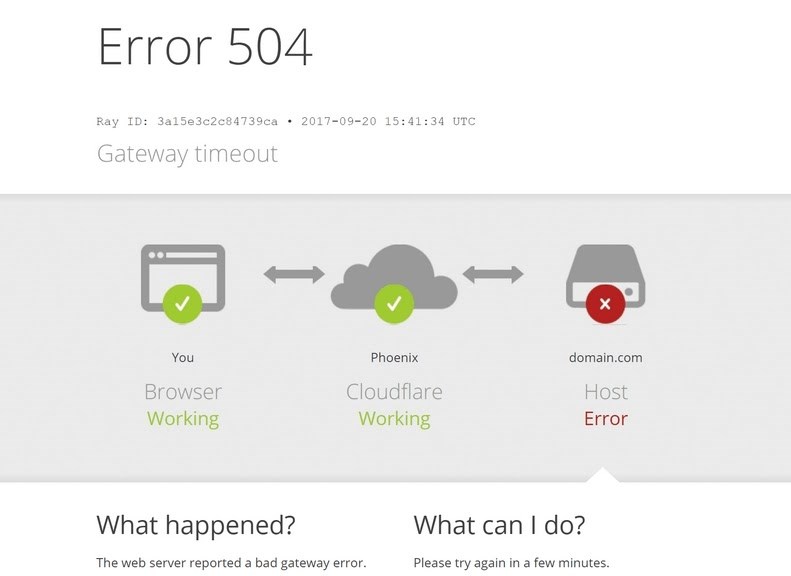
If you use Cloudflare or other Content Delivery Network (CDN), it could be part of the problem. If your web server is down and your CDN is trying to contact it rather than serve a local cache, it can result in the 504 error.
You can see if it’s a Cloudflare CDN issue as the company adds their own name to the HTTP page. You should see a 504 Gateway Timeout screen with ‘cloudflare-nginx’ underneath.
Other CDNs may do the same thing.
The easy way to check to see if it’s your website CDN causing the issue is to turn it off.
If you have tried all these steps and you still cannot fix the 504 gateway timeout in WordPress, it’s time to contact your web host. It could be a physical server or connection issue causing the problem.
Can You Prevent 504 Errors in WordPress
You can perform a couple of basic steps to help prevent 504 gateway timeouts. They won’t prevent configuration issues within WordPress or physical server errors but they may help.
They are also purely optional.
Check/Change Server Settings to Avoid 504 Errors
The first change you could make is to extend the timeout in Apache if you use that instead of Nginx.
You will need access to the httpd.conf file to make this change. You should find that in the root of your host’s file manager.
Typically, you’ll find the http.conf file in one of the following locations:
- /etc/apache2/httpd.conf
- /etc/apache2/apache2.conf
- /etc/httpd/httpd.conf
- /etc/httpd/conf/httpd.conf
If you don’t see it, you may not have access to it so move on to the next step.
If you can see it, right click, select edit and add the following code. Then save the file.
TimeOut 600This may give the server enough time to run any processes that are taking too long.
Increase PHP Max Execution Time
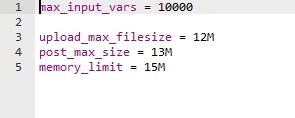
If you cannot access the httpd.conf file, you could modify your php.ini file instead. We can extend the execution timeout to achieve the same goal, just using PHP.
You’ll find php.ini in your website root in the same directory you found .htaccess.
- Right click php.ini and select Copy.
- Call the new file php.ini.bk
- Select the original, add the following code to the end and select Save.
max_execution_time 300If your website works properly, you can leave the backup file in place. If things go wrong, delete the file you just changed and rename php.ini.bk to php.ini. Everything should now be back as it was.
Final Thoughts
Troubleshooting a 504 gateway timeout in WordPress is a process. The fault could be your browser, DNS, VPN or something else. It could also be your website or your web host.
Like most troubleshooting, finding the fault and fixing it is a process of elimination. We begin easy with browser refreshes and gradually work our way towards editing files.
While it may seem in-depth and complex, as long as you follow these steps, you should be fine.
Other related errors and fixes:
- Error Max Execution Time Exceeded
Do you know of any other fixes for the 504 gateway timeout in WordPress? Know of other proven techniques to prevent them? Have anything to add? Tell us about it below if you do!
Have you ever gotten a 504 gateway timeout error on your WordPress site? This error can make your website inaccessible to users. What’s worst is that it can disappear and reappear on its own if the underlying issue is not fixed. In this article, we will show you how to fix the 504 gateway timeout error in WordPress.
What Causes 504 Gateway Timeout Error?
The 504 gateway timeout error is usually caused when a server is unable to connect to an upstream server to complete a request.
For example, if you are using a website firewall like Sucuri, and it is unable to connect to your WordPress server, then you will see a 504 gateway timeout error.
The error page’s appearance and the message may be displayed differently depending on your WordPress hosting company, the proxy server, or the browser you are using. Following are some of the most common 504 gateway timeout error messages.
- 504 Gateway Timeout
- HTTP 504
- 504 ERROR
- Gateway Timeout (504)
- HTTP Error 504 – Gateway Timeout
- Gateway Timeout Error
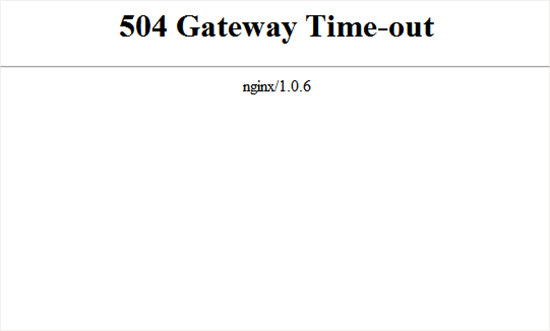
While the most common reason for the error is a proxy server unable to reach the upstream server, it can also be triggered by other hosting configuration issues.
That being said, let’s see how to easily troubleshoot and fix the 504 gateway timeout error in WordPress.
1. Wait and Reload
Sometimes the 504 gateway timeout error may simply be caused by a temporary glitch on your WordPress hosting servers. Give it a few minutes and then try reloading your website.
If the issue disappears, then you don’t need to take any further steps. However, if the error persists or reappears after a while, then continue reading to troubleshoot and fix the problem.
2. Turn off VPN
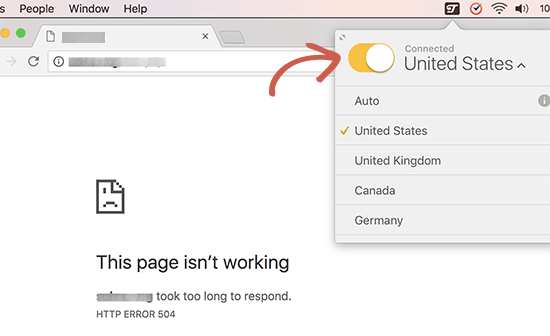
If you are using a VPN service to browse the web, then try disabling it. Sometimes your VPN server may not be able to get a response from your managed WordPress hosting server, and this will result in 504 gateway timeout error.
If your website reappears, then this means that the VPN server was the culprit. Now if using the VPN is important for you, then you can try switching to a different VPN server. If you are seeing the error even after changing servers, then you would want to contact your VPN service provider for support.
3. Turn off Website Firewall
If you are using a DNS level website firewall like Sucuri or Cloudflare, then try to temporarily disable the firewall. This will allow you to connect to your WordPress hosting server directly.
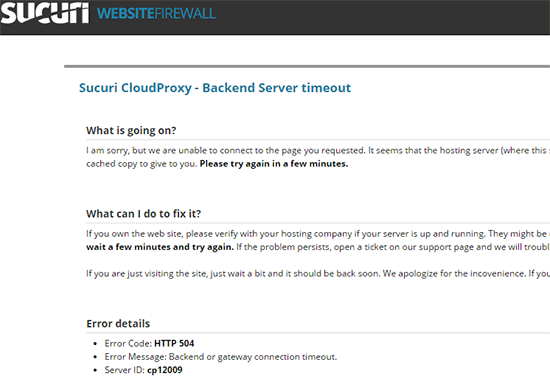
If that fixes the issue, then it’s likely that your hosting server is blocking the firewall IP addresses which can cause this issue. You will need to contact your firewall service provider to get their list of IP addresses, and then contact your web host to whitelist those IPs.
Sometimes disabling the firewall might show you the actual server error notice. In that case, you should refer to our list of common WordPress errors to fix the specific issue.
4. Disable Your Network Proxy
If you are connected to the internet through a proxy server, then that server may be unable to get a response from your WordPress website.
Try accessing your website using a different internet connection or use online services to see if your website is down just for you or everyone.
If it is down just for you, then you need to change your network settings. You can contact your internet service provider or a network admin to troubleshoot the issue for you.
5. Change Your DNS Servers
Your internet connection uses something called DNS servers. These servers help your computer connect to the different servers on the internet.
If the DNS servers you are using are down or unable to connect to your website, then you could see a 504 gateway timeout error. The easiest way to check this is by changing the DNS servers your device is using.
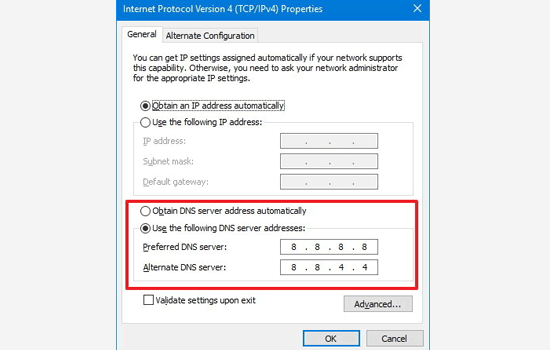
On Windows computers, you can find them under Control Panel » Network and Sharing Center screen.
On Mac computers, you can find them under Settings » Network. Click on the Advanced button, and then select the DNS tab.
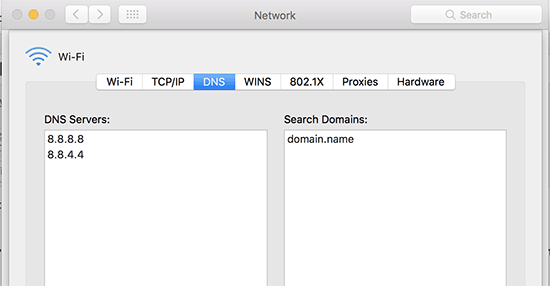
You can change your DNS server address to 8.8.8.8 and 8.8.4.4 and apply changes.
Try visiting your website now. If this solved your error, then you are all done. The problem was with your internet connection, and it is now fixed.
6. Clean up your WordPress Database
A corrupt WordPress database may also trigger a 504 gateway timeout error. Don’t worry, your WordPress data is most likely safe. However, your database may need a little a bit of spring cleaning.
This can be easily done by optimizing your WordPress database using phpMyAdmin or using a plugin like WP-Sweep. Make sure you backup the WordPress database before performing any action.
7. Deactivate WordPress Plugins and Switch to Default Theme
WordPress plugins and themes are less likely to cause a 504 gateway timeout error. However, if a plugin or theme is making too many requests to the server, then it is likely that some of these requests may drop off and trigger a 504 gateway timeout error.
To test this, you need to deactivate all WordPress plugins via FTP.
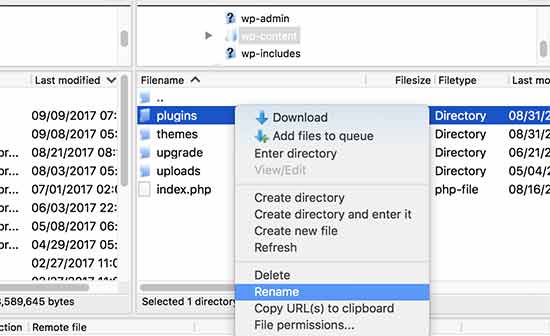
After that, visit your website to see if the error has resolved.
If it is, then one of your plugins was causing the issue. You now need to activate all plugins one by one until you can reproduce the error. This will help you locate the plugin responsible for the error.
If deactivating plugins didn’t solve your issue, then you would want to check your WordPress theme. You will need to switch WordPress theme via phpMyAdmin.
After switching your theme to the default WordPress theme, visit your website to see if it’s working.
8. More Troubleshooting
If all else fails, and you are still unable to solve the 504 gateway timeout error, then follow the steps in our ultimate WordPress troubleshooting guide for beginners.
Finally, as a last resort, you need to reach out to your hosting provider for support. They may be able to fix the issue or point you in the right direction.
We hope this article helped you learn how to fix 504 gateway timeout error in WordPress. You may also want to see our guide on how to protect WordPress against brute force attacks.
If you liked this article, then please subscribe to our YouTube Channel for WordPress video tutorials. You can also find us on Twitter and Facebook.
Disclosure: Our content is reader-supported. This means if you click on some of our links, then we may earn a commission. See how WPBeginner is funded, why it matters, and how you can support us.

Editorial Staff at WPBeginner is a team of WordPress experts led by Syed Balkhi. We have been creating WordPress tutorials since 2009, and WPBeginner has become the largest free WordPress resource site in the industry.
Нет ничего более раздражающего, чем появление белого экрана с ошибкой при обращении к WordPress сайту. Некоторые из распространенных ошибок, с которыми вы могли сталкиваться ранее: белый экран смерти, ошибка установки соединения с базой данных и т.д. Для большинства блогов, а также сайтов, связанных с электронной коммерцией, появление таких ошибок приводит к потере дохода, поскольку посетители сразу покидают такой ресурс, а клиенты не могут совершить покупки. Сегодня мы рассмотрим ошибку 504 Gateway Timeout Error, а также дадим рекомендации по поводу того, как справиться с ней на своем WordPress сайте. Читайте далее о причинах этой ошибки и о том, как предотвратить ее появление.
Содержание
- Почему появляется 504 Gateway Timeout Error?
- Варианты ошибки 504 Gateway Timeout Error
- Попробуйте перезагрузить страницу.
- Отключите параметры прокси.
- Проблемы с DNS.
- Временно отключите CDN
- Проблемы с сервером (проверьте ваш хост)
- Спам, боты и DDoS-атаки
- Проверьте ваши плагины и темы.
- Проверьте логи.
- Параметры Nginx
- Заключение
Почему появляется 504 Gateway Timeout Error?
Перед тем, как мы рассмотрим саму ошибку, важно понять, из-за чего она появляется. Всякий раз, когда вы запускаете свой браузер и посещаете сайт, он передает запрос обратно на сервер, на котором размещен. Затем веб-сервер обрабатывает запрос и отправляет вам запрашиваемые ресурсы вместе с HTTP-заголовком. Этот заголовок содержит один из многочисленных кодов состояния HTTP, который позволяет понять, все ли в порядке или что-то пошло не так. Далеко не все коды состояния плохие. К примеру, код состояния 200 говорит о том, что все в порядке.
Существует много различных кодов ошибок 500 (500, 501, 502, 503, 504 и т.д.), которые имеют разное значение. Они указывают, что запрос был принят, но сервер не смог выполнить его.
В данном случае ошибка 504 означает, что «для сервера, работающего в качестве шлюза, вышло время ожидания ответа от другого сервера». Код возвращается, когда есть два сервера, участвующих в обработке запроса, и время ожидания ответа от второго сервера со стороны первого сервера истекло (RFC 7231, раздел 6.6.5).
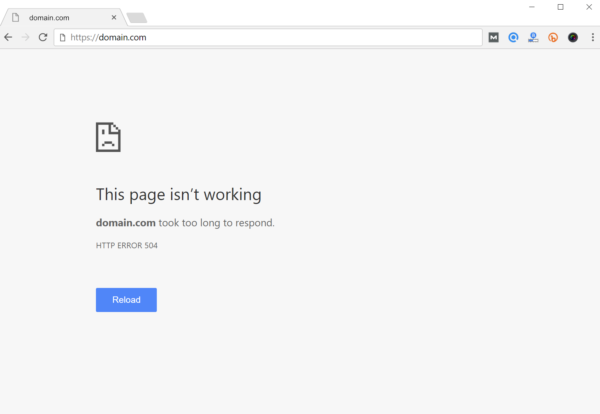
Варианты ошибки 504 Gateway Timeout Error
Вследствие многообразия веб-браузеров, операционных систем и серверов ошибка 504 может быть представлена разными способами. Все они, как правило, несут в себе одно и то значение. Ниже приведены некоторые из вариантов, с которыми вы можете столкнуться:
- “504 Gateway Timeout”
- “504 Gateway Timeout NGINX”
- “NGINX 504 Gateway Timeout”
- “Gateway Timeout Error”
- “Error 504”
- “HTTP Error 504”
- “HTTP Error 504 – Gateway Timeout”
- “HTTP 504”
- “504 Error”
- “Gateway Timeout (504)
- “504 Gateway Time-out – The server didn’t respond in time”
Как справиться с ошибкой 504 Gateway Timeout Error
С чего следует начать решение проблем, если вы столкнулись с ошибкой 504 Gateway Timeout Error на своем WordPress сайте? Не имея контекста, достаточно сложно понять, что делать в первую очередь. Как правило, ошибку вызывают проблемы с сетевым подключением и проблемы с сервером, на котором расположен сайт. Однако ошибка может быть следствием проблем на стороне клиента или даже результатом использования стороннего плагина. Мы немного углубимся в этот вопрос. Давайте ознакомимся с популярными причинами появления ошибки, а также рассмотрим то, как исправить ее.
-
Попробуйте перезагрузить страницу.
Одна из первых вещей, которую вы должны сделать, столкнувшись с ошибкой 504 Gateway Timeout Error – это просто подождать минуту и перезагрузить страницу. Возможно, хостинг или сервер просто перегружен, и сайт быстро вернется в работу. Вы можете также попробовать другой браузер.
Еще одна вещь, которую вы можете сделать – это проверить статус вашего сайта на downforeveryoneorjustme.com. Этот сайт подскажет вам, вышел ли сайт из строя только у вас или же у всех посетителей. Инструмент проверяет код состояния HTTP, который возвращается сервером. Если код отличается от 200, то в таком случае вы увидите указатель Down (т.е. сайт «лежит» для всех).
-
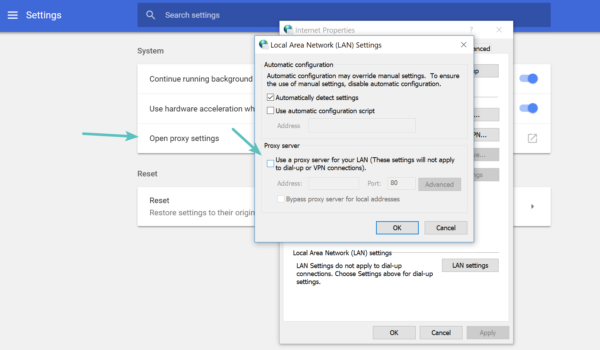
Отключите параметры прокси.
Иногда вы можете столкнуться с ошибкой 504, если вы используете прокси-сервис. Эти случаи являются очень редкими, особенно на стороне клиента. Однако иногда такие настройки могут быть установлены без ведома клиента. В сети есть руководства, посвященные отключению настроек прокси на Windows и Mac.
-
Проблемы с DNS.
Ошибка 504 gateway timeout может быть вызвана проблемами с DNS. Такая ошибка может возникать с двух сторон. На стороне сервера она происходит, к примеру, когда домен не преобразован в корректный IP. Если вы только что перенесли свой сайт WordPress на новый хостинг, то важно дождаться распространения DNS. Обычно это занимает до 24 часов. Все зависит от значения TTL ваших DNS-записей. Вы можете использовать бесплатный инструмент, такой как DNSMap, чтобы проверить, распространились ли ваши DNS по всему миру.
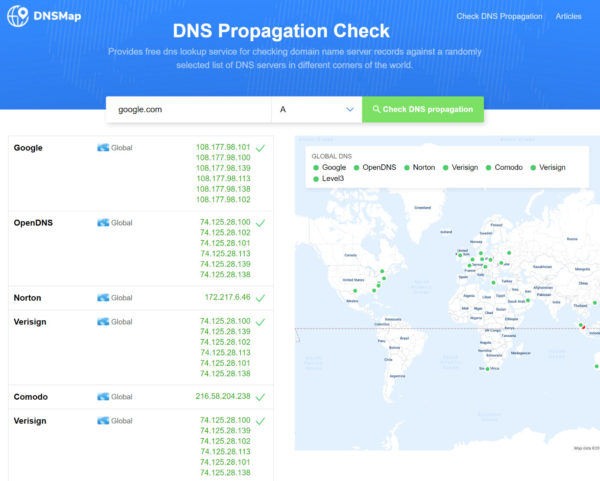
Вторая проблема с DNS связана уже с клиентской стороной. В этом случае вы можете очистить свой локальный DNS кэш. Это похоже на очистку кэша браузера.
В Windows просто откройте командную строку и введите следующее:
ipconfig /flushdns
Вы должны увидеть сообщение «Successfully flushed the DNS resolver Cache».
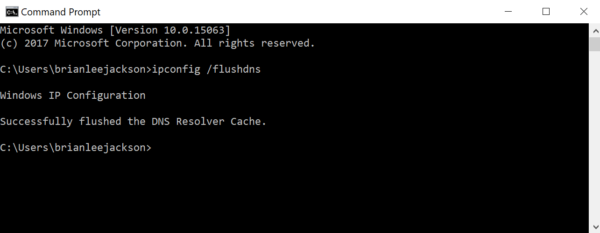
В macOS введите следующее в терминал:
dscacheutil -flushcache
Примечание: на Mac нет сообщений об успешном завершении.
И, наконец, вы можете временно изменить ваши клиентские DNS-серверы. По умолчанию DNS-серверы автоматически привязываются вашим интернет-провайдером. Вы можете временно сменить их на публичный DNS-сервер, такой как Google. Некоторые предпочитают постоянно использовать публичные DNS Google, поскольку они в некоторых случаях могут быть более надежными.
-
Временно отключите CDN
Также проблема может связана с CDN (сетью доставки контента). Если вы используете стороннего CDN провайдера, вы можете просто временно отключить ваш CDN. К примеру, нам нравится бесплатный плагин CDN Enabler. Если вы используете его, вы можете просто отключить плагин, чтобы проверить работу сайта. Перестали попадать в консоль WordPress после этого? В таком случае войдите на сайт через SFTP и переименуйте папку с плагином в cdn-enabler_old. В итоге ваше CDN соединение будет временно отключено. То же самое касается плагина WP Rocket или любого другого плагина, который подцеплялся к CDN.
Иногда эта ошибка может быть следствием использования прокси-сервисов, таких как Cloudflare или Sucuri, поскольку у них есть дополнительные файрволы. Большинство из них кэшируют коды состояния 500, когда они возвращаются вашим исходным сервером. Мы заметили, что это время от времени происходит на бесплатном тарифе Cloudflare. К сожалению, поскольку Cloudflare является полным прокси-сервисом, быстрого способа его отключения не существует.
Однако, прежде чем грешить на Cloudflare, важно знать, что есть два типа ошибки 504:
504 Gateway Timeout в Cloudflare (вариант 1)
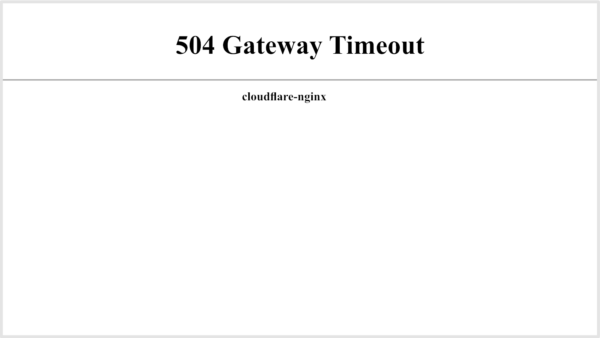
Если вы видите следующую страницу, то в данном случае проблема на стороне Cloudflare. Обратитесь к ним в поддержку. Либо проверьте их страницу со статусом. Скорее всего, они уже уведомлены о данной проблеме и работают над ней.
504 Gateway Timeout в Cloudflare (вариант 2)
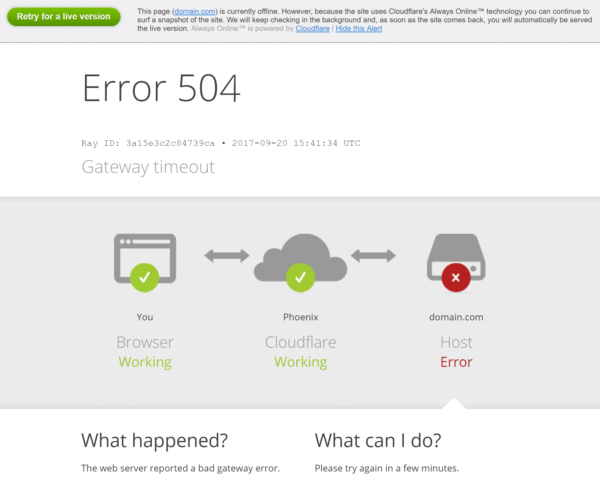
Если вы видите следующую страницу, то это проблема с вашим хостом WordPress (исходный сервер), и в этом случае вам нужно воспользоваться рекомендацией под номером 5.
-
Проблемы с сервером (проверьте ваш хост)
Проблемы с сервером – одна из распространенных причин, почему пользователи сталкиваются с ошибками 504 на своих WordPress-сайтах. Говоря простым языком, Nginx или Apache ожидают ответа от второй стороны, и время ожидания истекло.
Ошибки 504 чаще всего встречаются на сайтах с высоким трафиком и на сайтах электронной коммерции (с установленным WooCommerce, к примеру), у которых много некэшируемых запросов. Это может вызывать перегрузку сервера. Однако мы сталкивались с такими ошибками на разных типах сайтов, в том числе и на обычных блогах. Многие хостинги отвечают стандартными фразами по типу «вам нужно перейти на более дорогостоящий тарифный план, чтобы исправить эту проблему». И пусть это обычно помогает решить данную проблему, зачастую это не является необходимым.
Хостинги, такие как, к примеру, Kinsta, используют контейнеры LXD для каждого сайта. Это означает, что каждый сайт размещается в своем изолированном контейнере, в котором имеются все необходимые программные ресурсы, требуемые для его запуска (Linux, Nginx, PHP, MySQL). Ресурсы на 100% конфиденциальны и не делятся ни с кем. Многие виртуальные хостинги WordPress не имеют данной возможности, поэтому любой соседний сайт с высоким трафиком будет вызывать ошибки 504 на вашем сайте.
В Kinsta инфраструктура построена так, чтобы легко обрабатывать тысячи одновременных подключений. Даже базы данных MySQL размещаются на локальном хосте, а не на удаленном сервере. Это гарантирует отсутствие задержки между машинами, что приводит к более быстрым запросам и меньшей вероятности возникновения тайм-аута между ними.
Помимо тайм-аутов сервера из-за повышенной нагрузки есть и другие причины, в результате чего может возникнуть ошибка 504:
- Медленный сервер. Вполне возможно, что сервер, на котором расположен ваш WordPress сайт, слишком медленно отвечает на запросы, и поэтому он генерирует ошибки шлюза.
- Недостаточно PHP воркеров. PHP-воркеры используются для выполнения кода на вашем WordPress-сайте. На требовательных в плане ресурсов сайтах вполне может быть так, что все PHP-воркеры заняты, и в этом случае они начинают формировать очередь. Если очередь и бэклог заполнены, старые запросы начинают игнорироваться. Вы можете попросить ваш хостинг увеличить количество PHP-воркеров. Дополнительные PHP-воркеры для сайта позволяют одновременно выполнять несколько запросов.
- Проблемы с файрволом. Файрвол на вашем сервере может содержать ошибки в результате неверной конфигурации или правил, препятствующих установлению соединения.
- Сетевое подключение. Если возникают проблемы с сетевым подключением между прокси-сервером и веб-сервером, то это может вести к задержкам с ответом для HTTP-запросов. Также могут возникать сетевые проблемы с балансировщиком нагрузки, если он используется.
Также важно отметить, что ошибки 504 могут обманчиво выглядеть как ошибки 503 (сервис недоступен) или даже ошибки 502 (bad gateway), но на практике они отличаются.
Если вы хотите предотвратить появление таких ошибок в будущем, вы можете воспользоваться инструментом, таким как updown.io, для отслеживания ситуации и немедленного уведомления о любых проблемах. Сервис периодически отправляет HTTP HEAD-запрос к указанному URL. Вы можете просто задать вашу главную страницу. Можно задавать частоту проверок:
- 15 сек
- 30 сек
- 1 мин
- 2 мин
- 5 мин
- 10 мин
Он пришлет вам электронное письмо, если ваш сайт перестал работать, с указанием времени, когда это случилось. Ниже приведен пример:
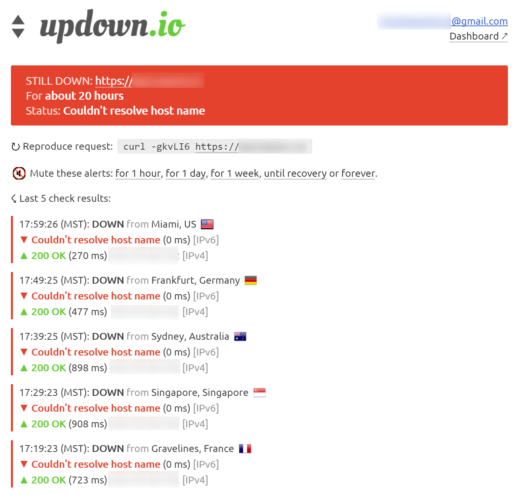
Это может быть особенно полезно, если вы используете виртуальный хостинг, который, как правило, работает на пределе возможностей. Это даст вам доказательство того, что ваш сайт не работал (к примеру, ночью). По этой причине мы и советуем переходить к администрируемым (управляемым) хостингам.
-
Спам, боты и DDoS-атаки
Может быть так, что ваш сайт был заспамлен ботами или подвержен DDoS-атаке. Иногда это ведет к некэшируемым запросам и, как следствие, к перегрузке сервера, что и выливается в ошибку 504 gateway timeout. Вы можете изучить аналитику сервера, чтобы увидеть, есть ли в ней какие-либо паттерны. В Kinsta имеется, к примеру, инструмент MyKinsta для аналитики. Вы можете попросить эти данные у вашего хостинга.
Первый отчет, который мы советуем изучить – это IP-адреса топовых клиентов. Обычно это очень полезно, особенно если ваш сайт внезапно стал генерировать большой трафик или попал под атаку ботов.
Второй отчет, который мы рекомендуем посмотреть – это запросы и боты. Вы можете быстро сравнить количество людей, попадающих на ваш сайт, с количеством ботов и роботов. Однако помните, что не все боты плохие. GoogleBot – пример хорошего бота, он сканирует сайт для индексации содержимого в результатах поиска.
Третий отчет, который мы рекомендуем посмотреть – это анализ кэша. Здесь вы можете видеть, какие запросы отсутствуют в кэше, а также каковы топовые локации вашего сайта. По причинам производительности и стабильности вы должны стараться закэшировать как можно больше запросов. Это не всегда возможно, поскольку некоторые сайты генерируют большое количество некэшируемых запросов (как в случае с WooCommerce), и они нужны для того, чтобы функционал (к примеру, корзина товаров или процесс покупки) работал правильно и синхронизировался.
Если вы обнаружите и идентифицируете трафик/IP-адреса, которые должны быть заблокированы на вашем сайте, вы можете затем воспользоваться плагином безопасности WordPress. Однако не все хостинги позволяют устанавливать плагины безопасности. Kinsta, к примеру, запрещает, что сделано по нескольким причинам. Во-первых, такие плагины отражаются на производительности, особенно возможности сканирования. Во-вторых, функции блокировки IP в них не работают, поскольку хостинг использует балансировщики нагрузки с Google Cloud Platform.
Естественно, IP-адреса могут быть всегда заблокированы службой поддержки хостинга, однако, в зависимости от длительности и масштабов атаки, это может превратиться в бесконечный процесс. Многие атаки или спам при блокировке в одной области переключаются на другие зоны, меняют IP-адреса или прокси. Поэтому в данном случае мы рекомендуем установить решение безопасности, такое как Cloudflare или Sucuri.
-
Проверьте ваши плагины и темы.
Многие считают, что сторонние плагины или темы не приводят к ошибкам 504 gateway timeout. И в большинстве случаев это верно. Но, по нашему опыту, медленный некэшируемый запрос от плагина может привести к задержкам, поскольку он задействует больше ваших PHP-воркеров. Как только вы достигнете предела PHP-воркеров, очередь будет убирать ваши прошлые запросы, что может вести к ошибкам 504. Их не следует путать с ошибками 502, когда ошибка появляется в результате достижения таймаута в 60 секунд в очереди.
Есть несколько способов устранения этой проблемы. Один из них — деактивация всех ваших плагинов. Помните, что вы не потеряете никаких своих данных, если отключите плагин. Если у вас есть доступ к панели администратора, просто перейдите к разделу с плагинами и выберите «Деактивировать» из меню с массовыми действиями. Это приведет к отключению всех ваших плагинов.
Если это устранило проблему, вам нужно найти ее виновника. Начинайте активировать плагин один за другим, перезагружая сайт после каждой активации. Как только вы увидите ошибку 504, вы сможете идентифицировать проблемный плагин. Затем вы можете обратиться к разработчику плагина за помощью или опубликовать тикет в репозитории WordPress.
Если у вас нет доступа к панели администратора, вы можете использовать FTP-клиент для подключения к своему серверу и переименования папки с плагинами в нечто вроде plugins_old. Затем проверьте свой сайт еще раз. Если это сработает, вам нужно будет протестировать каждый плагин по отдельности, чтобы найти виновника. Переименуйте папку с плагинами обратно в plugins и затем начинайте переименовывать папки отдельных плагинов внутри нее, пока не обнаружите проблемный плагин. То же самое можно сделать и на тестовом сайте.
Обязательно убедитесь в том, что все ваши плагины, темы и ядро WordPress обновлены до последней версии. И убедитесь, что вы используете поддерживаемую версию PHP.
Если плагин будет содержать плохой код, то вам, скорее всего, понадобится обратиться к разработчикам WordPress, чтобы решить эту проблему.
-
Проверьте логи.
Вы также можете использовать ваши журналы (логи) ошибок. В Kinsta ошибки можно просмотреть в специальном разделе консоли MyKinsta. Вы сможете быстро установить проблему, особенно если ее источником является плагин на сайте. Если ваш хостинг не предлагает инструментов для ведения логов, вы можете добавить следующий код в файл wp-config.php, чтобы включить логгинг:
define( 'WP_DEBUG', true );

define( 'WP_DEBUG_LOG', true );

define( 'WP_DEBUG_DISPLAY', false );
Логи обычно расположены в каталоге /wp-content. Иногда они могут находиться в отдельных папках.
Вы можете также проверить логи в Apache и Nginx, которые чаще всего находятся по адресу:
Apache: /var/log/apache2/error.log
Nginx: /var/log/nginx/error.log
-
Параметры Nginx
Если вы обслуживаете свой собственный сервер и WordPress сайты на Nginx + FastCGI (php-fpm) или Nginx как прокси для Apache, то в таком случае есть дополнительные настройки, которые вы можете изменить, чтобы предотвратить появление ошибок 504 gateway timeout.
Если вы используете Nginx с FastCGI (php-fpm), то в таком случае вам нужно сначала внести изменения в файл PHP-FPM. Перейдите в /etc/php5/fpm/pool.d/www.conf (может варьироваться в зависимости от версии PHP). Установите следующую директиву:
request_terminate_timeout = 300
Затем вы должны изменить файл php.ini, который обычно расположен по адресу /etc/php.ini. Найдите директиву max_execution_time. Увеличьте ее значение до 300 или создайте директиву, если ее нет:
max_execution_time = 300
Наконец, вам нужно будет изменить файл nginx.conf. Добавьте в конфигурацию вашего виртуального хоста Nginx следующее:
location ~ .php$ {

...

fastcgi_read_timeout 300;

}
Затем просто перезапустите Nginx и PHP-FPM.
service nginx reload

service php5-fpm reload
Если вы используете Nginx в качестве прокси для Apache, то в таком случае добавьте следующее в ваш файл nginx.conf:
proxy_connect_timeout 600;

proxy_send_timeout 600;

proxy_read_timeout 600;

send_timeout 600;
Далее просто перезапустите Nginx.
service nginx reload
Заключение
Как вы можете видеть, есть много разных способов и методов устранения ошибок 504 gateway timeout на WordPress сайте. Как правило, это проблемы с сервером, и в данном случае вам нужно связаться с вашим хостингом, чтобы решить их. Но важно помнить о том, что они могут также вызываться и сторонними плагинами или переполнением очереди/бэклога ваших PHP-воркеров.
Источник: kinsta.com
Май 25, 2021
Elena B.
4хв. читання

504 gateway time-out – это один из кодов состояния HTTP, который может вернуть сервер, если он не смог завершить обработку запроса. Хотя эта ошибка встречается реже, чем 500 internal server или 502 bad gateway, с ней, по крайней мере, пару раз, сталкивался каждый. Это руководство объясняет, что представляет собой ошибка 504 и как её исправить.
При посещении любого сайта он генерирует запросы и отправляет их на веб-серверы, на которых хранятся необходимые элементы. Каждый раз, когда обрабатывается запрос, сервер отправляет обратно код состояния HTTP с запрошенными ресурсами. По умолчанию код состояния HTTP не отображается. Его можно увидеть только в тех случаях, когда что-то пошло не так.
Что такое ошибка 504 Gateway Time-out?
Коды состояния HTTP, начинающиеся с цифры 5, являются ошибками на стороне сервера. Они появляются, когда невозможно выполнить запрос из-за нарушения связи между несколькими серверами.
504 gateway time-out – это код состояния HTTP, который появляется, когда один сервер не получает своевременный ответ от другого сервера, действующего как шлюз или прокси. Проще говоря, это означает, что сервер не смог выполнить ваш запрос в течение заданного периода времени.
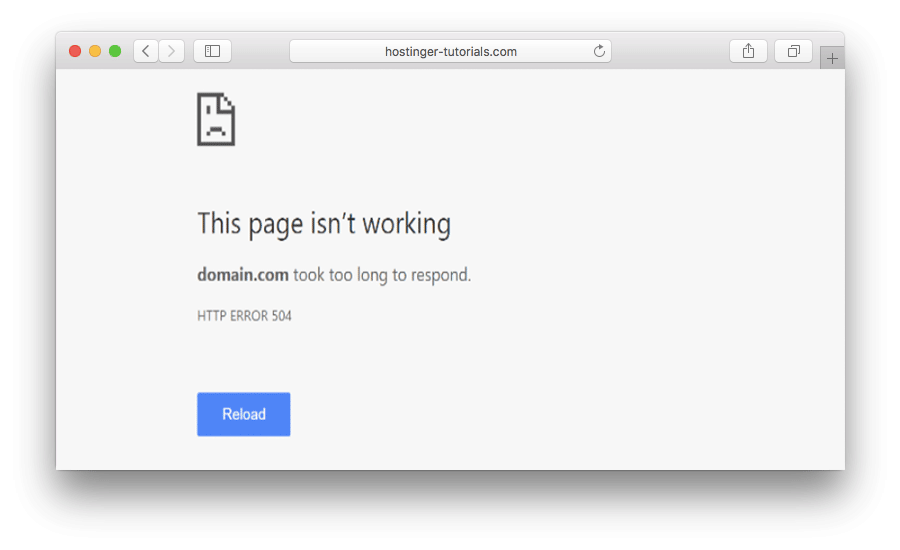
Ошибка 504 также может иметь и другие формулировки, например:
504 Gateway Timeout nginx
Gateway Timeout Error
HTTP Error 504
504 Gateway Time-out – The server didn’t respond in time
HTTP Error 504 – Gateway Timeout
Как исправить ошибку 504 Gateway Time-out
В большинстве случаев причина ошибки 504 находится на стороне сервера, однако в отдельных случаях код 504 может появляться и по причине проблем или неправильных конфигураций с пользовательской стороны. Таким образом, мы рассмотрим основные этапы устранения неполадок с учётом обоих вариантов. Часть решений подходит для WordPress, но большинство из них могут быть применены к любому веб-сайту.
1. Обновите страницу
Первый шаг в решении ошибки 504 gateway time-out самый простой. Подождите несколько минут и обновите страницу. Может быть, что сервер в какой-то момент получил больше запросов, чем обычно и не смог их обработать.
Пока вы ожидаете, можете использовать онлайн инструмент, например, Website Planet и проверить, работает ли сайт. Это хороший способ определить, относится ли проблема к локальной сети.
2. Попробуйте другой браузер
В случае, если сайт онлайн, однако вы всё равно видите ответ 504, попробуйте сменить свой браузер на другой. Очистите кэш браузера или воспользуйтесь режимом инкогнито, это тоже может помочь определить, связана ли причина проблемы с браузером.
3. Очистите кэш DNS
Ошибка 504 gateway time-out иногда может быть результатом некорректного или устаревшего кэша DNS, но его несложно очистить. Способ очистки зависит от вашей операционной системы. Вот руководство как очистить кэш DNS в ОС Windows, Linux и Mac OS.
Временно переключите DNS сервера на Google Public DNS, это поможет определить возник ли код состояния HTTP по причине DNS. Однако мы рекомендуем этот вариант для более опытных пользователей.
4. Проверьте на разных устройствах
Попробуйте загрузить сайт на разных компьютерах, в разных сетях или на мобильных устройствах. Если ничего из выше перечисленного не помогло исправить ошибку 504 gateway time-out, этот шаг поможет вам определить, проблема находится на стороне сервера или имеет локальный характер.
5. Посмотрите журнал ошибок
Ошибка 504 gateway timeout может также быть вызвана недавними изменениями или обновлениями на сайте. Самый быстрый способ проверить это – посмотреть журнал ошибок (англ.) для поиска подсказок. Пользователи WordPress могут включить логирование ошибок добавлением таких строк в файл wp-config.php:
define( 'WP_DEBUG', true );
define( 'WP_DEBUG_LOG', true );
define( 'WP_DEBUG_DISPLAY', false );
Теперь все возникающие варианты ошибок будут появляться в файле wp-contents/debug.log.
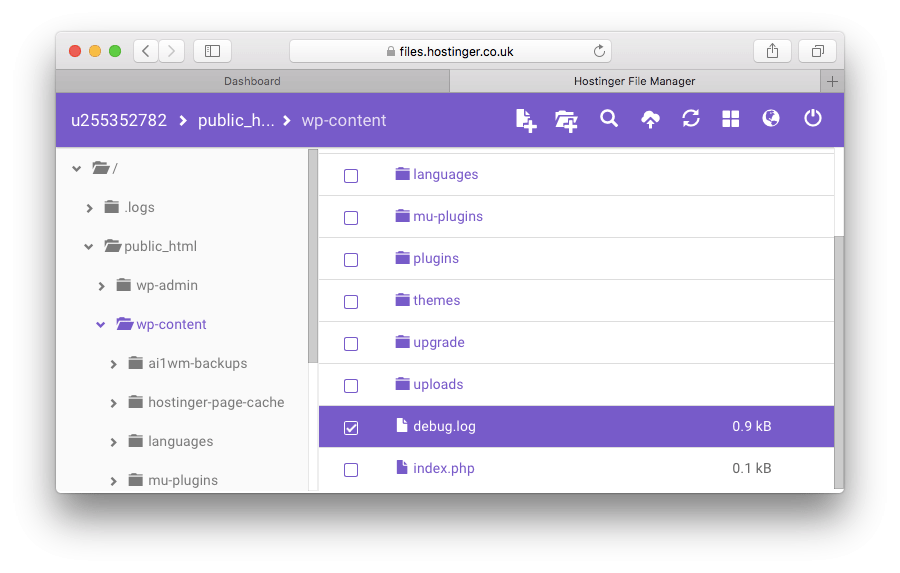
6. Проверьте плагины
В процессе поиска причины ошибки 504 gateway time-out рекомендуется обратить внимание на плагины и расширения вашего сайта. В WordPress причиной ответа 504 могут быть плагины, относящиеся к кэшированию. Старые или несовместимые плагины также могут вызвать проблему. Временное отключение всех плагинов даст вам понять стоит ли копать дальше в этом направлении.
Для отключения всех плагинов WordPress перейдите в каталог wp-content, дайте каталогу plugins другое имя.
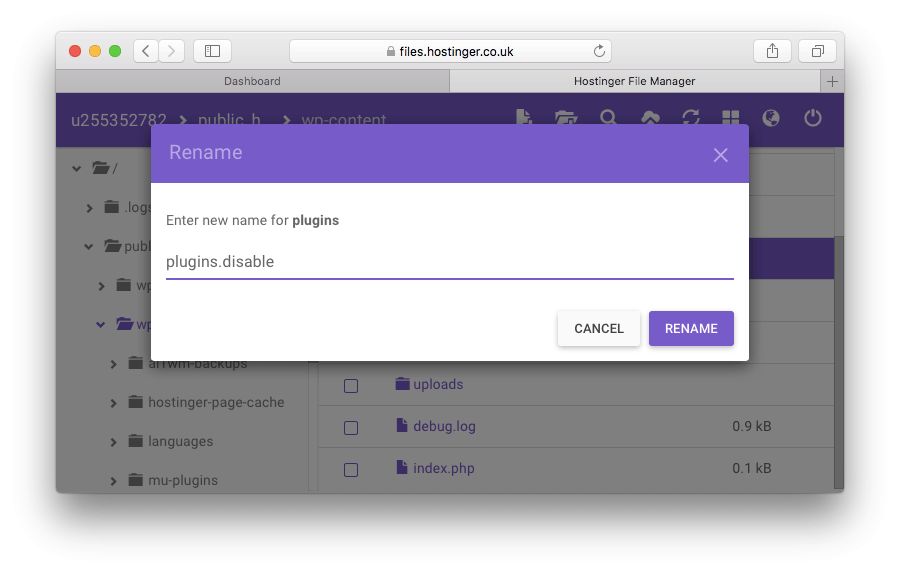
Если ваш сайт стал работать хорошо после отключения всех плагинов, то следующим шагом будет обнаружение того плагина, который мог привести к появлению ошибки HTTP 504. Верните каталогу plugins его исходное название и теперь по очереди пробуйте отключить каждый плагин.
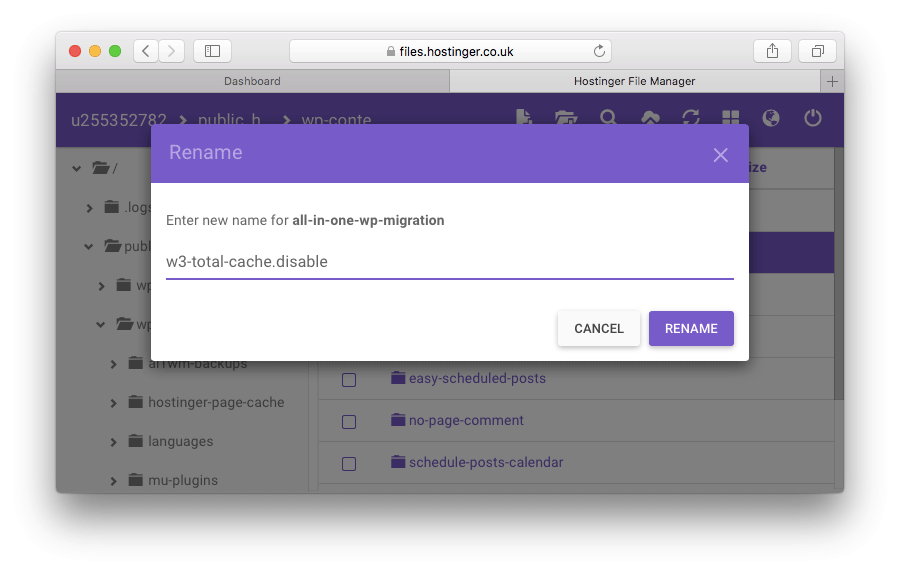
7. Проверьте CDN
Если вы используете CDN для более быстрого получения контента, то обязательно проверьте всё ли в порядке с этой стороны. Самый распространённый случай – это CloudFlare, который работает как CDN и как сервис предотвращения негативных последствий от DDoS. При его использовании вы можете столкнуться в двумя видами ошибки 504 gateway timeout.
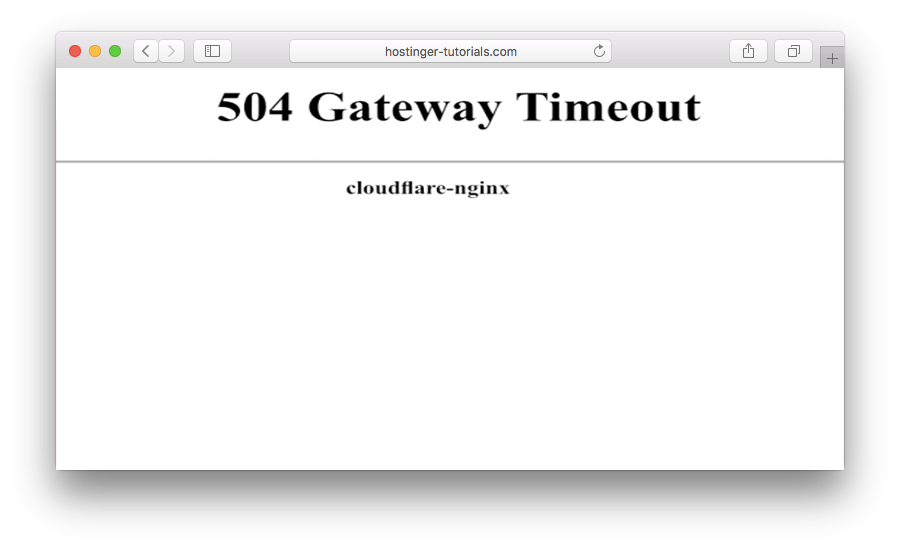
Эта версия ошибки 504 появляется, когда проблема возникла на стороне CloudFlare. Самым лучшим решением будет связаться с поддержкой CloudFlare или отключить сервис. Однако, если вы его отключите, скорее всего, вам придётся ждать несколько часов пока изменения DNS распространятся.
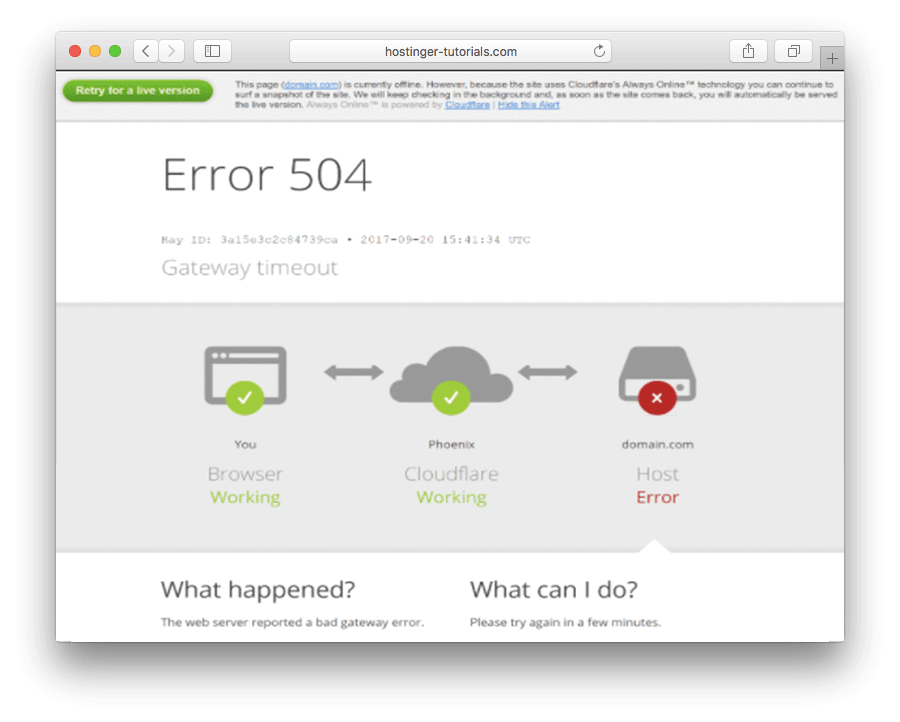
Версия, показанная выше означает, что проблема возникла на стороне хостинг-провайдера.
8. Измените настройки сервера
Если вы используете VPS-хостинг, то есть ещё несколько дополнительных моментов, которые вы можете попробовать для исправления ошибки 504 gateway timeout. Они будут заключаться в изменении настроек сервера и увеличении лимитов некоторых ресурсов.
Apache
Пользователи Apache могут увеличить значение timeout по умолчанию в файле httpd.conf. Например:
# Timeout: The number of seconds before receives and sends time out.
Timeout 600
Также может помочь, если вы увеличите значение лимита max_execution_time в php.ini:
max_execution_time 300
Сохраните изменения и перезапустите apache, после чего проверьте. Если причиной ошибки было недостаточное значение таймаута запроса, код 504 должен исчезнуть.
Nginx
Если ваш VPS использует Nginx, попробуйте увеличить такие параметры в файле /etc/nginx/conf.d/timeout.conf:
proxy_connect_timeout 600;
proxy_send_timeout 600;
proxy_read_timeout 600;
send_timeout 600;
Также рекомендуется увеличить max_execution_time в php.ini:
max_execution_time 300
После сохранения изменений перезапустить Nginx и попробуйте ещё раз открыть свой сайт.
9. Свяжитесь со службой поддержки
В случае, если ничего из вышеперечисленного не помогло устранить ошибку 504 gateway time-out, рекомендуется обратиться в службу поддержки вашего хостинга. Постарайтесь описать, какие шаги вы проделали для выявления причины ошибки и её устранения и предоставьте как можно больше информации, это значительно ускорит процесс.
Выводы
В этом руководстве мы рассмотрели общие шаги для решения проблемы 504 gateway time-out. Если у вас есть свои хитрости, подсказки или дополнительные решения для устранения этого кода состояния HTTP, дайте нам знать в комментариях!

Елена имеет профессиональное техническое образование в области информационных технологий и опыт программирования на разных языках под разные платформы и системы. Более 10 лет посвятила сфере веб, работая с разными CMS, такими как: Drupal, Joomla, Magento и конечно же наиболее популярной в наши дни системой управления контентом – WordPress. Её статьи всегда технически выверены и точны, будь то обзор для WordPress или инструкции по настройке вашего VPS сервера.

504 gateway timeout error on WordPress
Table Of Content
- What is the error 504 Gateway Timeout ?
- What is a gateway or proxy server?
- 504 status code error message types
- Error 504 Gateway Timeout Causes
- Fix HTTP 504 error WordPress if you are a visitor
- Fix the HTTP 504 status code as web administrator
Among the many status codes that you can receive when a server is unable to respond to the request that you are making, is the 504 Gateway Timeout error. In this case, proxy server doesn’t receive a timely response from the backend server.
Surely you have encountered it sometime, although it is true that it is less frequent than other server-side errors that we have already talked about, such as 500 status error codes, 503 service unavailable error in WordPress, 405 Method Not Allowed Error, Error 404 Page Not Found, WordPress File And Folder Permissions Error, Are You Sure You Want to Do This Logout Error and many more.
In this post you will learn about what does http error 504 gateway timeout mean and how to resolve error 504 gateway timeout in WordPress site.
What is the error 504 Gateway Timeout ?
Whenever you visit a website (or try to visit it), your browser generates a request and sends it to the server that hosts that website. The request is handled and the server returns an HTTP status code that will only be shown to you if something has gone wrong. If everything goes well, you will simply receive the content you expected.

More specifically, error 504 is an HTTP status code indicating that a server has not received the response it expected from another server within a reasonable period of time when trying to access a website or complete another request through the browser.
In other words, the error code 504 usually indicates that a server with which it is necessary to communicate to view a website is not responding fast enough. The sender of the error message is the server that, in the communication chain, does not receive a response within the stipulated period and, therefore, is not capable of fulfilling its role.
The server that causes the http 504 status code does not have to be the one that directly hosts the web, but it can be a gateway or proxy server that is on the way.
What is a gateway or proxy server?
In its primary form, accessing a website implies that your browser establishes communication with the server on which it is hosted. So far so good, right?
The case is that in web or network matters things are never so simple and there are always exceptions. One of them is a proxy server. These types of servers are machines that mediate all or part of the communications you make against other servers.
What is the purpose of this type of server? Well, there can be several. We name a few to give you an idea:
- A proxy can act as a “load balancer”, receiving your request and directing it to the least busy server in a group. This way, the chosen server will respond faster than the one with more workload.
- They can also act as firewalls, restricting network traffic. Have you ever had problems at work entering a page? If so, the fault is surely a proxy that put your company there to make you” work more.”
- The proxies also allow the Internet to navigate through them, thus making your connection is a bit more private. These are the so-called ” anonymous proxies ” (but watch out and don’t believe that they are anonymous).
- Finally, some configurations within the same server may need a proxy configuration with itself. It is rare, but in configurations of some programming languages, such as PHP, it may be necessary.
As you can see there are many reasons why a proxy can mediate a connection. In essence, you may think that the server that hosts the web you want to see is simply the last link in a long chain in charge of processing the HTTP request that you have sent.
Therefore, the proxy is a node that is part of a much larger network and that connects and routes communications between various actors: client, server and other necessary nodes. When any of these actors does not respond in a suitable time, the proxy server gives the connection for failed and returns you the error 504 to let you know that “the fault is of another server that has not responded” is due to slowness, configuration problems or any of the other causes that we’ll tell you about in this article.
Messages for HTTP 504 code
It varies a bit depending on the website and the type of proxy that launched it, as administrators can customize the look of the error 504 page. This is why some websites have custom messages for HTTP status codes.

The error 504 appears instead of the website you want to access, but the error page may also contain the header or footer of the site and a personalized message tells you what’s going on. On the other hand, a 504 error can also show up as a simple white screen with a very large “504” at the top of the browser.
Some of the most common messages for HTTP 504 code are:
- HTTP Error 504 – Gateway Timeout
- Gateway Timeout (504)
- 504 Error
- “504 Gateway Timeout NGINX”
- “This page isn’t working – Domain took too long to respond”
- “504 Gateway Time-out – The server didn’t respond in time”
- A blank white screen in wordpress
- 504 Gateway Timeout
- HTTP 504
- Timeout error 504
- Bad gateway error
What causes the http error 504 gateway timeout in WordPress site?
As we said before, error 504 is a connection error between servers. Therefore, you can forget that it is a problem with your connection or with your device. Most of the time, error 504 is caused by another server taking it too easy, down, or not working properly.
As with most HTTP response codes that indicate an error like this, it can be difficult to establish the exact cause of the 504 Gateway Timeout. After all, communication between client, web server, and even third-party services is a complex issue.
In general terms, the most common is that the server you are trying to communicate with is receiving a large number of requests and is currently overrun or down. It cannot function properly and the browser provides the user with the 504 Gateway Timeout status code. However, it is also possible that there are network connectivity problems or that it is even the fault of a third-party plugin.
What a mess, huh! Don’t worry, now we are going to see solutions to all these possible causes. In most situations, it is rare that the 504 error comes from the client-side, but there are some things you can try:
504 Gateway Timeout Error SEO Impact
Unlike 503 errors, which are used for WordPress maintenance mode and tell Google to check back at a later time, a 504 error can have a negative impact on SEO if not fixed right away. If your site is only down for say 10 minutes and it’s being crawled consistently a lot of times the crawler will simply get the page delivered from cache. Or Google might not even have a chance to re-crawl it before it’s back up. In this scenario, you’re completely fine.
However, if the site is down for an extended period of time, say 6+ hours, then Google might see the 504 error as a site-level issue that needs to be addressed. This could impact your rankings. If you’re worried about repeat 504 errors you should figure out why they are happening to begin with. Some of the solutions below can help.
Fixing HTTP status code 504 if you are a visitor
It is likely that the error 504 has nothing to do with you, so the normal thing is that you do not solve anything.
- The first thing is to reload the page: press F5 or the Refresh button on your browser. If error 504 was a temporary failure, simply updating the page may allow you to enter.
Caution: Do not reload the page if the error appears just after making a payment. You may duplicate the transaction.
- To make sure there is no problem with your local network, check if the website is giving trouble to everyone or just you. You can do it with different tools, but the best known are Pingdom Tools, Down For Everyone Or Just Me and Is It Down Right Now. Enter the domain you are trying to access and check the result. If the web is down, there won’t be much else you can do except waiting.
- Wait a while and try again. If the error 504 is really being caused by a network failure of the website or a server with which it communicates, chances are that all visits are experiencing the same error as you. It is likely that the person in charge of the web is already aware and is working to solve it.
- If the web is only giving you problems, it is that the failure is on your side (this is very, very rare). To check if the error 504 has something to do with your browser, try to clear the cache, access in incognito mode, or directly access from another browser. If you can’t either, perhaps your computer or network equipment is having a temporary problem of some kind: try accessing from another computer, network connection or (the easiest) from your mobile phone.
For users with technical knowledge: If nothing works and you’re about to jump out the window, make one last try. Check if it is a DNS server failure: you can use Google’s public DNS.
- If the fault is not on your side (which is normal) and access is in a hurry, you can contact the webmaster to report the error 504 Gateway Timeout. Most websites have a profile on one or more social networks from which they interact with their followers. The most important websites also usually have an email or phone number through which you can contact them.
How to fix the HTTP 504 status code if you are the web administrator?
To summarise, Go throught he following basic steps to fix 504 gateway timeout error in wordpress.
- Look for server connectivity issues.
- Check for any DNS changes.
- Sift through your logs.
- Fix faulty firewall configurations.
- Comb through your website’s code to find bugs.
First of all, as always, remember that it is better to be cautious than to regret later. It is vital that you make a complete backup of your installation, database, etc., before making any changes to the system.
- First of all, check that the server you are hosted on is working normally. Sometimes, if the traffic increases a lot it is possible that it will result in a 504 error (although the most common would be a 503 error, the truth) if the service that manages the final response is overloaded and takes time to respond. It is better to rule out this possible reason as soon as possible: you can use Pingdom Tools to check the response of your hosting.
- The 504 status code may also have been caused by recent changes or updates on your website. The easiest way is to check the bug report. WordPress users can add these lines to the wp-config.php file so that they can see all the results in debug.log (in wp-contents):
| 1
2 3 |
define( ‘WP_DEBUG’, true );
define( ‘WP_DEBUG_LOG’, true ); define( ‘WP_DEBUG_DISPLAY’, false ); |
- The 504 Gateway Timeout error in WordPress can also be caused by errors in the database. Install WP-DBManager and use the “Repair DB” and “Optimize DB” functions, to see if it works for you. You also need to check that the .htaccess file is free of errors, especially if you have recently reinstalled WordPress.
- If you’re getting a 504 status code in WordPress, it doesn’t hurt to check plugins (especially caching ones). Turn them all off temporarily and see if you still see the error. If not, you will know that a plugin was to blame. Turn them all back on and start turning them off one by one until you identify which one is causing the error.
- Are you using a CDN service? In the case of a website security company, the error 504 will appear customized: “504 Gateway Timeout/”. Deactivate the CDN, wait a few hours for the DNS to propagate and the error 504 should be gone. You can also contact the website security company’s support to review what has happened. It would also not hurt to try using the host’s file to access your website and thus rule out problems on the security company side.
- Finally, if nothing works, it is best to contact your hosting provider. It is possible that error 504 is due to a problem that they can solve.

Conclusion
There is a multitude of different ways to troubleshoot and fix 504 gateway timeout errors on your WordPress site. The good (and the bad) of the error 504 is that it usually originates from an intermediary server, so as a user you cannot do much to fix it. In general, you can wait a bit and the matter will be resolved without your intervention. However, if you are in a hurry, if you are using an online application and you cannot continue working in the meantime or if the affected website is your own and you are losing traffic, you may want to apply the possible solutions that we have suggested in this post.
WordPress HTTP Image Upload Error – How To Fix It?
“This Account Has Been Suspended” – WordPress Down[Fix]

The 504 Gateway Timeout error is one of the most common HTTP 5xx errors faced by website owners and site visitors. For many WordPress blogs and ecommerce platforms, knowing how to fix server errors like this is crucial to keep their hard-earned visitors from bouncing to competitor sites.
As the 504 Gateway Timeout error doesn’t tell you why it occurred, it’s hard to pinpoint what’s causing the server timeout. This article will help you understand it in detail, learn how to diagnose its cause, and then fix it.
After trying all the various solutions mentioned in the post, your site should be up and running in no time.
Sounds interesting? Let’s dive in!
The 504 Gateway Timeout error is one of the most common HTTP 5xx errors faced by website owners and site visitors. 🤔 Learn how to fix it with this guide quickly. ⬇️Click to Tweet
Prefer to watch the video version?
What Is the 504 Gateway Timeout Error?
Every time you visit a website in your browser, the browser sends a request to the web server where the site is hosted. The server processes the request and responds with the requested resources.
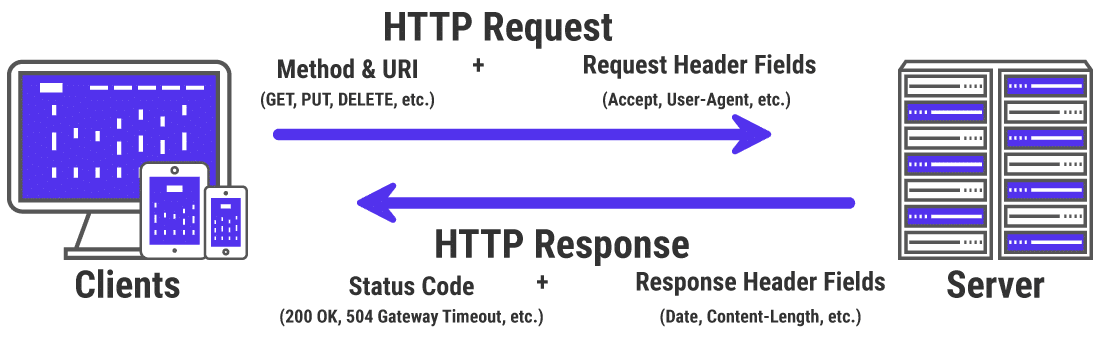
The server response includes one of many HTTP status codes to indicate the response’s status to the browser. But not all these HTTP status codes are errors. For instance, a 200 OK status code means that the server processed the request successfully and “Everything is OK.”
The 5xx class of HTTP status codes indicates that something’s wrong with the server, the server is aware of it, and it cannot carry out the client request. As a result, they’re also referred to as Server Error 5xx status codes.
Officially, five status codes are specified under the 5xx class (500, 501, 502, 503, 504). You may come upon many unofficial codes too (506, 507, 509, 520, etc.).
The Internet Engineering Task Force (IETF) defines the 504 Gateway Timeout error as:
The 504 (Gateway Timeout) status code indicates that the server, while acting as a gateway or proxy, did not receive a timely response from an upstream server it needed to access in order to complete the request.
To simplify it further, this error occurs when two servers are involved in processing a request. The first server (typically the main server) times out, waiting for a response from the second server (upstream server).
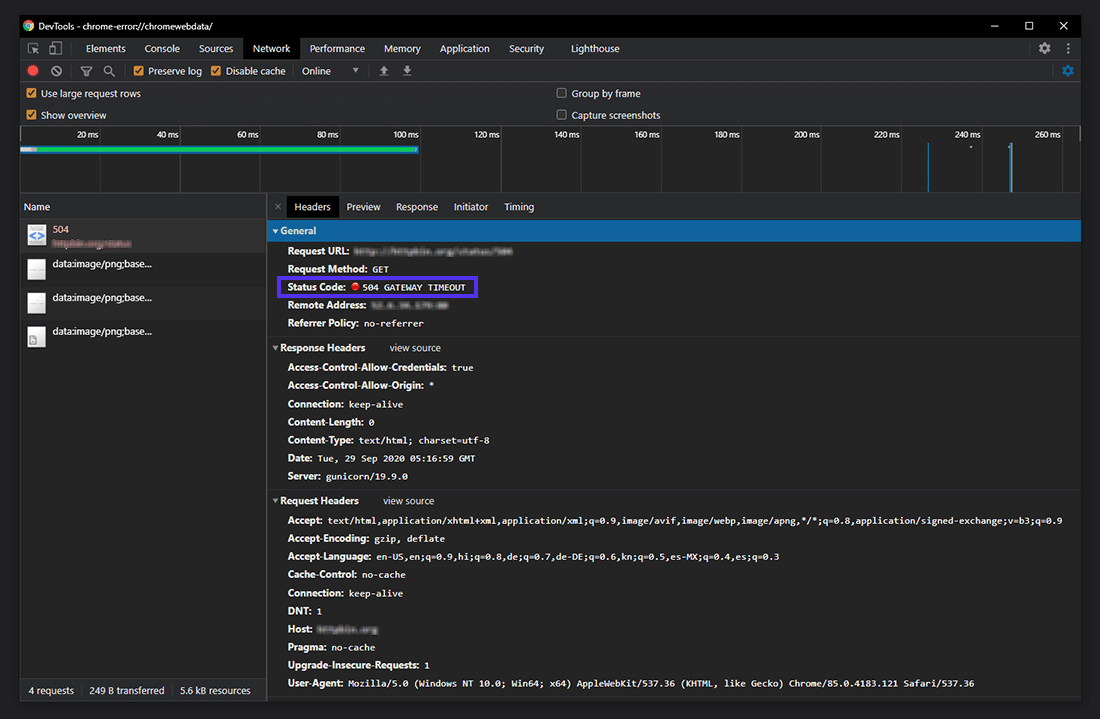
The 504 Gateway Timeout error manifests itself in various forms. Here are some ways it usually shows up:

The 504 Gateway Timeout error is similar to the 502 Bad Gateway error, which indicates that the first server received an invalid response from the second server (upstream server).
Variations of the 504 Gateway Timeout Error
The browser displays any 504 Gateway Timeout error inside it, just like any other error. As there are various operating systems, web servers, browsers, and user agents, it can show up in multiple ways.
Below are a few common 504 error message variations that you may run into:
- 504 Gateway Timeout
- 504 Gateway Timeout NGINX
- NGINX 504 Gateway Timeout
- Gateway Timeout Error
- Error 504
- HTTP Error 504
- HTTP Error 504 — Gateway Timeout
- HTTP 504
- 504 Error
- Gateway Timeout (504)
- This page isn’t working — Domain took too long to respond
- 504 Gateway Time-out — The server didn’t respond in time
- The page request was canceled because it took too long to complete
- Site visitors: There was an issue serving your request, please try again in a few minutes.
- Site Owners: There was a gateway timeout. You should visit your error log for more information.
- A blank white screen
All the above error responses, though worded differently, point to the same 504 Gateway Timeout server error.
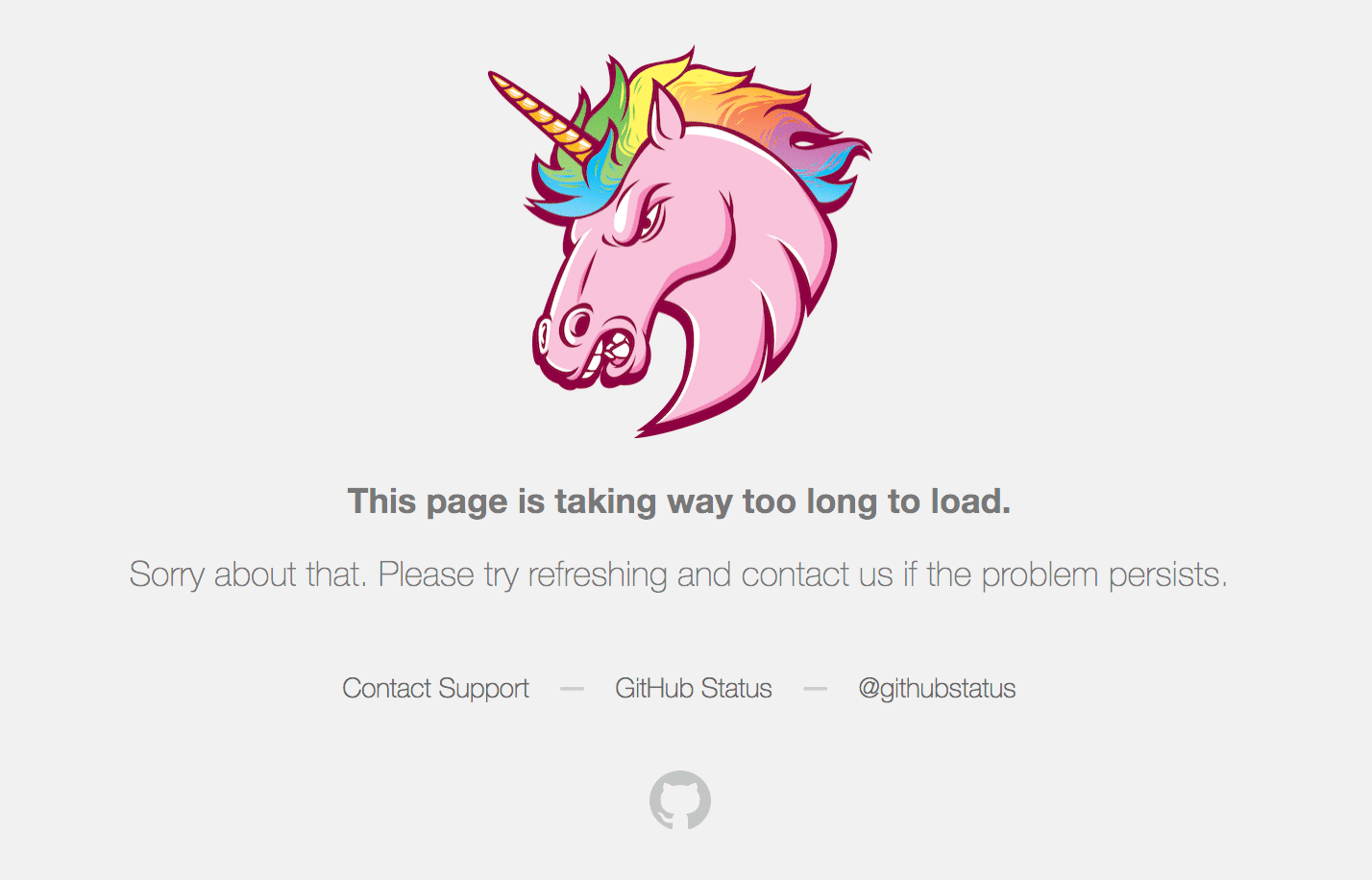
Web servers and websites can customize how they show the 504 Gateway Timeout error to users. Some of them can be cool! It’s an excellent tactic to quell their visitors’ disappointment.
SEO Impact of the 504 Gateway Timeout Error
All 5xx errors prevent a webpage from loading, making them detrimental to user experience. Hence, search engines like Google take these errors seriously. If the error persists for a long duration, it may even lead to deindexing the webpage from the search engine results.
For example, when Google spiders stumble upon a 503 Service Unavailable error, they’ll understand that it’s a temporary issue as it’s mostly used to enable site maintenance mode. Thus, they’ll try to crawl the page again later.
A 504 Gateway Timeout error isn’t necessarily temporary as it can be due to multiple reasons. If your site is down for just a few minutes, and if the spiders are trying to crawl it multiple times every minute, they’ll try to serve the page from their cache. They wouldn’t even notice it.
But if your site is down for 6+ hours or more, then Google will consider the 504 error as a serious site-wide issue that you need to fix as soon as possible. This can impact your SEO negatively.
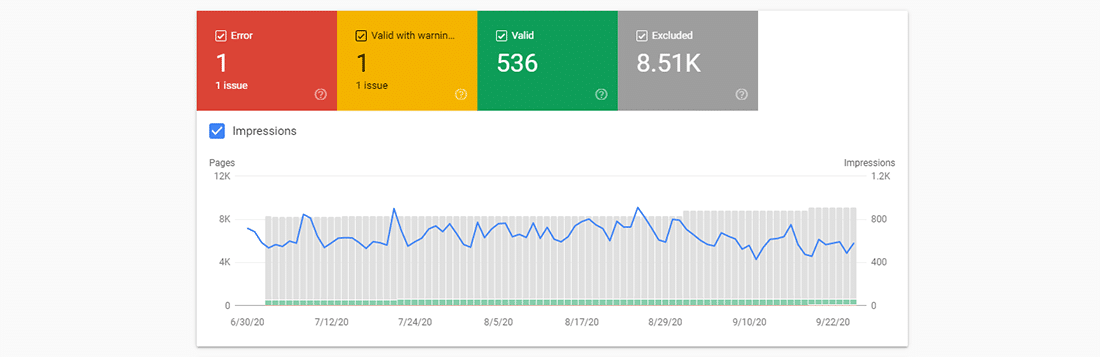
Google Search Console is one of the best SEO tools to monitor your website’s HTTP 5xx errors.
Causes of the 504 Gateway Timeout Error
As the 504 error is due to a timeout between servers, the problem probably isn’t with the client’s device or internet connection. That also includes your device and connection.
A 504 Gateway Timeout error indicates that the web server is waiting too long to respond from another server and “timing out.” There can be many reasons for this timeout: the other server is not functioning properly, overloaded, or down.
The other server need not always be external (e.g. CDN, API gateway). It can also be a server-like entity within the main web server (e.g. reverse proxy server, database server).
How to Fix the 504 Gateway Timeout Error
Without knowing exact details about the site, such as its server configuration, hosting plan, third-party plugins, and the traffic it attracts, you may find it frustrating and overwhelming to fix a 504 Gateway Timeout error.
Since many variables are involved, I recommend you to start by fixing client-side issues, which are pretty rare, and then move towards fixing server-side problems. They’re usually the culprits with 504 errors.
- Try Reloading the Webpage
- Reboot Your Network Devices
- Check Your Proxy Settings
- Check for DNS Issues
- Disable Your Site’s CDN Temporarily
- Check Server Issues With Your Host
- Check for Spam, Bots, or DDoS Attacks
- Repair Your Corrupted WordPress Database
- Check Your Site’s Plugins and Themes
- Check Error Logs
- Configure Apache or Nginx Settings Properly
1. Try Reloading the Webpage
One of the first things you can try when encountering a 504 Gateway Timeout error is to wait a few minutes and try reloading the page.
You can press the F5 keyboard shortcut to refresh/reload the webpage in most browsers. To remove the page’s browser cache before reloading, you can press the CTRL+F5 shortcut combo instead.
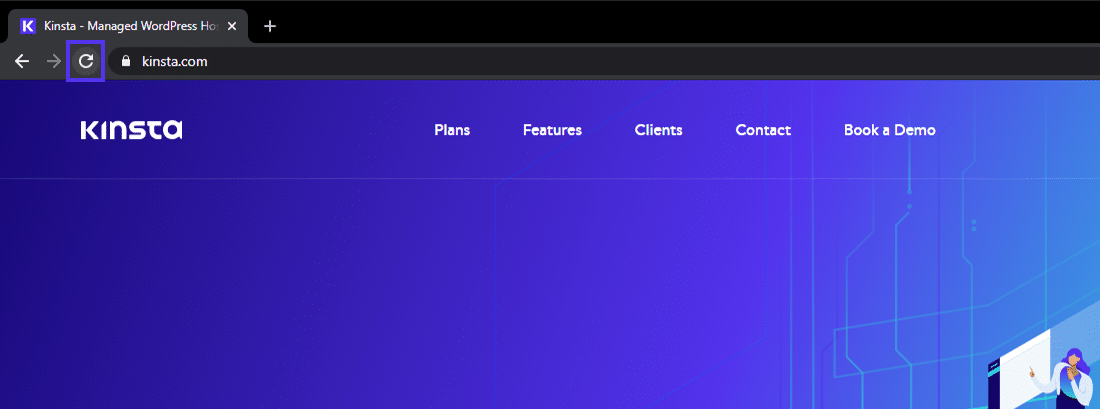
While you’re at it, you can also try loading the site in a different browser to rule that out as an issue. As most 504 errors are due to temporarily overloaded servers, using this solution should make your site come right back.
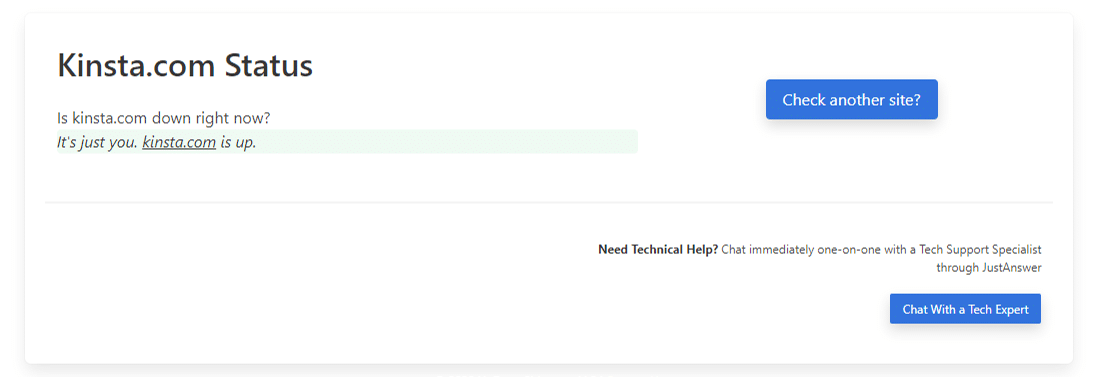
If waiting and reloading the site doesn’t fix the 504 error issue, you can check whether a site is down for everyone or just you. Two useful online tools to test a site for downtime are Down for Everyone or Just Me and Is It Down Right Now?
2. Reboot Your Network Devices
Sometimes, problems with your network devices like modem or router could lead to a 504 Gateway Timeout error. Rebooting these devices could help you with fixing the problem.
While you can switch off all these networking devices in any order, the order you switch them back on is important. Typically, turn these devices on from the “outside-in,” following the connection order from the internet service provider to your main client device.
3. Check Your Proxy Settings
A proxy server sits between your device and the internet. It’s mostly used to enhance online privacy by hiding private information (e.g. device location) from websites and webservers (e.g. using a VPN).
While it’s rare for proxy servers to cause a 504 error, incorrect proxy server settings can sometimes be the reason. You can disable the proxy server and try reloading the webpage to see whether it’ll fix the error.
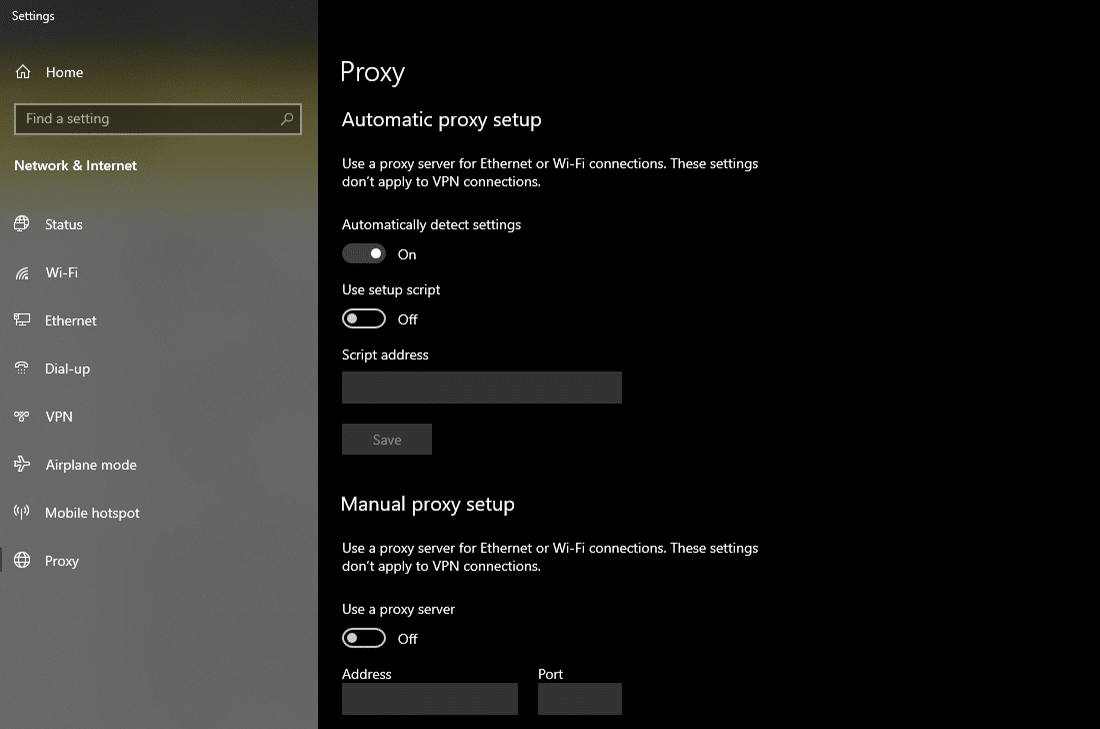
Most clients don’t use a proxy service, so you can skip this step if you’re confident that you don’t use any proxy server. However, you might have set it without you even knowing about it. I’d suggest you check your device’s and browser’s proxy settings to rule this cause out.
4. Check for DNS Issues
A 504 Gateway Timeout error can also be caused by DNS issues on the server-side or the client-side (or both).
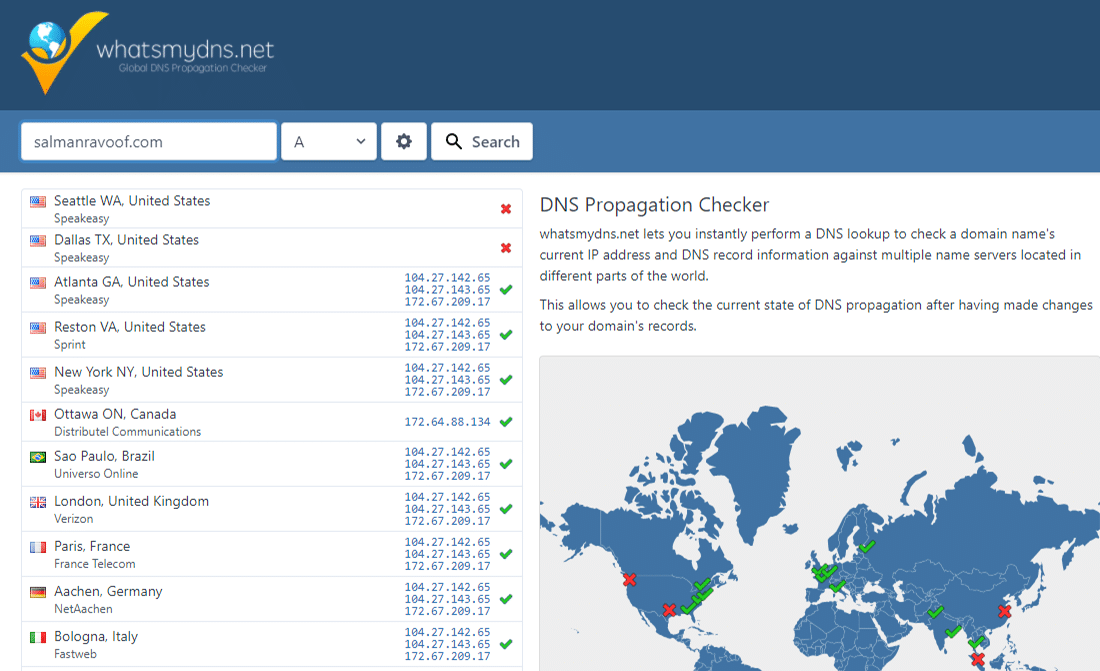
The most probable reason for a server-side DNS issue is the FQDN (fully qualified domain name) not resolving the correct IP address or the DNS server not responding. Usually, this occurs when you’ve just migrated your site to a new server or host. Hence, it’s important to wait for the domain’s DNS records to propagate fully, which can take up to 24 hours.
You can use free tools like whatsmydns.net DNS Checker or DNSMap to see if your DNS has propagated around the globe.
For fixing client-side DNS issues, you could try flushing your local DNS cache. It’s like clearing your browser cache, except here, you’re flushing the DNS cache from the operating system.
If you’re using Windows, you can flush the DNS cache by opening the Command Prompt and entering the following directive:
ipconfig /flushdns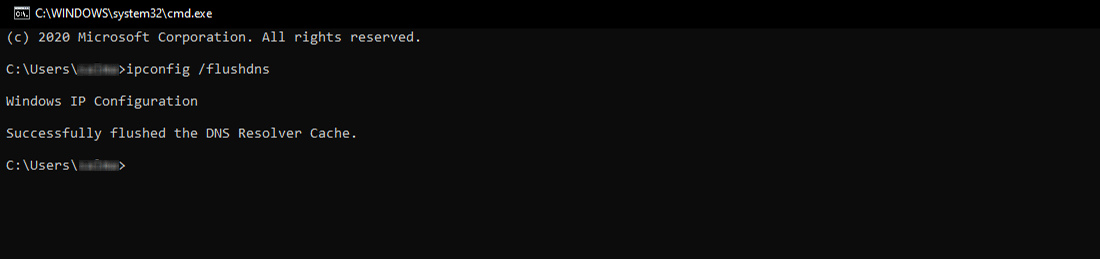
You should see a “Successfully flushed the DNS resolver Cache.” message if it worked.
For the latest macOS versions, you can open the Terminal and run the following command:
sudo killall -HUP mDNSResponderYou won’t see any notification in macOS when the process finishes, but you can change that by appending the command with your custom message.
sudo killall -HUP mDNSResponder; DNS Cache was cleared successfullyIf you’re using older macOS versions, the command you need to enter varies based on which version of macOS you’re running. For more details, you can refer to the macOS section in Kinsta’s in-depth flush DNS tutorial.
If you’re using the Linux operating system, then the process is quite similar to macOS as even Linux uses the Terminal as its command-line interface. Since there are many Linux distributions, the exact command you need to run may vary from one distro to another. You can check out Kinsta’s guide for more information.
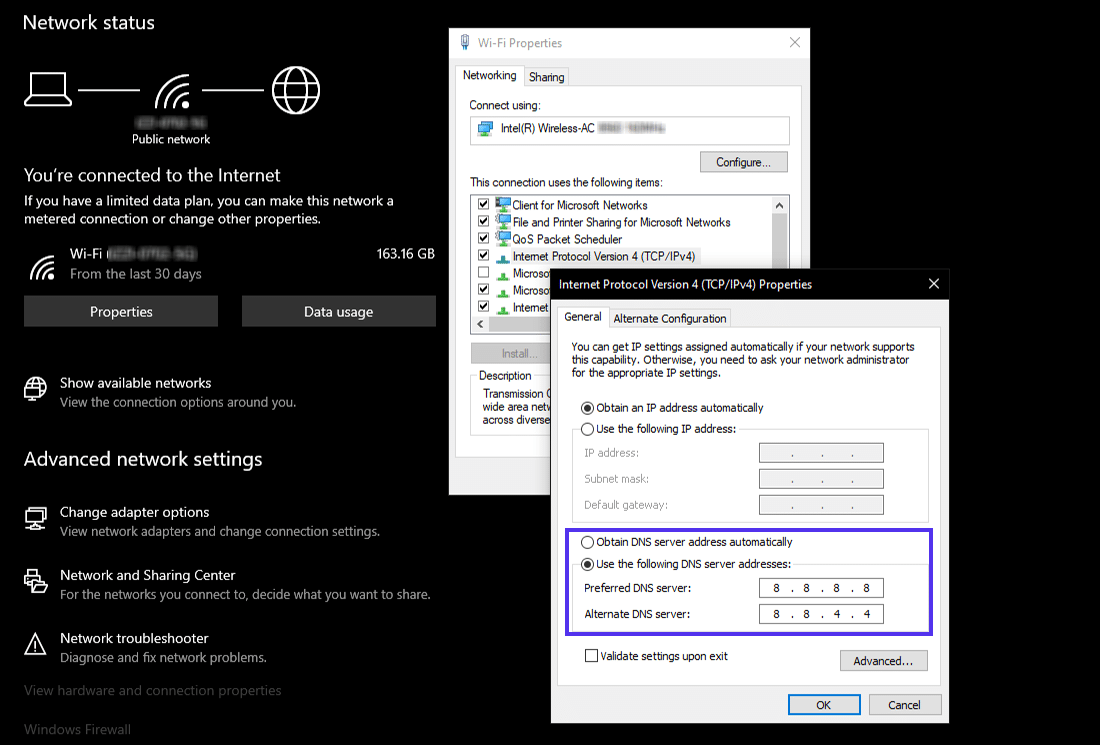
Finally, you can change your client-side DNS servers temporarily. By default, your ISP assigns the DNS servers automatically to you. But you can change these to public DNS IPs temporarily.
Some reliable DNS servers you can try out are Google Public DNS, Cloudflare 1.1.1.1, Quad9 DNS, and Cisco OpenDNS.
5. Disable Your Site’s CDN Temporarily
Sometimes, the issue could also be with your content delivery network (CDN). If a site’s origin server isn’t reachable, most CDNs will try to serve the full webpage from their cache.
But most CDNs don’t enable this feature by default as it’s complex to cache dynamic assets on most sites (e.g. the WordPress admin dashboard).
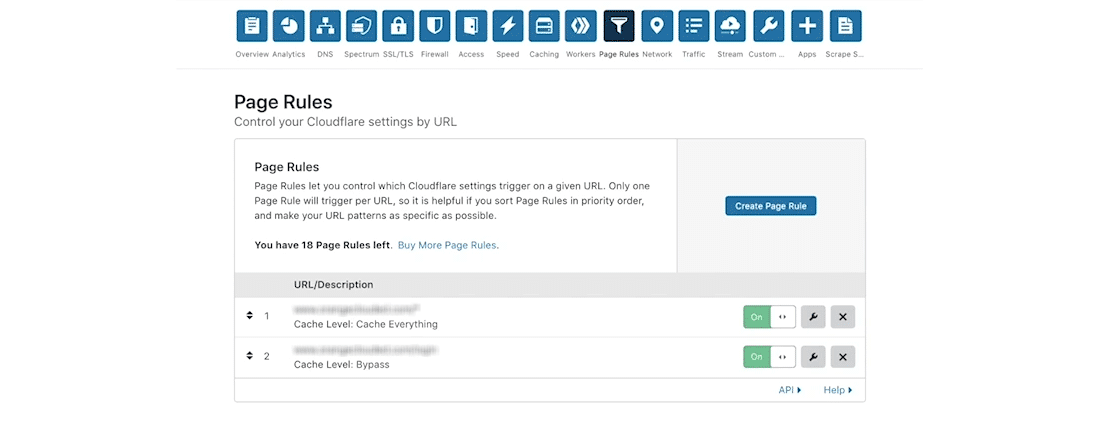
A straightforward way to troubleshoot this is to disable your CDN temporarily. For example, if you’re using the free CDN Enabler WordPress plugin to link your site assets to the CDN URLs, then you can deactivate the plugin and test reloading your site.
The same goes for using any other plugin you may use to connect to your CDN (e.g. WP Rocket, Breeze, W3 Total Cache).
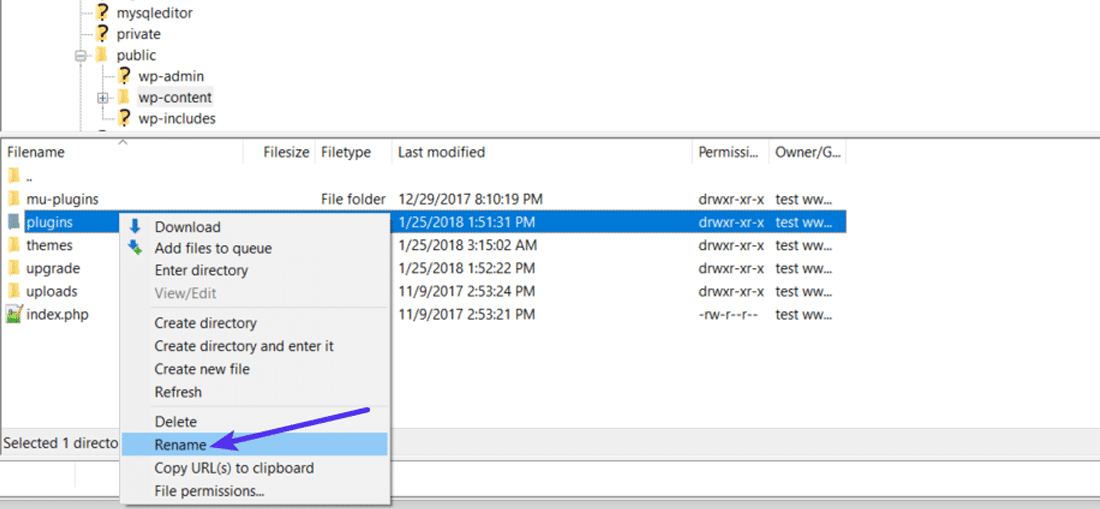
If you can’t access your site’s admin dashboard, you can disable the plugin via SFTP by renaming the plugin’s folder name.
CDNs like Cloudflare or Sucuri, which provide full proxy services, have extra firewalls between their edge servers and your origin server. Hence, you may encounter HTTP 5xx errors more frequently while using them. Most of them cache 5xx errors returned by your origin server, so it’s easy to troubleshoot them.
Cloudflare’s free plan is prone to throw up a 5xx error. Unfortunately, since it’s a full proxy service, there’s no quick way to disable it. But before you blame Cloudflare for it, know that Cloudflare shows two variations of the 504 Gateway Timeout error.
504 Gateway Timeout at Cloudflare (Variation 1)
Cloudflare will show you a custom 504 Gateway Timeout error screen when your site’s origin server responds with a standard HTTP 504 response.
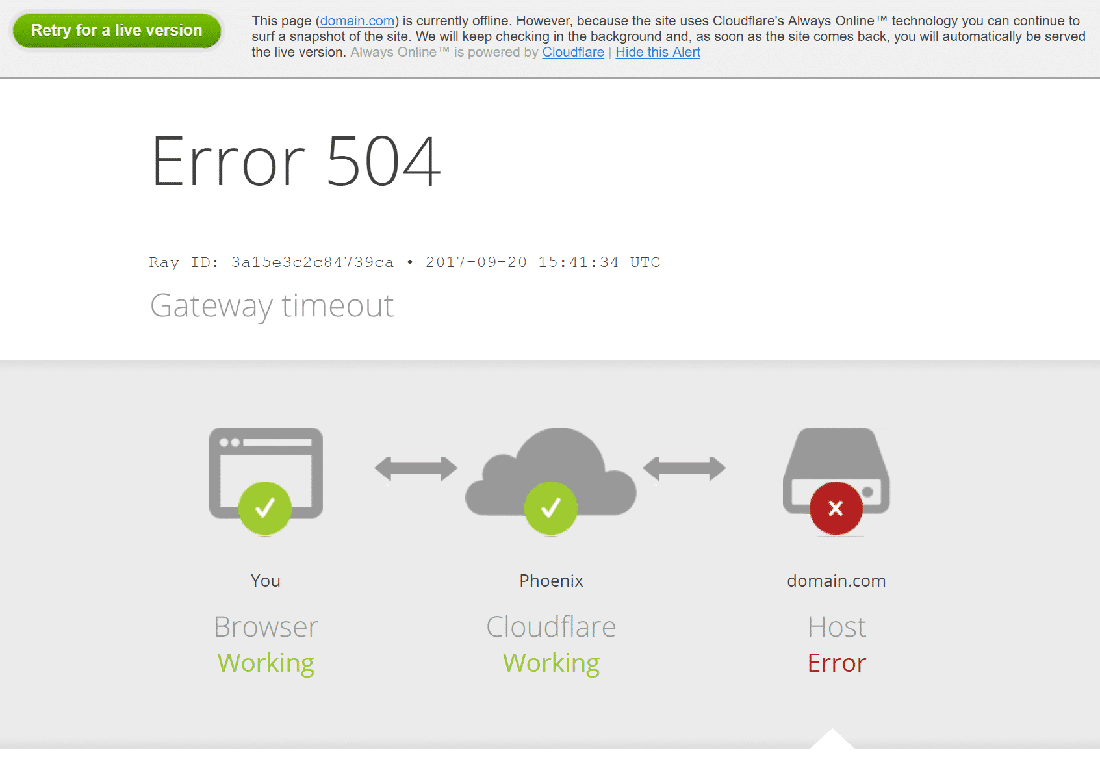
Here, the issue lies with your web server and not Cloudflare. You can try fixing it with the other solutions mentioned below or contact your hosting provider’s support for technical help.
504 Gateway Timeout at Cloudflare (Variation 2)
If Cloudflare causes the 504 Gateway Timeout error, the error screen will mention “cloudflare,” which is currently the standard server name for all Cloudflare assets. Usually, the error screen will appear as below:
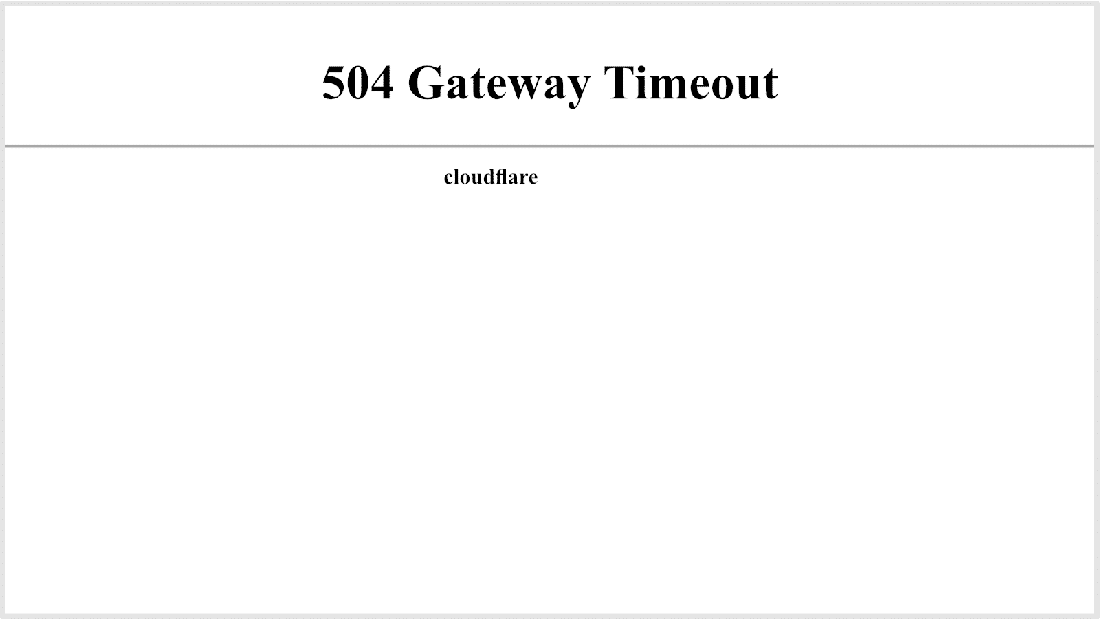
Since Cloudflare itself is unresponsive, you’ll not see any Cloudflare-branded error screen here.
Most likely, Cloudflare is already aware of the issue and is working on a fix already. You can confirm this by checking the Cloudflare System Status webpage. Alternatively, you can get in touch with Cloudflare support for a quicker resolution.
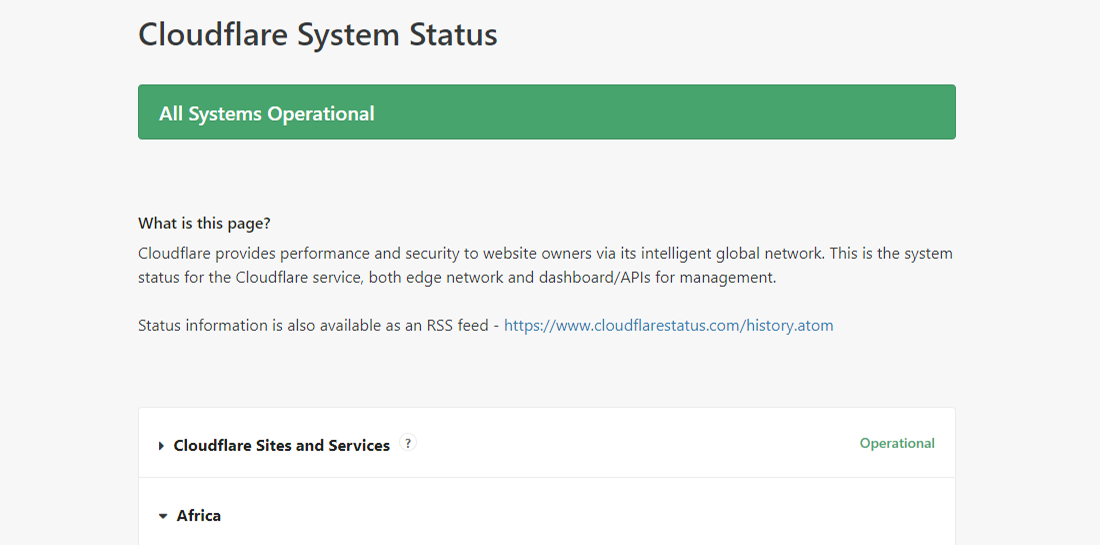
504 Gateway Timeout at Cloudflare Due to Large Uploads
The size of your uploads to your site can also be a reason for the server timeouts. Cloudflare limits upload file size (per HTTP POST request) to just 100 MB on both Free and Pro plans.
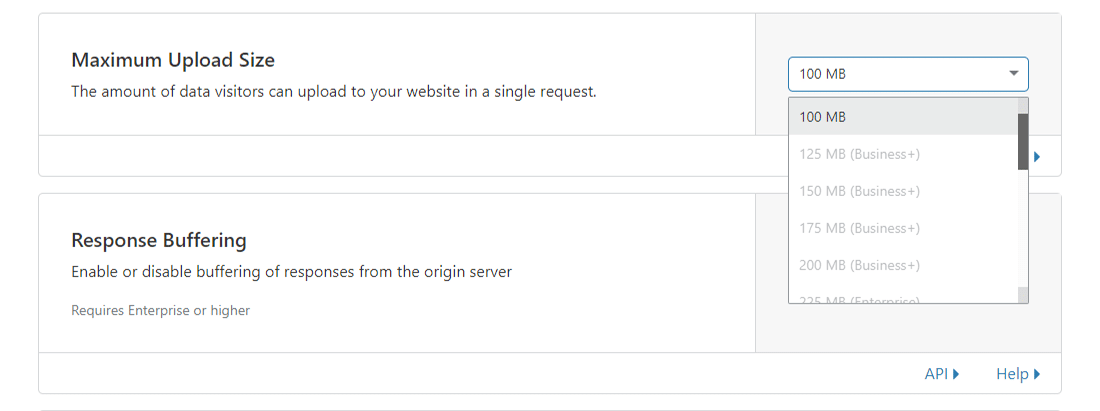
The issue can be on your host’s end or with Cloudflare. You can find out the exact cause by bypassing Cloudflare with your DNS hosts file and trying your upload again.
If you’re using Cloudflare with WordPress, I recommend using their free plugin and excluding critical URLs from caching (such as the WordPress admin dashboard). You can refer to Kinsta’s detailed post on how to configure Cloudflare settings for WordPress.
Suggested reading: How to Set up Cloudflare APO for WordPress.
6. Check Server Issues With Your Host
Server issues are one of the most common reasons for facing a 504 Gateway Timeout error. Since most WordPress sites are hosted on Nginx or Apache webservers, Nginx or Apache is waiting for a response from something and timing out.
Many clients come to Kinsta for exactly this problem they’re facing at other hosts. The conversation goes something like this:
We’re getting around 100k visitors per month with more than 200k views. Currently, we’re hosting with ____ and we experience 504 errors constantly due to server overload. I don’t like how ____ handled the problem, and we were also advised that we will have to move to their dedicated plans soon, which I believe is not necessary.
High-traffic and ecommerce sites are more prone to getting 504 errors because of server overload as they generate many uncacheable requests. However, this issue can crop with any site, including simple blogs. Many hosts will ask you to upgrade to a high-tier plan to fix the issue, which in most cases is unnecessary.
Kinsta uses LXD managed hosts and orchestrated LXC software containers for each site. Thus, every site is housed in its own isolated container with access to all the software required to run it (Linux, Nginx, PHP, MySQL). The resources are 100% private and aren’t shared with any other site, even your sites.
Most hosts providing shared hosting plans don’t have this capability. Hence, a high-traffic site hosted on the same server as yours may cause your site to throw up a 504 error too.
Apart from isolating each site in its container, Kinsta has also designed its infrastructure to handle thousands of concurrent connections easily. Kinsta even hosts the MySQL databases at localhost, not a remote server. This means no latency between machines, resulting in faster queries and fewer chances of timeouts occurring.
Many clients who migrate to Kinsta see huge decreases in overall load times.
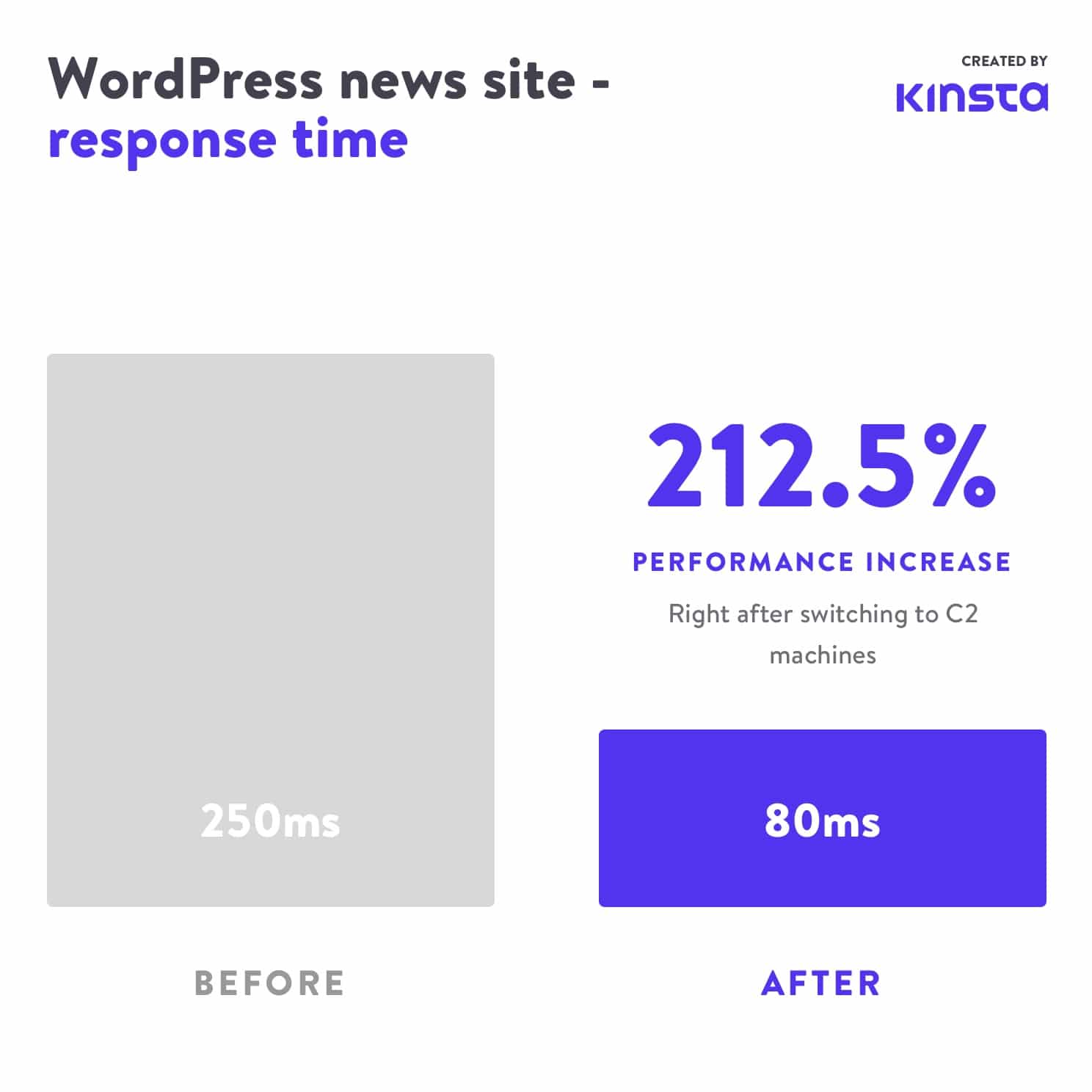
An overloaded server isn’t the only cause for a server timeout. There can be many other reasons for the 504 error:
Slow Server Infrastructure
The server you use to host your site may not have enough resources to handle the load. It’s like playing a modern, graphics-intensive videogame on a decade-old PC.
The server just hangs up trying to serve the website. The only solution to this problem is to upgrade to a server with better infrastructure. For this reason, even Kinsta’s most basic hosting plan will handle a static site with medium traffic.
Needs More PHP Workers
PHP workers are used to execute your site’s code. An ecommerce site that gets 50,000 visitors per month needs a lot more resources than a simple blog with the same amount of traffic. If all the server’s PHP workers are busy, they’ll build up a queue.
When the queue gets too big, the server disregards old requests, which may cause the server to throw up a 504 gateway error. You can ask your host about increasing your number of PHP workers. This’ll allow your site to execute multiple requests simultaneously.
Firewall Issues
Your server’s firewall could have some errors or an improper configuration. Perhaps, a few of its rules prevent the server from establishing a connection properly. To know if your firewall is the culprit, you can check your server’s error logs.
Network Connectivity Problems
Connectivity issues between the proxy server and the web server could cause delays in responding to HTTP requests. If you use a load balancer, there could also be network connectivity issues with it.
HTTP Timeouts
HTTP timeouts can occur when a connection between the web server and the client is kept open for too long. With WordPress sites, this usually happens when running WordPress imports. One way to resolve this issue is to switch to a faster internet connection.
You can also use a tool with support for WP-CLI to run the scripts directly on the server, bypassing the HTTP connection entirely. For instance, you can use the wp import WP-CLI command to run the WordPress Importer plugin directly through the command-line interface.
Important: 504 Gateway Timeout errors look similar to 503 Service Unavailable errors or 502 Bad Gateway errors. But they’re all different. If you’re experiencing a 504 error at Kinsta, open a support ticket to get your issue fixed immediately.
For monitoring your site’s downtime on your own, you can use a tool like updown.io. It’ll check your website’s status (or any URL) periodically by sending an HTTP request to it. You can set the check frequency from 15 seconds to 1 hour. If your website isn’t responding correctly, it’ll notify you with an email or an SMS.
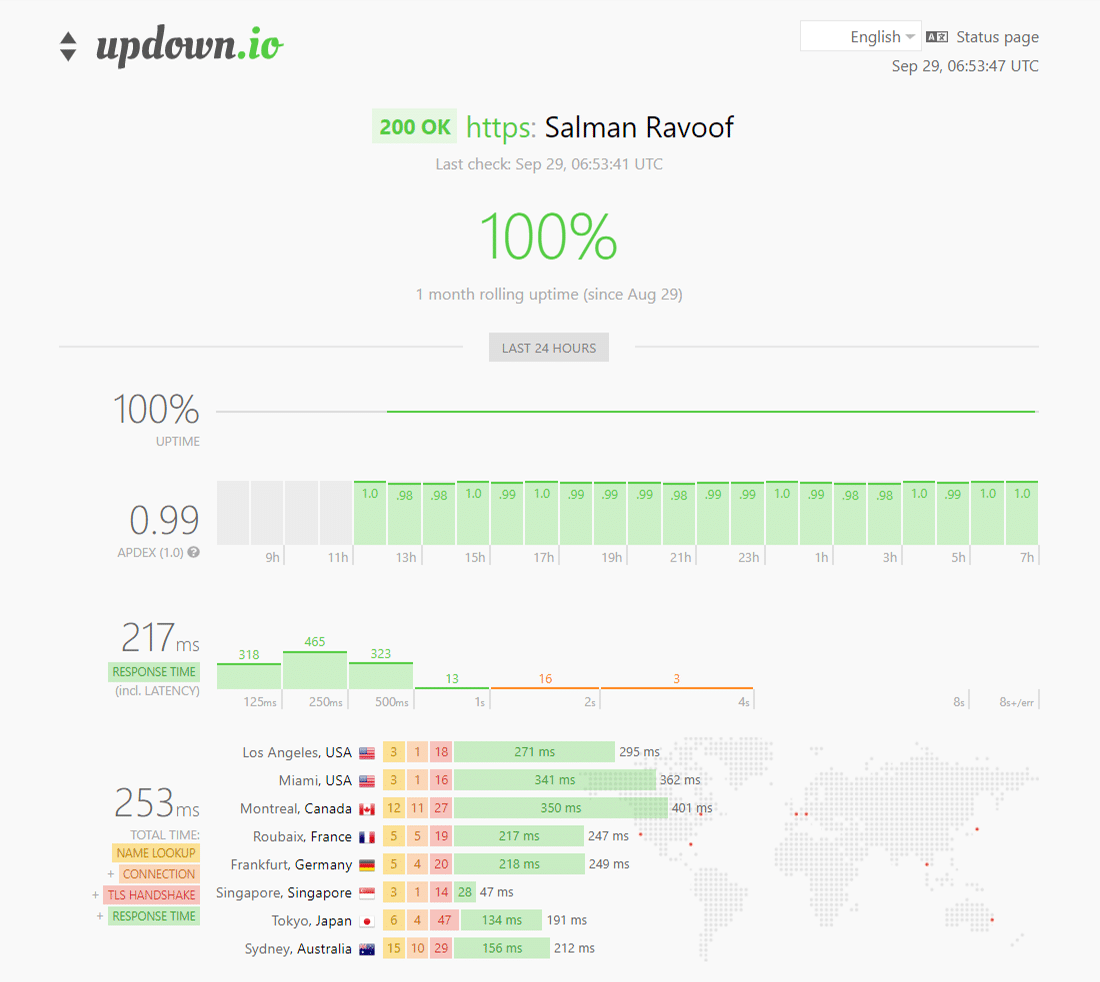
You’ll get a generous quantity of free credits with every account of updown.io, but if you’re looking for cheaper alternatives, you can check out WebGazer or UptimeRobot. Both these tools will help you monitor your site’s uptime every 5 minutes for free. That’s decent enough for most website owners.
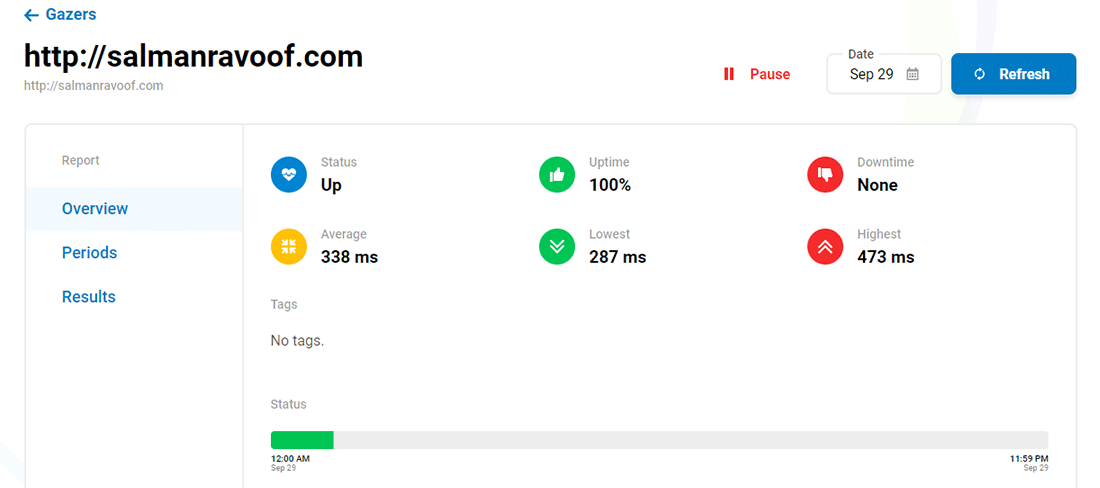
Monitoring your website will give you an idea of how often it’s down. This is especially helpful if you’re using a shared hosting provider. Most application, database, and managed WordPress hosts (like Kinsta) take care of this automatically for you. Hence it’s always recommended to go with them.
For a detailed explanation, check out Kinsta’s post on the importance of managed WordPress hosting.
7. Check for Spam, Bots, or DDoS Attacks
Malicious attackers can bring your web server to a crawl by sending too many and/or resource-intensive requests. If your site is getting spammed by bots or undergoing a DDoS attack, it can overwhelm your server and result in 504 Gateway Timeout errors for many genuine users.
You can look at your server traffic and analytics to see if you can spot any irregular patterns in the site traffic. If you’re using Kinsta to host your site, you can view this data easily by going to your MyKinsta Analytics dashboard.
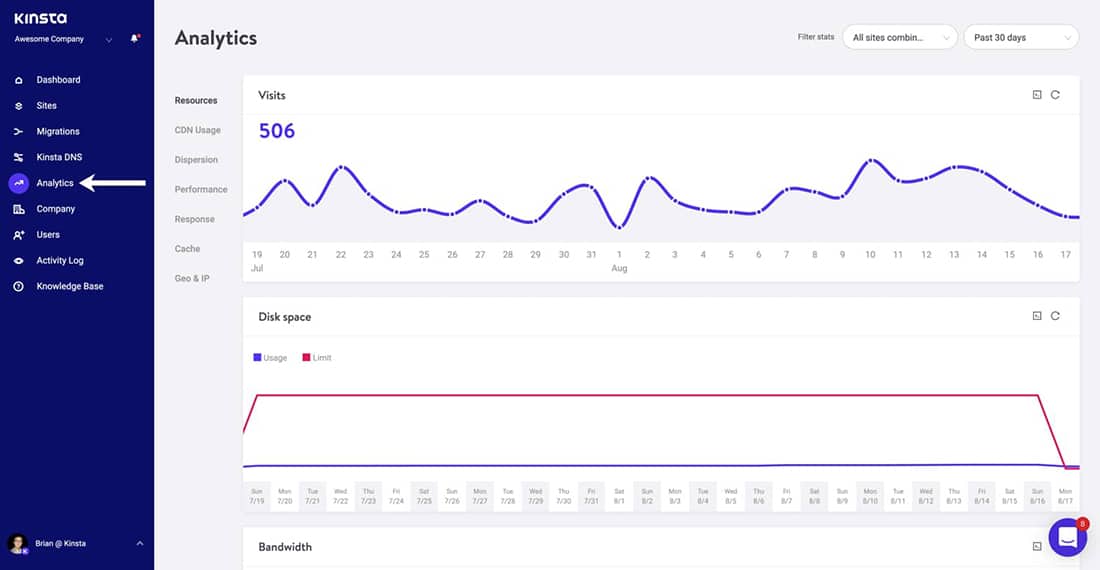
Start your investigation by looking at the top client IPs. It’ll give you an idea of who generates the maximum number of requests, and from where. If your server suddenly uses up enormous bandwidth or attracts a lot of traffic, then this report will come in super handy.
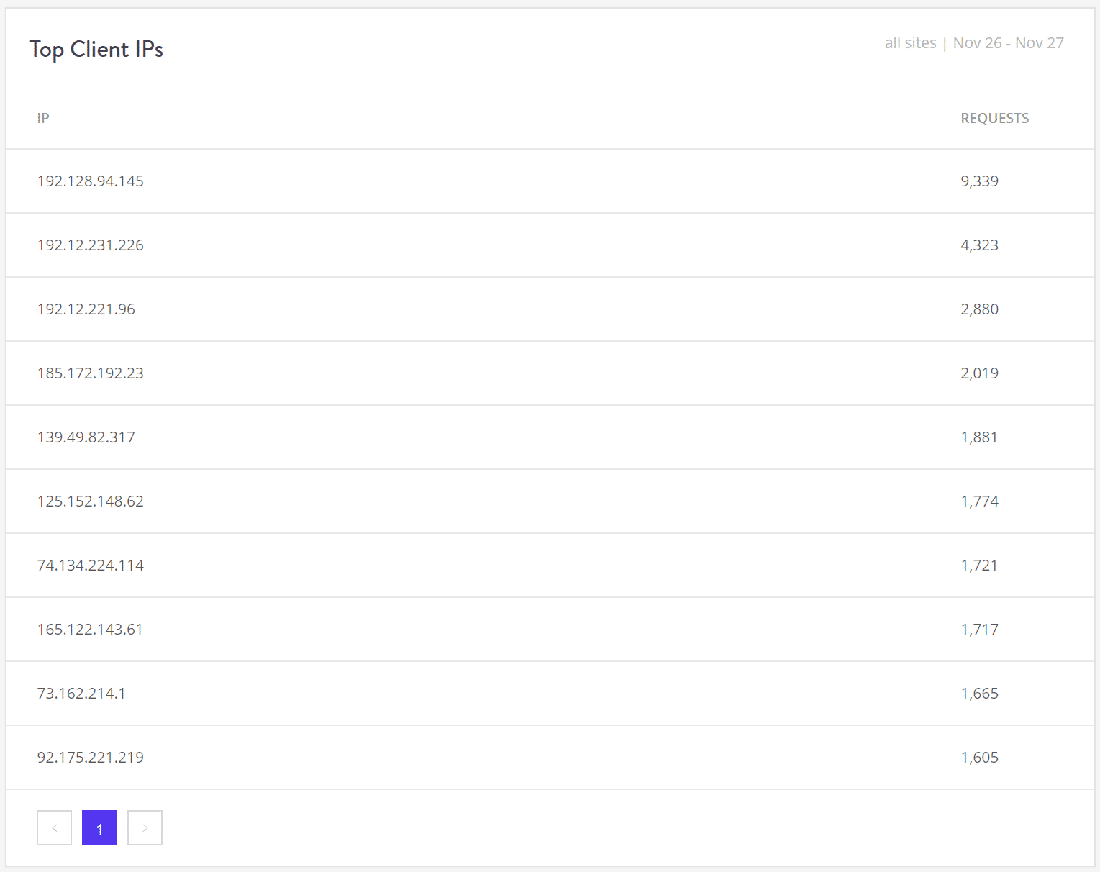
Next, you can check out the Cache Analysis report. Here, you can see how many requests are bypassing or missing the cache, or being served from the cache. For performance and stability reasons, you want to cache as many requests as possible, but it’s not always possible to achieve that.
For example, WooCommerce sites generate many uncacheable requests for features such as the shopping cart and the checkout process.
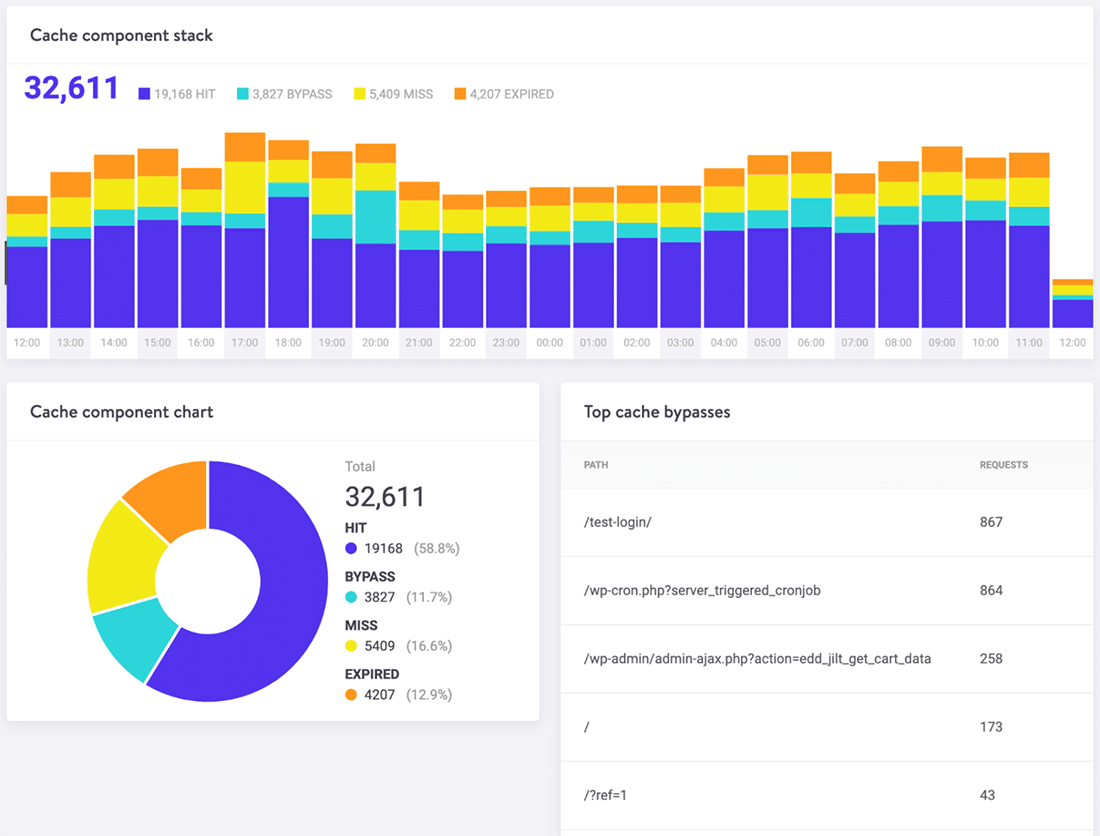
Finally, you can use a security plugin to beef up your website’s security by spotting and blocking worrisome traffic/IPs. You can ask your host to block certain IPs too.
Depending upon the length and scale of the attack, this could be a never-ending process of blacklisting IPs as many attackers change their IPs and proxy addresses after getting blocked.
Note: Kinsta doesn’t allow its clients to install security plugins as they can have a huge effect on the site’s performance, especially its scanning capabilities. As Kinsta uses load balancers with Google Cloud Platform, blocking IPs wouldn’t always work as intended.
You can use dedicated security solutions such as Cloudflare or Sucuri to protect your sites from DDoS attacks and spambots. For more, you can check out Kinsta’s articles on how to install Cloudflare on your site and how Sucuri helped stop a DDoS attack in its tracks.
8. Repair Your Corrupted WordPress Database
Sometimes, a 504 Gateway Timeout error can be because of a corrupt database, especially in WordPress sites. Typically, this is due to corrupted database tables or files. Sometimes, it can also be caused by a serious security issue like your site or database being hacked.
Repairing a corrupted WordPress database depends on the problem. Plugins like WP-DBManager make it easy to diagnose database issues and repair them. I recommend you to read Kinsta’s detailed walkthrough on repairing WordPress database issues to get started.
9. Check Your Site’s Plugins and Themes
In most cases, third-party plugins and themes don’t cause 504 errors. But there’s a slight chance that they might cause server timeouts, usually by queuing up many uncached requests generated by the plugin/theme. As this ties up a lot of your server’s PHP workers, it can cause 504 errors.
A great example of this issue is WooCommerce, a plugin installed to add ecommerce functionality to WordPress sites.
The simplest way you can troubleshoot this problem is by deactivating all your plugins. Remember, you won’t lose any data if you just deactivate a plugin.
If you can access your admin dashboard, you can go to the Plugins screen, select Deactivate from the bulk actions menu, checkmark all the plugins, and then hit the Apply button. This will disable all of your plugins.
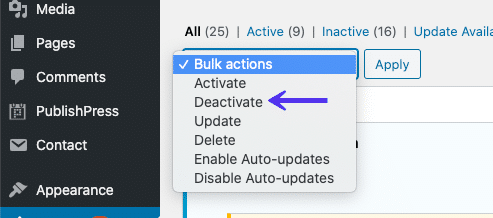
If you can’t access your admin area, you can disable plugins via SFTP using the method described before. Just rename the main plugin folder name to disable all the plugins in bulk.
Once you’ve deactivated all the plugins, check whether your site loads properly. If it works, you must activate each plugin, testing the site after enabling every plugin.
Finally, make sure that your plugins, themes, and WordPress core are up to date. Also, ensure that your server is running the recommended version of PHP.
If you feel this to be too overwhelming, you can always reach out to your host for help. Kinsta uses Kinsta APM and other troubleshooting techniques to help clients narrow down what plugin, query, or script might cause the error.
In the worst-case scenarios, like an inefficient query or bad code in a plugin/theme, you can bring in a WordPress developer to fix the issue.
10. Check Error Logs
Viewing error logs can be very helpful when troubleshooting and debugging 504 errors on your site. This can help you narrow down an issue on your site quickly, especially if it’s resulting from a demanding plugin on your site.
If you’re a Kinsta customer, you can easily see errors in the log viewer in your MyKinsta dashboard.
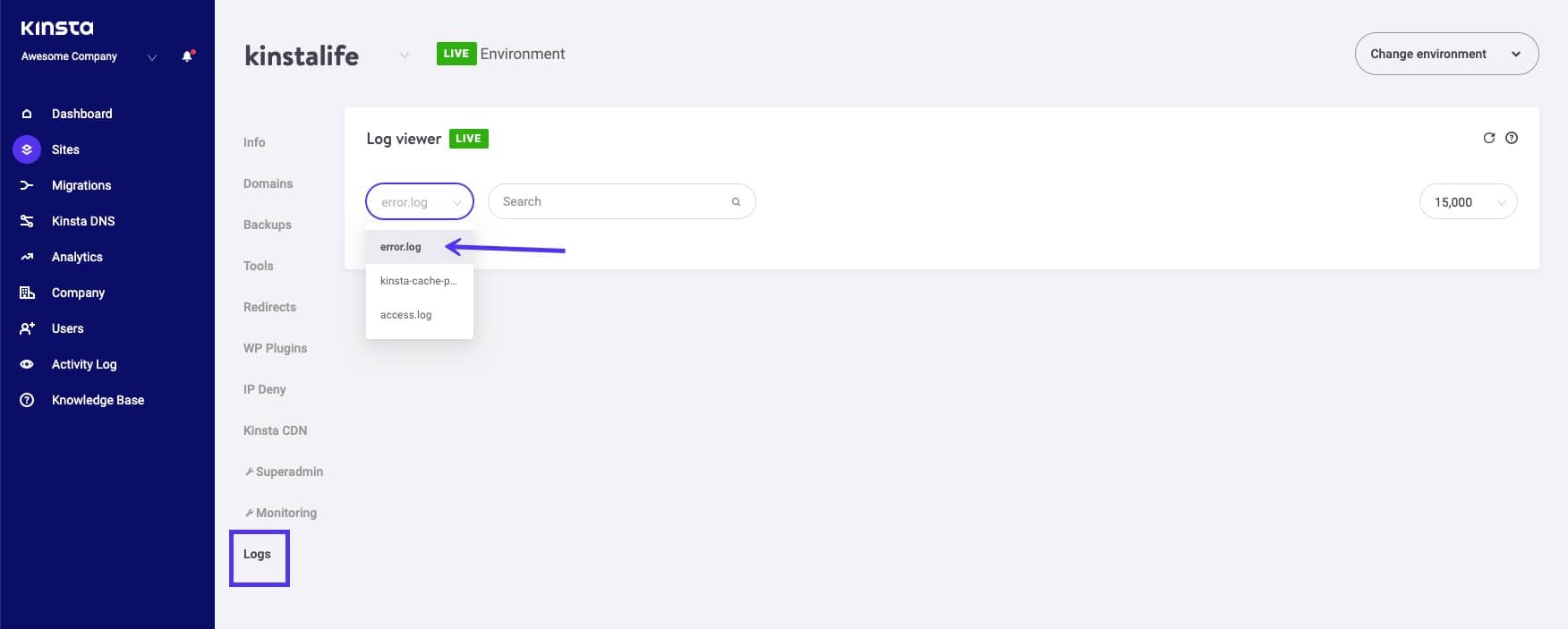
If your host doesn’t have a logging tool, then you can enable WordPress debug mode by adding the following code to your wp-config.php file:
define( 'WP_DEBUG', true );
define( 'WP_DEBUG_LOG', true );
define( 'WP_DEBUG_DISPLAY', false );
The WP_DEBUG constant enables or disables the WordPress debug mode. It has two optional companion constants that can extend its features. The WP_DEBUG_LOG constant directs all errors to be saved to a debug.log file within the /wp-content/ directory. If you don’t see this file, you can always create one.
The WP_DEBUG_DISPLAY constant controls whether debug logs show up on the HTML page. Setting this to false will hide all errors, but you can review the errors later, as you’ve also defined WP_DEBUG_LOG as true.
Important: If you have WP_DEBUG enabled in the Kinsta environment, it’ll route all errors to the debug.log file and not the error.log in the MyKinsta dashboard.
You can also download the raw WordPress error log files via SFTP. Typically, you can find error logs in your server’s root directory in a folder named “logs.”
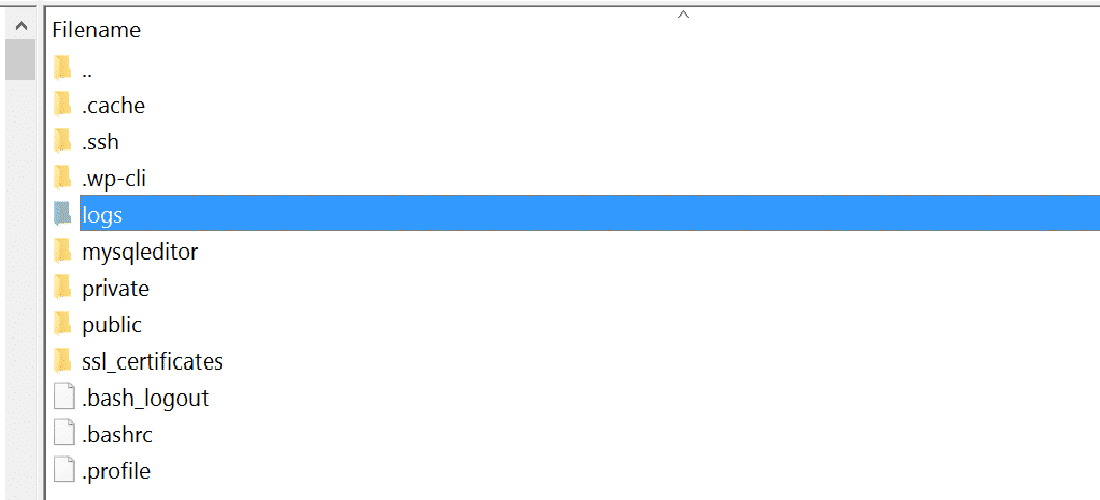
Kinsta users can also enable WordPress debug mode from their MyKinsta dashboard. To do that, navigate to Sites > Tools > WordPress Debugging and click the Enable button. This will allow you to see PHP errors and notices without enabling debug mode via SSH or SFTP.
Lastly, you can check the server log files. Depending on which server you’re using to host your WordPress site, they’re commonly found in these locations:
- Apache:
/var/log/apache2/error.log/ - Nginx:
/var/log/nginx/error.log/
You can refer to logging related documentation of Apache or Nginx for more information.
11. Configure Apache or Nginx Settings Properly
You can edit your server config files to increase resource limits for specific directives. This can help you resolve the 504 Gateway Timeout error.
For Apache Webservers
First, add the following code to your httpd.conf:
TimeOut 600This setting defines how long the server will wait for certain requests before marking it as a network timeout issue. Its default value is 60 seconds (Apache 2.4 version).
You can only add this directive in your httpd.conf file, not in your .htaccess file. Since most shared hosting providers don’t allow you to modify the httpd.conf file, you can try increasing the value of the LimitRequestBody directive in your .htaccess file instead.
Then add the following line to your php.ini file:
max_execution_time 300The default value of PHP’s max_execution_time directive is 30 seconds. Increasing it will allow your site’s PHP scripts to run longer.
For Nginx Webservers
If you’re running your WordPress sites on Nginx + FastCGI Process Manager (PHP-FPM) or using Nginx as a reverse proxy for Apache, you can tweak the server settings to help prevent 504 Gateway Timeout errors.
504 Gateway Timeout Error on Nginx + FastCGI (PHP-FPM)
First, you must edit your PHP-FPM pool config file. You can find it at the /etc/php7.4/fpm/pool.d/www.conf location in your Nginx server (the exact path may vary based on the PHP version). Alternately, you can run the following command in your terminal to edit the PHP-FPM pool config file:
sudo nano /etc/php/7.2/fpm/pool.d/www.confNext, set the following directive:
request_terminate_timeout = 300After this, you must edit your php.ini file. You can locate it at /etc/php.ini. Open the file and add/change the value for the max_execution_time directive to 300 seconds.
max_execution_time = 300Finally, add the following code to your nginx.conf file’s location block:
location ~ .php$ {
...
fastcgi_read_timeout 300;
}
Reload Nginx and PHP-FPM for the changes to take effect.
sudo service nginx reload
sudo service php7.4-fpm reload
The exact code to reload PHP-FPM will vary based on the PHP version installed on your server. Test your site to see whether it has fixed the issue.
504 Gateway Timeout Error on Nginx Proxy
If you’re using Nginx as a reverse proxy server for Apache, then you can make it more lenient towards server timeouts by adding the following directives to your nginx.conf file:
proxy_connect_timeout 600;
proxy_send_timeout 600;
proxy_read_timeout 600;
send_timeout 600;
Don’t forget to reload Nginx after making your changes.
sudo service nginx reload
Other HTTP Errors Like 504 Gateway Timeout
As mentioned earlier in the article, many other HTTP 5xx errors are just like the 504 Gateway Timeout error. It’s because they all happen on the server-side. These errors include:
- 500 Internal Server Error
- 501 Not Implemented Error
- 502 Bad Gateway Error
- 503 Service Unavailable Error
Other HTTP errors caused due to client-side issues, like the 404 Not Found error, are also like the 504 error. You can refer to Kinsta’s detailed guide and list of HTTP status codes for more information.
When you don’t know what caused a 504 Gateway Timeout error, how do you fix it in time to keep hard-earned visitors from bouncing to competitor sites? 🤷♂️ All the details are in this post. ⬆️Click to Tweet
Summary
Your site can be affected by the 504 Gateway Timeout error because of multiple reasons. In this article, you learned how to troubleshoot them all. Typically, these errors are caused due to server-side issues, in which case you can reach out to your host and get it resolved quickly.
However, you must also understand that this error can be due to third-party plugins, themes, services, inefficient database queries, or a combination of two or more of these. If you’re maxing out your server’s resources (e.g. PHP workers), it’s recommended to optimize your site for performance.
If you still find that your website is timing out, then it might very well be that you need to upgrade your hosting plan or the number of PHP workers. I recommend you to consider this option only after you’ve exhausted all the other solutions described in this article.
From simple static sites to complex ecommerce and membership sites, Kinsta’s scalable hosting plans are designed to accommodate all types of websites. To learn more about our scalable cloud hosting, check out this article!
Did we miss anything? If you’re still finding it difficult to fix the 504 Gateway Timeout error on your site, leave a comment below.
Get all your applications, databases and WordPress sites online and under one roof. Our feature-packed, high-performance cloud platform includes:
- Easy setup and management in the MyKinsta dashboard
- 24/7 expert support
- The best Google Cloud Platform hardware and network, powered by Kubernetes for maximum scalability
- An enterprise-level Cloudflare integration for speed and security
- Global audience reach with up to 35 data centers and 275 PoPs worldwide
Test it yourself with $20 off your first month of Application Hosting or Database Hosting. Explore our plans or talk to sales to find your best fit.
The 504 Gateway Timeout error is one of the most common HTTP 5xx errors faced by website owners and site visitors. For many WordPress blogs and ecommerce platforms, knowing how to fix server errors like this is crucial to keep their hard-earned visitors from bouncing to competitor sites.
As the 504 Gateway Timeout error doesn’t tell you why it occurred, it’s hard to pinpoint what’s causing the server timeout. This article will help you understand it in detail, learn how to diagnose its cause, and then fix it.
After trying all the various solutions mentioned in the post, your site should be up and running in no time.
Sounds interesting? Let’s dive in!
The 504 Gateway Timeout error is one of the most common HTTP 5xx errors faced by website owners and site visitors. 🤔 Learn how to fix it with this guide quickly. ⬇️Click to Tweet
Prefer to watch the video version?
What Is the 504 Gateway Timeout Error?
Every time you visit a website in your browser, the browser sends a request to the web server where the site is hosted. The server processes the request and responds with the requested resources.
The server response includes one of many HTTP status codes to indicate the response’s status to the browser. But not all these HTTP status codes are errors. For instance, a 200 OK status code means that the server processed the request successfully and “Everything is OK.”
The 5xx class of HTTP status codes indicates that something’s wrong with the server, the server is aware of it, and it cannot carry out the client request. As a result, they’re also referred to as Server Error 5xx status codes.
Officially, five status codes are specified under the 5xx class (500, 501, 502, 503, 504). You may come upon many unofficial codes too (506, 507, 509, 520, etc.).
The Internet Engineering Task Force (IETF) defines the 504 Gateway Timeout error as:
The 504 (Gateway Timeout) status code indicates that the server, while acting as a gateway or proxy, did not receive a timely response from an upstream server it needed to access in order to complete the request.
To simplify it further, this error occurs when two servers are involved in processing a request. The first server (typically the main server) times out, waiting for a response from the second server (upstream server).
The 504 Gateway Timeout error manifests itself in various forms. Here are some ways it usually shows up:
The 504 Gateway Timeout error is similar to the 502 Bad Gateway error, which indicates that the first server received an invalid response from the second server (upstream server).
Variations of the 504 Gateway Timeout Error
The browser displays any 504 Gateway Timeout error inside it, just like any other error. As there are various operating systems, web servers, browsers, and user agents, it can show up in multiple ways.
Below are a few common 504 error message variations that you may run into:
- 504 Gateway Timeout
- 504 Gateway Timeout NGINX
- NGINX 504 Gateway Timeout
- Gateway Timeout Error
- Error 504
- HTTP Error 504
- HTTP Error 504 — Gateway Timeout
- HTTP 504
- 504 Error
- Gateway Timeout (504)
- This page isn’t working — Domain took too long to respond
- 504 Gateway Time-out — The server didn’t respond in time
- The page request was canceled because it took too long to complete
- Site visitors: There was an issue serving your request, please try again in a few minutes.
- Site Owners: There was a gateway timeout. You should visit your error log for more information.
- A blank white screen
All the above error responses, though worded differently, point to the same 504 Gateway Timeout server error.
Web servers and websites can customize how they show the 504 Gateway Timeout error to users. Some of them can be cool! It’s an excellent tactic to quell their visitors’ disappointment.
SEO Impact of the 504 Gateway Timeout Error
All 5xx errors prevent a webpage from loading, making them detrimental to user experience. Hence, search engines like Google take these errors seriously. If the error persists for a long duration, it may even lead to deindexing the webpage from the search engine results.
For example, when Google spiders stumble upon a 503 Service Unavailable error, they’ll understand that it’s a temporary issue as it’s mostly used to enable site maintenance mode. Thus, they’ll try to crawl the page again later.
A 504 Gateway Timeout error isn’t necessarily temporary as it can be due to multiple reasons. If your site is down for just a few minutes, and if the spiders are trying to crawl it multiple times every minute, they’ll try to serve the page from their cache. They wouldn’t even notice it.
But if your site is down for 6+ hours or more, then Google will consider the 504 error as a serious site-wide issue that you need to fix as soon as possible. This can impact your SEO negatively.
Google Search Console is one of the best SEO tools to monitor your website’s HTTP 5xx errors.
Causes of the 504 Gateway Timeout Error
As the 504 error is due to a timeout between servers, the problem probably isn’t with the client’s device or internet connection. That also includes your device and connection.
A 504 Gateway Timeout error indicates that the web server is waiting too long to respond from another server and “timing out.” There can be many reasons for this timeout: the other server is not functioning properly, overloaded, or down.
The other server need not always be external (e.g. CDN, API gateway). It can also be a server-like entity within the main web server (e.g. reverse proxy server, database server).
How to Fix the 504 Gateway Timeout Error
Without knowing exact details about the site, such as its server configuration, hosting plan, third-party plugins, and the traffic it attracts, you may find it frustrating and overwhelming to fix a 504 Gateway Timeout error.
Since many variables are involved, I recommend you to start by fixing client-side issues, which are pretty rare, and then move towards fixing server-side problems. They’re usually the culprits with 504 errors.
- Try Reloading the Webpage
- Reboot Your Network Devices
- Check Your Proxy Settings
- Check for DNS Issues
- Disable Your Site’s CDN Temporarily
- Check Server Issues With Your Host
- Check for Spam, Bots, or DDoS Attacks
- Repair Your Corrupted WordPress Database
- Check Your Site’s Plugins and Themes
- Check Error Logs
- Configure Apache or Nginx Settings Properly
1. Try Reloading the Webpage
One of the first things you can try when encountering a 504 Gateway Timeout error is to wait a few minutes and try reloading the page.
You can press the F5 keyboard shortcut to refresh/reload the webpage in most browsers. To remove the page’s browser cache before reloading, you can press the CTRL+F5 shortcut combo instead.
While you’re at it, you can also try loading the site in a different browser to rule that out as an issue. As most 504 errors are due to temporarily overloaded servers, using this solution should make your site come right back.
If waiting and reloading the site doesn’t fix the 504 error issue, you can check whether a site is down for everyone or just you. Two useful online tools to test a site for downtime are Down for Everyone or Just Me and Is It Down Right Now?
2. Reboot Your Network Devices
Sometimes, problems with your network devices like modem or router could lead to a 504 Gateway Timeout error. Rebooting these devices could help you with fixing the problem.
While you can switch off all these networking devices in any order, the order you switch them back on is important. Typically, turn these devices on from the “outside-in,” following the connection order from the internet service provider to your main client device.
3. Check Your Proxy Settings
A proxy server sits between your device and the internet. It’s mostly used to enhance online privacy by hiding private information (e.g. device location) from websites and webservers (e.g. using a VPN).
While it’s rare for proxy servers to cause a 504 error, incorrect proxy server settings can sometimes be the reason. You can disable the proxy server and try reloading the webpage to see whether it’ll fix the error.
Most clients don’t use a proxy service, so you can skip this step if you’re confident that you don’t use any proxy server. However, you might have set it without you even knowing about it. I’d suggest you check your device’s and browser’s proxy settings to rule this cause out.
4. Check for DNS Issues
A 504 Gateway Timeout error can also be caused by DNS issues on the server-side or the client-side (or both).
The most probable reason for a server-side DNS issue is the FQDN (fully qualified domain name) not resolving the correct IP address or the DNS server not responding. Usually, this occurs when you’ve just migrated your site to a new server or host. Hence, it’s important to wait for the domain’s DNS records to propagate fully, which can take up to 24 hours.
You can use free tools like whatsmydns.net DNS Checker or DNSMap to see if your DNS has propagated around the globe.
For fixing client-side DNS issues, you could try flushing your local DNS cache. It’s like clearing your browser cache, except here, you’re flushing the DNS cache from the operating system.
If you’re using Windows, you can flush the DNS cache by opening the Command Prompt and entering the following directive:
ipconfig /flushdns
You should see a “Successfully flushed the DNS resolver Cache.” message if it worked.
For the latest macOS versions, you can open the Terminal and run the following command:
sudo killall -HUP mDNSResponderYou won’t see any notification in macOS when the process finishes, but you can change that by appending the command with your custom message.
sudo killall -HUP mDNSResponder; DNS Cache was cleared successfullyIf you’re using older macOS versions, the command you need to enter varies based on which version of macOS you’re running. For more details, you can refer to the macOS section in Kinsta’s in-depth flush DNS tutorial.
If you’re using the Linux operating system, then the process is quite similar to macOS as even Linux uses the Terminal as its command-line interface. Since there are many Linux distributions, the exact command you need to run may vary from one distro to another. You can check out Kinsta’s guide for more information.
Finally, you can change your client-side DNS servers temporarily. By default, your ISP assigns the DNS servers automatically to you. But you can change these to public DNS IPs temporarily.
Some reliable DNS servers you can try out are Google Public DNS, Cloudflare 1.1.1.1, Quad9 DNS, and Cisco OpenDNS.
5. Disable Your Site’s CDN Temporarily
Sometimes, the issue could also be with your content delivery network (CDN). If a site’s origin server isn’t reachable, most CDNs will try to serve the full webpage from their cache.
But most CDNs don’t enable this feature by default as it’s complex to cache dynamic assets on most sites (e.g. the WordPress admin dashboard).
A straightforward way to troubleshoot this is to disable your CDN temporarily. For example, if you’re using the free CDN Enabler WordPress plugin to link your site assets to the CDN URLs, then you can deactivate the plugin and test reloading your site.
The same goes for using any other plugin you may use to connect to your CDN (e.g. WP Rocket, Breeze, W3 Total Cache).
If you can’t access your site’s admin dashboard, you can disable the plugin via SFTP by renaming the plugin’s folder name.
CDNs like Cloudflare or Sucuri, which provide full proxy services, have extra firewalls between their edge servers and your origin server. Hence, you may encounter HTTP 5xx errors more frequently while using them. Most of them cache 5xx errors returned by your origin server, so it’s easy to troubleshoot them.
Cloudflare’s free plan is prone to throw up a 5xx error. Unfortunately, since it’s a full proxy service, there’s no quick way to disable it. But before you blame Cloudflare for it, know that Cloudflare shows two variations of the 504 Gateway Timeout error.
504 Gateway Timeout at Cloudflare (Variation 1)
Cloudflare will show you a custom 504 Gateway Timeout error screen when your site’s origin server responds with a standard HTTP 504 response.
Here, the issue lies with your web server and not Cloudflare. You can try fixing it with the other solutions mentioned below or contact your hosting provider’s support for technical help.
504 Gateway Timeout at Cloudflare (Variation 2)
If Cloudflare causes the 504 Gateway Timeout error, the error screen will mention “cloudflare,” which is currently the standard server name for all Cloudflare assets. Usually, the error screen will appear as below:
Since Cloudflare itself is unresponsive, you’ll not see any Cloudflare-branded error screen here.
Most likely, Cloudflare is already aware of the issue and is working on a fix already. You can confirm this by checking the Cloudflare System Status webpage. Alternatively, you can get in touch with Cloudflare support for a quicker resolution.
504 Gateway Timeout at Cloudflare Due to Large Uploads
The size of your uploads to your site can also be a reason for the server timeouts. Cloudflare limits upload file size (per HTTP POST request) to just 100 MB on both Free and Pro plans.
The issue can be on your host’s end or with Cloudflare. You can find out the exact cause by bypassing Cloudflare with your DNS hosts file and trying your upload again.
If you’re using Cloudflare with WordPress, I recommend using their free plugin and excluding critical URLs from caching (such as the WordPress admin dashboard). You can refer to Kinsta’s detailed post on how to configure Cloudflare settings for WordPress.
Suggested reading: How to Set up Cloudflare APO for WordPress.
6. Check Server Issues With Your Host
Server issues are one of the most common reasons for facing a 504 Gateway Timeout error. Since most WordPress sites are hosted on Nginx or Apache webservers, Nginx or Apache is waiting for a response from something and timing out.
Many clients come to Kinsta for exactly this problem they’re facing at other hosts. The conversation goes something like this:
We’re getting around 100k visitors per month with more than 200k views. Currently, we’re hosting with ____ and we experience 504 errors constantly due to server overload. I don’t like how ____ handled the problem, and we were also advised that we will have to move to their dedicated plans soon, which I believe is not necessary.
High-traffic and ecommerce sites are more prone to getting 504 errors because of server overload as they generate many uncacheable requests. However, this issue can crop with any site, including simple blogs. Many hosts will ask you to upgrade to a high-tier plan to fix the issue, which in most cases is unnecessary.
Kinsta uses LXD managed hosts and orchestrated LXC software containers for each site. Thus, every site is housed in its own isolated container with access to all the software required to run it (Linux, Nginx, PHP, MySQL). The resources are 100% private and aren’t shared with any other site, even your sites.
Most hosts providing shared hosting plans don’t have this capability. Hence, a high-traffic site hosted on the same server as yours may cause your site to throw up a 504 error too.
Apart from isolating each site in its container, Kinsta has also designed its infrastructure to handle thousands of concurrent connections easily. Kinsta even hosts the MySQL databases at localhost, not a remote server. This means no latency between machines, resulting in faster queries and fewer chances of timeouts occurring.
Many clients who migrate to Kinsta see huge decreases in overall load times.
An overloaded server isn’t the only cause for a server timeout. There can be many other reasons for the 504 error:
Slow Server Infrastructure
The server you use to host your site may not have enough resources to handle the load. It’s like playing a modern, graphics-intensive videogame on a decade-old PC.
The server just hangs up trying to serve the website. The only solution to this problem is to upgrade to a server with better infrastructure. For this reason, even Kinsta’s most basic hosting plan will handle a static site with medium traffic.
Needs More PHP Workers
PHP workers are used to execute your site’s code. An ecommerce site that gets 50,000 visitors per month needs a lot more resources than a simple blog with the same amount of traffic. If all the server’s PHP workers are busy, they’ll build up a queue.
When the queue gets too big, the server disregards old requests, which may cause the server to throw up a 504 gateway error. You can ask your host about increasing your number of PHP workers. This’ll allow your site to execute multiple requests simultaneously.
Firewall Issues
Your server’s firewall could have some errors or an improper configuration. Perhaps, a few of its rules prevent the server from establishing a connection properly. To know if your firewall is the culprit, you can check your server’s error logs.
Network Connectivity Problems
Connectivity issues between the proxy server and the web server could cause delays in responding to HTTP requests. If you use a load balancer, there could also be network connectivity issues with it.
HTTP Timeouts
HTTP timeouts can occur when a connection between the web server and the client is kept open for too long. With WordPress sites, this usually happens when running WordPress imports. One way to resolve this issue is to switch to a faster internet connection.
You can also use a tool with support for WP-CLI to run the scripts directly on the server, bypassing the HTTP connection entirely. For instance, you can use the wp import WP-CLI command to run the WordPress Importer plugin directly through the command-line interface.
Important: 504 Gateway Timeout errors look similar to 503 Service Unavailable errors or 502 Bad Gateway errors. But they’re all different. If you’re experiencing a 504 error at Kinsta, open a support ticket to get your issue fixed immediately.
For monitoring your site’s downtime on your own, you can use a tool like updown.io. It’ll check your website’s status (or any URL) periodically by sending an HTTP request to it. You can set the check frequency from 15 seconds to 1 hour. If your website isn’t responding correctly, it’ll notify you with an email or an SMS.
You’ll get a generous quantity of free credits with every account of updown.io, but if you’re looking for cheaper alternatives, you can check out WebGazer or UptimeRobot. Both these tools will help you monitor your site’s uptime every 5 minutes for free. That’s decent enough for most website owners.
Monitoring your website will give you an idea of how often it’s down. This is especially helpful if you’re using a shared hosting provider. Most application, database, and managed WordPress hosts (like Kinsta) take care of this automatically for you. Hence it’s always recommended to go with them.
For a detailed explanation, check out Kinsta’s post on the importance of managed WordPress hosting.
7. Check for Spam, Bots, or DDoS Attacks
Malicious attackers can bring your web server to a crawl by sending too many and/or resource-intensive requests. If your site is getting spammed by bots or undergoing a DDoS attack, it can overwhelm your server and result in 504 Gateway Timeout errors for many genuine users.
You can look at your server traffic and analytics to see if you can spot any irregular patterns in the site traffic. If you’re using Kinsta to host your site, you can view this data easily by going to your MyKinsta Analytics dashboard.
Start your investigation by looking at the top client IPs. It’ll give you an idea of who generates the maximum number of requests, and from where. If your server suddenly uses up enormous bandwidth or attracts a lot of traffic, then this report will come in super handy.
Next, you can check out the Cache Analysis report. Here, you can see how many requests are bypassing or missing the cache, or being served from the cache. For performance and stability reasons, you want to cache as many requests as possible, but it’s not always possible to achieve that.
For example, WooCommerce sites generate many uncacheable requests for features such as the shopping cart and the checkout process.
Finally, you can use a security plugin to beef up your website’s security by spotting and blocking worrisome traffic/IPs. You can ask your host to block certain IPs too.
Depending upon the length and scale of the attack, this could be a never-ending process of blacklisting IPs as many attackers change their IPs and proxy addresses after getting blocked.
Note: Kinsta doesn’t allow its clients to install security plugins as they can have a huge effect on the site’s performance, especially its scanning capabilities. As Kinsta uses load balancers with Google Cloud Platform, blocking IPs wouldn’t always work as intended.
You can use dedicated security solutions such as Cloudflare or Sucuri to protect your sites from DDoS attacks and spambots. For more, you can check out Kinsta’s articles on how to install Cloudflare on your site and how Sucuri helped stop a DDoS attack in its tracks.
8. Repair Your Corrupted WordPress Database
Sometimes, a 504 Gateway Timeout error can be because of a corrupt database, especially in WordPress sites. Typically, this is due to corrupted database tables or files. Sometimes, it can also be caused by a serious security issue like your site or database being hacked.
Repairing a corrupted WordPress database depends on the problem. Plugins like WP-DBManager make it easy to diagnose database issues and repair them. I recommend you to read Kinsta’s detailed walkthrough on repairing WordPress database issues to get started.
9. Check Your Site’s Plugins and Themes
In most cases, third-party plugins and themes don’t cause 504 errors. But there’s a slight chance that they might cause server timeouts, usually by queuing up many uncached requests generated by the plugin/theme. As this ties up a lot of your server’s PHP workers, it can cause 504 errors.
A great example of this issue is WooCommerce, a plugin installed to add ecommerce functionality to WordPress sites.
The simplest way you can troubleshoot this problem is by deactivating all your plugins. Remember, you won’t lose any data if you just deactivate a plugin.
If you can access your admin dashboard, you can go to the Plugins screen, select Deactivate from the bulk actions menu, checkmark all the plugins, and then hit the Apply button. This will disable all of your plugins.
If you can’t access your admin area, you can disable plugins via SFTP using the method described before. Just rename the main plugin folder name to disable all the plugins in bulk.
Once you’ve deactivated all the plugins, check whether your site loads properly. If it works, you must activate each plugin, testing the site after enabling every plugin.
Finally, make sure that your plugins, themes, and WordPress core are up to date. Also, ensure that your server is running the recommended version of PHP.
If you feel this to be too overwhelming, you can always reach out to your host for help. Kinsta uses Kinsta APM and other troubleshooting techniques to help clients narrow down what plugin, query, or script might cause the error.
In the worst-case scenarios, like an inefficient query or bad code in a plugin/theme, you can bring in a WordPress developer to fix the issue.
10. Check Error Logs
Viewing error logs can be very helpful when troubleshooting and debugging 504 errors on your site. This can help you narrow down an issue on your site quickly, especially if it’s resulting from a demanding plugin on your site.
If you’re a Kinsta customer, you can easily see errors in the log viewer in your MyKinsta dashboard.
If your host doesn’t have a logging tool, then you can enable WordPress debug mode by adding the following code to your wp-config.php file:
define( 'WP_DEBUG', true );
define( 'WP_DEBUG_LOG', true );
define( 'WP_DEBUG_DISPLAY', false );
The WP_DEBUG constant enables or disables the WordPress debug mode. It has two optional companion constants that can extend its features. The WP_DEBUG_LOG constant directs all errors to be saved to a debug.log file within the /wp-content/ directory. If you don’t see this file, you can always create one.
The WP_DEBUG_DISPLAY constant controls whether debug logs show up on the HTML page. Setting this to false will hide all errors, but you can review the errors later, as you’ve also defined WP_DEBUG_LOG as true.
Important: If you have WP_DEBUG enabled in the Kinsta environment, it’ll route all errors to the debug.log file and not the error.log in the MyKinsta dashboard.
You can also download the raw WordPress error log files via SFTP. Typically, you can find error logs in your server’s root directory in a folder named “logs.”
Kinsta users can also enable WordPress debug mode from their MyKinsta dashboard. To do that, navigate to Sites > Tools > WordPress Debugging and click the Enable button. This will allow you to see PHP errors and notices without enabling debug mode via SSH or SFTP.
Lastly, you can check the server log files. Depending on which server you’re using to host your WordPress site, they’re commonly found in these locations:
- Apache:
/var/log/apache2/error.log/ - Nginx:
/var/log/nginx/error.log/
You can refer to logging related documentation of Apache or Nginx for more information.
11. Configure Apache or Nginx Settings Properly
You can edit your server config files to increase resource limits for specific directives. This can help you resolve the 504 Gateway Timeout error.
For Apache Webservers
First, add the following code to your httpd.conf:
TimeOut 600This setting defines how long the server will wait for certain requests before marking it as a network timeout issue. Its default value is 60 seconds (Apache 2.4 version).
You can only add this directive in your httpd.conf file, not in your .htaccess file. Since most shared hosting providers don’t allow you to modify the httpd.conf file, you can try increasing the value of the LimitRequestBody directive in your .htaccess file instead.
Then add the following line to your php.ini file:
max_execution_time 300The default value of PHP’s max_execution_time directive is 30 seconds. Increasing it will allow your site’s PHP scripts to run longer.
For Nginx Webservers
If you’re running your WordPress sites on Nginx + FastCGI Process Manager (PHP-FPM) or using Nginx as a reverse proxy for Apache, you can tweak the server settings to help prevent 504 Gateway Timeout errors.
504 Gateway Timeout Error on Nginx + FastCGI (PHP-FPM)
First, you must edit your PHP-FPM pool config file. You can find it at the /etc/php7.4/fpm/pool.d/www.conf location in your Nginx server (the exact path may vary based on the PHP version). Alternately, you can run the following command in your terminal to edit the PHP-FPM pool config file:
sudo nano /etc/php/7.2/fpm/pool.d/www.confNext, set the following directive:
request_terminate_timeout = 300After this, you must edit your php.ini file. You can locate it at /etc/php.ini. Open the file and add/change the value for the max_execution_time directive to 300 seconds.
max_execution_time = 300Finally, add the following code to your nginx.conf file’s location block:
location ~ .php$ {
...
fastcgi_read_timeout 300;
}
Reload Nginx and PHP-FPM for the changes to take effect.
sudo service nginx reload
sudo service php7.4-fpm reload
The exact code to reload PHP-FPM will vary based on the PHP version installed on your server. Test your site to see whether it has fixed the issue.
504 Gateway Timeout Error on Nginx Proxy
If you’re using Nginx as a reverse proxy server for Apache, then you can make it more lenient towards server timeouts by adding the following directives to your nginx.conf file:
proxy_connect_timeout 600;
proxy_send_timeout 600;
proxy_read_timeout 600;
send_timeout 600;
Don’t forget to reload Nginx after making your changes.
sudo service nginx reload
Other HTTP Errors Like 504 Gateway Timeout
As mentioned earlier in the article, many other HTTP 5xx errors are just like the 504 Gateway Timeout error. It’s because they all happen on the server-side. These errors include:
- 500 Internal Server Error
- 501 Not Implemented Error
- 502 Bad Gateway Error
- 503 Service Unavailable Error
Other HTTP errors caused due to client-side issues, like the 404 Not Found error, are also like the 504 error. You can refer to Kinsta’s detailed guide and list of HTTP status codes for more information.
When you don’t know what caused a 504 Gateway Timeout error, how do you fix it in time to keep hard-earned visitors from bouncing to competitor sites? 🤷♂️ All the details are in this post. ⬆️Click to Tweet
Summary
Your site can be affected by the 504 Gateway Timeout error because of multiple reasons. In this article, you learned how to troubleshoot them all. Typically, these errors are caused due to server-side issues, in which case you can reach out to your host and get it resolved quickly.
However, you must also understand that this error can be due to third-party plugins, themes, services, inefficient database queries, or a combination of two or more of these. If you’re maxing out your server’s resources (e.g. PHP workers), it’s recommended to optimize your site for performance.
If you still find that your website is timing out, then it might very well be that you need to upgrade your hosting plan or the number of PHP workers. I recommend you to consider this option only after you’ve exhausted all the other solutions described in this article.
From simple static sites to complex ecommerce and membership sites, Kinsta’s scalable hosting plans are designed to accommodate all types of websites. To learn more about our scalable cloud hosting, check out this article!
Did we miss anything? If you’re still finding it difficult to fix the 504 Gateway Timeout error on your site, leave a comment below.
Get all your applications, databases and WordPress sites online and under one roof. Our feature-packed, high-performance cloud platform includes:
- Easy setup and management in the MyKinsta dashboard
- 24/7 expert support
- The best Google Cloud Platform hardware and network, powered by Kubernetes for maximum scalability
- An enterprise-level Cloudflare integration for speed and security
- Global audience reach with up to 35 data centers and 275 PoPs worldwide
Test it yourself with $20 off your first month of Application Hosting or Database Hosting. Explore our plans or talk to sales to find your best fit.
There is nothing more irritating than your website displaying a blank screen with an error message.
“504 Gateway Timeout” is one such common error in WordPress websites.
At Bobcares, we resolve such complex website errors as part of our Server Management Services to web hosts.
Today, we’ll discuss the top 9 causes of this error and how we fix it.
‘504 Gateway Timeout’ error in WordPress – What this means?
Before we move on to the reasons for this error, let’s get an idea of this error first.
These days, a common method to speed up the websites is to use a proxy server in front of the web server.
And, this proxy server handles the incoming requests and pass it to the web server.
504 Gateway Timeout error occurs when the proxy server doesn’t receive a timely response from the backend server.
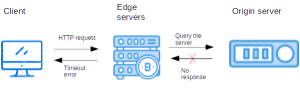
504 Gateway Timeout error explained
Visitors will see different variants of the error message like this:
504 Gateway Timeout
Error 504
Gateway Timeout Error
Nginx 504 Gateway Timeout
A blank white screen
Although the error message differs, the reasons for this error are common.
‘504 Gateway Timeout’ error in WordPress – Causes and Fixes
Now, let’s why WordPress shows 504 Gateway Timeout errors and how our Dedicated Support Engineers fix it.
1) Client side issues
Usually, 504 Gateway Timeout error pops up due to server side issues. But, misconfigurations on the user side may also result in this error.
This error can occur on the client side in the following situations.
- The browser settings are not configured properly.
- Network device issues.
- Incorrect proxy server settings in browser.
- Issues with VPN service.
- ISP or local firewall issues.
How we fix?
So, our Hosting Engineers contact the customer to perform these steps to confirm whether the issue is at the client’s side.
- Sometimes, the WordPress hosting server may be overloaded and customers see this error, so we ask them to clear the browser cache and try reloading the WordPress website.
- Try to load from another browser or in incognito window.
- Similarly, this can happen when network devices like router, modem, etc. are configured incorrectly. Here, we suggest the customers to restart the network devices.
- Disable the local VPN service for browsing.
- Try to access Wodpress application from different location or network.
- Clear the outdated DNS cache.
- Check with ISP or local firewall issues.
- Confirm that the browser’s proxy server settings are correct.
If the problem is not on the client’s side, our Hosting Engineers check the web server logs and WordPress error logs to identify the source of the problem.
For example, we add the below code in the WordPress wp-config.php file to enable WordPress error logs.
define( 'WP_DEBUG', true );
define( 'WP_DEBUG_LOG', true );
define( 'WP_DEBUG_DISPLAY', false );
From the details in the logs, we’ll narrow down the reason for the error.
Based on our experience with WordPress website problems, the following are the main server side causes that can trigger 504 Gateway Timeout errors.
2) DNS issues
504 Gateway Timeout error may occur due to DNS problems.
DNS changes are required during migration to new servers, hosting provider switch, etc. But, these DNS changes are not instant, and need some time to propagate globally.
So, when a customer browses the website during this propagation period, the browser can’t get the correct IP address and hence the connection times out.
That’s why, our Hosting Engineers always lower the DNS TTL value to reduce the DNS propagation period.
How we fix?
In this case, our Support Engineers check if the DNS propagation period is complete using the dig command.
dig +trace domain.comIf not, we’ll update the customer to verify after the propagation period.
In addition to that, we verify the domain’s DNS settings and fix any resolution errors we find out.
3) Issues with CDN
It’s now a common trend that website owners use CDN(Content Delivery Network) to improve the website load times.
But, if this is not properly configured, it can result in 504 timeout errors.
Some of the common configuration errors that we see are domain IP address not properly set in CDN, server firewall blocking CDN, etc.
How we fix?
In such cases, our Hosting Engineers first identify whether CDN is the culprit by the disabling CDN service for the website.
If the website works, we’ll review the CDN settings like DNS, firewall, etc. and sort out the issues identified.
4) Corrupted WordPress database
It’s true that database is the key part of a WordPress application.
So, a corrupted database can prevent the working of a WordPress website and cause 504 Gateway Timeout errors.
How we fix?
Here, our Hosting Engineers check the database server logs to identify the corrupted database.
Once we identify the corrupted database, we repair the database using mysqlcheck to see if that works.
For instance, we use the below command to repair a database table.
mysqlcheck -r DATABASE TABLEReplace DATABASE with database name and TABLE with database table.
Most importantly, before making any changes, we backup the database.
[Do you need help to recover your corrupted database? Our Server administrators are here for your help.]
5) Corrupted plugins or themes
Eventhough WordPress plugins or themes are less likely to cause this error, there is still a chance.
In other words, an outdated or incompatible plugin/theme, a caching plugin that makes too many requests to the server, can sometimes slow down the website and cause 504 errors.
How we fix?
We’ll deactivate all plugins associated with the WordPress site to confirm that plugins create a problem.
Our Hosting Engineers connect to the hosting account via FTP, and rename the plugins folder to something else. This deactivate all the plugins.
And, if this is successful, we’ll reactivate each plugin one by one and isolate the faulty plugin.
If that doesn’t work, we try switching to a default WordPress theme like TwentySixteen.
And, if the website works fine, we’ll remove the faulty theme and upload a fresh copy. If it’s not fixed, then only the theme developer can help here.
6) High load on origin server
Heavy load spikes causes services to not respond.
Here, proxy server wait for an output from origin server and eventually times out.
The most common reasons for load spikes are compromised server, heavy website traffic, DDoS or brute force attacks, application bugs that cause resource hogging, and so on.
How we fix?
Our Support Specialists will first identify the abused resource. Then, we find out which service is abusing that resource.
At this point, we identify the user who owns the script or software for abusing the service.
[And, your server is constantly under high load? Our experienced Server Administrators can fix it in minutes.]
7) Insufficient proxy timeout values
504 Gateway Timeout error can occur when a web server takes more time to complete the requests.
And, by that time, the proxy server will reaches its timeout values(timeout for the connection between proxy and origin server).
For example, slow queries can lead to such problems.
How we fix?
For proxy and web servers, we check the timeout values and fine tune it to avoid timeout errors.
For example, we adjust the following parameters in Nginx servers to avoid timeout errors.
proxy_connect_timeout
proxy_send_timeout
proxy_read_timeout
fastcgi_send_timeout
fastcgi_read_timeout
In addition to that, we adjust the PHP parameter max_execution_time in php.ini to bring positive results.
But, blindly increasing these values can affect server performance.
So, we only adjust the timeout settings after analyzing the server resources and server performance.
[Need help to tweak your proxy server timeout values? Our Support Experts are here for your help.]
 Firewall restrictions
 Firewall restrictions
Firewall is the keystone for server security. If not properly configured, it can block legitimate requests.
Sometimes, the firewall on the origin server can be improperly configured, or have rules that prevent the connection from being properly established.
As a result, it throws 504 Gateway Timeout in WordPress websites.
How we fix?
Our Server Security Specialists audit the firewall blocks and removes any unnecessary rules that hinder the connection to the server.
We modify the firewall rules in a way that it doesn’t create security risk on the server.
9) Slow web server/Network connectivity issues
Sometimes, the back end web server like Apache, which handles incoming requests, can be too slow to respond due to performance problems or high traffic levels.
Similarly, network connectivity problems between the proxy server and web server can cause delays in getting response for HTTP requests.
In both cases, the result is 504 Gateway Timeout error on WordPress websites.
How we fix?
For slow web servers, our Server administrators optimize web server and tweak web server configuration parameters to improve the performance.
Likewise, we use tools like traceroute to troubleshoot network connectivity problems and fix them.
Conclusion
In short, 504 Gateway Timeout errors on WordPress websites can occur due to DNS problems, client side issues, corrupted databases, and more. Today, we’ve discussed the top 9 causes for this error and how our Dedicated Support Engineers fix it.