
Иногда при посещении отдельных страниц сайта мы сталкиваемся с тем, что на экране вместо желаемого контента появляется сообщение об ошибке с цифровым кодом. Для «непосвященного» пользователя это просто набор цифр, но на самом деле в этих цифрах заложена определенная информация. Все они группируются по видам причин возникновения сбоя.
Сообщения, кодирующиеся в формате 5хх, говорят о проблеме на стороне сервера, например, когда невозможно выполнить запрос из-за нарушения связи между несколькими серверами. Ошибка 504 Gateway Time Out не является распространенной, но это не значит, что на нее не стоит обращать внимания, особенно владельцу сайта. Рассмотрим некоторые причины возникновения данной ошибки и способы ее устранения как на стороне обычного посетителя, так и администратором веб-ресурса.
Ошибка 504 Gateway Time Out – это код состояния HTTP, который появляется, когда в течение заданного периода времени один сервер не получает своевременный ответ от другого сервера, который действует как шлюз или прокси.
Описания ошибки могут иметь различную форму:
- 504 Gateway Timeout nginx
- Gateway Timeout Error
- HTTP Error 504
- 504 Gateway Time-out – The server didn’t respond in time
- HTTP Error 504 – Gateway Timeout
Наличие дополнительного словесного описания помогает конкретизировать причину возникновения сбоя.
Производительный хостинг в подарок при заказе лицензии 1С-Битрикс
Выбирайте надежную CMS с регулярными обновлениями системы и профессиональной поддержкой. А мы подарим вам год хостинга – специально для сайтов на 1С-Битрикс.
Заказать
Что делать посетителю сайта при возникновении ошибки 504
Итак, вы столкнулись с появлением на экране сообщения «error 504». Не спешите уходить с сайта, ведь возникновение сбоя может говорить о неправильной работе вашего браузера или даже наличии более серьезных проблем на уровне пользовательского софта. Попробуйте произвести довольно простые действия, чтобы убедиться, что с вашим программным обеспечением и настройками все в порядке.
- Перезагрузите проблемную страницу или текущий браузер. Если проблема устранилась и не повторяется вновь, особенно при посещении других сайтов, о ней можно просто забыть. При регулярном возникновении однотипных ошибок во время посещения разных ресурсов стоит покопаться в настройках собственного ПО поглубже.
- Зайдите на тот же самый сайт, где возникла ошибка сервера 504, используя альтернативный браузер. В случае, когда страница во время тестирования открылась корректно, обновите браузер, в котором случился сбой, до последней версии.
- Проверьте, как открываются страницы этого же сайта с другого компьютера или смартфона. Это позволит вам понять, не связано ли появление ошибки 504 с ПО конкретного устройства.
- При регулярном появлении HTTP ошибок, в т.ч. с кодом 504, очистите кэш браузера, удалите файлы cookies. Со временем в любом браузере накапливается много «мусора». Произведя очистку, вы поможете программе работать более корректно и даже быстрее.
- Произведите сброс настроек роутера или модема, отключив оборудование на некоторое время от сети. Данная операция вряд ли приведет к устранению ошибки 504, но может улучшить качество интернет-соединения. Провайдеры регулярно вносят изменения в настройки собственного софта, обновляют его. Иногда это приводит к конфликту в корректном взаимодействии пользовательского оборудования и серверов оператора. Перезагрузка устройства по питанию в большинстве случаев решает такие проблемы.
- Очистите кэш DNS. Данная операция кажется сложной для обычного пользователя, но на деле выполнить ее достаточно легко. Способ очистки зависит от вашей операционной системы, найдите соответствующий мануал в интернете.
- Для опытных пользователей подойдет рекомендация временно переключить DNS-сервер на Google Public DNS, что как минимум поможет определить, возник ли ошибочный код состояния HTTP по причине DNS проблемы.
Если после проведения всех вышеозначенных рекомендаций любая ошибка, в т.ч. 504 Gateway Time Out, продолжает возникать регулярно, обратитесь в техподдержку проблемного интернет-ресурса.
Комьюнити теперь в Телеграм
Подпишитесь и будьте в курсе последних IT-новостей
Подписаться
Решение проблем с появлением ошибки сервера 504 администратором веб-ресурса
Некорректная работа сайта чаще всего просто раздражает посетителя и приводит к тому, что пользователь находит альтернативный ресурс. Для владельца сайта такие сбои могут носить более глобальные последствия. Поэтому очень важно своевременно обнаруживать баги и максимально быстро устранять их. Для раннего мониторинга стоит использовать все возможные инструменты:
- проводить регулярную симуляцию пользовательского поведения на сайте;
- настроить автоматизированный мониторинг работоспособности ресурса как встроенными инструментами администрирования, так и с использованием специальных скриптов;
- обеспечить качественную работу службы технической поддержки сайта, своевременную обработку всех поступающих сообщений, особенно связанных с информацией о появлении разного рода ошибок на стороне пользователя.
Соблюдение последнего правила не только позволит практически без дополнительных затрат отслеживать все возможные проблемы, которые возникают при посещении сайта. Своевременная обработка пользовательских запросов, быстрый ответ, выдача рекомендаций и публичное обсуждение повышают лояльность и создают дополнительный PR-эффект.
Почти все ошибки с кодом 5хх, возникающие из-за невозможности обработки определенного количества запросов, поступающих на сервер, решаются методом апгрейда железа (использованием высокопроизводительного хостинга) либо оптимизацией работы программного обеспечения. Второй способ зависит от вида движка, на котором создан конкретный сайт. При использовании условно-бесплатных программ (WordPress, OpeneCart и других) все проблемы придется решать на уровне администрирования, с привлечением конкретного веб-программиста, разработавшего данный сайт. Если баги возникают на платных платформах (1С-Битрикс, UMI.CMS, NetCat CMS), напишите об ошибке 504 Gateway Time Out в техподдержку разработчика. Отправить сообщение о проблеме следует и разработчикам платных скриптов, если они установлены на вашем сайте, и вы считаете, что сбои возникают по причине их некорректного исполнения.
Вот некоторые причины, приводящие к возникновению ошибки 504 Gateway Time Out
- Резкий скачок нагрузки на сайт вследствие поступления большого количества внешних запросов, вызванного DDoS-атаками или действиями вирусного ПО, пиковым посещением сайта, например, в момент проведения различных акций в интернет-магазине, или единовременной загрузкой на сайт большого объема контента (импорт информации из CSV- или XML-файлов).
- Некорректная работа скриптов, плагинов и дополнений, конфликтующих как между собой, так и внутри.
- Превышение лимита доступных ресурсов при использовании виртуального хостинга.
Еще одна возможная причина возникновения ошибки 504 – исполняемый скрипт не укладывается в отведенный лимит времени. Это бывает, когда скрипт обращается к другим сайтам либо просто выполняет тяжелую операцию, например, строит поисковый индекс.
Рекомендации по устранению ошибки 504 Gateway Time Out методами администрирования сайта
Ошибка 504 Gateway Time Out может быть вызвана недавними изменениями или обновлениями на сайте. Если после отката к состоянию, предшествующему изменениям, баг исчез, следует найти конкретное действие, повлекшее возникновение ошибки. Для этого необходимо проверить журнал ошибок соответствующей CMS. Пользователи WordPress могут включить журналирование ошибок в файле wp-config.php добавлением следующих строк:
define( 'wp_debug', true );
define( 'wp_debug_log', true );
define( 'wp_debug_display', false )
Все возникающие варианты ошибок будут записаны в файле wp-contents/debug.log.
Для проверки работоспособности плагинов и расширений попробуйте отключить те, которые вызывают подозрение как источники возникновения ошибки 504. В первую очередь это касается устаревших скриптов, но причиной могут оказаться и обновления. Если проблема исчезла, далее следует найти некорректный плагин или дополнение и устранить или исправить его. Один из способов улучшения работы исполняемого скрипта – увеличить значение параметра PHP max_execution_time или облегчить скрипт.
При использовании CDN для более быстрого получения контента, в частности CloudFlare, который работает как CDN и как сервис предотвращения негативных последствий от DDoS, вы можете столкнуться с двумя типами ошибок 504. В случае возникновения проблемы на стороне CloudFlare лучшим решением будет связаться с поддержкой CloudFlare или отключить его. Второй вариант – когда сбой возникает на стороне хостинг-провайдера. В этой ситуации также необходимо обратиться в службу поддержки хостера.
Часто ошибку 504 можно видеть на серверах, где используется VPS-хостинг и установлен Nginx в качестве фронтенда и Apache в качестве бэкенда. Для устранения проблемы в Apache можно увеличить значение timeout по умолчанию в файле httpd.conf:
# Timeout: The number of seconds before receives and sends time out.

Timeout 600
Также увеличить лимит в max_execution_time в php.ini:
После внесения изменений следует перезапустить Apache. Ошибка 504 Gateway Time Out должна исчезнуть.
Аналогичным образом проблема с появлением ошибки HTTP 504 решается пользователями Nginx. Попробуйте увеличить такие параметры в файле /etc/nginx/conf.d/timeout.conf:
proxy_connect_timeout 600;

proxy_send_timeout 600;

proxy_read_timeout 600;

send_timeout 600;
Также рекомендуется увеличить max_execution_time в php.ini:
Далее перезапустите Nginx и откройте сайт.
Более простым решением устранения данной проблемы является использование панели управления сервером.
Данный способ позволяет администрировать настройки веб-сервера без использования консоли, один раз настроить их под ваш проект и больше не подключаться к серверу без острой необходимости.
Например, в бесплатной панели управления Vesta Control Panel достаточно внести изменения в раздел «Сервер» и навсегда забыть о возможности возникновения ошибок на сайте.
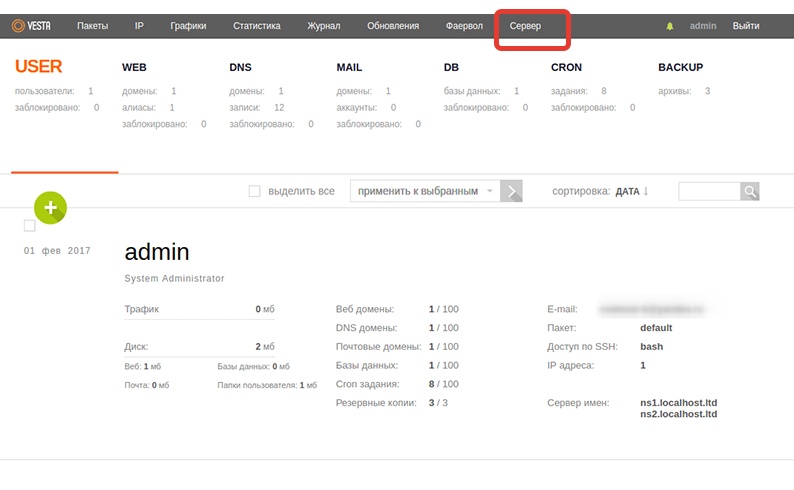 И далее внести соответствующие изменения.
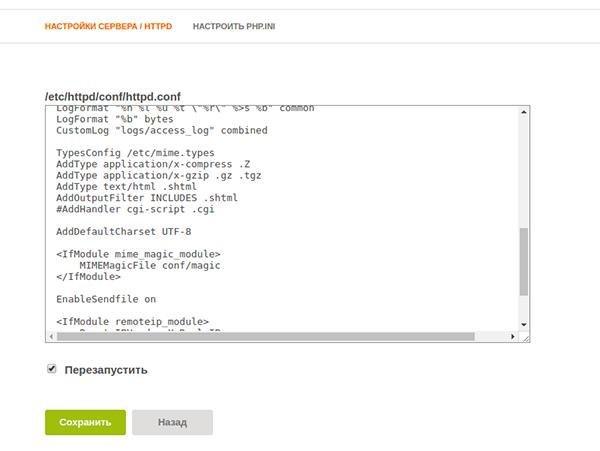
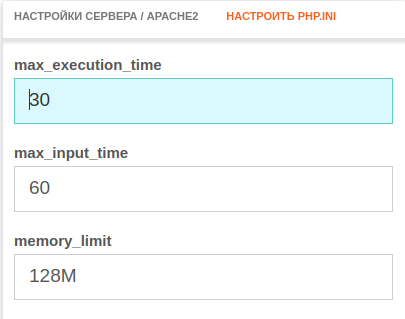
Аналогичным способом проблема устраняется и при использовании альтернативных панелей управления хостингом – Ajenti, CentOS Web Panel, ISPmanager и других.
Если вы считаете, что появление 504 Gateway Timeout вызвано превышением лимита использования ресурсов серверного железа, оптимальным решением будет аренда выделенного сервера или VPS. Когда ваш сайт уже размещен на виртуальном хостинге, но ни одна из рекомендаций не привела к исправлению error 504, обратитесь к хостинг-провайдеру. В этом случае подробно опишите причины, которые, как вы полагаете, привели к появлению сбоя.
Заключение
В данной статье мы рассмотрели основные причины возникновения ошибки HTTP 504 Gateway Timeout и популярные способы устранения неполадки. Уверен, некоторые администраторы веб-ресурсов сталкивались с подобными проблемами, выходящими за рамки приведенных примеров и рекомендаций.
Буду благодарен, если вы поделитесь своим опытом в комментариях.
Ошибка 504 Gateway Timeout (от англ. «тайм-аут шлюза») — это код состояния HTTP, который указывает на то, что веб-сервер не получил своевременного ответа от вышестоящего сервера при попытке загрузить страницу. Простыми словами, ошибка 504 Gateway Timeout — это свидетельство о сбое на сервере, когда он выступает шлюзом или в качестве прокси.
В нашей статье клиент — браузер, а сервер — специализированная или выделенная машина.
Как выглядит ошибка 504
В зависимости от конфигурации у ошибки 504 есть различные формы написания:
- 504 Error.
- «Время ответа сервера истекло».
- HTTP Error 504.
- «Ошибка таймаута шлюза».
- Gateway timeout.
- The server didn’t respond in time.
Точный текст ошибки зависит от того, какой именно сервер используется в качестве фронта и какой в качестве бэка. Самые частые сценарии — Nginx и Apache, соответственно.
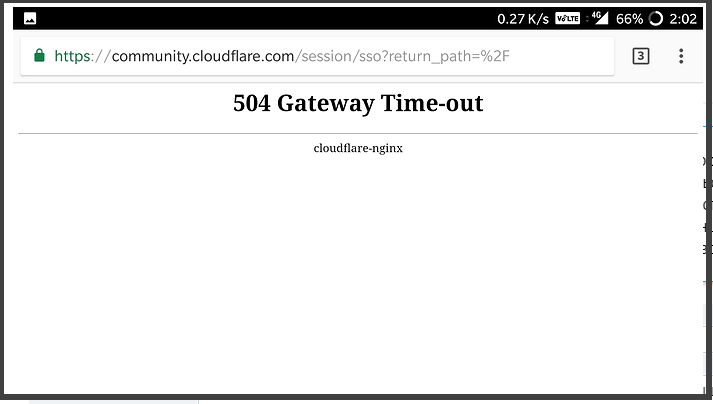
Почему возникает ошибка 504
Самая популярная причина — перегрузка сервера. Давайте посмотрим, почему она происходит и какие источники встречаются наиболее часто.
Источник перегрузки может быть связан как с непрогнозируемым наплывом трафика, так и с ошибками, которые возникают на самом сайте. Так что даже источник сбоя на сервере может относится к внутренним сбоям сайта.
Ошибки от плагинов
Многие веб-мастера устанавливают большое количество разнообразных плагинов для расширения функционала сайта. Например, для внедрения кеширования страниц или добавления на сайт CDN (сеть доставки контента). Подобные плагины могут загружать данные со сторонних источников — например, удаленных серверов. Если на таком сервере возникает сбой, определенная страница или сайт целиком может начать отдавать 504-ю ошибку.
Ошибки от скриптов
Это то же самое, что и ошибки от плагинов, так как плагин представляет из себя один или несколько скриптов. Если скрипт загружает данные с удаленного сервера, но возникает сбой или задержка при выполнении, может появиться ошибка Gateway Timeout. Когда один или несколько скриптов выполняются слишком долго, это приводит к таймауту.
Аномальное увеличение посещаемости
Если на сайте резко увеличивается трафик, сервер может работать медленнее. Чем больше трафика, тем больше запросов к серверу. Со временем количество неотвеченных запросов только увеличивается, в итоге взаимодействие с сервером прекращается и отправляется код состояния 504 Bad Gateway.
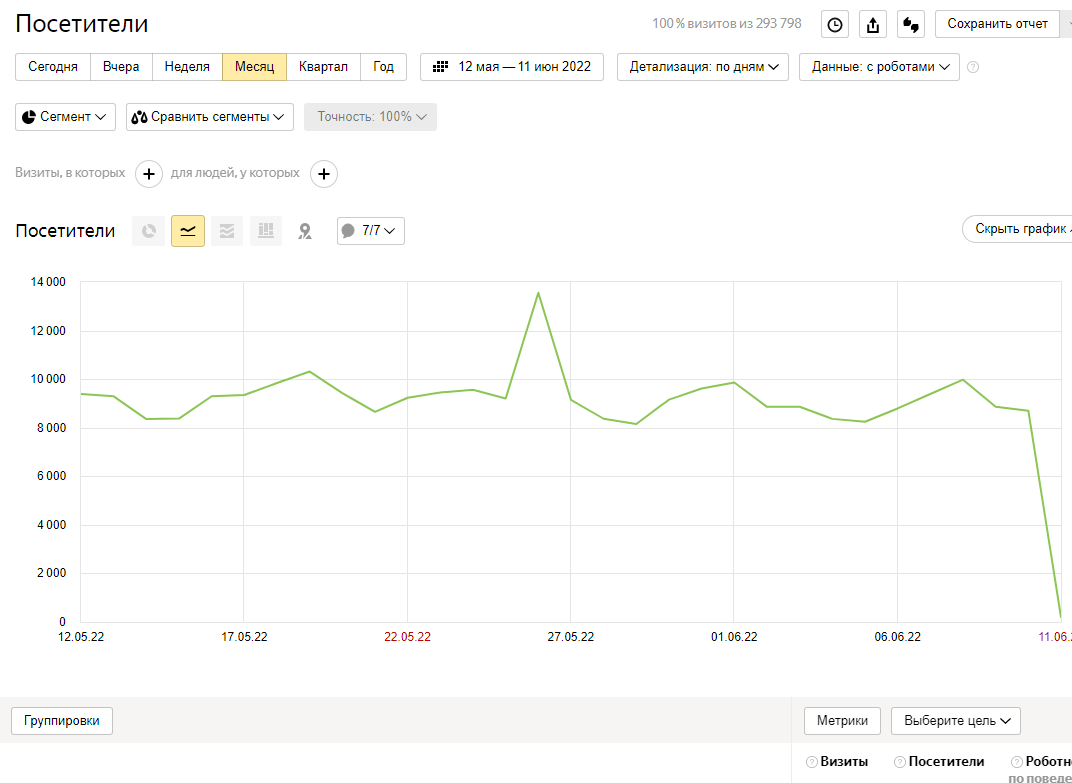
Израсходование лимитов тарифного плана хостинга
Начальные тарифы не предназначены для сайтов с высокой посещаемостью. В панели управления хостингом убедитесь, что статическая нагрузка, оперативная память, дисковая квота и другие ресурсы сервера не превышаются.
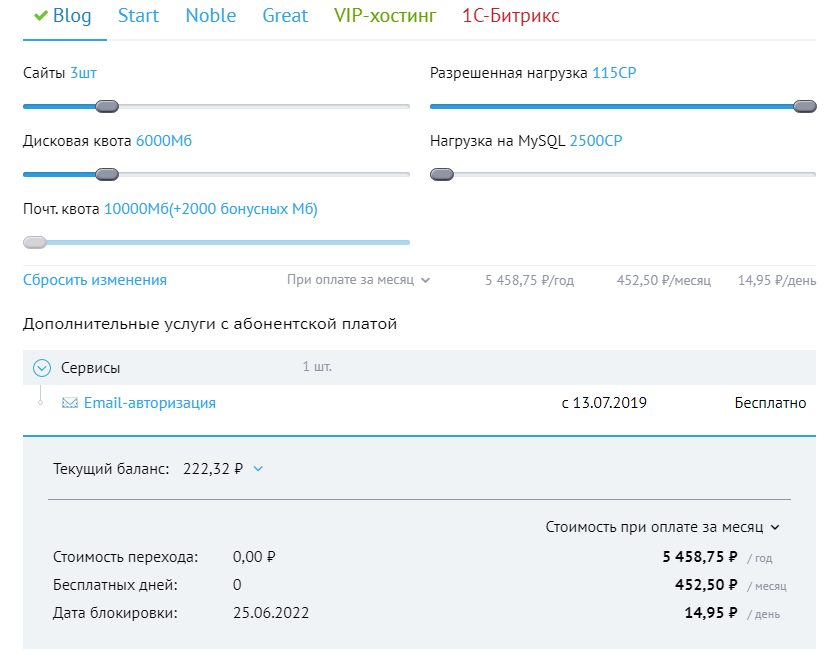
Загрузка на сайт файлов
Каждый раз, когда вы обращаетесь к сайту через административную панель, статическая нагрузка на сервер повышается. Например, вы загружаете видео или большое количество изображений либо импортируете длинный список товаров в интернет-магазин XML-файлом.
Во всех вышеуказанных сценариях статическая нагрузка на сервер будет заметно увеличиваться, так как каждый переданный мегабайт требует дополнительных вычислительных ресурсов от серверной машины.
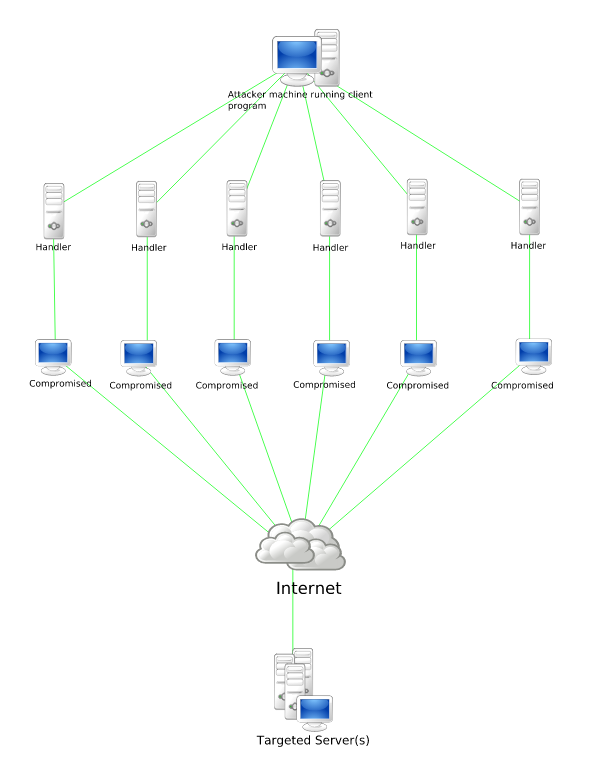
Хакерские атаки
504 ошибку могут вызывать различные атаки на сайт — например, распределенная атака типа «отказ в обслуживании». Чтобы диагностировать эту причину — обратитесь в поддержку хостинга. Если атака подтвердится — установите на сайт защитный экран, например Cloudflare.
Вредоносный код в файлах сайта
Вирусы, шелы, бэкдоры и другие уязвимости сайта могут привести к тому, что он будет заражен вредоносным кодом. В этом случае можно ожидать самое непредсказуемое поведение ресурса, включая появление разнообразных кодов состояния HTTP и других негативных последствий, например, утечки данных. Это зависит от того, какую цель преследует хакер, пытаясь воздействовать на ваш сайт.
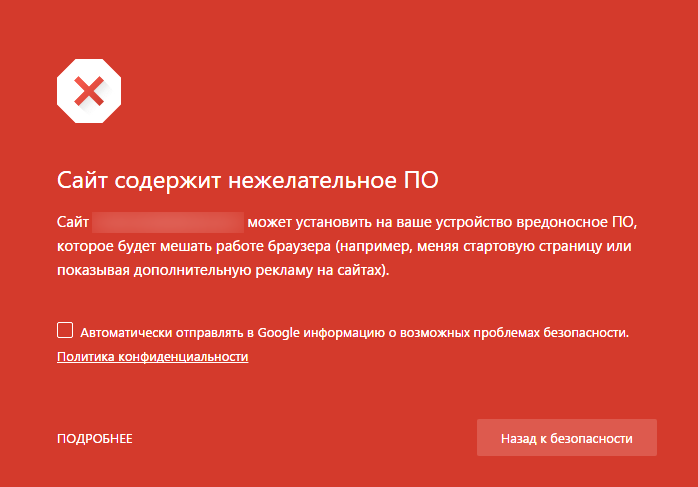
Ошибка в браузере
В редких случаях код ответа 504 может свидетельствовать о некорректной работе браузера. Например, у вас отключен JavaScript или в кэше накопилось большое количество ошибок. Все это может привести к тому, что страница не будет загружаться корректно. Попробуйте сменить браузер или устройство и откройте проблемную страницу. Если получилось, то это именно ваш сценарий.
Как исправить ошибку 504 вебмастеру
Теперь рассмотрим, как решить ошибку самостоятельно. Отдельно пользователю и отдельно вебмастеру.
У вебмастера есть гораздо больше возможностей, чтобы повлиять на ошибку.
- Во первых: нужно обратиться в саппорт используемого хостинга и уточнить, не превышены ли лимиты по использованию ресурсов серверного железа на вашем аккаунте. Если вы укладываетесь в ограничения выбранного тарифного плана, то нужно искать другой источник появления 504-й.
- Во вторых: вспомните, какие глобальные изменения вы делали на сайте в последнюю неделю или две. Возможно вы меняли тему (дизайн) сайта, глобальный вид URL или устанавливали какие-либо плагины.
Если вы вспомнили конкретное изменение, просто откатитесь к предыдущей версии: например, удалите плагин или верните старую тему сайта.
«У меня VPS с Nginx / Apache»
С такой конфигурацией сервера возникновение 504 ошибки встречается довольно часто. Чтобы устранить ее, найдите конфигурационный файл сервера, который называется httpd.conf. Находится он в дистрибутиве Apache, соответственно. Что нужно сделать:
- Устанавливаем значение тайм-аута на 700 секунд и сохраняем файл. Перезагружаем бэкенд (для этого используем команду service nginx reload) и проверяем, ушла ошибка или нет.
- Находим файл php.ini. Открываем его и изменяем значение максимального времени исполнения на 300 секунд. Опять перезагружаем backend (используем команду service nginx reload) и проверяем, ушла ошибка или нет.
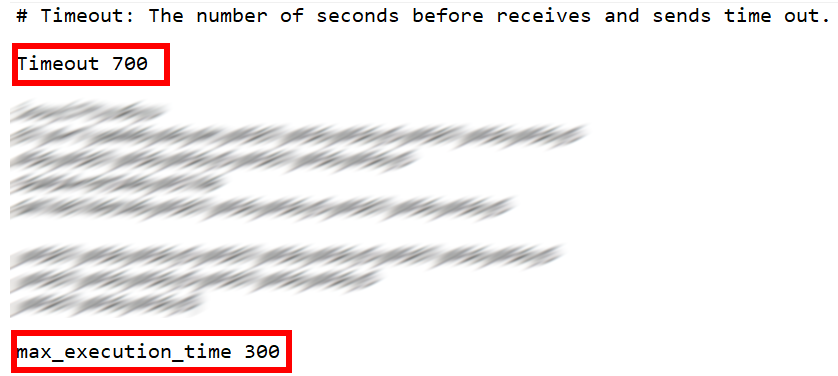
В некоторых случаях изменить время максимального исполнения файла не удастся, так как это может быть запрещено конфигурацией сервера.
Изменение портов в панели управления хостингом
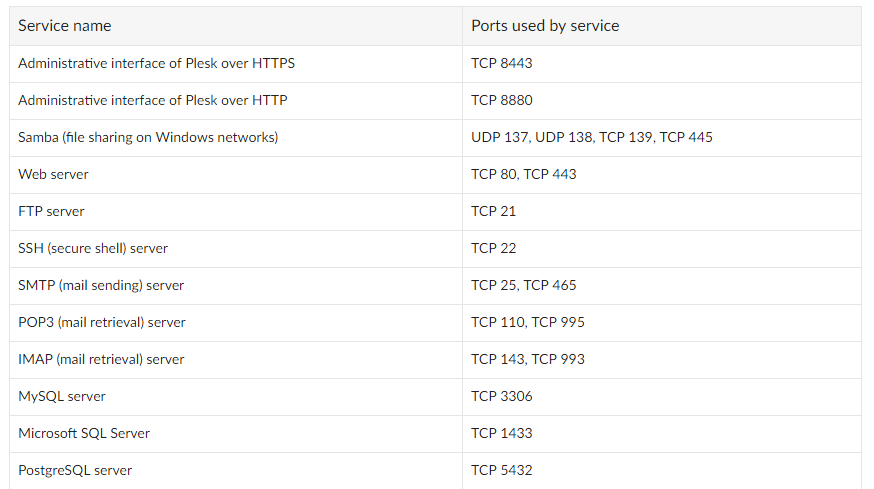
Также попробуйте изменить порты для обращения к сайту. Так вы решите проблему в случаях, когда выполнение скрипта занимает продолжительное время (более 30 секунд). В разных панелях управления хостингом нужно устанавливать разные порты. Например в Plesk — это 8080, в ISPManager — 8081.
«У меня на сайте используются CDN: что делать»
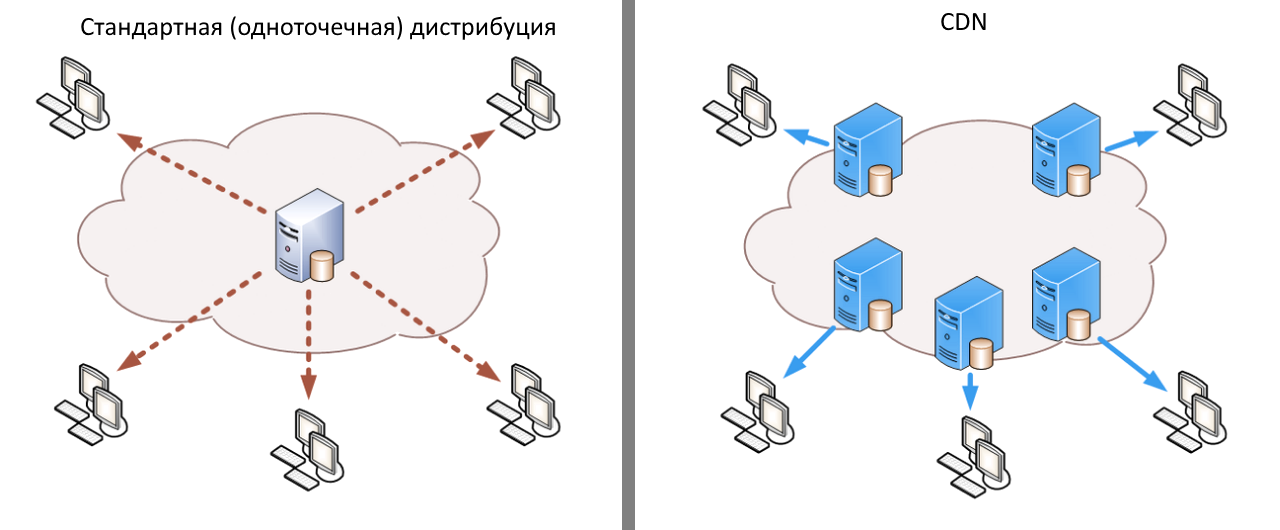
Выше мы уже говорили о том, что кэширующий сервер может стать причиной длительного ожидания ответа от главного сервера. Чтобы решить эту проблему, отключите сеть доставки содержимого на своем сайте. После этого очистите кэш сайта и попробуйте открыть проблемную страницу. Если ошибку 504 вызывал CDN, то страница сразу откроется.
Перенос сайта на другую сетевую конфигурацию
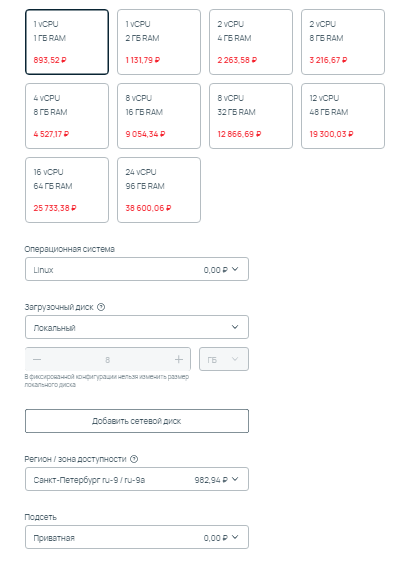
Если изменить значение максимального времени исполнения в php.ini для вас затруднительно, вы можете просто перейти на облачный тариф хостинга. В облачной инфраструктуре доступно тонкое управление параметрами сервера, включая регулировку технических ограничений.
Включите журналирование ошибок
Этот способ поможет точно установить, в каком именно месте происходит ошибка, не позволяющая открыть страницу. В CMS журналирование может активироваться разными способами. Например, на WordPress необходимо открыть файл wpconfig.php и добавить в него три PHP-константы для установки отладки:
define( ‘wp_debug’, true );
define( ‘wp_debug_log’, true );
define( ‘wp_debug_display’, false );
Сохраняем wpconfig.php. Все, теперь логирование ошибок включено и вы сможете посмотреть источник ошибки в журнале.
«У меня веб-сервер nginx: что делать»
В дистрибутиве сервера найдите конфигурационный файл тайм-аута и измените значения для времени:
- таймаута для отправки прокси;
- тайм-аута для чтения прокси;
- времени отправки тайм-аута.
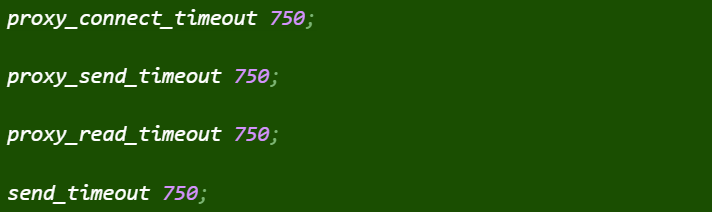
Обычно конфигурационный файл тайм-аута находится в следующей директории:

Важно: перед открытием конфигурационного файла обязательно подключитесь по протоколу SSH.
Если вы используете VPS, необязательно вручную искать конфигурационный файл, чтобы изменить значение параметров. Просто откройте административную панель сервера, найдите настройки сервера и добавьте необходимые значения. Как правило, настройки php.ini и параметры httpd всегда разнесены по разным вкладкам. Справедливо это для ISPmanager, Ajenti, Vesta Control Panel и других популярных панелей управления сервером, например, CentOS Web Panel.
Неполадки сервера
Создайте тикет в саппорте хостинга и уточните, существуют ли на данный момент какие-либо неполадки с сервером. Это довольно редкий сценарий, но проверить его также необходимо, если ошибку не удалось устранить вообще никакими из вышеописанных способов.
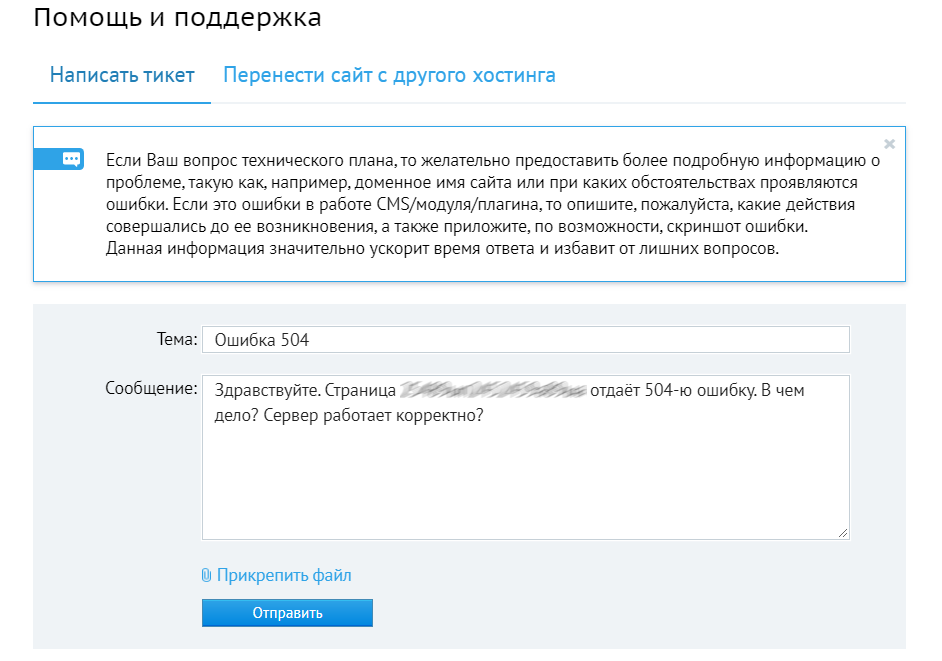
Как исправить ошибку 504 пользователю
Попробуйте открыть проблемную страницу из другого браузера. Если причина сбоя в некорректных настройках обозревателя, этот способ позволит подтвердить такой источник ошибки.
Очистка DNS
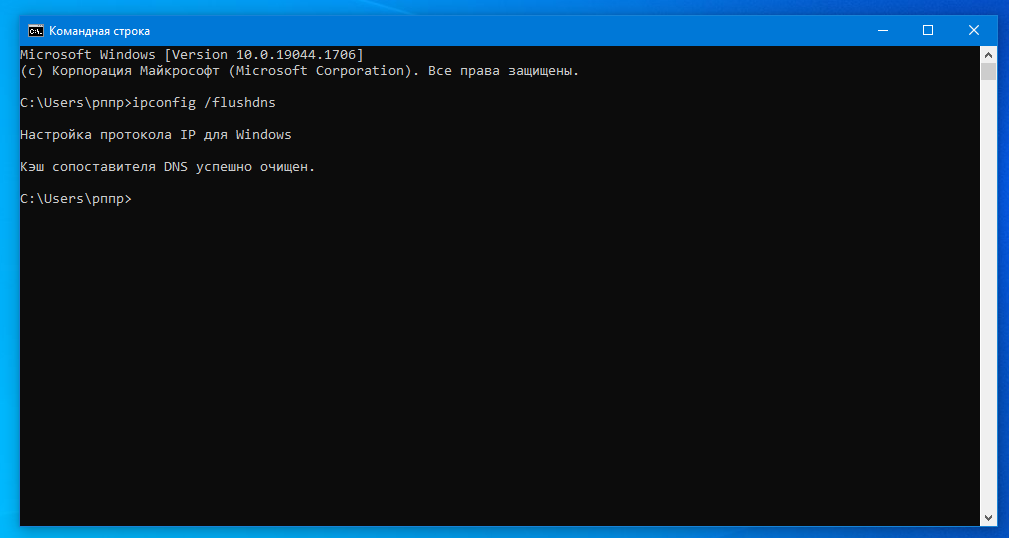
Очистите кэш DNS в используемой операционной системе:
- На macOS необходимо открыть «Терминал» и указать команду sudo killall -HUP mDNSResponder.
- На Windows нужно открыть командную строку и ввести команду: ipconfig /flushdns.
Другие способы
Если очистка DNS-кэша не помогла, попробуйте выполнить следующие действия
- Обновите страницу с очисткой ее кэша. Для этого используется сочетание горячих клавиш Control + F5. В редких случаях в кэше могут накапливаться ошибки, особенно если вы часто посещали сайт, на котором теперь возникает ошибка.
- Попробуйте открыть проблемную страницу с другого устройства. В редких случаях в системе могут накапливаться ошибки, которые препятствуют открытию всего сайта или конкретной страницы. Диагностировать эту причину и поможет смена устройства.
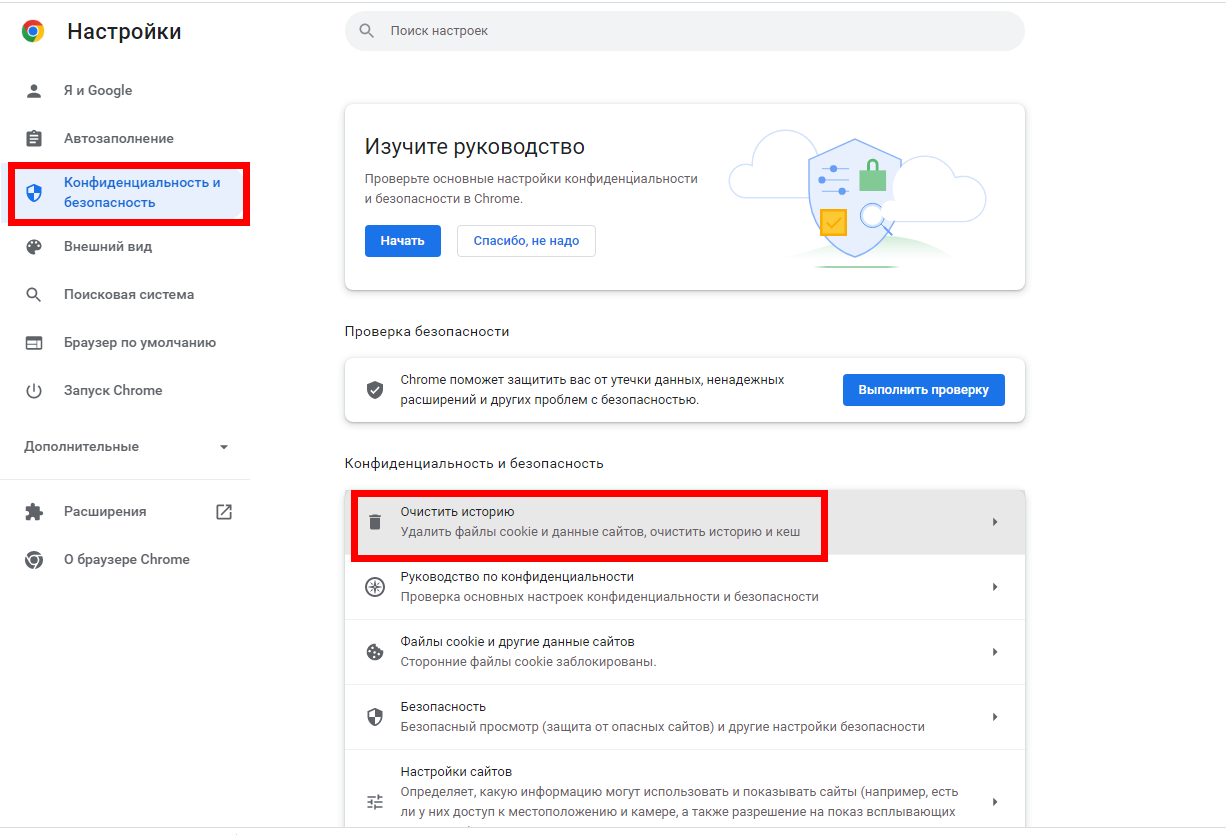
- Удалите временные файлы браузера, включая кэш-файлы и файлы-куки.
Заключение: профилактика появления Gateway timeout для вебмастера
Прежде чем выбирать тариф хостинга, обязательно поинтересуйтесь в поддержке, какой тарифный план подойдет для вашего сайта. При этом вы должны будете предоставить данные по текущему трафику, размеру сайта, а также:
- Какие ресурсы серверного железа вы планируете использовать.
- Что хотите настраивать.
- Наличие каких технологий для вас является критически важным.
Так вы сможете выбрать максимально подходящий и быстрый сервер под свои задачи. Ну а 504 ошибка точно не будет появляться на сайте.
I have been using jquery to try and pull data from an API. However I am getting a 504 error. Even when I am using postman to test the data this happens. Can anyone suggest what I need to do to get around this?
asked May 7, 2017 at 14:01

I recently experienced this issue on one of my app’s that was making an ambitious call to it’s Firebase Database — it was grabbing a very large record, which took over 60 seconds (the default timeout) to retrieve.
For those experiencing this error, that have access to their app / site’s hosting environment, which is proxying through NGINX, this issue can be fixed by extending the timeout for API requests.
In your /etc/nginx/sites-available/default or /etc/nginx/nginx.conf add the following variables:
proxy_connect_timeout       240;
proxy_send_timeout          240;
proxy_read_timeout          240;
send_timeout                240;
Run sudo nginx -t to check the syntax, and then sudo service nginx restart.
This should effectively quadruple the time before NGINX will timeout your API requests (the default being 60 seconds, our new timeout being 240 seconds).
Hope this helps!
answered Oct 3, 2018 at 1:06

0
There is nothing you can do.
You are sending a request to a server. This particular request fails, because the server sends a request to a proxy, and gets a timeout error. Your server reports this back to you as status 504.
The only way to fix it is to fix the proxy (make it respond in a timely manner), or to change the server to not rely on that proxy. Both are outside your area.
You cannot prevent such errors. What you can do is find out what user experience there should be when such a problem happens, and implement it. BTW. If you get 504 errors, then you should also expect timeout errors. Say you make a request to your server with 60 second timeout, and your server makes a request to the proxy with 60 second timeout. Because both timeouts are the same, sometimes your server will receive the proxy timeout and send it to you (status 504), but sometimes your request to the server will time out just before that, and you get a timeout error.
answered May 7, 2017 at 14:20

gnasher729gnasher729
50.9k5 gold badges74 silver badges96 bronze badges
1
One way to fix this is, Changing proxy settings to «NO PROXY» in the browser
It works in Firefox browser, Others I don’t know.
Follow the steps:
1. Go to preferences (top right corner 3 lines, search in drop down)
-
Search for proxy (Ctrl+F)
-
Go inside the settings
-
select «NO PROXY» in the choice buttons, below «Configure Proxy Access to the Internet»
-
refresh web page.
answered Feb 19, 2020 at 12:10

0
If you’ve ever visited a website that served you an error page, you know how frustrating it is.

One of the worst things you can do as a brand is not meet your audience’s needs and expectations. If your website visitors see an error page when they’re looking for help or information, they could get frustrated and lose trust in your brand, permanently damaging your reputation.
The 504 Gateway Timeout Error is one type of error that can hurt the user experience in this way. To help you avoid losing brand sentiment and consumer trust, we’ve fleshed out exactly what this error means and what its most common causes and solutions are.

What is a 504 Gateway Timeout Error?
A 504 Gateway Timeout Error means your web server didn’t receive a timely response from another server upstream when it attempted to load one of your web pages. Put simply, your web servers aren’t communicating with each other fast enough. Since a 504 Gateway Timeout Error is rather generic, it doesn’t actually pinpoint the exact cause of the issue. When this happens, your website will serve an error web page to your site’s visitors.
Here’s how a 504 Gateway Timeout Error might appear in your user’s browser:
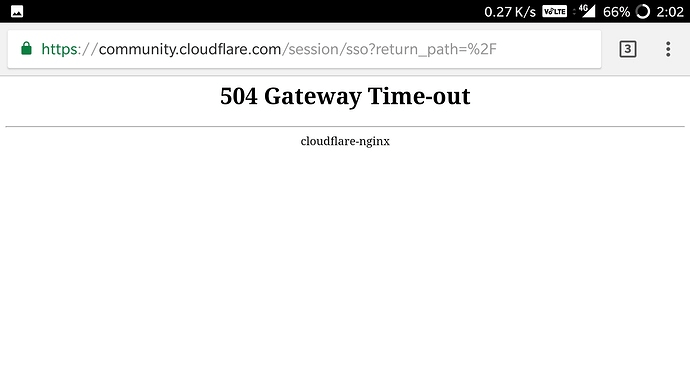 Image Source
504 Errors Wording
The screenshot above depicts how a 504 Gateway Timeout Error appears in one server. Below are some other common ways a 504 error might appear, depending on the server, operating system, or browser you’re using.
- In Google Chrome, a 504 error will appear as HTTP ERROR 504. This code will appear below a message that reads something like: “This site can’t be reached. _____ took too long to respond.”
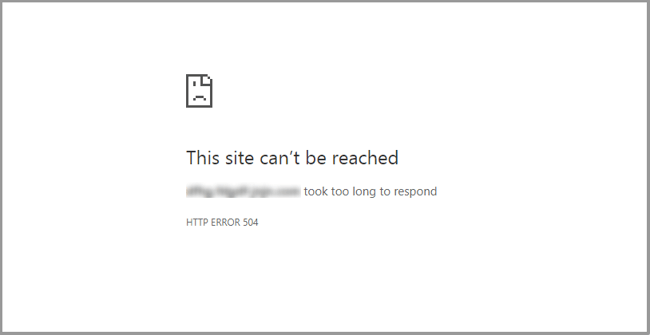
Image Source
- In Windows-based programs, a 504 error will appear as ERROR 504, HTTP_STATUS_GATEWAY_TIMEOUT, or “The request was timed out waiting for a gateway message.” Here’s how it may appear when using Excel:
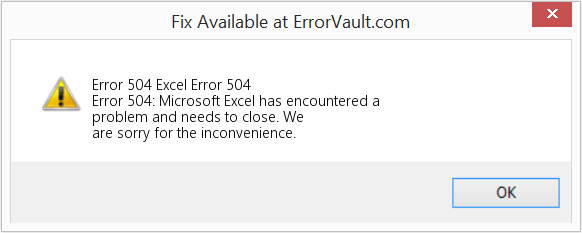
Image Source
- During a Windows Update, a Gateway Timeout Error generates a 0x80244023 error code. The message will be: WU_E_PT_HTTP_STATUS_GATEWAY_TIMEOUT.
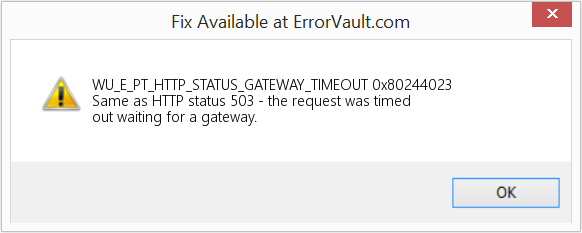
Image Source
- In other operating systems, web servers, or browsers, a 504 error may also result in the following message — although it’s less common: “The proxy server did not receive a timely response from the upstream server.” Here’s a slight variation:
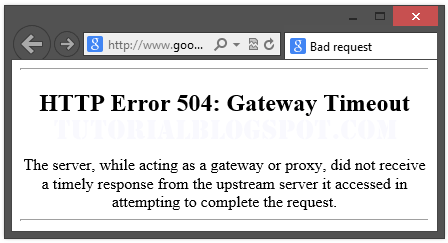
Image Source
So now we know how the 504 error is worded — but what does it mean exactly? Let’s decode it below.
What does 504 gateway timeout mean?
When visiting a website, your server sends a request to another server where that site is hosted. This server — known as the «upstream server» — receives the request and responds with whatever resources are needed to load the website on your browser.
However, a 504 Gateway Timeout error means that your server didn’t receive a quick enough response from the upstream server. Because its request timed out, your server is unable to load the web page and, ultimately, fulfill its role as a gateway — hence the name «Gateway Timeout» error.
You might be wondering what exactly causes the delay in the upstream server’s response — and that’s a good question. Let’s address it below.
504 Gateway Timeout Errors are among the most frustrating HTTP status codes you can receive. They indicate what happened to your website, but they don’t tell you why it happened, making it challenging for you to pinpoint its cause and ultimately correct the issue.
Below are a few possibilities.
Server Connectivity Issues
Most websites live on multiple servers or third-party hosting providers. If your server is down for maintenance or any other reason, your website could serve visitors a 504 Gateway Timeout Error page.
DNS Changes
If you’ve recently changed servers or moved your website to a different IP address, it’ll make changes to your website’s DNS server. This could cause your website to serve its visitors a 504 Gateway Timeout Error page. Your website won’t be up and running until these DNS changes take full effect, which can take a few hours.
Faulty Firewall Configurations
Your firewall is your website’s gatekeeper, protecting your site from malicious visitors or distributed denial-of-service (DDoS) attacks. Sometimes, a faulty firewall configuration will cause your firewall to deem requests from a content delivery network as an attack on your server and reject them, resulting in a 504 Gateway Timeout Error.
Errors in Your Website’s Code
If there’s a mistake in your website’s code, your server might not be able to correctly answer requests from a content delivery network.
Network Connectivity Errors
Since a 504 error is the result of a timeout during the processing of a request between servers, the problem likely lies with them — not the user’s internet connection or device. However, if only one user reports seeing a 504 error on your site, it could have to do with their modem, router, or another device. or their internet connection.
Since there are multiple reasons why a 504 error might occur, it will ultimately be up to you to rule each one out until you find the true cause. Fortunately, there are five common and effective solutions for fixing most 504 Gateway Timeout Errors’ causes.
How to Fix 504 Gateway Timeout Errors
- Look for server connectivity issues.
- Check for any DNS changes.
- Sift through your logs.
- Fix faulty firewall configurations.
- Comb through your website’s code to find bugs.
- Contact your hosting provider.
1. Look for server connectivity issues.
If your server is down for maintenance or any other reason, then your website will likely serve visitors a 504 Gateway Timeout Error page. The only way to troubleshoot this issue is to wait for your server to finish maintenance or fix the problem causing the error.
2. Check for any DNS changes.
If you’ve recently changed hosting providers or moved your website to a different IP address, then your website’s DNS server will need to be updated. These DNS changes take a few hours to process so in the meantime your website might serve visitors a 504 Gateway Timeout Error page. The only solution is to sit tight while these DNS changes take effect.
3. Sift through your logs.
If the problem is not your server’s connection or DNS information, then check out your server logs. These logs provide details about your server’s health and status. Sifting through them may uncover other issues that could be causing a 504 error.
4. Fix faulty firewall configurations.
A faulty firewall configuration may be the reason behind your 504 Gateway Timeout Error. To rule it out as the cause, you can temporarily deactivate your firewall.
If your device runs on Windows, then navigate to your control panel and click Update & Security > Windows Security > Virus & Threat Protection > Manage Settings. On this settings page, you can deactivate your firewall.
If your device runs on Mac OS, then simply navigate to System Preferences > Security & Privacy > Firewall to deactivate it.
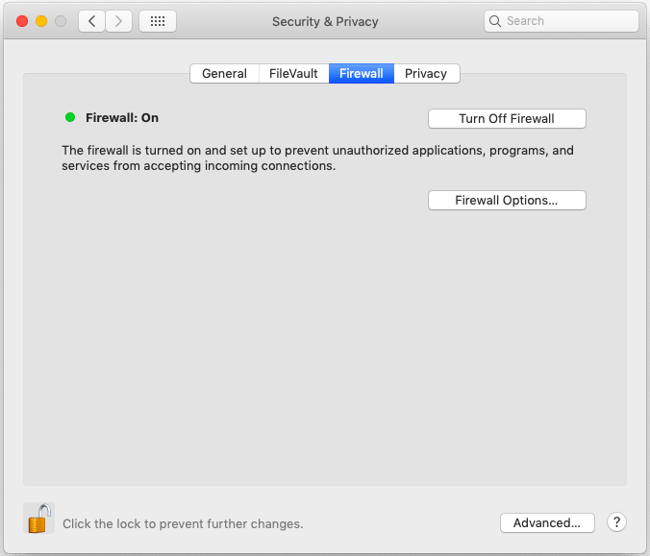
Once you’ve deactivated your firewall, check to see if the 504 error is resolved. If it is, you can either reconfigure the settings of your existing antivirus program or switch to a new one.
If the error is not resolved, don’t forget to reactivate your firewall before moving onto the next step.
5. Comb through your website’s code to find bugs.
Comb through your code to find any bugs or copy your code into a development machine. It’ll perform a thorough debug process that will simulate the situation in which your 504 Gateway Timeout Error occurred and allow you to see the exact moment where things went wrong.
6. Contact your hosting provider.
Contacting your hosting provider should be a last resort. But if you’ve tried the steps above and are still seeing the 504 Gateway Timeout error, they may be able to solve the issue or provide valuable insight.
How 504 Gateway Timeout Errors Affect SEO
Fixing a 504 Gateway Timeout Error can take time — but it’s well worth the effort considering how it can impact your site’s technical SEO.
Like an HTTP 500 Internal Server Error, 503 error, or any other 5xx error, a 504 Gateway Timeout error prevents your website from loading. This not only hurts the user experience — it also hurts your SEO performance.
If a web crawler attempts to crawl one of your pages and is served a 504 error, then it can’t crawl the page. If that page has already been indexed, then it might be lowered in the search engine results. Or it might be deindexed if the error persists.
Resolving the 504 Gateway Timeout Error
There’s no foolproof way to prevent 504 Gateway Timeout Errors on your site, but there are steps you can take to resolve them. By fixing this error as quickly as possible, you’ll ensure that visitors continue to have seamless experiences on your site and mitigate any negative impacts on your SEO.
Editor’s note: This post was originally published in January 2019 and has been updated for comprehensiveness.

If you’ve ever visited a website that serves you on an error page, you would have experienced how frustrating it is classified as the most frustrating thing you can do as a brand doesn’t meet your target audience’s needs and expectations. If you’re a website visitor, you would have probably viewed an error page when the users are looking for help or information. They couldn’t get frustrated and lose trust in your brand, permanently damaging your reputation.
The 504 Gateway Timeout Error is considered one type of error that can hurt the usability experience in such a manner. It will help you avoid the loss of brand sentiments and customer trust. We’ve discussed which type of error it means and the common causes and solutions to improve your website with effective technical SEO. You need to start by conducting this activity. In other words, 504 errors indicate a different computer, the one that your website is getting the message on doesn’t control. Still, it heavily relies on and isn’t communicating with it in a fast-paced environment.
What is a 504 Gateway Timeout Error?
A 504 Gateway Timeout Error can be highlighted in the internet browser window, similar to normal web pages. The 504 error highlights a problem with your network connection or server communication speed.
When the browser sends an HTTP request to the server, it doesn’t receive a response from the upstream server in time to complete the request. Thus the request is “timed out.” Since a 504 Gateway Timeout Error is rather considered a generic format, it doesn’t actually pinpoint the exact cause of the problem. If this happens, your website will serve an error web page to your site’s visitors.
How You Might See the 504 Error?
If you are looking into individual websites are allowed to customize how they show a “gateway timeout” errors, but here are the most common ways that you’ll see one spelled out error:
- 504 Gateway Terminal
- HTTP 504
- 504 ERROR
- Gateway Timeout (504)
- HTTP Error 504 – Gateway Timeout
- Gateway Timeout Error
A 504 Gateway Timeout error is displayed in the internet browser window, similar to what the normal web pages do. There would be a website’s familiar headers and footers, and it seems to be a very nice English message on the page, or it could show up on an all-white page with a big 504 at the top. It shows an instinctive and identical same message, regardless of how the website happens to show it.
What are the Causes of 504 Gateway Timeout Errors
Most of the time, the question arises what does 504 gateway timeout errors mean, it refers to whatever other server is taking so long that its “timing out” is probably down or not working properly. Since this error is based on a network error between servers on the internet or an issue with an actual server, the problem is probably with your computer, device, or internet connection. Hence, there are certain things that you can try in the case of fixing the HTTP 504 gateway timeout error.
How Do I Fix the Fix the 504 Gateway Timeout Error?
If you see a 504 Gateway timeout error, you might be confused about what to do further? You can always try the following steps:
1. Try to Reload the Page
The foremost thing you should do when you face the HTTP Error 504 Gateway Timeout is to simply wait for a minute and reload the page. Regardless, the hosting or server merely is overloaded, and the site will quickly return to work.
In another instance, you can easily check your website status on a specific website. This site will inform you if the site is out of service only for you or for all the visitors. The tools easily check the HTTP status code that is returned by the server. If the code differs from 200, then, in this case, you will see the done pointer. It will mean that the site doesn’t work for everyone.
2. Try a Different Browser
In such a case, the site is online, but you still see the HTTP Error 504 Gateway Timeout. You need to try changing your browser to another one. You must clear the browser cache or use the incognito mode, this can also help the user to determine if the error is caused by the browser.
3. Check on Different Devices
Try opening the site on different computers, on different networks, or on mobile devices. If nothing could help to fix the Error 504 gateway timeout, this step will help you to determine if the problem is on the server-side or it is local.
4. Disable the Proxy

Sometimes you might receive an HTTP 504 error code if you use a proxy server. These cases are quite rare, especially on the client-side. You need to read the guidelines on how to disable proxy on Windows and Mac.
5. Check DNS Records Propagation
Sometimes, HTTP Error 504 gateway timeout often causes a few problems with the DNS server. There are two reasons for that on the server side, it happens whenever the domain name isn’t changed to the correct IP address. If you’ve shifted the WordPress website to a new hosting domain, it’s essential to wait until the address will be implemented to the DNS base. In certain cases, it covers upto 24 hours. It merely depends on your DNS records TTL value.
Also, you can use a freemium tool such as DNSMap to check whether your DNS has been spread across the world. The second DNS issue relates to the client-side, in this case, you can clear your local DNS cache. This is similar to clearing the browsing cache.
In Windows, you need to simply open a command line and type the following instances
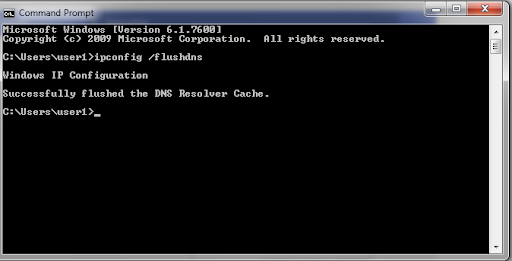
Also you should see the “Successfully flushed the DNS Resolver Cache” message.
Using the MacOS, type the following in the terminal:
- dscacheutil -flushcache
Note: there aren’t any messages of successful functions on Mac.
Ultimately, you can temporarily change your client’s DNS servers. By default, DNS servers are provided by your Internet Service Provider. Also it enables users to temporarily change them to a public DNS server, for example provided by Google. There are certain people who usually prefer to use Google’s public DNS constantly because in certain cases that is more reliable and versatile to proceed ahead. Some people prefer to use Google’s public DNS constantly because in certain cases they are more reliable.
6. Temporarily Disable the CDN
Also, the problem that you might relate to the content delivery network, if you use a third-party CDN provider, you can try to temporarily disable it. For that purpose, you may use WordPress plugins, with them you will be able to disable the CDN safely. If you use the backproxy services such as Cloudflare or Sucuri, they may cause the 504 gateway timeout error as they use the extra firewall.
Mostly cache 500 state codes when they are returned by your source server, as users tend to notice the issue on Cloudflare’s freemium plan. Significantly, Cloudflare is a complete proxy service that provides you the fastest way to disconnect it. Although, before blaming cloudflare, it is essential to know that there are two type of 504 gateway timeout errors:
7. 504 Gateway Timeout in Cloudflare (Version 1)

If you see a similar page like this, then in this case, the problem is on the Cloudflare side. You can contact their user support or check their status page. More particularly, they have already been notified about this problem and are working on it.
8. 504 Gateway Timeout in Cloudflare (version 2)

If you see the page appearance like the above one, then this is an issue with your WordPress hosting provider. Users can follow the recommendations in the next step.
Identify the Problems with your Hosting Provider:
The servers encounter certain problems that are one of the common reasons as to why the users experience 504 errors on their WordPress website. In simple terminology, Nginx or Apache waits for a significant response until the waiting time has expired.
504 errors are classified as one of the popular onsites with a lot of visitors, online sites, and online stores. The latter may have installed popular eCommerce plugins such as WooCommerce. They would have many non-cached requests that can cause the servers to overlead.
Although, such errors can happen to a variety of website categories that includes blogs and vice versa. Most of the hosters usually offer to upgrade to a more expensive tariff plan to sort out this problem, and even if this usually assists you to solve this issue, it is often not necessary and essential to proceed ahead.
Conclusion
Certainly, there are a variety of ways and methods to fix HTTP 504 gateway timeout errors on the WordPress site. Typically, this is an issue with the server, and in such circumstances, you need to contact your hosting provider to solve them. But it is essential to remember that they can also be caused via third-party plugins on the queue or backlog overflow for your web developers. Hence, you can know more about HTTP Status Codes via reading online.
When you launch a website with your browser, the web server is usually only the last link in a chain of systems that deal with the processing of HTTP requests that have been sent. Network gateways and proxy servers regulate the forwarding, or even the answering, of a query to absolve the web server and guarantee a quick transfer of data. In other words, the server that is contacted is one that has several communications stations prefixed, something which is generally done for practical reasons. However, if it so happens that one of the prefixed systems malfunctions, this can lead to the query failing. Instead of the desired page, your browser will display an error message like ‘HTTP Error 504’ or ‘Gateway Timeout’.
Here you can find out what exactly is behind this type of server notification, and how to go about fixing a 504 Gateway Error message (as a client user or website operator).
Contents
- HTTP 504: What’s behind the hypertext transfer protocol status code
- Why do 504 Gateway Timeouts occur?
- How to fix a 504 Gateway Timeout Error
- 504 Gateway Timeout: How to fix the problem as a browser user
- Option 1: Reload the desired web application
- Option 2: Restart all network devices
- Option 3: Review your proxy server settings
- Option 4: Changing the DNS server
- Option 5: Get in contact with the website operator and/or your provider
- Option 6: Try again later
- 504 error: Here are the possible solutions for website operators
- Option 1: Increase your proxy server resources
- Option 2: Adjust the proxy server settings
- Option 3: Check the content management system and databases
- Option 4: Contact the web host or your internet service provider
- 504 Gateway Timeout: How to fix the problem as a browser user
HTTP 504: What’s behind the hypertext transfer protocol status code
The Hypertext Transfer Protocol is one of the most important protocols when it comes to the transfer of web content. Operating on the application layer, it initiates communication between the client – normally an internet browser – and the corresponding web server hosting the desired content. For this reason, HTTP communicates the website’s hypertext, which the client software can in turn convert into text, images, etc. This exchange occurs via notifications through which the client defines a HTTP request. The server then responds to this with an answer that includes a 504 status code, which for example might include information on a successful processing (HTTP 200), or else information on its failure, in the case of a 504 error.
The HTTP 504 response lets the client know that the cause of the failure was due to a timeout during the processing of a request. This is why the message code also displays the designation ‘Gateway Timeout’. The sender of the message is the server in the communication chain that was unable to fulfil its function as a gateway, or proxy, as it didn’t receive a response from the next server (or service) within a specific time. Exactly how the error message is displayed in the browser window is something which the website operator can decide for themselves. Examples of frequently used 504 error messages are:
- HTTP 504
- HTTP Error 504: Gateway Timeout
- Gateway Timeout (504)
- Gateway Timeout Error
- 504 Gateway Timeout
- 504 Error
- Error 504 Gateway Timeout
Why do 504 Gateway Timeouts occur?
HTTP 504 messages always occur when an intermediary server, or rather a network interface, cannot respond to the browser’s query within a clearly specified time. As has already been mentioned, this results in the affected system to not receive a response from the next link in the chain. There are several reasons why this might occur:
1. The proxy server or router in the local network, upon which the user relies, are overburdened or have even crashed, and therefore are no longer working. In this case, the 504 error is rarely limited to a single web project, but will also occur when other pages are launched.
2. The launched website will revert to a proxy server for performance optimization. However, this server is overwhelmed, or has perhaps even crashed, and can therefore no longer be reached by prefixed internet nodes – leading in turn to a gateway timeout.
3. Sometimes the incorrect proxy settings, both on the client’s side as well as the server’s, can be responsible for the appearance of a HTTP 504 message.
4. The problem affects one or several of an internet provider’s or company’s servers. This means that the inaccessibility has nothing to do with the browser user’s router or proxy settings, or indeed that of the operator of the website in question.
If the requested page fails to load and instead a 504 error page appears, this is very frustrating for every user. Even more so, if the service is being used for an issue of great importance, meaning that the frustration around the timeout can quickly lead to full-on anger. Especially if you are working with cloud applications and therefore have no offline alternative available, you become very reliant on a timely solution. The same applies if you are responsible for a web project, which becomes inaccessible to users as a result of gateway timeout problems. In this case, a quick reaction is important to limit the loss of traffic to the website, and in turn, damage its turnover.
504 Gateway Timeout: How to fix the problem as a browser user
If you encounter a HTTP error 504 during your daily online activity, then it is safe to assume this is not intentional. Unlike, for example, if maintenance work is taking place when a 503 status code is displayed. A gateway timeout is nearly always a result of a server problem on part of the website operator or provider. Although as was already mentioned, it is also possible that your router or one of your own proxy settings is responsible for the error message. This means that as a browser user you have various options for fixing a HTTP 504 error:
Option 1: Reload the desired web application
In most cases, a 504 error will only appear for a pretty short time. A quick and easy option for fixing a 504 gateway timeout is therefore to simply refresh the desired web page. All that is required to this is one click on ‘Reload’ button in the address bar of the browser. This can also be done by pressing [F5] or [Ctrl] + [R]. Alternatively, you can also enter the URL again.
Option 2: Restart all network devices
If it is the case that the timeout has occurred within a home network, the problem can often be solved by resetting all your network devices. It may have happened that the modem, router, etc. has been configured incorrectly, or are failing to work properly due to other reasons, and therefore the browser’s HTTP request cannot be carried out in the specified time period. A clear sign that this is the problem is if you are unable to launch other websites as well, and instead are being met with a HTTP 504 error message.
In order to protect your privacy, the video will not load until you click on it.
Option 3: Review your proxy server settings
If you use a proxy server for your internet activity, and you are unable to fix a 504 error by refreshing the page or restarting the browser, and you should check the relevant settings in your browser. For one, it could be that the configuration is defective. It could also be necessary for you to select a different proxy, because the server that you have been using up until this point is no longer available or is experiencing technical issues – although it is usually the case that specific messages like ‘Proxy server not responding’ or ‘Proxy server refusing connection’ are displayed. Our guide tells you how to adjust your proxy settings in your browser.
Option 4: Changing the DNS server
It may also be the case that the DNS server being used by the router could be responsible for the 504 gateway timeout. As soon as you connect and go online, your internet provider automatically assigns you a primary and secondary server – but it is also possible for you to choose your own name resolution. Both varieties are in no way fail proof, meaning that experiencing a timeout while connecting to the DNS server is something that is always possible. In such a situation, a change to a different, free, and publicly available DNS server could be the perfect solution. Our digital guide tells you which necessary steps need to be taken for changing DNS server.
Option 5: Get in contact with the website operator and/or your provider
It may be that you have no success with changes to your own hardware and software, and in this case, you should get directly in touch with the operator of the website or the administrator responsible for the site. It may be that the cause of the HTTP 504 error lies with the web project itself. This way you will find out what the problem is straight from the horse’s mouth, as well as when the website is expected to be back in action. If the error is only happening to you or a specific group of users, then it is very likely that there is a problem with your internet provider. If this is the case then you have no other choice but to get in contact with them.
Note
If the website in question is one that is very popular, then it could be worth having a look at social media, e.g. Twitter. Companies regularly use this medium to communicate any current problems that they or their website are experiencing. Furthermore, this is also a way for you to find out quickly whether other users are effected by the same issue. In cases like this, hashtags like #websitedown (e.g. #facebookdown) will often start trending quickly.
Option 6: Try again later
Regardless of which server in the chain of communication is effected, or regardless of the reason why it cannot further process the query, there is nothing that individual measures like restarting, etc. can do to solve a HTTP error 504. You simply have to wait until the website operator or indeed the provider responsible has fixed the issue. If a website displays the error message for a longer time, or even in regular intervals, then it is recommended that you save yourself from any more hassle and simply return to the website at a later time.
504 error: Here are the possible solutions for website operators
As the operator of a web project you want to be able to give your visitors the best possible content and very good usability, as well as also guaranteeing a high level of availability. A stable hosting environment and protection from malware, spam, etc. are equally as important as being able to react quickly to technical problems, like 504 gateway timeouts. Ideally you should be able to discover an issue like this as quickly as possible and then immediately set about identifying the cause, as well as finding the right solution.
Option 1: Increase your proxy server resources
In many cases, one’s own proxy server can be the cause of a HTTP error 504. So, if it is the case that you also use a proxy for your website, in order to relieve the web server, then it could be that this is responsible for the gateway timeout. It may also depend on whether the project has grown dramatically in a short amount of time and visitor numbers have shot up, and at the same time, whether the proxy has necessary resources for processing the HTTP requests. The same applies to isolated peak times, which are due, for example, to seasonal events such as Christmas.
If it is the case that your visitor numbers have increased and 504 error messages are appearing at times when traffic is very high, then this is a pretty clear indicator that the server is overloaded. Here the solution is to purchase additional hardware resources or to book them from your internet provider. Ideally the provider in question would take care of such an increase in advance, meaning that you can avoid any timeout as a result of insufficient server power/space. This is especially easy if you opt for a flexible solution like cloud hosting from the start. This allows you to provide your proxy server with permanent or temporary additional power, so that all incoming HTTP requests can be processed without any danger of problems or, more importantly, 504 error messages.
In order to protect your privacy, the video will not load until you click on it.
Option 2: Adjust the proxy server settings
It is not always necessarily the case that a problem with the proxy server has to stem from a lack of resources. It is just as likely that the server is configured incorrectly and therefore the processing of client queries is not working as it should. For example, this is a common occurrence with the configuration-related 504 gateway timeout for NGINX proxy servers. This can usually be rectified with a couple of small, additional entries in the configuration file.
proxy_connect_timeout  600;
proxy_send_timeout    600;
proxy_read_timeout    600;
send_timeout      600;
If you use NGINX in combination with FastCGI (php-fpm) then there is similarly the possibility of a HTTP 504 error. However, this problem can be solved easily with a couple of adjustments: increase the value for the ‘max execution time’ in the fpm/php.ini file and also enter this value in the ‘request_terminate_timeout’ valuable in the fpm/pool.d/www.conf file. Following this you should find nginx.conf in the ‘location ~ .php$’ block, and enter the following:
fastcgi_read_timeout 300;Ultimately, both options bring about a restart of NGINX, with the aim of fixing the 504 gateway timeout by carrying out these changes:
Option 3: Check the content management system and databases
The cause of the 504 gateway timeout does not always necessarily have something to do with the server software. If the HTTP processing time is excessive, this could also be down to your content management system, database system, and/or other applications not working correctly. This means that if your customers are often being confronted with the error message, then you should consider that there could be a fault in one of these. Just like with the proxy servers, the most common cause is usually incorrect configuration; a problem which needs to be identified and adjusted as necessary. Another possibility, and one which is often the cause of CMS errors, comes from using faulty or old plug-ins – these should then be deactivated or else updated.
Note
An effective way to protect yourself from HTTP 504 errors is to frequently back up all your databases, create your CMS, and always install updates on time. Choosing which extensions you should use should depend on factors like up-to-dateness, trustworthiness, and compatibility. Additionally, it is also recommended that you keep the amount of plug-ins relatively low, so that the content management system does not have to deal with more resources than planned.
Option 4: Contact the web host or your internet service provider
If up until now every attempt to fix a 504 gateway timeout has failed, then it is highly likely that the problem does not lie with your applications, and therefore is not your responsibility. In this case, it is a server within the chain of communication, operated by your internet service provider or hosting server, that is at fault. Here, the only possibility you have is to get in contact with the web host or internet provider, and to ask them to repair the problem. Furthermore, you should also make sure to ask for help if your web project has been infected by malware or has a spam problem, and for this reason is experiencing 504 error problems.

403 Forbidden: What does the http status code mean and how do you fix it?
Is your browser displaying an http error 403 instead of the web page you requested? This means that the web server has not granted you access to that page. The reason for this differs from case to case; sometimes the website operator as secured this area from being accessed but sometimes it’s simply a case of adjusting your browser settings. This article outlines the various causes of the http…
403 Forbidden: What does the http status code mean and how do you fix it?

HTTP 503 (Service Unavailable): meaning and troubleshooting
It’s very likely that you’ve stumbled on the ‘HTTP Error 503 The service is unavailable’ notification or something similar during your daily browsing. The error message appears whenever a web server can’t display the website that the user is trying to access. There are many reasons for these notifications, just as there are many solutions. It’s your responsibility as the website operator to…
HTTP 503 (Service Unavailable): meaning and troubleshooting

Error 401: Unauthorized – No access to the website
You’re surfing around on the internet, but instead of getting the desired content you only receive an error message: annoying or even downright frustrating. Especially if you don’t exactly know what the status is supposed to mean. How are you expected to solve the problem, if you don’t know what’s causing it? This also goes for the error 401. Here we explain what the error means and what you can…
Error 401: Unauthorized – No access to the website

HTTP 400: Bad Request explained
Internet users are often confronted with error messages. HTTP status codes can be especially annoying, and even more so if you don’t understand what they mean. The message ‘HTTP 400 – Bad Request’ is a mystery for many internet users, but luckily it can be solved in most cases. We explain what the error message means and how to fix the error.
HTTP 400: Bad Request explained

How to fix the ERR_CONNECTION_RESET 101 error in Chrome, etc.
The message “ERR_CONNECTION_RESET” reveals that the connection has not been carried out as usual, or that is has been reset. However, the reason for these issues and possible solutions are not given. We explain why the error occurs, why it happens particularly frequently in Google Chrome and how to fix ERR_CONNECTION_RESET.
How to fix the ERR_CONNECTION_RESET 101 error in Chrome, etc.
In our role as website support specialists, we help website owners resolve all sorts of errors that affect their websites. Commonly encountered errors are related to the web server and the mail server.
One such web server error that occurs in high traffic servers, is the “HTTP Error 504 Gateway Timeout” error. Today, we’ll see what causes it and how to fix 504 gateway timeout error in websites.
Click here to resolve all website errors
What causes 504 gateway timeout error
In web server setup with a proxy server such as NginX in frontend and Apache in the backend, 504 gateway errors can occur when there is a delay in response from one server to the other.
The proxy server gets request from the client via web browser. This proxy server acts as a gateway and sends request to the web server at the backend. If the web server fails to respond on time, it would give an error.
This usually happens when the web server is down or not working properly or due to network connectivity issues. Here, we’ll discuss the various reasons why ‘504 gateway timeout error’ occurs.
- Browser errors – When the web client (such as browser) settings are not properly configured, it can cause connectivity issues to web server.
- DNS issues – Incorrect DNS settings for the domain can cause domain resolution issues, which can cause timeout errors when trying to access it.
- Network connectivity – If the network connection between the proxy server and the web server is poor, it will cause delay in getting response for the HTTP request.
- Slow web server – The backend web server, say Apache, that is fulfilling the request can be too slow due to poor performance or too much traffic. This can lead to gateway errors.
- Firewall blocks – The web server firewall configuration may have some errors or rules, which can prevent the connection from establishing properly and giving out errors.
- Proxy server timeout – If the gateway or proxy server’s timeout duration is too short, there will not be adequate time for the HTTP request to be received and passed on to web client.
[ Worried about your broken websites? Get our server specialists’ assistance to fix your site from all errors. ]
How to fix 504 gateway timeout error
The 504 Gateway Timeout error means that the proxy server is not receiving a response from the webserver within the allowed time period. It is important to identify the actual cause of the error before proceeding to the solution.
First thing we confirm is whether the issue is at the client side or in the server. To check whether it is any end-client issue, we get the customer perform these steps:
- Try loading the website in another browser
- Refreshing/reloading the website or application
- Checking for ISP or local firewall issues
- Trying the URL from a different location
- Restarting the network devices
- Confirming that the proxy server settings in the browser or application are correct
If the issue is not at client side, but in the server, then we examine the web server error logs and get insight into the issue that could be causing the timeout errors.
Some of the major tasks we perform as a part of fixing the 504 gateway timeout error are:
- We check the DNS settings of the website and fix any resolution errors that we detect.
- With the help of network tools such as traceroute, we detect the network connectivity errors and try to resolve them.
- If the web server is under abuse or high traffic, we immediately hop in and bring it back to stable state.
- For slow web servers, we perform web server optimization and parameter tweaking to improve its speed.
- We audit the firewall blocks in the web server and ensure that unwanted blocks are not inhibiting the connections.
- For proxy and web servers, we verify the ‘timeout’ configuration setting and increase it to an adequate value to avoid timeout issues. But increasing the value too much can affect the server performance. In such cases, we improve the server design and other performance parameters to resolve slowness issues.
[ A single misconfiguration may break your site! Click here for a customized and error-free website to help you boost your business. ]
Bobcares helps online businesses of all sizes achieve world-class security and uptime, using tried and tested solutions. If you’d like to know how to make your websites error-free, we’d be happy to talk to you.
PREVENT YOUR SERVER FROM CRASHING!
Never again lose customers to poor server speed! Let us help you.
Our server experts will monitor & maintain your server 24/7 so that it remains lightning fast and secure.
SEE SERVER ADMIN PLANS
var google_conversion_label = «owonCMyG5nEQ0aD71QM»;
There is nothing more annoying than a blank screen with an error message instead of your website’s content. Today, we’ll take a look at the 504 Gateway Timeout Error, and also give some recommendations on how to fix it on your WordPress site. For most blogs and online stores, such errors can lead to a loss of revenue. The visitors immediately leave the resource with a bad experience, and cannot make purchases. So let’s dive in –
What is the 504 Gateway Timeout Error?
HTTP status codes starting with 5 are server-side errors. They appear when the request cannot be performed due to a connection failure between several servers.
What does 504 gateway timeout mean? 504 Gateway timeout error is an HTTP status code. It appears when one server does not receive a timely response from another one that works as a gateway or proxy. Simply put, 504 gateway timeout means that the server could not complete your request within some period.
There are many WordPress error messages that you might have experienced on your website. You can also check out some of the lists of the most common WordPress errors and their solution.
- The white death screen
- Error Establishing a Database Connection
- Too Many Redirect Errors
- 502 Error Bad gateway
As there are a variety of web browsers, operating systems, and types of servers, they display the 504 error in many ways. All of them, as a rule, means the same. We listed some of the most popular versions of HTTP error 504:
- 504 Gateway Timeout
- 504 Gateway Timeout NGINX
- NGINX 504 Gateway Timeout
- Gateway Timeout Error
- 504 gateway timeout PHP
- Error 504
- 504 Error Code
- 504 Status Code
- HTTP Error 504
- Gateway Timeout Error 504
- HTTP 504
- 504 Error
- Gateway Timeout (504)
- 504 Gateway Time-out – The server didn’t respond in time
What Are The Causes of the 504 Gateway Timeout Error?

Before we consider the error itself, it is important to understand why it appears. Whenever you start your browser and visit a URL, it sends the request back to the server where it is hosted. The web server then processes the request and sends you the requested resources along with an HTTP header. This header contains one of the many HTTP status codes that let you understand whether everything is okay or something went wrong. Not all status codes are bad. For example, the status code 200 indicates that everything works fine.
Any status code in the 500-s is an error code (500, 501, 502, 503, 504, etc.) that has different meanings. They indicate that the request was accepted, but the server could not execute it.
To that extent, the HTTP 504 error means that the server running as a gateway is out of time to wait for a server response. The code is returned when there are two servers involved in processing the request, and the response time from the second server has expired.
In addition to server timeouts, there are other causes, leading to the 504 error code:
- Slow server- It is possible that the server where you host your WordPress website is responding too slowly, and therefore it generates gateway errors.
- Insufficient PHP workers- PHP workers are used to running code on your WordPress site. Demanding sites can make all PHP workers busy. In that case, they form the queue. If the queue and the backlog are full, old requests are ignored. You can ask your hosting to increase the number of PHP workers. Additional PHP workers for a site allow the execution of several requests simultaneously.
- Problems with the firewall- The firewall on your server may contain errors due to incorrect configuration or rules blocking the connection.
- Network connection- If there is a problem with the network connection between the proxy server and the web server, this can lead to delays. Also, there may be network problems with the load balancer, if it is used.

When you see a 504 Gateway timeout error, you might be confused about what to do. You can always try the following actions –
- Try to reload the page
- Try a different browser
- Check on different devices
- Disable the proxy server
- Check DNS records propagation
- Temporarily disable the CDN
- Check the issues with your hosting provider
- Clean the site from spam, bots and protect it from DDoS attacks
- Check your plugins and themes
- Check the logs
- Change Nginx options
Try to reload the page:
One of the first things you should do when you face the HTTP Error 504 Gateway Timeout is just to wait a minute and reload the page. Perhaps the hosting or server is simply overloaded, and the site will quickly return to work.
Another thing you can do is check your website status on downforeveryoneorjustme.com. This site will tell you if the site is out of service only for you or for all visitors. The tool checks the HTTP status code that is returned by the server. If the code differs from 200, then, in this case, you will see the Down pointer. It will mean that the site does not work for everyone.
Try a different browser:
In case the site is online, but you still see the HTTP Error 504 Gateway Timeout, try changing your browser to another one. Clear the browser cache or use the incognito mode, this can also help determine if the error is caused by the browser.
Check on different devices:
Try opening the site on different computers, different networks, or on mobile devices. If nothing could help to fix the Error 504 gateway timeout, this step will help you determine if the problem is on the server side or if it is local.
Disable the proxy Server:
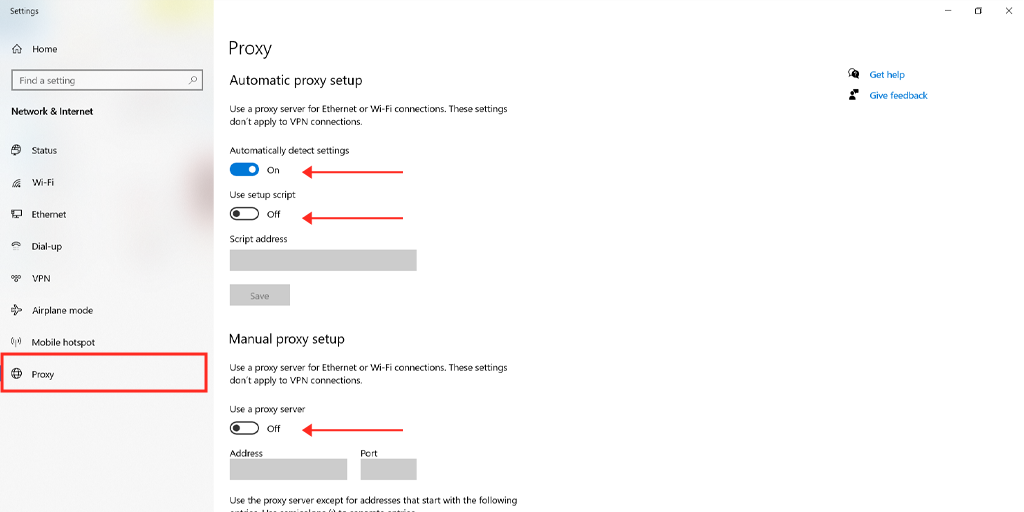
Sometimes you may get an HTTP 504 error if you use a proxy server. These cases are very rare, especially on the client side. Read the guides on how to disable proxy on Windows and Mac.
For Windows users
Step 1: Go to your chrome browser and click on the menu button “⋮” located at the top right corner and select “Settings”.
Step 2: Now scroll down and select the “system” section followed by “Open Proxy settings“.
Step 3: If you are a Windows 10 user or above it, this will open a separate proxy settings window.
Step 4: In the proxy settings window you will find two sections, Automatic proxy setup, and Manual proxy Setup.
Under Automatic Proxy Setup, Turn off: Automatically detect settings (Toggle button) and Use setup script (click on Set up > Turn off > Save)
Under Manual Proxy Setup, Turn off: Use a Proxy Server (Click on Setup button> Turn off > Save)
Under Manual Proxy Setup, Turn off: Use a Proxy Server (Click on Setup button> Turn off > Save)
For Mac Users, they can do the following steps to disable proxy settings:
Step 1: Go to the Apple menu or click on the apple icon located at the top left of your Mac screen.
Step 2: Click on System settings or System preferences, whichever is applicable.
Step 3: Now click on the “Network” in the sidebar.
Step 4: From the right pane, Select a network service > click the Advanced button.
Step 5: Click on the Proxy tab and mark uncheck all the protocols under “Select a protocol to configure” and click on the “Ok” button when done.
Check DNS records propagation:
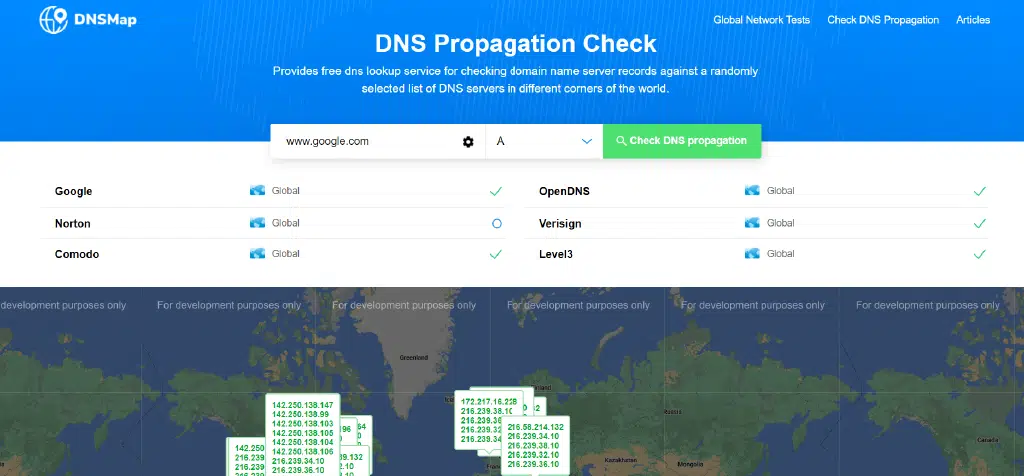
HTTP Error 504 gateway timeout is often caused by problems with the DNS server. There are two reasons for that. On the server side, it happens when the domain name is not changed to the correct IP address. If you just moved the WordPress website to a new hosting, it’s important to wait until the address will be added to the DNS base. In most cases, it takes up to 24 hours. It all depends on your DNS records’ TTL value. You can use a free tool like DNSMap to check if your DNS has spread all over the world.
The second DNS issue relates to the client side. In this case, you can clear your local DNS cache. This is similar to clearing the browser cache.
In Windows, simply open a command line and type the following:
ipconfig / flushdns
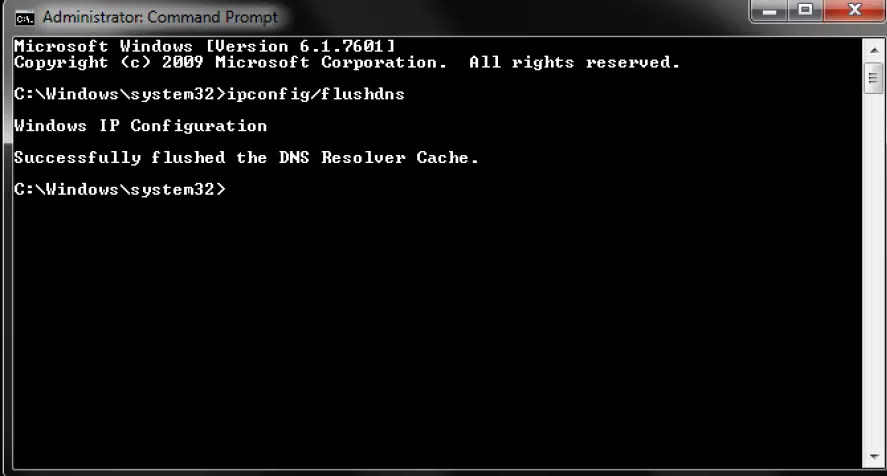
You should see the “Successfully flushed the DNS Resolver Cache” message.
In macOS, type the following in the terminal:
dscacheutil -flushcache
Note: there are no messages of successful operations on Mac.
And, finally, you can temporarily change your client’s DNS servers. By default, DNS servers are provided by your ISP. You can temporarily change them to a public DNS server, for example, provided by Google. Some people prefer to use Google’s public DNS constantly because in some cases they are more reliable.
Temporarily disable the CDN:
Also, the problem may relate to the content delivery network. If you use a third-party CDN provider, you can try to temporarily disable it. For that, you may use WordPress plugins. With them, you will be able to disable the CDN safer.
If you use back proxy services like Cloudflare or Sucuri, they may cause the 504 gateway timeout error as they use the additional firewall. Most of the cache 500 state codes when are returned by your source server. Many users noticed that issue on Cloudflare’s free plan. Unfortunately, since Cloudflare is a complete proxy service, there is no quick way to disconnect it.
However, before blaming Cloudflare, it is important to know that there are two types of 504 gateway timeout errors:
504 Gateway Timeout in Cloudflare (version 1)
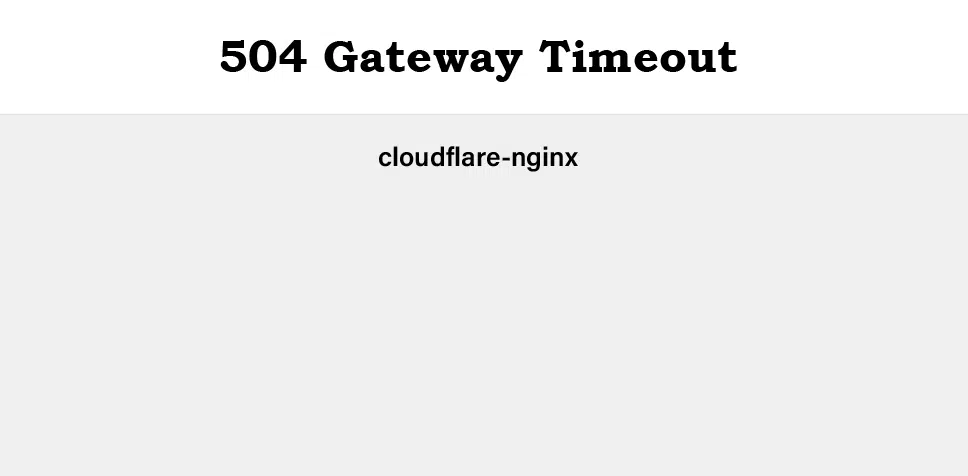
If you see the page looking like that, then, in this case, the problem is on the Cloudflare side. Contact their user support. Or check their status page. Most likely, they are already notified about this problem and are working on it.
504 Gateway Timeout in Cloudflare (version 2)
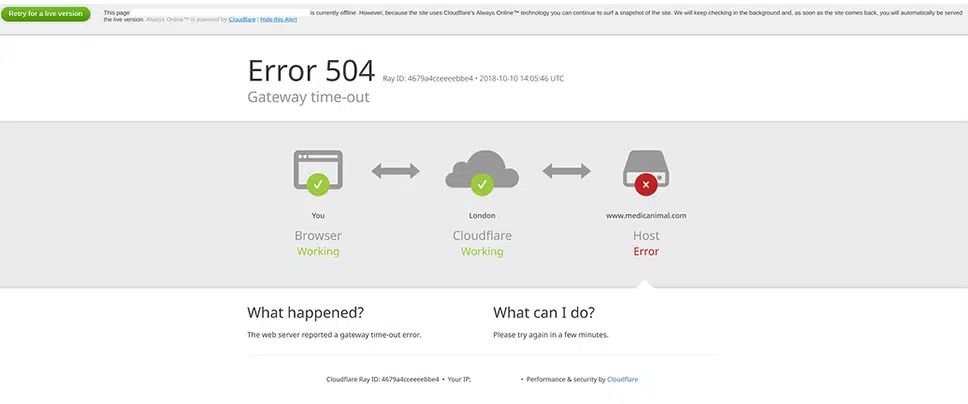
If you see the page looking like that, then this is a problem with your WordPress hosting. Please follow the recommendations from the next section.
Check the issues with your hosting provider:
Server problems are one of the common reasons why users experience 504 errors on their WordPress websites. In simple terms, Nginx or Apache waits for a response until the waiting time has expired.
504 errors are very popular on sites with a lot of visitors and e-commerce sites and online stores. The latter may have installed e-commerce plugins like Woocommerce. They usually have many non-cached requests. This can cause the server to overload. However, such errors can happen to a variety of website types, including blogs. Many hosters usually offer to upgrade to a more expensive tariff plan to fix this problem. And even if this usually helps to solve this issue, it is often not necessary.
Some hosting provides dedicated resources for each server. This means that each site is hosted in its isolated container. It has all the necessary software resources required to run it (Linux, Nginx, PHP, MySQL). Resources are 100% confidential and do not share with anyone. But some shared WordPress hosting plans do not have this feature. So any neighboring site with high traffic will cause an error 504 gateway timeout on your site.
Note: HTTP 504 errors may look very similar to 503 errors (service unavailable) or even 502 errors (bad gateway). But actually, they are different, to know more you can also check out our post on “15 Best Methods to Fix 502 Bad Gateway Error“.
If you want to prevent such errors in the future, you can use a tool like statuscake.com to track the server state and immediately report any problems. The service periodically sends an HTTP HEAD request to the specified URL. You can simply set your homepage. In addition, you can choose the checking frequency from 15 seconds to 10 minutes.
The service will send you an email if your site is out of service, indicating the time when it happened.
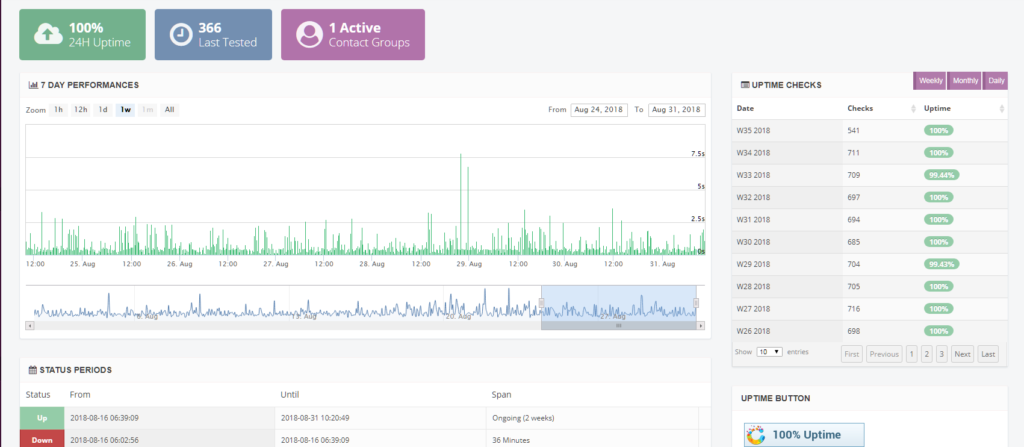
This can be especially useful if you are using virtual hosting, which, as a rule, is constantly overloaded. This will give you proof that your site did not work (for example, at night). For this reason, we advise you to move on to dedicated hosting.
Clean the site from spam, bots and protect it from DDoS attacks:
Perhaps your website has been spammed by bots or become a DDoS attack target. Sometimes this leads to uncached requests and, as a result, to server overload. All that results in an HTTP error 504 gateway timeout. You can learn the server analytics to see if there are any patterns in it. You can request your hosting provider for this information.
The first report, which we recommend studying, is the top-end customer’s IP addresses. Usually, this is very useful, especially if your site suddenly began to generate large traffic or was attacked by bots.
The second report we recommend looking at is the requests and bots. You can quickly compare the number of people visiting your website, with the number of bots. However, remember that not all bots are bad. Google Bot is a good bot, it scans the site to index the content and promote it in the search engine.
The third report we recommend is a cache analysis. Here you can see what requests are missing in the cache, and also what are the top locations of your site. To provide the best performance and stability, you should try to cache as many requests as possible. This is not always available because some resources generate a huge amount of uncached requests. The best example is Woocommerce. These requests are necessary for the correct work and synchronization.
If on your site you find and identify traffic or IP addresses that need to be blocked, you can use the WordPress security plugin. However, not all hostings allow you to install security plugins. First, such plugins can influence performance, especially when they scan the server. Second, the IP blocking feature may not work in them because the hosting provider can use load balancers from the Google Cloud Platform.
Naturally, IP addresses can always be blocked by the hosting support service. However, depending on how long and large is an attack, this can never end. When the attacks or spam is blocked in one area, they are often switched to other zones, changing IP addresses or using other proxies. Therefore, in this case, we recommend installing a security solution, such as Cloudflare or Sucuri.
Check Your Plugins and Themes:
Many users believe that third-party plugins or themes do not lead to 504 gateway timeout errors. And in most cases this is true. But, according to many users’ experience, a slow non-cached plugin request can cause delays, since it uses more of your PHP workers.
Once you reach the limit of them, the queue will remove your old requests, which can cause HTTP 504 errors. They should not be confused with 502 errors which are the result of a 60 seconds timeout.
There are several ways to fix the issue. One of them is the deactivation of all your plugins. Remember that you will not lose your data if you disable them. If you have access to the admin panel, simply go to the Plugins section and select Deactivate feature. This will disable all of your plugins.
If this fixes the issue, you need to find its source. Activate the plugins one by one, restarting the site after each activation. Once you see the HTTP 504 error, you will be able to identify the problematic plugin. Then you can contact the plugin developer for help or create a ticket in the WordPress repository.
If you do not have access to the admin panel, you can use the FTP client to connect to your server. Rename the plugin folder to something like plugins_old. Then check your site again. If this works, you will need to test each plugin separately to find the reason. Rename the plugins folder back. Then rename the plugin folders inside until you find the plugin causing the issue.
Make sure that all your plugins, themes, and WordPress kernel are updated to the latest version. And make sure that you are using a supported version of PHP.
If the plugin contains bad code, then you will most likely need to contact the WordPress developers to solve this problem.
Check the Logs:
You can also use your error logs. One can view them in a special section of the hosting dashboard. You can quickly fix the issue, especially if its source is the website plugin. If your hosting does not offer logging tools, you can add the following code to the wp-config.php file to enable logging:
define ('WP_DEBUG', true);
define ('WP_DEBUG_LOG', true);
define ('WP_DEBUG_DISPLAY', false);
Logs are usually located in the/wp-content folder. Sometimes they can be in separate folders. You can also check the Apache and Nginx logs which are most often located at /var/log/apache2/error.log (Apache) or /var/log/nginx/error.log (Nginx)
Change Nginx Options:
If you are maintaining your server and WordPress website on Nginx+FastCGI (php-fpm). Also, you can use Nginx as a proxy for Apache. In that case, there are additional settings that you can change to prevent 504 gateway timeout errors.
If you are using Nginx with FastCGI (php-fpm), then you need to first make changes to the PHP-FPM file. Go to /etc/php5/fpm/pool.d/www.conf (it can vary depending on the PHP version). Set the following directive:
request_terminate_timeout = 300
Then you must modify the php.ini file, which is usually located at /etc/php.ini. Find the max_execution_time directive. Increase its value to 300 or create a directive if it does not exist:
max_execution_time = 300
Finally, you will need to modify the nginx.conf file. Add the following to your Nginx virtual host configuration:
location ~ .php $ {
... fastcgi_read_timeout 300;
...
}
Then just restart Nginx and PHP-FPM.
service nginx reload
service php5-fpm reload
If you use Nginx as a proxy for Apache, then in this case add the following to your nginx.conf file:
proxy_connect_timeout 600;
proxy_send_timeout 600;
proxy_read_timeout 600;
send_timeout 600;
Next, just restart Nginx.
service nginx reload
Contact Support
If you constantly face an HTTP 504 gateway timeout error and nothing helps to fix it, contact the hosting technical support. Try to describe what steps you have taken to identify the error cause and provide as much information as possible. This will greatly speed up the process.
Conclusion
As you can see, there are many different ways and methods to fix HTTP 504 gateway timeout errors on the WordPress site. Typically, this is a problem with the server, and in this case, you need to contact your hosting to solve them. But it’s important to remember that they can also be caused by third-party plugins or your PHP workers’ queue/backlog overflow. You can know more about HTTP Status Codes via reading online.
Summary
From the above post, you have come across how your WordPress site is quite vulnerable to experiencing 504 Gateway timeout due to various reasons. And in this post, you have also learned multiple working methods to resolve the issue quickly.
Generally, these kinds of errors or issues are generated from the server end itself, and for that, it is highly recommended to contact your web host to fix the issue ASAP.
Apart from server issues, you must also consider that the 504 gateway timeout error can also be triggered due to faulty third-party plugins, themes, databases, etc. In that case, you must check out all the possible reasons and then work on them.
In case, if you find your website is still facing timeout issues and no method worked to fix it. It is highly advisable you must migrate your website to a more reliable and trustful Managed web host.
If we missed anything to mention in this post or if you would like to share your opinions about the 504 Gateway timeout error, feel free to write in the comment section below.
Eliminate the risk of “504 Gateway timeout error” by choosing a more reliable and fastest server. Host or migrate your website on WPOven’s Fully managed dedicated servers and enjoy the best in the industry unmatchable features such as,
- Fastest Private servers
- Upto 100% uptime monitoring
- Antimalware scanning
- 24X7 WordPress Expert support
- Cloudflare integration
- High-end Security
- Datacentres around the world, etc.
You can have all these features and much more in a single plan with unlimited Free migrations, unlimited staging, and a 14-day risk-free guarantee, Signup Now!
Frequently Asked Questions
What causes a 504 Gateway Timeout?
The possible causes that trigger a 504 Gateway Timeout error are:
1. Slow server speed
2. Insufficient PHP workers
3. Problems with the Firewalls
4. Network Connection
How do I fix a 504 Gateway Timeout?
You can easily fix a 504 Gateway timeout error by following these simple methods:
1. Try to reload the page
2. Try a different browser
3. Check on different devices
4. Disable the proxy
5. Check DNS records propagation
6. Temporarily disable the CDN
7. Check the issues with your hosting provider
8. Clean the site from spam, bots and protect it from DDoS attacks
9. Check your plugins and themes
10. Check the logs
11. Change Nginx options
Is a 504 Gateway Timeout my fault?
The error 504 Gateway timeout happens due to the fault from the server side. Generally, requests sent from the clients are good but due to some issue at the server, sometimes they are unable to generate the requested resource. In simple words, this error simply means that your web server didn’t get any response from another server on time while accessing the webpage.