
If your Internet Information Services (IIS) produces a 500 – Internal server error, your website is in serious trouble. Debugging an IIS 500 – Internal server error can take some time, so you’d better be prepared for the worst-case scenario. You don’t want to research how to deal with this error under time pressure.
Contents
- Cause of 500 – Internal server error
- Debugging an IIS 500 – Internal server error
- Resolving an IIS 500 – Internal server error
- Common 500.x substatus codes
- Author
- Recent Posts

Surender Kumar has more than twelve years of experience in server and network administration. His fields of interest are Windows Servers, Active Directory, PowerShell, web servers, networking, Linux, virtualization, and penetration testing. He loves writing for his blog.
Latest posts by Surender Kumar (see all)
- Extending LVM space in Ubuntu — Thu, Feb 2 2023
- Backup in Proxmox VE — Thu, Jan 26 2023
- Snapshots in Proxmox VE — Wed, Jan 25 2023
In my previous posts, you learned about detailed errors and failed request tracing in IIS (Internet Information Server). I recommend reading those articles first before you proceed with this one.
Cause of 500 – Internal server error
This is the most common error you will encounter with any website hosted with IIS. In most cases, a developer messed up. Thus, the fastest way is often to simply reverse the last action taken, such as restoring an earlier version of your web application. Once your system is running again, you can investigate the cause of the error on your test side in peace.

500 Internal server error
The HTTP 500 error is a server-side error. While we understand that the problem is on the server end, the error is usually ambiguous. It doesn’t exactly tell the administrator what is wrong with the server. Thus, debugging a 500 – Internal server error often takes some time.
Debugging an IIS 500 – Internal server error
Since the above error doesn’t really tell what’s actually wrong with the server, we need to enable detailed errors, as discussed in my previous post. Once detailed errors are enabled, you will see more detailed error information, including an HTTP substatus code. Sometimes even the detailed errors don’t show any useful information right away. For example, see the following screenshot:

The page cannot be displayed because an internal server error has occurred
Here I am getting: The page cannot be displayed because an internal server error has occurred. There is no HTTP status code or substatus code listed on the error page. If you get such an error even when detailed errors are enabled, right-click anywhere in the browser window and select Inspect (or press F12).
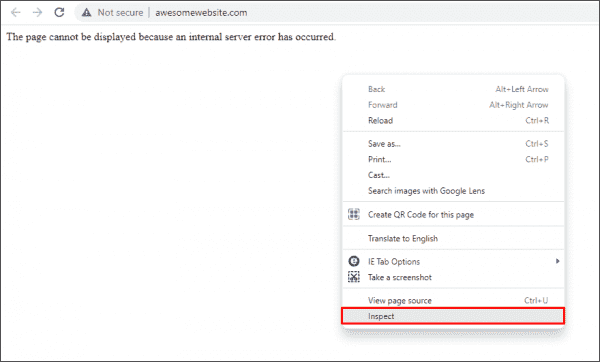
Opening developer tools in web browser to reveal server errors
This opens the developer tools in your browser window. Now, click the Console tab. The actual error thrown by the web server is displayed.
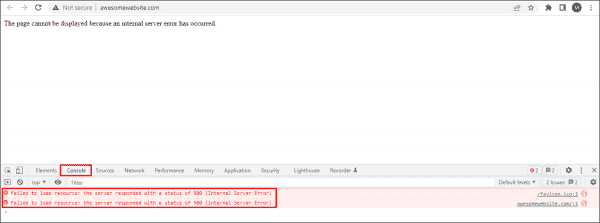
Viewing server errors using the Console tab of the web browser’s developer tools
To further understand the exact cause of 500 errors, enable Failed Request Tracing, as discussed in my previous post. Now, try to replicate the problem. If you can replicate it, open the newly generated XML log file in a web browser. The following screenshot shows the actual cause of a 500 – internal server error with a substatus code of 19 (HTTP 500.19 error):
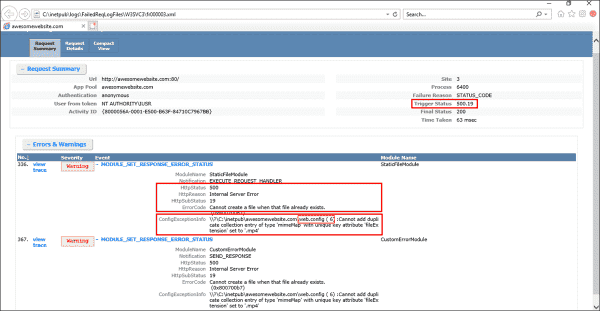
Determining the cause of a 500 error using the Failed Request Tracing log file
Usually, substatus code 19 indicates that the configuration data is invalid. This could be due to some malformed or unidentified element in a server-level config file (ApplicationHost.config) or website-level config file (web.config). If you take a closer look at the ConfigExceptionInfo field of the log file, you will find the exact line number (6 in our case) in the web.config file that caused the exception. Now let’s take a look at the web.config file itself.
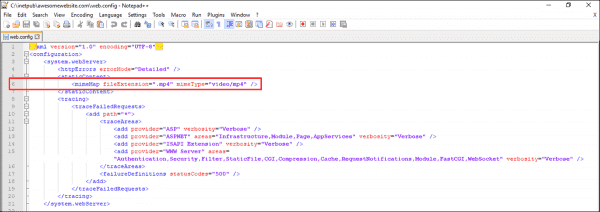
Viewing the problematic element in the web.config file
Here, you can see that the developer tried to add a mime type in the config file, but it was already defined in the server-level configuration file (i.e., ApplicationHost.config). Therefore, the Cannot add duplicate collection entry of type ‘mimeMap’ with unique key attribute ‘fileExtension’ set to ‘.mp4’ exception was returned. Furthermore, if there is some unidentified element, a syntax error, or even a typo in the web.config file, you will most likely get a similar error.
Resolving an IIS 500 – Internal server error
To resolve an IIS 500 – Internal server error, you could simply remove the line that is causing the exception. Alternatively, if you don’t want to remove this line for some reason, add the following code right above line 6 in web.config:
<remove fileExtension=".mp4" />
By doing this, you are essentially overriding the server-level element. In the end, your web.config file should look as shown below:
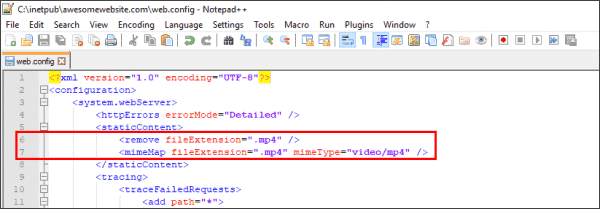
Overriding the server level mime element with web.config file
Now refresh the page, and the error should go away. This was just one example of resolving a 500.19 error. If you get a 500 error with a different substatus code, use the same approach to troubleshoot the problem.
Common 500.x substatus codes
The following table covers some of the most common HTTP 500 substatus codes, along with their probable causes and troubleshooting advice:
Subscribe to 4sysops newsletter!
| Status Code | Probable Cause | Troubleshooting Advice |
| 500.11 | The application is shutting down on the web server | The application pool is shutting down. You can wait for the worker process to finish the shutdown and then try again. |
| 500.12 | The application is busy restarting on the web server | This is a temporary error and should go away automatically when you refresh the page. If the error persists, something is wrong with the web application itself. |
| 500.13 | The web server is too busy | This error indicates that the number of incoming concurrent requests exceeded the number that your IIS application can process. This could be caused when the performance settings are not right. To troubleshoot such issues, a memory dump needs to be captured and analyzed using tools such as Debug Diagnostic. |
| 500.15 | Direct requests for Global.asax file are not allowed | A direct request was made for the Global.asa or Global.asax file, which is not allowed by the web server |
| 500.19 | The configuration data is invalid | We already covered how to fix this error above |
| 500.21 | The module not recognized | This status code is caused by a partial installation of the IIS server, such as missing ISAPI modules. To fix this error, identify the missing IIS components and install them. |
Once you troubleshoot the problem, don’t forget to disable Failed Request Tracing and revert the detailed errors to custom errors on your web server.
Пользователи интернета и владельцы сайтов периодически сталкиваются с различными ошибками на веб-страницах. Одной из самых распространенных ошибок является error 500 (ошибка 500). Поговорим в нашей статье о том, что это за ошибка и как ее исправить.
Где и когда можно встретить ошибку 500
Вы можете увидеть ошибку на любом веб-ресурсе, браузере и устройстве. Она не связана с отсутствием интернет-соединения, устаревшей версией операционной системы или браузера. Кроме того, эта ошибка не указывает на то, что сайта не существует или он больше не работает.
Ошибка 500 говорит о том, что сервер не может обработать запрос к сайту, на странице которого вы находитесь. При этом браузер не может точно сообщить, что именно пошло не так.
Отображаться ошибка может по-разному. Вот пример:
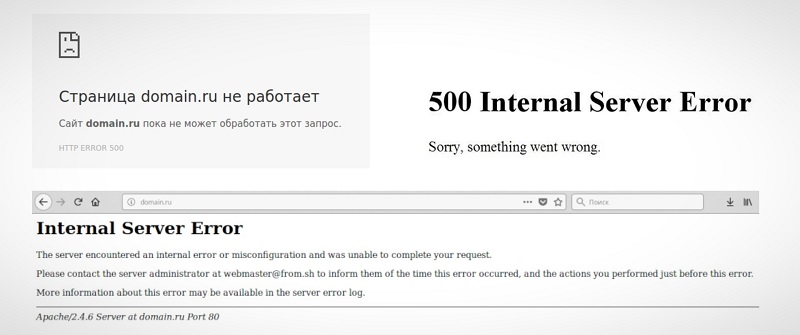
Если вы решили купить что-то в любимом интернет-магазине, но увидели на сайте ошибку 500, не стоит сильно огорчаться – она лишь сообщает о том, что вам нужно подождать, пока она будет исправлена.
Если ошибка появилась на вашем сайте, то нужно скорее ее исправлять. Далее я расскажу, как это можно сделать.
Комьюнити теперь в Телеграм
Подпишитесь и будьте в курсе последних IT-новостей
Подписаться
Причины возникновения ошибки
Итак, ошибка 500 возникает, когда серверу не удается обработать запрос к сайту. Из-за этого пользователи не могут попасть на сайт, а поисковые системы полноценно с ним работать. Очевидно, что ошибка нуждается в исправлении. В первую очередь необходимо найти проблему.
Основной причиной ошибки 500 может быть:
- Неверный синтаксис файла .htaccess. htaccess – это файл, в котором можно задавать настройки для работы с веб-сервером Apache и вносить изменения в работу сайта (управлять различными перенаправлениями, правами доступа к файлам, опциями PHP, задавать собственные страницы ошибок и т.д.).
Узнать больше о файле .htaccess можно в статье «Создание и настройка .htaccess». - Ошибки в скриптах сайта, то есть сценариях, созданных для автоматического выполнения задач или для расширения функционала сайта.
- Нехватка оперативной памяти при выполнении скрипта.
- Ошибки в коде CMS, системы управления содержимым сайта. В 80% случаев виноваты конфликтующие плагины.
Год хостинга в подарок при заказе лицензии 1С-Битрикс
Выбирайте надежную CMS с регулярными обновлениями системы и профессиональной поддержкой.
Заказать
Как получить больше данных о причине ошибки
Что означает ошибка 500, мы теперь знаем. Когда она перестала быть таким загадочным персонажем, не страшно копнуть глубже — научиться определять причину ошибки. В некоторых случаях это можно сделать самостоятельно, так что обращаться за помощью к профильному специалисту не понадобится.
Отображение ошибки бывает разным. Ее внешний облик зависит от того, чем она вызвана.
Самые частые причины ошибки 500 можно распознать по тексту ошибки или внешнему виду страницы.
- Сообщение Internal Server Error говорит о том, что есть проблемы с файлом .htaccess (например, виновата некорректная настройка файла). Убедиться, что .htaccess является корнем проблемы, поможет следующий прием: переименуйте файл .htaccess, добавив единицу в конце названия. Это можно сделать с помощью FTP-клиента (например, FileZilla) или файлового менеджера на вашем хостинге (в Timeweb такой есть, с ним довольно удобно работать). После изменения проверьте доступность сайта. Если ошибка больше не наблюдается, вы нашли причину.
- Сообщение HTTP ERROR 500 или пустая страница говорит о проблемах со скриптами сайта. В случае с пустой страницей стоит учесть, что отсутствие содержимого сайта не всегда указывает на внутреннюю ошибку сервера 500.
Давайте узнаем, что скрывается за пустой страницей, обратившись к инструментам разработчика. Эта браузерная панель позволяет получить информацию об ошибках и другие данные (время загрузки страницы, html-элементы и т.д.).
Как открыть панель разработчика
- Нажмите клавишу F12 (способ актуален для большинства браузеров на Windows). Используйте сочетание клавиш Cmd+Opt+J, если используете Google Chrome на macOS. Или примените комбинацию Cmd+Opt+C в случае Safari на macOS (но перед этим включите «Меню разработки» в разделе «Настройки» -> «Продвинутые»). Открыть инструменты разработчика также можно, если кликнуть правой кнопкой мыши в любом месте веб-страницы и выбрать «Просмотреть код» в контекстном меню.
- Откройте вкладку «Сеть» (или «Network») и взгляните на число в поле «Статус». Код ответа об ошибке 500 — это соответствующая цифра.
 Более детальную диагностику можно провести с помощью логов.
Простыми словами: лог — это журнал, в который записывается информация об ошибках, запросах к серверу, подключениях к серверу, действиях с файлами и т.д.
Как вы видите, данных в логи записывается немало, поэтому они разделены по типам. За сведениями о нашей ошибке можно обратиться к логам ошибок (error_log). Обычно такие логи предоставляет служба поддержки хостинга, на котором размещен сайт. В Timeweb вы можете включить ведение логов и заказать необходимые данные в панели управления. Разобраться в полученных логах поможет статья «Чтение логов».
Как устранить ошибку
Теперь поговорим о том, как исправить ошибку 500. Вернемся к популярным причинам этой проблемы и рассмотрим наиболее эффективные способы решения.
Ошибки в файле .htaccess
У этого файла довольно строгий синтаксис, поэтому неверно написанные директивы (команды) могут привести к ошибке. Попробуйте поочередно удалить команды, добавленные последними, и проверьте работу сайта.
Также найти проблемную директиву можно с помощью логов ошибок (через те же инструменты разработчика в браузере). На ошибку в директиве обычно указывает фраза «Invalid command». Информацию о верном написании директивы или способе исправления ошибок в .htaccess вы можете найти в интернете. Не нужно искать, почему сервер выдает ошибку 500, просто введите в строку поиска название нужной команды или текст ошибки из логов.
Ошибки в скриптах сайта
Скрипт не запускается
Обычно это происходит, когда существует ошибка в скрипте или функция, которая не выполняется. Для успешного запуска скрипта функция должна быть верно прописана, поддерживаться сервером и выполняться от используемой версии PHP. Бывают ситуации, когда функция несовместима с определенными версиями PHP. Получить более подробную информацию о той или иной функции можно в интернете.
Не хватает оперативной памяти
Если в логах вы видите ошибку «Allowed memory size», для устранения ошибки 500 стоит оптимизировать работу скрипта. Вы можете воспользоваться специальными расширениями для анализа производительности скрипта или обратиться за помощью к специалисту, который поработает над его оптимизацией.
Если ваш сайт размещен на отдельном физическом или виртуальном сервере, можно попробовать увеличить максимальное использование оперативной памяти на процесс (memory_limit). На шаред хостинге этот параметр обычно не изменяется, но есть возможность купить хостинг помощнее.
Ошибки в CMS
Если код CMS содержит неверный синтаксис, это может вывести сайт из строя. В таком случае логи сообщат вам об ошибке 500 текстом «PHP Parse error: syntax error, unexpected». Так происходит, когда некорректно работает плагин (или тема, используемая в CMS, но реже) либо есть ошибки в коде. Ошибка может быть допущена случайно, произойти при обновлении плагина или версии CMS.
При чтении логов обратите внимание на путь, который следует за сообщением об ошибке, ведь он может указать на проблемную часть кода или плагин. Если проблема в плагине, для восстановления работы сайта переименуйте на время папку, в которой он расположен. Попробуйте обновить плагин или откатить его до прежней версии. Если ситуацию не удается исправить, от расширения стоит отказаться либо заменить его аналогом.
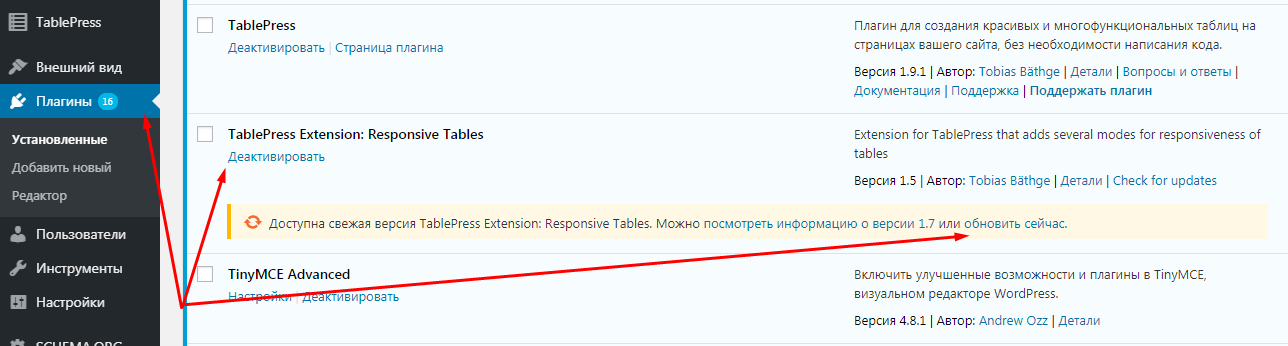 Также в большинстве случаев подобные проблемы помогает решить поддержка CMS.
Информацию о других распространенных ошибках вы можете найти в статье «6 наиболее часто возникающих ошибок HTTP и способы их устранения».
Удачи!
Troubleshooting an HTTP 500 internal server error is like solving a mystery.

You don’t know what exactly happened or why it happened — all you know is that something’s wrong and you need to fix it.

To guide you through the hassle of troubleshooting the dreaded HTTP 500 internal server error, let’s go over what it exactly means and its most common causes and solutions.
An HTTP 500 internal server error is a general error message. It covers unexpected issues that don’t fit into existing error codes. HTTP 500 errors are difficult to troubleshoot because a range of issues on the server side can trigger them.
Here are some examples of what a 500 error page might look like in your browser:
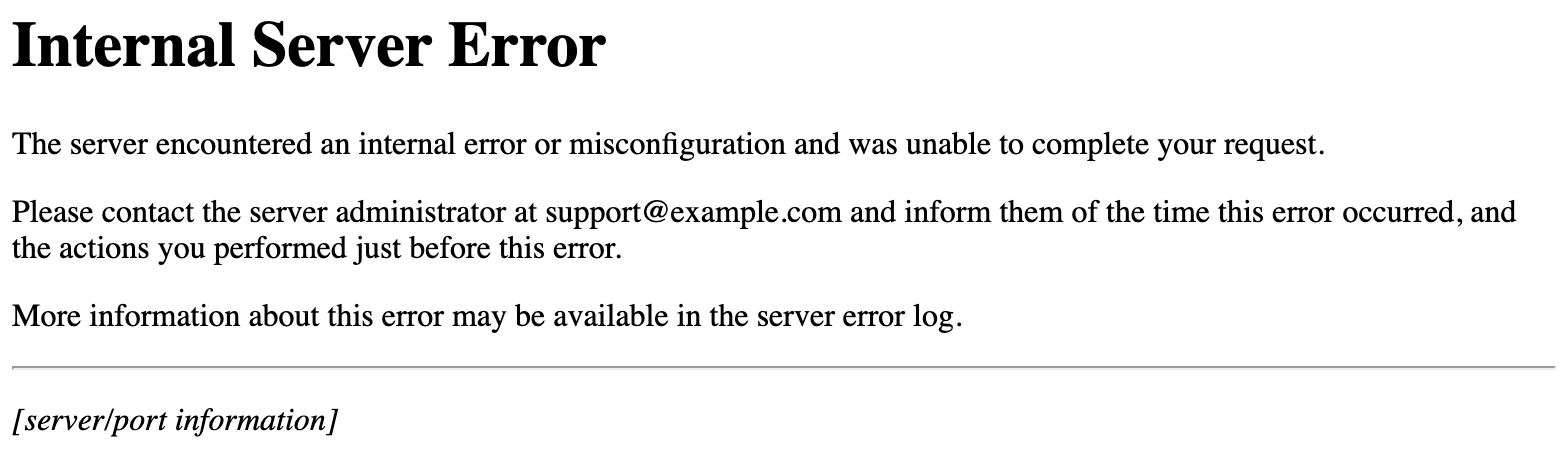
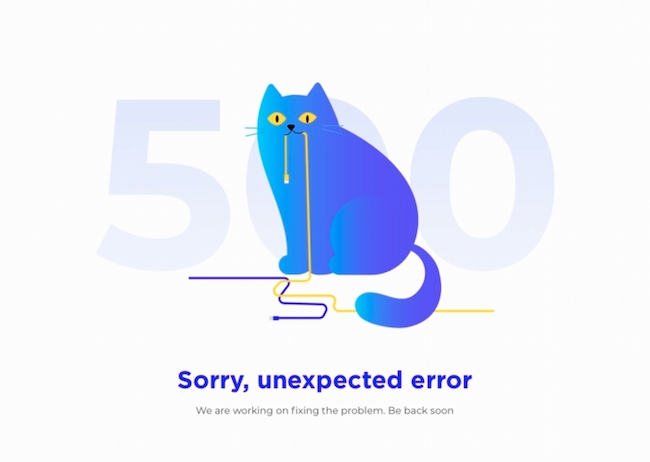
Image Source
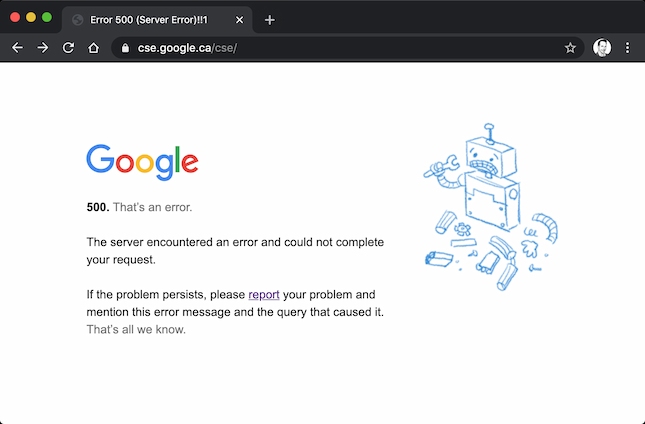
Image Source
HTTP 500
HTTP 500 errors aren’t problems with your computer, browser, or internet connection. Instead, they’re a generic response that catches any unexplainable server error. You’ll see the HyperText Transfer Protocol (HTTP) 500 Internal Server Error when your server issue doesn’t fit another error code.
Other Common Error Codes
HTTP codes show you how your web browser and website communicate. These are some other common error codes you might see on your website:
HTTP 200
This is a standard status code for websites that are performing well.
HTTP 301
This is the code for permanent redirects. For example, say you have two site pages about widgets with duplicate information and one gets more traffic than the other. It makes sense to redirect the low-traffic page to the high-traffic page to improve SEO for your site.
HTTP 302
This code is for temporary redirects. This is for situations where you want to send users to an alternate page for a short amount of time.
HTTP 304
This code shows up when the website you’re requesting hasn’t seen an update since your last visit.
HTTP 403
This code comes from the server when you’re trying to access a restricted URL.
HTTP 404
A 404 code tells your users that your server can’t find that page they requested with their browser. 404 errors are common, and some sites use this to their advantage.
HTTP 405
This is an HTTP response status code error. It tells you that a web browser wants to access your web page and your server has rejected that specific HTTP method. This means that the browser can’t access the requested web page.
HTTP 410
This is a permanent code that tells site visitors that the page they’re looking for doesn’t exist.
HTTP 413
This code appears when a user tries to upload a file that exceeds the server’s file size limit.
HTTP 429
This error is a server response to stop sending requests because of overloaded resources. This code might show up if your site needs to make too many API calls to meet a request.
HTTP 503
This code tells users that the server is temporarily unable to load the page they’re looking for.
Check out this post for a comprehensive overview of error codes.
Potential Causes of a 500 Internal Server Error
A 500 internal server error is, as the name implies, a general problem with the website’s server. More than likely, this means there’s an issue or temporary glitch with the website’s programming.
Some potential causes of a 500 internal server error include:
Corrupted or Broken .Htaccess File
A .htaccess file is a text file with important server instructions. These instructions tell your software to enable or disable specific functions. They might help you protect passwords in a directory or restrict user access.
There are many ways to corrupt a .htaccess file. It can happen during plugin installation, file configuration, or while you are working on your server.
A Permissions Error
Permission errors come with file protection. Permissions errors might be bugs, user mistakes, or networking problems. Usually, this error means that the user isn’t allowed to perform the action they’re trying.
Faulty Third-Party Plugins or Themes
To increase user features and functionality, you might add a third-party theme or plugin to your website. These plugins can be great for your site, but they can also impact site security, bugs, and performance.
These plugins and themes are often created by individuals or small groups. This can be challenging because they may need more time to address bug fixes and vulnerabilities.
Exceeding the PHP Memory Limit
PHP is a server-side scripting language embedded in HTML. PHP is for managing content, databases, session tracking, and more. Each PHP process uses memory, and your hosting account has a limit for each one of these processes.
If a website needs more than this memory limit, you may see an HTTP 500 error.
HTTP Error 500 Browser Compatibility
Most businesses design their websites for maximum browser compatibility. This means that your website is easy to access and use on any browser or operating system. But your site may work perfectly in one browser and have issues or errors in others.
Because HTTP 500 is a catch-all error, you can see this error on any browser and in any operating system.
How an HTTP 500 Error Might Appear
This error can come up on any site you try to visit on a browser. Because it’s such a common error, there are many ways to communicate this code.
- Internal server error
- The page isn’t working
- 500 Internal Server Error
- 500 Server Error
- 500. That’s an error.
- HTTP 500.0 — Internal Server Error
- Error 500
- Error code: 500
- The server returned a 500 Internal Server Error
- Temporary Error (500)
How to Fix a 500 Internal Server Error
Unlike other server-side errors like a 502 code, a 500 internal server error is it doesn’t immediately tell you what the problem is, nor does it tell you how to fix it. If the error persists for too long on your site, it could even negatively impact your SEO.
So, let’s dive into some solutions so you can try to fix the issue.
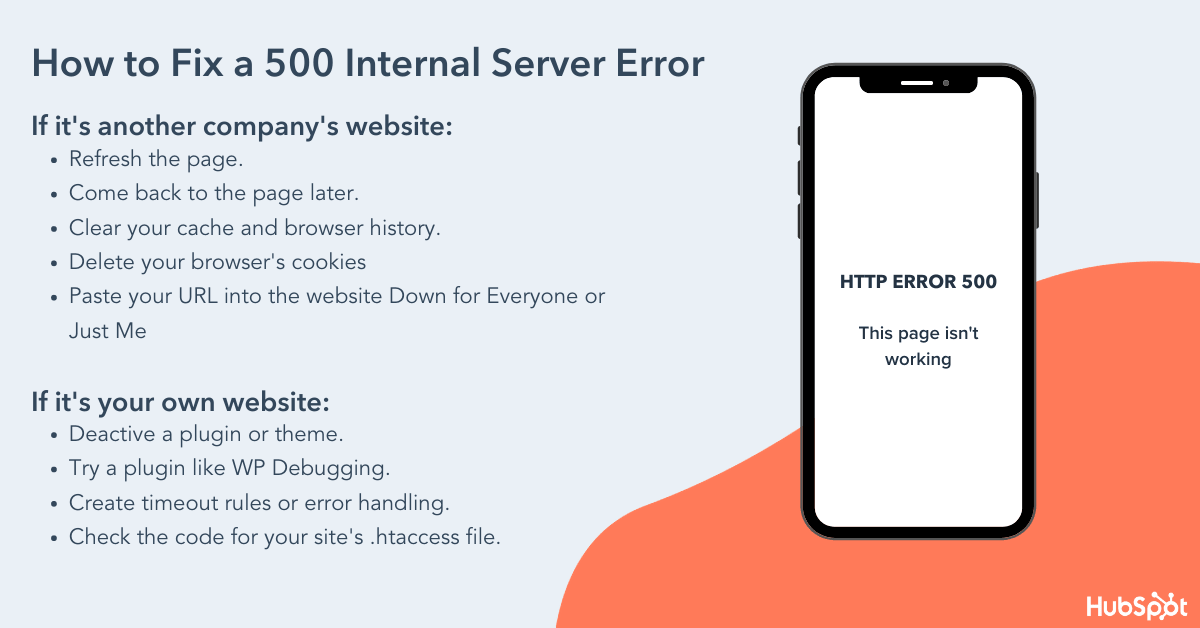
If You’re Trying to Load a Page with a 500 Internal Server Error:
1. Refresh the page.
This might seem obvious, but if it’s a temporary loading issue, you might find success if you refresh the page. Before trying anything else in this list, reload the page and see what happens.
2. Come back later.
Since the error is on the server side, I’m willing to bet the website owners are working as quickly as possible to resolve the issue. Give it a few minutes or up to an hour or so, and then reload the URL and see if the development team has fixed the issue.
3. Delete your browser’s cookies.
If clearing the browser history doesn’t work, you might try deleting your browser’s cookies. If the cookies are associated with the error-prone webpage, deleting the cookies might help reload the page.
4. Paste your URL into the website «Down for Everyone or Just Me.»
Head to downforeveryoneorjustme.com and paste in the URL where you’re seeing the internal server error. You’ll either be told that the website is only down for you, or that the website is down for everyone.
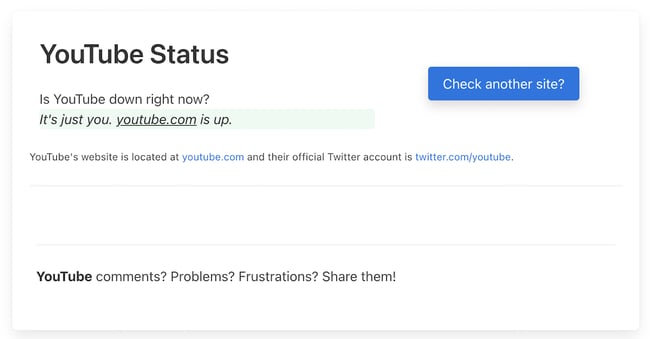 If it’s a problem with your server, this should help assuage any concerns that it’s an issue with your own computer.
If the 500 Internal Server Error is on Your Own Website:
1. Deactivate a plugin or theme.
Newly activated software, add-ons, or third-party scripts might be conflicting with your current server configuration. To determine this, try (carefully) deactivating or uninstalling your software add-ons one at a time to identify what exactly is causing the internal server error.
If you run a WordPress website, this is easy to do with plugins. From your dashboard, choose Plugins > Installed Plugins, then deactivate the first plugin. If the error resolves, you know this plugin is part of the issue. Reactivate the first plugin, then repeat this deactivate-reactivate process one at a time for all plugins to determine which ones are causing your error.
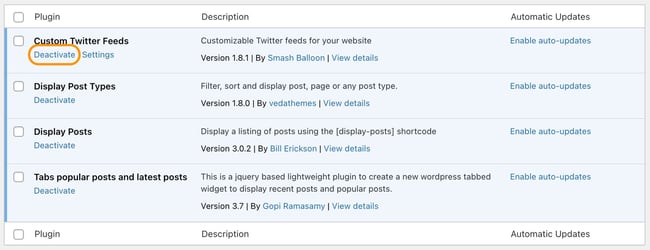 You might find that having fewer active plugins on your site helps things run more smoothly.
Alternatively, if you just upgraded your software, your current plugins or themes might not be compatible with the new upgrade. Deactivating plugins or themes one at a time until the error disappears is the best way to find the root cause of your problem.
2. Use a plugin like WP Debugging to identify the issue.
If your site is powered by WordPress and you’re comfortable with WordPress debugging processes, consider installing a plugin to help you identify the issue with your server.
The debug plugin WP Debugging, for instance, helps you figure out exactly what’s wrong with your site, which will result in a speedier fix.
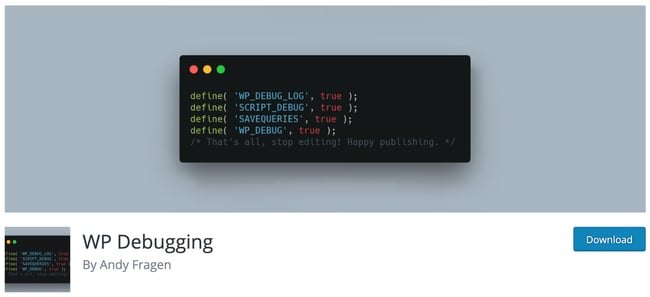
Image Source
3. Ensure your PHP setup is configured correctly.
If the issue is related to a PHP timeout, consider creating timeout rules or error handling in your script to resolve the issue. Here’s a full list of php.ini directives to configure your PHP setup.
Additionally, wrong permissions on a file or folder that has a script, like a PHP or CGI script, won’t allow the script to run. Check your permissions and make sure you set them correctly on your server.
4. Check the code for your site’s .htaccess file.
Incorrect coding or improper structure with your .htaccess file could be the reason you’re seeing the 500 internal error. The .htaccess file helps you manage how long resources should be stored in a browser’s cache. Try editing the file if you’re seeing a 500 internal server error.
To locate your .htaccess file, access your website files through a file manager like cPanel or via FTP/SFTP. The file will probably be located in your public_html directory. There’s a good chance your server will hide this file from view by default and you’ll need to toggle hidden files on to see it.
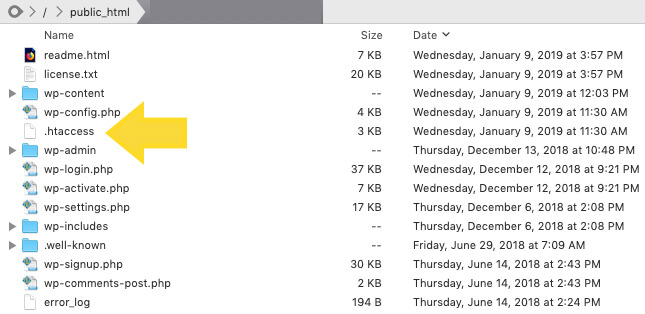
Image Source
Coding errors in .htaccess and custom scripts can also cause an HTTP 500 internal server error.
5. Ensure your new software is installed correctly.
Finally, check to see if your recently installed or upgraded software actually failed to install or upgrade. To refresh your software, check the vendor’s website for instructions.
Last Resort: Ask a Server Administrator for Help
If troubleshooting popular software problems or debugging server-side scripts doesn’t fix your HTTP 500 internal server error, you should read about the most common causes for this type of issue in your server’s documentation — an HTTP 500 internal server error can occur in different operating systems for a multitude of reasons.
You can also ask your service provider to access your error logs and find evidence of the root cause of your problem.
Internal server errors are irritating because they’re unhelpful — it’s basically the web server’s way of saying, «Eh, I’m not sure.» Hopefully, one of the above steps will resolve the problem so you can get back to life as usual.
Editor’s note: This post was originally published in October 2018 and has been updated for comprehensiveness.

500 internal server error clearly indicates that something went wrong during the display of PHP page.
By default, web servers like IIS return only generic error messages in websites. Often, this causes the masking of real reason for IIS PHP errors such as 500 internal server error.
That’s why, we frequently get request from Windows server owners to find out the reason for PHP website errors and fix them as part of our Server Management Services.
Today, we’ll take a look on how Bobcares’ Engineers track the real reason and fix php 500 internal server error in IIS.
What causes PHP 500 internal server error in IIS
Basically, 500 Internal Server Error is IIS web server’s way of saying, “Something has gone wrong when I tried to display the page. Not sure what.”
Now, its time to see the exact reasons for the 500 errors.
1. Permissions Error
From our experience in managing servers, our Windows Experts often see PHP 500 internal server errors due to wrong permissions and ownership on website files. In Windows servers, every file and every folder has its own set of permissions. Again, some permissions are inherited from the parent folders too. And, when the PHP binary do not have enough permissions to execute the scripts, it can result in 500 internal server error.
Similarly, ownership of the files also create problems. In Windows, specific users like IIS User, IIS WP User, etc. should have access on the website folders and files. For example, the IUSR account should have modify permissions on php scripts. And, when there are permission problems, website shows PHP errors.
2. Bad PHP Settings
Yet another reason for PHP internal server error is bad PHP settings. The PHP settings are specified in the configuration file at C:PHPPHP.ini. PHP binary take the values from this file while executing scripts.
A classic example will be PHP timeout settings. When the website PHP scripts has to fetch results from external resources, PHP timeout values often cause trouble. Most system administrators set timeout values in PHP to avoid abuse of the server resources. And, if the PHP script executes for a time longer than the threshold limits, it eventually results in 500 error.
3. PHP module errors
A very few 500 errors happen when the PHP module on the server as such becomes corrupt too. As a result, it results in processing failure of PHP scripts.
Luckily, when the website reports the 500 error due to module failures, IIS often show a more specific error messages like:
500.0 Module or ISAPI error occurred.
500.21 Module not recognized.
How we fixed PHP 500 internal server error in IIS
Fixing PHP 500 internal server error in IIS need a series of steps. Let’s now see how our Dedicated Engineers fixed it for one of our customers and made PHP scripts running.
The customer reported 500 internal server error on WordPress website running in IIS.
1. Turning On Display errors
While the error correctly suggested that PHP had caused 500 error code, it did not provide application-specific information about what caused the error. Therefore, the the first step of investigation was to turn ON display errors option. For this, our Dedicated Engineers followed the steps below.
- Using Windows® Explorer, browse to C:PHP and open the Php.ini file in the PHP installation directory.
- Edit and set the display_errors = On directive.
- Save the file.
- Reset IIS using the command iisreset.exe
After turning on the errors, we reloaded the PHP and it showed a PHP parse error:
Parse error: parse error in C:inetpubusersxxxhttpdocsmysiteerror.php on line 3 >>Often browser settings only show friendly error messages. In such cases, we recommend customer to turn it Off. For example, in Internet Explorer Go to Tools, Internet Options, Advanced tab, and then clear the Show friendly HTTP error messages check box.
Thus, it was a coding error on the PHP script. We suggested script modifications to customer and that fixed the error.
2. Running PHP script locally
Yet another way to find the exact error is to run the problem php script within the server. For this, our Support Engineers connect to the server via rdesktop and execute php script using the php.exe binary. It would show the DLL’s that are having conflicts and causing the 500 error. We fix these conflicts and make the script working again.
3. Correcting PHP settings
In some cases, we need to correct the PHP settings to get the problem solved. Recently, when a customer reported problems with his website, we had to set the php directive open_basedir correctly to solve 500 Internal Server Error.
Similarly, when PHP cgi scripts show up some warning, IIS7 still displays an HTTP 500 error message. Although the best method is to fix the PHP scripts, often changing the default error handling for FastCGI in IIS7 to “IgnoreAndReturn200” also work as a temporary fix. The exact settings will look as shown.
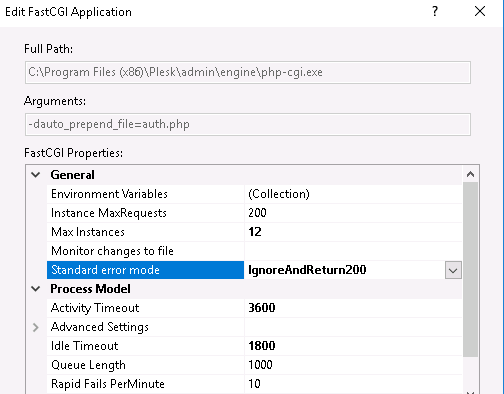
4. Fixing PHP binary
In some rare cases, the fix may involve complete rebuilding of PHP binary on the server. This happens mainly when the PHP program on the server becomes corrupt. However, in such cases our Dedicated Engineers always check the dependency of the package and do the reinstall. For control panel specific servers, we set the appropriate binary on the server.
[Broken PHP scripts causing big problems? Our IIS experts have the fix for you.]
Conclusion
In a nutshell, PHP 500 internal server error in IIS happens mainly due to reasons like buggy PHP scripts, wrong server settings and many more. Today, we saw the top reasons for the error and how our Support Engineers fix it for customers.
PREVENT YOUR SERVER FROM CRASHING!
Never again lose customers to poor server speed! Let us help you.
Our server experts will monitor & maintain your server 24/7 so that it remains lightning fast and secure.
GET STARTED
var google_conversion_label = «owonCMyG5nEQ0aD71QM»;
The dreaded 500 internal server error. It always seems to come at the most inopportune time and you’re suddenly left scrambling to figure out how to get your WordPress site back online. Trust us, we’ve all been there. Other errors that behave similarly that you might have also seen include the frightening error establishing a database connection and the dreaded white screen of death. But from the moment your site goes down, you’re losing visitors and customers. Not to mention it simply looks bad for your brand.
Today we’re going to dive into the 500 internal server error and walk you through some ways to get your site back online quickly. Read more below about what causes this error and what you can do to prevent it in the future.
- What is a 500 internal server error?
- How to fix the 500 internal server error
500 Internal Server Error (Most Common Causes):
500 Internal server error in WordPress can be caused by many things. If you’re experiencing one, there’s a high chance one (or more) of the following elements is causing the issue:
- Browser Cache.
- Incorrect database login credentials.
- Corrupted database.
- Corrupted files in your WordPress installation.
- Issues with your database server.
- Corrupted WordPress core files.
- Corrupted .htaccess file and PHP memory limit.
- Issues with third-party plugins and themes.
- PHP timing out or fatal PHP errors with third-party plugins.
- Wrong file and folder permissions.
- Exhausted PHP memory limit on your server
- Corrupted or broken .htaccess file.
- Errors in CGI and Perl script.
Check Out Our Ultimate Guide to Fixing the 500 Internal Server Error
What is a 500 Internal Server Error?
The Internet Engineering Task Force (IETF) defines the 500 Internal Server Error as:
The 500 (Internal Server Error) status code indicates that the server encountered an unexpected condition that prevented it from fulfilling the request.
When you visit a website your browser sends a request over to the server where the site is hosted. The server takes this request, processes it, and sends back the requested resources (PHP, HTML, CSS, etc.) along with an HTTP header. The HTTP also includes what they call an HTTP status code. A status code is a way to notify you about the status of the request. It could be a 200 status code which means “Everything is OK” or a 500 status code which means something has gone wrong.
There are a lot of different types of 500 status error codes (500, 501, 502, 503, 504, etc.) and they all mean something different. In this case, a 500 internal server error indicates that the server encountered an unexpected condition that prevented it from fulfilling the request (RFC 7231, section 6.6.1).
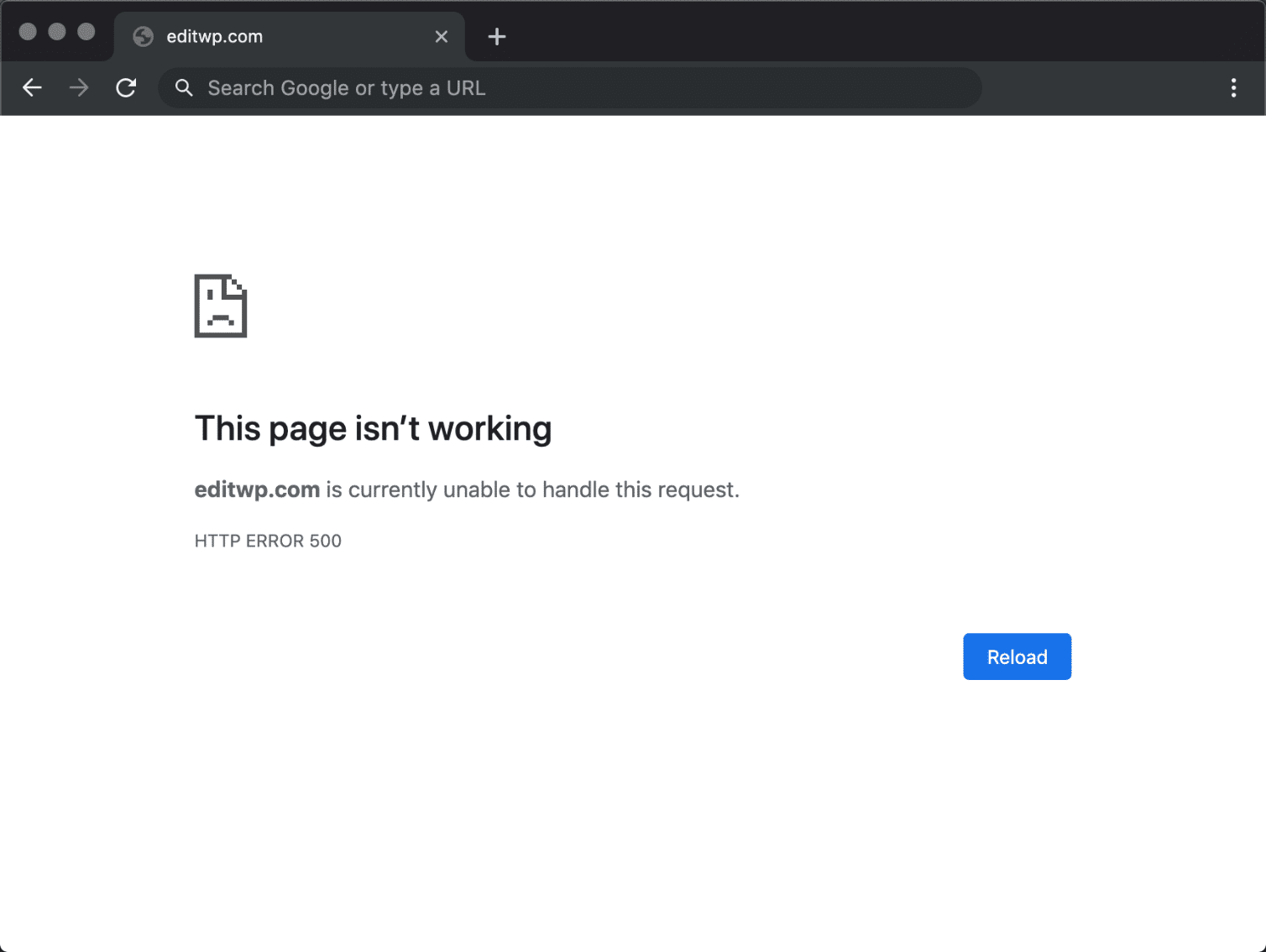
500 Internal Server Error Variations
Due to the various web servers, operating systems, and browsers, a 500 internal server error can present itself in a number of different ways. But they are all communicating the same thing. Below are just a couple of the many different variations you might see on the web:
-
- “500 Internal Server Error”
- “HTTP 500”
- “Internal Server Error”
- “HTTP 500 – Internal Server Error”
- “500 Error”
- “HTTP Error 500”
- “500 – Internal Server Error”
- “500 Internal Server Error. Sorry something went wrong.”
- “500. That’s an error. There was an error. Please try again later. That’s all we know.”
- “The website cannot display the page – HTTP 500.”
- “Is currently unable to handle this request. HTTP ERROR 500.”
You might also see this message accompanying it:
The server encountered an internal error or misconfiguration and was unable to complete your request. Please contact the server administrator, [email protected] and inform them of the time the error occurred, and anything you might have done that may have caused the error. More information about this error may be available in the server error log.
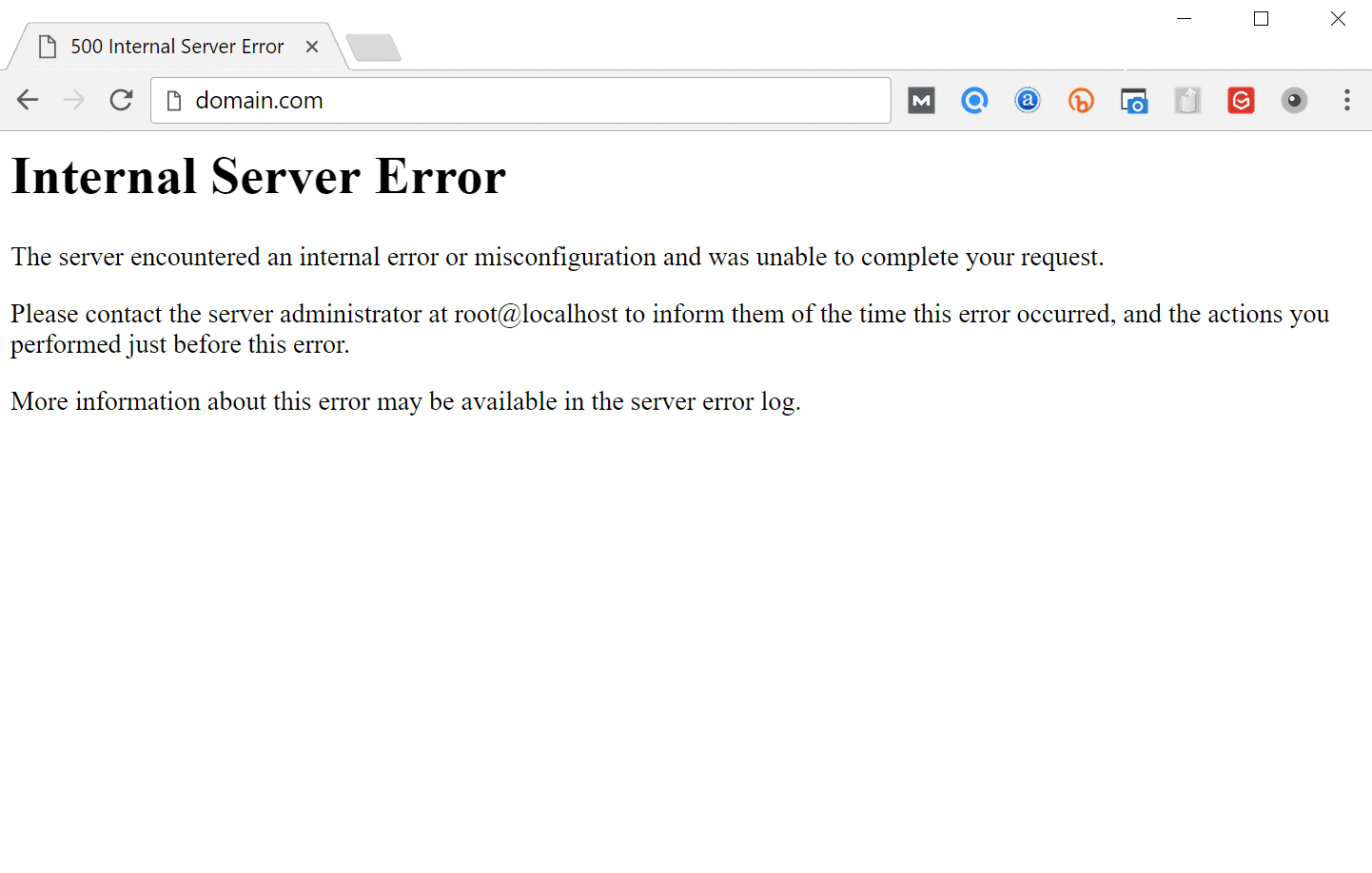
Other times, you might simply see a blank white screen. When dealing with 500 internal server errors, this is actually quite common in browsers like Firefox and Safari.

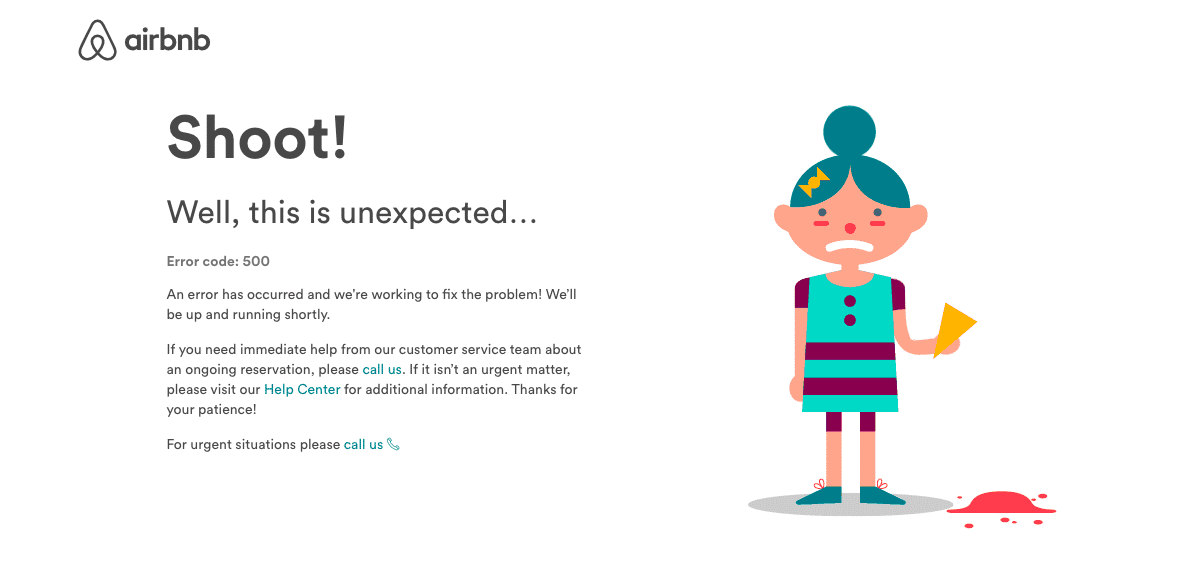
Bigger brands might even have their own custom 500 internal server error messages, such as this one from Airbnb.
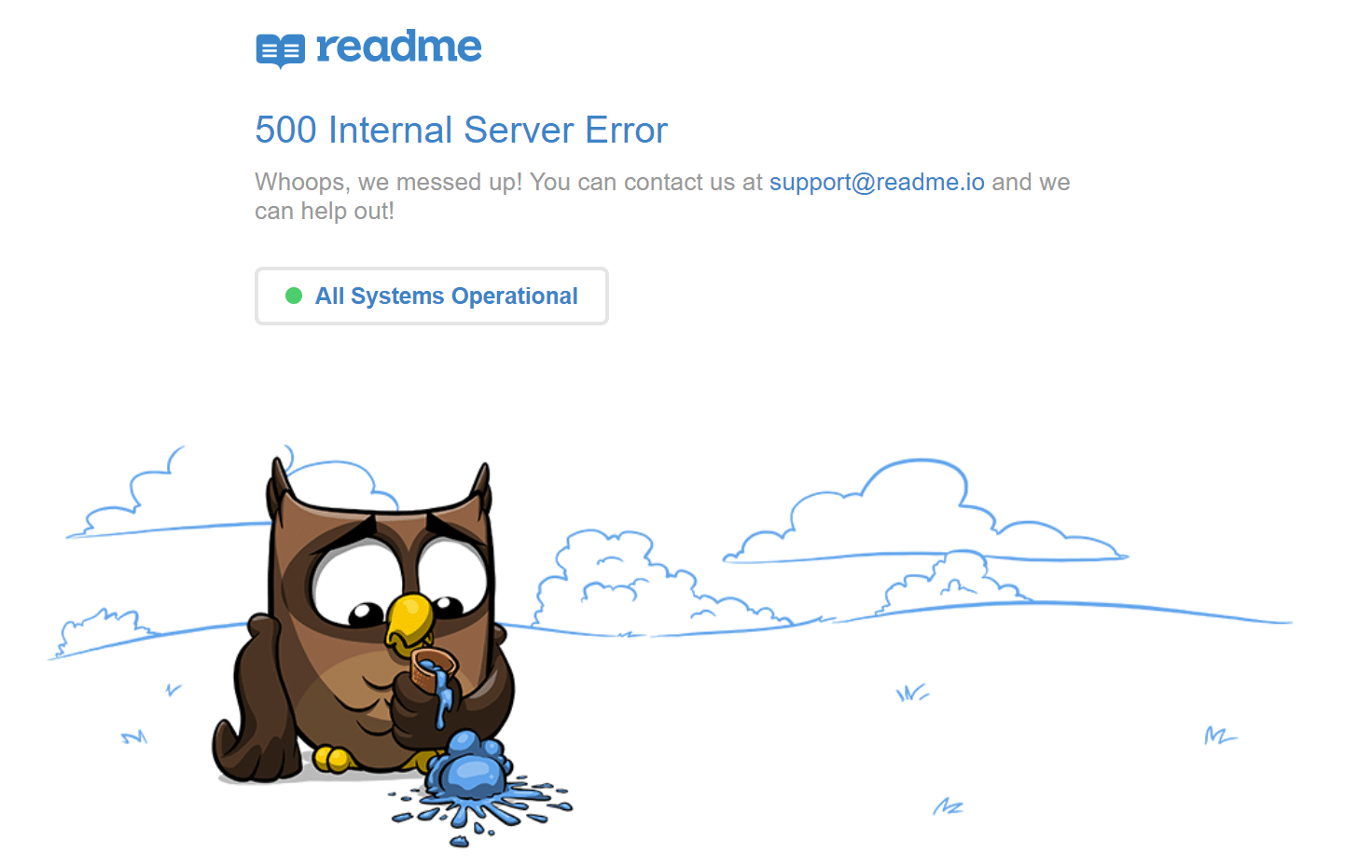
Here is another creative 500 server error example from the folks over at readme.
Even the mighty YouTube isn’t safe from 500 internal server errors.

If it’s an IIS 7.0 (Windows) or higher server, they have additional HTTP status codes to more closely indicate the cause of the 500 error:
- 500.0 – Module or ISAPI error occurred.
- 500.11 – Application is shutting down on the web server.
- 500.12 – Application is busy restarting on the web server.
- 500.13 – Web server is too busy.
- 500.15 – Direct requests for global.asax are not allowed.
- 500.19 – Configuration data is invalid.
- 500.21 – Module not recognized.
- 500.22 – An ASP.NET httpModules configuration does not apply in Managed Pipeline mode.
- 500.23 – An ASP.NET httpHandlers configuration does not apply in Managed Pipeline mode.
- 500.24 – An ASP.NET impersonation configuration does not apply in Managed Pipeline mode.
- 500.50 – A rewrite error occurred during RQ_BEGIN_REQUEST notification handling. A configuration or inbound rule execution error occurred.
- 500.51 – A rewrite error occurred during GL_PRE_BEGIN_REQUEST notification handling. A global configuration or global rule execution error occurred.
- 500.52 – A rewrite error occurred during RQ_SEND_RESPONSE notification handling. An outbound rule execution occurred.
- 500.53 – A rewrite error occurred during RQ_RELEASE_REQUEST_STATE notification handling. An outbound rule execution error occurred. The rule is configured to be executed before the output user cache gets updated.
500.100 – Internal ASP error.
500 Errors Impact on SEO
Unlike 503 errors, which are used for WordPress maintenance mode and tell Google to check back at a later time, a 500 error can have a negative impact on SEO if not fixed right away. If your site is only down for say 10 minutes and it’s being crawled consistently a lot of times the crawler will simply get the page delivered from cache. Or Google might not even have a chance to re-crawl it before it’s back up. In this scenario, you’re completely fine.
However, if the site is down for an extended period of time, say 6+ hours, then Google might see the 500 error as a site level issue that needs to be addressed. This could impact your rankings. If you’re worried about repeat 500 errors you should figure out why they are happening to begin with. Some of the solutions below can help.
How to Fix the 500 Internal Server Error
Where should you start troubleshooting when you see a 500 internal server error on your WordPress site? Sometimes you might not even know where to begin. Typically 500 errors are on the server itself, but from our experience, these errors originate from two things, the first is user error (client-side issue), and the second is that there is a problem with the server. So we’ll dive into a little of both.
This is never not annoying 😖 pic.twitter.com/pPKxbkvI9K
— Dare Obasanjo 🐀 (@Carnage4Life) September 26, 2019
Check out these common causes and ways to fix the 500 internal server error and get back up and running in no time.
1. Try Reloading the Page
This might seem a little obvious to some, but one of the easiest and first things you should try when encountering a 500 internal server error is to simply wait a minute or so and reload the page (F5 or Ctrl + F5). It could be that the host or server is simply overloaded and the site will come right back. While you’re waiting, you could also quickly try a different browser to rule that out as an issue.
Another thing you can do is to paste the website into downforeveryoneorjustme.com. This website will tell you if the site is down or if it’s a problem on your side. A tool like this checks the HTTP status code that is returned from the server. If it’s anything other than a 200 “Everything is OK” then it will return a down indication.

We’ve also noticed that sometimes this can occur immediately after you update a plugin or theme on your WordPress site. Typically this is on hosts that aren’t set up properly. What happens is they experience a temporary timeout right afterward. However, things usually resolve themselves in a couple of seconds and therefore refreshing is all you need to do.
2. Clear Your Browser Cache
Clearing your browser cache is always another good troubleshooting step before diving into deeper debugging on your site. Below are instructions on how to clear cache in the various browsers:
- How to Force Refresh a Single Page for All Browsers
- How to Clear Browser Cache for Google Chrome
- How to Clear Browser Cache for Mozilla Firefox
- How to Clear Browser Cache for Safari
- How to Clear Browser Cache for Internet Explorer
- How to Clear Browser Cache for Microsoft Edge
- How to Clear Browser Cache for Opera
3. Check Your Server Logs
You should also take advantage of your error logs. If you’re a Kinsta client, you can easily see errors in the log viewer in the MyKinsta dashboard. This can help you quickly narrow down the issue, especially if it’s resulting from a plugin on your site.

If your host doesn’t have a logging tool, you can also enable WordPress debugging mode by adding the following code to your wp-config.php file to enable logging:
define( 'WP_DEBUG', true );
define( 'WP_DEBUG_LOG', true );
define( 'WP_DEBUG_DISPLAY', false );
The logs are typically located in the /wp-content directory. Others, like here at Kinsta might have a dedicated folder called “logs”.
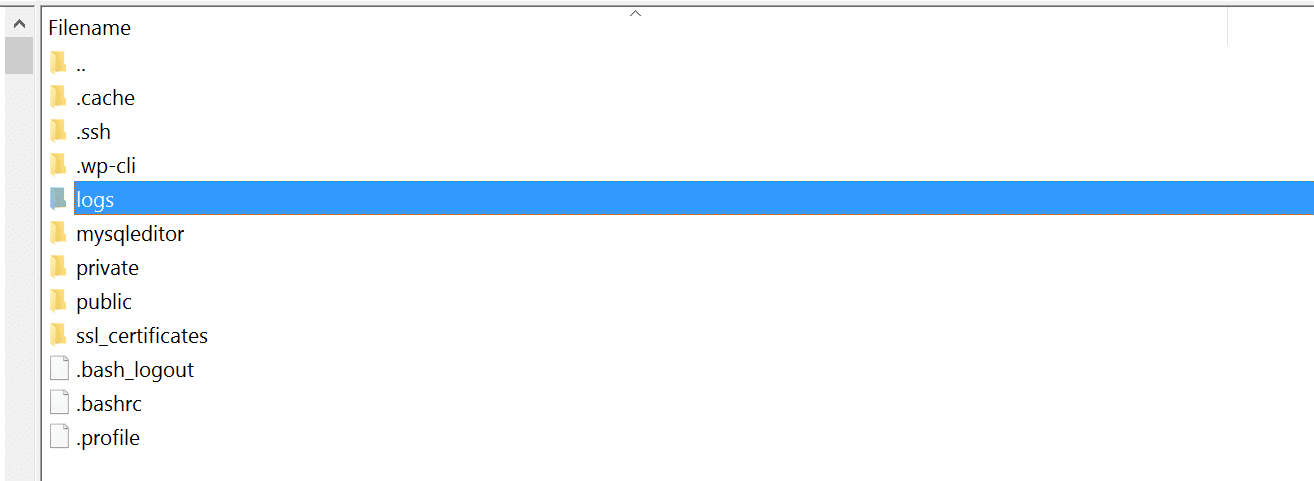
You can also check the log files in Apache and Nginx, which are commonly located here:
- Apache: /var/log/apache2/error.log
- Nginx: /var/log/nginx/error.log
If you’re a Kinsta client you can also take advantage of our analytics tool to get a breakdown of the total number of 500 errors and see how often and when they are occurring. This can help you troubleshoot if this is an ongoing issue, or perhaps something that has resolved itself.

If the 500 error is displaying because of a fatal PHP error, you can also try enabling PHP error reporting. Simply add the following code to the file throwing the error. Typically you can narrow down the file in the console tab of Google Chrome DevTools.
ini_set('display_errors', 1);
ini_set('display_startup_errors', 1);
error_reporting(E_ALL);
And you might need to also modify your php.ini file with the following:
display_errors = on4. Error Establishing a Database Connection
500 internal server errors can also occur from a database connection error. Depending upon your browser you might see different errors. But both will generate a 500 HTTP status code regardless in your server logs.
Below is an example of what an “error establishing a database connection” message looks like your browser. The entire page is blank because no data can be retrieved to render the page, as the connection is not working properly. Not only does this break the front-end of your site, but it will also prevent you from accessing your WordPress dashboard.
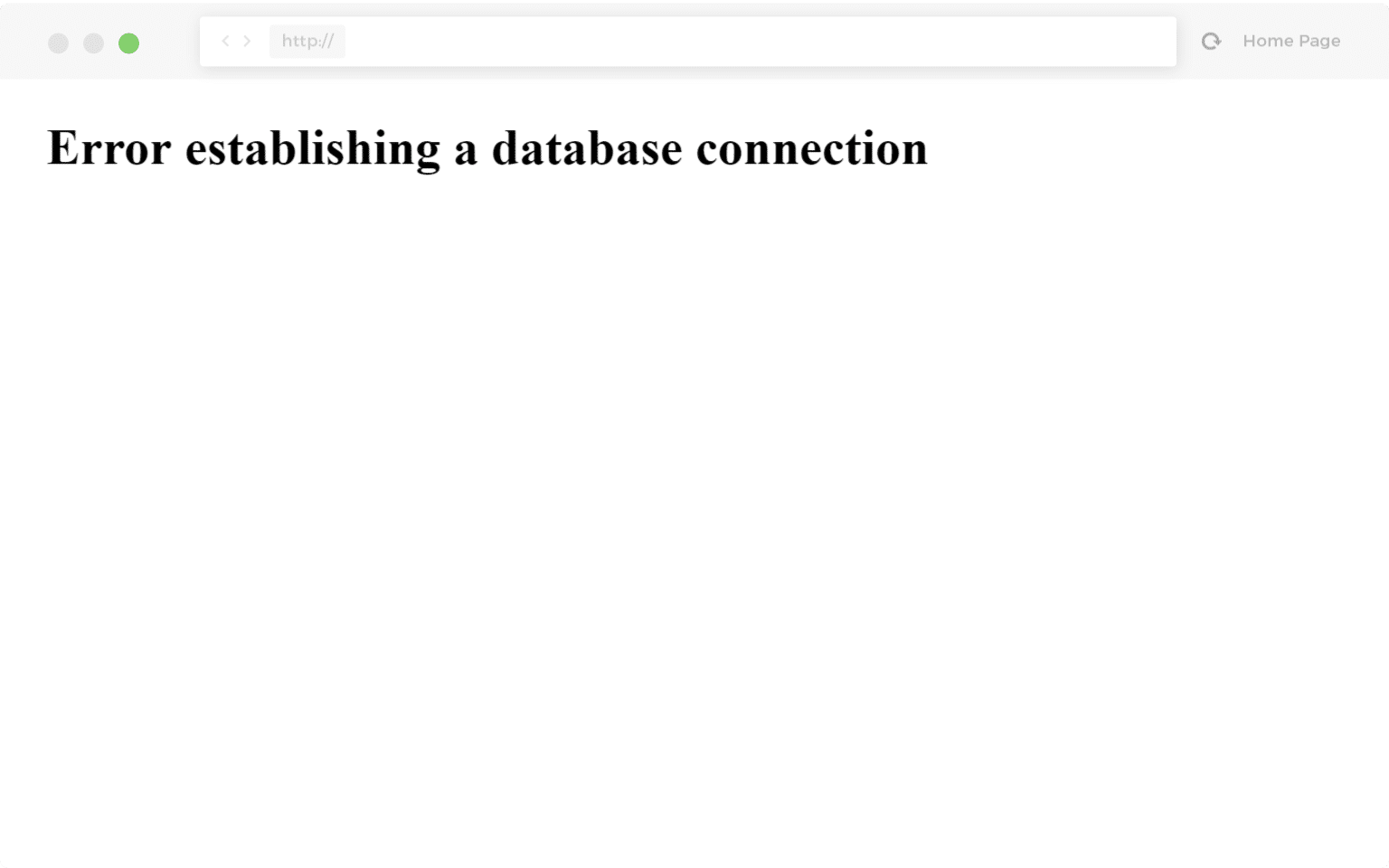
So why exactly does this happen? Well, here are a few common reasons below.
- The most common issue is that your database login credentials are incorrect. Your WordPress site uses separate login information to connect to its MySQL database.
- Your WordPress database is corrupted. With so many moving parts with themes, plugins, and users constantly deleting and installing them, sometimes databases get corrupted. This can be due to a missing or individually corrupted table, or perhaps some information was deleted by accident.
- You may have corrupt files in your WordPress installation. This can even happen sometimes due to hackers.
- Issues with your database server. A number of things could be wrong on the web hosts end, such as the database being overloaded from a traffic spike or unresponsive from too many concurrent connections. This is actually quite common with shared hosts as they are utilizing the same resources for a lot of users on the same servers.
Check out our in-depth post on how to fix the error establishing a database connection in WordPress.
5. Check Your Plugins and Themes
Third-party plugins and themes can easily cause 500 internal server errors. We’ve seen all types cause them here at Kinsta, from slider plugins to ad rotator plugins. A lot of times you should see the error immediately after installing something new or running an update. This is one reason why we always recommend utilizing a staging environment for updates or at least running updates one by one. Otherwise, if you encounter a 500 internal server error you’re suddenly scrambling to figure out which one caused it.
A few ways you can troubleshoot this is by deactivating all your plugins. Remember, you won’t lose any data if you simply deactivate a plugin. If you can still access your admin, a quick way to do this is to browse to “Plugins” and select “Deactivate” from the bulk actions menu. This will disable all of your plugins.
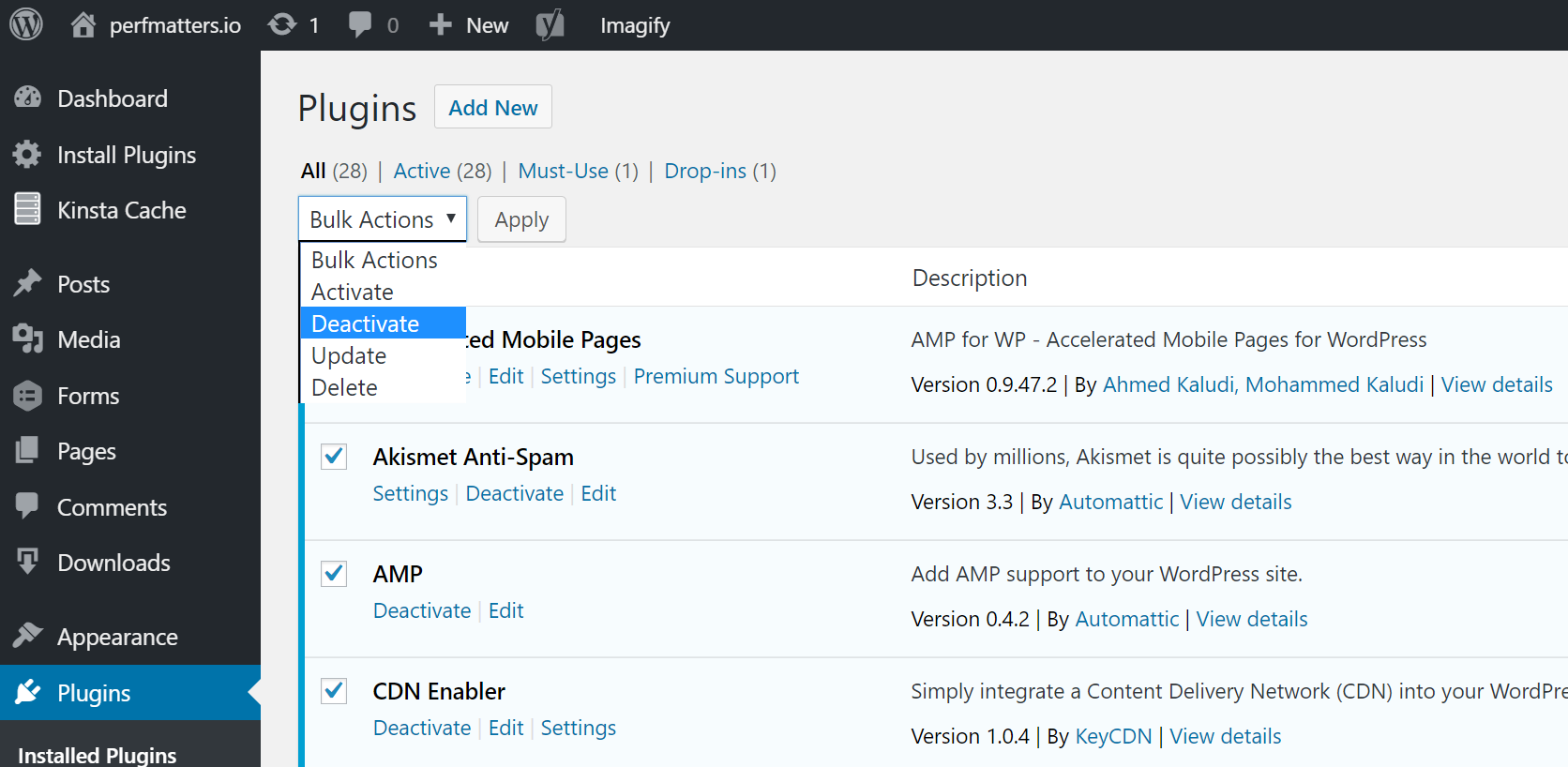
If this fixes the issue you’ll need to find the culprit. Start activating them one by one, reloading the site after each activation. When you see the 500 internal server error return, you’ve found the misbehaving plugin. You can then reach out to the plugin developer for help or post a support ticket in the WordPress repository.
If you can’t login to WordPress admin you can FTP into your server and rename your plugins folder to something like plugins_old. Then check your site again. If it works, then you will need to test each plugin one by one. Rename your plugin folder back to “plugins” and then rename each plugin folder inside of if it, one by one, until you find it. You could also try to replicate this on a staging site first.
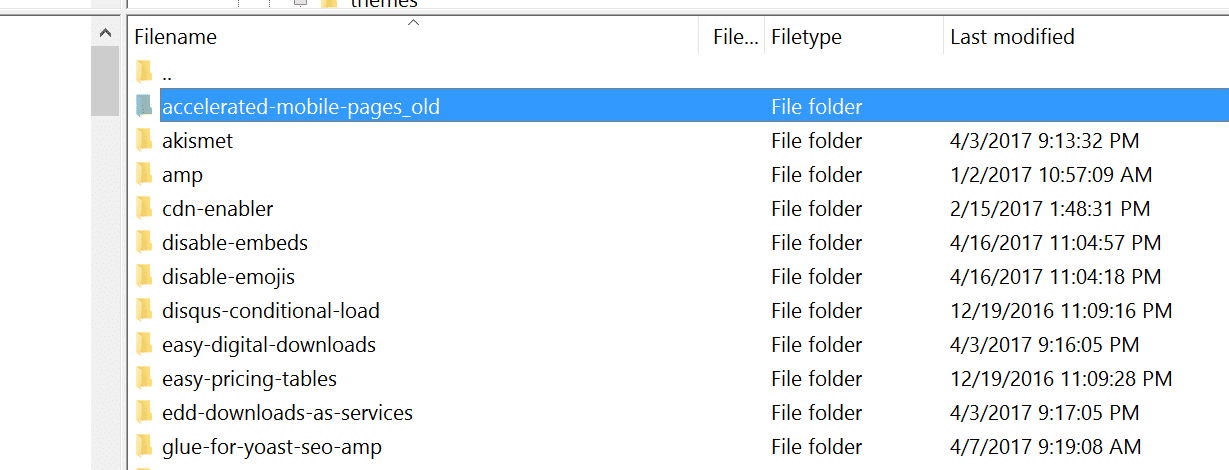
Always makes sure your plugins, themes, and WordPress core are up to date. And check to ensure you are running a supported version of PHP. If it turns out to be a conflict with bad code in a plugin, you might need to bring in a WordPress developer to fix the issue.
6. Reinstall WordPress Core
Sometimes WordPress core files can get corrupted, especially on older sites. It’s actually quite easy to re-upload just the core of WordPress without impacting your plugins or themes. We have an in-depth guide with 5 different ways to reinstall WordPress. And of course, make sure to take a backup before proceeding. Skip to one of the sections below:
- How to reinstall WordPress from the WordPress dashboard while preserving existing content
- How to manually reinstall WordPress via FTP while preserving existing content
- How to manually reinstall WordPress via WP-CLI while preserving existing content
7. Permissions Error
A permissions error with a file or folder on your server can also cause a 500 internal server error to occur. Here are some typical recommendations for permissions when it comes to file and folder permissions in WordPress:
- All files should be 644 (-rw-r–r–) or 640.
- All directories should be 755 (drwxr-xr-x) or 750.
- No directories should ever be given 777, even upload directories.
- Hardening: wp-config.php could also be set to 440 or 400 to prevent other users on the server from reading it.
See the WordPress Codex article on changing file permissions for a more in-depth explanation.
You can easily see your file permissions with an FTP client (as seen below). You could also reach out to your WordPress host support team and ask them to quickly GREP file permissions on your folders and files to ensure they’re setup properly.

8. PHP Memory Limit
A 500 internal server error could also be caused by exhausting the PHP memory limit on your server. You could try increasing the limit. Follow the instructions below on how to change this limit in cPanel, Apache, your php.ini file, and wp-config.php file.
Increase PHP Memory Limit in cPanel
If you’re running on a host that uses cPanel, you can easily change this from the UI. Under Software click on “Select PHP Version.”

Click on “Switch to PHP Options.”
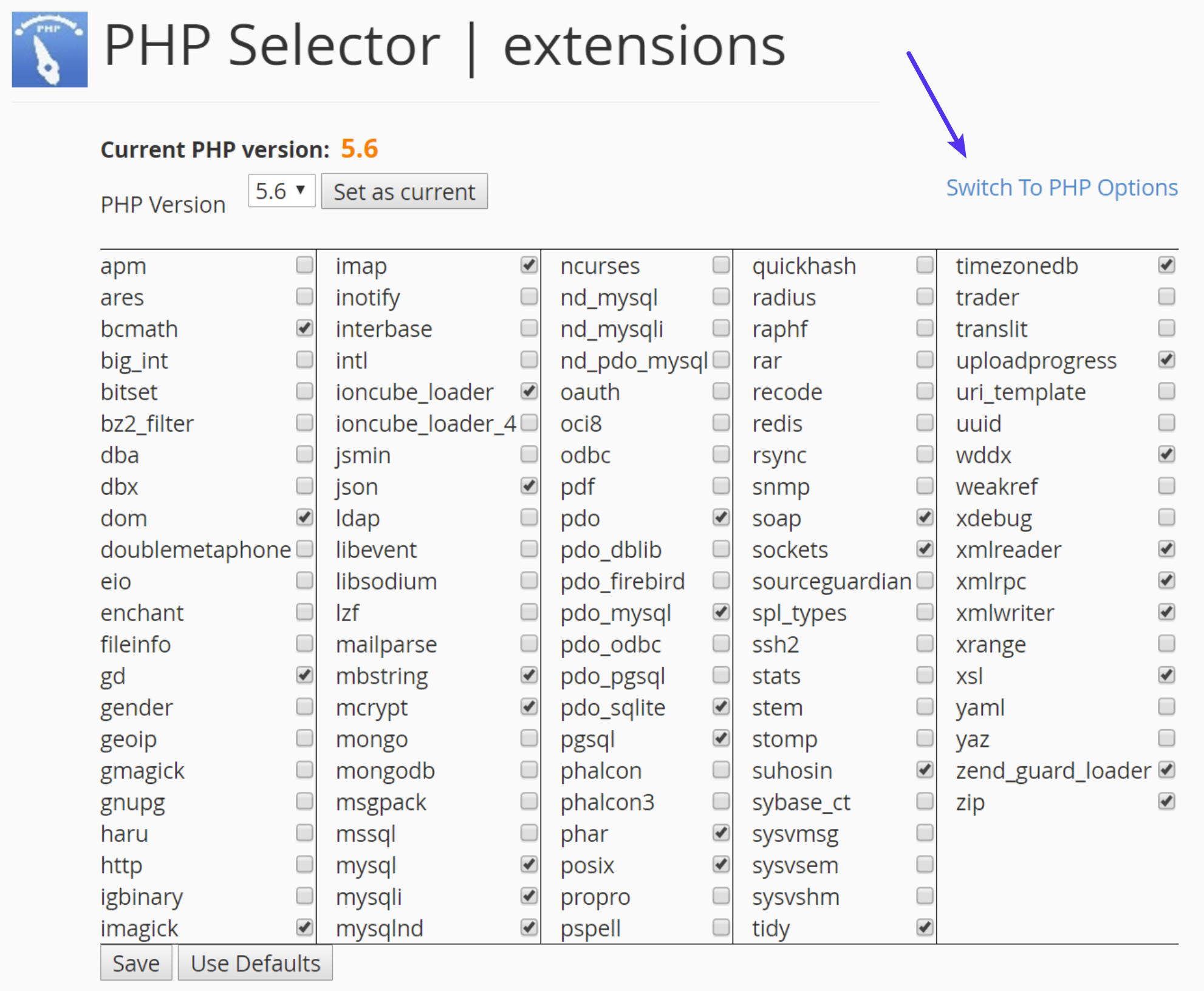
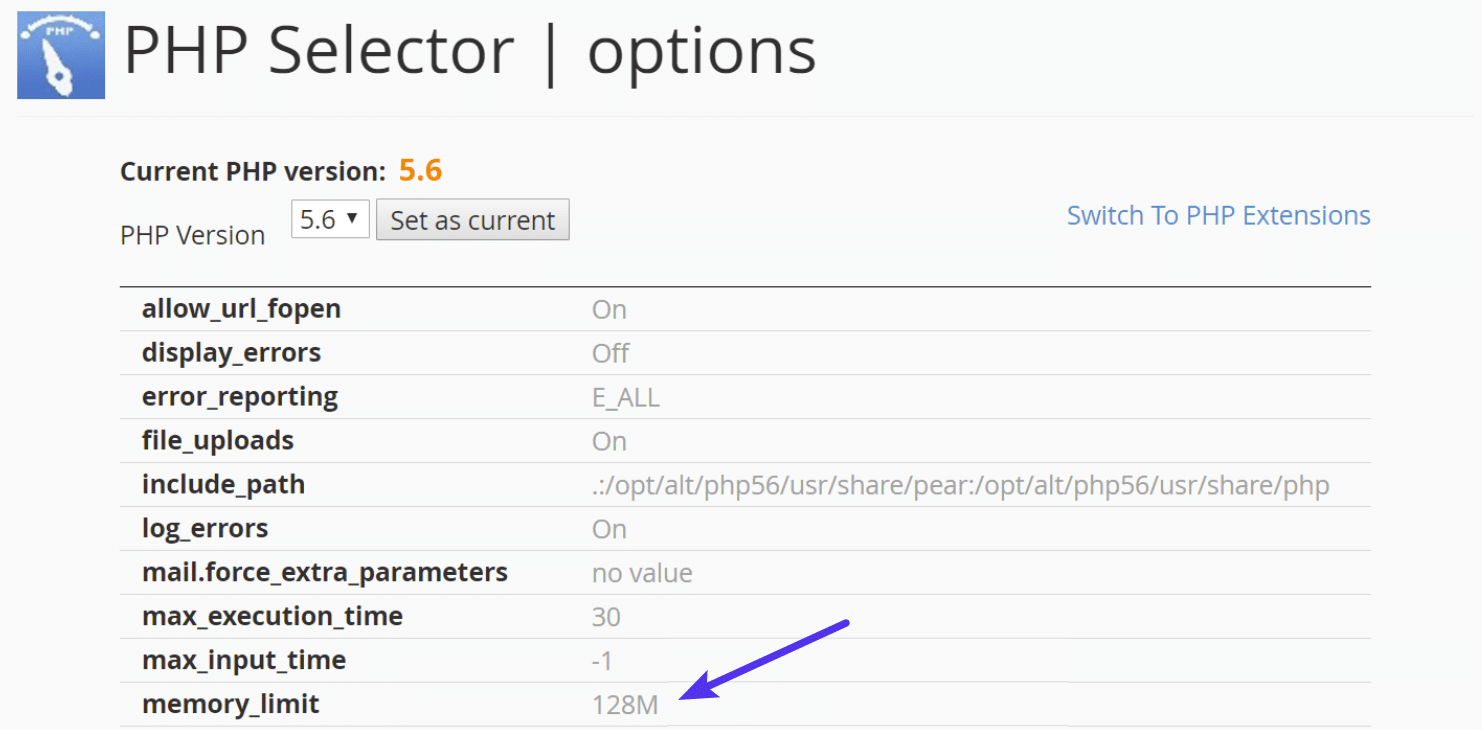
You can then click on the memory_limit attribute and change its value. Then click on “Save.”
Increase PHP Memory Limit in Apache
The .htaccess file is a special hidden file that contains various settings you can use to modify the server behavior, right down to a directory specific level. First login to your site via FTP or SSH, take a look at your root directory and see if there is a .htaccess file there.

If there is you can edit that file to add the necessary code for increasing the PHP memory limit. Most likely it is set at 64M or below, you can try increasing this value.
php_value memory_limit 128MIncrease PHP Memory Limit in php.ini File
If the above doesn’t work for you might try editing your php.ini file. Log in to your site via FTP or SSH, go to your site’s root directory and open or create a php.ini file.
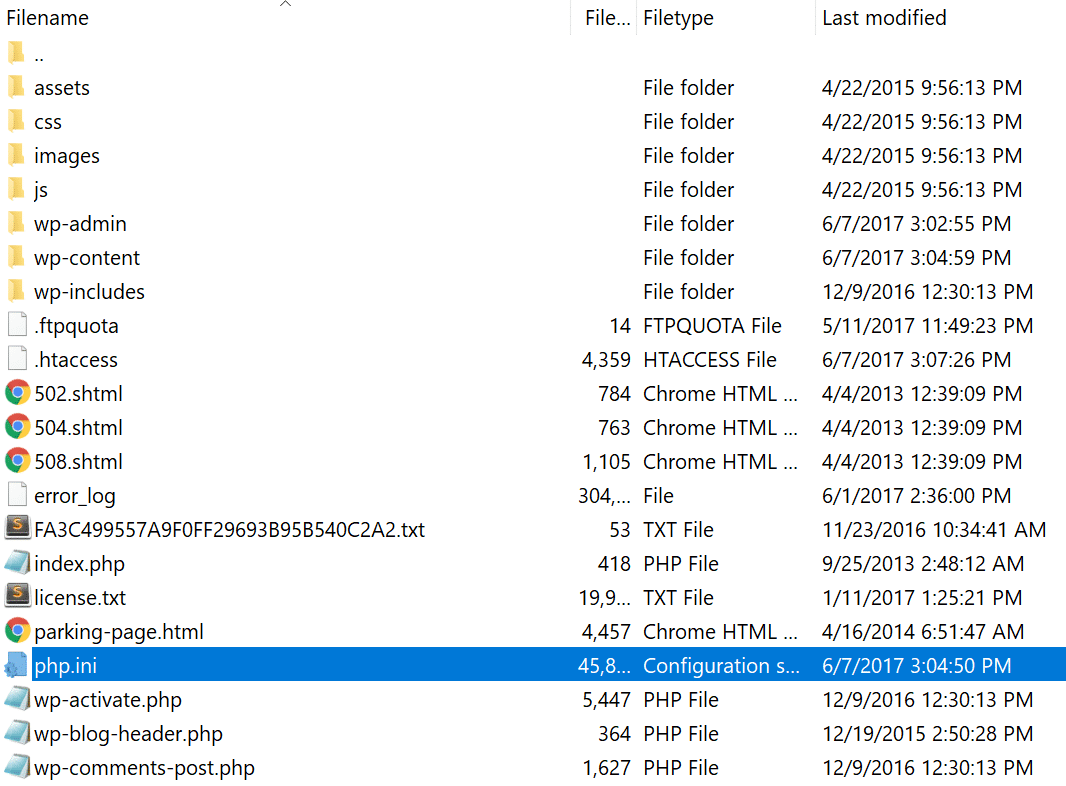
If the file was already there, search for the three settings and modify them if necessary. If you just created the file, or the settings are nowhere to be found you can paste the code below. You can modify of course the values to meet your needs.
memory_limit = 128MSome shared hosts might also require that you add the suPHP directive in your .htaccess file for the above php.ini file settings to work. To do this, edit your .htaccess file, also located at the root of your site, and add the following code towards the top of the file:
<IfModule mod_suphp.c>
suPHP_ConfigPath /home/yourusername/public_html
</IfModule>
If the above didn’t work for you, it could be that your host has the global settings locked down and instead have it configured to utilize .user.ini files. To edit your .user.ini file, login to your site via FTP or SSH, go to your site’s root directory and open or create a .user.ini file. You can then paste in the following code:
memory_limit = 128MIncrease PHP Memory Limit in wp-config.php
The last option is not one we are fans of, but if all else fails you can give it a go. First, log in to your site via FTP or SSH, and locate your wp-config.php file, which is typically in the root of your site.
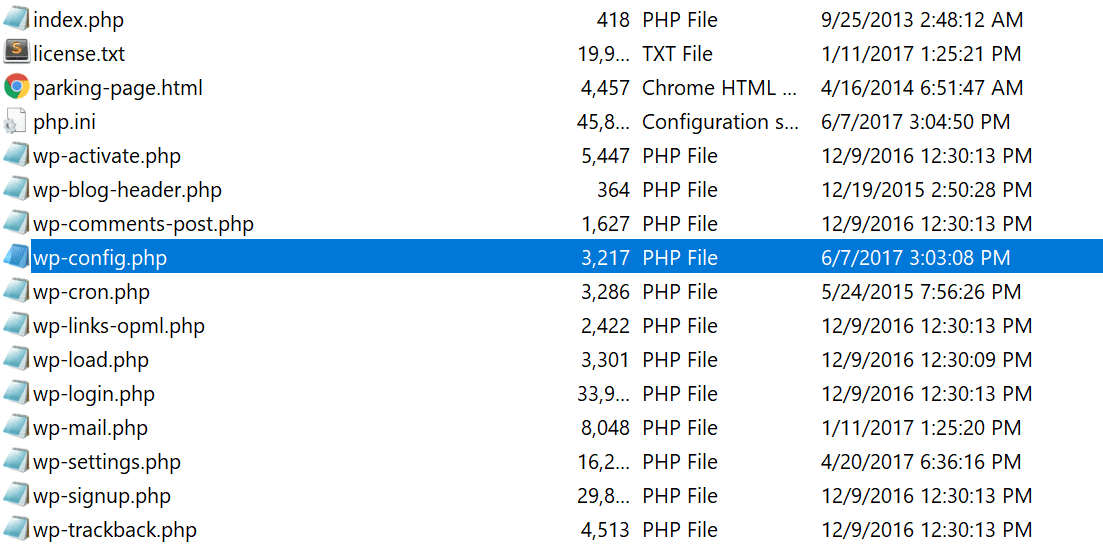
Add the following code to the top of your wp-config.php file:
define('WP_MEMORY_LIMIT', '128M');You can also ask your host if you’re running into memory limit issues. We utilize the Kinsta APM tool and other troubleshooting methods here at Kinsta to help clients narrow down what plugin, query, or script might be exhausting the limit. You can also use your own custom New Relic key from your own license.
9. Problem With Your .htaccess File
Kinsta only uses Nginx, but if you’re using a WordPress host that is running Apache, it could very well be that your .htaccess file has a problem or has become corrupted. Follow the steps below to recreate a new one from scratch.
First, log in to your site via FTP or SSH, and rename your .htaccess file to .htaccess_old.
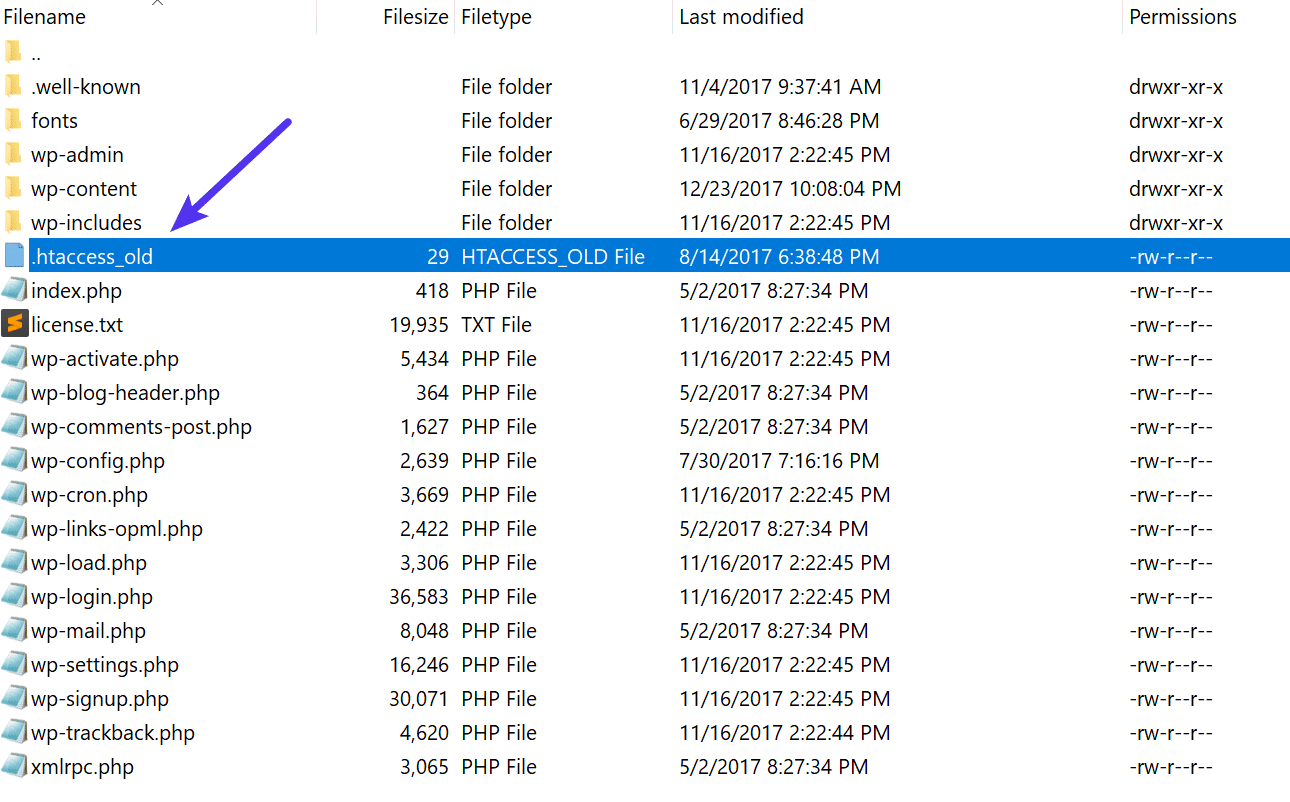
Normally to recreate this file you can simply re-save your permalinks in WordPress. However, if you’re in the middle of a 500 internal server error you most likely can’t access your WordPress admin, so this isn’t an option. Therefore you can create a new .htaccess file and input the following contents. Then upload it to your server.
# BEGIN WordPress
<IfModule mod_rewrite.c>
RewriteEngine On
RewriteBase /
RewriteRule ^index.php$ - [L]
RewriteCond %{REQUEST_FILENAME} !-f
RewriteCond %{REQUEST_FILENAME} !-d
RewriteRule . /index.php [L]
</IfModule>
# END WordPress
See the WordPress Codex for more examples, such as a default .htaccess file for multisite.
10. Coding or Syntax Errors in Your CGI/Perl Script
500 errors being caused by errors in CGI and Perl is a lot less common than it used to be. Although it’s still worth mentioning, especially for those using cPanel where there are a lot of one-click CGI scripts still being used. As AEM on Stack Overflow says:
CGI has been replaced by a vast variety of web programming technologies, including PHP, various Apache extensions like mod_perl, Java of various flavors and frameworks including Java EE, Struts, Spring, etc, Python-based frameworks like Django, Ruby on Rails and many other Ruby frameworks, and various Microsoft technologies.
Here are a few tips when working with CGI scripts:
- When editing, always used a plain text editor, such as Atom, Sublime, or Notepad++. This ensures they remain in ASCII format.
- Ensure correct permissions of chmod 755 are used on CGI scripts and directories.
- Upload your CGI scripts in ASCII mode (which you can select in your FTP editor) into the cgi-bin directory on your server.
- Confirm that the Perl modules you require for your script are installed and supported.
11. Server Issue (Check With Your Host)
Finally, because 500 internal server errors can also occur from PHP timing out or fatal PHP errors with third-party plugins, you can always check with your WordPress host. Sometimes these errors can be difficult to troubleshoot without an expert. Here are just a few common examples of some errors that trigger 500 HTTP status codes on the server that might have you scratching your head.
PHP message: PHP Fatal error: Uncaught Error: Call to undefined function mysql_error()...PHP message: PHP Fatal error: Uncaught Error: Cannot use object of type WP_Error as array in /www/folder/web/shared/content/plugins/plugin/functions.php:525We monitor all client’s sites here at Kinsta and are automatically notified when these types of errors occur. This allows us to be pro-active and start fixing the issue right away. We also utilize LXD managed hosts and orchestrated LXC software containers for each site. This means that every WordPress site is housed in its own isolated container, which has all of the software resources required to run it (Linux, Nginx, PHP, MySQL). The resources are 100% private and are not shared with anyone else or even your own sites.
PHP timeouts could also occur from the lack of PHP workers, although typically these cause 504 errors, not 500 errors. These determine how many simultaneous requests your site can handle at a given time. To put it simply, each uncached request for your website is handled by a PHP Worker.
When PHP workers are already busy on a site, they start to build up a queue. Once you’ve reached your limit of PHP workers, the queue starts to push out older requests which could result in 500 errors or incomplete requests. Read our in-depth article about PHP workers.
Monitor Your Site
If you’re worried about these types of errors happening on your site in the future, you can also utilize a tool like updown.io to monitor and notify you immediately if they occur. It periodically sends an HTTP HEAD request to the URL of your choice. You can simply use your homepage. The tool allows you to set check frequencies of:
- 15 seconds
- 30 seconds
- 1 minute
- 2 minutes
- 5 minutes
- 10 minutes
It will send you an email if and when your site goes down. Here is an example below.

This can be especially useful if you’re trying to debug a faulty plugin or are on a shared host, who tend to overcrowd their servers. This can give you proof of how often your site might actually be doing down (even during the middle of the night).
That’s why we always recommend going with an application, database, and managed WordPress host (like Kinsta).
Make sure to check out our post that explores the top 9 reasons to choose managed WordPress hosting.
Summary
500 internal server errors are always frustrating, but hopefully, now you know a few additional ways to troubleshoot them to quickly get your site back up and running. Remember, typically these types of errors are caused by third-party plugins, fatal PHP errors, database connection issues, problems with your .htaccess file or PHP memory limits, and sometimes PHP timeouts.
Was there anything we missed? Perhaps you have another tip on troubleshooting 500 internal server errors. If so, let us know below in the comments.
Get all your applications, databases and WordPress sites online and under one roof. Our feature-packed, high-performance cloud platform includes:
- Easy setup and management in the MyKinsta dashboard
- 24/7 expert support
- The best Google Cloud Platform hardware and network, powered by Kubernetes for maximum scalability
- An enterprise-level Cloudflare integration for speed and security
- Global audience reach with up to 35 data centers and 275 PoPs worldwide
Test it yourself with $20 off your first month of Application Hosting or Database Hosting. Explore our plans or talk to sales to find your best fit.
-
+1 888 500 1070 (Toll Free)
-
+1 888 500 1070 (Toll Free)

- Product
Unique Public & Private Cloud Management Portal for Data centers, Enterprise & Webhosting Companies.
Easy-to-use self-service portal allows your customers the freedom to manage their cloud with minimal handholding.
Self-service portal allows businesses to manage their resources, monitoring & vulnerability scan, by themselves.
Centralized governance and secure and holistic management of resources across multiple clouds through RBAC.
- Cloud services & AIOps
PUBLIC CLOUD
Transform Your Enterprise on AWS Cloud Platform with Cost-Effective, AIOps-Driven Managed Offerings.
GCP
Assistanz helps Enterpise, drive innovation, manage costs, governance and risks associated with their workloads on Google Cloud Platform.
CONTAINER ORCHESTRATION
Orchestrate containerized applications across multiple environments with end-to-end support from certified Kubernetes administrators.
Helps organizations increase efficiency, reduce cost and speed up time to market through pipeline automation across different cloud platforms.
PRIVATE CLOUD
Assistanz are the largest supporter of CloudStack since 2015, specializing in design & implementation of laaS for private & public clouds.
- Support Services
Our IMS Plans cover IT infrastructure planning, design, implementation, maintenance and evloution
If you are looking for staffs who could augment your webhosting business, then Assistanz is just the partner you’re looking for.
Offload your cPanel Server management & support overheads and focus only on your business.
A fully comprehensive plan to manage your Linux & Windows Plesk Servers.
Our DirectAdmin server management plan provides you with unlimited hours of server.
Enable easy migration of applications to cloud with our robust cloud server migration services.
Connect with US
Looking for more cutomized support solutions ?
Our team is ready to help you
Explore our free Configuration package, Scripts, Automations & More..
Quality Management System

- Company
Established in 2004, Assistanz has become one of the most preferred IT Service providers across diverse industry segments and a complete one-stop shop for all your IT Needs & Solutions.
Questions about our service?
Our team can answer them for your within a day..
If you care for a career…
- Blog


- Product
Unique Public & Private Cloud Management Portal for Data centers, Enterprise & Webhosting Companies.
Easy-to-use self-service portal allows your customers the freedom to manage their cloud with minimal handholding.
Self-service portal allows businesses to manage their resources, monitoring & vulnerability scan, by themselves.
Centralized governance and secure and holistic management of resources across multiple clouds through RBAC.
- Cloud services & AIOps
PUBLIC CLOUD
Transform Your Enterprise on AWS Cloud Platform with Cost-Effective, AIOps-Driven Managed Offerings.
GCP
Assistanz helps Enterpise, drive innovation, manage costs, governance and risks associated with their workloads on Google Cloud Platform.
CONTAINER ORCHESTRATION
Orchestrate containerized applications across multiple environments with end-to-end support from certified Kubernetes administrators.
Helps organizations increase efficiency, reduce cost and speed up time to market through pipeline automation across different cloud platforms.
PRIVATE CLOUD
Assistanz are the largest supporter of CloudStack since 2015, specializing in design & implementation of laaS for private & public clouds.
- Support Services
Our IMS Plans cover IT infrastructure planning, design, implementation, maintenance and evloution
If you are looking for staffs who could augment your webhosting business, then Assistanz is just the partner you’re looking for.
Offload your cPanel Server management & support overheads and focus only on your business.
A fully comprehensive plan to manage your Linux & Windows Plesk Servers.
Our DirectAdmin server management plan provides you with unlimited hours of server.
Enable easy migration of applications to cloud with our robust cloud server migration services.
Connect with US
Looking for more cutomized support solutions ?
Our team is ready to help you
Explore our free Configuration package, Scripts, Automations & More..
Quality Management System
- Company
Established in 2004, Assistanz has become one of the most preferred IT Service providers across diverse industry segments and a complete one-stop shop for all your IT Needs & Solutions.
Questions about our service?
Our team can answer them for your within a day.. If you care for a career…
- Blog

-
Blog, Technologies
-
Loges -
September 30, 2017

Steps to Resolve 500 Internal Server Error for PHP in IIS on Windows 2016
In this blog, we will show you the steps to resolve 500 Internal Server Error for PHP in IIS on Windows 2016.
ACCESSING PHP INFO PAGE
- To troubleshoot this issue, place a phpinfo page under your website home folder.
<?php
phpinfo();
?>


- Open the web browser and access the URL http://localhost/phpinfo.php and if you see the 500 Internal Server Error. Follow the below steps.

VERIFY THE IIS HANDLER MAPPING
- Make sure that PHP was configured correctly in IIS.
- Open IIS snap-in and click on the server name.

- Double click on Handler Mappings icon.

- You can see the list of handlers configured in that server. Double click on the PHP handler.

- Make sure that php-cgi.exe was added as executable in IIS.

VERIFYING PHP MODULES
- Open the command prompt and go-to PHP binary folder. In this demo, it is C:program filesphp 7.1 folder.

- Type the below command to view the available modules in the PHP.
php –m
- If PHP dependencies are installed correctly it will show the list of available modules in PHP or it will show the error like below.

- It looks like Visual C++ is missing on the server. Google the VC++ and install it.

- Browse the below URL and download the Microsoft Visual C++ 2015 Redistributable Update 3 RC package.
https://www.microsoft.com/en-us/download/details.aspx?id=52685

- Click on Download and select vc_redist.x86.exe and click Next.

- Once the download is complete, double-click on the vc_redist.x86.exe file. Accept the License Agreement and click on Install button.

- Once the installation is successful click on close button.
- Verify the PHP modules from the command prompt again. Now you will able to see the list of modules available in PHP.

- Browse the info page again and you will able to see the PHP configuration information.

- So, PHP requires MSVC++ as a compiler to execute the coding.
VIDEO
Thanks for reading this blog. We hope it was useful for you to learn to resolve the PHP 500 internal server error in IIS

Loges


Most Popular:

Разработчики и люди, профессионально работающие с веб-приложениями, боятся 500 Internal Server Error. Оптимальный способ её устранения зависит от сервера и того, что на нём запущено. В данной статье приводятся советы по диагностике и исправлению ошибки 500.

- Ошибка 500 Internal Server Error — диагностика
- Ошибка 500 Internal Server Error — устранение на популярных платформах
- Ошибка 500 Internal Server Error — устранение на стороне серверных скриптов
- Попросите помощи у системного администратора
- Ошибку 500 Internal Server Error довольно легко устранить
Важно помнить, что эта ошибка происходит на стороне сервера. Это значит, что HTML-код, выполняемый на стороне клиента, а также JavaScript или любые другие запущенные в браузере объекты, не могут быть причиной, по которой возникает ошибка 500 Internal Server Error. Само название (Internal Server Error – ‘внутренняя ошибка сервера’) говорит о том, что ошибка происходит на сервере.
Многие пользователи устанавливают на свой сервер популярные CMS-системы, такие как WordPress, Joomla, Drupal и они не должны вызывать ошибку 500, если всё настроено правильно. Однако она всё равно всплывает – из-за несовместимости версий, некачественных установок или сбоя прав доступа на сервере.
Вот некоторые распространённые проблемы, которые могут вызывать подобную ошибку в часто используемых CMS:
- Если вы только что обновили движок до новой версии, вероятно, обновление прошло с ошибками и необходимо провести его повторно. Скорее всего, на сайте разработчика есть инструкции, как это правильно сделать.
- Если вы только что активировали новый плагин или новую тему, стоит попробовать отменить эти изменения. Даже профессионально написанные плагины могут конфликтовать с другими и вызывать 500 Internal Server Error nginx
- Если вы обновляли CMS, старые плагины и темы могут быть с ней несовместимы. Единственное, что можно сделать в таком случае — отключать их по очереди, пока ошибка 500 не исчезнет.
- Неправильно заданные права доступа на сервере или ошибки в файле .htaccess. Серверу не удаётся получить доступ к скриптам, файлам и другим ресурсам, поэтому он выдаёт ошибку.
Когда причиной, по которой возникает ошибка 500 Internal Server Error являются скрипты и плагины, лучше всего искать ответы на сайтах их разработчиков.
Другой причиной по которой может возникнуть ошибка 500 Internal Server Error может стать разработка и тестирование собственных скриптов.
Чтобы справиться с такой ошибкой, попробуйте следующие решения:
- Настройка прав на сервере: часто неверная настройка прав доступа к файлу или папке приводит к тому, что сервером выдаётся ошибка 500 Internal Server Error. Из-за того, что ему не удаётся запустить скрипт. Выясните, какие права должны быть настроены, и выставьте их соответствующим образом.
- Превышено время ожидания: возможно, истекло время ожидания ответа от PHP или другого серверного скрипта. Это происходит из-за того, что недоступен определённый ресурс или коде была допущена ошибка, запускающая бесконечный цикл.
- Превышено время ожидания соединения с сервером: если сервер был занят, перезагружался или потерял соединение, скрипт может выдать ошибку 500 Internal Server Error. Возможно, в следующий раз ошибки не будет. Но если ошибка появляется при тестировании, велика вероятность того, что она встретится и пользователям.
- Ошибки в файле .htaccess: в некоторых случаях ошибку 500 может вызывать код, прописанный в файле .htaccess.
- Ошибки в скрипте: если ошибку выдаёт скрипт, можете запросить у него подробную информацию об ошибке. К примеру, в PHP можно включить вывод ошибок на экран или в лог-файл, добавив директиву display_errors. По умолчанию среда выполнения может скрывать ошибки, но это не очень удобно для отладки программы.
В некоторых случаях у разработчиков нет полного контроля над сервером.
Если скрипт запускается на сервере сторонней организации, она может помочь вам в следующем:
- Предоставить документацию о своём сервере и возможных причинах ошибки 500. В зависимости от используемой операционной системы и настройки оборудования, данная ошибка может возникать по разным причинам.
- Попросите службу поддержки хостинга посмотреть лог-файлы с ошибками — системный администратор сможет определить, был ли сервер во время возникновения ошибки загружен или вовсе «упал».
Ошибка 500 Internal Server Error — как исправить? В большинстве случаев причины возникновения ошибки 500 легко исправляются. Проблема заключается в том, что без конкретной информации определение причины возникновения сбоя усложняется. Легче всего справиться с ошибкой, когда разработчик выяснит, что изменилось перед возникновением ошибки.
Не забывайте, что произошедшие изменения могли быть осуществлены и другими людьми — например, администратором сервера. Если же ничего не менялось, вероятно, сам сервер стал причиной возникновения ошибки из-за несовместимости программного обеспечения или проблем с производительностью.

Что это? Ошибка 500 – это то, что препятствует открытию той или иной страницы сайта. Вместо ожидаемой, например, статьи, перед пользователем возникает фраза Internal Server Error 500. Она сообщает о проблемах ресурса с подключением к серверу.

Как исправить? Устранить ошибку можно как со стороны пользователя сайта, так и его владельца. В первом случае способы не гарантируют на 100 %, что Error 500 моментально пропадает, но попробовать стоит. Больше возможностей в этом плане у собственника ресурса.
В статье рассказывается:
- Что значит код ошибки 500
- Основные причины возникновения ошибки 500
- Текст и внешний вид ошибки
- Советы по исправлению ошибки 500 для пользователя
- Рекомендации по исправлению ошибки 500 для владельца сайта
-

Пройди тест и узнай, какая сфера тебе подходит:
айти, дизайн или маркетинг.Бесплатно от Geekbrains

Значение 500 является кодом положения протокола НТТР. Из-за чего появляется ошибка 500? Происходит это потому, что случилась неисправность конфигурации сервера или пришёл сигнал о том, что компонент отказал. Когда возникает эта ошибка, программное обеспечение продолжает работать, но из-за серьёзных внутренних нарушений запросы обрабатываются некорректно.
Ошибка 500 значит, что пользовательский запрос неправильно переводится в действие. По этой причине возникают проблемы во время работы с сайтом. Нужно как можно скорее понять, из-за чего именно появилась ошибка, и устранить её.
Оповещение о том, что произошла ошибка 500, имеет текстовое описание. Наиболее частые варианты:
- Ошибка 500.
- Внутренняя ошибка сервера 500.
- Ошибка 500 Internal Server Error.
- Временная ошибка (500).
- Внутренняя ошибка сервера.
- 500 ошибка сервера.
- Внутренняя ошибка HTTP 500.
- Произошла непредвиденная ошибка.
- HTTP status 500 internal server error (перевод ― HTTP статус 500 внутренняя ошибка сервера).
Скачать файл
Визуальный вид и текстовое сопровождение ошибки могут отличаться у каждого пользователя, потому что версии страницы могут быть разными.
Вероятность столкнуться с такой неприятностью есть при работе с любым веб-ресурсом, браузером или устройством. Главное, понимать, что эта ошибка, как и другие, которые начинаются на цифру 5, является промахом разработчиков или администратора сайта и вашей вины в этом нет.
Основные причины возникновения ошибки 500
Мы уже выяснили, что данная ошибка появляется, когда сервер не смог обработать запрос, совершённый пользователем, в результате чего человек не может открыть ресурс, а поисковые системы с ним взаимодействовать. Проблему обязательно нужно устранить, но для начала следует найти причину её появления, среди которых может быть:
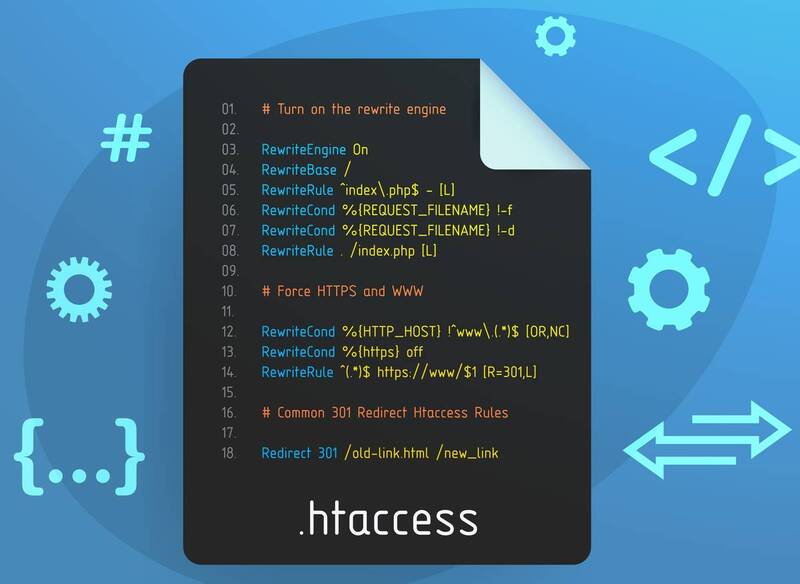
- Неправильный синтаксис файла .htaccess – это файл, в котором можно менять настройки при работе с веб-сервером Apache и корректировать его функционирование (управлять различными перенаправлениями, правами доступа к данным, опциями PHP, задавать собственные страницы ошибок и прочее).
- Неполадки в сценариях сайта, которые отвечают за дополнительные возможности и визуальные эффекты.
- Недостаточно оперативной памяти, чтобы выполнить скрипт.
- Ошибки в коде CMS, системы управления наполнением ресурса. В большинстве случаев (80 %) причиной являются конфликтующие плагины.
Текст и внешний вид ошибки
Вы узнали, что означает ошибка 500, теперь пришло время перейти к более подробному разбору возможных причин её появления. Иногда разобраться с этим вопросом можно и без помощи специалиста.
Вид ошибки может отличаться. Это зависит от того, из-за чего она возникла. Наиболее распространенные причины можно узнать по тому, как отображается ошибка и какой текст её сопровождает.
Internal Server Error
Данный вид ошибки – сигнал о том, что есть проблемы с файлом .htaccess (к примеру, он был неправильно настроен). Чтобы понять, действительно ли дело в .htaccess, добавьте к его названию в конце цифру один. Сделать это поможет FTP-клиент (например, FileZilla) или файловый менеджер на вашем хостинге (в Timeweb есть подобный, и он очень простой в использовании). После этой манипуляции попробуйте заново открыть сайт. Если ошибка не выскочила, значит, вы нашли, из-за чего она появилась.

Топ-30 самых востребованных и высокооплачиваемых профессий 2023
Поможет разобраться в актуальной ситуации на рынке труда

Подборка 50+ ресурсов об IT-сфере
Только лучшие телеграм-каналы, каналы Youtube, подкасты, форумы и многое другое для того, чтобы узнавать новое про IT
ТОП 50+ сервисов и приложений от Geekbrains
Безопасные и надежные программы для работы в наши дни
Уже скачали 18726 
HTTP ERROR 500 или пустая страница
Подобное означает, что причина в сценариях сайта. Но надо уточнить насчёт пустой страницы, что это не только признак внутренней ошибки 500 в сервере.
Предлагаем детальнее разобраться с пустой страницей, обращаясь к инструментам разработчика. Через браузерную панель пользователь получает уведомления об ошибках и другую информацию (время запуска сайта, html-элементы и прочее).
Каким образом открывается панель разработчика? Для начала нажмите F12 (это подходит для большинства браузеров на Windows). Если вы пользуетесь Google Chrome на macOS, то вам нужно использовать сочетание кнопок Cmd+Opt+J. В случае Safari на macOS нужна комбинация Cmd+Opt+C, но перед тем, как её нажать, включите «Меню разработки» в разделе «Настройки» -> «Продвинутые».
Есть ещё один способ открыть панель разработчика: кликнуть правой кнопкой мыши в любом месте сайта и в открывшемся контекстном меню выбрать «Посмотреть код». После этого откройте вкладку «Сеть» (или Network) и посмотрите, какое значение указано в строке «Статус». Если дело в ошибке 500, то будет стоять эта цифра.
Советы по исправлению ошибки 500 для пользователя
Для начала расскажем, на что лучше не тратить своё время. Данная ошибка связана с сервером, поэтому делать что-то со стороны клиента (перезагружать роутер, менять браузер, переустанавливать программу) смысла нет.
- Заново откройте сайт
Ошибка 500 может появиться не только из-за серьёзных проблем с сервером, но и по причине временной перегрузки сайта. Перезагрузить страницу можно с помощью клавиш: на ПК — F5, ноутбуке — Fn + F5, на устройствах от Apple — Cmd + R.


Читайте также
- Очистите кэш и cookies браузера
Кэш и cookies нужны для того, чтобы при повторном открытии страницы не нужно было заново прогружать все данные, то есть они сохраняют информацию с первого посещения, за счёт чего в следующий раз сайт открывается быстрее.

Если на сервере была ошибка, то даже если её уже устранили, из-за кэша может открываться старая версия страницы с этой неполадкой.
Если ничего из этого вам не помогло, то остаётся ждать, когда владелец решит эту проблему, и вернуться на сайт позже.
- Обратитесь к владельцу сайта
Когда, например, в интернет-магазине часто всплывает ошибка 500, можно связаться с его владельцем. Информация с контактными данными, как правило, находится либо внизу страницы, либо в разделе «Контакты».
Чаще всего информация закрытая, но есть форма для обратной связи. Однако не факт, что вы получите ответ. Если нужные данные вы не нашли или ответа так и нет, можно воспользоваться такими вариантами: через Whois, хостинг-провайдера или регистратора домена, с помощью сторонних сервисов.
Рекомендации по исправлению ошибки 500 для владельца сайта
Стоит учитывать большое количество факторов: движок, на котором работает ваш сайт, на каком он хостинге расположен, какие недавние изменения были внесены. Как бы там ни было, зачастую универсальные методы убирают ошибку 500. Желательно попробовать все варианты, которые подойдут под специфику вашего ресурса.
- Устраните неполадки в синтаксисе файла .htaccess
Выше мы уже рассказывали, как понять, в нём ошибка или нет. Попробуйте изменить имя документа, к примеру, на .htaccess_, и заново открыть сайт. Если ошибка не вылезла, значит, дело всё-таки в .htaccess. Проанализируйте синтаксис документа на наличие лишних символов или опечаток. Если вы сохраняли прошлую версию настроек, то надо попробовать её вернуть, чтобы проверить, будет ли ошибка.
В некоторых случаях может помочь закомментирование строки Options в .htaccess – вставить # в её начале. Если ничего не поменялось, проделайте то же самое с другими строками, а потом по очереди убирайте # и смотрите на результат.
После изменения файла .htaccess надо проверить, сохранилось ли оно. Иногда хостер может выставить на документ права, которые мешают его менять. В этой ситуации вы можете скачать файл .htaccess к себе на устройство, открыть и отредактировать его в любом текстовом документе и залить обратно, заменив старую версию.

Точный инструмент «Колесо компетенций»
Для детального самоанализа по выбору IT-профессии
Список грубых ошибок в IT, из-за которых сразу увольняют
Об этом мало кто рассказывает, но это должен знать каждый

Мини-тест из 11 вопросов от нашего личного психолога
Вы сразу поймете, что в данный момент тормозит ваш успех
Регистрируйтесь на бесплатный интенсив, чтобы за 3 часа начать разбираться в IT лучше 90% новичков.
Только до 13 февраля
Осталось 17 мест
- Обновите РНР
Версии РНР, которые уже устарели, не поддерживают обновления безопасности, хуже работают и из-за них может быть некорректная работа плагинов и сценариев.

Может, для того, чтобы ваш сайт работал без перебоев, вам надо просто обновить РНР.
- Настройте права для CGL-скриптов
Одним из методов устранения ошибки 500 на сайте является выставление прав для CGL-скриптов. Если такие сценарии у вас есть, то их папки и файлы должны иметь такое право доступа: 0755 (drwxr-xr-x), которое даёт возможность менять их только владельцу, а остальные могут их лишь открывать и активировать. Когда на скриптах стоит другое право доступа, это может привести к появлению ошибки 500.
- Проверьте файлы CGL-скриптов
У правильных сценариев окончание строк в формате Unix (n), а не Windows (rn). Для сохранения корректного варианта нужно загружать код (в большинстве хостингов) по FTP в режиме ASCII. Если вы не помните, какие ранее были настройки, заново добавьте сценарии и посмотрите, появится или нет ошибка 500. К тому же CGL-скрипты могут быть причиной неправильных HTTP‑заголовков ответа. В данном варианте вы сможете заметить ошибку в логах.
- Проверьте плагины
Причина может скрываться в плагинах, которые вы недавно установили.

Нередко встречается такое, что отдельные элементы сайта или плагины не могут работать совместно друг с другом. Данная проблема становится причиной не только того, что сайт выдаёт ошибку 500, но и возникновения других неполадок на сервере. Если модели были установлены или обновлены не так давно, то можно попробовать их отключить через панель администратора. Есть вероятность, что после этого могут всплыть другие неполадки, но если ошибка 500 исчезла, значит, дело было в конфликте плагинов или компонентов.
- Проверьте лог ошибок
Более точный анализ проводится с помощью логов. Если объяснять простым языком, то лог – это своеобразный журнал, в котором хранится информация об ошибках, направленных запросах, подключениях, действий с документами и так далее. Так как данных в логах очень много, они делятся на категории, чтобы было проще найти то, что нужно.
Если в последнее время вы как-то меняли сайт, то это могло стать причиной появления ошибки с кодом состояния 500. Зайдите в логи и проверьте, нет ли там информации о проблемах. Если ошибки высветились, то надо их изучить и отменить последние изменения.
Как правило, хостеры предоставляют информацию о том, где найти логи и как их открыть с панели управления. Данные об этом есть в разделе помощи FAQ (frequently asked questions — часто задаваемые вопросы) на сайте хостинга.
- Оптимизируйте сценарии
Если написанные сценарии долго грузятся или вообще не могут запуститься из-за нехватки ресурсов, проанализируйте их содержимое. Может, код надо оптимизировать, чтобы он стал легче и быстрее загружался. Нередко сценариям недостаточно ресурсов при работе с виртуальным хостингом. У них есть жёсткий лимит на память, чтобы каждый пользователь имел равные возможности во время пребывания на выбранном сайте.
Разделите скрипты на части и проверьте каждый на эффективность их деятельности. Если вы обнаружили в коде много ненужных вызовов либо необходимый объём памяти постоянно растёт, нужно обязательно проработать эти моменты.
- Увеличьте объём оперативной памяти сервера
Встречаются ситуации, когда даже после оптимизации сценариев они продолжают занимать много памяти. Чтобы решить эту проблему, придётся начать пользоваться более дорогим пакетом обслуживания, который предлагает хостинг.

Либо, если есть вариант увеличить объём памяти, прибегнуть к нему. К тому же вы не будете платить за те функции, которые не нужны вашему ресурсу.
Если вы испробовали все возможные варианты, но ничего не помогло, лучше обратиться за помощью к службе технической поддержки. Укажите время, когда вылезла ошибка, и подробно расскажите, что пытались предпринять для её устранения. Специалисты подробно изучат настройки сайта и, если потребуется, обратятся к управляющим сервера на стороне хостинг-провайдера.

Читайте также
Ошибка выполнения запроса 500 является обобщенным кодом состояния НТТР, который говорит о том, что на сервере произошла какая-то неполадка, но более точно описать проблему сервер не может. Так что первым делом нужно узнать, что послужило причиной возникновения ошибки, и только после этого заниматься её устранением.
I am having a problem «500 Internal Server Error» when I used web service call. What is causing this problem? How to resolve it?
Please advise me..
Here’s my code:
   MailMessage objEmail = new MailMessage(new MailAddress(ConfigurationManager.AppSettings["emailAdd"].ToString()), new MailAddress(ConfigurationManager.AppSettings["emailAdd"].ToString()));
    objEmail.Subject = "Test";
    objEmail.Body = "EJSCODE:" + _Message;
    objEmail.Priority = MailPriority.High;
    SmtpClient SmtpMail = new SmtpClient();
    SmtpMail.Host = "localhost";
    SmtpMail.DeliveryMethod = SmtpDeliveryMethod.PickupDirectoryFromIis;
    SmtpMail.PickupDirectoryLocation = @"C:InetpubwwwrootMailMsg2";
    SmtpMail.Send(objEmail);

asked May 30, 2011 at 13:52

1
Also you can look at IIS log, that by default stores at C:WindowsSystem32LogFilesW3SVC1
— there you can find the error description
answered May 30, 2011 at 13:58

heximalheximal
10.2k5 gold badges44 silver badges68 bronze badges
2
The 500 error code is a generic HTTP error state that indicates a faulty state of the web server.
There can be innumerable reasons for receiving such error. Without further analysis there is no way to determine what’s causing the error.
Try debugging your code step-by-step and check the exception being generated.
answered May 30, 2011 at 13:55

Paulo SantosPaulo Santos
11.2k4 gold badges39 silver badges65 bronze badges
0
I got the error from a duplicate URL Rewrite value in my web.config file.
answered Oct 14, 2016 at 12:41

AdamAdam
3932 silver badges8 bronze badges