
Many times Apache gives 500 Internal Server Error due to various reasons. In the article, we will look at what is 500 internal server error, why do you get this error message and how to fix 500 Internal Server Error in Apache localhost, CPanel other systems like Ubuntu, CentOS, Windows.
Apache gives 500 Internal Server Error when there is a server-side error that prevents Apache from processing a request and returning a proper response. This can be due to various reasons such as faulty code, inadequate file permissions, missing files referenced in code, etc. There are multiple ways to fix 500 internal server error in Apache.
Bonus Read : How to Install mod_deflate in Apache
How to Fix 500 Internal Server Error in Apache
Here are the steps to fix 500 internal server error in Apache on localhost, CPanel, PHP, Ubuntu, and other systems.
1. Hard Refresh the Page
The simplest way to fix 500 internal server error in Apache is to simply refresh the page. Sometimes you may be requesting a page when the server is being restarted. In such cases, you will get 500 internal error.
Sometimes, the server may be overloaded with requests and doesn’t have resources to process your request.
In both these cases, you can do a hard refresh to force the browser to connect to server and download the latest website content. You can do this by pressing
- Windows: Ctrl + F5
- Mac: Apple + R or Cmd + R
- Linux: F5
Bonus Read : How to Fix 504 Gateway Timeout Error in Apache
2. Examine Server Logs
Many times, you get 500 internal server error only for one page or a few pages but not all pages on your website. So it is important to check your server log to find the requests causing this issue.
Every server log records the requested URL along with the returned response. Among the most recent requests, look for the ones that have returned 500 response code.
This will tell which script is causing the issue. Once you have identified the script, open your browser and request this page again to confirm that it is indeed raising the error in server log.
3. Examine your script
Next, check if your script is working properly.
Is your script in the right place? Have you named it correctly? Is your URL mapping/routing referencing the right script?
If your script refers any file, then are the file paths correct? If they refer any function/program, have you referenced them correctly ?
Bonus Read : How to Fix 502 Bad Gateway Error in Apache
4. Check File/Folder Permissions
Did you modify any file/folder permission recently? Did you create a new file/folder in your code?
If so then you might be seeing 500 internal server error due to wrong file/folder permissions. Typically, files should have 644 user permission while folders should have 755 permission. You can use FileZilla (Windows) or CHMOD (Linux) to change file permissions.
Look at the permissions of other files/folders in your code and update the permission for your file/folder accordingly.
Bonus Read : How to Increase Request Timeout in Apache
5. Check .htaccess file
If you have set up URL rewrites or URL redirection, then you may have used .htaccess file. Make sure you have setup mod_rewrite correctly.
Also use a third-party tool to check URL rewrite syntax, and ensure they are correct.
Bonus Read : How to Enable mod_rewrite in Apache
6. Increase Script Timeout
If your Apache server depends on another external script/function to process a request and it times out, then Apache will return 500 Internal Server error.
So increase the timeout values of those external scripts so that they maintain the connection and return a proper response.
Hopefully, the above tips will help you fix 500 internal server error in Apache.
Ubiq makes it easy to visualize data in minutes, and monitor in real-time dashboards. Try it Today!
Related posts:
- About Author

Содержание
- Причины внутренней ошибки сервера «500» и способы её решения
- Сейчас читают:
- Что способствует возникновению ошибки 500
- Как диагностировать ошибку 500
- Права доступа к директориям и файлам
- Решение № 1 — изменение прав
- Алгоритм изменения атрибута файла (папки)
- Решение № 2 — перезагрузка сервера
- Некорректный .htaccess
- Решение № 1 — исправление кода
- Методика выявления неверного кода
- Решение № 2 — замена символов
- Алгоритм нахождения
- Долгое выполнение скриптов
- Решение № 1 — оптимизация PHP-скрипта
- Решение № 2 — увеличение времени обработки
- Ошибка в коде CGI-скрипта
- Решение № 1 — проверка формата окончания строк
- Решение № 2 — установка прав доступа
- Решение № 3 — неверные HTTP-заголовки
- Превышение лимита выделенной памяти
- Решение № 1 — проверка PHP-скриптов
- Опции для тестирования
- Решение № 2 — изменение настроек
- Решение № 3 — связаться с технической поддержкой
- Некорректная работа CMS
- Ошибка «500» в WordPress
- Решение № 1 — файл .htaccess
- Решение № 2 — смена текущей темы
- Решение № 3 — перебор плагинов
- Решение № 4 — модификация конфигурационного файла
- Решение № 5 — обновление CMS
- Ошибка «500» в CMS Joomla
- Решение № 1 — установка прав на «logs»
- Решение № 2 — корректность путей к директориям «logs» и «tmp»
- Решение № 3 — проверка .htaccess
Причины внутренней ошибки сервера «500» и способы её решения
Сейчас читают:
В некоторых случаях, при попытке перейти на нужный интернет-ресурс, браузер выдает системное сообщение (статус) с кодом «500», о котором свидетельствует надпись «500 Internal Server Error» («500 внутренняя ошибка сервера»).

Код ошибки означает внутренние проблемы с сервером, которые необходимо диагностировать. Произошел сбой работы или нарушена конфигурация системы.
В случае подобной ошибки не обязательно сразу писать в техническую поддержку. Можно попробовать решить эту проблему самостоятельно.
Внутренняя ошибка сервера не всегда свидетельствует о сбое сервера, поскольку указывает на результат, к которому могут привести разные причины.
Что способствует возникновению ошибки 500
Как диагностировать ошибку 500
Для диагностики внутренней ошибки сервера с кодом 500 необходимо проверить содержимое файла « error.log », находящийся в корне сайта или в каком-либо другом месте, которое зависит от настроек сервера.
Способ доступа к файлу зависит от того, находится ли сайт на веб-хостинге или размещён на выделенном/физическом сервере.
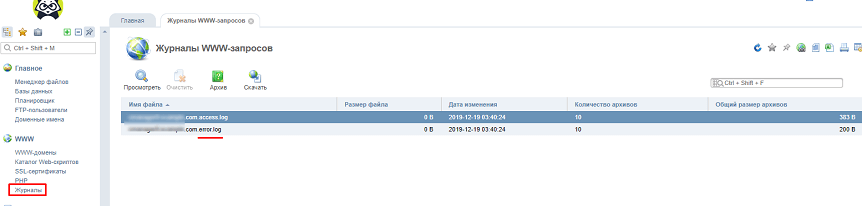
- На веб-хостинге можно найти « error.log » в панели управления веб-хостингом. Например, в ISPmanager файл с ошибками расположен в разделе «WWW» → «Журнал».
- На VPS файл « error.log » можно посмотреть через консоль, либо предварительно скачать его на локальный компьютер при помощи клиента FileZilla.
Этот метод позволяет выяснить причину возникновения ошибки и за короткий промежуток времени устранить ее. После проведения диагностики можно воспользоваться одним из нижеописанных способов решения проблемы.
Права доступа к директориям и файлам
Отсутствие необходимых прав доступа к объектам файловой системы (директориям и файлам) довольно часто приводит к ошибке со статусом «500». При переносе сайта на другой хостинг или изменении его структуры (добавлении новых элементов) пользователь забывает изменить права доступа.
Решение № 1 — изменение прав
Для доступа к файловой системе сервера можно использовать бесплатный клиент FileZilla. Его необходимо установить, а затем запустить.
Алгоритм изменения атрибута файла (папки)
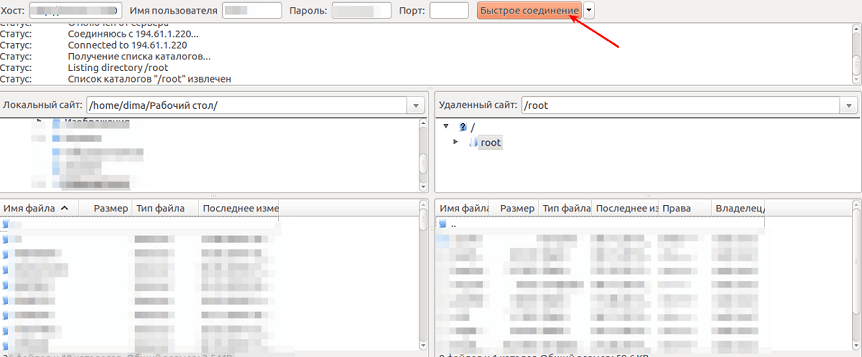
- Выполнить вход в корневую директорию сервера, введя параметры аутентификации — IP-адрес сервера, логин пользователя, пароль, а также порт (если необходимо).
- Нажать на кнопку «Быстрое соединение». Слева отобразится список объектов файловой системы локального компьютера, а справа — файлы и директории сервера.

- Следующий шаг, о котором часто забывают при загрузке сайта на хостинг, — активация пункта меню для отображения скрытых файлов («Сервер → Принудительно отображать скрытые файлы»).
- Загрузить необходимые файлы и папки на сервер посредством перетаскивания или используя контекстное меню «Загрузить на сервер».
- После загрузки перейти на правую панель, выделить интересующие объекты и через контекстное меню исправить соответствующие права доступа.


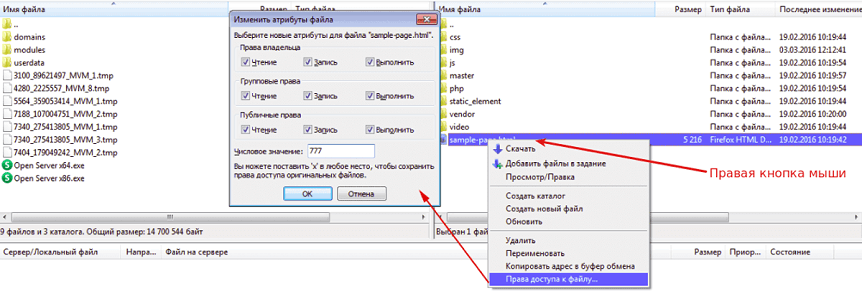
Рекомендуемые числовые значения для файлов — « 644 » и директорий — « 755 ». Необходимо пересматривать и изменять права отдельно для каждого объекта файловой системы. Этот подход позволит избежать ошибок.
Если изменение прав доступа не привело к положительному результату, а при открытии сайта снова появляется ошибка 500, то следует попробовать другой способ решения проблемы.
Решение № 2 — перезагрузка сервера
При размещении ресурса на базе физического или виртуального выделенного сервера (VPS) может иногда возникать ошибка 500. Если страница временно недоступна и браузер выдает ошибку с кодом «500», а изменения прав доступа были испробованы, то нужно просто перезагрузить сервер.
Некорректный .htaccess
Для файла .htaccess существует определенный синтаксис, который нельзя нарушать. Если в нем неверно указаны директивы, то при обращении к сайту будет возникать ошибка «500». Кроме того, не все директивы поддерживаются на хостинге.
Решение № 1 — исправление кода
Для определения причины ошибки «500», связанного с некорректным файлом .htaccess, последний необходимо сохранить в другом месте, а исходник удалить. Если сайт заработал, то в сохраненном файле .htaccess следует искать неверный код.
Для поиска существует специальный алгоритм последовательного запуска директив, содержащихся в файле. Его нужно скачать на локальный компьютер, а затем открыть в текстовом редакторе.
Методика выявления неверного кода
- Закомментировать все строки при помощи символа решетки «#».
- Убрать «#» с первой строки.
- Сохранить изменения и загрузить нужные файлы на сервер через перетаскивание или с помощью функции «Загрузить на сервер» в контекстном меню. Процедура аналогична тому, как это делается в описанном выше случае с изменением атрибута файла.
- Проверить web-приложение (сайт).
- При отсутствии сообщения с кодом «500» нужно выполнить пункт «2» для других строк.
- Если возникла ошибка, то требуется проверить правильность написания директивы и ее поддержку хостингом.
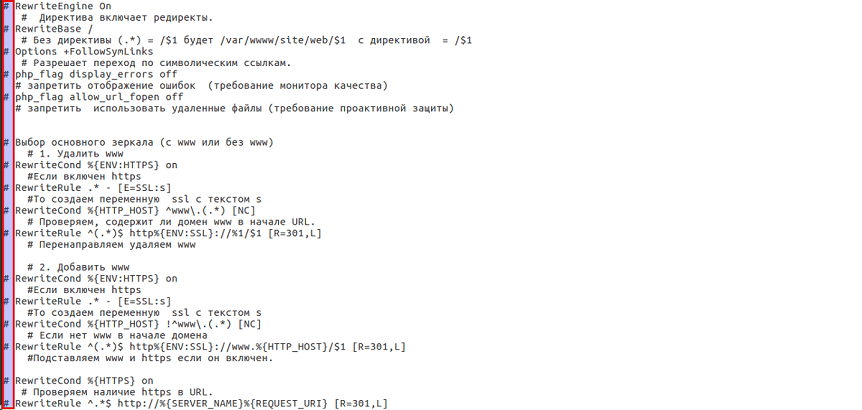
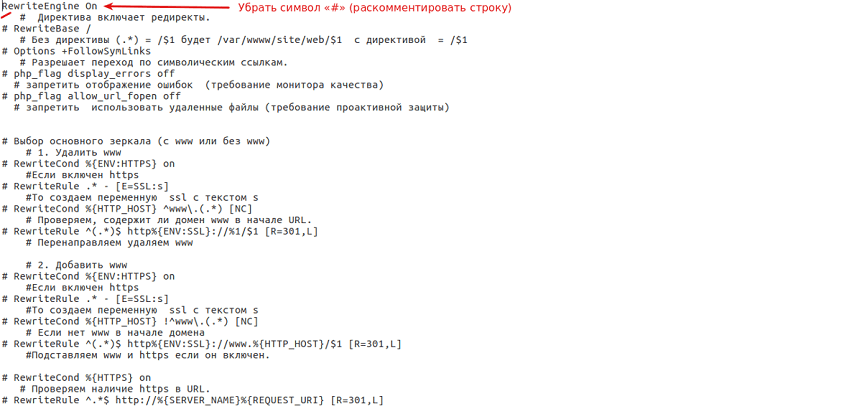
Вышеописанного алгоритма достаточно для выявления неверного кода. Однако бывают ситуации, при которых код, на первый взгляд, написан верно, а директивы не поддерживаются хостингом. Тогда нужно попробывать второй вариант решения проблемы.
Решение № 2 — замена символов
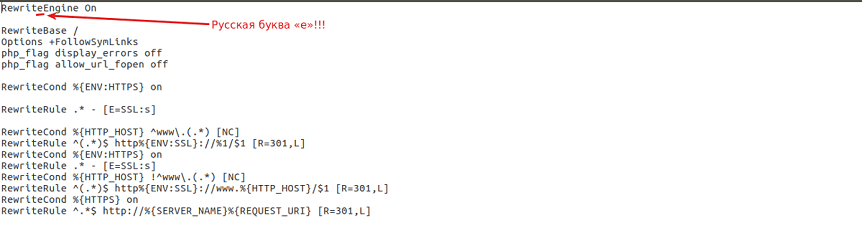
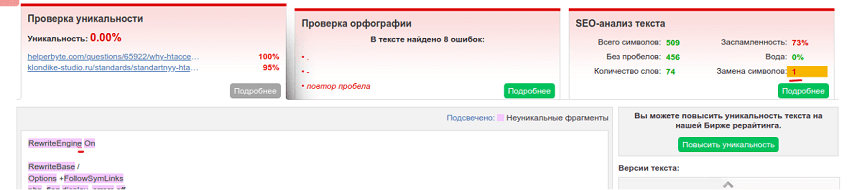
Замена символов — распространенная ошибка при написании директив самостоятельно или копировании частей .htaccess c недостоверных источников. В коде директив присутствуют русские символы, которые очень сложно отличить от английских. Процедуру следует делать в специальных редакторах или через сервис антиплагиата «text.ru». Последний позволяет выявлять символы замены в массиве текста.
Алгоритм нахождения
- Запустить сервис проверки уникальности текста «text.ru».
- Скачать .htaccess на локальный компьютер.
- Сделать его копию и отредактировать ее, оставив только английские символы.
- Скопировать содержимое файла и вставить в поле для текста.
- Нажать на кнопку «Проверить уникальность» и дождаться результатов проверки.
- Исправить символ в исходнике.
- Сохранить файл и закачать его на сервер.
- Выполнить переход на сайт.
Долгое выполнение скриптов
В настройках PHP выставляется ограничение времени, которое дается скрипту на его выполнение. Многие об этом забывают, выставляя только параметр в файле « php.ini » , находящийся в папке web-сервера Apache.
Решение № 1 — оптимизация PHP-скрипта
Чтобы оптимизировать PHP-скрипт, необходимо его переписать без лишнего кода. В интернете существует несколько сервисов для выявления избыточного кода.
Эта задача под силу опытному программисту. Новичку рекомендуется работать со скриптом, тестируя его на локальном сервере, а затем загрузить на хостинг.
Решение № 2 — увеличение времени обработки
Клиенту, пользующемуся услугой VPS, следует увеличить время ожидания сервера. Для этого нужно в « php.ini » найти параметр « set_time_limit » и установить его значение как « 0 », т. е. set_time_limit = 0 .
Если используется веб-хостинг, то выполнить эту операцию не получится. В этом случае необходимо связаться с технической поддержкой.
Ошибка в коде CGI-скрипта
Скрипт CGI-типа используется для создания интерактивных страниц, контент которых зависит от действий пользователя. Довольно часто при неверной работе со скриптами этого типа на сайте возникает внутренняя ошибка сервера с кодом «500».
Решение № 1 — проверка формата окончания строк
Для проверки символа, содержащегося в конце каждой строки, используется специальный редактор (например, Notepad++ или любой другой с поддержкой отображения символов табуляции).
- Если сервер работает под управлением Unix-систем, то окончание каждой строки должно соответствовать символу « n ».
- При использовании Windows-платформы — « rn ».
Решение № 2 — установка прав доступа
Одной из причин неправильной работы CGI-скриптов является некорректное разрешение прав доступа. Для директории, в которой хранятся CGI-файлы, должны стоять права с числовым значением « 755 ».
Решение № 3 — неверные HTTP-заголовки
В некоторых случаях ошибка возникает из-за некорректных HTTP-заголовков. Для ее диагностики следует проверить файл « error.log ».
Превышение лимита выделенной памяти
Некоторые хостинг-компании, чтобы избежать перегрузки сервера, устанавливают определенный лимит памяти, используемой скриптами. В результате превышения этого ограничения возникает внутренняя ошибка сервера с кодом состояния «500».
Решение № 1 — проверка PHP-скриптов
Чтобы проверить PHP-скрипты, следует скачать на локальный компьютер исходник сайта, а затем протестировать его на работоспособность.
Затем требуется проверить описание функций (структуру и код) и включить опцию показа ошибок в « php.ini ».
Опции для тестирования
- error_reporting = E_ALL
- display_errors = On
- display_startup_errors = On
В файле конфигурации нужно указать вышеописанные параметры без точек.
Если проблем в файле нет, а сообщение об ошибке «500» выводится на экране, необходимо перейти ко второму способу решения проблемы.
Решение № 2 — изменение настроек
Настройка лимита памяти выставляется в файле конфигурации « php.ini ». За этот параметр отвечает опция « memory_limit ».
При использовании VPS она устанавливается экспериментальным путем. После каждого изменения файл загружается на сервер, а затем тестируется работа сайта. Однако нужно помнить об ограничении использования памяти со стороны поставщика услуги.
Решение № 3 — связаться с технической поддержкой
Если ошибка «500» не исчезает при правильной работе скрипта и верных настройках, то нужно связаться с технической поддержкой. Как правило, они помогают исправить проблему.
Некорректная работа CMS
Причиной появления ошибки «500» могут стать неверные настройки CMS. Наиболее часто используются WordPress и Joomla. Следовательно, на их примере и нужно разобрать причины возникновения проблемы, а также решения по ее устранению.
Ошибка «500» в WordPress
При работе сайта на движке WordPress методика диагностики появления ошибки с кодом «500» немного отличается от остальных CMS. Проблема может быть связана с .htaccess, установленной темой, плагином или ядром WordPress.
Решение № 1 — файл .htaccess
Файл используется при изменении структуры ссылок и работе плагинов. Кроме того, в него могут вносить изменения ядро CMS, темы и плагины.
Выполнение диагностики
- Скопировать .htaccess на диск, а затем удалить его на сервере.
- Обновить страницу.
- Если сайт заработал, то нужно искать причину в файле.
- Если при обновлении страницы ошибка не исчезнет, то рекомендуется изменить атрибуты файла .htaccess. Для этого нужно запретить запись в файл, задав в правах доступа числовое значение « 644 ».
Последний пункт влияет на активацию плагинов. Его рекомендуется рассматривать как временную меру.
Решение № 2 — смена текущей темы
Для устранения ошибки «500» рекомендуется поменять тему на другую, а затем обновить страницу. Если сайт заработал, то причина в ней. В противном случае нужно перейти к третьему варианту решения проблемы.
Решение № 3 — перебор плагинов
При расширении функциональности сайта пользователи используют соответствующие плагины, которые могут стать причиной внутренней ошибки сервера. Для диагностики неработающего компонента нужно последовательно деактивировать каждый из плагинов.
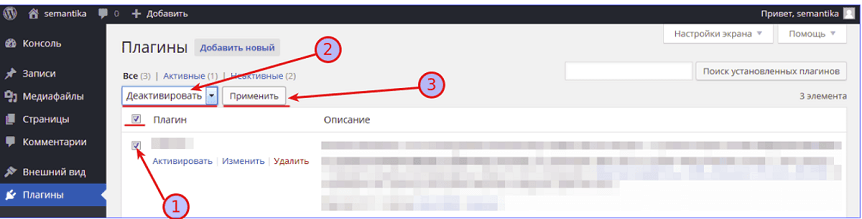
Порядок деактивации плагина
- Выбрать плагин (стрелка № 1).
- В выпадающем списке указать опцию «Деактивировать» (стрелка № 2).
- Нажать на кнопку «Применить» (стрелка № 3).
- Обновить веб-страницу.
- Перебор плагинов продолжать до возобновления работы интернет-ресурса.
Если деактивация плагинов не привела к положительному эффекту, и сайт по-прежнему не работает, то нужно перейти к четвертому методу.
Решение № 4 — модификация конфигурационного файла
Устранить проблему внутренней ошибки сервера поможет увеличение объема памяти.
Алгоритм модификации
- В корневой директории хостинга необходимо найти файл « wp.config.php ».
- Открыть его в редакторе.
- Перейти в конец файла.
- Добавить код « define(‘WP_MEMORY_LIMIT’, ’64M’) ».
- Сохранить и перезагрузить страницу.
Решение № 5 — обновление CMS
Если ни один из методов не помог, то причина заключается в ядре движка CMS. Для устранения ошибки его нужно обновить до последней версии или переустановить.
Ошибка «500» в CMS Joomla
Ошибка с кодом «500» иногда возникает при попытке зайти в административную панель CMS Joomla. При этом сайт и все его функции работают корректно.
Ошибку нужно искать самостоятельно, перебирая каждый из вариантов. В файле « error.php », который расположен в директории « logs », находится описание всех проблем при работе с CMS.
Решение № 1 — установка прав на «logs»
Чтобы устранить проблему, нужно установить права доступа на папки « logs » и « tmp », которые должны соответствовать числовому значению « 777 ».
Решение № 2 — корректность путей к директориям «logs» и «tmp»
Пути к директориям хранятся в файле « configuration.php ». Необходимо проверить их правильность, указав при необходимости полные пути.
Решение № 3 — проверка .htaccess
При ошибке «500» в административной панели нужно открыть файл .htaccess» и поочередно комментировать строки. После каждого изменения файл нужно сохранять и проверять работоспособность админ-панели.
Если, после реализации предложенных методов исправления ошибки «500», сайт на хостинге по-прежнему не работает, необходимо обращаться к техподдержке хостинг-провайдера.
Надежный хостинг для сайта. 14 дней — бесплатно!
Источник
This is an Ancient answer from 2013, back when PHP was new and security wasn’t an issue:
Here in the future it’s a security risk to dump errors to screen like this. You better not be doing this in any production setting.
Why are the 500 Internal Server Errors not being logged into your apache error logs?
The errors that cause your 500 Internal Server Error are coming from a PHP module. By default, PHP does NOT log these errors. Reason being you want web requests go as fast as physically possible and it’s a security hazard to log errors to screen where attackers can observe them.
These instructions to enable Internal Server Error Logging are for Ubuntu 12.10 with PHP 5.3.10 and Apache/2.2.22.
Make sure PHP logging is turned on:
-
Locate your php.ini file:
el@apollo:~$ locate php.ini /etc/php5/apache2/php.ini -
Edit that file as root:
sudo vi /etc/php5/apache2/php.ini -
Find this line in php.ini:
display_errors = Off -
Change the above line to this:
display_errors = On -
Lower down in the file you’ll see this:
;display_startup_errors ; Default Value: Off ; Development Value: On ; Production Value: Off ;error_reporting ; Default Value: E_ALL & ~E_NOTICE ; Development Value: E_ALL | E_STRICT ; Production Value: E_ALL & ~E_DEPRECATED -
The semicolons are comments, that means the lines don’t take effect. Change those lines so they look like this:
display_startup_errors = On
;   Default Value: Off
;   Development Value: On
;   Production Value: Off

error_reporting = E_ALL
;   Default Value: E_ALL & ~E_NOTICE
;   Development Value: E_ALL | E_STRICT
;   Production Value: E_ALL & ~E_DEPRECATED
What this communicates to PHP is that we want to log all these errors. Warning, there will be a large performance hit, so you don’t want this enabled on production because logging takes work and work takes time, time costs money.
-
Restarting PHP and Apache should apply the change.
-
Do what you did to cause the 500 Internal Server error again, and check the log:
tail -f /var/log/apache2/error.log -
You should see the 500 error at the end, something like this:
[Wed Dec 11 01:00:40 2013] [error] [client 192.168.11.11] PHP Fatal error:
Call to undefined function Foobar\byob\penguin\alert() in /yourproject/
your_src/symfony/Controller/MessedUpController.php on line 249
Are the websites in your server giving ‘500 internal server error’ all of a sudden? In our role as Outsourced server support specialists for web hosts, this is one commonly encountered errors in Apache web server.
A PHP upgrade, Apache recompilation, permission or ownership changes, anything can trigger a 500 error in a website. The impact of the error can vary based on the cause that triggered it.
See how we help web hosting companies
Today, we’ll discuss the probable causes for ‘500 internal server error’ in Apache and how to resolve them.
What causes ‘500 internal server error’ in Apache?
‘500 internal server error’ is a very broad error, and to pin-point the actual cause of the issue, it is very vital to observe the Apache/PHP error logs and to detect the recent changes made in the server.
With our years of experience handling web servers for a wide range of web hosting companies, we’ve come across several causes that can trigger this error, such as:
- A PHP upgrade or Apache recompilation that went wrong – Due to compatibility issues or unsupported modules in Apache/PHP, the websites can throw 500 errors.
- Errors in the format or content of PHP or CGI scripts – A code error, unsupported format or wrong path to the binary, can generate errors in the scripts.
- Settings in .htaccess or other config files that are not supported – For instance, servers that run SuPHP do not support php_flag or php_value directives in .htaccess files.
- Server or file system restrictions such as log file size, SELinux restrictions or time out settings for executing a script.
- Errors related to the PHP config file – Any unsupported or invalid setting in php.ini can lead to 500 errors.
- Incorrect permissions and ownership for the files – In SuPHP, files and folders should be under user ownership, folders should have 755 permissions, non-scripts files need 644, PHP Scripts require 600 and 755 is needed for CGI and shell scripts.
- A web server or PHP module that is not working fine – A corrupt php.ini file, a module that is no longer supported, etc. can also lead to 500 internal server errors in Apache.
[ You don’t have to lose your sleep over server errors. Our expert server specialists are online 24/7/365 to help you fix all server errors. ]
How to resolve ‘500 internal server error’ in Apache
When we come across customers who complain about 500 errors, we first check whether the error affects just one site or every site in the server. Depending on the impact of the error, we debug further.
If only one domain it affected, it can be pin-pointed to the specific script error or permission issues. If multiple domains show 500 error, it could be due to some server wide setting change or update.
From the Apache error logs, we detect the script or the module that is the culprit. We follow a systematic debugging approach, which helps us resolve the error in no time.
As improperly planned Apache updates or recompilation can cause server wide errors or PHP module to malfunction, we take proper caution and do adequate testing to avoid a web site downtime for our customers.
[ Use your time to build your business. We’ll take care of your servers. Hire our server support experts to maintain your servers secure and stable 24/7 . ]
At Bobcares, our 24/7 server specialists constantly monitor all the services in the server and proactively audit the server for any errors or corruption in them.
With our systematic debugging approach for service or other software errors, we have been able to provide an exciting support experience to the customers.
If you would like to know how to avoid downtime for your customers due to errors or other service failures, we would be happy to talk to you.
var google_conversion_label = «owonCMyG5nEQ0aD71QM»;
Skip to content
Ошибка http 500 internal server error является ошибкой на стороне веб-сервера, данный код выводится в браузер при обращении к сайту, также его можно увидеть в логах Apache или Nginx
- неверный синтаксис файла .htaccess. Ошибка в этом случае прямо указана в логе Apache (например, директивы Options -MultiViews или php_value и php_flag при использовании PHP в режиме Fastcgi )
- слишком долгая работа скрипта -в настройках веб-сервера установлены лимиты при превышении которых будет отдаваться ошибка 500
- недостаточно высокое значение параметра memory_limit в файле php.ini
- программные ошибки, формирующие некорректные заголовки HTTP
При появлении ошибки 500 нужно включить логирование Apache (если используется Apache), также включить логирование ошибок РНР. Если в error_log Apache информации не будет, искать их стоит в программном коде, здесь и окажутся полезными логи РНР.
Логирование РНР включается в php.ini, так же задается путь к логу. При использовании PHP-FPM (в т.ч. с Nginx) директива задается в /etc/php-fpm.d/www.conf — дополнительно лучше включить и вывод ошибок на экран, для этого нужно добавить display_errors = on
При нехватке скрипту выделяемой для него памяти в логе РНР будут содержаться сообщения вида:
«Fatal error: Allowed memory size of 67108864 bytes exhausted (tried to allocate 32 bytes) in /home/example.com/www/wp-includes/pomo/streams.php on line 110»
В этом случае нужно увеличить значение memory_limit в файле с настройками php.ini
The dreaded 500 internal server error. It always seems to come at the most inopportune time and you’re suddenly left scrambling to figure out how to get your WordPress site back online. Trust us, we’ve all been there. Other errors that behave similarly that you might have also seen include the frightening error establishing a database connection and the dreaded white screen of death. But from the moment your site goes down, you’re losing visitors and customers. Not to mention it simply looks bad for your brand.
Today we’re going to dive into the 500 internal server error and walk you through some ways to get your site back online quickly. Read more below about what causes this error and what you can do to prevent it in the future.
- What is a 500 internal server error?
- How to fix the 500 internal server error
500 Internal Server Error (Most Common Causes):
500 Internal server error in WordPress can be caused by many things. If you’re experiencing one, there’s a high chance one (or more) of the following elements is causing the issue:
- Browser Cache.
- Incorrect database login credentials.
- Corrupted database.
- Corrupted files in your WordPress installation.
- Issues with your database server.
- Corrupted WordPress core files.
- Corrupted .htaccess file and PHP memory limit.
- Issues with third-party plugins and themes.
- PHP timing out or fatal PHP errors with third-party plugins.
- Wrong file and folder permissions.
- Exhausted PHP memory limit on your server
- Corrupted or broken .htaccess file.
- Errors in CGI and Perl script.
Check Out Our Ultimate Guide to Fixing the 500 Internal Server Error
What is a 500 Internal Server Error?
The Internet Engineering Task Force (IETF) defines the 500 Internal Server Error as:
The 500 (Internal Server Error) status code indicates that the server encountered an unexpected condition that prevented it from fulfilling the request.
When you visit a website your browser sends a request over to the server where the site is hosted. The server takes this request, processes it, and sends back the requested resources (PHP, HTML, CSS, etc.) along with an HTTP header. The HTTP also includes what they call an HTTP status code. A status code is a way to notify you about the status of the request. It could be a 200 status code which means “Everything is OK” or a 500 status code which means something has gone wrong.
There are a lot of different types of 500 status error codes (500, 501, 502, 503, 504, etc.) and they all mean something different. In this case, a 500 internal server error indicates that the server encountered an unexpected condition that prevented it from fulfilling the request (RFC 7231, section 6.6.1).
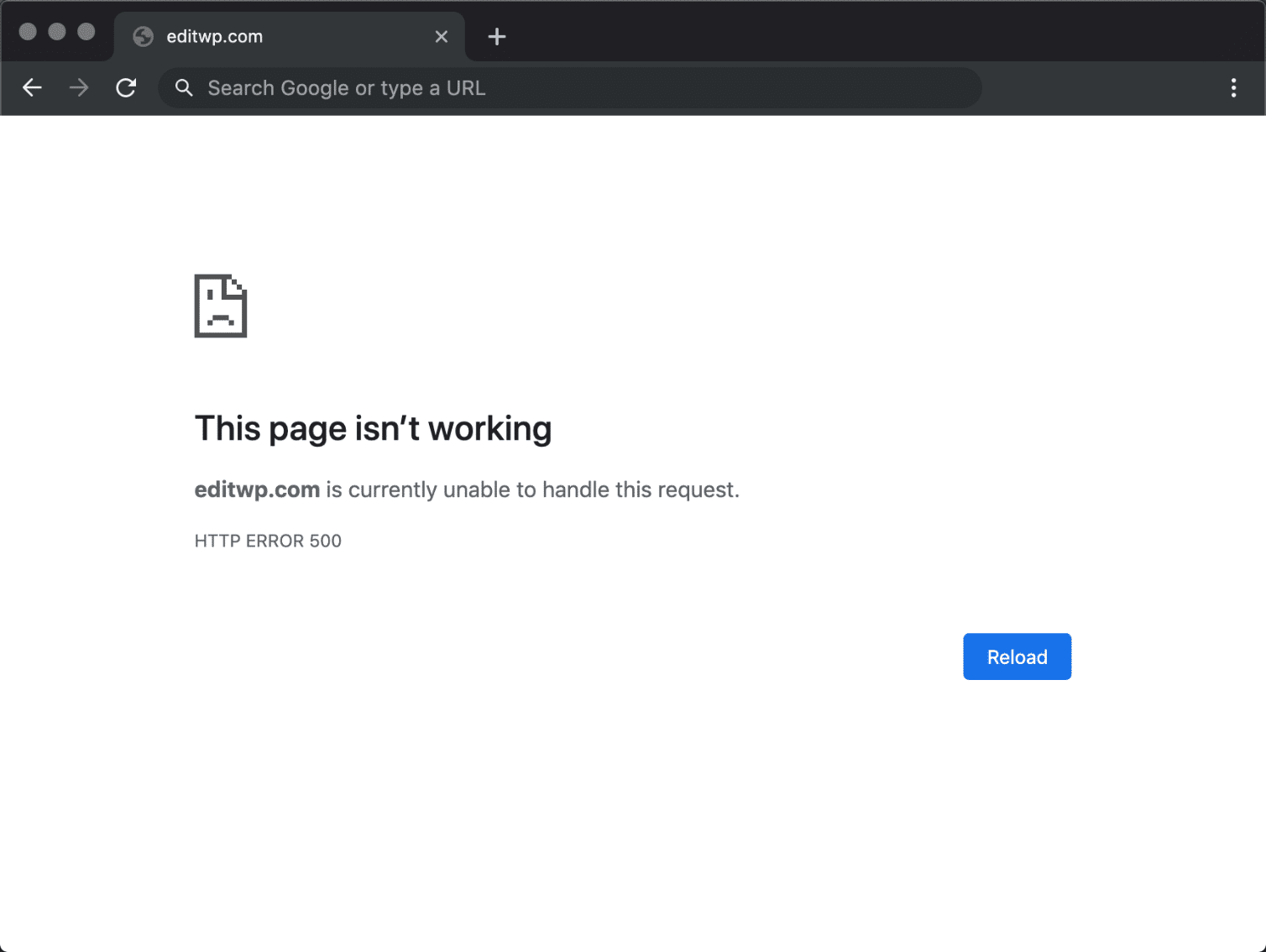
500 Internal Server Error Variations
Due to the various web servers, operating systems, and browsers, a 500 internal server error can present itself in a number of different ways. But they are all communicating the same thing. Below are just a couple of the many different variations you might see on the web:
-
- “500 Internal Server Error”
- “HTTP 500”
- “Internal Server Error”
- “HTTP 500 – Internal Server Error”
- “500 Error”
- “HTTP Error 500”
- “500 – Internal Server Error”
- “500 Internal Server Error. Sorry something went wrong.”
- “500. That’s an error. There was an error. Please try again later. That’s all we know.”
- “The website cannot display the page – HTTP 500.”
- “Is currently unable to handle this request. HTTP ERROR 500.”
You might also see this message accompanying it:
The server encountered an internal error or misconfiguration and was unable to complete your request. Please contact the server administrator, [email protected] and inform them of the time the error occurred, and anything you might have done that may have caused the error. More information about this error may be available in the server error log.
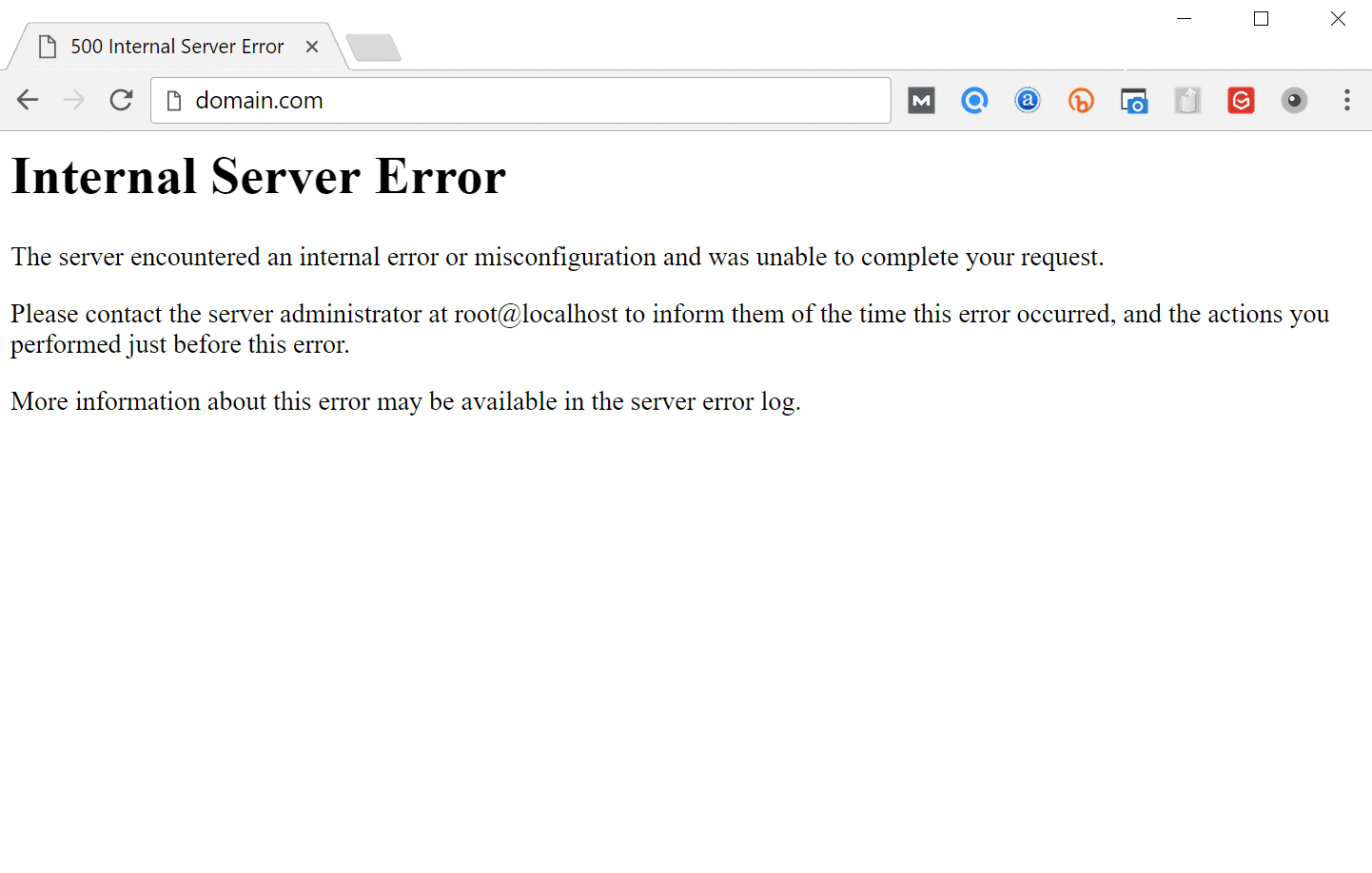
Other times, you might simply see a blank white screen. When dealing with 500 internal server errors, this is actually quite common in browsers like Firefox and Safari.

Bigger brands might even have their own custom 500 internal server error messages, such as this one from Airbnb.
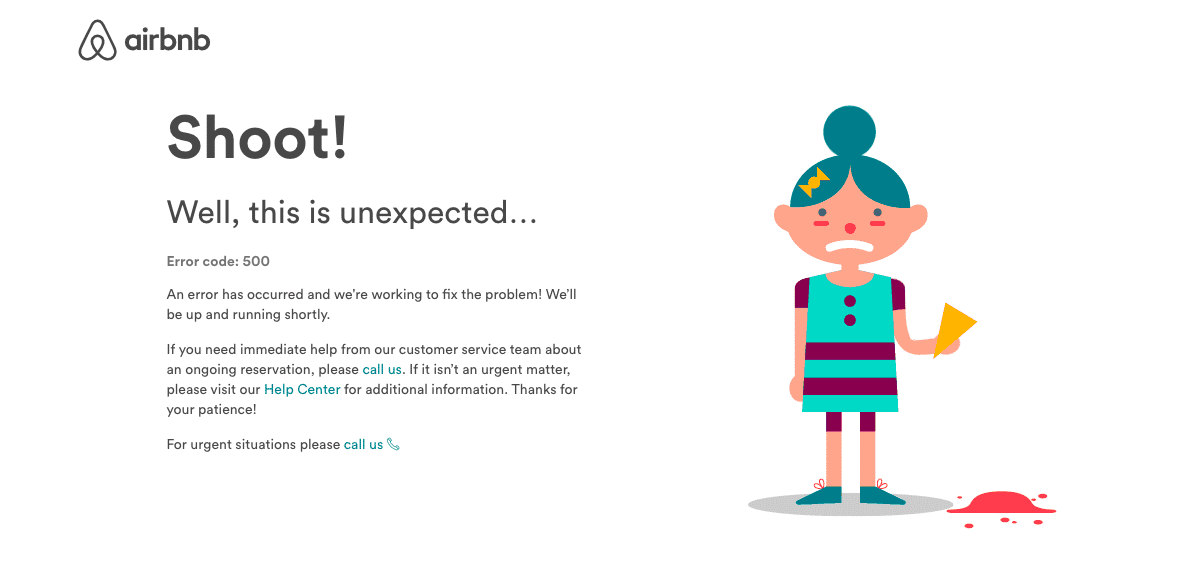
Here is another creative 500 server error example from the folks over at readme.
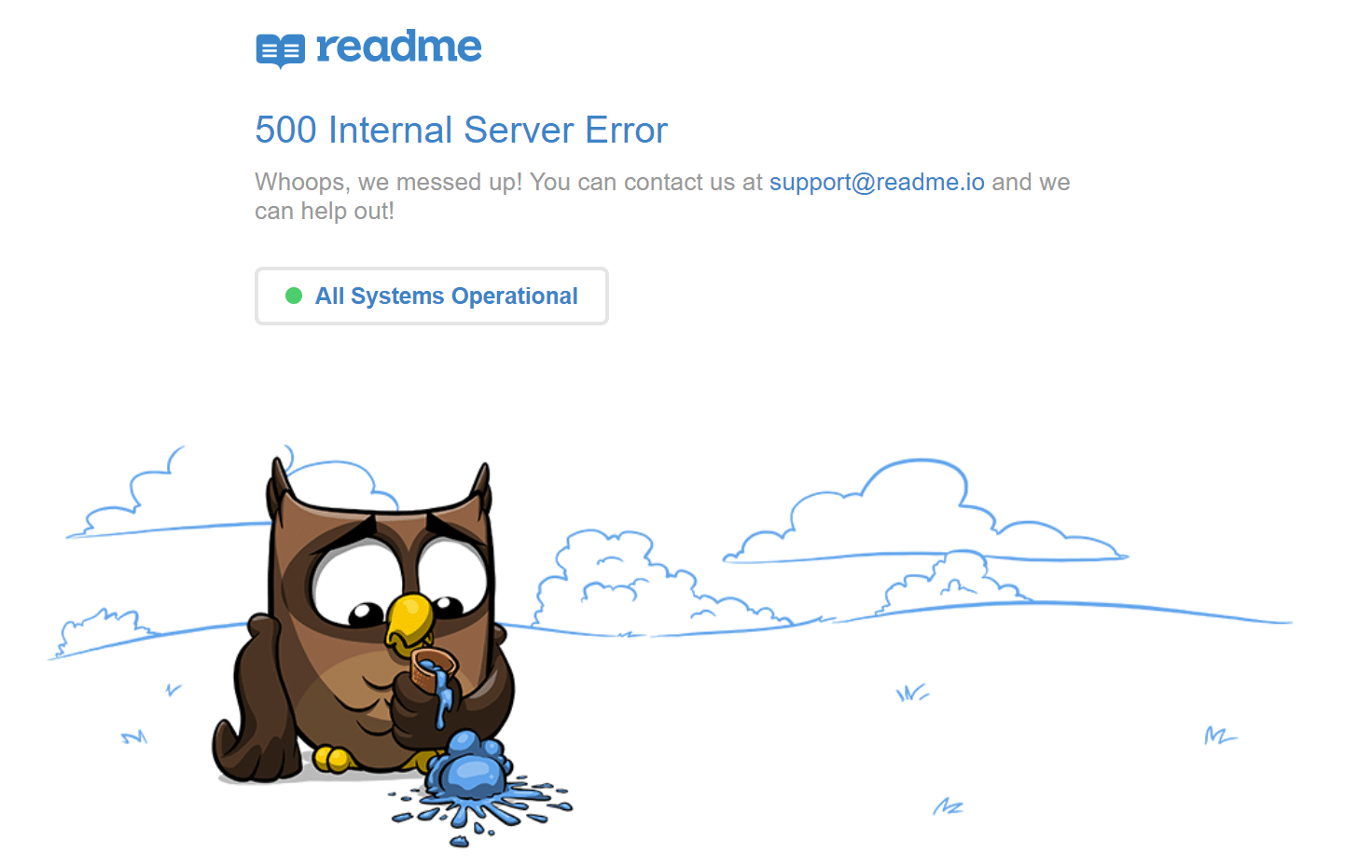
Even the mighty YouTube isn’t safe from 500 internal server errors.

If it’s an IIS 7.0 (Windows) or higher server, they have additional HTTP status codes to more closely indicate the cause of the 500 error:
- 500.0 – Module or ISAPI error occurred.
- 500.11 – Application is shutting down on the web server.
- 500.12 – Application is busy restarting on the web server.
- 500.13 – Web server is too busy.
- 500.15 – Direct requests for global.asax are not allowed.
- 500.19 – Configuration data is invalid.
- 500.21 – Module not recognized.
- 500.22 – An ASP.NET httpModules configuration does not apply in Managed Pipeline mode.
- 500.23 – An ASP.NET httpHandlers configuration does not apply in Managed Pipeline mode.
- 500.24 – An ASP.NET impersonation configuration does not apply in Managed Pipeline mode.
- 500.50 – A rewrite error occurred during RQ_BEGIN_REQUEST notification handling. A configuration or inbound rule execution error occurred.
- 500.51 – A rewrite error occurred during GL_PRE_BEGIN_REQUEST notification handling. A global configuration or global rule execution error occurred.
- 500.52 – A rewrite error occurred during RQ_SEND_RESPONSE notification handling. An outbound rule execution occurred.
- 500.53 – A rewrite error occurred during RQ_RELEASE_REQUEST_STATE notification handling. An outbound rule execution error occurred. The rule is configured to be executed before the output user cache gets updated.
500.100 – Internal ASP error.
500 Errors Impact on SEO
Unlike 503 errors, which are used for WordPress maintenance mode and tell Google to check back at a later time, a 500 error can have a negative impact on SEO if not fixed right away. If your site is only down for say 10 minutes and it’s being crawled consistently a lot of times the crawler will simply get the page delivered from cache. Or Google might not even have a chance to re-crawl it before it’s back up. In this scenario, you’re completely fine.
However, if the site is down for an extended period of time, say 6+ hours, then Google might see the 500 error as a site level issue that needs to be addressed. This could impact your rankings. If you’re worried about repeat 500 errors you should figure out why they are happening to begin with. Some of the solutions below can help.
How to Fix the 500 Internal Server Error
Where should you start troubleshooting when you see a 500 internal server error on your WordPress site? Sometimes you might not even know where to begin. Typically 500 errors are on the server itself, but from our experience, these errors originate from two things, the first is user error (client-side issue), and the second is that there is a problem with the server. So we’ll dive into a little of both.
This is never not annoying 😖 pic.twitter.com/pPKxbkvI9K
— Dare Obasanjo 🐀 (@Carnage4Life) September 26, 2019
Check out these common causes and ways to fix the 500 internal server error and get back up and running in no time.
1. Try Reloading the Page
This might seem a little obvious to some, but one of the easiest and first things you should try when encountering a 500 internal server error is to simply wait a minute or so and reload the page (F5 or Ctrl + F5). It could be that the host or server is simply overloaded and the site will come right back. While you’re waiting, you could also quickly try a different browser to rule that out as an issue.
Another thing you can do is to paste the website into downforeveryoneorjustme.com. This website will tell you if the site is down or if it’s a problem on your side. A tool like this checks the HTTP status code that is returned from the server. If it’s anything other than a 200 “Everything is OK” then it will return a down indication.

We’ve also noticed that sometimes this can occur immediately after you update a plugin or theme on your WordPress site. Typically this is on hosts that aren’t set up properly. What happens is they experience a temporary timeout right afterward. However, things usually resolve themselves in a couple of seconds and therefore refreshing is all you need to do.
2. Clear Your Browser Cache
Clearing your browser cache is always another good troubleshooting step before diving into deeper debugging on your site. Below are instructions on how to clear cache in the various browsers:
- How to Force Refresh a Single Page for All Browsers
- How to Clear Browser Cache for Google Chrome
- How to Clear Browser Cache for Mozilla Firefox
- How to Clear Browser Cache for Safari
- How to Clear Browser Cache for Internet Explorer
- How to Clear Browser Cache for Microsoft Edge
- How to Clear Browser Cache for Opera
3. Check Your Server Logs
You should also take advantage of your error logs. If you’re a Kinsta client, you can easily see errors in the log viewer in the MyKinsta dashboard. This can help you quickly narrow down the issue, especially if it’s resulting from a plugin on your site.

If your host doesn’t have a logging tool, you can also enable WordPress debugging mode by adding the following code to your wp-config.php file to enable logging:
define( 'WP_DEBUG', true );
define( 'WP_DEBUG_LOG', true );
define( 'WP_DEBUG_DISPLAY', false );
The logs are typically located in the /wp-content directory. Others, like here at Kinsta might have a dedicated folder called “logs”.
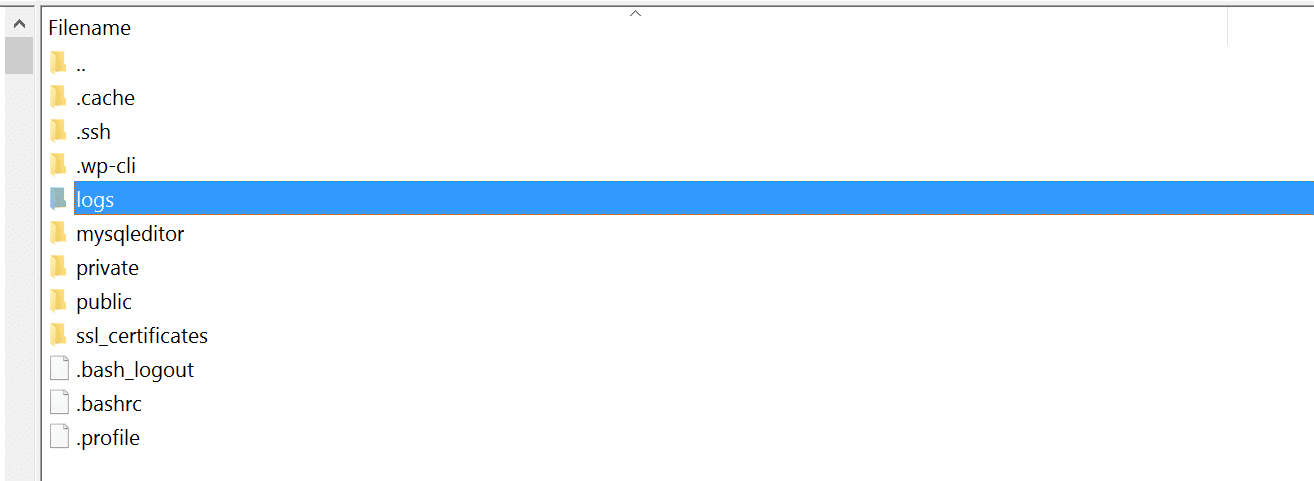
You can also check the log files in Apache and Nginx, which are commonly located here:
- Apache: /var/log/apache2/error.log
- Nginx: /var/log/nginx/error.log
If you’re a Kinsta client you can also take advantage of our analytics tool to get a breakdown of the total number of 500 errors and see how often and when they are occurring. This can help you troubleshoot if this is an ongoing issue, or perhaps something that has resolved itself.

If the 500 error is displaying because of a fatal PHP error, you can also try enabling PHP error reporting. Simply add the following code to the file throwing the error. Typically you can narrow down the file in the console tab of Google Chrome DevTools.
ini_set('display_errors', 1);
ini_set('display_startup_errors', 1);
error_reporting(E_ALL);
And you might need to also modify your php.ini file with the following:
display_errors = on4. Error Establishing a Database Connection
500 internal server errors can also occur from a database connection error. Depending upon your browser you might see different errors. But both will generate a 500 HTTP status code regardless in your server logs.
Below is an example of what an “error establishing a database connection” message looks like your browser. The entire page is blank because no data can be retrieved to render the page, as the connection is not working properly. Not only does this break the front-end of your site, but it will also prevent you from accessing your WordPress dashboard.
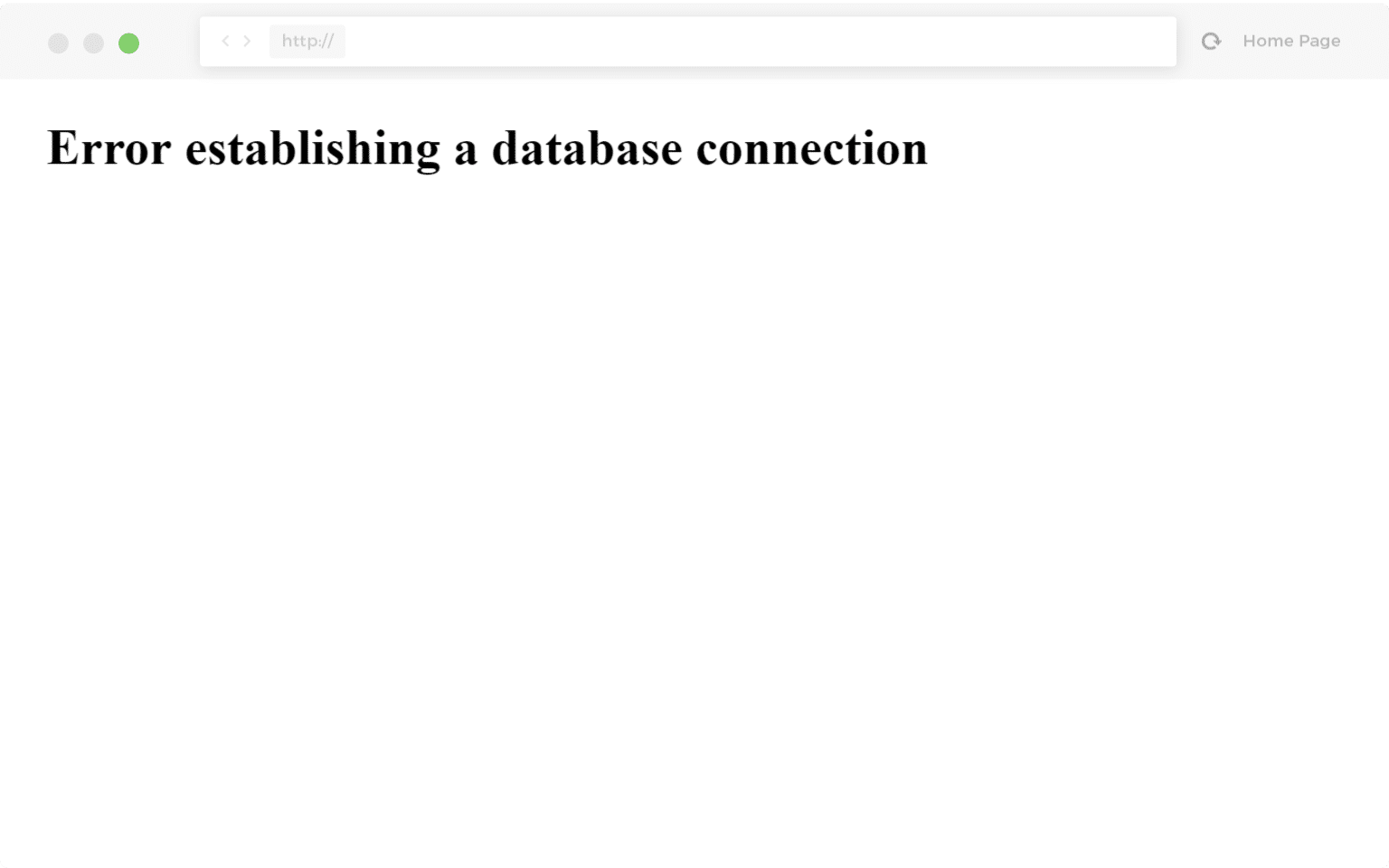
So why exactly does this happen? Well, here are a few common reasons below.
- The most common issue is that your database login credentials are incorrect. Your WordPress site uses separate login information to connect to its MySQL database.
- Your WordPress database is corrupted. With so many moving parts with themes, plugins, and users constantly deleting and installing them, sometimes databases get corrupted. This can be due to a missing or individually corrupted table, or perhaps some information was deleted by accident.
- You may have corrupt files in your WordPress installation. This can even happen sometimes due to hackers.
- Issues with your database server. A number of things could be wrong on the web hosts end, such as the database being overloaded from a traffic spike or unresponsive from too many concurrent connections. This is actually quite common with shared hosts as they are utilizing the same resources for a lot of users on the same servers.
Check out our in-depth post on how to fix the error establishing a database connection in WordPress.
5. Check Your Plugins and Themes
Third-party plugins and themes can easily cause 500 internal server errors. We’ve seen all types cause them here at Kinsta, from slider plugins to ad rotator plugins. A lot of times you should see the error immediately after installing something new or running an update. This is one reason why we always recommend utilizing a staging environment for updates or at least running updates one by one. Otherwise, if you encounter a 500 internal server error you’re suddenly scrambling to figure out which one caused it.
A few ways you can troubleshoot this is by deactivating all your plugins. Remember, you won’t lose any data if you simply deactivate a plugin. If you can still access your admin, a quick way to do this is to browse to “Plugins” and select “Deactivate” from the bulk actions menu. This will disable all of your plugins.
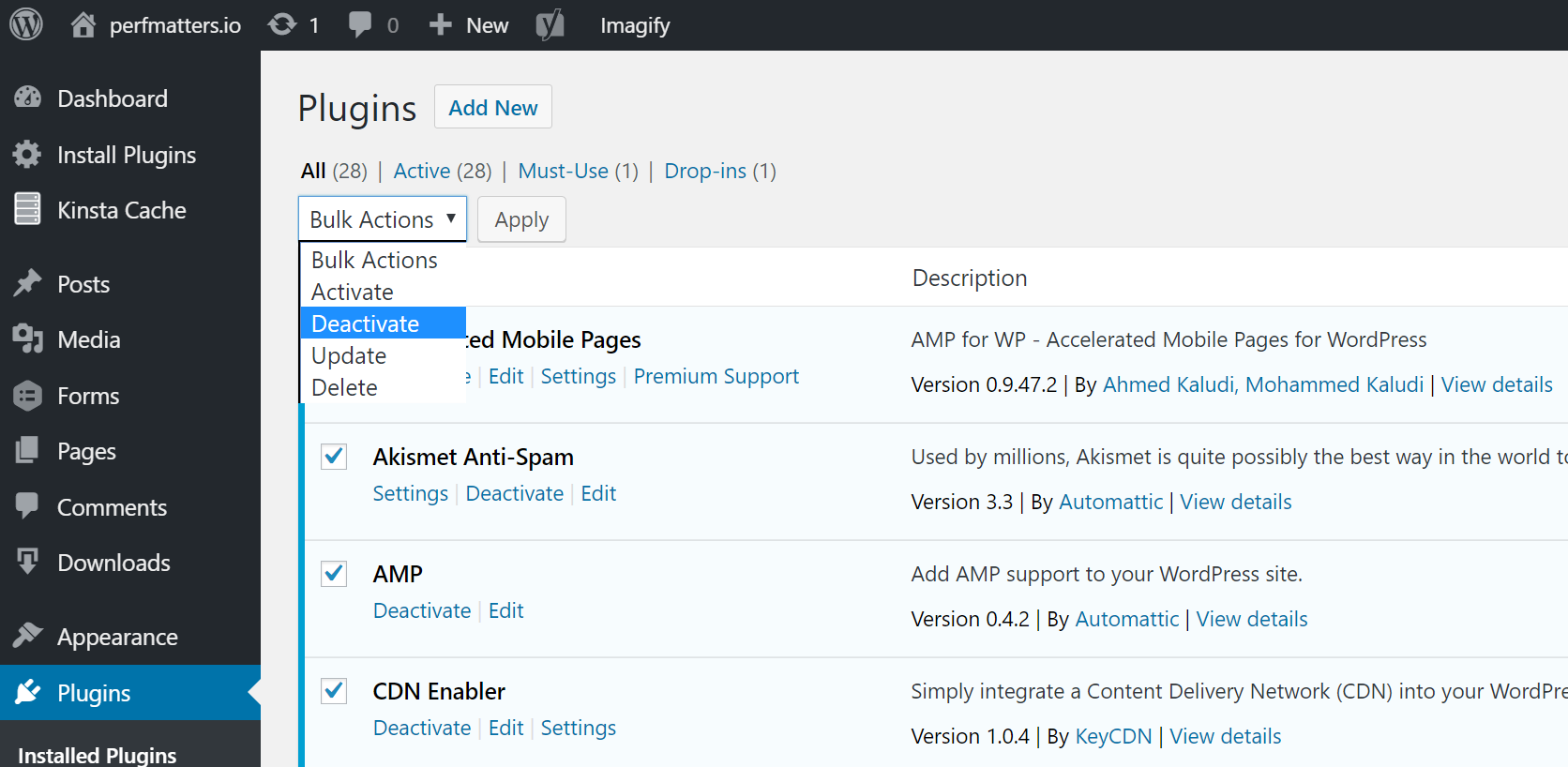
If this fixes the issue you’ll need to find the culprit. Start activating them one by one, reloading the site after each activation. When you see the 500 internal server error return, you’ve found the misbehaving plugin. You can then reach out to the plugin developer for help or post a support ticket in the WordPress repository.
If you can’t login to WordPress admin you can FTP into your server and rename your plugins folder to something like plugins_old. Then check your site again. If it works, then you will need to test each plugin one by one. Rename your plugin folder back to “plugins” and then rename each plugin folder inside of if it, one by one, until you find it. You could also try to replicate this on a staging site first.
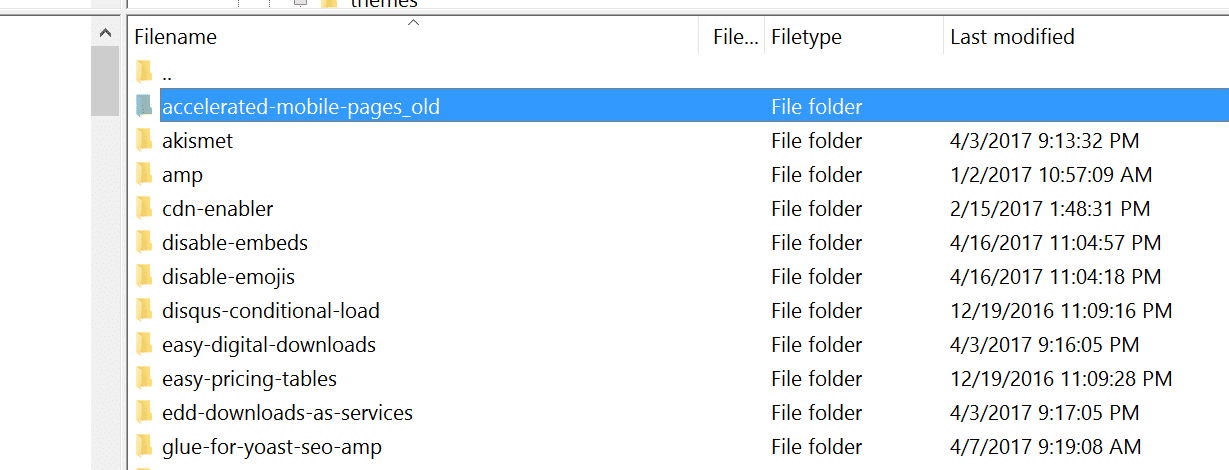
Always makes sure your plugins, themes, and WordPress core are up to date. And check to ensure you are running a supported version of PHP. If it turns out to be a conflict with bad code in a plugin, you might need to bring in a WordPress developer to fix the issue.
6. Reinstall WordPress Core
Sometimes WordPress core files can get corrupted, especially on older sites. It’s actually quite easy to re-upload just the core of WordPress without impacting your plugins or themes. We have an in-depth guide with 5 different ways to reinstall WordPress. And of course, make sure to take a backup before proceeding. Skip to one of the sections below:
- How to reinstall WordPress from the WordPress dashboard while preserving existing content
- How to manually reinstall WordPress via FTP while preserving existing content
- How to manually reinstall WordPress via WP-CLI while preserving existing content
7. Permissions Error
A permissions error with a file or folder on your server can also cause a 500 internal server error to occur. Here are some typical recommendations for permissions when it comes to file and folder permissions in WordPress:
- All files should be 644 (-rw-r–r–) or 640.
- All directories should be 755 (drwxr-xr-x) or 750.
- No directories should ever be given 777, even upload directories.
- Hardening: wp-config.php could also be set to 440 or 400 to prevent other users on the server from reading it.
See the WordPress Codex article on changing file permissions for a more in-depth explanation.
You can easily see your file permissions with an FTP client (as seen below). You could also reach out to your WordPress host support team and ask them to quickly GREP file permissions on your folders and files to ensure they’re setup properly.

8. PHP Memory Limit
A 500 internal server error could also be caused by exhausting the PHP memory limit on your server. You could try increasing the limit. Follow the instructions below on how to change this limit in cPanel, Apache, your php.ini file, and wp-config.php file.
Increase PHP Memory Limit in cPanel
If you’re running on a host that uses cPanel, you can easily change this from the UI. Under Software click on “Select PHP Version.”

Click on “Switch to PHP Options.”
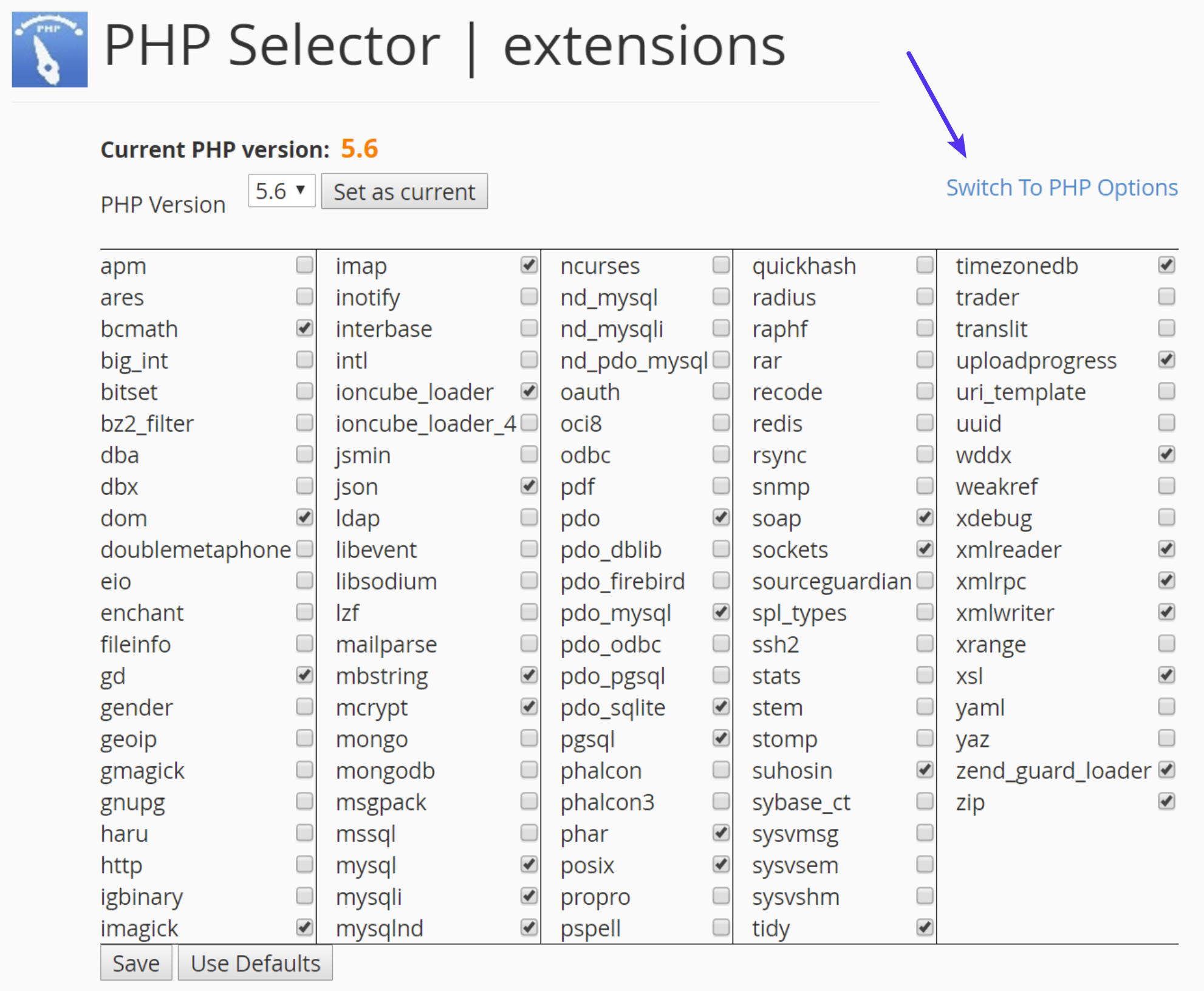
You can then click on the memory_limit attribute and change its value. Then click on “Save.”
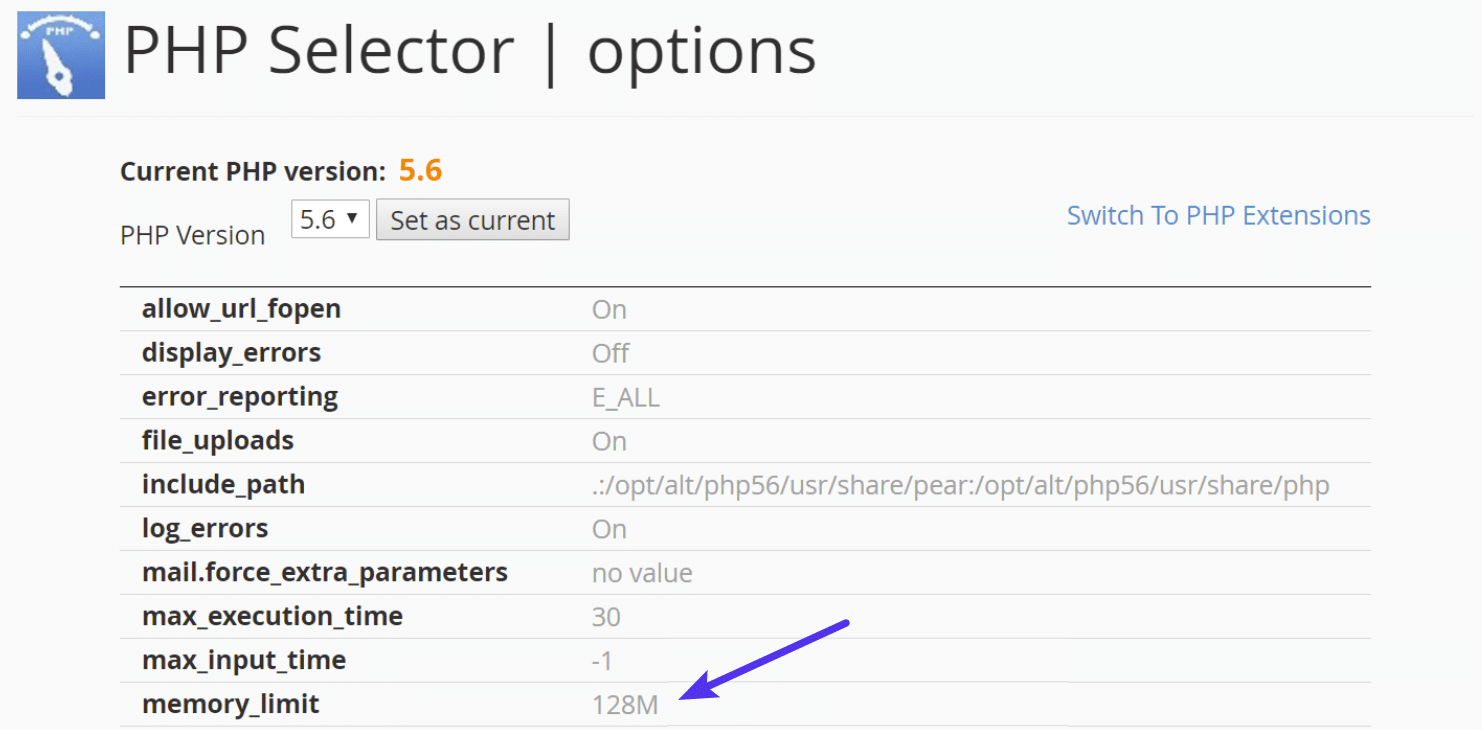
Increase PHP Memory Limit in Apache
The .htaccess file is a special hidden file that contains various settings you can use to modify the server behavior, right down to a directory specific level. First login to your site via FTP or SSH, take a look at your root directory and see if there is a .htaccess file there.

If there is you can edit that file to add the necessary code for increasing the PHP memory limit. Most likely it is set at 64M or below, you can try increasing this value.
php_value memory_limit 128MIncrease PHP Memory Limit in php.ini File
If the above doesn’t work for you might try editing your php.ini file. Log in to your site via FTP or SSH, go to your site’s root directory and open or create a php.ini file.
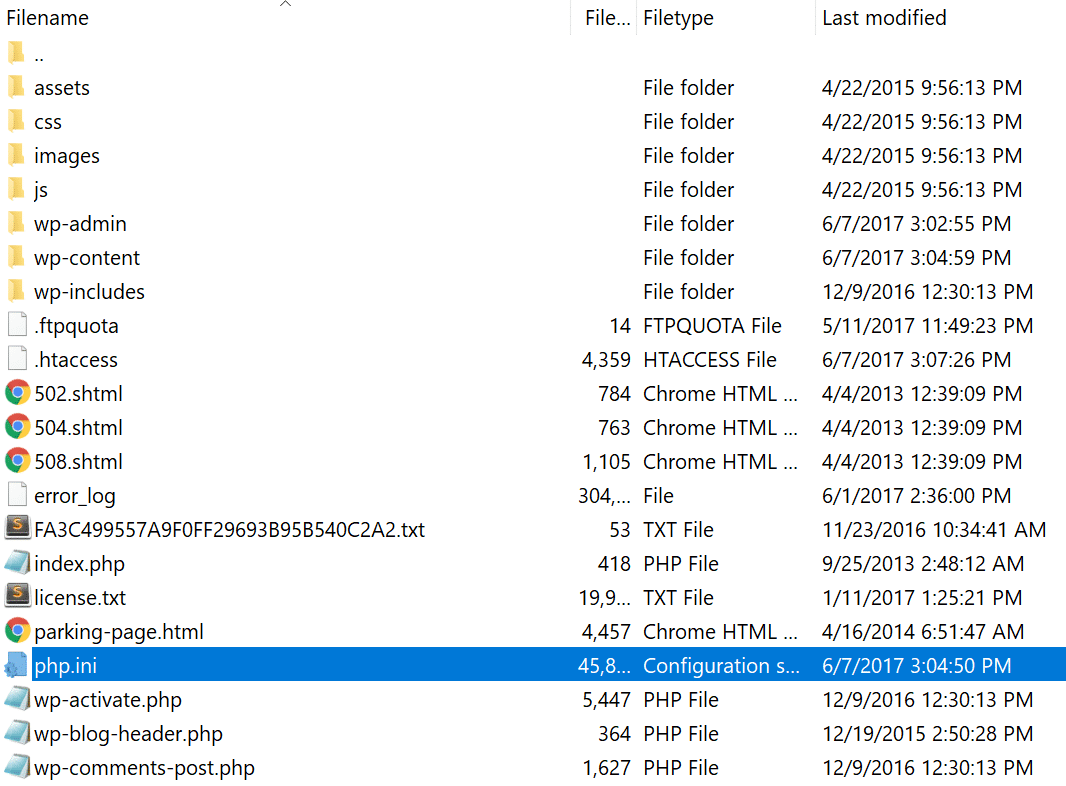
If the file was already there, search for the three settings and modify them if necessary. If you just created the file, or the settings are nowhere to be found you can paste the code below. You can modify of course the values to meet your needs.
memory_limit = 128MSome shared hosts might also require that you add the suPHP directive in your .htaccess file for the above php.ini file settings to work. To do this, edit your .htaccess file, also located at the root of your site, and add the following code towards the top of the file:
<IfModule mod_suphp.c>
suPHP_ConfigPath /home/yourusername/public_html
</IfModule>
If the above didn’t work for you, it could be that your host has the global settings locked down and instead have it configured to utilize .user.ini files. To edit your .user.ini file, login to your site via FTP or SSH, go to your site’s root directory and open or create a .user.ini file. You can then paste in the following code:
memory_limit = 128MIncrease PHP Memory Limit in wp-config.php
The last option is not one we are fans of, but if all else fails you can give it a go. First, log in to your site via FTP or SSH, and locate your wp-config.php file, which is typically in the root of your site.
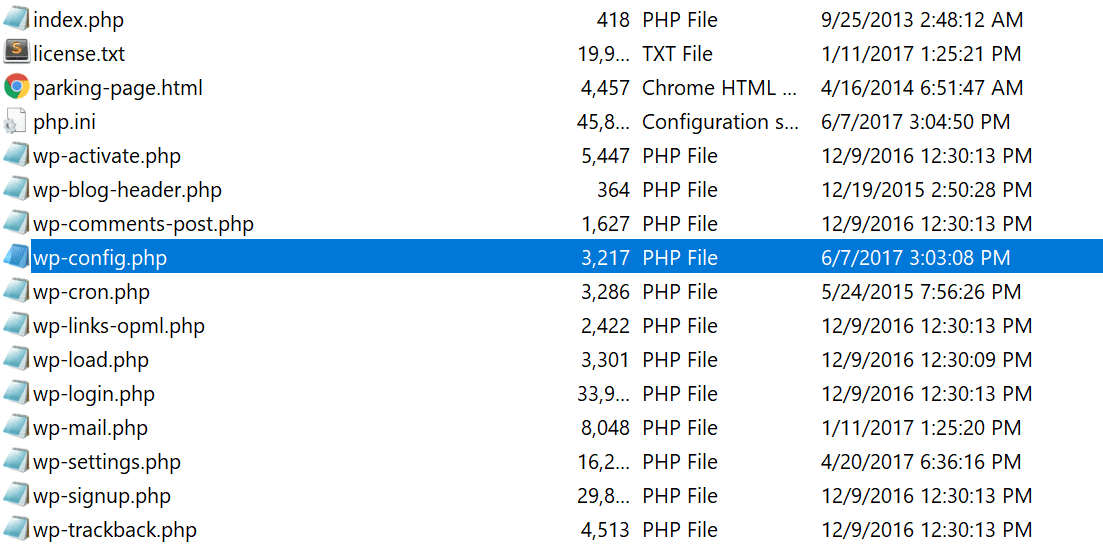
Add the following code to the top of your wp-config.php file:
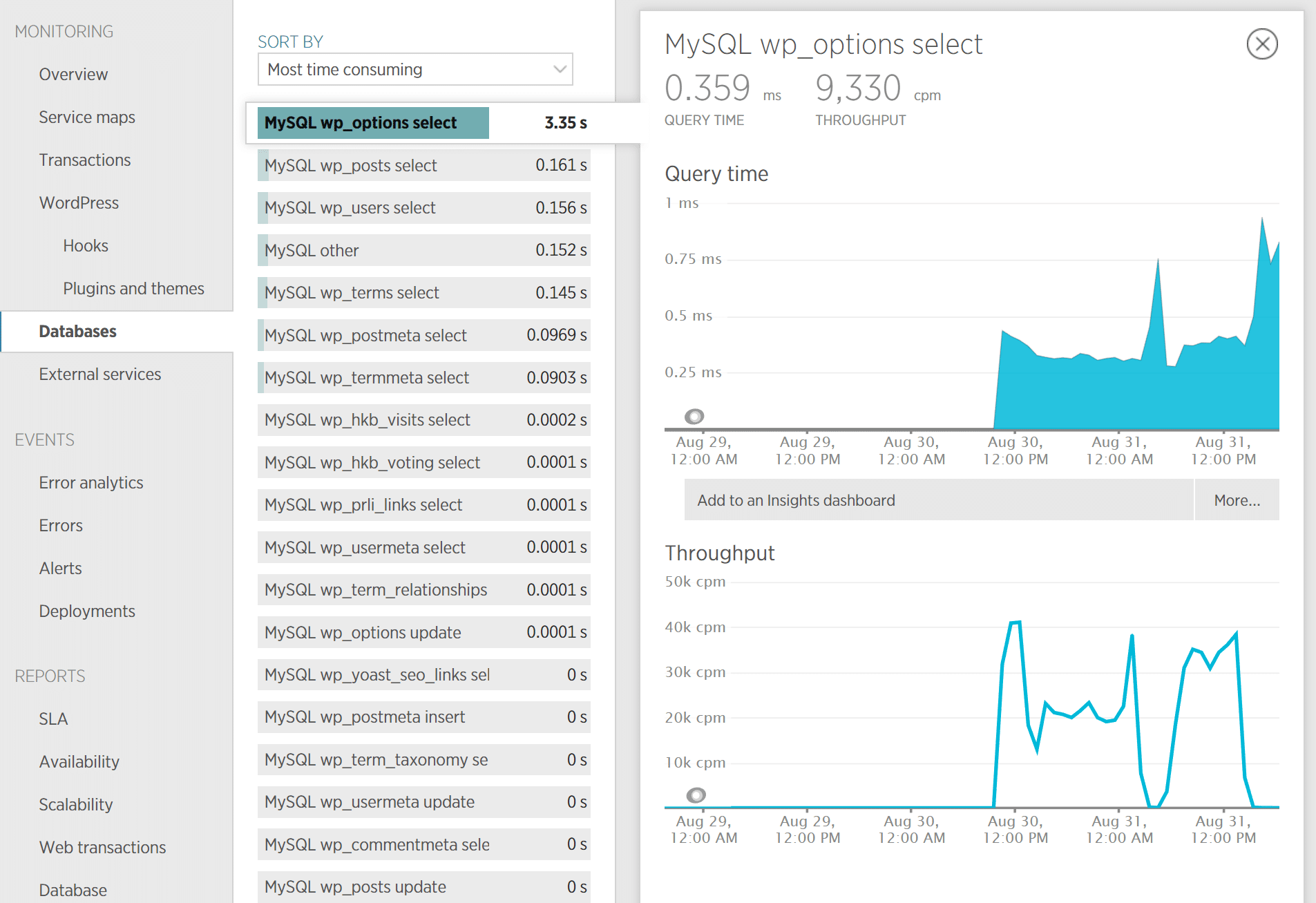
define('WP_MEMORY_LIMIT', '128M');You can also ask your host if you’re running into memory limit issues. We utilize the Kinsta APM tool and other troubleshooting methods here at Kinsta to help clients narrow down what plugin, query, or script might be exhausting the limit. You can also use your own custom New Relic key from your own license.
9. Problem With Your .htaccess File
Kinsta only uses Nginx, but if you’re using a WordPress host that is running Apache, it could very well be that your .htaccess file has a problem or has become corrupted. Follow the steps below to recreate a new one from scratch.
First, log in to your site via FTP or SSH, and rename your .htaccess file to .htaccess_old.
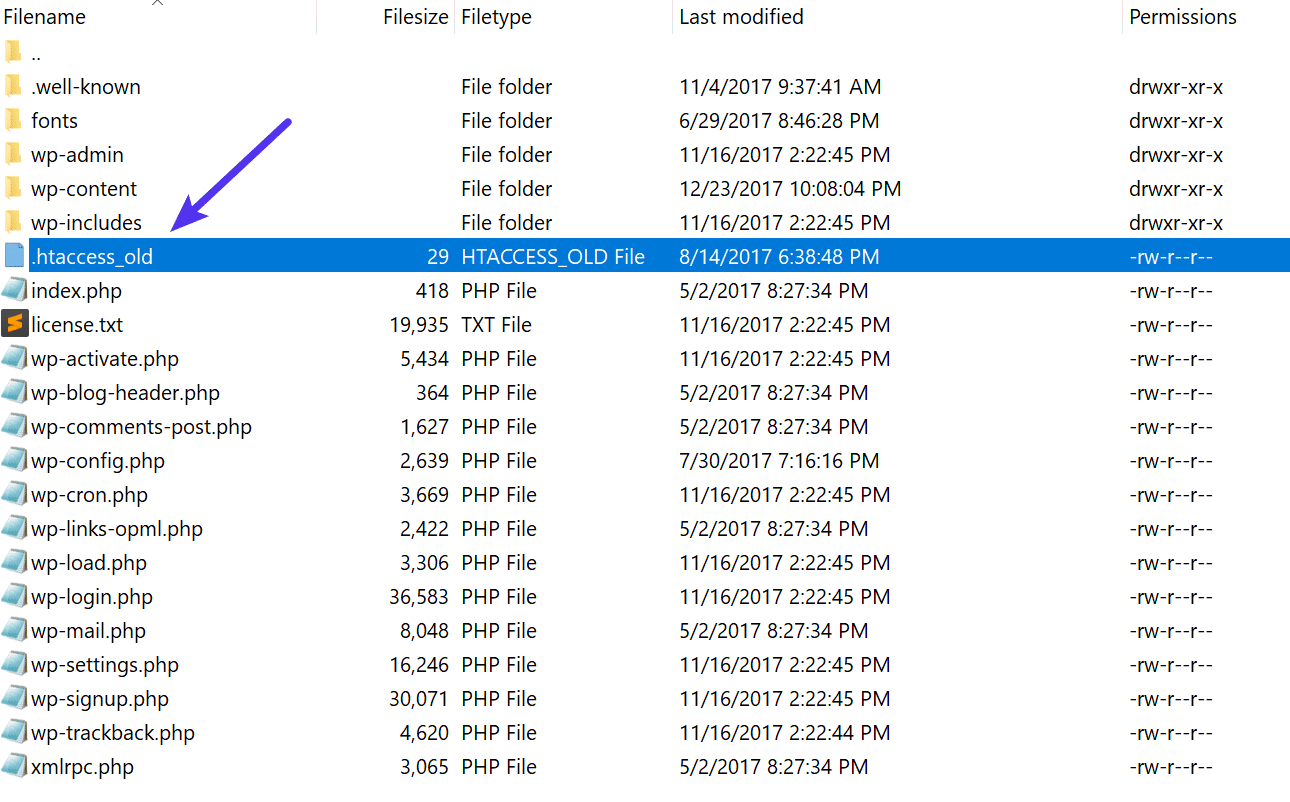
Normally to recreate this file you can simply re-save your permalinks in WordPress. However, if you’re in the middle of a 500 internal server error you most likely can’t access your WordPress admin, so this isn’t an option. Therefore you can create a new .htaccess file and input the following contents. Then upload it to your server.
# BEGIN WordPress
<IfModule mod_rewrite.c>
RewriteEngine On
RewriteBase /
RewriteRule ^index.php$ - [L]
RewriteCond %{REQUEST_FILENAME} !-f
RewriteCond %{REQUEST_FILENAME} !-d
RewriteRule . /index.php [L]
</IfModule>
# END WordPress
See the WordPress Codex for more examples, such as a default .htaccess file for multisite.
10. Coding or Syntax Errors in Your CGI/Perl Script
500 errors being caused by errors in CGI and Perl is a lot less common than it used to be. Although it’s still worth mentioning, especially for those using cPanel where there are a lot of one-click CGI scripts still being used. As AEM on Stack Overflow says:
CGI has been replaced by a vast variety of web programming technologies, including PHP, various Apache extensions like mod_perl, Java of various flavors and frameworks including Java EE, Struts, Spring, etc, Python-based frameworks like Django, Ruby on Rails and many other Ruby frameworks, and various Microsoft technologies.
Here are a few tips when working with CGI scripts:
- When editing, always used a plain text editor, such as Atom, Sublime, or Notepad++. This ensures they remain in ASCII format.
- Ensure correct permissions of chmod 755 are used on CGI scripts and directories.
- Upload your CGI scripts in ASCII mode (which you can select in your FTP editor) into the cgi-bin directory on your server.
- Confirm that the Perl modules you require for your script are installed and supported.
11. Server Issue (Check With Your Host)
Finally, because 500 internal server errors can also occur from PHP timing out or fatal PHP errors with third-party plugins, you can always check with your WordPress host. Sometimes these errors can be difficult to troubleshoot without an expert. Here are just a few common examples of some errors that trigger 500 HTTP status codes on the server that might have you scratching your head.
PHP message: PHP Fatal error: Uncaught Error: Call to undefined function mysql_error()...PHP message: PHP Fatal error: Uncaught Error: Cannot use object of type WP_Error as array in /www/folder/web/shared/content/plugins/plugin/functions.php:525We monitor all client’s sites here at Kinsta and are automatically notified when these types of errors occur. This allows us to be pro-active and start fixing the issue right away. We also utilize LXD managed hosts and orchestrated LXC software containers for each site. This means that every WordPress site is housed in its own isolated container, which has all of the software resources required to run it (Linux, Nginx, PHP, MySQL). The resources are 100% private and are not shared with anyone else or even your own sites.
PHP timeouts could also occur from the lack of PHP workers, although typically these cause 504 errors, not 500 errors. These determine how many simultaneous requests your site can handle at a given time. To put it simply, each uncached request for your website is handled by a PHP Worker.
When PHP workers are already busy on a site, they start to build up a queue. Once you’ve reached your limit of PHP workers, the queue starts to push out older requests which could result in 500 errors or incomplete requests. Read our in-depth article about PHP workers.
Monitor Your Site
If you’re worried about these types of errors happening on your site in the future, you can also utilize a tool like updown.io to monitor and notify you immediately if they occur. It periodically sends an HTTP HEAD request to the URL of your choice. You can simply use your homepage. The tool allows you to set check frequencies of:
- 15 seconds
- 30 seconds
- 1 minute
- 2 minutes
- 5 minutes
- 10 minutes
It will send you an email if and when your site goes down. Here is an example below.

This can be especially useful if you’re trying to debug a faulty plugin or are on a shared host, who tend to overcrowd their servers. This can give you proof of how often your site might actually be doing down (even during the middle of the night).
That’s why we always recommend going with an application, database, and managed WordPress host (like Kinsta).
Make sure to check out our post that explores the top 9 reasons to choose managed WordPress hosting.
Summary
500 internal server errors are always frustrating, but hopefully, now you know a few additional ways to troubleshoot them to quickly get your site back up and running. Remember, typically these types of errors are caused by third-party plugins, fatal PHP errors, database connection issues, problems with your .htaccess file or PHP memory limits, and sometimes PHP timeouts.
Was there anything we missed? Perhaps you have another tip on troubleshooting 500 internal server errors. If so, let us know below in the comments.
Get all your applications, databases and WordPress sites online and under one roof. Our feature-packed, high-performance cloud platform includes:
- Easy setup and management in the MyKinsta dashboard
- 24/7 expert support
- The best Google Cloud Platform hardware and network, powered by Kubernetes for maximum scalability
- An enterprise-level Cloudflare integration for speed and security
- Global audience reach with up to 35 data centers and 275 PoPs worldwide
Test it yourself with $20 off your first month of Application Hosting or Database Hosting. Explore our plans or talk to sales to find your best fit.
The dreaded 500 internal server error. It always seems to come at the most inopportune time and you’re suddenly left scrambling to figure out how to get your WordPress site back online. Trust us, we’ve all been there. Other errors that behave similarly that you might have also seen include the frightening error establishing a database connection and the dreaded white screen of death. But from the moment your site goes down, you’re losing visitors and customers. Not to mention it simply looks bad for your brand.
Today we’re going to dive into the 500 internal server error and walk you through some ways to get your site back online quickly. Read more below about what causes this error and what you can do to prevent it in the future.
- What is a 500 internal server error?
- How to fix the 500 internal server error
500 Internal Server Error (Most Common Causes):
500 Internal server error in WordPress can be caused by many things. If you’re experiencing one, there’s a high chance one (or more) of the following elements is causing the issue:
- Browser Cache.
- Incorrect database login credentials.
- Corrupted database.
- Corrupted files in your WordPress installation.
- Issues with your database server.
- Corrupted WordPress core files.
- Corrupted .htaccess file and PHP memory limit.
- Issues with third-party plugins and themes.
- PHP timing out or fatal PHP errors with third-party plugins.
- Wrong file and folder permissions.
- Exhausted PHP memory limit on your server
- Corrupted or broken .htaccess file.
- Errors in CGI and Perl script.
Check Out Our Ultimate Guide to Fixing the 500 Internal Server Error
What is a 500 Internal Server Error?
The Internet Engineering Task Force (IETF) defines the 500 Internal Server Error as:
The 500 (Internal Server Error) status code indicates that the server encountered an unexpected condition that prevented it from fulfilling the request.
When you visit a website your browser sends a request over to the server where the site is hosted. The server takes this request, processes it, and sends back the requested resources (PHP, HTML, CSS, etc.) along with an HTTP header. The HTTP also includes what they call an HTTP status code. A status code is a way to notify you about the status of the request. It could be a 200 status code which means “Everything is OK” or a 500 status code which means something has gone wrong.
There are a lot of different types of 500 status error codes (500, 501, 502, 503, 504, etc.) and they all mean something different. In this case, a 500 internal server error indicates that the server encountered an unexpected condition that prevented it from fulfilling the request (RFC 7231, section 6.6.1).
500 Internal Server Error Variations
Due to the various web servers, operating systems, and browsers, a 500 internal server error can present itself in a number of different ways. But they are all communicating the same thing. Below are just a couple of the many different variations you might see on the web:
-
- “500 Internal Server Error”
- “HTTP 500”
- “Internal Server Error”
- “HTTP 500 – Internal Server Error”
- “500 Error”
- “HTTP Error 500”
- “500 – Internal Server Error”
- “500 Internal Server Error. Sorry something went wrong.”
- “500. That’s an error. There was an error. Please try again later. That’s all we know.”
- “The website cannot display the page – HTTP 500.”
- “Is currently unable to handle this request. HTTP ERROR 500.”
You might also see this message accompanying it:
The server encountered an internal error or misconfiguration and was unable to complete your request. Please contact the server administrator, [email protected] and inform them of the time the error occurred, and anything you might have done that may have caused the error. More information about this error may be available in the server error log.
Other times, you might simply see a blank white screen. When dealing with 500 internal server errors, this is actually quite common in browsers like Firefox and Safari.
Bigger brands might even have their own custom 500 internal server error messages, such as this one from Airbnb.
Here is another creative 500 server error example from the folks over at readme.
Even the mighty YouTube isn’t safe from 500 internal server errors.
If it’s an IIS 7.0 (Windows) or higher server, they have additional HTTP status codes to more closely indicate the cause of the 500 error:
- 500.0 – Module or ISAPI error occurred.
- 500.11 – Application is shutting down on the web server.
- 500.12 – Application is busy restarting on the web server.
- 500.13 – Web server is too busy.
- 500.15 – Direct requests for global.asax are not allowed.
- 500.19 – Configuration data is invalid.
- 500.21 – Module not recognized.
- 500.22 – An ASP.NET httpModules configuration does not apply in Managed Pipeline mode.
- 500.23 – An ASP.NET httpHandlers configuration does not apply in Managed Pipeline mode.
- 500.24 – An ASP.NET impersonation configuration does not apply in Managed Pipeline mode.
- 500.50 – A rewrite error occurred during RQ_BEGIN_REQUEST notification handling. A configuration or inbound rule execution error occurred.
- 500.51 – A rewrite error occurred during GL_PRE_BEGIN_REQUEST notification handling. A global configuration or global rule execution error occurred.
- 500.52 – A rewrite error occurred during RQ_SEND_RESPONSE notification handling. An outbound rule execution occurred.
- 500.53 – A rewrite error occurred during RQ_RELEASE_REQUEST_STATE notification handling. An outbound rule execution error occurred. The rule is configured to be executed before the output user cache gets updated.
500.100 – Internal ASP error.
500 Errors Impact on SEO
Unlike 503 errors, which are used for WordPress maintenance mode and tell Google to check back at a later time, a 500 error can have a negative impact on SEO if not fixed right away. If your site is only down for say 10 minutes and it’s being crawled consistently a lot of times the crawler will simply get the page delivered from cache. Or Google might not even have a chance to re-crawl it before it’s back up. In this scenario, you’re completely fine.
However, if the site is down for an extended period of time, say 6+ hours, then Google might see the 500 error as a site level issue that needs to be addressed. This could impact your rankings. If you’re worried about repeat 500 errors you should figure out why they are happening to begin with. Some of the solutions below can help.
How to Fix the 500 Internal Server Error
Where should you start troubleshooting when you see a 500 internal server error on your WordPress site? Sometimes you might not even know where to begin. Typically 500 errors are on the server itself, but from our experience, these errors originate from two things, the first is user error (client-side issue), and the second is that there is a problem with the server. So we’ll dive into a little of both.
This is never not annoying 😖 pic.twitter.com/pPKxbkvI9K
— Dare Obasanjo 🐀 (@Carnage4Life) September 26, 2019
Check out these common causes and ways to fix the 500 internal server error and get back up and running in no time.
1. Try Reloading the Page
This might seem a little obvious to some, but one of the easiest and first things you should try when encountering a 500 internal server error is to simply wait a minute or so and reload the page (F5 or Ctrl + F5). It could be that the host or server is simply overloaded and the site will come right back. While you’re waiting, you could also quickly try a different browser to rule that out as an issue.
Another thing you can do is to paste the website into downforeveryoneorjustme.com. This website will tell you if the site is down or if it’s a problem on your side. A tool like this checks the HTTP status code that is returned from the server. If it’s anything other than a 200 “Everything is OK” then it will return a down indication.
We’ve also noticed that sometimes this can occur immediately after you update a plugin or theme on your WordPress site. Typically this is on hosts that aren’t set up properly. What happens is they experience a temporary timeout right afterward. However, things usually resolve themselves in a couple of seconds and therefore refreshing is all you need to do.
2. Clear Your Browser Cache
Clearing your browser cache is always another good troubleshooting step before diving into deeper debugging on your site. Below are instructions on how to clear cache in the various browsers:
- How to Force Refresh a Single Page for All Browsers
- How to Clear Browser Cache for Google Chrome
- How to Clear Browser Cache for Mozilla Firefox
- How to Clear Browser Cache for Safari
- How to Clear Browser Cache for Internet Explorer
- How to Clear Browser Cache for Microsoft Edge
- How to Clear Browser Cache for Opera
3. Check Your Server Logs
You should also take advantage of your error logs. If you’re a Kinsta client, you can easily see errors in the log viewer in the MyKinsta dashboard. This can help you quickly narrow down the issue, especially if it’s resulting from a plugin on your site.
If your host doesn’t have a logging tool, you can also enable WordPress debugging mode by adding the following code to your wp-config.php file to enable logging:
define( 'WP_DEBUG', true );
define( 'WP_DEBUG_LOG', true );
define( 'WP_DEBUG_DISPLAY', false );
The logs are typically located in the /wp-content directory. Others, like here at Kinsta might have a dedicated folder called “logs”.
You can also check the log files in Apache and Nginx, which are commonly located here:
- Apache: /var/log/apache2/error.log
- Nginx: /var/log/nginx/error.log
If you’re a Kinsta client you can also take advantage of our analytics tool to get a breakdown of the total number of 500 errors and see how often and when they are occurring. This can help you troubleshoot if this is an ongoing issue, or perhaps something that has resolved itself.
If the 500 error is displaying because of a fatal PHP error, you can also try enabling PHP error reporting. Simply add the following code to the file throwing the error. Typically you can narrow down the file in the console tab of Google Chrome DevTools.
ini_set('display_errors', 1);
ini_set('display_startup_errors', 1);
error_reporting(E_ALL);
And you might need to also modify your php.ini file with the following:
display_errors = on4. Error Establishing a Database Connection
500 internal server errors can also occur from a database connection error. Depending upon your browser you might see different errors. But both will generate a 500 HTTP status code regardless in your server logs.
Below is an example of what an “error establishing a database connection” message looks like your browser. The entire page is blank because no data can be retrieved to render the page, as the connection is not working properly. Not only does this break the front-end of your site, but it will also prevent you from accessing your WordPress dashboard.
So why exactly does this happen? Well, here are a few common reasons below.
- The most common issue is that your database login credentials are incorrect. Your WordPress site uses separate login information to connect to its MySQL database.
- Your WordPress database is corrupted. With so many moving parts with themes, plugins, and users constantly deleting and installing them, sometimes databases get corrupted. This can be due to a missing or individually corrupted table, or perhaps some information was deleted by accident.
- You may have corrupt files in your WordPress installation. This can even happen sometimes due to hackers.
- Issues with your database server. A number of things could be wrong on the web hosts end, such as the database being overloaded from a traffic spike or unresponsive from too many concurrent connections. This is actually quite common with shared hosts as they are utilizing the same resources for a lot of users on the same servers.
Check out our in-depth post on how to fix the error establishing a database connection in WordPress.
5. Check Your Plugins and Themes
Third-party plugins and themes can easily cause 500 internal server errors. We’ve seen all types cause them here at Kinsta, from slider plugins to ad rotator plugins. A lot of times you should see the error immediately after installing something new or running an update. This is one reason why we always recommend utilizing a staging environment for updates or at least running updates one by one. Otherwise, if you encounter a 500 internal server error you’re suddenly scrambling to figure out which one caused it.
A few ways you can troubleshoot this is by deactivating all your plugins. Remember, you won’t lose any data if you simply deactivate a plugin. If you can still access your admin, a quick way to do this is to browse to “Plugins” and select “Deactivate” from the bulk actions menu. This will disable all of your plugins.
If this fixes the issue you’ll need to find the culprit. Start activating them one by one, reloading the site after each activation. When you see the 500 internal server error return, you’ve found the misbehaving plugin. You can then reach out to the plugin developer for help or post a support ticket in the WordPress repository.
If you can’t login to WordPress admin you can FTP into your server and rename your plugins folder to something like plugins_old. Then check your site again. If it works, then you will need to test each plugin one by one. Rename your plugin folder back to “plugins” and then rename each plugin folder inside of if it, one by one, until you find it. You could also try to replicate this on a staging site first.
Always makes sure your plugins, themes, and WordPress core are up to date. And check to ensure you are running a supported version of PHP. If it turns out to be a conflict with bad code in a plugin, you might need to bring in a WordPress developer to fix the issue.
6. Reinstall WordPress Core
Sometimes WordPress core files can get corrupted, especially on older sites. It’s actually quite easy to re-upload just the core of WordPress without impacting your plugins or themes. We have an in-depth guide with 5 different ways to reinstall WordPress. And of course, make sure to take a backup before proceeding. Skip to one of the sections below:
- How to reinstall WordPress from the WordPress dashboard while preserving existing content
- How to manually reinstall WordPress via FTP while preserving existing content
- How to manually reinstall WordPress via WP-CLI while preserving existing content
7. Permissions Error
A permissions error with a file or folder on your server can also cause a 500 internal server error to occur. Here are some typical recommendations for permissions when it comes to file and folder permissions in WordPress:
- All files should be 644 (-rw-r–r–) or 640.
- All directories should be 755 (drwxr-xr-x) or 750.
- No directories should ever be given 777, even upload directories.
- Hardening: wp-config.php could also be set to 440 or 400 to prevent other users on the server from reading it.
See the WordPress Codex article on changing file permissions for a more in-depth explanation.
You can easily see your file permissions with an FTP client (as seen below). You could also reach out to your WordPress host support team and ask them to quickly GREP file permissions on your folders and files to ensure they’re setup properly.
8. PHP Memory Limit
A 500 internal server error could also be caused by exhausting the PHP memory limit on your server. You could try increasing the limit. Follow the instructions below on how to change this limit in cPanel, Apache, your php.ini file, and wp-config.php file.
Increase PHP Memory Limit in cPanel
If you’re running on a host that uses cPanel, you can easily change this from the UI. Under Software click on “Select PHP Version.”
Click on “Switch to PHP Options.”
You can then click on the memory_limit attribute and change its value. Then click on “Save.”
Increase PHP Memory Limit in Apache
The .htaccess file is a special hidden file that contains various settings you can use to modify the server behavior, right down to a directory specific level. First login to your site via FTP or SSH, take a look at your root directory and see if there is a .htaccess file there.
If there is you can edit that file to add the necessary code for increasing the PHP memory limit. Most likely it is set at 64M or below, you can try increasing this value.
php_value memory_limit 128MIncrease PHP Memory Limit in php.ini File
If the above doesn’t work for you might try editing your php.ini file. Log in to your site via FTP or SSH, go to your site’s root directory and open or create a php.ini file.
If the file was already there, search for the three settings and modify them if necessary. If you just created the file, or the settings are nowhere to be found you can paste the code below. You can modify of course the values to meet your needs.
memory_limit = 128MSome shared hosts might also require that you add the suPHP directive in your .htaccess file for the above php.ini file settings to work. To do this, edit your .htaccess file, also located at the root of your site, and add the following code towards the top of the file:
<IfModule mod_suphp.c>
suPHP_ConfigPath /home/yourusername/public_html
</IfModule>
If the above didn’t work for you, it could be that your host has the global settings locked down and instead have it configured to utilize .user.ini files. To edit your .user.ini file, login to your site via FTP or SSH, go to your site’s root directory and open or create a .user.ini file. You can then paste in the following code:
memory_limit = 128MIncrease PHP Memory Limit in wp-config.php
The last option is not one we are fans of, but if all else fails you can give it a go. First, log in to your site via FTP or SSH, and locate your wp-config.php file, which is typically in the root of your site.
Add the following code to the top of your wp-config.php file:
define('WP_MEMORY_LIMIT', '128M');You can also ask your host if you’re running into memory limit issues. We utilize the Kinsta APM tool and other troubleshooting methods here at Kinsta to help clients narrow down what plugin, query, or script might be exhausting the limit. You can also use your own custom New Relic key from your own license.
9. Problem With Your .htaccess File
Kinsta only uses Nginx, but if you’re using a WordPress host that is running Apache, it could very well be that your .htaccess file has a problem or has become corrupted. Follow the steps below to recreate a new one from scratch.
First, log in to your site via FTP or SSH, and rename your .htaccess file to .htaccess_old.
Normally to recreate this file you can simply re-save your permalinks in WordPress. However, if you’re in the middle of a 500 internal server error you most likely can’t access your WordPress admin, so this isn’t an option. Therefore you can create a new .htaccess file and input the following contents. Then upload it to your server.
# BEGIN WordPress
<IfModule mod_rewrite.c>
RewriteEngine On
RewriteBase /
RewriteRule ^index.php$ - [L]
RewriteCond %{REQUEST_FILENAME} !-f
RewriteCond %{REQUEST_FILENAME} !-d
RewriteRule . /index.php [L]
</IfModule>
# END WordPress
See the WordPress Codex for more examples, such as a default .htaccess file for multisite.
10. Coding or Syntax Errors in Your CGI/Perl Script
500 errors being caused by errors in CGI and Perl is a lot less common than it used to be. Although it’s still worth mentioning, especially for those using cPanel where there are a lot of one-click CGI scripts still being used. As AEM on Stack Overflow says:
CGI has been replaced by a vast variety of web programming technologies, including PHP, various Apache extensions like mod_perl, Java of various flavors and frameworks including Java EE, Struts, Spring, etc, Python-based frameworks like Django, Ruby on Rails and many other Ruby frameworks, and various Microsoft technologies.
Here are a few tips when working with CGI scripts:
- When editing, always used a plain text editor, such as Atom, Sublime, or Notepad++. This ensures they remain in ASCII format.
- Ensure correct permissions of chmod 755 are used on CGI scripts and directories.
- Upload your CGI scripts in ASCII mode (which you can select in your FTP editor) into the cgi-bin directory on your server.
- Confirm that the Perl modules you require for your script are installed and supported.
11. Server Issue (Check With Your Host)
Finally, because 500 internal server errors can also occur from PHP timing out or fatal PHP errors with third-party plugins, you can always check with your WordPress host. Sometimes these errors can be difficult to troubleshoot without an expert. Here are just a few common examples of some errors that trigger 500 HTTP status codes on the server that might have you scratching your head.
PHP message: PHP Fatal error: Uncaught Error: Call to undefined function mysql_error()...PHP message: PHP Fatal error: Uncaught Error: Cannot use object of type WP_Error as array in /www/folder/web/shared/content/plugins/plugin/functions.php:525We monitor all client’s sites here at Kinsta and are automatically notified when these types of errors occur. This allows us to be pro-active and start fixing the issue right away. We also utilize LXD managed hosts and orchestrated LXC software containers for each site. This means that every WordPress site is housed in its own isolated container, which has all of the software resources required to run it (Linux, Nginx, PHP, MySQL). The resources are 100% private and are not shared with anyone else or even your own sites.
PHP timeouts could also occur from the lack of PHP workers, although typically these cause 504 errors, not 500 errors. These determine how many simultaneous requests your site can handle at a given time. To put it simply, each uncached request for your website is handled by a PHP Worker.
When PHP workers are already busy on a site, they start to build up a queue. Once you’ve reached your limit of PHP workers, the queue starts to push out older requests which could result in 500 errors or incomplete requests. Read our in-depth article about PHP workers.
Monitor Your Site
If you’re worried about these types of errors happening on your site in the future, you can also utilize a tool like updown.io to monitor and notify you immediately if they occur. It periodically sends an HTTP HEAD request to the URL of your choice. You can simply use your homepage. The tool allows you to set check frequencies of:
- 15 seconds
- 30 seconds
- 1 minute
- 2 minutes
- 5 minutes
- 10 minutes
It will send you an email if and when your site goes down. Here is an example below.
This can be especially useful if you’re trying to debug a faulty plugin or are on a shared host, who tend to overcrowd their servers. This can give you proof of how often your site might actually be doing down (even during the middle of the night).
That’s why we always recommend going with an application, database, and managed WordPress host (like Kinsta).
Make sure to check out our post that explores the top 9 reasons to choose managed WordPress hosting.
Summary
500 internal server errors are always frustrating, but hopefully, now you know a few additional ways to troubleshoot them to quickly get your site back up and running. Remember, typically these types of errors are caused by third-party plugins, fatal PHP errors, database connection issues, problems with your .htaccess file or PHP memory limits, and sometimes PHP timeouts.
Was there anything we missed? Perhaps you have another tip on troubleshooting 500 internal server errors. If so, let us know below in the comments.
Get all your applications, databases and WordPress sites online and under one roof. Our feature-packed, high-performance cloud platform includes:
- Easy setup and management in the MyKinsta dashboard
- 24/7 expert support
- The best Google Cloud Platform hardware and network, powered by Kubernetes for maximum scalability
- An enterprise-level Cloudflare integration for speed and security
- Global audience reach with up to 35 data centers and 275 PoPs worldwide
Test it yourself with $20 off your first month of Application Hosting or Database Hosting. Explore our plans or talk to sales to find your best fit.
От ошибки с кодом 500 не застрахован ни один веб-ресурс. Если она возникает, доступ к сайту теряют все его пользователи. В статье мы рассказываем, что делать при обнаружении ошибки 500 Internal Server Error и как попытаться исправить ее своими силами.
Что значит ошибка 500
Ошибка 500, или 500 Internal Server Error — это внутренняя серверная проблема, ее возникновение обусловлено тем, что от клиента (браузера, десктопной программы и т. п.) в сторону сервера поступает запрос, а сервер не может корректно его обработать.
В итоге возникает сообщение вида:
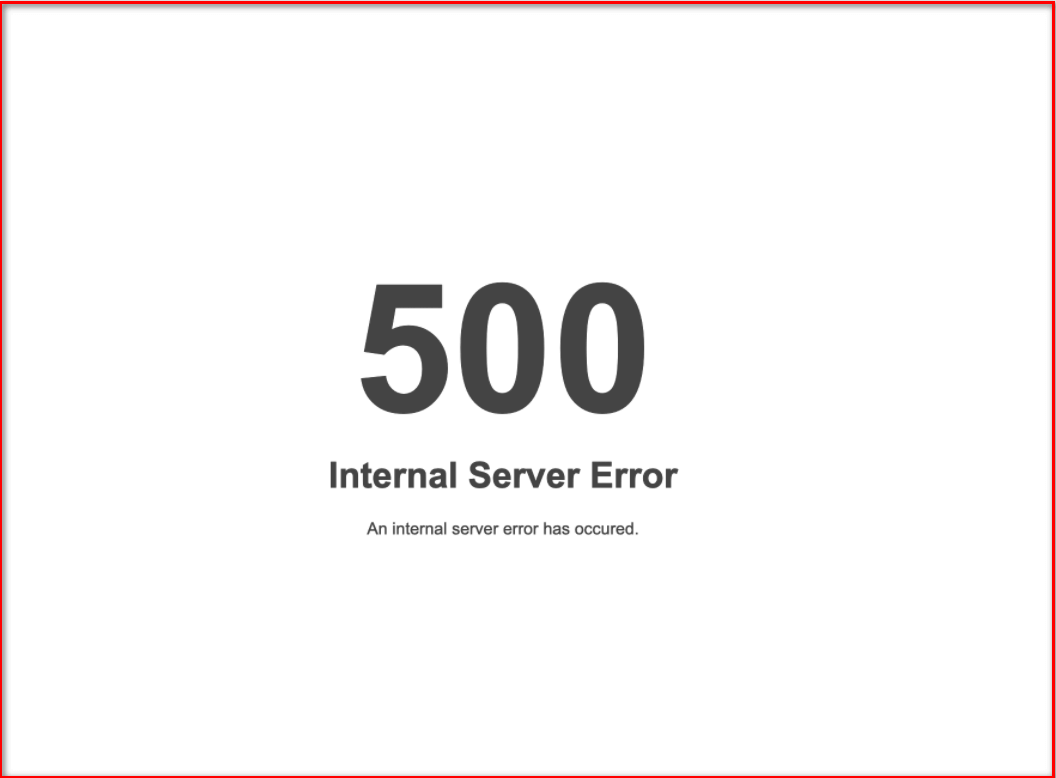
Популярная причина возникновения 500-й ошибки— ошибки в синтаксисе файла.htaccess. Также она появляется, если на сервере некорректно выполняются скрипты или же есть проблемы с правами доступа к файлам и папкам.
Обратите внимание, что за 500-ю ошибку (как и другие ошибки, начинающиеся с «пятерки») несут ответственность либо администраторы сервера, либо веб-разработчики. И только в исключительных случаях — пользователи.
Что не поможет, если возникла 500-я ошибка
- Перезагрузка компьютера. В сетевой архитектуре он является клиентом, т.е. не он вызывает проблему.
- Смена браузера. Даже если до этого Google Chrome всегда помогал, когда подводил Firefox, в этот раз он едва ли поможет. Еще и на программу просто так обидитесь!
- Переустановка программного обеспечения. Это будет иметь призрачный шанс на успех, если только у вас установлено совсем старое ПО, которой разработчики в принудительном порядке закрыли доступ в интернет.
- Перезагрузка роутера / перетыкание проводов. Это решение для неисправности сети в целом — и то не всегда.
Как действовать, если ошибка 500 появилась на чужом сайте
- Выждать. Если вы не являетесь администратором ресурса, то не сможете посмотреть и изменить файл настроек, покопаться в сайте и попытаться исправить что-то там и т. п. Ждем, когда администратор решит проблему, и через некоторое время повторяем попытку открыть нужную страницу.
- Связаться с техподдержкой. Конечно, здорово, когда за сайтом следят в режиме 24/7, но бывает и так, что администратор просто отсутствовал на месте и не знает, что сайт уже 2 часа как «лежит».
Если вам позарез нужна нужная страница, можно открыть ее сохраненную копию:

Как действовать, если ошибка 500 появилась на вашем сайте
Лучше всего быть подготовленным к такому, когда у вас свой сайт, потому что будет известна CMS, хостинг, последние изменения на сайте, установленные плагины или виджеты и т. д.
Как бы то ни было, для любого типа веб-ресурса можно предпринять универсальные действия. Оптимально будет проделать все действия, чтобы исключить возможные источники появления 500-й ошибки.
Посмотрите, что в файле .htaccess
У всех сайтов на Apache при получении FTP-доступа можно увидеть в корневой папке файл .htaccess, содержащий все серверные настройки.
Этот файл с моего сайта выглядит следующим образом:
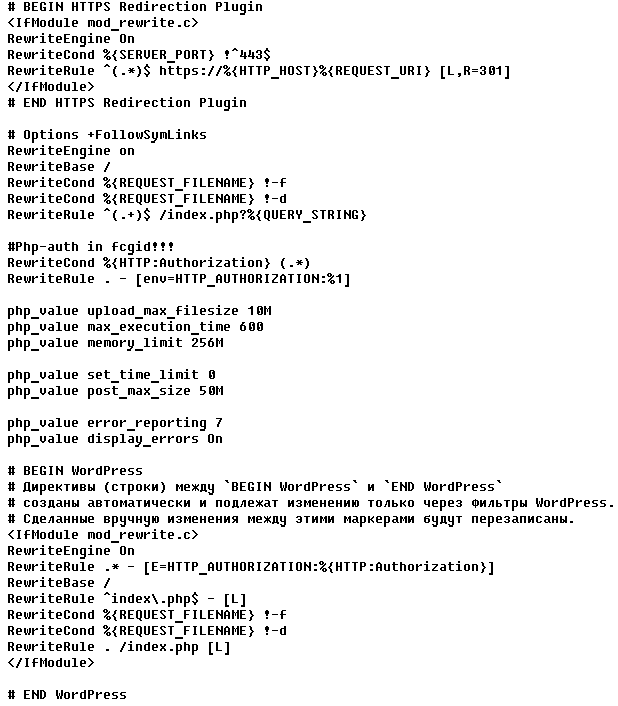
Чаще всего сайты могут функционировать и без него. То есть вы можете добавить в имя файла какой-то символ (например, .htaccess 1) и потом снова зайти на проблемную страницу.
Если все грузится нормально, проблема была именно в файле. Значит, надо внимательно просмотреть его синтаксис: где-то допущена ошибка в символах. Если вы недавно вносили в файл изменения, попробуйте вернуть его в предыдущее состояние.
Также в ряде случаев можно найти строку, которая начинается с Options (вы можете увидеть ее на изображении выше) и закомментировать ее с помощью символа решетки — «#». Если не помогло, комментируйте другие строки в файле, а потом по очереди снимайте «решетку» — возможно, так вы выявите ошибочную запись.
Также дело может быть в разграничении прав доступа при внесении изменений в файл. У хостера может стоять запрет на изменение содержимого файла. Надо скачать файл на свой ПК и через «Блокнот», Notepad++ или любой другой текстовый редактор изменить .htaccess и загрузить на сайт с заменой предыдущей версии файла.
Изучите лог ошибок сервера
Если на своем сайте вы что-то недавно меняли, это также могло повлечь 500-ю ошибку. В этом случае нужно идти в журнал сайта (он же — лог) и смотреть, есть ли там записи о проблемах. Если что-то обнаружите, можно попытаться вернуть все переделанное на исходные позиции.
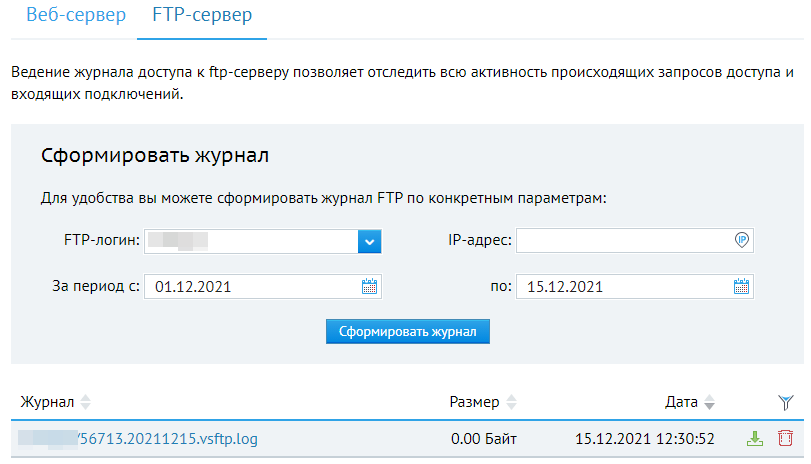
В настройках хостинговых провайдеров можно найти информацию о путях размещения логов и о том, как получить к ним доступ.
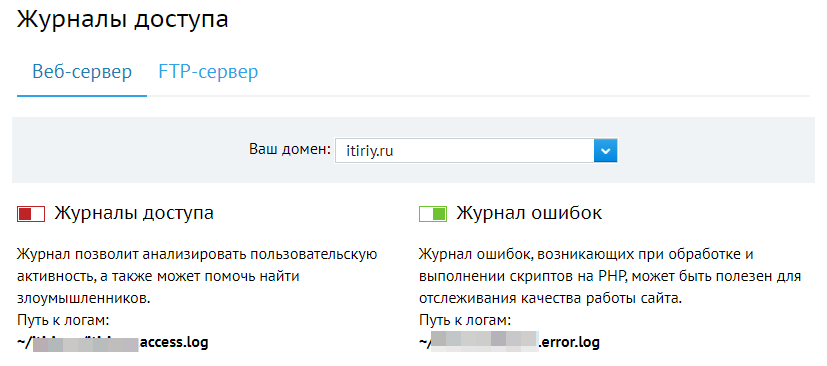
Удалите или отключите недавно установленные плагины или компоненты
Если у вас на сайте (WordPress — ярчайший пример) установлено много плагинов, они могут вступить в конфликт и блокировать действия друг друга. Такое может привести к уже ставшей родной ошибке 500 и прочим неприятностям.
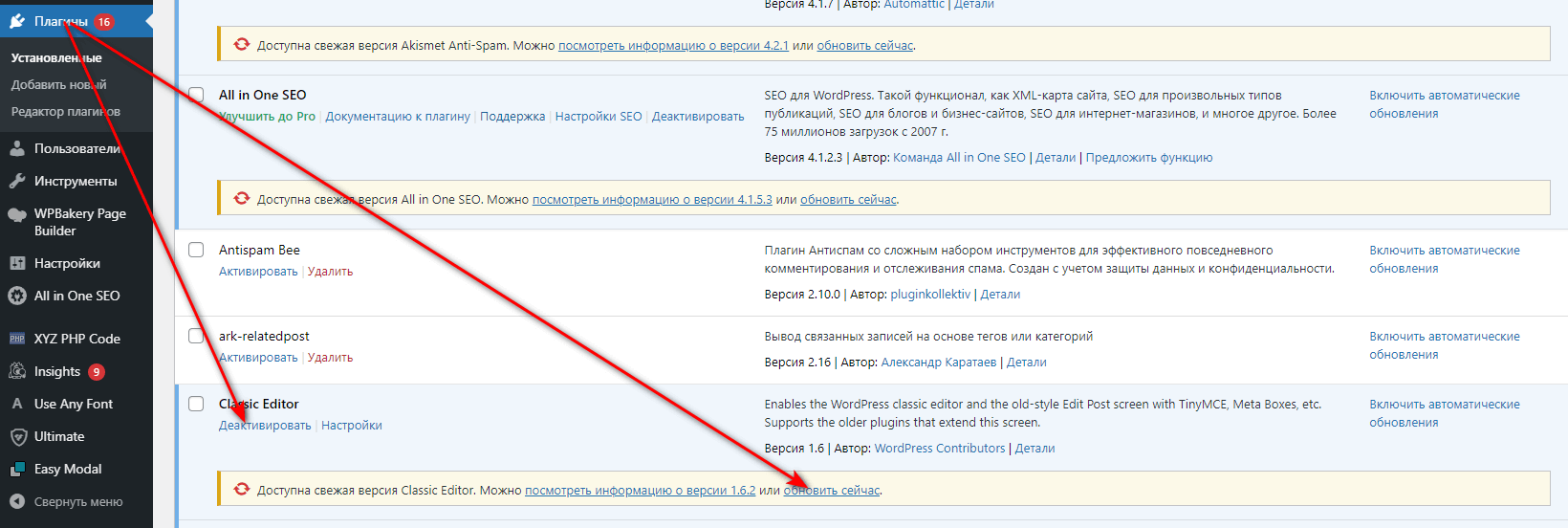
Если вы на днях установили какой-то плагин или обновили один из имеющихся (а то и не один), нужно последовательно их деактивировать и проверить, исчезнет ли ошибка. Не исключено, что у вас появятся ошибки в функциональности сайта, но если при этом исчезнет 500 Internal Server Error, дело в плагинах. Удалите их / обновите / найдите или установите альтернативу.
Оптимизируйте скрипты
Если на сайте есть исполняемые скрипты и они начали ненормально долго выполняться или требовать большее количество ресурсов, надо посмотреть их содержимое. Может быть просто банальное нагромождение кода, который нужно очистить от мусора и тем самым достичь экономии оперативной памяти и ресурсов процессора.
При использовании виртуального хостинга проблема нехватки ресурсов бывает особенно актуальной. Такой тип хостинга фиксирует выделяемый объем памяти, чтобы разделить свои вычислительные ресурсы между все пользователями реального сервера.
Решением будет блочное разделение скрипта с проверкой качества работы каждого блока. Вас должно насторожить, если запрашиваемые объемы памяти растут и / или к серверу поступает чересчур много вызовов.
Увеличьте объем оперативной памяти сервера
Время на пару с информационными технологиями несется вдаль, а значит и оптимизированные скрипты могут запрашивать много памяти. Если вам очень важна стабильность, надо просто выбрать более дорогой тариф, где сервер выделит вам в 2–3 раза больше памяти, чем сейчас. Также надо смотреть на опции того или иного тарифного предложения, чтобы убрать по возможности то, что вам не требуется.
Запросите поддержку
Нет ни одного уважающего себя хостера без мощной службы технической поддержки. Есть масса тематических форумов, которые по косточкам разбирают проблемы разных типов сайтов на с разными административными панелями:
- Русскоязычный форум Mozilla.
- IT-форум вебмастеров и разработчиков.
- Киберфорум.
- Форум сайтостроения.
Если поддержка все же долго отвечает, можно посмотреть нужную ветку форума: найти там ответ или же задать свой вопрос.
Можно также запросить консультацию у частных специалистов, но это будет стоить денег и не факт, что они решат проблему с 500-й ошибкой.
Итоги. 6 рекомендаций по исправлению 500 Server Internal Error
Напомним, что пятисотая ошибка возникает на стороне сервера, т.е. проблему надо искать и устранять не на собственном ПК или ноутбуке, а на веб-сервере.
Тем не менее, вы можете попробовать сделать эти шаги, чтобы ускорить устранение ошибки:
- Просто перезагрузите нужную страницу с помощью клавиши F5 или клавиатурного сочетания Ctrl-К. Также можно повторить ввод адреса в строку браузера (иногда одно это снимает проблему, потому что вы просто ошиблись с его содержимым).
- Серверная ошибка может быть оперативно устранена техподдержкой сервера. Порой сбойная страница спокойно загружается уже через пять минут. Свяжитесь с представителями ресурса. Если там работают ответственные люди, они наверняка в курсе возникшей проблемы и пытаются ее решить. Если же не в курсе, вы можете стать «спасителем» и косвенно способствовать восстановлению работоспособности страницы. Если сайт весь ушел в 500-ю ошибку, можно узнать владельцев сайта через специальный сервис и попробовать написать им по электронной почте или даже позвонить.
- Из сферы ecommerce: допустим, вы оформляете заказ на маркетплейсе, а в это время на странице появляется 500 Internal Server Error. Если не остановиться и продолжать делать заказ, очень может статься, что вы создадите и подтвердите сразу несколько заказов одного и того же товара, причем все они будут оплачены. Да, почти все площадки онлайн-торговли имеют защиту от дублирующихся транзакций, но все же нужно иметь подобное в виду и не пытаться завершить заказ, если такая ошибка возникла во время его совершения.
- Проведите чистку браузера. Дело в том, что целевая страница может закешироваться и все время отдавать 500-ю ошибку. Конечно, проблемы со стороны сервера редко связаны с кешированием, но все же стоит воспользоваться встроенным инструментарием браузера для очистки кеша или специализированным ПО типа CCleaner или Reg Organizer.
- Удалите все cookie-файлы. Иногда это также помогает устранить неполадки, которые связаны с 500-ой ошибкой. Это можно сделать с помощью озвученных в предыдущем пункте программ. Главное, чтобы браузер был закрыт. После этого нужно снова его открыть и заново загрузить нужную страницу.
- Просто выждите некоторое время. Почти всегда дело не в вас, и остается просто перетерпеть неприятность. Можно также посмотреть похожие на целевую страницы, если это возможно.