
Sometimes, when developing a TypeScript project and importing a new package, you get a «cannot find module» error. Luckily, this error is easy to fix.
There are many reasons why the «cannot find module» error can happen in TypeScript:
- The package is not installed.
- Something is wrong with the node_modules folder.
- The package import contains a spelling mistake.
- Something is wrong with your tsconfig.json file.
This article will analyze those four potential causes and show how to fix this error for each one of them.
Let’s get to it 😎.

Page content
- Solution #1 — Install the package
- Solution #2 — Re-install your dependencies
- Solution #3 — Verify the import’s name
- Solution #4 — Fix the tsconfig.json file
- Final Thoughts
Here is how this error can look in your console:
bashCould not find a declaration file for module 'package/x'.
To fix this error, try those solutions one by one.
One of them will solve your error.
Solution #1 — Install the package
The first thing to fix the «cannot find module» error in TypeScript is to ensure that the package is installed on your system.
Run this command to install the package:
bashnpm install package-name
Also, some packages have a separate package with TypeScript types.
You need to install it as well, like so:
bashnpm install --save-dev @types/package-name
Solution #2 — Re-install your dependencies
Another potential fix for the «cannot find module» error is re-installing your dependencies. Indeed, something may be wrong with the project’s node_modules folder.
Here’s how to do it:
1. Remove the node_modules folder and the package-lock.json file, like so:
bashrm -rf node_modules package-lock.json
2. Install the dependencies like so:
bashnpm install
Solution #3 — Verify the import’s name
This error can occur when you try building your project on a different OS than originally built. Indeed, various case sensitivity errors can occur.
You must verify the import in question and match it to the file path.
If your file path is: path/File.ts
Your import should be the same: path/File.ts
It should NOT be: path/file.ts
Note: Set forceConsistentCasingInFileNames to true, inside the tsconfig.json file, for this not to happen.
Solution #4 — Fix the tsconfig.json file
Maybe this error occurs because something is wrong with the tsconfig.json file.
You can try to set the moduleResolution to node, like so:
json{
  "compilerOptions": {
    "moduleResolution": "node",
    // Rest
  }
}
If it doesn’t help, verify that your TypeScript file path is inside the include array AND is not inside the exclude array, like so:
json{
  "include": ["src/**/*.ts", "tests/**/*.ts"],
  "exclude": ["node_modules", ".vscode"],
  // Rest
}
Or try adding a baseUrl, like so:
json{
  "compilerOptions": {
    "baseUrl": ".",
    // Rest
  }
}
Note: Sometimes, you must also add a valid paths entry for this solution to work.
Final Thoughts
As you can see, solving the «cannot find module» error in TypeScript is simple.
If it is a new dependency, it is usually a problem with the tsconfig.json file.
Otherwise, re-installing the dependencies will solve this error most of the time.

Here are some other TypeScript tutorials for you to enjoy:
- Define a singleton in TypeScript
- Export a function in TypeScript
- Use instanceOf on an interface in TypeScript

written by:
Hello! I am Tim Mouskhelichvili, a Freelance Developer & Consultant from Montreal, Canada.
I specialize in React, Node.js & TypeScript application development.
If you need help on a project, please reach out, and let’s work together.
When TypeScript cannot find a third-party or local module in our project, the "Cannot find module or its matching type declarations" error occurs.
To resolve the error, ensure that the module is installed and that moduleResolution is set to node in your tsconfig.json file.
Check that you have the module installed if it is a third-party module.
shell
// install the required module using the npm install command
npm install module-name
// here it saves the module
npm install --save-dev @types/module-name
NOTE:
In your error message, replace module-name with the name of the module.
If you’re encountering issues with a third-party module, try removing your node-modules and package-lock.json files, re-run npm install, and reload your IDE.
shell:
// remove the node modules using the rd and rm commands and also from package-lock.json
rm -rf node_modules package-lock.json
// run npm install command to install all the modules which are in the package.json
npm install
Reload your IDE, VSCode frequently malfunctions/glitches and requires a reboot.
If it doesn’t work or TypeScript can’t find your local modules, try to set moduleResolution in your tsconfig.json file to node.
tsconfig.json
{
  "compilerOptions": {
    "moduleResolution": "node",
    // rest of lines
  }
}
More information regarding classic vs node module resolution can be found in the TypeScript documentation.
If it doesn’t work, make sure TypeScript is tracking the module you’re attempting to import. It should be included in your include array and not in your exclude array in your tsconfig.json file.
tsconfig.json
{
  "compilerOptions": {
    // ...
  },
  "include": ["src/**/*"],
  "exclude": ["node_modules", "src/**/*.spec.ts"]
}
TypeScript will not be able to find the module if it is not in the src directory when using the configuration from the code snippet above.
Check to see that you haven’t already excluded the module by adding it to your exclude array.
If the error message changes to "Could not find declaration file for module'module-name,'” TypeScript has found the module you are attempting to import but cannot locate its type declarations.
If you’re trying to import fonts into your typescript project and getting the following error:
Cannot find module 'xyz.woff'
Then you probably need to declare the font file type(s) as modules so TypeScript can recognize them for import.
How to Declare Files as Modules in TypeScript?
Create a .d.ts file (for e.g. fonts.d.ts) and add your file definitions in there. For example:
declare module '*.woff';
declare module '*.woff2';
This would tell TypeScript that the declared font types are valid import modules.
How to Make TypeScript Recognize Your Definition Files?
Configure the path to your *.d.ts file(s) in your TypeScript configuration file (tsconfig.json). You can do that in the following ways:
Using include:
Generally, a good idea is to put all your custom type definitions into one folder, for example, ./src/types. You could then include these definitions by using the include option in your tsconfig.json file as follows:
{
    "include": [
        "src/**/*",
    ]
}
The ** means recursively match any sub-directory, and the * at the end matches all supported file extensions (which includes the *.d.ts files by default).
Using typeRoots:
By default, TypeScript includes all visible @types packages (for e.g. from node_modules/@types, etc.) into your compilation. You can change this behavior by specifying typeRoots (in your tsconfig.json file) like so:
{
    "compilerOptions": {
        "typeRoots" : ["src/types"]
    }
}
This will include all packages in the src/types folder and exclude node_modules/@types. To include node_modules/@types as well in typeRoots, you could re-write the above as:
{
    "compilerOptions": {
        "typeRoots" : ["node_modules/@types", "src/types"]
    }
}
Why Does the «Cannot find module» Error Happen When Loading Fonts?
It happens because of module resolution. You need to declare the font file formats as modules so that TypeScript can understand and parse them correctly. TypeScript relies on definition files (*.d.ts) to figure out what an import refers to. When that information is missing, you get the «Cannot find module» error.
Hope you found this post useful. It was published 23 Apr, 2020 (and was last revised 04 Jun, 2020). Please show your love and support by sharing this post.
Introduction
Build processes in TypeScript can become quite complex when we have to configure our project flow manually through the tsconfig.json file. That is because these configurations require understanding the TypeScript compiler and module system.
Having worked on many TypeScript projects myself, I have been able to spot two common problems that arise when using TypeScript modules and, more importantly, how to resolve them effectively.
Prerequisites
To get the most out of this article, you will want to be armed with the following:
- A strong background in JavaScript and TypeScript
- A firm understanding of TypeScript modules system
Problem 1: Irregular location of dependencies
On a normal occasion, the node-modules directory is usually located in the root directory (i.e. baseUrl) of the project as shown below:
projectRoot
├── node_modules
├── src
│   ├── file1.ts
│   └── file2.ts
└── tsconfig.json
└── package.json
Sometimes, however, modules are not directly located under the baseUrl. As an example, take a look at the following JavaScript code:
// index.js
import express from "express";
Loaders such as webpack use a mapping configuration to map the module name (in this case, express) to the index.js file at runtime, thereby translating the snippet above to node_modules/express/lib/express at run-time.
At this point, when we use the translated snippet above in a TypeScript project, we must then configure the TypeScript compiler to handle the module import using the "paths" property:
// tsconfig.json
{
  "compilerOptions": {
    "baseUrl": "./src",
    "paths": {
      "express": ["node_modules/express/lib/express"]
    }
  }
}
However, with the above configuration, TypeScript compiler will throw the following error:
express module not found
Here’s what’s happening under the hood: TypeScript compiler searches for node_modules in the src directory even though node_modules is located outside the src directory, thereby determining that the module was not found.
Solution 1: Locate the correct directory
The mapping in "paths" is resolved relative to "baseUrl". Hence, our configuration should be as follows:
// tsconfig.json
{
  "compilerOptions": {
    "baseUrl": "./src", // This must be specified if "paths" is.
    "paths": {
      "express": ["../node_modules/express/lib/express"] // This mapping is relative to "baseUrl"
    }
  }
}
When we use this configuration, TypeScript compiler “jumps” up a directory from the src directory and locates the node_modules directory.
Alternatively, the configuration below is also valid:
// tsconfig.json
{
  "compilerOptions": {
    "baseUrl": ".", // This must be specified if "paths" is.
    "paths": {
      "express": ["node_modules/express/lib/express"] // This mapping is relative to "baseUrl"
    }
  }
}
When we use this configuration, TypeScript compiler will search for the node_modules directory in the root directory of the project.
Problem 2: Multiple fallback locations
Our second common issue also has to do with location. Let’s consider the following project configuration:
projectRoot
├── view
│   ├── file1.ts (imports 'view/file2' and 'nav/file3')
│   └── file2.ts
├── components
│   ├── footer
│   └── nav
│       └── file3.ts
└── tsconfig.json
Here, the view/file2 module is located in the view directory and nav/file3 in the components directory.
Resolving modules in multiple locations can be a bit challenging because at this point in your code, the compiler does not know how to resolve these modules from different locations. In the following section, we will review how to resolve this issue.
Solution 2: Locate the module and resolve imports
Using the configuration below, we can tell the compiler to look in two locations (ie ["*", "components/*"]) for any module import in the project:
{
  "compilerOptions": {
    "baseUrl": ".",
    "paths": {
      "*": ["*", "components/*"]
    }
  }
}
In this example, the "*" value in the array means the exact name of the module, while the "components/*" value is the module name (“components) with an appended prefix.
We can now instruct the compiler to resolve the two imports as follows:
import 'view/file2'
The compiler will then substitute 'view/file2' with the first location in the array ("*"), and combine it with the baseUrl which results in projectRoot/view/file2.ts. This will allow the module to be found.
After this step, the compiler will move to the next import:
import 'nav/file3':
Likewise, the compiler will substitute 'nav/file3' with the first location in the array ("*") — a.k.a. nav/file3 — and combine it with the baseUrl which results in projectRoot/nav/file3.ts. This time, the file does not exist, so the compiler will substitute 'nav/file3' with the second location "components/*" and combine it with the baseUrl. This will result in projectRoot/components/nav/file3.ts, thereby allowing the module to be found.
How TypeScript resolves modules by default
Without configuring the TypeScript compiler as discussed earlier, TypeScript will adopt the Node.js run-time resolution strategy by default in order to locate the requested modules at compile-time.
To accomplish this, the TypeScript compiler will look for .ts files, .d.ts, .tsx, and package.json files. If the compiler finds a package.json file, then it will check whether that file contains a types property that points to a typings file. If no such property is found, the compiler will then try looking for index files before moving on to the next folder.
Here’s an example. An import statement like import { b } from 'view/file2' in /projectRoot/view/file1.ts would result in attempting the following locations for locating ".view/file2":
- Does
/projectRoot/view/file2.tsexist? - Does
/projectRoot/view/file2.tsxexist? - Does
/projectRoot/view/file2.d.tsexist? - Does
/projectRoot/view/file2/package.json(if it specifies a"types"property) exist? - Does
/projectRoot/view/file2/index.tsexist? - Does
/projectRoot/view/file2/index.tsxexist? - Does
/projectRoot/view/file2/index.d.tsexist?
If the module is not found at this point, then the same process will be repeated, jumping a step out of the closest parent folder as follows:
- Does
/projectRoot/file2.tsexist? - Does
/projectRoot/file2.tsxexist? - Does
/projectRoot/file2.d.tsexist? - Does
/projectRoot/file2/package.json(if it specifies a"types"property) exist? - Does
/projectRoot/file2/index.tsexist? - Does
/projectRoot/file2/index.tsxexist? - Does
/projectRoot/file2/index.d.tsexist?
Conclusion
Sometimes, we may run into some complex situations where diagnosing why a module is not resolved can be so difficult. In such situations, enabling the compiler module resolution tracing using tsc --traceResolution can provide more insight on what happened during the module resolution process, allowing us to choose the correct solution moving forward.
With the common TypeScript modules problems highlighted, and solutions provided in this post, I hope that it will become a bit easier to configure the TypeScript compiler to handle modules in your TypeScript projects.
Hopefully you’ve found this post informative and helpful. You can also check out the official TypeScript documentation for a deep dive into TypeScript module resolution.
LogRocket: Full visibility into your web and mobile apps
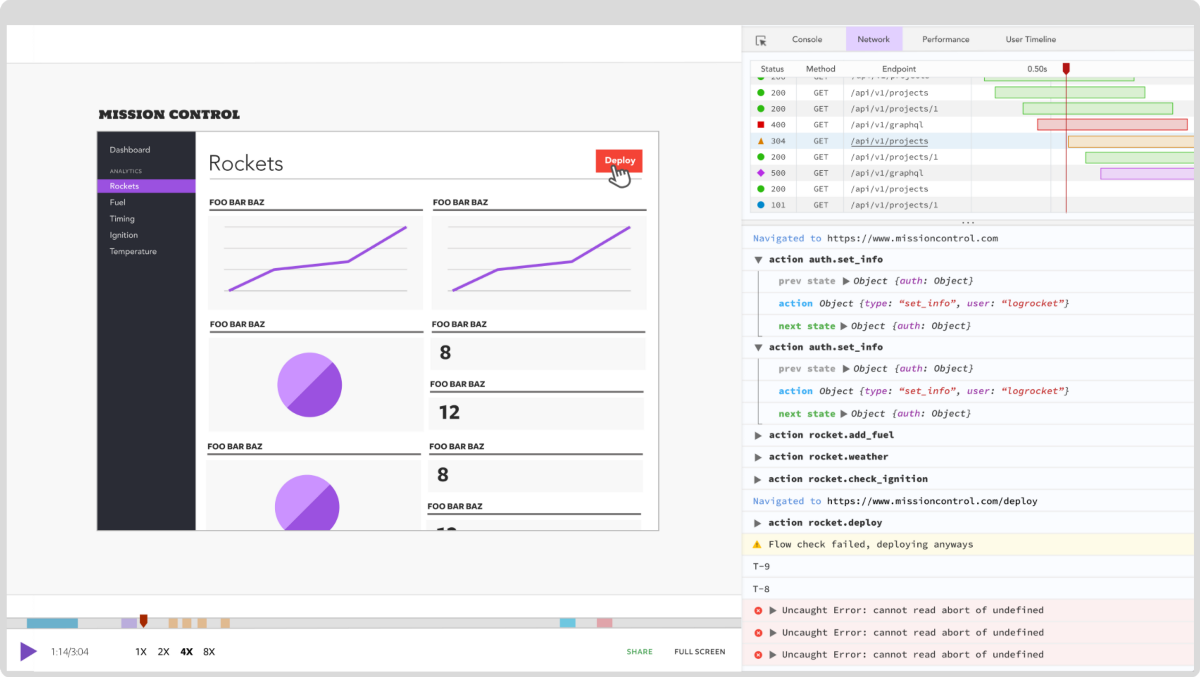
LogRocket is a frontend application monitoring solution that lets you replay problems as if they happened in your own browser. Instead of guessing why errors happen, or asking users for screenshots and log dumps, LogRocket lets you replay the session to quickly understand what went wrong. It works perfectly with any app, regardless of framework, and has plugins to log additional context from Redux, Vuex, and @ngrx/store.
In addition to logging Redux actions and state, LogRocket records console logs, JavaScript errors, stacktraces, network requests/responses with headers + bodies, browser metadata, and custom logs. It also instruments the DOM to record the HTML and CSS on the page, recreating pixel-perfect videos of even the most complex single-page and mobile apps.
Try it for free.
Содержание
- Error cannot find module typescript
- Cannot find module ‘typescript’ Error in TS #
- Conclusion #
- Fixing The «Cannot Find Module» Error In TypeScript
- Solution #1 — Install the package
- Solution #2 — Re-install your dependencies
- Solution #3 — Verify the import’s name
- Solution #4 — Fix the tsconfig.json file
- Final Thoughts
- Table of Contents #
- Относительный и неотносительный импорт модулей
- Стратегии разрешения модулей
- Classic
- Как Node.js разрешает модули
- Как TypeScript разрешает модули
- Дополнительные флаги системы разрешения модулей
- Base URL
- Сопоставление путей
- Виртуальные каталоги с rootDirs
- Отслеживание разрешения модулей
- Что искать в трассировке
- Использование —noResolve
- app.ts
- Общие вопросы
- Почему модуль, находящийся в списке исключенных, тем не менее используется компилятором?
Error cannot find module typescript
Reading time В· 2 min
Cannot find module ‘typescript’ Error in TS #
To solve the cannot find module ‘typescript’ error, make sure to install typescript globally by running the npm i -g typescript command and create a symbolic link from the globally-installed package to node_modules by running the npm link typescript command.
Open your terminal in your project’s root directory and run the following commands:
Once you run the two commands, the error should be resolved.
If the global installation of TypeScript fails, you might have to run the command with sudo .
You can check if you have TypeScript installed successfully, by running the following command:
The output of the command should show the version of the TypeScript package on your machine, e.g. 4.8.0 .
The npm link command creates a symbolic link from the globally installed package to the node_modules/ directory of the current folder.
If the error is not resolved, try to delete your node_modules and package-lock.json files, re-run npm install and restart your IDE.
Make sure to restart your IDE if the error persists. VSCode glitches often and a reboot solves things sometimes.
If this also doesn’t work, try installing TypeScript locally.
This will add typescript to the development dependencies of your project, so you don’t have to run the link command.
Conclusion #
To solve the cannot find module ‘typescript’ error, make sure to install typescript globally by running the npm i -g typescript command and create a symbolic link from the globally-installed package to node_modules by running the npm link typescript command.
Источник
Fixing The «Cannot Find Module» Error In TypeScript
September 22, 2022 • 2 minutes to read
Sometimes, when developing a TypeScript project and importing a new package, you get a «cannot find module» error. Luckily, this error is easy to fix.
There are many reasons why the «cannot find module» error can happen in TypeScript:
- The package is not installed.
- Something is wrong with the node_modulesfolder.
- The package import contains a spelling mistake.
- Something is wrong with your tsconfig.json file.
This article will analyze those four potential causes and show how to fix this error for each one of them.
Here is how this error can look in your console:
To fix this error, try those solutions one by one.
One of them will solve your error.
Solution #1 — Install the package
The first thing to fix the «cannot find module» error in TypeScript is to ensure that the package is installed on your system.
Run this command to install the package:
Also, some packages have a separate package with TypeScript types.
You need to install it as well, like so:
Solution #2 — Re-install your dependencies
Another potential fix for the «cannot find module» error is re-installing your dependencies. Indeed, something may be wrong with the project’s node_modules folder.
Here’s how to do it:
1. Remove the node_modules folder and the package-lock.json file, like so:
2. Install the dependencies like so:
Solution #3 — Verify the import’s name
This error can occur when you try building your project on a different OS than originally built. Indeed, various case sensitivity errors can occur.
You must verify the import in question and match it to the file path.
If your file path is: path/File.ts
Your import should be the same: path/File.ts
It should NOT be: path/file.ts
Note: Set forceConsistentCasingInFileNames to true, inside the tsconfig.json file, for this not to happen.
Solution #4 — Fix the tsconfig.json file
Maybe this error occurs because something is wrong with the tsconfig.json file.
You can try to set the moduleResolution to node , like so:
If it doesn’t help, verify that your TypeScript file path is inside the include array AND is not inside the exclude array, like so:
Or try adding a baseUrl , like so:
Note: Sometimes, you must also add a valid paths entry for this solution to work.
Final Thoughts
As you can see, solving the «cannot find module» error in TypeScript is simple.
If it is a new dependency, it is usually a problem with the tsconfig.json file.
Otherwise, re-installing the dependencies will solve this error most of the time.
Here are some other TypeScript tutorials for you to enjoy:
Источник
Table of Contents #
> Для лучшего понимания данного раздела документации необходимо знание основ работы с модулями. См. modules для получения более подробной информации.
Разрешение модулей (Module resolution) — это используемый компилятором процесс выяснения того, на что ссылается команда импорта. Рассмотрим инструкцию следующего вида: import < a >from «moduleA» . Чтобы проверить корректность использования a , компилятор должен точно знать, что представляет из себя этот элемент, для чего необходимо проверить соответствующее определение — moduleA .
На данном этапе компилятор должен узнать, какова форма moduleA . Пока всё кажется просто, но moduleA может быть определён в одном из файлов .ts / .tsx или .d.ts .
Сначала компилятор попытается найти файл, представляющий импортируемый модуль. Для этого он должен выбрать одну из двух стратегий: Classic или Node. С помощью этих стратегий компилятор определяет, где искать moduleA .
Если найти файл не удалось, и имя модуля не относительное (как в случае «moduleA» ), тогда компилятор попытается найти объявление внешнего модуля (ambient module declaration). Неотносительный импорт (non-relative imports) описан далее.
В итоге, если компилятор не смог разрешить модуль, он выведет ошибку вида error TS2307: Cannot find module ‘moduleA’.
Относительный и неотносительный импорт модулей
Импорт модуля разрешается разными способами в зависимости от того, является ли ссылка относительной или неотносительной.
Относительный импорт начинается с / , ./ или ../ . Примеры:
- import Entry from «./components/Entry»;
- import < DefaultHeaders >from «../constants/http»;
- import «/mod»;
Любой другой импорт считается неотносительным. Примеры:
- import * as $ from «jQuery»;
- import < Component >from «angular2/core»;
Относительный импорт разрешается относительно импортируемого файла и не может разрешиться объявлением внешнего модуля. Относительный импорт лучше использовать для своих модулей, которые во время выполнения программы гарантированно находятся в указанном месте.
Неотносительный импорт может быть разрешен относительно baseUrl или с помощью сопоставления путей, которое будет описано ниже. Он также может разрешаться объявлениями внешних модулей. Используйте неотносительные пути при импорте любых внешних зависимостей.
Стратегии разрешения модулей
Существует две стратегии разрешения модулей: Node и Classic. Для указания выбранной стратегии вы можете использовать флаг —moduleResolution . По умолчанию используется стратегия Node.
Classic
Эта стратегия раньше была принята в TypeScript’s по умолчанию. Но теперь она сохранена лишь для обратной совместимости.
Относительный импорт будет разрешен относительно импортируемого файла. Таким образом, import < b >from «./moduleB» в исходном файле /root/src/folder/A.ts приведет к поиску следующих файлов:
При неотносительном импорте модулей, компилятор, пытаясь найти подходящий файл определений, пройдет по дереву каталогов, начиная с директории, содержащей импортирующий файл.
Неотносительный импорт из moduleB , такой как import < b >from «moduleB» , расположенный в файле с исходным кодом /root/src/folder/A.ts , приведет к поиску «moduleB» в следующих местах:
- /root/src/folder/moduleB.ts
- /root/src/folder/moduleB.d.ts
- /root/src/moduleB.ts
- /root/src/moduleB.d.ts
- /root/moduleB.ts
- /root/moduleB.d.ts
- /moduleB.ts
- /moduleB.d.ts
Эта стратегия копирует поведение работающего динамически механизма разрешения модулей Node.js. См. полное описание алгоритма разрешения Node.js в документации по модулям Node.js.
Как Node.js разрешает модули
Чтобы понять, каким путем пойдет компилятор TS, важно немного разобраться в модулях Node.js. Импорт в Node.js выполняется с помощью вызова функции require . Node.js будет действовать по-разному в зависимости от того, указан ли в require относительный или неотносительный путь.
Использование относительных путей обычно не вызывает затруднений. Для примера давайте рассмотрим файл /root/src/moduleA.js , в котором есть следующая инструкция иморта var x = require(«./moduleB»); Node.js разрешает этот импорт в таком порядке:
Как файл с именем /root/src/moduleB.js , если он существует.
Как каталог /root/src/moduleB , если в нём есть файл package.json , который определяет модуль «main» . В нашем примере, если Node.js нашла файл /root/src/moduleB/package.json , содержащий < «main»: «lib/mainModule.js» >, тогда она сошлётся на /root/src/moduleB/lib/mainModule.js .
Если каталог /root/src/moduleB содержит файл с именем index.js , по умолчанию считается, что он является main-модулем данного каталога.
Вы можете найти дополнительную информацию в документации по Node.js: file modules и folder modules.
Однако, разрешение неотносительных имен модулей выполняется иным способом. Node будет искать ваши модули в специальном каталоге, называемом node_modules . Он может быть на том же уровне иерархии каталогов, что и текущий файл, или выше. Node пойдет вверх по цепочке каталогов, просматривая каждый node_modules , пока не найдет модуль, который вы пытались загрузить.
Продолжая рассматривать наш пример, предположим, что в /root/src/moduleA.js использовался неотносительный путь, и команда импорта выглядела следующим образом: var x = require(«moduleB»); . Node попытается разрешить moduleB в один из следующих путей и остановится на первом подходящем.
- /root/src/node_modules/moduleB.js
- /root/src/node_modules/moduleB/package.json (если он определяет свойство «main» )
- /root/src/node_modules/moduleB/index.js
Заметьте, что Node.js поднялась на один уровень на шагах (4) и (7).
Вы можете найти дополнительную информацию в документации по Node.js в разделе загрузка модулей из node_modules .
Как TypeScript разрешает модули
TypeScript копирует стратегию динамического разрешения модулей в Node.js с целью поиска файлов с определениями модулей во время компиляции. С этой целью TypeScript применяет логику Node.js для работы с собственными типами файлов .ts , .tsx и .d.ts . TypeScript также использует поле «typings» в package.json , чтобы отразить назначение «main» — указание компилятору, где находится «основной» файл определений («main» definition file).
Например, команда импорта import < b >from «./moduleB» в /root/src/moduleA.ts приведёт к поиску «./moduleB» в следующих местах:
- /root/src/moduleB.ts
- /root/src/moduleB.tsx
- /root/src/moduleB.d.ts
- /root/src/moduleB/package.json (если он определяет свойство «typings» )
- /root/src/moduleB/index.ts
- /root/src/moduleB/index.tsx
- /root/src/moduleB/index.d.ts
Напомним, что Node.js пыталась найти файл moduleB.js , затем подходящий package.json , а после index.js .
Неотносительный импорт будет следовать логике разрешения модулей Node.js, сначала пытаясь найти файл, а затем подходящую директорию. Таким образом, import < b >from «moduleB» в файле с исходным кодом /src/moduleA.ts приведёт к поиску в следующих местах:
- /root/src/node_modules/moduleB.ts
- /root/src/node_modules/moduleB.tsx
- /root/src/node_modules/moduleB.d.ts
- /root/src/node_modules/moduleB/package.json (если он определяет свойство «typings» )
- /root/src/node_modules/moduleB/index.ts
- /root/src/node_modules/moduleB/index.tsx
- /root/src/node_modules/moduleB/index.d.ts
Не пугайтесь большого количества пунктов — TypeScript также перешёл на уровень вверх лишь дважды: на шагах (8) и (15). На самом деле это не сложнее того, что делает Node.js.
Дополнительные флаги системы разрешения модулей
Исходная структура проекта не всегда соответствует тому, что получается на выходе. Обычно для достижения результата нужно несколько шагов. Это и компиляция файлов .ts в .js , и копирование зависимостей из различных источников в один выходной файл. В итоге получается, что модули в процессе выполнения могут иметь имена, отличные от имен исходных файлов с их определениями. Пути модулей в итоговом выводе также могут отличаться от соответствующих первоначальных путей на этапе компиляции.
В TypeScript есть набор дополнительных флагов, с помощью которых можно сообщить компилятору о тех трансформациях, которые должны произойти с исходниками, чтобы сгенерировать итоговый вывод.
Важно отметить, что компилятор не будет выполнять эти трансформации. Он лишь использует полученную информацию, чтобы выполнить процесс разрешения импорта модуля в его файл определения.
Base URL
baseUrl часто используется в приложениях, использующих загрузчик модулей AMD, где модули динамически «разворачиваются» в одном каталоге. Исходные файлы этих модулей могут находиться в разных местах, но скрипт сборки поместит их все в одну директорию.
Установка baseUrl сообщает компилятору о том, где искать модули. Все команды импорта модулей с неотносительными именами считаются относительными baseUrl .
Значение baseUrl определяется как одно из:
- значение аргумента командной строки baseUrl (если передан относительный путь, он рассчитывается относительно текущей директории)
- значение свойства baseUrl в ‘tsconfig.json’ (если передан относительный путь, он рассчитывается на основе расположения ‘tsconfig.json’)
Заметьте, что установка baseUrl не влияет на команды относительного импорта модулей, так как они всегда разрешаются относительно импортирующих файлов.
См. дополнительную информацию о baseUrl в документации по RequireJS and SystemJS.
Сопоставление путей
Иногда модули не находятся прямо под baseUrl. Например, команда импорта модуля «jquery» во время выполнения будет преобразована к «node_modulesjquerydistjquery.slim.min.js» . Загрузчики используют конфигурацию сопоставления путей, чтобы динамически установить соответствие имен модулей и соответствующих файлов, см. документацию по RequireJs и SystemJS.
Компилятор TypeScript поддерживает объявление подобных сопоставлений в свойстве «paths» файла tsconfig.json . Вот пример того, как можно указать свойство «paths» для jquery .
Свойство «paths» позволяет использовать более сложные методы сопоставления, включая множественные резервные пути. Давайте рассмотрим конфигурацию, в которой в одном расположении доступны лишь некоторые модули, оставшиеся же находятся в другом. При сборке все эти модули будут помещены в одно место. Схема проекта может выглядеть следующим образом:
Соответствующий tsconfig.json будет выглядеть следующим образом:
Таким образом мы сообщаем компилятору, что для каждого модуля, инструкция импорта которого соответствует шаблону «*» (то есть любые значения), он должен выполнить поиск в двух местах:
- «*» : означающее то же самое имя без изменений, поэтому сопоставляем =>
- «generated*» означающее имя модуля с добавленным префиксом «generated», поэтому сопоставляем => generated
Следуя этой логике, компилятор попытается разрешить указанные инструкции импорта следующим образом:
- import ‘folder1/file2’
- есть соответствие шаблону ‘*’, под который подпадает имя модуля целиком;
- пробуем первую замену по списку: ‘*’ -> folder1/file2 ;
- результатом замены является относительное имя, соединяем его с baseUrl -> projectRoot/folder1/file2.ts ;
- Файл существует. Готово.
- import ‘folder2/file3’
- есть соответствие шаблону ‘*’, под который подпадает имя модуля целиком;
- пробуем первую замену по списку: ‘*’ -> folder2/file3
- результатом замены является относительное имя, соединяем его с baseUrl -> projectRoot/folder2/file3.ts .
- Файл не существует, переходим к следующей замене
- вторая замена ‘generated/*’ -> generated/folder2/file3
- результатом замены является относительное имя, соединяем его с baseUrl -> projectRoot/generated/folder2/file3.ts .
- Файл существует. Готово.
Виртуальные каталоги с rootDirs
Исходные файлы проекта, находящиеся в разных каталогах, иногда объединяются на этапе компиляции, чтобы сгенерировать единственный выходной каталог. Это можно рассматривать как создание из набора исходных каталогов одного «виртуального» каталога.
Используя ‘rootDirs’, можно сообщить компилятору о корневых каталогах (roots), составляющих этот «виртуальный» каталог, давая возможность компилятору разрешить команды относительного импорта модулей в пределах этих «виртуальных» каталогов, как если бы они были объединены в один каталог.
Для примера давайте рассмотрим следующую структуру проекта:
В src/views находятся файлы с пользовательским кодом для элементов UI. Файлы в generated/templates содержат код связывания шаблонов пользовательского интерфейса, автоматически сгенерированный генератором шаблонов как часть сборки. На одном из шагов сборки файлы из /src/views и /generated/templates/views будут скопированы в такие же директории в выходной структуре проекта. Представление (view) во время выполнения программы ожидает, что её шаблон находится рядом, и его можно импортировать с помощью относительного пути «./template» .
Чтобы указать компилятору на эту связь, используйте «rootDirs» . «rootDirs» определяет список корневых директорий (roots), чьё содержимое необходимо объединить динамически. Продолжая наш пример, файл tsconfig.json должен выглядеть следующим образом:
Каждый раз, когда компилятор встречает относительный импорт модуля в подкаталоге одного из rootDirs , он пытается найти этот импорт в записях rootDirs .
Отслеживание разрешения модулей
Как упоминалось ранее, компилятор имеет возможность выходить за пределы текущей директории при разрешении модулей. Такое поведение может затруднять диагностику причин, по которым модуль не был разрешен или был разрешен неверно. Чтобы получить представление о том, как проходит процесс разрешения модулей, можно воспользоваться ключом компилятора —traceResolution .
Предположим, что у нас есть простое приложение, использующее модуль typescript . В app.ts находится инструкция импорта import * as ts from «typescript» .
Вызываем компилятор с опцией —traceResolution
Что искать в трассировке
- Имя и расположение инструкции импорта
======== Resolving module ‘typescript’ from ‘src/app.ts’. ========
- Стратегию, которой придерживается компилятор
Module resolution kind is not specified, using ‘NodeJs’.
- Загрузку объявлений типов (typings) из npm-пакетов
‘package.json’ has ‘typings’ field ‘./lib/typescript.d.ts’ that references ‘node_modules/typescript/lib/typescript.d.ts’.
======== Module name ‘typescript’ was successfully resolved to ‘node_modules/typescript/lib/typescript.d.ts’. ========
Использование —noResolve
Обычно компилятор пытается разрешить все инструкции импорта модулей до начала процесса компиляции. Каждый раз, когда он успешно разрешает import в файл, этот файл добавляется в набор файлов, который компилятор обработает позже.
Опция —noResolve говорит компилятору не «добавлять» в компиляцию файлы, которые не были явно указаны в командной строке. Компилятор всё равно попытается разрешить модули в файлы, но не включит в сборку те, которые не были явно указаны.
app.ts
Компиляция app.ts с использованием —noResolve приведет к следующим результатам:
- moduleA будет успешно найдено, поскольку было передано в командной строке.
- Поиск moduleB завершится ошибкой, так как его не было в командной строке.
Общие вопросы
Почему модуль, находящийся в списке исключенных, тем не менее используется компилятором?
tsconfig.json преобразует каталог в “проект”. Без указания пунктов “exclude” или “files” в сборку включаются все файлы в каталоге, содержащем tsconfig.json , а также в его подкаталогах. Для исключения некоторых файлов, используйте “exclude” . Используйте “files” , если удобнее явно указать все файлы, вместо того чтобы давать возможность компилятору искать их самостоятельно.
Здесь мы говорили об автоматическом включении с tsconfig.json . Согласно обсуждавшемуся выше, это правило не охватывает разрешение модулей. Если компилятор определит, что какой-либо файл является целевым для импорта модуля, этот файл будет включен в сборку независимо от того, был ли он исключен на предыдущих шагах.
Таким образом, чтобы исключить файл из сборки, необходимо исключить его самого и все файлы, в которых есть команды import или /// , ссылающиеся на него.
Источник