
Have you been getting the “554 5.7.5 permanent error evaluating DMARC policy” while sending emails from your domain? The “554 5.7.5 permanent error evaluating DMARC policy” is a common error that stops the SMTP ports from accepting emails from your domain. The issue usually happens due to a combination of settings in the SPF record, DMARC record, or email service.
In this guide, we’ll describe how to resolve this issue quickly and easily.
Reasons behind 554 5.7.5 Permanent Error Evaluating DMARC Policy
If you are facing a “554 5.7.5 permanent error evaluating DMARC policy”, here are some common reasons behind this error:
1. Incomplete DMARC Settings
When you set up DMARC, you can either choose to use p=none or p=quarantine/reject. If you use the p=none policy, then make sure that your SPF and DKIM pass on the message. Otherwise, it will fail the DMARC policy evaluation.
2. Incorrect DKIM email authentication record
DKIM stands for DomainKeys Identified Mail. It is a method of verifying the authenticity of the email sender, which prevents malicious actors from impersonating the email sender’s domain name.
Sometimes you might face issues with your DKIM authentication. A mismatch between the “d=” tag in the DKIM signature, and the sending domain, will result in a failed DMARC evaluation.
For instance, if you have changed your domain name and have not updated it in DKIM records, then it will fail the DMARC policy evaluation as well.
3. Incorrect SPF Record
SPF stands for Sender Policy Framework. It is an email authentication technique used to verify whether an email message comes from a valid sender’s server or not.
DMARC works by checking SPF records to verify if they are valid or not. You must ensure that the SPF records are configured correctly and work with your domain name to avoid this error.
4. Wrong Policy Evaluation on Recipient Side
If the receiving server is incorrectly evaluating your DMARC policy settings then that may lead to this error as well. That means that the recipient server is rejecting emails because of its own policies, not because of anything wrong with your DMARC settings.
To avoid this issue, make sure that all of the above-mentioned points are properly configured in order to pass policy evaluation on the recipient side.
Afterward, talk to the recipient and ask them to evaluate their own DMARC.
How to Fix 554 5.7.5 Permanent Error Evaluating DMARC Policy
1. Remove Extra Characters From The Record
The error 5.7.5 permanent error evaluating DMARC policy can be caused by a different number of reasons, however, the most common ones are:
- incorrect quotation marks
- extra characters or symbols in the record
- a missing semicolon at the end of the record
Here’s an example of a record that gave this error:
This record might look fine to you at first, but on testing it, we got the “5.7.5 permanent error evaluating DMARC policy” message.
When we checked again, we realized that there was an extra dot at the end of the record—if you look closely at the same record above, you can see that there is a period (dot) (.) at the end.
Once we removed that dot and ran the test again, it worked perfectly.
Here’s how the same record looked with no errors:
2. Change Your SPF Record From Neutral
If you’re getting an error message that says “5.7.5 permanent error evaluating DMARC policy” when you’re trying to send an email, it’s probably because your SPF record is set to Neutral.
SPF stands for Sender Policy Framework, and it helps make sure that the mail server from which an email is sent is legit. It’s not good enough just to have a server that sends emails; there needs to be some verification that the server is legit. That’s what SPF does: it verifies that your mail server has the right credentials.
Why can’t your SPF record be neutral?
Because if messages are allowed to be sent through a neutral server, scammers could send fake emails using your domain name, which means people might think they’re real when they aren’t—and end up clicking on links or downloading files they shouldn’t.
That’s why you should at least change your SPF record to softfail ~all or hardfail -all when you implement DMARC—so that people know a message from your domain name is probably safe.
3. Check If Your Email Service Provider Supports SPF Aligned Emails
One of the most common reasons for receiving this error is that your email service provider doesn’t support SPF-aligned emails.
Email providers like MailChimp and ProtonMail have their own SPF records, and when you send emails through them, they’re not sending SFP-aligned emails. As such, it’s important for you to check your email service provider’s SPF disposition type to see if it supports SPF-aligned emails.
If it does, then your DKIM signature will be modified during the sending process so that the From address aligns with your own domain (instead of with MailChimp’s domain) and ensure that you pass the DMARC policy evaluation.
If it does not, then you’ll need to use a different email service provider (or change your existing provider’s settings) so that you can send SPF-aligned emails.
4. Change p=none Policy For DMARC
If you’re getting a “554 5.7.5 permanent error evaluating DMARC policy” error, it means that the DMARC policy on your domain is preventing you from sending your emails. To fix this, you just need to change your DMARC record with your DNS provider to have a p=none policy.
The DMARC policy tells email providers what to do with emails that fail the SPF and DKIM checks: reject them or quarantine them. If you want to send emails even if those checks don’t pass, you can relax your policy temporarily by setting it to p=none in your DNS settings.
This is called a “relaxed policy”, so it’s not recommended for email spoofing prevention. But changing your DMARC policy to p=none will allow you to temporarily send emails without getting DMARC errors.
For example, you could change this record:
_dmarc.yourdomain.com TXT “v=DMARC1; p=reject; fo=1
to this:
_dmarc.yourdomain.com TXT “v=DMARC1; p=none; fo=1
What does this mean for you? You can send your email even if it doesn’t pass DMARC. However, you’ll want to revert back to a p=reject or p=quarantine policy in order to prevent email spoofing on your domain.
5. Set Up DomainKeys Identified Mail (DKIM) Authentication
If you’re getting the error message “554 5.7.5 permanent error evaluating DMARC policy”, it means that you haven’t enabled DomainKeys Identified Mail (DKIM) email authentication on your domain—and in order to pass DMARC, you have to have a DKIM email authentication record set up.
To do that, here’s what you need to do:
- Select the “I will manage my email authentication” option on the Settings page of your account.
- Enter the domain name in the DKIM field and click Save.
- Copy the generated TXT record name and TXT record value into your web host DNS records
DMARC Policy Formatting Requirements
DMARC is an email authentication protocol that allows recipients to verify that emails purporting to be from your domain are actually coming from your domain. This guide will outline some of the important formatting requirements when setting up DMARC for the first time.
- First, your DMARC record must begin with “v=DMARC1”. This lets email providers know that the record is formatted according to the version of DMARC that’s currently being used (which is 1).
- Next, specify your policy. The policy must be either p=none or p=quarantine or p=reject. This tells email providers what to do when an email fails authentication checks.
- The policy should be the second value in the record. The policy can be one of three things: p=none, p=quarantine, or p=reject. “None” means that you want the email provider to do nothing when it sees a suspicious email from your domain—it will simply leave it alone, and might even deliver it. “Quarantine” means that you want suspicious emails from your domain to be delivered as spam or junk mail instead of being delivered as normal mail. Finally, “reject” means that you want suspicious emails from your domain to be rejected and never delivered at all.
- Use colons as separators between values — it’s a good idea to use colons and not semicolons. Semicolons can cause problems, especially when multiple values are specified on a single line.
- Don’t use extra characters or bad quotes. Excess whitespace at the end of lines will be treated as part of the record, which can cause problems.
Here’s an example of a good DMARC record:
How To Find Errors In DMARC Record Policy
Having a DMARC record is a good step toward securing your email communication. However, if there are any errors in it, the entire system will be ineffective. This is why it’s important to find any errors and resolve them as soon as possible.
The best way to do this is by using the DMARC lookup tool by PowerDMARC. The tool checks whether or not your record is valid and shows you any potential errors. You can use the tool for free by following these steps:
- Visit DMARC Lookup Tool by PowerDMARC.
- Enter your domain name into the empty field.
- Once your record has been checked, the tool will show you an overview of the entire database.
- If there are any errors, they will be highlighted on the page.
- Once you know where the errors are coming from, you can resolve them easily using the instructions provided with each error message.
Are You Worried About The Security Of Your Business Emails?
It’s a real concern. In fact, many cyber attacks start with an email. But that doesn’t mean you have to give up on reaching your customers through email!
Instead, secure all your business emails with email authentication services by PowerDMARC. This will help you gain the trust of your customers and protect your brand from phishing attempts by hackers and other bad actors.
With PowerDMARC, you can ensure that any emails coming from your company are not only safe for customers to open, but also easy for them to identify as legitimate communications from your brand by placing your business’s seal on them.
We know that protecting the integrity of your company name and image is important to you, and we want you to be able to do it in a way that makes sense for both parties involved—so that’s why we offer this service at an affordable price point while still giving our clients access to all of our expertise on email authentication techniques.
Is your domain protected against email spoofing? Get your free DMARC here.

- About
- Latest Posts
Syuzanna works as a Visual Designer at PowerDMARC.
She is artistic person with innovative ideas and designs.
Содержание
- Troubleshooting Conversations in Needs Attention and Bounces
- In this article
- Bounce showing in the Needs Attention folder
- We use Help Scout servers to send our email.
- The error I see is not listed here, what next?
- Received an Email Notification of a Bounce
- How to Read (Most) Delivery Reports
- Resolve the Issue
- Something Else Related to Bounces
Troubleshooting Conversations in Needs Attention and Bounces
In email-speak, a bounce happens when your recipient’s server rejects your email — meaning the email you sent to your customer won’t make it to your customer. There are 2 ways you might be alerted to an email that has bounced in Help Scout.
Immediate bounces for emails you send from Help Scout, where the recipient’s email server will not accept the email at all, will show in the Needs Attention folder where you can see the error they gave and take further action. Emails that bounce later, where the recipient mail server accepts an email from you and sends a bounce later, will be email notifications you’ll see in your mailbox.
The error you see in bounces is the exact error provided by the recipient server. Each email provider gets to define their own conditions for bouncing, how much information they share in the error, and what error codes they use. While we are unable to provide any more information than what that server gave us, we can help you understand the errors you’re seeing in some cases.
This article will help you troubleshoot bounces you’ve found in your mailbox. Heads up before you start: there is a lot of information in this article, but you don’t need to read it all. Use the menu links to skip directly to the help you’re looking for!
Pro tip: Try Cmd+F on Mac or Ctrl+F on Windows to search this page for the bounce error once you’ve got that!
Note: If you are viewing this article within one of our own Beacons, your best bet is to open it in a new window so you can follow each step. Just click on the title of the article in the Beacon window to open it in a new tab.

In this article
Bounce showing in the Needs Attention folder
Immediate bounces will show in the Needs Attention folder with a label that shows as Bounced. 
Note that conversations that show as  are a different thing! Check out Prevent Duplicate Replies With Collision Detection for information on those.
Now you’ve got one more decision to make to jump to the correct troubleshooting bit — how are you sending your email from Help Scout?
If you’re not sure, take a look at Outgoing Email Settings for help getting to your mailbox’s settings, then pick the one that applies to the mailbox you’re troubleshooting.
We use Help Scout servers to send our email.
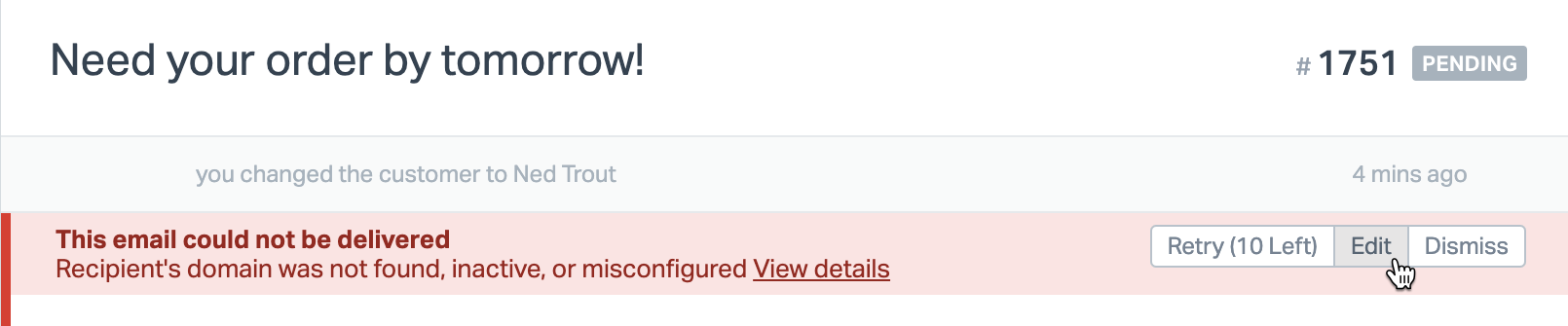
Head into the conversation and look for a red banner above a thread that says This email could not be delivered and shows a summary error. Click the View details link in that banner to see the exact error that we received when we tried to connect to the other server.
Example
This is an example bounce where we’ll walk you through the steps of seeing the error, troubleshooting it, and resolving the issue.
You can see here that the red banner shows the summary error of Recipient’s domain was not found, inactive, or misconfigured just before the link to View details.
 Click View details to see the exact error that the Help Scout server received.

The error you see there is bad destination system: no such domain , which tells you that the domain that you tried to send email to doesn’t exist. So let’s look back at the email address that you tried to send to:
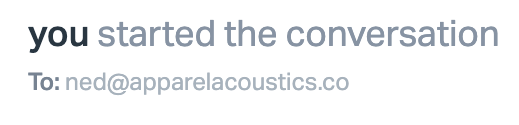
The domain — the part of the address after the @ — you tried to send to is apparelacoustics.co, which doesn’t exist. Ned’s actual domain is apparelacoustics.ml, which does exist. To resolve this, you’ll need to make some changes to the conversation.
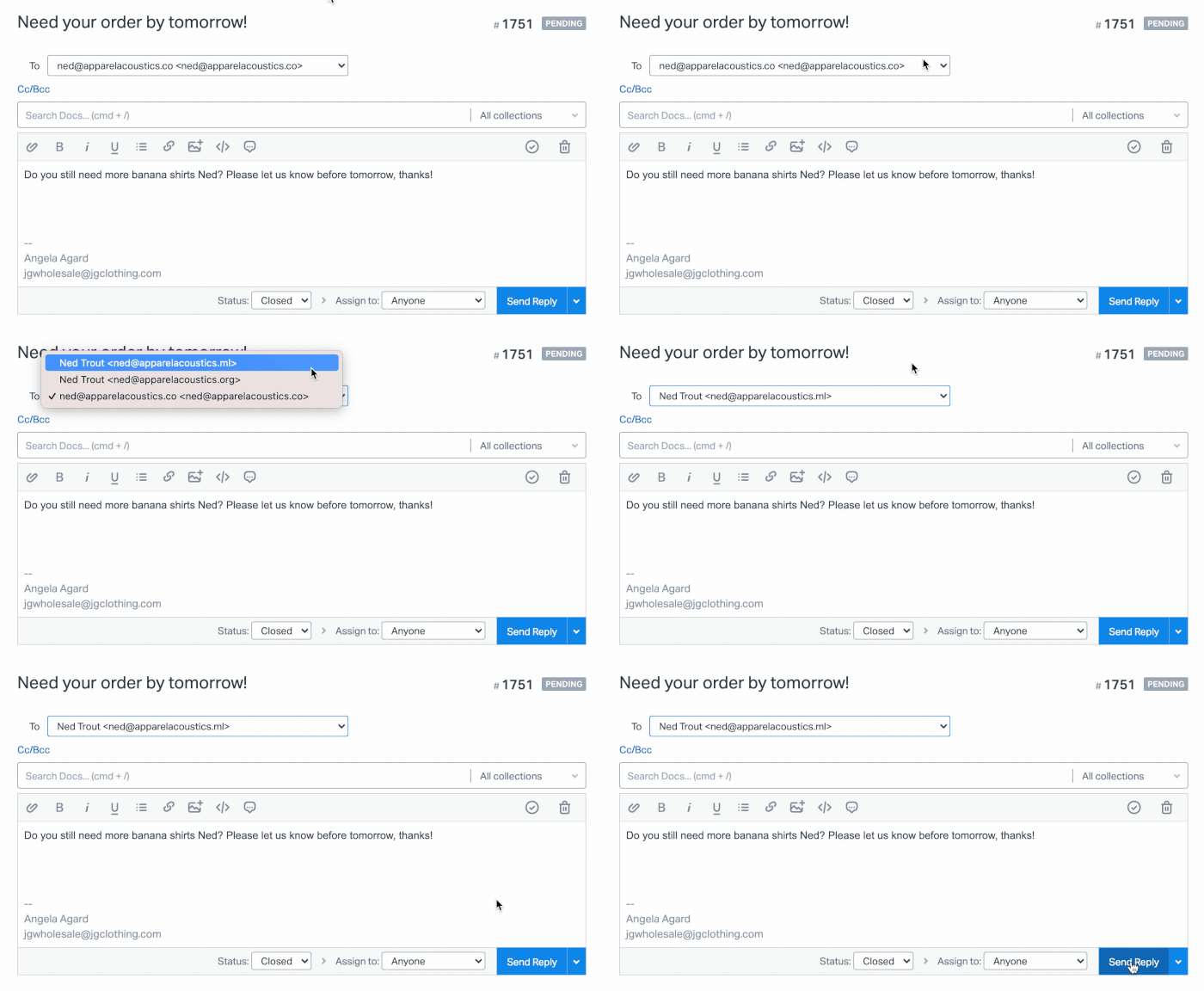
- Use the Change Customer option to change the conversation to belong to the correct email address. Take a look at Change the Customer on a Conversation for help there if you need it! Make sure that the correct customer is now showing in the sidebar.

- Click the Edit button in the red banner to edit the conversation after changing the customer.
- In the To: dropdown menu, select the correct email address to send to.
- Click Send Reply!

Common Errors
The error you see at View details is all that we really know — that is the exact error that the other server gave us when we tried to connect. Each email server defines their own error messages, which means we’re not able to predict what errors you might see there as they will vary from provider to provider. We do work with email a lot here though, so we are familiar with some more common errors and can explain what they mean.
Recipient’s domain was not found, inactive, or misconfigured OR Unable to route to recipient’s server
Errors you may see in View details:
bad destination system: no such domain
unable to route: no mail hosts for domain
In these cases, there is either no such domain (the part of the email address after the @), or there is no email service available for that domain, meaning that the person or organization has not configured email service for the domain.
Often these are due to a typo or misspelling, like in our example above. Double check the email address you’re sending to and look carefully at the domain portion. This is commonly seen on new conversations where your user may have mistyped the email address, or replies to emails that were generated from contact forms on your website — those forms ask the customer for their email address and it’s pretty common to see them mistype it!
Watch out for very common domain misspellings, like gnail.com, gmial.com, gmail.con, yahoo.cob, gmail.cov, etc.
Change the customer to the correct email address when you’ve got it, and then edit the message to select the correct email address to send to, then send again. See the list above for those steps illustrated.
Recipient’s address was not found, inactive, or misconfigured
Errors you may see in View details:
5.1.1 The email account that you tried to reach does not exist. Please try double-checking the recipient’s email address for typos or unnecessary spaces. Learn more at https://support.google.com/mail/?p=NoSuchUser
5.4.1 Recipient address rejected: Access denied.
5.1.1 Recipient not found.
Invalid Recipient — https://community.mimecast.com/docs/DOC-1369#550
5.1.1 Not our Customer
5.7.1 : Recipient address rejected: Access denied
5.1.1 (bad destination mailbox address)
Recipient address rejected: User unknown in virtual alias table
The email address you tried to send to does not exist. Double check the email address you’ve sent to, check for any typos or misspellings. This is commonly seen on new conversations where your user may have mistyped the email address, or replies to emails that were generated from contact forms on your website — those forms ask the customer for their email address and it’s pretty common to see them mistype it!
Search for the customer’s name in Help Scout to see if you have previous conversations that were on a correct address, search any other CRM or customer databases you may have available, or reach out to the customer in some other way to resolve this one.
Change the customer to the correct email address when you’ve got it, and then edit the message to select the correct email address to send to, then send again. See the list above for those steps illustrated.
Mailbox is over quota
Errors you may see in View details:
5.2.2 : Recipient address rejected: Quota exceeded (mailbox for user is full)
5.2.2 : user is overquota
554 5.2.2 Mailbox full
4.2.2 : Recipient address rejected: Mailbox full
5.2.2 : user is over quota
5.2.2 : Recipient address rejected: Mailbox full
4.2.1 The user you are trying to contact is receiving mail at a rate that prevents additional messages from being delivered. Please resent your message at a later time. If the user is able to receive mail at that time, your message will be delivered. For more information, please visit https://support.google.com/mail/?p=ReceivingRate
The email inbox for the person you are trying to reach is full — they have more emails than their email provider allows them to store. Sometimes this is a temporary error, as if the person you’re trying to reach has realized they’re not getting email and cleared their mailbox, emails will be delivered again.
We’d recommend retrying this one. If it continues to bounce, your best bet is to reach out to your customer in some other manner. It’s likely they don’t even realize their mailbox is full!
Suspicious content
Errors you may see in View details (see the next block for DMARC related ones):
5.7.1 [VI-1] Message blocked due to spam content in the message
permanent failure for one or more recipients (address@domain.com:blocked)
Your message to address@domain.com was classified as SPAM
5.7.1 Email rejected per SPAM policy
The email you sent was blocked by the recipient’s spam protection. First up, check a few things in your email: attachments, a lot of links, links to financial service and review sites, lots of images with little text, and potentially spammy content can get an email blocked. If you were trying to send an attachment, find another option to put that file up for the customer to download. If you were sending lots of links, shorten the message. If you think the content might have been thought of as spam, try sending a short email to let them know you’re getting blocked from sending what you really want to send. Give it a Retry after you’ve made those changes, and sometimes that will do the trick!
When you’re being blocked because the spam protection service has blocked you though, often there is nothing you can do but reach out to your customer another way to let them know. It’s a good idea to ask them to add your address or domain to their allowed lists — they might need to reach out to their IT team to help with that. You can Retry the message if you believe things have been resolved.
Suspicious content — DMARC related errors
Errors you may see in View details:
5.7.26 Unauthenticated email from domain.com is not accepted due to domain’s DMARC policy. Please contact the administrator of domain.com domain if this was a legitimate mail. Please visit https://support.google.com/mail/answer/2451690 to learn about the DMARC initiative.
5.7.5 Permanent error evaluating DMARC policy
5.7.5 DMARC processing failure
This is one that you might need your IT team or website developer to help you with (if that’s not you). These mean that the other server is rejecting your emails due to your own domain’s instructions! There can be several reasons that you’re seeing this on emails you send from Help Scout. It could be that SPF and/or DKIM are not validating, and your DMARC record has a reject policy, or it could be that there’s a problem with your DMARC record in general.
Head to Use an SPF Record to Help With Email Deliverability and Use DKIM to Help With Email Deliverability for the details on how to get those bits set up correctly.
DMARC can be a tricky thing to get right. You do not have to have a DMARC record to use Help Scout, but your team may have set up a DMARC record for your own domain’s protection. Check out DMARC and Help Scout for a bit more information and links to some help learning DMARC, but your best bet to get this fixed up is to reach out to the person in your organization that handles your DNS records — that’s typically an IT team or your website team.
You can retry the message if you believe things have been resolved.
The error I see is not listed here, what next?
There are so many possible errors you might come across that it is impossible for us to predict or explain all of the errors you might see. Sometimes the recipient server doesn’t provide any further information on why they’ve rejected the email — the error will simply state that it was rejected.
Google offers up some more detailed explanation on the errors they return here: SMTP error reference. Some of these have links out to other longer explanations — check here for your error, especially if you know your customer has Google based email.
Similarly, Microsoft offers up more explanation for their errors here: Email non-delivery reports in Exchange Online.
If the error you’re seeing is not listed here, in either of those lists, and it is not clear to you what the issue is, try searching on your favorite search engine. (We love Ecosia, but Google, Bing, Duck Duck Go, or whatever search engine you prefer will work). Just copy and paste the exact error you see!
If that still doesn’t shine any more light on things, your best bet would be to try and reach out to your customer in some other manner. We are not able to push emails through to servers that reject them or get any further clarification from those servers administrators — your customer may need to check with their own IT team or email admin.
Received an Email Notification of a Bounce
Sometimes your recipient’s server will accept the email originally, but will later decide to bounce it and send you back an email telling you why. That email might come from our servers, your own email provider’s servers, or the recipient’s server.
A heads up first: every email provider sets what their bounce reports look like and what words they use, so the content will vary wildly which makes it a challenge to troubleshoot sometimes. They almost always will provide some context on why they bounced the email though, even if it might not be very helpful, and can seem a little tricky to read if you don’t work with email servers all day.
We do work with email servers all day though, so we’ve compiled some of the more common bounces you might see here to help you troubleshoot!
How to Read (Most) Delivery Reports
This might feel like scary territory but stick with us here and we’ll help you understand what you’re looking at, and most delivery reports you see won’t be scary when we’re done! (We won’t lie, some will still be a challenge.)
Look for the email address that bounced and the error — ignore (almost) everything else!
Most bounce notices will show you the email address that bounced, which would be your customer’s address, and will offer up the reason they bounced it by way of an error or diagnostic code.
Often you’ll just see the email address in the report in different places, but you can also keep an eye out for Final-Recipient, Original-Rcpt-To, or Delivery to the following recipients or groups failed as places where you’ll see the email address listed.
The error can sometimes be harder to pin down, but often you’ll see it after Diagnostic-Code, or Status, or a line that starts with smtp;550 (where the number can change).
Here’s an example of a very simple delivery report: 
The email server that generated this one is a rather friendly server, as this one is pretty easy to read. You see the email address right up top with the error just below it.
Most delivery reports aren’t quite this direct and simple, but if you scan through the message, often you’ll see a little block of information that will include email address and error still.
Here’s an example of a more complicated one:
 This looks like a lot more work, but really it’s all there in one section. Look down near the bottom of the email, and you’ll see Final-Recipient with the email address, and Status and Diagnostic-Code with the error.

The most common errors that you’ll see in these bounce reports are actually the same ones that you’ll find in the immediate bounces (the ones that show in Needs Attention), so if you’re not sure what the error you found means, take a look at the list of Common Errors above.
You may want to trace the original sent email to find its source.
Any email bounce notice that is sent to your address will show in your Help Scout mailbox, just because all email that goes to your address is forwarded in to Help Scout and those are just emails too — it doesn’t mean that the email that bounced was sent from Help Scout.
You may receive these notices for emails you sent from some other service, e.g a newsletter sent through your marketing email service, an order confirmation or update from your website, etc. You may also receive these notices for any alias email address that you have set up to automatically forward to Help Scout, in addition to those for your regular mailbox address.
Most notices will include an attachment with a .eml file that you can open in an email client to see the original email. You may also want to look for the word Subject in the bounce notice, as some of them will include that. This will help you determine where the email was originally sent.
Resolve the Issue
The action you want to take from here will all depend on your processes and where it came from! If it was a marketing email, you might want to remove that address from your list. If it was an order confirmation, it would be worth digging in a little deeper probably.
If it was an email you sent from Help Scout, you can find the original conversation and then add a new reply once the issue has been resolved, or change the customer to a different email address and add a new reply then.
If none of this helped you figure out the issue, or you have further questions about a bounce you see, send us an email! Let us know the conversation number where you’re seeing a bounce or delivery notice and as many details as you can share, and we’ll take a look!
Thanks for the feedback There was a problem submitting your feedback. Please try again later.
Источник
Примеры писем:
550 5.7.1 This message was not accepted due to domain owner DMARC policy (RFC 7489) https://help.mail.ru/mail-help/postmaster/dmarc550-5.7.1 Unauthenticated email from mail.ru is not accepted due to domain's
550-5.7.1 DMARC policy. Please contact administrator of mail.ru domain if this
550-5.7.1 was a legitimate mail. Please visit
550-5.7.1 https://support.google.com/mail/answer/2451690 to learn about DMARC... 550 5.7.1 Email rejected per DMARC policy for ...Проблема с доставкой сообщений связана с применением новой политики DMARC, связанной с ужесточением правил прохождения спам фильтров.
DMARC — это протокол защиты от спама и от несанкционированной рассылки почты от имени домена, основанный на существующих механизмах DKIM и SPF. Официальный сайт: dmarc.org.
Если вы получаете подобные приведённым выше сообщения, скорее всего, почта с сайта у вас отправляется от имени почтового ящика на базе @mail.ru, @bk.ru, @list.ru или @inbox.ru. Mail.Ru не принимает сообщения, отправленные через phpmail, если в почтовых заголовках числится ящик, принадлежащий mail.ru. Такие сообщения, согласно внедрённой Mail.Ru политике DMARC, отклоняются.
Как решить проблему
Решить проблему можно двумя способами:
Способ 1: изменить ящик, с которого отправляются сообщения
Обычно e-mail, от имени которого рассылаются почтовые сообщения, прописывается в административной части CMS. Также его можно изменить напрямую в скрипте, рассылающем сообщения (поле «From»).
Необходимо, чтобы сообщения рассылались с ящика на базе вашего доменного имени, например «webmaster@domain.ru», где domain.ru — ваш домен. При этом должна быть корректно настроена SPF-запись: Как настроить SPF-запись?
Также, почтовый ящик необходимо изменить в файле php.ini:
Изменение ящика в php.ini
-
1.
войдите в панель управления хостингом и откройте на редактирование файл php.ini: Как изменить параметры PHP;
-
2.
найдите строку вида:
sendmail_path = "/usr/sbin/sendmail -t -i -f e-mail@mail.ru"В данной строке вместо «e-mail@mail.ru» укажите почтовый ящик, не относящийся к доменам @mail.ru, @bk.ru, @list.ru и @inbox.ru.
Желательно указать почтовый ящик на вашем домене, например, «webmaster@domain.ru», где domain.ru — ваш домен.Кроме этого, прописанный в php.ini почтовый ящик должен существовать. Если вы пользуетесь почтой на хостинге, создайте почтовый ящик на домене по инструкции и пропишите его в файле php.ini.
Способ 2: использовать SMTP-авторизацию
Вы можете рассылать сообщения от имени вашего почтового ящика на базе Mail.Ru, настроив SMTP-авторизацию. В этом случае все сообщения через ваш сайт будут отправлять напрямую с серверов Mail.Ru.
In email-speak, a bounce happens when your recipient’s server rejects your email — meaning the email you sent to your customer won’t make it to your customer. There are 2 ways you might be alerted to an email that has bounced in Help Scout.
Immediate bounces for emails you send from Help Scout, where the recipient’s email server will not accept the email at all, will show in the Needs Attention folder where you can see the error they gave and take further action. Emails that bounce later, where the recipient mail server accepts an email from you and sends a bounce later, will be email notifications you’ll see in your mailbox.
The error you see in bounces is the exact error provided by the recipient server. Each email provider gets to define their own conditions for bouncing, how much information they share in the error, and what error codes they use. While we are unable to provide any more information than what that server gave us, we can help you understand the errors you’re seeing in some cases.
This article will help you troubleshoot bounces you’ve found in your mailbox. Heads up before you start: there is a lot of information in this article, but you don’t need to read it all. Use the menu links to skip directly to the help you’re looking for!
Pro tip: Try Cmd+F on Mac or Ctrl+F on Windows to search this page for the bounce error once you’ve got that!
Note: If you are viewing this article within one of our own Beacons, your best bet is to open it in a new window so you can follow each step. Just click on the title of the article in the Beacon window to open it in a new tab.
In this article
- Bounce Showing in the Needs Attention Folder
- Received an Email Notification of a Bounce
- Something Else Related to Bounces
Bounce showing in the Needs Attention folder
Immediate bounces will show in the Needs Attention folder with a label that shows as Bounced.
Note that conversations that show as are a different thing! Check out Prevent Duplicate Replies With Collision Detection for information on those.
Now you’ve got one more decision to make to jump to the correct troubleshooting bit — how are you sending your email from Help Scout?
If you’re not sure, take a look at Outgoing Email Settings for help getting to your mailbox’s settings, then pick the one that applies to the mailbox you’re troubleshooting.
- Outgoing settings are configured to use Google OAuth. (Link opens a different article.)
- Outgoing settings are configured to use a custom SMTP server other than Google. (Link opens a different article.)
- Outgoing settings a set to use Help Scout servers to send our email.
We use Help Scout servers to send our email.
Head into the conversation and look for a red banner above a thread that says This email could not be delivered and shows a summary error. Click the View details link in that banner to see the exact error that we received when we tried to connect to the other server.
Example
This is an example bounce where we’ll walk you through the steps of seeing the error, troubleshooting it, and resolving the issue.
You can see here that the red banner shows the summary error of Recipient’s domain was not found, inactive, or misconfigured just before the link to View details.
Click View details to see the exact error that the Help Scout server received.
The error you see there is bad destination system: no such domain, which tells you that the domain that you tried to send email to doesn’t exist. So let’s look back at the email address that you tried to send to:
The domain — the part of the address after the @ — you tried to send to is apparelacoustics.co, which doesn’t exist. Ned’s actual domain is apparelacoustics.ml, which does exist. To resolve this, you’ll need to make some changes to the conversation.
- Use the Change Customer option to change the conversation to belong to the correct email address. Take a look at Change the Customer on a Conversation for help there if you need it! Make sure that the correct customer is now showing in the sidebar.
- Click the Edit button in the red banner to edit the conversation after changing the customer.
- In the To: dropdown menu, select the correct email address to send to.
- Click Send Reply!
Common Errors
The error you see at View details is all that we really know — that is the exact error that the other server gave us when we tried to connect. Each email server defines their own error messages, which means we’re not able to predict what errors you might see there as they will vary from provider to provider. We do work with email a lot here though, so we are familiar with some more common errors and can explain what they mean.
Recipient’s domain was not found, inactive, or misconfigured OR Unable to route to recipient’s server
Errors you may see in View details:
bad destination system: no such domain
unable to route: no mail hosts for domain
In these cases, there is either no such domain (the part of the email address after the @), or there is no email service available for that domain, meaning that the person or organization has not configured email service for the domain.
Often these are due to a typo or misspelling, like in our example above. Double check the email address you’re sending to and look carefully at the domain portion. This is commonly seen on new conversations where your user may have mistyped the email address, or replies to emails that were generated from contact forms on your website — those forms ask the customer for their email address and it’s pretty common to see them mistype it!
Watch out for very common domain misspellings, like gnail.com, gmial.com, gmail.con, yahoo.cob, gmail.cov, etc.
Change the customer to the correct email address when you’ve got it, and then edit the message to select the correct email address to send to, then send again. See the list above for those steps illustrated.
Recipient’s address was not found, inactive, or misconfigured
Errors you may see in View details:
5.1.1 The email account that you tried to reach does not exist. Please try double-checking the recipient’s email address for typos or unnecessary spaces. Learn more at https://support.google.com/mail/?p=NoSuchUser
5.4.1 Recipient address rejected: Access denied.
5.1.1 Recipient not found.
Invalid Recipient — https://community.mimecast.com/docs/DOC-1369#550
5.1.1 Not our Customer
5.7.1 : Recipient address rejected: Access denied
5.1.1 (bad destination mailbox address)
Recipient address rejected: User unknown in virtual alias table
The email address you tried to send to does not exist. Double check the email address you’ve sent to, check for any typos or misspellings. This is commonly seen on new conversations where your user may have mistyped the email address, or replies to emails that were generated from contact forms on your website — those forms ask the customer for their email address and it’s pretty common to see them mistype it!
Search for the customer’s name in Help Scout to see if you have previous conversations that were on a correct address, search any other CRM or customer databases you may have available, or reach out to the customer in some other way to resolve this one.
Change the customer to the correct email address when you’ve got it, and then edit the message to select the correct email address to send to, then send again. See the list above for those steps illustrated.
Mailbox is over quota
Errors you may see in View details:
5.2.2 : Recipient address rejected: Quota exceeded (mailbox for user is full)
5.2.2 : user is overquota
554 5.2.2 Mailbox full
4.2.2 : Recipient address rejected: Mailbox full
5.2.2 : user is over quota
5.2.2 : Recipient address rejected: Mailbox full
4.2.1 The user you are trying to contact is receiving mail at a rate that prevents additional messages from being delivered. Please resent your message at a later time. If the user is able to receive mail at that time, your message will be delivered. For more information, please visit https://support.google.com/mail/?p=ReceivingRate
The email inbox for the person you are trying to reach is full — they have more emails than their email provider allows them to store. Sometimes this is a temporary error, as if the person you’re trying to reach has realized they’re not getting email and cleared their mailbox, emails will be delivered again.
We’d recommend retrying this one. If it continues to bounce, your best bet is to reach out to your customer in some other manner. It’s likely they don’t even realize their mailbox is full!
Suspicious content
Errors you may see in View details (see the next block for DMARC related ones):
5.7.1 [VI-1] Message blocked due to spam content in the message
permanent failure for one or more recipients (address@domain.com:blocked)
Your message to address@domain.com was classified as SPAM
5.7.1 Email rejected per SPAM policy
The email you sent was blocked by the recipient’s spam protection. First up, check a few things in your email: attachments, a lot of links, links to financial service and review sites, lots of images with little text, and potentially spammy content can get an email blocked. If you were trying to send an attachment, find another option to put that file up for the customer to download. If you were sending lots of links, shorten the message. If you think the content might have been thought of as spam, try sending a short email to let them know you’re getting blocked from sending what you really want to send. Give it a Retry after you’ve made those changes, and sometimes that will do the trick!
When you’re being blocked because the spam protection service has blocked you though, often there is nothing you can do but reach out to your customer another way to let them know. It’s a good idea to ask them to add your address or domain to their allowed lists — they might need to reach out to their IT team to help with that. You can Retry the message if you believe things have been resolved.
Suspicious content — DMARC related errors
Errors you may see in View details:
5.7.26 Unauthenticated email from domain.com is not accepted due to domain’s DMARC policy. Please contact the administrator of domain.com domain if this was a legitimate mail. Please visit https://support.google.com/mail/answer/2451690 to learn about the DMARC initiative.
5.7.5 Permanent error evaluating DMARC policy
5.7.5 DMARC processing failure
This is one that you might need your IT team or website developer to help you with (if that’s not you). These mean that the other server is rejecting your emails due to your own domain’s instructions! There can be several reasons that you’re seeing this on emails you send from Help Scout. It could be that SPF and/or DKIM are not validating, and your DMARC record has a reject policy, or it could be that there’s a problem with your DMARC record in general.
Head to Use an SPF Record to Help With Email Deliverability and Use DKIM to Help With Email Deliverability for the details on how to get those bits set up correctly.
DMARC can be a tricky thing to get right. You do not have to have a DMARC record to use Help Scout, but your team may have set up a DMARC record for your own domain’s protection. Check out DMARC and Help Scout for a bit more information and links to some help learning DMARC, but your best bet to get this fixed up is to reach out to the person in your organization that handles your DNS records — that’s typically an IT team or your website team.
You can retry the message if you believe things have been resolved.
The error I see is not listed here, what next?
There are so many possible errors you might come across that it is impossible for us to predict or explain all of the errors you might see. Sometimes the recipient server doesn’t provide any further information on why they’ve rejected the email — the error will simply state that it was rejected.
Google offers up some more detailed explanation on the errors they return here: SMTP error reference. Some of these have links out to other longer explanations — check here for your error, especially if you know your customer has Google based email.
Similarly, Microsoft offers up more explanation for their errors here: Email non-delivery reports in Exchange Online.
If the error you’re seeing is not listed here, in either of those lists, and it is not clear to you what the issue is, try searching on your favorite search engine. (We love Ecosia, but Google, Bing, Duck Duck Go, or whatever search engine you prefer will work). Just copy and paste the exact error you see!
If that still doesn’t shine any more light on things, your best bet would be to try and reach out to your customer in some other manner. We are not able to push emails through to servers that reject them or get any further clarification from those servers administrators — your customer may need to check with their own IT team or email admin.
Received an Email Notification of a Bounce
Sometimes your recipient’s server will accept the email originally, but will later decide to bounce it and send you back an email telling you why. That email might come from our servers, your own email provider’s servers, or the recipient’s server.
A heads up first: every email provider sets what their bounce reports look like and what words they use, so the content will vary wildly which makes it a challenge to troubleshoot sometimes. They almost always will provide some context on why they bounced the email though, even if it might not be very helpful, and can seem a little tricky to read if you don’t work with email servers all day.
We do work with email servers all day though, so we’ve compiled some of the more common bounces you might see here to help you troubleshoot!
How to Read (Most) Delivery Reports
This might feel like scary territory but stick with us here and we’ll help you understand what you’re looking at, and most delivery reports you see won’t be scary when we’re done! (We won’t lie, some will still be a challenge.)
Look for the email address that bounced and the error — ignore (almost) everything else!
Most bounce notices will show you the email address that bounced, which would be your customer’s address, and will offer up the reason they bounced it by way of an error or diagnostic code.
Often you’ll just see the email address in the report in different places, but you can also keep an eye out for Final-Recipient, Original-Rcpt-To, or Delivery to the following recipients or groups failed as places where you’ll see the email address listed.
The error can sometimes be harder to pin down, but often you’ll see it after Diagnostic-Code, or Status, or a line that starts with smtp;550 (where the number can change).
Here’s an example of a very simple delivery report:
The email server that generated this one is a rather friendly server, as this one is pretty easy to read. You see the email address right up top with the error just below it.
Most delivery reports aren’t quite this direct and simple, but if you scan through the message, often you’ll see a little block of information that will include email address and error still.
Here’s an example of a more complicated one:
This looks like a lot more work, but really it’s all there in one section. Look down near the bottom of the email, and you’ll see Final-Recipient with the email address, and Status and Diagnostic-Code with the error.
The most common errors that you’ll see in these bounce reports are actually the same ones that you’ll find in the immediate bounces (the ones that show in Needs Attention), so if you’re not sure what the error you found means, take a look at the list of Common Errors above.
You may want to trace the original sent email to find its source.
Any email bounce notice that is sent to your address will show in your Help Scout mailbox, just because all email that goes to your address is forwarded in to Help Scout and those are just emails too — it doesn’t mean that the email that bounced was sent from Help Scout.
You may receive these notices for emails you sent from some other service, e.g a newsletter sent through your marketing email service, an order confirmation or update from your website, etc. You may also receive these notices for any alias email address that you have set up to automatically forward to Help Scout, in addition to those for your regular mailbox address.
Most notices will include an attachment with a .eml file that you can open in an email client to see the original email. You may also want to look for the word Subject in the bounce notice, as some of them will include that. This will help you determine where the email was originally sent.
Resolve the Issue
The action you want to take from here will all depend on your processes and where it came from! If it was a marketing email, you might want to remove that address from your list. If it was an order confirmation, it would be worth digging in a little deeper probably.
If it was an email you sent from Help Scout, you can find the original conversation and then add a new reply once the issue has been resolved, or change the customer to a different email address and add a new reply then.
Something Else Related to Bounces
If none of this helped you figure out the issue, or you have further questions about a bounce you see, send us an email! Let us know the conversation number where you’re seeing a bounce or delivery notice and as many details as you can share, and we’ll take a look!