
 Иногда во время игры или просто при работе в Windows вы можете получить сообщение об ошибке с кодом DXGI_ERROR_DEVICE_REMOVED, «DirectX Error» в заголовке (в заголовке окна может быть и название текущей игры) и дополнительной информацией, касающейся того, при выполнении какой операции возникла ошибка.
В этой инструкции подробно о возможных причинах появления такой ошибки и способах её исправить в Windows 10, 8.1 или Windows 7.
Причины ошибки
В большинстве случаев ошибка DirectX Error DXGI_ERROR_DEVICE_REMOVED не связана с конкретной игрой, в которую вы играете, а имеет отношение к драйверу видеокарты или к самой видеокарте.

При этом, сам текст ошибки обычно расшифровывает этот код ошибки: «The video card has been physically removed from the system, or a driver upgrade for the video card has occurred», что в переводе будет «Видеокарта была физически удалена из системы или произошло обновление драйвера».
И если первый вариант (физическое удаление видеокарты) во время игры маловероятен, то второе вполне может оказаться одной из причин: иногда драйверы видеокарт NVIDIA GeForce или AMD Radeon могут обновляться «сами» и, если это произойдет во время игры вы получите рассматриваемую ошибку, которая впоследствии должна пропасть сама.
Если же ошибка возникает постоянно, можно предположить, что причина более сложная. Наиболее распространенные причины, вызывающие ошибку DXGI_ERROR_DEVICE_REMOVED приведены далее:
- Неправильная работа конкретной версии драйверов видеокарты
- Недостаток питания видеокарты
- Разгон видеокарты
- Проблемы с физическим подключением видеокарты
Это не все возможные варианты, но наиболее часто встречающиеся. Некоторые дополнительные, более редкие случаи, будут также рассмотрены далее в руководстве.
Исправление ошибки DXGI_ERROR_DEVICE_REMOVED
Для того, чтобы исправить ошибку для начала рекомендую по порядку выполнить следующие действия:
- Если вы недавно вынимали (или устанавливали) видеокарту, проверить, что она плотно подключена, контакты на ней не окислены, дополнительное питание подключено.
- Если есть возможность, проверить эту же видеокарту на другом компьютере с той же игрой с теми же параметрами графики, чтобы исключить неисправность самой видеокарты.
- Попробовать установить другую версию драйверов (в том числе более старую, если недавно произошло обновление до последней версии драйверов), предварительно полностью удалив имеющиеся драйверы: Как удалить драйверы видеокарты NVIDIA или AMD.
- Для того, чтобы исключить влияние недавно установленных сторонних программ (иногда они также могут вызывать ошибку), выполните чистую загрузку Windows, а затем проверьте, будет ли проявлять себя ошибка в вашей игре.
- Попробуйте выполнить действия, описанные в отдельной инструкции Видеодрайвер перестал отвечать и был остановлен — они могут сработать.
- Попробуйте в схеме электропитания (Панель управления — Электропитание) выбрать «Высокая производительность», а затем в «Изменить дополнительные параметры электропитания» в разделе «PCI Express» — «Управление питанием состояния связи» установите «Откл.»

- Попробуйте снизить настройки качества графики в игре.
- Скачайте и запустите веб-установщик DirectX, если он найден поврежденные библиотеки, они будут автоматически заменены, см. Как скачать DirectX.

Обычно, что-то из перечисленного помогает решить проблему за исключением случая, когда причиной является недостаток питания со стороны блока питания во время пиковых нагрузок на видеокарту (хотя и в этом случае может сработать снижением параметров графики).
Дополнительные методы исправления ошибки
Если ничто из вышеописанного не помогло, обратите внимание на несколько дополнительных нюансов, которые могут иметь связь с описываемой ошибкой:
- В параметрах графики игры попробуйте включить VSYNC (особенно если это игра от EA, например, Battlefield).
- Если вы изменяли параметры файла подкачки, попробуйте включить автоматическое определение его размера или увеличить (8 Гб обычно достаточно).
- В некоторых случаях избавиться от ошибки помогает ограничение максимального энергопотребления видеокарты на уровне 70-80% в MSI Afterburner.
И, наконец, не исключен вариант, что виновата конкретная игра с багами, особенно если вы её приобрели не из официальных источников (при условии, что ошибка появляется только в какой-то конкретной игре).
Содержание
- DirectX Error DXGI_ERROR_DEVICE_REMOVED — как исправить ошибку
- Причины ошибки
- Исправление ошибки DXGI_ERROR_DEVICE_REMOVED
- Дополнительные методы исправления ошибки
- Исправить ошибку DXGI_ERROR_DEVICE_REMOVED
- 1. Отключения сглаживания
- 2. Отключение ShadowPlay
- 3. Проверка оборудования и охлаждения
- 4. Откат разгона
- 5. Обновить драйвер
- 6. DirectX
- 7. Правка значения реестра (TDR)
- Handle device removed scenarios in Direct3D 11
- Instructions
- Step 1:
- Step 2:
- Step 3:
- Remarks
- Investigating the cause of device removed errors
- Testing Device Removed Handling
DirectX Error DXGI_ERROR_DEVICE_REMOVED — как исправить ошибку
Иногда во время игры или просто при работе в Windows вы можете получить сообщение об ошибке с кодом DXGI_ERROR_DEVICE_REMOVED, «DirectX Error» в заголовке (в заголовке окна может быть и название текущей игры) и дополнительной информацией, касающейся того, при выполнении какой операции возникла ошибка.
В этой инструкции подробно о возможных причинах появления такой ошибки и способах её исправить в Windows 10, 8.1 или Windows 7.
Причины ошибки
В большинстве случаев ошибка DirectX Error DXGI_ERROR_DEVICE_REMOVED не связана с конкретной игрой, в которую вы играете, а имеет отношение к драйверу видеокарты или к самой видеокарте.
При этом, сам текст ошибки обычно расшифровывает этот код ошибки: «The video card has been physically removed from the system, or a driver upgrade for the video card has occurred», что в переводе будет «Видеокарта была физически удалена из системы или произошло обновление драйвера».
И если первый вариант (физическое удаление видеокарты) во время игры маловероятен, то второе вполне может оказаться одной из причин: иногда драйверы видеокарт NVIDIA GeForce или AMD Radeon могут обновляться «сами» и, если это произойдет во время игры вы получите рассматриваемую ошибку, которая впоследствии должна пропасть сама.
Если же ошибка возникает постоянно, можно предположить, что причина более сложная. Наиболее распространенные причины, вызывающие ошибку DXGI_ERROR_DEVICE_REMOVED приведены далее:
- Неправильная работа конкретной версии драйверов видеокарты
- Недостаток питания видеокарты
- Разгон видеокарты
- Проблемы с физическим подключением видеокарты
Это не все возможные варианты, но наиболее часто встречающиеся. Некоторые дополнительные, более редкие случаи, будут также рассмотрены далее в руководстве.
Исправление ошибки DXGI_ERROR_DEVICE_REMOVED
Для того, чтобы исправить ошибку для начала рекомендую по порядку выполнить следующие действия:
- Если вы недавно вынимали (или устанавливали) видеокарту, проверить, что она плотно подключена, контакты на ней не окислены, дополнительное питание подключено.
- Если есть возможность, проверить эту же видеокарту на другом компьютере с той же игрой с теми же параметрами графики, чтобы исключить неисправность самой видеокарты.
- Попробовать установить другую версию драйверов (в том числе более старую, если недавно произошло обновление до последней версии драйверов), предварительно полностью удалив имеющиеся драйверы: Как удалить драйверы видеокарты NVIDIA или AMD.
- Для того, чтобы исключить влияние недавно установленных сторонних программ (иногда они также могут вызывать ошибку), выполните чистую загрузку Windows, а затем проверьте, будет ли проявлять себя ошибка в вашей игре.
- Попробуйте выполнить действия, описанные в отдельной инструкции Видеодрайвер перестал отвечать и был остановлен — они могут сработать.
- Попробуйте в схеме электропитания (Панель управления — Электропитание) выбрать «Высокая производительность», а затем в «Изменить дополнительные параметры электропитания» в разделе «PCI Express» — «Управление питанием состояния связи» установите «Откл.»

- Попробуйте снизить настройки качества графики в игре.
- Скачайте и запустите веб-установщик DirectX, если он найден поврежденные библиотеки, они будут автоматически заменены, см. Как скачать DirectX.
Обычно, что-то из перечисленного помогает решить проблему за исключением случая, когда причиной является недостаток питания со стороны блока питания во время пиковых нагрузок на видеокарту (хотя и в этом случае может сработать снижением параметров графики).
Дополнительные методы исправления ошибки
Если ничто из вышеописанного не помогло, обратите внимание на несколько дополнительных нюансов, которые могут иметь связь с описываемой ошибкой:
- В параметрах графики игры попробуйте включить VSYNC (особенно если это игра от EA, например, Battlefield).
- Если вы изменяли параметры файла подкачки, попробуйте включить автоматическое определение его размера или увеличить (8 Гб обычно достаточно).
- В некоторых случаях избавиться от ошибки помогает ограничение максимального энергопотребления видеокарты на уровне 70-80% в MSI Afterburner.
И, наконец, не исключен вариант, что виновата конкретная игра с багами, особенно если вы её приобрели не из официальных источников (при условии, что ошибка появляется только в какой-то конкретной игре).
А вдруг и это будет интересно:
10.10.2018 в 11:56
Дмитрий Спасибо за ваши труды. А нельзя ли поподробней узнать об этом вот —
«PCI Express» — «Управление питанием состояния связи». Что и когда там надо выставлять и на что это влияет? Такая настройка у меня есть и в Биосе, но уж очень мутные пояснения к ней. И ещё, вы пишите опять про файл подкачки. У меня ССД 128 ГБ. Так ли уж он всё таки нужен мне. Я не играю в игры, но много работаю с мультимедийной графикой, и с видео высокого разрешения. Нужен ли он мне, у меня установлен заданный размер в 1024 Мб. Спасибо. Надеюсь на ответ. С этими ССД нигде нет однозначного ответа. Кто что пишет.
11.10.2018 в 11:57
Здравствуйте.
1. Этот параметр отвечает за выключение интерфейса PCI-E, когда данные по нему не передаются. Экономит энергию. Но может вызывать ошибки в некоторых случаях.
2. Про файл подкачки — вообще, пока вам не сообщат эти самые программы для работы с графикой/видео о том, что им недостаточно памяти или не начнут вылетать странным необъяснимым образом, можете оставить всё как есть. А вот если сообщат — вспомнить о файле подкачки, т.к. причина может быть в нём.
Но тут есть один нюанс: иногда они могут и вовсе не сообщить ни о чем подобном, а вы, незаметно для себя будете терять в производительности (тут зависит от конкретного софта и прочего), хотя это может показаться и не логичным (ведь RAM быстрее и всё такое).
Вы, кстати, можете легко протестировать, учитывая софт, с которым работаете: к примеру, взяли проект видео потяжелее с эффектами и прочим, но покороче, который рендерится в районе 10-15 минут, запустили, посмотрели сколько заняло времени при текущих настройках.
Закрыли программу, изменили настройки файла подкачки (выставили авто или побольше, скажем, 8-16 Гб), перезагрузили компьютер, снова запустили просчет того же проекта. Сравнили время.
В плане срока жизни SSD при включенном файле подкачки — это не то, о чем стоит переживать. Достаточно надежны они сегодня и скорее вы его просто поменяете, чем он выйдет из строя.
Источник
Исправить ошибку DXGI_ERROR_DEVICE_REMOVED
Ошибка DXGI_ERROR_DEVICE_REMOVED возникает когда видеокарта не может нормально работать на компьютере. Ошибка может возникать по различным причинам и содержать различный вид сообщений об ошибки, но указанный код ошибки будет одинаков везде. В большинстве случаях ошибка появляется из-за разгона компьютера. В этот момент видеокарта может нагреваться и отключаться на пару долей секунд. Также, если вы запускаете игру, то она не может синхронизироваться с графической картой. Эта проблема обычно возникает, когда вы играете в такие игры, как Battlefield, Arma, Crysis. В этой инструкции будут показаны способы, чтобы решить ошибку DXGI ERROR DEVICE REMOVED.
1. Отключения сглаживания
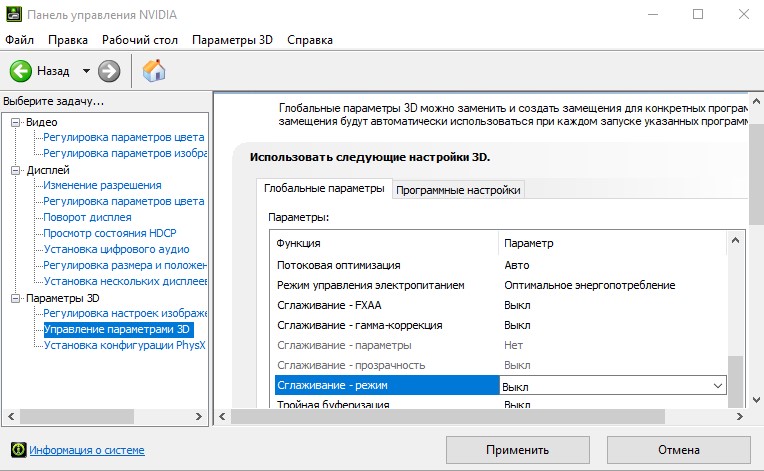
Откройте программное обеспечение от производителя видеокарты Nvidia, AMD или Intel. Я буду показывать пример на панели управления Nvidia. Перейдите «Параметры 3D» > «Управление параметрами 3D» > справа найдите все пункты «Сглаживание» и отключите их. Перезагрузите компьютер и проверьте ошибку.
2. Отключение ShadowPlay
Nvidia ShowPlay (внутри-игровой оверлей, известная как Nvidia Share) — утилита записи экрана, представленная в приложении GeForce Experience. Несмотря на нужный функционал для геймеров, эта утилита потребляет достаточно ресурсов видеокарты, и как сообщали многие пользователи, что отключение Nvidia ShowPlay позволило исправить ошибку DXGI ERROR DEVICE REMOVED.

Запустите приложение GeForce Experience в качестве администратора, нажмите параметры (иконка шестеренки) и перейдите во вкладку «Общие«. Найдите «внутри-игровой оверлей» и отключите его. Может называться как Nvidia ShowPlay или Nvidia Share.

3. Проверка оборудования и охлаждения
Процессор видеокарты GPU требует точного охлаждения. Любые превышающие нормы 5-10 градусов могут перегревать видеокарту и выдавать ошибку DXGI ERROR DEVICE REMOVED. Вам следует изменить настройку охлаждения графического процессора как минимум на 70% и пробовать увеличивать, если будет ошибка. Вы можете воспользоваться сторонним приложением как MSI Afterburner или NVIDIA Inspector, но только на время, чтобы проверить ошибку.
Первым делом, снимите крышку ПК и посмотрите не забита ли видеокарта комками пыли, очистите вентилятор карты от пыли. Если компьютер стоит в плотном месте, то попробуйте его поставить на стол, чтобы потока воздуха хватало, и он не отражался от стен и не задувал обратно теплый воздух.
4. Откат разгона
Если вы разогнали графический процессор с помощью каких-либо утилит, то попробуйте откатить все параметры назад в нормальное состояние. Убедитесь, что разгон также отключен в BIOS, прежде чем снова запускать игру или программу.
5. Обновить драйвер
- У далите полностью драйвер видеокарты Nvidia, AMD или Intel .
- Зайдите на сайт производителя и скачайте последнюю версию.
6. DirectX
Скорее всего, DirectX уже установлен на вашем компьютере, но может быть не обновлен до последней версии. Вы можете скачать пакет с официального сайта Microsoft . Кроме того, вы также должны убедиться, что на вашем компьютере установлены последние версии Visual Studio Redistributables и .NET Framework.
7. Правка значения реестра (TDR)
TDR проверяет, дает ли отклик ваша видеокарта. Если видеокарта не отвечает на TDR в течение двух секунд, Windows 10 автоматически предполагает, что оборудование зависло, и вынуждает его «заново инициализировать процесс». Это сделано для того, чтобы предотвратить зависание всего компьютера, как это было в Windows XP.
Нажмите Win+R и введите regedit, чтобы открыть редактор реестра. Далее перейдите по пути:
- HKEY_LOCAL_MACHINESYSTEMCurrentControlSetControlGraphicsDrivers
- С правой стороны нажмите на пустом поле правой кнопкой мыши «Создать» > «Параметр DWORD 32 бита«.
- Задайте имя TdrLevel и задайте значение .
- Перезагрузите ПК.
Чтобы вернуть как было, просто удалите значение TdrLevel в реестре.
Источник
Handle device removed scenarios in Direct3D 11
This topic explains how to recreate the Direct3D and DXGI device interface chain when the graphics adapter is removed or reinitialized.
In DirectX 9, applications could encounter a «device lost» condition where the D3D device enters a non-operational state. For example, when a full-screen Direct3D 9 application loses focus, the Direct3D device becomes «lost;» any attempts to draw with a lost device will silently fail. Direct3D 11 uses virtual graphics device interfaces, enabling multiple programs to share the same physical graphics device and eliminating conditions where apps lose control of the Direct3D device. However, it is still possible for graphics adapter availability to change. For example:
- The graphics driver is upgraded.
- The system changes from a power-saving graphics adapter to a performance graphics adapter.
- The graphics device stops responding and is reset.
- A graphics adapter is physically attached or removed.
When such circumstances arise, DXGI returns an error code indicating that the Direct3D device must be reinitialized and device resources must be recreated. This walkthrough explains how Direct3D 11 apps and games can detect and respond to any circumstance where the graphics adapter is reset, removed, or changed. Code examples are provided from the DirectX 11 App (Universal Windows) template provided with Microsoft Visual StudioВ 2015.
Instructions
Step 1:
Include a check for the device removed error in the rendering loop. Present the frame by calling IDXGISwapChain::Present (or Present1, and so on). Then, check whether it returned DXGI_ERROR_DEVICE_REMOVED or DXGI_ERROR_DEVICE_RESET.
First, the template stores the HRESULT returned by the DXGI swap chain:
After taking care of all other work for presenting the frame, the template checks for the device removed error. If necessary, it calls a method to handle the device removed condition:
Step 2:
Also, include a check for the device removed error when responding to window size changes. This is a good place to check for DXGI_ERROR_DEVICE_REMOVED or DXGI_ERROR_DEVICE_RESET for several reasons:
- Resizing the swap chain requires a call to the underlying DXGI adapter, which can return the device removed error.
- The app might have moved to a monitor that’s attached to a different graphics device.
- When a graphics device is removed or reset, the desktop resolution often changes, resulting in a window size change.
The template checks the HRESULT returned by ResizeBuffers:
Step 3:
Any time your app receives the DXGI_ERROR_DEVICE_REMOVED error, it must reinitialize the Direct3D device and recreate any device-dependent resources. Release any references to graphics device resources created with the previous Direct3D device; those resources are now invalid, and all references to the swap chain must be released before a new one can be created.
The HandleDeviceLost method releases the swap chain and notifies app components to release device resources:
Then, it creates a new swap chain and reinitializes the device-dependent resources controlled by the device management class:
After the device and swap chain have been re-established, it notifies app components to reinitialize device-dependent resources:
When the HandleDeviceLost method exits, control returns to the rendering loop, which continues on to draw the next frame.
Investigating the cause of device removed errors
Repeat issues with DXGI device removed errors can indicate that your graphics code is creating invalid conditions during a drawing routine. It can also indicate a hardware failure or a bug in the graphics driver. To investigate the cause of device removed errors, call ID3D11Device::GetDeviceRemovedReason before releasing the Direct3D device. This method returns one of six possible DXGI error codes indicating the reason for the device removed error:
- DXGI_ERROR_DEVICE_HUNG: The graphics driver stopped responding because of an invalid combination of graphics commands sent by the app. If you get this error repeatedly, it is a likely indication that your app caused the device to hang and needs to be debugged.
- DXGI_ERROR_DEVICE_REMOVED: The graphics device has been physically removed, turned off, or a driver upgrade has occurred. This happens occasionally and is normal; your app or game should recreate device resources as described in this topic.
- DXGI_ERROR_DEVICE_RESET: The graphics device failed because of a badly formed command. If you get this error repeatedly, it may mean that your code is sending invalid drawing commands.
- DXGI_ERROR_DRIVER_INTERNAL_ERROR: The graphics driver encountered an error and reset the device.
- DXGI_ERROR_INVALID_CALL: The application provided invalid parameter data. If you get this error even once, it means that your code caused the device removed condition and must be debugged.
- S_OK: Returned when a graphics device was enabled, disabled, or reset without invalidating the current graphics device. For example, this error code can be returned if an app is using Windows Advanced Rasterization Platform (WARP) and a hardware adapter becomes available.
The following code will retrieve the DXGI_ERROR_DEVICE_REMOVED error code and print it to the debug console. Insert this code at the beginning of the HandleDeviceLost method:
Testing Device Removed Handling
Visual Studio’s Developer Command Prompt supports a command line tool ‘dxcap’ for Direct3D event capture and playback related to the Visual Studio Graphics Diagnostics. You can use the command line option «-forcetdr» while your app is running which will force a GPU Timeout Detection and Recovery event, thereby triggering DXGI_ERROR_DEVICE_REMOVED and allowing you to test your error handling code.
Источник
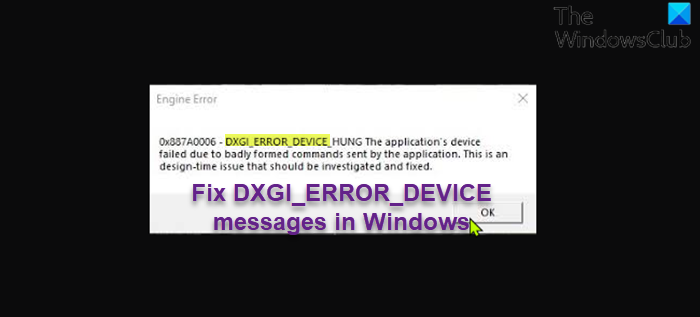
Some PC gamers while gaming on their Windows 11 or Windows 10 computer may encounter any one of the variants of DXGI_ERROR_DEVICE messages. PC gamers may encounter this error on gaming services like Apex, Steam, Epic Games, Origin. This post provides the most adequate solutions for this error.
What is DXGI?
DXGI is Microsoft DirectX Graphics Infrastructure. It handles enumerating graphics adapters, enumerating display modes, selecting buffer formats, sharing resources between processes, and presenting rendered frames to a window or monitor for display. It is used by Direct3D 10, Direct3D 11 and Direct3D 12.
See the table, sourced from Microsoft, at the end of this post for errors that can be returned by a DXGI function. The solutions offered in this post applies to any of the error instances.
If you’re faced with any DXGI_ERROR messages on your Windows gaming PC, you can try our recommended solutions below in no particular order and see if that helps to resolve the issue.
- Update graphics driver
- Stop Overclocking (if applicable)
- Update/Install DirectX
- Disable Antialiasing in NVIDIA Control Panel settings
- Add the TdrLevel key to the Registry
- Modify LoadApplnit_DLLs value in Registry
- Disable Steam Cloud Synchronization
- Reinstall the Gaming Client/Game
Let’s take a look at the description of the process involved concerning each of the listed solutions.
Before you try the solutions below, check for updates and install any available bits on your Windows device and see if the error reappears.
1] Update graphics driver
The DXGI_ERROR_DEVICE messages PC gamers may get on their Windows gaming computer can be fixed by updating the graphics adapter driver.
2] Stop Overclocking (if applicable)
This solution requires you stop overclocking your CPU. So, if you have overclocked your PC, you can simply reverse the change depending on the overclocking software in use. Generally, launch the software and look for the option to stop the overclocking. Once done, restart your computer and see if the issue is resolved. Otherwise, proceed with the next solution.
3] Update/Install DirectX
Some of the instance of this error is associated with DirectX. This solution requires you to make sure DirectX is up-to-date on your Windows system.
4] Disable Antialiasing
This solution requires you to disable Antialiasing in NVIDIA Control Panel settings. Here’s how:
- Open NVIDIA Control Panel.
- On the left navigation pane, select the Manage 3D Settings option.
- Now, navigate to Global Settings > Antialiasing.
- Now, turn Off the Antialiasing feature.
- Exit NVIDIA Control Panel.
Check if the issue is resolved. If not, try the next solution.
5] Add the TdrLevel key to the Registry
Adding and disabling Timeout Detection and Recovery (TDR) in the registry can fix the issue. To do this follow the instructions in our guide on how to fix DXGI_ERROR_DEVICE_REMOVED error.
6] Modify LoadApplnit_DLLs value in Registry
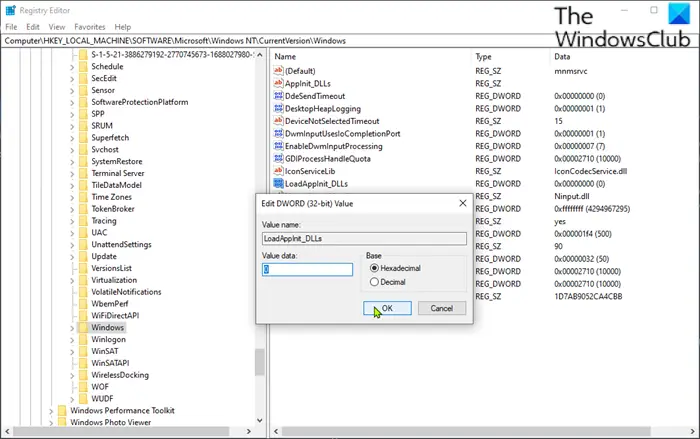
Since this is a registry operation, it is recommended that you back up the registry or create a system restore point as necessary precautionary measures. Once done, you can proceed as follows:
- Press Windows key + R to invoke the Run dialog.
- In the Run dialog box, type regedit and hit Enter to open Registry Editor.
- Navigate or jump to the registry key path below:
ComputerHKEY_LOCAL_MACHINESOFTWAREMicrosoftWindows NTCurrentVersionWindows
- At the location, on the right pane, double-click the LoadApplnit_DLLs entry to edit its properties.
- In the properties dialog, input 0 in the Value data field.
- Click OK or hit Enter to save the change.
- Exit Registry Editor.
- Restart PC.
On boot, check if the issue is resolved. If not, try the next solution.
7] Disable Steam Cloud Synchronization
The Steam Cloud Synchronization feature syncs your game files to save from accidental deletion, as well as makes your games available to play on another PC.
This solution requires you to disable the Steam Cloud Synchronization option. Here’s how:
- Launch the Steam client on your PC.
- Click the Library tab.
- In your Library, right-click the problematic game and select Properties.
- In Properties, click the Updates tab.
- Now, uncheck the option for Enable Steam Cloud Synchronization.
- Click Apply.
- Exit Steam.
- Restart PC.
If the issue is still unresolved, try the next solution.
8] Reinstall the Gaming Client/Game
This solution requires you to uninstall the gaming client (preferably, use a third-party software uninstaller) you’re having issues running a game on, reboot PC, and then download and reinstall the latest version of the gaming client on your Windows 11/10 PC. You can also uninstall and reinstall the game that’s throwing the error in question.
Hope this helps!
Error codes that can be returned by a DXGI function – Sourced from docs.microsoft.com.
DXGI_ERROR_ACCESS_DENIED
|
|
DXGI_ERROR_ACCESS_LOST
|
|
DXGI_ERROR_ALREADY_EXISTS
|
|
DXGI_ERROR_CANNOT_PROTECT_CONTENT
|
|
DXGI_ERROR_DEVICE_HUNG
|
|
DXGI_ERROR_DEVICE_REMOVED
|
|
DXGI_ERROR_DEVICE_RESET
|
|
DXGI_ERROR_DRIVER_INTERNAL_ERROR
|
|
DXGI_ERROR_FRAME_STATISTICS_DISJOINT
|
|
DXGI_ERROR_GRAPHICS_VIDPN_SOURCE_IN_USE
|
|
DXGI_ERROR_INVALID_CALL
|
|
DXGI_ERROR_MORE_DATA
|
|
DXGI_ERROR_NAME_ALREADY_EXISTS
|
|
DXGI_ERROR_NONEXCLUSIVE
|
|
DXGI_ERROR_NOT_CURRENTLY_AVAILABLE
|
|
DXGI_ERROR_NOT_FOUND
|
|
DXGI_ERROR_REMOTE_CLIENT_DISCONNECTED
|
|
DXGI_ERROR_REMOTE_OUTOFMEMORY
|
|
DXGI_ERROR_RESTRICT_TO_OUTPUT_STALE
|
|
DXGI_ERROR_SDK_COMPONENT_MISSING
|
|
DXGI_ERROR_SESSION_DISCONNECTED
|
|
DXGI_ERROR_UNSUPPORTED
|
|
DXGI_ERROR_WAIT_TIMEOUT
|
|
DXGI_ERROR_WAS_STILL_DRAWING
|
|
S_OK
|
What does Error reading Pak file mean?
If you have encountered the error reading pak file in Apex Legends on your Windows 11/10 computer, it’s most likely due to corrupt game files which you can easily fix. To fix the error, you simply need to delete the corrupt game file and then relaunch the game. If it doesn’t work, you can then repair your game files and Steam or Origin should automatically replace any corrupt files.
How do you fix an Apex engine error?
If you have encountered the Apex Legends Engine error on your Windows system, you can fix the issue by following these instructions: right-click on the Apex Legends icon and select Open File Location. At the File Explorer location, right-click on the r5apex executable and select Properties. Click on the Compatibility tab. Now, check the Run as Administrator box, then select Apply. You can now run the game without issues.
Some PC gamers while gaming on their Windows 11 or Windows 10 computer may encounter any one of the variants of DXGI_ERROR_DEVICE messages. PC gamers may encounter this error on gaming services like Apex, Steam, Epic Games, Origin. This post provides the most adequate solutions for this error.
What is DXGI?
DXGI is Microsoft DirectX Graphics Infrastructure. It handles enumerating graphics adapters, enumerating display modes, selecting buffer formats, sharing resources between processes, and presenting rendered frames to a window or monitor for display. It is used by Direct3D 10, Direct3D 11 and Direct3D 12.
See the table, sourced from Microsoft, at the end of this post for errors that can be returned by a DXGI function. The solutions offered in this post applies to any of the error instances.
If you’re faced with any DXGI_ERROR messages on your Windows gaming PC, you can try our recommended solutions below in no particular order and see if that helps to resolve the issue.
- Update graphics driver
- Stop Overclocking (if applicable)
- Update/Install DirectX
- Disable Antialiasing in NVIDIA Control Panel settings
- Add the TdrLevel key to the Registry
- Modify LoadApplnit_DLLs value in Registry
- Disable Steam Cloud Synchronization
- Reinstall the Gaming Client/Game
Let’s take a look at the description of the process involved concerning each of the listed solutions.
Before you try the solutions below, check for updates and install any available bits on your Windows device and see if the error reappears.
1] Update graphics driver
The DXGI_ERROR_DEVICE messages PC gamers may get on their Windows gaming computer can be fixed by updating the graphics adapter driver.
2] Stop Overclocking (if applicable)
This solution requires you stop overclocking your CPU. So, if you have overclocked your PC, you can simply reverse the change depending on the overclocking software in use. Generally, launch the software and look for the option to stop the overclocking. Once done, restart your computer and see if the issue is resolved. Otherwise, proceed with the next solution.
3] Update/Install DirectX
Some of the instance of this error is associated with DirectX. This solution requires you to make sure DirectX is up-to-date on your Windows system.
4] Disable Antialiasing
This solution requires you to disable Antialiasing in NVIDIA Control Panel settings. Here’s how:
- Open NVIDIA Control Panel.
- On the left navigation pane, select the Manage 3D Settings option.
- Now, navigate to Global Settings > Antialiasing.
- Now, turn Off the Antialiasing feature.
- Exit NVIDIA Control Panel.
Check if the issue is resolved. If not, try the next solution.
5] Add the TdrLevel key to the Registry
Adding and disabling Timeout Detection and Recovery (TDR) in the registry can fix the issue. To do this follow the instructions in our guide on how to fix DXGI_ERROR_DEVICE_REMOVED error.
6] Modify LoadApplnit_DLLs value in Registry
Since this is a registry operation, it is recommended that you back up the registry or create a system restore point as necessary precautionary measures. Once done, you can proceed as follows:
- Press Windows key + R to invoke the Run dialog.
- In the Run dialog box, type regedit and hit Enter to open Registry Editor.
- Navigate or jump to the registry key path below:
ComputerHKEY_LOCAL_MACHINESOFTWAREMicrosoftWindows NTCurrentVersionWindows
- At the location, on the right pane, double-click the LoadApplnit_DLLs entry to edit its properties.
- In the properties dialog, input 0 in the Value data field.
- Click OK or hit Enter to save the change.
- Exit Registry Editor.
- Restart PC.
On boot, check if the issue is resolved. If not, try the next solution.
7] Disable Steam Cloud Synchronization
The Steam Cloud Synchronization feature syncs your game files to save from accidental deletion, as well as makes your games available to play on another PC.
This solution requires you to disable the Steam Cloud Synchronization option. Here’s how:
- Launch the Steam client on your PC.
- Click the Library tab.
- In your Library, right-click the problematic game and select Properties.
- In Properties, click the Updates tab.
- Now, uncheck the option for Enable Steam Cloud Synchronization.
- Click Apply.
- Exit Steam.
- Restart PC.
If the issue is still unresolved, try the next solution.
8] Reinstall the Gaming Client/Game
This solution requires you to uninstall the gaming client (preferably, use a third-party software uninstaller) you’re having issues running a game on, reboot PC, and then download and reinstall the latest version of the gaming client on your Windows 11/10 PC. You can also uninstall and reinstall the game that’s throwing the error in question.
Hope this helps!
Error codes that can be returned by a DXGI function – Sourced from docs.microsoft.com.
DXGI_ERROR_ACCESS_DENIED
|
|
DXGI_ERROR_ACCESS_LOST
|
|
DXGI_ERROR_ALREADY_EXISTS
|
|
DXGI_ERROR_CANNOT_PROTECT_CONTENT
|
|
DXGI_ERROR_DEVICE_HUNG
|
|
DXGI_ERROR_DEVICE_REMOVED
|
|
DXGI_ERROR_DEVICE_RESET
|
|
DXGI_ERROR_DRIVER_INTERNAL_ERROR
|
|
DXGI_ERROR_FRAME_STATISTICS_DISJOINT
|
|
DXGI_ERROR_GRAPHICS_VIDPN_SOURCE_IN_USE
|
|
DXGI_ERROR_INVALID_CALL
|
|
DXGI_ERROR_MORE_DATA
|
|
DXGI_ERROR_NAME_ALREADY_EXISTS
|
|
DXGI_ERROR_NONEXCLUSIVE
|
|
DXGI_ERROR_NOT_CURRENTLY_AVAILABLE
|
|
DXGI_ERROR_NOT_FOUND
|
|
DXGI_ERROR_REMOTE_CLIENT_DISCONNECTED
|
|
DXGI_ERROR_REMOTE_OUTOFMEMORY
|
|
DXGI_ERROR_RESTRICT_TO_OUTPUT_STALE
|
|
DXGI_ERROR_SDK_COMPONENT_MISSING
|
|
DXGI_ERROR_SESSION_DISCONNECTED
|
|
DXGI_ERROR_UNSUPPORTED
|
|
DXGI_ERROR_WAIT_TIMEOUT
|
|
DXGI_ERROR_WAS_STILL_DRAWING
|
|
S_OK
|
What does Error reading Pak file mean?
If you have encountered the error reading pak file in Apex Legends on your Windows 11/10 computer, it’s most likely due to corrupt game files which you can easily fix. To fix the error, you simply need to delete the corrupt game file and then relaunch the game. If it doesn’t work, you can then repair your game files and Steam or Origin should automatically replace any corrupt files.
How do you fix an Apex engine error?
If you have encountered the Apex Legends Engine error on your Windows system, you can fix the issue by following these instructions: right-click on the Apex Legends icon and select Open File Location. At the File Explorer location, right-click on the r5apex executable and select Properties. Click on the Compatibility tab. Now, check the Run as Administrator box, then select Apply. You can now run the game without issues.

РухВайл
Несмотря на эту ошибку с видео, могу вас заранее огорчить, что даже если вы с ней разберётесь, то всё равно не сможете играть. Игре нужен 4-ядерный процессор, а у вас 2 ядра. Помню когда игра только вышла у меня был проц 2 ядра. Игра запускалась, но играть было невозможно, всё было сильно заторможено. Только после покупки 4-ядерного проца проблема была решена.
- пожаловаться
- скопировать ссылку

Andrei YP
У меня 4х ядерный. Вы наверное перепутали
- пожаловаться
- скопировать ссылку
РухВайл
Ну если ошибаюсь, то извиняюсь. Просто в характеристиках этого проца везде пишется 2 ядра и 4 потока
https://ark.intel.com/content/www/ru/ru/ark/products/75104/intel-core-i34000m-processor-3m-cache-2-40-ghz.html
- пожаловаться
- скопировать ссылку
Andrei YP
Ну вопрос, про решению данной проблемы, еще остается открытым. Тут видишь какая история, что интегрированный видео-чип запускает её, никаких нариканий нет. Происходит конфликт DirectX и драйвера для видеокарты NVIDIA
- пожаловаться
- скопировать ссылку

Andrei YP
Andrei YP написал:
…если ошибаюсь, то извиняюсь. Просто в характеристиках этого проца везде пишется 2 ядра и 4 потока
Не за что извиняться. Всё так и есть — у него ЦП 2 ядра 4 потока, а в диспетчере устройств все потоки показываются как отдельные ядра. Например мой 4-х ядерный 8-ми поточник отображается как 8-ми ядерный:
Спойлер

РухВайл
РухВайл написал:
…Установлен директХ 11… Происходит конфликт DirectX и драйвера для видеокарты NVIDIA
DirectX 11 устанавливать нужно было только на Висту, когда мелкомягкие каким-то обновлением прикрутили её к этой ОС, в дополнении к DX10. В последующих ОС (начиная с 7-ки) устанавливать его уже не нужно (поддержка интегрирована в ОС), а вот пакет для DirectX 9.0с (от июня 2010 г.) установить желательно — в виде отдельно скачанного дистрибутива (около 100 Мб)…
Спойлер

…, либо через веб-установщик.
…интегрированный видео-чип запускает её, никаких нариканий нет.
До запуска игры (в панели Нвидиа) переключался выбор видеокарты со встройки на дискретную?
Также может возникать ошибка из-за конкретной версии драйверов — можно попробовать откатить на более ранние версии, с полным удалением текущих из системы.
- пожаловаться
- скопировать ссылку
-
uksfpred
- Posts: 52
- Joined: Mon Dec 19, 2016 3:18 pm

DXGI_ERROR_DRIVER_INTERNAL_ERROR

Basically started getting this error message
DXGI_ERROR_DRIVER_INTERNAL_ERROR
started yesterday and got it again just.
All i have done to change my sim in last 48hrs is turn my gfx settings down slightly since this starting . .

i cant that turning my settings UP again will fix this ? and i have the latest ATI drivers (which never stop working on anything else by the way . . )
Any thoughts please. . i have searched forums and couldn’t find one thread with same error message
-
jdog109socal
- Posts: 15
- Joined: Mon Dec 14, 2015 5:12 am
Re: DXGI_ERROR_DRIVER_INTERNAL_ERROR
Post
by jdog109socal » Thu Dec 29, 2016 9:47 pm
I had kind of the same thing happen to me with a Nvida card…. this worked for me hope it will help
If you have an NVIDIA card, try opening the NVIDIA control panel and turning on debug mode. (Do this by opening the NVIDIA Control Panel, go to Help -> and check Debug Mode.) This will ignore the manufacturer’s overclock settings and use the factory default stock clock.
IF that doesn’t work lets completely uninstall the drivers using the tool below and the reloading from the CD that came with the card:
http://www.majorgeeks.com/files/details … aller.html
-
uksfpred
- Posts: 52
- Joined: Mon Dec 19, 2016 3:18 pm
Re: DXGI_ERROR_DRIVER_INTERNAL_ERROR
Post
by uksfpred » Sat Dec 31, 2016 12:58 pm
Any official word on this would be great ?
Is it a case of changing my gfx drivers? changing any settings? try different version of p3d ?
I don’t have a ‘control panel’ as i installed drivers only. .
this is a daily problem for me right now, happening anywhere from 5mins — -6 hours in game.
-
Adam Breed
- Lockheed Martin
- Posts: 1384
- Joined: Mon Sep 20, 2010 6:17 pm
Re: DXGI_ERROR_DRIVER_INTERNAL_ERROR
Post
by Adam Breed » Sun Jan 01, 2017 7:42 pm
Hello All,
Overall, this error prompt is letting you know the graphics card has failed.
Do you have any add-ons installed? Some are known to exacerbate this issue.
First, you will want to make sure your GPU drivers are updated. Next, you will want to double check that your graphic card is set to be used by Prepar3D. Finally, you will want to lower Prepar3D’s graphics settings to better conform to any hardware limitation. For more information take a look at our FAQs: http://www.prepar3d.com/frequently-asked-questions/
Code: Select all
Prepar3D does not start, instantly shuts down, or does not perform as expected. What is wrong?

Ensure the proper graphics card is set to run Prepar3D. If an onboard video card (Intel HD) is told to run Prepar3D, these issues will likely occur. To correct, use the appropriate video card software to configure the graphic card’s control of Prepar3D. For NVIDIA graphics cards, open the NVIDIA Control Panel, select Manage 3D settings, and set the Preferred graphics processor to High-performance NVIDIA processor. You can also set Prepar3D.exe’s preferred graphics processor directly under the Program Settings tab under Manage 3D settings.

Often you might need to delete the following generated folders/files to have Prepar3D respect your changes. This will result in any add-ons being removed/disabled.
%PROGRAMDATA%Lockheed MartinPrepar3D v3
%LOCALAPPDATA%Lockheed MartinPrepar3D v3
%APPDATA%Lockheed MartinPrepar3D v3

Verify the fix was successful by opening Prepar3D and selecting Options, Settings, and under Full Screen Settings you should see the correct graphics card listed under Display.
From the system side, are you using NVIDIA Inspector or any hardware accelerators/overclockers?
Those type of tools could contribute to failures/hangs of the GPU, causing Prepar3D to fail. It has been recommended in other threads to reset any NVIDIA Inspector settings to default to correct any GPU failures.
Regards,
Adam
Prepar3D® Engineering Project Manager
-
uksfpred
- Posts: 52
- Joined: Mon Dec 19, 2016 3:18 pm
Re: DXGI_ERROR_DRIVER_INTERNAL_ERROR
Post
by uksfpred » Tue Jan 03, 2017 9:01 am
I am not using anything NVIDIA as I have an ATI card . . .
Addons I have tonnes of ORBX, Global base, England, payware airports etc plus i also run Active sky 2016.
yes i have the latest drivers that I am aware of
However my card has been overclocked from its default speeds. . so perhaps i should put it back to default ?
thank you for this reply .. i will make some changes
-
uksfpred
- Posts: 52
- Joined: Mon Dec 19, 2016 3:18 pm
Re: DXGI_ERROR_DRIVER_INTERNAL_ERROR
Post
by uksfpred » Mon Jan 16, 2017 11:19 am
Update.
Well, i turned my gfx setting down slightly . and set my graphics back to the default profile, so it was no longer over clocked, and even tuned back my processor from 4.3 to 4.0
but was still getting this error message, sometimes 2 or 3 times within an hour.
At my wits end, i turned all my gfx settings down even further, running at mostly ‘medium’ settings . and since doing that, I haven’t had a problem.
I am amazed i have a faster card with more RAM, yet I’ve had to turn my settings down. ( I have an ATI 3G 7950 now had a ATI 2G 7870 before . . .)
In all honesty you cant really notice the difference GFX wise.
but yes solved in the end. . i can feel a 480 coming on a lot sooner than it was now though .. 
-
uksfpred
- Posts: 52
- Joined: Mon Dec 19, 2016 3:18 pm
Re: DXGI_ERROR_DRIVER_INTERNAL_ERROR
Post
by uksfpred » Mon Jan 23, 2017 2:06 pm
Right final update for anyone reading this with similar problems.. . .
It was texture resolution set to 2048 that did it. .
I have slowly been putting everything back bit by bit , giving it a few days before changing anything else.
My GFX is back to being over clocked, my processor back to 4.2, my water detail ultra, cloud shadows msaa back to 2x etc etc
and I’m having no problems. .. the only thing i didnt put back was texture res , that is now at 1024..
so there. . process of elimination learnt the hard way
This thread can be marked as resolved now.
-
Kem
- Posts: 35
- Joined: Mon May 09, 2016 2:22 pm
Re: DXGI_ERROR_DRIVER_INTERNAL_ERROR
Post
by Kem » Tue Feb 07, 2017 5:14 pm
Hello,
I have past this year with a full instal of P3Dv3.2 all the year without any problems.
I have make the client update of v3.4.18 and fly with a lot without any bug .
I have do in the same way the v3.4.22 update just after updating Nvidia driver to 378.49 and at first launch i have DXGI error bug since now 4 days later after trying everything …
Nothing have change in my computer or settings . I have just do the Nvidia and P3d v3.4.22 update and all failed…
Now DXGI error can happend when i change view , or click to a file in windows or just lanch game on scenery…
Why just updating making everything like that and why it don’t do before ? imedialtly after updating i have this error…
I have a home cockpit and reinstal all is possible but long stuff, ok but for what ? can it happend again ? do i need to change my GC ?
I take really care of my system and never had bug like this in 8 years.. (FSX or P3Dv3)
Thank you for helping , i am loosing faith…
[Win10 -i74790k + noctua -16go Ram- Gtx560ti x2 Sli mode in a Matrox triple Head 2go with 3 screens-1 ssd 850 evo 500go]
-
Kem
- Posts: 35
- Joined: Mon May 09, 2016 2:22 pm
Re: DXGI_ERROR_DRIVER_INTERNAL_ERROR
Post
by Kem » Wed Feb 08, 2017 12:06 pm
Kem wrote: ↑Tue Feb 07, 2017 5:14 pm
Hello,
I have past this year with a full instal of P3Dv3.2 all the year without any problems.
I have make the client update of v3.4.18 and fly with a lot without any bug .
I have do in the same way the v3.4.22 update just after updating Nvidia driver to 378.49 and at first launch i have DXGI error bug since now 4 days later after trying everything …
Nothing have change in my computer or settings . I have just do the Nvidia and P3d v3.4.22 update and all failed…
Now DXGI error can happend when i change view , or click to a file in windows or just lanch game on scenery…
Why just updating making everything like that and why it don’t do before ? imedialtly after updating i have this error…
I have a home cockpit and reinstal all is possible but long stuff, ok but for what ? can it happend again ? do i need to change my GC ?
Other things is when it works, i have more Fps but big slutters that i have never had before…
I take really care of my system and never had bug like this in 8 years.. (FSX or P3Dv3)
Thank you for helping , i am loosing faith…[Win10 -i74790k + noctua -16go Ram- Gtx560ti x2 Sli mode in a Matrox triple Head 2go with 3 screens-1 ssd 850 evo 500go]
-

Martyson
- Posts: 14039
- Joined: Sun Mar 25, 2012 11:08 am

Re: DXGI_ERROR_DRIVER_INTERNAL_ERROR
Post
by Martyson » Wed Feb 08, 2017 12:19 pm
Kem wrote: ↑Wed Feb 08, 2017 12:06 pm
Kem wrote: ↑Tue Feb 07, 2017 5:14 pm
Hello,
I have past this year with a full instal of P3Dv3.2 all the year without any problems.
I have make the client update of v3.4.18 and fly with a lot without any bug .
I have do in the same way the v3.4.22 update just after updating Nvidia driver to 378.49 and at first launch i have DXGI error bug since now 4 days later after trying everything …
Nothing have change in my computer or settings . I have just do the Nvidia and P3d v3.4.22 update and all failed…
Now DXGI error can happend when i change view , or click to a file in windows or just lanch game on scenery…
Why just updating making everything like that and why it don’t do before ? imedialtly after updating i have this error…
I have a home cockpit and reinstal all is possible but long stuff, ok but for what ? can it happend again ? do i need to change my GC ?
Other things is when it works, i have more Fps but big slutters that i have never had before…
I take really care of my system and never had bug like this in 8 years.. (FSX or P3Dv3)
Thank you for helping , i am loosing faith…[Win10 -i74790k + noctua -16go Ram- Gtx560ti x2 Sli mode in a Matrox triple Head 2go with 3 screens-1 ssd 850 evo 500go]
«I have a home cockpit and reinstal all is possible but long stuff»
Home cockpit is a custom setup with many variables.
There is a lot about your full setup that you have not mentioned (hardware, software, etc).
Maybe you could do a Windows restore point or uninstall/reinstall as necessary to get back to where all was working with your custom setup.
You do have your original software backed up .. correct?
Best Regards,
Vaughan Martell PP-ASEL (KDTW)
-
Kem
- Posts: 35
- Joined: Mon May 09, 2016 2:22 pm
Re: DXGI_ERROR_DRIVER_INTERNAL_ERROR
Post
by Kem » Fri Feb 10, 2017 12:09 pm
Hi,
thanks for your Anwser.
the only things who make this bug after lot of test is my proc OC profile who work from 2 yeas now.
When i reset Bios to defaut, DXGI go out.
For slutters , i d’ont understand.
I make a full windows and P3D reinstall and tell you that.
Thank you best regards
kem
-
einherz
- Posts: 195
- Joined: Thu Jan 15, 2015 2:55 pm
Re: DXGI_ERROR_DRIVER_INTERNAL_ERROR
Post
by einherz » Sat Feb 11, 2017 4:43 am
hi guys, i haven’t home cabine, and got same problem with nvidia card after update client, and have oom where i hadn’t befor ever, like i hadn’t befor this error
-
Kem
- Posts: 35
- Joined: Mon May 09, 2016 2:22 pm
Re: DXGI_ERROR_DRIVER_INTERNAL_ERROR
Post
by Kem » Sun Feb 12, 2017 1:48 pm
Hello,
2 weeks to work on this.
A complete Windows and p3D reinstal.
All my components work s perfect .
i have no Overclock …. and guess what :::: DXGI error.
So now i think that is really unacceptable …
Please doing your job on this and not wait for the communauty work on this for you !!!!
Worst stop tell us that we have problem on computers paid 1500 e … !!!
I have always support you but now i am really wonder why….
I am really diseponted !!!!!!
Cheers