
Ошибка 0xc0EA000A указывает на то, что произошла определенная проблема при соединении вашей системы с серверами Microsoft. Вы не сможете загрузить приложение и при этом будете постоянно получать сообщение об этой ошибке.
Данная проблема возникает у пользователей Windows 10 уже довольно давно. Чаще всего себя проявляет при выходе нового обновления для операционной системы, что приводит к пику пользования серверами Microsoft. Это ошибка является довольно фрустрирующей для очень многих людей, так как в магазине находятся лучше части от нового издания Windows.
К счастью, существует несколько методов с помощью которых пользователь может попытаться исправить ошибку 0xc0EA000A.
Содержание
- Исправляем ошибку 0xc0EA000A на Windows 10
- Метод №1 Просто подождать
- Метод №2 Сброс кэша приложения Windows Store
- Метод №3 Проверить дату и время, а затем перезапустить Службу времени Windows
- Метод №4 Перезапустите ваш компьютер или выйдите из аккаунта Microsoft
Исправляем ошибку 0xc0EA000A на Windows 10
Метод №1 Просто подождать
Во время того как ошибка 0xc0EA000A указывает на то, что ваше устройство не может установить соединение с сервером, есть довольно высокий шанс получения этой ошибки из-за просто загруженных серверов. Это означает, что сейчас “час пик” и большое число пользователей сейчас используют данный сервер, не давая попросту места для подсоединения вашему устройству.
Лучших решением в этом случае будет просто выждать. Если вы никуда не спешите, то лучше подождать день или даже два, пока с серверов сойдет нагрузка. Затем попробуйте снова выполнить загрузку с Windows Store.
Метод №2 Сброс кэша приложения Windows Store
Иногда кэш от Windows Store может повредиться и не позволять вам загрузить или обновить любое приложение. Решением в этом случае станет сброс кэша, что делается достаточно легко.
- Нажмите комбинацию клавиш Win+R и впишите в появившуюся строку wsreset.exe
- После окончания процесса очистки, перезагрузите свою систему для внесения в нее изменений.
Метод №3 Проверить дату и время, а затем перезапустить Службу времени Windows
Выставленные неправильно дата и время могут послужить отказом при синхронизации с сервером time.windows.com, что ведет к ряду определенных проблем. К сожалению, никакого сообщения об ошибке при этом не выводится, но решение для этого проблемы есть.
- Взгляните на свои дату и время. Сравните их с другими источниками.
- Нажмите левой кнопкой мыши по часам в правом нижнем углу и выберите “Изменение настроек даты и времени…”.
- Выберите вкладку “Время по Интернету” и посмотрите, включена ли автоматическая синхронизация с time.windows.com.
- Нажмите на “Изменить параметры…”
- Если в третьем шаге сервер не является time.windows.com, то выставьте галочку напротив параметра “Синхронизировать с сервером времени в Интернете” и выставьте нужный сервер вручную.
- Затем нажмите “Обновить сейчас”. Заметьте то, что синхронизация может закончиться неудачей. Следующий шаг исправит это.
- Нажмите комбинацию клавиш Win+R и напечатайте services.msc.
- Найдите в списке “Служба времени Windows”. Проверьте ее статус.
- Нажмите правой кнопкой мышки по службе и выберите “Перезапустить” из контекстного меню.
- Закройте окно “Службы” и пройдитесь шагами с 2 до 5, чтобы произвести синхронизацию – в этот раз она должна работать. Дата и время теперь также должны быть корректны.
- Попытайтесь загрузить/обновить приложение с магазина снова. Ошибка 0xc0EA000A должна была исчезнуть.
Метод №4 Перезапустите ваш компьютер или выйдите из аккаунта Microsoft
Выйдите из вашего аккаунта Microsoft или перезапустите ваш компьютер и затем включите его заново для входа на сервисы Microsoft. Затем попытайтесь выполнить загрузку/обновление нужного вам приложения и проверьте, исчезла ли ошибка 0xc0EA000A из Windows Store.
В сегодняшнем посте мы рассмотрим возможную причину и то, что вы можете попробовать, чтобы исправить код ошибки. 0xc0ea000a — это ошибка активации Windows 10, с которой вы можете столкнуться, если недавно поменяли оборудование на своем ПК, — и устройство пытается выполнить автоматическую повторную активацию и терпит неудачу.
Похоже, аппаратное обеспечение этого устройства изменилось. Убедитесь, что вы подключены к Интернету, и повторите попытку позже (0xc0ea000a).
В большинстве случаев вы столкнетесь с этой ошибкой активации Windows 10, если вы изменили оборудование вашего ПК, например, обновили до нового процессора или материнской платы — после первоначальной активации устройства. Но эта ошибка может быть вызвана также при перезагрузке после сбоя системы.
Однако широко известно, что эта ошибка активации Windows 10 обычно исправляется через пару часов. Объяснение этого упущения состоит в том, что иногда серверы активации Microsoft могут быть переполнены запросами на активацию — следовательно, сервер перегружен — вот почему он говорит: Попробуйте позже; как показано выше в сообщении об ошибке.
Так что если 24-48 часов истекли после появления проблемы с активацией, а ваше устройство все еще не активировано, вы можете выполнить приведенные ниже инструкции, чтобы вручную повторно активировать Windows 10 после смены оборудования.
Повторно активировать Windows 10 после смены оборудования
Если у вас нет ключа продукта или цифровой лицензии, вы можете приобрести цифровую лицензию на Windows 10 после завершения установки. Вот как сделать покупку:
Запустите приложение «Настройки». Щелкните Обновление и безопасность> Активация> Перейти в магазин, чтобы открыть Microsoft Store, где вы можете приобрести цифровую лицензию на Windows 10.
Если Windows 10 не была предварительно установлена на вашем устройстве при покупке и вы использовали ключ продукта для обновления до Windows 10, то вам понадобится тот же ключ продукта после смены оборудования.
Чтобы ввести ключ продукта, запустите приложение «Настройки». Щелкните Обновление и безопасность> Активация> Изменить ключ продукта. Затем введите ключ продукта.
Если вы установили розничную копию Windows 10 на свое устройство с помощью ключа продукта Windows 10, а затем внесли изменения в оборудование, выполните тот же процесс, используя ключ продукта Windows 10.
Если эта инструкция по повторной активации устройства с Windows 10 вручную не решает проблему, а также время ожидания 24-48 часов истекло, а ваше устройство все еще не активировано, вы можете обратиться в службу поддержки Microsoft.
Надеюсь это поможет!
Microsoft Store Error 0xC0EA000A is a nagging issue and plenty of complaints have been reported regarding this. Generally, the stop code appears while attempting to download a random application from the store. In most cases, such a situation likely to happen due to failure of activation key after upgrading to Windows 10. It conveys that there is something unsystematic with the connection between your system and the Microsoft servers. Nine times out of ten, this Windows 10 error code becomes visible when Microsoft either releases an important update for the OS or add immensely popular game in its store.
It is pretty clear that peak usage of Microsoft’s servers is the main cause to bring forth Microsoft store error 0xC0EA000A. Apart from that, incomplete installation or uninstall, improper deletion of applications or hardware can put forward the same notorious bug. However, unlike other Microsoft store error, this one is not critical at all moreover doesn’t trigger system slowdowns, crashes, reboots, and similar inconveniences alongside. To get rid of this issue, you have nothing to do much but wait. Once the load reduced, the error will automatically vanish thus you will be able to download or update apps from the store.
Solutions of error 0xC0EA000A
Here is how to fix: Microsoft Store Error 0xC0EA000A in Windows 10 –
Note – As we said earlier, this particular Microsoft store error code appears due to overload of the servers and it gets vanished automatically when the load becomes less. Usually, the server gets back to normal state within two-three days. But if you are in rush to resolve the issue, try out the resolutions described bellow.
1] Sign out of your Microsoft account
This might sound pretty basic to resolve such issue, but it actually worked for many. First of all, you need to sign out and then power off the PC. Make sure you turn off the system because restart will not make the job done effectively. Thereafter press the power button to turn on the PC again and when it starts, sign back in with your local account. In the end, launch Windows store and then check if it is working as it should be.
2] Try to activate Windows 10
If there is any problem with Microsoft activation Server, the product key you entered to activate Windows 10 might fail. In such a case, try the below process several times until it becomes successful –
- Press Windows key and I simultaneously to bring forward Settings app.
- When it becomes visible, click on Update & Security.
- On the following page, choose Activation from the left column.
- Move to adjacent right and click the link named Change product key.
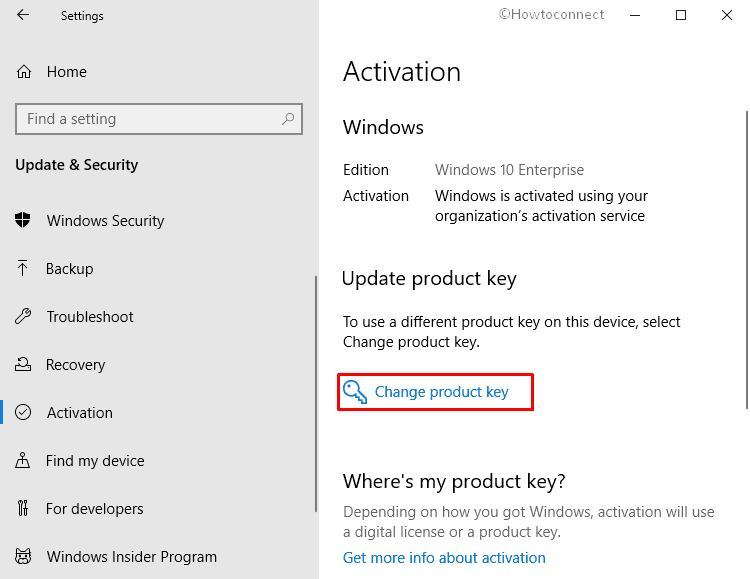
- On the forthcoming pop-up, provide 25-character unique product key in its specific bar and hit the Next button.
If you get a error message describing Windows couldn’t be activated then retry the above steps again.
3] Wipe out the store cache
On occasion, the Windows Store cache can get corrupted and put a stop to download or update any apps. As a result, Microsoft store error 0xC0EA000A shows up. The solution for this is to reset the cache, which can be done in a very easy way. Here’s how –
- Right-click on Start button to invoke Power User menu.
- Once it appears, click Run option from the visible list.
- Next, type wsreset.exe in its text bar followed by clicking OK button.
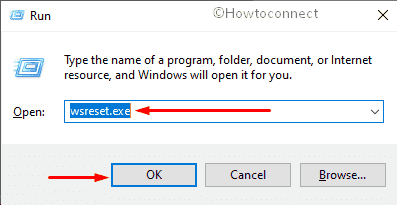
- A black screen will turn up now. Don’t interrupt and wait until Microsoft Store comes up on the screen. After being apparent, try to download the app that was bringing error 0xC0EA000A.
4] Check Windows time service
In rare cases, the time service becomes disabled or stop functioning properly. If you conflict the same, here is what you need to do –
- Open Run Dialog box and type services.msc in its empty text field.
- Click the OK button to continue.
- Once Services window comes up, keep scrolling down until you find Windows Time.
- After getting the same, right-click on it and select Restart from the context menu.
5] Set date and time settings correctly
If your system failed to sync with time.windows.com server, several errors can take place while downloading from Microsoft store. Therefore, setting them correctly will eradicate the error 0xC0EA000A. To do so –
- At first, take a look at the time and date shown on the taskbar. Make sure it is correct.
- Then, Press Win+S hotkey and type control panel in Windows search bar.
- When the result becomes apparent, hit Enter.
- Set the View by type of control panel to Large icons and thereafter select Date and Time.
- On the imminent wizard, shift to Internet Time tab and click Change settings button.
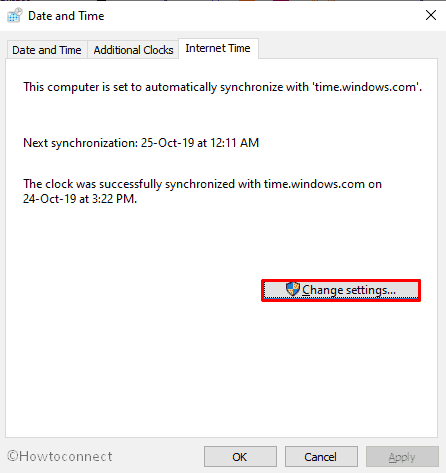
- Following that, check the box assigned for Synchronize with an Internet time server and choose time.windows.com as Server.
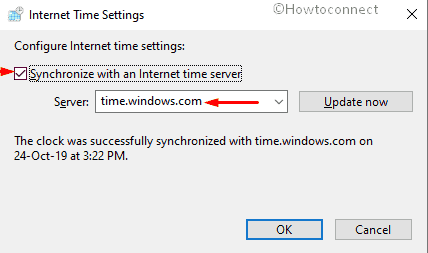
- Now, click Update now button first and then OK to save the changes.
6] Re-register Microsoft store
If Microsoft store itself gets damaged by losing fundamental components, error 0xC0EA000A might take place. To settle it down, you need to re-install the app using PowerShell. Steps are as follows –
- Click Windows logo to bring up Start menu on the screen.
- Navigate to W section and look for Windows PowerShell.
- Once you get it, right-click on the same and choose Run as administrator.
- A UAC will prompt up for your permission, click the Yes button to give access.
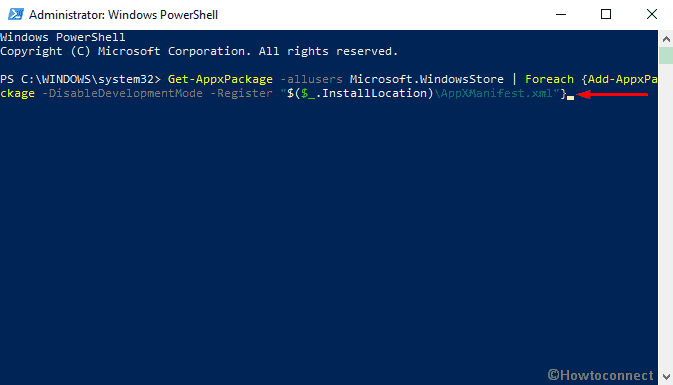
- On the elevated PowerShell, type in the following command line and hit Enter –
Get-AppxPackage -allusers Microsoft.WindowsStore | Foreach
{Add-AppxPackage -DisableDevelopmentMode -Register
“$($_.InstallLocation)AppXManifest.xml”}
Methods:
1] Sign out of your Microsoft account
2] Try to activate Windows 10
3] Wipe out the store cache
4] Check Windows time service
5] Set date and time settings correctly
6] Re-register Microsoft store
That’s all!!
Repair any Windows problems such as Blue/Black Screen, DLL, Exe, application, Regisrty error and quickly recover system from issues using Reimage.
I have a Lenovo Workstation that came pre-installed with Windows 10 Pro for Workstations. I purchased this about 3 months ago, and the first thing I did was install a new SSD and a clean copy of Windows 10 downloaded directly from Microsoft. I was able to get it up and running and successfully activated as Windows 10 Pro for Workstations. (I don’t remember if I did this using my embedded UEFI key, or if I used the generic key, but either way, the activation process evidently successfully recognized the embedded entitlement and activated.)
I experienced a system crash last night, and when I rebooted this morning, Windows is suddenly no longer activated. The Activation page in Settings says, It looks like the hardware on this device has changed. … Error code: 0xC0EA000A. Note that the hardware has NOT changed since the initial setup 3 months ago.
Further details:
(Get-WmiObject -Class SoftwareLicensingService).OA3xOriginalProductkeysuccessfully reports the UEFI embedded product key.wmic bios get serialnumbersuccessfully reports the motherboard serial number.slmgr.vbs /ipkwith the product key reported byOA3xOriginalProductkeyresults in Error: 0xC004F060 The Software Licensing Service reported that the product key is invalid.slmgr.vbs /ipkwith the generic product key (DXG7C-N36C4-C4HTG-X4T3X-2YV77) succeeds, but activation is still unsuccessful.slmgr.vbs /dlvreports that my Prouduct Key Channel is Retail, regardless of which key I use. This seems wrong. I should be on the OEM channel. Furthermore, it reports my Partial Product Key as 2YV77 (the generic key), also regardless of which key I use.slmgr.vbs /atoresults in Error: 0xC0EA000A CLiP license device ID does not match the device ID in the bound device license. (SWbemObjectEx) (again, regardless of which key I use)
Does anyone have any ideas of how to fix this – preferably without a full reinstall?
UPDATE: The problem has fixed itself. Roughly 24 hours after the activation problem appeared, the system now activates without a problem. I assume this means there was some problem with Microsoft’s activation servers yesterday, which is now fixed.
I have a Lenovo Workstation that came pre-installed with Windows 10 Pro for Workstations. I purchased this about 3 months ago, and the first thing I did was install a new SSD and a clean copy of Windows 10 downloaded directly from Microsoft. I was able to get it up and running and successfully activated as Windows 10 Pro for Workstations. (I don’t remember if I did this using my embedded UEFI key, or if I used the generic key, but either way, the activation process evidently successfully recognized the embedded entitlement and activated.)
I experienced a system crash last night, and when I rebooted this morning, Windows is suddenly no longer activated. The Activation page in Settings says, It looks like the hardware on this device has changed. … Error code: 0xC0EA000A. Note that the hardware has NOT changed since the initial setup 3 months ago.
Further details:
(Get-WmiObject -Class SoftwareLicensingService).OA3xOriginalProductkeysuccessfully reports the UEFI embedded product key.wmic bios get serialnumbersuccessfully reports the motherboard serial number.slmgr.vbs /ipkwith the product key reported byOA3xOriginalProductkeyresults in Error: 0xC004F060 The Software Licensing Service reported that the product key is invalid.slmgr.vbs /ipkwith the generic product key (DXG7C-N36C4-C4HTG-X4T3X-2YV77) succeeds, but activation is still unsuccessful.slmgr.vbs /dlvreports that my Prouduct Key Channel is Retail, regardless of which key I use. This seems wrong. I should be on the OEM channel. Furthermore, it reports my Partial Product Key as 2YV77 (the generic key), also regardless of which key I use.slmgr.vbs /atoresults in Error: 0xC0EA000A CLiP license device ID does not match the device ID in the bound device license. (SWbemObjectEx) (again, regardless of which key I use)
Does anyone have any ideas of how to fix this – preferably without a full reinstall?
UPDATE: The problem has fixed itself. Roughly 24 hours after the activation problem appeared, the system now activates without a problem. I assume this means there was some problem with Microsoft’s activation servers yesterday, which is now fixed.
Question
Issue: How to fix Windows Store error 0xC0EA000A?
After upgrading Windows 7 to Windows 10, I can’t download any apps from the Windows store. Whenever I try to download, it gives me an error 0xC0EA000A. Could you please help?
Solved Answer
0xC0EA000A is the value of the Windows Store[1] bug that is currently causing problems for thousands of Windows 10 users. Fortunately, this error doesn’t mean that your PC is on a critical condition or that it is affected by malware[2]. It happens when people are visiting the Windows Store and attempts to download a random application. Usually, it doesn’t trigger system slowdowns, crashes, reboots, and similar inconveniences alongside.
Basically, 0xC0EA000A error means that there is a certain problem related to Microsoft[3] servers. Experts have noticed that the number of 0xC0EA000A bug occurrences increases when Microsoft releases important updates or when some extremely popular games/apps are added to the store. Lots of people already complained that they can’t find out any solution for 0xC0EA000A bug.
The problem is that there is not much you can do to fix Microsoft servers by yourself, except to wait and that’s the first thing we would recommend you to do. If, however, you for downloading a particular application impatiently, there is a couple of things you can do to improve the situation.
Fix it now!
Fix it now!
To repair damaged system, you have to purchase the licensed version of Reimage Reimage.
 You can try fixing the Windows Store error 0xC0EA000A by performing some methods manually.
Solution 1. Take care of some basic moves
Fix it now!
Fix it now!
To repair damaged system, you have to purchase the licensed version of Reimage Reimage.
First of all, you should perform the basic steps, such as to turn off your PC, log out of your Microsoft Account[4], and then log in again. That’s an easy task that doesn’t need further explanations. However, we would like to stress the fact that you should Turn your PC OFF rather than restart so that you could sign in to your Microsoft Account anew. If after that you can’t use Windows Store normally, then try the other solution.
Solution 2. Clean Windows Store cache
Fix it now!
Fix it now!
To repair damaged system, you have to purchase the licensed version of Reimage Reimage.
The next thing you should try is to clean Windows Store cache. This task is more than easy, but if you haven’t done that never before, here’s what you have to do:
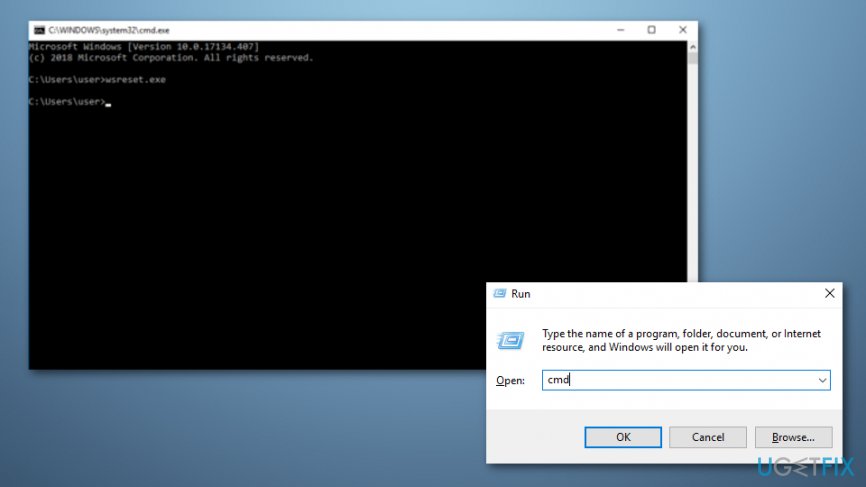
- Click Win key + R and type cmd in the search box.
- Click OK or hit Enter on your keyboard.
- Type wsreset.exe in the run dialogue and press Enter. This way, you will give the system a command to clean the Windows Store cache.
 Fix Windows Store error 0xC0EA000A error message by using Command Prompt.
 - After that, restart your PC and try to download an app from the store.
Solution 3. Check the date and time settings
Fix it now!
Fix it now!
To repair damaged system, you have to purchase the licensed version of Reimage Reimage.
Sometimes Windows errors may happen due to incorrect date and time settings. Therefore, you should check them and reset if needed. For that, do the following:
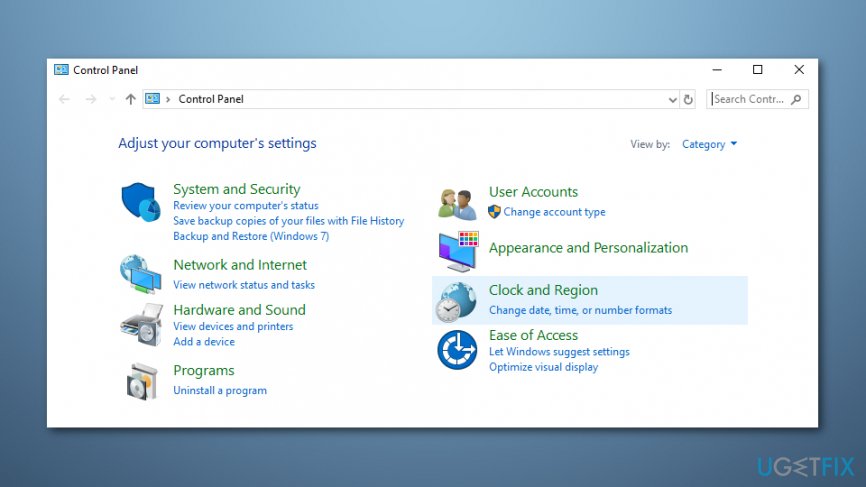
- Open Control Panel and select Clock, Language, and Region option.
Get rid of the Windows Store error 0xC0EA000A by checking the date and time settings.
- Select Change settings button.
- Place a tick on Synchronize with an Internet time server and click on Update now.
- Click OK and close the window.
- Finally, reboot your PC and check if Date and Time are correctly set now.
NOTE: if synchronization fails, press Win key + R, type services.msc, and hit Enter. Find Windows Time service on the Services window, right-click on it, and select Restart. Then repeat the steps to synchronize date and time. Once done, go to the Windows Store and try to run the preferred download.
Last, but not least, we would like to encourage you to install and run a PC optimization tool on a regular basis. Professional registry/malware cleaner will ensure a proper maintenance of your Windows OS so that you could enjoy its best performance. Our recommendation would be to use ReimageMac Washing Machine X9 or RegCure Pro.
Solution 4. Re-register Windows Store applications
Fix it now!
Fix it now!
To repair damaged system, you have to purchase the licensed version of Reimage Reimage.
- Open the Windows search section;
- Type Powershell and choose Run as administrator;
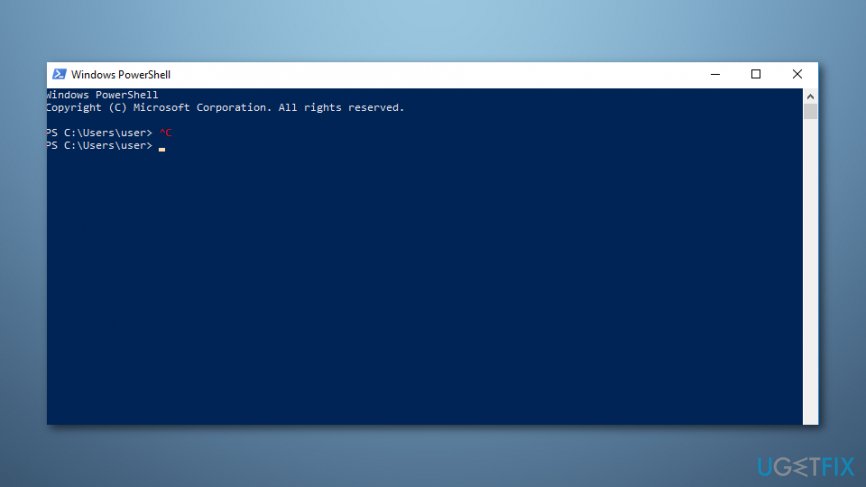
Take care of the Windows Store error 0xC0EA000A error code by using Powershell.
- Type in Get-AppXPackage | Foreach {Add-AppxPackage -DisableDevelopmentMode -Register “$($_.InstallLocation)\AppXManifest.xml”};
- Wait until the process finishes and Reboot your computer.
Repair your Errors automatically
ugetfix.com team is trying to do its best to help users find the best solutions for eliminating their errors. If you don’t want to struggle with manual repair techniques, please use the automatic software. All recommended products have been tested and approved by our professionals. Tools that you can use to fix your error are listed bellow:
do it now!
Download Fix
Happiness
Guarantee
do it now!
Download Fix
Happiness
Guarantee
Compatible with Microsoft Windows
Compatible with OS X
Still having problems?
If you failed to fix your error using Reimage, reach our support team for help. Please, let us know all details that you think we should know about your problem.
Reimage — a patented specialized Windows repair program. It will diagnose your damaged PC. It will scan all System Files, DLLs and Registry Keys that have been damaged by security threats.Reimage — a patented specialized Mac OS X repair program. It will diagnose your damaged computer. It will scan all System Files and Registry Keys that have been damaged by security threats.
This patented repair process uses a database of 25 million components that can replace any damaged or missing file on user’s computer.
To repair damaged system, you have to purchase the licensed version of Reimage malware removal tool.

A VPN is crucial when it comes to user privacy. Online trackers such as cookies can not only be used by social media platforms and other websites but also your Internet Service Provider and the government. Even if you apply the most secure settings via your web browser, you can still be tracked via apps that are connected to the internet. Besides, privacy-focused browsers like Tor is are not an optimal choice due to diminished connection speeds. The best solution for your ultimate privacy is Private Internet Access – be anonymous and secure online.
Data recovery software is one of the options that could help you recover your files. Once you delete a file, it does not vanish into thin air – it remains on your system as long as no new data is written on top of it. Data Recovery Pro is recovery software that searchers for working copies of deleted files within your hard drive. By using the tool, you can prevent loss of valuable documents, school work, personal pictures, and other crucial files.
Содержание
- 1 Способ 1: подождите
- 2 Способ 2: сброс кеша Магазина Windows
- 3 Способ 3. Проверьте дату и время и перезапустите службу времени Windows.
- 4 Способ 4: выключите компьютер или выйдите из учетной записи Microsoft
0xc0EA000A ошибка указывает на наличие определенной ошибки в соединении между вашей системой и серверами Microsoft. Вы не сможете загружать приложения, и вы будете постоянно получать сообщения об ошибках.
Это уже давно происходит с пользователями Windows 10, и чаще всего это происходит при наличии нового важного обновления ОС, как при пиковом использовании серверов Microsoft. Это разочаровывает многих людей, поскольку приложения Магазина входят в число лучших частей новых выпусков Windows.
К счастью, однако, есть несколько вещей, которые могут попробовать пользователи, сталкивающиеся с этой проблемой, и они были подтверждены общей пользовательской базой для работы.
Способ 1: подождите
В то время как 0xc0EA000A означает, что ваше устройство не может подключиться к серверу, есть довольно высокая вероятность получения 0x803F7003 ошибка, которая означает, что серверы перегружены. Это означает, что это час пик, и огромное количество пользователей в настоящее время подключено к серверам, и вашему устройству просто больше нет места для подключения. Лучшее решение в этой ситуации — подожди. Если вы не спешите, подождите день или два, пока серверы не столкнутся с меньшей нагрузкой, и попробуйте снова. Загрузки приложений магазина теперь должны работать вместе с обновлениями.
Способ 2: сброс кеша Магазина Windows
Иногда кэш Магазина Windows может быть поврежден и не позволяет загружать или обновлять какие-либо приложения. Решением для этого является сброс кеш, который можно сделать очень простым способом.
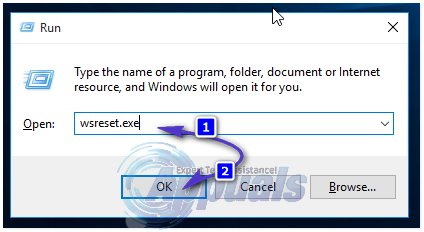
- Нажмите одновременно Windows а также р клавиши на клавиатуре, чтобы открыть Бежать
- Тип wsreset.exe в поле и нажмите Хорошо или нажмите Войти сбросить кеш Магазина Windows.
- Когда это будет сделано, перезагружать ваша система, чтобы изменения вступили в силу.
Способ 3. Проверьте дату и время и перезапустите службу времени Windows.
Неправильная настройка даты и времени и невозможность их синхронизации с time.windows.com сервер, может привести к ряду проблем. К сожалению, никакое сообщение об ошибке действительно не указывает на то, что это проблема, и вы можете об этом не задумываться, но правильная их установка может решить эту проблему, среди многих.
- Посмотрите на Дата и время в конце вашей панели задач. Сравните их с другими часами и посмотреть, правильно ли они настроены.
- нажмите Windows введите и введите Дата и время, затем откройте результат.
- Перейти к Интернет время и посмотрите, установлен ли сервер, на котором компьютер настроен для автоматической синхронизации, windows.com.
- Нажмите на Изменить настройки, и нажмите да если появляется запрос контроля учетных записей.
- Если на третьем этапе сервер не был windows.com, удостовериться Синхронизировать с интернет-сервером времени проверено, и установить сервер вручную. Нажмите Обновить сейчас. Обратите внимание, что синхронизация может произойти сбой — перейдите к следующему шагу, как мы собираемся это исправить.
- Нажмите оба Windows а также р на клавиатуре, чтобы открыть Бежать
- В поле введите services.msc и откройте его, нажав Хорошо или нажав Войти на вашей клавиатуре.
- в Сервисы окно, найти Служба Windows Time. Проверить статус.
- Щелкните правой кнопкой мыши услуга и выберите Запустить снова из контекстного меню.
- Закрой Сервисы и выполните шаги со 2 по 5, чтобы попытаться выполнить синхронизацию — теперь она должна работать. Дата и время также будут правильными.
- Попробуйте загрузить / обновить приложения из магазина еще раз, у вас не должно быть никаких проблем.
Способ 4: выключите компьютер или выйдите из учетной записи Microsoft
Выйдите из своей учетной записи Microsoft или выключите компьютер и снова включите его, чтобы вы могли снова войти в учетную запись Microsoft и затем попробовать выполнить загрузку.
Это сообщение об ошибке может вызывать разочарование, тем более что оно отнимает довольно большую часть работы с Windows 10, поскольку вы не можете загружать какие-либо приложения. Однако это может быть связано просто с перегрузкой серверов или с проблемой в вашей системе. В любом случае, просто следуйте инструкциям, описанным выше, и вы снова загрузите приложения из Магазина.
Error code 0xc0EA000A is encountered in Windows 10 operating system when the computer is not able to download any apps from the Microsoft Windows app store. The error occurs when the system cannot connect to the Microsoft servers.

You may see this message on your Windows 10 PC: Store error 0xC0EA000A ‘Try that again’.
This 0xC0EA000A error indicates that there is something wrong with the Windows Server and the system is not able to download the update. Several users are facing this issue on their system and it usually starts when the Windows releases a number of updates.
Main Causes Behind Error 0xc0EA000A
- Overloaded servers
- Cache
- System bugs
Now, it’s obvious that we can’t do much with the Windows Server, thus we can perform limited steps to fix this issue. However, many users have noticed that this Microsoft store error 0xc0EA000A automatically vanish once the server start working normally. So, let’s start troubleshooting that will fix this issue.
METHOD I: Using wsreset.exe
This is one of the best ways to get rid of this error:
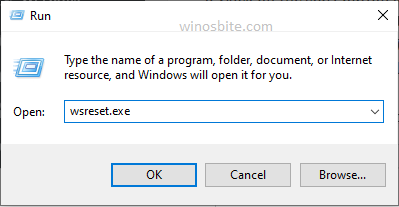
1) Press Windows+ R keys
2) Type wsreset.exe and click on OK
3) This will open the window that will look like command prompt
4) Let the program run for one minute and this will reset your Windows Store cache.
And will display a window like this:
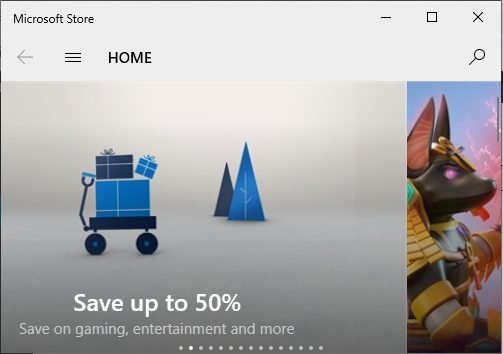
Now, restart your system to take effect.
I have also prepared a video that will clear Windows Store Cache:
METHOD II: Using Troubleshooter
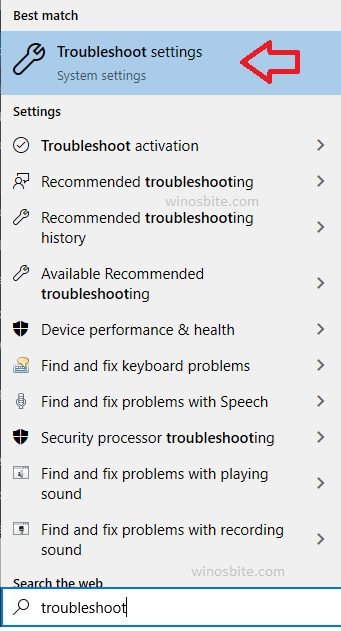
1) Click on the start button and type troubleshoot
2) Select Troubleshoot settings from the list that appears.
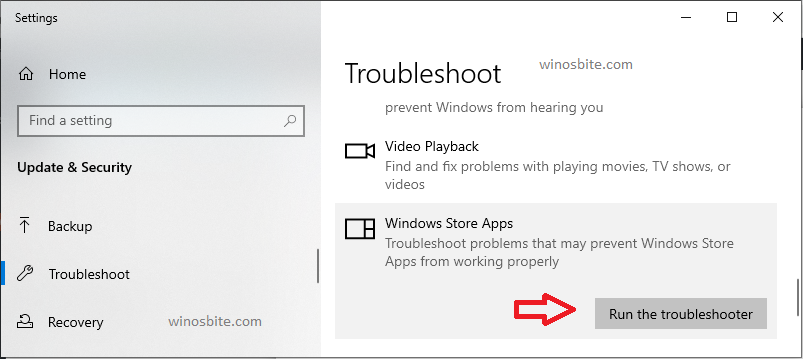
3) Scroll down and click on Windows Store Apps
4) Click on Run the troubleshooter
 5.
5.
5) Click on Next and follow the instructions
This will open the troubleshooter, let it run.
When the problem is fixed, close the troubleshooter.
METHOD III: Using PowerShell
- Press Windows + X and select Windows PowerShell (Admin) from the list
- Type Get-AppXPackage | Foreach {Add-AppxPackage -DisableDevelopmentMode -Register “$($_.InstallLocation)AppXManifest.xml”} and press the Enter key.
- Once finished, close PowerShell &reboot your system
METHOD IV: Checking date, time & restarting Windows Time service
- Click on the Start button and type cpl
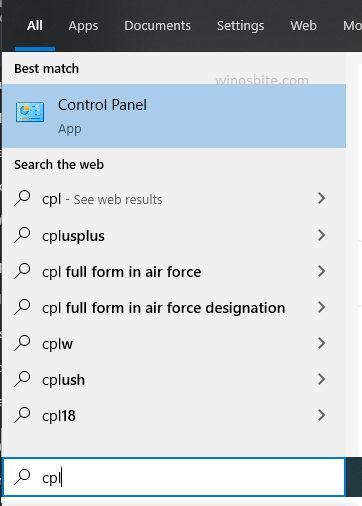
2) Click on Control Panel from the list of items to open it.
3) Click on Clock and Region
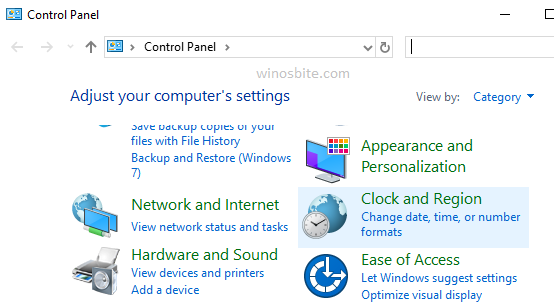
4) Click on Change the time zone under “Date and Time”
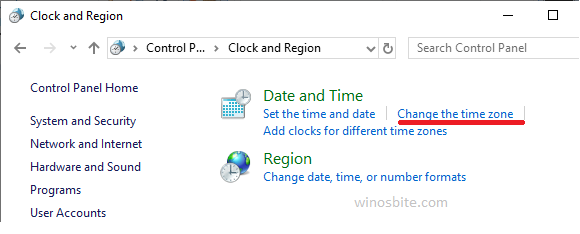
5) Go to the Internet Time tab and click on Change settings
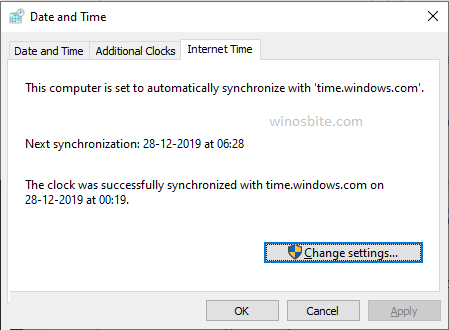
6) Check the box beside Synchronize with an Internet time server and click on Update now
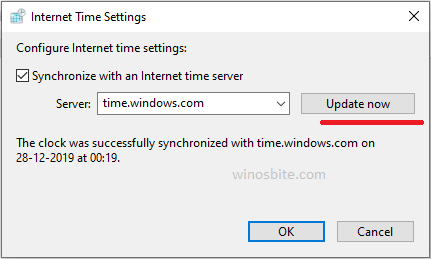
7) Press OK and then press OK again in the date and time window.
 Close the Control Panel and restart your system. Check to see if the Date & Time are now synchronized and correctly set. If yes, your system is resolved with the 0xc0EA000A error.
If not, follow the below-given steps:
9) Press Windows + R keys to open the Run box
10) Type services.msc and press Enter

11) Browse for Windows Time and right-click on it.
12) Select Restart from the list.
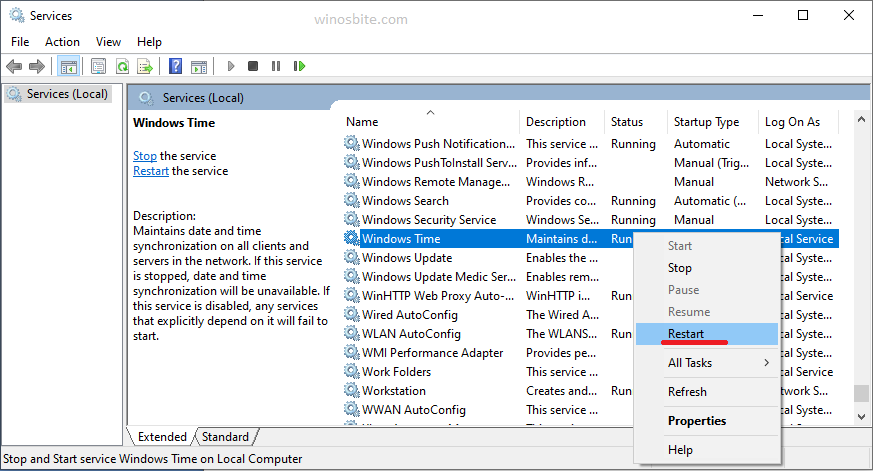
9) Then, open the control panel again and follow steps 3 to 7.
10) Close the control panel and download the desired app from the Microsoft app store now.
METHOD V: Sign in again to Microsoft Account
1) Logout of your Microsoft Account or switch your computer off.
2) Then reboot the system and sign in afresh into your Microsoft Account
You should now be able to download any apps from the Microsoft App.
Conclusion
When you encounter MS Store Error 0xc0EA000A on your Windows 10 then don’t panic. Wait for some time, restart the PC, if it still not work then you may try the above-mentioned steps to fix this problem.
Other similar issues that have been fixed:
Microsoft Store error code 0x803FB005
Microsoft Store Error Code 0x803F8001
Windows Update Error 0x800706d