
While trying to sync Windows Mail client or loading new e-mails, have you recently seen Error 0x80072746 on your system? In this event, when you load a specific Mail; you see an error message which reads:
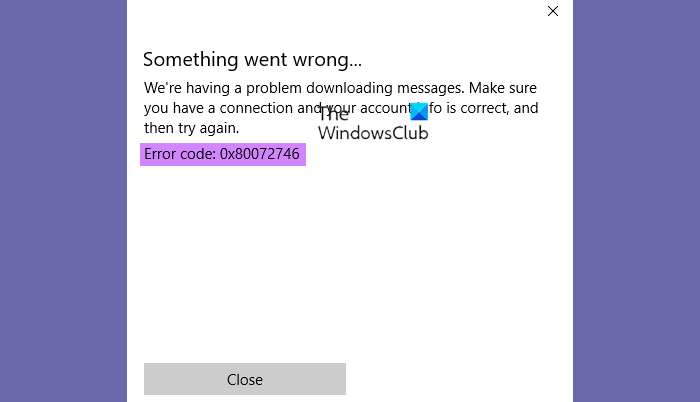
We’re having a problem downloading messages. Make sure you have a connection and your account info is correct, and then try again, Error code 0x80072746.
The error 0x80072746 indicates an existing connection was forcibly closed by the remote host or the existing HTTP doesn’t support some VPN connections. Today we look at the best fixes to resolve this error.
Typically, a user encounters this error in the Windows Mail app when trying to sync the application to view new e-mails. Few users have come across this issue when using a VPN connection with Outlook or Windows Mail app. If the problem occurs explicitly on a VPN connection, it’s most likely because:
- The server machine certificate binding to HTTPS is not done on the VPN server
- The server machine certificate is not installed on the VPN server.
In case you are not using a VPN connection to protect your privacy, there’s a good chance that an external firewall is instigating the issue. Even though the built-in firewall (Windows Defender Firewall) will not cause problems with the email app, BitDefender and AVG are identified to cause this particular issue.
We are going to now list down the best possible hacks to fix this issue:
- Manually set up your email client
- Allow svchost.exe in third party firewall
- Change VPN Settings
- Using Windows Defender Firewall
- Check if the relevant machine certificate is installed on the VPN server
Option 1: Manually set up your email client:
Most of the time, using an email client which are less popular like GoDaddy, TalkTalk, or any company-provided specific email can cause error 0x80072746. In this case, the Windows client might not be acquainted with the appropriate automatic settings. Hence you will have to look up the manual settings for POP & IMAP and configure your email account. Here’s a step-by-step guide:
- From the ‘Start’ menu, open your Windows Mail client
- Click the ‘Settings’ icon and go to ‘Manage Accounts’
- Click on the e-mail account causing the error and ‘Change Settings’
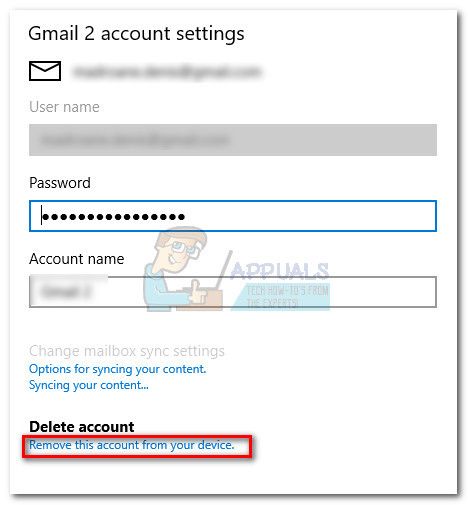
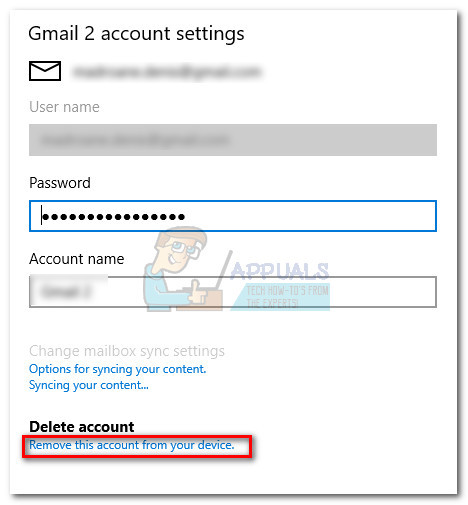
- In ‘Account Settings’, click ‘Remove this account from your device’ under ‘Delete account’ and hit the ‘Delete’ button to confirm
- This will remove the email account
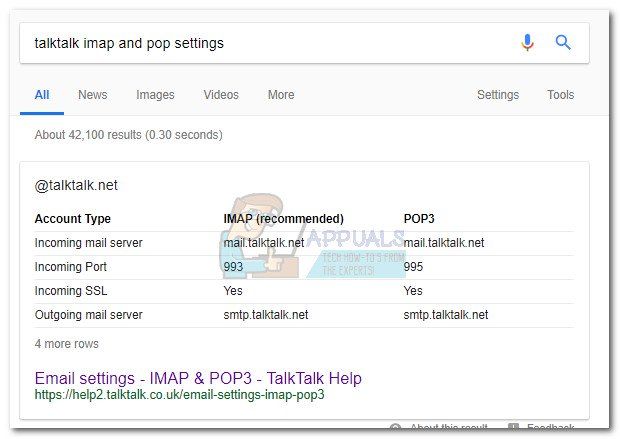
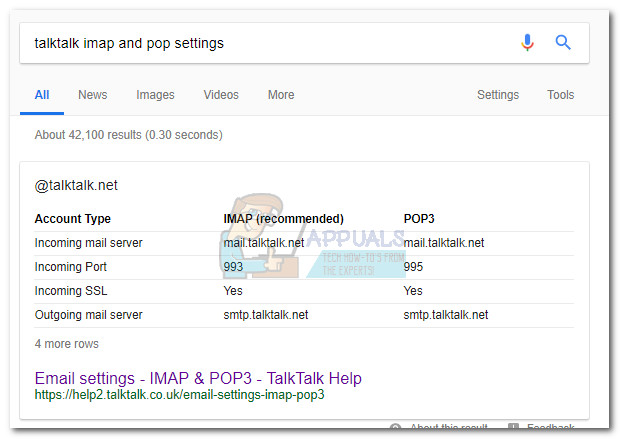
- Now visit the email provider website and copy the manual settings for IMAP. If IMAP setting is not listed here, select POP3.
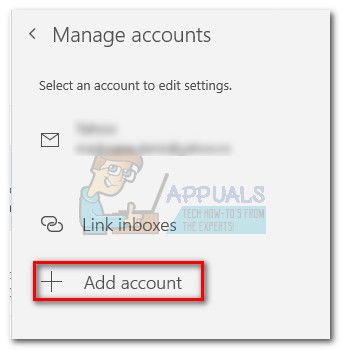
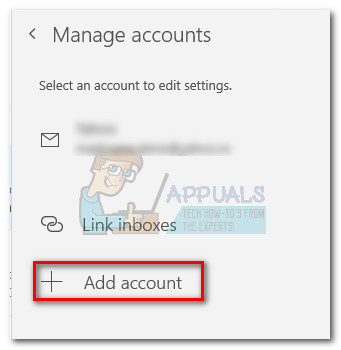
- Return to Windows Mail client, click the ‘Settings’ icon and go to ‘Manage accounts’ and ‘Add account.’
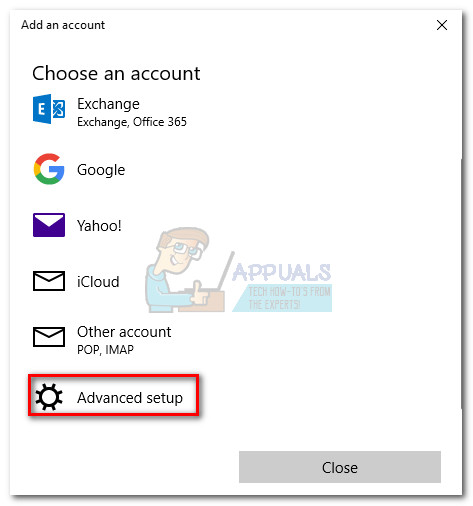
- Scroll down and click ‘Advanced Setup.’
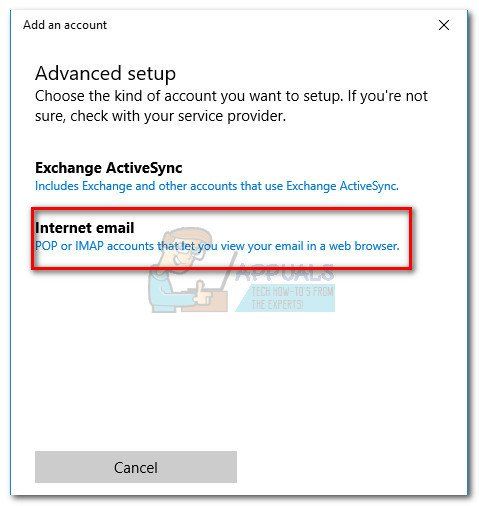
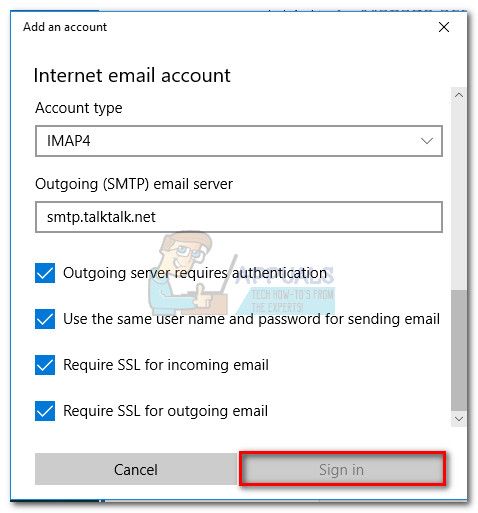
- Select ‘Internet email’ to add your credentials and manual settings for IMAP which you got from your email provider and apply settings
Now tap ‘Sign In’ button to see if you are getting the error message or not.
If you’re still unable to sync your emails and receive the same error 0x80072746, try the next option.
Option 2: Allow svchost.exe in third party firewall:
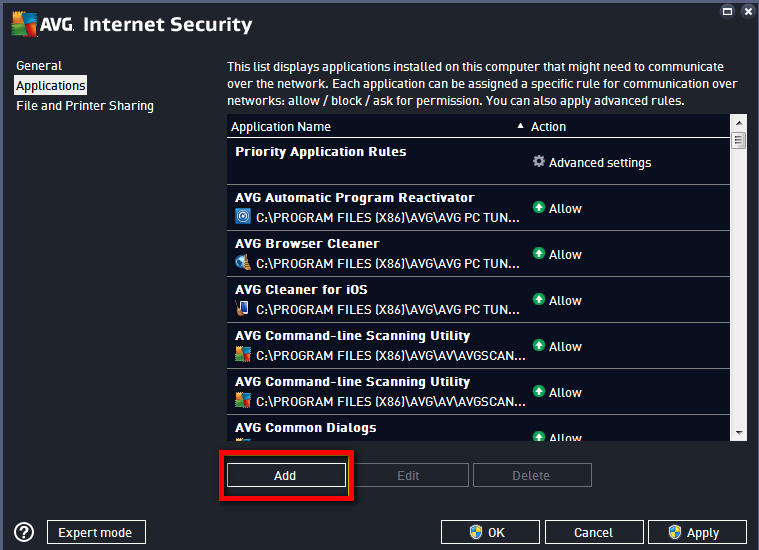
Configure the svchost.exe application in the Windows firewall. The exact steps of doing this will be different depending on your firewall solution. But most firewall solutions have an ‘Allow/Exclusion’ option in their app settings. Once you identify it, hit on the ‘Add’ button, navigate to C:Windowssystem32 and allow ‘svchost.exe’.
Once the Svchost is permitted in your Firewall settings, get back to your Windows Mail client and check if you can sync your emails without the 0x80072746 error.
Option 3: Change the VPN Settings:
According to few users, changing your VPN settings may fix error 0x80072746 on Windows PC. Here a quick walkthrough of the steps:
- Press ‘Win + I’ to open ‘Settings.’
- Go to ‘Network & Internet’ section and then hit ‘VPN’ on the left pane
- Ensure ‘Allow VPN over metered network’ toggle switch is turned ‘ON.’
- Now, select ‘Change adapter options’ under ‘Related Settings’
- Right-click on your LAN (Wi-Fi) connectivity and select ‘Properties’ from the context menu
- Select ‘Internet Protocol Version 6 (TCP/PV6)’ on the list hit ‘OK’ to save the changes
Now, close all the tabs and check if the error is fixed.
Option 4: Using Windows Defender Firewall:
Sometimes temporarily disabling the firewall then deleting and re-adding the problematic account on to your mail client helps in resolving this error. Once the email is successfully added back, you will need to enable Windows Firewall once again. Here are the steps:
To delete and re-add the email account:
- From the ‘Start Menu’ open ‘Mail’ and click on ‘Settings.’
- On the pop-up window select ‘Manage Accounts’ and click on the troublemaker
- Select ‘Delete this account’ and hit the ‘Delete’ button to confirm
- Go back to the Windows mail homepage and select the Account category at the left column.
- From the right-hand pane under ‘Manage Account’ select ‘Add account.’
Now follow the procedure to re-add the email using the on-screen instructions.
To enable Windows Defender Firewall:
- Right-click on the ‘Windows’ button and select the ‘Run’ option from the menu
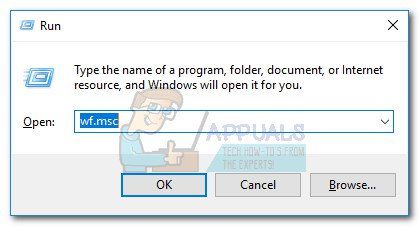
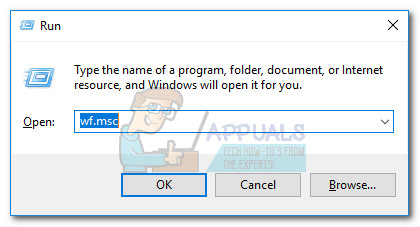
- In the void box, type ‘wf.msc’ and hit ‘OK’ to launch ‘Windows Defender Firewall with Advanced Security.’
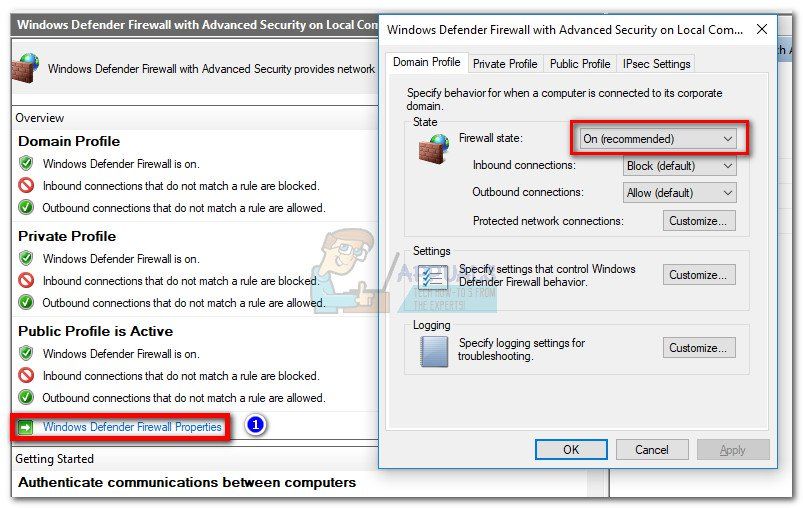
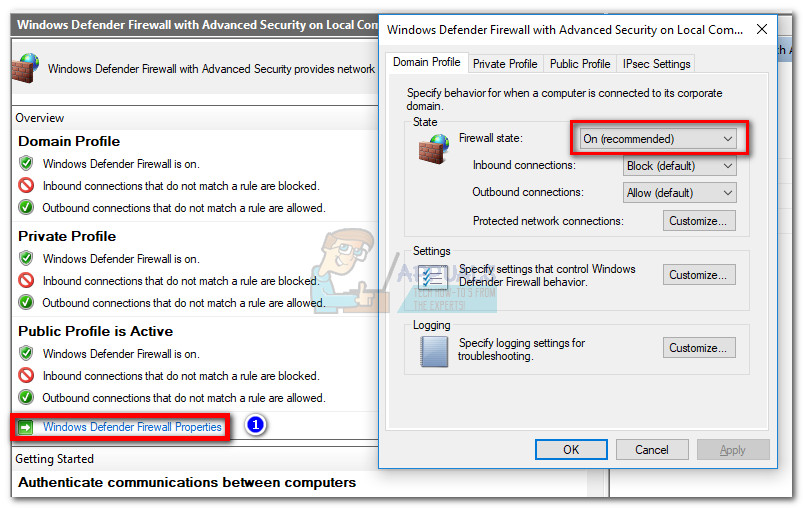
- Select the ‘Windows Defender Firewall Properties’ link under ‘Public Profile’
- On the properties window, click on the ‘Domain Profile’ tab and set ‘Firewall state’ to ‘On.’
- Hit ‘Apply’ and ‘OK’ to save the changes
- Reboot your system
Now reopen your mail client, it may start without the error 0x80072746.
Option 5: Check if the relevant machine certificate is installed on the VPN server:
This option works when the issue is on the VPN connection. Here you will need to contact your VPN server administrator to check whether the relevant machine certificate is installed on the VPN server or not. If it is installed correctly, you need to check the HTTPS binding by running the following command at the VPN server command prompt: “netsh http show ssl”.
We hope one of the above-listed fixes helped you in fixing this common error. If you have any queries, do ask us in the below comment section.
Also read: Common VPN error codes troubleshooting & solutions.
While trying to sync Windows Mail client or loading new e-mails, have you recently seen Error 0x80072746 on your system? In this event, when you load a specific Mail; you see an error message which reads:
We’re having a problem downloading messages. Make sure you have a connection and your account info is correct, and then try again, Error code 0x80072746.
The error 0x80072746 indicates an existing connection was forcibly closed by the remote host or the existing HTTP doesn’t support some VPN connections. Today we look at the best fixes to resolve this error.
Typically, a user encounters this error in the Windows Mail app when trying to sync the application to view new e-mails. Few users have come across this issue when using a VPN connection with Outlook or Windows Mail app. If the problem occurs explicitly on a VPN connection, it’s most likely because:
- The server machine certificate binding to HTTPS is not done on the VPN server
- The server machine certificate is not installed on the VPN server.
In case you are not using a VPN connection to protect your privacy, there’s a good chance that an external firewall is instigating the issue. Even though the built-in firewall (Windows Defender Firewall) will not cause problems with the email app, BitDefender and AVG are identified to cause this particular issue.
We are going to now list down the best possible hacks to fix this issue:
- Manually set up your email client
- Allow svchost.exe in third party firewall
- Change VPN Settings
- Using Windows Defender Firewall
- Check if the relevant machine certificate is installed on the VPN server
Option 1: Manually set up your email client:
Most of the time, using an email client which are less popular like GoDaddy, TalkTalk, or any company-provided specific email can cause error 0x80072746. In this case, the Windows client might not be acquainted with the appropriate automatic settings. Hence you will have to look up the manual settings for POP & IMAP and configure your email account. Here’s a step-by-step guide:
- From the ‘Start’ menu, open your Windows Mail client
- Click the ‘Settings’ icon and go to ‘Manage Accounts’
- Click on the e-mail account causing the error and ‘Change Settings’
- In ‘Account Settings’, click ‘Remove this account from your device’ under ‘Delete account’ and hit the ‘Delete’ button to confirm
- This will remove the email account
- Now visit the email provider website and copy the manual settings for IMAP. If IMAP setting is not listed here, select POP3.
- Return to Windows Mail client, click the ‘Settings’ icon and go to ‘Manage accounts’ and ‘Add account.’
- Scroll down and click ‘Advanced Setup.’
- Select ‘Internet email’ to add your credentials and manual settings for IMAP which you got from your email provider and apply settings
Now tap ‘Sign In’ button to see if you are getting the error message or not.
If you’re still unable to sync your emails and receive the same error 0x80072746, try the next option.
Option 2: Allow svchost.exe in third party firewall:
Configure the svchost.exe application in the Windows firewall. The exact steps of doing this will be different depending on your firewall solution. But most firewall solutions have an ‘Allow/Exclusion’ option in their app settings. Once you identify it, hit on the ‘Add’ button, navigate to C:Windowssystem32 and allow ‘svchost.exe’.
Once the Svchost is permitted in your Firewall settings, get back to your Windows Mail client and check if you can sync your emails without the 0x80072746 error.
Option 3: Change the VPN Settings:
According to few users, changing your VPN settings may fix error 0x80072746 on Windows PC. Here a quick walkthrough of the steps:
- Press ‘Win + I’ to open ‘Settings.’
- Go to ‘Network & Internet’ section and then hit ‘VPN’ on the left pane
- Ensure ‘Allow VPN over metered network’ toggle switch is turned ‘ON.’
- Now, select ‘Change adapter options’ under ‘Related Settings’
- Right-click on your LAN (Wi-Fi) connectivity and select ‘Properties’ from the context menu
- Select ‘Internet Protocol Version 6 (TCP/PV6)’ on the list hit ‘OK’ to save the changes
Now, close all the tabs and check if the error is fixed.
Option 4: Using Windows Defender Firewall:
Sometimes temporarily disabling the firewall then deleting and re-adding the problematic account on to your mail client helps in resolving this error. Once the email is successfully added back, you will need to enable Windows Firewall once again. Here are the steps:
To delete and re-add the email account:
- From the ‘Start Menu’ open ‘Mail’ and click on ‘Settings.’
- On the pop-up window select ‘Manage Accounts’ and click on the troublemaker
- Select ‘Delete this account’ and hit the ‘Delete’ button to confirm
- Go back to the Windows mail homepage and select the Account category at the left column.
- From the right-hand pane under ‘Manage Account’ select ‘Add account.’
Now follow the procedure to re-add the email using the on-screen instructions.
To enable Windows Defender Firewall:
- Right-click on the ‘Windows’ button and select the ‘Run’ option from the menu
- In the void box, type ‘wf.msc’ and hit ‘OK’ to launch ‘Windows Defender Firewall with Advanced Security.’
- Select the ‘Windows Defender Firewall Properties’ link under ‘Public Profile’
- On the properties window, click on the ‘Domain Profile’ tab and set ‘Firewall state’ to ‘On.’
- Hit ‘Apply’ and ‘OK’ to save the changes
- Reboot your system
Now reopen your mail client, it may start without the error 0x80072746.
Option 5: Check if the relevant machine certificate is installed on the VPN server:
This option works when the issue is on the VPN connection. Here you will need to contact your VPN server administrator to check whether the relevant machine certificate is installed on the VPN server or not. If it is installed correctly, you need to check the HTTPS binding by running the following command at the VPN server command prompt: “netsh http show ssl”.
We hope one of the above-listed fixes helped you in fixing this common error. If you have any queries, do ask us in the below comment section.
Also read: Common VPN error codes troubleshooting & solutions.
При попытке синхронизировать почтовый клиент Windows или загрузку новых писем вы видели недавно ошибку 0x80072746 в своей системе? В этом случае, когда вы загружаете определенную почту; вы видите сообщение об ошибке, которое гласит:
У нас проблема с загрузкой сообщений. Убедитесь, что у вас есть соединение и данные вашей учетной записи верны, а затем повторите попытку. Код ошибки. 0x80072746.
Ошибка VPN 0x80072746 указывает на то, что существующее соединение было принудительно закрыто удаленным узлом или существующий HTTP не поддерживает VPN-соединения. Сегодня мы рассмотрим лучшие исправления для устранения этой ошибки.
Обычно пользователь сталкивается с этой ошибкой в приложении Windows Mail при попытке синхронизировать приложение для просмотра новых сообщений электронной почты. Немногие пользователи сталкивались с этой проблемой при использовании VPN-подключения из Outlook (или аналогичного почтового клиента) к Почте Windows. Если проблема возникает явно в VPN-соединении, скорее всего, потому, что:
- Привязка сертификата серверного компьютера к HTTPS не выполняется на VPN-сервере.
- Сертификат серверного компьютера не установлен на VPN-сервере.
Если вы не используете VPN-соединение для защиты своей конфиденциальности, велика вероятность, что причиной проблемы является внешний брандмауэр. Несмотря на то, что встроенный брандмауэр (брандмауэр Защитника Windows) не вызовет проблем с почтовым приложением, определено, что BitDefender и AVG вызывают именно эту проблему.
Теперь мы собираемся перечислить лучшие возможные способы решения этой проблемы:
- Настройте свой почтовый клиент вручную
- Разрешить svchost.exe в стороннем брандмауэре
- Изменить настройки VPN
- Использование брандмауэра Защитника Windows
- Проверьте, установлен ли соответствующий сертификат машины на VPN-сервере.
В большинстве случаев использование менее популярного почтового клиента, такого как GoDaddy, TalkTalk или любой другой адрес электронной почты, предоставленный компанией, может вызвать ошибку 0x80072746. В этом случае клиент Windows может не знать соответствующих автоматических настроек. Следовательно, вам нужно будет найти ручные настройки для POP и IMAP и настроить свою учетную запись электронной почты. Вот пошаговое руководство:
- От ‘Начинать‘откройте свой почтовый клиент Windows
- Щелкните значок «Настройки‘значок и перейти к’Управлять аккаунтами‘
- Щелкните учетную запись электронной почты, вызывающую ошибку, и ‘Изменить настройки‘
- В ‘Настройки учетной записи‘, щелкните’Удалите эту учетную запись с вашего устройства‘ под ‘Удалить аккаунт’ и нажмите ‘Удалить‘кнопка для подтверждения
- Это приведет к удалению учетной записи электронной почты.
- Теперь посетите веб-сайт поставщика услуг электронной почты и скопируйте ручные настройки для IMAP. Если настройки IMAP здесь нет, выберите POP3.
- Вернитесь в почтовый клиент Windows, щелкните значок ‘Настройки‘значок и перейти к’Управлять аккаунтами‘ и ‘Добавить аккаунт. ‘
- Прокрутите вниз и нажмите «Advanced Setup.’
- Выбирать ‘Электронная почта в Интернете‘, чтобы добавить свои учетные данные и ручные настройки для IMAP, которые вы получили от своего провайдера электронной почты, и применить настройки
Теперь нажмите ‘Войти‘, чтобы узнать, появляется ли сообщение об ошибке.
Если вам по-прежнему не удается синхронизировать электронную почту и появляется та же ошибка 0x80072746, попробуйте следующий вариант.
Вариант 2: разрешить svchost.exe в стороннем брандмауэре:
Настроить svchost.exe приложение в брандмауэре Windows. Точные шаги для этого будут отличаться в зависимости от вашего брандмауэра. Но у большинства брандмауэров естьРазрешить / исключить‘в настройках своего приложения. Как только вы его определите, нажмите «Добавлять’ кнопку, перейдите к C: Windows system32 и позвольте ‘svchost.exe‘.
После того, как Svchost будет разрешен в настройках вашего брандмауэра, вернитесь к своему почтовому клиенту Windows и проверьте, можете ли вы синхронизировать свои электронные письма без ошибки 0x80072746.
Вариант 3. Измените настройки VPN:
По мнению некоторых пользователей, изменение настроек VPN может исправить ошибку 0x80072746 на ПК с Windows. Вот краткое описание шагов:
- Нажмите ‘Win + I‘ открыть ‘Настройки.’
- Идти к ‘Сеть и Интернет«раздел, а затем нажмите»VPN‘на левой панели
- Гарантировать ‘Разрешить VPN через сеть с лимитом‘тумблер повернут’НА. ‘
- Теперь выберите ‘Изменить параметры адаптера‘ под ‘Связанные настройки‘
- Щелкните правой кнопкой мыши подключение к локальной сети (Wi-Fi) и выберите ‘Характеристики‘из контекстного меню
- Выбирать ‘Интернет-протокол версии 6 (TCP / PV6)‘попадание в список’Ok‘чтобы сохранить изменения
Теперь закройте все вкладки и проверьте, исправлена ли ошибка.
Вариант 4: Использование брандмауэра Защитника Windows:
Иногда временное отключение брандмауэра с последующим удалением и повторным добавлением проблемной учетной записи в почтовый клиент помогает устранить эту ошибку. Как только электронное письмо будет успешно добавлено обратно, вам нужно будет снова включить брандмауэр Windows. Вот шаги:
Чтобы удалить и повторно добавить учетную запись электронной почты:
- От ‘Стартовое меню‘ открыто ‘Почта‘и нажмите’Настройки. ‘
- Во всплывающем окне выберите ‘Управлять аккаунтами‘и нажмите на нарушителя спокойствия
- Выбирать ‘Удалить эту учетную запись‘и нажмите’Удалить‘кнопка для подтверждения
- Вернитесь на домашнюю страницу почты Windows и выберите категорию «Учетная запись» в левом столбце.
- На правой панели под ‘Управлять счетом‘ Выбрать ‘Добавить аккаунт. ‘
Теперь выполните процедуру, чтобы повторно добавить электронное письмо, следуя инструкциям на экране.
Чтобы включить брандмауэр Защитника Windows:
- Щелкните правой кнопкой мыши значок «Окна‘и выберите’Пробег‘вариант из меню
- В пустом поле введите «wf.msc‘и ударил’Ok‘ запускать ‘Брандмауэр Защитника Windows в режиме повышенной безопасности. ‘
- Выберите «Свойства брандмауэра Защитника Windows«ссылка под»Общедоступный профиль‘
- В окне свойств щелкните значок «Профиль домена«вкладка и установка»Состояние брандмауэра‘ к ‘На. ‘
- Ударить ‘Подать заявление‘ и ‘Ok‘чтобы сохранить изменения
- Перезагрузите вашу систему
Теперь снова откройте свой почтовый клиент, он может запуститься без ошибки 0x80072746.
Вариант 5: проверьте, установлен ли соответствующий сертификат машины на сервере VPN:
Эта опция работает, когда проблема связана с VPN-соединением. Здесь вам нужно будет связаться с администратором вашего VPN-сервера, чтобы проверить, установлен ли соответствующий машинный сертификат на VPN-сервере или нет. Если он установлен правильно, вам необходимо проверить привязку HTTPS, выполнив следующую команду в командной строке сервера VPN: «netsh http показать ssl».
Мы надеемся, что одно из перечисленных выше исправлений помогло вам исправить эту распространенную ошибку. Если у вас есть какие-либо вопросы, задайте их нам в разделе комментариев ниже.
Также читайте: Устранение неполадок с распространенными кодами ошибок VPN и их решения.

Содержание
- 1 Способ 1: настроить учетную запись вручную
- 2 Способ 2: разрешение svchost.exe в стороннем брандмауэре
- 3 Способ 3: установить тип сети для доверенной сети (BitDefender)
- 4 Способ 4. Использование брандмауэра Защитника Windows
0x80072746 ошибка указывает на то, что существующее соединение было принудительно закрыто удаленным хостом. Эта ошибка обычно встречается в приложении Почта Windows, когда пользователи пытаются синхронизировать приложение, чтобы увидеть новые электронные письма. Как правило, пользователи видят сообщение «У нас проблема с загрузкой сообщений. Убедитесь, что у вас есть подключение и данные вашей учетной записи верны, а затем повторите попытку”Сопровождается Ошибка 0x80072746 код.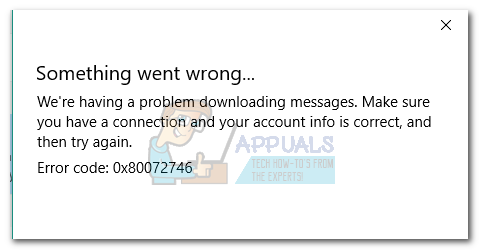 Некоторые пользователи сталкивались с этой проблемой при использовании VPN-подключения из Outlook (или аналогичного почтового клиента) к Почте Windows. Если проблема возникает только при подключении VPN, скорее всего, это связано с тем, что привязка сертификата компьютера сервера к HTTPS не применима на сервере VPN, или сертификат сервера не установлен на сервере VPN.
Если вы не используете VPN-подключение для защиты своей конфиденциальности, существует высокая вероятность того, что код ошибки вызван внешним брандмауэром. Хотя встроенный брандмауэр (брандмауэр Защитника Windows) не вызовет проблем с приложением электронной почты, BitDefender и AVG, как известно, вызывают эту конкретную проблему.
Если вы в настоящее время боретесь с этой проблемой, начните устранение неполадок с выбора возможных исправлений ниже. Пожалуйста, следуйте каждому методу по порядку, пока не найдете решение, которое работает для вас.
Замечания: Если вы столкнулись с этой проблемой только при использовании VPN / прокси-сервера, обратитесь к поставщику услуг за конкретными инструкциями по устранению неполадок.
Способ 1: настроить учетную запись вручную
Если вы используете менее популярный почтовый клиент (например, TalkTalk, GoDaddy или электронную почту, предоставленную компанией), клиент Windows может быть не знаком с соответствующими автоматическими настройками. В этом случае решение будет искать ручные настройки для POP IMAP и настроить настроить учетную запись электронной почты вручную в клиенте Windows Mail. Вот краткое руководство по всему этому:
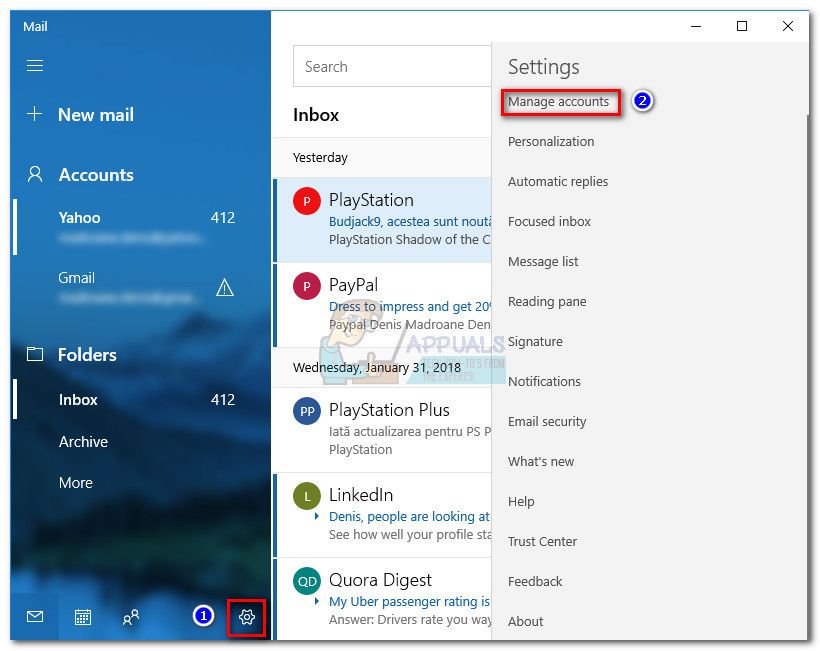
- Откройте свой почтовый клиент Windows, нажмите значок настроек и выбрать Управлять счетами.

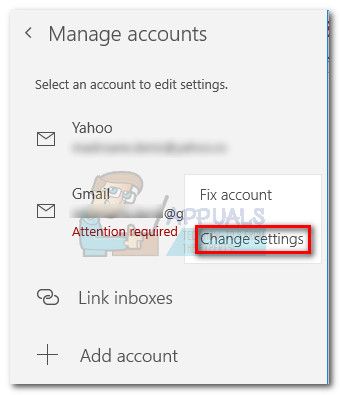
- в Управление учетными записями нажмите на учетную запись, которая вызывает проблемы и выберите Изменить настройки.

- В Настройки аккаунта, нажмите на Удалить эту учетную запись с вашего устройства под Удалить аккаунт и ударил удалять Нажмите кнопку еще раз, чтобы подтвердить.

- Как только учетная запись была успешно удалена, зайдите на веб-сайт своего поставщика услуг электронной почты и скопируйте настройки IMAP вручную (или POP3, если IMAP недоступен).

- Вернитесь в почтовый клиент Windows, щелкните значок настройки и перейдите к Управление учетными записями> Добавить учетную запись.

- в Добавить аккаунт прокрутите окно до конца и нажмите Дополнительные настройки.

- выберите Электронная почта и начните добавлять свои учетные данные и ручные настройки для IMAP что вы ранее получили от вашего почтового провайдера.

- После того, как вы настроили ручные настройки, нажмите Войти в систему и посмотрите, сможет ли ваш почтовый клиент синхронизировать оставшиеся сообщения.


Если вы все еще не можете синхронизировать свои электронные письма и получать то же самое Ошибка 0x80072746, перейти к Способ 2
Способ 2: разрешение svchost.exe в стороннем брандмауэре
В случае, если вы используете внешний брандмауэр, есть большая вероятность, что он отвечает за Ошибка 0x80072746. Чтобы подтвердить это, временно отключите брандмауэр, снова откройте почтовый клиент Windows и посмотрите, можете ли вы синхронизировать без Ошибка 0x80072746. Если это так, это означает, что ваш внешний брандмауэр предотвращает соединение между вашим почтовым клиентом и почтовым сервером.
Одним из способов решения этой проблемы является разрешение Svchost.exe в настройках вашего брандмауэра. Как вы, вероятно, представляете, эти точные шаги будут отличаться в зависимости от вашего решения брандмауэра. Однако большинство брандмауэров имеют Разрешить / Исключение список в настройках приложения. Как только вы найдете его, нажмите добавлять кнопку, перейдите к C: Windows system32 и разрешить svchost.exe.
однажды Svchost разрешено в настройках брандмауэра, вернитесь к почтовому клиенту Windows и посмотрите, можете ли вы синхронизировать свою электронную почту без Ошибка 0x80072746. Если вы все еще сталкиваетесь с той же проблемой, переходите к следующему способу.
Замечания: позволяющий svchost.exe в вашем брандмауэре, скорее всего, это решит проблему, но потенциально может открыть вашу систему для определенных эксплойтов безопасности.
Способ 3: установить тип сети для доверенной сети (BitDefender)
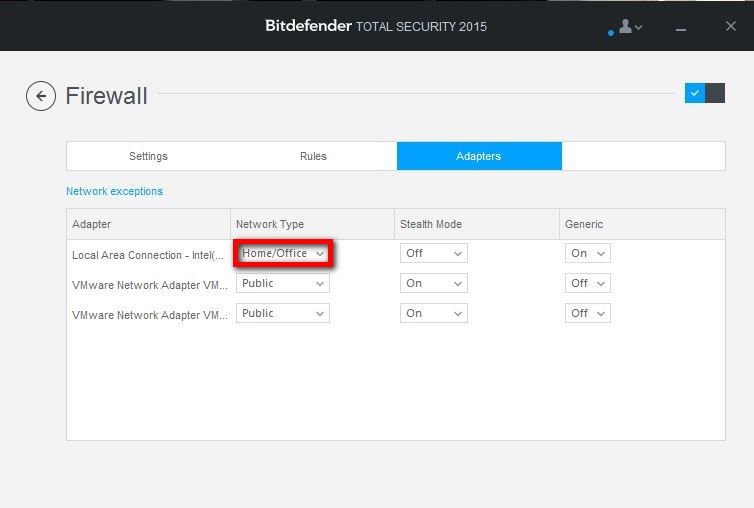
Если вы используете брандмауэр BitDefender, вы можете исправить проблему и удалить Ошибка 0x80072746 изменяя Брандмауэр / Адаптер настройки из Домашний офис в Доверенные.
Для этого откройте BitDefender, перейдите в настройки AV и нажмите адаптеры Вкладка. Затем используйте раскрывающееся меню, связанное с вашим Подключение по локальной сети изменить Тип сети в Доверенные.
 Как только вы установите Подключение по локальной сети в доверенный, перезапустите почтовый клиент Windows и посмотрите, сможет ли он теперь правильно синхронизироваться. Если вы не используете один из двух методов ниже.
Замечания: Если у вас есть другой внешний брандмауэр, вы можете найти эквивалентные настройки для них в BitDefender.
Способ 4. Использование брандмауэра Защитника Windows
В зависимости от вашего поставщика брандмауэра вы не сможете использовать два последних метода, чтобы не дать брандмауэру прервать соединение между почтой Windows и почтовым сервером. В этом случае вы можете полностью отключить сторонний брандмауэр и использовать Брандмауэр Защитника Windows. Защитник WindowsБрандмауэр будет отлично работать с почта и не требует дополнительных настроек.
Заметка: Если вы не хотите избавляться от пакета AV-безопасности, вы можете продолжать его использовать, просто отключите брандмауэр.
Если вы решите отключить сторонний брандмауэр, имейте в виду, что вам, вероятно, потребуется повторно добавить почтовый клиент для возобновления синхронизации. Вот пошаговое руководство по всему этому:
- Отключите внешний брандмауэр или удалите пакет безопасности из вашей системы.
- Откройте свой почтовый клиент Windows, нажмите значок настроек и выбрать Управлять счетами.
- в Управление учетными записями нажмите на учетную запись, которая вызывает проблемы и выберите Изменить настройки.
- В Настройки аккаунта, нажмите на Удалить эту учетную запись с вашего устройства под Удалить аккаунт и ударил удалять Нажмите кнопку еще раз, чтобы подтвердить.
- Вернитесь в почтовый клиент Windows, щелкните значок настройки и перейдите к Управление аккаунтами> Добавить аккаунт и повторно добавьте соответствующий почтовый клиент.
- включить Защитник Firewall открыв окно Run (Windows ключ + R) и набрав «wf.msc«. Удар Войти открыть Брандмауэр Защитника Windows с повышенной безопасностью.

- Прокрутите весь путь вниз в обзор вкладку и нажмите на Свойства брандмауэра Защитника Windows. Затем перейдите к Профиль домена и установить Состояние брандмауэра в На. Завершите, нажав Применять.

The error 0x80072746 is indicating that an existing connection was forcibly closed by the remote host. This error is typically encountered in the Windows Mail app when users try to sync the application in order to see the new e-mails. Typically, users see the message “We’re having a problem downloading messages. Make sure you have a connection and your account info is correct, and then try again” followed by the 0x80072746 error code.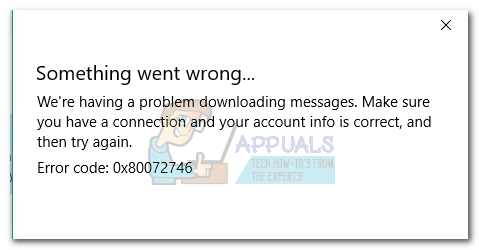 Some users have encountered this issue when using a VPN connection from Outlook (or similar email client) to Windows Mail. If the issue only happens on a VPN connection, it’s most likely because the server machine certificate binding to HTTPS is not applicable on the VPN server, or the server machine certificate is not installed on the VPN server.
If you’re not using a VPN connection to protect your privacy, there’s a high chance that the error code is caused by an external firewall. While the built-in firewall (Windows Defender Firewall) will not cause problems with the email app, BitDefender and AVG are known to cause this particular issue.
In the event that you’re currently struggling with this issue, start troubleshooting with the selection of potential fixes below. Please follow each method in order until you find a solution that works for you.
Note: If you’re only encountering this issue while using VPN / proxy, please refer to your service provider for specific troubleshooting guides.
Method 1: Set up your account manually
If you’re using an email client that is less popular (like TalkTalk, GoDaddy, or a company-provided email), the Windows client might not be familiar with the appropriate automatic settings. In this case, the solution would be to look up the manual settings for POP & IMAP and configure set up your email account manually in the Windows Mail client. Here’s a quick guide through the whole thing:
- Open your Windows Mail client, click the settings icon and choose Manage Accounts.
- In the Manage accounts tab, click on the account that has been causing problems and select Change Settings.
- In Account Settings, click on Remove this account from your device under Delete account and hit the Delete button again to confirm.
- Once the account has been successfully removed, go your email provider website and copy the manual settings for IMAP (or POP3 if IMAP is not available).
- Return to Windows Mail client, click the setting icon and go to Manage accounts > Add account.
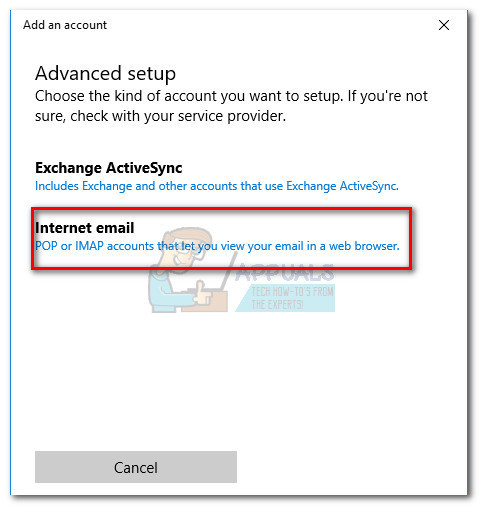
- In the Add an account window, scroll all the way down and click on Advanced Setup.
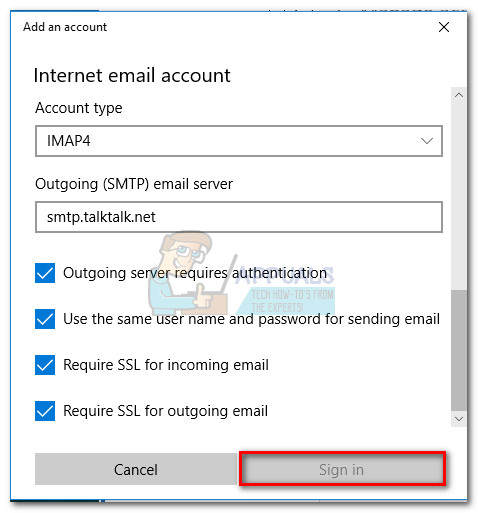
- Choose Internet email and start adding your credentials and manual settings for IMAP that you previously fetched from your email provider.
- Once you’ve configured the manual settings, click Sign In and see if your email client is able to sync the remaining messages.
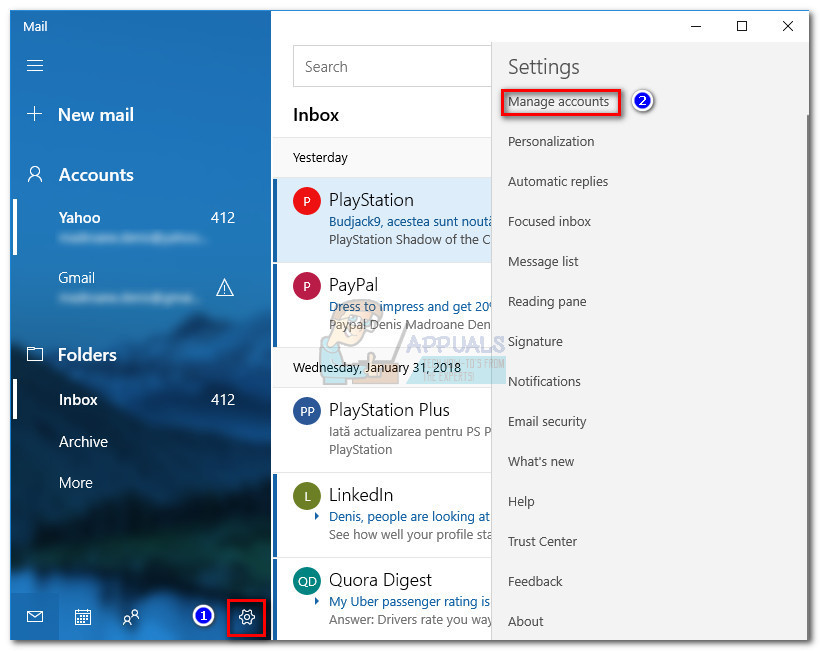
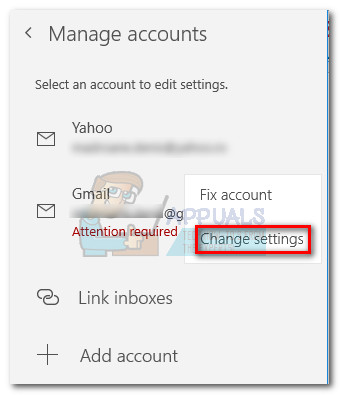
If you’re still unable to sync your emails and receive the same 0x80072746 error, move to Method 2.
Method 2: Allowing svchost.exe in your 3rd party Firewall
In case you’re using an external firewall, there’s a high chance that it’s responsible for the 0x80072746 error. To confirm this, temporarily disable your firewall, re-open the Windows Mail client and see whether you’re able to sync without the 0x80072746 error. If you are, it means that your external firewall is preventing the connection between your email client and the email server.
One of the ways you can remedy this problem is by allowing Svchost.exe in your firewall settings. As you probably imagine, this exact steps of doing this will be different depending on your firewall solution. However, most firewall solutions have an Allow / Exclusion list in their application settings. Once you locate it, hit the Add button, navigate to C:Windowssystem32 and allow svchost.exe.
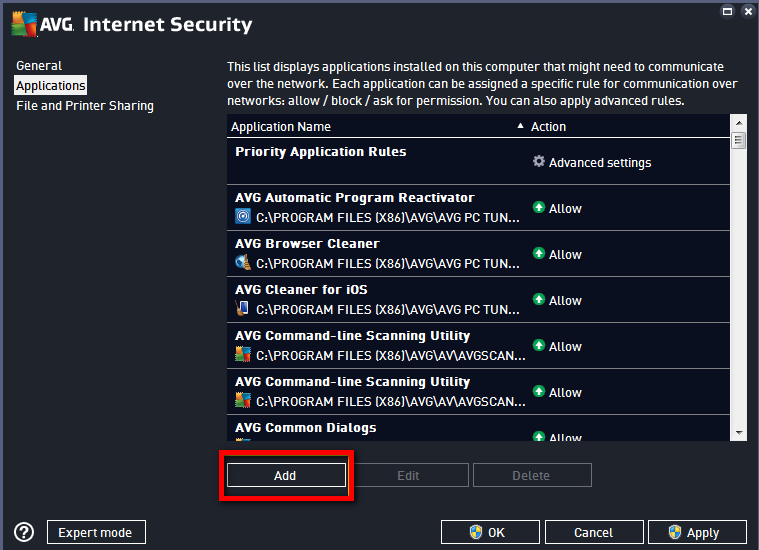
Once Svchost is allowed in your Firewall settings, return to the Windows Mail client and see whether you’re able to sync your emails without the 0x80072746 error. If you’re still encountering the same issue, move to the next method.
Note: Allowing svchost.exe in your firewall will most likely fix the issue, but it can potentially open up your system to certain security exploits.
Method 3: Set Network Type to Trusted Network (BitDefender)
If you’re using BitDefender’s firewall, you can fix the issue and remove the 0x80072746 error by changing the Firewall / Adapter settings from Home / Office to Trusted.
To do this, open BitDefender, go to AV settings and click on the Adapters tab. Then, use the drop-down menu associated with your Local Area Connection to change the Network Type to Trusted.
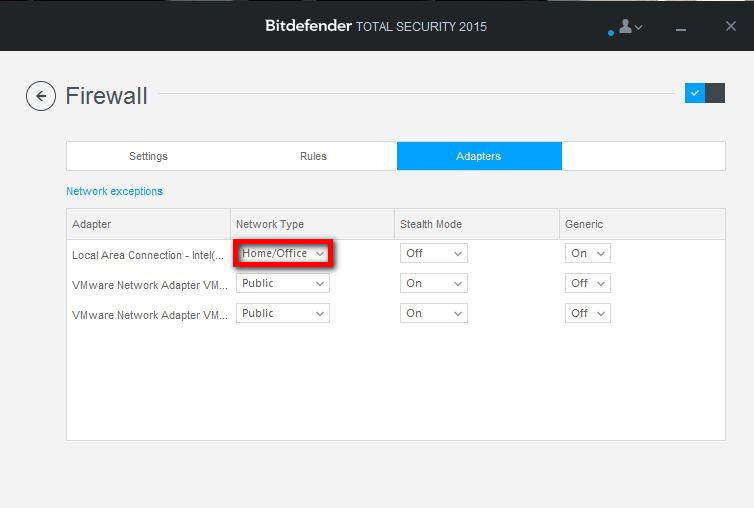 Once you set your Local Area Connection to Trusted, restart the Windows Mail client and see wither it’s now able to sync properly. If you aren’t using one of the two methods below.
Note: If you have a different external firewall, you might be able to find the equivalent settings for the ones in BitDefender.
Method 4: Using Windows Defender Firewall
Depending on your firewall provider, you might not be able to follow the latest two methods in order to stop your firewall from interrupting the connection between Windows mail and the email server. In this case, you can disable your 3rd party firewall entirely and use Windows Defender Firewall. Windows Defender‘s firewall will work perfectly with Mail and doesn’t require additional tweaks.
Note: If you don’t want to get rid of your AV security suite you can keep using it, just make sure you disable the firewall from it.
If you decide to disable your 3rd party firewall, keep in mind that you’ll likely need to re-add the email client in order for the sync to resume working. Here’s a step-by-step guide through the whole thing:
- Disable the external firewall or uninstall the security suite from your system.
- Open your Windows Mail client, click the settings icon and choose Manage Accounts.
- In the Manage accounts tab, click on the account that has been causing problems and select Change Settings.
- In Account Settings, click on Remove this account from your device under Delete account and hit the Delete button again to confirm.
- Return to Windows Mail client, click the setting icon and go to Manage accounts > Add account and re-add the respective email client.
- Enable Defender’s Firewall by opening a Run window (Windows key + R) and typing “wf.msc“. Hit Enter to open Windows Defender Firewall with Advanced Security.
- Scroll all the way down in the Overview tab and click on Windows Defender Firewall Properties. Then, go to Domain Profile and set the Firewall state to On. Finish it off by clicking Apply.

Kevin Arrows
Kevin is a dynamic and self-motivated information technology professional, with a Thorough knowledge of all facets pertaining to network infrastructure design, implementation and administration. Superior record of delivering simultaneous large-scale mission critical projects on time and under budget.