

В macOS Catalina Apple теперь использую Zsh в качестве оболочки по умолчанию. Нам нравится Zsh, но старая верная оболочка Bash все еще включена в macOS, и вы можете быстро переключиться на Bash, если хотите.
Zsh является оболочкой по умолчанию только для вновь созданных учетных записей пользователей, поэтому любые существующие учетные записи, которые у вас есть на обновленном Mac, по-прежнему будут использовать Bash по умолчанию, если вы не измените его. У каждой учетной записи пользователя есть собственная настройка оболочки по умолчанию.
От Терминала
Чтобы изменить оболочку учетной записи пользователя по умолчанию в macOS, просто запустите команду chsh -s (изменить оболочку) в окне Терминала.
Измените оболочку по умолчанию на Bash, выполнив следующую команду:
chsh -s /bin/bash
Вам нужно будет ввести пароль своей учетной записи. Наконец, закройте окно Терминала и снова откройте его. Вы будете использовать Bash вместо Zsh.
Измените оболочку по умолчанию на Zsh, выполнив эту команду:
chsh -s /bin/zsh
При появлении запроса введите свой пароль. После того, как вы закроете окно терминала и снова откроете его, вы будете использовать Zsh.

Вы можете увидеть список включенных оболочек, которые вы можете выбрать, выполнив следующую команду:
cat /etc/shells

Из системных настроек
Вы также можете изменить этот параметр графически в Системных настройках, если хотите.
Перейдите в Системные настройки> Пользователи и группы на вашем Mac. Щелкните значок замка и введите свой пароль. Удерживая нажатой клавишу Ctrl, щелкните имя своей учетной записи на левой панели и выберите «Дополнительные параметры».

Щелкните раскрывающееся поле «Оболочка входа» и выберите «/ bin / bash», чтобы использовать Bash в качестве оболочки по умолчанию, или «/ bin / zsh», чтобы использовать Zsh в качестве оболочки по умолчанию. Нажмите «ОК», чтобы сохранить изменения.

Обратите внимание, что версия Bash (Bourne Again SHell), включенная в macOS, все еще довольно устарела. Если вы запустите bash –version, вы увидите, что Catalina включает Bash 3.2.57, когда Bash 5.0 является последней версией. Более новые версии лицензируются по лицензии GPLv3, в то время как Apple по-прежнему распространяет версию под лицензией GPLv2.
Напротив, версия Zsh (оболочка Z), включенная в macOS (проверьте с помощью zsh –version), — это Zsh 5.7.2, которая является последней версией на момент выпуска Catalina.

Если вам нужна последняя версия Bash, вы можете установи сам через Homebrew.
Что вы думаете об этой статье?
I’m learning to develop in Rails, and have discovered the power of zsh. However, for some of my other tasks, I wish to use normal bash.
Although they are the same, I just feel comfortable with the layout of bash in some situations.
How do I switch back and forth, or turn zsh on and off?

Penny Liu
13.8k5 gold badges74 silver badges91 bronze badges
asked Apr 26, 2012 at 20:52

You can just use exec to replace your current shell with a new shell:
Switch to bash:
exec bash
Switch to zsh:
exec zsh
This won’t affect new terminal windows or anything, but it’s convenient.
answered Apr 26, 2012 at 20:58

larskslarsks
257k40 gold badges373 silver badges371 bronze badges
6
you can try chsh -s /bin/bash to set the bash as the default,
or chsh -s /bin/zsh to set the zsh as the default.
Terminal will need a restart to take effect.
Penny Liu
13.8k5 gold badges74 silver badges91 bronze badges
answered Mar 22, 2014 at 3:40

wanghaowanghao
3,2152 gold badges18 silver badges13 bronze badges
2
I switch between zsh and bash somewhat frequently. For a while, I used to have to source my bash_profile every switch. Then I found out you can (typically) do
exec bash --login
or just
exec bash -l
answered Oct 24, 2014 at 21:46

3
if it is just a temporary switch
you can use exec as mentioned above, but for more of a permanent solution.
you can use chsh -s /bin/bash (to switch to bash) and chsh -s /bin/zsh (to switch to zsh)
answered Mar 20, 2019 at 20:54

RahilRahil
2472 silver badges5 bronze badges
2
For Bash, try
chsh -s $(which bash)
For zsh, try
chsh -s $(which zsh)

Pang
9,365146 gold badges85 silver badges121 bronze badges
answered Nov 15, 2017 at 3:31

as — ifas — if
2,39920 silver badges26 bronze badges
0
In Mac OS Catalina default interactive shell is zsh.
To change shell to zsh from bash:
chsh -s /bin/zsh
Then you need to enter your Mac password. Quit the terminal and reopen it. To check whether it’s changed successfully to ssh, issue the following command.
echo $SHELL
If the result is /bin/zsh, your task is completed.
To change it back to bash, issue the following command on terminal.
chsh -s /bin/bash
Verify it again using echo $SHELL. Then result should be /bin/bash.
answered May 16, 2020 at 12:28

zsh has a builtin command emulate which can emulate different shells by setting the appropriate options, although csh will never be fully emulated.
emulate bash
perform commands
emulate -R zsh
The -R flag restores all the options to their default values for that shell.
See: zsh manual
answered Jan 15, 2016 at 23:22

ljcusackljcusack
611 silver badge2 bronze badges
1
you can just type bash or if you always want to use bash:
on «iTerm2»
- Go to preferences > Profiles > Command
- Select «Command» from the dropdown
- Type
bash
Test by closing iTerm and open it again
answered Jun 15, 2020 at 19:17

Sarah ASarah A
1,16512 silver badges27 bronze badges
0
You should be able just to type bash into the terminal to switch to bash, and then type zsh to switch to zsh. Works for me at least.
answered Jul 20, 2018 at 2:12

3
Follow the below steps !
   chsh -s /bin/bash
   Restart terminal
   check which shell is in use by echo $SHELL
   source .profile
You are back with Bash !!
answered May 11, 2021 at 18:45

1
For me, the solution was this:
Edit:
sudo vi /etc/passwd
Find your user, for me it was for example:
ubuntu:x:1000:1001::/home/ubuntu:/bin/sh
For you it might be:
ubuntu:x:1000:1001::/home/ubuntu:/bin/zsh
And change it to:
ubuntu:x:1000:1001::/home/ubuntu:/bin/bash
If you want bash to be defaul, or the line above if you want it to be zsh by default.
answered 2 days ago

AleksAleks
4,7563 gold badges37 silver badges68 bronze badges
You can easily switch back to bash by using command «bye»
answered Jan 11, 2018 at 16:19

1
I am trying to set ZSH as my default shell, however it keeps reverting back to bash.
I have tried this code:
sudo chsh -s $(which zsh)
I’ve also tried:
sudo chsh -s /bin/zsh
Also tried these commands without sudo. Any ideas on what else I need to do. When running ZSH from within bash it loads up and works fine but I’d like to set it as the default shell.

asked May 5, 2012 at 2:42

1
Just using chsh:
chsh -s $(which zsh)
without sudo should work. If you use sudo it will change the shell not for your working user but for root
Finally, log out of your computer and log back in.
Troubleshooting:
- Do you have zsh installed (ii)?
dpkg -l zsh - Is your shell set to zsh? Last field of
grep $USER /etc/passwd - Is Zsh a valid login shell?
grep zsh /etc/shells

answered May 5, 2012 at 3:55

Florian DieschFlorian Diesch
84.6k17 gold badges223 silver badges214 bronze badges
15
I found this on superuser forum
Open /etc/passwd:
sudo vi /etc/passwd
Find the line with your username:
username:x:1634231:100:Your Name:/home/username:/bin/bash
and replace bash with zsh:
username:x:1634231:100:Your Name:/home/username:/bin/zsh
Log out and log in back for the changes to take effect.

answered Aug 11, 2015 at 5:29

3
You may also do this:
open your bashrc file in your favourite editor
sudo nano ~/.bashrc
then add the line below top of the file
exec zsh
It will execute the command every time you load the terminal and run your zsh shell.

muru
189k52 gold badges460 silver badges711 bronze badges
answered Mar 11, 2016 at 15:10

Saddam HSaddam H
5614 silver badges3 bronze badges
8
I had an issue with permissions to change shell under the current user but next helps me (you should set correct ‘zsh’ folder for your computer):
sudo chsh -s /bin/zsh <myUserName>
answered Jul 13, 2018 at 14:01
Rib47Rib47
6191 gold badge8 silver badges11 bronze badges
1
If zsh is not /bin/zsh then chsh won’t work. On Ubuntu it is /usr/bin/zsh. so doing chsh -s /usr/bin/zsh or chsh -s `which zsh` should work. Also need to re-login to desktop session.
answered Jan 27, 2014 at 0:58

3
Strange, the «accepted» answer didn’t work for me as I got
chsh: PAM: Authentication failure
To solve this issue edit your /etc/passwd and make sure it points to the zsh location. (You can find this by running «which zsh») In my case my user called «webmaster» looked like this:
webmaster:x:1001:1001:webmaster,,,:/var/www/webmaster:/usr/bin/zsh

wjandrea
13.8k4 gold badges46 silver badges95 bronze badges
answered Dec 19, 2014 at 13:59

John CrawfordJohn Crawford
2802 gold badges5 silver badges15 bronze badges
2
As well as chsh (or editing /etc/passwd, which does the same thing), you might need to edit the settings in your terminal emulator (Gnome terminal, Konsole, xfce4-terminal, etc). Your profile will probably have a login shell, which will be run when you open a new tab instead of the shell in /etc/passwd.
In Konqueror it’s Settings | Edit Current Profile | Command.
answered Nov 28, 2019 at 23:01

When you started using Mac OS in first time, you would find the default scripting language in terminal is Zsh instead of Bash. If you want to change this situation, I can help.
I am more familiar with bash, so I have more scripts wrote by bash, even if zsh and bash are both scripting languages, there is no guarantee that zsh can execute my old scripts.
So, let’s introduce how to change the zsh to bash in the Mac OS terminal! But first, I want to introduce what is the scripting language.
What is the scripting language?
Scripting Language is an interpreted programming language.
The following content is excerpted from Wikipedia.
A scripting language or script language is a programming language for a runtime system that automates the execution of tasks that would otherwise be performed individually by a human operator.[1] Scripting languages are usually interpreted at runtime rather than compiled.
A scripting language’s primitives are usually elementary tasks or API calls[clarification needed], and the scripting language allows them to be combined into more programs. Environments that can be automated through scripting include application software, text editors, web pages, operating system shells, embedded systems, and computer games. A scripting language can be viewed as a domain-specific language for a particular environment; in the case of scripting an application, it is also known as an extension language. Scripting languages are also sometimes referred to as very high-level programming languages, as they sometimes operate at a high level of abstraction, or as control languages, particularly for job control languages on mainframes.
Change scripting language via terminal
First, we can check which scripting languages are supported in the system.
cat /etc/shellsOutput:
# List of acceptable shells for chpass(1).
# Ftpd will not allow users to connect who are not using
# one of these shells.

/bin/bash
/bin/csh
/bin/dash
/bin/ksh
/bin/sh
/bin/tcsh
/bin/zsh
It can be found that there are actually many options besides bash.
Then, if we change zsh to bash, we can use the chsh command.
chsh -s /bin/bashWe can see that the original terminal displays zsh:

After reopening, it will be displayed as bash.

Of course, in addition to operating in the terminal, we can also replace bash in the setting interface.
Use the system preferences to change the scripting language
click apple icon in the upper right corner > System Preferences > Users & Groups > Click the lock to make changes > Right click on the account > Advances Options > switch login shell。


This way can also switch the default scripting language.
The above is a simple tutorial about how to change zsh to bash in terminal on Mac OS.
References
- https://www.howtogeek.com/444596/how-to-change-the-default-shell-to-bash-in-macos-catalina/
Read More
- [Linux] Different Between «sh» and «bash»
- Bash on Ubuntu on Windows, the Linux subsystem on Windows

Run «chsh -s /bin/bash» in a Terminal Window to switch your shell from Zsh to Bash, then restart your Terminal. New terminal windows will open using Bash. You can also change the login shell to Bash in a user’s advanced options page.
Apple is now using Zsh as the default shell on macOS. We love Zsh, but the trusty old Bash shell is still included with macOS, and you can quickly switch back to Bash if you prefer. Zsh became the default in macOS Catalina.
Zsh is only the default shell on newly created user accounts, so any existing accounts you have on an upgraded Mac will still use Bash by default unless you change it. Each user account has its own default shell preference.
From the Terminal
To change a user account’s default shell on macOS, simply run the chsh -s (change shell) command in a Terminal window.
Change the default shell to Bash by running the following command:
chsh -s /bin/bash
You’ll have to enter your user account’s password. Finally, close the Terminal window and reopen it. You’ll be using Bash instead of Zsh.

Change the default shell back to Zsh by running this command:
chsh -s /bin/zsh
Enter your password when prompted. After you close the terminal window and reopen it, you’ll be using Zsh.
You can see a list of included shells you can select by running the following command:
cat /etc/shells
From System Preferences
You can also change this option graphically from System Preferences if you prefer.
Head to System Preferences > Users & Groups on your Mac. Click the lock icon and enter your password. Hold the Ctrl key, click your user account’s name in the left pane, and select “Advanced Options.”
Click the “Login Shell” dropdown box and select “/bin/bash” to use Bash as your default shell or “/bin/zsh” to use Zsh as your default shell. Click “OK” to save your changes.
Bash on macOS Is Still Outdated
Note that the version of Bash (Bourne Again SHell) included with macOS is still pretty outdated, however. If you run bash --version on macOS Catalina, for example, you’ll see that Catalina includes Bash 3.2.57 when Bash 5.0 is the latest version. Newer versions are licensed under the GPLv3 license, while Apple still distributes a version licensed under GPLv2.
In contrast, the version of Zsh (Z shell) included with macOS (check with zsh --version ), is Zsh 5.7.2, which is the latest version at the time of Catalina’s release.
If you want the latest version of Bash, you can install it yourself via Homebrew.
READ NEXT
- › What Is the Bash Shell, and Why Is It So Important to Linux?
- › How to Open the Terminal on a Mac
- › No, Incognito Mode Won’t Protect You When Torrenting
- › Windows 11 Will Make Verification Emails Less Annoying
- › How Do You Unfollow Someone on TikTok?
- › Mozilla Is Rebuilding Thunderbird “From the Ground Up”
- › How to Reset or Change Your Steam Password
- › Amplify the Crunch of Helmets With $50 off a Sonos Soundbar
How-To Geek is where you turn when you want experts to explain technology. Since we launched in 2006, our articles have been read billions of times. Want to know more?
This article explains how to change the default shell in Linux. Using this you can set Bash, sh, Zsh, Csh, Fish, etc. as your shell.
The article includes instructions for changing the login shell from the command line using chsh, or changing the shell only for a particular terminal application. While the article is targeted at Linux users, this should also work on other Unix-like systems.
How to change the default login shell using chsh (from the command line)
To change the default login shell we’ll use chsh, a command line tool to change the login shell.
This program changes the login shell by modifying the /etc/passwd file and setting the $SHELL environment variable. You can override the default shell in a terminal application, by setting the shell from the terminal settings — see the second part of this article for details.
A note for Fedora users. Fedora doesn’t have chsh installed by default and to use it, you must install a package called util-linux-user. If you want to skip installing this package, you can use lchsh instead to change the login shell, which is available by default:
sudo lchsh $USERIt’s important to note that using chsh, a normal user may only change the login shell for the current account, while the superuser may change the login shell for any account, including the root account. Also, the default behavior for non-root users is to accept only shells listed in the /etc/shells file, and issue a warning for root user.
So before changing your shell, list all the shells listed in the /etc/shells file from your Linux system by using the following command:
cat /etc/shellsExample with output:
$ cat /etc/shells
# /etc/shells: valid login shells
/bin/sh
/bin/bash
/bin/rbash
/bin/dash
/usr/bin/tmux
/bin/zsh
If the shell you want to use is not listed here, it may not be installed on your system. So install it (for example, install Zsh on Debian / Ubuntu / Linux Mint / Pop!_OS using: sudo apt install zsh) and check again.
To change the shell for your user, run:
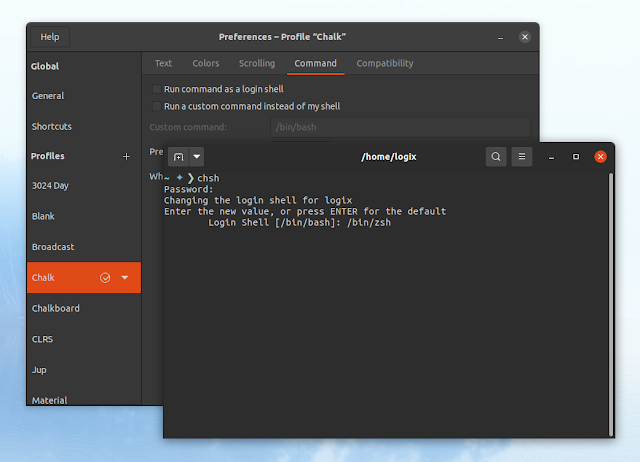
chshThis runs chsh in an interactive mode, asking you for the password, then listing your current shell (most Linux distributions use Bash as the default shell) and asking you to enter a value for your new shell. Here’s the command with its output:
$ chsh
Password:
Changing the login shell for logix
Enter the new value, or press ENTER for the default
	Login Shell [/bin/bash]:
To change your shell, type the path to the new shell (which exists in /etc/shells) and press the Enter key.
For example, to change the shell for the current user from Bash to Zsh:
$ chsh
Password:
Changing the login shell for logix
Enter the new value, or press ENTER for the default
	Login Shell [/bin/bash]: /bin/zsh
In case you’re using a chsh version that doesn’t launch with an interactive prompt after executing chsh, change the login shell for your user directly:
chsh -s <SHELL>E.g. to change the shell to Zsh:
chsh -s /bin/zshAfter changing your account’s shell, logout and re-login to use the new shell.
To change the login shell for another user or for the root user, login to the shell prompt as root using su -, sudo -i, sudo su, etc., and run:
- To change the shell for the root account (and when prompted, enter the login shell you want to use, with its full path):
chsh- To change the shell of another user (this also works for the root user, using
rootas the username):
chsh -s <SHELL> <USERNAME>This time we’ve used chsh with the -s option, which changes the login shell directly (doesn’t run in an interactive mode). Here, SHELL is the new shell (e.g. /bin/zsh) and USERNAME is the user for which you’re changing the shell; for example, to change the shell to /bin/zsh for the user Logix, you’d use: chsh -s /bin/zsh Logix).
You might also like: Starship Is A Minimal And Fast Shell Prompt Written In Rust
Change the shell for your user in a terminal application
You can use a shell that’s different from the login shell ($SHELL) for a particular terminal application, if that application allows setting a custom shell or running a custom command instead of the default shell.
As a side note, you may also change the current shell (non-permanent change) by typing the shell command you want to use in a terminal (e.g. if you type «zsh», you’ll switch to using Zsh for that session; exit by typing «exit».).
Take GNOME Terminal for example (used in GNOME and Cinnamon desktops as the default terminal). Open its Preferences, click on the current active profile (usually called Default or Unnamed if you haven’t changed it or added new profiles) in the left-hand sidebar, then click on the Command tab:
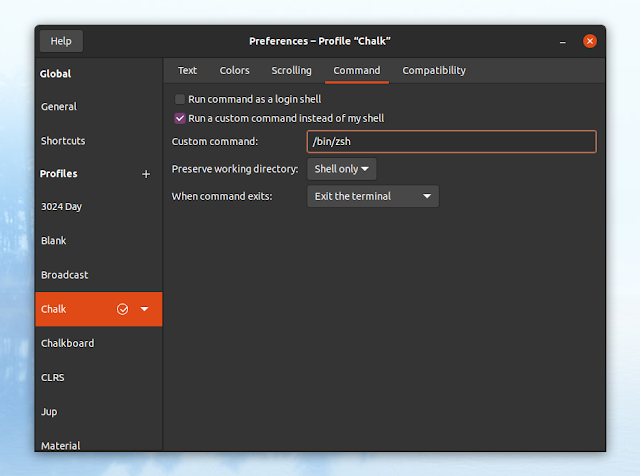
This is where you can set a custom shell to be used with this application only. Enable the Run a custom command instead of my shell option, then in the Custom command field enter the full path to the shell you want to use, e.g. /bin/zsh, /bin/bash, etc.
In Xfce4 Terminal, open the Preferences and on the General tab you’ll need to enable an option called Run a custom command instead of my shell, then enter the custom command below that (this being the shell you want to use with this terminal, e.g. /bin/zsh, /usr/bin/fish, etc.).
Using KDE Plasma’s Konsole, go to Settings -> Edit Current Profile, and on the General tab, change the Command field to the full path of the shell you want to use (once again, something like: /bin/zsh, /bin/bash, /usr/bin/fish, etc.).
Using Guake, you can change the user shell from its Preferences, on the Shell tab, where you’ll find an option called Default interpreter that allows choosing any shell listed in /etc/shells.
For terminals that allow running a custom shell you should also find an option that allows running the command as a login shell (usually called just that: «Run command as a login shell»). To read on the differences between a login shell and an interactive shell, see this page.
Setting this is the same in most cases, so I won’t give any more examples. However, it’s worth noting that not all terminal applications have options to allow using a custom shell — in such cases, use the chsh command to change the login shell, as explained above.
You might like: 179 Color Schemes For Your Gtk-Based Linux Terminal (Gnome Terminal, Tilix, Xfce Terminal, More)
В Windows 7, Vista и XP меню «Пуск» появляется при нажатии кнопки «Пуск», которая находится на одном конце панели задач, обычно в нижнем левом углу рабочего стола.
Просто введите «тире» в терминале. Как только вы закончите, нажмите ctrl + d, чтобы вернитесь в оболочку bash. Чтобы изменить оболочку навсегда: Информация о оболочке по умолчанию для любого пользователя хранится в файле / etc / passwd.
Как мне добраться до оболочки bash в Linux?
Чтобы проверить наличие Bash на вашем компьютере, вы можете введите «bash» в открытый терминал, как показано ниже, и нажмите клавишу ввода. Обратите внимание, что вы получите сообщение только в том случае, если команда не удалась. Если команда выполнена успешно, вы просто увидите приглашение новой строки, ожидающее ввода дополнительных данных.
Как изменить оболочку по умолчанию на bash в Linux?
Изменение оболочки по умолчанию для текущего пользователя
Если мы хотим изменить оболочку по умолчанию для текущего пользователя, вошедшего в систему, мы можем выполнить команда chsh с -s вариант. Давайте изменим оболочку по умолчанию текущего пользователя на Bash: kent $ chsh -s / bin / bash Изменение оболочки для kent. Пароль: Оболочка изменена.
Почему у меня zsh вместо bash?
ZSH, также называемая оболочкой Z, представляет собой расширенную версию Bourne Shell (sh) с множеством новых функций и поддержкой плагинов и тем. Поскольку он основан на той же оболочке, что и Bash, ZSH имеет многие из тех же функций, и переключение — это легкий ветерок.
Как мне найти оболочку по умолчанию в Linux?
readlink / proc / $$ / exe — еще один вариант надежного получения текущего имени оболочки в операционных системах Linux. cat / etc / shells — Список путей к действующим установленным оболочкам входа в систему. grep «^ $ USER» / etc / passwd — Вывести имя оболочки по умолчанию. Оболочка по умолчанию запускается, когда вы открываете окно терминала.
Что мне следует использовать: zsh или bash?
По большей части bash и zsh почти идентичны что является облегчением. Между ними навигация одинакова. Команды, которые вы изучили для bash, также будут работать в zsh, хотя при выводе они могут работать по-другому. Zsh кажется более настраиваемым, чем bash.
Как изменить оболочку в Linux?
Чтобы изменить свою оболочку, используйте команда chsh:
Команда chsh изменяет оболочку входа в систему вашего имени пользователя. При изменении оболочки входа в систему команда chsh отображает текущую оболочку входа, а затем запрашивает новую.
Как изменить оболочку по умолчанию в Linux?
Теперь давайте обсудим три различных способа изменения пользовательской оболочки Linux.
- Утилита usermod. usermod — это утилита для изменения данных учетной записи пользователя, хранящаяся в файле / etc / passwd, а параметр -s или –shell используется для изменения оболочки входа пользователя. …
- chsh Утилита. …
- Измените пользовательскую оболочку в файле / etc / passwd.
Как мне изменить терминал по умолчанию в Linux?
Пользовательские настройки по умолчанию
- Откройте nautilus или nemo от имени пользователя root gksudo nautilus.
- Перейдите в / usr / bin.
- Измените имя вашего терминала по умолчанию на любое другое имя, например «orig_gnome-terminal»
- переименуйте свой любимый терминал как «gnome-terminal»
Как мне изменить раковину по умолчанию на рыбу?
Переходите на рыбу?
- добавьте / usr / local / bin / fish в / etc / shells.
- измените оболочку по умолчанию с помощью chsh -s на / usr / local / bin / fish.
Рыба лучше ЖШ?
И Fish, и Zsh считаются лучшими в написании сценариев оболочки. своим способом написания скриптов и функций. Кроме того, оба являются инструментами с открытым исходным кодом, и каждый может свободно ими пользоваться. Zsh является расширением языка Bash, а скрипты Fish полностью отличаются от языка Bash или, если быть точнее, языка Zsh.
Zsh совместим с Bash?
Поскольку zsh является производным от того же семейства оболочки Bourne, что и bash, большинство команд, синтаксиса и управляющих структур будут работать точно так же. zsh предоставляет альтернативный синтаксис для некоторых структур. zsh имеет несколько опций для контроля совместимости, не только для bash , но и для других оболочек тоже.