
ool command prompt tricks
We talk about Command Prompt a lot in our Windows 10 tutorials.
Unintentionally, some people refer to commands as Command Prompt codes.
Speaking of Windows Command Prompt tricks, there are a multitude of them that you can learn, use, and impress your friends with. Some people do not know how to abort a command or adjust the color in Command Prompt, for example.
We’re going to show you some cool CMD tricks right now.
To some users, the Windows Command Prompt can appear to be a black-and-white environment.
Experienced users, on the other hand, appreciate the power of Command Prompt and employ a number of cool command hacks and tricks.
1.Change the color of text in CMD[]
To change text color in CMD type command ‘help color‘ and hit the Enter button.
You can choose number given opposite of color to change in any particular color to change color of text of CMD window
Type COLOR [number] to change color and hit Enter . Text color is changed as you can see.
2. How to change the Prompt name .[]
Did you know that the prompt command in the Command Prompt allows you to fully customize the prompt? It really is, and when we say “customizable,” we mean it.
Instead of C:>, you can change the prompt to any text you want, such as the time, the current drive, the Windows version number (as seen in this example image), or whatever else you want.
Prompt $m$p$g, for example, will show the complete path of a mapped drive alongside the drive letter.
You should still run prompt without any options to get it back to its often repetitive default.
Type Command help prompt
you can choose any option to change your prompt name. Type following command.
I am type command prompt yuvraj@pcbloggers
3 . Changing Title of CMD. How to change title of CMD window.[]
type Command title PCBloggers
4. How to hide a folder[]
This is my folder and type command CMD to open CMD in this current directory.
type command Attrib +h +s +r [dir_name].
to unhide type Attrib -h -s -r pcbloggers.com
5. Copy Output to clipboard. How to copy output result in your CMD window.[]
type command | clip
6. Open Command Prompt in current directory :–[]
If you’ve ever spent a lot of time in the Command Prompt, you know how annoying it can be to keep running the cd/chdir command to get to the correct directory.
Open the folder where you want to start operating in Windows. Keep Shift when right-clicking somewhere in the folder until you’ve arrived. or type CMD in address bar and hit Enter.
When the menu appears, you’ll find an entry that isn’t always present: This is where you can open a command window. Pick that, and a new instance of the Command Prompt will open, ready and waiting in the proper place.
If you’re a Command Prompt whiz, you’ll see the benefit of this little trick right away.
7. Shutdown or Restart Another computer :–[]
Device administrators in a corporate system do this all the time for a number of purposes, so you can still use the Command Prompt on your computer to shut down or restart another machine on the network.
To remotely shut down a computer, type shutdown /i in the Command Prompt to pull up the Remote Shutdown Dialog, as seen above.
Simply enter the remote computer’s name (which you can get by running the hostname command on the other PC), pick the action you want to take (restart or shutdown), select any other choices, and then click OK.
This Command Prompt trick is enjoyable when you’re brushing up on your command skills or just scaring a family member.
8. Copy and Paste Easier With Quick Edit Mode :–[]
Several of these Command Prompt tips have to do with making copying and pasting more convenient. So, how about a faster way to copy from the Command Prompt (plus a hidden way to paste)?
Simply right-click on the title bar of the Command Prompt and choose Properties. Check the QuickEdit Mode box in the Edit Options portion of the Options tab, then click OK.
When you allow QuickEdit Mode, it’s the same as putting Mark on all the time, so picking text to copy is a breeze.
As a bonus, this also allows a quick way to paste into the Command Prompt window: simply right-click once, and whatever is in the clipboard is pasted into the Command Prompt window.
Pasting usually includes right-clicking and choosing Paste, but this is a break from what you’re used to.
9. Complete Commands Automatically With Tab Completion :–[]
Another Command Prompt trick that will save you a lot of time is tab closure. This is particularly useful if the command has a file or folder name that you’re not clear about.
Simply enter the command and then the portion of the direction that you do know, if any, to use tab completion in the Command Prompt. Then continuously click the Tab key to loop through all of the available choices.
Let’s presume you need to shift files to a folder in the Windows directory, but you don’t know what it’s called. Click tab once you see the folder you’re searching for, then enter cd c:windows.
You should loop through the results in reverse order or use SHIFT + TAB to phase through the results in reverse order.
Thank you for visiting and reading this blog post. We hope that this post was helpful for you. If you think this post was helpful for you please share it . Get more posts on cool command prompt tricks.
10. Important Network Information on Your Computer[]
Maybe just for your own information, but you’ll almost definitely need to know more about your computer’s network connectivity at some stage when troubleshooting a network or internet issue.
Anything you need to know about your network link is available somewhere in Windows’ Control Panel, but it’s much easier to locate and organise in the ipconfig command’s output.
Run ipconfig /all from the Command Prompt.
The next screen tells you everything you need to know about your network link, including your IP address, hostname, DHCP server, DNS information, and much more.
Give your feedback and possible suggestion to help us.
Keep visiting our website to get latest helpful posts and updates.
Read More
More Posts
ool command prompt tricks
We talk about Command Prompt a lot in our Windows 10 tutorials.
Unintentionally, some people refer to commands as Command Prompt codes.
Speaking of Windows Command Prompt tricks, there are a multitude of them that you can learn, use, and impress your friends with. Some people do not know how to abort a command or adjust the color in Command Prompt, for example.
We’re going to show you some cool CMD tricks right now.
To some users, the Windows Command Prompt can appear to be a black-and-white environment.
Experienced users, on the other hand, appreciate the power of Command Prompt and employ a number of cool command hacks and tricks.
1.Change the color of text in CMD[]
To change text color in CMD type command ‘help color‘ and hit the Enter button.
You can choose number given opposite of color to change in any particular color to change color of text of CMD window
Type COLOR [number] to change color and hit Enter . Text color is changed as you can see.
2. How to change the Prompt name .[]
Did you know that the prompt command in the Command Prompt allows you to fully customize the prompt? It really is, and when we say “customizable,” we mean it.
Instead of C:>, you can change the prompt to any text you want, such as the time, the current drive, the Windows version number (as seen in this example image), or whatever else you want.
Prompt $m$p$g, for example, will show the complete path of a mapped drive alongside the drive letter.
You should still run prompt without any options to get it back to its often repetitive default.
Type Command help prompt
you can choose any option to change your prompt name. Type following command.
I am type command prompt yuvraj@pcbloggers
3 . Changing Title of CMD. How to change title of CMD window.[]
type Command title PCBloggers
4. How to hide a folder[]
This is my folder and type command CMD to open CMD in this current directory.
type command Attrib +h +s +r [dir_name].
to unhide type Attrib -h -s -r pcbloggers.com
5. Copy Output to clipboard. How to copy output result in your CMD window.[]
type command | clip
6. Open Command Prompt in current directory :–[]
If you’ve ever spent a lot of time in the Command Prompt, you know how annoying it can be to keep running the cd/chdir command to get to the correct directory.
Open the folder where you want to start operating in Windows. Keep Shift when right-clicking somewhere in the folder until you’ve arrived. or type CMD in address bar and hit Enter.
When the menu appears, you’ll find an entry that isn’t always present: This is where you can open a command window. Pick that, and a new instance of the Command Prompt will open, ready and waiting in the proper place.
If you’re a Command Prompt whiz, you’ll see the benefit of this little trick right away.
7. Shutdown or Restart Another computer :–[]
Device administrators in a corporate system do this all the time for a number of purposes, so you can still use the Command Prompt on your computer to shut down or restart another machine on the network.
To remotely shut down a computer, type shutdown /i in the Command Prompt to pull up the Remote Shutdown Dialog, as seen above.
Simply enter the remote computer’s name (which you can get by running the hostname command on the other PC), pick the action you want to take (restart or shutdown), select any other choices, and then click OK.
This Command Prompt trick is enjoyable when you’re brushing up on your command skills or just scaring a family member.
8. Copy and Paste Easier With Quick Edit Mode :–[]
Several of these Command Prompt tips have to do with making copying and pasting more convenient. So, how about a faster way to copy from the Command Prompt (plus a hidden way to paste)?
Simply right-click on the title bar of the Command Prompt and choose Properties. Check the QuickEdit Mode box in the Edit Options portion of the Options tab, then click OK.
When you allow QuickEdit Mode, it’s the same as putting Mark on all the time, so picking text to copy is a breeze.
As a bonus, this also allows a quick way to paste into the Command Prompt window: simply right-click once, and whatever is in the clipboard is pasted into the Command Prompt window.
Pasting usually includes right-clicking and choosing Paste, but this is a break from what you’re used to.
9. Complete Commands Automatically With Tab Completion :–[]
Another Command Prompt trick that will save you a lot of time is tab closure. This is particularly useful if the command has a file or folder name that you’re not clear about.
Simply enter the command and then the portion of the direction that you do know, if any, to use tab completion in the Command Prompt. Then continuously click the Tab key to loop through all of the available choices.
Let’s presume you need to shift files to a folder in the Windows directory, but you don’t know what it’s called. Click tab once you see the folder you’re searching for, then enter cd c:windows.
You should loop through the results in reverse order or use SHIFT + TAB to phase through the results in reverse order.
Thank you for visiting and reading this blog post. We hope that this post was helpful for you. If you think this post was helpful for you please share it . Get more posts on cool command prompt tricks.
10. Important Network Information on Your Computer[]
Maybe just for your own information, but you’ll almost definitely need to know more about your computer’s network connectivity at some stage when troubleshooting a network or internet issue.
Anything you need to know about your network link is available somewhere in Windows’ Control Panel, but it’s much easier to locate and organise in the ipconfig command’s output.
Run ipconfig /all from the Command Prompt.
The next screen tells you everything you need to know about your network link, including your IP address, hostname, DHCP server, DNS information, and much more.
Give your feedback and possible suggestion to help us.
Keep visiting our website to get latest helpful posts and updates.
Read More
More Posts
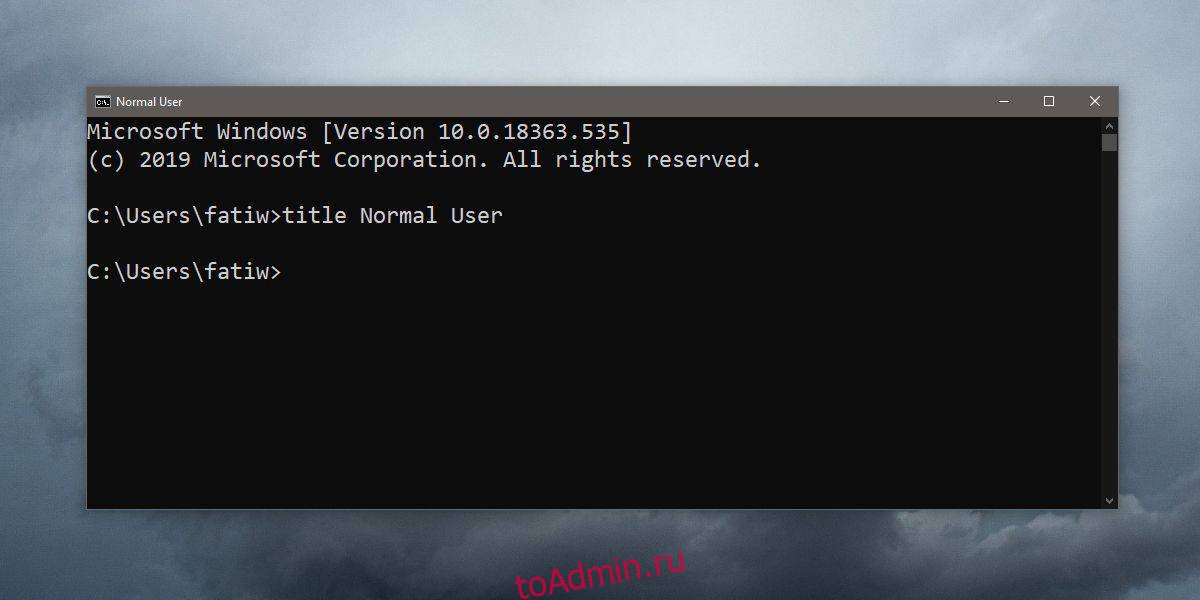
Терминальные приложения, такие как командная строка, не имеют большого количества пользовательского интерфейса. Они предназначены для выполнения текстовых команд, и часто пользователи, которые предпочитают их приложениям с графическим интерфейсом, делают это из-за базового интерфейса. Хотя базовый интерфейс великолепен, он также может иногда быть контрпродуктивным, например, когда у вас открыто несколько окон командной строки и вы работаете над разными вещами в каждом. Один из простых способов различить окна и упростить переключение между ними — дать им заголовок. Вот как вы можете установить заголовок для окна командной строки в Windows 10.
Заголовок окна командной строки
Заголовки устанавливаются для каждого окна, а заголовок устанавливается только для текущего сеанса. Вы можете изменить / отредактировать заголовок в любое время.
Откройте окно командной строки и выполните следующую команду
Синтаксис
title 'Actual title for the command prompt window'
Пример
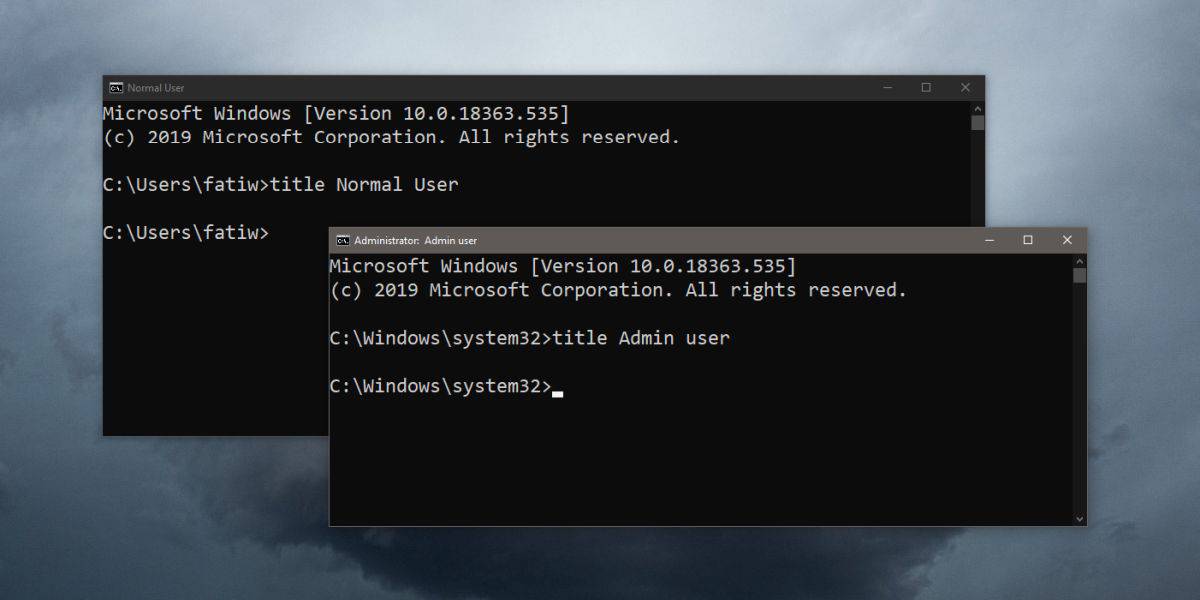
title Admin user
Нажмите Enter, и название будет установлено.
Заголовки могут быть установлены для окна командной строки независимо от того, запущено оно с правами администратора или нет. Вы должны знать, что заголовок может содержать пробел, но вам не нужно заключать его в двойные кавычки. Команда Title знает, что будет получать строковый ввод, и поэтому все, что разделено пробелом, автоматически считается частью строки.
Вы также можете установить заголовок для окон PowerShell, но команда для него другая. В PowerShell вам нужно выполнить следующую команду.
Синтаксис
[System.Console]::Title = "Title that you want to use"
Пример
[System.Console]::Title = "Sponge bob"
Однако между этими двумя командами есть одно различие; в PowerShell вы должны заключить заголовок, который вы устанавливаете, в двойные кавычки. Без него команда просто не запустится, и вы получите сообщение об ошибке. Помимо этого единственного различия, команда работает более или менее так же, как команда Title в командной строке. Вы можете изменить его, когда захотите, и его можно запускать в Windows как с обычными, так и с правами администратора. Как и в командной строке, заголовок задается только для текущего сеанса.

Самым большим преимуществом установки заголовка является то, что при наведении указателя мыши на значок PowerShell на панели задач предварительный просмотр в виде эскиза покажет вам установленный заголовок. Это упрощает выбор окна, в которое вы хотите переключиться.
Что вы думаете об этой статье?