
Check out this Minecraft 2021 beginner’s guide on how to easily change your game’s textures via Resource Packs! Use your game’s options and change the way your game looks and more!!!
Table of Contents
- How To Change Minecraft Textures
- What Are Resource Packs?
Best Texture Packs 2021
How To Change Minecraft Textures
Changing Minecraft Textures Procedure Quick-Chart
| 1 | Download texture pack to get a .zip file |
|---|---|
| 2 | Right-click and «copy» the .zip file |
| 3 | Open Minecraft: Java Edition application |
| 4 | From the main menu, choose «Options» then click «Resource Packs» |
| 5 | Open the Resource Pack folder |
| 6 | Paste the .zip file in the folder that just opened |
| 7 | Exit the folder and go back to the game |
| 8 | Check «Resource Packs» to find all Available Resource Packs to locate your newly added texture pack |
Change Minecraft Textures — Procedure Details
1. Download Texture Pack & Copy The .Zip File

The first step is to download a texture pack that you want to implement onto your Minecraft game. Copy this .zip file once the download has finished.
Best Texture Packs 2021
2. Open Minecraft Game

After copying the file, open the Minecraft: Java Edition application to start the game.
3. From Main Menu > Options > Resource Packs

From the main menu, click on «Options» then locate the «Resource Packs» from the list of settings.
4. Open Resource Pack Folder & Paste .Zip File

Click «Resource Packs» then select «Open Resource Pack Folder». Once you have the folder opened, paste the .zip file you just copied into this folder.
5. Check «Resource Packs» In Game To Find Texture Pack

After copying the .zip file, exit the folder then go back to the game. Check «Resource Packs» to find a list of all available Resource Packs in your game — you’ll find your newly added texture pack there.
Best Texture Packs 2021
What Are Minecraft Resource Packs?
Downloadable Content That Changes How Your Game Looks
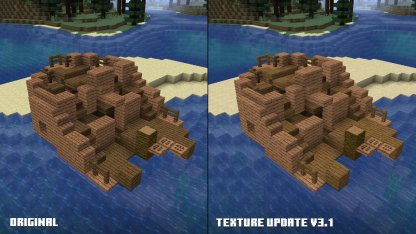
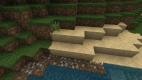
Textures in Minecraft can be changed to alter the way that your game looks and how objects blend together, whether they are materials, water, landscapes, and even animals.
Best Texture Packs 2021
Warning! Possible Errors May Occur!
It’s possible for errors to occur when applying texture packs into your game. Be sure that all Resource Packs you’re implementing to your game are compatible to your current game version to prevent possible data loss & corruption.
User Made Resource Packs Are Also Available
Minecraft fans are also avidly creating Resource Packs that they upload online. These make Minecraft games & accounts highly customized and personalized. But be careful of possible incompatibilities that may cause errors to appear in your game.
Use Shaders To Enhance Graphics
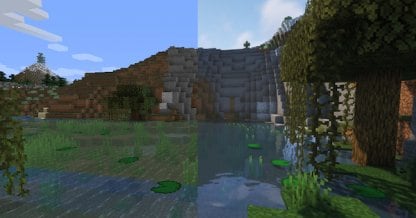
Shaders are mods that you can use to modify the general appearance of the game. Some of these shaders also modify trees, clouds, and other in-game elements. Make sure to use them if you want a «different» Minecraft experience!
Check Out The Best Shaders Here!
Related Articles
Minecraft Mod Guides & Database
Update 1.17 Related Guides
Best Texture Packs 2021
Mojang © 2009-2019. All Rights Reserved.
All trademarks, character and/or image used in this article are the copyrighted property of their respective owners.
▶Minecraft Official Website
Check out this Minecraft 2021 beginner’s guide on how to easily change your game’s textures via Resource Packs! Use your game’s options and change the way your game looks and more!!!
Table of Contents
- How To Change Minecraft Textures
- What Are Resource Packs?
Best Texture Packs 2021
How To Change Minecraft Textures
Changing Minecraft Textures Procedure Quick-Chart
| 1 | Download texture pack to get a .zip file |
|---|---|
| 2 | Right-click and «copy» the .zip file |
| 3 | Open Minecraft: Java Edition application |
| 4 | From the main menu, choose «Options» then click «Resource Packs» |
| 5 | Open the Resource Pack folder |
| 6 | Paste the .zip file in the folder that just opened |
| 7 | Exit the folder and go back to the game |
| 8 | Check «Resource Packs» to find all Available Resource Packs to locate your newly added texture pack |
Change Minecraft Textures — Procedure Details
1. Download Texture Pack & Copy The .Zip File
The first step is to download a texture pack that you want to implement onto your Minecraft game. Copy this .zip file once the download has finished.
Best Texture Packs 2021
2. Open Minecraft Game
After copying the file, open the Minecraft: Java Edition application to start the game.
3. From Main Menu > Options > Resource Packs
From the main menu, click on «Options» then locate the «Resource Packs» from the list of settings.
4. Open Resource Pack Folder & Paste .Zip File
Click «Resource Packs» then select «Open Resource Pack Folder». Once you have the folder opened, paste the .zip file you just copied into this folder.
5. Check «Resource Packs» In Game To Find Texture Pack
After copying the .zip file, exit the folder then go back to the game. Check «Resource Packs» to find a list of all available Resource Packs in your game — you’ll find your newly added texture pack there.
Best Texture Packs 2021
What Are Minecraft Resource Packs?
Downloadable Content That Changes How Your Game Looks
Textures in Minecraft can be changed to alter the way that your game looks and how objects blend together, whether they are materials, water, landscapes, and even animals.
Best Texture Packs 2021
Warning! Possible Errors May Occur!
It’s possible for errors to occur when applying texture packs into your game. Be sure that all Resource Packs you’re implementing to your game are compatible to your current game version to prevent possible data loss & corruption.
User Made Resource Packs Are Also Available
Minecraft fans are also avidly creating Resource Packs that they upload online. These make Minecraft games & accounts highly customized and personalized. But be careful of possible incompatibilities that may cause errors to appear in your game.
Use Shaders To Enhance Graphics
Shaders are mods that you can use to modify the general appearance of the game. Some of these shaders also modify trees, clouds, and other in-game elements. Make sure to use them if you want a «different» Minecraft experience!
Check Out The Best Shaders Here!
Related Articles
Minecraft Mod Guides & Database
Update 1.17 Related Guides
Best Texture Packs 2021
Mojang © 2009-2019. All Rights Reserved.
All trademarks, character and/or image used in this article are the copyrighted property of their respective owners.
▶Minecraft Official Website

В этой инструкции мы расскажем вам как установить текстуры и ресурспаки на майнкрафт. Объясним как найти папку с текстурами, расскажем про совместимость старых текстур с новыми версиями игры, а так же вы узнаете чем может быть поелезен OptiFine при установке текстур.
Установка текстур
Выберите нужный текстурпак и внимательно ознакомьтесь с инструкцией по установке на его странице.
Текстурпак для майнкрафт представляет из себя zip-архив, который не надо распаковывать (в некоторых случаях распаковать все же придется, но это бывает довольно редко и всегда написано в инструкции).
Для установки текстурпака, его архив необходимо скопировать в папку .minecraftresourcepacks, самый простой способ найти её это запустить майнкрафт, и нажать кнопки «Настройки…» -> «Пакеты ресурсов…» -> «Папка с пакетами ресурсов», после чего откроется окно проводника с нужной вам папкой.
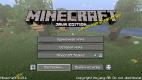
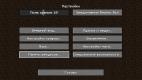
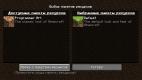
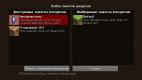
Скачайте файл текстурпака и скопируйте его в открывшуюся папку, теперь вернитесь в игру и перейдите обратно в настройки, нажав кнопку «Готово», затем снова нажмите «Пакеты ресурсов…» (это необходимо, чтобы обновить список текстурпаков). Найдите в списке «Доступные пакеты ресурсов» нужные текстуры и наведите курсор на их изображение, кликните левой кнопкой мыши по появившейся стрелке, а затем нажмите кнопку «Готово». Все, текстуры установлены, вы можете выйти из настроек и продолжить игру.
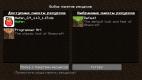
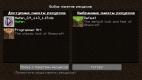
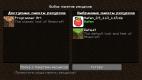

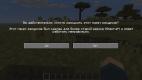
У каждого текстурпака есть определенный диапазон версий майнкрафт, к которым он подходит. Но если найденный вами текстурпак не подходит на вашу версию, так как ваш майнкрафт новее, вы всё равно можете попробовать его установить, просто проигнорируйте сообщение об установке нажав «Да». В большинстве случаев текстуры будут работать, но часть предметов останутся прежними, так как в старом паке нету текстур на новые игровые предметы.
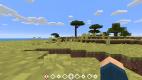
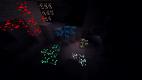
В каждой инструкции к текстурпаку мы советуем устанавливать OptiFine, так как довольно часто разработчики текстур используют возможности этого мода, и без OptiFine вы не увидите полные возможности пака (текстуры неба, связные текстуры блоков, разные текстуры для одного моба, светящиеся текстуры), либо он и вовсе не будет работать.

5 января 2020, 21:27
93.6т
3
Урок 1. Как изменить текстуры в майнкравт
Урок 2. Способы изменить текстуры
Урок 3.Видео
Урок 4.
Урок 5.
Урок 6.
Урок 7.
Урок 8.
Урок 9.
Урок 10.
Урок 11.
Урок 12.
Урок 13.
Урок 14.
Урок 15.
Урок 16.
Урок 17.
Урок 18.
Урок 19.
Урок 20.
По теме:
- Как заспавнить жителя в minecraft
- Как открыть дверь в minecraft
- Как сделать батарею в minecraft
- Как называются скины в minecraft
- Как создавать вещи в minecraft
Пожалуйста, поддержите наш проект — нажмите лайк!