
If a commit message contains unclear, incorrect, or sensitive information, you can amend it locally and push a new commit with a new message to GitHub. You can also change a commit message to add missing information.
Rewriting the most recent commit message
You can change the most recent commit message using the git commit --amend command.
In Git, the text of the commit message is part of the commit. Changing the commit message will change the commit ID—i.e., the SHA1 checksum that names the commit. Effectively, you are creating a new commit that replaces the old one.
Commit has not been pushed online
If the commit only exists in your local repository and has not been pushed to GitHub.com, you can amend the commit message with the git commit --amend command.
-
On the command line, navigate to the repository that contains the commit you want to amend.
-
Type
git commit --amendand press Enter. -
In your text editor, edit the commit message, and save the commit.
-
You can add a co-author by adding a trailer to the commit. For more information, see «Creating a commit with multiple authors.»
-
You can create commits on behalf of your organization by adding a trailer to the commit. For more information, see «Creating a commit on behalf of an organization»
-
The new commit and message will appear on GitHub.com the next time you push.
You can change the default text editor for Git by changing the core.editor setting. For more information, see «Basic Client Configuration» in the Git manual.
Amending older or multiple commit messages
If you have already pushed the commit to GitHub.com, you will have to force push a commit with an amended message.
We strongly discourage force pushing, since this changes the history of your repository. If you force push, people who have already cloned your repository will have to manually fix their local history. For more information, see «Recovering from upstream rebase» in the Git manual.
Changing the message of the most recently pushed commit
- Follow the steps above to amend the commit message.
- Use the
push --force-with-leasecommand to force push over the old commit.$ git push --force-with-lease origin EXAMPLE-BRANCH
Changing the message of older or multiple commit messages
If you need to amend the message for multiple commits or an older commit, you can use interactive rebase, then force push to change the commit history.
-
On the command line, navigate to the repository that contains the commit you want to amend.
-
Use the
git rebase -i HEAD~ncommand to display a list of the lastncommits in your default text editor.# Displays a list of the last 3 commits on the current branch $ git rebase -i HEAD~3The list will look similar to the following:
pick e499d89 Delete CNAME pick 0c39034 Better README pick f7fde4a Change the commit message but push the same commit. # Rebase 9fdb3bd..f7fde4a onto 9fdb3bd # # Commands: # p, pick = use commit # r, reword = use commit, but edit the commit message # e, edit = use commit, but stop for amending # s, squash = use commit, but meld into previous commit # f, fixup = like "squash", but discard this commit's log message # x, exec = run command (the rest of the line) using shell # # These lines can be re-ordered; they are executed from top to bottom. # # If you remove a line here THAT COMMIT WILL BE LOST. # # However, if you remove everything, the rebase will be aborted. # # Note that empty commits are commented out -
Replace
pickwithrewordbefore each commit message you want to change.pick e499d89 Delete CNAME reword 0c39034 Better README reword f7fde4a Change the commit message but push the same commit. -
Save and close the commit list file.
-
In each resulting commit file, type the new commit message, save the file, and close it.
-
When you’re ready to push your changes to GitHub, use the push —force command to force push over the old commit.
$ git push --force origin EXAMPLE-BRANCH
For more information on interactive rebase, see «Interactive mode» in the Git manual.
As before, amending the commit message will result in a new commit with a new ID. However, in this case, every commit that follows the amended commit will also get a new ID because each commit also contains the id of its parent.
If you have included sensitive information in a commit message, force pushing a commit with an amended commit may not remove the original commit from GitHub. The old commit will not be a part of a subsequent clone; however, it may still be cached on GitHub and accessible via the commit ID. You must contact GitHub Support with the old commit ID to have it purged from the remote repository.
Further reading
- «Signing commits»
On this question there are a lot of answers, but none of them explains in super detail how to change older commit messages using Vim. I was stuck trying to do this myself, so here I’ll write down in detail how I did this especially for people who have no experience in Vim!
I wanted to change my five latest commits that I already pushed to the server. This is quite ‘dangerous’ because if someone else already pulled from this, you can mess things up by changing the commit messages. However, when you’re working on your own little branch and are sure no one pulled it you can change it like this:
Let’s say you want to change your five latest commits, and then you type this in the terminal:
git rebase -i HEAD~5
*Where 5 is the number of commit messages you want to change (so if you want to change the 10th to last commit, you type in 10).
This command will get you into Vim there you can ‘edit’ your commit history. You’ll see your last five commits at the top like this:
pick <commit hash> commit message
Instead of pick you need to write reword. You can do this in Vim by typing in i. That makes you go in to insert mode. (You see that you’re in insert mode by the word INSERT at the bottom.) For the commits you want to change, type in reword instead of pick.
Then you need to save and quit this screen. You do that by first going in to ‘command-mode’ by pressing the Escbutton (you can check that you’re in command-mode if the word INSERT at the bottom has disappeared). Then you can type in a command by typing :. The command to save and quit is wq. So if you type in :wq you’re on the right track.
Then Vim will go over every commit message you want to reword, and here you can actually change the commit messages. You’ll do this by going into insert mode, changing the commit message, going into the command-mode, and save and quit. Do this five times and you’re out of Vim!
Then, if you already pushed your wrong commits, you need to git push --force to overwrite them. Remember that git push --force is quite a dangerous thing to do, so make sure that no one pulled from the server since you pushed your wrong commits!
Now you have changed your commit messages!
(As you see, I’m not that experienced in Vim, so if I used the wrong ‘lingo’ to explain what’s happening, feel free to correct me!)
Как исправить описание только последнего коммита
Если коммит только что сделан, и он не отправлен в origin-репозитарий командой git push, то изменить описание коммита можно такой командой:
git commit —amend -m «Новое описание»
Или можно дать команду:
git commit —amend
При выполнении этой команды будет открыт текстовый редактор по-умолчанию, в котором можно будет изменить сообщение коммита. После выхода из редактора, описание коммита будет изменено. При этом будет изменена SHA-1 сумма коммита.
Кстати, исправить можно не только описание, но и файлы и их состояние в коммите. Для этого нужно просто изменить или добавить или удалить файлы в рабочей директории, зафиксировать эти изменения в индексе (командами git add или git rm и проч.), после чего можно дать команду:
git commit —amend
в результате которой GIT возьмёт текущий индекс и сделает его снимком состояния нового коммита. Опять же, при этом будет изменена SHA-1 сумма коммита.
Как исправить описание любого коммита в истории
Описанные ниже действия возможны, если коммиты еще не отправлены на удаленный репозитарий, или если программист является единственным пользователем удаленного репозитария. Описанные ниже действия являются переписыванием истории. Поэтому, если есть другие программисты, то они будут вынуждены вытянуть себе заново всю копию репозитария, чтобы у них была такая же история, что и у автора правок.
Начиная с git 1.6.6 можно использовать механизм GIT, называющийся reword. Он используется в рамках команды rebase.
Для начала находим ID коммита с неправильным комментарием. Для этого в директории с нужным git-репозиторием набираем
git log —pretty=format:»%h — %ar : %s»
На выходе получаем список коммитов с хеш-идентификаторами. Например, такой
39ba64e — 7 hours ago : redirect to order status after booking
c4d25d6 — 8 hours ago : order status
Предполагается, что надо изменить коммит c4d25d6. В дальнейших командах, контрольная сумма коммита обозначает глубину, на которую будет изменяться история.
Чтобы исправить неправильный комментарий у коммита c4d25d6, вводим следующую команду (обратите внимание на символ ^ после ID, это значит, что начинать rebase надо от его родителя. То есть, в команде rebase указывается родительский коммит того коммита, который надо отредактировать)
git rebase —interactive c4d25d6^
git откроет редактор по умолчанию, в котором вы увидите что-то типа:
pick c4d25d6 order status
pick 39ba64e redirect to order status after booking
Это сценарий действий, которые будут выполнены для изменения истории.
Меняем слово pick на слово reword, то есть нам нужно лишь изменить комментарий.
reword c4d25d6 order status
pick 39ba64e redirect to order status after booking
GIT предложит сохранить текстовый файл, что и нужно сделать. Фактически, в интерактивном режиме, это список команд для него. Он снова откроет текстовый редактор и предложит изменить комментарий для нужного коммита. После сохранения файлика git повторит весь комит, поменяет его ID и короткий хеш. Все.
Кстати, помимо reword есть еще и команда edit. После сохранения файла сценария, сценарий будет выполняться до команды edit, после чего GIT завершит работу и вернется в консоль. Будут примерно такие сообщения:
$ git rebase —interactive c4d25d6^
Stopped at c4d25d6… updated the gemspec to hopefully work better
You can amend the commit now, with
git commit —amend
Once you’re satisfied with your changes, run
git rebase —continue
В этот момент рабочая директория будет находиться в состоянии коммита c4d25d6. Можно изменить это состояние (изменить или добавить или удалить файлы), и дать команду:
git commit —amend
Откроется редактор, в котором можно будет изменить описание коммита. После закрытия редактора, отредактированный коммит будет изменен в истории. И можно дать следующую команду:
git rebase —continue
Эта команда будет дальше искать коммиты, которые нужно изменить, и будет снова останавливаться чтобы позволить внести изменения, до самого последнем коммите.
Чтобы запушить изменения, сделанные таким способом, нужно выполнить команду:
git push —force
После нее история на origin-сервере будет перезаписана. И если с репозитарием работают другие программисты, они должны будут принять всю измененную историю. Как это сделать — надо искать отдельно. Радикальный способ — это сделать git clone в отдельной директории и продолжить работу в ней. Можно пинять и отдельные изменения, но это тема для отдельной статьи.
Рабочий процесс в системе контроля версий git сводится к тому, что разработчик создает от ветки develop новую ветку для реализации конкретной задачи. Принято, что в ветке каждому коммиту соответствует более-менее логически законченная единица работы или же изменения, которые в будущем может потребоваться отменить.
Однако порой в спешке под конец рабочего дня разработчик может закоммититься с подписью вроде такой «WIP» или «TMP». В статье рассмотрим, как в git переименовать коммит. При этом возможны два основных случая — коммит является последним или коммит не является последним.
Переименование последнего коммита
На следующий день разработчик приходит на работу, просматривает изменения в ветке и вспоминает, что нужно изменить комментарий к коммиту. Для этого достаточно использовать команду git commit --amend -m "Новое название коммита".
Изменение комментария к не последнему коммиту
Допустим разработчик забыл с утра откорректировать название коммита, и в течение дня сделал ещё несколько коммитов. Тогда встаёт вопрос, как обновить комментарий, например для четвёртого коммита вглубь истории.
Итак, чтобы в git исправить комментарий такого коммита потребуется выполнить rebase в интерактивном режиме.
1. Сначала нужно посмотреть, на сколько коммитов назад находится тот коммит, которые нужно отредактировать. Для этого можно использоваться либо git log --oneline, либо консольный GUI для Git, например, tig.

Видим, что изменить комментарий нужно к коммиту «tmp», находящийся позади на четыре коммита относительно HEAD.
2. Теперь запускаем rebase в интерактивной режиме:
git rebase -i HEAD~5
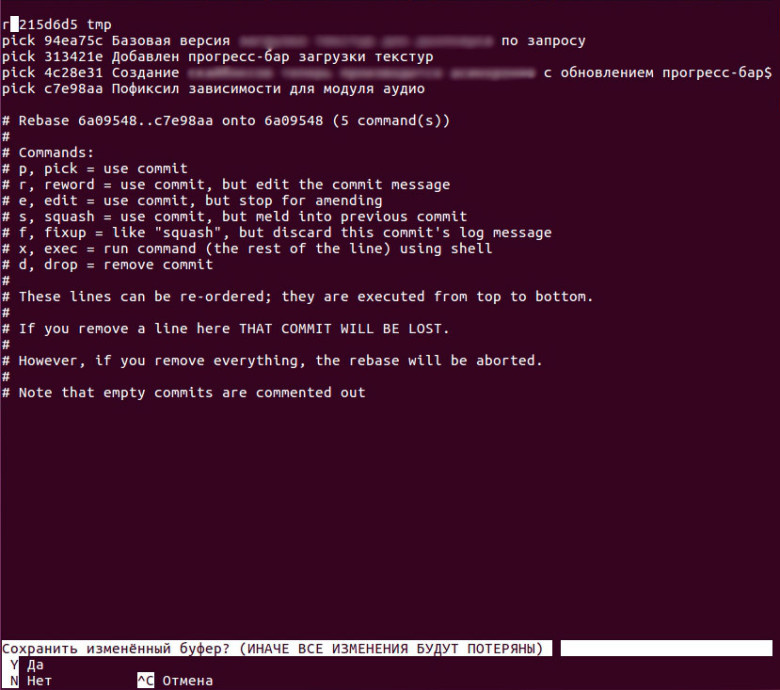
3. В появившемся редакторе следует в строках коммитов изменить команду pick на reword.
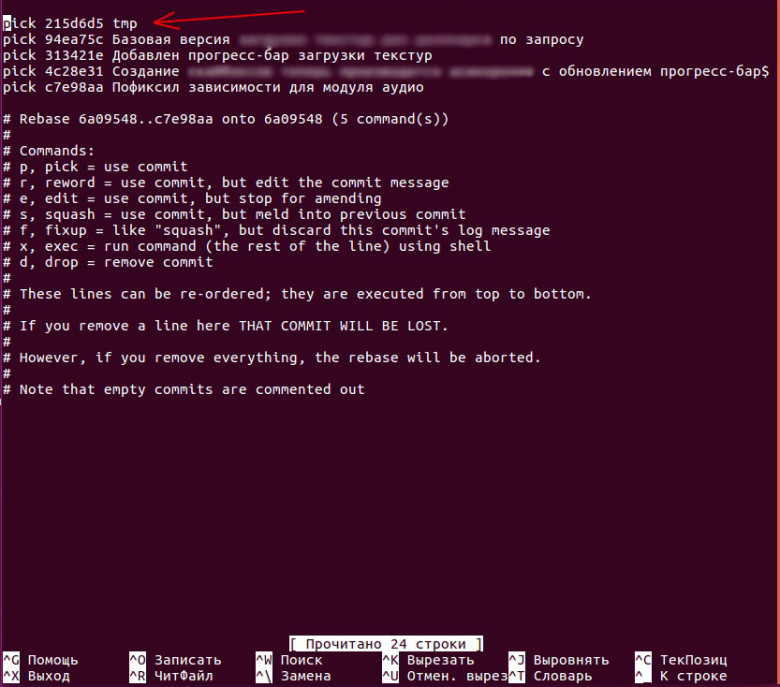
Затем сохраняем файл и выходим.
4. Автоматически начнется ребейз и откроется файл редактирования коммита. Здесь необходимо ввести новую подпись к коммиту.
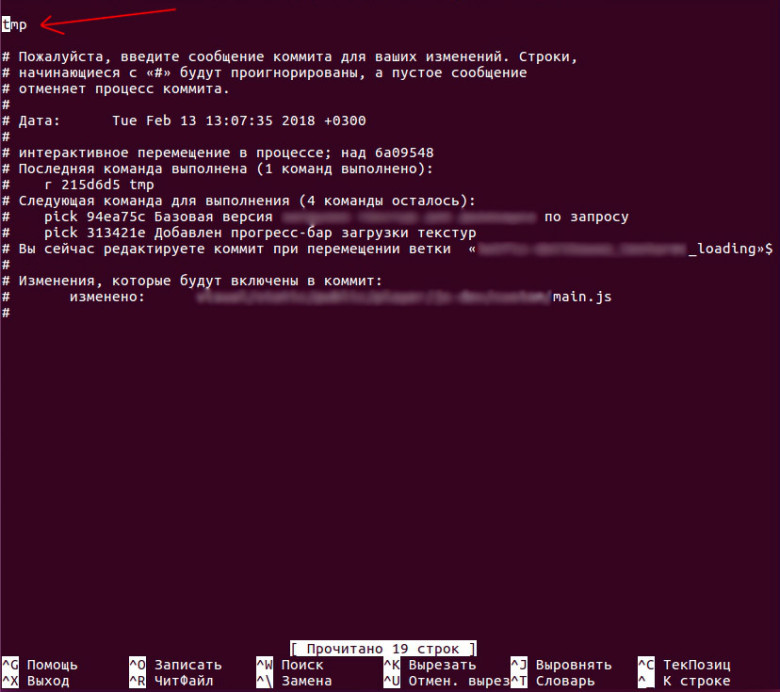
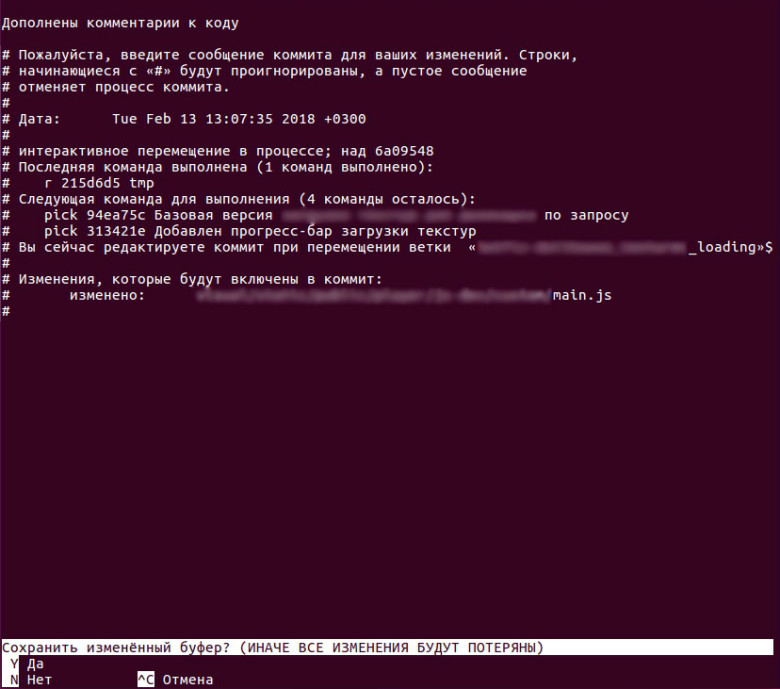
5. Остаётся сохранить и выйти. Теперь название коммита изменено.


Важно. Оба описанных способа приводят к изменению коммитов, а значит коммиты на сервере и в локальной ветке будут теперь отличаться. Поэтому запушить ветку так просто не получится — нужно использовать флаг --force.
git push --force
Однако, если работа в ветке ведётся несколькими разработчиками одновременно, тогда такой подход неприемлем.
Метки: Метки: git
Quick cheat sheet to change commit message in git
You just did a commit then realized the message is not the intended one, or you want to git change commit message on multiple commits. Here is what you should do.
To change the last commit, use the --amend flag this way
git commit --amend -m "<message>"
OR
git commit --amend -c <commit hash>
You can also git change commit messages on the HEAD using a soft reset.
git reset --soft HEAD~1
git commit -m "<message>"
OR
Use the longer route by doing a soft reset followed by a mixed reset. Then commit the changes with a new message.
git reset --soft HEAD~1

git reset HEAD

git add <file>

git commit -m "<message>"
To edit multiple commit messages or specific commit message that is NOT the HEAD, interactively rebase the commit using any of these commands:
ALSO READ: git HEAD~ vs HEAD^ vs HEAD@{} Explained with Examples
Specify the commit hash for one change.
git rebase -i <commit hash>
Your default text editor opens up. You can then reword the message.
OR
Edit multiple commit messages by selecting a bunch of commits from the HEAD to the target commit hash.
git rebase -i HEAD~N
where N is the number of commits, from the top excluding the parent commit hash, whose message you want to edit.
As shown in the next sections of this tutorial, it would help to find a detailed explanation of the git commit message and practice git change commit message using relatable examples.
What is a git commit message? Do’s and Don’ts
A git commit message explains why a change occurred in a repository. It plays a significant role in marking software releases and bug fixes.
You will mostly apply git commit messages when collaborating on a project, enabling your teammates to figure out why you made a change on the branch you are working on. Editing commit messages lets you put more descriptive information or entirely overwrite the message.
Despite the excellent side of the git change commit message, you should use it cautiously. For instance, the change could be unconducive for pushed files because changing a commit message alters the SHA id.

Another reason to avoid git change commit message is that the operation automatically commits staged changes even if you had not decided to commit them.
ALSO READ: Let’s decode «git restore» for you [Practical Examples]
Now that you know what can lead to editing a commit message and the drawbacks of git change commit message, let us see them in action.
Lab setup to practice git change commit message
Create a new repo
I am creating a remote repo called change_commit_message on GitHub.

After creating the repo, copy its URL and clone it on your preferred terminal or command line.

Configure the text editor
Next, we will configure our default text editor to ease git change commit message. If you have installed a friendlier text editor other than git’s default one, vim, let us configure it as follows:
git config --global core.editor "[your preferred editor] -w"
I am changing my git’s default text editor to Visual Studio Code.
git config --global core.editor "code -w"
where the -w flag informs git to wait for us to change the commit message before recording the input.
Build a commit history
Let’s cd into the new repo and create a few commits in readiness for git change commit message examples.
cd change_commit_message
Second commit
touch file2

git stage file2

git commit -m "Add second commit"
Third commit
touch file3

git stage file3

git commit -m "Add the third commit"
Fourth commit
touch file4

git stage file4

git commit -m "Add fourth commit"
Check the commit history
git log
We have four commits.
ALSO READ: Remove untracked files with «git clean» [Practical Examples]

We have some commits to play with. Let’s git change commit messages using relatable examples.
Scenario-1: Editing the last commit message
Git change commit message is quite simple to do on the commit HEAD using either the --amend flag or git reset soft.
Example-1: Using the amend flag
Assume we want to introduce the article in the fourth commit message. We can achieve that by applying the --amend flag as follows:
git commit --amend -m "Add the fourth commit"
Let’s recheck the history.
git log

The commit message got edited!
Example-2: Doing a soft reset
The reset command for doing git change commit message is
git reset --soft HEAD~1
By writing ~1, we are telling git to edit one commit from the HEAD. Alternatively, we can replace ~1 with the caret symbol ^ to refer to the last commit, as shown below.
git reset --soft HEAD^
A soft reset undoes the commit HEAD changes. We can then rewrite the message.
git commit -m "Edit the fourth commit"
Our last commit message changed from Add the fourth commit to Edit the fourth commit.

We can also go the longer route by unstaging the file.
Do a soft reset.
git reset --soft HEAD~1
Unstage the last indexed file.
git reset HEAD
Then restage and recommit it using a new commit message
git add .

git commit -m "Change the fourth commit message entirely"
Recheck the history.
git log

The last commit message changed from Edit the fourth commit to Change the fourth commit message entirely.
ALSO READ: Git rebase explained in detail with examples
Scenario-2: Git change commit messages on specific file(s)
Want to edit a specific commit message other than the HEAD’s? Combine the --amend and -c flags or rebase the commit hash interactively.
Example-3: Combine the --amend and -c flags
Running the command
git commit --amend -c fc87791e0565c40d5fbdb38fead250e646fdddcd
asks for a commit message to change the commit before the specified hash by opening our text editor.
Let’s edit the commit message to Edit the third commit. That changes the commit message before the commit hash fc87791e0565c40d5fbdb38fead250e646fdddcd

Example-4: Interactively rebase a commit hash
Interactive rebase is one of the most familiar ways to git change commit messages. We can use it to edit one commit by rebasing our third last commit as follows
git rebase -i 22e2c5c
The text editor opens up. Change the last commit’s command from pick to reword, then close the text editor.
The text editor reopens, asking us for a new commit message for the target commit hash. Let’s edit the message from Edit the third commit to Change to fourth commit, close the text editor then check the history.
git log

We can also use git rebase -i <commit hash> to edit multiple commit messages. Better yet, specify N during the interactive rebase if you know the number of commits from the head to your target base commit hash, as illustrated below.
ALSO READ: git undo commit before push [Practical Examples]
Scenario-3: Changing multiple commit messages
Example-5: Interactively rebase the HEAD
Replacing N with 3 in the command
git rebase -i HEAD~N
git rebase -i HEAD~3
opens our default text editor. This time around, let’s reword every commit message, close the editor and see what happens.
The editor reopens three times, asking for respective commit messages. I am replacing each Add or Edit with Track then logging the history to check the result of git change commit messages.
git log

And that’s the fundamentals of git change commit message using the rebase commit.
Conclusion
You just learned how to git change commit messages using the --amend flag, git reset command, and interactive rebase. Now is the time to enjoy your software tracking missions by practicing the commands further and applying them in various projects.
Many programmers underestimate the role of the commit message, while it is very important for managing the work. It helps other developers working on your project to understand the changes that you have made. So it must be as concrete, well-structured and clear as possible.
In this snippet, we will show you how to change your most recent commit message, as well as how to change any number of commit messages in the history.
Read on to see the options.
You can use --amend flag with the git commit command to commit again for changing the latest commit:
git commit --amend -m "New commit message"Running this will overwrite not only your recent commit message but, also, the hash of the commit. Note, that it won’t change the date of the commit.
It will also allow you to add other changes that you forget to make using the git add command:
git add more/changed/w3docs.txt
git commit --amend -m "message"
The -m option allows writing the new message without opening the Editor.
If you want to change the message of the commit that is already pushed to the server, you should force push it using the git push command with —force flag, otherwise, your push will be rejected.
Check out Force Pushing Local Changes to Remote for more details on how to force push your changes.
In this section, we will show you the steps to follow if you want to change multiple commit messages in the history.
Let’s assume that we want to take the 10 latest commit messages, starting from the HEAD.
Run Git Rebase in Interactive Mode
Firstly, you should run the git rebase in the interactive mode:
Type «Reword»
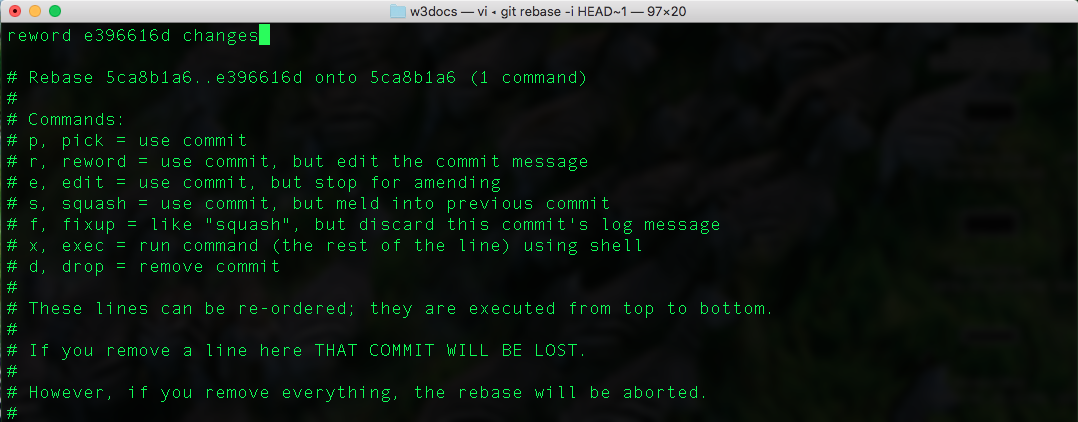
After the first step, the editor window will show up the 10 most recent commits. It will offer you to input the command for each commit. All you need to do is typing «reword» at the beginning of each commit you want to change and save the file. After saving, a window will open for each selected commit for changing the commit message.
Enter a New Commit Message
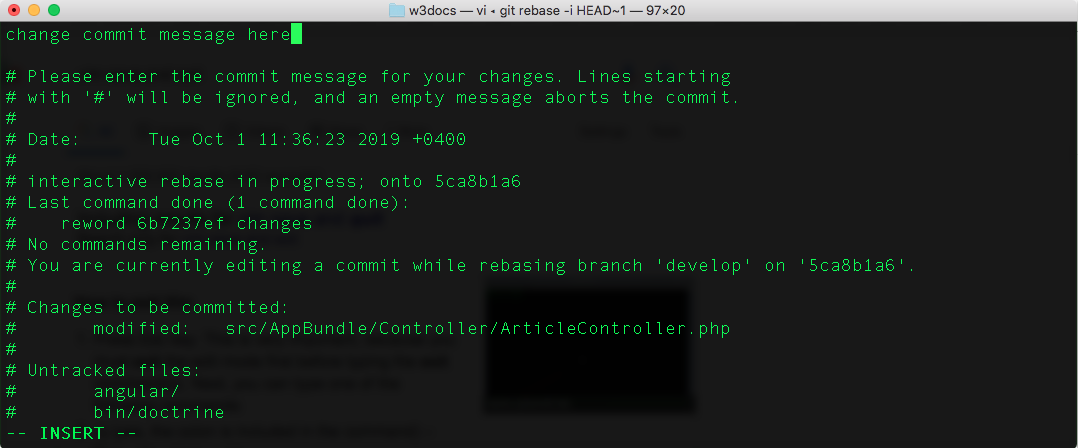
After the second step, an editor will open for each commit. Type a new commit message and save the file.
Check out Force Pushing Local Changes to Remote for more details on how to force push your changes.
It is not recommended to change a commit that is already pushed because it may cause problems for people who worked on that repository.
If you change the message of the pushed commit, you should force push it using the git push command with --force flag (suppose, the name of remote is origin, which is by default):
git commit --amend -m "New commit message."

git push --force origin HEAD
—force overwrites the remote branch on the basis of your local branch. It destroys all the pushed changes made by other developers. It refers to the changes that you don’t have in your local branch.
Here is an alternative and safer way to amend the last commit:
git push --force-with-lease origin HEAD—force-with-lease is considered a safer option that will not overwrite the work done on the remote branch in case more commits were attached to it (for instance, by another developer). Moreover, it helps you to avoid overwriting another developer’s work by force pushing.
The git add command is used for adding changes in the working directory to the staging area. It instructs Git to add updates to a certain file in the next commit. But for recording changes the git commit command should also be run. The git add and git commitcommands are the basis of Git workflow and used for recording project versions into the history of the repository. In combination with these two commands, the git status command is also needed to check the state of the working directory and the staging area.
The git push command is used to upload the content of the local repository to the remote repository. After making changes in the local repository, you can push to share the modification with other members of the team.
Git refuses your push request if the history of the central repository does not match the local one. In this scenario, you should pull the remote branch and merge it into the local repository then push again. The --force flag matches the remote repository’s branch and the local one cleaning the upstream changes from the very last pull. Use force push when the shared commits are not right and are fixed with git commit --amend or an interactive rebase. The interactive rebase is also a safe way to clean up the commits before sharing. The git commit --amend option updates the previous commit.