
Sponsored Link
The Multi Router Traffic Grapher (MRTG) is a tool to monitor the traffic load on network links. MRTG generates HTML pages containing PNG images which provide a LIVE visual representation of this traffic.
MRTG Features
Portable
MRTG works on most UNIX platforms and Windows NT.
Perl
MRTG is written in Perl and comes with full source.
Portable SNMP
MRTG Uses a highly portable SNMP implementation written entirely in Perl (thanks to Simon Leinen). There is no need to install any external SNMP package.
SNMPv2c support
MRTG can read the new SNMPv2c 64bit counters. No more counter wrapping.
Reliable Interface Identification
Router interfaces can be identified by IP address, description and ethernet address in addition to the normal interface number.
Constant size Logfiles
MRTG’s logfiles do NOT grow thanks to the use of a unique data consolidation algorithm.
Automatic Configuration
MRTG comes with a set of configuration tools which make configuration and setup very simple.
Performance
Time critical routines are written in C .
GIF free Graphics
Graphics are generated directly in PNG format using the GD library by Thomas Boutell.
Customizability
The look of the webpages produced by MRTG is highly configurable.
RRDtool
MRTG has built-in hooks for using RRDtool. If you are strapped for performance this may help.
Prerequisites
You need to make sure you have apache2,snmp packages are installed before starting MRTG installation
sudo apt-get install apache2 snmpd snmp
Now you need to edit the /etc/snmp/snmpd.conf file
sudo vi /etc/snmp/snmpd.conf
uncomment the following line
#rocommunity public localhost
to
rocommunity public localhost
Save and exit the file
You need to restart the snmpd service using the following command
sudo systemctl snmpd restart
Install MRTG Using the following command
sudo apt-get install mrtg
MRTG Configuration
You need to create mrtg directory under /var/www/html
sudo mkdir /var/www/html/mrtg
Backup the original /etc/mrt.cfg file:
sudo cp /etc/mrtg.cfg /etc/mrtg.cfg.ORIGINAL
Now you need to edit the /etc/mrt.cfg file
vi sudo /etc/mrt.cfg
change the working directory from
WorkDir: /var/www/mrtg
to
WorkDir: /var/www/html/mrtg
Save and exit the file
Create a configuration file for MRTG:
cfgmaker @ > /etc/mrtg.cfg
In this case we are using local server we are trying to monitor and output looks similar to the following
# cfgmaker [email protected] > /etc/mrtg.cfg
--base: Get Device Info on [email protected]:

--base: Vendor Id: Unknown Vendor - 1.3.6.1.4.1.8072.3.2.10

--base: Populating confcache

--base: Get Interface Info

--base: Walking ifIndex

--snpd: [email protected]: -> 1 -> ifIndex = 1

--snpd: [email protected]: -> 2 -> ifIndex = 2

--snpd: [email protected]: -> 3 -> ifIndex = 3

--base: Walking ifType

--snpd: [email protected]: -> 1 -> ifType = 24

--snpd: [email protected]: -> 2 -> ifType = 6

--snpd: [email protected]: -> 3 -> ifType = 6

--base: Walking ifAdminStatus

--snpd: [email protected]: -> 1 -> ifAdminStatus = 1

--snpd: [email protected]: -> 2 -> ifAdminStatus = 1

--snpd: [email protected]: -> 3 -> ifAdminStatus = 1

--base: Walking ifOperStatus

--snpd: [email protected]: -> 1 -> ifOperStatus = 1

--snpd: [email protected]: -> 2 -> ifOperStatus = 1

--snpd: [email protected]: -> 3 -> ifOperStatus = 1

--base: Walking ifMtu

--snpd: [email protected]: -> 1 -> ifMtu = 65536

--snpd: [email protected]: -> 2 -> ifMtu = 1500

--snpd: [email protected]: -> 3 -> ifMtu = 1500

--base: Walking ifSpeed

--snpd: [email protected]: -> 1 -> ifSpeed = 10000000

--snpd: [email protected]: -> 2 -> ifSpeed = 1000000000

--snpd: [email protected]: -> 3 -> ifSpeed = 1000000000
If you see the following error after running the above command you need to make sure you have completed the SNMP change discussed in the starting of this tutorial.
ERROR: did not find any matching data in cfg file
Create and index file for the webserver
indexmaker /etc/mrtg.cfg > /var/www/html/mrtg/index.html
You can access MRTG using the following URL
http:///mrtg
Output looks as follows

Sponsored Link
Related posts

- Forum
- The Ubuntu Forum Community
- Ubuntu Official Flavours Support
- Networking & Wireless
- MRTG Issue — ERROR: did not find any matching data in cfg

-
MRTG Issue — ERROR: did not find any matching data in cfg
Hello,
I am having issues installing MRTG on Ubuntu 18.04.
I have followed almost every guide on the internet, and every single time i get to the point of running the following, and every time get the same error:
root@s1-2-bhs5:~# sudo indexmaker /etc/mrtg.cfg > /var/www/mrtg/index.html
ERROR: did not find any matching data in cfg filei have the rocommunity public localhost
,uncommented in the /etc/snmp/snmpd.conf file as well
I am absolutely stumped.
Please help.
Thankyou
Bookmarks
Bookmarks
Posting Permissions


jonathanduane2010
asked on 9/12/2012
hi guys,
I am trying to install mrtg on ubuntu for monitoring traffic coming on our router
and when i run the command indexmaker —output=/var/www/mrtg/index.html /etc/mrtg/mrtg.cfg
i get the following error
Error: did not find any matching data in cfg file
here is whats is in the cfg file
(i have attached)
photo.JPG
Network ManagementLinux NetworkingNetworking

does the cfg file reflect your hardware to be monitorred? [ id. are you requesting exiting data]
Do you have the snmp autorisations to request that data?
Those are the most likely causes…
It might already been wrong with cfgmaker, cfgmaker should have told you which graphs it added. If it didn’t tell you, most probable cause is authorizations.
Is that all that in the cfg file? It looks a little empty to me.
Did the cfgmaker command run correctly? To me it looks almost as if you ran it, but if failed due to an error, say like the wrong community string or some other issue trying to talk to the IP address you have listed.
jonathanduane2010
9/13/2012
really?? Can you run it on all interfaces??
the community string is just public?
maybe its a rights issue??
jonathanduane2010
9/13/2012
if it is an authorisation issue, what is the best way to check??
When you ran the cfgmaker command what messages did you get back?
Can you post the whole config file that you are trying to run indexmaker against?
jonathanduane2010
9/13/2012
i get this error back
Error: did not find any matching data in cfg file
and i have attached the cfg file in my first post?
The message «Error: did not find any matching data in cfg file» is from the indexmaker command. We need to see the messages from the cfgmaker command
You attached a screen shot of a the config file, not the actual file.
If that is the full config file, then the cfgmaker command did not work and created «null/empty» config file. indexmaker will fail and generate the message you received when run against a null/empty file.
jonathanduane2010
9/13/2012
my snmpd.conf just has
rocummunity public
jonathanduane2010
9/13/2012
ah ok…
I will run that now,…..
jonathanduane2010
9/13/2012
THIS SOLUTION ONLY AVAILABLE TO MEMBERS.
View this solution by signing up for a free trial.
Members can start a
7-Day free trial
and enjoy unlimited access to the platform.
jonathanduane2010
9/13/2012
217.115.123.23 is the address of the machine i am trying to run the cfgmaker command on.
can i disable the firewall and test it, and if so how??
I can’t tell you how, as I have no clue to many things I would need to know in order to do it.
Such as,
Is there a firewall (or more than one) between your host and 217.115.123.23?
Is there a firewall running on your host?
Is there a firewall running on 217.115.123.23?
What types of systems and firewalls are they?
What bad things may happen if you disable the firewall, such as services that are hosted on 217.115.123.23 may stop working or a unauthorized person could gain access to 217.115.123.23.
jonathanduane2010
9/13/2012
ok i have disabled the firewall, can i run the cfgmaker on eth1 or eth2?? if i wanted to monitor all traffic coming in and out of the network cards of the machine?
the background is that
i have a linux machine acting as a router with two network cards
one being 217.115.123.23
and its this machine that i am trying to install and configure mrtg
why not logon to 217.115.123.23
and run cfgmaker on localhost…
and publish the results using a webserver based on the output of indexmaker..?
no special fiddling needed with firewalls…
jonathanduane2010
9/14/2012
log on to it how?? i am loggged into it, i have the machine here in front of me??
The use of an Public IP implies a remote server in the current NAT riddled internet.
A lot of problems are prevented if the localhost address is used because no firewalls are crossed this way. (use of address 127.0.0.1 & interface lo0 are taken care of in host based firewalls as most systems can trust connections from itself.).
Also many server implementation have more trust in access from localhost.
With logging on i mean getting access to the command line on the system itself, if you can access the console then use that, use ssh otherwise.
If the cfgmake fails with error along being unable to access public@localhost you need to verify the snmp server setup. (configuration for snmp most probably is in /etc/snmp/snmpd.conf )
Can you run cfgmaker against the «inside» IP address? The non-public one?
Посмотрите повнимательней, может, в /var/log/mrtg/mrtg/log что-то есть про сетевой интерфейс..? Странно.
Еще подкину специфичных для RPi (http://kopfkino.irosaurus.com/tutorial- … pberry-pi/):
Скрипт для измерения температуры:
Code: Select all
$ cd /home/pi
$ nano mrtg_cpu_temp.sh

#!/bin/bash
# Read cpu temperature
tempread=`cat /sys/class/thermal/thermal_zone0/temp`
temp=`echo "scale=2; $tempread / 1000" | bc`
# Wert ausgeben
echo $temp
echo 0
echo 0
echo temperature

chmod +x mrtg_cpu_temp.sh
Скрипт для измерения частоты CPU:
Code: Select all
$ cd /home/pi
$ nano mrtg_cpu_freq.sh

#!/bin/bash
# Read cpu temperature
freqread=`cat /sys/devices/system/cpu/cpu0/cpufreq/scaling_cur_freq`
freq=`echo "scale=2; $freqread / 1000" | bc`
# n
echo $freq
echo 0
echo 0
echo frequency

chmod +x mrtg_cpu_freq.sh
Добавить в /etc/mrtg.cfg и запустить indexmaker:
Code: Select all
### CPU Temperature Raspberry

TimeStrPos[localhost.cpu_temp]: RU
Target[localhost.cpu_temp]: `/home/pi/mrtg_cpu_temp.sh`
Options[localhost.cpu_temp]: gauge,growright,nopercent,trans$
Title[localhost.cpu_temp]: Raspberry Pi Server - CPU Temperatur
PageTop[localhost.cpu_temp]: <h1>Raspberry Pi Server - CPU Temperatur$
MaxBytes[localhost.cpu_temp]: 85
Unscaled[localhost.cpu_temp]: dwmy
Step[localhost.cpu_temp]: 60
Legend1[localhost.cpu_temp]: CPU Temperatur Raspberry Pi Server
LegendI[localhost.cpu_temp]: CPU Temperatur
LegendO[localhost.cpu_temp]:
YLegend[localhost.cpu_temp]: Grad Celsius
ShortLegend[localhost.cpu_temp]: Grad °C

### CPU Frequency Raspberry

TimeStrPos[localhost.cpu_freq]: RU
Target[localhost.cpu_freq]: `/home/pi/mrtg_cpu_freq.sh`
Options[localhost.cpu_freq]: gauge,growright,nopercent,trans$
Title[localhost.cpu_freq]: Raspberry Pi Server - CPU Frequency
PageTop[localhost.cpu_freq]: <h1>Raspberry Pi Server - CPU Frequency<$
MaxBytes[localhost.cpu_freq]: 1100
Unscaled[localhost.cpu_freq]: dwmy
Step[localhost.cpu_freq]: 60
Legend1[localhost.cpu_freq]: CPU Frequency Raspberry Pi Server
LegendI[localhost.cpu_freq]: CPU Frequency
LegendO[localhost.cpu_freq]:
YLegend[localhost.cpu_freq]: MegaHerz
ShortLegend[localhost.cpu_freq]: MHz
Процессор и память:
Code: Select all
### CPU Usage

LoadMIBs: /usr/share/mibs/netsnmp/UCD-SNMP-MIB,/var/lib/mibs/ietf/HOST-RESOURCES-MIB
Target[localhost.cpu]: ssCpuRawUser.0&ssCpuRawUser.0:public@127.0.0.1+ssCpuRawSystem.0&ssCpuRawSystem.0:public@127.0.0.1+ssCpuRawNice.0&ssCpuRawNice.0:public@127.0.0.1
RouterUptime[localhost.cpu]: public@127.0.0.1
MaxBytes[localhost.cpu]: 100
Title[localhost.cpu]: Raspberry Pi Server - CPU Load
PageTop[localhost.cpu]:<h1>Raspberry Pi Server - Active CPU Load %</h1>
Unscaled[localhost.cpu]: ymwd
ShortLegend[localhost.cpu]: %
YLegend[localhost.cpu]: CPU Utilization
Legend1[localhost.cpu]: Active CPU in % (Load)
Legend2[localhost.cpu]:
Legend3[localhost.cpu]:
Legend4[localhost.cpu]:
LegendI[localhost.cpu]: Active
LegendO[localhost.cpu]:
Options[localhost.cpu]: growright,gauge,nopercent,transparent,nolegend,unknaszero

### Memory Usage

LoadMIBs: /usr/share/mibs/netsnmp/UCD-SNMP-MIB,/var/lib/mibs/ietf/HOST-RESOURCES-MIB
Target[localhost.mem_used]: 242565120 - ((memAvailReal.0&memAvailReal.0:public@localhost) * 1024)
Title[localhost.mem_used]: Raspberry Pi Server - Used Memory
PageTop[localhost.mem_used]:<h1>Raspberry Pi Server - Used Memory</h1>
Options[localhost.mem_used]: growright,gauge,nopercent,transparent,noo,nolegend,unknaszero
MaxBytes[localhost.mem_used]: 242565120
Unscaled[localhost.mem_used]: dwmy
kilo[localhost.mem_used]: 1024
ShortLegend[localhost.mem_used]: MegaBytes
YLegend[localhost.mem_used]: Mem Used
LegendI[localhost.mem_used]: Used Memory:

### Memory Free, not including swap

LoadMIBs: /usr/share/mibs/netsnmp/UCD-SNMP-MIB,/var/lib/mibs/ietf/HOST-RESOURCES-MIB
Target[localhost.mem_free]: (1.3.6.1.4.1.2021.4.6.0&.1.3.6.1.4.1.2021.4.6.0:public@localhost) * 1024
PageTop[localhost.mem_free]:<h1>Raspberry Pi Server -- Free Memory (without Swap)</h1>
Title[localhost.mem_free]: Raspberry Pi Server - Free Memory (without Swap)
Options[localhost.mem_free]: growright,gauge,nopercent,transparent,noo,nolegend,unknaszero
MaxBytes[localhost.mem_free]: 242565120
kilo[localhost.mem_free]: 1024
Unscaled[localhost.mem_free]: dwmy
YLegend[localhost.mem_free]: Mem Free
ShortLegend[localhost.mem_free]: MegaBytes
LegendI[localhost.mem_free]: Free Memory:
LegendO[localhost.mem_free]:
Legend1[localhost.mem_free]: Free memory, not including swap, in MegaBytes

### Total Memory Free (Free memory + Buffer + Cache, not including swap)

LoadMIBs: /usr/share/mibs/netsnmp/UCD-SNMP-MIB,/var/lib/mibs/ietf/HOST-RESOURCES-MIB
Target[localhost.mem_total_free]: ((1.3.6.1.4.1.2021.4.6.0&.1.3.6.1.4.1.2021.4.6.0:public@localhost)+(1.3.6.1.4.1.2021.4.14.0&.1.3.6.1.4.1.2021.4.14.0:public@localhost)+(1.3.6.1.4.1.2021.4.15.0&.1.3.6.1.4.1.2021.4.15.0:public@localhost)) * 1024
PageTop[localhost.mem_total_free]:<h1>Raspberry Pi Server - Total Free Memory (without Swap)</h1>
Title[localhost.mem_total_free]: Raspberry Pi Server - Total Free Memory (without Swap)
Options[localhost.mem_total_free]: growright,gauge,nopercent,transparent,noo,nolegend,unknaszero
MaxBytes[localhost.mem_total_free]: 242565120
kilo[localhost.mem_total_free]: 1024
Unscaled[localhost.mem_total_free]: dwmy
YLegend[localhost.mem_total_free]: Mem Free
ShortLegend[localhost.mem_total_free]: MegaBytes
LegendI[localhost.mem_total_free]: Free Memory:
LegendO[localhost.mem_total_free]:
Legend1[localhost.mem_total_free]: Free memory + Buffer + Cache, not including swap, in MegaBytes
У меня есть сервер VPS с Ubuntu 12.04 LTS, и я устанавливаю MRTG. Я использовал установку snmpd apach2 mrtg. Я сделал cfg файл vytv cfgmaker и отредактировал его:
RunAsDaemon: Yes
Interval: 5
Logdir: /var/log/
EnableIPv6: no
И, наконец, я хочу создать индексный файл с помощью indexmaker index.html, но получаю сообщение об ошибке:
ОШИБКА: не найдены соответствующие данные в файле cfg
Моя команда:
indexmaker —output = / var / www / mrtg / index.html /etc/mrtg/mrtg.cfg
Я нашел http://piserv.nl/blog/index.php/mrtg-on-the-raspberry-pi/ . Есть туториал по редактированию snmpd, но он ничего не меняет.
2 ответы
Вставьте файл mrtg.cfg сюда. Обычно это происходит, когда mrtg не может найти ни одной строки, чтобы создать для нее индекс. Означает, что строки закомментированы или начинаются с пробела. Убедитесь, что блоки, относящиеся к определению вашего сетевого интерфейса, не закомментированы и не имеют пробелов в начале строки.
Target[127.0.0.1_1]: 1:public@127.0.0.1:
SetEnv[127.0.0.1_1]: MRTG_INT_IP="127.0.0.1" MRTG_INT_DESCR="lo"
MaxBytes[127.0.0.1_1]: 1250000
Title[127.0.0.1_1]: Traffic Analysis for local loopback
PageTop[127.0.0.1_1]: <h1>Traffic Analysis for local loopback</h1>
ответ дан 21 мая ’15, 22:05

если ты получишь это ОШИБКА: не найдено совпадений данные в файле cfg просто перейдите к /etc/snmp/snmpd.conf и раскомментируйте эту строку rocommunity общедоступный локальный хост, после этого нужно перезапустить snmp, /etc/init.d/snmpd перезапустить
// я использую убунту 14.04
ответ дан 05 мая ’16, 08:05

Не тот ответ, который вы ищете? Просмотрите другие вопросы с метками
ubuntu-12.04
or задайте свой вопрос.
iot-edge raspberry-noobs- nodejs sample — interact with azureiot
error imageI am getting error with
https://github.com/Azure/iot-edge/tree/master/v1/samples/nodejs_simple_sample
A) ./build_nodejs.sh [RAN SUCCESSFUL AND TOOK HOURS]
As per instruction I have now got NODE_INCLUDE and NODE_LIB environment variables
Which is the correct place to set these?
B) WHEN I RUN ./build.sh --enable-nodejs-binding
error says about setting the node_include and node_lib files
I am using RASPBERRY PI with NOOBS and want to interact with azureiothub as shown in the sample.
I was able to successfully run the other sample which writes to log file
You can also try cmake -E environment to see if the environment variable is being passed to cmake.
sctp_core_destroy(): SCTP API not initialized in kamailio start
Hi I have installed Kamalio it start first time but when I stop and start it again it gives sctp_core_destroy(): SCTP API not initialized . I have already installed sctp module.
yyerror_at(): parse error in config file /etc/kamailio/kamailio.cfg
load_module(): could not find module <db_mysql> in </usr/lib/kamailio/modules>
[sctp_core.c:53]: sctp_core_destroy(): SCTP API not initialized
From the log it is obvious that you have successfully compiled & installed SCTP module, however it could NOT be initialized.
Note that is error could must often than not be as a result of other errors in your cfg file.
Few tips:
Can you run kamailio -c and to be sure there is NO error in your cfg.
Found error? use this command to monitor what the exact issue is. Run from a different terminal tail -fn200 /var/log/syslog
On the second terminal try restarting you Kamalio server sudo service kamalio restart
Revisit terminal 1 and look out for the first line with CRITICAL output like the one below CRITICAL: <core> [core/cfg.y:3413]: yyerror_at(): parse error in config file /usr/local/etc/kamailio/kamailio.cfg, line 366, column 41: syntax error
Line 366 mostly is the issue so visit that file at that line (366) to fix the proble
sudo nano +366 /usr/local/etc/kamailio/kamailio.cfg
Let me know if it helps
Erlang Config File Oddness
I have got the following .erlang file in my home directory (Ubuntu):
io:format("executing user profile in home/user/.erlangn",[]).
code:add_pathz("/media/user/Disk2/Cloud/Workspace/Erlang").
code:add_pathz("/media/user/Disk2/Cloud/Workspace/Erlang/code").
shell_default:cd("/media/user/Disk2/Cloud/Workspace/Erlang").
io:format(".erlang rc finishedn",[]).
I can see that the file is run when I start the Erlang shell in the terminal. What is more, the shell_default:cd-command works fine. However, the code:add_pathz-commands do not. When I try to run anything in the code-directory, I get an "undefined function"-error. Besides, when I list the paths with "code:get_path().", I get:
[".","/usr/lib/erlang/lib/kernel-2.16.4/ebin",
"/usr/lib/erlang/lib/stdlib-1.19.4/ebin",
"/usr/lib/erlang/lib/xmerl-1.3.5/ebin",
"/usr/lib/erlang/lib/wx-1.1.1",
"/usr/lib/erlang/lib/webtool-0.8.9.2/ebin",
"/usr/lib/erlang/lib/typer-0.9.5/ebin",
"/usr/lib/erlang/lib/tv-2.1.4.10/ebin",
"/usr/lib/erlang/lib/tools-2.6.13/ebin",
"/usr/lib/erlang/lib/toolbar-1.4.2.3/ebin",
"/usr/lib/erlang/lib/test_server-3.6.4/ebin",
"/usr/lib/erlang/lib/syntax_tools-1.6.12/ebin",
"/usr/lib/erlang/lib/ssl-5.3.2/ebin",
"/usr/lib/erlang/lib/ssh-3.0/ebin",
"/usr/lib/erlang/lib/snmp-4.25/ebin",
"/usr/lib/erlang/lib/sasl-2.3.4/ebin",
"/usr/lib/erlang/lib/runtime_tools-1.8.13/ebin",
"/usr/lib/erlang/lib/reltool-0.6.4.1/ebin",
"/usr/lib/erlang/lib/public_key-0.21/ebin",
"/usr/lib/erlang/lib/pman-2.7.1.4/ebin",
"/usr/lib/erlang/lib/percept-0.8.8.2/ebin",
"/usr/lib/erlang/lib/parsetools-2.0.10/ebin",
"/usr/lib/erlang/lib/otp_mibs-1.0.8/ebin",
"/usr/lib/erlang/lib/os_mon-2.2.14/ebin",
"/usr/lib/erlang/lib/orber-3.6.26.1/ebin",
"/usr/lib/erlang/lib/odbc-2.10.18/ebin",
"/usr/lib/erlang/lib/observer-1.3.1.2/ebin",
"/usr/lib/erlang/lib/mnesia-4.11/ebin",
[...]|...]
Why isn't "code:add_pathz" working? Thanks.
Erlang R16B03
Eshell V5.10.4
Ubuntu LTS 14.04
The path above works. The fault was with .beam-files in the code-directory. Recompiling made them accessible from outside the "code"-directory.
Apache Nutch-2.2.1 installation
I am installing nutch2.2.1 on my centOS virtual machine and getting an error injecting the seed urls(directory name). I used this command:
/usr/share/apache-nutch-2.1/src/bin/nutch inject root/apache-nutch-2.1/src/testresources/testcrawl urls
And i got an error :
Error: Could not find or load main class org.apache.nutch.crawl.InjectorJob
Similarly, for the command
/usr/share/apache-nutch-2.1/src/bin/nutch readdb
gives me an error:
Error: Could not find or load main class org.apache.nutch.crawl.WebTableReader
What should i do to fix these errors?
I am following the tutorial from: http://wiki.apache.org/nutch/Nutch2Tutorial and followed the same steps as suggested.
Also my query also revolves around setting the path for ant. Every time i open a new session i have to set the ANT_HOME and PATH environment variable manually. And then they work all fine. Same is the case with setting JAVA_HOME.
You should go to $NUTCH_HOME/runtime/local/ directory to run the the commands.
Sphinx sql field string
Installed the sphinx package on my Debian server but my config produces the following error when I try to run the indexer.
using config file '/etc/sphinxsearch/sphinx.conf'...
ERROR: unknown key name 'sql_field_string' in /etc/sphinxsearch/sphinx.conf line 26 col 25.
FATAL: failed to parse config file '/etc/sphinxsearch/sphinx.conf'
The indexer should be fine because I run the same configuration on my local development (osx), sphinx compiled version.
Look likes I do missing a package or something? Hope someone can help me out!
Thanks
The package you installed is almost certainly for a old version of sphinx. One that didnt have string attributes.
When you run indexer, it will print it version on the first line. Compere that to when you run indexer locally.
Can get a .deb file here...
http://sphinxsearch.com/downloads/release/
(20161025 – The software versions used in this post were updated — iceflatline)
(20150902 – The steps and script in this post were amended to remove logging — iceflatline)
This post will describe how to install and configure Tobi Oetiker’s MRTG (Multi Router Traffic Grapher) on your Ubuntu server. All steps assume that the Apache http server is installed and operating correctly. Once configured, you’ll be able to use MRTG to monitor the traffic in and out of your network using the SNMP capability in your network’s gatewayrouter. MRTG generates static HTML pages containing PNG images which provide a visual representation of this traffic. MRTG typically produces daily, weekly, monthly, and yearly graphs. MRTG is written in perl and works on Unix/Linux as well as Windows. MRTG is free software licensed under the GNU GPL.
Software versions used in this post were as follows:
- Ubuntu Server v16.04.1 x64 LTS)
- mrtg v2.17.4-3ubuntu1
So, let’s get started.
Download and Install
First, update your package list:
Then download and install MRTG:
|
sudo apt—get install mrtg |
If this is the first time installing MRTG on your server you’ll likely be presented with the following message (See Figure 1). Answering “Yes” means that the MRTG configuration file will not be readable by others (file permissions set to 640). Answering “No” means that the file is readable by others (file permissions set to 644). In this example we’re going to accept the default Yes.
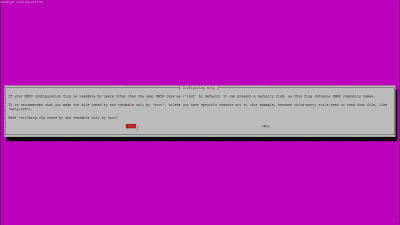
Figure 1
MRTG installs a sample configuration file /etc/mrtg.cfg used to hold the SNMP information obtained from your gatewayrouter. For a full listing of what MRTG installs and where, run the locate command:
|
sudo updatedb && locate mrtg |
Technically speaking, mrtg.cfg could remain in /etc, but just to keep things tidy let’s create a directory for it and move it into that directory:
|
sudo mkdir /etc/mrtg && sudo mv /etc/mrtg.cfg /etc/mrtg |
That’s it for installing MRTG. Now let’s move on and configure it.
Configure
MRTG includes a script called cfgmaker that will help us populate /etc/mrtg/mrtg.cfg with the information obtained from your gatewayrouter. But before you run cfgmaker, you should setup the SNMP service in your gatewayrouter. This usually involves logging into your gatewayrouter and enabling SNMP. The default SNMP community name is typically “public.” If you change the SNMP community name to something else, make note of it. Now, run the following command, substituting your SNMP community name, if you’ve changed it, and adding the IP address of your gatewayrouter:
|
sudo cfgmaker —output=/etc/mrtg/mrtg.cfg public@your—router‘s—IP—address |
If you would like to add more than one gatewayrouter to MRTG simply append the additional URL(s) to the same mrtg.cfg file. Then, when you build the web page using the indexmaker command described below, all the gatewayrouters (and their associated graphs) will be displayed on the same HTML page.
|
sudo cfgmaker —output /etc/mrtg/mrtg.cfg public@the—first—router‘s-IP-address public@the-second-router’s—IP—address |
Next, open /etc/mrtg/mrtg.cfg and make sure under Global Configuration Options that the lines “WorkDir: /var/www/mrtg” (under Debian), and “Options[_]: growright, bits” (under Global Defaults) are uncommented. Finally, add the following lines to the existing line EnableIPv6: no under the Global Defaults section:
|
RunAsDaemon: Yes Interval: 5 |
What does all this do? The line RunAsDaemon: Yes will enable MRTG to…um… run as a daemon. This is beneficial because MRTG is launched only once, thus the parsing of the /etc/mrtg/mrtg.cfg file is done only once, not repeatedly as would be the case if one were to run MRTG as a cron task – another acceptable method for running MRTG. Also, when running as a daemon, MRTG itself is responsible for timing the measurement intervals; therefore, we need to add the Interval line option and assign it a value – in this example 5. This means that every five minutes MRTG will poll the SNMP service in your gatewayrouter and update its graphs. Finally, since many gatewayrouters do not currently support SNMP over IPv6, we’ll retain the line EnableIPv6: no.
Speaking of graphs, by default MRTG graphs grow to the left, so by adding the option “growright” the direction of the traffic visible in MRTG’s graphs flips causing the current time to be at the right edge of the graph and the history values to the left. We’ve also chosen the “bits” option, which means that the monitored traffic values obtained from your gatewayrouter are multiplied by 8 and displayed bits per second instead of bytes per second.
Okay, now it’s time to create the web pages which display the MRTG graphs using the indexmaker command. Run the following commands:
|
sudo mkdir /var/www/mrtg sudo indexmaker —output=/var/www/mrtg/index.html /etc/mrtg/mrtg.cfg |
Open /etc/apache2/apache2.conf and add the following lines in the section containing similar Directory directives:
|
Alias /mrtg «/var/www/mrtg/» <Directory «/var/www/mrtg/»> Options None AllowOverride None Require all granted </Directory> |
Then restart Apache:
|
sudo service apache2 restart |
When restarting Apache you may receive a warning concerning its inability to “…reliably determine the server’s fully qualified domain name…” This non-critical error can be fixed by adding the following line to /etc/apache2/apache2.conf:
MRTG has been configured. Let’s start it up and see what it displays.
Start
There’s something important to keep in mind when starting MRTG, and that is that MRTG requires the environmental variable “LANG” to be C in order to run properly. Since most Linux systems these days, including Ubuntu server, use UTF-8 (run echo $LANG to see what your system uses), let’s change LANG to C and start MRTG using the following command:
|
sudo env LANG=C /usr/bin/mrtg /etc/mrtg/mrtg.cfg |
When you run MRTG for the first time you may see a lot of complaints about missing log files. No worries, this is normal for the first 2-3 times you start MRTG this way. If, however, it continues to complain you may want to look into the source of the problem.
Well, that’s it. Now point your browser to http://your-server-address/mrtg and you should see a page that resembles Figure 2. You may have more or less graphs depending on the number of interfaces reported by your gatewayrouter(s).

Figure 2
Because of the aforementioned option in /etc/mrtg/mrtg.cfg, you’ll see the graph starting “grow” to the right as the traffic is monitored over time, and the Y axis displayed as bits per second. If you click on any one of these graphs you’ll be taken to another page showing individual graphs for 30 minute, two hour, and daily averages, along with the maximum, average, and current bit rate in and out of that particular interface. Only interested in displaying one particular interface? Want to graph other SNMP data? No worries, just remember to run indexmaker again to update the MRTG index.html file.
Okay, so now that we have MRTG installed, configured and running let’s move on and discuss how to keep it running.
Operate
Starting MRTG by hand is not ideal in the long run. So perhaps after you’ve done some tweaking on MRTG and are satisfied with the results, you can automate the process of running MRTG by using a startup script in your system startup sequence. Here’s the script that I use:
|
1 2 3 4 5 6 7 8 9 10 11 12 13 14 15 16 17 18 19 20 21 22 23 24 25 26 27 28 29 30 31 32 33 34 35 36 37 38 39 40 41 42 43 44 45 46 47 48 49 50 51 52 53 54 55 56 57 58 59 60 61 62 63 64 65 66 67 68 69 70 71 72 73 74 75 76 77 78 79 80 81 82 83 84 85 86 87 |
#! /bin/sh ### BEGIN INIT INFO # Provides: mrtg # Required-Start: # Required-Stop: # Default-Start: 2 3 4 5 # Default-Stop: 0 1 6 # Short-Description: mrtg init script # Description: This file is used to start, stop, restart, # and determined status of the mrtg daemon. # Author: iceflatline <iceflatline@gmail.com> ### END INIT INFO ### START OF SCRIPT set —e # PATH should only include /usr/* if it runs after the mountnfs.sh script PATH=/sbin:/usr/sbin:/bin:/usr/bin DESC=«mrtg» NAME=mrtg DAEMON=/usr/bin/$NAME DAEMON_ARGS=«/etc/mrtg/mrtg.cfg» PIDFILE=/etc/mrtg/$NAME.pid SCRIPTNAME=/etc/init.d/$NAME # Exit if the mrtg package is not installed [ —x «$DAEMON» ] || exit 0 # Load the VERBOSE setting and other rcS variables . /lib/init/vars.sh # Define LSB log_* functions. # Depend on lsb-base (>= 3.0-6) to ensure that this file is present. . /lib/lsb/init—functions # Function that starts the mrtg daemon start() { env LANG=C start—stop—daemon —start —quiet —exec $DAEMON — $DAEMON_ARGS } # Function that stops the mrtg daemon stop() { start—stop—daemon —stop —quiet —retry=TERM/30/KILL/5 —pidfile $PIDFILE } case «$1» in start) log_daemon_msg «Starting $DESC» start case «$?» in 0) log_end_msg 0 ;; 1) log_end_msg 1 ;; esac ;; stop) log_daemon_msg «Stopping $DESC» stop case «$?» in 0) log_end_msg 0 ;; 1) log_end_msg 1 ;; esac ;; restart|force—reload) log_daemon_msg «Restarting $DESC» stop case «$?» in 0|1) start case «$?» in 0) log_end_msg 0 ;; 1) log_end_msg 1 ;; esac ;; esac ;; status) status_of_proc «$DAEMON» «$NAME» ;; *) echo «Usage: $SCRIPTNAME {start|stop|status|restart|force-reload}» ;; esac exit 0 ### END OF SCRIPT |
To use the script, save it to your home directory as mrtg and make it executable. Then move or copy it to /etc/init.d:
|
cd ~ chmod +x mrtg sudo mv mrtg /etc/init.d/ |
Now, link the mrtg script to all of Ubuntu server’s multi-user run levels (2-5):
|
sudo update—rc.d mrtg defaults |
Now, let’s start MRTG using our script. If it’s currently running then substitute restart for start in the following command:
That’s it. Now if for some reason your server is rebooted, MRTG should fire up automatically. If you would like to remove the MRTG script from the server’s multi-user run levels, use the command sudo update-rc.d -f mrtg remove).
Conclusion
This concludes the post on how to install and configure MRTG on Ubuntu server. As you can see, MRTG isn’t terribly complicated and proves to be a really nice open source package for monitoring and displaying traffic in and out your network from virtually anywhere you have a web browser. For a full list of all the configuration options and other information I encourage you to visit the MRTG web site.
References
http://oss.oetiker.ch/mrtg/doc/index.en.html