
12 августа, 2016 12:35 пп
12 458 views
| 1 комментарий
Centos, Debian, Linux, Ubuntu
В Linux можно очень быстро подготовить новый диск к работе. Для этого система поддерживает много различных инструментов, форматов файловых систем и схем разделения дискового пространства.
Данное руководство научит вас:
- Определять новый диск в системе.
- Создавать единый раздел, который охватывает весь диск (большинству операционных систем необходима структура разделов даже при использовании одной файловой системы).
- Форматировать разделы с помощью файловой системы Ext4 (она используется по умолчанию в большинстве современных дистрибутивов Linux).
- Монтировать файловую систему и настраивать автоматическое монтирование при запуске.
Установка инструментов
Для разделения диска используется утилита parted. В большинстве случаев она установлена на сервере по умолчанию.
Если эта утилита не установлена, используйте следующие команды, чтобы установить её:
Ubuntu или Debian

sudo apt-get update

sudo apt-get install parted
CentOS или Fedora

sudo yum install parted
Определение нового диска в системе
Прежде чем установить диск, нужно научиться правильно определять его на сервере.
Чтобы определить на сервере совершенно новый диск, проще всего узнать, где в системе отсутствует схема разбиения. Запросите у parted структуру разделов дисков. Эта команда вернёт сообщение об ошибке для всех дисков, которые не имеют схемы разбиения диска. Это поможет определить новый диск:
sudo parted -l | grep Error
Неразделённый новый диск вернёт ошибку:
Error: /dev/sda: unrecognised disk label
Также можно использовать команду lsblk, чтобы найти диск определённого размера, с которым не связаны разделы:
lsblk

NAME   MAJ:MIN RM   SIZE RO TYPE MOUNTPOINT

sda      8:0    0   100G  0 disk

vda    253:0    0    20G  0 disk

└─vda1 253:1    0    20G  0 part /
Предупреждение: Команду lsblk нужно использовать в сессии до внесения каких-либо изменений. Дисковые идентификаторы /dev/sd* и /dev/hd* не всегда обеспечивают согласованность имён между загрузками системы. Это значит, что вы можете случайно создать раздел и отформатировать неправильный диск без предварительной проверки идентификатора диска. Рекомендуется использовать более постоянные идентификаторы (например /dev/disk/by-uuid, /dev/disk/by-label ил и/dev/disk/by-id). Больше информации по этому вопросу можно получить здесь.
Узнав имя, которое ядро системы присвоило новому диску, можно приступать к разделению.
Разделение нового диска
Данный раздел поможет создать единый раздел, охватывающий весь диск.
Выбор стандарта дискового разделения
Для начала нужно выбрать стандарт разделения диска. Стандарт GPT предлагает более современное решение, а MBR – широкую поддержку. Если у вас нет каких-либо особых требований, рекомендуется использовать GPT.
Чтобы выбрать стандарт GPT, используйте:
sudo parted /dev/sda mklabel gpt
Чтобы выбрать MBR, введите:
sudo parted /dev/sda mklabel msdos
Создание нового раздела
Выбрав формат разделения, создайте раздел диска, охватывающий весь диск:
sudo parted -a opt /dev/sda mkpart primary ext4 0% 100%
С помощью команды lsblk можно узнать, появился ли новый раздел:
lsblk

NAME   MAJ:MIN RM   SIZE RO TYPE MOUNTPOINT

sda      8:0    0   100G  0 disk

└─sda1   8:1    0   100G  0 part

vda    253:0    0    20G  0 disk

└─vda1 253:1    0    20G  0 part /
Создание файловой системы на новом разделе
Итак, теперь у вас есть новый диск и раздел на нём. Отформатируйте его как файловую систему Ext4. Для этого используется утилита mkfs.ext4.
Чтобы добавить метку раздела, используйте флаг –L. Выберите имя, которое поможет в дальнейшем узнать этот диск.
Примечание: Убедитесь, что вы переходите в раздел, а не на сам диск. В Linux диски называются sda, sdb, hda и т.п. Идентификаторы дисковых разделов заканчиваются порядковым номером раздела (например, первый раздел диска sda будет называться sda1).
sudo mkfs.ext4 -L datapartition /dev/sda1
Чтобы изменить метку раздела, используйте команду e2label:
sudo e2label /dev/sda1 newlabel
Чтобы узнать о других способах идентификации разделов, используйте lsblk. Нужно найти имя, метку и UUID раздела. Некоторые версии lsblk выводят все эти данные с помощью:
sudo lsblk --fs
Если ваша версия не поддерживает этой команды, запросите эти данные вручную:
sudo lsblk -o NAME,FSTYPE,LABEL,UUID,MOUNTPOINT
Команда должна вернуть такой результат.
NAME   FSTYPE LABEL         UUID                                 MOUNTPOINT

sda

└─sda1 ext4   datapartition 4b313333-a7b5-48c1-a957-d77d637e4fda

vda

└─vda1 ext4   DOROOT        050e1e34-39e6-4072-a03e-ae0bf90ba13a /
Примечание: Выделенная красным строка указывает различные методы, которые можно использовать для обозначения новой файловой системы.
Монтирование новой файловой системы
Стандарт иерархии файловой системы рекомендует использовать каталог /mnt или его подкаталоги для временно смонтированных файловых систем.
Он не дает никаких рекомендаций относительно более постоянных файловых систем, потому вы можете выбрать для них любое место в системе. В этом руководстве для этого используется /mnt/data.
Создайте такой каталог:
sudo mkdir -p /mnt/data
Временное монтирование файловой системы
Чтобы временно смонтировать файловую систему, введите:
sudo mount -o defaults /dev/sda1 /mnt/data
Автоматическое монтирование файловой системы
Чтобы файловая система автоматически монтировалась во время загрузки сервера, отредактируйте файл /etc/fstab:
sudo nano /etc/fstab
Ранее с помощью команды:
sudo lsblk --fs
вы получили три идентификатора файловой системы. Добавьте любой из них в файл.
## Use one of the identifiers you found to reference the correct partition

# /dev/sda1 /mnt/data ext4 defaults 0 2

# UUID=4b313333-a7b5-48c1-a957-d77d637e4fda /mnt/data ext4 defaults 0 2

LABEL=datapartition /mnt/data ext4 defaults 0 2
Примечание: Чтобы узнать больше о полях файла /etc/fstab, откройте мануал с помощью man fstab. Больше опций монтирования можно найти при помощи команды man [filesystem] (например man ext4).
Для SSD-накопителей иногда добавляется опция discard, которая включает поддержку continuous TRIM. Воздействие TRIM на производительность и целостность данных до сих пор остаётся предметом обсуждения, потому большинство дистрибутивов включают periodic TRIM в качестве альтернативы.
Сохраните и закройте файл.
Если вы ранее не смонтировали систему, сделайте это сейчас:
sudo mount -a
Проверка монтирования
Смонтировав том, нужно убедиться, что система имеет доступ к новой файловой системе.
Чтобы убедиться, что диск доступен, используйте df:
df -h -x tmpfs -x devtmpfs

Filesystem      Size  Used Avail Use% Mounted on

/dev/vda1        20G  1.3G   18G   7% /

/dev/sda1        99G   60M   94G   1% /mnt/data
Также вы должны найти каталог lost+found в каталоге /mnt/data, который обычно указывает на root файловой системы Ext *.
ls -l /mnt/data

total 16

drwx------ 2 root root 16384 Jun  6 11:10 lost+found
Также можно проверить права на чтение и изменение файла, попробовав записать в тестовый файл:
echo "success" | sudo tee /mnt/data/test_file
Теперь прочтите только что изменённый файл:
cat /mnt/data/test_file

success
После тестирования можно просто удалить этот файл.
sudo rm /mnt/data/test_file
Заключение
Данное руководство описало полный процесс подготовки неформатированного диска к использованию. Теперь у вас есть новый разделённый диск, отформатированный, смонтированный и полностью готовый к работе. Конечно, существуют и более сложные методы и подходы, которые позволяют создать более сложный диск.
Tags: Ext4, Linux
Содержание
- Unrecognised Disk Label When Creating Partition
- Разделение и форматирование дисков в Linux
- Установка инструментов
- Определение нового диска в системе
- Разделение нового диска
- Выбор стандарта дискового разделения
- Создание нового раздела
- Создание файловой системы на новом разделе
- Монтирование новой файловой системы
- Временное монтирование файловой системы
- Автоматическое монтирование файловой системы
- Проверка монтирования
- Заключение
- Монтирование нового диска на сервере Debian/Linux
- Как масштабироваться, увеличивая объем HDD/SSD накопителя на сервере?
- How-to Fix Invalid MSDOS Partition Tables
- Summary
- Contents
- MSDOS Partition Table Rules
- Symptoms of an Invalid Partition Table
- Entire Disk Device Shown as Unallocated
- Applying Action on Logical or Extended Partition Fails
- Instructions (step-by-step)
- How-to Fix Overlapping Partitions
- How-to Fix Partition Outside the Disk
- How-to Fix Unable to Satisfy All Constraints
Unrecognised Disk Label When Creating Partition
Failed to save partition : parted -s /dev/sdb unit cyl mkpart primary 0 30394 failed : Error: /dev/sdb: unrecognised disk label
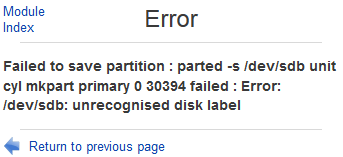
If you list the partition layout and all block devices information using “parted -l” command, it will give you similar error too:
Error: /dev/sdb: unrecognised disk label
Apparently Webmin cannot manage a new drive without any existing partition table. The resolution is to make a label on the disk first, with “parted” command.
Login to the server’s terminal which you want to install the new disk via console or SSH if remotely, and run the following command (replace the name of the disk with actual one assigned by Linux to the new disk):
Steps above create a blank table on the hard disk. Then, you can continue to add new partition using Webmin’s “Partitions on Local Disks” module.
Alternatively, you can continue to manually create the filesystem on the new partition created with parted, mkfs, and other commands. For example:
Then, create a mount point for the new filesystem and mount the new file system:
Ensure that the entry for the new filesystem and hard disk is recorded inside /etc/fstab so that it will mount automatically on system startup.
Where you can modify the parameters according to your need, with explanation below:
/dev/sdb1: Name for the partition
/newdisk: Mount point
ext4: Filesystem (fs) type
defaults : Mount options
0: Zero indicates to exclude this filesystem from dump command backup.
2: Second indicates the order which fsck filesystem check at boot. Only the root (/) filesystem should be specified with 1, all others should be 2.
Источник
Разделение и форматирование дисков в Linux
В Linux можно очень быстро подготовить новый диск к работе. Для этого система поддерживает много различных инструментов, форматов файловых систем и схем разделения дискового пространства.
Данное руководство научит вас:
- Определять новый диск в системе.
- Создавать единый раздел, который охватывает весь диск (большинству операционных систем необходима структура разделов даже при использовании одной файловой системы).
- Форматировать разделы с помощью файловой системы Ext4 (она используется по умолчанию в большинстве современных дистрибутивов Linux).
- Монтировать файловую систему и настраивать автоматическое монтирование при запуске.
Установка инструментов
Для разделения диска используется утилита parted. В большинстве случаев она установлена на сервере по умолчанию.
Если эта утилита не установлена, используйте следующие команды, чтобы установить её:
Ubuntu или Debian
sudo apt-get update
sudo apt-get install parted
CentOS или Fedora
sudo yum install parted
Определение нового диска в системе
Прежде чем установить диск, нужно научиться правильно определять его на сервере.
Чтобы определить на сервере совершенно новый диск, проще всего узнать, где в системе отсутствует схема разбиения. Запросите у parted структуру разделов дисков. Эта команда вернёт сообщение об ошибке для всех дисков, которые не имеют схемы разбиения диска. Это поможет определить новый диск:
sudo parted -l | grep Error
Неразделённый новый диск вернёт ошибку:
Error: /dev/sda : unrecognised disk label
Также можно использовать команду lsblk, чтобы найти диск определённого размера, с которым не связаны разделы:
lsblk
NAME MAJ:MIN RM SIZE RO TYPE MOUNTPOINT
sda 8:0 0 100G 0 disk
vda 253:0 0 20G 0 disk
└─vda1 253:1 0 20G 0 part /
Предупреждение: Команду lsblk нужно использовать в сессии до внесения каких-либо изменений. Дисковые идентификаторы /dev/sd* и /dev/hd* не всегда обеспечивают согласованность имён между загрузками системы. Это значит, что вы можете случайно создать раздел и отформатировать неправильный диск без предварительной проверки идентификатора диска. Рекомендуется использовать более постоянные идентификаторы (например /dev/disk/by-uuid, /dev/disk/by-label ил и/dev/disk/by-id). Больше информации по этому вопросу можно получить здесь.
Узнав имя, которое ядро системы присвоило новому диску, можно приступать к разделению.
Разделение нового диска
Данный раздел поможет создать единый раздел, охватывающий весь диск.
Выбор стандарта дискового разделения
Для начала нужно выбрать стандарт разделения диска. Стандарт GPT предлагает более современное решение, а MBR – широкую поддержку. Если у вас нет каких-либо особых требований, рекомендуется использовать GPT.
Чтобы выбрать стандарт GPT, используйте:
sudo parted /dev/sda mklabel gpt
Чтобы выбрать MBR, введите:
sudo parted /dev/sda mklabel msdos
Создание нового раздела
Выбрав формат разделения, создайте раздел диска, охватывающий весь диск:
sudo parted -a opt /dev/sda mkpart primary ext4 0% 100%
С помощью команды lsblk можно узнать, появился ли новый раздел:
lsblk
NAME MAJ:MIN RM SIZE RO TYPE MOUNTPOINT
sda 8:0 0 100G 0 disk
└─sda1 8:1 0 100G 0 part
vda 253:0 0 20G 0 disk
└─vda1 253:1 0 20G 0 part /
Создание файловой системы на новом разделе
Итак, теперь у вас есть новый диск и раздел на нём. Отформатируйте его как файловую систему Ext4. Для этого используется утилита mkfs.ext4.
Чтобы добавить метку раздела, используйте флаг –L. Выберите имя, которое поможет в дальнейшем узнать этот диск.
Примечание: Убедитесь, что вы переходите в раздел, а не на сам диск. В Linux диски называются sda, sdb, hda и т.п. Идентификаторы дисковых разделов заканчиваются порядковым номером раздела (например, первый раздел диска sda будет называться sda1).
sudo mkfs.ext4 -L datapartition /dev/sda1
Чтобы изменить метку раздела, используйте команду e2label:
sudo e2label /dev/sda1 newlabel
Чтобы узнать о других способах идентификации разделов, используйте lsblk. Нужно найти имя, метку и UUID раздела. Некоторые версии lsblk выводят все эти данные с помощью:
Если ваша версия не поддерживает этой команды, запросите эти данные вручную:
sudo lsblk -o NAME,FSTYPE,LABEL,UUID,MOUNTPOINT
Команда должна вернуть такой результат.
NAME FSTYPE LABEL UUID MOUNTPOINT
sda
└─ sda1 ext4 datapartition 4b313333-a7b5-48c1-a957-d77d637e4fda
vda
└─vda1 ext4 DOROOT 050e1e34-39e6-4072-a03e-ae0bf90ba13a /
Примечание: Выделенная красным строка указывает различные методы, которые можно использовать для обозначения новой файловой системы.
Монтирование новой файловой системы
Стандарт иерархии файловой системы рекомендует использовать каталог /mnt или его подкаталоги для временно смонтированных файловых систем.
Он не дает никаких рекомендаций относительно более постоянных файловых систем, потому вы можете выбрать для них любое место в системе. В этом руководстве для этого используется /mnt/data.
Создайте такой каталог:
sudo mkdir -p /mnt/data
Временное монтирование файловой системы
Чтобы временно смонтировать файловую систему, введите:
sudo mount -o defaults /dev/sda1 /mnt/data
Автоматическое монтирование файловой системы
Чтобы файловая система автоматически монтировалась во время загрузки сервера, отредактируйте файл /etc/fstab:
sudo nano /etc/fstab
Ранее с помощью команды:
вы получили три идентификатора файловой системы. Добавьте любой из них в файл.
## Use one of the identifiers you found to reference the correct partition
# /dev/sda1 /mnt/data ext4 defaults 0 2
# UUID=4b313333-a7b5-48c1-a957-d77d637e4fda /mnt/data ext4 defaults 0 2
LABEL=datapartition /mnt/data ext4 defaults 0 2
Примечание: Чтобы узнать больше о полях файла /etc/fstab, откройте мануал с помощью man fstab. Больше опций монтирования можно найти при помощи команды man [filesystem] (например man ext4).
Для SSD-накопителей иногда добавляется опция discard, которая включает поддержку continuous TRIM. Воздействие TRIM на производительность и целостность данных до сих пор остаётся предметом обсуждения, потому большинство дистрибутивов включают periodic TRIM в качестве альтернативы.
Сохраните и закройте файл.
Если вы ранее не смонтировали систему, сделайте это сейчас:
Проверка монтирования
Смонтировав том, нужно убедиться, что система имеет доступ к новой файловой системе.
Чтобы убедиться, что диск доступен, используйте df:
df -h -x tmpfs -x devtmpfs
Filesystem Size Used Avail Use% Mounted on
/dev/vda1 20G 1.3G 18G 7% /
/dev/sda1 99G 60M 94G 1% /mnt/data
Также вы должны найти каталог lost+found в каталоге /mnt/data, который обычно указывает на root файловой системы Ext *.
ls -l /mnt/data
total 16
drwx—— 2 root root 16384 Jun 6 11:10 lost+found
Также можно проверить права на чтение и изменение файла, попробовав записать в тестовый файл:
echo «success» | sudo tee /mnt/data/test_file
Теперь прочтите только что изменённый файл:
cat /mnt/data/test_file
success
После тестирования можно просто удалить этот файл.
sudo rm /mnt/data/test_file
Заключение
Данное руководство описало полный процесс подготовки неформатированного диска к использованию. Теперь у вас есть новый разделённый диск, отформатированный, смонтированный и полностью готовый к работе. Конечно, существуют и более сложные методы и подходы, которые позволяют создать более сложный диск.
Источник
Монтирование нового диска на сервере Debian/Linux
Что делать, когда место стало заканчиваться, а его нужно добавить?
Как масштабироваться, увеличивая объем HDD/SSD накопителя на сервере?
есть уже используемые SSD в RAID 1 (спаренный зеркальный RAID), на нем закончилось место, необходимо примонитровать еще один диск, но ТАК, чтобы не создавать новые доменные имена/сайты/поддомены, для доступа к его файлам, а примонтировать в уже существующую папку.
К примеру, уже есть папки:
в которых хранятся какие-то файлы, доступные через сайт:
требуется, чтобы новый диск был доступен, к примеру, по адресу:
Что для этого необходимо?
В зависимости от добросовестности Вашего хостинг-провайдера и/или персонала, обслуживающего Ваш сервер, диск, возможно, просто подключат к серверу И ВСЕ. Вам все остальное необходимо сделать самому. Как .
Для начала необходимо апнуть репозитории и установить программу для разметки дисков, так как теоретически, диск должен быть новый/использованный ранее (но нам в любом случае придется его форматировать):
Чтобы определить, какой именно диск (какая его буква sd? ), необходимо выполнить команду:
ВНИМАНИЕ! У Вас может быть своя буква /dev/sd? ! Будьте внимательны!
Теперь выполним lsblk, чтобы увидеть список дисков:
Не забудьте проверять lsblk при каждом шаге монтирования перед внесением изменений. Идентификаторы дисков /dev/sd? и /dev/hd? не обязательно будут согласованы между шагами монтирования, что означает некоторую опасность разбиения или форматирования неправильного диска, если Вы не проверите идентификатор диска правильно.
Рассмотрите возможность использования более постоянных идентификаторов дисков, таких как /dev/disk/by-uuid , /dev/disk/by-label или /dev/disk/by-id
Далее приступим к форматированию. Прошу обратить внимание, для своего диска я оставил 1% неразмеченной области. Возможно, это как-то поможет при длительном использовании диска.
ОБРАТИТЕ ВНИМАНИЕ! Данная команда удалит все данные с диска, будьте внимательны с его буквой и каждый раз проверяйте lsblk :
Теперь, когда у нас есть доступный раздел, мы можем отформатировать его как файловую систему Ext4 . Для этого передайте раздел утилите mkfs.ext4.
Мы можем добавить метку раздела, передав флаг -L . Выберите имя, которое поможет вам идентифицировать этот конкретный диск:
Убедитесь, что вы передаете раздел, а не весь диск. В Linux диски имеют такие имена, как sda, sdb, hda и т. Д. Разделы на этих дисках имеют номер, добавленный в конец. Поэтому мы хотели бы использовать что-то вроде sda1, а не sda.
Если вы хотите изменить метку раздела позже, вы можете использовать команду e2label:
Создайте директорию на старом жестком диске:
Монтирование до перезагрузки системы:
Монтирование при загрузке системы в автоматическом режиме:
Источник
How-to Fix Invalid MSDOS Partition Tables
Summary
This article describes how to fix some common problems that cause an MSDOS partition table (also known as Master Boot Record — MBR) to be invalid.
Note that a computer with an invalid partition table can often still boot up. However, tools like GParted will not work until the partition table is corrected.
CAUTION: Editing partitions has the potential to cause LOSS of DATA.
You are advised to BACKUP your DATA before proceeding.
Contents
MSDOS Partition Table Rules
TIP: Primary and extended partions are identified by numbers 1 to 4 (e.g., /dev/sdb3)
Logical partitions are identified by numbers 5 and higher (e.g., /dev/sdb7).
A valid MSDOS partition table must obey all of the following rules:
- At most four primary partitions, or three primary partitions and one extended partition are permitted.
- Primary and Extended partitions must not overlap.
- Primary partitions must not exist within an Extended partition.
- An extended partition may contain multiple logical partitions.
It is permissible for a logical partition to end on the same sector as the end of the extended partition. - Logical partitions must not overlap other logical partitions.
- At least 2 unallocated sectors are required in front of a logical partition.
This space is required for the Extended Boot Record (EBR). - All partitions must exist within the size of the disk device.
Sector numbering begins at zero, so the first sector is sector 0. - Each partition must start within the first 2^32 (4,294,967,296) sectors of the disk device, and be smaller than 2^32 sectors.
For disks with 512 byte sectors, 2^32 sectors is 2 Tebibytes (2 TiB).
Symptoms of an Invalid Partition Table
You might have an invalid partition table if you notice either of the following symptoms when using GParted:
Entire Disk Device Shown as Unallocated
There are a few situations that can cause this problem. To learn the cause, in GParted double-click on the «unallocated» disk device and check the information window for warning messages.
Common warning messages that cause this problem are as follows:
- Can’t have overlapping partitions
The root cause is that the partition table contains at least one occurrence where the end of one partition overlaps the start of another partition. See How-to Fix Overlapping Partitions.
Can’t have a partition outside the disk!
The root cause is that the partition table contains at least one occurrence where the end of one partition is beyond the end of the disk device. See How-to Fix Partition Outside the Disk.
/dev/sda: unrecognized disk label
Two root causes for this message are as follows:
- The device does not contain a partition table.
If the device does contain data then perhaps the entire device is formatted with a file system. It is also possible that the device is part of some other data structure, such as a RAID. In these situations there is no partition table to edit.
Otherwise, if this is a new disk device then the device is most likely empty. In this case you would proceed to create a partition table and at least one partition to prepare the disk device for use.
The type of partition table is not recognized by GParted.
If the device contains data, then perhaps the device is using a new type of partition table. GParted supports many commonly used partition tables, such as msdos or gpt, but not all types of partition tables are supported. In this situation you would need to determine what type of partition table is in use. Then you could seek out other partition management tools to edit the partition table.
Applying Action on Logical or Extended Partition Fails
To determine if the failure is due to an invalid partition table, expand the GParted details in the «Applying pending operations» window, and search for the source of the error.
If the text «Unable to satisfy all constraints on the partition» is found, then there might be less than 2 unallocated sectors in front of each logical partition.
For example, there should be at least 2 unallocated sectors between:
- the start of the extended partition and the start of a logical partition.
- the end of one logical partition and the start of the next logical partition.
The 2 unallocated sectors are required to store the Extended Boot Record (EBR). The EBR contains information about the following logical partition. The Linux kernel considers EBRs to be two sectors long, in order to «leave room for LILO (LInux LOader)».
See How-to Fix Unable to Satisfy All Constraints.
Instructions (step-by-step)
TIP: The sudo prefix is used to acquire root privilege.
How-to Fix Overlapping Partitions
The following instructions describe how to manually correct the problem of overlapping partitions.
Other methods also exist, such as using testdisk to scan the disk device to rebuild the partition table. The testdisk application is included on GParted Live.
NOTE: Be sure to choose the correct disk device path.
In the following example, the disk device containing overlapping partitions is /dev/sda
- Ensure you have a good backup of your data.
- Confirm the problem by running parted on your disk device (e.g., /dev/sda).
For example: You should see the error message Error: Can’t have overlapping partitions.
Gather partition details for analysis using the fdisk command.
For example:
Check the fdisk output for the following problems:
- Do any of the primary or extended partitions overlap?
In other words does one partition (numbers 1 to 4) have a start value lower than another partitition (numbers 1 to 4) but also an end value higher than the start of the other partition?
Do any of the primary partitions exist within the extended partition?
In other words does one partition (numbers 1 to 4) have start and end values within the boundaries of another partitition (number 1 to 4)?
If this is the situation then either the extended partition must be altered so that it does not encompass the primary partition, or the primary partition must be changed to be a logical partition within the extended partition. Fixing this situation might require backing up the partitions, repartitioning the disk, restoring the partition contents, and then repairing the ability to boot.
Do any of the logical partitions start or end outside the extended partition?
In other words is the start of a logical partition (numbers 5+) less than the start of the extended partition?
Also, is the end of a logical partition (numbers 5+) greater than the end of the extended partition?
Do any of the logical partitions overlap?
In other words does one logical partition (numbers 5+) have a start value lower than another logical partition (numbers 5+) but also have an end value higher than the start of the other partition?
In this example the end of primary partition sda1 overlaps the beginning of extended partition sda2.
81,922,347 — end of sda1
81,915,435 — start of sda2
Determine a new end value (and partition size) to avoid the overlap.
- In cases where we do not know if the starting or ending sector is the problem, we assume that the starting sector of each partition is correct, and that the ending sector might be in error.
- No sectors are required between primary and extended partitions.
- At least 2 sectors of unallocated space are required in front of logical partitions.
In this example, we assume that the starting sector of extended partition sda2 is correct. Hence we need to change the end sector of primary partition sda1.
The new end sector of sda1 should be the start of sda2 minus one sector.
* For logical partitions we would need to subtract at least two (2) sectors. New size of sda1 will be the new end of sda1 minus the start of sda1 plus one sector.
Make a copy of the partition table in an editable file using the sfdisk command.
For example:
Use your favourite editor to edit the file to change the old partition size to the new partition size.
If you are using GParted Live, you can edit the file using the Leafpad editor.
For example:
Change the old size of the primary partition sda1 (81922285) to the calculated new size (81915372). Save the file and exit the editor.
Write the corrected partition details to the partition table using the sfdisk command.
For example:
Confirm the problem is now resolved by running parted on your disk device.
For example: You should now be able to use GParted with this device. 🙂
How-to Fix Partition Outside the Disk
The following instructions describe how to manually correct the problem of a partition extending beyond the end of the disk.
Other methods also exist, such as using testdisk to scan the disk device to rebuild the partition table. The testdisk application is included on GParted Live.
If the problem occurs with the extended partition, then you might consider using the fixparts application. The fixparts application is also included on GParted Live.
NOTE: Be sure to choose the correct disk device path.
In the following example, the disk device containing a partition outside the disk is /dev/sdb
- Ensure you have a good backup of your data.
- Confirm the problem by running parted on your disk device (e.g., /dev/sdb).
For example: You should see the error message Error: Can’t have a partition outside the disk!
Gather partition details for analysis using the fdisk command.
For example:
Check the fdisk output for the cause of the problem.
Does any partition have an end value larger than the disk size?
To be precise, since the first sector begins at sector zero (0), check to see if the end of any partition is greater than the disk size minus one sector.
In this example the end of extended partition sdb4 is beyond the size of the disk.
488,408,189 — end of sdb4
488,397,168 — size of sdb device
Determine a new end value (and partition size) to prevent the partition outside the disk problem.
The new end sector of the partition outside the disk should be the size of the disk minus one sector.
In our example: New size of sda1 will be the new end of sda1 minus the start of sda1 plus one sector.
Make a copy of the partition table in an editable file using the sfdisk command.
For example:
Use your favourite editor to edit the file to change the old partition size to the new partition size.
If you are using GParted Live, you can edit the file using the Leafpad editor.
For example:
Change the old size of the partition sdb4 (98349990) to the calculated new size (98338968). Save the file and exit the editor.
Write the corrected partition details to the partition table using the sfdisk command.
For example:
Confirm the problem is now resolved by running parted on your disk device.
For example: You should now be able to use GParted with this device. 🙂
How-to Fix Unable to Satisfy All Constraints
We plan to outline how to approach this problem. In the meantime you can seek help in the GParted forum.
Источник
Unrecognised Disk Label When Creating Partition
Failed to save partition : parted -s /dev/sdb unit cyl mkpart primary 0 30394 failed : Error: /dev/sdb: unrecognised disk label
If you list the partition layout and all block devices information using “parted -l” command, it will give you similar error too:
Error: /dev/sdb: unrecognised disk label
Apparently Webmin cannot manage a new drive without any existing partition table. The resolution is to make a label on the disk first, with “parted” command.
Login to the server’s terminal which you want to install the new disk via console or SSH if remotely, and run the following command (replace the name of the disk with actual one assigned by Linux to the new disk):
$ sudo parted /dev/sdb
(parted) mklabel msdos
(parted) quit
(parted) mklabel gpt
Steps above create a blank table on the hard disk. Then, you can continue to add new partition using Webmin’s “Partitions on Local Disks” module.
Alternatively, you can continue to manually create the filesystem on the new partition created with parted, mkfs, and other commands. For example:
mkfs -t ext4 -q /dev/sdb1
Then, create a mount point for the new filesystem and mount the new file system:
mkdir /newdisk
mount /dev/sdb1 /newdisk
Ensure that the entry for the new filesystem and hard disk is recorded inside /etc/fstab so that it will mount automatically on system startup.
/dev/sdb1 /newdisk ext4 defaults 0 2
Where you can modify the parameters according to your need, with explanation below:
/dev/sdb1: Name for the partition
/newdisk: Mount point
ext4: Filesystem (fs) type
defaults : Mount options
0: Zero indicates to exclude this filesystem from dump command backup.
2: Second indicates the order which fsck filesystem check at boot. Only the root (/) filesystem should be specified with 1, all others should be 2.
About the Author: LK

Page load link
GParted forum → GParted → [solved]»unrecognized disk label» — typical resolutions not successful
Pages 1
You must login or register to post a reply
1 2014-09-20 23:44:39 (edited by notorious.dds 2014-09-23 11:29:49)
- notorious.dds
- New member
- Offline
- Registered: 2014-09-20
- Posts: 3
Topic: [solved]»unrecognized disk label» — typical resolutions not successful
I have a 320 GB HD that was originally formatted using a Windows Vista x64 installation disk utilizing an MSDOS partition table. It was formatted into 2 partitions per the default Vista installation. Following the installation of Vista, the disk appeared normally when viewed with Gparted (Live CD or via Parted Magic).
All was normal until I decided to clone the Windows 8.1 partition (/dev/sda5) from my Microsoft surface over the Vista parition (/dev/sda2) on the HD mentioned above. The /dev/sda5 partition was roughly 100 GB and came from a disk that had a GPT partition table. It was cloned to a 300 GB partition (/dev/sda2) on the 320 GB drive mentioned above with the MSDOS partition table. This HD only has 2 partitions.
After cloning, I boot the windows 8.1 install disk and ran the following commands on the 320GB drive:
bootrec /fixmbr
bootrec /fixboot
bootrec /scanos
bootrec /rebuildbcd
At this point, the computer will boot the OS without issue and all seems well and good. That is, until I try to access either partition from linux OS. I can’t mount either parition in linux and when I view the drive in Gparted, I get the «unrecognized disk label» error. The drive essentially appears as though it has no partition table within Gparted.
Following
sudo fdisk -l -u /dev/sdaIt does not appear that there is any overlap of the two partitions.
Following
sudo parted /dev/sdb unit s printThere is no error about a partition being outside of the disk.
Following
There’s nothing about lingering GPT data
At any rate, I’m not sure where to go from here. I’ve tried Gparted 0.19.1 Live as well as earlier versions with no success.
Any ideas are appreciated. Thanks!
2 Reply by mfleetwo 2014-09-21 12:51:19
- mfleetwo
- Developer
- Offline
- Registered: 2012-05-18
- Posts: 441
Re: [solved]»unrecognized disk label» — typical resolutions not successful
Hi,
GParted uses libparted to query the hard drive and show the partitions, so what «parted /dev/MYDISK unit s print» shows is what GParted should show.
Please show the output of the fdisk and parted commands. (Was that a typo saying «parted /dev/sdb» instead of sda?) Also the output from «blkid» and if available «lsblk».
How did you clone Windows 8.1 partition to the 320 GB HD?
Thanks,
Mike
3 Reply by notorious.dds 2014-09-21 15:00:59 (edited by notorious.dds 2014-09-21 15:45:28)
- notorious.dds
- New member
- Offline
- Registered: 2014-09-20
- Posts: 3
Re: [solved]»unrecognized disk label» — typical resolutions not successful
Thanks Mike,
Here’s the output:
Welcome - Parted Magic (Linux 3.5.6-pmagic)

root@PartedMagic:~# fdisk -l -u /dev/sda

Disk /dev/sda: 320.1 GB, 320072933376 bytes
255 heads, 63 sectors/track, 38913 cylinders, total 625142448 sectors
Units = sectors of 1 * 512 = 512 bytes
Sector size (logical/physical): 512 bytes / 512 bytes
I/O size (minimum/optimal): 512 bytes / 512 bytes
Disk identifier: 0x0b8fdec7

This doesn't look like a partition table
Probably you selected the wrong device.

   Device Boot      Start         End      Blocks   Id  System
/dev/sda1   ?        2048      718847      358400    7  HPFS/NTFS/exFAT
/dev/sda2          718848   625139711   312210432    7  HPFS/NTFS/exFAT


root@PartedMagic:~# parted /dev/sda unit s print
Error: /dev/sda: unrecognised disk label
Model: ATA Hitachi HTS54323 (scsi)
Disk /dev/sda: 625142448s
Sector size (logical/physical): 512B/512B
Partition Table: unknown
Disk Flags:


root@PartedMagic:~# fixparts /dev/sda
FixParts 0.8.5

Loading MBR data from /dev/sda

MBR command (? for help): p

** NOTE: Partition numbers do NOT indicate final primary/logical status,
** unlike in most MBR partitioning tools!

** Extended partitions are not displayed, but will be generated as required.

Disk size is 625142448 sectors (298.1 GiB)
MBR disk identifier: 0x0B8FDEC7
MBR partitions:

                                                   Can Be   Can Be
Number  Boot  Start Sector   End Sector   Status   Logical  Primary   Code
   1      *           2048       718847   primary     Y        Y      0x07
   2                718848    625139711   primary              Y      0x07


root@PartedMagic:~# blkid
/dev/sdb1: LABEL="Parted Magic" UUID="2671-BF4E" TYPE="vfat"
/dev/sdb2: LABEL="Data" UUID="d9ab5edb-07ab-4418-bb25-8b1df42b6efc" TYPE="ext2"
/dev/loop0: TYPE="squashfs"
/dev/loop1: TYPE="squashfs"


root@PartedMagic:~# lsblk
NAME   MAJ:MIN RM   SIZE RO TYPE MOUNTPOINT
sda      8:0    0 298.1G  0 disk
└─sda2   8:2    0   7.3G  0 part
sdb      8:16   1   3.8G  0 disk
├─sdb1   8:17   1   656M  0 part
└─sdb2   8:18   1   3.1G  0 part
sr0     11:0    1  1024M  0 rom
loop0    7:0    0  39.3M  1 loop
loop1    7:1    0 184.1M  1 loop
Yes, the sdb was a typo. And, I think I used that typo when originally running my parted command. It’s corrected in the commands above.
I cloned the windows partition using clonezilla. I used sda5 as the source and cloned it to an image. I then changed all of the sda5’s to sda2’s in the image and cloned the image to sda2 on the 320GB disk.
4 Reply by mfleetwo 2014-09-21 19:35:53
- mfleetwo
- Developer
- Offline
- Registered: 2012-05-18
- Posts: 441
Re: [solved]»unrecognized disk label» — typical resolutions not successful
Hi,
The partition table on your 320 GB HD appears to have been partitially corrupted.
Assuming the partition table printed by fdisk is correct …
Re-write the partition table using fdisk:
1) Write down the details of the 2 partitions: start, end sectors and partition type and boot flag.
2) Run «fdisk /dev/sda».
2a) Delete both partitions.
2b) Recreate two new partitions with the exact same start and end sectors, restore partition type, boot flag and write the partition table back to the disk.
It is a possiblilty that the MBR boot code is corrupted too. You may need to follow this FAQ: 15: What are the commands for repairing Windows Vista or Windows 7 boot problems?
Thanks,
Mike
5 Reply by notorious.dds 2014-09-23 11:29:16 (edited by notorious.dds 2014-09-23 15:43:22)
- notorious.dds
- New member
- Offline
- Registered: 2014-09-20
- Posts: 3
Re: [solved]»unrecognized disk label» — typical resolutions not successful
Thanks again Mike!
Deleting and recreating the partitions with fdisk did it. However, upon booting into Windows, I noticed that the disk usage was constantly hovering around 100% and some programs were not opening properly even with a reboot. I decided to run chkdsk (with the /f /r options).
For whatever reason, the chkdsk stopped at 12% complete and stayed there for hours. I decided to let it go and went to bed. When I woke up, I was pleasantly surprised to find that all was well. 
Thanks.
As a side note to anyone reading this in the same situation, I would normally use Clonezilla to back up a drive before playing with the partition table in this way. However, given it’s issue as described above, Clonezilla was a no go as well. In lieu of using Clonezilla, I was able to successfully create a disk image using Macrium Reflect.
Pages 1
You must login or register to post a reply
GParted forum → GParted → [solved]»unrecognized disk label» — typical resolutions not successful