
Ok, took some sleuthing, but there was a lot going on with this error.
To be clear, the problem as defined is not being able to run kex as a NON-ADMIN.
running it with sudo, or as root is NOT a solution. The error occurs when trying to start kex/xfce as a non administrator.
Because that’s what you’re supposed to do. Because security matters. You don’t wanna be messing around with some of these tools and unwittingly jack your entire box up because you owned yourself, and that stuff happens for many reasons.
Been up for a long time, too much coffee, not enough coffee, yadda yadda. Being a regular user while using hacking tools is a very good idea, and it’s a good idea anyway.
I tried everything in these suggestions, and nothing worked. In fact some made it worse.
There’s a crazy interplay of xfce components at work here. DBUS, ICE, PolicyKit, TigerVNC, etc. etc. etc.
What I noticed was that DBUS didn’t seem to know anything about me. In the .xsessionerrors file in ~ I saw repeated messages akin to
«dbus-update-activation-environment: systemd —user not found, ignoring —systemd argument»
Kind of beside the point, as wsl doesn’t use systemd, but the «user not found» part of that message is very intersting.
I needed to let it know how to find me… and that we’re not in a systemd init environment.
dbus-update-activation-environment --all
Checked the logs again, and I was getting a dbus session, which was progress, so I went to the next error in the list.
«_IceTransmkdir: Owner of /tmp/.ICE-unix should be set to root»
So I checked a full installation into an actual vm of ubuntu and I noticed that the file was owned by root:root and the mode was 1777
So I recreated it with the proper permissions
cd /tmp
mkdir .ICE-unix
sudo chown root:root .ICE-unix
sudo chmod 1777 .ICE-unix
After that, the ICE error was gone in the ~.xsessionerrors log, but I was seeing
«(xfwm4:7394): Gtk-WARNING **: 18:06:13.137: cannot open display: wayland-0
(xfce4-panel:7411): libxfce4ui-WARNING **: 18:06:14.261: ICE I/O Error»
Shopped around for the ICE runtime directory, and after I found it, I noticed there was a lock file and a pid for wayland 0, so I deleted them.
cd /mnt/wslg/runtime-dir
rm -rf wayland*
Then I ran kex —win -s, and boom. I have a stable desktop.
I wrote a script to fix it. you’ll have set it to executable and run it sudo. Not as root. Non-admin account.. sudo…
#Clean up lock and pid files that exist in various places

rm -rf ~/.vnc/*.pid
rm -rf /tmp/*.X
rm -rf /tmp/.xfsm*
rm -rf /tmp/*.l2s
rm -rf /tmp/ssh*
rm -rf /tmp/.X10-unix/*
rm -rf /mnt/wslg/runtime-dir/wayland*

#Set permissions for .ICE-unix

mkdir /tmp/.ICE-unix
rm -rf /tmp/.ICE-unix/*
sudo chown root:root /tmp/.ICE-unix
chmod 1777 /tmp/.ICE-unix


#Fix DBUS

dbus-update-activation-environment --all

echo "That's it, we're all done here."
Then just run «kex —win -s» normally. No insecure localhost options, no geometry in vncserver first.. just run it how it’s designed to run.
Hope this helps.
Hello, to day i tried to install kali Linux in my windows 10
i need any help please
┌──(root💀DESKTOP-KN54U4A)-[~]
└─# kex -start
output:
Error connecting to the KeX server.
Please try "kex start" to start the service.
If the server fails to start, please try "kex kill" or restart your WSL2 session and try again.


┌──(leader㉿DESKTOP-KN54U4A)-[~]
└─$ kex -s
Output
    Error connecting to the KeX server.
Please try "kex start" to start the service.
If the server fails to start, please try "kex kill" or restart your WSL2 session and try again.
and i get message Sayes: TigerVNC Viewr: Unable to connect to socket: connection refused (10061)
┌──(leader㉿DESKTOP-KN54U4A)-[~]
└─$ kex kill
Output
 tigervncserver: No matching VNC server running for this user!
tigervncserver: No matching VNC server running for this user!
tigervncserver: No matching VNC server running for this user!
tigervncserver: No matching VNC server running for this user
!
┌──(root💀DESKTOP-KN54U4A)-[~]
└─# vncserver
output:
    Killing Xtigervnc process ID 13260... success!

=================== tail /root/.vnc/DESKTOP-KN54U4A.localdomain:5901.log ===================

Xvnc TigerVNC 1.11.0 - built 2021-03-22 21:21
Copyright (C) 1999-2020 TigerVNC Team and many others (see README.rst)
See https://www.tigervnc.org for information on TigerVNC.
Underlying X server release 12010000, The X.Org Foundation


Mon Jul 12 18:37:40 2021
 vncext:      VNC extension running!
 vncext:      Listening for VNC connections on local interface(s), port 5901
 vncext:      created VNC server for screen 0

Mon Jul 12 18:38:11 2021
 ComparingUpdateTracker: 0 pixels in / 0 pixels out
 ComparingUpdateTracker: (1:-nan ratio)
============================================================================================

vncserver: /usr/bin/Xtigervnc did not start up, please look into '/root/.vnc/DESKTOP-KN54U4A.localdomain:5901.log' to determine the reason! -1


┌──(root💀DESKTOP-KN54U4A)-[~]
└─# tail /root/.vnc/DESKTOP-KN54U4A.localdomain:5901.log
output:
    Mon Jul 12 18:37:40 2021
 vncext:      VNC extension running!
 vncext:      Listening for VNC connections on local interface(s), port 5901
 vncext:      created VNC server for screen 0

Mon Jul 12 18:38:11 2021
 ComparingUpdateTracker: 0 pixels in / 0 pixels out
 ComparingUpdateTracker: (1:-nan ratio)

┌──(root💀DESKTOP-KN54U4A)-[~]
└─# vncserver --list
Output:
    TigerVNC server sessions:

X DISPLAY #     RFB PORT #      PROCESS ID      SERVER
i need some help to that please  and sorry 4 bad English
all what i need is open kex -sl in my machine
 Уже некоторое время в Windows 10 присутствует возможность установить различные дистрибутивы Linux с помощью компонента «Подсистема Windows для Linux» или WSL, однако лишь в виде терминала без графического интерфейса. Начиная с Windows 10 2004 WSL обновился до версии 2.0, благодаря чему появились новые возможности и, в рамках этих возможностей появилась Kali Linux для WSL2 с поддержкой графического интерфейса или Win-Kex.
В этой инструкции подробно об установке графического интерфейса Kali Linux в Windows 10 версии 2004 или новее, а также дополнительная информация, например, о том, как включить русский язык интерфейса в установленной системе.
Установка Kali Linux с графическим интерфейсом в Windows 10
Порядок установки Kali Linux с графическим интерфейсом (GUI) для подсистемы Windows для Linux будет состоять из следующих шагов (напоминаю: необходима версия Windows 10 2004 или новее):
- Включите компонент «Подсистема Windows для Linux». Сделать это можно в Панель управления — Программы и компоненты — Включение или отключение компонентов Windows. После установки перезагрузите компьютер.

- Этот шаг можно пропустить, если у вас включены компоненты Hyper-V, иначе запустите Windows PowerShell от имени администратора (можно сделать через правый клик по кнопке «Пуск» и выполните команду
dism.exe /online /enable-feature /featurename:VirtualMachinePlatform /all /norestart
- Скачайте и установите обновление ядра Linux WSL2 со страницы https://docs.microsoft.com/ru-ru/windows/wsl/wsl2-kernel
- Перезагрузите компьютер, запустите PowerShell от имени администратора и выполните команду
wsl --set-default-version 2
- Зайдите в магазин приложений Windows Store, используйте поиск чтобы найти и установить Kali Linux.

- После завершения установки в PowerShell от имени администратора выполните команду:
wsl --set-version kali-linux 2
- Запустите Kali Linux (пункт будет доступен в меню «Пуск»), выполните первоначальную настройку (имя пользователя и пароль), после чего по порядку выполните следующие команды (требуется подключение к Интернету, последний шаг может занять много времени.
sudo apt update
sudo apt dist-upgrade
sudo apt install -y kali-win-kex
- В ходе выполнения последней команды вам будет предложено выбрать клавиатуру. Я оставил значения по умолчанию, но, возможно, стоило выбрать русскую, так как в дальнейшем при включении русского языка интерфейса в ряде случаев кириллица не отрисовывается (не знаю, есть ли связь, лишь предположение).
- По завершении установки введите команду kex для запуска Kali Linux с графическим интерфейсом. При первом запуске вам будет предложено создать отдельный пароль, можно от этого отказаться.


В результате запустится Kali Linux с графическим интерфейсом в полноэкранном режиме. Для выхода из полноэкранного режима можете вызвать меню клавишей F8 и отключить опцию «Full Screen».
Если вам потребуется включить русский язык интерфейса для Kali Linux, у меня сработал следующий метод:
- В графическом интерфейсе Kali Linux запускаем терминал, вводим команду
sudo dpkg-reconfigure locales
- Выбираем ru_RU UTF-8 на двух экранах (отметку ставим пробелом, переключаемся на кнопку Ok клавишей Tab).
- Закрываем окно терминала и окно графического интерфейса, в терминале из которого мы запускали графический интерфейс вводим kex stop (если приглашение ввода не отображается, попробуйте изменить размер окна — у меня встретился такой баг).
- Снова запускаем kex — в результате интерфейс будет на русском языке.


А в целом, хотя я еще и не придумал, для чего мне это использовать (возможно, попробую запускать пакеты от bitnami для экспериментов с сайтами), но на первый взгляд всё работает исправно и быстро: быстрее, чем в виртуальной машине.
При запуске kex —win выдаёт такое ошибка!
Error connecting to the KeX server.
Please try «kex start» to start the service.
If the server fails to start, please try «kex kill» or restart your WSL2 session and try again.
и вот такое ошибка при запуске vncserver
Killing Xtigervnc process ID 270… success!
=================== tail /root/.vnc/Ismaylwo-PC.:5901.log ===================
_XSERVTransSocketUNIXCreateListener: mkdir(/tmp/.X11-unix) failed, errno = 11
_XSERVTransMakeAllCOTSServerListeners: failed to create listener for unix
Xvnc TigerVNC 1.11.0 — built 2021-04-17 08:22
Copyright (C) 1999-2020 TigerVNC Team and many others (see README.rst)
See https://www.tigervnc.org for information on TigerVNC.
Underlying X server release 12011000, The X.Org Foundation
Tue Jan 4 15:51:44 2022
vncext: VNC extension running!
vncext: Listening for VNC connections on local interface(s), port 5901
vncext: created VNC server for screen 0
Tue Jan 4 15:52:14 2022
ComparingUpdateTracker: 0 pixels in / 0 pixels out
ComparingUpdateTracker: (1:-nan ratio)
=============================================================================
vncserver: /usr/bin/Xtigervnc did not start up, please look into ‘/root/.vnc/Ismaylwo-PC.:5901.log’ to determine the reason! -1
I spent the whole day trying to run Kali Win Kex on my WSL on Windows 10 and wanted to share the experience of failing on that one and also provide the solutions in one place.
What I’ve done:
After installing Kali Linux WSL from Microsoft Store, enabling some settings (which are shown by Microsoft Store upon installation) and installing the needed WSL2 Linux kernel update package for x64 machines from Microsoft store, I installed Win Kex by running
sudo apt install -y kali-win-kex
.
After I run
and from here on a lot of stuff happened which should not happen and a lot of stuff didn’t happen which should happen.
Problems:
Kex did not start and showed me the message which said
`Checking /root/.cache/sessions/xfce4-session-ip_address:0`
`Enabling SL mode`
`Waited 100 seconds for desktop, giving up`
`Saving Win-KeX SL session`
`Started Win-KeX SL`
When just starting the kex with
or
, I received this message:
Error connecting to the KeX server.
Please try "kex start" to start the service.
If the server fails to start, please try "kex kill" or restart your WSL2 session and try again.
I searched the internet and found hundred solutions which didn’t help, first.
After reading logs I found out that the kex instance cannot connect to the vncserver so I tried to run it manually which always failed with message:
vncserver: /usr/bin/Xtigervnc did not start up, please look into '/root/.vnc/DESKTOP-KN54U4A.localdomain:5901.log' to determine the reason! -1
And the reasons were always different and trying to fix them will be a waste of time (which I didn’t know yet).
Then I found the Microsoft WSL guide, and voila! The problem is sitting in front of the table. I didn’t set the wsl to version 2! With the PowerShell command
you can see which version is installed. So with this command
wsl --set-default-version 2
(which is the 5th step in the guide) I could migrate to wsl version 2 and the kex worked.
But not
. So after playing around and looking for more solutions in the internet, and after disabling the firewall ( and defender), I received an error (on Windows side) but the seamless mode was running without further issues.
Sooo just go to your firewall -> advanced settings -> inbound rules -> add port 5091 and enable «vcxsrv.exe» (which is found in
wslkali-linuxusrlibwin-kexVcXsrv
 kali-linuxusrlibwin-kexVcXsrv
).
before starting kex or
vncserver :1 -geometry 1366x768 -depth 24
if the vncserver has issues starting.
Happy hacking.
Topic: ANT MINER S9 Socket connect failed: Connection refused (Read 12727 times)


ive got the same issue with my antminer s9 13.5 th/s
i tried upgrading the firmware, factory resetting it, i also tried to ping the Bitmain netword(6 packets transmitted, 6 packets received, 0% packet loss)
the lights on the ethernet port on the back of the miner seems to be normal
i also just realized that the small red light on the middle hash board is not on
My little contribution here..I think i may have found a new failure mode for this socket error..I was getting the same socket connection error on my D3.
My little contribution here..I think i may have found a new failure mode for this socket error..I was getting the same socket connection error on my D3.
Источник
ИТ База знаний
Полезно
— Онлайн генератор устойчивых паролей
— Онлайн калькулятор подсетей
— Руководство администратора FreePBX на русском языке
— Руководство администратора Cisco UCM/CME на русском языке
— Руководство администратора по Linux/Unix
Навигация
Серверные решения
Телефония
FreePBX и Asterisk
Настройка программных телефонов
Корпоративные сети
Протоколы и стандарты
В соединении отказано
У вас проблемы с доступом к удаленному серверу через SSH? Если SSH отвечает сообщением «Connection Refused» (Соединение отклонено), возможно, вам придется изменить запрос или проверить настройки.
Онлайн курс по Linux
Мы собрали концентрат самых востребованных знаний, которые позволят тебе начать карьеру администратора Linux, расширить текущие знания и сделать уверенный шаг к DevOps

Почему при использовании SSH возникает отказ в подключении?
Существует множество причин, по которым вы можете получить ошибку «Connection Refused» при попытке подключения к серверу по SSH. Чтобы решить эту проблему, вам сначала нужно определить, почему система отказалась от вашего подключения через SSH.
Ниже вы найдете некоторые из наиболее распространенных причин, которые могут вызвать отказ в соединении SSH.
Клиент SSH не установлен
Прежде чем устранять другие проблемы, первым делом необходимо проверить, правильно ли установлен SSH. На машине, с которой вы получаете доступ к серверу, должен быть настроен клиент SSH. Без правильной настройки клиента вы не сможете подключиться к серверу.
Чтобы проверить, есть ли в вашей системе клиент SSH, введите в окне терминала следующее:
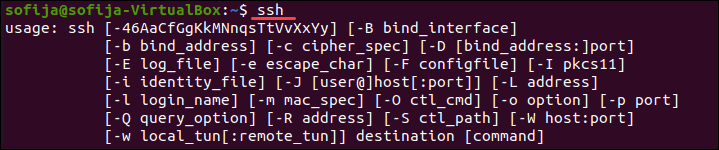
Если терминал предоставляет список параметров команды ssh, клиент SSH установлен в системе. Однако, если он ответит, что команда не найдена (command not found), вам необходимо установить клиент OpenSSH.
Решение: установить клиент SSH
Чтобы установить клиент SSH на свой компьютер, откройте терминал и выполните одну из команд, перечисленных ниже.
Для систем Ubuntu / Debian:
Для систем CentOS / RHEL:
Демон SSH не установлен на сервере
Так же, как вам нужна клиентская версия SSH для доступа к удаленному серверу, вам нужна версия сервера для прослушивания и приема соединений. Таким образом, сервер может отклонить входящее соединение, если SSH-сервер отсутствует или настройка неверна.
Чтобы проверить, доступен ли SSH на удаленном сервере, выполните команду:
Если на выходе отображается «Connection refused», переходите к установке SSH на сервере.

Решение: установите SSH на удаленный сервер
Чтобы решить проблему отсутствия сервера SSH, установите сервер OpenSSH.
Учетные данные неверны
Затем проверьте, правильно ли вы используете IP-адрес сервера.
Наконец, убедитесь, что у вас открыт правильный порт SSH. Вы можете проверить, запустив:
На выходе отображается номер порта, как на картинке ниже.

Служба SSH не работает
Служба SSH должна быть включена и работать в фоновом режиме. Если служба не работает, демон SSH не может принимать соединения.
Чтобы проверить статус службы, введите эту команду:
Вывод должен ответить, что служба активна. Если терминал отвечает, что служба не работает, включите его, чтобы решить проблему.
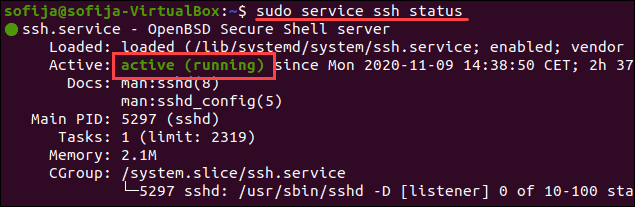
Решение: включить службу SSH
Если система показывает, что демон SSH не активен, вы можете запустить службу, выполнив:
Чтобы служба запускалась при загрузке, выполните команду:
Брандмауэр препятствует подключению SSH
SSH может отклонить соединение из-за ограничений брандмауэра. Брандмауэр защищает сервер от потенциально опасных подключений. Однако, если в системе настроен SSH, необходимо настроить брандмауэр, чтобы разрешить SSH-соединения.
Убедитесь, что брандмауэр не блокирует SSH-соединения, так как это может вызвать ошибку «Connection refused».
Решение: разрешить SSH-подключения через брандмауэр
Введите следующую команду в окне терминала, чтобы разрешить SSH-соединения:

Порт SSH закрыт
Когда вы пытаетесь подключиться к удаленному серверу, SSH отправляет запрос на определенный порт. Чтобы принять этот запрос, на сервере должен быть открыт порт SSH.
Если порт закрыт, сервер отказывает в соединении.
По умолчанию SSH использует порт 22. Если вы не вносили никаких изменений в конфигурацию порта, вы можете проверить, прослушивает ли сервер входящие запросы.
Чтобы вывести список всех прослушивающих портов, запустите:
Кроме того, вы можете проверить, открыт ли конкретный порт, в данном случае порт 22:

Решение: откройте порт SSH
Чтобы разрешить порту 22 слушать запросы, используйте команду iptables :
Вы также можете открывать порты через графический интерфейс, изменив настройки брандмауэра.
Отладка и ведение журнала SSH
Чтобы проанализировать проблемы SSH в Linux, вы можете включить подробный режим или режим отладки. Когда вы включаете этот режим, SSH выдает отладочные сообщения, которые помогают устранять проблемы с подключением, конфигурацией и аутентификацией.
Существует три уровня детализации:
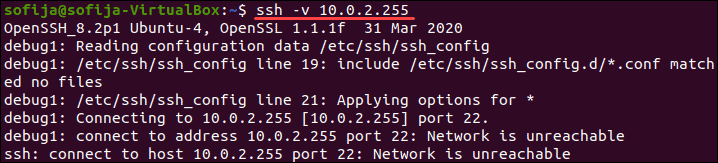
В качестве альтернативы вы можете использовать:
Онлайн курс по Linux
Мы собрали концентрат самых востребованных знаний, которые позволят тебе начать карьеру администратора Linux, расширить текущие знания и сделать уверенный шаг к DevOps
Источник
Socket.Connection refused on linux and osx #923
Comments
dv00d00 commented Jul 19, 2018
Not sure if it is a bug but this code works perfectly fine on windows:
but fails on linux
dotnet version: 2.1.302
Related fact
The text was updated successfully, but these errors were encountered:
davidsh commented Jul 19, 2018
wfurt commented Jul 19, 2018
wfurt commented Jul 19, 2018
It seems like the error is coming from OS:
When sending data locally, kernel can probably detect that port is closed and the sendmsg() call fails. That does not looks like problem with the runtime, more difference in how OS handle I/O.
dv00d00 commented Jul 20, 2018
works without throwing exceptions. I don’t believe anything is on that specific port, this was happening on a travis CI machine, but the same happened on my mac.
wfurt commented Sep 19, 2018
I did more testing with C and C# as well as I looked at Linux kernel code.
This seems to be way how Unix works. when sendto() is used, individual chunks of data are submitted independently and the call succeeds as long as there is space in socket buffer.
Since UDP is unreliable, this is has nothing to do with actual delivery.
I did also packet capture for both calls. In both cases I see:
When sendmsg() is trying to send data following happens: first message goes out without error.
When the ICMP error get’s back it is remembered on «connection» (internal socket structure)
Subsequent sendmsg() calls fail.
Since this is OS behavior, I don’t think it make sense to hide underlying error.
It seems that raising exception and allowing caller to deal with it is better approach.
I’m proposing to close this unless somebody objects. cc: @karelz
(note that linked PR does not change this behavior)
Krummelz commented Sep 2, 2019 •
«System.Net.Sockets.SocketException (111): Connection refused» error,
at Npgsql.NpgsqlConnector.Connect(NpgsqlTimeout timeout)
wfurt commented Sep 2, 2019
From the dump it is clear that the port you trying to connect to is not listening and sends back RST. It is correct to throw.
Also note that this issue is about UDP.
karelz commented Sep 9, 2019
Triage: We need to understand why Send and SendTo behave differently.
We need either doc change, or product change, or test added.
vindicatorr commented Jun 15, 2020
I’m only just now getting into this as well and it looks like SCM_RIGHTS is going to be key:
Send or receive a set of open file descriptors from another process. The data portion contains an integer array of the file descriptors. (unix.7)
https://stackoverflow.com/questions/28003921/sending-file-descriptor-by-linux-socket/
tmds commented Jun 25, 2020 •
On Linux, Socket.Send throws a SocketException if there is no peer, while on Windows it does not.
Windows WSASend documentation suggests it could do the same thing:
Maybe this error is only generated for non-localhost communication on Windows?
You can add an extension method if you always want to ignore the error, and avoid the cost of throwing (and catching) Exceptions for it.
Источник
Как решить? «ECONNREFUSED — connection refused by server»
Вы тоже столкнулись с ошибкой ECONNREFUSED — connection refused by server в FileZilla? Тогда здорово, что вы нашли это руководство. Я покажу вам три метода, как можно исправить эту ошибку FTP.
Первый Метод. Изменение Дефолтного Значения Порта FileZilla
Причиной ошибки может быть неправильный порт при подключении через FileZilla. В этой ситуации вам просто нужно изменить порт FTP по умолчанию на дефолтный номер порта SFTP. Просто измените 21 на 22 в поле ввода “Port”.

Второй Метод. Отключение Антивируса/Брандмауэра
Иногда эта ошибка может возникать, когда антивирусное программное обеспечение и/или брандмауэр отказывает FileZilla в попытках установить соединение.
В случае, если антивирус или брандмауэр вызывает ECONNREFUSED, вам нужно просто отключить это ПО, а затем снова подключиться. Сначала я покажу вам, как это сделать в macOS:
Если вы используете Windows, выполните следующие действия:
Подробней о том, как деактивировать разное антивирусное программное обеспечение можно прочитать здесь (англ).
Если отключение антивируса или брандмауэра не помогло и вы по-прежнему получаете ошибку «ECONNREFUSED — connection refused by server», попробуйте следующий метод.
Третий Метод. Изменение Мастера Настройки Сети FileZilla
Что делать, если предыдущие решения не принесли желаемого результата? Чтобы исправить ошибку, вы также можете попробовать изменить конфигурации сети FileZilla:
На этом этапе вам необходимо убедиться, что все настройки были выполнены правильно. Нажмите кнопку “Test”, чтобы FileZilla попыталась установить соединение с probe.filezilla-project.org. Программа выполнит несколько простых тестов.
Если тестирование пройдет без сбоев, попробуйте снова подключиться к вашей учетной записи хостинга. В этот раз все должно работать отлично. Если же ошибка ECONNREFUSED все равно не исчезла, обратитесь в службу поддержки вашего хостинга.
Выводы
Вот и все. Это и есть три метода, как исправить ошибку «ECONNREFUSED — connection refused by server». Надеемся, что один из них таки поможет вам решить проблему с FileZilla. Если у вас остались вопросы или вы знаете другие решения, не стесняйтесь оставить комментарий!
Источник
kex unable to connect to socket: connection refused(10061) #6675
Now if I try to run kex I get the following error:
If I run kex stop or kex kill I get the following output:
I googled around to find various methods to fix this. Most of the articles/discussion suggest the following ways:
In the 3rd method if I do all that and then start the vncserver by running:
And if I run kex after that I get error saying No Matching security Type
Replies
I don’t have and answer. I was just gonna say that it does the same for me
mzfr Mar 15, 2021
This is not the exact fix of the problem but if you want to you can use vcxsrv to run the GUI.
Now run following command in kali terminal:
After hours of searching to no avail, I have found that you need to:
ziruil3 Nov 2, 2021
Can I ask what is the vnc authentication password?
ziruil3 Nov 2, 2021
afonsofrancof Nov 2, 2021
no idea, sorry. I dont use kex anymore
ziruil3 Nov 2, 2021
ok. I have found the answer. Thank you anyway.
the-bst Nov 13, 2021
And if doesn’t work anyway (case for me) (in sudo) :
Adding to the solution found by @afonsofrancof
I was able to recreate this. Following the logs from vncserver stating:
_XSERVTransSocketUNIXCreateListener: mkdir(/tmp/.X11-unix) failed, errno = 11
_XSERVTransMakeAllCOTSServerListeners: failed to create listener for unix
Sun Aug 1 21:05:56 2021
vncext: VNC extension running!
vncext: Listening for VNC connections on all interface(s), port 5901
vncext: created VNC server for screen 0
Sun Aug 1 21:06:26 2021
ComparingUpdateTracker: 0 pixels in / 0 pixels out
ComparingUpdateTracker: (1:-nan ratio)
_XSERVTransSocketUNIXCreateListener: mkdir(/tmp/.X11-unix) failed, errno = 11
_XSERVTransMakeAllCOTSServerListeners: failed to create listener for unix
I haven’t done extensive testing, but I believe the issue resides in the way that the Standard User and associated permissions are created during initial setup through WSL2. As best I can tell, the only way to launch a KeX environment right now is to do so as root. However, this creates another potential issue: The KeX GUI environment’s login will be root.
Attempting to launch KeX using the user you create during initial setup causes the recurring error quoted above until KeX times out and throws
Error connecting to the KeX server.
Please try «kex start» to start the service.
If the server fails to start, please try «kex kill» or restart your WSL2 session and try again.
I recommend posting this discussion as a bug report to the Kali Community and/or appropriate KeX developers.
Источник