
Я начинаю изучать javascript. По этой статье хочу получить конечный результат, но дойдя до пункта
Запускаем сервер для проверки его работоспособности: yarn dev
я нахожусь в ступоре уже 2 день. Сначала был установлен npm, потом я подумал, что может неправильно заменяю в каких-то местах на yarn и решил установить пакет yarn, делал ровно то, что было в примере. В терминале вместо yarn dev писал и «npm dev», и «npm — «cwd» server dev» Потом установил yarn. Код, все package.json`ы абсолютно идентичны тем, что в примере. Ввожу в терминале на этой стадии, что выше «yarn dev» , появляется следующее сообщение:
PS C:ReactProjectreact-chat> yarn dev
yarn run v1.22.18
error Command "dev" not found.
info Visit https://yarnpkg.com/en/docs/cli/run for documentation about this command.
Открыл документацию, что указана в графе инфо, попробовал yarn run server, тогда началась абсолютная вакханалия с постоянно обновляющейся ошибкой.
yarn run v1.22.18
$ yarn --cwd server dev
$ supervisor index.js

Running node-supervisor with
  program 'index.js'
  --watch '.'
  --extensions 'node,js'
  --exec 'node'

Starting child process with 'node index.js'
Watching directory 'C:ReactProjectreact-chatserver' for changes.
Press rs for restarting the process.
crashing child
Starting child process with 'node index.js'
C:ReactProjectreact-chatserverhandlersmessageHandlers.js:3
const low = require('lowdb')
            ^

Error [ERR_REQUIRE_ESM]: require() of ES Module C:ReactProjectreact-chatservernode_moduleslowdblibindex.js from C:ReactProjectreact-chatserverhandlersmessageHandlers.js not supported.
Instead change the require of index.js in C:ReactProjectreact-chatserverhandlersmessageHandlers.js to a dynamic import() which is available in all CommonJS modules.
    at Object.<anonymous> (C:ReactProjectreact-chatserverhandlersmessageHandlers.js:3:13)
    at Object.<anonymous> (C:ReactProjectreact-chatserverindex.js:11:33) {
  code: 'ERR_REQUIRE_ESM'
}

Node.js v18.2.0
Starting child process with 'node index.js'
crashing child
Parent process exiting, terminating child...
node:internal/process/per_thread:220
      throw errnoException(err, 'kill');
      ^

Error: kill ESRCH
    at process.kill (node:internal/process/per_thread:220:13)
    at Timeout._onTimeout (C:ReactProjectreact-chatservernode_modulessupervisorlibsupervisor.js:412:25)
    at listOnTimeout (node:internal/timers:564:17)
    at process.processTimers (node:internal/timers:507:7) {
  errno: -4040,
  code: 'ESRCH',
  syscall: 'kill'
}
В документации к yarn указано, что нужно делать так «yarn add < package… >», но я не понимаю, какой пакет мне нужно указывать, потому что автор данной статьи приводит следующее «yarn dev» и все.
Прошу помощи третий день.
I am moving from nodemon to ts-node-dev but I am not able to run my index.ts file using ts-node-dev.
I did the following:
-
yarn add ts-node-dev --dev -
In my
package.jsonI have:"devDependencies": { ... "nodemon": "^1.19.2", "ts-node": "8.3.0", "ts-node-dev": "^1.0.0-pre.56", "typescript": "3.6.3" }
If I run ts-node-dev or ts-node-dev src/index.ts I get the error:
command not found: ts-node-dev
What am I doing wrong? It seems to me that is correctly installed.
My scripts
   "scripts": {
      "start": "nodemon --exec ts-node src/index.ts",
      "dev": "ts-node-dev src/index.ts"
   }
asked Aug 3, 2020 at 21:08

MagofocoMagofoco
4,8936 gold badges31 silver badges72 bronze badges
4
You have 3 options here:
- Run the command from actual path:
./node_modules/.bin/ts-node-dev src/index.ts
- Use
npx
npx ts-node-dev src/index.ts
- Install the package globally (wouldn’t recommend)
npm i -g ts-node-dev src/index.ts
ts-node-dev src/index.ts
answered Aug 3, 2020 at 21:35

g2joseg2jose
1,2191 gold badge8 silver badges11 bronze badges
4
I solved this error by changing my yarn shell script, which I had previously changed to bash.
Returning it to «sh»
yarn config set script-shell /bin/sh
Or simply reseting it
yarn config delete script-shell
To check which shell script is being used with
yarn config get script-shell
answered Jul 25, 2022 at 13:01

crtormencrtormen
1911 silver badge6 bronze badges
Recommend Projects
-

React
A declarative, efficient, and flexible JavaScript library for building user interfaces.
-
Vue.js
🖖 Vue.js is a progressive, incrementally-adoptable JavaScript framework for building UI on the web.
-
Typescript
TypeScript is a superset of JavaScript that compiles to clean JavaScript output.
-
TensorFlow
An Open Source Machine Learning Framework for Everyone
-
Django
The Web framework for perfectionists with deadlines.
-
Laravel
A PHP framework for web artisans
-
D3
Bring data to life with SVG, Canvas and HTML. 📊📈🎉



Recommend Topics
-
javascript
JavaScript (JS) is a lightweight interpreted programming language with first-class functions.
-
web
Some thing interesting about web. New door for the world.
-
server
A server is a program made to process requests and deliver data to clients.
-
Machine learning
Machine learning is a way of modeling and interpreting data that allows a piece of software to respond intelligently.
-
Visualization
Some thing interesting about visualization, use data art
-
Game
Some thing interesting about game, make everyone happy.
Recommend Org
-
Facebook
We are working to build community through open source technology. NB: members must have two-factor auth.
-
Microsoft
Open source projects and samples from Microsoft.
-
Google
Google ❤️ Open Source for everyone.
-
Alibaba
Alibaba Open Source for everyone
-
D3
Data-Driven Documents codes.
-
Tencent
China tencent open source team.


Hello Guys, How are you all? Hope You all Are Fine. Today I am trying to start yarn but I am facing following error: error Command “start” not found in ReactJS. So Here I am Explain to you all the possible solutions here.
Without wasting your time, Let’s start This Article to Solve This Error.
Contents
- How error Command «start» not found Occurs ?
- How To Solve error Command «start» not found?
- Solution 1: add start script in package.json
- Solution 2: Run this command
- Solution 3: Try this
- Solution 4: Use this Command
- Summary
How error Command “start” not found Occurs ?
I am trying to start yarn but I am facing following error.
error Command "start" not foundHow To Solve error Command “start” not found?
- How To Solve error Command “start” not found?
To Solve error Command “start” not found You Just need to install npm first Just Run this command: npm install then run npm run Now, Your Erros should be solved.
- error Command “start” not found
To Solve error Command “start” not found Here Maybe You Dont have start script in your package.json So that Just try to add start script Just like this: “start”: “your command to run” I am adding this in my start For Example: “start”: “webpack-dev-server –mode development”, Now, Your error must be solved.
Solution 1: add start script in package.json
Here Maybe You Dont have start script in your package.json So that Just try to add start script Just like this.
"scripts": {
  "start": "your command to run", //Add This Line
}
I am adding this in my start For Example.
"scripts": {
  "start": "webpack-dev-server --mode development",
}
Now, Your error must be solved.
Solution 2: Run this command
You Just need to install npm first Just Run this command.
npm installThen Run
npm runNow, Your Erros should be solved.
Solution 3: Try this
You need to run this command.
npm install --global yarnNow, Your error should be solved.
Solution 4: Use this Command
Run,
yarn add react-scriptsSummary
It’s all About this issue. Hope all solution helped you a lot. Comment below Your thoughts and your queries. Also, Comment below which solution worked for you?
Also, Read
- Unable to load script.Make sure you are either running a Metro server or that your bundle ‘index.android.bundle’ is packaged correctly for release
There are a lot of queries by people asking «How to fix the command not found yarn» errors on forums. If you are also getting the same error, I will help you with all possible answers to get this issue solved. This Yarn command not found error may occur if you have not installed the package correctly or not set up the path variable. Let’s deep dive more into these fixes in this post.
Solutions provided in this post will also help you to fix the below-mentioned errors because the reasons are more or less the same.
- yarn command not found windows
- zsh command not found yarn
- start command not found yarn
- vue command not found yarn
- bash: sequelize: command not found yarn
- expo command not found after using yarn
- bash: /usr/local/bin/yarn No such file for directory

Below mentioned are the possible reasons, why you get a «command not found yarn» error in your system.
- You have installed Yarn correctly
- You have not setup the Yarn path variable rightly
- PC reboot is missing after yarn package installation
- Re-installation of Yarn package is required
All these above-mentioned issues can be fixed if you know the right way to install Yarn on your system. Let me first show you the correct way on how to install yarn and set up the path variable in different operating systems.
Table of Contents
- 1 Solution1 — Fix «command not found yarn» error by installing Yarn correctly
- 2 Solution2 — Make sure you setup the path variable correctly in your profile
- 3 Solution3 — Reboot the PC at least once after yarn installation to fix command not found yarn error
- 4 Solution4 — Re-install Yarn package, especially in case of macOS
- 5 Solution5 — Setup the Yarn prefix
- 6 How to check Yarn version
- 7 Frequently asked questions
- 8 End note
Solution1 — Fix «command not found yarn» error by installing Yarn correctly
It is very important to know the right way to install yarn in your system. If you will miss any step, it may result in the yarn not found error.
Step1.1- Check if you have Yarn installed already
Check if you have installed already using the following commands.
- If you use npm package manger
$ sudo npm -g list
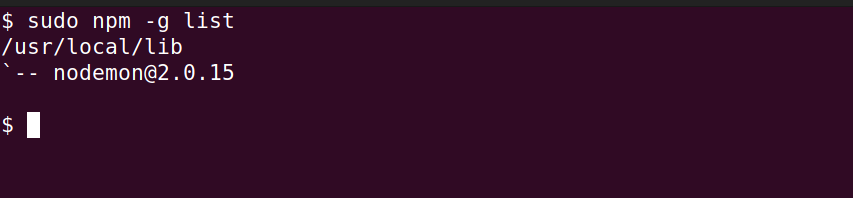
- Or if you uses Ubuntu APT package manager
$ sudo apt list --installed | grep -i yarn
- In case of macOS
$ brew list
If you have a yarn package already installed then skip to solution 2 otherwise follow solution1 to fix the command not found yarn error.
Step1.2 — Install Yarn using «NPM» package manager
Developers of yarn recommend installing the «Yarn» package using the npm package manager.
- To install latest version 3 of yarn globally on your system run following command. This command applies to Ubuntu, Windows and macOS.
npm install -g yarn
To install a specific version use @package name
npm install -g yarn@version
- Prefix sudo, in case of Ubuntu or Linux operating system
$ sudo npm install -g yarn
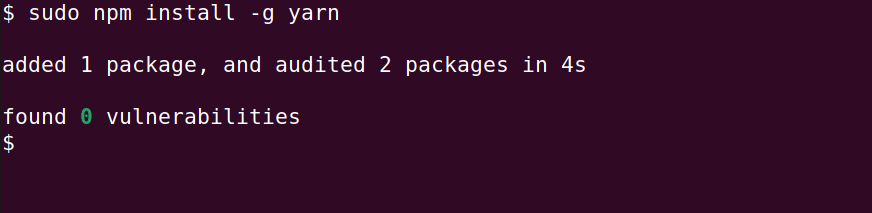
If you get «npm command not found error». It means npm package manager is not installed in your system. Follow this article on how to fix npm command not found error and come back.
- Check
yarnversion
$ yarn --version
Step1.3 — Install Yarn using «APT» package manager
If you use Ubuntu and want to install yarn using the «apt» package manager, then follow these steps —
Step1.3.1 — Configure the yarn repository first
curl -sS https://dl.yarnpkg.com/debian/pubkey.gpg | sudo apt-key add -If you get a curl not found error, then install curl with apt install curl command.
Then run the following command after curl command
echo "deb https://dl.yarnpkg.com/debian/ stable main" | sudo tee /etc/apt/sources.list.d/yarn.listStep1.3.2 — Update repository and install Yarn
sudo apt update && sudo apt install yarnIf you get errors due to «cmdtest«, remove it first
$ sudo apt remove cmdtest
- If you are using
nvmyou can avoid thenodeinstallation by doing:
$ sudo apt update && sudo apt install --no-install-recommends yarnNote: In some distros nodejs is used instead of node, yarn might complain about node not being installed. As a workaround for this is just add an alias in your .bashrc file, like so: alias node=nodejs. This will point yarn to whatever version of node you decide to use.
Step1.4 — In case of macOS use script to install yarn
The easiest way to install yarn in macOS is via script
curl -o- -L https://yarnpkg.com/install.sh | bashIn case of any specific version, replace [version] with the yarn version name.
curl -o- -L https://yarnpkg.com/install.sh | bash -s -- --version [version]In case of issues or alternate installation methods, you can check this link on the installation of Yarn in macOS.
Let’s move to the very important step of setting up path variable after yarn package installation
Solution2 — Make sure you setup the path variable correctly in your profile
Once you are done with yarn package installation, You need to make sure you have set up the yarn path correctly in your profile or environment variables.
Follow these steps depending upon your operating system to set up the Yarn path correctly.
Yarn bin directory path may differ with each installation and you must check the path first before setting it up. So that you won’t find a command not found error while running yarn.
Step2.1 — Check for Yarn global bin path
$ yarn global bin
Add the resulted path to your profile file. It may be .bashrc, .profile, .zshrc or .bash_profile in your case.
For example, I have added the following command to my .bashrc file to make yarn work.
$ export PATH="$PATH:$HOME/.config/yarn/global/node_modules/.bin"
- Reload .bashrc profile file
$ source ~/.bashrc
- In case of macOS
Edit .zshrc file and add the following path
export PATH="$PATH:`yarn global bin`"
Or you can also provide an absolute path like in the .zshrc file —
$ export PATH="$PATH:$HOME/.config/yarn/global/node_modules/.bin"
Then reload ~/.zshrc file
$ source ~/.zshrc
Note* In case you don’t have .bashrc, .profile or .zshrc file in your home directory. You can create one by «touch» command, vi or nano editor.
- In case of Windows, edit environment variable by following method and replace path «c:usersyourusernameappdatalocalyarnbin» with your yarn global path.
Go to System Properties > Advanced > Environment Variables > selectPATHthe click Edit > then append and not replace with;c:usersYOURUSERNAMEappdatalocalyarnbin.
Solution3 — Reboot the PC at least once after yarn installation to fix command not found yarn error
It has been seen that if you don’t restart your PC after Yarn installation and setup of a path variable. Sometimes you may get a «command not found yarn» issue. So always reboot your system to complete the installation of Yarn.
Solution4 — Re-install Yarn package, especially in case of macOS
If you have installed the Yarn package using Brew and still you are getting a command not found yarn error. You should try reinstalling it once. it has been seen for many users, it has resolved the problem.
- To install yarn globally using homebrew, if you are not using npm package manager.
$ brew install -g yarn
- To reinstall yarn, in case it’s corrupted or
yarn global bincommand is not working.
$ brew reinstall yarn
Solution5 — Setup the Yarn prefix
Sometimes, setting up the path variable doesn’t work, so may you need to set up the Yarn prefix. Follow these steps
Step5.1 — Find your global bin path of yarn
$ yarn global bin
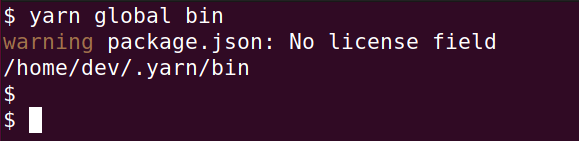
Example, i have got /home/dev/.yarn/bin
Step5.2 — Set yarn prefix
$ yarn config get prefix
If you get no output after running above mentioned command, then run the following command to set prefix with path found with yarn global bin command.
$ yarn config set prefix /home/dev/.yarn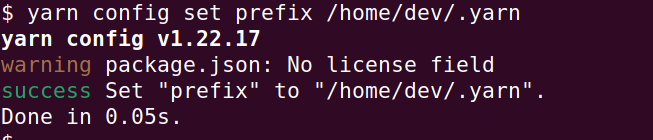
Step5.3 — Setup your .bash_profile, bashrc, .profile or .zshrc file
Add the following lines to your profile
export PATH="$PATH:`yarn global bin`"Step5.4 — Restart your shell once with bash -l or zsh command
Restart your shell with the bash -l or zsh command. Alternatively close and open your terminal again.
How to check Yarn version
To check yarn version run —
$ yarn --version

Frequently asked questions
Q1- What is the command to install yarn?
To install yarn using the npm package manager, which is the best way to install, run —
> npm install -g yarn
or in the case of Ubuntu or Linux, use sudo
$ sudo npm install -g yarn
Q2- How do I update the latest version of Yarn?
To install the latest version or to update yarn using npm. Run
> npm install —global yarn
in the case of macOS, if you have not used npm, then run
$ brew upgrade yarn
For more installation and upgrade options visit this link.
Q3- Which is better Yarn or NPM?
The yarn actually defeats NPM in terms of speed and performance. Yarn is secure and can install multiple packages at once compared to NPM, which installs packages one at a time.
Q4- Can Yarn work on Windows?
Yes, Yarn works on Windows pretty well. You can use npm, msi installer or chocolatey method to install yarn on Windows 10 as per your requirement or preference.
Q5- Where is yarn installed in Mac?
Run yarn global bin command to check the location of yarn installation. Yarn installation folder differs depending upon installation method and operating system. The default path of Yarn installation is generally «~/.config/yarn/global«.
End note
I hope after reading this article, you would have solved your «command not found yarn» error and at least one of the solutions has fixed your issue.
Please let me know, which method helps you to get this issue resolved. If you still facing this error, let me know the details, I will try to help you.
Keep Reading!!
When you’re trying to run a command (with or without sudo) and get an error message that reads «Command not found,» this means the script or file you’re trying to execute doesn’t exist in the location specified by your PATH variable. What is this variable, and how can you run commands that it can’t find?
Understanding environment variables
In computing, a variable is a placeholder for a value that can change. You use variables every day in normal speech, although you don’t think of them as such. When you say «my laptop,» you’re using «laptop» as a generic variable or placeholder for the computer you’re carrying, regardless of whether it happens to be a Lenovo, Mac, or a Raspberry Pi in a fancy case.
Environment variables are special variables that contain information about your login session. Many of these variables are set by default during installation or user creation. They’re stored for the system shell, applications, and scripts to use when executing commands.
There are global, or system-defined, variables and local, or user-defined, variables.
Global variables
Global variables come predefined in your login shell, but they aren’t immutable and can be modified or deleted according to your preferences. You can use the printenv or env commands to display the environment variables on your system:
$ env
SHELL=/bin/bash
SESSION_MANAGER=local/kiwi.homelinux.local:@/tmp/.ICE-unix/1906,unix/kiwi.homelinux.local:/tmp/.ICE-unix/19
06
WINDOWID=153092103
COLORTERM=truecolor
XDG_CONFIG_DIRS=/home/tux/.config/kdedefaults:/etc/xdg:/etc/kde/xdg
LESS=-XR
XDG_SESSION_PATH=/org/freedesktop/DisplayManager/Session1
HISTCONTROL=:ignorespace:ignoredups:ignorespace:ignoredups
PKG_CONFIG_PATH=/usr/local/lib64/pkgconfig:/usr/local/share/pkgconfig:/usr/lib64/pkgconfig:/usr/share/pkgconfig
[...]
The env command prints out all global environment variables. Variables are case sensitive, and all Linux distributions use uppercase for environment variable names by default.
[ Keep your favorite Git commands, aliases, and tips close at hand. Download the Git cheat sheet. ]
Local variables
A local variable exists only within a specific shell. Therefore, when you define a local variable, it’s only available in your current shell. It doesn’t propagate or persist to a new shell session unless you export it as a global variable.
Local variables are often defined in lowercase to avoid overwriting a global variable with the same name.
The PATH environment variable
The PATH global environment variable lists the directories your system searches for valid, executable commands. By default, it contains standard directories that normally store executables like /usr/bin, /usr/local/bin, and so on.
When you type in a command, such as grep or vim, your system searches through all directories listed in your PATH variable, in the order that they’re listed, until it finds an executable file by the same name. Should it fail to find one, it issues the «Command not found» error.
$ printenv PATH
/usr/local/bin:/usr/bin:/usr/local/sbin:/usr/sbin:/home/tux/.local/bin:/home/tux/bin

$ env $PATH
env: /usr/local/bin:/usr/bin:/usr/local/sbin:/usr/sbin:/home/tux/.local/bin:/home/tux/bin
5 ways to fix «Command not found» errors
There are several ways to fix this problem. Here are five of them.
1. Include the path
Not everything you want to execute needs to be in your path. You can execute files directly by specifying the path to the file you want to run. By identifying the file’s location, you circumvent the need for your system to search your path at all.
For example, suppose you have a script called hello that you want to run. It’s located in your home directory, and you have already marked it as executable with chmod +x:
$ ~/hello
hello world
By telling your system the file’s location, the PATH variable is never involved, and the file runs as expected.
2. Add a new path
Alternately, you can add a new directory to your PATH. Add your executable files to that directory, and then you can run them without manually providing a path:
$ cp ~/hello ~/.local/bin
$ export PATH=$PATH:$HOME/.local/bin
$ printenv PATH
/usr/local/bin:/usr/bin:/usr/local/sbin:/usr/sbin:/home/tux/.local/bin
You may want to add the new PATH environment variables to your login shell by including them in your .bashrc file as new settings.
3. Copy a file to an existing path location
If you want to execute your binary file or script, copy it to any of the directory paths already listed in the PATH environment variable:
$ sudo cp ~/hello /usr/local/bin/
$ hello
hello world
4. Tell Bash where to look
Probably the simplest option, especially for one-off scripts or applications, is to tell Bash not to consider the PATH but rather to «look here.» Do this by placing a dot and a slash in front of the command, script, or application name. For the hello script, it looks like this:
$ sudo ./hello
hello world
No permanent changes are made to the system. This might be handy if you’re writing a script and want to test it before copying or moving it to its normal storage location (presumably along the PATH).
5. Install a package
Sometimes when you try to use a command and Bash displays the «Command not found» error, it might be because the program is not installed on your system. Correct this by installing a software package containing the command. For example, if you don’t have Nmap installed, then the nmap command fails when you type it into a terminal:
$ nmap
nmap: command not found
$ sudo dnf install --assumeyes --quiet nmap
$ nmap
Nmap 7.92 ( https://nmap.org )
Usage: nmap [Scan Type(s)] [Options] {target specification}
[...]
[ Want to learn more? Sign up for a free trial of full access to Red Hat’s curriculum. ]
Stick to the path
The PATH variable is a powerful tool you can use to customize how your system responds to commands, so take some time to get comfortable with it. It’s frequently used when running commands to find the command executable.
In this tutorial, you learned five ways to fix a «Command not found» error in your terminal—three of which rely on the PATH variable. Now that you know what variables are and how command executables are found, you won’t be so mystified when the «Command not found» error appears on your screen.