
 При открытии некоторых сайтов в Google Chrome, Microsoft Edge или Яндекс Браузере вы можете получить сообщение об ошибке с кодом ERR_CERT_AUTHORITY_INVALID, с пояснением: «Подключение не защищено», «Ваше подключение не является закрытым» или «Невозможно установить безопасное соединение».
В этой инструкции подробно о том, как можно исправить такую ошибку в браузерах Windows, часть информации будет актуальна и для браузеров на мобильных устройствах.
Российские сертификаты безопасности

Если ошибка ERR_CERT_AUTHORITY_INVALID появляется при открытии разделов сайта Сбербанка или каких-либо государственных (и около) сайтов РФ, с большой вероятностью причина — использование ими российских сертификатов безопасности НУЦ Минцифры, которые по умолчанию не поддерживаются в Chrome и Edge. Возможные решения для этой ситуации:
- Установить сертификаты Минцифры
- Использовать браузер со встроенной поддержкой российских сертификатов, например, Яндекс Браузер
Если речь идёт о каком-то специфическом сайте закупок, аукциона, биржи или подобном, а установка российских сертификатов не помогла, рекомендую изучить раздел поддержки этого конкретного сайта, не исключено, что там указано, какие ещё сертификаты нужно установить для работы.
Учитывайте, что для открытия и просмотра сайта несмотря на ошибку, можно нажать кнопку «Дополнительные сведения» в браузере, а затем согласиться с небезопасным переходом на нужный сайт, как на изображении ниже.

Отсутствие других установленных сертификатов
Отсутствие не только сертификатов Минцифры, но и некоторых других сертификатов также может приводить к сообщению об ошибке ERR_CERT_AUTHORITY_INVALID.
Чаще всего речь идет о следующих сертификатах (для загрузки лучше всего нажать по ссылке правой кнопкой мыши и выбрать пункт «сохранить ссылку как», чтобы они скачались с оригинальным расширением, а не как txt файлы):
- Certum CA
- Certum Trusted Network CA
- GlobalSign Root CA – R1
- GlobalSign Root CA – R3
Достаточно скачать сертификаты (файлы с расширением .pem и .crt), а затем импортировать их. Сделать это в Windows можно, используя следующие шаги:
- Нажмите клавиши Win+R на клавиатуре (Win — клавиша с эмблемой Windows), введите certmgr.msc в окно «Выполнить» и нажмите Enter
- Перейдите в раздел «Доверенные корневые центры сертификации» — «Сертификаты».
- В меню окна управления сертификатами нажмите «Действие» — «Все задачи» — «Импорт».

- Укажите файл сертификата (в поле «Тип файла» может потребоваться выбрать «Все файлы», чтобы файлы сертификатов отображались), а в следующем окне убедитесь, чтобы сертификаты сохранялись в доверенные корневые центры сертификации.

- После успешного импорта всех сертификатов перезапустите браузер.


Среди других возможных причин ошибки ERR_CERT_AUTHORITY_INVALID возможны:
- Проблемы с сертификатом на стороне сайта. В этом случае ошибка будет возникать при доступе с разных устройств и браузеров, независимо от установленных сертификатов. А решением будет ожидание исправление проблемы разработчиком сайта.
- Использование самоподписанного сертификата, если вы разработчик.
- Если ошибка возникает при открытии сайтов с антивирусами или компьютерных сайтов, при этом только с конкретного устройства, скорее всего вы имеете дело с вирусом, который перенаправляет ваш запрос на сайт злоумышленника. Подробнее на тему: Что делать, если вирус блокирует сайты антивирусов и/или закрывает браузеры.
Надеюсь, инструкция помогла в вашем случае. Если остались вопросы — задавайте их в комментариях, я постараюсь помочь.
Even if you do have an SSL certificate installed on your website, your users may run into the NET::ERR_CERT_AUTHORITY_INVALID error. Despite its intimidating name, the invalid certificate authority error isn’t something you should panic about.
Simply put, your browser doesn’t recognize the validity of your certificate. To keep you ‘safe’ it displays this error, so you’re aware that there’s something fishy going on. As the website owner, though, there are a lot of things you can do to fix the problem.
In this tutorial, we’ll talk about what the error message means, and how it looks in different browsers. Then we’ll teach you how to fix the NET::ERR_CERT_AUTHORITY_INVALID error by covering all of its likely causes.
Let’s get to work!
What Is NET::ERR_CERT_AUTHORITY_INVALID Error?
As the name of the error implies, this problem pops up when your browser can’t verify the validity of your website’s SSL certificate. If you haven’t set up a certificate or are using HTTP for your website, which isn’t recommended, you shouldn’t run into this error.
Generally speaking, there are three primary causes for the invalid certificate authority error. Let’s break down each one in turn:
- You’re using a self-signed SSL certificate. Using a self-signed certificate can save you money, but since browsers can’t verify its validity, your visitors may run into the error in question. Browser warnings can scare a lot of users away, so we recommend against this approach.
- Your certificate has expired. SSL certificates expire as a security precaution. How long your certificate lasts can vary, but at some point, you’ll need to renew it or automate the renewal process (some authorities and web hosts enable you to do this easily).
- The certificate comes from a non-trusted source. Just as with self-signed certificates, if browsers can’t verify the authority that generated your certificate, you’ll see an error.
Remember that every time a user visits a website with an SSL certificate, their browser needs to validate and decrypt it. If there are any errors during that process, they’ll see a warning.
In a lot of cases, browsers will actively prevent users from accessing the website in order to protect them. This often comes in the form of the “Your Connection is Not Private” error. As you might imagine, that’s a huge problem if it occurs on your own site.
Sometimes, you may run into the NET::ERR_CERT_AUTHORITY_INVALID error due to local configuration settings. Throughout the next sections, we’ll show you the many faces this error can take and then we’ll talk about how to troubleshoot it.
When you see a NET::ERR_CERT_AUTHORITY_INVALID error message pop up, you might be concerned 😬. Despite its intimidating name, this invalid certificate authority error isn’t cause for alarm. 😅 Learn how to fix it in a few simple steps. ⬇️Click to Tweet
What Are the NET::ERR_CERT_AUTHORITY_INVALID Error Variations?
The way an error appears can vary a bit, depending on what browser you’re using. Your operating system and your certificate’s configuration can also play a role in the different error messages that appear.
With that in mind, let’s take a look at the most common variations of the NET::ERR_CERT_AUTHORITY_INVALID error, browser by browser.
- Your connection is not private
- Warning: Potential Security Risk Ahead
- Your connection isn’t private
- This Connection Is Not Private
Google Chrome
When you run into this error in Chrome, the browser will tell you right away that your connection isn’t private. Since the browser doesn’t recognize your certificate’s validity, it can’t encrypt your data.
That means if you proceed, you do so at your own risk. Here’s what the error message looks like:
Attackers might be trying to steal your information from domain.com (for example, passwords, messages, or credit cards).
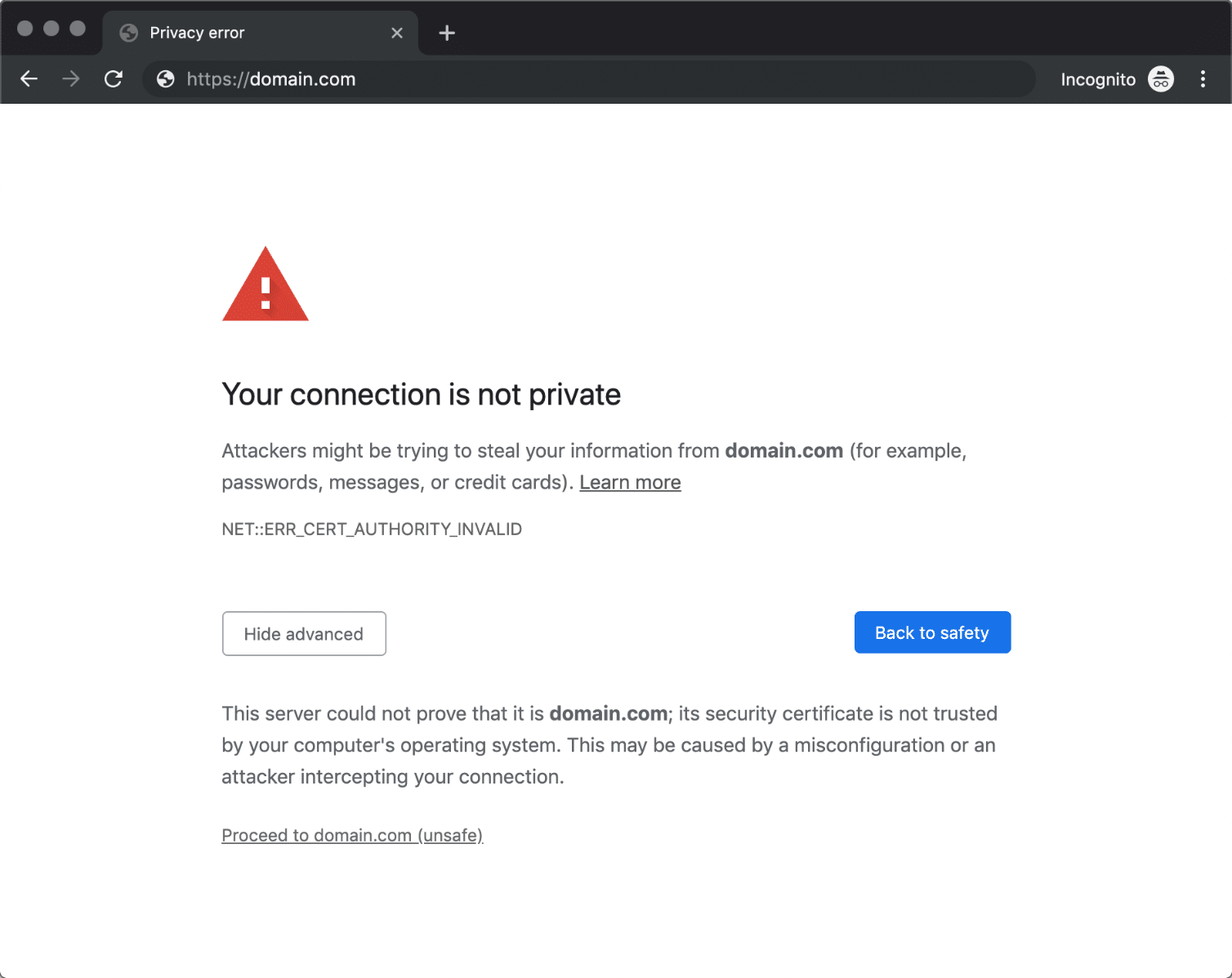
Common variations of this error in Chrome include the following codes:
- NET::ERR_CERT_AUTHORITY_INVALID
- NET::ERR_CERT_COMMON_NAME_INVALID (This occurs when the certificate does not match the domain)
- NET::ERR_CERT_WEAK_SIGNATURE_ALGORITHM
- NET::ERR_CERTIFICATE_TRANSPARENCY_REQUIRED
- NET::ERR_CERT_DATE_INVALID
- SSL CERTIFICATE ERROR
In every case, Chrome pinpoints the source of the error within the certificate. The browser lets you proceed to the website if you choose, but it warns you against doing so.
Mozilla Firefox
Firefox doesn’t waste any time in telling you that you may have run into a potential security risk. What’s more, this browser does a better job than Chrome when it comes to explaining the potential causes and telling you not to panic.
Here’s how the primary error message reads:
Firefox detected an issue and did not continue to domain.com. The website is either misconfigured or your computer clock is set to the wrong time.It’s likely the website’s certificate is expired, which prevents Firefox from connecting securely. If you visit this site, attackers could try to steal information like your passwords, emails, or credit card details.
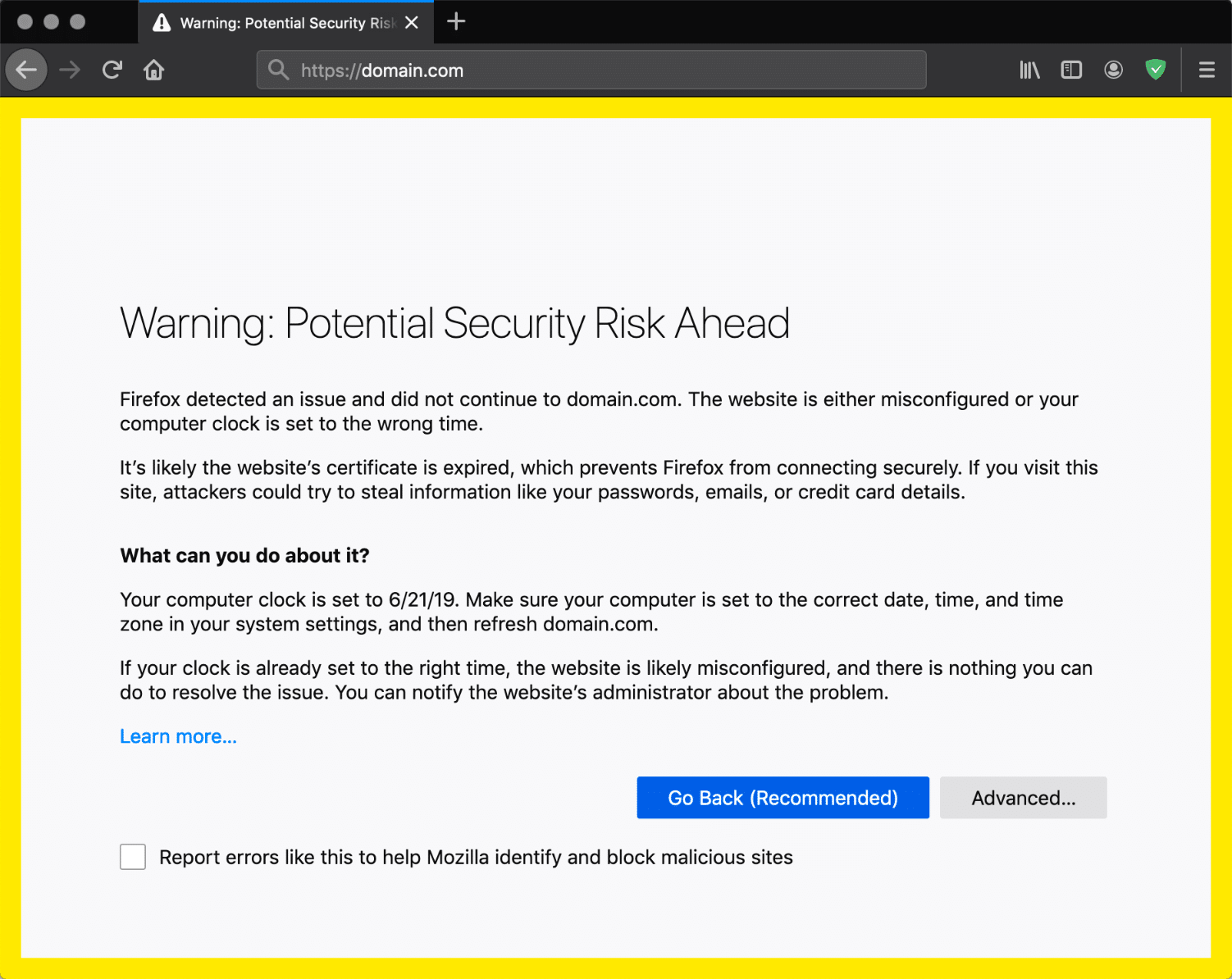
That variation of the error doesn’t include a specific code, though. In most cases, the screen will include one of the following codes as well:
- SEC_ERROR_UNKNOWN_ISSUER
- SSL_ERROR_RX_MALFORMED_HANDSHAKE
- MOZILLA_PKIX_ERROR_KEY_PINNING_FAILURE
- SEC_ERROR_REUSED_ISSUER_AND_SERIAL
If you see an error code like one of the above, make sure to copy it down somewhere. That is the browser’s way of telling you where things went wrong. In our experience, a simple search for a specific error code is often enough to help you find a quick solution.
Microsoft Edge
The Microsoft Edge error message you see below should look familiar. It’s almost identical to the message Chrome displays, right down to the included code:
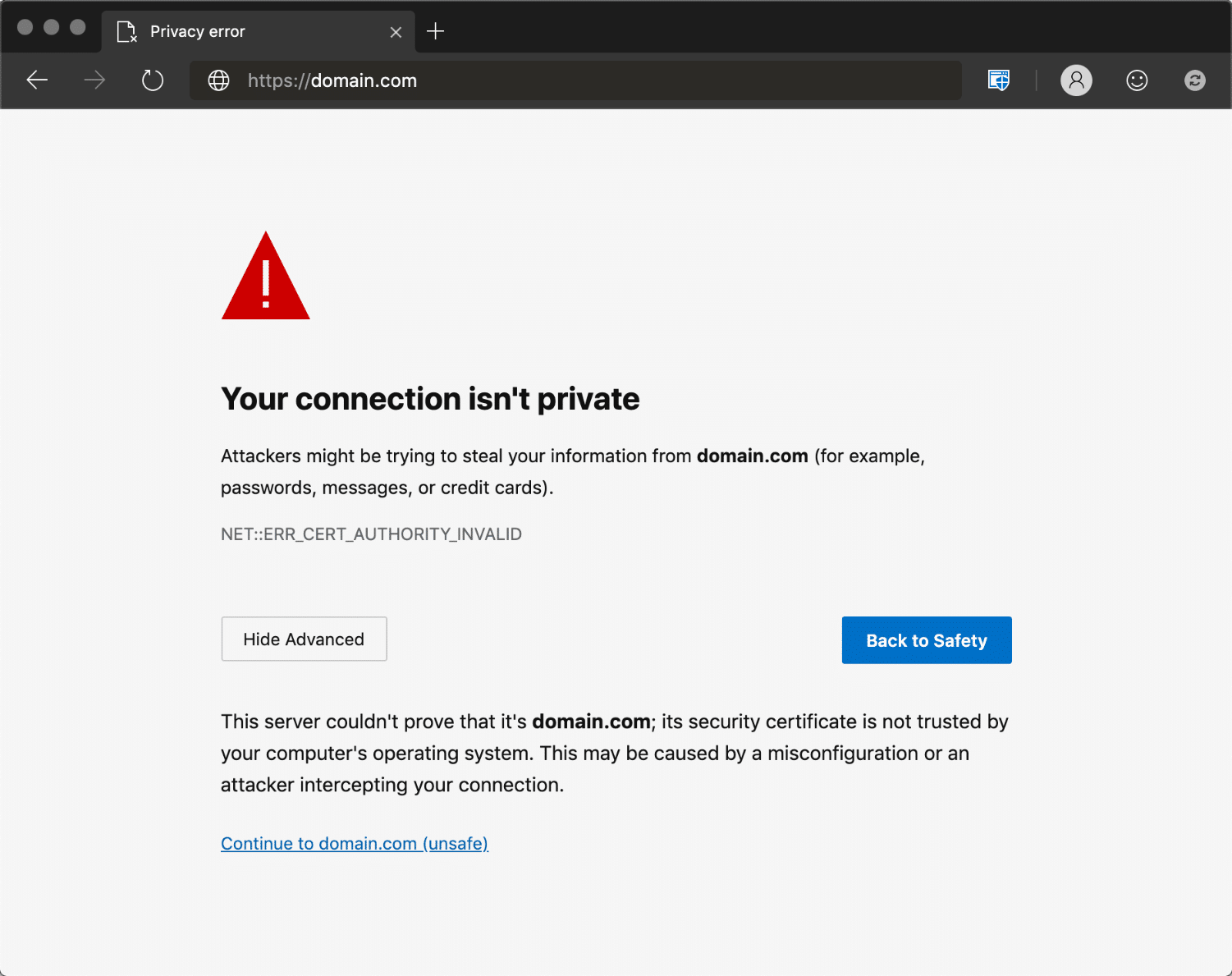
The error can also come in different flavors, including the following:
- DLG_FLAGS_SEC_CERTDATE_INVALID
- DLG_FLAGS_INVALID_CA
- DLG_FLAGS_SEC_CERT_CN_INVALID
- NET::ERR_CERT_COMMON_NAME_INVALID
- ERROR CODE: O
Just as with Chrome, these error messages give you some insight into what’s at the root of your NET::ERR_CERT_AUTHORITY_INVALID error.
Safari
If you’re a Safari user, you’ll run into a variation of the ‘this connection is not private’ error, which lets you know there’s a problem with the website’s certificate and encryption. Here’s what the message says:
This website may be impersonating “domain.com” to steal your personal or financial information. You should go back to the previous page.
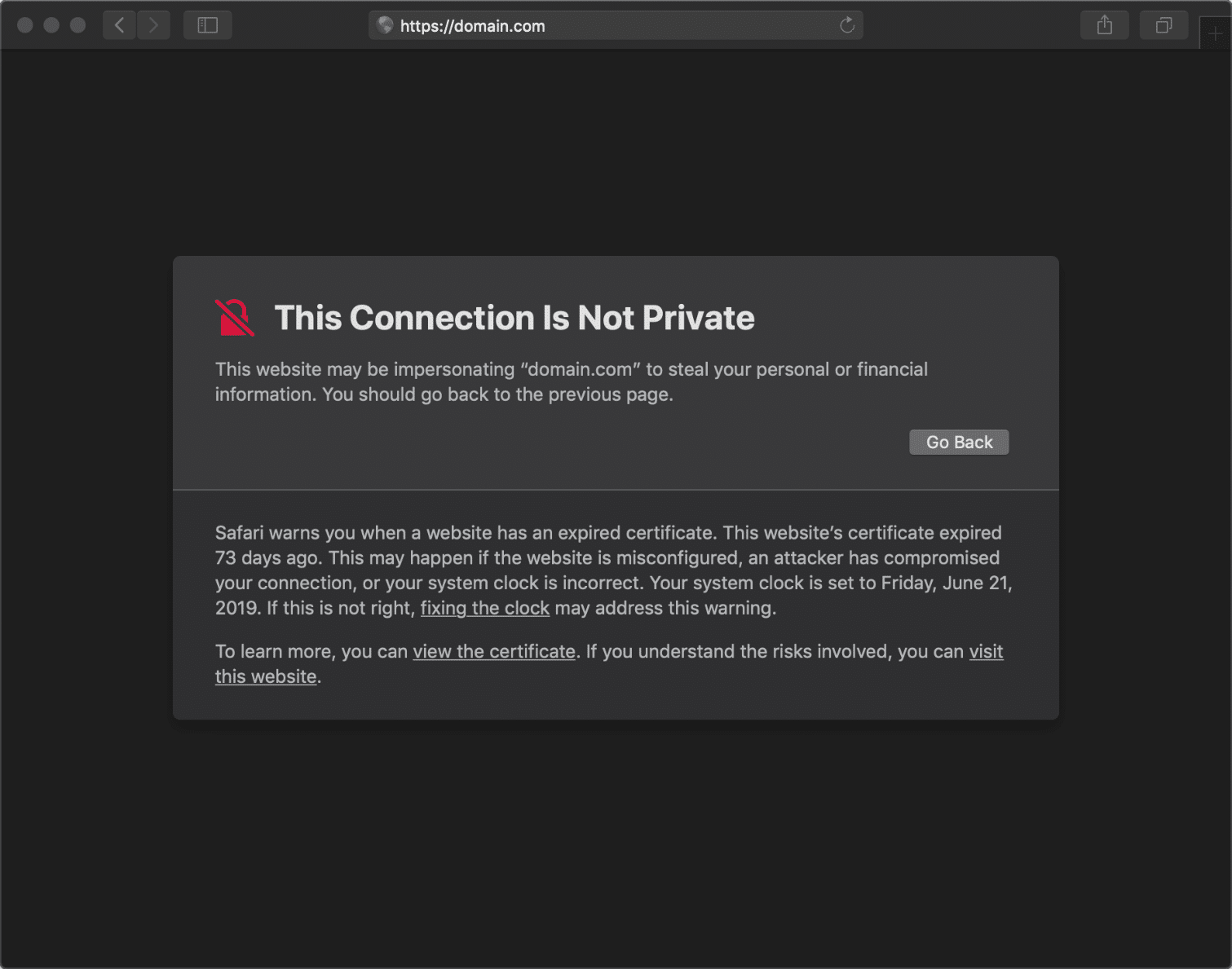
That particular error is due to an expired certificate. As we mentioned before, expired certificates are one of the most common causes of the NET::ERR_CERT_AUTHORITY_INVALID error.
How to Fix the NET::ERR_CERT_AUTHORITY_INVALID Error (9 Methods)
Now that you know what it looks like across most major browsers, it’s time to check out how to solve the NET::ERR_CERT_AUTHORITY_INVALID error. Earlier, we talked about its most common causes. However, we also mentioned that your local configuration can trigger it in some cases.
That means there are a lot of potential solutions to this issue. To keep things simple, we’ll start by tackling the three most common culprits, i.e. expired, self-signed, and ‘untrustworthy’ certificates. Then we’ll move on to more general solutions.
Here’s what we’ll cover:
1. Run an SSL Server Test
If you installed your SSL certificate shortly before the error began appearing, something may have gone wrong during the setup process. That can often happen if you installed the certificate manually, instead of through your web host.
The easiest way to check and see if your certificate is properly installed is by using an SSL check tool, such as the one offered by Qualys SSL Labs. This particular tool is free to use.
All you have to do is enter the domain where the error is popping up, and click on the Submit button:

Now, wait a couple of minutes while the results come up. Ideally, you should get an A+, with perfect scores for all your certificates:
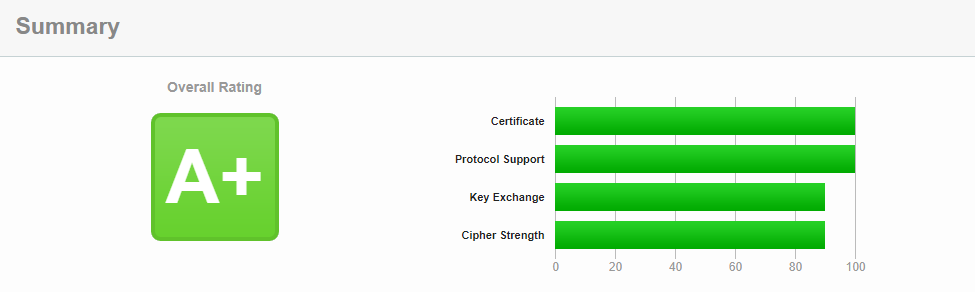
If you don’t get a perfect score, scroll down to the list of certificates the tool shows you. There should be a section that tells you whether your certificate is trusted or not. If the tool gives you a negative result, then you’ll need to install a certificate from a trusted source instead.
2. Get a Certificate from a Valid Authority
There’s no excuse to use a self-signed certificate these days. If cost is the only factor, you can get a free certificate from Let’s Encrypt. Since it’s a valid authority, every browser will recognize your certificate’s validity:
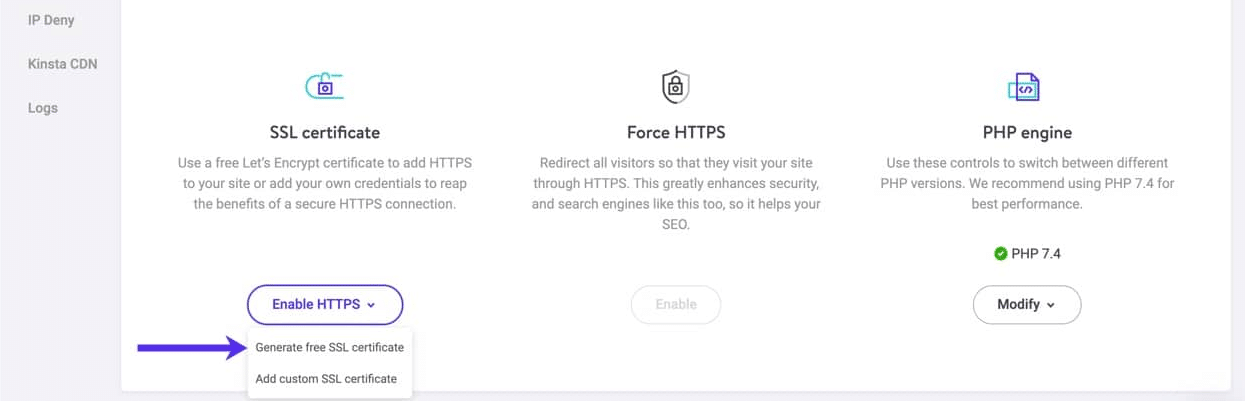
If you’re a Kinsta user, we can help you set up your free Let’s Encrypt certificate in a matter of click through your MyKinsta dashboard:
For some websites, however, you’ll need more than a free certificate. Free certificates need to be renewed often, which can be a chore. Premium certificates offer more perks, such as insurance in the case of data breaches, encryption for multiple domains, and more.
For ecommerce sites, in particular, it can be worth it to pay for a premium SSL certificate. If you do buy a certificate, make sure it’s from a valid authority, in order to avoid running into the NET::ERR_CERT_AUTHORITY_INVALID error.
3. Renew Your SSL Certificate
SSL certificates need to be renewed every so often for security purposes. The renewal process verifies your domain’s ‘identity’, and without it, certificates would lose some of their validity. Free certificates from Let’s Encrypt renew every 90 days, whereas paid options have longer lifespans.
Check Out Our Video Guide to Choosing The Best SSL Certificate For Your Site
When the term is up, you’ll need to renew your certificate manually if your web host doesn’t handle that for you. In any case, Let’s Encrypt will contact you when your certificate is about to expire, so you can renew it ahead of time. Depending on which web host you use, however, you might not get access to renewal options through your control panel.
If you have access to your server, you can use the Certbot tool to install and renew SSL certificates through the command line.
Once you renew your SSL certificate, try loading your website again to see if the NET::ERR_CERT_AUTHORITY_INVALID error persists.
4. Try Reloading the Page (Or Using Incognito Mode)
If neither of the above fixes worked, it’s time to start troubleshooting directly from your computer.
In many cases, the NET::ERR_CERT_AUTHORITY_INVALID error disappears on its own when you try to reload the page. It only takes a second to do so, so it doesn’t hurt to try.
If the error persists across multiple reloads, we recommend that you try accessing the website using an ‘incognito mode’ if your browser offers that option:

If the website loads fine in incognito mode, that means the error is likely caused by your browser attempting to load an outdated cached version of the page. That gives you enough information to tackle the problem directly (as we’ll see in the next section).
5. Clear Your Browser’s Cache and Cookies
If switching your browser to incognito mode made the NET::ERR_CERT_AUTHORITY_INVALID error go away, then the issue is probably related to your browser’s cache.
Clearing your cache and cookies is easy, but the process varies depending on which browser you’re using. Below you can find instructions for clearing the cache in all the major browsers:
- How to Clear Browser Cache for Google Chrome
- How to Clear Browser Cache for Mozilla Firefox
- How to Clear Browser Cache for Safari
- How to Clear Browser Cache for Internet Explorer
- How to Clear Browser Cache for Microsoft Edge
- How to Clear Browser Cache for Opera
Another solution can be to try and force refresh your website specifically, so you don’t have to delete your entire cache. Force refreshing sometimes doesn’t work, however, so clearing your cache is our recommended solution.
6. Sync Your Computer’s Clock
One of the most common causes for the NET::ERR_CERT_AUTHORITY_INVALID is because your computer has the wrong date or time set. To clarify, errors with your device’s clock can interfere with your browser’s ability to verify a website’s certificate.
The good news is that if this is the problem, it’s an easy fix. If you notice a discrepancy between your computer’s clock and the current time, you can adjust it in seconds. Exactly how you do this will depend on which Operating System (OS) you’re using.
Windows
Go to the system tray and right-click on your computer’s time, then select the option that says Adjust date/time:

A settings window will appear. Look for the option that reads Sync now under Synchronize your clock, and click on it: Syncing your computer clock.

If you have an internet connection, Windows will make sure the date and time are correct. To avoid this issue in the future, we recommend that you enable the Set time automatically option. This setting should ensure that your computer always has the correct time.
Mac
If you’re using macOS, the syncing process is also remarkably simple. All you have to do is follow these steps:

- Select the System Preferences option within the Apple menu.
- Click on the Date & Time icon.
- Turn on the Set date & time automatically option.
Before you close the settings screen, swing by the Time Zone tab and make sure you’re using the correct time zone. Once that’s done, you can check to see if the NET::ERR_CERT_AUTHORITY_INVALID error still persists.
7. Try Using a Different Network
In some cases, the NET::ERR_CERT_AUTHORITY_INVALID error pops up when you’re using a public network, such as the ones you can find in coffee shops or tourist spots. These networks often don’t route traffic securely, which can trigger the error.
If you’re using a public network for your computer, we recommend trying to access your website through your smartphone using its mobile data. Your goal here is to determine whether the original network was causing the problem.
If the error disappears when you’re using mobile data, then you know you need to switch networks. Another option to protect your privacy if you regularly use public internet access is to sign up for a Virtual Private Network (VPN).
A good VPN service will help protect your data even if you’re using an unsecured point of access. You will need to pay if you want to use a quality VPN service, but the expense is well worth it if you’re always on the move.
8. Disable Your VPN or Antivirus Software
If you’re already using a VPN and you run into the NET::ERR_CERT_AUTHORITY_INVALID error, the service itself may be triggering it.
Another common culprit is antivirus software. After you’ve tried everything else, we recommend that you temporarily turn off your VPN and disable your antivirus software. Then try accessing your site again and use force refresh to make sure it’s not loading from your browser’s cache.
If the error is gone, try re-enabling both services, one at a time, and see if you get the invalid certificate notification once more. This will let you know which is at fault. You may then choose to try and update the software, contact its support team for help, or look for an alternative solution.
9. Wipe Your Computer’s SSL State
Your computer keeps cached copies of certificates from websites you visit on a temporary basis, so it doesn’t have to run through the entire verification process each time you access them.
You can think of your SSL state as a cache, only for certificates. Just as with your cache, you can wipe your computer’s SSL state when you run into invalid certificate authority errors.
In Windows, you can do this by accessing the Internet Options menu from your control panel, and moving to the Content tab:

Click on the button that says Clear SSL state, close the window, and try reloading your website.
If you’re using macOS, and have accepted an untrusted certificate in the past, you may need to delete the certificate exception created for it from your Mac Keychain.
To do this, click on the Finder icon, followed by Go > Utilities > Keychain Access:
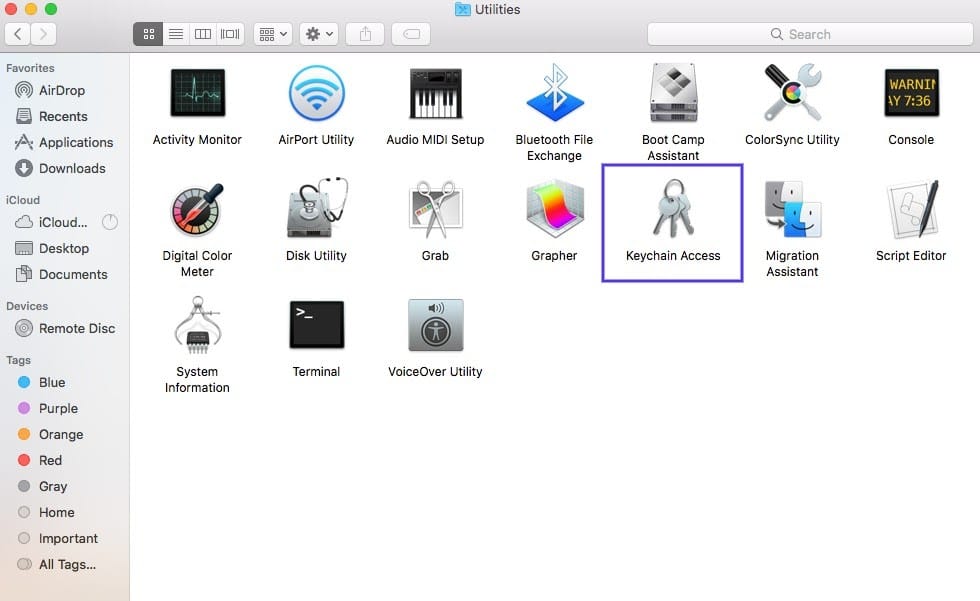
Under the Category section, select Certificates. Any untrusted certificates should have a red ‘X’ under their names. To delete them, click on Edit at the top of the screen, followed by Delete.
The NET::ERR_CERT_AUTHORITY_INVALID might look scary 😱, but this guide will give you the tools you need to tackle it across browsers 💪Click to Tweet
Summary
The NET::ERR_CERT_AUTHORITY_INVALID error can take a while to troubleshoot if you’re unable to determine what’s causing it. Plus, if your visitors are seeing it as well, that can harm both your traffic and your reputation.
The good news is that most fixes take little time to implement. You’ll want to start by making sure your SSL certificate is up to date and valid, then perform some basic troubleshooting tasks such as reloading the page and clearing your browser’s cache.
After that, you can move on to more involved fixes, like wiping your SSL state and running an SSL server test.
Get all your applications, databases and WordPress sites online and under one roof. Our feature-packed, high-performance cloud platform includes:
- Easy setup and management in the MyKinsta dashboard
- 24/7 expert support
- The best Google Cloud Platform hardware and network, powered by Kubernetes for maximum scalability
- An enterprise-level Cloudflare integration for speed and security
- Global audience reach with up to 35 data centers and 275 PoPs worldwide
Test it yourself with $20 off your first month of Application Hosting or Database Hosting. Explore our plans or talk to sales to find your best fit.
If you have a website and even if you have installed the SSL certificate, it is possible that your users will run into the ERR_CERT_AUTHORITY_INVALID error.
This problem is also known as an invalid certificate authority error, this occurs when the browser used by the user visiting the website does not recognize the SSL certificate as a valid certificate.
In the following article, How to solve the ERR_CERT_AUTHORITY_INVALID error, we will see what an SSL certificate is and what causes the error.
After seeing the reasons for the error, we will look at possible solutions to solve it.
What is an SSL certificate
The SSL certificate is part of a network protocol for securing communications between the client (i.e., the browser) and the server on which the Web site is hosted.
This certificate specifically ensures that website navigation is encrypted and that connections are established through a secure connection.
Therefore, whenever a user browses a website that has an SSL certificate, they are browsing a secure site that protects their personal information, data, and credit card information.
This makes it possible to ensure that any customer or user data is secure and cannot be intercepted by unauthorized persons or individuals.
If the browser fails to verify that the site’s SSL certificate is valid, it may display a warning with the ERR_CERT_AUTHORITY_INVALID error. This notice is intended to inform you that the site does not use a secure or private connection.
How is the SSL certificate obtained?
Nowadays, the SSL certificate comes with hosting. Each provider provides its potential customers with a number of different packages for purchasing hosting or servers, all of which now generally come with an SSL Certificate included.
If you have recently adopted the secure protocol, going from http to https, you need to generate the SSL certificate.
All of our hosting plans include the SSL certificate which is activated automatically. If, however, you need to install the SSL certificate before automatic activation, you can follow our tutorial on how to install the SSL certificate for free and check its status.
Now that we have seen how to get an SSL certificate, let’s see what the ERR_CERT_AUTHORITY_INVALID error looks like.
What is the ERR_CERT_AUTHORITY_INVALID error?
As you may have already understood by now, the ERR_CERT_AUTHORITY_INVALID error occurs when the browser cannot recognize the validity of your SSL certificate.
The reasons why this error occurs can be different, but in general we can point to three main issues.
The SSL certificate is self-signed.
If the certificate you are using is self-signed, browsers will not be able to check its validity. This means that they will treat it as non valid SSL certificate and will display an ERR_CERT_AUTHORITY_INVALID error warning the users trying to access your site.
Many users at the sight of this warning message choose to turn away from the site and seek the desired information or product elsewhere. This can, therefore, represent an economic loss.
The certificate has expired
You can check the expiration of the certificate from the browser. You just click on the icon shaped like a padlock, an i, or a triangle in case an error appears on the site and then click on Certificate. You will then be able to see the expiration indicated in the “Valid from xx/xx/xxx to” section.
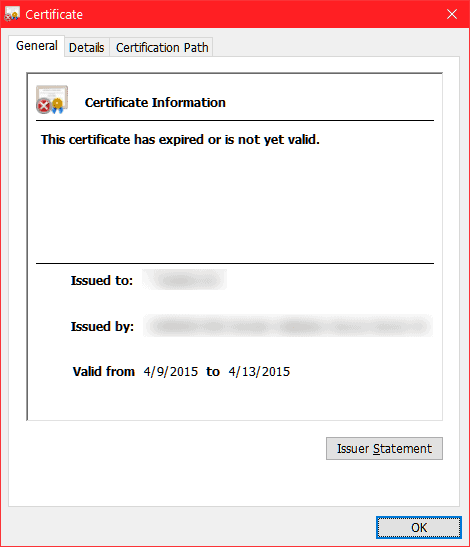
SSL certificates have a limited and variable duration, when they expire they must be renewed to prevent them from becoming invalid. As we will see later, there are also cases where renewal occurs automatically because it is completely managed by the provider.
The certificate is not trusted
The certificate you have chosen to purchase comes from an untrusted source, so the browser cannot verify the authenticity of who generated the certificate and the error will appear. SSL certificates must, in fact, be issued by an authorized body (Certification Authority).
What actually happens in these cases?
This is what happens when an issue of the kind we have just seen has occurred.
The user clicks on the desired search result (your website listed in the search engine SERP) and the loading of the site is interrupted by presenting an error page.
The web page will report the ERR_CERT_AUTHORITY_INVALID error and ask the user if he/she intends to continue browsing the site even though it is not secure or if he/she wants to abandon it instead.
The user doesn’t even have time to see your Web site if they don’t first agree that they want to continue. This type of error makes it, in fact, unable to reach site and, in most cases, the user abandons the website and moves on to another one that is more secure and reliable.
This is because nowadays online security is prioritized, so when faced with an issue that manifests an error and informs us that we are entering an unsafe site, we prefer not to risk it and abandon it.
This is a huge problem because it will inevitably hurt you. From an economic point of view, if you have an online sales site for products or services, you will see your sales inevitably drop.
At the same time, however, with more and more users abandoning your website and the number of visits dropping, the search engine will tend to penalize you by negatively changing your position within the SERP.
That’s why, should your site experience a similar issue, it’s a good idea to take immediate action.
Variants of the ERR_CERT_AUTHORITY_INVALID error
Depending on the browser we are using, the ERR_CERT_AUTHORITY_INVALID error can occur in several variations.
Let’s see what kind of alerts the different browsers show us.
Google Chrome
Google Chrome is definitely the most widely used browser in the world. When encountering an ERR_CERT_AUTHORITY_INVALID error with this browser, the warning web page will inform the user that the connection is not private.
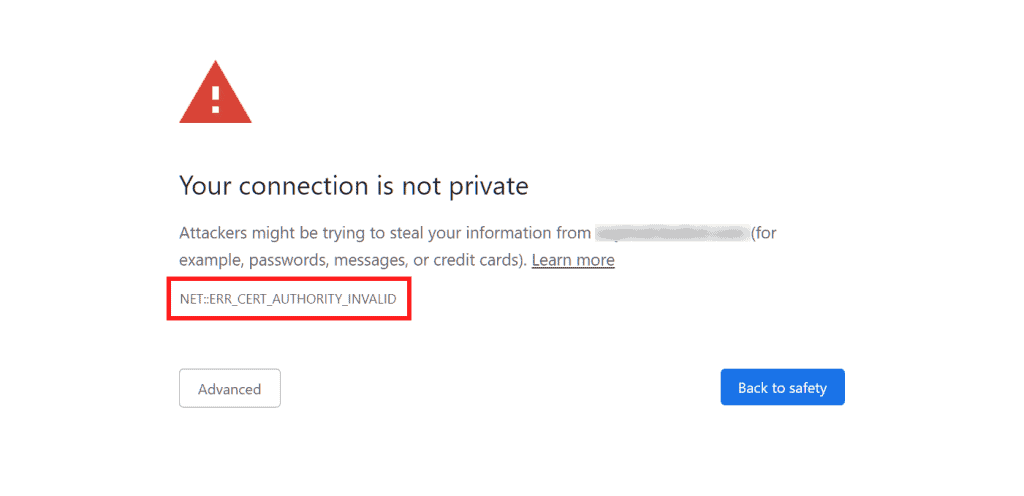
The site is not blocked altogether, but the user is left with the choice of whether to access it or not. Obviously by accessing the site the user takes the risk and responsibility of browsing an unprotected site.
We need to get into the mindset that entering an unsecured site puts us at risk, because any malicious parties may try to steal data, for example personal information or credit card details. But also passwords, pins or usernames to access personal profiles, banking and so on.
Google Chrome can detect several variants of the ERR_CERT_AUTHORITY_INVALID error, here are te following:
- NET::ERR_CERT_AUTHORITY_INVALID.
- NET::ERR_CERT_COMMON_NAME_INVALID
- NET::ERR_CERT_WEAK_SIGNATURE_ALGORITHM
- NET::ERR_CERTIFICATE_TRANSPARENCY_REQUIRED
- ERR-CERTIFICATE TRANSPARENCY REQUIRED.
- NET::ERR_CERT_DATE_INVALID
- SSL CERTIFICATE ERROR.
All of these errors are at the root of issues encountered with the SSL certificate.
Mozilla Firefox
Mozilla Firefox goes into more detail and in addition to warning you of the security risks you may run into on the site, it offers an extended message explaining what may happen. Here is the message it presents:
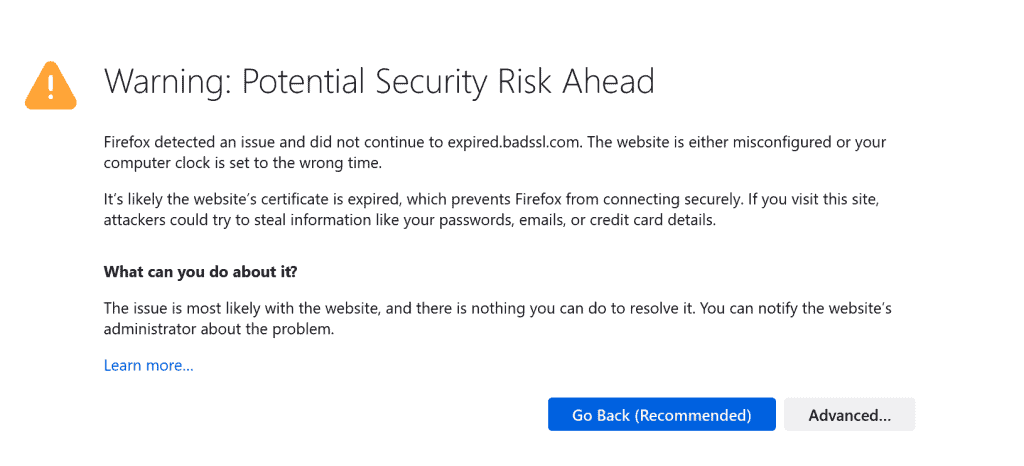
In this case Firefox does not include a specific code, but may in some cases report one of the following statements:
- SEC_ERROR_UNKNOWN_ISSUER
- SSL_ERROR_RX_MALFORMED_HANDSHAKE
- MOZILLA_PKIX_ERROR_KEY_PINNING_FAILURE
- SEC_ERROR_REUSED_ISSUER_AND_SERIAL
Microsoft Edge
Here is the error code that Microsoft Edge will show you: ERR_CERT_AUTHORITY_INVALID.
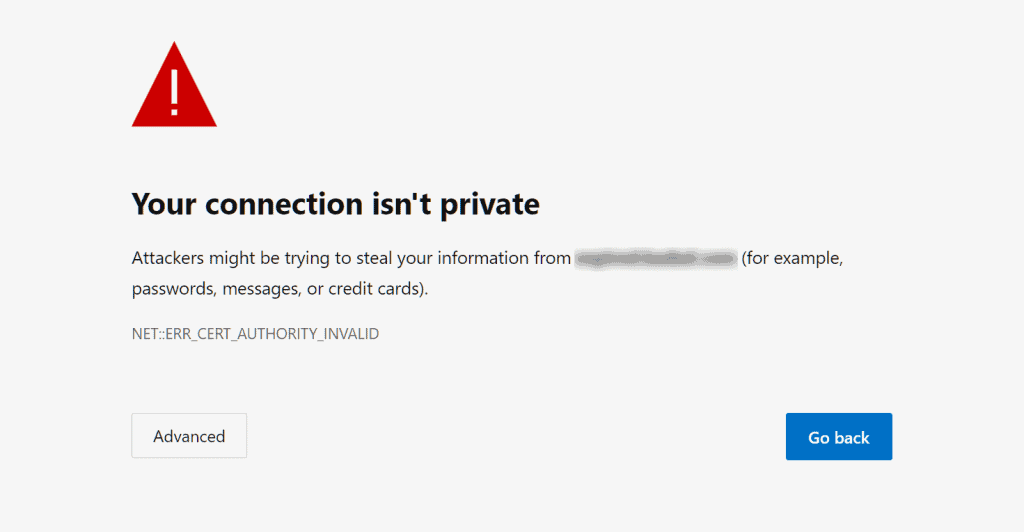
As with Chrome, even on Microsoft Edge we can run into some variants of this code, here are the most frequent ones:
- DLG_FLAGS_SEC_CERTDATE_INVALID
- DLG_FLAGS_INVALID_CA
- DLG_FLAGS_SEC_CERT_CN_INVALID
- ERR_CERT_COMMON_NAME_INVALID
- ERROR CODE: 0.
Opera
On Opera the ERR_CERT_AUTHORITY_INVALID error is very similar to what appears on Google Chrome. The browser reports the error code and warns us that “the connection is not reserved.”
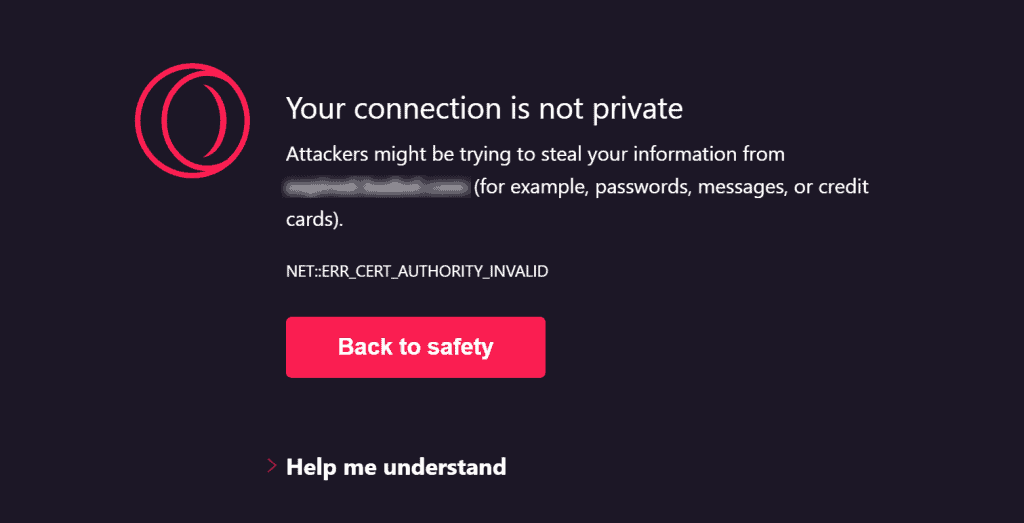
Other variations of the error on this browser include the following:
- NET::ERR_CERT_AUTHORITY_INVALID
- NET::ERR_CERT_INVALID
- NET::ERR_CERT_WEAK_SIGNATURE_ALGORITHM
- SSL certificate error.
Safari
On Safari the error occurs in the variant “This connection is not private.” Again, the browser alerts us by telling us that:
“This website may impersonate (domain of the website in question) to steal your personal or financial information. You should return to the previous page.”

If we view the details of the error, the browser can provide us with more detailed information about the problem, for example by warning us that the site’s certificate has expired or is invalid, as in this example below.
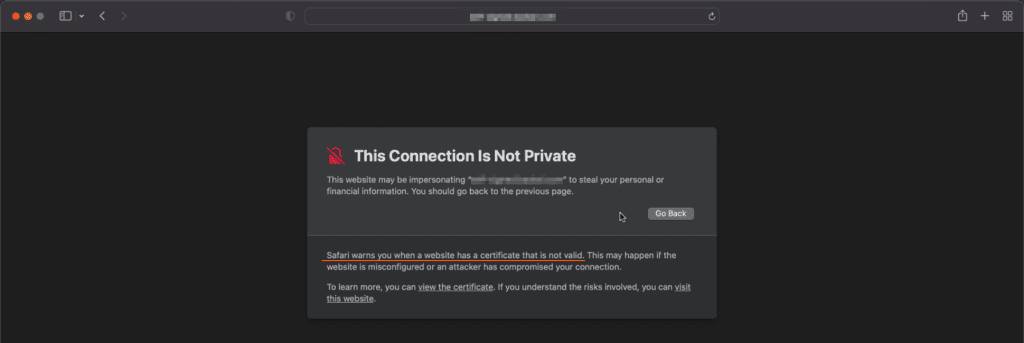
To get more details, again we can view the certificate directly from the browser. This way we can figure out what is causing the error. In this specific case that I show you below, the site uses a self-signed certificate.

How to solve ERR_CERT_AUTHORITY_INVALID error
Now that we know what an ERR_CERT_AUTHORITY_INVALID error is, what issues we can run into, and how the error is shown to us on different browsers, it’s time to find out how we can solve this problem.
As we will see, there are several possible solutions to solve the ERR_CERT_AUTHORITY_INVALID error. Therefore, in the next paragraphs, let’s go over the details on how to deal with the different issues.
Check the validity of the SSL certificate
If the message appears after installing our SSL certificate, it is important to verify that the installation was done correctly.
During the installation process mistakes are bound to happen and you might not notice them right away. This happens especially when you choose to install the certificate manually.
There is a testing tool that will allow you to run a test and verify that the installation was done correctly. You can find several platforms that offer you this possibility online, for example Qualys SSL Labs offers a free verification tool.
The test you are going to run will allow you to see what problem has occurred. These tests will also allow you to see whether or not your SSL certificate is trusted.
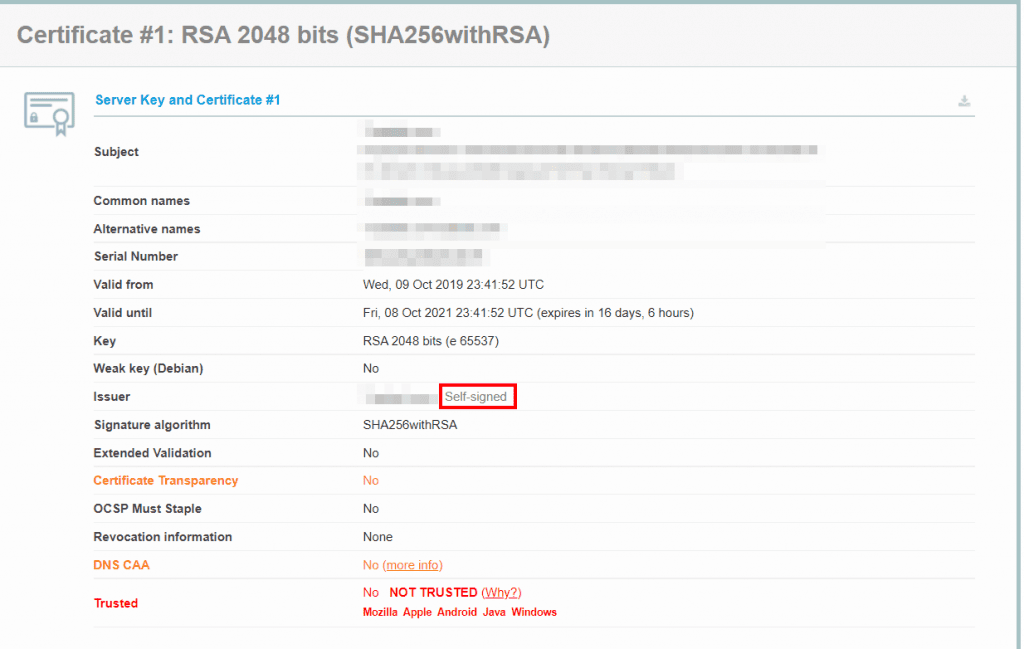
In this example, the tool helps us identify the cause of the error, which is a self-signed certificate.
If the test shows that there are errors, then you can follow the suggestions shown to solve them. For example, if there are problems about the trustworthiness of the certificate, you will need to install one issued by a trusted entity.
Choose to purchase an authoritative certificate.
Today it is possible to obtain authoritative certificates without any problem so there is no point in using a self-signed certificate that will make visitors to your site come across the error ERR_CERT_AUTHORITY_INVALID.
In case you do not want to incur a financial expense, you can get free certificates from Let’s Encrypt. This service provider is considered reliable by all browsers, so you will not encounter any problems with its certificates.
This solution is ideal in many cases, and to get your free certificate all you have to do is log on to the Let’s Encrypt Homepage.
On the other hand, it is not ideal when you want to create an ecommerce site that either deal with products or info-products or services. In this case it is, in fact, more suitable to use premium SSL certificates, which are always paid for.
This choice will allow you to provide your customers with more security when purchasing on your website. In this case, always remember to purchase SSL certificates from a valid authority recognized by browsers, so that you do not run into the ERR_CERT_AUTHORITY_INVALID error.
Those who opt for the free version and get it directly from the Let’s Encrypt site, should remember that since it is a free product it has a quick expiration date and you will therefore need to remember to update it.
With all of our plans starting from shared hostong, WordPress hosting, semidedicated hosting up to dedicated services such as VPS cloud hosting and dedicated server, we provide a free SSL certificate (Let’s Encrypt).
If you use our services, SSL certificate installation and activation is done automatically. SSL certificate renewal is also automatic, so you won’t have to worry about renewing it when it expires.
Renew your SSL certificate.
We mentioned that another frequent issue is, to be faced with an expired certificate; for security reasons, every certificate must be renewed at a specific cadence.
This speed of expiration is additional protection for you and your users-for example, free certificates tend to expire every 90 days or so, while paid options far exceed this time frame.
Unless we have automated everything, we will have to remember to renew the various certificates otherwise users trying to access our site will run into the ERR_CERT_AUTHORITY_INVALID error message.
The procedure for renewal varies depending on where you purchased the certificate and then by host. Many hosts do not allow you to access the renewal settings for the various SSL certificates, while others allow you to renew them even before they expire.
In our case, as we said before, the renewal of Let’s Encrypt SSL certificate is done automatically.
How does your host work? Inform yourself during the purchase on how you should deal with the various renewals, whether they will be done automatically or you will have to do them yourself.
If your site encounters the ERR_CERT_AUTHORITY_INVALID error and the problem is the expired certificate, just renew it and make sure the warning no longer appears.
Loading errors
Often the ERR_CERT_AUTHORITY_INVALID error appears due to an error in page loading that may also be related to a connection issue.
In these cases the problem is momentary, in fact, you will only have to reload the page to see that the warning is no longer there.
That is why before you panic at the ERR_CERT_AUTHORITY_INVALID error, it is good to run some tests and really understand what the problem is.
Cache problems
To check whether the problem is related to your browser cache, simply access your site by taking advantage of incognito mode in Google Chrome or another browser.
If this way the warning is gone, then it means that the problem is caused by your browser cache loading an older and outdated version of your website.
To solve the problem in this case you just need to clear the browser cache. Let’s see how you can clear your cache based on the browser you are using.
How to clear cache from Google Chrome
After opening Google Chrome, you will find an icon with three dots (⁝) in the upper right corner. Click the icon and you will see that a drop-down will open. From the menu click the Other Tools item and you will see a sub-menu open where you have to click the Delete browsing data item.
After that, select the data you want to delete. For example, you can delete cached files and cookies, but keep history and passwords.
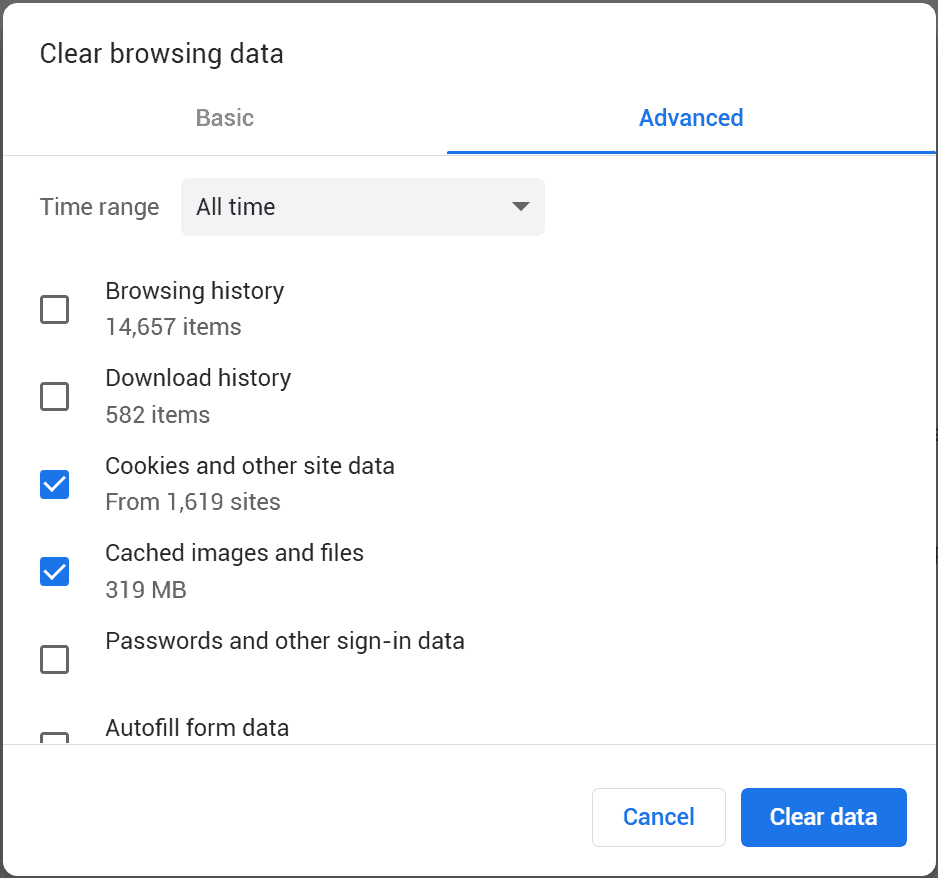
After you click Clear Data, your cache will be wiped clean and you can return to browsing safely.
How to clear cache from Mozilla Firefox
For Mozilla Firefox, you need to open your browser and click on the menu in the upper right corner. Here select the history item and then Clear Recent History.
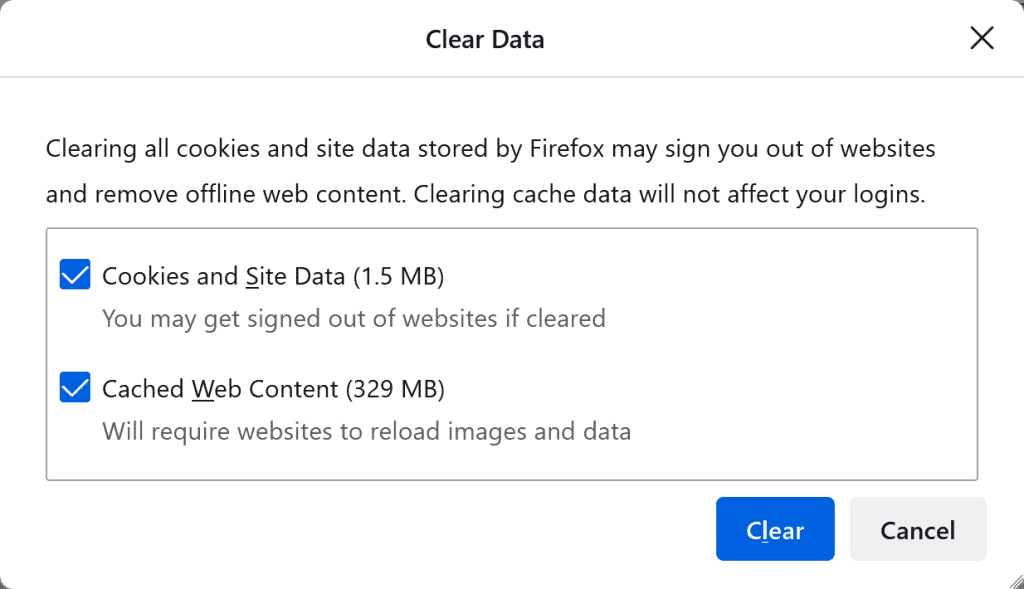
After a few minutes your browser will be back to browsing properly.
How to clear cache from Internet Explorer
In order to clear the cache from Internet Explorer you will have to click on the top right gear icon (tools menu).
In the menu that opens select the Security item, a submenu will open and you will have to click on Delete Browsing History.
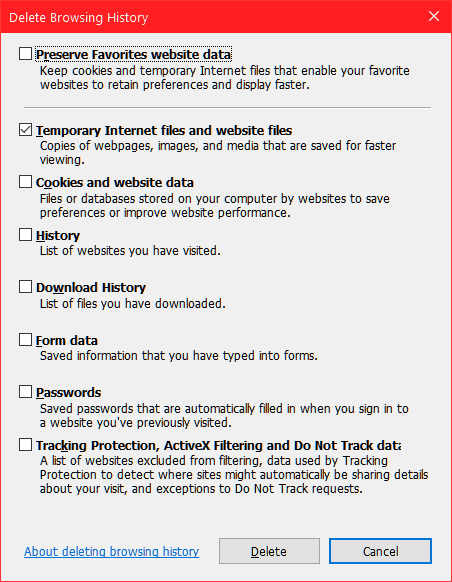
How to clear cache from Safari
On Safari, by opening the browser, you will be able to click on the top menu the History item.
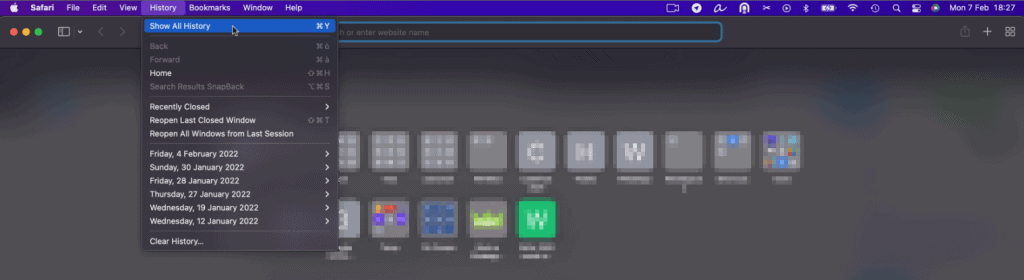
At this point in the new window you will have to click on Clear History.

After that you just choose the period, choosing all history will erase all of Safari’s history both recent and past.
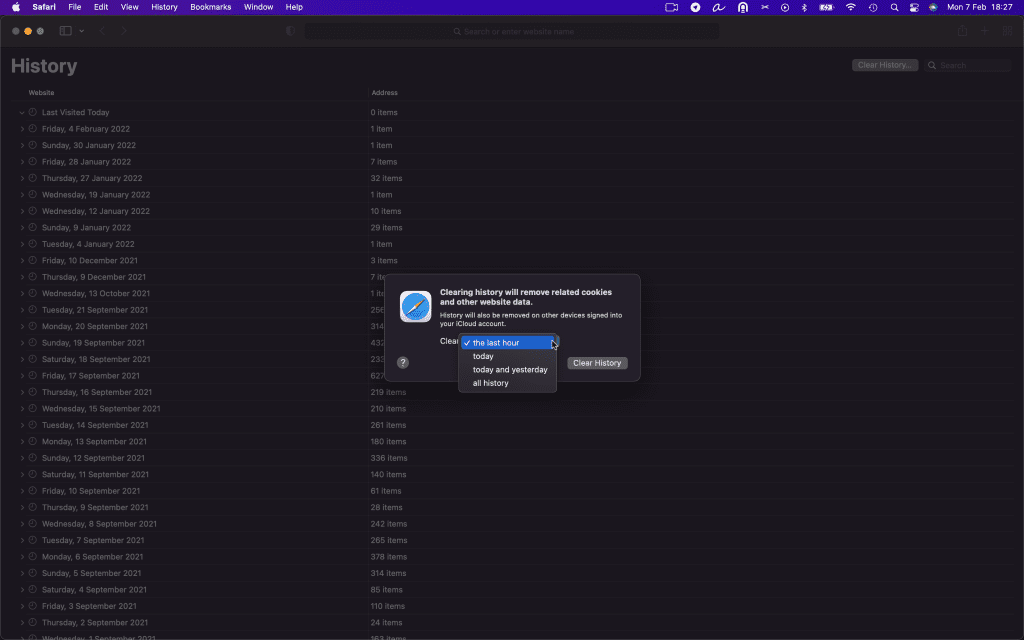
However, if you want to clear only the cache and cookies then you can opt for another option, here’s what you need to do: enable the Development menu by going to preferences and clicking Advanced.
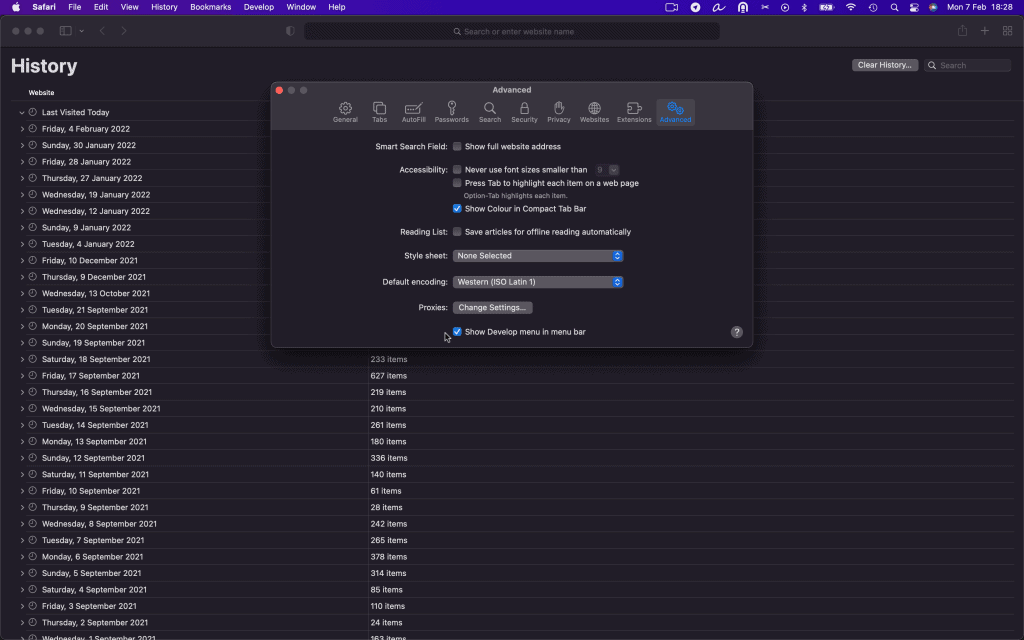
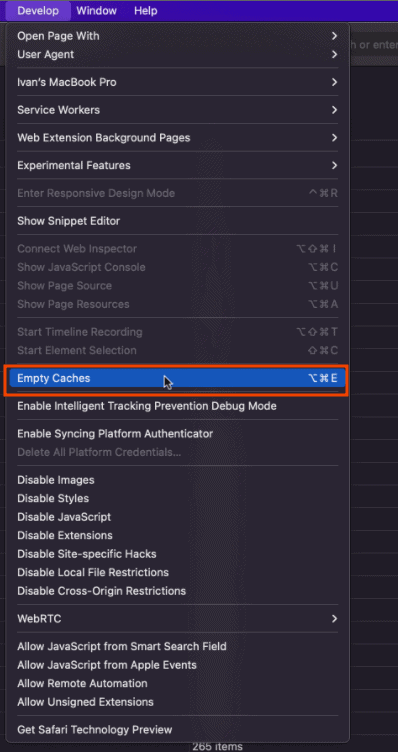
After that you can click on the Empty Cache item from the Development menu.
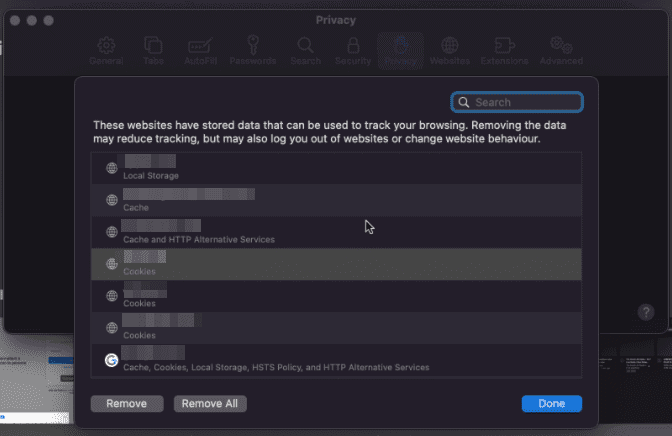
If, on the other hand, you want to delete all cookies from a single site, you can go to Settings -> Privacy and click on Manage Website Data.
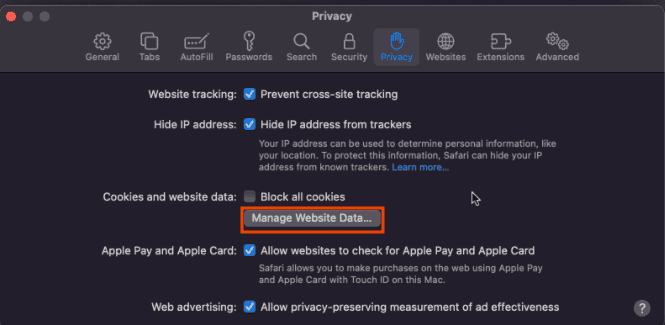
After that you can delete the cookies you see listed.
How to clear the cache from Opera
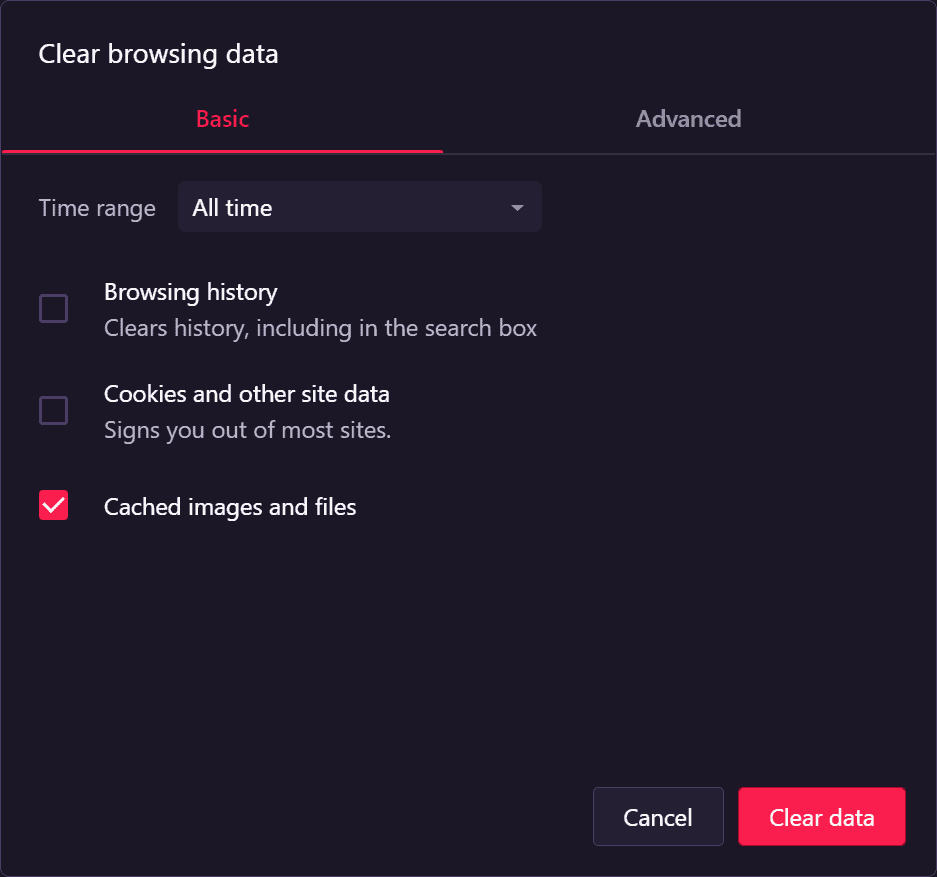
Open Opera, click the icon in the upper left-hand corner and a menu will open. Among the various items you will have to select History and then Delete Browsing Data.
Opera will ask you to select the data you want to delete, then you should check only the Cached images and files box and click Delete data.
How to clear cache from Microsoft Edge
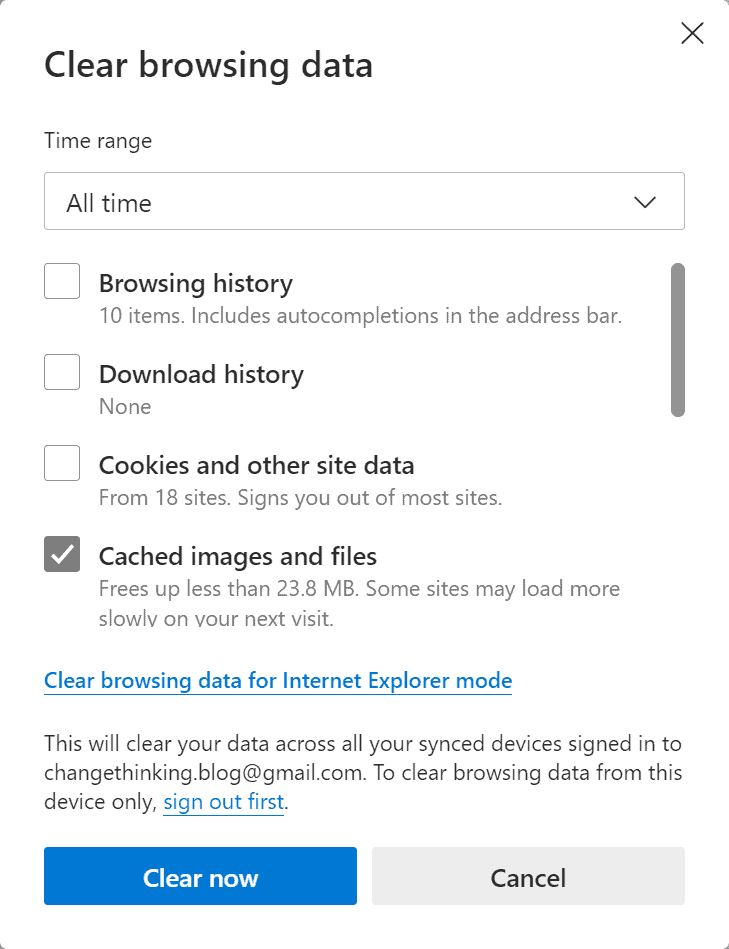
For Microsoft Edge you will need to click on the 3 dots icon in the upper right corner. Click on the Settings heading and search for “clear browsing data” in the search bar. Then click on Choose what to delete.
To only clear the cache you will need to check the box next to Cached images and files, as seen below.
Missing synchronization of the PC Clock.
Another problem that can cause the ERR_CERT_AUTHORITY_INVALID error is that the PC clock is not synchronized, so your PC is marking the wrong date and time or only one of the two.
It may sound silly, but actually if your PC clock is not set correctly it can interfere with your browser and thus generate various errors.
Fortunately, everything can be solved in a few minutes; in fact, you only need to set the correct time and date on your PC to fix the error.
Then make sure you enter the correct date and time and reload the web page. If the error depended on the clock settings, you will see that the alert will no longer appear.
Let’s see how to set the clock according to your operating system.
Windows
On Windows you can change the settings by clicking on the clock that appears in the taskbar. Right-click on the time and then click on Adjust Date/Time.
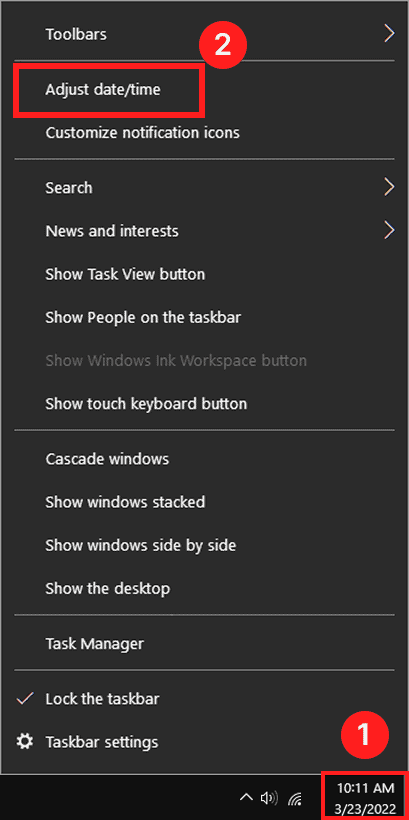
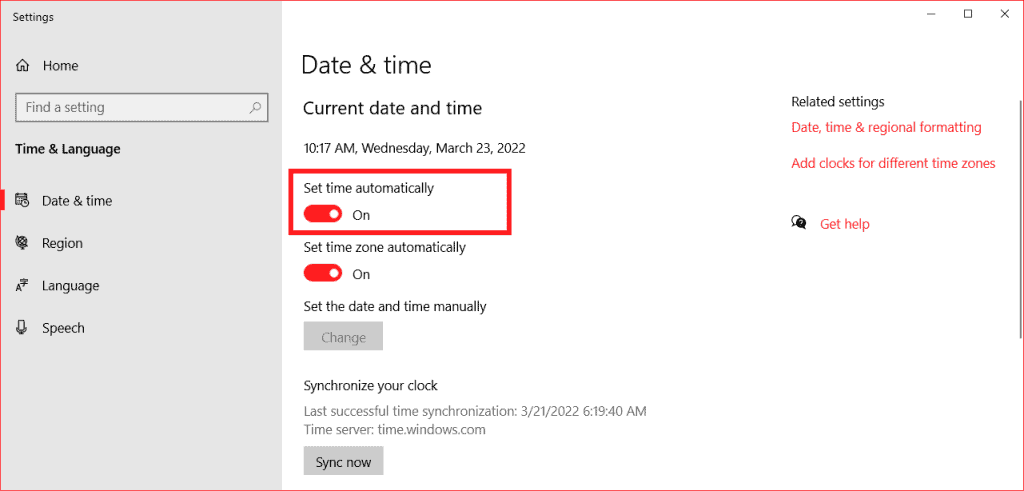
After opening the settings you can set the date and time to update automatically. You just need to enable the Set time automatically option as you see shown below.
MAC
If you have a macOS operating system, let’s see what is the procedure by which you can change your date and time and resolve issues related to the ERR_CERT_AUTHORITY_INVALID error.
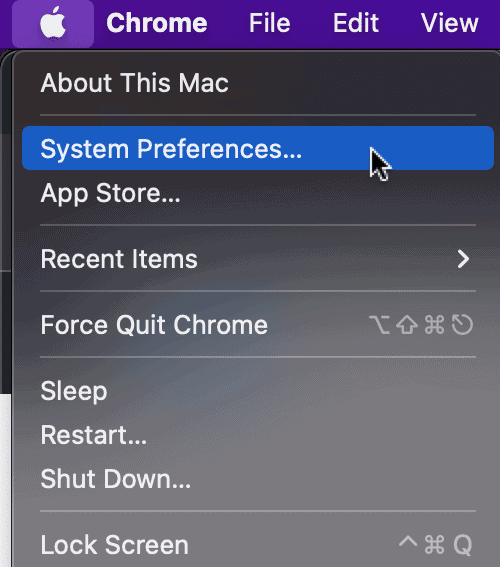
Firstly, you will need to open System Preferences from the Apple menu.
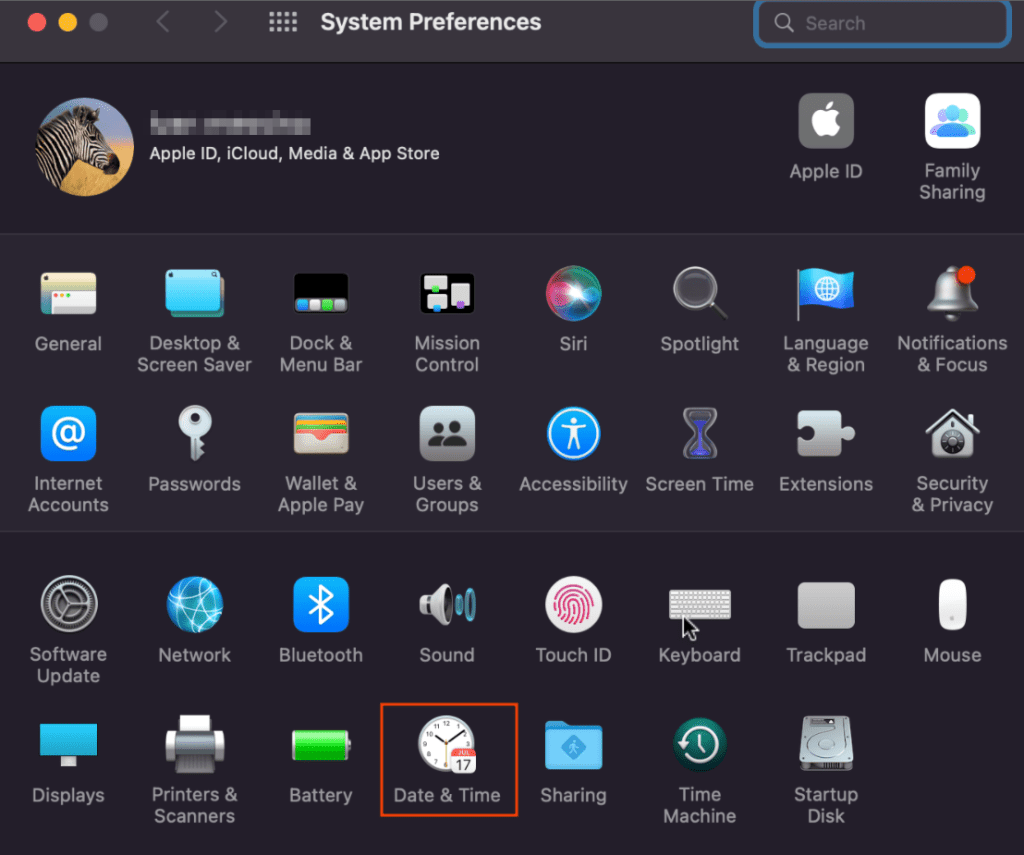
After that click on Date and Time.
You will then need to check the option set date and time automatically.
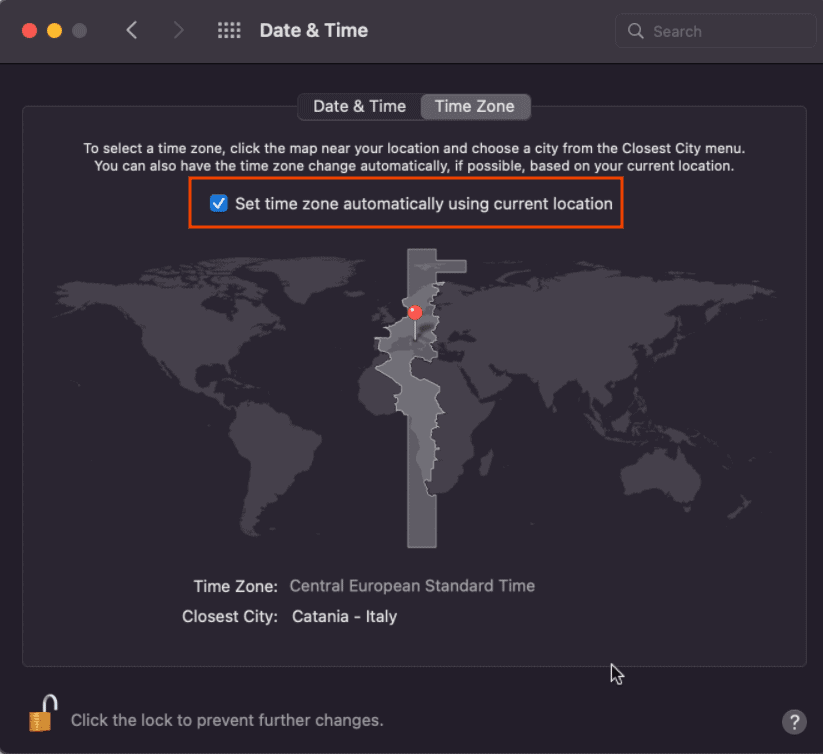
Make sure the time zone is also correct. If the problem was the time or date was not synchronized, the error will be fixed.
Change the network
If you are using a public network, then it is possible that the error message will appear because of this. Public networks are those that we find in common areas that are open to the public such as parks, cafes, bars or hotels.
These networks have very high traffic and are not always secure, which is why you may encounter the ERR_CERT_AUTHORITY_INVALID error. To check if this is really the problem you just need to access the website using another network.
You can, for example, take advantage of your mobile network, so you have two options either try to access the website using your smartphone or you can share the mobile connection with your computer via tethering.
If this way the error does not occur, then you only need to use a different network than the one you were using.
If you often work in public places and take advantage of public wi-fi networks, one way to protect yourself is to rely on the virtual private network known by the acronym VPN.
This network allows every user to browse in total security, of course it is not a public network but a private network and is chargeable.
Online you can also come across free VPNs but they do not perform well, so if you want to explore this option, it is best to purchase a good service. VPN allows you to protect all your data even if you have taken advantage of an unsecured access point.
Disable the VPN or antivirus.
If you are already using a VPN it is possible that the ERR_CERT_AUTHORITY_INVALID error code is due to it, so the option is to try temporarily disabling it.
Antivirus may also be the cause of the appearance of the error because it recognizes the site as invalid. In the case of both VPN and antivirus, it is good to do a test run.
The test is to disable the service and see if the website is working properly, if yes then the problem is one of the two services. Try reactivating one at a time, if you use both, to see which one is generated by which one.
Once the service causing the error is identified, the solution is to contact the support team and request assistance or try clearing the cache and reloading the page.
Remove SSL status from PC.
Your PC tends to keep a cached copy of the various SSL certificates of the websites you have visited for a short time, this is to achieve better browsing results and not have to re-run the whole identification procedure each time.
You can try clearing the computer’s SSL status to try to resolve the ERR_CERT_AUTHORITY_INVALID error. To do so you will need to change some settings. This procedure can also help you resolve other errors such as err_ssl_version_or_cipher_mismatch error. Let’s see how to do it in the next paragraphs.
Windows
On Windows open the Control Panel and click on Internet Options. Then enter the contents tab and click on Clear SSL State.
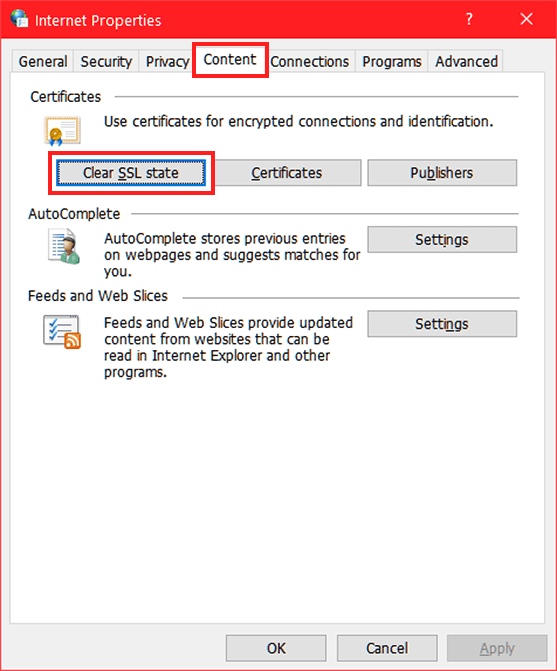
Now all you have to do is verify that the problem has disappeared, then go back to the site and reload the page.
MAC
If you’re using macOS you’ll have to go and delete the certificate directly in the Mac’s keychain. So click on the Finder icon and select GO, then select Utilities and from the submenu select Keychain Access.
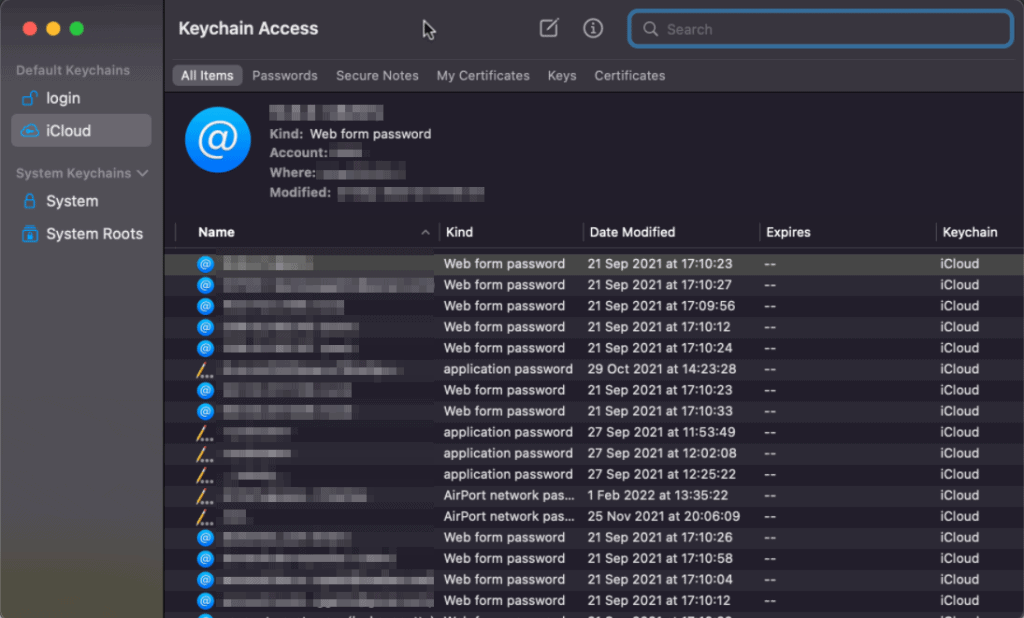
Now that you are inside the keychain, you have the ability to take action and delete what you are interested in, this solution proves useful when in the past we have agreed to access a website that had an invalid certificate.
So our operating system has registered this option in this section and allows us to change the settings by deleting that certificate.
Now we must therefore select category and finally certificates. All certificates that show a red X are unreliable so you can delete them by selecting Edit at the top of the screen and finally Delete them.
Conclusion
In this article, How to solve the ERR_CERT_AUTHORITY_INVALID error, we have taken you through the ERR_CERT_AUTHORITY_INVALID error that is particularly common and easy to run into.
We have seen what the error looks like on different browsers and what are its possible variants.
We’ve explained what an SSL certificate is, how to purchase it, and which ones are most suitable based on the site. And finally we saw what are the reasons that cause the ERR_CERT_AUTHORITY_INVALID error and how you can solve them, one by one.
Were you able to resolve the error? What was the cause in your case? Let me know in the comments below.
При переходе на какой-либо сайт (или ряд сайтов) пользователь может столкнуться с сообщением об ошибке «NET::ERR_CERT_AUTHORITY_INVALID», гласящим о незащищённости установленного сетевого подключения. Обычно проблемное сообщение возникает внезапно, вынуждая пользователя гадать о сути и причинах возникшей дисфункции. В данном материале я опишу причины данной ошибки, а также поделюсь вариантами её решения.

Содержание
- Причины ошибки NET::ERR_CERT_AUTHORITY_INVALID
- Как исправить NET::ERR_CERT_AUTHORITY_INVALID
- Видео-решение
В переводе с английского данное сообщение звучит как «сетевая ошибка, недействительный издатель сертификата». Обычно это означает ситуацию, когда сертификат данного сайта не вызывает доверия у вашего браузера, потому переход на данный сайт может быть заблокирован.
Наиболее часто данная ошибка возникает при работе браузера Google Chrome, который сигнализирует о незащищённости соединения и возможности доступа к нему со стороны злоумышленников, потому препятствует установлению соединения с таким сайтом.
Что относится к причинам ошибки то они могут быть следующими:
- Сертификат не подан сторонним сайтом;
- Ошибка нарушения конфиденциальности, статья по устранению по ссылке;
- Поданный сайтом сертификат не корректный (в частности, устаревший);
- Соединение между сторонним сайтом и вашим браузером небезопасно;
- Пользователь использует устаревшую версию браузера.


Как исправить NET::ERR_CERT_AUTHORITY_INVALID
Какие способы могут помочь избавиться от данной ошибки? Ниже я перечислю действенные способы решения проблемы, попробуйте выполнить каждый из них. Но сначала просто перезагрузите ваш компьютер – иногда причиной ошибки бывает случайный сбой в работе ПК, перезагрузка же системы позволит исправить данную проблему.
- Проверьте корректность даты и времени. Регулярно встречающаяся причина рассматриваемой ошибки – это некорректное отображение компьютером текущей даты и времени. Часто это связано с исчерпанием срока действия элемента питания CMOS (CR2032), находящегося в материнской плате и ответственного за хранение текущих настроек БИОСа. Исчерпание ресурса упомянутой батарейки может вести к сбоям (потере) корректных настроек даты и времени, что, в свою очередь, приводит к появлению ошибки NET::ERR_CERT_AUTHORITY_INVALID. Если текущее системное время (или дата) некорректны, тогда попробуйте установить в настройках системы правильную дату и время (Панель управления – Часы, язык и регион — Установка даты и времени). Если дата и время постоянно «теряются» — замените элемент CR2032;


- Подтвердите переход на проблемный сайт. Если у вас старая версия Хром (или другого браузера), а сайт, на который вы перешли, проверенный, тогда просто нажмите на кнопку «Proceed anyway» (перейти в любом случае). Браузер укажет вам, что данное соединение не внушает доверия (This Connection is Untrusted). Нажмите на кнопку «Добавить в исключения» (Add exception), после чего сертификат данного сайта будет добавлен в исключения, и данная ошибка больше не будет возникать.
В новой версии браузера Хром (и других браузеров) вам необходимо будет нажать на «Дополнительно» (Advanced) на экране ошибки. Перед вами откроются дополнительные опции, в которых вам будет необходимо найти опцию для подтверждения перехода на данный сайт (Proceed to site — unsafe). Кликнув на неё, вы будете перенаправлены на данный сайт;
- Если адрес проблемного сайта начинается на «https» (защищённое соединение), попробуйте сменить начало адресной ссылки на «http» (без «s») и в таком виде перейти на сайт, это может помочь исправить ошибку NET::ERR_CERT_AUTHORITY_INVALID;


- Временно отключите ваш антивирус. В некоторых случаях он может блокировать переход на нужный сайт;
- Включите игнорирование проблемного сообщения. Кликните правой клавишей мыши на иконку браузера, выберите «Свойства». Во вкладке «Ярлык», добавьте к содержимому строки «Объект» следующее: -ignore-certificate-errors затем нажмите на «Применить», и «Ок»;

- Очистите кэш и данные вашего браузера. К примеру, в Хром это делается нажатием на кнопку настроек, в появившемся меню выбираем «Дополнительные инструменты», а в них «Удаление данных о просмотренных страницах». Ставим галочки на нужных пунктах, и нажимаем кнопку «Очистить историю»;


- Временно отключите все расширения (дополнения для вашего браузера). Если после этого вы без проблем перейдёте на ранее не доступный ресурс, попробуйте включать расширение по одному пока не найдёте проблемное расширение, вызывающее проблему;
- Попробуйте выполнить вход на сайт с другого браузера. Если переход пройдёт без проблем, сбросьте настройки ранее проблемного браузера, или полностью переустановите его.
Видео-решение
Эффективным ответом на вопрос о том, как устранить ошибку «NET::ERR_CERT_AUTHORITY_INVALID» станет использование комплекса решений, описанных мной выше. Наибольшую эффективность среди них показало внесение сертификата проблемного сайта в исключения браузера, а также метод игнорирования возникающей дисфункции с помощью изменения содержимого строки «Объект» в свойствах ярлыка браузера. Попробуйте весь перечень указанных мной инструментов, они позволят эффективно избавиться от ошибки CERT_AUTHORITY_INVALID на вашем ПК.
Автор Антон Опубликовано 18.03.2017 Обновлено 08.05.2021
Содержание
- Способ 1: Принудительный переход на сайт
- Способ 2: Использование HTTP-версии
- Способ 3: Установка корректных даты и времени
- Способ 4: Очистка кэша
- Способ 5: Режим игнорирования предупреждений (Google Chrome)
- Способ 6: Отключение антивируса
- Способ 7: Переустановка браузера
- Вопросы и ответы

Способ 1: Принудительный переход на сайт
Рассматриваемая проблема возникает из-за устаревших либо повреждённых сертификатов безопасности, о чём вам и сообщает веб-обозреватель, однако это не значит, что ресурс полностью недоступен – достаточно нажать на кнопку «Дополнительно» в окне с ошибкой, затем кликнуть по ссылке «Перейти на сайт».
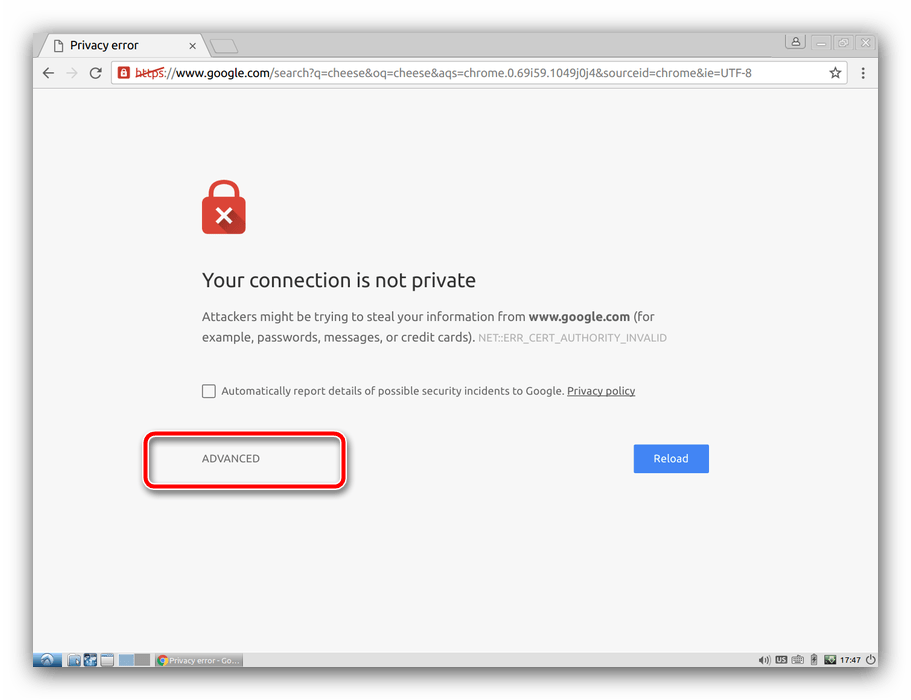
Стоит, однако, иметь в виду, что это действительно не самое безопасное решение, поэтому не рекомендуется использовать этот вариант для посещения сайтов с вводом личных данных.
Способ 2: Использование HTTP-версии
Большинство современных веб-страниц или переходит, или уже перешло на протокол HTTPS, который как раз таки и отличается повышенной безопасностью с использованием соответствующих сертификатов. Впрочем, некоторые сайты ради совместимости с устаревшим ПО по-прежнему поддерживают HTTP-варианты, и эту особенность мы можем задействовать для обхода рассматриваемой ошибки: кликните по адресной строке, перейдите в начало ссылки и сотрите код https.
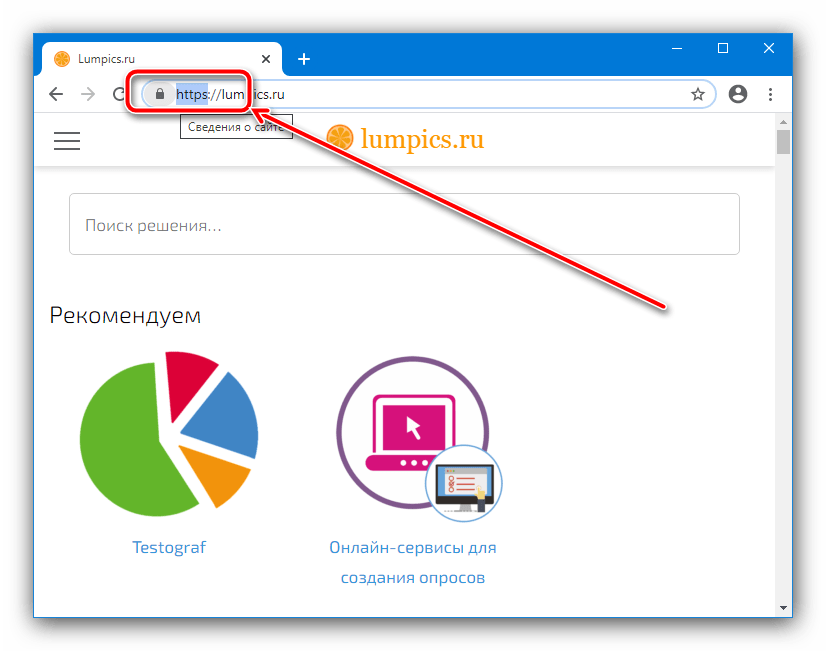
Далее вместо него напишите http и нажмите Enter.
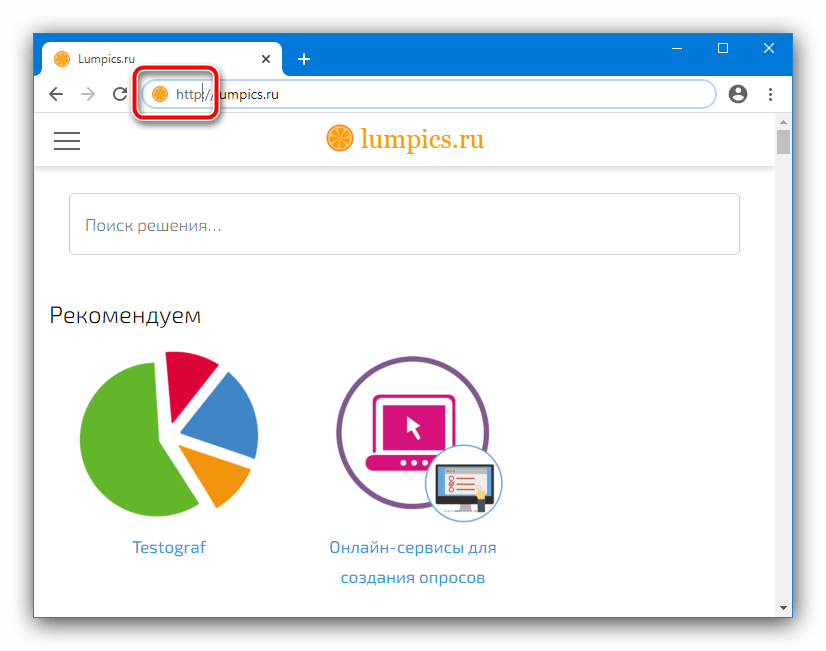
Если соответствующая версия ресурса доступна, она начнёт загружаться. В противном случае браузер отобразит ошибку – это значит, что следует использовать какой-то другой из упомянутых здесь методов.
Способ 3: Установка корректных даты и времени
Сертификаты безопасности имеют ограниченный срок действия – даты его начала и окончания проверяются обозревателем. Разумеется, если на компьютере будут установлены время и дата, которые не соответствуют текущим, средства защиты проверку не проходят, и вместо перехода на сайт вы получите рассматриваемую ошибку. Решение проблемы очевидно: следует убедиться в правильности ввода соответствующих значений и в случае необходимости внести в них коррективы.
Подробнее: Изменение времени и даты в Windows
Способ 4: Очистка кэша
Нередко причиной проблемы с сертификатами является информация, находящаяся в кэше программы для просмотра интернета, поэтому если ни один из предыдущих вариантов не помог, стоит провести очистку хранилища – обратитесь к ссылкам далее.
Подробнее: Как очистить кэш Google Chrome, Mozilla Firefox, Яндекс.Браузера, Opera, Internet Explorer
Способ 5: Режим игнорирования предупреждений (Google Chrome)
Пользователи Гугл Хрома для устранения рассматриваемой проблемы могут включить специальный режим работы, в котором проверка будет полностью отключена, и, как следствие, ошибка NET::ERR_CERT_AUTHORITY_INVALID не должна появляться.
Внимание! Отключение предупреждений ослабит защиту компьютера, поэтому используйте инструкцию далее на свой страх и риск!
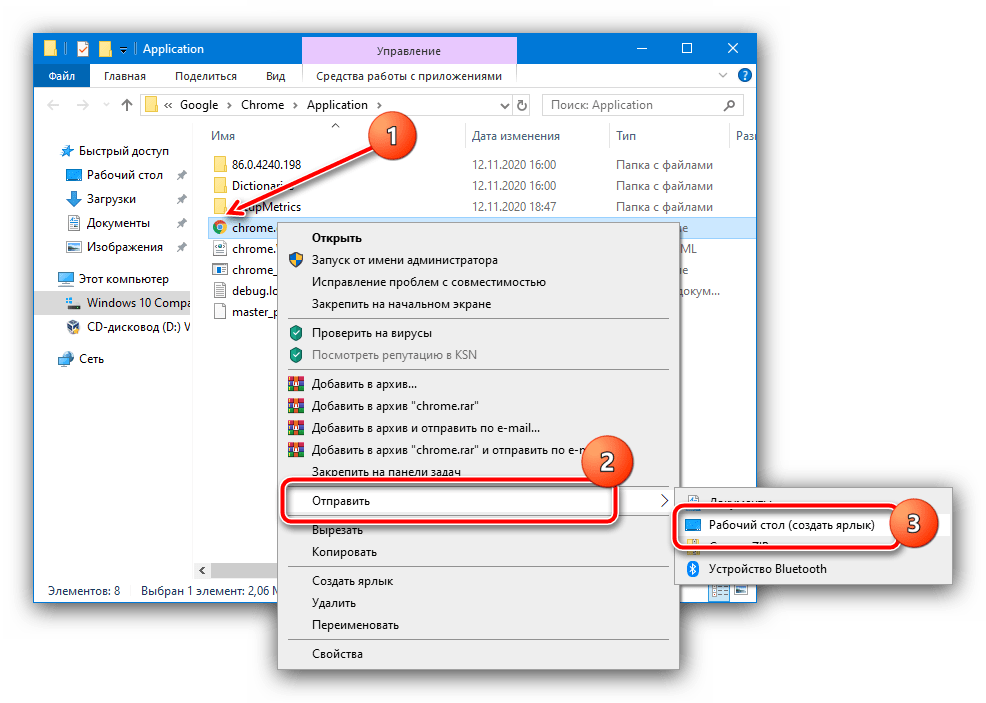
- Нам понадобится второй ярлык Google Chrome на «Рабочем столе». Материал далее поможет вам правильно выполнить процедуру.
Подробнее: Как создать ярлык браузера на рабочем столе
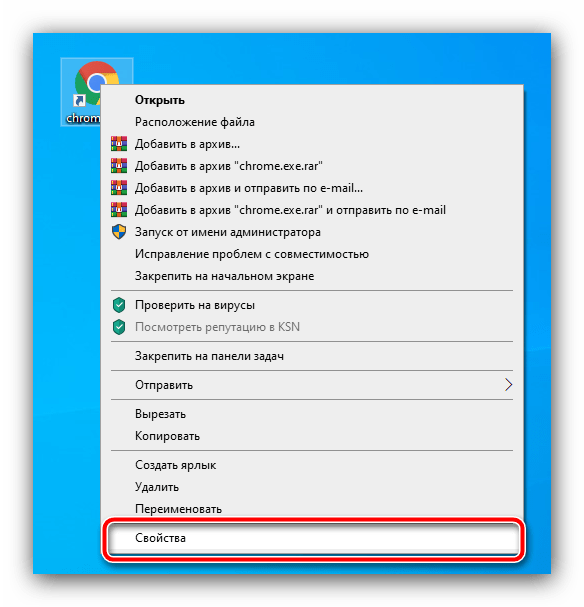
- Найдите добавленный на предыдущем шаге элемент быстрого доступа, кликните по нему правой кнопкой мыши и выберите пункт «Свойства».
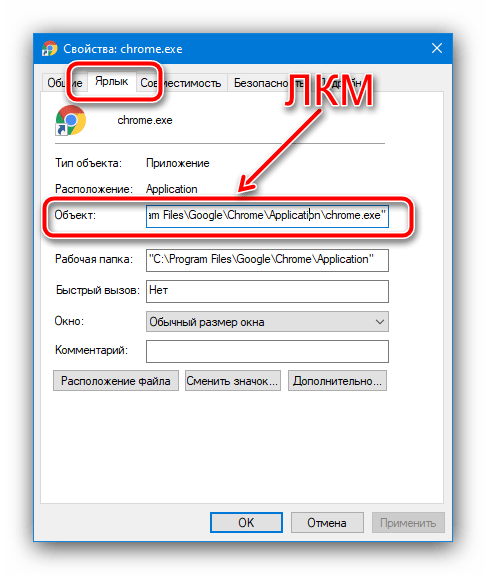
- Откройте вкладку «Ярлык», найдите строку «Объект» и щёлкните по ней левой кнопкой мыши.
- Перейдите в конец строчки, поставьте пробел, после чего впишите следующее значение:
-ignore-certificate-errors-Проверьте правильность введённой информации, затем нажмите «Применить» и «ОК».
- Теперь запустите Хром с этого ярлыка и перейдите на ресурс, который выдавал рассматриваемую ошибку. Теперь её больше не будет.

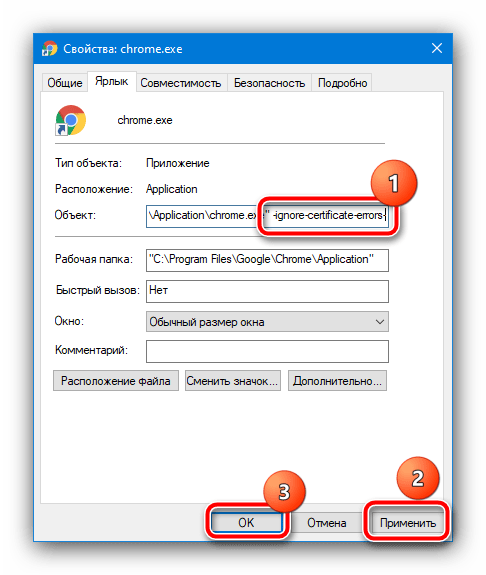
Этот вариант того, как исправить незащищенное соединение в браузере, пожалуй, один из самых эффективных, однако же он и наиболее опасный, так что применять его стоит с осторожностью.
Способ 6: Отключение антивируса
Иногда появление ошибки NET::ERR_CERT_AUTHORITY_INVALID вызывает антивирусная защита, особенно если в ней присутствует встроенный файрвол. Для проверки можно временно отключить защитное ПО – если причина в нём, просто добавьте ресурс в исключения.
Подробнее:
Как временно отключить Kaspersky Anti-Virus, Avira, Dr.Web, Avast, McAfee
Как добавить исключения в антивирусе
Способ 7: Переустановка браузера
Также проблема порой заключается и непосредственно в приложении для просмотра интернет-страниц: его файлы оказались повреждены, либо же инсталлированная версия серьёзно устарела. Решение в этом случае простое: создайте резервную копию закладок и/или другой важной информации, удалите ПО, затем загрузите и установите самый новый его вариант. Подробности процедуры для популярных веб-обозревателей вы можете найти в статье по ссылке далее.
Подробнее: Правильная переустановка браузеров
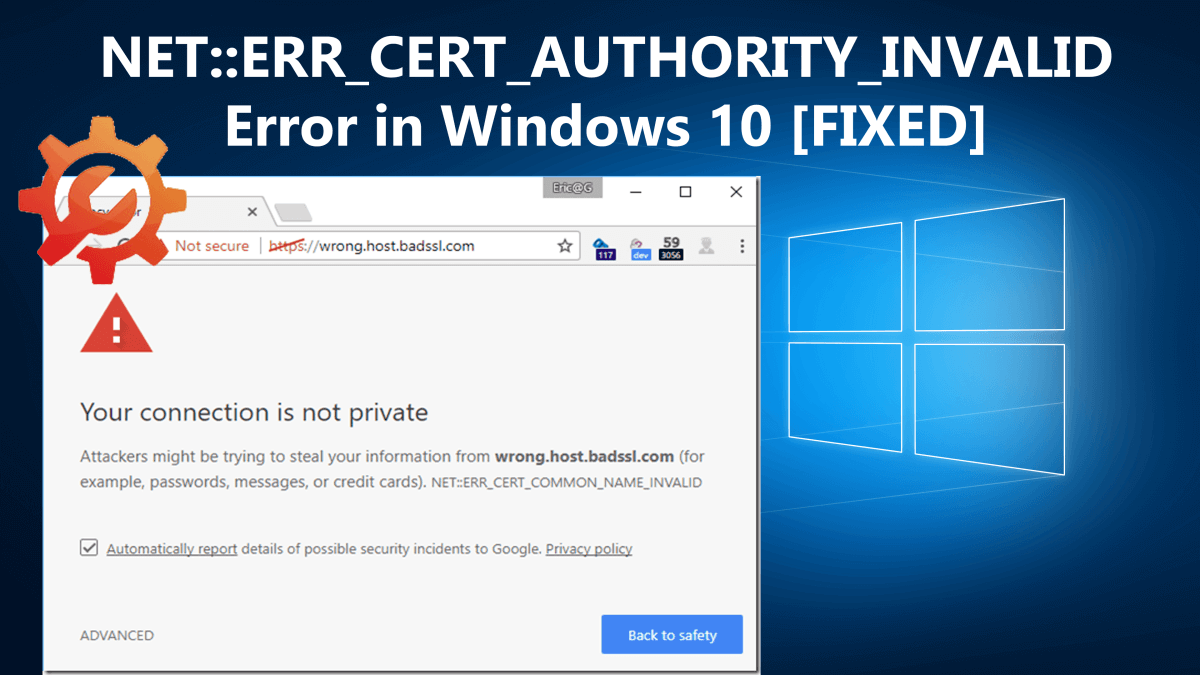
NET::ERR_CERT_AUTHORITY_INVALID is the most common warning error related to network connections that are not secured properly.
However, this doesn’t mean you are browsing a risky website, as the error might be related to your browsers or the Windows 10 system.
The websites that don’t have an SSL certificate or if the certificate are not updated or the browser doesn’t recognize the validity of the certificate. And to keep you safe the error ERR_CERT_AUTHORITY_INVALID display on the screen.
Additionally sometimes the error NET::ERR_CERT_AUTHORITY_INVALID is nothing but a failure, as you may receive it on all websites that have an SSL certificate installed, or you are sure they are secured.
So, in this guide I am here with the NET::ERR_CERT_AUTHORITY_INVALID error in Windows 10. Learn complete information like what it is, why it occurs, and the possible solution to fix it permanently.
Let’s get started!
What does the Error NET::ERR_CERT_AUTHORITY_INVALID Mean?
As the name of the error suggests, it is related to the network connection and is also known as an SSL error. Well, the problem also appears when the browsers won’t verify the validity of the website’s SSL certificate.
The website that not fully secured hasn’t set up the certificate, or using the HTTP are most likely to run into the error.
Below check out some of the possible reasons for the invalid certificate authority error.
- SSL certificate is outdated or expires
- The SSL certificate is a self-signed and the browser can’t verify the validity
- The certificate is generated from non-trusted sources
- Due to the local configuration settings in your browser
- The antivirus installed on your system is causing confliction
- Due to the browser extensions
- Wrongly set date and time interfere with browser ability
These are some of the common reasons, now follow the below given possible fixes accordingly.
How to Fix NET::ERR_CERT_AUTHORITY_INVALID Error?
Generally, the users are getting the NET::ERR_CERT_AUTHORITY_INVALID in Chrome browser, but this is not only limited to the Google Chrome browser.
You may get the error with its variations across various major browsers. Well, it is doesn’t matter on which browser you are getting the error, the fixes given works in all cases.
Solution 1 – Reload the Page
Sometimes you may encounter the NET::ERR_CERT_AUTHORITY_INVALID error on its own and when you reload the page after a couple of the minutes, the page is loaded.
So, give a try or else try opening the website in private window or incognito mode, if the page loaded here then the error is likely to cause by the browser outdated cached version of the page.
Follow the next solution to fix invalid certificate authority error.
Solution 2 – Clear Browser’s Cache and Cookies
If switching the browser to a private window fix NET::ERR_CERT_AUTHORITY_INVALID error then the issue is related to the browser’s cache.
So, here clearing the cache and cookies will work for you. But the steps may vary depending on the browser you are using.
How to Clear Google Chrome Browser Cache?
- On Google Chrome> click the Three Dots icon at the top right corner > locate More Tools option > from the submenu choose Clear browsing data, cache, cookies, etc.
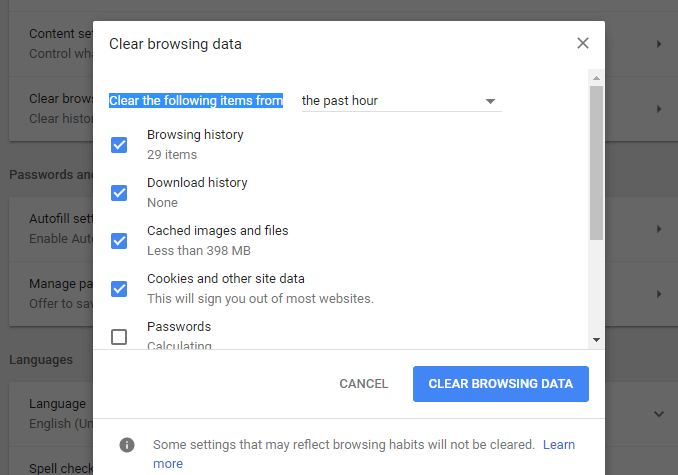
- Now click the button next to Clear browsing data.
Your Google Chrome browser cache is empty now.
How to Clear Mozilla Firefox Browser Cache?
- On Mozilla Firefox > at the top right click the Hamburger icon > select History > and in the appeared menu choose Clear Recent History
- Alternatively press CTRL + SHIFT + DEL > a popup appears > in the Time range to clear: drop-down, choose Everything. Now only check the Cache box > click Clear Now to clear your cache.
How to Clear Microsoft Edge Browser Cache?
If you are using the Edge browser on your Windows 10 system then to fix the “Your connection is not private” SSL certificate error make sure to clear Edge cache.
Follow the steps given to clear cache and history in Microsoft Edge.
Make sure to clear the cache and cookies of the browsers you are using. And check if the NET::ERR_CERT_AUTHORITY_INVALID error appears or not.
Solution 3 – Check the Date and Time
This is another most reason for the error NET::ERR_CERT_AUTHORITY_INVALID, so verify the date and time of your Windows computer. The wrong date and time can interfere with the browser’s skill to check the website’s certificate.
So, below follow the steps to update the date and time:
- Go to the system tray > right-click on your system’s time > choose the option that says Adjust date/time:
- A window will popup > locate the option Sync now under Synchronize your clock, > click on it.

- Now Windows will assure the date and time are set correctly
Well to prevent the problem in the future make sure to enable the Set time automatically option.

Solution 4 – Try Using a Different Network
You may get the NET::ERR_CERT_AUTHORITY_INVALID Windows 10 error if you are using the public network. The public network won’t route the traffic securely and can trigger an error.
So, if you are getting the error when using a public network the try accessing the data through your mobile data network and check if “Your Connection is Not Private” NET::ERR_CERT_AUTHORITY_INVALID error appears or not.
If not then well and good, but if it appears then switch to different networks, you can use a VPN (Virtual Private Network) connection to protect your privacy and data even if you are accessing unsecured websites.
Well, in this case, you can use the ExpressVPN connection, this is very advanced and one of the highly used VPN services.
Get ExpressVPN to enjoy unrestricted access
Solution 5 – Allocate DNS Settings
If you are still getting the warning error NET::ERR_CERT_AUTHORITY_INVALID, then try to assign the DNS settings.
Follow the steps to do so:
- In your Windows 10 system,> click on the Cortana icon > in the Search box enter Network and Sharing Center.
- Then from the left sidebar > select Change Adapter Settings.
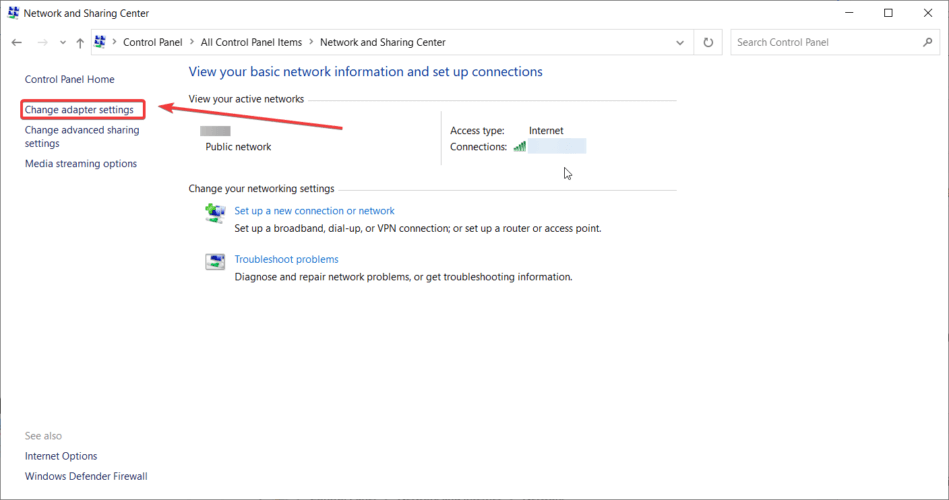
- Now right-click on the currently active Adapter > choose Properties.
- And pick Internet Protocol Version 4> choose Properties.
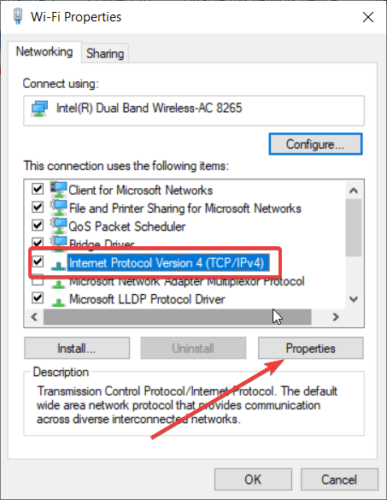
- Next click on Use the following DNS server address> type Google’s Public DNS servers: 8.8.8, respectively 8.8.4.4.
- Save the settings and restart the Windows 10 system.
Now check if the err_cert_authority_invalid warning error appears or not.
Solution 6 – Clear Computer’s SSL State
Well, if you are still getting the error while visiting certain websites then it is advised to clear your system’s SSL state.
When you visit any website your computer keeps the cached copies of certificates from websites, so that it won’t have to run through the complete verification process every time you access them.
And it may happen the SSL states or cache gets corrupted and you start encountering the error. So, to fix the invalid certificate authority error in Windows, follow the steps given:
Click on the button that shows Clear SSL state > close the window > reload the website.
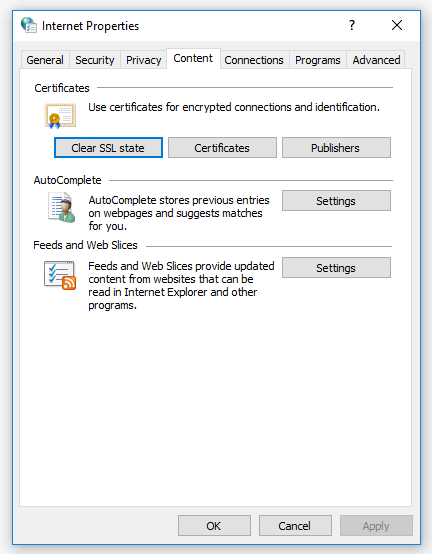
Hope this works for you to fix error NET::ERR_CERT_AUTHORITY_INVALID in Windows 10.
Solution 7 – Disable Your Antivirus or VPN
If none of the above-given solutions works for you then here it is suggested to disable the antivirus program installed on your Windows 10 system.
Also if you are using a VPN then temporarily turn off the VPN and try to access the website again and force a refresh to avoid loading the website from the saved browser cache.
Now after disabling both if the error won’t appear then re-enable the services one-by-one and check if you get the invalid certificate notification appears or not. Doing this will help you to find out the culprit, you can try to contact the support team or update the application.
Well, these are the fixes for the users who are getting the NET::ERR_CERT_AUTHORITY_INVALID error while visiting a website.
Now below find out the fixes that you need to try if you are the owner of a website and getting an invalid certificate authority error NET::ERR_CERT_AUTHORITY_INVALID.
Solution 8 – Run an SSL Server Test
Well, this solution is for the website owners, if you had installed the SSL certificate before the error appears, then it may happen something goes wrong during the setup process.
This may happen if you have installed the certificate manually, so, check if your certificate is installed properly.
You can use the free SSL check tool like Qualys SSL Labs. Here you need to enter the domain where the error appears and click on the Submit button. And wait for a couple of minutes for the results and for perfect scores for all certificates you should get A+.
But if you won’t get a perfect score, then scroll down to the list of certificates, here you can see a section that shows whether your certificate is trusted or not.
If you get a negative score then you need to install the certificate from trusted sources.
Solution 9 – Get Certificate from a Trusted Authority
This is very important to get the SSL certificate from a trusted authority. Well, if you are using a self-signed certificate then this can cause an invalid certificate authority error.
Well, here are some websites, that offer free certificates but this needs to be renewed often whereas the premium certificates offer more facilities like insurance, encryption for multiple domains, and much more.
Moreover, therefore, make sure to generate the SSL certificate from a trusted source.
Solution 10 – Renew Your SSL Certificate
For security reasons, you need to renew your SSL certificate often. And the renewal process identifies your domain’s identity or else your certificate will lose some of its validity and the users may get the NET::ERR_CERT_AUTHORITY_INVALID error while visiting your website.
If you are using free certificates then you need to renew every 90 days whereas the paid have longer at least 1-year lifespan. Your web host may contact you when the certificate is about to expire or you need your certificate manually.
And as you renew your SSL certificate, load your website again, and hopefully the NET::ERR_CERT_AUTHORITY_INVALID error won’t appear now.
So, these are the solutions that work for you to fix your connection is not private error NET::ERR_CERT_AUTHORITY_INVALID and its variation in Windows 10.
Well, the error NET::ERR_CERT_AUTHORITY_INVALID is very nasty and appears in many different ways, so below have a look at the variation of error.
Variations of NET::ERR_CERT_AUTHORITY_INVALID Error
You get the error as per the browser you are using. Moreover, the operating system and the certificate’s configuration are also a reason for the different error message that occurs.
So, below check out the different error message related to invalid certificate authority error as per browsers
1 – Google Chrome
When you get the NET::ERR_CERT_AUTHORITY_INVALID in Chrome the browser shows you that your connection is not private. As chrome won’t recognize the certificate validity and can’t encrypt your data.
And if you proceed, you will do at your own risk. Below check out some of the common varieties of the error in Chrome:
- NET::ERR_CERT_AUTHORITY_INVALID
- NET::ERR_CERT_DATE_INVALID
- NET::ERR_CERT_COMMON_NAME_INVALID (This occurs when the certificate does not match the domain)
- NTE::ERR_CERTIFICATE_TRANSPARENCY_REQUIRED
- SSL CERTIFICATE ERROR
- NET::ERR_CERT_WEAK_SIGNATURE_ALGORITHM
2 – Mozilla Firefox
Well, Firefox does a better job than Chrome is showing the warning about the potential security risk and its causes.
The variation of the error won’t include a particular code but in most of the cases the screen includes the below-given codes as well:
- SSL_ERROR_RX_MALFORMED_HANDSHAKE
- MOZILLA_PKIX_ERROR_KEY_PINNING_FAILURE
- SEC_ERROR_UNKNOWN_ISSUER
- SEC_ERROR_REUSED_ISSUER_AND_SERIAL
3 – Microsoft Edge
The Microsoft Edge warning message may look familiar and is alike to the error message the Chrome displays to the included code.
Have a look at the error messages that appear on Edge:
- DLG_FLAGS_INVALID_CA
- DLG_FLAGS_SEC_CERTDATE_INVALID
- NET::ERR_CERT_COMMON_NAME_INVALID
- DLG_FLAGS_SEC_CERT_CN_INVALID
- ERROR CODE: O
Just like Chrome, these error messages show you some hint as to what the root of the NET::ERR_CERT_AUTHORITY_INVALID error.
Best & Easy Way to Speed up Your Windows 10 PC/Laptop
Is your Windows 10 PC or laptop is running slow or showing various errors and issues then here it is suggested to scan your system with the PC Repair Tool.
This is a multifunctional tool that just by scanning once detect and fix various computers errors, remove malware, hardware failure, prevent file loss, and repair the corrupted system files to speed up Windows PC performance.
Not only this, but you can also fix other PC fatal errors like BSOD errors, DLL errors, repair registry entries, runtime errors, application errors, and many others. You just need to download and install the tool, rest work is done automatically.
Get PC Repair Tool, to Optimize Your Windows 10 PC Performance
Conclusion:
Undoubtedly, the NET::ERR_CERT_AUTHORITY_INVALID error in Windows 10 is very nasty, but luckily here are fixes that help you get rid of the error in your browsers.
Here I tried my best to list down the complete information about the NET::ERR_CERT_AUTHORITY_INVALID error and the ways to fix it on different browsers.
Make sure to follow the fixes given as per the browser you are running. Hope the article works for you.
But if there is anything that I missed out or you have any suggestions, queries, or comments related to the one presented then feel free to share with us on our Facebook Page.
Also, don’t forget to hit the like button and follow us on our social media handles to get more interesting guides and helpful tips to keep your computer safe from errors and issues.
Good Luck..!

Hardeep has always been a Windows lover ever since she got her hands on her first Windows XP PC. She has always been enthusiastic about technological stuff, especially Artificial Intelligence (AI) computing. Before joining PC Error Fix, she worked as a freelancer and worked on numerous technical projects.
All of a sudden I seem to have an issue with Google Chrome using localhost.
I’m trying to access any of my development sites (using Ampps) and I get the following error:-
Your connection is not private Attackers might be trying to steal your
information from website.dev (for example, passwords, messages
or credit cards). Learn more NET::ERR_CERT_AUTHORITY_INVALID
When I visit any of the dev sites it is redirecting from http://website.dev to https://website.dev automatically. I’m not having any issue in Safari or Firefox so I don’t understand what is going on.
I’ve tried re-installing Google Chrome, resetting it to the factory default settings…
I think it could be an issue with Keychain Access —> Certificates but wouldn’t that mean it wouldn’t work in Firefox and Safari if that was the case?
I’ve spent a while trying to find a solution but so far nothing has worked so I would appreciate some suggestions on how I can fix this. I can’t even proceed passed this warning as I don’t get the proceed link (insecure) as shown below:-


quotesBro
5,5542 gold badges29 silver badges41 bronze badges
asked Dec 7, 2017 at 17:09

5
Navigate to
chrome://flags/#allow-insecure-localhost
and set this to enabled.

answered Dec 31, 2018 at 9:26

Matt SmithMatt Smith
2,2072 gold badges14 silver badges14 bronze badges
6
After playing around, I came up with one kind of a solution.
First, lets talk about the problem: the cause of this error is that both of us used a .dev domain for our local development. If you go here you will find out that root .dev domain is owned by Google and applying HSTS in Chrome they enforce https-redirect for this domain. Since we use .dev domains, we get redirected to https version and at the same time we don’t have any actual certificates installed. So, we see this annoying error. If you go to chrome://net-internals/#hsts you can check your .dev domain and you will actually find out that
static_sts_domain: dev
static_upgrade_mode: FORCE_HTTPS
static_sts_include_subdomains: true
which confirms that HSTS is enforced on *.dev indeed. The policy type is static and, as I understand, it’s kind of hard-coded to https-redirect .dev domains.
So, there are at least 2 ways — get and set up an actual certificate somehow or just use another (not .dev) root domain in httpd-vhosts.conf for your local development (also don’t forget to update /etc/hosts and launch apache again). I went another root domain route and it solved this issue.
answered Dec 7, 2017 at 22:57

curveballcurveball
4,28015 gold badges39 silver badges47 bronze badges
7
This is really annoying to deal with, but mapping the local website to something other than .dev (I personally use .devo) does work and fixes the problem in chrome. Also, you can add an exception for the page in Mozilla Firefox and not deal with this at all. It’s only a problem on Chrome 63+
answered Dec 8, 2017 at 10:12

5
I got same bug, because the CRL file is out of date, and the solution is that update the crl file
answered Jun 4, 2019 at 5:47

you need to add remote site certificate to your local key store
-
To download certificate from remote site, you will require
keytool, opengitbashas admin and run below command to generate the certificateopenssl s_client -showcerts -connect host:port
-
save the value of above command to from
-----BEGIN CERTIFICATE-----to-----END CERTIFICATE-----to the .crt file. -
to add certificate to your local key store, run below command
keytool -import -noprompt -trustcacerts -alias name_of_certificate -file «path_of_dot_crt_file» -keystore «C:Program FilesJavajdk1.8.0_192jrelibsecuritycacerts» -storepass changeit
you can also add downloaded certificate to your browser.
answered Jun 10, 2019 at 8:46

1
In my case, in order to solve the issue so that I can «Proceed to unsafe»,
I needed to go to:
chrome://net-internals/#sockets
then click: «Close idle sockets», «Flush socket pools»
Afterwards go to:
chrome://net-internals/#dns
Then click «Clear host cache»
If it still doesn’t work and you are a mac user, try to repeat above after removing localhost certificates using Apple’s Keychain Access tool
answered Dec 14, 2022 at 8:53

Noy OlielNoy Oliel
1,2292 gold badges10 silver badges22 bronze badges