

- #1
Мне кажется, что у Glyph бывают месячные. При чём они каждый день и длятся не определённое время и в рандомное время суток.
Раньше играл преспокойно, не выдавало ни одной ошибки, но потом у меня слетела винда (8). После отката Trove наотрез отказывался искать какой-то файл и (естественно) не запускался. Но, спасибо админу этого форума, помог мне решить проблему простым скачивание через Steam, благодарю. Но, как говорится, не понос, так золотуха. Эта ехидная #2025 не даёт мне спокойно жить. Бывает хочу поиграть, а нет, не пускает, смиряюсь, ухожу. Пойже просто так запустил Glyph, без надежды, зная, что ничего не выйдет. Пустило. 3 дня я не выключал пк, зная, что если я выключу, Глиф обидится. Но видеокарта так не думала и решила перегреться, вызвав аварийное выключение. К моим ожиданиям #2025 снова меня встречала с распростёртыми объятьями. Я даже был не удивлён.
Решил таки не мучаться и отправится на официальный форум, что бы найти решение. Как думаете, что-нибудь помогло? Нет, конечно, всё так и осталось. Нашёл ответ на этом форуме. Всё так же (Хоть я это и делал вроде). Теперь я просто сижу, пишу эту прозу и надеюсь на чудо. Надеюсь на то, что мне кто-нибудь поможет. Занавес.
P.S. Если на этом форуме вообще есть правила, то скиньте ссылочу, подажуйста
P.S.S. В Саппорт тоже писал, кроме того, что было и так было написано, они мне выдать не смогли.

- #2
Правила.
Удерживая клавишу пуск нажмите букву «R», чтобы открыть окно «Выполнить».
В окне Run, которое появится введите «MSCONFIG» (без кавычек) и нажмите «ОК»..
В окне «Настройка системы» нажмите на вкладку «Startup».
Нажмите кнопку «Отключить все».
Щелкните на вкладке «Услуги».
Нажмите на флажок «Скрыть все службы Microsoft», которые будут удалять все услуги Microsoft из списка Services.
Нажмите на кнопку «Отключить все» и нажмите кнопку «ОК».
Вам будет предложено перезагрузить компьютер, перезагрузите его.
Добавить Glyph в виде исключения брандмауэра / Антивирус Касперского
UPD: проделывайте все действия на свой страх и риск. Перед действиями, описанными выше, рекомендуется сделать точку восстановления.
Последнее редактирование: 4 Мар 2017
- #3
хочу поделиться своим советом,вообщем перед каждым заходом в игру проверяйте целостность кэша и он полюбому докачивает файлы,потом нужно скачать программку CyberGost 5,эта программа позволяет на время поменять свой ип,запускаем её нажимаем на кнопочку вкл.,и он автоматически ищет ип,после заходим в trove авторизируемся,запускаемся когда загрузитесь и будете в игре можно выключать кибер так как он блочит скайп и браузер,потому что ип может взят из США например.Вот,тестите,пользуйтесь.
- #4
Правила.
Удерживая клавишу пуск нажмите букву «R», чтобы открыть окно «Выполнить».
В окне Run, которое появится введите «MSCONFIG» (без кавычек) и нажмите «ОК»..
В окне «Настройка системы» нажмите на вкладку «Startup».
Нажмите кнопку «Отключить все».
Щелкните на вкладке «Услуги».
Нажмите на флажок «Скрыть все службы Microsoft», которые будут удалять все услуги Microsoft из списка Services.
Нажмите на кнопку «Отключить все» и нажмите кнопку «ОК».
Вам будет предложено перезагрузить компьютер, перезагрузите его.
Добавить Glyph в виде исключения брандмауэра / Антивирус Касперского
Таки не помогло, проделал всё это 4 раза, если не больше. И после каждого всё было так же.
Пользовался и CyberGost 5, и HideGuard, и другими клиентами, трафик по прежнему не проходит через Глиф.
Кстати, не все пользуются брандмауэром/Касперским.
А за правила спасибо.
- #6
Для тех, у кого антивирус аваст: Отключить все экраны навсегда, перезагрузить пк. После этого должно пропустить на сервер авторизации. На счёт других антивирусов, не пробовал.
- #7
Спасибо, уже решил проблему.
- #8
Проблема решена, тема закрыта.
by Tashreef Shareef
Tashreef Shareef is a software developer turned tech writer. He discovered his interest in technology after reading a tech magazine accidentally. Now he writes about everything tech from… read more
Updated on August 26, 2020

XINSTALL BY CLICKING THE DOWNLOAD FILE
This software will keep your drivers up and running, thus keeping you safe from common computer errors and hardware failure. Check all your drivers now in 3 easy steps:
- Download DriverFix (verified download file).
- Click Start Scan to find all problematic drivers.
- Click Update Drivers to get new versions and avoid system malfunctionings.
- DriverFix has been downloaded by 0 readers this month.
Trion Glyph is a popular digital games platform for PC gamers to manage their game titles. To use Glyph the users need to install the Glyph installer. At times, you may encounter Glyph launcher error 2025 when trying to install or launch the tool.
The error prevents the user from signing into their Glyph account as reported by the users in the Reddit Community.
Can never login always get connection timed our error #2025, also cant access trion website either always just times out and says to check my internet. Any know fixes out there would be greatly appreciated.
If you are also troubled by this error, here are a couple of troubleshooting tips to help you fix Glyph launcher error 2025 in Windows.
How do I fix Glyph launcher error 2025 sign-in issues?
1. Disable VPN connection
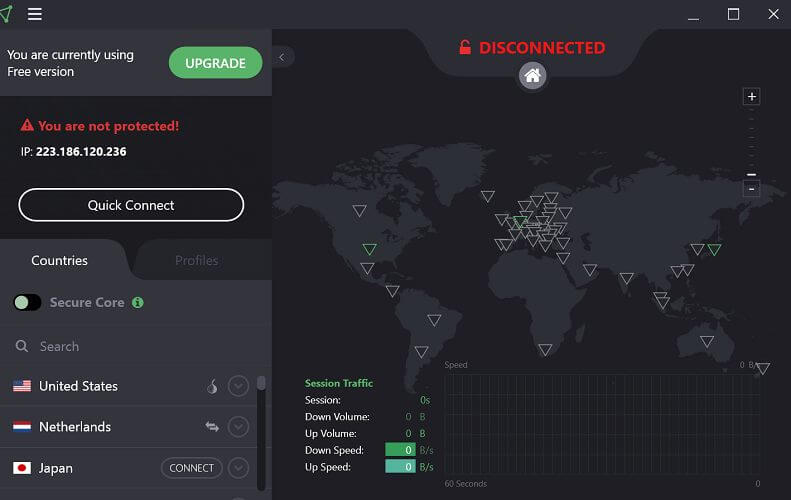
- Disable and disconnect any VPN client that is running on your computer.
- Some VPN clients may not be compatible with Glyph which may result in a connection error.
- So, launch your VPN from the taskbar and click on disconnect.
2. Check your Firewall settings
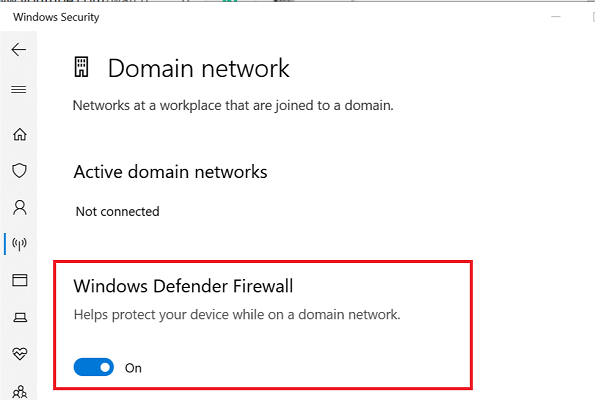
- Another reason for the Glypsh launcher error 2015 can be your firewall settings.
- If you have a third-party firewall installed, disabled it temporarily.
- To disable Windows Defender Firewall, do the following.
- Click on Start > Settings.
- Open Updates and Security.
- Click on Windows Security.
- Choose the “Firewall and network protection” option.
- Select the currently active network.
- Turn off Windows Defender Firewall using the little toggle switch.
- Run the Glyph launcher and check if the error is resolved.
Make sure to enable Windows Defender Firewall once the error is resolved.
3. Add Glyph launcher to Firewall
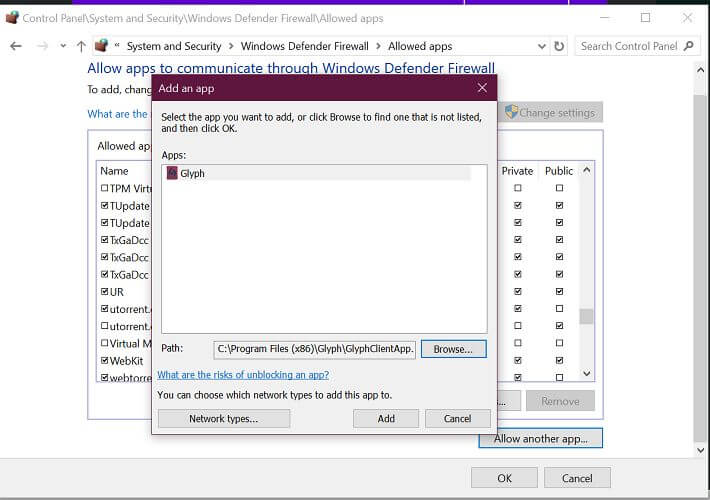
- If disabling the Firewall helped you sign in to Glyph, you can try to add Glyph to the firewall.
- Press Windows Key + R to open Run.
- Type control and click OK.
- Click on System and Security.
- Click on Windows Defender Firewall.
- From the left pane, click on “Allow an app or feature through Windows Defender Firewall” option.
- Click on “Change Settings” in the Allowed apps window.
- Choose “Allow another app” button.
- Click on the Browse button.
- Navigate to the Glyph installation folder and choose “Glyphclient“.
C:Program Files (x86)Glyph - Click on Open.
- Click Add.
- Check both “Private” and “Public” boxes.
- Click OK to save the changes.
Now the Glyph launcher should work even if the Windows Defender Firewall is enabled.
4. Reinstall Glyph

- As a last resort, try reinstalling Glyph. A fresh install can fix bugs or file corruption issues with the program.
- Type control in the search bar and click Control Panel.
- Go to Programs > Programs and Features.
- Select Glyph and click on Uninstall.
- Click on Yes to confirm the action.
- Once uninstalled, re-download the installer from the official website and install it.
The Glyph launcher error 2025 is a common occurrence that can be fixed by following the steps in this article. Reinstall or repair Glyph installation as the last resort to fix the error.
Do let us know which method helped you resolve the error in the comments.
Still having issues? Fix them with this tool:
SPONSORED
If the advices above haven’t solved your issue, your PC may experience deeper Windows problems. We recommend downloading this PC Repair tool (rated Great on TrustPilot.com) to easily address them. After installation, simply click the Start Scan button and then press on Repair All.

Newsletter
[Notice for 27th Jan 2015 Downtime: If you can’t login between Midnight PST until approx. 11am PST, this is because all shards are down for server maintenance + Patch 3.1 update. This down-time is for all Trion games and their websites/forums. Please click here for more information.]
Trion has recently seen an uptick in Error #2025 and Error #2016 issues with Glyph. There are many reasons why this may occur including firewalls, not running Glyph as administrator and others that can potentially be resolved here: #2016 – but a new issue has occurred that you can’t solve on your own because it is one caused by Trion’s firewall.
To get past it, contact Trion Customer Service at support@trionworlds.com with the issue by telling them you are experiencing these errors. Make sure to either use the e-mail address that is connected to your game account or tell them the e-mail address that is connected to your account when you send them an e-mail.
[Source: CM Morgana]
[Another solution? Try closing your Glyph Launcher completely and then re-open it and make sure it isn’t on auto-login. I’ve found (personally) that I get a ton of #2025 errors if I try to login via the Glyph Launcher after a failed auto-login. However, as soon as I close the launcher and re-open it to a non-auto-login ‘session’, I can open up the Glyph Launcher and begin playing RIFT without any issues.
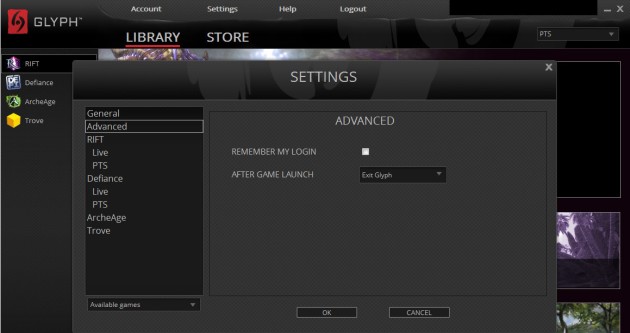
Go to Settings -> Advanced and untick “Remember My Login” and choose from the drop-down “After Game Launch: Exit Glyph”. This could potentially solve your #2025 Error issues (it did for me)]
- #1
Мне кажется, что у Glyph бывают месячные. При чём они каждый день и длятся не определённое время и в рандомное время суток.
Раньше играл преспокойно, не выдавало ни одной ошибки, но потом у меня слетела винда (8). После отката Trove наотрез отказывался искать какой-то файл и (естественно) не запускался. Но, спасибо админу этого форума, помог мне решить проблему простым скачивание через Steam, благодарю. Но, как говорится, не понос, так золотуха. Эта ехидная #2025 не даёт мне спокойно жить. Бывает хочу поиграть, а нет, не пускает, смиряюсь, ухожу. Пойже просто так запустил Glyph, без надежды, зная, что ничего не выйдет. Пустило. 3 дня я не выключал пк, зная, что если я выключу, Глиф обидится. Но видеокарта так не думала и решила перегреться, вызвав аварийное выключение. К моим ожиданиям #2025 снова меня встречала с распростёртыми объятьями. Я даже был не удивлён.
Решил таки не мучаться и отправится на официальный форум, что бы найти решение. Как думаете, что-нибудь помогло? Нет, конечно, всё так и осталось. Нашёл ответ на этом форуме. Всё так же (Хоть я это и делал вроде). Теперь я просто сижу, пишу эту прозу и надеюсь на чудо. Надеюсь на то, что мне кто-нибудь поможет. Занавес.
P.S. Если на этом форуме вообще есть правила, то скиньте ссылочу, подажуйста
P.S.S. В Саппорт тоже писал, кроме того, что было и так было написано, они мне выдать не смогли.
- #2
Правила.
Удерживая клавишу пуск нажмите букву «R», чтобы открыть окно «Выполнить».
В окне Run, которое появится введите «MSCONFIG» (без кавычек) и нажмите «ОК»..
В окне «Настройка системы» нажмите на вкладку «Startup».
Нажмите кнопку «Отключить все».
Щелкните на вкладке «Услуги».
Нажмите на флажок «Скрыть все службы Microsoft», которые будут удалять все услуги Microsoft из списка Services.
Нажмите на кнопку «Отключить все» и нажмите кнопку «ОК».
Вам будет предложено перезагрузить компьютер, перезагрузите его.
Добавить Glyph в виде исключения брандмауэра / Антивирус Касперского
UPD: проделывайте все действия на свой страх и риск. Перед действиями, описанными выше, рекомендуется сделать точку восстановления.
Последнее редактирование: 4 Мар 2017
- #3
хочу поделиться своим советом,вообщем перед каждым заходом в игру проверяйте целостность кэша и он полюбому докачивает файлы,потом нужно скачать программку CyberGost 5,эта программа позволяет на время поменять свой ип,запускаем её нажимаем на кнопочку вкл.,и он автоматически ищет ип,после заходим в trove авторизируемся,запускаемся когда загрузитесь и будете в игре можно выключать кибер так как он блочит скайп и браузер,потому что ип может взят из США например.Вот,тестите,пользуйтесь.
- #4
Правила.
Удерживая клавишу пуск нажмите букву «R», чтобы открыть окно «Выполнить».
В окне Run, которое появится введите «MSCONFIG» (без кавычек) и нажмите «ОК»..
В окне «Настройка системы» нажмите на вкладку «Startup».
Нажмите кнопку «Отключить все».
Щелкните на вкладке «Услуги».
Нажмите на флажок «Скрыть все службы Microsoft», которые будут удалять все услуги Microsoft из списка Services.
Нажмите на кнопку «Отключить все» и нажмите кнопку «ОК».
Вам будет предложено перезагрузить компьютер, перезагрузите его.
Добавить Glyph в виде исключения брандмауэра / Антивирус Касперского
Таки не помогло, проделал всё это 4 раза, если не больше. И после каждого всё было так же.
Пользовался и CyberGost 5, и HideGuard, и другими клиентами, трафик по прежнему не проходит через Глиф.
Кстати, не все пользуются брандмауэром/Касперским.
А за правила спасибо.
- #6
Для тех, у кого антивирус аваст: Отключить все экраны навсегда, перезагрузить пк. После этого должно пропустить на сервер авторизации. На счёт других антивирусов, не пробовал.
- #7
Спасибо, уже решил проблему.
- #8
Проблема решена, тема закрыта.
by Tashreef Shareef
Tashreef Shareef is a software developer turned tech writer. He discovered his interest in technology after reading a tech magazine accidentally. Now he writes about everything tech from… read more
Updated on August 26, 2020
XINSTALL BY CLICKING THE DOWNLOAD FILE
This software will keep your drivers up and running, thus keeping you safe from common computer errors and hardware failure. Check all your drivers now in 3 easy steps:
- Download DriverFix (verified download file).
- Click Start Scan to find all problematic drivers.
- Click Update Drivers to get new versions and avoid system malfunctionings.
- DriverFix has been downloaded by 0 readers this month.
Trion Glyph is a popular digital games platform for PC gamers to manage their game titles. To use Glyph the users need to install the Glyph installer. At times, you may encounter Glyph launcher error 2025 when trying to install or launch the tool.
The error prevents the user from signing into their Glyph account as reported by the users in the Reddit Community.
Can never login always get connection timed our error #2025, also cant access trion website either always just times out and says to check my internet. Any know fixes out there would be greatly appreciated.
If you are also troubled by this error, here are a couple of troubleshooting tips to help you fix Glyph launcher error 2025 in Windows.
How do I fix Glyph launcher error 2025 sign-in issues?
1. Disable VPN connection
- Disable and disconnect any VPN client that is running on your computer.
- Some VPN clients may not be compatible with Glyph which may result in a connection error.
- So, launch your VPN from the taskbar and click on disconnect.
2. Check your Firewall settings
- Another reason for the Glypsh launcher error 2015 can be your firewall settings.
- If you have a third-party firewall installed, disabled it temporarily.
- To disable Windows Defender Firewall, do the following.
- Click on Start > Settings.
- Open Updates and Security.
- Click on Windows Security.
- Choose the “Firewall and network protection” option.
- Select the currently active network.
- Turn off Windows Defender Firewall using the little toggle switch.
- Run the Glyph launcher and check if the error is resolved.
Make sure to enable Windows Defender Firewall once the error is resolved.
3. Add Glyph launcher to Firewall
- If disabling the Firewall helped you sign in to Glyph, you can try to add Glyph to the firewall.
- Press Windows Key + R to open Run.
- Type control and click OK.
- Click on System and Security.
- Click on Windows Defender Firewall.
- From the left pane, click on “Allow an app or feature through Windows Defender Firewall” option.
- Click on “Change Settings” in the Allowed apps window.
- Choose “Allow another app” button.
- Click on the Browse button.
- Navigate to the Glyph installation folder and choose “Glyphclient“.
C:Program Files (x86)Glyph - Click on Open.
- Click Add.
- Check both “Private” and “Public” boxes.
- Click OK to save the changes.
Now the Glyph launcher should work even if the Windows Defender Firewall is enabled.
4. Reinstall Glyph
- As a last resort, try reinstalling Glyph. A fresh install can fix bugs or file corruption issues with the program.
- Type control in the search bar and click Control Panel.
- Go to Programs > Programs and Features.
- Select Glyph and click on Uninstall.
- Click on Yes to confirm the action.
- Once uninstalled, re-download the installer from the official website and install it.
The Glyph launcher error 2025 is a common occurrence that can be fixed by following the steps in this article. Reinstall or repair Glyph installation as the last resort to fix the error.
Do let us know which method helped you resolve the error in the comments.
Still having issues? Fix them with this tool:
SPONSORED
If the advices above haven’t solved your issue, your PC may experience deeper Windows problems. We recommend downloading this PC Repair tool (rated Great on TrustPilot.com) to easily address them. After installation, simply click the Start Scan button and then press on Repair All.
Newsletter
by Tashreef Shareef
Tashreef Shareef is a software developer turned tech writer. He discovered his interest in technology after reading a tech magazine accidentally. Now he writes about everything tech from… read more
Updated on August 26, 2020
XINSTALL BY CLICKING THE DOWNLOAD FILE
This software will keep your drivers up and running, thus keeping you safe from common computer errors and hardware failure. Check all your drivers now in 3 easy steps:
- Download DriverFix (verified download file).
- Click Start Scan to find all problematic drivers.
- Click Update Drivers to get new versions and avoid system malfunctionings.
- DriverFix has been downloaded by 0 readers this month.
Trion Glyph is a popular digital games platform for PC gamers to manage their game titles. To use Glyph the users need to install the Glyph installer. At times, you may encounter Glyph launcher error 2025 when trying to install or launch the tool.
The error prevents the user from signing into their Glyph account as reported by the users in the Reddit Community.
Can never login always get connection timed our error #2025, also cant access trion website either always just times out and says to check my internet. Any know fixes out there would be greatly appreciated.
If you are also troubled by this error, here are a couple of troubleshooting tips to help you fix Glyph launcher error 2025 in Windows.
How do I fix Glyph launcher error 2025 sign-in issues?
1. Disable VPN connection
- Disable and disconnect any VPN client that is running on your computer.
- Some VPN clients may not be compatible with Glyph which may result in a connection error.
- So, launch your VPN from the taskbar and click on disconnect.
2. Check your Firewall settings
- Another reason for the Glypsh launcher error 2015 can be your firewall settings.
- If you have a third-party firewall installed, disabled it temporarily.
- To disable Windows Defender Firewall, do the following.
- Click on Start > Settings.
- Open Updates and Security.
- Click on Windows Security.
- Choose the “Firewall and network protection” option.
- Select the currently active network.
- Turn off Windows Defender Firewall using the little toggle switch.
- Run the Glyph launcher and check if the error is resolved.
Make sure to enable Windows Defender Firewall once the error is resolved.
3. Add Glyph launcher to Firewall
- If disabling the Firewall helped you sign in to Glyph, you can try to add Glyph to the firewall.
- Press Windows Key + R to open Run.
- Type control and click OK.
- Click on System and Security.
- Click on Windows Defender Firewall.
- From the left pane, click on “Allow an app or feature through Windows Defender Firewall” option.
- Click on “Change Settings” in the Allowed apps window.
- Choose “Allow another app” button.
- Click on the Browse button.
- Navigate to the Glyph installation folder and choose “Glyphclient“.
C:Program Files (x86)Glyph - Click on Open.
- Click Add.
- Check both “Private” and “Public” boxes.
- Click OK to save the changes.
Now the Glyph launcher should work even if the Windows Defender Firewall is enabled.
4. Reinstall Glyph
- As a last resort, try reinstalling Glyph. A fresh install can fix bugs or file corruption issues with the program.
- Type control in the search bar and click Control Panel.
- Go to Programs > Programs and Features.
- Select Glyph and click on Uninstall.
- Click on Yes to confirm the action.
- Once uninstalled, re-download the installer from the official website and install it.
The Glyph launcher error 2025 is a common occurrence that can be fixed by following the steps in this article. Reinstall or repair Glyph installation as the last resort to fix the error.
Do let us know which method helped you resolve the error in the comments.
Still having issues? Fix them with this tool:
SPONSORED
If the advices above haven’t solved your issue, your PC may experience deeper Windows problems. We recommend downloading this PC Repair tool (rated Great on TrustPilot.com) to easily address them. After installation, simply click the Start Scan button and then press on Repair All.
Newsletter
[Notice for 27th Jan 2015 Downtime: If you can’t login between Midnight PST until approx. 11am PST, this is because all shards are down for server maintenance + Patch 3.1 update. This down-time is for all Trion games and their websites/forums. Please click here for more information.]
Trion has recently seen an uptick in Error #2025 and Error #2016 issues with Glyph. There are many reasons why this may occur including firewalls, not running Glyph as administrator and others that can potentially be resolved here: #2016 – but a new issue has occurred that you can’t solve on your own because it is one caused by Trion’s firewall.
To get past it, contact Trion Customer Service at support@trionworlds.com with the issue by telling them you are experiencing these errors. Make sure to either use the e-mail address that is connected to your game account or tell them the e-mail address that is connected to your account when you send them an e-mail.
[Source: CM Morgana]
[Another solution? Try closing your Glyph Launcher completely and then re-open it and make sure it isn’t on auto-login. I’ve found (personally) that I get a ton of #2025 errors if I try to login via the Glyph Launcher after a failed auto-login. However, as soon as I close the launcher and re-open it to a non-auto-login ‘session’, I can open up the Glyph Launcher and begin playing RIFT without any issues.
Go to Settings -> Advanced and untick “Remember My Login” and choose from the drop-down “After Game Launch: Exit Glyph”. This could potentially solve your #2025 Error issues (it did for me)]