
MAINTENANCE MANUAL > Troubleshooting > Details on Errors and Malfunctions > List of Error Messages
Model SWJ-320S Issued 2012.07.19 Revised 2013.03.08 F/W ver
7.1.2 List of Error Messages
List of Error Messages ?2/5?
No.
LCD
ERROR 151
9
MAIN PCB V1R2
ERROR 152
10
MAIN PCB V2R5
ERROR 153
11
MAIN PCB V3R3
ERROR 154
12
MAIN PCB V05
ERROR 155
13
MAIN PCB V36-1
ERROR 156
14
MAIN PCB V5B
ERROR 157
15
MAIN PCB VTT
ERROR 158
16
MAIN PCB V36-2
ERROR 18a
17
MAIN PCB V_CORE
ERROR 18b
18
MAIN PCB V3R3B
ERROR 18c
19
MAIN PCB V12
ERROR 15f
HEAD DRIVE HOT
20
ERROR 171
NEW HEAD CONNECT
21
ERROR 186
22
HDC OVERFLOW
ERROR 186
23
HDC UNDERFLOW
ERROR 187
24
HDC SLEW RATE
ERROR 188
HDC MEMORY
25
ERROR 18e
FLS NOT COMP [12__]
26
ERROR 18f
OFFSET START [12__]
27
ERROR 18f
OFFSET END [12__]
28
© 2013 MIMAKI ENGINEERING CO.,LTD.
Cause
Main board 1.2V power supply is abnor-
mal.
Main board 2.5V power supply is abnor-
mal.
Main board 3.3V power supply is abnor-
mal.
Main board 5V power supply is abnormal.
Main board 36-1V power supply is abnor-
mal.
Main board 5VB power supply is abnor-
mal.
Main board VTT power supply is abnor-
mal.
Main board 36-2V power supply is abnor-
mal.
Main board V_CORE power supply is
abnormal.
Main board 1.5V power supply is abnor-
mal.
Main board 12V power supply is abnor-
mal.
COM driver becomes the high tempera-
ture.
New Print Head was recognized.
Compare S/N written in the head memory
with S/N stored in the machine.
Wave shape overflow
Wave shape data is abnormal.
Wave shape underflow
Wave shape data is abnormal.
Wave shape slew rate error
Wave shape data is abnormal.
Wave shape memory error
At wave shape memory writing, it cannot
be written due to address conflict.
Flashing control error
Flashing for the head which is connected
the HDC PCB that displayed number on
the LCD can not be completed.
Control error to Head voltage
Offset of the HDC PCB that displayed
number on the LCD can not be started.
Control error to Head voltage
Offset of the HDC PCB that displayed
number on the LCD can not be ended.
Remark
1.0
List of Countermeasures
1. Check the output pressure of the DC power supply (36V)
and the DC power supply (5V).
2. Replace the power supply above.
3. Replace the MAIN PCB with a new one.
1. Check the operation of the HDC PCB cooling fan.
2. Disconnect and connect the FFC located between the
HDC PCB and the MAIN PCB.
3. Replace the HDC PCB with a new one.
4. Replace the Print Head with a new
It is normal that an error occurs only at the time of the first
start after having connected a new head.
It is abnormal that an error occurs at the time of start every
time..
1. Check connection between the HDC PCB from the Print
Head
2. Replace the HDC PCB with a new one.
3. Replace the Print Head with a new
1. Pull out/ insert cable between HDC PCB and MAIN PCB.
(FFC changes PCB, Optical conversion PCB)
2. Replace the HDC PCB with a new one.
3. Replace the Optical conversion PCB with a new one.
4. Replace the FFC changes PCB with a new one.
5. Replace cable between HDC PCB and MAIN PCB.
6. Replace the MAIN PCB with a new
1. Pull out/ insert cable between HDC PCB and MAIN PCB.
(FFC changes PCB, Optical conversion PCB)
2. Replace the HDC PCB with a new one.
3. Replace the Optical conversion PCB with a new one.
4. Replace the FFC changes PCB with a new one.
5. Replace cable between HDC PCB and MAIN PCB.
6. Replace the MAIN PCB with a new
7. Replace the Print Head which is connected HDC PCB that
displays error with a new
one.
Rev.
1.2
(Refer to 3.3.1)
1
2
3
4
(Refer to 6.4.7)
one.
(Refer to 3.3.1)
5
(Refer to 6.4.7)
6
one.
(Refer to 3.3.1)
7
one.(Refer to 3.3.1)
8
one.(Refer to 3.3.1)
(Refer to 3.3.1)
7.1.2
R.1.2
P.2
-
aljv1989
Ошибка при печати Error 09 HDC (0—) на mimaki JV33
Здравствуйте! Такая проблема. При печати после нескольких проходов плоттер выдает ошибку Error 09 HDC (0—). В инструкции посмотрел, там написано ошибка печатающей платы. Перезагружал принтер, выключал. ошибка всё равно повторяется. Подскажите как быть? Заранее спасибо!
-

@natol
- Завсегдатай

- Сообщения: 515
- Зарегистрирован: 20 окт 2011 17:27
- Последний визит: 09 дек 2022 10:21
- Изменить репутацию:
Репутация:
Голосов: 17 - Откуда: Воронеж


Сообщение @natol » 20 ноя 2014 14:22
Смотреть шлейфа — где то сидит коротыш. Проверять плату HDC. Можно вытащить шлейфа с головки или платы головки на каретке и включить еще раз, какая будет ошибка?
-
AndreyT.
- Старожил
- Сообщения: 1519
- Зарегистрирован: 17 авг 2012 11:38
- Последний визит: 09 фев 2023 09:59
- Изменить репутацию:
Репутация:
Голосов: 56 - Откуда: Москва

Сообщение AndreyT. » 20 ноя 2014 21:05
как правило, плохой контакт в мелком шлейфе.
-
Попков Павел
- Новичок
- Сообщения: 25
- Зарегистрирован: 09 июн 2015 20:53
- Последний визит: 14 фев 2019 11:20
- Изменить репутацию:
Репутация: нет - Откуда: Уфа

Re: Ошибка при печати Error 09 HDC (0—) на mimaki JV33
Сообщение Попков Павел » 03 окт 2017 14:29
AndreyT. Добрый день. Сегодня столкнулся с такой же проблемой. при печати станок встает (jv33-160) и выдает error 09…
куда копать что смотреть? После перезагрузки может опять печатать а потом опять встает … Место остановки всегда разное..
-
AndreyT.
- Старожил
- Сообщения: 1519
- Зарегистрирован: 17 авг 2012 11:38
- Последний визит: 09 фев 2023 09:59
- Изменить репутацию:
Репутация:
Голосов: 56 - Откуда: Москва
Re: Ошибка при печати Error 09 HDC (0—) на mimaki JV33
Сообщение AndreyT. » 03 окт 2017 19:28
Попков ПавелНужно проверить температуру головы при начале печати и в процессе.
Можно посмотреть нагрев самого радиатора на мамке. Перегрев радиатора отслеживается термодатчиком на нем. Скорее всего голова виновата. Желательно определить на каком цвете происходит ошибка. Печатаем цветовые плашки и смотрим. Если на определенном чистом цвете возникает ошибка, то можно определить канал головы и смотреть дальше на мамке.
Но лучше поставить для проверки другую забитую голову и смотреть.
-
Попков Павел
- Новичок
- Сообщения: 25
- Зарегистрирован: 09 июн 2015 20:53
- Последний визит: 14 фев 2019 11:20
- Изменить репутацию:
Репутация: нет - Откуда: Уфа
Re: Ошибка при печати Error 09 HDC (0—) на mimaki JV33
Сообщение Попков Павел » 04 окт 2017 08:18
AndreyT. Спасибо за ответ. Если можно по подробнее как посмотреть показания датчика на радиаторе (через какое меню). Что значит определить канал головы и смотреть на мамке ((. Я начинающий в этом деле… Если можно фото где посмотреть.
Заранее спасибо большоеюю
-
Попков Павел
- Новичок
- Сообщения: 25
- Зарегистрирован: 09 июн 2015 20:53
- Последний визит: 14 фев 2019 11:20
- Изменить репутацию:
Репутация: нет - Откуда: Уфа
Re: Ошибка при печати Error 09 HDC (0—) на mimaki JV33
Сообщение Попков Павел » 04 окт 2017 10:30
AndreyT. Может ли быть это связанно: Утром станок включаю проверяю дюзы, вместо правого желтого черный (или смесь цветов).. Делаю одну прочистку все отлично все цвета на месте.. Капа новая, ракель новый. Куда смотреть? Начались все проблемы после перехода с бордо на Вейка (СНПЧ)… Может ли быть проблема с головой уже? Все дюзы ровные и на месте..
-
AndreyT.
- Старожил
- Сообщения: 1519
- Зарегистрирован: 17 авг 2012 11:38
- Последний визит: 09 фев 2023 09:59
- Изменить репутацию:
Репутация:
Голосов: 56 - Откуда: Москва
Re: Ошибка при печати Error 09 HDC (0—) на mimaki JV33
Сообщение AndreyT. » 04 окт 2017 13:15
Попков ПавелКак правило, переход на вейку проблемный. У многих в желтый лезет черный.
Бордо немного более вязкие. Вейа может пролазить на другой канал внутри головы и давать начальный смесовой цвет. С болрдо если такого не было, то возвращайтесь на них или меняйте голову.
Хотите дешевле на время ошибки.. печать, то имеете проблемы с головками. Замени дамперов, парковок ,пап это только частные случаи, а на панацея для всех!
Печатайте заливку любого цвета, кроме черного и смотрите.
Температура головы доступна в сервисном режиме. На форуме найдете, как посмотреть.
-
AndreyT.
- Старожил
- Сообщения: 1519
- Зарегистрирован: 17 авг 2012 11:38
- Последний визит: 09 фев 2023 09:59
- Изменить репутацию:
Репутация:
Голосов: 56 - Откуда: Москва
Re: Ошибка при печати Error 09 HDC (0—) на mimaki JV33
Сообщение AndreyT. » 04 окт 2017 15:25
Вообще проблема перетикания черного и желтого цвета возникает в следствии отслоения подошвы головы в этом месте. Причина — отсос чернил происходит в капе как раз в месте расположения трубки на помпу. Т.е. не происходит равномерного отсоса по всей подошве. На примере JV3, где проложена железная вставка над отсосом помпы, такого не происходит.
Обратите внимание на капу от Эпсона, тут две зоны разделены перегородкой.
Все зависит от агрессии чернил и работы помпы.
Возможно, что на плоттерах 300 серии это решили. Посмотрим на статистику.
-
Попков Павел
- Новичок
- Сообщения: 25
- Зарегистрирован: 09 июн 2015 20:53
- Последний визит: 14 фев 2019 11:20
- Изменить репутацию:
Репутация: нет - Откуда: Уфа
Re: Ошибка при печати Error 09 HDC (0—) на mimaki JV33
Сообщение Попков Павел » 05 окт 2017 08:20
AndreyT. К сожалению бордо более не поставляют, а официалы рекомендовали Вейко с СНПЧ.. Как перешли так и начались проблемы (((.. Спасибо большое за ответ..
-
Попков Павел
- Новичок
- Сообщения: 25
- Зарегистрирован: 09 июн 2015 20:53
- Последний визит: 14 фев 2019 11:20
- Изменить репутацию:
Репутация: нет - Откуда: Уфа
Re: Ошибка при печати Error 09 HDC (0—) на mimaki JV33
Сообщение Попков Павел » 05 окт 2017 08:31
AndreyT. Какие чернила Вы рекомендуете?
-
Попков Павел
- Новичок
- Сообщения: 25
- Зарегистрирован: 09 июн 2015 20:53
- Последний визит: 14 фев 2019 11:20
- Изменить репутацию:
Репутация: нет - Откуда: Уфа
Re: Ошибка при печати Error 09 HDC (0—) на mimaki JV33
Сообщение Попков Павел » 05 окт 2017 09:42
aljv1989 Добрый день. Как поборолись с данной проблемой?
Вернуться в «Принтеры MIMAKI»
Кто сейчас на конференции
Сейчас этот форум просматривают: нет зарегистрированных пользователей и 2 гостя
You are here: Home / error code / Mimaki JV400-130SUV Error Codes and quick guides [Solved]
Fixing Mimaki JV400-130SUV Error Codes list
– Compatible Printer model: Mimaki JV400-130SUV
– Mimaki JV400-130SUV Error Code description:
- Code: 000
- Display: SYSTEM HALT (*) 000 : UNNOWN ERR
- Description: Unnown error
- Troubleshooting Guides: 1. Update F/W. 2. Check and clear the parameter. 3. Replace the MAIN PCB with a new one.
- Code: 000
- Display: SYSTEM HALT (*) 000 : UNNOWN ERR
- Description: Unnown error
- Troubleshooting Guides: 1. Update F/W. 2. Check and clear the parameter. 3. Replace the MAIN PCB with a new one.
- Code: 04
- Display: ERROR 04 PARAM ROM
- Description: Access Error of the PARAMETER ROM 1.The state that cannot access “FROM” on the MAIN PCB. 2.The state that cannot access “EEPROM” on the Central-IO PCB. 3.Parameter data is abnormal.
- Troubleshooting Guides: 1. Replace the FFC and cable located between the HDC PCB and the MAIN PCB. 2. Replace the FFC and cable located between the HDC PCB and the MAIN PCB. 3. Initialize parameter data. 4. Replace the Central-IO PCB with a new one. 5. Replace the MAIN PCB with a new one.
- Code: 104
- Display: SYSTEM HALT (*) 104 : +35V RECVR
- Description: 35 V Power recovery error
- Troubleshooting Guides: 1.Replace the DC Power Supply(36V) PCB with a new one. 2. Replace the MAIN PCB with a new one.
- Code: 108
- Display: ERROR 108 HD CONNECT[12345678]
- Description: Head connection error (Head connection can not be confirmed)
- Troubleshooting Guides: 1. Check the setting of loading number of the head in the parameter. (System parameter No.41 HEAD NO=3) 2. Check connection between the HDC PCB from the Print Head 3. Replace the HDC PCB with a new one. 4. Replace the Print Head with a new one.
- Code: 108
- Display: ERROR 108 HD THERMIS[12345678]
- Description: Head thermistor (Head temperature can not be measured)
- Troubleshooting Guides: 1. Check the setting of loading number of the head in the parameter. (System parameter No.41 HEAD NO=3) 2. Check connection between the HDC PCB from the Print Head 3. Replace the HDC PCB with a new one. 4. Replace the Print Head with a new one.

- Code: 108
- Display: ERROR 108 HD TYPE[12345678]
- Description: Head kinds error
- Troubleshooting Guides: 1. There are not the movement restrictions, but early replace the Print Head.
- Code: 10e
- Display: SYSTEM HALT (*) 10e :FROM CLEAR
- Description: F-ROM CLEAR error (F-ROM clear unable) F-ROM is not clearable on Parameter writing, FW down loading and Log clearing. (fls_secclr)
- Troubleshooting Guides: 1. Execute the memory check (F-ROM) of [#TEST]. 2. Upload the parameter and initialize all parameters with [#PARAMETER]. 3. Replace the MAIN PCB with a new one.
- Code: 10f
- Display: SYSTEM HALT (*) 10f : FROM WRITE
- Description: FROM WRITE error (F-ROM writing unable) F-ROM is not clearable on Parameter writing, FW down loading and Log clearing. (fls_secclr)
- Troubleshooting Guides: 1. Execute the memory check (F-ROM) of [#TEST]. 2. Upload the parameter and initialize all parameters with [#PARAMETER]. 3. Replace the MAIN PCB with a new one.
- Code: 110
- Display: SYSTEM HALT (*) 110 : PCB KEY
- Description: No Keyboard PCB
- Troubleshooting Guides: 1. Check the connections between the Keyboard PCB and the MAIN PCB and then disconnect and connect the FFCs. 2. Replace the FFCs of the above routes. 3. Replace the Keyboard PCB with a new one. 4. Replace the MAIN PCB with a new one.
- Code: 120
- Display: SYSTEM HALT (*) 120 : LCD THERM.
- Description: LCD thermistor IC RW error
- Troubleshooting Guides: 1. Check the connections between the Keyboard PCB and the MAIN PCB, and then disconnect and connect the FFCs. 2. Replace the FFCs and the cabeles of the above routes. 3. Replace the Keyboard PCB with a new one. 4. Replace the MAIN PCB with a new one. 5. Replace the DC Power Supply(5V) with a new one.
- Code: 122
- Display: ERROR 122 CHECK:SDRAM
- Description: PRAM size is not sufficient at FW upgrading (fw_updmsg).
- Troubleshooting Guides: 1. Update F/W. 2. Replace the MAIN PCB with a new one. 3. Replace the PRAM PCB with a new one.
– Mimaki JV400-130SUV Error codes and solution steps to solve problems:
- Code: 122
- Display: SYSTEM HALT (*) 122 : PRAM NONE
- Description: No PRAM
- Troubleshooting Guides: 1. Update F/W. 2. Replace the PRAM PCB with a new one. 3. Replace the MAIN PCB with a new one.
- Code: 123
- Display: SYSTEM HALT (*) 123 : PRAM DATA
- Description: PRAM data error
- Troubleshooting Guides: 1. Update F/W. 2. Replace the PRAM PCB with a new one. 3. Replace the MAIN PCB with a new one.
- Code: 124
- Display: SYSTEM HALT (*) 124 : PRAM ADDR
- Description: PRAM address error
- Troubleshooting Guides: 1. Update F/W. 2. Replace the PRAM PCB with a new one. 3. Replace the MAIN PCB with a new one.
- Code: 125
- Display: SYSTEM HALT (*) 125 : EEPROM READ
- Description: EEPROM read trouble CIO Register (EER:Address 74) bit6
- Troubleshooting Guides: 1. Update F/W. 2. Upload the parameter and initialize parameter with #PARAMETER. 3. Check the connection state between MAIN PCB – Central-IO PCB. 4. Replace the MAIN PCB with a new one. 5. Replace the Central-IO PCB with a new one.
- Code: 126
- Display: SYSTEM HALT (*) 126 : EEPROM WR
- Description: EEPROM write trouble CIO Register (EER:Address 74) bit7
- Troubleshooting Guides: 1. Update F/W. 2. Upload the parameter and initialize parameter with #PARAMETER. 3. Check the connection state between MAIN PCB – Central-IO PCB. 4. Replace the MAIN PCB with a new one. 5. Replace the Central-IO PCB with a new one.
- Code: 127
- Display: SYSTEM HALT (*) 127 : POWER OFF
- Description: Power OFF detection error (Not to OFF) Power OFF process is conducted in the Power ON/OFF control without pushing down the sub-power SW.
- Troubleshooting Guides: 1. Check the connection state between sub-power SW and Keyboard PCB. 2. Check the connections between the Keyboard PCB and the MAIN PCB, and then disconnect and connect the FFCs. 3. Check the connector connection of DC Power Supply (36V). 4. Check if there is no error on the power path from the AC Inlet. 5. Replace the DC Power Supply(36V) with a new one. ( ) 6. Replace the Keyboard PCB with a new one. 7. Replace the MAIN PCB with a new one.
- Code: 128
- Display: ERROR 128 HDC FIFO OVER
- Description: HDC FIFO OVER error (Data transmission speed is too fast Control PCB trouble) HDC FIFO OVERRUN is detected at the scan slider process (ScanSlider)
- Troubleshooting Guides: 1. Check the parameter. (Is the scan parameter the default value?) 2. Update F/W. 3. Check if there is no data error from RIP. 4. To make sure, repeat RIP. 5. Disconnect and connect the FFC located between the MAIN PCB and the HDC PCB. 6. Replace the FFC and cable located between the MAIN PCB and the HDC PCB. 7. Replace the HDC PCB with a new one. 8. Replace the MAIN PCB with a new one.
- Code: 128
- Display: ERROR 128 HDC FIFO UNDER
- Description: HDC FIFO UNDER error (Data transmission speed is too slow Control PCB trouble) HDC FIFO UNDERRUN is detected at the scan slider process (ScanSlider)
- Troubleshooting Guides: 1. Check the parameter. (Is the scan parameter the default value?) 2. Update F/W. 3. Check if there is no data error from RIP. 4. To make sure, repeat RIP. 5. Disconnect and connect the FFC located between the MAIN PCB and the HDC PCB. 6. Replace the FFC and cable located between the MAIN PCB and the HDC PCB. 7. Replace the HDC PCB with a new one. 8. Replace the MAIN PCB with a new one.
- Code: 129
- Display: ERROR 129 BATTERY EXCHANGE
- Description: Battery dead (RTC battery dead is detected.) Proper information of Printer or Time (Dedicated IC) unusable on Printer initializing process (opinit).
- Troubleshooting Guides: 1. Replace a battery equipped on the MAIN PCB with new one. (CR2032) * The new battery should be the same product or the equivalent. * Discard the old battery according to the instruction from the maker.
- Code: 12e
- Display: ERROR 12e Head Faild[xxxx] (The details of [xxxx] are explained below this list.)
- Description: Abnormality of the Print head. Abnormality of the Driver of the Print head. COM overcurrent (HDC STAT4 bit2) (We did not see the current status.)
- Troubleshooting Guides: 1. Update F/W. 2. Initialize a parameter. 3. Replace the Print Head with a new one. 4. Replace the HDC PCB with a new one.
- Code: 130
- Display: ERROR 130 HD DATA SEQ
- Description: Head data transferring sequence error
- Troubleshooting Guides: 1.Disconnect and connect the FFC located between the HDC PCB and the MAIN PCB. 2. Replace the FFC located between the HDC PCB and the MAIN PCB. 3. Replace the HDC PCB with a new one. 4. Replace the MAIN PCB with a new one.
- Code: 146
- Display: ERROR 146 E-LOG SEQ
- Description: Sequential number abnormality of the event log
- Troubleshooting Guides: 1. Initialize a Event log. 2. Replace the MAIN PCB with a new one.
- Code: 147
- Display: SYSTEM HALT (*) 147 : DS-IC BUSY
- Description: DALLAS IC BUSY error
- Troubleshooting Guides: 1. Check connection of the ID Contact PCB connection cable and damage of the cable. 2. Try to use a different cartridge. 3. Replace the ID Contact PCB Assy. with a new one. 4. Replace the INK SYSYTEM PCB with a new one.
- Code: 151
- Display: ERROR 151 MAIN PCB V1R2
- Description: Main board 1.2V power supply is abnormal.
- Troubleshooting Guides: 1. Replace the MAIN PCB with a new one.
- Code: 152
- Display: ERROR 152 MAIN PCB V2R5
- Description: Main board 2.5V power supply is abnormal.
- Troubleshooting Guides: 1. Replace the MAIN PCB with a new one.
- Code: 153
- Display: ERROR 153 MAIN PCB V3R3
- Description: Main board 3.3V power supply is abnormal.
- Troubleshooting Guides: 1. Check the output pressure of the DC power supply (36V) and the DC power supply (5V). 2. Replace the power supply above. 3. Replace the MAIN PCB with a new one.
- Code: 154
- Display: ERROR 154 MAIN PCB V05
- Description: Main board 5V power supply is abnormal.
- Troubleshooting Guides: 1. Check the output pressure of the DC power supply (36V) and the DC power supply (5V). 2. Replace the power supply above. 3. Replace the MAIN PCB with a new one.
- Code: 155
- Display: ERROR 155 MAIN PCB V35-1
- Description: Main board 35-1V power supply is abnormal.
- Troubleshooting Guides: 1. Check the output pressure of the DC power supply (36V) and the DC power supply (5V). 2. Replace the power supply above. 3. Replace the MAIN PCB with a new one.
- Code: 156
- Display: ERROR 156 MAIN PCB V5B
- Description: Main board 5VB power supply is abnormal.
- Troubleshooting Guides: 1. Check the output pressure of the DC power supply (36V) and the DC power supply (5V). 2. Replace the power supply above. 3. Replace the MAIN PCB with a new one.
- Code: 157
- Display: ERROR 157 MAIN PCB VTT
- Description: Main board VTT power supply is abnormal.
- Troubleshooting Guides: 1. Check the output pressure of the DC power supply (36V) and the DC power supply (5V). 2. Replace the power supply above. 3. Replace the MAIN PCB with a new one.
- Code: 158
- Display: ERROR 158 MAIN PCB V352
- Description: Main board 35-2V power supply is abnormal.
- Troubleshooting Guides: 1. Check the output pressure of the DC power supply (36V) and the DC power supply (5V). 2. Replace the power supply above. 3. Replace the MAIN PCB with a new one.
- Code: 15d
- Display: SYSTEM HALT (*) 15d : MAIN FPC-1
- Description: 30pin FPC 1 of MAIN PCB connect error
- Troubleshooting Guides: 1. Check the connections between the HDC PCB and the MAIN PCB, and then disconnect and connect the FFCs. 2. Replace the FFCs of the above routes. 3. Replace the HDC PCB with a new one. 4. Replace the MAIN PCB with a new one.
- Code: 15f
- Display: ERROR 15f HEAD DRIVE HOT
- Description: COM driver becomes the high temperature.
- Troubleshooting Guides: 1. Check the operation of the HDC PCB cooling fan. 2. Disconnect and connect the FFC located between the HDC PCB and the MAIN PCB. 3. Replace the HDC PCB with a new one. 4. Replace the Print Head with a new one.
- Code: 160
- Display: SYSTEM HALT (*) 160 : PCB MAIN-F5
- Description: MAIN PCB fuse (F5) disconnected. PDC IPORT Register bit20 : ON
- Troubleshooting Guides: Replace the MAIN PCB with a new one. Before MAIN PCB replace, do the following checks. 1. Check the connections between the Central-IO PCB and the MAIN PCB, and then disconnect and connect the FFC and cable. 2. Check short between 1 pin and 4 pin of CN1, and between 1 pin and 9 pin of CN11 of the Central-IO PCB. (If shorted out, replace also the Central-IO PCB.)
- Code: 161
- Display: SYSTEM HALT (*) 161 : PCB MAIN-F6
- Description: MAIN PCB fuse (F6) disconnected. PDC IPORT Register bit21 : ON
- Troubleshooting Guides: Replace the MAIN PCB with a new one. Before MAIN PCB replace, do the following checks. 1. Check the connections between the Central-IO PCB and the MAIN PCB, and then disconnect and connect the FFC and cable. 2. Check short between 1 pin and 4 pin of CN1, and between 1 pin and 9 pin of CN11 of the Central-IO PCB. (If shorted out, replace also the Central-IO PCB.)
- Code: 16e
- Display: ERROR 16e MAIN PCB V3R3B
- Description: Main board 3.3VÇa power supply is abnormal.
- Troubleshooting Guides: 1. Check the output pressure of the DC power supply (36V) and the DC power supply (5V). 2. Replace the power supply above. 3. Replace the MAIN PCB with a new one.
- Code: 171
- Display: ERROR 171 NEW HEAD CONNECT
- Description: New Print Head was recognized. Compare S/N written in the head memory with S/N stored in the machine.
- Troubleshooting Guides: It is normal that an error occurs only at the time of the first start after having connected a new head. It is abnormal that an error occurs at the time of start every time.. 1. Check connection between the HDC PCB from the Print Head 2. Replace the HDC PCB with a new one. 3. Replace the Print Head with a new one.
- Code: 172
- Display: ERROR 172 MAIN PCB Q6 Check
- Description: The MAIN PCB Q6 is disabled (short mode). (Displayed only at startup in the maintenance open mode or other than SUPPORT=0.)
- Troubleshooting Guides: 1. Replace the MAIN PCB with a new one.
- Code: 17e
- Display: SYSTEM HALT (*) 17e : PCB IIO1
- Description: No INK SYSTEM PCB An error occurred at serial communication check after configuration.
- Troubleshooting Guides: 1. Check the connections between the INK SYSTEM PCB and the Central-IO PCB and then disconnect and connect the FFC. 2. Replace the FFC of the above routes. 3. Replace the INK SYSTEM PCB with a new one. 4. Replace the Central-IO PCB with a new one.
- Code: 181
- Display: SYSTEM HALT (*) 181 : PCB H21
- Description: No HDC PCB An error occurred at serial communication check after configuration.
- Troubleshooting Guides: 1. Check the connections between the HDC PCB and the MAIN PCB and then disconnect and connect the FFC. 2. Replace the FFC and cable of the above routes. 3. Replace the HDC PCB with a new one. 4. Replace the MAIN PCB with a new one.
- Code: 185
- Display: SYSTEM HALT (*) 185 : PCB LED
- Description: No INK LED PCB
- Troubleshooting Guides: 1. Check the connections between the INK LED PCB and the INK SYSTEM PCB and then disconnect and connect the FFC. 2. Replace the FFC of the above routes. 3. Replace the INK LED PCB with a new one. 4. Replace the INK SYSTEM PCB with a new one.
- Code: 186
- Display: ERROR 186 HDC OVERFLOW
- Description: Wave shape overflow Wave shape data is abnormal.
- Troubleshooting Guides:
- Code: 186
- Display: ERROR 186 HDC UNDERFLOW
- Description: Wave shape underflow Wave shape data is abnormal.
- Troubleshooting Guides:
- Code: 187
- Display: ERROR 187 HDC SLEW RATE
- Description: Wave shape slew rate error Wave shape data is abnormal.
- Troubleshooting Guides:
- Code: 188
- Display: ERROR 188 HDC MEMORY
- Description: Wave shape memory error At wave shape memory writing, it cannot be written due to address conflict.
- Troubleshooting Guides:
- Code: 189
- Display: SYSTEM HALT (*) 189 : COM VOLT
- Description: COM Voltage is abnormal
- Troubleshooting Guides: 1. Replace the HDC PCB with a new one. 2. Replace the MAIN PCB with a new one. 3. Check the connections between the HDC PCB and the MAIN PCB and then disconnect and connect the FFC. 4. Replace the FFC and cable of the above routes.
- Code: 201
- Display: ERROR 201 COMMAND
- Description: Command error Other data than commands is received
- Troubleshooting Guides: 1. Check if the output set of the PC matches the set of the machine side? 2. Change the profile. 3. Check if there is no parameter error? 4. Check if there is no trouble on the USB Cable? 5. Replace the USB Cable. 6. Replace the MAIN PCB with a new one.
- Code: 202
- Display: ERROR 202 PARAMETER
- Description: Parameter error Parameter out of the numeral value range is received
- Troubleshooting Guides: 1. Check if the output set of the PC matches the set of the machine side? 2. Change the profile. 3. Check if there is no parameter error? 4. Check if there is no trouble on the USB Cable? 5. Replace the USB Cable. 6. Replace the MAIN PCB with a new one.
- Code: 203
- Display: ERROR 203 Ment Command
- Description: Maintenance command Operation of a maintenance command fails *Non-disclosed command Parameter Up/Download and time setting (LcAeMent [M0xfe])
- Troubleshooting Guides: 1. Check the PRM file. 2. Check the number of each parameter. (if PRM matches up to the machine.)
- Code: 303
- Display: SYSTEM HALT (*) 303 : PCB MAIN ET
- Description: MAIN PCB Ethernet IC trouble
- Troubleshooting Guides: 1.Replace the MAIN PCB with a new one.
- Code: 304
- Display: ERROR 304 USB INIT ERR
- Description: USB initialization error (Failures in initializing USB device)
- Troubleshooting Guides: 1. Check if there is no parameter error? 2. Replace the USB Cable. 3. Replace the MAIN PCB with a new one.
- Code: 305
- Display: ERROR 305 USB TIME OUT
- Description: USB time-out (Occurrence of time-out error on USB device)
- Troubleshooting Guides: 1. Check if there is no parameter error? 2. Replace the USB Cable. 3. Replace the MAIN PCB with a new one.
- Code: 401
- Display: ERROR 401 MOTOR X
- Description: X Servo error (Excessive load to the X-motor)
- Troubleshooting Guides: 1. Check if there is no error on the print data. (Check if the same error occurs on other data?) 2. Check if there is no trouble on the Timing Belt. 3. Check if there is no trouble on the Motor Cable. (disconnecting, burnout, or the like) 4. Check the FFC between each PCB and Shortconnectors connected on the PCB. 5. Replace the X-axis Motor with a new one.
- Code: 402
- Display: ERROR 402 MOTOR Y
- Description: Y Servo error (Excessive load to the Y-motor)
- Troubleshooting Guides: 1. Check if there is no error on the print data. (Check if the same error occurs on other data?) 2. Check if it moves to the Y-direction smoothly in the power-off condition. 3. Check if there is no trouble on the Timing Belt. 4. Check if there is no trouble on the Motor Cable. (disconnecting, burnout, or the like) 5. Check the FFC between each PCB and Shortconnectors connected on the PCB. 6. Replace the Y-axis motor with a new one.
- Code: 403
- Display: ERROR 403 X CURRENT
- Description: X-motor current (Over current error of X-motor is detected.)
- Troubleshooting Guides: 1. Check if there is no error on the print data. (Check if the same error occurs on other data?) 2. Check if there is no trouble on the Timing Belt. 3. Check if there is no trouble on the Motor Cable. (disconnecting, burnout, or the like) 4. Check the FFC between each PCB and Shortconnectors connected on the PCB. 5. Replace the X-axis Motor with a new one.
- Code: 404
- Display: ERROR 404 Y CURRENT
- Description: Y-motor current (Over current error of Y-motor is detected.)
- Troubleshooting Guides: 1. Check if there is no error on the print data. (Check if the same error occurs on other data?) 2. Check if it moves to the Y-direction smoothly in the power-off condition. 3. Check if there is no trouble on the Timing Belt. 4. Check if there is no trouble on the Motor Cable. (disconnecting, burnout, or the like) 5. Check the FFC between each PCB and Shortconnectors connected on the PCB. 6. Replace the Y-axis motor with a new one.
- Code: 406
- Display: SYSTEM HALT (*) 406 : WIPER ORG
- Description: Wiper origin undetectable
- Troubleshooting Guides: 1. Execute and confirm [#TEST SENSOR TEST] -> [WIPER-ORG]. (Confirm that the ON/OFF display is switched by moving the wiper back and forth.) 2. Check that the wiper moves back and forth smoothly in manual. 3. Check the assembly and connector connection of Wiper Origin Sensor. 4. Check the connector connection of Y-origin Sensor 5. Check the connections between the Central-IO PCB and the MAIN PCB, and then disconnect and connect the FFC. 6. Replace the Wiper Back/Forth Origin Sensor with a new one. 7. Replace the Wiper Motor with a new one. 8. Replace the FFC located between the Central-IO PCB and the MAIN PCB. 9. Replace the Central-IO PCB with a new one.
- Code: 40b
- Display: SYSTEM HALT (*) 40b : UN MAGNETIC
- Description: DC motor is driving without excited
- Troubleshooting Guides: 1.Update F/W. 2. Upload the parameter and initialize parameter with #PARAMETER. 3. Replace the MAIN PCB with a new one.
- Code: 502
- Display: SYSTEM HALT (*) 502 : Y ORGIN
- Description: Y Origin Sensor error
- Troubleshooting Guides: 1. Execute and confirm [#TEST SENSOR TEST] -> [Y-ORG]. (Confirm that the ON/OFF display is switched by moving the carriage left and right.) 2. Check in manual if the carriage moves left and right smoothly. 3. Check the connector connection of Y-origin Sensor and then disconnect and connect the cabel. 4. Replace the Y Origin Sensor with a new one. 5. Check if there is no trouble on theY Motor Cable. (disconnecting, burnout, or the like) 6. Replace the Y-axis motor with a new one. 7. Replace the HDC PCB with a new one. 8. Replace the MAIN PCB with a new one.
- Code: 505
- Display: ERROR 505 MEDIA JAM
- Description: The media jam sensor reacted.
- Troubleshooting Guides: 1.Remove the media that hit it, and reset the media. 2. Execute [#TEST SENSOR] ->[MEDIA JAM].
- Code: 509
- Display: ERROR 509 HDC POSCNT
- Description: HDC position counter error
- Troubleshooting Guides: 1. Execute and confirm [#TEST SENSOR TEST]-> [Y-ORG].(Confirm that the ON/OFF display is switched by moving the carriage left and right.) 2. Execute [#TEST CHECK ENCODER]. 3. Check the assembly of Y-scale, and confirm that there is neither dirt nor scratch. 4. Check in manual if the Head Assy. (carriage) moves left and right smoothly. 5. Check the connector connection of Y-origin Sensor and Linear Encoder. 6. Replace the Y-origin Sensor or Linear Encoder with a new one. 7. Check the assembly and connector connection of Yaxis Motor.
- Code: 509
- Display: SYSTEM HALT (*) 509 : HDC POSCNT
- Description: HDC position counter error
- Troubleshooting Guides: 1. [Execute and confirm [#TEST SENSOR TEST]-> [Y-ORG].(Confirm that the ON/OFF display is switched by moving the carriage left and right.) 2. Execute [#TEST CHECK ENCODER]. 3. Check the assembly of Y-scale, and confirm that there is neither dirt nor scratch. 4. Check in manual if the Head Assy. (carriage) moves left and right smoothly. 5. Check the connector connection of Y-origin Sensor and Linear Encoder. 6. Replace the Y-origin Sensor or Linear Encoder with a new one. 7. Check the assembly and connector connection of Yaxis Motor. 8. Replace the Y-axis Motor with a new one. 9. Replace the HDC PCB with a new one. 10. Replace the MAIN PCB with a new one.
- Code: 50a
- Display: ERROR 50a Y ORIGIN
- Description: Y-origin error (Origin of Y-axis can not be detected)
- Troubleshooting Guides: 1. Execute and confirm [#TEST SENSOR TEST]-> [Y-ORG].(Confirm that the ON/OFF display is switched by moving the carriage left and right.) 2. Execute [#TEST CHECK ENCODER]. 3. Check in manual if the Head Assy. (carriage) moves left and right smoothly. 4. Check the connector connection of Y-origin Sensor and Linear Encoder. 5. Replace the Y-origin Sensor or Linear Encoder with a new one. 6. Check the assembly and connector connection of Yaxis Motor. 7. Replace the Y-axis Motor with a new one. 8. Replace the HDC PCB with a new one. 9. Replace the MAIN PCB with a new one.
- Code: 50c
- Display: ERROR 50c MEDIA WIDTH SENSOR
- Description: The media width could not be read correctly.
- Troubleshooting Guides: 1. Check the media setting position. 2. Perform cleaning of the media width sensor. 3. Execute [#TEST PAPER SENSOR].
- Code: 50f
- Display: ERROR 50f L-SCALE BLACK
- Description: Liner Scale error
- Troubleshooting Guides: 1. Check the assembly position of Linear Scale and Encoder PCB Assy.. 2. Check Linear Scale (scratches or dirtiness or so.) 3. Replace the Linear Scale with a new one. 4. Replace the Encoder PCB Assy. with a new one.
- Code: 516
- Display: ERROR 516 MEDIA SET POSITION L
- Description: The media is set outside the range.
- Troubleshooting Guides: 1. Check the media setting position. 2. Perform cleaning of the media width sensor. 3. Execute [#TEST PAPER SENSOR].
- Code: 617
- Display: ERROR 617 DAMPER SENSOR:12345678
- Description: An error of the liquid level detection sensor of the damper has been detected.
- Troubleshooting Guides: 1. Check the connection of the liquid level detection sensor. 2. From [#TEST SENSOR] -> [DAMPER], check the detection status of the liquid level detection sensor. 3. Replace the Liquid level detection sensor.
- Code: 618
- Display: ERROR 618 DAMPER/HIGH:12345678
- Description: Even though a certain amount of ink has been consumed, there is no change in the liquid level detection sensor “High”.
- Troubleshooting Guides: 1. Check the nozzle status. (If nozzle clogging is terrible, consumption difference may be generated.) 2. From [#TEST SENSOR], check the detection status of the liquid level detection sensor. If there is an error, replace the liquid level detection sensor. 3. Perform [MAINTENANCE DAMPER]. 4. Replace the damper.
- Code: 61a
- Display: ERROR 61a INK OVER FLOW:12345678
- Description: Overflow from the damper has been detected.(Sensor detect the damper is distend.)
- Troubleshooting Guides: 1. Perform [MAINTENANCE DAMPER]. Check that it has been discharged to the middle status. 2.With [#TEST SENSOR], check the detection status of the target sensor. 3. Replace the Liquid level detection sensor. 4. Replace the damper. 5. Check that the cartridge valve is not open. (Because ink flows into the damper due to head difference.)
- Code: 61b
- Display: ERROR 61b SUPPLY INK:12345678
- Description: Ink filling into the damper has failed.
- Troubleshooting Guides: 1.With [#TEST SENSOR], check the detection status of the target liquid level detection sensor. (Also, visually check the sensor position of the damper.) 2. From [#TEST AGEING] -> [PUMP MOTOR], discharge ink in the damper to collapse the damper. From [#TEST AGEING] -> [INK SUPPLY], check that sending ink is performed. *If sending ink cannot be performed: The supply pump, the cartridge valve and the UISS valve shall be replaced.
- Code: 627
- Display: ERROR 627 INSERT CARTRIDGE
- Description: The cartridge has not been set for a certain amount of time.
- Troubleshooting Guides: Set the cartridge. 1. Check that the cartridge has been inserted correctly. 2. Check the sensor operation with [#TEST Cartridgesensor].
- Code: 702
- Display: ERROR 702 THERMISTOR
- Description: Defective of the thermistor (disconnection or short)
- Troubleshooting Guides: 1. Check each thermistor. 2. Replace the MAIN PCB with a new one.
- Code: 707
- Display: ERROR 707 !HD HEATER BRK
- Description: Is the heater of the head disconnected? (The temperature does not rise after heating for over a certain period of time.)
- Troubleshooting Guides: 1. Check the room temperature is not too low. 2. Replace the Print Head with a new one. 3. Replace the HDC PCB with a new one.
- Code: 801
- Display: SYSTEM HALT (*) 801 : (C)OPCODE
- Description: System error (CPU exception: OP code error)
- Troubleshooting Guides: 11.Check the peripheral temperature of MAIN PCB, and then check if the error is caused by the thermo runaway of CPU. 12. Make sure that there is no device generating strong radio wave in the vicinity. 13. Replace the MAIN PCB with a new one. 14. Replace the DC Power Supply(5V) with a new one.
- Code: 802
- Display: SYSTEM HALT (*) 802 : (C)SLOT
- Description: System error (CPU exception: Slot instruction error)
- Troubleshooting Guides: 11.Check the peripheral temperature of MAIN PCB, and then check if the error is caused by the thermo runaway of CPU. 12. Make sure that there is no device generating strong radio wave in the vicinity. 13. Replace the MAIN PCB with a new one. 14. Replace the DC Power Supply(5V) with a new one.
- Code: 803
- Display: SYSTEM HALT (*) 803 : (C)CPU ADDR
- Description: System error (CPU exception: CPU address error)
- Troubleshooting Guides: 11.Check the peripheral temperature of MAIN PCB, and then check if the error is caused by the thermo runaway of CPU. 12. Make sure that there is no device generating strong radio wave in the vicinity. 13. Replace the MAIN PCB with a new one. 14. Replace the DC Power Supply(5V) with a new one.
- Code: 804
- Display: SYSTEM HALT (*) 804 : (C)DMA ADDR
- Description: System error (CPU exception: DMA address error)
- Troubleshooting Guides: 11.Check the peripheral temperature of MAIN PCB, and then check if the error is caused by the thermo runaway of CPU. 12. Make sure that there is no device generating strong radio wave in the vicinity. 13. Replace the MAIN PCB with a new one. 14. Replace the DC Power Supply(5V) with a new one.
- Code: 805
- Display: SYSTEM HALT (*) 805 : (C)ZERO DIV
- Description: System error (CPU exception: Division by 0)
- Troubleshooting Guides: 11.Check the peripheral temperature of MAIN PCB, and then check if the error is caused by the thermo runaway of CPU. 12. Make sure that there is no device generating strong radio wave in the vicinity. 13. Replace the MAIN PCB with a new one. 14. Replace the DC Power Supply(5V) with a new one.
- Code: 806
- Display: SYSTEM HALT (*) 806 : FW/SIO bit
- Description: FW error (Serial control F/W error (bit control)) The area where the registration data shall be cashed cannot be found. (It is not registered.) The errors of 800s below are “FW error”.
- Troubleshooting Guides: 1. Update F/W. 2. Check and clear the parameter. 3. Replace the MAIN PCB with a new one.
- Code: 807
- Display: SYSTEM HALT (*) 807 : FW/SIO wbsy
- Description: FW error (Serial control F/W error (WR BUSY))
- Troubleshooting Guides: 1. Update F/W. 2. Check and clear the parameter. 3. Replace the MAIN PCB with a new one.
- Code: 808
- Display: SYSTEM HALT (*) 808 : FW/STP-MTR
- Description: FW error (Step Motor stop waiting)
- Troubleshooting Guides: 1. Update F/W. 2. Check and clear the parameter. 3. Replace the MAIN PCB with a new one.
- Code: 809
- Display: SYSTEM HALT (*) 809 : FW/XY param
- Description: FW error (XY-axis Motor resolution conversion parameter error)
- Troubleshooting Guides: 1. Update F/W. 2. Check and clear the parameter. 3. Replace the MAIN PCB with a new one.
- Code: 80a
- Display: SYSTEM HALT (*) 80a : FW/Y RANGE
- Description: FW error (Y movable range error)
- Troubleshooting Guides: 1. Update F/W. 2. Check and clear the parameter. 3. Replace the MAIN PCB with a new one.
- Code: 80b
- Display: SYSTEM HALT (*) 80b : FW/ctrltsk
- Description: FW error (Motor control task error)
- Troubleshooting Guides: 1. Update F/W. 2. Check and clear the parameter. 3. Replace the MAIN PCB with a new one.
- Code: 80c
- Display: SYSTEM HALT (*) 80c : FW/PUMP W
- Description: FW error (Suction Pump stop waiting time over at capping)
- Troubleshooting Guides: 1. Update F/W. 2. Check and clear the parameter. 3. Replace the MAIN PCB with a new one.
- Code: 80d
- Display: SYSTEM HALT (*) 80d : FW/SERVO IT
- Description: FW error (Servo interruption error)
- Troubleshooting Guides: 1. Update F/W. 2. Check and clear the parameter. 3. Replace the MAIN PCB with a new one.
- Code: 80e
- Display: SYSTEM HALT (*) 80e : FW/FROM prm
- Description: FW error (FROM PARAM error (F/W BUG))
- Troubleshooting Guides: 1. Update F/W. 2. Check and clear the parameter. 3. Replace the MAIN PCB with a new one.
- Code: 80f
- Display: SYSTEM HALT (*) 80f : FW/SIO vch
- Description: FW error (Virtual serial CH setting error)
- Troubleshooting Guides: 1. Update F/W. 2. Check and clear the parameter. 3. Replace the MAIN PCB with a new one.
- Code: 810
- Display: SYSTEM HALT (*) 810 : FW/KEY RDI
- Description: FW error (No keyboard RDI)
- Troubleshooting Guides: 1. Update F/W. 2. Check and clear the parameter. 3. Replace the MAIN PCB with a new one.
- Code: 811
- Display: SYSTEM HALT (*) 811 : FW/SIO read
- Description: FW error (Serial control F/W error (RD BUSY))
- Troubleshooting Guides: 1. Update F/W. 2. Check and clear the parameter. 3. Replace the MAIN PCB with a new one.
- Code: 812
- Display: SYSTEM HALT (*) 812 : FW/CRTRG NO
- Description: FW error (Cartridge number error)
- Troubleshooting Guides: 1. Update F/W. 2. Check and clear the parameter. 3. Replace the MAIN PCB with a new one.
- Code: 813
- Display: SYSTEM HALT (*) 813 : FW/WIPER RN
- Description: FW error (Wiper operation range error)
- Troubleshooting Guides: 1. Update F/W. 2. Check and clear the parameter. 3. Replace the MAIN PCB with a new one.
- Code: 814
- Display: SYSTEM HALT (*) 814 : FW/drivinfm
- Description: FW error (drivinfm() information obtaining error
- Troubleshooting Guides: 1. Update F/W. 2. Check and clear the parameter. 3. Replace the MAIN PCB with a new one.
- Code: 815
- Display: SYSTEM HALT (*) 815 : FW/SIO rsrc
- Description: FW error (Serial control F/W error (material control))
- Troubleshooting Guides: 1. Update F/W. 2. Check and clear the parameter. 3. Replace the MAIN PCB with a new one.
- Code: 816
- Display: SYSTEM HALT (*) 816 : FW/FROM WRC
- Description: FW error (FROM write control error)
- Troubleshooting Guides: 1. Update F/W. 2. Check and clear the parameter. 3. Replace the MAIN PCB with a new one.
- Code: 817
- Display: SYSTEM HALT (*) 817 : FW/SaveArea
- Description: FW error (Save area error (size over))
- Troubleshooting Guides: 1. Update F/W. 2. Check and clear the parameter. 3. Replace the MAIN PCB with a new one.
- Code: 818
- Display: SYSTEM HALT (*) 818 : FW/EEP SIZE
- Description: FW error (EEPROM size over)
- Troubleshooting Guides: 1. Update F/W. 2. Check and clear the parameter. 3. Replace the MAIN PCB with a new one.
- Code: 819
- Display: SYSTEM HALT (*) 819 : FW/HROM SIZ
- Description: FW error (HDROM size over)
- Troubleshooting Guides: 1. Update F/W. 2. Check and clear the parameter. 3. Replace the MAIN PCB with a new one.
- Code: 81a
- Display: SYSTEM HALT (*) 81a : FW/FROM SIZ
- Description: FW error (FROM size over)
- Troubleshooting Guides: 1. Update F/W. 2. Check and clear the parameter. 3. Replace the MAIN PCB with a new one.
- Code: 81b
- Display: SYSTEM HALT (*) 81b : FW/STACK OV
- Description: FW error (STACK OVER)
- Troubleshooting Guides: 1. Update F/W. 2. Check and clear the parameter. 3. Replace the MAIN PCB with a new one.
- Code: 829
- Display: SYSTEM HALT (*) 829 : FW/ERASE TIMEOV
- Description: FW error (Time over of erasing FROM sector.)
- Troubleshooting Guides: 1. Update F/W. 2. Check and clear the parameter. 3. Replace the MAIN PCB with a new one.
- Code: 902
- Display: ERROR 902 DATA REMAIN
- Description: Drawing data is remaining.
- Troubleshooting Guides: (Carry out the followings if the error still occurs when data is cleared.) 1. Check errors in the parameter. 2. Remove USB cable from the printer and execute data clear. -> If solved, it is a problem on USB cable or PC. 3. Replace the USB Cable with a new one. 4. Replace the MAIN PCB with a new one.
- Code: 909
- Display: ERROR 909 PARAMETER VERSION
- Description: Parameter version which is downloaded is different from FW version.
- Troubleshooting Guides:
- Code: 90d
- Display: ERROR 90d NO HEAD SELECT
- Description: Loaded number of the head is assumed zero.
- Troubleshooting Guides: Check the setting of loading number of the head in the parameter. (System parameter No.41 HEAD NO=3)
- Code: 90f
- Display: ERROR 90f
- Description: Lacking printing area in printing the builtin pattern.
- Troubleshooting Guides: 1. Move the Y origin. 2. Replace the media.
- Code: 910
- Display: ERROR 910 ENVIRONMENT TEMP(LO)
- Description: The room temperature is low. It is possible that normal discharging cannot be performed.
- Troubleshooting Guides: Adjust the room temperature to the specified range (20 degrees C to 25 degrees C).
- Code: 910
- Display: SYSTEM HALT (*) 910 : DEVICE CONST
- Description: Device configuration is wrong.
- Troubleshooting Guides: 1. Check whether or not FW is correct for using device.
- Code: 911
- Display: ERROR 911 ENVIRONMENT TEMP(HI)
- Description: The room temperature is high. It is possible that normal discharging cannot be performed.
- Troubleshooting Guides: Adjust the room temperature to the specified range (20 degrees C to 25 degrees C).
- Code: na01
- Display: <LOCAL> INK IC CAN’T READ
- Description: IC chip of Ink Cartridge unreadable properly
- Troubleshooting Guides: 1. Check the attached status of the chip. 2. Perform #TEST/ Check the IC. 3.Replace the ID Contact PCB Assy. with a new one.
- Code: na02
- Display: <LOCAL> WRONG INK IC
- Description: IC chip of Ink Cartridge unreadable properly
- Troubleshooting Guides: 1. Check the attached status of the chip. 2. Perform #TEST/ Check the IC. 3.Replace the ID Contact PCB Assy. with a new one.
- Code: na03
- Display: <LOCAL> INK TYPE
- Description: Type of inserted Ink Cartridge is different.
- Troubleshooting Guides: 1. Check the type of the ink cartridge.
- Code: na04
- Display: <LOCAL> INK COLOR
- Description: The color of Ink Cartridge inserted is different from the color to be set.
- Troubleshooting Guides: 1. Check the color of the ink cartridge.
- Code: na05
- Display: <LOCAL> WRONG CARTRIDGE
- Description: An error occurred in the IC chip information of the ink cartridge.
- Troubleshooting Guides: The chip was used too much (exceeding the specified times). 1. Check whether the chip was also replaced when the pack was replaced. 2. Check the W ink nozzle clogging and resolve it. 3. Replace the chip.
- Code: na06
- Display: <LOCAL> NO CARTRDG
- Description: No cartridge (Cartridge is not installed)
- Troubleshooting Guides: (When the message is still displayed even after a Ink Cartridge is charged;) 1. Execute and confirm [#TEST SENSOR]->[INK CARTRIDGE](The number meets the cartridge No.). 2. Check the peripheral and the assembly of the Presence Sensor. 3. Check the connection of the Presence Sensor and the End Sensor 4. .Replace the Cartridge with a new one 5. Replace the Presence/Near End Sensor with a new one. 6. Replace the Ink System PCB with a new one. 7. Replace the MAIN PCB with a new one.
- Code: na07
- Display: <LOCAL> INK END
- Description: Ink end (No ink left)
- Troubleshooting Guides: (When the message is still displayed even after a new Ink Cartridge or an empty Ink Cartridge is charged;) 1. Execute and confirm [#TEST SENSOR]->[INK END](The number meets the cartridge No.). 2. Check the peripheral and the assembly of the End Sensor. 3. Check the connection of the Presence Sensor and the Near End Sensor. 4. Replace the Cartridge with a new one 5. Replace the Presence/Near End Sensor with a new one. 6. Replace the Ink System PCB with a new one. 7. Replace the MAIN PCB with a new one.
- Code: na08
- Display: <LOCAL> INK NEAREND
- Description: Ink near end (A small amount of ink left)
- Troubleshooting Guides: (When the message is still displayed even after a new Ink Cartridge or an empty Ink Cartridge is charged;) 1. Execute and confirm [#TEST SENSOR]->[INK END](The number meets the cartridge No.). 2. Check the peripheral and the assembly of the End Sensor. 3. Check the connection of the Presence Sensor and the Near End Sensor. 4. Replace the Cartridge with a new one 5. Replace the Presence/Near End Sensor with a new one. 6. Replace the Ink System PCB with a new one. 7. Replace the MAIN PCB with a new one.
- Code: na09
- Display: <LOCAL> CHECK INK PACK
- Description: Even if there is enough amount of ink, ink end was detected.
- Troubleshooting Guides: Check the ink pack setting status in the eco case.
- Code: na10
- Display: <LOCAL> EXPIRATION
- Description: Some ink cartridges are expired.
- Troubleshooting Guides: 1. 1. Check the expiration date of the ink. (If this message appears when a correct cartridge is set) 2. Check the assembly of the ID Contact PCB and the shape of the contact plate, and execute the cleaning. 3. Check the connection of the ID Contact PCB. 4.Replace the Cartridge with a new one. 5. Replace the ID Contact PCB Assy. with a new one. 6. Replace the Ink System PCB with a new one.
- Code: na11
- Display: <LOCAL> EXPIRATION(1MONTH)
- Description: Some ink cartridges are expired. (One month has passed after the expiration date.)
- Troubleshooting Guides: 1. Be careful that the expiration date is coming soon. You can use up to the next month. The red LED blinks. ((If this message appears when a correct cartridge is set) 2. Check the assembly of the ID Contact PCB and the shape of the contact plate, and execute the cleaning. 3. Check the connection of the ID Contact PCB. 4.Replace the Cartridge with a new one. 5. Replace the ID Contact PCB Assy. with a new one. 6. Replace the Ink System PCB with a new one.
- Code: na12
- Display: <LOCAL> EXPIRATION (2MONTH)
- Description: Some ink cartridges are expired. (Two months have passed after the expiration date.)
- Troubleshooting Guides: Replace the cartridge with the warning.
- Code: na13
- Display: <LOCAL> Can’t PRINT/ CART.[ENT]
- Description: Multiple ink errors (unusable inks) occurred. Ink supply (printing, cleaning, etc.) cannot be performed.
- Troubleshooting Guides: Press the [ENTER] key, and check the relevant cartridge and the error contents. Then replace it with a usable one.
- Code: na14
- Display: <LOCAL> Check waste ink[MNT]
- Description: The count of the waste ink tank exceeded the specified amount.
- Troubleshooting Guides: Check the waste ink tank. Press the [MAINT] key, and correct the counter or reset it.
- Code: na15
- Display: <LOCAL> Replace WIPER [MNT]
- Description: The count of the wiper exceeded the specified amount.
- Troubleshooting Guides: Press the [MAINT] key, and replace the wiper.
- Code: na16
- Display: <LOCAL> ** NO MEDIA **
- Description: The media is not set. Or, the sensor has been broken.
- Troubleshooting Guides: 1. Set the media. 2. Check the media sensor operation/ replace it.
- Code: na17
- Display: <LOCAL> DATA REMAIN
- Description: Data has already been received.
- Troubleshooting Guides: Press the REMOTE key and perform printing. Or, perform data clear.
- Code: na18
- Display: <LOCAL> INK NEAR END [ENT]
- Description: Ink near end (A small amount of ink left)
- Troubleshooting Guides: Press the [ENTER] key and check the relevant cartridge. (Be careful that ink end is coming soon.)
- Code: na19
- Display: <LOCAL> SUPPLY INK :MMCCYYKK
- Description: Ink filling into the damper has failed.
- Troubleshooting Guides: 1. Perform [ MAINTENANCE DAMPER ]. 2. Also check the amount of remaining ink in the cartridge.
- Code: na20
- Display: <LOCAL> Damper Sens:MMCCYYKK
- Description: The liquid surface sensor abnormality of the damper has been detected.
- Troubleshooting Guides: 1. Turn OFF the power supply once, and wait for a while. And then turn ON the power supply again (when it is displayed again). Same as ERROR617.
- Code: na21
- Display: <LOCAL> InkOverflow:MMCCYYKK
- Description: Overflow from the damper has been detected.
- Troubleshooting Guides: 1. Perform [ MAINTENANCE DAMPER ] (when it is displayed again). Same as ERROR61a.
- Code: na22
- Display: <LOCAL> Damper HIGH:MMCCYYKK
- Description: Even though a certain amount of ink has been consumed, there is no change in the liquid level detection sensor “High”.
- Troubleshooting Guides: Perform [ MAINTENANCE DAMPER ] (when it is displayed again). Same as ERROR618,619.
Waste Ink Pad Counter Utility Functions:
– Cleaning printhead.
– Ink charge.
– Fix Epson red lights blinking Error
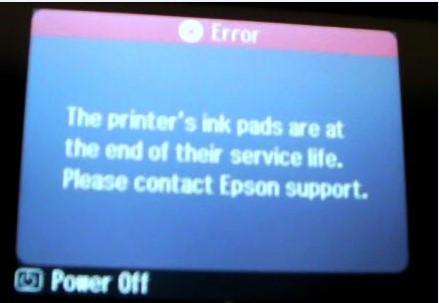
– Fix Epson Service Required Error: A printer’s ink pad at the end of its service life Please contact Epson Support.
– Check the current value of waste ink counters and ink level counters.
– Clear Waste Ink Counters.
– Read and write serial number.
– Read and write USB ID.
– Read and write HEAD ID.
– Make EEPROM dump, backup.
– Paper feed test.
– Nozzle check.
– Color check pattern.
– Initialize (disable) PF deterioration offset.
– Retrieve device information
Contact us to get support with Mimaki JV400-130SUV Error case
Telegram: https://t.me/hyperaktiv
Facebook: https://www.facebook.com/dngnm/
MIMAKI ENGINEERING CO., LTD.
URL: http://mimaki.com/
Original instructions
D203118-13
i
CAUTION ........................................................................................ v
DISCLAIMER OF WARRANTY ............................................................ v
Requests .............................................................................................. v
FCC Statement (USA) .......................................................................... v
Television/Radio Reception Interference ............................................. v
Foreword .........................................................................................vi
About usable ink .................................................................................. vi
On This Operation manual .................................................................. vi
Using this Machine Safely ..............................................................vi
Symbols ............................................................................................... vi
Safety interlock .................................................................................... ix
Warning labels ................................................................................ x
EC DECLARATION OF CONFORMITY .............................................xiii
Chapter 1 Before Use
About installing this machine ........................................................ 1-2
Setup Location ...................................................................................1-2
Working Environmental Temperature.................................................1-2
About Ventilation Equipment..............................................................1-2
About fixing machine..........................................................................1-2
Moving This Machine .........................................................................1-2
Names of Parts and Functions .....................................................1-3
Front Side of the Machine ..................................................................1-3
Rear Side and Right Side of the Machine ..........................................1-4
Operation Panel .................................................................................1-5
Media sensor......................................................................................1-7
Carriage..............................................................................................1-7
Nozzle Check Unit (NCU)...................................................................1-7
Indicator..............................................................................................1-7
Capping station ..................................................................................1-8
Pinch rollers and Feed rollers.............................................................1-8
Connecting Cables ....................................................................... 1-8
Connecting the LAN cable..................................................................1-8
Connecting USB2.0 Interface Cable ..................................................1-8
Connecting Power Supply Cable........................................................1-9
Fill ink in the ink tank and charging............................................. 1-10
Caution in handling of ink bottles .....................................................1-12
Media .......................................................................................... 1-13
Usable sizes of media ......................................................................1-13
Caution in handling of medias..........................................................1-13
Restrictions on Using Media.............................................................1-13
About the emergency switch....................................................... 1-14
The position of the emergency switch..............................................1-14
If you feel the danger........................................................................1-15
Chapter 2 Basic Operations
Workflow ....................................................................................... 2-2
Table of contents
ii
Turning the Power ON/OFF ..........................................................2-3
Turning the Power ON........................................................................2-3
Turning the Power OFF......................................................................2-3
Setting a Media .............................................................................2-4
Checking the Spacers ........................................................................2-4
Installing the Antistatic Fabric.............................................................2-5
Setting the Head Gap.........................................................................2-6
Note for media setting ........................................................................2-6
Setting a roll media.............................................................................2-7
Preparation to install Take-up tension bar weight ............................2-18
Changing the printing origin .............................................................2-18
Preparing the Color Fixation Device ...........................................2-19
Name and Function of Each Part of The Color Fixation Device.......2-19
Prepare Color Fixation Device .........................................................2-20
Operation Menu of Color fixation Device..........................................2-21
Setting Menu List..............................................................................2-23
Setting color fixing temperature........................................................2-23
Flow of color fixation device operation .............................................2-25
Warming Up .....................................................................................2-27
Media Setting ...................................................................................2-27
Adjusting the opening at the aperture plate......................................2-27
Processing when media is terminated..............................................2-28
Resetting the proper temperature ....................................................2-29
Other Settings ..................................................................................2-29
Setting the Color Fixation Device from the Printer ...........................2-31
Printing Workflow .............................................................................2-32
Test Printing................................................................................2-33
Test Printing .....................................................................................2-33
Head Cleaning ............................................................................2-34
About head cleaning.........................................................................2-34
Perform head cleaning depending on the test printing result ...........2-34
Setting of Media Correction.........................................................2-35
Setting of Media Correction..............................................................2-35
Correct the ink drop position for bidirectional printing ............................................2-36
Printing Data ...............................................................................2-37
Starting a Printing Operation ............................................................2-37
Stopping a Printing Operation ..........................................................2-37
Deleting Received Data (Data Clear) ...............................................2-37
Behavior after printing has been completed.....................................2-38
Chapter 3 Setup
About Setup menu ........................................................................3-2
Setup menu table ...............................................................................3-3
Register the optimal print conditions to match the use.......................3-5
Setting of Media Correction................................................................3-6
If the Positions of Dots Shift... ............................................................3-7
Setting the color fixation device..........................................................3-8
Setting of Logical Seek.......................................................................3-8
Setting of Overprint ............................................................................3-9
Setting of Drying Time........................................................................3-9
Setting of Left and Right Margins .......................................................3-9
Setting of Refresh...............................................................................3-9
iii
Setting of Refresh Left......................................................................3-10
Setting of Drying Fan........................................................................3-10
Setting of Feed Speed......................................................................3-10
Setting of MAPS4.............................................................................3-11
Setting of Auto Nozzle Maint............................................................3-12
Setting Interval wiping ......................................................................3-15
Setting Head Gap.............................................................................3-15
About Machine Setup menu ....................................................... 3-16
Machine Setup menu table...............................................................3-17
Setting a AUTO Power-off................................................................3-18
Setting Feeding unit .........................................................................3-18
Setting Take-up unit .........................................................................3-19
Setting the Display of Media Remain ...............................................3-19
Setting Time .....................................................................................3-19
Setting Unit (Temperature/ Length)..................................................3-19
Setting a Key Buzzer........................................................................3-20
Selecting the head line to use ..........................................................3-20
Setting the Media Detect/Width........................................................3-20
Setting a Drying Feed.......................................................................3-20
Setting the Confirm...........................................................................3-21
Setting the amount of blank space between printed lines ................3-21
Setting the feed mode of the space of no data to be printed............3-21
Set the network ................................................................................3-22
Setting event mail function ...............................................................3-22
Setting the Setting Lock function......................................................3-26
Setting a LANGUAGE ......................................................................3-26
Initializing the Settings......................................................................3-26
About Information menu ............................................................. 3-27
Information menu table.....................................................................3-27
Displaying the Information................................................................3-28
Displaying the Information of this machine.......................................3-28
Chapter 4 Maintenance
Maintenance ................................................................................. 4-2
Precautions for Maintenance..............................................................4-2
About Cleaning Solution.....................................................................4-2
Cleaning the Exterior Surfaces...........................................................4-2
Cleaning the Platen............................................................................4-2
Cleaning the Lapel Bar (Take-up Side)..............................................4-3
Cleaning the Tension Roller...............................................................4-3
Cleaning the Brake Roller ..................................................................4-4
Cleaning the Ink Landing Plate ..........................................................4-4
Cleaning the Fabric Retainer..............................................................4-4
Maintaining the Grit Roller..................................................................4-4
Cleaning the Color Fixation Device ....................................................4-6
Cleaning the Area around Flushing Unit....................................... 4-6
Cleaning the Flushing BOX Sensor....................................................4-6
Cleaning the ink receiving sponge .....................................................4-7
About Maintenance Menu............................................................. 4-8
Maintenance menus at-a-glance........................................................4-9
Maintaining the Capping Station................................................. 4-10
Cleaning the Wiper and Cap ............................................................4-10
iv
Washing the Ink Discharge Passage ...............................................4-12
When the Machine Is Not Used for a Long Time (Custody Wash)...4-12
Cleaning the Ink Head and the Area around It............................4-14
When nozzle missing Cannot Be Solved ....................................4-15
Washing the Head Nozzle................................................................4-15
Nozzle Recovery Function ...............................................................4-16
Automatic Maintenance Function................................................4-19
Setting the Refreshing level .............................................................4-19
Setting the Cleaning level.................................................................4-19
Charging ink................................................................................4-20
Replacing the Waste Ink Tank ....................................................4-21
If a Waste Ink Tank Confirmation Message Appears .......................4-21
For the operation limitation by the amount of waste ink ...................4-23
Replacing consumables..............................................................4-24
Replacing the wiper..........................................................................4-24
Replacing the HF filter......................................................................4-24
Discard the expired ink.....................................................................4-25
Replacing the Ink Tank.....................................................................4-26
Replacing the ink absorber...............................................................4-27
Tank Calibration ...............................................................................4-28
Chapter 5 Troubleshooting
Troubleshooting ............................................................................5-2
Power does not turn on ......................................................................5-2
The machine does not start printing ...................................................5-2
The temperature of the heater does not rise to the set value.............5-2
Media gets jammed / media is soiled .................................................5-3
Image quality is poor ..........................................................................5-3
Nozzle is clogged ...............................................................................5-3
Ink tank warning appears ...................................................................5-4
In case of ink leakage.........................................................................5-4
If an error related to the Sub Tank occurs (Error 618 to 61b) ............5-4
When media heaves up at feeding.....................................................5-4
Warning / Error Messages ............................................................5-5
Warning messages.............................................................................5-5
Error messages ................................................................................5-12
Chapter 6 Appendix
Specifications................................................................................6-2
Machine specifications .......................................................................6-2
Ink specifications ................................................................................6-3
Supply item list ...................................................................................6-4
Sheet for inquiry............................................................................6-5
CAUTION
v
CAUTION
DISCLAIMER OF WARRANTY
THIS LIMITED WARRANTY OF MIMAKI SHALL BE THE
SOLE AND EXCLUSIVE WARRANTY AND IS IN LIEU
OF ALL OTHER WARRANTIES, EXPRESS OR
IMPLIED, INCLUDING, BUT NOT LIMITED TO, ANY
IMPLIED WARRANTY OF MERCHANTABILITY OR
FITNESS, AND MIMAKI NEITHER ASSUMES NOR
AUTHORIZES DEALER TO ASSUME FOR IT ANY
OTHER OBLIGATION OR LIABILITY OR MAKE ANY
OTHER WARRANTY OR MAKE ANY OTHER
WARRANTY IN CONNECTION WITH ANY PRODUCT
WITHOUT MIMAKI’S PRIOR WRITTEN CONSENT.
IN NO EVENT SHALL MIMAKI BE LIABLE FOR
SPECIAL, INCIDENTAL OR CONSEQUENTIAL
DAMAGES OR FOR LOSS OF PROFITS OF DEALER
OR CUSTOMERS OF ANY PRODUCT.
Requests
• This Operation manual has been carefully prepared for
your easy understanding. However, please do not
hesitate to contact a distributor in your district or our
office if you have any inquiry.
• Description contained in this Operation manual are
subject to change without notice for improvement.
FCC Statement (USA)
This equipment has been tested and found to comply with
the limits for a Class A digital device, pursuant to Part 15
of the FCC Rules.
These limits are designed to provide reasonable
protection against harmful interference when the
equipment is operated in a commercial environment. This
equipment generates, uses and can radiate radio
frequency energy and, if not installed and used in
accordance with the Operation manual, may cause
harmful interference to radio communications.
Operation of this equipment in a residential area is likely
to cause harmful interference in which case the user will
be required to correct the interference at his own
expense.
In the case where MIMAKI-recommended cable is not
used for connection of this device, limits provided by FCC
rules can be exceeded.
To prevent this, use of MIMAKI-recommended cable is
essential for the connection of this printer.
Television/Radio Reception
Interference
The product described in this manual generates high
frequency when operating. The product can interfere with
radios and televisions if set up or commissioned under
improper conditions. The product is not guaranteed
against any damage to specific-purpose radio and
televisions.
The product’s interference with your radio or television will
be checked by turning on/off the power button of the
product. If the interference is removed when the product is
turned off, the interference is coming from the product.
In the event that the product is the cause of interference,
try to eliminate it by taking one of the following corrective
measures or taking some of them in combination.
• Change the orientation of the antenna of the television
set or radio to find a position without reception difficulty.
• Separate the television set or radio from this product.
• Plug the power cord of this product into an outlet which
is isolated from power circuits connected to the
television set or radio.
Foreword
vi
1
2
2
2
2
2
1
Foreword
Congratulations on your purchase of MIMAKI color inkjet
printer “Tx500P Series”.
“Tx500P Series” is a color inkjet printer that can print with
Sublimation dye ink realizing high speed and high image
quality.
About usable ink
Usable ink for this machine is Sublimation dye ink (four-
color / six-color model).
• 4-colors version: 2 each of Blue, Magenta, Yellow and
Black color ink bottle are use.
• 6-colors version: 1 each of Blue, Magenta, Yellow,
Black, Light blue and Light magenta color
ink bottle (2 each of Light blue and Light
magenta only) are use.
On This Operation manual
• This Operation manual describes the operations and
maintenance of “Color inkjet printer
Tx500P Series”
(hereafter, this machine)
• Read this Operation manual carefully and understand
them thoroughly to use. It is also necessary to keep
this Operation manual on hand.
• Make sure that this Operation manual is read by the
operator of this machine.
• This Operation manual has been carefully prepared for
your easy understanding, however, please do not
hesitate to contact a distributor in your district or our
office if you have any inquiry.
• Descriptions contained in this Operation manual are
subject to change without any notice for improvement.
• You can also download the latest manual from our
website.
Reprinting the content of this manual without prior notice
is strictly prohibited.
© 2016 MIMAKI ENGINEERING Co., Ltd.
All Rights Reserved. Copyright
Using this Machine Safely
Symbols
Symbols are used in this Operation Manual for safe
operation and for prevention of damage to the machine.
The indicated sign is different depending on the content of
caution. Symbols and their meanings are given below.
Please follow these instructions as you read this manual.
Examples of symbols
Warning for Use
Description
Failure to observe the instructions given with
this symbol can result in death or serious
injuries to personnel. Be sure to read it carefully
and use it properly.
Failure to observe the instructions given with
this symbol can result in injuries to personnel or
damage to property.
Important notes in use of this machine are
given with this symbol. Understand the notes
thoroughly to operate the machine properly.
Useful information is given with this symbol.
Understand the notes thoroughly to operate the
machine properly.
Indicates the reference page for related
contents.
The symbol indicates that the instructions
must be observed as strictly as the CAUTION
instructions (including DANGER and
WARNING instructions). A sign representing a
precaution (the sign shown at left warns of
hazardous voltage) is shown in the triangle.
The symbol indicates that the action
shown is prohibited. A sign representing a
prohibited action (the sign shown at left
prohibits disassembly) is shown in or around
the circle.
The symbol indicates that the action
shown must be taken without fail or the
instructions must be observed without fail. A
sign representing a particular instruction (the
sign shown at left instructs to unplug the cable
from the wall outlet) is shown in the circle.
WARNING
• Do not use the machine in a poorly ventilated room or
a closed room.
• Use a power cable attached to this unit.
• Take care not to damage, break or work upon the
power cable. If a heavy material is placed on the
power cable, or if it is heated or pulled, the power
cable can break, thus resulting in fire or electric
shocks.
Using this Machine Safely
vii
Precautions in Use
Important points
• Use it with the displayed power supply specifications.
The power supply voltage for the main printer unit is
single phase AC200 to 240V 29A or less, and the
power supply voltage for the color fixation device is
three phase AC200V 125A or less. (You cannot use
this machine in the 100V system.)
• Avoid locating the machine in a damp environment. Do
not splash water onto the machine. Use in such an
environment can give rise to fire, electric shocks or
breakdown of the machine.
• Use of the machine under an abnormal condition
where it produces smoke or strange smell can result in
fire or electric shocks. If such an abnormality is found,
be sure to turn off the power button immediately and
unplug the cable from the wall outlet. Check first that
the machine no longer produces smoke, and then
contact your distributor or a sales office of MIMAKI for
repair. Never repair your machine and ink bottle by
yourself since it is very dangerous for you to do so.
• Never disassemble or remodel the main unit of the
machine or the ink bottle. Disassembly or remodeling
can result in an electric shock or breakdown of the
machine.
• Take care that no dust or dirt sticks to the coloring
heater. Dust and dirt sticking heaters can cause fire.
• Avoid locating the machine in a damp environment. Do
not splash water onto the machine. Use in such an
environment can give rise to fire, electric shocks or
breakdown of the machine.
• Keep Fingers and Other Body Parts Away
• In case of ink leakage, please turn off the main power
switch, unplug the power plug, and contact our service
office or distributor.
CAUTION
Handling of the power cable
• Use the power cable attached to this machine.
• Take care not to damage, break or work upon the
power cable. If a heavy matter is placed on the power
cable, heated or drawn, the power cable can break to
cause fire or electric shocks.
• There is no power cable attached to the color fixation
device. The customer needs to provide a cable from
the transformer or switch board to the breaker on the
heater controller.
Power supply
• Leave the breaker turned ON.
• Do not turn off the main power switch on the right side
of this machine.
Grounding work
• You need to ground this machine to prevent accidental
electric shocks.
Note on maintenance
• When cleaning the External ink supply unit or the
heads, make sure to wear the attached gloves.
WARNING
Power specifications for the coloring heater
• For regions that use a power supply other than 200 to
240V, you need to use a step-down transformer. The
customer needs to provide a cable from the
transformer or switch board to the breaker on the
heater controller.
Transformer type: Three phase insulation transformer
Transformer capacity: 55 KW
Secondary connection (output): Three phase 4 wire
system (Star connection, neutral grounding)
Primary voltage (input voltage): Power supply voltage
of the installation location (varies according to the
country)
Secondary voltage (output voltage): Three phase 200V
Protective gear
• Make sure you wear protective glasses and gloves
before cleaning the nozzles as it is possible that ink or
cleaning solution for maintenance may spray from the
nozzles. Otherwise, ink or cleaning solution for
maintenance may spray into your eyes. If ink or
cleaning solution for maintenance gets on your hands,
it could cause the skin to become irritated.
Handling of ink
• If you get ink in your eyes, immediately wash your
eyes with a lot of clean water for at least 15 minutes. In
doing so, also wash eyes to rinse ink away completely.
Then, consult a doctor as soon as possible.
• If anyone drinks ink by mistake, keep him or her
quiet and see a doctor immediately. Do not allow
him or her to swallow the vomit. After that, contact
the Poison Control Center.
• If you breathe in too much steam and begin to feel
nauseous, move to a well ventilated area immediately,
and make sure you keep warm and rest. Then, consult
a doctor as soon as possible.
WARNING
Note on maintenance
• It is strongly recommended to use the machine in a room that is
not dusty.
• Keep the front cover closed even when the machine is not
printing. If not, dust can accumulate on the nozzles in the
heads.
• Dust in the heads can also cause drops of ink to fall suddenly
down on the media during printing. In such a case, be sure to
clean up the heads. ( P.4-14 “Cleaning the Ink Head and
the Area around It”)
• When cleaning the ink-station or the heads, make sure to wear
the attached gloves.
• Perform wiping (removal of dust and paper powder) of the
capping station and wiper frequently.
CAUTION
Using this Machine Safely
viii
1
2
2
2
2
2
1
Cautions on Installation
Front cover and lever
• Never open the front cover or raise the lever during printing.
Opening the cover or raising the lever will abort printing.
Protection of media from dust
• Store media in a bag. Wiping off dust accumulated on media will
adversely affect the media due to static electricity.
• When leaving the workshop after the working hours, do not
leave any media on the roll hanger. If any media is left on the roll
hanger, it can get dusty.
When discarding this machine, request the treatment of
it for an industrial waste disposal contractor.
• Treat it properly in compliance with regulation in the local area.
• Disposition of this machine
Handling of ink bottles
• Use the Tx500P genuine ink. Remember that the user shall be
filled for a repair to correct any damage resulting from the use of
ink other than the exclusive type.
• The machine does not operate with any ink other than the
Tx500P genuine ink.
• Do not use the Tx500P genuine ink with other printers, as doing
so may cause damage to such machines.
• If the ink bottle is moved from a cold place to a warm place,
leave it in the room temperature for three hours or more before
using it.
• Open the ink bottle just before installing it in the machine. If it is
opened and left for an extended period of time, normal printing
performance of the machine may not be ensured.
• Make sure to store ink bottles in a cool and dark place.
• Store ink bottles and waste ink tank in a place that is out of the
reach of children.
• Be sure to thoroughly consume the ink in the ink bottle, once it
is opened, within three months. If an extended period of time
has passed away after opening the ink bottle, printing quality
would be poor.
• Neither pound the ink bottle nor shake it violently, as doing so
can cause leakage of ink.
• Do not touch or stain the contacts of the IC chip. This may
cause damages on printed circuit boards.
• Waste ink is equivalent to waste oil of industrial waste. Request
an industrial waste disposal company for disposal of waste ink.
Handling of media
• Use the recommended media.
Use media recommended by MIMAKI to ensure reliable, high-
quality printing.
• Set the temperature of the Print heater and Post-heater
according to the type and characteristics of the media used.
Automatic temperature setting can be made on the operation
panel by setting the profile on the dedicated RIP. For setting on
the RIP, refer to the instruction manual for your RIP.
• Pay attention to the expansion and contraction of the media.
Do not use media immediately after unpacking. The media can
be affected by the room temperature and humidity, and thus it
may expand and contract. The media have to be left in the
atmosphere in which they are to be used for 30 day or more
after unpacked.
• Do not use curled media.
The use of curled media can not only cause a media jam but
also affect print quality.
Straighten the sheet of media, if significantly curled, before
using it for printing. If a regular-sized coated sheet of media is
rolled and stored, the coated side has to face outside.
• Do not leave the media with the heater ON for a long time.
WARNING
Periodic replacement parts
• Some parts of this machine must be replaced with a new one
periodically by service personnel. Be sure to make a contract
with your distributor or dealer for After sale service to ensure a
long life of your machine.
CAUTION
A place exposed to direct
sunlight
On an inclined surface
A place that vibrates
A place exposed to direct
air flow from an air
conditioner or the like.
A place where temperature
or humidity varies
significantly
Around a place where fire
is used
•Use the machine
under the following
environmental
conditions:
•Operating
environment:
20 to 30 °C
(68 to 86 °F)
35 to 65 % (Rh)
A place with much dust
A place with chemicals
around
WARNING
Using this Machine Safely
ix
Safety interlock
This machine is equipped with interlocks to terminate the
operation for your safety when the cover opens during
printing etc. (Red circled sections in the figure below)
Warning labels
x
1
2
2
2
2
2
1
Warning labels
The following warning labels are attached to this machine. Make sure you understand the content of the warning labels.
If the warning label becomes too dirty to read or wears off, make sure you purchase a new label from your dealer or an
office of MIMAKI
Warning labels
xi
No.
Order
Number
Label
1
M903330
2
M912560
3
M903239
4
TF50-70
5
M901549
6
M903404
7
M912058
8
M908553
Warning labels
xii
1
2
2
2
2
2
1
No.
Order
Number
Label
9
M905982
10
M907833
11
M907935
12
M906115
13
M914192
14
M914189
Warning labels
xiii
EC DECLARATION OF CONFORMITY
We hereby declare that the following our products conform with the essential health and safety requirements of EC
Directives.
Product Color Inkjet Printer
Model No. Tx500P-3200DS
Serial No. covered AABCDEEE
AA: W3, B: 0 to 9, C: any alpha-numeric, D: any alphabet, EEE: 001 to 999
Manufacturer MIMAKI ENGINEERING CO.,LTD.
2182-3, Shigeno-otsu, Tomi, Nagano, 389-0512, JAPAN
Authorised Compiler in the Community
MIMAKI EUROPE B.V.
Stammerdijk 7E 1112 AA Diemen, The Netherlands
Managing Director Koji Shimizu
Directives Machinery Directive 2006/42/EC
Low Voltage Directive 2014/35/EU
EMC Directive 2014/30/EU
RoHS Directive 2011/65/EU
The above products have been evaluated for conformity with above directives using the following European standards.
The technical construction file (TCF) for this product is retained at the above Manufacturer’s location.
Machinery Directive / Low Voltage Directive
EN ISO12100:2010, EN60204-1:2006+A1, EN60950-1:2006+A11+A1+A12
EMC Directive EN55022:2010, EN61000-3-2:2006+A1+A2, EN61000-3-3:2008, EN55024:2010
RoHS Directive EN50581:2012
This chapter
describes the items required to understand before use, such as the name of each part of
the machine or the installation procedures.
About installing this machine ........................1-2
Setup Location ............................................ 1-2
Working Environmental Temperature ......... 1-2
About Ventilation Equipment ....................... 1-2
About fixing machine ................................... 1-2
Moving This Machine .................................. 1-2
Names of Parts and Functions ......................1-3
Front Side of the Machine ........................... 1-3
Rear Side and Right Side of the Machine ... 1-4
Operation Panel .......................................... 1-5
Media sensor ............................................... 1-7
Carriage ...................................................... 1-7
Nozzle Check Unit (NCU) ........................... 1-7
Indicator ......................................................1-7
Capping station ........................................... 1-8
Pinch rollers and Feed rollers ......................1-8
Connecting Cables ........................................1-8
Connecting the LAN cable ...........................1-8
Connecting USB2.0 Interface Cable ............1-8
Connecting Power Supply Cable .................1-9
Fill ink in the ink tank and charging .............1-10
Caution in handling of ink bottles ...............1-12
Media ..........................................................1-13
Usable sizes of media ................................1-13
Caution in handling of medias ...................1-13
Restrictions on Using Media ......................1-13
About the emergency switch .......................1-14
The position of the emergency switch .......1-14
If you feel the danger .................................1-15
Chapter 1
Before Use
Chapter 1 Before Use
1-2
About installing this
machine
Setup Location
Secure a suitable installation space before assembling
this machine.
The place of installation must have enough space for not
only this machine itself, but also for the printing operation.
Working Environmental Temperature
Use this machine in an environment of 20 to 30°C to
ensure reliable printing.
The heater temperature may not reach the set value,
depending on the ambient temperature.
About Ventilation Equipment
Because Color fixation device of this machine produces
the sublimation gas, please prepare a dust collector and a
ventilation equipment.
Recommended specifications
Dust collector: Air volume 20 m
3
/min
Ventilation equipment:
In case of a hood
Area: more than 0.8 m
2
Air volume: more than 40 m
3
/min
In case of the whole room
Air volume: more than 25 m
3
/min
About fixing machine
The leg of this machine has the level foot to fix the
machine.
Before turning the power ON, make sure that the printer
body is fixed with the leveling feet.
The printer body may start moving during operation if it is
not fixed with the leveling feet.
Moving This Machine
Model Width Depth Height
Gross
weight
Tx500P-3200DS
5620mm
(221.3 in)
1800mm
*1
(70.9 in)
*1. When the tension bar is flat
1820mm
(71.7 in)
1430kg
(3,152.6 lb)
Color fixation
device + VT
take-up device
4300mm
(169.3 in)
2000mm
(78.7 in)
1040mm
(40.9 in)
960kg
(2,116.4 lb)
External ink
supply unit
960mm
(37.8 in)
510mm
(20.1 in)
730mm
(28.7 in)
30kg
(66.1 lb)
Electrical unit of
color fixation
device
910mm
(35.8 in)
600mm
(23.6 in)
1240mm
(48.8 in)
140kg
(308.6 lb)
500 mm or more
(19.7 in or more)
7
544m
m
or
m
o
r
e
(297.
0
in
or
m
o
re)
5
0
3
5
m
m
o
r
m
o
r
e
(
1
9
8
.
2
i
n
o
r
m
o
r
e
)
500 mm or more
(19.7 in or more)
1
0
0
0
m
m
o
r
m
o
r
e
(
3
9
.
4
i
n
o
r
m
o
r
e
)
1
0
0
0
m
m
o
r
m
o
r
e
(
3
9
.
4
i
n
o
r
m
o
r
e
)
• Put the supplied iron base plate (black) between
each leveling foot and the floor. To hold the weight
of the printer, using plate is recommended.
• When the machine is moved to any place other
than on the same step-free floor, contact your
distributor or our service office.
If you move it by yourself, failure or damage may
occur.
Be sure to request your distributor or our service
office to move this machine.
1-3
Chapter 1 Before Use
1
2
2
2
2
Names of Parts and Functions
Front Side of the Machine
Front cover
Open the cover in setting of medias, taking of measures
against jamming of medias or in maintenance inside the
station. Even when the power button is off, keep all
covers closed.
Operation panel
This panel has the operation
keys required for operating the
machine and the LCDs for
displaying setting items, etc.
Clamp lever (front)
Moves the pinch rollers up
and down to hold or release
the media.
Waste ink tank
Waste ink gathers in this tank.
Left maintenance cover
Open the cover in maintenance. Even when
the power button is off, keep all covers
closed.
Ink tank
Each tank contains
an ink of a particular
color.
Take-up device
Take up the output drawn with a roll
medium automatically.
External ink supply unit
Put the ink in the ink tank.
Operation panel of color
fixation device
This touch panel operates the
color fixation device and
displays setting items.
Tension-bar
It supports to stabilize
the tension to wind up
roll media.
Right maintenance cover
Open the cover in maintenance.
Color fixation device
Applies heat to the printed media
to fix the colors.
1-4
Chapter 1 Before Use
Rear Side and Right Side of the Machine
AC inlet
Connect the power
cable to the AC inlet.
Clamp lever (rear)
Interlocks with the clamp lever in
the font of this machine.
Main power switch
Turns on/off the main
power for this machine.
Leave the main power
turned on to prevent ink
clogging.
LAN connector
This is Giga Ethernet
interface connector.
Tension-bar
Brings tension to the media.
USB 2.0 connector
This is USB2.0 interface
connector.
Color fixation device main
power switch
Turns the color fixation device on
or off.
1-5
Chapter 1 Before Use
1
2
2
2
2
Operation Panel
Use the operation panel to make settings for printing or operate this machine.
*1 : Ink Status
Status of the ink tank (remaining ink/error, etc.) is displayed using icons.
Each icon is described below.
Icon Contents
Displays the remaining ink amount in nine levels, in the order of the ink cartridge set in the slot.
The remaining amount decreases moving to the right.
Indicates that the ink cannot be used due to ink end or ink error.
Indicates that ink has expired or that one month has passed after the expiration date. Please use quickly. Ink can no
longer be used if two months have passed after the expiration date.
REMOTEMENU
TEST PRINT /
CLEANING
Local <Setup 1> 12:00
1340mm
179°C/180°C
CONSTANT
Status indicator lamp
Indicates the machine’s status (printing, error occurred, etc).
Condition of
Lamp
Condition of machine
OFF
Machine is in LOCAL mode, no print data has been received,
and no errors have occurred.
Lit steady Light
blue
Switched to Remote mode.
Flashing Light
blue
Currently printing.
In test printing: printing a pattern stored inside the machine.
Lit steady blue Print data still remains in the machine.
Flashing red Error has occurred.
Lit steady red Error (SYSTEM HALT) has occurred.
Display
Displays the following items:
•Printer status
•Time Display
• Set media width
• Heater temperature (current tempera-
ture/set temperature)
•Ink status
*1
• Functions assigned to [FUNC1] to
[FUNC3]
*2
key
Changes over the functions of the
function keys ([FUNC1]–[FUNC3]).
// key
Press this to set various functions or
to do test printing. The function
keys’ functions are changed each
time [SEL] key is pressed.
JOG key
Use these keys to shift the carriage or
the media in [LOCAL]. Also use them to
select an item of printing conditions.
key
Cancels the last input value or returns
the setting menu to the immediate
higher level of the hierarchy. Also, press
this to turn the power on or off. (Give it a
long press to turn the power off.)
key
Registers the last input value as the
setting value or goes to the immediate
lower level of the hierarchy.
• The [ENTER] key under the operation panel lights in blue when the power is turned on, and off when the power switch
is turned off. The ink clogging prevention function is periodically operated even when the power switch is OFF if the
main power switch ( P.1-4) is ON.(Auto maintenance function)
ink full
Approximately
1/8 consumed
Approximately
1/4 consumed
Approximately
3/8 consumed
Approximately
1/2 consumed
Approximately
5/8 consumed
Approximately
3/4 consumed
Approximately
7/8 consumed
near end
1-6
Chapter 1 Before Use
*2 : Functions assigned to [FUNC1] to [FUNC3]
Contents of functions assigned to [FUNC1] to [FUNC3] are described below.
Icon Contents
Displays “MENU” for setting functions.
Displays maintenance functions such as test print, cleaning, etc.
Shifts to Remote from LOCAL and starts printing.
Displays adjustment functions such as Feed Comp, DROP.POScorrect, etc.
Sets the heater temperature.
Executes data clear.
Used for adjusting the head height or cutting the media.
The Station menu appears.
Displays the ink charge menu.
Suspends printing in Remote and shifts to LOCAL.
When there are multiple items on the MENU screen or other screens, it moves to the next page.
When there are multiple items on the MENU screen or other screens, it moves to the previous page.
Used for completing confirmation when warning message has been displayed and so on.
Used for turning functions OFF or canceling them, for example, when turning heater settings OFF and so on.
Some kind of setting or function is assigned. Operate according to the description of each function.
Switches between enable/disable when selecting multiple items, for example, when selecting target head for
cleaning and so on.
• The color of icons changes according to the state of the printer.
When the icon is green: The printer is in Remote mode.
When the icon is dark blue: The printer is in LOCAL mode.
Chapter 1 Before Use
1-7
1
2
2
2
2
Media sensor
The media sensor detects the presence of the media and
the media length.
There are a total of 4 media sensors on the device; 2 on
the platen (on the back) and 2 on the base of the color
fixation device.
Carriage
The carriage contains the ink heads for printing etc.
Nozzle Check Unit (NCU)
Nozzle check unit is checking the nozzle missing during
printing.
If NCU detect a nozzle missing, automatically performs a
nozzle restoration operation. ( P.3-28)
Indicator
Functions of the Indicator on the top right of this unit are
described here.
The indicator has a green and a red lamp.
• When setting a medium, be sure to cover either of
the medium sensors located on the rear of the
platen. The media cannot be detected unless it is
placed over the sensor.
Media sensor
The backside of the machine
Color of
lamp
State State of machine
Green
Lighting REMOTE
Blinking REMOTE (printing)
OFF LOCAL
Red
Lighting Error has occurred (system down)
Blinking Error or warning has occurred
OFF Normal
Red
Green
Chapter 1 Before Use
1-8
Capping station
The capping station consists of the ink caps, the wiper for
cleaning the heads, etc.
The ink caps prevent the nozzles in the heads from drying
up.
The wiper cleans the nozzles in the heads.
The wiper is consumable. If the wiper is deformed or the
media is stained, replace the wiper with a new one.
( P.4-24)
Pinch rollers and Feed rollers
This machine retains the media with the pinch rollers and
feed rollers. During printing operation, the feed rollers
feed the media forward.
Connecting Cables
Connecting the LAN cable
When connecting LAN cable, be sure to follow the note
below:
Connecting USB2.0 Interface Cable
Connect the PC and this machine with the
USB2.0interface cable.
Notes on USB 2.0 Interface
Notes on peripheral devices in USB high speed
mode
When a peripheral device (USB memory or USB HDD) to
be operated in USB high speed mode is connected to the
same personal computer that a Tx500P machine is
connected to, the USB device may not be recognized.
When a Tx500P is connected to the personal computer to
which an external HDD is connected via USB, the speed
of data output to the Tx500P may drop. That can cause
the head unit to stop temporarily at the right or left end
during printing.
• Be sure to wear the attached goggles in cleaning
within the capping station to protect your eyes
against ink. Otherwise, you may get ink in your
eyes.
• Keep the pinch rollers lifted up when this machine
is not in use. If the pinch rollers are left lowered for
an extended period of time, they can be deformed
and fail to securely retain the media.
Feed roller
Pinch roller
• Directly connect the machine to a PC with a LAN
cable.
• Surely insert LAN cable until clicking noise
sounds.
• Do not plug in or unplug any cable during data
transferring.
• Your RIP must be compatible with USB 2.0.
• Contact a RIP maker near your location or our
office when the USB2.0 interface is not attached to
the PC.
• Since the connection to a LAN cable is
recommended in this machine, the USB2.0
connection may not satisfy the specification of
some print mode.
• Your RIP must be compatible with USB 2.0.
LAN cable
USB cable
Chapter 1 Before Use
1-9
1
2
2
2
2
Removing USB memory
If a USB memory module is inserted in the personal
computer to which a Tx500P machine is connected, click
“Stop” in the “Safely Remove Hardware” window by
following the instructions given there first and then
remove the module.
Leaving a USB memory module inserted can cause
[ERROR 201 COMMAND ERROR].
Copy the data onto the hard disk before outputting it for
printing.
Connecting Power Supply Cable
You are not allowed to install the printer by yourself. Be
sure to request MIMAKI’s service personnel and an
electrician to install the printer.
For power supply connection, this printer uses the Type B
plug and socket in compliance with IEC 60309.
When a socket construction meeting the plug of the power
cable of this printer is required, use the supplied socket
and perform construction between your switchboard and
the socket.
• The power supply voltage for the main printer unit
is single phase AC200 to 240V 29A or less, and
the power supply voltage for the color fixation
device is three phase AC200V 125A or less. (You
cannot use this machine in the 100V system.)
• For the power supply to the main body of the
printer, electrical work is required as described
below. Request an electrician to perform electrical
work.
• Socket installation onto the circuit breaker
• Grounding work
• Ensure that a wall outlet is available near the
printer. Also ensure that the power cable can be
easily unplugged whenever necessary.
• To prevent electrical shock hazard, it is prohibited
for anyone other than electrician licensees to
perform the electrical work for this printer.
• Take care not to miswire, which can result in a fire
or an electric shock.
• When any power cable other than the supplied
one is to be used, make sure that the cable is
equivalent to one of the following types. Connect
the cable as shown below.
•VCT-5.5m m
2
x33 cores (600 V)
• UL-AWG10x3C (600V)
Side of the
printer body
Switchboard
Socket
Power cable:
UL AWG10 or the
equivalent
Supplied socket
Socket
construction
Socket
construction
Circuit breaker
1φ 200V to 240V 30A
Round terminal
processing
Circuit breaker
Circuit breaker:
3Φ 200V 125A
Circular hole
Color fixation
device
construction
Chapter 1 Before Use
1-10
Fill ink in the ink tank
and charging
Fill ink in the ink tank of this machine.
Rough standard for adding ink
You can check the current amount of ink in the ink tank of
this machine (rough standard) with the ink remaining
amount indicator below the ink tank.
The way to check the ink remaining amount indicator and
the ink remaining amount are as below.
In addition, when this machine enters into the status of
[Ink Near END] or [Ink End], the display indicate it.
1
Insert the IC chip included with the 2 liter
ink bottle.
• When you insert the IC chip, the ink remain lamp
lights orange and a buzzer sounds.
• Insert the IC chip with the metal part facing rear
side and down. If you insert the wrong side by
accident, it causes faulty or damage of the IC
chip.
• Do not touch the metal part of the IC chip. It may
break the IC chip by static, or may cause read
error by stain or flaw.
• Be sure to wear the attached goggles and gloves
to perform the work. Otherwise, you may get ink in
your eyes.
• Notes before adding ink
Check the following before adding ink. Failure to
do so could require all of the ink inside the ink
supply unit to be discarded.
• Type of Ink
• Color of ink
• Expiration date of ink
Check both expiration dates of the ink contained in
the ink bottle for refilling and the ink tank of this
machine.
Check the label for the expiration date of the ink
bottle.
Press the [ENTER] key to check the expiration
date of the ink remaining in the ink tank of this
machine. ( P.3-28)
Ink remaining
Line of mouth
for adding ink
Status of ink
remaining
amount
indicator
Status of ink amount and Current ink
amount
*1
*1. The ink remaining amount indicator is only rough standard. For ink
filling, it is recommended to check the liquid level from the mouth for
adding ink.
Ink end/Ink tank none
Ink remain : 300cc less than
Ink near end/
Ink remain : 400cc less than
*2
*2. “INK NEAR END” at 400cc and “INK END” at 300cc.
Ink remain : 400 to 1L and less than
Ink remain : 1L to 1.5L and less than
Ink remain : 1.5L to 2L and less than
Ink remain : 2L to 2.5L and less than
Ink full/ Ink remain : 2.5L to 3.2L and less than
Ink over/ Ink remain : 3.2L or more
*3
*3. The ink tank set in this unit can replenish the ink by up to 3.6L, but
there is a possibility that ink would spill from the mouth for adding
ink. When the orange lamp is lit, please do not replenish the ink.
Down
Metal part facing rear side
Ink remaining
amount lamp
Chapter 1 Before Use
1-11
1
2
2
2
2
2
IC chip charging startsautomatically.
• The information on the IC chip,
such as ink volume and
expiration date, is loaded and
managed by the printer.
• The ink remain lamp flashes
orange.
3
When charging is complete, remove the IC
chip.
• When charging is complete, the
ink remain lamp will flash orange
and green, and a buzzer will
sound.
• You can check the details of the
charge by pressing the [ENTER]
key in Local.
4
Take out the ink bottle, and slowly shake it
twenty times and more.
• To prevent ink from leaking when you shake it,
wear gloves and cover the ink bottle cap with a
paper towel etc. Being in that status, slowly shake
it twenty times and more by flowing ink.
5
Remove the cap of the ink tank.
• First, cover the cap with a waste cloth etc. to
prevent your hands from getting dirty and then
remove it.
6
While checking the ink remaining amount
indicator, add ink.
• Depending on the ink type, aluminum sheet
adheres to the bottle top surface. In such a case,
remove it with a cutter.
• While checking the ink remain lamp above the ink
tank, add ink. For details, refer to P.1-10 “Rough
standard for adding ink”.
7
Attach the ink tank cap firmly.
• Be sure to charge the IC chip whenever ink is
added. Otherwise, the printer will be unable to
manage the ink information.
• Do not remove the IC chip or turn off the printer
during charging. Doing so will prevent the
information on the IC chip from being charged
correctly.
• After charging is complete, be sure to remove and
dispose of the IC chip. Do not reuse IC chips.
• If the error message “INVALID INK CHARGE”
appears on the display
• Charging was not possible for one or more of the
following reasons:
(1) Faulty IC chip
(2) When the remaining charge amount, that is
managed by the machine, is greater than or
equal to three liters
(3) Attempting to charge ink that has passed its
expiration date
• For more information about errors, press the
[ENTER] key in Local. ( P.3-28)
• To retry charging, select the “Ink Charge”
maintenance function. ( P.4-20)
• Before shaking it, check that the cap is firmly
closed.
• If you shake it too strong, it may cause ink
leakage. Therefore, perform this carefully.
• If the remaining amount of ink is less, ink in the
bottle cannot be beaten enough. Tilt the ink bottle
until it becomes vertical.
Ink remaining
amount lamp
Ink remaining
amount lamp
Cover with paper towel firmly and shake ink slowly
Repeat this
• Attach the cap firmly.
Cap
Chapter 1 Before Use
1-12
About IC chip
• The IC chip has information of ink color, remaining
amount of ink, expiration data, etc.
When filling the ink, insert the IC chip packed with the ink
bottle into the IC chip inserting port.
•If an IC chip that is not paired with the ink bottle is
inserted, ink can not use.
• The mark indicating color information is pasted on the IC
chip.
When [INK NEAR END] is displayed
There is a little of ink left. You can print continuously,
however, ink may end during printing. It is recommended
to add ink as soon as possible.
Press the [ENTER] key in Local to check the ink tank that
requires refilling in Local Guidance.
( P.3 - 28 )
When [INK END] is displayed
When it becomes Ink end (remaining amount of ink is
none), the machine cannot print. Refill ink.
About ink expiration date
The ink has its expiration date.
You can use the ink up to two months after the expiration
date listed on the ink bottle, but you cannot use it after
three months. Try to use up any expired ink quickly.
The ink remain lamp’s red status and the display will notify
you when the ink is expired.
Ex.) When the expiration date is October
October: Usable
(“EXPIRATION” is displayed)
November: Usable
(“EXPIRATION(1M)” is displayed and Ink
bottle lamp blinks in red.)
December: Unusable
(“EXPIRATION(2M)” is displayed and Ink
bottle lamp blinks fast in red.)
When “INK CHARGE” is displayed in
Local
If you could not perform the auto-charge for the following
reasons, the warning message “INK CHARGE” is
displayed to notify you.
• The inserted IC chip has expired.
(excluding “EXPIRATION(2M)”)
• The ink bottle to be charged has expired.
(excluding “EXPIRATION(2M)”)
If the message is displayed, check the ink expiration date,
then press the [MAINTE] key, browse to the “Ink charge”
Maintenance function ( P.4-20) and perform the ink
charge.
Caution in handling of ink bottles
• Press the [ENTER] key in Local to view the
expiration date for the ink in Local Guidance.
( P.3-28)
• When “EXPIRATION (2M)” is displayed and you
can no longer use the ink, you will no longer be
able to perform prints, cleaning, or IC chip charges
(P.1-11).
In that case, dispose of the ink inside the ink tank
( P.4-25) and refill with new ink ( P.1-10).
Ink color Indication mark
Black (one black circle)
Blue
(Each red circle
and blue circle)
Magenta (one red circle)
Yellow (one yellow circle)
IC chip
Mark indication
• If you get ink in your eyes, immediately wash your
eyes with a lot of clean running water for at least
15 minutes. In doing so, also wash the eyes to
rinse ink away completely. Then, consult a doctor
as soon as possible.
• If the ink bottle is moved from a cold place to a
warm place, leave it in the room temperature for
three hours or more before using it.
• Make sure to store ink bottles in a cool and dark
place.
• Store ink bottles and waste ink tank in a place that
is out of the reach of children.
• Request an industrial waste processor for
processing of empty ink bottles.
• Be sure to thoroughly consume the ink in the ink
bottle, once it is opened, within three months. If an
extended period of time has passed away after
opening the ink bottle, printing quality would be
poor.
• Do not shake ink bottles violently. This may result
in ink leakage from the ink bottles.
• Do not touch or stain the contacts of the IC chip.
This may cause damages on printed circuit
boards.
Chapter 1 Before Use
1-13
1
2
2
2
2
Media
Usable media sizes and notes for handling are described.
Usable sizes of media
Caution in handling of medias
Pay attention to the followings for handling of medias.
Restrictions on Using Media
It is hard to correct the following media on the printer side.
When using any of the following media, we recommend
performing a test print to check if the quality is acceptable.
• Large, elasticated material (material that stretches,
knitted fabric that expands or contracts, etc.)
• Material that expands or contracts to a large degree when
it gets wet during printing
• Material with a large unevenness in the width
• Material that wrinkles or becomes slack when it is
stretched out flat, or that tends to becomes wavy
• Material that becomes skewed to a large extent when
winding on the roll
Model Tx500P-3200DS
Type of
Recommended
media
Preprocessed polyester material
Maximum 3300 mm (129.9 in)
Minimum 297 mm (11.7 in)
Max. printing width 3290 mm (129.5 in)
Roll media
Thickness 1.0 mm or less (0.039 in or less)
Roll outside
diameter
Φ300 mm or less (Φ11.8 in or less)
Roll weight
*1
*1. When holding the right and left side of roll media and when there is
no deflection on the roll
When using feeding unit:
130 kg or less(286.6 lb or less)
Roll inside
diameter
When using take-up unit and feeding
unit 3 inches
Printing surface Either face in or face out
Roll end treatment
The roll end is gently fixed to the core
with weak-adhesive tape or weak glue
for easy removal.
• When handling media, wear the gloves.
If you touch the media with your bare hand, the
media may be stained due to fingerprints or oil of
your finger. Be careful about it.
• Do not leave the media with the heater ON for a
long time.
Waviness may occur on the media and it may
cause media clogging.
• Use the recommended media.
Use media recommended by MIMAKI to ensure
reliable, high-quality printing.
• Set the heater temperature to meet the
characteristics of the media.
Automatic temperature setting can be made on the
operation panel by setting the profile on the
dedicated RIP. For setting on the RIP, refer to the
instruction manual for your RIP.
• Pay attention to the expansion and contraction
of the media.
Do not use media immediately after unpacking.
The media can be affected by the room
temperature and humidity, and thus it may expand
and contract. The media have to be left in the
atmosphere in which they are to be used for 1 day
or more after unpacked.
• Do not use curled media.
This may result in paper jamming. If a regular-
sized coated sheet of media is rolled and stored,
the coated side has to face outside.
• Be careful to dusts on the edge face of the
medium.
Some rolls have dusts contained in the package
gathered on the edge surface of the roll. If you use
as it is, the drawing quality may be degraded due
to nozzle missing or ink drops. Be sure to set the
roll after removing dusts adhering on the edge
face of the roll.
• Please pay attention to the humidity of the
media storage location.
Due to the nature of the media, such as the
sticking of the media may occur by the humidity of
the place that stores the media. Please follow the
contents specified in recommended environment
in “Machine specifications” on P.6-2 for the usage
environment of this machine and the media
storage environment.
• When setting fabric, make sure you adjust the
height of the heads according to the thickness of
the fabric. Otherwise, the print fabric or heads
could be damaged.
Chapter 1 Before Use
1-14
• Material that bends when installed on the feeding device
because the paper core being used is not strong enough
Requirements for printing on fabric
About the emergency
switch
Please press the emergency switch when you feel danger
such as hand or hair is caught or the like during operating
this machine.
The position of the emergency switch
Emergency switch is attached to the position shown in the
following figure.
If you feel the danger, please press near switch.
• When using media other than the above, make
sure you perform a test print.
• Check the print results to determine if the media is
suitable.
Item Requirements Notes
Uneven width
±5 mm or less
from one side to
the other
Curls when
spread out
No one-direction
curls
Height of wrinkles
(slack) when
spread out on a
flat surface
1 mm or less
Differences in the
roll edges
±15 mm, fabric
(with a width of
500 mm or less)
±2 mm
Internal roll
diameter
3 inches
Paper core
strength
Roll curve of 5
mm or less when
set
(Paper core
thickness of 5 mm
or more)
Paper core
extending beyond
the edge of the
fabric
20 mm or more
Fixing the paper
core
Tape in 3 points or
less or secure
with a weak
adhesive
Roll outside
diameter
Φ300 mm or less
Roll weight 60 kg or less
Printing surface
Involuted/
Revoluted
N/A
Winding wrinkles None
Chapter 1 Before Use
1-15
1
2
2
2
2
If you feel the danger
1
Press the emergency switch.
• Buzzer sounds inform you that you have an
emergency stop.
• The display will show the message.
2
Remove the cause you press the
emergency switch and confirm the safety.
3
Cancel the emergency stop state.
• Emergency stop state is canceled by turning the
emergency stop switch, or by pulling in front.
• When the cover such as the front cover is open,
please close the cover.
This machine will not return to the local.
• The color fixation device also becomes the error
state when pushing the emergency stop switch.
Cancel the error of the color fixation device, too.
1-16
Chapter 1 Before Use
This chapter
describes procedures and setting methods for ink and media preparation, and printing.
Workflow .......................................................2-2
Turning the Power ON/OFF ..........................2-3
Turning the Power ON ................................ 2-3
Turning the Power OFF ............................... 2-3
Setting a Media .............................................2-4
Checking the Spacers ................................. 2-4
Installing the Antistatic Fabric ..................... 2-5
Setting the Head Gap .................................. 2-6
Note for media setting ................................. 2-6
Setting a roll media ..................................... 2-7
Preparation to install Take-up tension bar
weight ........................................................ 2-18
Changing the printing origin ...................... 2-18
Preparing the Color Fixation Device ...........2-19
Name and Function of Each Part of The
Color Fixation Device ................................ 2-19
Prepare Color Fixation Device .................. 2-20
Operation Menu of Color fixation Device .. 2-21
Setting Menu List ...................................... 2-23
Setting color fixing temperature ................ 2-23
Flow of color fixation device operation ...... 2-25
Warming Up .............................................. 2-27
Media Setting ............................................ 2-27
Adjusting the opening at the aperture
plate ...........................................................2-27
Processing when media is terminated .......2-28
Resetting the proper temperature ..............2-29
Other Settings ............................................2-29
Setting the Color Fixation Device from
the Printer ..................................................2-31
Printing Workflow .......................................2-32
Test Printing ................................................2-33
Test Printing ...............................................2-33
Head Cleaning ............................................2-34
About head cleaning ..................................2-34
Perform head cleaning depending on
the test printing result ................................2-34
Setting of Media Correction .........................2-35
Setting of Media Correction .......................2-35
Correct the ink drop position for bidirectional printing
..2-36
Printing Data ...............................................2-37
Starting a Printing Operation .....................2-37
Stopping a Printing Operation ....................2-37
Deleting Received Data (Data Clear) ........2-37
Behavior after printing has been
completed ..................................................2-38
Chapter 2
Basic Operations
2-2
Chapter 2 Basic Operation
Workflow
Turning the Power ON/OFF
Referring to “Turning the Power ON/OFF”
( P.2-3).
Setting a Media
Referring to “Setting a Media” ( P.2-4).
Preparing the Color Fixation
Device
Referring to “Preparing the Color Fixation
Device” ( P.2-19).
Test Printing
Referring to “Test Printing” ( P.2-33).
Head Cleaning
Referring to “Head Cleaning” ( P.2-34).
Setting of Media Correction
Referring to “Setting of Media Correction”
(P.2-35).
Correct the ink drop position for
bidirectional printing
Referring to “
Correct the ink drop position for
bidirectional printing
” ( P.2-36).
Printing Data
Referring to “Printing Data” ( P.2-37).
2-3
Chapter 2 Basic Operation
2
2
2
2
Turning the Power ON/
OFF
Turning the Power ON
This machine is provided with the following two power
switches:
Main power switch :
It is located on the side of this machine. Keep this
switch ON all the time.
[END/POWER] key :
Normally, use this key to turn the power ON/OFF.
The nozzle missing prevention function periodically
operates even with the [END/POWER] key turned OFF
when the main power switch is turned ON.
1
Turn the main power switch ON.
• Set the main power switches located on the side
of this machine to the “I” side.
2
Turn the power on, by pressing the
key.
• The machine enters LOCAL.
• The firmware version is displayed when the power
is turned ON, and the machine performs its initial
operation.
3
The machine enters LOCAL.
4
Turn ON the power of the connected PC.
Turning the Power OFF
When having ended the operation of the machine, turn the
power OFF by pressing the power button located on the
front side.
Check the following items when turning the power OFF.
• If the machine is receiving data from the PC or if
there is any data that has not been output yet
• If the head has returned to the capping station
• f any error has occurred
( P.5-12 “Error messages“)
1
Turn OFF the power of the connected PC.
2
Turn the power off, by giving the
key a long press.
• Do not turn OFF the main power switch located
on the side of the machine.
• To use this machine again, press the [END/
POWER] key.
Cautions about Turning the Power
OFF
Do not turn the main power switch OFF.
When the main power switch is ON, the power
periodically turns ON and the nozzle missing
prevention function (flushing function) operate.
When the main power switch has been turned OFF,
the auto maintenance functions, such as flushing, do
not operate, and this may cause nozzle missing.
Keep the front cover and the maintenance
cover closed.
Turn the power OFF after having checked the
position of the head.
If the power is turned OFF in a state where the head
has not returned to the capping station, the head
dries, which may cause nozzle missing.
In this case, turn the power ON again and check that
the head has returned to the capping station, and turn
the power OFF.
Do not turn the power OFF during printing.
The head may not return to the capping station.
After having turned the power switch OFF by
pressing [END/POWER] key, turn the main
power switch OFF.
When turning the main power switch off for moving the
machine or for solving the error or the like, press the
[END/POWER] key a long time on the front of the
machine, check the display is turned off on the
operation panel, and turn the main power switch off.
• Turn the power ON after the front cover and
maintenance cover are closed.
• Always make the main power switch ON. If you
leave it OFF, it may cause nozzle missing of the
head. In some cases, recovery may become
difficult.
Power button
Power button
2-4
Chapter 2 Basic Operation
Setting a Media
This machine can be used with a roll media and leaf
media.
For usable medias, refer to P.1-13 “Usable sizes of
media”.
Checking the Spacers
Attach the type (you can attach 3 types) of spacer you
need to use according to the media and print method
being used.
About the different spacers
You can attach 3 types of spacers to the machine.
When printing on fabric (When not using
overprint)
Use the ink receiving spacer.
When printing on fabric (When using overprint)
Use the ink receiving spacer and the fabric edge
spacer.
When printing on cloth (when a print quality on
a thick media is unstable)
Please use an adjustment spacer after having tested
by drawing data whether the ink does not bleed to the
back of the cloth.
When correcting drop position
Use the adjusting spacer.
Installing and removing the ink receiving
spacer and the fabric edge spacer
Make sure you install spacers to prevent media being
soiled by ink mist when printing and to apply the ink
correctly.
1
Apply fabric retainers on the left and right.
2
Installing the ink receiving spacer and the
fabric edge spacer.
• The ink receiving spacer is 250 mm (W) x 177 mm
(D).
Adjust the number of ink receiving spacers installed
according to the width of the image being printed.
Ink receiving spacer (Large/Small)
Fabric edge spacer
Adjusting spacer
If printing on a media of which the ink
bleeds to the back, bled ink attaches to
other points. As this causes that the
printer becomes dirty and a picture quality
turns worse, do not use such a media.
Ink receiving spacer Fabric edge spacer
2-5
Chapter 2 Basic Operation
2
2
2
2
Installing the Antistatic Fabric
Some types of media have a tendency to generate static
electricity.
We recommend attaching the antistatic fabric to prevent a
decline in print quality caused by static electricity.
Installation position of the antistatic
fabric
Standards for installing the ink receiving
spacer and the fabric edge spacer
• Makes sure that the width of the ink receiving
spacer and the fabric edge spacer combined is not
less than the width of the image being printed.
• Adjust the number of spacers so that there is a gap
of at least 10 mm to the edge of the image on the
left and right.
• Move the edge of the fabric edge spacer as close
as possible to the edge of the media.
Note that the antistatic fabric does not
completely eliminate static electricity.
• The antistatic fabric reduces the influence of static
electricity. Therefore, attaching the antistatic fabric
does not completely prevent any decline in print
quality caused by static electricity.
• You can also reduce the generation of static
electricity by using humidifiers in combination with
the antistatic fabric.
Fabric edge spacer
Amount of overprint:
less than 20 mm
Print width
Media
Ink receiving
spacer
10mm or more
10mm or more
Fabric
edge
spacer
Increase the gap in the ink receiving spacer
according to the margins in the media, and
adjust so that the gap is equal.
Amount of overprint:
less than 20 mm
Attach antistatic
fabric to the front
of the vertical
section of the
pinch rollers.
2-6
Chapter 2 Basic Operation
Setting the Head Gap
Set the head gap (height from the media to the nozzle
plane of the heads).
When the carriage is to move above the platen for printing
or maintenance, it moves while keeping the head gap at
the preset value.
The upper limit of the head gap varies with media
thickness.
Available setting values: [1.5 mm to 7.0 mm] (in units of
0.1 mm / Default : 2.0 mm)
1
Press the key, and press the
(MEDIA) in LOCAL.
• Media setting menu will be displayed.
2
Press to select “Head Gap”, and
press the key.
3
Press to select the Head Gap
value, and press the key.
• Set value : 1.5 to 7.0mm
4
Press key.
5
Press key several times to
end the setting.
How to check the value of the head
gap
When you check the head gap value currently set,
perform the following procedures:
1
Press the key in Local.
2
Press the key several times to
display [HEAD GAP].
• The head gap value currently set is displayed.
Note for media setting
When setting media, read the following notes carefully.
• Head gap value must be changed each time when
the media to be used is changed.
• In this machine you can register printing conditions
(SETUP 1 to 4) in advance to match the media to
be used.( P.3-5)
If the head gap value is registered in the SETUP 1
to 4, you do not need to set the head gap value
each time of changing the media.
• Take care not to drop the media on your foot when
setting the media. It may cause an injury due to
the media.
• When setting a roll media, work by two or more
people. Otherwise, you may hurt your back by the
weight of the roll media.
• In the cases below, be sure to fix tension-bars on
both sides of the printer. If you leave the tension-
bars unfixed, the bars supported by media may fall
down. Please be careful.
(1) When lifting up the clamp lever
(2) When cutting media manually
(3) When cutting media with tools you have
(cutter, scissors, etc.)
• In the following cases, the media may not be
detected correctly.
• When setting a transparent media / when a media
is exposed to direct sunshine.
• Do not use a printed media. Otherwise, ink can
adhere to the pinch rollers and media may be
stained or may not be detected.
• Straighten the significantly or internally curled
media to be fed along the platen.
• If the media is left set on the machine for a long
time, the media may form an irregular surface for
the heat from the print-heater. If printing on such
an irregular surface, the head may rub on the
media. If an irregular surface is found on the
media, feed the media with the [] key to avoid
printing on the irregular surface, and set a new
origin. ( P.2-18)
• Set the media based on the center of the machine.
• Periodically replace the paper core for taking up
the media. If you use the one whose inner has
been peeled due to long-term use as shown in the
right photo, taking up the media cannot be
performed normally in some cases.
2-7
Chapter 2 Basic Operation
2
2
2
2
Setting a roll media
Prepare for the take-up device first
Prepare for the take-up device before setting the roll
media.
1
Remove the roll shaft on the take-up
device at the front of this machine.
(1) Loosen the cover fixing screw attached to the
cover of left of take-up device and unlock the
AMF lock by sliding it.
(2) Open the covers.
(3) Loosen the cover fixing screw attached to the
cover of left of take-up device and unlock the
AMF lock by sliding it.
(4) Open the covers.
(5) Remove the roll shaft.
2
Remove the roll holders.
• The roll holders are on both for the right and left of
the roll holder. Remove both with the procedures
below:
(1) Loosen screws (1 each on the right and left)
with supplied ratchet handle.
(2) Remove the holders.
• Handle the roll shaft with care, since it is very
heavy with media. To avoid an accident or injury,
be sure to grip the handles on both ends.
Handle
Cover(left)
Cover(right)
Roll shaft
Cover fixing
screw
AMF lock
• When remove the AMF lock, the bottom cover will
be lowered.
AMF under cover
Ratchet handle
Roll holder
2-8
Chapter 2 Basic Operation
l
3
Attach the paper core.
(1) Put the roll shaft through a paper core.
(2) Adjust the paper core so that it comes to the
center of the roll shaft.
(3) Turn the handle of the right and left roll
holder, and set to the innermost of the green
part of the movable range seal.
(4) Push both sides of the roll holders into the
paper core, and tighten screws with supplied
ratchet handle to fix.
(5) Turn the handle of the take-up roll holder to
tightly secure the paper core.
• Please be careful not to pinch your hand between
the paper tube and the roll shaft.
Paper core
Handle
left right
movable range seal
Ratchet
handle
When you fix the roll holder, please do not lift
the lever of the fixing screws.
• When the entire fixing screws are raised above,
screws idle and can not be fixed.
Please note the orientation of the ratchet handle
at the time of fixing.
• If the ratchet handle is turned
sideways, hit the roll shaft during
the unit is in operation, and may
not be able to rotate smoothly.
After tightening the screw, turn
the ratchet handle in toward the
roll holder.
• As the paper core is not idling in the middle of
taking up the media, please tightly secure the
paper core.
• When you fix the paper core, keep it within the
range indicated with the “movable range seal”.
Handle
movable range seal
Roll holder
movable range seal
(Green part)
2-9
Chapter 2 Basic Operation
2
2
2
2
4
Set the roll shaft with the paper core on the
take-up device, and close the covers on
the right and left sides of the roll shaft.
(1) Fitting the A part of the roll shaft to the B part
bearing of the machine, put it on.
(2) Close the left cover.
(3) Slide the lever to lock.
(4) Close the right cover.
(5) Lifting the AMF bottom cover.
(6) Slide the lever to lock.
Setting a roll media
Set a roll media to the feeding device on the back.
When setting a roll media, set “Feeding unit” and “Take-up
unit” of the machine setting to “ON”.
Fabric media that is set in the machine is fed along the
route shown in the figure below.
Understanding the route the media will take beforehand
allows you to set the media smoothly and efficiently.
① Lapel bar 1
② Lapel bar 2
③ Lapel bar 3
④ Lapel bar 4
⑤ Lapel bar 5
⑥ Lapel bar 6
⑦ Lapel bar 7
⑧ Lapel bar 8
• Carefully set A part so as not to hit near frame.
Scratches can cause malfunction.
• Put the shaft on gently, not roughly.
A part
B part
Lever
Lever
• Take care not to drop the media on your foot when
setting the media.
• Handle clamp levers carefully.
Do not push the lever up when tension-bar is lifted.
Be sure to fix the tension-bar with the tension-bar
lock plate and push up / down the lever.
• When using the media take-up machine, be
careful about the points below:
At the feeding side, make sure you set the media
so that the the print surface for the media being
used matches the route.
At the take-up side, set the printed surface to
“Revoluted”.
• When feeding fabric through the machine, make
sure you pull the fabric straight out from the roll to
avoid getting wrinkles in the fabric.
• Make sure that the grit roller and ink landing plate
are clean before setting the fabric media. If the
areas are soiled, see P.4-4 to clean them.
When the pr
inting surface is involuted
When the pri
nting surface is revoluted
①②③
④⑧⑦⑤⑥
2-10
Chapter 2 Basic Operation
1
Set both of “Setting Feeding unit” and
“Setting Take-up unit” of the machine
setting to “ON”.( P.3-18,P.3-19)
2
Slowly lower the tension bar at the rear of
the machine
• Unlock the tension-bar, and then lower it.
3
Remove the roll shaft on the feeding
device at the back of this machine.
(1) Lower the lever that is attached to the right
and left of the cover of media feeding device
and release the lock.
(2) Open the covers.
(3) Remove the roll shaft.
• To prevent dust, set paper core or media to the
roll shaft on the table or sheet. Dust on the paper
core or the media may cause defective print.
4
Remove the roll holders.
• The roll holders are on both for the right and left of
the roll holder. Remove both with the procedures
below:
(1) Loosen screws (1 each on the right and left)
with supplied ratchet handle.
(2) Remove the holders.
5
Set a media on the roll shaft.
(1) Put the roll shaft through a paper core.
• Need to adjust the position of the paper core
to come in the middle of the roll shaft. Set the
media so as to align the scale of media set
label and the center position of the paper
core .
(2) Push both sides of the roll holders into the
paper core, and tighten screws with supplied
ratchet handle to secure.
6
Put the roll shaft with the media on the
feeding device.
(1) Fitting the A part of the roll shaft to the B part
bearing of the machine, put it on.
(2) Close the right cover.
(3) Slide the lever to lock.
• When carrying the roll shaft, be sure to grip
handles on the both ends. Gripping other parts,
your hand may get stuck in the printer.
Tension-bar
lock plate
Tension-bar
Ratchet handle
Roll holder
• Please be careful not to pinch your hand between
the paper tube and the roll shaft.
• Carefully set A part so as not to hit near frame.
Scratches can cause malfunction.
• Put the shaft on gently, not roughly.
A part
B part
2-11
Chapter 2 Basic Operation
2
2
2
2
7
Open the front cover and raise the clamp
lever at the front of this machine.
8
Lift the tension-bars at the front and rear of
the machine, and fix them with the tension-
bar lock plates.
9
Feed the media through lapel bar 1.
10
Feed the media from outside the feeding
tension bar to lapel bar 2.
11
Feed enough of the media under lapel bar
3.
• At this point, remove any wrinkles from the
surface of the media.
12
Insert the edge of the media between the
grit roller and the pinch roller, and slide it
to the front of the machine.
13
Lower the clamp lever at the rear of this
machine.
• The media is held.
Clamp lever
Clamp lever
Front cover
2-12
Chapter 2 Basic Operation
14
Go to the front of the machine, raise the
clamp lever while holding the edge of the
media in your hand, and pull out the
media.
• Make sure that there are no wrinkles at the front
or back of the machine.
15
Close the cover on the left of the feeding
device at the back of this machine.
• Close the covers and rock the cover.
• Lock the roll shaft rotation.
16
Go to the front of the machine, and lower
the clamp lever while stretching the media.
17
Adjust the position of the tension-bar with
the switches on the left of the feeding
device.
(1) Set the rotation direction switch to the bottom
arrow.
(2) While pulling the pin on the outside of the
tension-bar lock plate, set the left side switch
to [Manual].
(3) The tension-bar lowers a little. Switch back
and forth between [Manual] and [Auto] until
the tension bar is almost parallel to the floor.
When the tension bar is almost parallel to the
floor, switch back to [Auto].
18
Confirm that the opening at the aperture
plate on the color fixation device is large
enough.
• Make sure that the media is fed straight to the
brake roller.
• Exercise caution when setting the media on a hot
color fixation device, as its extremely high
temperature may cause you to sustain burns.
Opening at the
aperture plate
Aperture plate
Side view
Pulling roller
Opening at the
aperture plate
Front Back
Pulling roller
2-13
Chapter 2 Basic Operation
2
2
2
2
19
Open the hood cover of the coloring
heater.
20
Pull out the edge of the media until it
reaches the top part of the color fixation
device.
Pull out the edge of the media to cover a length
of approximately 30 mm, and place it on top of
the aperture plate on the color fixation device.
• If you pull the edge of the media too far out, it will
not fit into the color fixation device, and you will
not be able to guide the media.
If you pull the edge too far out, use the back feed
function or a similar method to adjust the amount
of media.
21
Use the jig to pass the media through the
opening at the aperture plate.
• Use the following jig: Guiding fabric jig
(accessory box 1)
(1) Insert the jig into the central part of the color
fixation device until the auxiliary moving
rollers touch the surface.
(2) Press the jig gently against the pulling roller.
(3) Move the jig to the right and left, and slowly
insert the edge of the media into the color
fixation device. Move the jig gradually, and
completely insert the media into the opening
at the aperture plate.
• If the jig hits the screws or some other parts, do
not push the jig inside by force, but rather pull it
out first, move it, and then try to reinsert it.
Approx. 30 mm
Aperture plate
Approx. 30 mm
Aperture
plate
Side view
Media
Pulling roller
Front Back
Opening at the
aperture plate
Opening at the
aperture plate
Auxiliary moving rollers
Handle
(1)
(3)
(2)(3)
(2)
Side view
Guiding fabric jig
Aperture plate
Media
Front Back
Pulling roller
Auxiliary
moving rollers
2-14
Chapter 2 Basic Operation
22
Use the jog keys on the main printer unit to
feed the media until its edge comes out of
the bottom part of the color fixation device.
When feeding the media, pay attention to the
following.
• Make sure the media does not get stuck.
• Make sure the media does not get wrapped
around the pulling roller.
• Make sure the media does not accumulate on top
of the aperture plate of the color fixation device.
(If the media accumulates on the aperture plate,
use the jig to adjust any accumulated or loose
media.)
23
Press to loosen the media.
• Loosen the media until it reaches to the floor.
24
Feed the media to the base of lapel bar 4.
• Use [▲][▼] to loosen the media as much as
necessary.
25
Feed the media to the top of lapel bar 5 and
label bar 6.
• Use [▲][▼] to loosen the media as much as
necessary.
26
Feed the media under the tension bar.
• Use [▲][▼] to loosen the media as much as
necessary.
Aperture
plate
2-15
Chapter 2 Basic Operation
2
2
2
2
27
Feed the media through the top of lapel bar
7 until it reaches the take-up device.
• Make sure that the media is fed straight.
• Check that neither end of the media is curling and
wrapping around the lapel bars. Pay particular
attention to the lapel bar for the coloring heater as
it is difficult to check.
28
Secure the media on the take-up device.
(1) As indicated, fix the media on the paper core
with tape so that the printed surface is
“revoluted”.
• Along the paper core, fix the media on
several positions with tape in the order in the
figure so that the media may not wrinkle.
29
Press to loosen the media.
• Loosen the media until it reaches to the floor.
30
With switches of the take-up device, roll up
the media about once.
(1) Making the left switch to [MANUAL] and the
right ↑↓ switch to the direction taking up
the media, take up the media.
(2) Just before the media stretched tight, turn
the left switch to [AUTO] to stop.
31
Press to loosen the media.
• Loosen the media until it reaches to the floor.
32
At the front, lift the tension- bar down
slowly.
• Remove the stopper, and then while holding the
tension bar, unlock it, and then lower it.
33
Press to lift the tension-bar up
and to stretch the loosened media.
• Turn the switch to [AUTO]. Tension-bar lifts, taking
up the media, and automatically stops at the
proper position.
• Surface waviness or ruck may affect the quality of
currently printed image.
When fixing media with tape, align the media
along the direction indicated with an arrow in the
figure.
• If you pull the media too much when fixing with
tape, the media tension may not be even. And, it
may negatively affect the media feeding.
• Rolling up the media too tight, covers of take-up
device opens and an error [Cover Open] appears.
In this case, open the right cover of the take-up
device, and loosen the tension of the media.
• When the tension bar does not move upward even
if you press the [][] switch, stretch the slack
media by operating the switch.
(1) Set the
↑↓ switch to the take-up direction
of the media, and turn the switch to
[MANUAL]. (The tension-bar is lifted.)
• When the media is fed and the tension-bar
is not lifted, turn the ↑↓ switch to the other
side.
(2) When the tension bar rises, tension is
applied to the media, so turn the switch to
[AUTO] to stop the tension bar.
(3) Turn the
↑↓ switch to the take-up direction
of the media.
• The media between the take-up device and
carriage cannot be printed.
2-16
Chapter 2 Basic Operation
34
Holding the media on both sides, lift it
carefully.
35
Open the hood cover for the coloring
heater.
Entering the media width and
remaining amount
When you set “Media remaining amount display” and
“Media detection/ width” to “ON” and “MANUAL”( P.3-
19, P.3-20), input screen for the media width and the
remaining amount is displayed after detecting the media
thickness.
1
Display the screen for entering media
width.
• When you set the to “AUTO” in the “Setting the
Media Detect/Width” of the machine setting, this
screen is not displayed. ( P.3-20)
2
Press to enter the media width.
3
Press key.
4
Display the screen for entering media
remaining amount.
• When you set “Setting the Display of Media
Remain” of the machine setting to “OFF”, this
screen is not displayed. ( P.3-19)
5
Press to enter the media
remaining amount.
6
Press key.
• When the tension bar of media take-up device
locates at a high position, the following message is
displayed.
Press [▼] to take the media out.
When Tension bar goes down to a certain height,
the screen is switched into the following.
Press [ENTER] key to switch into the next screen.
巻取テンションバー高い
搬送方向スイッチを確認し
OKが表示されるまで
フィ ードしてく ださい
Take-up Tension bar is
high. Please feed media
until OK is displayed.
巻取テンションバーOK
[ENT]
Take-up Tension bar is OK
2-17
Chapter 2 Basic Operation
2
2
2
2
Installing the counter weight for
adjusting the take-up/ feeding tension-
bar weight
Install the proper number of counter weights depending
on the media condition.
You can attach the counter weight up to 5 each for right
and left.
For the feeding tension bar
Attach weights to the tension bar when you want to make
the feeding tension bar heavier.
After attaching the counter weight, stop so that the
weights do not fall.
If you want to reduce the weight of the tension bar, tighten
the nut and shorten the spring.
For the take-up tension bar
Attach weights to the carabiner on the base of the tension
bar when you want to make the take-up tension bar
heavier.
Adjust the number of weights according to your needs.
If you want to reduce the weight of the take-up tension
bar, connect the carabiner on the base of the tension bar
to the carabiner at the top, and attach weights to the
machine’s carabiner.
Adjust the number of weights according to your needs.
Media condition Solution
Ruck is generated in the media
feeding direction.
The tension applied on the
media is too strong.
According to your media,
reduce the weight of the
tension bar.
The media skews at printing.
The media sags and the
machine cannot take it up
beautifully.
The tension applied on the
media is too weak.
According to your media,
increase the weight of the
tension bar.
The media floats on the platen.
If you want to reduce the
weight of the tension bar,
please tighten the nut
and shorten the spring.
After attaching the
counter weight, please
stop so that the weight
does not fall.
Attach the weight of the tension bar when you want to
make the take-up tension bar and the feeding tension bar
heavier.
• The counter weight is very heavy. Handle it with
care.
If your finger or foot is stuck in the weight, you may
be injured.
• Not to lose the unused counter weight, put it in the
storage box.
2-18
Chapter 2 Basic Operation
Preparation to install Take-up tension
bar weight
In case of using Tension bar by
making it heavy
Stack the ring parts of CW wire both ends and hitch the
hook.
In case of using Tension bar by
making it light
1
Remove the wire guide cover.
2
Hitch the wire to two pulleys.
3
Stack the ring parts of CW wire both ends
and hitch the hook.
4
Hitch the hook of the weight to the rings of
CW wire both ends.
Changing the printing origin
The position of the printing origin can be changed.
1
In Local, Press .
• It enters into the origin setting mode.
2
Press to set the
temperature of heater.
• Select the carriage and media, moving the point
with [][][][].
• When you press [FUNC2](CUT) here, you can
perform media cutting.
3
After determining the origin, press the
key.
• The printing origin is changed.
Changing the printing origin
When media is automatically detected, the printing start
point (origin) is set at the position shown in the figure
below.
You can change the printing origin according to your
needs.
Hook
Ring part
Wire guide cover
Screw
フック
リング部
Wire
Pulleys
Hook
Ring part
Hook
Set Origin
X Position
0.0
Y Position
0.0
Origin
(Length)
Origin
(Width)
Printing
origin
10mm
Fabric
retainer
2-19
Chapter 2 Basic Operation
2
2
2
2
Preparing the Color Fixation Device
This machine performs a consistent dry to color fixation process for after printing. Additionally, make sure you perform a
test for each media type (fabric) in advance to realize optimum color quality.
You need to set the heater temperature for the color fixation device before printing.
Name and Function of Each Part of The Color Fixation Device
Turn on / off the color fixation device
1
Turn on the main power switch
• Turn the main power switch to the "ON" position.
• When turning on the main power supply, please do not touch the heater part.
• When performing maintenance, be sure to turn off the main power.
• When turning on the main power supply, please do not block the filter part and the punching part.
Heater ON/OFF switch
Turn on / off heater on local control.
LED blinking: Heater is waiting
(WAITING). Turn the switch to the right
to turn on the heater.
LED lit: Heater is ON. Turn the switch
to the left to turn off the heater.
Main power switch
Turn ON / OFF the main power supply
of color fixation device.
Emergency switch
Emergency stop the heater and printer by
pressing the switch in case of emergency.
To cancel, please turn to the right to release
the switch and reset from the touch panel.
Punching section
Pilot lamp
Displays the state of the color fixation device.
Off: Main power OFF / Heater OFF.
Green blinking: Heater is warming up
(HEATING).
Green lit: Ready for coloring (READY).
Red blinking: Cover is open.
Red lit: Error.
Filter
Operation panel
Perform various operations of the
heater.
2-20
Chapter 2 Basic Operation
Emergency stop
The emergency stop switch is attached to the heater (1 point) and the printer side (5 points).
The emergency stop switch on the printer side is effective only when the printer is activated.
If you feel danger, please push the switch near you.
For details, refer to P.1-14「About the emergency switch?
Prepare Color Fixation Device
Control Panel
Operation of the color fixation device is performed on the operation panel of the color fixation device.
The operation panel of the color fixation device adopts a touch panel. Please tap the screen and operate.
TOP screen
① Status indication
The following eight types of status are displayed.
•OFF
• WAITING (Waiting)
• READY (Reached Coloring temperature)
• STAND BY (Standby temperature)
• HEATING (Heating)
• COOLING (Cooling)
• ERROR (Error occurring)
• MAINTE (Turning on the power, during maintenance)
② Interlock control display
The following two interlocking control modes are displayed.
•LOCAL
•REMOTE
Tap to switch.
However, it can not be used when the ERROR is shown on the display.
③ Time Display
The current time is displayed.
④ Screen transition 1
Tap to move to the motion setting screen.
⑤ Screen transition 2
Tap to switch to the temperature chart screen.
⑥ Setting menu
Various setting screen is displayed.
⑦ Temperature display
The following two types of temperature are displayed.
• Current temperature
• Set temperature
By tapping, the set temperature can be changed.
①②
③
④
⑤
⑥
⑦
2-21
Chapter 2 Basic Operation
2
2
2
2
Operation Menu of Color fixation Device
[Status]
WAITING Displayed in the waiting mode.
HEATING Displayed while the device is
heating up to the color fixation
temperature.
READY Displayed when the color
fixation temperature has been
reached.
COOLING Displayed until the
temperature in the furnace
drops after you switch off the
heater.
HEATING
:
S
Displayed while the device is
heating up to the standby
temperature.
STANDBY Displayed when the standby
temperature has been
reached.
ERROR Displayed when an error
occurs.
MAINTE Displayed when the power
supply is switched on.
[LOCAL]
Select this when turning the heater on or
off on the heater side.
[REMOTE]
Select this when turning the heater on or
off on the printer side.
[PV]
Current temperature
[SV]
Set temperature
[HEATER]
Switches the heater on or off in the LOCAL
control mode.
Only the OFF setting is available in the
REMOTE control mode.
[DOOR]
This button releases the door lock.
You can release the lock when the
temperature inside the furnace does not
exceed 50°C in the MAINTE
mode (when LOCAL or REMOTE is
switched off).
[LOG]
Displays a list of the operation and error
logs of the heater.
Refer to the error list for error descriptions.
[ERROR]
Opens a window with simple error
descriptions.
Displays the changes in the temperature
inside the furnace.
[SSR 1~8]
Lights up when a power controller,
heater or SSR error occurs.
* To reset the warning lamps, turn the main
power supply off.
[BLOWER1]
Lights up when an error occurs in the
inverter.
[BLOWER2]
Lights up if the blower stops when the
command for its operation is active.
[TEMPERATUBE]
Lights up when a control temperature error
occurs.
[PRINTER_EMR]
Lights up when the emergency button is
pressed on the printer side.
[HEATER_EMR]
Lights up when the emergency button is
pressed on the color fixation device side.
[THERMOSTAT]
Lights up when an error in the internal
temperature of the furnace occurs.
* This warning lamp cannot be reset until
the temperature inside the furnace drops.
[COVER OP HI TEMP]
Lights up if you open the cover when the
temperature inside the furnace is high.
[COVER OPEN]
Lights up when the cover is opened.
[HT TIMEOUT]
Lights up when the heater is left on.
[FILTER CLEANING]
Lights up when the cleaning alarm for the
filter of the heater electric components is
activated.
[FILTER REPLACE]
Lights up when the replacement alert for
the filter of the heater electric components
is activated.
[Ext ERR]
Lights up when an external input signal
stops the heater.
[SD CARD ERR]
Lights up when the SD card is missing,
broken, or when its cover is opened.
[VERSION ERR]
Lights up when the main PLC unit and
touch panel versions do not match.
[PLC BATT ERR]
Lights up when an internal battery error
occurs in the main PLC unit.
* You need to reconfigure the parameters,
as they are reset after you replace the
battery.
[TEMP CTRL1/2 ERR]
Lights up when an error occurs in the
temperature control unit.
[Log window (2 lines per log)]
Line 1: Date and time of occurrence
Line 2: Event code/error code
[ / ]
Log scroll
* This function is disabled if the log window
is not selected.
[Clearing the log]
To clear the log, go to the setting menu
and select [Log Clear].
Status Time Status Time Status Time
Status Time
Status Time Status Time
Display clear
2-22
Chapter 2 Basic Operation
HEATER SETTING 1
[Temperature Indication]
Changes the displayed
temperature units.
[Temperature Setting]
Sets the temperature.
[Timer Setting]
Configures the timer or clears the
filter time.
[External Setting]
Sets the external input and output.
[Log Clear]
Clears the log.
Changes the displayed temperature units.
[Celsius]
Displays the temperature in Celsius.
[Fehrenheit]
Displays the temperature in Fahrenheit.
Temperature Setting
[Fixing Heater Temperature]
Displays the temperature set for color
fixation.
* Displays the temperature when the heater
is on in the LOCAL mode, or when the
printer sends the command to turn the
heater on.
[STAND-BY Temperature]
Displays the temperature set for the
standby mode.
*
The transition to the standby temperature
is available only with the printer command.
Timer Setting
[Automatic Heater Off Timer]
Displays the time required for the status
to change from “Ready” to “OFF”.
* The timer is disabled during printing.
[Filter Cleaning Timer]
Displays the time elapsed after the filter
is cleaned.
[CLR]
Clears the time elapsed after the filter is
cleaned.
[Filter Replace Timer]
Displays the time elapsed after the filter
is replaced.
[CLR]
Clears the time elapsed after the filter is
replaced.
External setting
[External Input]
The heater is switched off after the signal
input.
[Extermal Output]
Activates the non-voltage output mode
when the heater is on.
Backlight setting
[Backlight off function]
Backlight ON / OFF at heater OFF
[OFF Timer]
Time to turn off at Enable setting (minutes)
HEATER SETTING 2
[Backlight Setting]
Backlight Setting
[Version]
Displays the version.
Displays the version.
[PLC Version]
Displays the version of the main PLC unit.
[Touchpanel Version]
Displays the touch panel version.
Status Time
2-23
Chapter 2 Basic Operation
2
2
2
2
Setting Menu List
*1 Transition to standby is only from the printer.
*2 Heater is not turned off while printing locally.
*3 Value can not be set, only time can be cleared
Setting color fixing temperature
Estimation of temperature setting
The color fixing temperature is based on 180 °C and should be adjusted according to the nature of the media to be used.
Set the color fixing temperature
1
Touch the display temperature of [SV] on the top screen.
2
Set the color fixing temperature
• Setting range:150.0 ~ 200.0 °C
• Some of the following setting items can also be set from the printer side.
Function name Set value
Set from
printer
Overview
Coloring temperature setting 150.0~180.0~200.0 Yes Set the temperature at color development.
Standby temperature setting 100.0
~120.0~150.0 Yes
16/5000
Set the temperature at standby.*1
Temperature display setting
●
Celsius(°C)
Select the display of current temperature and set
temperature of heater from Celsius, Fahrenheit.
○ Fahrenheit(
°F)
Automatic OFF time setting 1
~5~60(min) Yes
Local :Set the time to turn off the heater after
transition to Ready. * 2
Remote:Set the time from the end of printing to
turning OFF.
Time after filter cleaning 300(H)
Set the time until the alert is issued after cleaning
the filter. * 3
Time after filter replacement 2000(H) Time until alert comes out after filter exchange * 3
External input setting
○ ON
External input setting
Set whether or not to turn off the heater from
external input.
●
OFF
External output setting
○ ON
External output setting
Set whether to output no-voltage contact during
heater ON.
● OFF
Clear log – Clear event and error log.
Backlight setting
○ Enable
Set backlight auto OFF.
Set whether to turn the backlight OFF or not when
the heater is off.
●
Disable
1
~10~60 Set the time for turning OFF.
Set higher temp Set lower temp Remarks
Color development Uncolored (dull color)
Stain Many stains
Media shrinkage Shrinking is large
Depending on the media characteristics, media may shrink
by 2% when coloring.
Resolution (pass) Low pass mode High pass mode
When the high pass is set, the time in the furnace
becomes long, so set the set temperature low.
Media thickness Thick media Thin media
Please set the temperature high for thick (high density)
media.
2-24
Chapter 2 Basic Operation
Set the color fixing temperature and standby temperature
Set the color fixing temperature and standby temperature when heater is ON from LOCAL mode and the printer.
1
Touch the button on the top screen.
• The setting menu will be displayed.
2
Touch the [Temperature Setting]
button.
• The temperature setting screen will be displayed.
3
Set color fixing temperature and standby temperature.
• Touch the display temperature to set the temperature.
• [Fixing Heater Temperature]
Setting range: 150.0
~ 200.0 °C
Setting unit: 0.1 °C
• [STAND-BY Temperature]
Setting range: 100.0
~ 150.0 °C
Setting unit: 0.1 °C
Temperature chart screen
Displayed when you tap [F2] (Screen transition 2).
Changes in the set temperature and current temperature are displayed in the temperature chart.
Displays changes in temperature for the last 60 minutes.
Returns you to the TOP screen, when you tap .
Set off timer
Set the time until the heater turns off automatically.
Depending on the mode, the operation of the off timer varies.
• Standby temperature is the holding temperature for shortening heating time of the heater and reducing damage to the
media.
• The transition to the standby temperature is only possible from the printer.
Mode
Operation
LOCAL
When leaving in the Ready state, the heater automatically turns off after the set time has elapsed.
When printing etc., it turns OFF after the set time has elapsed from the end of printing etc.
REMOTE
After completion of printing, the heater automatically turns OFF after the set time has elapsed.
2-25
Chapter 2 Basic Operation
2
2
2
2
1
Touch the button on the top screen.
• The setting menu will be displayed.
2
Touch the [Timer Setting]
button.
• The timer setting screen is displayed.
3
Set off timer time.
• Touch the value of [Automatic Heater Off Timer]
and set the time. (1 to 60 minutes).
Flow of color fixation device opera-
tion
When you control the color fixation
device from the printer
1
Turn on the main power supply of color
fixation device.
2
Start REMOTE mode.
(1) Touch the button.
The status changes from [MAINTE] to
[WAITING].
3
Send print data from computer to printer.
• For the method of sending data, please read the
operation manual of the output software.
• The heater turns ON and the status changes from
[WAITING] to [HEATING].
4
Start printing.
• When the furnace temperature stabilizes at the
set temperature, the status changes from
[HEATING] to [READY], and printing starts
automatically.
• If you have not adjusted the opening at the
aperture plate (
P.2-27), follow the procedure
described in "When you do not control the color
fixation device from the printer (
P. 2 - 26 )”".
The automatic printing function is available when
all of the three conditions below are fulfilled.
•You have adjusted the opening at the aperture
plate( P.2-27).
•You have not replaced the media since the last
printing operation.
•You have not changed the temperature settings
since the last printing operation
5
Finish printing.
• When printing is finished, the heater turns off
automatically and the status changes from
[HEATING] to [COOLING].
If the standby time is set in the printer setting, the
status changes to [HEATING: S].
• When the furnace temperature falls below 60
degree C, the status changes from [COOLING] to
[WAITING].
• The setting time of [Automatic Heater Off Timer] is
linked with the setting time of [Heater OFF] on the
printer side.
25.0
MAINTE
180.0
WAITING
HEATING
READY
COOLING
59.0
WAITING
180.0
2-26
Chapter 2 Basic Operation
6
Exit REMOTE mode.
(1) Touch the button.
The status changes from [WAITING] to [MAINTE].
When you do not control the color
fixation device from the printer
1
Turn on the main power supply of color
fixation device.
2
Start LOCAL mode.
(1) Touch the button.
The status changes from [MAINTE] to
[WAITING].
3
Turn on heater.
(1) Touch the button.
The operation screen is displayed.
(2) Touch the of the [HEATER].
The heater turns ON and the status changes
from [WAITING] to [HEATING].
You can go back to the previous screen by pressing
button.
4
Start printing.
• When the furnace temperature stabilizes at the
set temperature, the status changes from
[HEATING] to [READY].
(1) Adjust the opening at the aperture
plate.( P.2-27)
(2) Send print data from computer to printer.
Printing will start.
5
Turn OFF heater.
(1) When printing is completed, touch the
button.
The operation screen is displayed.
(2) Touch the of the [HEATER].
The heater turns off and the status changes
from [READY] to [COOLING].
You can go back to the previous screen by pressing
button.
• When the furnace temperature falls below 60
degree C, the status changes to [COOLING] →
[WAITING].
6
Exit LOCAL mode.
(1) Touch the button.
The status changes from [WAITING] to
[MAINTE].
25.0
MAINTE
180.0
WAITING
HEATING
• If you leave the heater on without starting printing,
the heater will turn off automatically.
• For the time to turn off the heater, refer to
P.2-24「Set off timer」
READY
COOLING
59.0
WAITING
180.0
2-27
Chapter 2 Basic Operation
2
2
2
2
Checking the Logs
1
Tap [F1] (Screen transition 1).
• Displays the various settings screens.
2
Tap [LOG].
• The Check Logs screen is displayed.
• Use the up and down keys to switch between logs.
The up key moves you backwards through the logs.
The down key moves you forwards through the logs.
About a cancellation of ERROR of the
color fixation device
When the status of the color fixation device becomes
[ERROR], its error status can be cancelled by canceling
the error status.
Cancellation of ERROR
1
Tap [F1] key.
2
Tap [CHECK] key.
3
Tap [RES] key.
• If it cannot be cancelled even by pushing [RES],
turn off the main power once.
• In case of THERMALSTAT error, it cannot be
cancelled until the inside temperature decreases.
Warming Up
• It takes about 40 minutes from when turning on the
heater until coloring becomes possible.
• You can warm the coloring machine by turning on the
heater in local mode in advance.
• You can change to control from the printer by changing
from local to remote in the middle.
Media Setting
Set media according to the procedure of Chapter 2
P.2-4「Setting a Media」
Adjusting the opening at the aperture
plate
This adjustment allows you to set the opening to the ideal
size in order to maintain a constant temperature inside the
furnace of the color fixation device, and ensure high
quality colors.
Be sure to adjust the opening after setting the media or
changing the temperature settings.
Adjust the opening when the following conditions are
fulfilled.
• The temperature inside the furnace has stabilized at
the set temperature, and the status on the operation
panel has changed from [H] to [R].
• The media has been set.
㪪㫋㪸㫋㫌㫊 㪫㫀㫄㪼
㪪㫋㪸㫋㫌㫊 㪫㫀㫄㪼
ERROR
Opening at the aperture plate
2-28
Chapter 2 Basic Operation
1
Use the guiding fabric jig to close the
opening at the aperture plate (8 locations).
• Use the following jig: Guiding fabric jig
(accessory box 1)
(1) Insert the guiding fabric jig into the square
hole of the aperture plate.
(2) Move the aperture plate to the back to close
the opening. (8 locations)
2
Adjust the size of the opening at the
aperture plate.
(1) Insert the guiding fabric jig vertically between
the aperture plate in the center of the color
fixation device and media in order to
increase the opening at the aperture plate.
• Insert the jig until the auxiliary moving rollers
touch the surface.
(2) Move the guiding fabric jig to the right and
left to adjust the opening size (all aperture
plates).
• Use the thick part under the auxiliary moving
rollers of the guiding fabric jig to adjust the
opening size.
• Do not slant the jig when you move it.
• If the jig hits the screws or some other parts, do
not push the jig inside by force, but rather pull it
out first, move it, and then try to reinsert it.
Processing when media is terminated
1
Retract the feeding side tension bar.
2
Retract the take-up side tension bar.
3
Open both right and left AMF covers on the
feeding side.
Auxiliary moving rollers
Handle
(1)
(2)
(2)
Aperture
plate
Side view
Guiding fabric jig
Aperture plate
before moving
Slide
Media
Aperture plate
after moving
Front Back
(1)
(2)
(2)
Aperture
plate
Auxiliary
moving rollers
Media
Guiding fabric jig: Keep the jig in a
vertical position when moving it.
Side view
Front Back
2-29
2
2
2
2
Chapter 2 Basic Operation
4
Remove the used media from the paper
tube on the feeding side.
5
Remove the roll shaft on the feeding side
and remove the paper pipe.
6
Set a new roll media on the roll shaft.
7
Set the roll shaft on the feeding side AMF.
8
Use safety pin to hold new media on used
media.
• In the case of full-width media, keep it even at
about 5 places.
9
Raise the clamp.
10
Switch the take-up side AMF to "manual"
and wind up the new media connected to
the used media.
11
When new media is wound up to the
winding roll shaft, change the switch on
the take-up side AMF to "AUTO" and stop
winding.
12
Close both right and left AMF covers on
the feeding side.
13
Remove the safety pin holding the media.
14
Keep the media tension evenly and lower
the clamp.
15
Remove the used roll media from the take-
up roll shaft and set the paper tube
removed from the feed roll shaft.
16
For the subsequent media setting
procedure, refer to the manual 2 and the
following "Set role media" manual 18.
(Tension bar position adjustment)
• P.2-12「Adjust the position of the tension-bar
with the switches on the left of the feeding
device.」
Resetting the proper temperature
Estimation of temperature setting
The color fixing temperature is based on 180 °C and should be adjusted according to the nature of the media to be used.
Other Settings
Reset timer for filter cleaning, filter
change
Filter cleaning alerts are displayed every 300 H, filter
exchange alerts are displayed every 2000 H.
Clean the filter or replace the filter, then reset the timer
with the following procedure.
1
Touch the button on the top screen.
• The setting menu will be displayed.
• Do not close the cover of the feeding side AMF yet
at this point.
• Be careful not to wrinkle the joined media.
If wrinkles are contained in the media, there is a
possibility that safety pins and media get caught in
the color fixation device frontage and inside.
• During winding, check that the media does not get
caught on the upper part of the grid roller or the
upper part of the color fixation device.
Set higher temp Set lower temp Remarks
Color development Uncolored (dull color)
Stain Many stains
Media shrinkage Shrinking is large
Depending on the media characteristics, media may shrink
by 2% when coloring.
Resolution (pass) Low pass mode High pass mode
When the high pass is set, the time in the furnace
becomes long, so set the set temperature low.
Media thickness Thick media Thin media
Please set the temperature high for thick (high density)
media.
2-30
Chapter 2 Basic Operation
2
Touch the [Timer Setting]
button.
• The filter time clear screen is displayed.
3
Reset the timer.
• [Filter Cleaning Timer]
Touch the button to reset the timer.
• [Filter Replace Timer]
Touch the button to switch the screen.
Touch the button to reset the timer.
Change the temperature notation
Select the display of current temperature and set
temperature of heater from Celsius, Fahrenheit.
1
Touch the button on the top screen.
• The setting menu will be displayed.
2
Touch the [Temperature Indication]
button.
• The temperature display setting screen is displayed.
3
Select temperature notation.
• Please select the notation unit of current
temperature of the heater and coloring
temperature.
• [Celsius]
Displays the temperature of the heater in degrees
Celsius.
• [Fehrenheit]
Displays the temperature of the heater in degrees
Fahrenheit.
Configure external input / output
Set ON / OFF of external input / output. Please set it when
using external stop switch function, no voltage contact
output.
•Function
External output: No-voltage contact output is performed
in conjunction with heater ON.
External input: Stop the heater from the outside.
(External stop switch function)
1
Touch the button on the top screen.
• The setting menu will be displayed.
2
Touch the [External Setting]
button.
• The external input / output setting screen is displayed.
3
Select ON / OFF of external input / output.
• [External Input]
When ON, the heater turns OFF when a signal is
input.
• [Extermal Output]
When ON, no voltage output is performed when
the heater is ON.
2-31
Chapter 2 Basic Operation
2
2
2
2
Specification of terminal block for external input
connection
• Connection example
The external input sensor is NPN connected
: Short the terminal numbers 1 and 2, and connect the
sensor output 3 and GND to 4.
The external input sensor is PNP connected
: Short the terminal numbers 3 and 4, and connect 1 to
the sensor power supply and 2 to the output.
Set backlight of the touch panel
It sets whether to turn off the backlight of the touch panel
when heater is off.
1
Touch the button on the top screen.
• The setting menu will be displayed.
2
Touch the button.
• The backlight setting screen will be displayed.
3
Touch the [Backlight Setting] button.
• The backlight setting screen will be displayed.
4
Set the backlight.
• [Backlight off function]
[Enable] : Turn off the backlight when the
heater is off.
[Disable] : Always on.
•[OFF Timer]
[Enable] : Set the time (minutes) until the
backlight is turned off.
Setting the Color Fixation Device
from the Printer
You can turn the color fixation device on/off, as well as set
the temperature and the timer from the printer's Setup
menu.
Setting the color fixation device
1
Press the (MENU) key
in Local.
2
Press to select SETUP 1 to 4, and
press the key.
3
Press to select [Color fixation
device], and press the key.
• Set the [Color fixation device] to [ON] to display a
variety of settings.
• Color fix.temp.
Set the temperature when fixing the color.
Setting range: 150.0 to 200.0 ℃
Setting unit: Increments of 0.1 ℃
• Stand-by temp.
Set the temperature when standing by.
Setting range: OFF, 100.0 to 150.0 ℃
Setting unit: Increments of 0.1 ℃
•Timer OFF
Set the time before the heater turns off
automatically.
Setting range: OFF, 1 to 60 min
•Timer ON
Set the time before the heater turns on
automatically.
Setting range: OFF, 1 to 12H
Terminal
number
Signal
name
Spec
1
+24V 24V output Max 500mA
2
IN+ External input plus side
3
IN- External output minus side
4
GND GND
5
OUT+
Non-voltage contact output
24 V 3A or less
6
OUT-
Feed Comp.
>
DropPos.Correct
>
ON
Host
Color Fix. Device
Host
Logical Seek
Overprint
>><<
Setup 1
1/4
Color fix.temp.
180.0℃
Stand-by temp.
100.0℃
30min
12H
Timer OFF
Timer ON
>><<
Color fixation device
2-32
Chapter 2 Basic Operation
Displaying the status of the color
fixation device
The color and the letter of the icon on the local TOP
screen change depending on the status of the color
fixation device.
Example 1) Stable
Example 2) OFF
Status Table
Printing Workflow
Print flow when timer function is OFF
Print flow when timer function is ON
NO.
State Icon Descriptions
1
Stable CONSTANT
The machine has
arrived at the Color
fix.temp. and is
stable.
2
OFF OFF
Just after starting
up, or door OPEN.
3
Waiting WAITING Heater OFF
4
Cooling
down
COOLING
Lowering the
temperature in the
heater.
5
Standing by STAND-BY
Maintaining the
stand-by
temperature.
6
Heating up HEATING
Raising the
temperature in the
heater.
7
Error Event ERROR
Error has been
generated.
• You can set the temperature when fixing the color
in FUNC2 (HEATER).
Setting range: 150 to 200
℃
Setting unit: Increments of 1 ℃
Local <Setup 1>
12:00
Media Select
Roll
< >
Leaf
179°C/180°C
CONSTANT
REMOTEMENU
TEST PRINT /
CLEANING
Local <Setup 1>
12:00
Media Select
Roll
< >Leaf
----/----
OFF
REMOTEMENU
TEST PRINT /
CLEANING
Local→Remote
Heater ON
Heater ON
Screen display: “HEATING”
Waiting to reach coloring heater
temperature
“Please wait. Under temperature
control.”
Attained Color fix.temp.
Screen display: “READY”
Start printing
Stop printing
Heater OFF
Heater OFF
Screen display: “COOLING”
Printer
Color fixation device
Send print data
Local→Remote
Heater ON
Heater ON
Screen display: “HEATING”
Waiting to reach coloring heater
temperature
“Please wait. Under temperature
control.”
Attained Color fix.temp.
Screen display: “READY”
Start printing
Stop printing
Heater OFF
Screen display: “COOLING”
Printer
Color fixation device
Send print data
Timer set time elapses
Heater OFF
2-33
Chapter 2 Basic Operation
2
2
2
2
Error while printing
Printing stopped
Test Printing
Print a test pattern to check that there are no discharging
defects such as nozzle missing (slight touching of ink or
nozzle missing).
Relationship between head row and
test pattern
The relations between head row and test pattern print
position are as follow.
Note on test printing
Test Printing
Print a test pattern to check that there are no discharging
defects such as nozzle missing (slight touching of ink or
nozzle missing).
In addition, you can select the orientation of the test
pattern to print from two types in order to perform test
printing repeatedly. Select one depending on your use.
Local→Remote
Heater ON
Heater ON
Screen display: “HEATING”
Waiting to reach coloring heater
temperature
“Please wait. Under temperature
control.”
Attained Color fix.temp.
Screen display: “READY”
Start printing
Heater OFF
Screen display: “COOLING”
Printer
Color fixation device
Send print data
Printing stops
Heater OFF
Error occurs
Error display
(Error occurs)
Error display
* The operations are the
same when a printer
error or a color fixation
device error occurs.
When a color fixation
device error occurs,
the heater is turned
off immediately.
Local→Remote
Heater ON
Heater ON
Screen display: “HEATING”
Waiting to reach coloring heater
temperature
“Please wait. Under temperature
control.”
Attained Color fix.temp.
Screen display: “READY”
Start printing
Data clear
Heater OFF
Screen display: “COOLING”
Printer
Color fixation device
Send print data
Heater OFF
Hold down remote key
• When using leaf media, set a media of more than
210mm put horizontally. If a media with narrow
width is set, printing will only be conducted to
midway.
• When performing a test print, be sure to close all
the covers (front cover).
Pattern for
Head 1
Media-feeding direction
Head 1 Head 4Head 3Head 2
Pattern for
Head 2
Pattern for
Head 3
Pattern for
Head 4
Overhead view
2-34
Chapter 2 Basic Operation
1
Press the
(TEST PRINT/CLEANING)
,
and press the key in LOCAL.
• TEST PRINT menu appears.
•Press [][] to change the test pattern
orientation. The orientation selected here will be
reflected on when you will print next time.
• When performing test printing after having
changed the orientation from “SCAN DIR” to
“FEED DIR”, the line is fed to the position of the
first test printing.
2
Press key.
• Test printing starts.
• When the printing has been completed, the
screen returns to LOCAL.
3
Check the printed test pattern.
• When the result is normal, end the operation.
• When the result is abnormal, perform head
cleaning. ( P.2-34)
Head Cleaning
About head cleaning
Check the printed test pattern result and perform cleaning
depending on the status.
Select one from the three types below:
Soft : When lines are bent, when any line is missing
Normal : When any line is missing, when colors are
mixed
Hard : When poor image quality cannot be improved
even by Normal or Soft cleaning
Perform head cleaning depending on
the test printing result
There are three types of head cleaning. Use one by
checking the test pattern.
1
Press
(TEST PRINT/CLEANING)
in
LOCAL.
2
Press to select “Cleaning”, and
press the key.
• CLEANING menu appears.
3
Press to select the cleaning type.
• Soft : When lines are bent, when any line is
missing
• Normal : When any line is missing, when colors
are mixed
• Hard : When poor image quality cannot be
improved even by Normal or Soft
cleaning
4
Press key.
5
Select the cleaning head by pressing
,and put a check in the check
box by pressing
()
• After selecting the head, press the [FUNC2] and
put a check in the check box.
The head whose box has been checked will be
cleaned.
6
Press key.
7
Perform test printing again, and check the
result.
• Repeat the cleaning and the test printing until the
drawing result becomes in normal.
Check before test printing.
• If a media has been set P.2-4
• If the origin position has been set
• If the head gap has been adjusted P.2-6
Media-feeding direction
: When the set value is "FEED DIR."
: When the set value is "SCAN DIR."
Abnormal pattern
Clogged with ink
Normal pattern
Nozzles are dirty
When the image quality is not improved after the
head cleaning.
• Clean the wiper and ink cap. ( P.4-10)
• Wash the head nozzle. ( P.4-15)
2-35
Chapter 2 Basic Operation
2
2
2
2
Setting of Media Cor-
rection
Correct the media feed amount to match the type of
media you are using.
If the correction value is not appropriate, stripes may
appear on the printed image, thus resulting in a poor
printing.
Setting of Media Correction
A pattern for media correction is printed and a media-
feeding rate is corrected.
1
Setting a Media ( P.2-4)
2
Press the key and press
(ADJUST) in LOCAL.
• Adjust menu appears.
3
Press key.
4
Press the key to print the
correction pattern.
5
Check the correction pattern and enter a
correction value.
• A screen for entering the correction value
appears.
• Enter a correction value in "+":
The boundary between the two bands is widened.
• Enter a correction value in "-":
The boundary between the two bands is
narrowed.
• When you change the correction value by "30",
the width of the boundary changes by about 0.1
mm.
6
Press key several times to end
the setting.
Correcting Media-feeding during
Printing
A media-feeding rate can be corrected even in the remote
mode or when image data is printed.
1
Press the
(ADJUST)
in the Remote.
2
Press to enter a corrected
feeding rate.
• Corrected feeding rate: -9999 to 9999
• The value entered here is reflected in the
corrected feeding rate soon.
3
Press key.
• The changed value is registered.
• When you press the [ENTER] key instead of the
[END/POWER] key, the value entered here will be
invalid.
4
Press key several times to end
the setting.
• Be sure to perform feed correction each time
before printing. The media feed amount may vary,
depending on the remaining amount of the roll
media.
• If use by setting the media to Narrow roll holder,
rewind the roll media by hand and set without
slack.
There may not be accurate to correct the feed
amount.
• On completion of [MEDIA COMP.] during use of a
roll media, the media returns to the printing origin.
When a media is set on the narrow roll holder,
slack occurs in the roll media on the backside of
this machine.
Before printing, take up the slack in the roll media
by hand; a loose roll media can result in an inferior
image quality.
• When printing with a take-up device, set the media
first and then perform media correction.
• When printing without using the take-up device,
feed the media until the media reaches the floor
before performing the correction. Otherwise, the
feed amount may not be adjusted normally.
• Two bands are printed in the correction pattern.
• Make adjustment so that an even color density is
obtained in the boundary between the two bands.
Second band
First band
Media-feeding direction
• You can select “Feed Comp.” by using the
[FUNC1](MENU) in the Local without pressing the
[FUNC2] (ADJUST) key. ( P.3-6)
Remote
Feed Comp.
0
Current Value
10
Changed Value
Current
correction
value
2-36
Chapter 2 Basic Operation
Correct the ink drop posi-
tion for bidirectional printing
When the condition for printing (Distance of the platen and
the head /media thickness/media type/etc.) has been
changed, perform the following operation to correct the
ink drop position for bidirectional (Bi) printing and obtain
the proper printing result.
Example of a Printed Pattern
1
Set a media on the machine and set a
printing origin. ( P.2-4)
2
Press the key and press
(ADJUST) in LOCAL.
• Adjust menu appears.
3
Press to select
“DropPos.Correct” , and press the
key.
4
Press key.
• Printing of the Drop position correct printed
pattern will start.
• Multiple test patterns are printed. (The printed
patterns are called Pattern 1, Pattern 2 in the
order of printing.)
5
Press to enter the correction
value for pattern 1, and press the
key.
• Corrected feeding rate: -40 to 40
• Check the test patterns. The position where an
outward feeding line and a return feeding line
become one straight line is the correction value.
• When the correction value in not between -40 and
40, adjust the height of the printing heads and
then perform the operations in Step 2 and later.
6
In the same way as step 5, enter the
correction value for patterns 2 to 5, and
press the key.
7
Press key several times to end
the setting.
• When using leaf media, set a media of more than
210mm put horizontally. If a media with narrow
width is set, printing will only be conducted to
midway.
The dots at the fourth position
counted from the zero position in
the positive direction form a
straight line.
In this case, the dot position
correction value is 4.0.
Output
• You can select “DROP.POScorrect” by using the
[FUNC1](MENU) in the Local without pressing the
[FUNC2] (ADJUST) key. ( P.3-7)
2-37
Chapter 2 Basic Operation
2
2
2
2
Printing Data
Starting a Printing Operation
1
Setting a Media ( P.2-4)
2
Checking the Heater Temperature
3
Press the (REMOTE) key in LOCAL.
• If the heater temperature has not reached the
setting value, the warning message
“TEMPERATURE CONTROL” is displayed. Even
if it has not reached, you can move to Remote
when pressing the [ENTER] key.
• The screen changes to Remote, and data can be
received from the PC.
4
Transmit data to be printed from the PC.
• For the method of data transmission, see the
instruction manual for the output software.
*
1
This is indicated when turning on the automatic
cleaning and the RIP separation.
If executing the manual cleaning when this is in a state
displaying, there is a blank in the timing of the RIP
end.
5
Start printing.
• The printing speed may change, depending on
the width of the set media or the position of the
print origin even when the same data is printed.
This is because of a difference in resolution.
Stopping a Printing Operation
Perform the following operation when stopping a printing
operation halfway.
1
Press the
(LOCAL)
during printing.
• The printing operation stops.
• Interrupt data sending at the PC side during the
data is sent from the PC.
• Printing restarts from the interrupted data by
repressing the [REMOTE] key.
Deleting Received Data (Data Clear)
When you want to stop printing, delete the already
received data.
1
Press the key, and press
(DATA CLEAR) in LOCAL.
2
Press key.
• The received data is erased then it returns to the
Local.
• When the same data is printed, the color may
differ if print conditions are changed, including the
resolution, pass, scanning speed, and printing
direction. Check the effects before printing.
REMOTE
540x360 VD
0.0m
4/ B / x1 / W1 / ALL / R
Resolution
Number of passes
The length of
media printed
Scan direction
U :Unidirectional / B : Bidirectional
Scan speed
x1 : Standard speed/ x2 : Double speed
Data type
VD : Variable data
/
ND : Normal data
Nozzle recovery information
R: Nozzle recovery is performed.
Select head
Waveform selection
W1 : WF1/ W2 : WF2
C0.1m
The length before
starting the automatic
cleaning
*1
2-38
Chapter 2 Basic Operation
Behavior after printing has been
completed
Fixing Feed
When printing has been completed, the feeding operation
is performed to fix the color to the printed surface with the
color fixation device.
• Perform the feeding operation until the back edge of print-
ing passes the drying heater.
• When you press the [END/POWER] key, the operation is
terminated.
• When the machine has been received next data continu-
ously, it will operate after the last data is received.
Screen display during fixing feeding
Fixing
Please Wait
This chapter
describes the operation procedures for using the machine more conveniently and each
setting procedure.
About Setup menu .........................................3-2
Setup menu table ......................................... 3-3
Register the optimal print conditions to
match the use............................................... 3-5
Setting of Media Correction.......................... 3-6
If the Positions of Dots Shift... ...................... 3-7
Setting the color fixation device ................... 3-8
Setting of Logical Seek ................................ 3-8
Setting of Overprint ...................................... 3-9
Setting of Drying Time.................................. 3-9
Setting of Left and Right Margins................. 3-9
Setting of Refresh ........................................ 3-9
Setting of Refresh Left ............................... 3-10
Setting of Drying Fan ................................. 3-10
Setting of Feed Speed ............................... 3-10
Setting of MAPS4....................................... 3-11
Setting of Auto Nozzle Maint...................... 3-12
Setting Interval wiping ................................ 3-15
Setting Head Gap....................................... 3-15
About Machine Setup menu.........................3-16
Machine Setup menu table ........................ 3-17
Setting a AUTO Power-off.......................... 3-18
Setting Feeding unit ................................... 3-18
Setting Take-up unit ................................... 3-19
Setting the Display of Media Remain..........3-19
Setting Time................................................3-19
Setting Unit (Temperature/ Length) ............3-19
Setting a Key Buzzer ..................................3-20
Selecting the head line to use.....................3-20
Setting the Media Detect/Width ..................3-20
Setting a Drying Feed.................................3-20
Setting the Confirm.....................................3-21
Setting the amount of blank space
between printed lines..................................3-21
Setting the feed mode of the space of
no data to be printed...................................3-21
Set the network...........................................3-22
Setting event mail function..........................3-22
Setting the Setting Lock function ................3-26
Setting a LANGUAGE.................................3-26
Initializing the Settings................................3-26
About Information menu...............................3-27
Information menu table...............................3-27
Displaying the Information ..........................3-28
Displaying the Information of this machine. 3-28
Chapter 3
Setup
Chapter 3 Setup
3-2
About Setup menu
On Setup menu, you can set the print conditions to match the media you usually use.
MENU
Setup
>
>
Maintenance
Media Reset
>
>
Machine Setup
Information
>
>><<
Setup
●
Setup 1
○
Setup 2
○
Setup 3
○
Setup 4
○
Temporary
>><<
Select “SETUP 1 to 4” or “Temporary”,
and then press the key.
REMOTEMENU
TEST PRINT /
CLEANING
Local <Setup 1> 12:00
1340mm
POST 1L
179°C/180°C
CONSTANT
REMOTEMENU
TEST PRINT /
CLEANING
Local <Setup 1> 12:00
1340mm
179°C/180°C
CONSTANT
Feed Comp.
>
DropPos. Correct
>
>
HOST
Heater
HOST
Logical Seek
Overprint
>><<
Setup 1 1/4
Drying Time
>
Margin/L
0mm
Margin/R
0mm
Host
OFF
Refresh
Refresh Left
>><<
Setup 1 2/4
Drying Fan
Standard
Feed Speed
>
MAPS4
>
Auto Nozzle Maint.
>
OFF
Interval Wiping
>><<
Setup 1 3/4
Head Gap
2.0mm
Setup Reset
>
>><<
Setup 1 4/4
Feed Comp.
>
DropPos. Correct
>
>
Host
Heater
Host
Logical Seek
Overprint
>><<
Setup 1 1/4
Drying Time
>
Margin/L
0mm
Margin/R
0mm
Host
OFF
Refresh
Refresh Left
>><<
Setup 1 2/4
Drying Fan
Standard
Feed Speed
>
MAPS4
>
Auto Nozzle Maint.
>
OFF
Interval Wiping
>><<
Setup 1 3/4
Head Gap
2.0mm
Setup Reset
>
>><<
Setup 1 4/4
Feed Comp.
>
DropPos. Correct
>
>
Host
Heater
Host
Logical Seek
Overprint
>><<
Setup 1 1/4
Drying Time
>
Margin/L
0mm
Margin/R
0mm
Host
OFF
Refresh
Refresh Left
>><<
Setup 1 2/4
Drying Fan
Standard
Feed Speed
>
MAPS4
>
Auto Nozzle Maint.
>
OFF
Interval Wiping
>><<
Setup 1 3/4
Feed Comp.
>
DropPos. Correct
>
>
Host
Heater
Host
Logical Seek
Overprint
>><<
Setup 1 1/4
Drying Time
>
Margin/L
0mm
Margin/R
0mm
Host
OFF
Refresh
Refresh Left
>><<
Setup 1 2/4
Drying Fan
Standard
Feed Speed
>
MAPS4
>
Auto Nozzle Maint.
>
OFF
Interval Wiping
>><<
Setup 1 3/4
Feed Comp.
>
DropPos. Correct
>
>
Host
Heater
Host
Logical Seek
Overprint
>><<
Setup 1 1/4
Drying Time
>
Margin/L
0mm
Margin/R
0mm
Host
OFF
Refresh
Refresh Left
>><<
Setup 1 2/4
Drying Fan
Standard
Feed Speed
>
MAPS4
>
Auto Nozzle Maint.
>
OFF
Interval Wiping
>><<
Setup 1 3/4
Feed Comp.
>
DropPos. Correct
>
>
Host
Heater
Host
Logical Seek
Overprint
>><<
Setup 1 1/4
Setup menus at-a-glance
: Press this to select SETTING menu, or to switch to the
previous screen.
: Press this to use the adjust function.
: Press this to switch to the next screen.
: Use these to select a setting item.
: Press this to confirm a setting, etc..
3-3
Chapter 3 Setup
3
2
2
Screen transition when (ADJUST) key is pressed
When adjustment functions (Feed Comp./ Prop Pos. Correct) are performed, the Adjust menu can be displayed easily
without selecting [MENU]-[Setup] from Local. Press the [SEL] key to display “ADJUST” for [FUNC1], and then press the
[FUNC1] key.
Setup menu table
• For each setting item below, you can set it so that the machine may operate according to the value specified when you
printed from your RIP software in the connected host PC.
• Set Item : DRYING Time/ Vacuum Fan
• When you operate the machine according to the contents specified with the RIP software, set each item to “Host” when
registering this machine type. When you set it other than “Host”, the machine operates according to the machine setting.
• For the specifying method with the RIP software, refer to the operation manual of the RIP software.
Function name
Set value
*1
When no
instruction
from RIP
exists
*2
Outline
Feed Comp.( P.3-6) -9999 to 0 to 9999
Used to print a pattern for correcting a media-
feeding rate and correct it.
Drop Pos. Correct ( P.3-7) -40.0 to 0
to 40.0
Used to adjust the dot position in go and return
printing.
Color fixation
device
(P.3-8)
EXTERNAL HEATER ON/OFF
Sets ON/OFF of the external heater.
Logical Seek ( P.3-8) Host
/ ON/OFF Sets the scan movable area during printing.
Overprint ( P.3-9)
Host / 1 to 9 1
Sets the number of layers in which ink is to be
applied.
Drying Time
(P.3-9)
Scan Host /0.0 ~ 9.9 sec 0 sec Sets the drying time of ink per scan.
Margin/L ( P.3-9)
Host
/-10 to 0 to 85mm
Sets a non-printing area along the right and left
edges of the media.
Margin/R ( P.3-9)
Refresh ( P.3-9) Host / Lv.0 to Lv.3 Lv.3
Sets the interval of refresh performed during
printing.
Refresh Left ( P.3-10) ON/OFF OFF
Depending on the type of ink to be used, if the
flushing operation on the capping station can not
fully refresh the head, you can also set to allow the
flushing operation on the left side.
Drying fan ( P.3-10)
Host
/ 10 to 200% (in
increments of 10%)
Normal
speed
Sets the power for the drying fan.
Feed Speed ( P.3-10) Host
/ 10 to 200 % Changes the media feeding speed in printing.
MAPS4
(P.3-11)
Auto/ Manual
Perform setting to reduce stripes between passes.
Manual
Speed 50 to 100 %
Smoothing
Lv.
0 to 25
to 100%
Feed Comp.
>
>
PropPos. Correct
Adjust
Feed Comp.
>
>
PropPos. Correct
Adjust
REMOTEMENU
TEST PRINT /
CLEANING
Local <Setup 1>
12:00
1340mm
179°C/180°C
CONSTANT
Chapter 3 Setup
3-4
Auto Nozzle
Maintenance
(P.3-12)
Auto Cleaning ON
/ OFF
Sets the automatic cleaning operation for the head
performed before or during printing.
Cleaning
Interval
Length 0.1 to 20.0 to 100.0 m Performs cleaning at intervals of the set length.
File 1 to 10
to 1000
Performs cleaning whenever the set number of
files has been processed.
Time 10
to 120 min Performs cleaning at intervals of the set time.
Type Soft
, Normal, Hard Sets the type of cleaning to be performed.
Cln.BeforePrint 10 to 720 min/ OFF
Performs cleaning before printing start if the
specified time has passed since the previous
printing completion time.
Separation OFF
/ RIP Separation
According to the instruction from the RIP, the cleaning is
performed at the separation of the image.
Nozzle Check ON
/ OFF
Set it to ON to perform nozzle check automatically.
Check
Interval
Length 0.1 to 30.0
to 100.0 m
Performs nozzle check at intervals of the set
length.
File 1 to 30
to 1000
Performs nozzle check whenever the set number
of files has been processed.
Time 10 to 30
to 120 min Performs nozzle check at intervals of the set time.
Cleaning Type Soft
, Normal, Hard, Auto
Sets the type of cleaning to be performed when
any nozzle missing error is detected.
If “Auto” is selected, the machine performs an
optimum cleaning according to the nozzle
recovery state.
RETRY COUNT 0
to 3
Performs recovery operations for missing nozzles
by the set number of times.
Auto Nozzle
Recovery
ON
/ OFF
Set it to ON to perform nozzle recovery
automatically.
Judgement
Condition
1 to 10
to 100 / OFF
Sets the number of detected missing nozzles in
each head line and color that leads to
determination of a “nozzle missing” error.
When set to OFF, the machine performs no nozzle
check.
Separation OFF
/ RIP Separation
According to the instruction from the RIP, the nozzle check is
performed at the separation of the image.
Feeding Set ON
/ OFF Set whether or not feed during the maintenance.
Interval Wiping ( P.3-15) 3 to 255 min, OFF
Sets the wiping operation performed after printing
is completed.
Head Gap ( P.3-15) 1.5 to 2
to 7.0mm Sets the head gap.
Setup Reset ( P.3-26) The configuration in the settings 1-4 can be reset individually.
*1. The underlined has been set as default.
*2. This is the setting value to be used for printing when setting value is not specified at the RIP software (Host) side, or, you give priority to the setting value at
the machine side.
Function name
Set value
*1
When no
instruction
from RIP
exists
*2
Outline
Chapter 3 Setup
3-5
3
2
2
Register the optimal print conditions
to match the use
In this machine, you will be able to register print
conditions, SETUP 1 to 4 individually to match the media
in advance.
For example, after print on different types of media, return
to the media always use. In such case you can set the
optimum printing conditions by simply selecting the
registered SETUP 1 to 4.
Register the print conditions to SETUP
1 to 4
1
Press the
(MENU)
key in
Local.
2
Press to select SETUP 1 to 4, and
press key.
• The item selected indicates ● and others show ○.
• Setup menu will be displayed.
3
Press to select and set each item
in the setup menu list.
• Please see the reference page in the setup menu
list for detailed configuration procedure.
How to use [Temporary]
[Temporary] is not only to set the print condition to be
used only once, but also can be used for partial change of
the registered SETUP "1 to 4", or for reflecting the print
conditions set by the [Temporary] to SETUP 1 to 4.
Register the print conditions in [Temporary]
Registration of the print conditions to [Temporary] can be
done as the same method as to SETUP 1 to 4.
1
Press the
(MENU)
key in
Local.
2
Press to select “Temporary”, and
press the key.
• Setup menu will be displayed.
3
Press to select and set each item
in the setup menu list.
• Please see the reference page in the setup menu
list for detailed configuration procedure.
Copy the contents of SETUP 1 to 4 to
[Temporary]
You can use it with changing the part of registration
contents of Setup 1 to 4.
Select “copy” from the Setup Reset menu of Temporary,
and specify the copy source (Setup 1 to 4).
1
Press the
(MENU)
key in
Local.
2
Press to select “Temporary”, and
press the key.
• Setup menu will be displayed.
3
Press the (<<).
4
Press to select “Setup Reset”,
and press the key.
• Selection screen of the copy source will be
displayed.
5
Press to select “Copy” and
press the key.
• Selection screen of the copy source will be
displayed.
6
Press to select copy source
(Setup 1 to 4), and press key.
• Confirmation screen of the copy will be displayed.
7
Press key.
• Settings selected in step 6 is copied to Temporary.
8
Press to change the setting item,
and press the key.
• Please see the reference page in the setup menu
list for detailed configuration procedure.
Reflect The Content Set In [Temporary] To
Setup 1 To 4
1
Press the
(MENU)
key in
Local.
2
Press to select “Temporary”, and
press the key.
• Setup menu will be displayed.
3
Press to select and set each item
in the setup menu list.
• Please see the reference page in the setup menu
list for detailed configuration procedure.
4
Display the last page of Temporary and
select “SAVE SETTING”, and press the
key.
• Selection screen of the save location will be
displayed.
• Print conditions that can be pre-registered with the
machine are the four types, “SETUP 1” to “SETUP
4”.
• If you print with the print condition which do not
often use, you will be able to set the print
conditions by selecting “Temporary”.
If turn on the power again, settings in “Temporary”
will return to the original state when it was
purchased.
Also if turn on the power again in “Temporary”
state, it will be the state in selecting “SETUP 1”.
3-6
Chapter 3 Setup
5
Press to select the save location
(Setup 1 to 4), and press key.
• Save confirmation screen will be displayed.
6
Press key.
• Settings of Temporary will be saved to the location
selected in step 5.
7
Press key several times to end
the setting.
Reset the registered contents
Reset the contents registered to SETUP 1 to 4.
1
Press the
(MENU)
key in
Local.
2
Press to select SETUP 1 to 4 to
be reset and press the key.
• Setup menu will be displayed.
3
Press the (<<).
4
Press to select “Setup Reset”,
and press the key.
• Confirmation screen of reset settings will be
displayed.
5
Press key several times to end
the setting.
Setting of Media Correction
Correct the media feed amount to match the type of
media you are using.
If the correction value is not appropriate, stripes may
appear on the printed image, thus resulting in a poor
printing.
A pattern for media correction is printed and a media-
feeding rate is corrected.
1
Setting a Media ( P.2-4)
2
Press the
(MENU)
key in
Local.
3
Press to select SETUP 1 to 4, and
press key.
• Setup menu will be displayed.
4
Press to select “Feed Comp.” ,
and press the key.
5
Press the key to print the
correction pattern.
• Be sure to perform feed correction each time
before printing. The media feed amount may vary,
depending on the remaining amount of the roll
media.
• If use by setting the media to Narrow roll holder,
rewind the roll media by hand and set without
slack.
There may not be accurate to correct the feed
amount.
• On completion of [MEDIA COMP.] during use of a
roll media, the media returns to the printing origin.
When a media is set on the narrow roll holder,
slack occurs in the roll media on the backside of
this machine.
Before printing, take up the slack in the roll media
by hand; a loose roll media can result in an inferior
image quality.
• When printing with a take-up device, set the media
first and then perform media correction.
• When printing without using the take-up device,
feed the media until the media reaches the floor
before performing the correction. Otherwise, the
feed amount may not be adjusted normally.
• Two bands are printed in the correction pattern.
• Make adjustment so that an even color density is
obtained in the boundary between the two bands.
Second band
First band
Media-feeding direction
Chapter 3 Setup
3-7
3
2
2
6
Check the correction pattern and enter a
correction value.
• A screen for entering the correction value
appears.
• Enter a correction value in “+”:
The boundary between the two bands is widened.
• Enter a correction value in “-”:
The boundary between the two bands is
narrowed.
• When you change the correction value by “25”,
the width of the boundary changes by about 0.1
mm.
7
Press key.
• Print a correction pattern again and check it.
• When media correction is needed, perform the
operation in Step 6 to make correction.
8
Press key several times to end
the setting.
Correcting Media-feeding during
Printing
A media-feeding rate can be corrected even in the remote
mode or when image data is printed.
1
Press the
(ADJUST)
in the Remote.
2
Press to enter a corrected
feeding rate.
• Corrected feeding rate: -9999 to 9999
• The value entered here is reflected in the corrected
feeding rate soon.
3
Press key.
• The changed value is registered.
If the Positions of Dots Shift...
When the condition for printing (Distance of the platen and
the head /media thickness/media type/etc.) has been
changed, perform the following operation to correct the
ink drop position for bidirectional (Bi) printing and obtain
the proper printing result.
Example of a Printed Pattern
1
Setting a Media ( P.2-4)
• In order to print a pattern, a media that is 500 mm
wide at least is necessary.
2
Press the
(MENU)
key in
Local.
3
Press to select SETUP 1 to 4, and
press key.
• Setup menu will be displayed.
4
Press to select
“DropPos.Correct” , and press the
key.
5
Press key.
• Printing of the Drop position correct printed
pattern will start.
• Multiple test patterns are printed. (The printed
patterns are called Pattern 1, Pattern 2 in the
order of printing.)
6
Press to enter the correction
value for pattern 1, and press the
key.
• Corrected feeding rate: -40 to 40
• Check the test patterns. The position where an
outward feeding line and a return feeding line
become one straight line is the correction value.
• When the correction value in not between -40 and
40, adjust the height of the printing heads and
then perform the operations in Step 2 and later.
7
In the same way as step 6, enter the
correction value for patterns 2 to 5, and
press the key.
8
Press key several times to end
the setting.
The dots at the fourth position
counted from the zero position in
the positive direction form a
straight line.
In this case, the dot position
correction value is 4.0.
Output
direction
3-8
Chapter 3 Setup
Setting the color fixation device
1
Press the
(MENU)
key in
Local.
2
Press to select SETUP 1 to 4, and
press key.
• Setup menu will be displayed.
3
Press to select “Color fixation
device” and press the key.
4
Press to select the Color fixation
device and press the key.
• Heater: Print-heater, Post-heater (1L/1R/2L/2R)
5
Press to set ON/OFF, and press
the key.
Select [ON] to display each setting.
• Color fix.temp.
Set the temperature when fixing the color.
Setting range: 150.0 to 200.0 °C
Setting unit: Increments of 0.1 °C
• Stand-by temp.
Set the temperature when standing by.
Setting range: OFF, 100.0 to 150.0 °C
Setting unit: Increments of 0.1 °C
• Timer OFF
Set the time before the heater turns off
automatically.
Setting range: OFF, 1 to 60min
• Timer ON
Set the time before the heater turns on
automatically.
Setting range: OFF, 1 to 12H
6
Press to select setting item, and
press the key.
7
Press to select a set value, and
press the key.
8
Press key several times to end
the setting.
Setting of Logical Seek
The head’s operation varies depending on the Logical
Seek settings, as shown in the figure below.
1
Press the
(MENU)
key in
Local.
2
Press to select SETUP 1 to 4, and
press key.
• Setup menu will be displayed.
3
Press to select “Logical Seek”,
and press the key.
4
Press to select the setting value,
and press the key.
• Set value : Host / ON / OFF
5
Press key several times to end
the setting.
• When Color fixation device is set to ON, Logical
Seek becomes invalid to prevent color
irregularities.
UNI-DIRECTIONAL BI-DIRECTIONAL
UNI-DIRECTIONAL BI-DIRECTIONAL
Media
Red arrow : Movement of head
Print area
Red arrow : Movement of head
Print area
Media
Media Media
Movement of heads when LOGICAL seek is OFF
Movement of heads when LOGICAL seek is ON
Chapter 3 Setup
3-9
3
2
2
Setting of Overprint
Sets the number of layers in which ink is to be applied.
1
Press the
(MENU)
key in
Local.
2
Press to select SETUP 1 to 4, and
press key.
• Setup menu will be displayed.
3
Press to select “Overprint”, and
press the key.
4
Press to set the number of
Overprint, and press the key.
• Setting value : Host/ 0 to 9 times
5
Press key several times to end
the setting.
Setting of Drying Time
In the drying time setting, the each scanning is set.
(during bidirectional printing, the machine stops for a
certain period of time specified for each of the outward
and return scanning.)
1
Press the
(MENU)
key in
Local.
2
Press to select SETUP 1 to 4, and
press key.
• Setup menu will be displayed.
3
Press the
(
>>)
.
4
Press to select “Drying Time”,
and press the key.
5
Press key.
6
Press to set drying time, and
press the key.
• Set the drying time for scanning the media. To
enable the drying time specified in your RIP,
select “Host”.
• Setting value : Host or 0.0 sec. to 9.9 sec.
7
Press key several times to end
the setting.
Setting of Left and Right Margins
Set a non-printing area along the left and right edges of
the media.
The offset value against the standard margin 15mm is set
hereupon.
1
Press the
(MENU)
key in
Local.
2
Press to select SETUP 1 to 4, and
press key.
• Setup menu will be displayed.
3
Press the
(
>>)
.
4
Press to select “Margin/L” or
“Margin/R” , and press the key.
5
Press to select the setting value,
and press the key.
• Set value : Host/ -10 to 85 mm
6
Press key several times to end
the setting.
Setting of Refresh
Sets the interval of refresh performed during printing.
1
Press the
(MENU)
key in
Local.
2
Press to select SETUP 1 to 4, and
press key.
• Setup menu will be displayed.
3
Press the
(
>>)
.
4
Press to select “Refresh” and
press the key.
5
Press to select the setting value,
and press the key.
• Set value : Host/Lv.0 to Lv.3.
6
Press key several times to end
the setting.
• When you give priority to the setting at the
RasterLink side, make the setting value “Host”.
• “SCAN” set in this machine is displayed as “Pause
Time per Scan” in the RasterLink.
• You cannot specify the print end at the RasterLink
side. When you set this machine to “Host”, printing
will be performed in “PRINT END= 0 sec.” status.
• Pay attention to the settings of the right and left
margins when printing with the media press. If any
of the margins is set to a negative value, printing
may start from a position on the media press.
3-10
Chapter 3 Setup
Setting of Refresh Left
When you want to make a flushing operation at the left
side of the machine, set to “ON”.
1
Press the
(MENU)
key in
Local.
2
Press to select SETUP 1 to 4, and
press key.
• Setup menu will be displayed.
3
Press the
(>>)
.
4
Press to select “Refresh Left”
and press the key.
5
Press to select the setting value,
and press the key.
• Set Value : ON/ OFF
6
Press key several times to end
the setting.
Setting of Drying Fan
Set the airflow for the fan for drying media.
You can set the airflow for the drying fan to dry the media
effectively.
1
Press the
(MENU)
key in
Local.
2
Press to select SETUP 1 to 4, and
press key.
• Setup menu will be displayed.
3
Press the
(>>) twice.
4
Press to select “Drying Fan” and
press the key.
5
Press to select the setting value,
and press the key.
• Setting value: Host/10 to 200% (in increments of
10%)
6
Press key several times to end
the setting.
Setting of Feed Speed
Changes the media feeding speed in printing.
1
Press the
(MENU)
key in
Local.
2
Press to select SETUP 1 to 4, and
press key.
• Setup menu will be displayed.
3
Press the
(>>) twice.
4
Press to select “Feed Speed”
and press the key.
5
Press to select the setting value,
and press the key.
• Set value : Host/ 10 to 200%
6
Press key several times to end
the setting.
• If you change the settings of the print speed, the
color might change. After changing the feed
speed, please check there is no change in the
color in advance.
• After changing the settings, please perform the
media correction ( P.3-6).
Chapter 3 Setup
3-11
3
2
2
Setting of MAPS4
If performing media correction does not resolve feeding
stripes, use the MAPS (Mimaki Advanced PassSystem)
function to disperse the pass boundary to make the
feeding stripes less visible.
Setting MAPS4 Function
1
Press the
(MENU)
key in
Local.
2
Press to select SETUP 1 to 4, and
press key.
• Setup menu will be displayed.
3
Press the
(>>) twice.
4
Press to select “MAPS4”, and
press the key.
5
Press to select a set value, and
press the key.
• Set value: Auto/ Manual
• If you have selected “Manual”, proceed to step 5.
Otherwise, proceed to step 10.
6
Press to select the “Speed”, and
press the key.
7
Press to select the speed, and
press the key.
• Set value: 50 to 100%
8
Press to select the “Smoothing
Lv.”, and press the key.
9
Press to change the smoothing
level, and press the key.
• Set Value : 0 to 100% (set in units of 5%)
• The MAPS4 effect become strong as the set
value increase, and become weak as the set
value decrease.
10
Press key several times to end
the setting.
• Changing the MAPS4 settings may change the
color tone. Check the effects before use.
• MAPS may not be effective depending on image to
be printed. Check the effects before use.
Conditions which the effect of the MAPS
function is not obtained
The MAPS function may be disabled under the follow-
ing conditions. In addition, the MAPS is not effective,
depending on the image to be printed.
4-colors ink set
Resolution Pass Scan speed MAPS MODE
540 x 360 2 pass High speed
Manual
(Speed: 100%)
540 x 720 4 pass High speed
720 x 720 4 pass High speed
720 x 1080 6 pass High speed
6-colors ink set
Resolution Pass Scan speed MAPS MODE
540 x 360 4 pass High speed
Manual
(Speed: 100%)
540 x 540 6 pass High speed
720 x 1080 12 pass High speed
3-12
Chapter 3 Setup
Setting of Auto Nozzle Maint.
You can set the machine so that it automatically performs
nozzle maintenance operations before and during
printing.
For the maintenance operation, you can set the head
cleaning and the nozzle check using NCU.
Feeding Set
• Set whether or not feed during the auto nozzle
maintenance.
• When it is set ON, the feeding starts simulta-
neously with the auto nozzle maintenance
operation and the image, which was being printed
until just before the maintenance, is passed
through the color fixation device to development
colors.
• When it is OFF, the feeding during auto nozzle
maintenance operation will not be performed.
In this case, the image printed just before
maintenance may become uneven coloring.
• Feed it when the color fixation device is ON.
Setting Auto Cleaning
You can set the machine so that it counts the number of
printed files or the length or time after printing has been
completed, and performs cleaning automatically if
required.
You can select the auto cleaning setting from three types
below:
File : Set the cleaning intervals by the number of
printed files.
Length : Set the cleaning intervals by the printed
length.
Time : Set the cleaning intervals by the printed
time.
The machine can perform a stable printing operation with
its heads always kept clean.
1
Press the
(MENU)
key in
Local.
2
Press to select SETUP 1 to 4,
and press key.
• Setup menu will be displayed.
3
Press
(>>)
twice.
4
Press to select “Auto Nozzle
Maint.”, and press key.
5
Press to select “Auto Cleaning”,
and press key.
6
Select “ON”, and press key.
7
Press key, and press to
select the type of auto cleaning.
• There are “PAGE”, “LENGTH” and “TIME” for
auto cleaning.
• File : When the set number of files has been
completed, the machine performs
head cleaning automatically.
• Length : When the set length has passed, the
machine performs head cleaning
automatically.
• Time : When the set time has passed, the
machine performs head cleaning
automatically.
• If you do not set auto cleaning, first select “OFF”
and then proceed to the Step 9.
8
Press key, and press to
select the cleaning interval.
• Depending on the auto cleaning type selected in
the Step 5, the setting value differs.
• For File : 1 to 1000 (in 1 file increment)
• For Length : 0.1 to 100.0m (in 0.1m increment)
• For Time : 10 to 120min (in 10min increment)
9
Press key, and press to
select the cleaning type.
• Set Value : Normal/ Soft/Hard
10
Press key, and press to
select “Cln.BeforePrint”.
• The machine automatically performs cleaning at
the time of printing start after the preset time has
passed since the last printing. Select OFF if this
function is not necessary.
• The time counter is reset when cleaning is
performed manually or another maintenance
operation is performed.
11
Press key, and press to
select “Separation”.
• When “RIP Separation” is selected, cleaning is
performed at the break between the images
specified by the RIP.
12
Press key.
13
Press key several times to
end the setting.
• Depending on the state of the heads, etc., the
image quality deterioration may not be improved
even with this function performed. In this case,
contact our service office or the distributor in your
region.
3-13
Chapter 3 Setup
3
2
2
Nozzle Check Flow
Nozzle check is conducted according to the following flow.
Printing Operations at “Nozzle Missing” Judgment and Error Occurrence
When judged to be “Nozzle Missing”Printing is stopped.
When error occurs during nozzle checkPrinting is stopped and “Nozzle Check” is automatically turned
OFF. After recovering from the error, set “Nozzle Check” once again.
• Turn the “Nozzle Check” setting ON to be enabled.
• Only perform RETRY COUNT and Printing Check settings when the settings are enabled.
1
Nozzle check Judgment
2
3
Recovery operation
Nozzle Check
Judgment
4
Retry Judgment
Printing Check Judgment
Detects missing nozzles.
If more missing nozzles than “Judgement
Condition” are detected after the nozzle check,
cleaning is performed and nozzle check is
conducted again.
5
Nozzle Missing judgment
If more missing nozzles than A are eventually
detected, continued printing will be deemed
impossible and printing will stop.
If more missing nozzles than “Judgement
Condition” are detected after the recovery
operation, the recovery operation is conducted
again.
• If the “RETRY COUNT” setting is configured to 1 or more,
this becomes effective.
Nozzle recovery is automatically conducted
following nozzle check and recovery operation.
• Turn the “Printing Check” setting ON to be enabled.
3-14
Chapter 3 Setup
Setting the Nozzle Check
Select ON when you want to conduct nozzle check during
online printing.
1
Press
(MENU)
key in
LOCAL.
• Nozzle Check menu will be displayed.
2
Press to select SETUP 1 to 4, and
press key.
• Setup menu will be displayed.
3
Press the
(>>) twice.
4
Press to select “Auto Nozzle
Maint.” and press the key.
5
Press to select “Nozzle Check”
and press the key.
6
Select “ON”, and press key.
7
Press to select setting item, and
press the key.
• select the nozzle check interval from “LENGTH”
or “FILE”.
• Length : nozzle check is conducted when the
printed length reaches the set length.
• File : nozzle check is conducted when the
number of printed files reaches the
set number.
• Time : When the print time reaches the time
set, perform the nozzle check.
8
Press to select the setting
value, and press the key.
• The set value will differ according to the setting
selected in Step 5.
• Length : 0.1 to 100.0m (in 0.1m increment)
• File : 1 to 1000 (in 1 file increment)
• Time : 10 to 120min (in 10min increment)
9
Press key.
10
Press to select the cleaning
type, and press the key.
• Setting value: Soft/ Normal/ Hard / Auto
• When Auto is selected, the most suitable cleaning
is performed automatically depending on the
condition of the nozzles.
11
Press to select “Retry Count”,
and press the key.
12
Press to select “Retry Count”,
and press the key.
• Setting value: 0 to 3
13
Press to select “Auto Nozzle
Recovery”, and press the key.
14
Press to select "Judgement
Condition", press to select the
head line and color, and press the
key.
15
Press to set the number of
nozzles for judgment, and press the
key.
• Setting value: 0 to 100 / OFF
• When set to “OFF”, the nozzle check is not
performed.
16
Press to select “Separation”,
and press the key.
17
Press to select setting value,
and press the key.
• When “RIP Separation” is selected, cleaning is
performed at the break between the images
specified by the RIP.
18
Press key to end the setting.
Chapter 3 Setup
3-15
3
2
2
Setting Interval wiping
When a set time has elapsed, the machine automatically
wipes the nozzle surfaces of the head to remove any ink
droplets attached to the surfaces.
In case that deflection, nozzle missing, or symptom which
ink droplets fall down occurred, set the interval between
each operation shorter.
1
Press the
(MENU)
key in
Local.
2
Press to select SETUP 1 to 4, and
press key.
• Setup menu will be displayed.
3
Press the
(>>) twice.
4
Press to select “Interval Wiping”
, and press the key.
5
Press to set intervals.
• Set Value : 3 to 255 min, OFF
• When selecting 3~255 min, execute the feed
setting.
• When turning it ON, it feeds the media until the
media passes Color fixation device.
• When [OFF] is set, periodical wiping is not
executed.
6
Press key.
7
Press key several times to end
the setting.
Setting Head Gap
Set the head gap (height from the media to the nozzle
plane of the heads).
1
Press the
(MENU)
key in
Local.
2
Press to select SETUP 1 to 4, and
press key.
• Setup menu will be displayed.
3
Press the (<<).
4
Press to select “Head Gap” and
press the key.
5
Press to select the Head Gap
value, and press the key.
• Set value : 1.5 to 7.0mm
6
Press key.
7
Press key several times to end
the setting.
• The color tone may change, depending on the
timing when periodic wiping is performed. Check
in advance that the color tone is not affected.
Chapter 3 Setup
3-16
About Machine Setup menu
Common settings are functions for using this machine easily.
The following items can be set in Machine settings.
twice
Machine Setup
Auto Power-off
30min
Feeding Unit
Take-up Unit
ON
ON
OFF
Media Remain
>
Time Set
>><<
REMOTEMENU
TEST PRINT /
CLEANING
Local <Setup 1> 12:00
1340mm
179°C/180°C
CONSTANT
MENU
Setup
>
>
Maintenance
>
Machine Setup
Information
>
>
Media Reset
>><<
REMOTEMENU
TEST PRINT /
CLEANING
Local <Setup 1>
12:00
1340mm
179°C/180°C
CONSTANT
Machine Setup
Unit / Temp
°C
Unit / Length
Key Buzzer
mm
ON
ALL
Head Select
AUTO
MediaDetect/Width
>><<
2/4
Machine Setup
Drying Feed
OFF
View Feed
Space Btwn PP.
OFF
OFF
INTER
Space Feed Mode
>
Network & Mail
>><<
3/4
Machine Setup
LANGUAGE
>
Reset
>
>><<
4/4
Machine Setup
Auto Power-off
30min
Feeding Unit
Take-up Unit
ON
ON
OFF
Media Remain
>
Time Set
>><<
1/4
Machine Setup
Unit / Temp
°C
Unit / Length
Key Buzzer
mm
ON
ALL
Head Select
AUTO
MediaDetect/Width
>><<
2/4
Machine Setup
Drying Feed
OFF
View Feed
Space Btwn PP.
OFF
OFF
INTER
Space Feed Mode
>
Network & Mail
>><<
3/4
Machine Setup
LANGUAGE
>
Reset
>
>><<
4/4
Machine Setup
Auto Power-off
30min
Feeding Unit
Take-up Unit
ON
ON
OFF
Media Remain
>
Time Set
>><<
1/4
Machine Setup
Unit / Temp
°C
Unit / Length
Key Buzzer
mm
ON
ALL
Head Select
AUTO
MediaDetect/Width
>><<
2/4
Machine Setup
Drying Feed
OFF
View Feed
Space Btwn PP.
OFF
OFF
INTER
Space Feed Mode
>
Network & Mail
>><<
3/4
Machine Setup
Auto Power-off
30min
Feeding Unit
Take-up Unit
ON
ON
OFF
Media Remain
>
Time Set
>><<
1/4
Machine Setup
Unit / Temp
°C
Unit / Length
Key Buzzer
mm
ON
ALL
Head Select
AUTO
MediaDetect/Width
>><<
2/4
Machine Setup
Drying Feed
OFF
View Feed
Space Btwn PP.
OFF
OFF
INTER
Space Feed Mode
>
Network & Mail
>><<
3/4
Machine Setup
Auto Power-off
30min
Feeding Unit
Take-up Unit
ON
ON
OFF
Media Remain
>
Time Set
>><<
1/4
Machine Setup
Unit / Temp
°C
Unit / Length
Key Buzzer
mm
ON
ALL
Head Select
AUTO
MediaDetect/Width
>><<
2/4
Machine Setup
Drying Feed
OFF
View Feed
Space Btwn PP.
OFF
OFF
INTER
Space Feed Mode
>
Network & Mail
>><<
3/4
Machine Setup
Auto Power-off
30min
Feeding Unit
Take-up Unit
ON
ON
OFF
Media Remain
>
Time Set
>><<
1/4
: Press this to select Machine Setup menu, or to switch to
the previous screen.
: Press this to switch to the next screen.
: Use these to select a setting item.
: Press this to confirm a setting, etc..
Machine Setup menus at-a-glance
3-17
Chapter 3 Setup
3
2
2
Machine Setup menu table
Function name Set value Default Description
AUTO Power-off ( P.3-18) NONE/ 10 ~ 600min 30min
When no operation has been performed for the set
time, the power supply is automatically turned
“OFF”.
Feeding device missing( P.3-18) ON/ OFF ON
You can set the operation method when the ON/
OFF button for the take-up device is pressed.
Take-up Unit ( P.3-19) ON/ OFF ON
You can set the operation method when the ON/
OFF button for the take-up device is pressed.
Media Remain ( P.3-19) ON/ OFF OFF You can control the remaining amount of media.
Time Set ( P.3-19) Hours/Minutes/Seconds Time difference is corrected.
Unit/ Temp. ( P.3-19)
°C (Centigrade)/°F
(Fahrenheit)
°C A unit for displaying temperature is set.
Unit/ Length ( P.3-19) mm / inch mm A unit for displaying length and area is set.
Key Buzzer ( P.3-20) OFF / ON ON A buzzer sound when keys are pressed is set.
Select head ( P.3-20)
All/ Head Line 1/
Head Line 2/ Head Line 3/
Head Line 1&2/ Head Line 2&3
All
If troubles such as the nozzle clogging is not solved,
you can print with another head which has no error.
Media Detect/ Width ( P.3-20) Auto/ Manual Auto
When you want to enter the optional media width
when setting media and there is a problem with the
media width sensor, use "MANUAL" to set the width.
Drying Feed ( P.3-20) OFF/100 to 1000mm OFF
To dry evenly up to the back edge of the printing
data, set the length to be fed after printing has been
completed.
CONFIRM. FEED ( P.3-21) ON/ OFF OFF
Set whether media feeding is performed for
checking the result of the test printing etc. or not.
Space Btwn PP. ( P.3-21) None/10 to 500mm
None
Sets the amount of blank space between printed
lines.
Space Feed Mode ( P.3-21)
INTERMITTENT/
CONTINUOUS
INTERMIT
TENT
Change the feed mode of the margin included in the
image data.
Network &
Mail
Network
(P.3-22)
Set the network.
Check IP
Address
The IP address currently used by this machine is displayed.
Check
MAC
Address
The MAC address currently used by this machine is displayed.
DHCP OFF / ON
When it is ON, the IP address given by the DHCP
server is used.
AutoIP OFF / ON
When it is ON, the IP address is determined by the
AutoIP protocol. However, DHCP is ON, DHCP has
priority.
IP
Address
*1
Set the IP address used by this machine.
Def.
Gateway *1
Set the default gateway used by this machine.
DNS
Address
*1
Set the DNS server address used by this machine.
SubNet
Mask *1
Set the digit number of the subnet mask used by this machine.
Event Mail
(P.3-22)
Mail
Delivery
ON / OFF OFF
Set whether you send/ do not send the e-mail when
the set event occurs.
Select
Event
Print Start ON / OFF OFF
Set whether you send/ do not send the e-mail at the
start of printing.
Print End ON / OFF OFF
Set whether you send/ do not send the e-mail at the
end of printing.
Error Event ON / OFF OFF
Set whether you send/ do not send the e-mail when
an error occurs.
Warning Event ON / OFF OFF
Set whether you send/ do not send the e-mail when
a warning occurs.
Other Event ON / OFF OFF
Set whether you send/ do not send the e-mail when
an event other than the above occurs.
Mail
Address
Set the e-mail address to
which you send the event mail.
Alphanumeric characters and symbols (within 96 characters)
Message
Subject
Set the characters to write in
the subject of the event mail.
Alphanumeric characters and symbols (within 8 characters)
3-18
Chapter 3 Setup
Setting a AUTO Power-off
When no operation has been performed for the set
time, the power supply is automatically turned “OFF”.
1
Press the
(MENU)
in Local.
2
Press to select machine setup,
and press the key.
3
Press to select “AUTO Power-
off” and press the key.
4
Press to select the setting value,
and press the key.
• Set Value : none, 10 to 600min
5
Press key several times to end
the setting.
Setting Feeding unit
For setting whether the Feeding unit is used or not used.
1
Press the
(MENU)
in Local.
2
Press to select machine setup,
and press the key.
3
Press to select “Feeding unit”,
and press the key.
4
Press to select ON/ OFF, and
press the key.
5
Press key several times to end
the setting.
Network &
Mail
Event Mail
(P.3-22)
Server
Setup
SMTP Address Set the SMTP server.
SMTP PORT No. Set the SMTP port number.
SENDER ADDRESS Set the e-mail address to be used as the sender mail address.
Auth.
POP before
SMTP
Set the SMTP server authentication method (SMTP
authentication).
SMTP Auth
OFF
USER NAME
*2
Set the user name used for the authentication.
PASS WORD *2 Set the password used for the authentication.
POP3 ADDRESS
*3
Set the POP server.
APOP *3 Set ON/ OFF of APOP.
Transmit
Tes t
Send the test e-mail.
Setting Lock
(P.3-26)
Lock
(Password is
not set)
0000 to 9999 0000
You can freely specify a four digit password so that
no one other than an administrator can perform
network and mail settings.
Unlock
(Password is
set)
Language ( P.3-26)
日本語
English
Deutsch
Français
Español
Italiano
Português
English Displayed language is changed.
Reset ( P.3-26)
All setting values are returned to the status default.
*1. Settable when both of DHCP and AutoIP are [OFF]
*2. Settable only when Auth. is not OFF
*3. Settable only when Auth. is POP before SMTP
Function name Set value Default Description
• If the machine received data from the PC in the
auto-power-off status, the power supply is turned
ON, however, printing operation is not started
automatically.
• In case of using the automatic power off function,
turn off the power of Color fixation device.
Chapter 3 Setup
3-19
3
2
2
Setting Take-up unit
For setting whether the take-up unit is used or not used.
1
Press the
(MENU)
in Local.
2
Press to select machine setup,
and press the key.
3
Press to select “Take-up unit”,
and press the key.
4
Press to select ON/ OFF, and
press the key.
5
Press key several times to end
the setting.
Setting the Display of Media Remain
Whether the screen displays the remaining amount of a
media is set.
1
Press the
(MENU)
in Local.
2
Press to select machine setup,
and press the key.
3
Press to select “Media Remain”,
and press the key.
4
Press to select ON/ OFF, and
press the key.
5
Press key several times to end
the setting.
Setting Time
You can set time of your country (time difference).
1
Press the
(MENU)
in Local.
2
Press to select machine setup,
and press the key.
3
Press to select “Time Set”, and
press the key.
• The time that is currently set is displayed.
4
Press the
(
)
to shift to time input
mode.
5
Press to enter the time,
and press the key.
• Time/ Minute/ Second selecting: by the [][]
keys.
• Time/ Minute/ Second inputting: by the [][]
keys.
6
Press key several times to end
the setting.
Setting Unit (Temperature/ Length)
Units used by this machine are set.
1
Press the
(MENU)
in Local.
2
Press to select machine setup,
and press the key.
3
Press the
(>>)
.
4
Press to select “Unit/Temp” or
“Unit/Length” and press the key.
5
Press to select the setting value,
and press the key.
• Set value of temperature: °C / °F
• Set value of length: mm / inch
6
Press key several times to end
the setting.
When the media
remaining amount
display is turned to
“ON”
the remaining amount of a media is
displayed in Remote.
(However, when a leaf media is used,
the length of the media to be printed is
displayed.)
When the media
remaining amount
display is turned to
“OFF”
the remaining amount of a media is not
displayed in the Remote.
• The displayed amount of a media is a rough
indication. It may be different from the actual
remaining amount.
• The amount of a media that has been fed by the
printing and jog keys is reflected in the remaining
amount of a media.
• The length of a media (initial value of the
remaining amount) is entered when a roll media is
detected. ( P.2-16)
• The setting configured here does not become
effective unless media detection is performed after
the setting has been complete.
• -20 hours to +4 hours can be set.
3-20
Chapter 3 Setup
Setting a Key Buzzer
You can turn off the buzzer sound when pressing the key.
1
Press the
(MENU)
in Local.
2
Press to select machine setup,
and press the key.
3
Press the
(>>)
.
4
Press to select “Key Buzzer”,
and press the key.
5
Press to select ON/ OFF, and
press the key.
6
Press key several times to end
the setting.
Selecting the head line to use
If troubles such as the nozzle clogging is not solved, you
can print with another head which has no error.
1
Press the
(MENU)
in Local.
2
Press to select machine setup,
and press the key.
3
Press the
(>>)
.
4
Press to select “Select head”,
and press the key.
5
Press to select “Use head”, and
press the key.
• Set value:
All/ Head Line 1/ Head Line 2/ Head Line 3/
Head Line 1 &
2/ Head Line
2 &
3
6
Press key several times to end
the setting.
Setting the Media Detect/Width
When you want to enter the optional media width when
setting media and there is a problem with the media
width sensor, use "MANUAL" to set the width.
1
Press the
(MENU)
in Local.
2
Press to select machine setup,
and press the key.
3
Press the
(>>)
.
4
Press to select “Media Detect/
Width”, and press the key.
5
Press , select “Auto” or
“Manual”, and press the key.
6
Press key several times to end
the setting.
Setting a Drying Feed
To dry evenly up to the back edge of the printing data, set
the length to be fed after printing has been completed.
Depending to your external heater position, set it so that
the data end may be fed until it passes the external
heater.
1
Press the
(MENU)
in Local.
2
Press to select machine setup,
and press the key.
3
Press the
(>>)
twice.
4
Press to select “Drying Feed”,
and press the key.
5
Press to select the length you
want to feed, and press the key.
• Set value : OFF / 100 to 1000mm
6
Press key several times to end
the setting.
• The buzzer sound is not disabled for errors,
warnings and/or operation completion even if this
setting is set to “OFF”.
• When the color fixation device is ON, you cannot
make dry feed settings.
Chapter 3 Setup
3-21
3
2
2
Setting the Confirm.
Set whether media feeding is performed for checking the
result of the test printing etc. or not.
1
Press the
(MENU)
in Local.
2
Press to select machine setup,
and press the key.
3
Press the
(>>)
twice.
4
Press to select “View Feed”, and
press the key.
5
Press to select ON/ OFF, and
press the key.
6
Press key several times to end
the setting.
Setting the amount of blank space
between printed lines
Sets the amount of blank space between printed lines.
1
Press the
(MENU)
in Local.
2
Press to select machine setup,
and press the key.
3
Press the
(>>)
twice.
4
Press to select “Space Btwn PP.”
and press the key.
5
Press to set the amount of blank
space, and press the key.
• Set value : None / 10 to 500mm
6
Press key several times to end
the setting.
Setting the feed mode of the space of
no data to be printed
Change the feed mode of the margin included in the
image data (the space of no data to be printed). If print
data with much margin, set to “Continuous”, then the
print time can be shorten.
1
Press the
(MENU)
in Local.
2
Press to select machine setup,
and press the key.
3
Press the
(>>)
twice.
4
Press to select “Space Feed
Mode”, and press the key.
5
Press to select the space feeding
mode, and press the key.
• Intermittent: Perform intermittent feed operation
of the path division unit
• Continuous: Feed the no data part at a time
6
Press key several times to end
the setting.
• In case of checking the print result after the
confirmation feed, check with the upper lid of Color
fixation device open.
• If the printed data already has a blank space,
using this function will result in “Blank space of the
data + Amount of blank space set by using this
function” being output as a blank space.
3-22
Chapter 3 Setup
Set the network
You can also perform network setting with “Network
Configurator”, the tool to perform network setting of
Mimaki’s product. To download the Network
Configurator, check “Driver / Utility” on the download
page at Mimaki Engineering (
http://mimaki.com/
download/
).
1
Press the
(MENU)
in Local.
2
Press to select machine setup,
and press the key.
3
Press the
(>>)
twice.
4
Press to select “Network & Mail”,
and press the key.
5
Press to select “Network & Mail”,
and press the key.
6
Press to select “Check MAC
Address” and press the key.
• The IP address currently used by this machine is
displayed.
7
Press to select “Check MAC
Address”, and press the key.
• The MAC address currently used by this machine
is displayed.
8
Press to select “DHCP”, and
press the key.
•Press [][] to set ON/ OFF.
• When it is ON, the IP address given by the DHCP
server is used.
9
Press to select “AutoIP”, and
press the key.
•Press “”“” to set ON/ OFF.
• When it is ON, the IP address is determined by
the AutoIP protocol. However, DHCP is ON,
DHCP has priority.
10
Press to select the next items,
and press the key.
• Both of DHCP and AutoIP is OFF, you can set IP
Address/ Default Gateway/ DNS Address/ Sub
Net Mask. For other than above, proceed to the
Step 13.
11
Press to select the set
values.
12
Press key to confirm the value.
13
Press key several times to end
the setting.
Setting event mail function
Set the function to send e-mails to the set e-mail address
when events such as cutting start/ end and stop due to
an error.
You can also perform network setting with “Network
Configurator”, the tool to perform network setting of
Mimaki’s product. To download the Network
Configurator, check “Driver / Utility” on the download
page at Mimaki Engineering (
http://mimaki.com/
download/
).
Enable the event mail function
1
Press the
(MENU)
in Local.
2
Press to select machine setup,
and press the key.
3
Press the
(>>)
twice.
4
Press to select “Network & Mail”,
and press the key.
5
Press to select “Event Mail” and
press the key.
6
Press to select “Mail Delivery”,
and press the key.
7
Press to select “ON” and press
the key.
8
Press key several times to end
the setting.
• After connecting with the network, it takes time
until the IP address is determined.
If the IP address has not been determined,
“0.0.0.0” is displayed.
• To reflect network setting, once turn off the power
supply and then turn it on again.
Disclaimer
• The customer is responsible for the communication fee for
Internet communication such as e-mail notification.
• The notification by the event mail function may not be
delivered due to Internet environment, failure of the device/
the power supply, etc. Mimaki has absolutely no
responsibility for any damages or loss resulting from non-
delivery or delays.
• You can use event mail function by connecting
LAN to this machine. Please prepare for LAN
cable connection beforehand.
• Not compatible with SSL communication.
Chapter 3 Setup
3-23
3
2
2
Set the event to send an event mail
1
Press the
(MENU)
in Local.
2
Press to select machine setup,
and press the key.
3
Press the
(>>)
twice.
4
Press to select “Network & Mail”,
and press the key.
5
Press to select “Event Mail” and
press the key.
6
Press to select “Select Event”,
and press the key.
7
Press to select an event, and
press
(
)
.
• After selecting the event, press the [FUNC2] key
and put a check in the check box.
An email will be sent when the event whose box
has been checked occurs.
• To select multiple events, use [][] to put the
cursor over the events you want, and put a check
in their boxes by pressing [FUNC2].
8
Press the key.
9
Press key several times to end
the setting.
Set the e-mail address
1
Press the
(MENU)
in Local.
2
Press to select machine setup,
and press the key.
3
Press the
(>>)
twice.
4
Press to select “Network & Mail”,
and press the key.
5
Press to select “Event Mail” and
press the key.
6
Press to select “Mail Address”,
and press the key.
7
Press to set mail
address and press the key.
• Set the e-mail address to which you send the
event mail.
• Set it with alphanumeric characters and symbols
within 96 characters.
8
Press key several times to end
the setting.
Set the subject
1
Press the
(MENU)
in Local.
2
Press to select machine setup,
and press the key.
3
Press the
(>>)
twice.
4
Press to select “Network & Mail”,
and press the key.
5
Press to select “Event Mail”, and
press the key.
6
Press to select “Message
Subject”, and press the key.
7
Press to set subject,
and press the key.
• Set the characters to write in the subject of the
event mail.
• Set it with alphanumeric characters and symbols
within 8 characters.
8
Press key several times to end
the setting.
Event
name
Outline
Print Start
Set whether you send/ do not send the e-mail at
the start of printing.
Print End
Set whether you send/ do not send the e-mail at
the end of printing.
Error Event
Sets sending/not sending of an email when
printing is stopped due to occurrence of an error.
Warning
Event
Sets sending/not sending of an email when a
warning occurs during printing.
Other Event
Set whether you send/ do not send the e-mail
when an event other than the above occurs.
3-24
Chapter 3 Setup
Set the server
1
Press the
(MENU)
in Local.
2
Press to select machine setup,
and press the key.
3
Press the
(>>)
twice.
4
Press to select “Network & Mail”,
and press the key.
5
Press to select “Event Mail”, and
press the key.
6
Press to select “Server Setup”,
and press the key.
7
Press to select “SMTP Address”,
and press the key.
8
Press to set SMTP
Address and press the key.
• Press the jog key [][][][] to set SMTP
address.
• Input the SMTP address name.
9
Press to select “SMTP PORT
No.”, and press the key.
10
Press to set SMTP Port No. and
press the key.
• Set the SMTP port number.
11
Press to select “SENDER
ADDRESS”, and press the key.
12
Press to set Sender Mail
Address and press the key.
•Press [][][][] and set the e-mail address to
be used as the sender mail address.
• Set it with alphanumeric characters and symbols
within 64 characters.
13
Press to select “Authentication”,
and press the key.
14
Press to select “Authentication”,
and press the key.
• Set the SMTP server authentication method
(SMTP authentication).
• When you select [OFF], proceed to the Step 15.
• If you select [SMTP Authentication], after the
operation of the steps 15-18, go to step 23.
• When you select [OFF], proceed to the Step 23.
15
Press to select “USER NAME”,
and press the key.
16
Press to set the user
name, and press the key.
•Press [][][][] to set the user name to use
for the authentication.
• Set it with alphanumeric characters and symbols
within 30 characters.
17
Press to select “PASSWORD”,
and press the key.
18
Press to set Password
and press the key.
•Press [][][][] to set the password to use for
the authentication.
• Set it with alphanumeric characters and symbols
within 15 characters.
19
Press to select “POP3 Address”,
and press the key.
20
Press to set POP3
Address and press the key.
•Press [][][][] to set POP server.
• Input the POP server name.
21
Press to select “APOP”, and
press the key.
22
Press to set ON/OFF, and press
the key.
23
Press key several times to end
the setting.
• Depending on your server, if you do not
set the e-mail address not supporting the
account, sending/ receiving e-mails may
be unavailable.
• On the password setting screen, you can
only check the value that you are currently
inputting.
3-25
1
2
3
4
5
6
Chapter 3 Setup
Send a test e-mail
1
Press the
(MENU)
in Local.
2
Press to select machine setup,
and press the key.
3
Press the
(>>)
twice.
4
Press to select “Network & Mail”,
and press the key.
5
Press to select “Event Mail”, and
press the key.
6
Press the
(>>)
key.
• “Transmit Test” will be selected.
7
Press key.
• The sent result is displayed.
• If sending test e-mail has failed, an error code is
displayed.
8
Press key several times to end
the setting.
Transmit Test
Failer
***
Error Code
Error Code
• The sent result of the test e-mail is the result of e-mail sending process performed by this machine to the e-mail server.
It does not indicate that the e-mail was received at the address.
• If the spam e-mail filter etc. has been set in the terminal in which e-mails are received, even if “Sending has been
completed” is displayed, the e-mail cannot be received in some cases.
• If sending test e-mail has failed, the error code below is displayed.
• If the error cannot be solved, try again after a while.
• For the server setting etc., contact with the network administrator or the provider.
Error Code
The expected cause Measures
10
Network connection error
• Check that the machine is connected with the network.
• Check that the machine IP address is correct.
• Check that the machine is in the environment where
DNS is available.
20
No valid e-mail address.
• Enter the correct e-mail address.
11003
11004
The POP server cannot be found.
Or cannot access DNS server.
• Check the POP server address.
• Check that the machine is in the environment where DNS
is available.
11021
Cannot connect with the POP server.
• Check the POP server setting.
• Check the firewall setting.
12010
An error returns from the POP server.
• Check the POP server setting.
13000
The POP authentication has failed.
• Check the user name and the password.
• Check the APOP setting.
• Confirm the authentication method.
10013
10014
The SMTP server cannot be found.
Or cannot access DNS server.
• Check the SMTP server address.
• Check that the machine is in the environment where DNS
is available.
10021
Cannot connect with the SMTP server.
• Check the SMTP server setting.
• Check the SMTP port number.
• Check the firewall setting.
10∗∗∗
11∗∗∗
20∗∗∗
21∗∗∗
An error returns from the SMTP server.
• Check the SMTP server setting.
• Cannot communicate with a server that requires
mandatory SSL communication.
• Check protocol filter settings.
12∗∗∗
It is invalid sender address.
• Check that the e-mail address supporting the account
entered in the user name/ the password is set in
SENDER ADDRESS.
13∗∗∗
The e-mail address cannot be found.
• Check the e-mail address.
• Even if there is a mistake in the e-mail address, this error
cannot be detected in some cases.
22000
22008
SMTP authentication error
• Confirm the authentication method.
23∗∗∗
24∗∗∗
25∗∗∗
The SMTP authentication has failed.
• Check the user name and the password.
“∗∗∗” is the error code returned from the e-mail server.
3-26
Chapter 3 Setup
Setting the Setting Lock function
You can freely specify a four digit password so that no one
other than an administrator can perform network and
mail settings.
Specifying the password for the
network and event mail functions
1
Press the
(MENU)
in Local.
2
Press to select machine setup,
and press the key.
3
Press the
(>>)
twice.
4
Press to select “Network & Mail”,
and press the key.
5
Press to select “Setting Lock” ,
and press the key.
6
Specify a password (four digits) and press
the key.
• A notification that setting has started is briefly
displayed.
7
Press key several times to end
the setting.
Releasing the password for the
network and event mail functions
1
Press the
(MENU)
in Local.
2
Press to select machine setup,
and press the key.
3
Press the
(>>)
twice.
4
Press to select “Network & Mail”,
and press the key.
5
Press to select “Setting Lock” ,
and press the key.
6
Enter a four-digit password and press the
key.
• When releasing is successful
The message “Release Success” is displayed.
• When releasing fails
The message “Release failure” is displayed.
7
Press key several times to end
the setting.
Setting a LANGUAGE
Displayed language is changed.
1
Press the
(MENU)
in Local.
2
Press to select machine setup,
and press the key.
3
Press the
(<<)
4
Press to select “Language”, and
press the key.
5
Press to select language and
press the key.
• Set Value: 日本語 / English / Deutsch / Français /
Español / Italiano / Português
6
Press key several times to end
the setting.
Initializing the Settings
You can return the setting of “SETUP”, “Maintenance”
and“Machine Setup” to the status before shipment.
1
Press the
(MENU)
in Local.
2
Press to select machine setup,
and press the key.
3
Press the
(<<)
4
Press to select “Setup Reset”,
and press the key.
5
Press the key.
• The already configured settings are initialized.
6
Press key several times to end
the setting.
• If you forget the password, you can press the
“[FUNC2] ()” key displayed in the screen of Step
7 to display the password forced release screen.
Be careful as although you can press the [ENTER]
key to forcibly release the password, items set for
the network and event mail also return to their
initial values, making it necessary to re-specify
them.
3-27
Chapter 3 Setup
3
2
2
About Information menu
The information of this machine can be confirmed.
The following items can be confirmed as machine information.
Information menu table
Item Description
Usage
Wiping This displays how many wipings have been done.
Print Length This displays the total length of the printing done to date.
Latest print
length
It indicates the length of last printing of the file.
Print Area This displays the total area of the printing done to date.
Use Time This displays the total time for which the machine has been used to date.
Head Maint. This displays the elapsed time after the last head maintenance.
Station Maint. This displays the elapsed time after the last station maintenance.
Nozzle Wash This displays the elapsed time after the last nozzle cleaning.
Disway Wash This displays the elapsed time after the last pump cleaning.
Custody Wash This displays the elapsed time after the last cleaning for storage.
Version This displays the version information of this machine.
List This allows you to print the settings of this machine.
Ink Repl. Report This prints ink history of this machine.
Error History
This displays the history of errors and warnings to date.
When you press [][], the date of occurrence (year/month/day/hour/minute) and the error/
warning information are displayed alternately in the order of occurrence.
4 times
Information
Usage
>
>
Version
>
List
Ink Repl.Report
>
>
Errot History
>><<
Information
Usage
>
>
Version
>
List
Ink Repl.Report
>
>
Errot History
>><<
Information
Usage
>
>
Version
>
List
Ink Repl.Report
>
>
Errot History
>><<
Information
Usage
>
>
Version
>
List
Ink Repl.Report
>
>
Errot History
>><<
Information
Usage
>
>
Version
>
Ink Repl.Report
List
>
>
Errot History
>><<
Information
Usage
>
>
Version
>
Ink Repl.Report
List
>
>
Errot History
>><<
Information
Usage
>
>
Version
>
Ink Repl.Report
List
>
>
Errot History
>><<
Information
Usage
>
>
Version
>
Ink Repl.Report
List
>
>
Errot History
>><<
Information
Usage
>
>
Version
>
Ink Repl.Report
List
>
>
Errot History
>><<
Information
Usage
>
>
Version
>
Ink Repl.Report
List
>
>
Errot History
>><<
REMOTEMENU
TEST PRINT /
CLEANING
Local <Setup 1>
12:00
1340mm
POST 1L
179°C/180°C
CONSTANT
MENU
Setup
>
>
Maintenance
>
Machine Setup
Information
>
>
Media Reset
>><<
REMOTEMENU
TEST PRINT /
CLEANING
Local <Setup 1> 12:00
1340mm
179°C/180°C
CONSTANT
: Press this to select Information menu, or to switch to the
previous screen.
: Press this to switch to the next screen.
: Use these to select a setting item.
: Press this to confirm a setting, etc.
3-28
Chapter 3 Setup
Displaying the Information
1
Press the
(MENU)
in Local.
2
Press to select “Information” and
press the key.
• Information menu appears.
3
Press to select a item.
• Refer to the “Information menu”, and select the
information to be displayed.
4
Press key.
• If you selected [List] in step 2, the machine’s
settings will be printed.
5
Press key several times to end
the setting.
Resetting wiper use count
1
“Usage” of Information menu is displayed.
(1) Press the [FUNC1] (MENU) in Local
(2) Press [][] to select “Information”, and
press the [ENTER] key twice.
2
Press to select “Wiping” , and
press
the
(
) key.
• A confirmation screen appears asking if you want
to clear the use count of the wiper.
3
Press the key to clear the counter.
• The use count of the wiper is cleared.
Displaying the Information of this
machine
1
Press the key in Local.
2
The information is displayed sequentially
with the key .
• The information shown on the below appear.
3
Press the key to return to Local.
Ink information
Error/ Warning
(Only at the time of
occurrence)
Machine information
(
Media width/ Serial No. /
Version
)
Nozzle check result
(
The number of missing
nozzles detected by nozzle
check
)
Sb310
4. B 80% No Error
3. B 80% No Error
2. M 90% No Error
1. M 90% No Error
Warning
Media Undetected
!NCU CONNECT
Warning
Media width
3200mm
0.5mm
Head gap
'00000000
Serial No.
V1.00
TS500P-3200
No Connect
LAN status
Information
Nozzle Check
0
0
0
0
0
M
B
Y
K
M
Line1 M
Line1 B
Line1 Y
Line1 K
Line2 M
1/3
>><<
This chapter
describes the items required to use this machine more comfortably, which are the
methods for the daily care, the maintenance of the ink unit etc.
Maintenance .................................................4-2
Precautions for Maintenance ...................... 4-2
About Cleaning Solution .............................. 4-2
Cleaning the Exterior Surfaces ................... 4-2
Cleaning the Platen ..................................... 4-2
Cleaning the Lapel Bar (Take-up Side) ....... 4-3
Cleaning the Tension Roller ........................ 4-3
Cleaning the Brake Roller ........................... 4-4
Cleaning the Ink Landing Plate ................... 4-4
Cleaning the Fabric Retainer ...................... 4-4
Maintaining the Grit Roller ........................... 4-4
Cleaning the Color Fixation Device ............. 4-6
Cleaning the Area around Flushing Unit .......4-6
Cleaning the Flushing BOX Sensor ............ 4-6
Cleaning the ink receiving sponge .............. 4-7
About Maintenance Menu .............................4-8
Maintenance menus at-a-glance ................. 4-9
Maintaining the Capping Station ................. 4-10
Cleaning the Wiper and Cap ..................... 4-10
Washing the Ink Discharge Passage ........ 4-12
When the Machine Is Not Used for a Long
Time (Custody Wash) ............................... 4-12
Cleaning the Ink Head and the Area
around It ......................................................4-14
When nozzle missing Cannot Be Solved ....4-15
Washing the Head Nozzle .........................4-15
Nozzle Recovery Function .........................4-16
Automatic Maintenance Function ................4-19
Setting the Refreshing level .......................4-19
Setting the Cleaning level ..........................4-19
Charging ink ................................................4-20
Replacing the Waste Ink Tank ....................4-21
If a Waste Ink Tank Confirmation
Message Appears ......................................4-21
For the operation limitation by the
amount of waste ink ...................................4-23
Replacing consumables ..............................4-24
Replacing the wiper ...................................4-24
Replacing the HF filter ...............................4-24
Discard the expired ink ..............................4-25
Replacing the Ink Tank ..............................4-26
Replacing the ink absorber ........................4-27
Tank Calibration .........................................4-28
Chapter 4
Maintenance
Chapter 4 Maintenance
4-2
Maintenance
Maintain the machine regularly or as necessary so that its
accuracy will be maintained and it can continue to be used
for a long time.
Precautions for Maintenance
Pay attention to the following items when maintaining this
machine.
About Cleaning Solution
Use the cleaning liquid dedicated for the ink being used.
Cleaning the Exterior Surfaces
When the exterior surfaces of the machine are stained,
dampen a soft cloth with water or a neutral detergent
diluted with water, squeeze it, and wipe the surfaces with
the cloth.
Cleaning the Platen
When printing on coarse fabric, some ink may miss the
fabric and stick to the platen.
If you are concerned about ink soiling the platen, follow the
steps below to wash ink off the platen in water.
(Approximately once a week)
1
Install the tank for collecting dirty water.
• The hose for discharging dirty water is on the right
of the machine. Attach the polyethylene tank to
the end of the hose.
2
Remove the fabric retainer
• Slide the fabric retainer to the end of the platen to
remove it.
• When using cleaning solution for maintenance, be
sure to wear the supplied glove and protective
glasses.
• Never disassemble the machine. Disassembling it
can result in electric shock hazards or damage to
the machine.
Before maintenance, be sure to turn off the power
button and main power switch, and unplug the
power cable; otherwise, an unexpected accident
may occur.
• Prevent moisture from entering the machine.
Moisture inside the machine can cause electric
shock hazards or damage to the machine.
• To ensure stable ink jetting, it is necessary for the
machine to eject a small amount of ink (flushing)
regularly when a printing (outputting) operation
has not been performed for a long time.
• When the machine is not to be used for a long
time, turn off only the power button on the front
side, leave the main power switch at the side
turned ON (in the position of | ), and leave the
power cable connected.
• Do not use benzene, thinner, or any chemical
agent containing an abrasive. Such materials can
deteriorate or deform the surface of the cover.
• Do not apply a lubricant, etc. to any parts inside
the machine. Doing so can cause printing failure.
• Be careful that the cleaning solution, ink, etc. not
to stick to the cover because this may cause the
surface of the cover to deteriorate or deform.
Type of Ink Applicable maintenance washings
Sublimation dye ink
Cleaning Liquid 03 MAINTENANCE KIT
ML003-Z-K1
• When cleaning the platen, you need a tank to
collect the dirty water. Since a polyethylene tank
for holding dirty water is not supplied with this
machine, the user needs to prepare one in
advance.
4-3
Chapter 4 Maintenance
4
2
3
Wash the platen in water.
4
Discharge the dirty water that collects on
the platen.
• Turn the handle on the hose for discharging dirty
water clockwise to discharge the water from the
platen.
5
Wipe away any dirty water that remains on
the platen with a waste cloth etc.
6
Tighten the handle for discharging dirty
water, and then remove the tank.
• Dispose of the dirty water collected in the tank
according to your local rules and regulations.
7
Attach the fabric retainer.
Cleaning the Lapel Bar (Take-up Side)
From the front of the machine, wipe away any dirt, such as
ink, attached to the lapel bar used during media take-up.
Soak a soft cloth in water or diluted mild detergent, wring it
out thoroughly, and then wipe away any dirt.
Cleaning the Tension Roller
From the front of the machine, wipe away any dirt, such as
ink, attached to the tension roller.
Soak a soft cloth in water or diluted mild detergent, wring it
out thoroughly, and then wipe away any dirt.
Handle
Chapter 4 Maintenance
4-4
Cleaning the Brake Roller
From the front of the machine, wipe away any dirt, such as
lint, attached to the brake roller.
Use adhesive tape to clean any lint that is stuck to the
surface of the brake roller.
Cleaning the Ink Landing Plate
Since media can become soiled when setting it, use a cloth
etc. soaked in cleaning solution to clean any ink stains.
Cleaning the Fabric Retainer
To clean any dirt such as ink stains on the fabric retainer,
remove the retainer to clean it.
Maintaining the Grit Roller
Use a resin brush to periodically remove any preprocessing
solution or lint that is attached to the grit roller.
1
Turn off the machine.
• Set the main power switch of this machine to the
“O” side.
2
Open the front cover and raise the clamp
lever.
Ink landing plate
• Make sure you clean the grit roller periodically.
• If the grit roller is left with preprocessing solution
for the media being used, it could lead to rusting.
• If the grit roller rusts, it may become impossible to
feed the media.
Fabric retainer
4-5
Chapter 4 Maintenance
4
2
3
Remove the pinch roller.
• Loosen the knob screws (2 points) and pull them
towards you.
4
Wipe the surface of the grit roller using a
brush to remove any dirt.
• Lightly brush the surface of the grit roller several
times.
• Rotate the grit roller with your hand to make sure
you brush the entire circumference of the roller.
• If the brush gets dirty, wipe it with a dry cloth.
5
Remove dirt from the surface of the pinch
roller.
• Wipe the surface of the pinch roller with a cloth to
remove any ink stains.
6
Install the pinch roller.
• When installing the pinch roller, align the convex
section on the installation side, and then install.
7
Turn on the machine and check that it is
operating correctly.
(1) Press the key in Local mode.
(2) Press , and select [Carriage Out].
(3) Press the key.
• The carriage moves onto the platen.
(4) Open the front cover.
(5) Push the carriage with your hand to move it
to the left edge, and then check that the
carriage and the pinch roller do not obstruct
each other.
• If the carriage and the pinch roller obstruct
each other, re-install the pinch roller, and
then check that there is no obstruction.
(6) If there are no problems, close the front
cover.
(7) Press the key.
• After the initial operations, the media
selection screen is displayed.
• Make sure you use a resin brush to clean the grit
roller. If you wipe it with a cloth or paper, lint sticks
to the uneven sections. Also, using a hard,
metallic brush can damage the surface of the grit
roller.
• Do not use water or cleaning solution when
brushing the roller. This can cause rusting.
Grit roller
Remove ink
stains
Chapter 4 Maintenance
4-6
Cleaning the Color Fixation Device
Mist soiling occurs around the sublimation gas collection
hood on the top of the color fixation device, and on the
partitioning board inside the hood. Make sure you clean
this section daily to prevent mist soiling from accumulating.
1
Turn off the main power on the machine.
2
Open the color fixation device hood.
3
Wipe off an adhesion dirt inside of Hood
cover of Color fixation device with a paper
towel putting alcohol on.
4
Wipe off an adhesion dirt on the partition
plate inside of Hood cover with a paper
towel putting alcohol on.
• After wipe the dirt off, check whether the partition
plate inside of Hood cover can slide up and down.
Cleaning the Area
around Flushing Unit
In order to prevent ink clogging of the head, this machine
ejects ink regularly to flushing unit.
To comfortably use this machine, please keep clean the
peripheral of flushing unit.
Cleaning the Flushing BOX Sensor
Please clean flushing BOX sensor regularly (about once a
week).
1
Remove the lower part of the left side front
cover.
(1) Remove the screws (for two positions) of the
lower part of the left side front cover.
(2) Pull the lower part of the left side front cover
in front , lift it above, and remove the lower
part of the left side front cover.
• Remove the screws use the supplied screwdriver.
2
Shift the flushing unit to the left.
(1) Remove the clasp.
(2) Hold The Handle And Shift The Flushing
Unit.
• Before cleaning, make sure you turn off the main
power supply, and make sure the color fixation
device has cooled down.
• When around a lower part of Hood duct is dirty,
wipe off with a paper towel putting alcohol on.
Partition plate inside of Hood
Tools required for cleaning
• Clean stick • Gloves
• Goggles
• Be sure to wear the attached goggles and gloves
when replacing the ink absorber. Otherwise, you
may get ink in your eyes.
• The ink contains organic solvent. If you get the ink
on your skin or in your eyes, wash it away with
plenty of water immediately.
Screw
Lower part of the
left side front cover
Handle
Clasp
4-7
Chapter 4 Maintenance
4
2
3
Clean the part of the sensor with a clean
stick.
4
Return the flushing unit to the original
position.
(1) Hold The Handle And Shift The Flushing
Unit.
(2) Fasten the clasp.
Cleaning the ink receiving sponge
1
Shift the flushing unit to the left.
• Please conduct the operation up to P.4-6
“Cleaning the Flushing BOX Sensor” step 2.
2
Remove the flushing cover, and take out
the ink receiving sponge.
(1) Remove the screws (4 locations) of flushing
cover, and remove the cover.
(2) Remove the ink receiving sponge holding,
and take out the ink receiving sponge.
3
Soak the ink receiving sponge in tap water,
and lightly rubbing wash.
• Please ask the industrial waste treatment
company for the waste liquid treatment of the
waste that washed the sponge.
4
Return the flushing unit to its original
state.
• Install the flushing cover with the screw on the
back side.
• Please make sure that ink receiving sponge, ink
sponge holder, and flushing cover are seated in
the ink receiver.
Sensor
Handle
clasp
Handle
clasp
Flushing cover
Sponge
Screw
Ink receiver
4-8
Chapter 4 Maintenance
About Maintenance Menu
This provides various settings for doing maintenance on the machine.
The following items can be set in Maintenance settings.
>><< >><< >><< >><< >><<
Maintenance
Station
>
>
Nozzle Recovery
>
Auto Maint.
>
Sub Tank
>
Maintenance
Station
>
>
Nozzle Recovery
>
Auto Maint.
>
Sub Tank
>
Maintenance
Station
>
>
Nozzle Recovery
>
Auto Maint.
>
Sub Tank
>
Maintenance
Station
>
>
Nozzle Recovery
>
Auto Maint.
>
Sub Tank
>
REMOTEMENU
TEST PRINT /
CLEANING
Local <Setup 1> 12:00
1340mm
POST 2L
179°C/180°C
CONSTANT
MENU
Setup
>
>
Maintenance
>
Media Reset
Machine Setup
>
>
Information
>><<
REMOTEMENU
TEST PRINT /
CLEANING
Local <Setup 1> 12:00
1340mm
179°C/180°C
CONSTANT
REMOTEMENU
TEST PRINT /
CLEANING
Local <Setup 1> 12:00
1340mm
179°C/180°C
CONSTANT
Maintenance
Carriage Out
>
>
Nozzle Wash
>
Disway Wash
>
Custody Wash
>
Sub Tank
>><<
1/2
Maintenance
Replace Wiper
>
>><<
2/2
Maintenance
Station
>
>
Nozzle Recovery
>
Auto Maint.
>
Sub Tank
>
Charge Ink
>><<
1/2
Maintenance
Replace Ink Tank
Tank Calibration
>
>
>
>><<
Waste Expored ink
2/2
Maintenance
Station
>
>
Nozzle Recovery
>
Auto Maint.
>
Sub Tank
>
Charge Ink
>><<
1/2
Maintenance
Replace Ink Tank
Tank Calibration
>
>
>
>><<
Waste Expored ink
2/2
Maintenance
Station
>
>
Nozzle Recovery
>
Auto Maint.
>
Sub Tank
>
Charge Ink
>><<
1/2
Maintenance
Replace Ink Tank
Tank Calibration
>
>
>
>><<
Waste Expored ink
2/2
Maintenance
Station
>
>
Nozzle Recovery
>
Auto Maint.
>
Sub Tank
>
Charge Ink
>><<
1/2
Maintenance
Station
>
>
Nozzle Recovery
>
Auto Maint.
>
Sub Tank
>
Charge Ink
>><<
1/2
Maintenance
Station
>
>
Nozzle Recovery
>
Auto Maint.
>
Sub Tank
>
Charge Ink
>><<
1/2
Maintenance menus at-a-glance
: Press this to select Maintenance menu, or to switch to the
previous screen.
: Press this to use the maintenance function.
: Press this to switch to the next screen.
: Use these to select a setting item.
: Press this to confirm a setting, etc..
Press the key to perform “Station maintenance”.
The Station menu can be displayed easily without selecting [MENU]-[Maintenance] from Local.
Press the [SEL] key to display “MAINT” for [FUNC2] , and then press the [FUNC2] key.
4-9
4
2
Chapter 4 Maintenance
Maintenance menus at-a-glance
Item Set value Description
Maintenance cover
For carrying out maintenance on the carriage and station periphery.
Carriage Out
(P.4-10)
Moves the carriage out, for carrying out cleaning of the cap periphery,
head, wipers, etc.
Nozzle Wash
(P.4-15)
1 to 15min
Soaks the nozzle surfaces in maintenance cleaning fluid, for carrying
out recovery from nozzle missing or bent.
Pump Tube Wash
(P.4-12)
Executes washing of the suction pump tubes.
Custody Wash
(P.4-12)
1 to 15min
Carried out when the machine is going to be out of use for an extended
period. Washes the nozzles and tubes beforehand, to keep the
machine in fine condition.
REPLACE WIPER
(P.4-24)
Used when replacing the wiper. If the wiper is replaced, the number of
times the wiper was used that is managed in this device is reset.
Nozzle Recovery
(P.4-16)
For printing using another nozzle, if nozzle wash and so forth fail to effect recovery from nozzle missing, etc.
Print Used to print a pattern and to check and/or register clogged nozzles.
Entry Registers the faulty nozzle identified by “Print”.
Check Checks recoverable printable conditions.
Reset Resets a registered faulty nozzle.
Auto Maint. ( P.4-
19)
For having the various maintenance functions executed automatically. Set the execution interval for each
maintenance function.
Refresh
OFF/Lv.1/
Lv.2
/Lv.3
For setting the activation interval for refresh.
Cleaning
OFF/Lv.1/
Lv.2
/Lv.3
For setting the activation interval for head cleaning.
When set to other than "OFF", you can set the cleaning type (Soft /
Normal / Hard).
Sub Tank ( P.5-4)
Used to charge ink and to solve the problems including ink errors and
nozzle missing .
Charge Ink ( P.4-20)
Used when ink cannot be automatically charged, or if you want to
charge ink after confirming the contents of the IC ship.
Replace Ink Tank ( P.4-26)
Used to replace a expired ink tank and to reset the ink charge
information.
Waste Expired Ink ( )P.4-25 Discard the expired ink and reset charged information.
Tank Calibration ( )P.4-28 Make the correction of the weight balance of the ink supply unit.
4-10
Chapter 4 Maintenance
Maintaining the Cap-
ping Station
Maintain the ink cap, wiper, etc. located in the capping
station.
(Station maintenance)
The ink cap and wiper function as follows.
• Wiper : It wipes off ink sticking to the head nozzles.
• Ink cap : It prevents the head nozzles from clogging
due to dryness.
s the machine is used repeatedly, the wiper and ink cap
gradually become dirty with ink, dust, etc.
If nozzle missing cannot be corrected even after head
cleaning ( P.2-34) has been performed, use a
Cleaning Liquid 03 MAINTENANCE KIT and clean stick.
Cleaning the Wiper and Cap
It is recommended that the wiper and cap be cleaned
frequently in order to maintain the high image quality of
the machine and keep the machine itself in good working
order.
1
Press the key and press
(MAINT) in LOCAL.
• The Maintenance menu appears.
2
Press , select [Carriage Out], and
press the key twice.
• The carriage moves onto the platen.
3
Open the lower part of the right side front
cover.
(1) Remove the screws of the right side front
cover (for two positions).
(2) Hold the upper of the lower part of the right
side front cover and pull it to the front.
• Open the lower part of the right side front cover
with the supplied screwdriver.
Tools required for Maintenance
• Cleaning Liquid 03 MAINTENANCE KIT (ML003-Z-K1)
• Clean stick (SPC-0527)
• Gloves • Goggles
• Be sure to wear the supplied goggles and gloves
when maintaining the capping station. Otherwise,
you may get ink in your eyes.
• Do not move the carriage out of the capping
station by hand. When it is desirable to move the
carriage, press the [FUNC2] (TEST PRINT/
CLEANING) key to execute the carriage-out.
( P.4-10 Steps 1 to 2)
• Be sure to perform maintenance for the ink cap
and the wiper of capping station every day. If you
leave it dirty, dirt may adhere to the nozzle
surface, or, dust and dry ink may be rubbed
against the nozzle. It may cause discharge defect.
• When work is complete at the end of the day,
clean the wipers and surrounding areas.
• Replace the wiper with a new one when it is
extremely dirty or bent. ( P.4-24)
• When cleaning the wiper, be careful that lint from
the clean stick does not get left on the wiper.
Remaining lint may cause image quality to
deteriorate.
Carriage
Screw
Lower part of
the right side
4-11
4
2
Chapter 4 Maintenance
4
Remove the wiper.
• Pull out the wiper by holding the protrusions at its
both ends.
5
Clean the wiper and bracket.
• Wipe off the ink sticking to the wiper and bracket
with a clean stick dipped in cleaning solution for
maintenance.
Wipe off so that cleaning solution for maintenance
will not remain.
6
Clean the wiper cleaner.
• Wipe off the ink sticking to the wiper and bracket
with a clean stick dipped in cleaning solution for
maintenance.
7
Clean the wiper ink pan.
• Water-based ink does not flow easily. Ink dries,
gets stuck, and accumulates. Use a rubber
spatula or the like to frequently push the ink that
piles up in the ink pan beneath the wiper towards
the waste route.
8
Set the wiper at the original position.
• Insert the wiper by holding both ends of the wiper.
9
Clean the cap rubber and cap rubber
cover.
• Wipe off the ink sticking to the cap rubber and cap
rubber cover with a clean stick dipped in cleaning
solution for maintenance.
Wipe off so that cleaning solution for maintenance
will not remain.
10
Close the lower part of the right side front
cover, and press the key.
• After its initial operation, the machine returns to
step1.
Performing the Station without
[FUNC2] (MAINT)
You can select Station by using the [FUNC1] (MENU) in
the Local without pressing the [FUNC2] (MAINT).
(1) Press the [FUNC1] (MENU) in Local.
(2) Press [][] to select “Maintenance”, and press the
[ENTER] key.
(3) Press [][] to select “Station”, and press the
[ENTER] key.
• The Station menu appears. Then proceed to step 2.
Projection
Wiper
Bracket
wiper cleaner
Cap rubber Cap rubber cover
4-12
Chapter 4 Maintenance
Washing the Ink Discharge Passage
Wash the ink discharge passage on a regular basis (once
every 2 - 3 months) to prevent ink coagulation from
clogging the passage.
1
Press the key and press
(MAINT) in LOCAL.
• The Maintenance menu appears.
2
Press to select “Disway Wash”,
and press the key.
• The carriage moves onto the platen.
• Dry suction operation is performed repeatedly
until the washing work is completed.
3
Open the lower part of the right side front
cover.
(1) Remove the screws of the right side front
cover (for two positions).
(2) Hold the upper of the lower part of the right
side front cover and pull it to the front.
• Open the lower part of the right side front cover
with the supplied screwdriver.
4
Suction the cleaning solution into a
syringe and squirt about three syringes
worth of solution into each cap.
5
Close the lower part of the right side front
cover, and press the key.
• After running a dry suction for a certain period of
time, the screen returns to step1.
When the Machine Is Not Used for a
Long Time (Custody Wash)
When the machine is not going to be used for a week or
more, use the cleaning function for custody to clean the
head nozzles and ink discharge passage. After this, keep
the machine in custody.
1
Press the key and press
(MAINT) in LOCAL.
• The Maintenance menu appears.
2
Press to select “Custody Wash”,
and press the key.
• The carriage moves onto the platen.
Carriage
Screw
Lower part of
the right side
Check the items on the right beforehand.
Is “NEAR END” or “INK END” displayed?
• The cleaning solution or ink is absorbed when the nozzles
are washed.
At this time, if the state of "no ink" or "almost no ink" is
detected, the nozzle washing operation cannot start.
• Refill ink.
• Be sure to use the dedicated cleaning Liquid 03
MAINTENANCE KIT (ML003-Z-K1).
• Until wiper/ bracket cleaning is competed, “Please
clean the wiper.” is displayed on the screen. After
the work up to the step 5 is completed, press the
[ENTER] key.
Carriage
4-13
4
2
Chapter 4 Maintenance
3
Open the lower part of the right side front
cover.
(1) Remove the screws of the right side front
cover (for two positions).
(2) Hold the upper of the lower part of the right
side front cover and pull it to the front.
• Open the lower part of the right side front cover
with the supplied screwdriver.
4
Clean the wiper and the bracket, and press
the key.
(1) Open the right maintenance cover then pull
out it by holding projections at both ends of
the wiper.
(2) Clean the wiper and bracket with a clean
stick dipped in maintenance washing liquid
for maintenance. (ML003-Z-K1: Cleaning
Liquid 03 MAINTENANCE KIT)
• Wipe off so that maintenance washing liquid
for maintenance will not remain.
(3) Insert it in the original position by holding the
projections at both ends of the wiper.
5
Clean the cap rubber and cap rubber
cover.
• Wipe off the ink sticking to the cap rubber and cap
rubber cover with a clean stick dipped in cleaning
solution for maintenance. Wipe off so that
cleaning solution for maintenance will not remain.
• At this time, the discharge passage is cleaned
automatically.
6
Press key.
7
Fill up the cap with cleaning solution for
maintenance, using a dropper.
• Fill the cap with the cleaning solution just before
the solution overflows from the cap.
8
Close the lower part of the right side front
cover, and press the key.
• The nozzles are washed.
• When the nozzles have been completely washed,
the head moves onto the platen.
9
Press to set the resting time, and
press the key.
• The nozzles are washed.
• When the nozzles have been completely washed,
the head moves onto the platen.
Screw
Lower part of the right
side front cover
Projection
• Until washing liquid is filled, “Fill the liquid.” is
displayed on the screen. After the work up to the
Step 8 is completed and you close the front cover,
press the [ENTER] key.
Cap rubber Cap rubber cover
4-14
Chapter 4 Maintenance
10
Suction the cleaning solution into a
syringe and squirt about three syringes
worth of solution into each cap.
11
Close the lower part of the right side front
cover, and press the key.
• After the idle absorbing operation has been
performed for 30 seconds, the screen returns to
step1.
Cleaning the Ink Head
and the Area around It
Because the ink head employs a very precise
mechanism, due care needs to be taken when it is
cleaned.
Using a clean stick, etc., rub off gelatinous ink or dust that
may stick to the lower part of the slider and the area
around the ink head. In doing so, never rub the nozzles of
the head.
1
Press the key and press
(MAINT) in LOCAL.
• The Maintenance menu appears.
2
Press , select [Carriage Out], and
press the key.
3
Press to select “Head Maint.”,
and press the key.
• The carriage will move to the left end of this
machine.
4
Remove the lower part of the left side front
cover.
(1) Remove the screws (for two positions) of the
lower part of the left side front cover.
(2) Pull the lower part of the left side front cover
in front , lift it above, and remove the lower
part of the left side front cover.
• Remove the screws use the supplied screwdriver.
Tools required for cleaning
• Clean stick • Gloves
• Goggles
• Be sure to wear the attached goggles and gloves
when replacing the ink absorber. Otherwise, you
may get ink in your eyes.
• The ink contains organic solvent. If you get the ink
on your skin or in your eyes, wash it away with
plenty of water immediately.
Screw
Lower part of the
left side front cover
4-15
4
2
Chapter 4 Maintenance
5
Shift the flushing unit to the left.
(1) Remove the clasp.
(2) Hold The Handle And Shift The Flushing
Unit.
6
Wipe ink sticking to the side of the head off
with a clean stick.
• Never rub the nozzles.
7
Press the key after the cleaning.
8
Return the flushing unit to the original
position.
(1) Hold The Handle And Shift The Flushing
Unit.
(2) Fasten the clasp.
9
Close the lower part of the left side front
cover then press the key.
• After its initial operation, the machine returns to
Local.
When nozzle missing
Cannot Be Solved
When nozzle missing cannot be solved even after the
head cleaning ( P.2-34) has been done, perform the
following three functions:
Washing the Head Nozzle
Perform cleaning of the nozzles in the heads to prevent
them being clogged with coagulated ink.
1
Press the key and press
(MAINT) in LOCAL.
• The Maintenance menu appears.
2
Press to select “Nozzle Wash”,
and press the key.
• The carriage moves onto the platen.
3
Open the lower part of the right side front
cover.
(1) Remove the screws of the right side front
cover (for two positions).
(2) Hold the upper of the lower part of the right
side front cover and pull it to the front.
• Open the lower part of the right side front cover
with the supplied screwdriver.
Handle
clasp
The nozzle part
(Never touch it.)
Clean the side surface of the
head (shown in deep gray)
with a clean stick.
Clean with a clean stick or a
waste cloth.
Handle
clasp
Nozzle Wash
• Wash the head nozzle. ( P.4-15)
Nozzle
Recovery
• Alternative nozzles for printing, when
nozzles missing can not be improved.
(P.4-16)
Sub Tank
• Fill the head with ink.
(P.5-4)
Carriage
Screw
Lower part of the right
side front cover
4-16
Chapter 4 Maintenance
4
Clean the wiper and the bracket, and press
the key.
(1) Pull out it by holding projections at both ends
of the wiper.
(2) Clean the wiper and bracket with a clean
stick dipped in maintenance washing liquid
for maintenance. (ML003-Z-K1: Cleaning
Liquid 03 MAINTENANCE KIT)
• Wipe off so that maintenance washing liquid
for maintenance will not remain.
(3) Insert it in the original position by holding the
projections at both ends of the wiper.
5
Clean the cap rubber , and press the
key.
• Wipe off the ink sticking to the cap rubber with a
clean stick dipped in maintenance washing liquid
for maintenance.
• Wipe off so that cleaning solution for maintenance
will not remain.
• At this time, the discharge passage is cleaned
automatically.
6
Fill up the cap with cleaning solution for
maintenance, using a dropper.
• Fill the cap with the cleaning solution just before
the solution overflows from the cap.
7
Close the lower part of the right side front
cover, and press the key.
8
Press to set the resting time and
press the key.
• When the resting time has passed, the machine
absorbs the cleaning solution filled in the cap, and
performs cleaning. Then the machine returns to
the display in step 1.
Nozzle Recovery Function
Nozzle Recovery: When nozzles missing can not be
improved at specific points, other good nozzles can be
used as alternatives for printing.
Print the nozzle pattern
Used to print a pattern and to check and/or register
clogged nozzles.
1
Press the
(MENU)
in Local.
2
Press to select “Maintenance”
and press the key.
• Maintenance menu appears.
3
Press to select “Nozzle
Recovery”, and press the key.
4
Press key.
5
Press to select desired head(s)
(Head Line 1 to 3), and press the
key.
Projection
• When nozzle missing is not cleared even after this
washing is carried out several times, contact the
distributor in your region or our service office.
4-17
4
2
Chapter 4 Maintenance
6
Press key.
• Printing of the nozzle pattern will start.
• Select “ENTRY” then “Move to select of the
Nozzle line (Step 5) without drawing a pattern”
7
Select the Nozzle line that needs Nozzle
Recovery by pressing , and press
key.
8
Register the Nozzle number that needs
Nozzle Recovery and then press
key.
(1) Select the registration number from 1 to 10
by pressing [][] key and press the
[ENTER] key.
(2) Register the nozzle number that needs
recovery by pressing [][] key and press
the [ENTER] key.
1
10
21
30
41
50
61
70
81
90
101
110
121
130
141
150
161
170
181
190
201
210
221
230
241
250
261
270
281
290
301
310
1
10
21
30
41
50
61
70
81
90
101
110
121
130
141
150
161
170
181
190
201
210
221
230
241
250
261
270
281
290
301
310
1
10
21
30
41
50
61
70
81
90
101
110
121
130
141
150
161
170
181
190
201
210
221
230
241
250
261
270
281
290
301
310
1
10
21
30
41
50
61
70
81
90
101
110
121
130
141
150
161
170
181
190
201
210
221
230
241
250
261
270
281
290
301
310
Overhead view
L1-1AB
• Set a media of more than 210mm put horizontally.
If a media with narrow width is set, printing will
only be conducted to midway.
Nozzle pattern
L1-1CD L1-2AB L1-2CD
Line 1Line 2Line 3
SELECT NOZZLE
L1- 1 AB
>
>
L1- 1 CD
>
L1- 2 AB
>
L1- 2 CD
>><<
>
****
Head Line
(L1 to L3)
Nozzle
line
Head No. (1 to 4)
Line-1AB
No.1
No.2
16
128
No.3
184
No.4
OFF
No.5
OFF
>><<
Recovery nozzle No. or OFF
Registration number : 1 to 10
1
10
21
30
41
50
61
70
81
90
101
110
121
130
141
150
161
170
181
190
201
210
221
230
Nozzle miss
No.184
Nozzle
number
Nozzle
missing
Nozzle
missing
No.128
Registration
number
Recovery
nozzle No.
State
1 16 Target for nozzle recovery
2 128 Target for nozzle recovery
3 184 Target for nozzle recovery
4 OFF No registration
5 OFF No registration
Example of nozzle to be recovered
4-18
Chapter 4 Maintenance
9
Press key several times to
end the setting.
Check the print condition for which
nozzle recovery cannot be performed
Depending on the nozzle registered, there is the mode not
reflected by “RECOVERY”. Check the unrecoverable print
conditions with the check function.
1
Press the
(MENU)
in Local.
2
Press to select “Maintenance”
and press the key.
• Maintenance menu appears.
3
Press to select “Nozzle
Recovery”, and press the key.
4
Press to select “Check”, and
press the key.
• The mode for which nozzle recovery is invalid is
displayed.
• If there is no mode for which nozzle recovery is
invalid, “NONE” is displayed.
5
Press key several times to end
the setting.
Reset the set value
1
Press the
(MENU)
in Local.
2
Press to select “Maintenance”
and press the key.
• Maintenance menu appears.
3
Press to select “Nozzle
Recovery”, and press the key.
4
Press to select “Setup Reset”,
and press the key.
5
Press to select desired head(s)
(Head Line 1 to 3), and press the
key.
6
Press and
(<<)
(>>)
to select the Nozzle line that needs to be
reset, and press the key.
• A reset confirmation message appears.
7
Press key.
8
Press key several times to end
the setting.
• Up to 10 nozzles can be registered per 1 nozzle
line.
• Even if you use this function, time required for
drawing does not change.
• The nozzle recovery may not reflected if printing is
performed under the following conditions:
• If there are many registered nozzles, it takes time
to display the check result.
4-colors ink set
Resolution Pass Scan speed
540 x 360 2 pass High speed
720 x 720 4 pass High speed
720 x 1080 6 pass High speed
6-colors ink set
Resolution Pass Scan speed
540 x 360 4 pass High speed
540 x 540 6 pass High speed
720 x 1080 12 pass High speed
4-19
4
2
Chapter 4 Maintenance
Automatic Mainte-
nance Function
To use this machine comfortably, you can set various
maintenances to be performed automatically.
Here, set performing intervals of various automatic
maintenances.
You can prevent problems such as ink clogging by
performing automatic maintenance periodically (automatic
maintenance function).
(Auto maintenance function)
For the Auto Maint. functions, the following items can be
set:
Setting the Refreshing level
For nozzle clogging prevention, set the amount of some
ink to be discharged from the nozzle.
1
Press the
(MENU)
in Local.
2
Press to select “Maintenance”
and press the key.
• Maintenance menu appears.
3
Press to select “Auto Maint.”,
and press the key.
4
Press key.
• “Refresh” will be selected.
5
Press to set the refresh level, and
press the key.
• Set value: OFF/Lv.1/Lv.2/Lv.3
6
Press key several times to end
the setting.
Setting the Cleaning level
Sets the head cleaning level.
1
Press the
(MENU)
in Local.
2
Press to select “Maintenance”
and press the key.
• Maintenance menu appears.
3
Press to select “Auto Maint.”,
and press the key.
4
Press to select “Cleaning”, and
press the key.
5
Press to select “Cleaning level”,
and press the key.
• Set value : OFF/Lv.1/Lv.2/Lv.3
• When you select OFF, proceed to the Step 7.
6
Press to select the cleaning type,
and press the key.
• Set value: Soft/ Normal/ Hard
7
Press key several times to end
the setting.
• When you perform maintenance manually, after
manual maintenance is completed and when time
set with the automatic maintenance function has
passed, maintenance starts automatically.
Function name Descriptions
Refresh Sets the refresh level.
Cleaning Sets the head cleaning level.
• If an ink tank error occurs, the operation set by the
Automatic Maintenance function is not performed.
Release the error. ( P.5-12)
• During the execution of automatic maintenance,
ink flows into the waste ink tank. Check the
amount of ink in the waste ink tank every day, and
discard the ink if necessary. ( P.4-21)
4-20
Chapter 4 Maintenance
Charging ink
If auto charging is not possible, or if you want to check the
content of the IC chip before charging ink, perform the
following operation.
1
Press the
(MENU)
in LOCAL.
2
Press to select “Maintenance”
and press the key.
3
Press to select “Charge Ink”, and
press the key.
4
Press to select the ink tank to be
charged.
5
Press key.
6
Insert the IC chip included with the 2 liter
ink bottle.
• When an IC chip is inserted into the printer and
the information on the IC chip is loaded, the
display will change as shown on the right.
• Insert the IC chip with the metal part facing rear
side and down. If you insert the wrong side by
accident, it causes faulty or damage of the IC
chip.
• Do not touch the metal part of the IC chip. It may
break the IC chip by static, or may cause read
error by stain or flaw.
• If the selected ink tank is near its expiration date, a
confirmation screen will appear. If OK, press [].
• The selected tank cannot be charged an either of
the following situations. (P.3-28)
(1) The volume of remaining ink managed by
the printer is 100%.
(2) The ink expiration date has passed by 2
months or more.
Expiration
CHARGEANYWAY?
Displayed alternately
Displayed alternately
Expiration
NO < > YES
Expiration:1MONTH
CHARGEANYWAY?
Expiration:1MONTH
NO < > YES
• If the inserted IC chip is near its expiration date, a
confirmation screen will appear. If OK, press [].
• If there is a problem with the inserted IC chip and
you can not charge , the display shows the reason.
• If there are multiple problems, use [][] to scroll
through them.
Down
Metal part facing
rear side
CHARGEINK:TANK1-M
PLEASEINSERTINKIC
IC chip inserting
port
Expiration
CHARGEANYWAY?
Displayed alternately
Displayed alternately
Expiration
NO < > YES
Expiration:1MONTH
CHARGEANYWAY?
Expiration:1MONTH
NO < > YES
4-21
4
2
Chapter 4 Maintenance
7
When the “CHARGE START” confirmation
screen appears, press key.
• Charging starts.
• The ink information on the IC chip appears in the
display.
8
When charging is complete, the buzzer will
sound momentarily and then the screen
will display the message “Complete Ink
Charge”.
Replacing the Waste
Ink Tank
If a Waste Ink Tank Confirmation
Message Appears
Ink used in head cleaning, etc. is stored in the waste ink
tank on the lower right side of the machine. The sensor
monitors the discharged amount of ink in this machine.
When that reaches a specified amount, the machine
displays a confirmation message. (When this message
is displayed, consider the replacement of the waste
ink tank.)
Confirmation Message in LOCAL
1
The confirmation message is displayed.
• The following message will be displayed.
“Waste ink near full”
“Waste ink full”
“Waste ink tank none”
2
Check the state of the waste ink tank
Replace the waste ink tank on the right
side of the machine
In the waste ink tank of the right side of the machine, the
ink and cleaning solution discharged around the head at
the printing or head cleaning will be accumulated.
When replacing the waste ink tank, please perform the
following tasks.
1
Open the waste ink tank cover.
• Remove the screw attaching to the waste ink tank
cover and open the cover to the front.
• While the ink is charging, the screen is displayed
*Ink Charge*.
Do not remove the IC chip or turn the printer off.
• To check the volume and expiration date of the ink
that has been charged, press the [ENTER] key in
Local. (P.3-28)
4-22
Chapter 4 Maintenance
2
Lift the waste ink tank a little.
• Lift the waste ink tank up to the position where it
does not hit the stopper.
3
Take out the waste ink tank.
(1) Hold the handle of the waste ink tank and
pull it out to the front.
(2) Raise the waste ink tank and take it out.
• Put a cap on the waste ink tank removed.
4
Replace the waste ink tank.
(1) Prepare a waste ink tank (SPC-0197).
• Prepare a new tank, or use the same waste ink
tank after you have disposed of the waste ink
inside.
(2) Hold the handle of the waste ink tank and
insert it along the rail.
(3) Raise the waste ink tank.
5
Close the waste ink tank cover.
• When the machine recognizes the new waste ink
tank, the warning message is released.
Stopper
Cap
Waste ink
• Request that an industrial waste disposal
company process the disposal ink.
Rail
4-23
4
2
Chapter 4 Maintenance
Discarding the waste ink on the left
side of machine
In the waste ink tank on the left side of the machine, the
ink and cleaning solution discharged at the flushing will be
accumulated.
When discarding the waste ink tank, please perform the
following tasks.
1
Remove the waste ink tank.
• Pull out the tube inserted into the waste ink tank,
and take out the waste ink tank.
2
Move waste ink to a polyethylene tank.
• Move waste ink pooled in the waste ink tank to
another polyethylene tank.
3
Return the empty waste ink tank to the
original position.
• Reinsert the tube pulled out.
For the operation limitation by the
amount of waste ink
According to the amount of waste ink that has
accumulated in the waste ink tank, there are items that
will not be able to operate in this machine.
Discarding waste ink diligently is recommended.
• Discard the waste ink in the waste ink tank every
day. If left for a long time, the ink in the waste ink
tank may be cured or overflow.
• When disposing of the waste ink, be sure to wear
attached goggles and gloves to perform the work.
Otherwise, you may get ink in your eyes.
• If you get the ink on your skin or in your eyes,
wash it away with plenty of water immediately.
• When pulling out the tube, ink may drop from the
tip of the tube. Wipe the tube with waste cloth and
cover the tip before starting work.
• Request the treatment of waste ink you moved to
a polyethylene tank for an industrial waste
disposal contractor.
• A part of the ingredients (photo polymerization
initiator) has toxicity against aquatic organisms.
Please prevent leakage flow to natural water
systems (river, etc.) and domestic sewages (toilet,
road, etc.)
• Store the plastic container containing the waste
ink out of the sun. Otherwise, the waste ink may
cure.
Waste ink near full
Waste ink full
Waste ink tank none
No
Following operations will
not be activated.
• Operation using ink
•Print
• Remote transition
• If occurs during print-
ing, transit to local
after printing comple-
tion
It can be used as they are,
but waste ink tank would be
immediately full.
Dispose the waste ink as
soon as possible.
Dispose of waste ink
according to regional laws
and regulations.
Emptying the waste ink
tank referring to "Replacing
the Waste Ink Tank" Then,
please reset the waste ink
tank.
Dispose of waste ink
according to regional laws
and regulations.
Message
Operation restriction
Measures
4-24
Chapter 4 Maintenance
Replacing consum-
ables
Replacing the wiper
The wiper is consumable. When the warning message
"Replace a WIPER" is displayed, it is necessary to
replace the wiper, immediately replace the wiper with a
new one.
Also, wipe ink sticking to the lower surface of the wiper
cleaner off.
1
Press the key and press
(MAINT) in LOCAL.
• The Maintenance menu appears.
2
Press to select “Replace Wiper”,
and press the key.
3
Press key.
• The carriage moves onto the platen.
• The number of times when the wiper was used is
reset.
4
Open the right maintenance cover then
remove the wiper.
• Pull out the wiper by holding the protrusions at its
both ends.
5
Insert a new wiper.
• Insert a new wiper by holding its both ends.
• There is no direction to the wipers. They can be
inserted with either side facing forward.
6
Close the lower part of the right side front
cover, and press the key.
• After its initial operation, the machine returns to
Local.
Replacing the HF filter
Replace it once a month.
1
Press the key and press
(MAINT) in LOCAL.
• The Maintenance menu appears.
2
Press , select [Carriage Out], and
press the key twice.
• The carriage moves onto the platen.
3
Remove the HF filter cover at the left and
right of the carriage.
(1) Remove the HF filter cover of right and left of
the carriage.
(2) Pinch the claw attached to the upper part of
the HF filter cover and pull it to the front.
4
Remove the used HF filter.
• A cleaning wiper (SPA-0193) is an option. Buy one
through the dealer in your region or at our service
office.
• Until the replacement work is completed,
[COMPLETED” is displayed on the screen. After
the work up to the Step 3 is completed and you
close the lower part of the right side front cover,
press the [ENTER] key.
Projection
Carriage
Claw
HF filter cover
HF filter
4-25
4
2
Chapter 4 Maintenance
5
Mount a new HF filter (SPA-0189).
• Insert the holes of right and left of the HF filter into
the convex part of the carriage.
6
Return the HF filter cover to the original
status.
7
When replacement has been completed,
press the key.
Discard the expired ink
If the expired ink is continued to use, it may cause a
reduction of print quality and a failure of the machine.
Once ink exceeds its expiration date, please promptly
exchange it with the following procedure.
1
Press the
(MENU)
in LOCAL.
2
Press to select “Maintenance”
and press the key.
3
Press the
(>>)
.
4
Press to select “Waste Expired
ink” and press the key.
5
Press to select a discard ink tank
and press the key.
• The display it will display a confirmation screen of
discard the expired ink. Also, ink type and date
(month and year) will display.
6
If there is no problem on the confirmation
screen, press the key.
• This resets the ink charge information embedded
in this machine.
7
Discard the ink in the ink tank selected in
step 4.
• When disposing of ink, call for service from our
company or our distributor.
8
Refer to “Fill ink in the ink tank and
charging” on P.1-10, and refill with new ink.
• The HF filter is located at right and left of the
carriage.
Replace both filters at the same time.
• Ink at printing adheres to the HF filter ASSY. When
replacing the filter, it is recommended to perform
the work with a sheet of paper placed.
new HF filter
• Be sure to wear the accompanying gloves and
protective goggles before working. Otherwise, you
may get ink in your eyes.
• When disposing of ink, call for service from our
company or our distributor.
• Request that an industrial waste disposal
company process the disposal ink.
4-26
Chapter 4 Maintenance
Caution in handling of ink
Replacing the Ink Tank
To keep the ink in good quality in the ink tank, you need to
replace the ink tank annually. When an appropriate
warning message appears, be sure to replace tank in the
following procedure:
1
Press the
(MENU)
in LOCAL.
2
Press to select “Maintenance”
and press the key.
3
Press the
(>>)
.
4
Press to select “Replace Ink
Tank”, and press the key.
5
Press to select a desired ink
tank, and press the key.
• The display it will display a confirmation screen of
ink tank replacement. Also, ink type and date
(month and year) will display.
6
If there is no problem on the confirmation
screen, press the key.
• This resets the ink charge information embedded
in this machine.
7
Remove the ink tank cover.
• remove the screws (7 places) that is attached to
the ink tank cover, and remove the cover.
8
Remove the ink tank of the selected slot
and press the key.
(1) Press the protrusion on the lid of the ink tank
and remove the lid.
(2) Tilt the ink tank to the front and remove.
• Please be careful not to bend the tube by
tilting a tank too far.
(3) Wipe the tube that is attached to the lid with
the waste cloth etc., put the tube on the
outside of the balance.
9
Discard the ink in the ink tank selected in
step 4.
• When disposing of ink, call for service from our
company or our distributor.
10
Refer to P.4-28, and perform “Correct by
the correction method “Normal”” .
• If you get ink in your eyes, immediately wash your
eyes with a lot of clean running water for at least
15 minutes. In doing so, also wash the eyes to
rinse ink away completely. Then, consult a doctor
as soon as possible.
• Use genuine ink tanks for this machine. This
machine functions by recognizing the genuine ink
tanks. In case of troubles caused by modified ink
tanks or the like, it shall be out of the warranty
even within the warranty period.
• If the ink bottle is moved from a cold place to a
warm place, leave it in the room temperature for
three hours or more before using it.
• Make sure to store ink bottles in a cool and dark
place.
• Store ink bottles and waste ink tank in a place that
is out of the reach of children.
• Request an industrial waste processor for
processing of empty ink bottles.
• Be sure to thoroughly consume the ink in the ink
bottle, once it is opened, within three months. If an
extended period of time has passed away after
opening the ink bottle, printing quality would be
poor.
• Do not shake ink bottles violently. This may result
in ink leakage from the ink bottles.
• Do not touch or stain the contacts of the IC chip.
This may cause damages on printed circuit
boards.
• Be sure to wear the accompanying gloves and
protective goggles before working. Otherwise, you
may get ink in your eyes.
• When disposing of ink, call for service from our
company or our distributor.
• Request that an industrial waste disposal
company process the disposal ink.
4-27
4
2
Chapter 4 Maintenance
11
Replace the new ink tank.
• Cover the surrounding area with waste cloth for
protection against dirt before changing the ink
tank.
12
Refer to "Fill ink in the ink tank and
charging" on P.1-10 and refill with new ink.
Caution in handling of ink
Replacing the ink absorber
Ink absorber is set under the NCU (Nozzle Check Unit).
Ink absorber absorbs the ink to be discharged at the time
of nozzle check, please replace it periodically.
1
Press the key and press
(MAINT) in LOCAL.
• The Maintenance menu appears.
2
Press , select [Carriage Out], and
press the key twice.
• The carriage moves onto the platen.
3
Open the lower part of the right side front
cover.
(1) Remove the screws of the right side front
cover (for two positions).
(2) Hold the upper of the lower part of the right
side front cover and pull it to the front.
• Open the lower part of the right side front cover
with the supplied screwdriver.
• If you get ink in your eyes, immediately wash your
eyes with a lot of clean running water for at least
15 minutes. In doing so, also wash the eyes to
rinse ink away completely. Then, consult a doctor
as soon as possible.
• Use genuine ink tanks for this machine. This
machine functions by recognizing the genuine ink
tanks. In case of troubles caused by modified ink
tanks or the like, it shall be out of the warranty
even within the warranty period.
• If the ink bottle is moved from a cold place to a
warm place, leave it in the room temperature for
three hours or more before using it.
• Make sure to store ink bottles in a cool and dark
place.
• Store ink bottles and waste ink tank in a place that
is out of the reach of children.
• Request an industrial waste processor for
processing of empty ink bottles.
• Be sure to thoroughly consume the ink in the ink
bottle, once it is opened, within three months. If an
extended period of time has passed away after
opening the ink bottle, printing quality would be
poor.
• Do not shake ink bottles violently. This may result
in ink leakage from the ink bottles.
• Do not touch or stain the contacts of the IC chip.
This may cause damages on printed circuit
boards.
Tools required for Replacement
• Clean stick (SPC-0527)
• Gloves • Goggles
• Be sure to wear the attached goggles and gloves
when replacing the ink absorber. Otherwise, you
may get ink in your eyes.
• The ink contains organic solvent. If you get the ink
on your skin or in your eyes, wash it away with
plenty of water immediately.
Carriage
Screw
Lower part of the right
side front cover
4-28
Chapter 4 Maintenance
4
Replace the ink absorber.
• Pull out the knob at the bottom of the NCU, and
replace the ink absorber.
5
Close the front cover.
6
Press key.
• The screen returns to step1.
7
Press key several times to end
the setting.
Tank Calibration
This machine manages the remaining amount of ink with
the weight balance that is built in the external ink supply
unit.
If there is a difference between the remaining amount of
ink displayed on the upper part of external ink supply unit
and the actual ink remaining amount, or when the error
message “INKTNK SENS” has occurred, please perform
the following tasks.
Method for correcting the weight
balance
There are two types of correction method for the weight
balance.
Correct by the correction method
“Normal”
1
Press the
(MENU)
in LOCAL.
2
Press to select “Maintenance”
and press the key.
3
Press the
(>>)
.
4
Press to select “Tank
Calibration”, and press the key.
5
Press to select “Normal”, and
press the key.
6
Press to select an ink tank (slot 1
To 8) to be corrected, and press the
key.
7
Remove the ink tank cover.
• remove the screws (7 places) that is attached to
the ink tank cover, and remove the cover.
Normal
Using a 1kg wight, you can correct in high
accuracy.
Adjust
Zero
Pos.
You can correct without using a weight.
The correction work is carried out easily but less
accurate than the adjustment in the “Normal”.
4-29
4
2
Chapter 4 Maintenance
8
Remove the ink tank of the selected slot
and press the key.
(1) Press the protrusion on the lid of the ink tank
and remove the lid.
(2) Tilt the ink tank to the front and remove.
• Please be careful not to bend the tube by
tilting a tank too far.
(3) Wipe the tube that is attached to the lid with
the waste cloth etc., put the tube on the
outside of the balance.
9
Place the 1kg weight on the dish of the
balance of selected slot and press the
key.
• Process the correction.
10
When the correction processing is finished
successfully, remove all the weights on the
dish of the balance and press the
key.
• Perform the correction processing without the
weight on the balance.
11
When the correction processing is finished
successfully, set the ink tank that was
removed in step 8 and press the
key.
Correct by the correction method
“Adjust Zero Pos.”
1
Press the
(MENU)
in LOCAL.
2
Press to select “Maintenance”
and press the key.
3
Press the
(>>)
.
4
Press to select “Tank
Calibration”, and press the key.
5
Press to select “Adjust Zero
Pos.” and press the key.
6
Press to select an ink tank (slot 1
To 8) to be corrected, and press the
key.
7
Remove the ink tank of the selected slot
and press the key.
• Perform the correction processing without the
weight on the balance.
8
When the correction processing is finished
successfully, set the ink tank that was
removed in step 7 and press the
key.
• Please put the weight in the center of the dish of
the balance.
If you put weight on the edge of the dish, it will
cause to increase the error of the remaining
amount detection.
• During the correction process, please do not give
vibration to the external ink supply unit. There is a
possibility to fail the correction process.
• When the correction process fails, “Failed” will be
shown on the display. Press the [ENTER] or [END]
key, and change the position or the load of the
weight.
Weight
• During the correction process, please do not give
vibration to the external ink supply unit. There is a
possibility to fail the correction process.
• When the correction process fails, “Failed” will be
shown on the display. Press the [ENTER] or [END]
key to clear the error display and press again the
[ENTER] key. It will resume the correction
processing.
• During the correction process, please do not give
vibration to the external ink supply unit. There is a
possibility to fail the correction process.
• When the correction process fails, “Failed” will be
shown on the display. Press the [ENTER] or [END]
key to clear the error display and press again the
[ENTER] key. It will resume the correction
processing.
4-30
Chapter 4 Maintenance
This chapter
describes the corrective measures to be taken for a phenomenon suspected to be trou-
ble and the procedures to clear the error number displayed on the LCD.
Troubleshooting................................................................................5-2
Power does not turn on ....................................................................5-2
The machine does not start printing .................................................5-2
The temperature of the heater does not rise to the set value...........5-2
Media gets jammed / media is soiled ...............................................5-3
Image quality is poor ........................................................................5-3
Nozzle is clogged .............................................................................5-3
Ink tank warning appears .................................................................5-4
In case of ink leakage.......................................................................5-4
If an error related to the Sub Tank occurs (Error 618 to 61b)...........5-4
When media heaves up at feeding ...................................................5-4
Warning / Error Messages................................................................5-5
Warning messages...........................................................................5-5
Error messages ..............................................................................5-12
Chapter 5
Troubleshooting
Chapter 5 Troubleshooting
5-2
Troubleshooting
Take appropriate actions as described below before taking the trouble as a failure. If still the problem is not solved after
troubleshooting, contact your dealer or an office of MIMAKI.
Power does not turn on
In most cases, this is due to improper connection of the power cable for the machine or computer. Check that the power
cable is connected properly.
The machine does not start printing
This occurs when the data is not being transmitted to the machine properly.
It can also occur when the printing function does not work properly or the media is not set correctly.
The temperature of the heater does not rise to the set value
Has the power cable been connected
between the machine and a power plug
socket?
Securely connect the power cable.
Is the main switch ON? Turn on the main switch. ( P.2-3)
Is the power button located on the front of
machine "ON"?
Turn on the power button on the front of the
machine.( P.2-3)
Is the correct interface cable used? Use the cable exclusive for the device.
Is the interface cable properly connected? Securely connect the interface cable.
Yes
Is the message on the display indicating
that INKEND?
Add ink to the ink tank, and perform ink charge.
( P.1-10)
Did you set the heater temperature? Set the heater temperature. ( P.3-8)
Yes
Is "Remote" or "Local" set to "ON" in the
color fixation device?
Set the heater temperature from the operation
panel of the color fixation device. ( P.2-20)
No
No
No
No
No
Yes
No
No
Chapter 5 Troubleshooting
5-3
1
2
2
2
5
Media gets jammed / media is soiled
Media jamming or stained media is considered to be due to the use of an unsuitable media or improper setting of media.
If the media gets clogged, perform the work below:
Image quality is poor
This section describes the corrective actions to be taken in case the image quality is not satisfactory. Take remedy for
particular problems with image quality. If the remedy does not work, contact your dealer or an office of MIMAKI.
Nozzle is clogged
When nozzle missing is not dissolved even after the head cleaning referring to P.2-34, make sure the following operations.
Maintenance the sub tank by the operations of P.5-4
Wash the head nozzle by the operations of P.4-15.
Recovery the nozzle by the operations of P.4-16.
Is a recommended media used? Use recommended media.
Is the media not curled or bent ends? Avoid using any media with curls or bent ends.
Yes
Is the height of the head proper?
Adjust the distance between the media and the
head will be 1.5 mm to 2 mm. ( P.2-6)
Yes
Is the media hanging down along the platen?
Use a take-up device ( P.2-7) or re-load the
media on the machine. ( P.2-9)
Open the front cover and raise the
clamp lever.
Remove the clogged media. Close the front cover.
Phenomenon Measures
White lines / blur / dark stripes (in the direc-
tion of travel of the heads)
(1) Execute the head cleaning. P.2-34
(2) Perform maintenance of the inside of the station. P.4-10
(3) Execute the [MEDIA COMP.] function. P.2-35
(4) If any pieces of paper or dust is attached on the path of the heads such
as media press, remove it.
Characters are double- or triple-printed in
the media feed direction
(1) Execute the [MEDIA COMP.] function. ( P.2-35)
Disagreement in print positions between
outward trip and homeward trip
(1) Execute the [DROP POSITION] function. ( P.2-36)
Ink drops falling on media during printing
(1) Execute the wiper cleaning. ( P.4-10)
(2) Execute the ink cap cleaning.
( P.4-10)
(3) Clean around the head.
( P.4-14)
(4) Execute the head cleaning [Normal]. ( P.2-34)
(5) Set a shorter interval of Interval Wiping operation.
( P.3-15)
No
No
No
No
5-4
Chapter 5 Troubleshooting
Ink tank warning appears
If an ink tank trouble is detected, a warning message
appears.
None of printing, cleaning and all the other operations that
use ink is available.
If an abnormality occurs, perform the following
procedures:
• Check the ink amount in the ink tank and if the ink amount
is not enough, add ink.
Displaying the description of ink bottle
trouble
The contents of ink bottle error are confirmable by the
following operations.
1
Press the key in Local.
In case of ink leakage
In case of ink leakage, please turn off the main power
switch, unplug the power plug, and contact our service
office or distributor.
If an error related to the Sub Tank
occurs (Error 618 to 61b)
The Error 618 to 61b are related to the sub tank.
Execute following procedures when an error about sub
tank occurs, or when the nozzle is not unclogged after
cleaning.
1
Press the
(MENU)
in Local.
2
Press to select “Maintenance”
and press the key.
• Maintenance menu appears.
3
Press to select “Sub Tank”, and
press the key.
4
Press key.
• Discharge the ink in the sub tank, and charge ink
into the tank.
When media heaves up at feeding
We call the status of heaving media at feeding “cockling”.
When media cockling occurs, check the following items:
• Once ink tank trouble is displayed, do not leave
the ink bottle without replacing it for a long time;
otherwise, the machine will lose the nozzle
missing prevention function.
If nozzles are clogged, the machine must be
repaired by MIMAKI's service engineer.
Sb310-4
1. M 90%
EXPIRATION 2MONTH
2. C 80%
No Error
3.
Y
80%
No Error
4.
K
80%
No Error
Note/ checking
items
Measures
Checking media
set status
(1) Check that the media is set
straight and reset it.
Media feeding
(1) For roll media, feed the media by
about tens of centimeters to one
meter.
(2) For leaf media, press [][]
and perform feed/ back feed.
Do not leave the
media in the
heater warming
status
(1) Do not start printing with the
media cockled because it may
cause media jam.
Heighten the
head
(1) For the thick media, make the
head gap higher before printing.
5-5
Chapter 5 Troubleshooting
1
2
2
2
5
Warning / Error Messages
If some trouble occurs, the buzzer sounds and the display shows a corresponding error message.
Take an appropriate remedy for the displayed error.
Warning messages
Errors when performing operations
Errors when the printer stops due to an emergency
Message Cause Measures
ERROR 901
INVALID OPERATION
Operation error
• Return to the LOCAL screen, check the
error status, and take appropriate actions.
ERROR 902
DATA REMAIN
There remains received data that has not
yet been printed.
• Execute the data clear function.
(P.2-37)
ERROR 90d
NO HEAD SELECT
Executed the processing without selecting
a head.
• Select the head. ( P.3-20)
ERROR 90f
PRINT AREA SHORT
The media is not wide or long enough for
printing.
• Replace the media with one having
enough width or length.
• If the media width is decreased because
the origin is moved, shift the origin to the
right to increase the effective media
width.
ERROR 912
INVALID INK CHARGE
Cannot ink charge by the following factors.
• Detected an abnormality of the informa-
tion of the IC chip.
• The expiration date for the ink has
passed.
• The charged ink level is nearly full, so ink
cannot be charged.
• The expiration date for the ink tank has
passed.
• Please run the ink charge ( P.1-10)
again. If you still cannot charge, please
check the cause that cannot be charged
with P.3-28"Displaying the Information of
this machine"
Message Cause Measures
Close the cover. The cover is open.
• Close the cover. ( P.ix)
• When [ENTER] is displayed on the
screen, press the key. Recov-
ery operations begin.
• When the machine cannot recover, or the
cover is already closed and the message
is still displayed, turn off the main power
to the machine and turn it on after a
while. If the same error message
appears, contact our service desk or your
local distributor to call for service.
MEDIA JAM A media jam is occurred.
• Remove the clogged media. ( P.5-3)
• When [ENTER] is displayed on the
screen, press the key. Recov-
ery operations begin.
• When the machine cannot recover, or the
cover is already closed and the message
is still displayed, turn off the main power
to the machine and turn it on after a
while. If the same error message
appears, contact our service desk or your
local distributor to call for service.
5-6
Chapter 5 Troubleshooting
Errors when ink charging is performed
Release the emergency switch.
The emergency switch has been pressed.
• Release the emergency switch.
(P.1-14)
• When [ENTER] is displayed on the
screen, press the key. Recov-
ery operations begin.
• When the machine cannot recover, or the
cover is already closed and the message
is still displayed, turn off the main power
to the machine and turn it on after a
while. If the same error message
appears, contact our service desk or your
local distributor to call for service.
Close the cover.
Release the emergency switch.
The cover is open.
Or, the emergency switch has been
pressed.
• Close the cover. ( P.ix)
• Release the emergency switch.
(P.1-14)
• When [ENTER] is displayed on the
screen, press the key. Recov-
ery operations begin.
• When the machine cannot recover, or the
cover is already closed and the message
is still displayed, turn off the main power
to the machine and turn it on after a
while. If the same error message
appears, contact our service desk or your
local distributor to call for service.
(Clamp lever OFF) Clamp lever is raised.
• Push down the clamp lever.
(P.1-3)
• When [ENTER] is displayed on the
screen, press the key. Recov-
ery operations begin.
• When the machine cannot recover, or the
cover is already closed and the message
is still displayed, turn off the main power
to the machine and turn it on after a
while. If the same error message
appears, contact our service desk or your
local distributor to call for service.
Message Cause Measures
INK IC Expiration
CHARGE ANYWAY?
NO < > YES
The expiration date for the inserted IC chip
has passed.
• Change the ink bottle with a new one.
• Select [YES] to continue to use the ink.
IC Expiration:1MONTH
CHARGE ANYWAY?
NO < > YES
The expiration date of the inserted IC chip
has passed (one month has passed after
the specified expiration date).
IC Expiration:2MONTH
INVALID INK CHARGE
The expiration date of the inserted IC chip
has passed (two months have passed after
the specified expiration date).
• Charging is impossible. Insert the IC chip
of the ink bottle which has not passed its
expiration date.
• If the error occurs on the ink which is still
in its expiration date, check the time of
this machine.
WRONG INK IC
INVALID INK CHARGE
The IC chip cannot be read normally.
• Remove the IC chip generating the warn-
ing once and install it again.
• If the same warning message still
appears, contact your local distributor to
call for service.
INK TYPE
INVALID INK CHARGE
An IC chip that has already been charged
was inserted.
• Install the new IC chip.
Message Cause Measures
5-7
Chapter 5 Troubleshooting
1
2
2
2
5
INK TYPE
INVALID INK CHARGE
The type of ink on the inserted IC chip is
different from the ink in the bottle.
• Check the type of ink on both the IC chip
and the ink bottle.
• Check the color of the ink bottle.
Ink color
INVALID INK CHARGE
The color of ink on the inserted IC chip is
different from the ink in the bottle.
• Check the type of ink on both the IC chip
and the ink bottle.
• Check the color of the ink bottle.
Expiration
CHARGE ANYWAY?
NO < > YES
The expiration date for the ink has passed.
• P.4-25After discarding the ink in the tank
in “Discard the expired ink”, please
charge ink. ( P.1-10)
• Select [YES] to continue to use the ink.
Expiration:1MONTH
CHARGE ANYWAY?
NO < > YES
The expiration date for the ink has passed.
(1 month from the expiration date)
Expiration:2MONTH
INVALID INK CHARGE
The expiration date for the ink has passed.
(2 month from the expiration date)
• It cannot be used as it is.
P.4-25After discarding the ink in the tank
in “Discard the expired ink”, please
charge ink. ( P.1-10)
FULL CHARGE INK
INVALID INK CHARGE
The charged ink amount remains more
than a 3 litter. Ink charging is impossible.
• Try again after consuming the ink.
Replace Ink Tank
CHARGE ANYWAY?
NO < > YES
Exceeded the expiration date of the ink
tank which is intended to charge.
• Please discard the ink in the tank in the
first P.4-25 “Discard the expired ink”. After
that, replace it with a new ink tank, and
charge ink. ( P.1-10)
• Select [YES] to continue to use the ink.
Message Cause Measures
5-8
Chapter 5 Troubleshooting
Message displayed in LOCAL
Message Cause Measures
INK ERROR
An ink error occurred.
• Check the ink bottle for the supply path
corresponding to the indicated color.
InkOverflow : MMBBYYKK
Ink has entered the air tank.
• Perform “SUBTANK” of the mainte-
nance. ( P.5-4)
Even if you perform, it may be displayed,
contact your local distributor to call for
service.
TANKlevelH : MMBBYYKK
The sub tank sensor High does not change
though a certain amount of ink has been
consumed.
TANKlevelL : MMBBYYKK
The sub tank sensor Low does not change
though a certain amount of ink has been
consumed.
SUPPLY INK : MMBBYYKK
Ink could not be supplied to the subtank.
• Perform “SUBTANK” of the mainte-
nance. ( P.5-4)
Also make sure the ink remaining in the
ink bottle. ( P.1-10)
Even if you perform, it may be displayed,
contact your local distributor to call for
service.
REPLACE INKTANK : MMBBYYKK
Time to replace the ink tank of the dis-
played color
(A certain period has passed since the start
of use of the ink tank.)
• Perform “Replace Ink Tank” of the main-
tenance. ( P.4-26)
• The ink charge information is also reset.
After replacing the ink tank, charge the
new IC chip and refill ink. ( P.1-10)
Take-UP CoverOPEN
Detected a cover open of the media take-
up device.
• Close the cover.
Tak e-U P W RON G
An abnormality occurred in the take-up sta-
tus of the media take-up machine.
• Check if the media setting is set to ROLL
when the take-up device is not used.
• Check if the taking-up direction switch
and the taking-up manual switch are set
correctly.
(P.2-15)
• Check that the media is set on the media
take-up machine correctly.
• Turn ON and OFF the manual switch, and
raise the tension bar to a correct position.
• Feed the media in the jog operation in the
direction reverse to that used at the time
when the error occurred.
Take-UP LimitDETECT
The control limit sensor of the media take-
up machine was detected.
• Check if the media can be fed correctly in
the jog operation.
• Lower the position of the tension bar at
the take-up side.
Even if you lower the position, if the same
message is displayed, contact a distribu-
tor in your district, our office or our call
center.
Feeding WRONG
An abnormality occurred in the feeding sta-
tus of the media feeding machine.
• Check if the media setting is set to ROLL
when the feeding device is not used.
• Check if the taking-up direction switch
and the feeding manual switch are set
correctly.
• Check that the media is set on the media
feeding machine correctly.
• Turn ON and OFF the manual switch, and
raise the tension bar to a correct position.
• Feed the media in the jog operation in the
direction reverse to that used at the time
when the error occurred.
5-9
Chapter 5 Troubleshooting
1
2
2
2
5
Feeding LimitDETECT
The control limit sensor of the media feed-
ing machine was detected.
• Check if the media can be fed correctly in
the jog operation.
• Lower the position of the tension bar at
the feeding side.
Even if you lower the position, if the same
message is displayed, contact a distribu-
tor in your district, our office or our call
center.
NCU SENSOR LEVEL LOW The NCU sensor sensitivity is falling.
• Replacement of the NCU is recom-
mended.
• Contact our service desk or your local
distributor to call for service.
Nozzle Missing
Print Stopped
Because the nozzle check found nozzles
missing, printing was stopped.
• Check the nozzle condition. If there is
plenty of deflection and/or nozzle miss-
ing, clean and restore the affected noz-
zles. ( P.2-34)
If the same error message appears, con-
tact our service desk or your local distrib-
utor to call for service.
• The nozzle condition can be checked on
the local guidance screen. ( P.3-28)
NCU FLUSH POS
Nozzle check OFF
Because an NCU-related error occurred
during nozzle check, printing was stopped
and the nozzle check function was turned
OFF.
• Check the nozzle condition. If there is
plenty of deflection and/or nozzle miss-
ing, clean and restore the affected noz-
zles. ( P.2-34)
If the same error message appears, con-
tact our service desk or your local distrib-
utor to call for service.
NCU CENTER POS
Nozzle check OFF
NCU SN ADJST
Nozzle check OFF
NCU NZK CHK (HW)
Nozzle check OFF
NCU NZK CHK (MARK)
Nozzle check OFF
NCU CONNECT
The NCU unit is not connected.
The nozzle check function cannot be used.
• Turn off the main power to the machine
and turn it on after a while.
If the same error message appears, con-
tact our service desk or your local distrib-
utor to call for service.
REPLACE NCU
The NCU sensor sensitivity is too low to
correctly judge nozzle missing.
The nozzle check function cannot be used.
• NCU replacement is necessary.
Contact our service desk or your local
distributor to call for service.
REPLACE NCU INK PAD The NCU ink pad is full.
• It is necessary to replace the NCU ink
pad.
Contact our service desk or your local
distributor to call for service.
NCU ERROR
Nozzle check OFF
Because an NCU-related error occurred
during nozzle check, printing was stopped
and the nozzle check function was turned
OFF.
• Check the nozzle condition. If there is
plenty of deflection and/or nozzle miss-
ing, clean and restore the affected noz-
zles. ( P.2-34)
If the same error message appears, con-
tact our service desk or your local distrib-
utor to call for service.
REPLACE WIPER
Time to replace the wiper on the capping
station
(The number of times of wiping has
reached a specified value.)
• Perform [Replace Wiper] in [Station], and
replace the wiper. ( P.4-24)
** NO MEDIA **
Media is not set, or failure of the media
sensor.
• After setting the media, please lower the
clamp lever.
If the same error message appears, con-
tact our service desk or your local distrib-
utor to call for service.
Message Cause Measures
5-10
Chapter 5 Troubleshooting
DATA REMAIN Data was received.
• Execute the data clear function.
(P.2-37)
Restart if the error message remains after
the execution of the data clear.
MACHINE TEMP./H ***°C The machine is hot.
• Use cooling equipment to lower the room
temperature to a specified range.
• Wait until the machine cools down.
• If the same error message remains after
the machine is left at a specified room
temperature for an enough time, contact
our service desk or your local distributor
to call for service.
MACHINE TEMP./L ***°C
The machine is cold.
• Use a heating system to raise the room
temperature to a specified range.
• Wait until the machine warms up.
• If the same error message remains after
the machine is left at a specified room
temperature for an enough time, contact
our service desk or your local distributor
to call for service.
MACHINE TEMP./H ***°C
The heads are hot.
• Use cooling equipment to lower the room
temperature to a specified range.
• Wait until the machine cools down.
• If the same error message remains after
the machine is left at a specified room
temperature for an enough time, contact
our service desk or your local distributor
to call for service.
Flushing BOX Power [Z]
Failed to detect the origin for the flushing
BOX.
• Turn off the main power to the machine
and turn it on after a while. If the same
error message appears, contact our ser-
vice desk or your local distributor to call
for service.
Flushing BOX Power [Y]
The flushing BOX is not set in the correct
position.
• Set the flushing BOX is in the correct
position, and fasten the clasp.
Color fixation device - Abnormal con-
nection
The color fixation device is not connected.
• Check that the color fixation device is
turned on.
• Check the connection for the color fixa-
tion device.
• Turn off the main power to the machine
and turn it on after a while. If the same
error message appears, contact our ser-
vice desk or your local distributor to call
for service.
Message Cause Measures
5-11
Chapter 5 Troubleshooting
1
2
2
2
5
Ink Error
Ink error is displayed also in the local guidance. ( P.3-28)
Message Cause Measures
Ink tank - Unavailable
The ink tank is not set on the external ink
supply unit.
• Set the ink tank on the ink slot with the
warning.
Ink End No ink that can be used.
• Since the available ink has run out, it will
not be able to use such as a print or
cleaning.
• P.3-28Check the ink that has occurred
warning in the “Displaying the Informa-
tion of this machine”, and remove the
cause.
Ink Near END The ink in the ink tank is low.
• Since the available ink has run out, it will
not be able to use such as a print or
cleaning soon.
• Check the ink that has occurred warning
in the “Displaying the Information of this
machine (P.3-28)”, and remove the
cause.
Expiration The expiration date for the ink has passed.
• The expiration date has passed.
However, you can use it until the end of
the following month.
• If you want to replace it with a new ink,
please perform the “Discard the expired
ink (P.4-25)”.
Expiration: 1 MONTH
The expiration date for the ink has passed.
(1 month from the expiration date)
• One month has passed after the expira-
tion date.
However, you can use it until the end of
this month. (The ink bottle lamp blinks in
red.)
• If you want to replace it with a new ink,
please perform the “Discard the expired
ink (P.4-25)”.
Expiration: 2 MONTH
The expiration date for the ink has passed.
(2 month from the expiration date)
• Two months have passed after the expi-
ration date.
• If you want to replace it with a new ink,
please perform the “Discard the expired
ink (P.4-25)”.
Tank End
The ink in the ink tank has run out.
(remaining less than 300cc)
• Please shirttail the ink to the ink tank
warning is occurring.
(P.1-10)
Tank Near End
The ink in the ink tank is low.
(remaining less than 400cc)
Charge Near End
The remaining amount of ink charged in
this machine is low.
• Charge the ink into the ink tank which the
warning occurred.
(P.1-10)
Charge End
The ink remaining in the printer has
reached zero.
AD VAL Error
Abnormality occurs in the weight balance
of the supply unit.
• Ink tank problems Please make sure that
the weight is set correctly to the ink tank,
do not apply shocks, and do not place
heavy objects on the ink tank..
• Please execute the “Tank Calibration
(P.4-28)”.
• Turn off the power button to the machine
and turn it on after a while.
• If the same error message appears
again, contact your local distributor to call
for service.
5-12
Chapter 5 Troubleshooting
Error messages
When an error message is displayed, eliminate the error according to the chart below.
If the same error message appears again, contact your dealer or an office of MIMAKI to call for service.
Message Cause Measures
ERROR 04
PARAM ROM
The PCB is defective.
• Turn off the power button to the machine
and turn it on after a while.
• If the same error message appears
again, contact your local distributor to call
for service.
ERROR d0b
HD CONNECT [23456789ABC]
Abnormal connection of the print head
ERROR d0c
HD THERMIS [23456789ABC]
Abnormal connection of the print head
ERROR d1b
B MEMORY [123456789ABC]
The print head has been broken.
ERROR 108
HD TYPE [123 ]
ERROR 122
CHECK : SDRAM [123 ]
Not found PRAM board.
ERROR 128
HDC FIFO OVER
Control circuit board is defective.
ERROR 128
HDC FIFO UNDER
ERROR 128
BATTERY EXCHANGE
The battery life end of the internal clock is
detected.
• Contact your local distributor to call for
service.
ERROR 12a
HDC SPEED [123 ]
Ink discharge control error
• Turn off the power button to the machine
and turn it on after a while.
• If the same error message appears
again, contact your local distributor to call
for service.
ERROR 12a
HEAD ROM WR
Head control error
ERROR 12e
HeadFaild /HDC[**]
The print head has been broken.
ERROR 130
HD DATA SEQ
Control circuit board is defective.
ERROR 148
E-LOG SEQ
ERROR 151
Main PCB V1R2
An error occurred in the main power.
ERROR 152
Main PCB V2R5
ERROR 153
Main PCB V3R3
ERROR 154
Main PCB V05
ERROR 155
Main PCB V36-1
ERROR 156
Main PCB V5B
ERROR 157
Main PCB VTT
ERROR 158
Main PCB V36-2
ERROR 15F
HEAD DRIVE HOT
The temperature abnormality of control cir-
cuit board has been detected.
ERROR 16e
Main PCB V3R3B
An error occurred in the main power.
ERROR 171
NEW HEAD CONNECT
Connection of a new head was recognized.
5-13
Chapter 5 Troubleshooting
1
2
2
2
5
ERROR 186
HDC OVERFLOW [123 ]
Ink discharge control error
• Turn off the power button to the machine
and turn it on after a while.
• If the same error message appears
again, contact your local distributor to call
for service.
ERROR 186
HDC UNDERFLOW [123 ]
ERROR 187
HDC SLEW RATE [123 ]
ERROR 188
HDC MEMORY [123 ]
ERROR 18a
Main PCB V_CORE
An error occurred in the main power.
ERROR 18b
Main PCB V1R5B
ERROR 18c
Main PCB V12
ERROR 18e
FLS NOT COMP [12 ]
Ink discharge control error
ERROR 18f
OFFSET START [12 ]
ERROR 18f
OFFSET END [123 ]
ERROR 19d
HDC V36 [12 ]
Abnormal ink discharge voltage was
detected.
ERROR 201
COMMAND
Abnormal communication between PC and
printer
Media end
• Check the USB cable/ LAN cable connec-
tion. Use a USB cable/ LAN cable con-
forming to the standard.
ERROR 202
PARAMETER
ERROR 203
Ment Command
ERROR 206
PRINTING MODE
• Check the USB cable/ LAN cable connec-
tion. Use a USB cable/ LAN cable con-
forming to the standard.
• Check output conditions.
ERROR 304
USB INIT ERR
USB device error.
• Turn off the power button to the machine
and turn it on after a while.
• If the same error message appears
again, contact your local distributor to call
for service.
ERROR 305
USB TIME OUT
ERROR 306
USB GET DESC
ERROR 401
MOTOR X
An excessive load was applied to the X
motor.
ERROR 402
MOTOR Y
An excessive load was applied to the Y
motor.
ERROR 403
X CURRENT
An error due to an excessive current of the
X motor was detected.
ERROR 404
Y CURRENT
An error due to an excessive current of the
Y motor was detected.
ERROR 41B
** NO MEDIA **
Media end
• Set the media to cover over the media
sensors.
ERROR 423
TAKE-UP TENSION-BAR
The media set check detected abnormality
of the take-up tension bar at the start of
printing.
• Check the media set condition, and
remove any problem.
ERROR 424
FEEDING TENSION-BAR
The media set check detected abnormality
of the feeding tension bar at the start of
printing.
Message Cause Measures
5-14
Chapter 5 Troubleshooting
ERROR 425
Take- UP W R ONG
An abnormality occurred in the take-up sta-
tus of the media take-up machine.
• Check if the media setting is set to ROLL
when the take-up device is not used.
• Check if the taking-up direction switch
and the taking-up manual switch are set
correctly.
• Check that the media is set on the media
take-up machine correctly.
• Check that the paper core used for media
take-up is not rotating freely.
• Turn ON and OFF the manual switch, and
raise the tension bar to a correct position.
• Feed the media in the jog operation in the
direction reverse to that used at the time
when the error occurred.
ERROR 426
Feeding WRONG
An abnormality occurred in the feeding sta-
tus of the media feeding machine.
• Check if the media setting is set to ROLL
when the feeding device is not used.
• Check if the taking-up direction switch
and the feeding manual switch are set
correctly.
• Check that the media is set on the media
feeding machine correctly.
• Check that the paper core used for media
feeding is not rotating freely.
• Turn ON and OFF the manual switch, and
raise the tension bar to a correct position.
• Feed the media in the jog operation in the
direction reverse to that used at the time
when the error occurred.
ERROR 427
Take-UP Cover OPEN
The cover open of take-up device was
detected.
• Close the cover.
ERROR 428
Feeding Cover OPEN
The cover open of feeding device was
detected.
ERROR 429
Take-UP LimitDETECT
The control limit sensor of the media take-
up machine was detected.
• Check if the media can be fed correctly in
the jog operation.
• Lower the position of the tension bar at
the take-up side.
ERROR 42A
Feeding LimitDETECT
The control limit sensor of the media feed-
ing machine was detected.
• Check if the media can be fed correctly in
the jog operation.
• Lower the position of the tension bar at
the feeding side.
ERROR 42b
Take-UP Bar Shelter
The take-up tension bar has been
retracted.
• Please lower the take-up tension bar.
The tension bar has not been retracted
when media cut or etc.
• Please retract the take-up tension bar.
ERROR 42b
Feeding Bar Shelter
The feeding tension bar has been
retracted.
• Please lower the feeding tension bar.
ERROR 432
Take-UP Connect
Take-up device connection destination
error
• Turn off the power button to the machine
and turn it on after a while.
• If the same error message appears
again, contact your local distributor to call
for service.
ERROR 433
Feeding Connect
Feeding device connection destination
error
ERROR 436
Take-UP Fuse Err
Take-up fuse blown
ERROR 437
Feeding Fuse Err
Feeding fuse blown
ERROR 442
Take-UP Unit None
Take-up device missing
ERROR 443
Feeding Unit None
Feeding device missing
Message Cause Measures
5-15
Chapter 5 Troubleshooting
1
2
2
2
5
ERROR 44d
STATION POS ERR
An abnormality occurred in the station
position.
• Turn off the power button to the machine
and turn it on after a while.
• If the same error message appears
again, contact your local distributor to call
for service.
ERROR 453
Take-UP Direction
The take-up direction of the media that has
been set in the media take-up device is not
made to the specifications recommended
(face-out winding).
• Please make the face-in winding direction
of the media.
ERROR 468
Feed MTR ERR
An abnormality occurred in the feeding
motor.
• Turn off the power button to the machine
and turn it on after a while.
• If the same error message appears
again, contact your local distributor to call
for service.
ERROR 469
Take MTR ERR
An abnormality occurred in the take-up
motor.
ERROR 505
MEDIA JAM
A media jam is occurred.
• Remove the jammed media, please re-
set the media.
ERROR 50a
Y ORIGIN
Y-origin could not be detected.
• Turn off the power button to the machine
and turn it on after a while.
• If the same error message appears
again, contact your local distributor to call
for service.
ERROR 50c
MEDIA WIDTH SENSOR
The media width has not been detected
correctly.
• Check the media set position.
ERROR 50f
L-SCALE BLACK
Abnormal linear scale.
• Turn off the power button to the machine
and turn it on after a while.
• If the same error message appears
again, contact your local distributor to call
for service.
ERROR 516
MEDIA SET POSITION R
The media is set outside the proper area. • Check the media set position.
ERROR 516
MEDIA SET POSITION L
ERROR 531
INK TNK SENS :12345678
Abnormality has occurred in the balance of
the ink supply unit.
• Please make sure that the weight is set
correctly to the ink tank, do not apply
shocks, and do not place heavy objects
on the ink tank..
• Please execute the “Tank Calibration
(P.4-28)”.
• Turn off the power button to the machine
and turn it on after a while.
• If the same error message appears
again, contact your local distributor to call
for service.
ERROR 539
Calibration :12345678
Abnormality has occurred in the data of the
weight balance of the ink supply unit.
• Please execute the “Tank Calibration
(P.4-28)”.
• Turn off the power button to the machine
and turn it on after a while.
• If the same error message appears
again, contact your local distributor to call
for service.
ERROR 53a
Flushing BOX Flushing [Z]
Failed to detect the origin for the flushing
BOX.
• Turn off the power button to the machine
and turn it on after a while.
• If the same error message appears
again, contact your local distributor to call
for service.
ERROR 53b
Flushing BOX Origin [Y]
The flushing BOX is not set in the correct
position.
• Set the flushing BOX is in the correct
position, and fasten the clasp.
ERROR 607
CAP CLEANING
Time to clean the cap
• Perform the station maintenance, and
clean the cap.
Message Cause Measures
5-16
Chapter 5 Troubleshooting
ERROR 617
Subtank Sens :12345678
Detect the abnormality in the liquid level
sensor of the sub-tank.
• Turn off the power button to the machine
and turn it on after a while.
• If the same error message appears
again, contact your local distributor to call
for service.
ERROR 618
TANKlevelH :12345678
The sub tank sensor High does not change
though a certain amount of ink has been
consumed.
• Perform “SUBTANK” of the mainte-
nance. ( P.5-4)
• Even if you perform, it may be displayed,
contact your local distributor to call for
service.
ERROR 619
TANKlevelL :12345678
The sub tank sensor Low does not change
though a certain amount of ink has been
consumed.
ERROR 61a
InkOverflow :12345678
Subtank sensor Limit detected.
ERROR 61b
SUPPLY INK :12345678
Ink could not be supplied to the subtank.
• Perform “SUBTANK” of the mainte-
nance. ( P.5-4)
Also make sure the ink remaining in the
ink bottle. ( P.1-10)
• Even if you perform, it may be displayed,
contact your local distributor to call for
service.
ERROR 627
Ink Tank Set
There is a slot which is not set an ink tank
in supply unit for more than certain period
of time.
• Set the ink tank.
ERROR 637
INK LEAK [12345]
Detected an ink leakage in the ink supply
path.
• Turn off the power button to the machine
and turn it on after a while.
• If the same error message appears
again, turn off the main power, disconnect
the power cable, and then contact your
local distributor to call for service.
ERROR 647
WRONG CHARGE DATA[12345]
Abnormality occurs in the data of the ink
information being charged.
• Cannot print.
Contact your local distributor to call for
service.
ERROR 64b
Nozzle Missing
The automatic nozzle check judged noz-
zles “No good ”.
• Check the nozzle condition. If there is
plenty of deflection and/or nozzle miss-
ing, clean and restore the affected noz-
zles. ( P.2-34)
• If the same error message appears, con-
tact our service desk or your local distrib-
utor to call for service.
ERROR 64c
NCU ERROR
Printing stopped because an error
occurred during the nozzle check.
• Turn off the power button to the machine
and turn it on after a while.
• If the same error message appears
again, contact your local distributor to call
for service.
ERROR 652
NCU NZK CHK (HW)
The NCU cannot correctly recognize the
ink discharge, because there are frequent
nozzle missing and ink droplet misalign-
ment.
• Check the nozzle condition. If there is
plenty of deflection and/or nozzle miss-
ing, clean and restore the affected noz-
zles. ( P.2-34)
• If the same error message appears, con-
tact our service desk or your local distrib-
utor to call for service.
ERROR 653
NCU NZK CHK (MARK)
ERROR 654
NCU CENTER POS
Adjustment of the discharge position to the
NCU has failed.
ERROR 655
NCU FLUSH POS
ERROR 657
REPLACE NCU INK PAD
The NCU ink pat is full.
• Contact our service desk or your local
distributor to call for service.
ERROR 658
NCU SENSOR LV LOW
The NCU sensor sensitivity is falling.
• Replacement of the NCU is recom-
mended.
• Contact our service desk or your local
distributor to call for service.
Message Cause Measures
5-17
Chapter 5 Troubleshooting
1
2
2
2
5
ERROR 65d
Overflow tank: 12
Ink has entered the air tank.
• Turn off the power button to the machine
and turn it on after a while.
• If the same error message appears
again, contact your local distributor to call
for service.
ERROR 702
THERMISTOR
The thermistor sensor of a heater is defec-
tive.
• Turn off the power button to the machine
and turn it on after a while.
• If the same error message appears
again, contact your local distributor to call
for service.
ERROR 707
!HD HEATER BREAK
A head heater is disconnected.
ERROR 710
HEATER TEMP ERROR
An abnormal temperature of the heater
was detected.
If the problem is not resolved after the
occurrence of this error, the power to the
machine is forced OFF.
ERROR 7**
High head temperature
The head temperature has exceeded 38℃.
• Use cooling equipment to lower the room
temperature to a specified range.
• If the same error message remains after
the machine is left at a specified room
temperature for an enough time, contact
our service desk or your local distributor
to call for service.
ERROR 731
Fixing Machine ERROR
An error has occurred in the color fixation
device.
• Clear the error that has occurred in the
color fixation device.
• If the same error message appears
again, contact your local distributor to call
for service.
ERROR 732
E.HEATER CONNECT
Cannot confirm that the color fixation
device is connected.
• Disconnect and then reconnect the
cables between the printer and the color
fixation device.
• If the same error message appears
again, contact your local distributor to call
for service.
ERROR d01
HCB POWER [123456789ABC]
An error occurred in the power supply of
the HCB PCB.
• Turn off the power button to the machine
and turn it on after a while.
• If the same error message appears
again, contact your local distributor to call
for service.
ERROR d02
HCB COMMON [123456789ABC]
An error was detected in the HCB PCB.
ERROR d03
HCB HARD [123456789ABC]
ERROR d04
HCB CMD [123456789ABC]
Operation instructions to the HCB PCB
failed.
ERROR d05
HCB WFM [123456789ABC]
An error was detected in the waveform
being printed.
ERROR d06
HCB VUP [123456789ABC]
A failure to update the HCB PCB was
detected.
ERROR d0b
HD CONNECT[123456789ABC]
Print head connection error.
ERROR d0c
HD THERMIS[123456789ABC]
Print head temperature error.
ERROR d14
HCB FAN[123456789ABC]
Function error of HCB2 fan
ERROR d15
HD MEMORY[123456789ABC]
Abnormal data in the head memory
ERROR d16
HCB UKNWN[123456789ABC]
Undefined error code occurs.
ERROR d17
HCB BUSY[123456789ABC]
No reply from HCB2
Message Cause Measures
5-18
Chapter 5 Troubleshooting
SYSTEM HALT
Reason and corrective measure for the error of color fixation device
ERROR E01
Fixing Machine Com
Failed to communicate with the color fixa-
tion device.
• Disconnect and then reconnect the
cables between the printer and the color
fixation device.
• If the same error message appears
again, contact your local distributor to call
for service.
Message Measures
SYSTEM HALT (*)
000 :MESSAGE
• Turn off the main power to the machine and turn it on after a while.
Check the number and contact your local distributor to call for service.
(“000” is the error No.)
Message Cause Measures
SSR 1~8 It lights in red with the AC input error.
• Turn off the power button to the machine
and turn it on after a while.
• If the same error message appears
again, contact your local distributor to call
for service.
BLOWER1 It lights in red with the inverter error. • Press the [RES] key to remove the error.
BLOWER2
It lights in red when stopped during the
blower movement order.
• Press the [RES] key to remove the error.
TEMPERATUBE It lights in red with the temperature error.
• Check if the media got loose in the heater
furnace or it works correctly.
• Press down the [RES] key to cancel the
error after a while and turn the heater on.
PRINTER_EMR
When the emergency switch on the printer
side is pressed,
It turns red on when the heater emergency
switch is pressed in [MAINTE].
• Release the emergency switch after
avoiding a danger and press the [RES]
key.
HEATER_EMR
It lights in red when the heater emergency
switch is pressed.(Except in [MAINTE])
• Release the emergency switch after
avoiding a danger and press the [RES]
key.
THERMOSTAT It lights in red with the temperature error.
• Check if the media got loose in the heater
furnace or it works correctly.
• Press down the [RES] key to cancel the
error after a while and turn the heater on.
COVER OP HI TEMP
It lights in red when the heater furnace is
open in the state of high temperature.
• Accessing the heater furnace must be
done when it is cooled down.
• Press the [RES] key to remove the error.
COVER OPEN
It lights in red when the heater furnace is
open.
• Close the heater furnace.
HT TIMEOUT
It lights in red when the heater is left with
being turned on.
• Turn it off when not using the heater.
Message Cause Measures
5-19
Chapter 5 Troubleshooting
1
2
2
2
5
List of PLC error messages for color fixation device - HW error
FILTER CLEANING It lights in red at the time of filter cleaning.
• Set the [Filter Cleaning Timer] to [CLR]
after completing the filter cleaning.
FILTER REPLACE It lights in red at the time of filter replacing.
•Set the [Filter Replace Timer] to [CLR]
after completing the filter replacement.
Ext ERR
It lights in red when stopped by external
input.
• Cancel the cause that stopped by exter-
nal input.
• Press the [RES] key to remove the error.
SD CARD ERR It lights in red with the SD card error.
• Turn off the power button to the machine
and turn it on after a while.
• If the same error message appears
again, contact your local distributor to call
for service.
VERSION ERR
It lights in red when a version of touch
panel is incongruous with the main body.
PLC BATT ERR
It lights in red with the abnormality of the
PLC backup battery.
TEMP CTRL1/2 ERR
It lights in red with the abnormality of the
temperature adjuster.
Message Cause Measures
– Earth leakage.
• Use a tester to measure the resistance
between the heater and body.
–
Abnormal current on the drive side of the
heater.
• Use a tester to measure the interphase
resistance of the heater.
“TimeOutError”
is displayed every 15 seconds at
the lower left
Communication between the touch panel
and main PLC unit cannot be established.
1. Make sure that the communication wir-
ing between the PLC and touch panel is
connected.
2. Check for any errors in the LCD of the
PLC.
Message Cause Measures
5-20
Chapter 5 Troubleshooting
List of PLC error messages for color fixation device - FW error
Message Cause Measures
733:HT[E101]HT1_DISCONNECT
Wiring disconnection detected in heater1 1. Use a tester to confirm that the input
voltage is not too low.
2. Check the interphase resistance of the
SSR to confirm that the heater wiring is
disconnected.
3. Check the wiring between the SSR and
heater to confirm that the heater wiring
is disconnected.
• Be sure to turn the main power off before
checking the components as described in
steps 1 and 2.
• To reset any errors, turn the main power
off first, and then turn it back on.
733:HT[E102]HT2_DISCONNECT
Wiring disconnection detected in heater2
733:HT[E103]HT3_DISCONNECT
Wiring disconnection detected in heater3
733:HT[E104]HT4_DISCONNECT
Wiring disconnection detected in heater4
733:HT[E105]HT5_DISCONNECT
Wiring disconnection detected in heater5
733:HT[E106]HT6_DISCONNECT
Wiring disconnection detected in heater6
733:HT[E107]HT7_DISCONNECT
Wiring disconnection detected in heater7
733:HT[E108]HT8_DISCONNECT
Wiring disconnection detected in heater8
733:HT[E111]HT1_OVERCURRENT
Overcurrent detected in heater1 1. Use a tester to confirm that the input
voltage is not too high.
2. Check the interphase resistance of the
SSR to confirm the short circuit in the
heater.
3. Check the wiring between the SSR and
heater to confirm the short circuit in the
heater.
• Be sure to turn the main power off before
checking the components as described in
steps 2 and 3.
• To reset any errors, turn the main power
off first, and then turn it back on.
733:HT[E112]HT2_OVERCURRENT
Overcurrent detected in heater2
733:HT[E113]HT3_OVERCURRENT
Overcurrent detected in heater3
733:HT[E114]HT4_OVERCURRENT
Overcurrent detected in heater4
733:HT[E115]HT5_OVERCURRENT
Overcurrent detected in heater5
733:HT[E116]HT6_OVERCURRENT
Overcurrent detected in heater6
733:HT[E117]HT7_OVERCURRENT
Overcurrent detected in heater7
733:HT[E118]HT8_OVERCURRENT
Overcurrent detected in heater8
733:HT[E121]SSR1_SHORT Short circuit detected in SSR1
1. Use a tester to check the input and out-
put of the SSR.
2. If the resistance value between the input
and output indicates a short circuit, the
SSR is malfunctioning and needs to be
replaced.
• Be sure to turn the main power off before
checking the components as described in
steps 1 and 2.
• To reset any errors, turn the main power
off first, and then turn it back on.
733:HT[E122]SSR2_SHORT Short circuit detected in SSR2
733:HT[E123]SSR3_SHORT Short circuit detected in SSR3
733:HT[E124]SSR4_SHORT Short circuit detected in SSR4
733:HT[E125]SSR5_SHORT Short circuit detected in SSR5
733:HT[E126]SSR6_SHORT Short circuit detected in SSR6
733:HT[E127]SSR7_SHORT Short circuit detected in SSR7
733:HT[E128]SSR8_SHORT Short circuit detected in SSR8
733:HT[E128]POWER_CT_ERR Power controller error
• Use the methods for confirming heater
wiring disconnections, heater overcur-
rent, and short circuits in the SSR to
search for any abnormalities.
733:HT[E128]ZERO_CROS_ERR
Zero cross error detected in G3ZA
Pinpoint the cause of the error.
1. Check for any SSR errors, emergency
stops, or thermostat errors.
2. Check for any momentary power cuts or
similar problems.
• If you did not discover any errors follow-
ing the steps described above, check the
wiring and replace the G3ZA.
• In case of any errors, turn the main power
off first, and then turn it back on.
5-21
Chapter 5 Troubleshooting
1
2
2
2
5
List of PLC error messages for color fixation device - Warning
Message Cause Measures
73C:FIL[D001]FILTER_REPLASE
The filter has been used for more than
2000 hours since it was replaced.
• Reset the filter time after replacing the fil-
ter.
73C:FIL[D002]FILTER_CLEANING
The filter has been used for more than 300
hours since it was cleaned.
• Reset the time after cleaning the filter.
734:INV[E131]RESPONSE_ERR
The inverter did not respond to the opera-
tion command.
• Check the wiring between the PLC and
inverter.
734:INV[E132]OPERATION_ERR Inverter error
• Check for any errors in the blower opera-
tion, and make sure nothing is blocking
the rotation of the blower.
734:INV[E133]BROWER_STOP
The blower stopped while the heater was
in operation.
735:EMR[E141]PRINTER_EMR
• The emergency button on the printer side
was pressed.
• The emergency button was pressed while
the MC was switched off.
• Remove the cause of the emergency
stop, release the emergency button, and
then press the reset button on the touch
panel.
735:EMR[E142]HEATER_EMR
The emergency button was pressed while
the MC was switched on.
736:COV[E151]COVER_OPEN The cover was opened or is still open. • Close the cover.
736:COV[E152]COVER_ERR
The cover was opened when the tempera-
ture inside the furnace was high, or is still
open.
1. Close the cover.
2. Press the reset button on the touch
panel.
737:TMP[E161]THERMOSTAT_ERR
Temperature error
1. Make sure that the sensor is connected
correctly.
2. Check the operation of the external
exhaust blower.
737:TMP[E162]TEMP_ABNL
• The temperature inside the furnace or the
temperature on the media surface rose
abnormally (220°C or higher).
• There is a large disparity between the
thermocouple and non-contact thermom-
eter (100°C or more).
1. Make sure that the connector of the sen-
sor is properly attached.
2. Make sure that the sensor is not dirty or
damaged.
3. Make sure that the sensor is connected
correctly.
738:TIM[E171]HEATER_TIMOUT The heater was left on. • Turn the heater on again.
739:PLC[E181]PLC_BATT_ERR The backup battery of the PLC is depleted. • Replace the PLC battery.
739:PLC[E182]PLC_SD_ERR
No SD card is inserted into the PLC, or
there is a problem with the SD card.
1. Confirm that the cover of the SD card is
not open.
2. Make sure that the SD card is inserted.
3. Replace the SD card (SDHC 32GB).
739:PLC[E183]PLC_VER_ERR
The program versions of the PLC and
touch panel do not match.
• Update the program versions of the touch
panel and main PLC unit simultaneously.
73A:COM[E191]CNT_COM_ERR
A communication error has occurred
between the PLC and temperature control-
ler.
• Make sure that the connection wiring is
properly connected.
73A:COM[E192]PNT_COM_ERR
The communication from the printer was
interrupted in the remote control mode.
• Make sure that the printer communication
cable is not disconnected.
73A:COM[E193]CNT_COM_ERR2
A communication error has occurred
between the PLC and temperature control-
ler.
• Make sure that the connection wiring is
properly connected.
73B:CNT[E200]CNT_ERR1 Unit 1 device error A
• Make sure that the temperature controller
and G3ZA are properly connected.
73B:CNT[E220]CNT_ERR2 Unit 2 device error A
5-22
Chapter 5 Troubleshooting
This chapter
contains the lists of the specifications and functions of this machine.
Specifications ...................................................................................6-2
Machine specifications .....................................................................6-2
Ink specifications ..............................................................................6-3
Supply item list .................................................................................6-4
Sheet for inquiry ...............................................................................6-5
Chapter 6
Appendix
Chapter 6 Appendix
6-2
Specifications
Machine specifications
Item Specifications
Print head
Method Drop-on-demand piezoelectric print heads
Specifications 12 heads: In line head x 3-layered staggered arrangement
Drawing mode
(scan x feed)
4-color ink set
*1
540x360: Bi/Uni 2/ 3/ 4 pass
570x720: Bi/Uni 4/ 6/ 9 pass
720x720:Bi/Uni 4/ 6/ 9 pass
720x1080:Bi/Uni 6/ 9/ 12 pass
6-color ink set
540x360:Bi/Uni 4/ 6/ 9 pass (only normal mode)
540x540:Bi/Uni 6/ 9/ 12 pass
720x720:Bi/Uni 9/ 12/ 15 pass
720x1080:Bi/Uni 12/ 15/ 18 pass
Usable inks Sb320 ink (M,B,Y,K,Lm,Lb), Non-deaeration, 2 liter bottle
Ink tank supply Expansion system
Capacity of ink tank
3L/1 tank (UISS connection for Lb and Lm only for 4 colors or 6 colors, on car-
riage deaeration)
Media type Preprocessed polyester material
Max. printing width 3290 mm (129.5 in)
Roll Media size
Maximum 3300 mm (129.9 in)
Minimum 297 mm (11.7 in)
*2
Thickness 1.0 mm or less (0.039 in or less)
Roll outside diame-
ter
When using take-up unit and feeding unit : Φ300 mm or less (Φ11.8 in or less)
Roll weight
*3
When using feeding unit: 130 kg or less (286 lb or less)
Roll inside diameter When using take-up unit and feeding unit: 3 inches
Printing surface Involuted and revoluted
Roll end treatment
The roll end is gently fixed to the core with weak-adhesive tape or weak glue for
easy removal.
Leaf media size
Maximum 3290 mm (129.5 in)
Minimum 297 mm (11.7 in)
Margin
Leaf media
Left end and right end : 15.0 mm (Default) Front : 150 mm Rear : 400 mm
*4 *5 *6
Left end and right end : 0.59 in (Default) Front : 5.9 in Rear : 15.7 in
*4 *5 *6
Roll media
Left end and right end : 15.0 mm (Default) Front : 150 mm Rear : 0 mm
*4 *5 *6
Left end and right end : 0.59 in (Default) Front : 5.9 in Rear : 0 in
*4 *5 *6
Distance accuracy Reproducibility
Whichever the larger one of ± 0.2 mm (0.007 in) or ± 0.1 % of the designated
*4
*7
*8
Perpendicularity ± 0.5 mm / 1000 mm
*4
*7
(± 0.01 in / 39.4 in)
*4
*7
Media skew 5 mm or less / 10 m
*4
*7
(0.19 in or less / 393.7 in)
*4
*7
Head height adjustment
1.5 to 7.0 mm (0.06 in to 0.28 in) pitch user settings (media thickness auto measured)
Media delivery
Take-up device supplied as a standard accessory (switching possible between
face in and face out
*9
).
Waste ink tank Tank type (3.6 liters), FULL detection, bottle installation detection
Interface USB 2.0, Ethernet 1000BASE-T
*10
Command MRL-IV
Noise
during standby Less than 58 dB (FAST-A, Front & Rear & Left & Right 1 m)
during continuous
printing
Less than 65 dB
during discontinu-
ous printing
Less than 77 dB
*11
Power
Main printer unit: Single phase AC200 - 240V ±10%, 50/60Hz ±1Hz, 29A or less
In line color fixation device: Three phase AC200V ±10%, 50/60 Hz ±1 Hz, 125A
or less
Chapter 6 Appendix
6-3
6
Ink specifications
Power consumption
Main printer unit: 7 kW or less
In line color fixation device: 50 kW or less (at 200V)
Recommended
Environment
Available temp. 20 °C~30 °C (68°F~86°F)
Humidity 35 to 65% Rh (No condensation)
Guaranteed temp. 20 °C~ 25 °C (68°F~77°F)
Temperature
change
± 10 °C / h or less (± 50 °F / h or less)
Dust 0.15mg/m
3
(Equivalent to normal office level)
Highest operation
height
2,000 m (6,561.7 ft)
Weight
- Machine: 1430 kg (3,152.6 lb)
- Color fixation device + VT take-up device: 960 kg (2116 lb)
- External supply: 30 kg (66.1 lb)
- Electrical unit of color fixation device: 140 kg (308.6 lb)
Outside dimensions
- Combined: 5620 mm (W) x 3050 mm (D) x 1820 mm (H)
(221.3 in x 120.1 in x 71.7 in)
Machine: 5620 mm (W) x 1800mm (D) x 1820 mm (H)
(221.3 in x 70.9 in x 71.7 in)
Color fixation device + VT take-up device: 4300 mm (W) x 2000 mm (D) x 1040 mm (H)
(169.3 in x 78.7 in x 40.9 in)
External supply: 960 mm (W) x 510 mm (D) x 730 mm (H)
(37.8 in x 20.1 in x 28.7 in)
Electrical unit of color fixation device: 910mm (W) x 600 mm (D) x 1240 mm (H)
(35.8 in x 23.6 in x 48.8 in)
*1. Bold is the recommended pass.
*2. Print speed may decrease depending on the conditions.
*3. Without deflection of the roll when it is retained at both ends.
*4. The initial meandering of the media which is just set is excluded.
*5. Left and right margins can be changed.
*6. Error of ±2 mm
*7. The expansion and/or contraction of media is excluded.
*8. Only if all the following conditions are met:
The media is set in the center of the machine.
When roll holders are used, printing is started on a roll having no deflection.
The take-up device is used.
Roll media is used. One roll media is used. (except for twin rolls)
*9. “Involuted” for the media take-up direction is recommended.
*10. Directly connect the machine to a PC with a LAN cable.
*11. 76.9dB(A) operation conditions: Fast scan (in accordance with paragraph 1.7.4.2 of the Machinery Directive 2006/42/EC)
Item Specifications
Supply 2L Ink bottle
Color
Black ink
Blue ink
Magenta ink
Yellow ink
Light blue ink
Light magenta ink
Ink capacity 2 liter
Shelf life
The period is printed on the ink bottle.
Within three months after opening the package even in the available period.
Storage tempera-
ture
Storage 5 to 30˚C (41 to 86˚F)
Transportation
1 to 60˚C (33.8 to 140˚F)
(Storage at temperature of 60˚C (140 ˚F) is only permitted within 120 hours, and
at temperature of 40˚C (104 ˚F) is permitted within a month.)
• Do not disassemble the ink bottle.
• Ink could freeze if kept in a cold place for an extended period.
• If the ink freezes, thaw it at room temperature (25°C) spending more than three hours before use. However, when you
use the frozen ink, the printing quality becomes degraded due to altered ink. Store ink in the environment where ink may
not freeze.
Item Specifications
Chapter 6 Appendix
6-4
Supply item list
Product No. Name
SPA-0188 Maintenance kit
SPA-0189 HF filter replacement kit
SPA-0190 Mist airflow fan filter replacement kit
SPA-0193 Wiper kit
SPA-0196 Ink supply filter replacement kit
SPA-0197 Waste ink tank SL (Package)
ML003-Z-K1 Cleaning Liquid 03 MAINTENANCE KIT
SPC-0813 Flushing box absorber replacement kit
SPC-0814 NCU ink absorber replacement kit
SPC-0284 3L ink tank cap
SPC-0285 3L ink tank
Chapter 6 Appendix
6-5
6
Sheet for inquiry
Use this sheet for troubles and abnormal functions of the machine.
Fill in the following necessary items, and fax the sheet to our sales office.
Company name
Person in charge
Telephone number
machine model
Operating OS
Machine information
*1
*1. Refer to "Confirming Machine information" of "?About Information menu?" then fill in necessary information. ( P.3-27)
Error message
Contents of inquiry
Chapter 6 Appendix
6-6
Tx500P-3200DS Operation Manual
May, 2017
MIMAKI ENGINEERING CO.,LTD.
2182-3 Shigeno-otsu, Tomi-shi, Nagano 389-0512 JAPAN
D203118-13-11052017
©2016 MIMAKI ENGINEERING CO., LTD
MM
FW : 2.00
Manuale d`uso Mimaki serie JV300
web.
MIMAKI ENGINEERING CO., LTD.
URL: http://eng.mimaki.co.jp/
D202681-13
.................................................................................. v
............................................................ v
R .............................................................................................. v
FCC (USA) ................................................................... v
Interfere
................................................... v
!" ........................................................................................ v
#............................................................................. v
$"
................................................................... v
Precau
..........................................................................vi
S"# ............................................................................................... vi
nterlock ............................................................................viii
"
...................................................................ix
%&%'*+ .............................................. xi
C 1 "
.................................................................. 1-2
"
........................................................... 1-2
",*"#
................................................ 1-2
4,"
....................................................................... 1-2
N",5
.................................................... 1-3
!5
"
.............................................................. 1-3
Re"
......................................... 1-4
!
, ............................................................................... 1-5
4
,5........................................................................... 1-7
Carr............................................................................................ 1-7
"utter , ........................................ 1-7
4
,, ............................................................................... 1-7
5,*"
......................................... 1-7
Co ...................................................................... 1-8
Co,*
5 USB2.0 .......................................... 1-8
Co"
........................................................ 1-8
Ins*
........................................................ 1-9
C""
*
......................................... 1-10
M ......................................................................................... 1-10
"
# ..................................................................... 1-10
!
"
" ............................ 1-10
M="
............................................................................ 1-11
C 2
4$
,........................................................................... 2-2
>,
"
...................................................... 2-3
"
....................................................................... 2-3
4,
"
..................................................................... 2-3
i
"," ...................................................................2-4
*............................................................. 2-4
",##
........................................................................... 2-5
,,"
....................................................... 2-9
",
5........................................................................... 2-10
C"#*
", ....................................................... 2-11
Prepar...........................................................2-11
C"#",
",............ 2-11
Test ", ............................................................................2-12
Test ", ................................................................................. 2-12
! ........................................................................2-13
,........................................................................ 2-13
,
",,... 2-13
",
5................................................2-13
",
5 .................................................... 2-13
4,
,
,
............................................2-14
", .............................................................................2-14
,
", ....................................................... 2-14
",", ......................................................... 2-15
%
(Data Clear) .............................................. 2-15
" ......................................................................... 2-15
C 3
+SETUP ...................................................................3-2
#+SETUP ................................................................. 3-3
",
5 ...................................................... 3-4
4,
,
,
................................................. 3-4
", 4%............................................................ 3-5
",Logical Seek...................................................................... 3-5
",", ...................................................... 3-6
","
................................................... 3-6
",
,
.................................................... 3-6
",="
................................................ 3-7
",,"........................................................... 3-7
",*
, ............................................ 3-7
+%%&..................................................3-8
#+%%& .............................................. 3-9
",,
"
+% ........................................ 3-10
",*
="
.................................................. 3-10
",,?5"
........................................... 3-10
",+ ..................................................................... 3-10
",*................................................................................ 3-11
",*
=(Temperatu/ L
) ..................................... 3-11
",4%+4%................................................... 3-11
",CONF ................................... 3-11
", ............................................................................... 3-12
Iniializ",
................................................................ 3-12
ii
+,%+ ................................ 3-13
#+'................................................. 3-13
""
", ............................................ 3-14
,
",
“+"
” ,
...................................................................................... 3-14
",
",................................................... 3-15
",%+!+.................................................. 3-15
",
............................................ 3-15
+'.................................................... 3-16
#+'................................................. 3-17
@
5"
.............................................................. 3-17
C 4
Ma
Ma
.............................................................................. 4-2
Precau
"
................................................ 4-2
$,....................................................................4-2
!,5
.......................................................... 4-2
!, ........................................................................... 4-2
!
" ............................................................ 4-3
!," ............................................................. 4-3
++..................................................... 4-4
!
"++......................................... 4-5
Ma
,,
............................................ 4-6
!,,,......................................................... 4-6
!*................................................................. 4-7
*
................................................ 4-8
G
"
,
,....................... 4-9
!,
.......................... 4-11
,
..................................................................... 4-12
Res",............................................................ 4-13
'
"
" ....................................... 4-13
",
55"
........................................ 4-13
",
,# ................................. 4-14
",
, ....................................... 4-14
",*
.................................................................... 4-14
*
#
............................................. 4-15
4
"#.......................................................... 4-16
%"#,........................................................................ 4-16
4,,"#,*
........ 4-16
4#,*
,""
5".................................................................. 4-18
4".......................................................... 4-18
iii
C 5
,#".........................................................................5-2
,
.............................................................. 5-2
"
", .................................................. 5-2
"
>"H
.................................... 5-2
",
",..... 5-3
4H$=*""
..................................................... 5-3
*H ........................................................................... 5-3
,,*,*
....................................... 5-4
>*..........................................................5-5
"
................................................................... 5-5
*............................................................................... 5-9
C 6
Appendi
Specific...............................................................................6-2
4,5"
................................................................. 6-2
4,5,*
................................................................. 6-3
",
,
.............6-4
",*
*
..................................... 6-4
5"
.....................................................6-5
iv
$77(1=,21(
3UHPHVVD
Congratul
,*$ MIMAKI color ink jet
printer "JV300-130/160" .
“JV300-130/160” H
color inkjet printer ,*",
!4!!4J ,,1.9m
(4-color, 6-colo 8+%4%[email protected]+4%+
color) #"(4-color6-color)Q
4!44!%%%K*
""
high quality.
+QV444++
%[email protected]+4+%+
AKK4!4K*4%
A%+%+!J
$
[email protected]@%444%V
!
#$ (SS21) %+%4V4*4!4K!
#" (Sb53).
!%Q%%4G+
%[email protected]%
G+44!
• !,
#, 5 P.6-3 “4,5
” P.6-4 “",*
J
”.
!"#
R$
• G"
H
"
,,,J
",5"
, ,"
J
#
55,$
• $"
,
"J
#
,
""
$
FCC (USA)
GH
5"",J
Class A, 5" Part15 " FCC
G"
,,5
,
5
$
*H
"#
""G
Q,X
"
5$
Y
J
"
$"
Q,X
5
"
.
*$
*
,X
5
,$*
,
,,,
"
MIMAKI
J
,$,Q,##,"#
"'%%.
!XQH
*"
MIMAJ
V,"
$,
&
• G"
5
"
"
"Color inkjet printer JV300-130/
160" (
""
)
• "
",
,,
"
,"
"
.
• $"
",,"
,
.
• G"
H
"
,H
5",
,$
#
55.
• $"
"5J
,,#""
• $"
#Q
#,,
*,"
Q
J
55
.
• *,#
,*"
"
_#
Inter%
,
$"
5$
J
*
!X
5
"
"
5
J
",,
,
H
$
$
,J
.
*
5
,
,X5J
c,
*
5
Q,"J
,[
"
.
• C"#*
"
*
*,,
5
,,
• *,,5
,.
*"
,"
.
• "
,
J All Rights Reserved.Copyright
$*,,#
© 2014 MIMAKI ENGINEERING Co., Ltd.
.
v
Preca
PrecaX]LRQL
S
$"
,
*
,,#
,"#H
*"#
5
J
"
,5
J
"
E
"
,
$
s"#,##"
person
"
,
"
J
.
"
,
$
s"#,##
,
da
",
,
"J
$"#%",
J
5
,
5"
$"#J
%5$
5"
,,J
"
"
Indica,
5"
,
.
"#"
" indic
"
"
%+(inclu DANGER WARNING
). +
"#
,
{"#
,|
,,
"# "
" indi*
HJ
.+
"#
*
,,
.
"#"
" indiH"
*
instru
+
"#
*J
,,,
.
• +$
=
,X
$"J
+
Q,
.
• '
Q",J
,4,,
,
Q
Q,#J
#",
.
• ,
"
"#
J
"
$"
*
"#
Q,X,
Q
"5
"
.
• 4"
H
"Q$
*"
5"Q
,
J
,J
"""
"
s,
%
"
",[
5". !
#
*55
%&,
,
• N
,""
$
H
",.
• N
"
""*
=,
,J
"
*
4"
r",X,
"
.
• '
,,
J
!,,
J
.
• ,
!
.
•
",
","J
,
. !
J
.
• ,,
,4,J
5
• "
,
+"
,X
%
,
• ,
"
#
!X
• 55,
$
,
"Q
"4
cQ,##
,
1
2
3
• "
,,
• 4,
"
,,"
$Q$
"
Q
,
#,
!"*
%
"
"
,X,J
.
4
• ,?
5""#
*
"
!X
ele.
•
"Q,
Q#*$Q
J
$"$",
"
*
"
Q
H,"
,$,
,##5
"
5
6
vi
Precau
Precau
"**
• C
,
,J
=.
• !,*
1 2, ##.
• ! [email protected]%,,
"
,
H5
.
• 4,"
,,
"
Q"
}
*
. %~
.
• "
$
J
t
,
J
• C
,"
capacit=,"
4
,[
,
Q
breaker. If you plug more than one power cord
,##
",
.
• L*
ON.
•
,
*
,
,J
"
.
• $,55"
J
,
.
• ,5
5"
"
$
H,
"**
$
• *
5""#
Q"
#
$
"
*
• 4
*
Q"J
""
##
$,,
"
15 minut.*
","
!
"
,[,.
• 4$
#*
,Q5J
$"#
"
,"
"
!
""
{MSDS|.
• 4
",
"Q
J
immediat"
*5
$. !
","
,#.
• %
*
,#"#
.
• 4*
,Q
*##
J
$
=$,
,"
*
,.
vii
Note • G
,
*
J
Q
,
.
• 5
"
J
G
Q$
,$
"
.
• 5"$
cutter. !5"
.
• 4,
"
J
,",$
,"
.
' NOTE
"**
$
• "
,,,
J
*
$
!
"
Q*
• N
*
*
#
.
,
,#"
RICOH "
,
#=,
*.
• 4*
,
5J
Q","#
,
,[,"
• ,*
,"
.
4"
,,
,Q
",J
","
,X
• %
*
5#.
• %
*
#*
J
,#"#
.
• %
"*
Q
,Q
"4"
,,
,Q
$
=",=
.
• N
,
"
,
,*
.
• "
,
d
",.
• Consul#
,
""
*
.
4"Q,"J
"
5
,
• *
#
,"
",.
$
• N
,",
H.
,,Q
",",.
Prote
• %
,,
#4,,
",,
55.
•G
#"
J
Q
##
.
Precau
P
• ,"
,J
"
,
,
4,
#,
J
.
+
%
+$
• Consult,,
,
""
"
"
Q
J
*
,""
5
"**
• U,,
MIMAKI,
",55#high-quality.
• ",",
J
,, (Model
,)
",",Pre-, ,",,J
,
,,*",
"
",,X",
,5
!!",!Q55"
"
RIP.
• '
*,
"
,,#,*"#
,,,X
","#
*J
"=Q,$,X,
,,
","#
, 30 minut
o,[,""#
• ,,,.
,,,,
,,
$=",.
S,
,,Q",Q,",
",4
,,,
"
"J
,Q,
*
• ,,.
!*
*
.
1
!**%
- !*$
/
%
2
• Us"
"#
:
• "#
,:
20 30 °C
(68 86 °F)
35 65 % (Rh)
3
Prote
• %
,,
#4,,
,X
55.
• G
#"
J
Q
,,##
!##",
,.
Not
• 4
"
,
.
• ,
$
"
",
"
Q,,X"
.
• ,
,X
5*
su,,*",
",
$Q
, (
P.4-11)
• G
,
*
Q
Q$
*
J
QH
,
• !(r",,) ,
,,,
nterlock
G"
H5
,"
*,
,$
,
,
",{,
5$|
4
5
6
viii
$
(WLFKHWWHGLDYYHUWLPHQWR
4"
,,#,
,*",
"
4
*#"HQ$
,#
07
$%
07
$
ix
$
N.
R
1
M910931
2
M907833
$
1
3
M903239
4
M903330
5
M903405
6
M906144
7
M907935
2
3
4
8
M905811
9
M906031
5
6
x
$
89"'
%
,
,
H
5"$#
,.
Pro
Inkjet Printer
Model NV300-160
JV300-130
!
MIMAKI ENGINEERING CO.,LTD.
2182-3, Shigeno-otsu, Tomi, Nagano,
389-0512, JAPAN
,#
+
MIMAKI EUROPE B.V.
Stammerdijk 7E 1112 AA Diemen,
The Netherlands
Dire
Machinery Directive2006/42/EC
Low Voltage Directive2014/35/EU
EMC Directive2014/30/EU
RoHS Directive2011/65/EU
5"=,$,
H
,
"
(TCF) $,H
,,,.
"
/ K
ENISO12100:2010, EN60204-1:
2006+A1,EN60950-1:
2006+A11+A1+A12
EMC EN55022:2010, EN61000-3-2:
2006+A1+A2, EN61000-3-3:2008, EN55024:2010
RoHS EN50581:2012
xi
C 1
0
descri,,,",
Q"
",
,,
"
"
.................................... 1-2
"
..................... 1-2
",*"#
......... 1-2
4,"
.................................. 1-2
N",5
...................... 1-3
!5
"
....................... 1-3
Re"
... 1-4
!
,........................................ 1-5
4
,5...................................... 1-7
Carr ...................................................... 1-7
"
,..... 1-7
4
,, ......................................... 1-7
5,*"
... 1-7
Co........................................ 1-8
Co,*
5 USB2.0 ....1-8
Co"
.................1-8
Inser*
..................... 1-9
C""
*
..1-10
M ....................................................... 1-10
"
#................................1-10
!
...................1-10
M="
.............................................. 1-11
C 1 ,QVWDOODUHODPDFFKLQD
+
$
4,"
,$
H
","
.
$
!""
"
Q
,J
55
,*
#"
• 4,"
,
,"
Q
#
4"Q,
5
#
,J
"
.
"
,
,,
",
Model!
*$
%/
:
JV300-130
2525mm
700mm
1392mm
170kg
JV300-160
2775mm
700mm
1392mm
200kg
• ,"
Q5
5,
• #,,
mac
.
1
R
$
.
2
+
$%*
.
3
Rein
$
.
500 mm or more
35
377 25 mm
5 m or
m o mo
r m re (1
ore 30
(13 mo
0 m del)
ode
l)
ore
or m
mm
0
0
10
re
r mo
mo
m
0
100
ore
or m
m
0m
270
500 mm or more
• !Q*,
,
,[.
• ,
,,,"
,H
,##",
U$"
"#
2030°C,
e
",55#
1-2
C1 NRPHGHOOHSDUWLHIXQ]LRQL
%
$
$;
)
$
,,,"
"
H,
Q
,
,,,""Q,
,"
,,
,,,"
J
*
"
H,
Q
$
,
$
color,5.
C
$
5
"
,
*
{4*
.)
!**(front)
M5[,
r5.
Carr
4,*
=",
*
1
4$,
,
, "
,?,
,"",Q
ec.
2
+
*
Inser
.
2
+
$
*
$#
P
"",5
p.
S*
S
,,
,"
*
5
,,
"
.
2
$
(%
)
,,,"
"
H,
Q
,
*
""
##
",
5
6
1-3
1 Re
$
!** (re
)
*
#J
,
=
'
"
*
5"
",
.
%
'5
*
J
c5"
",.
+
*
"{
) ##
,
5
4
*
"
2J,
+*
4
,,##
"
USB 2.<
GH
*
5USB2.0.
LAN
'&
&
:
(INLET 1)
>,
"
,J
*
(INLET 2)
>,
"
AC
Co,%
1-4
C 1 Us,
,,",
,",,"
Display
C"#5
([FUNC1]–[FUNC3]).
/
,"
• 4",
• 5",
• ", (",
/",",)
• 4*
*1
• Fun
[FUNC1] 5
[FUNC3] *2
/y
Pre",",5
,",,
5
5
"#
," [SEL].
1
JOG
Us$,,
"
[LOCAL]. +
,
,"",.
Indica"
(",, H5
, ec).
Condi$
Cond
Cance*"""5
t
"
",
,!"
,
,
"
. (J
,",,
"
)
L Light blu ! REMOTE mode.
4",
Light blu",
L blu
4",,: ",
"
mac
.
","
"
",
Regist*""""
*",
5.
2
"
H
LOCAL mode, no
",
5
OFF
L
4H5
.
2
4H5
rror (SYSTEM HALT).
• *
,
,"
#$
"
H,
$
"
H,
. 5
,
*
"
*
"
$
*
H P.1-4
''Q
H ON. ('
""
)
2
*1 : +$
*
(
"
>, ec.) ,"
. G
.
Icon
Conten
$
=*
"
H
$
="
"
,
!
%
"
1/8
%
"
1/4
%
"
3/8
%
"
1/2
%
"
5/8
%
"
3/4
%
"
7/8
$5
5
$
*
H5
{$
*
|$5
Indica
,X,H*
H5
,
*
{
"
Q
Q|
Indica*
HH,
"
+"
*
J
,X,[
,"
6
1-5
C 1 *2 : Fun
[FUNC1] % [FUNC3]
5
[FUNC1] 5
[FUNC3] $
Icon
Conten
“MENU” ,",5
.
5
"
"",,Q,, ec.
! REMOTE LOCAL ",
5
" FEED COMP, DROP.PO, ec.
",",.
E
.
S,
", in REMOTE ,LOCAL.
E5.
G
,"" MENU ", ,,
G
,"" MENU ", ,,,
.
Us,",
5"$
H",
""
Q.
Us,,
5
, ,",, ,,
",
Q
*
,",
>5
+"
5
!>$
,[,"Q,",Q$
,,.
• "#
",
G
*
H",
H
REMOTE mode.
G
*
H#",
H
LOCAL mode.
G
*
H*",
""
.
G
*
H4H5
1-6
C 1 +
%*
,5,
5
l
G"
,5,
{r).
4
,5
+
,,
,,*
Q
,,,Qec.
,,*
.
,,
,
"4H5"5"
"J
Q
• ,
$
,
,,,,
*
"
,##
.
1
• G
,
5Q"
s,
,5,J
5
,
Carr
H5
*
,",Q
*
=,5Q*
,*
s
,,,. ( P.2-4)
%**
G"
5
5
"
. Dur
*,
",Q
,*"
,
5
2
• 5$
"
45
##
,
,Q,
5"
J
,[5
2
2
!
*
H5
*
=,5
H",
5
,
,.
:9**
s
,
5
6
C
1-7
C 1 CROOHJDUHLFDYL
Co*
%USB2.0
USB
Q R
'+W
4H
"""
!%H
"
JV300Q4,
45?"
Hardware"
,
""
.
L
"""USB,X
*[ERROR 10 COMMAND ERROR].
C, hard disk ,"",
.
Conn
!%"
"
J
fac+4K
• RIP ",#
USB 2.0.
• 4*
5
!%Q
5
,*
.
Not
% USB 2.0
• RIP ",#
USB 2.0.
Co*
1
Inser
mac$.
!
Q 0Q JV300 *
personal computer
G
,[ JV300 !%Q!%,##
JV300
""
.
R JV300 *,+4KQ,
#Q
5
$4@
,+4KQ
USB 2.0
4$
$"
Q Not
%
$ USB /high
G
,5 (""USB USB HDD) ,
USB high speed mode H
personal computer $HJV300Q,##
G
JV300 H
!%$H
HDD +4KQ="
JV300,##"
G,X,*
",
,
",
1-8
%
',
2
9%
:
3
Inser
.
• '
5H5
"
.
+
• $"J
.
• %,
"
,
5=
.
• Co
,
"
"
,##5
.
C 1 InseULUHOHFDUWXFFHGL
LQFKLRVWUR
!
$
*
"
H
conf",,
4,
Inser
*
.
1
2
*
$
&.
Inser
.
Condi
@
",
",
• Inser*
J
,5
,%
• ,?".
: K, C
: C, Magenta: M, : Y,
Blu: B, Light c
: c, Light magenta: m, Light
blu: b
C
$
*,
"$
[INK END] o
V",,?.
Q 0
[INK END]
(1) (2) Inser
5
dire
,%.
1
N
(*
5
)
OFF
Descri
N
4H5
• In$5
• In5
• 4
*
(
m)
4
*
(")
2
4H5
• No
*H,[
• N
• (
P.5-8)
$
*
G
H,Q",
"
in LOCAL
(
P.5-6, P.5-8)
!,",
Q
,
,"
.G
LED ","
,
5"Q
cart
2
2
E.) G
H April 2014
Ma U#
U# (LED ",
)
# (LED )
Q 0
[INK NEAR END]
%*H
,**
4
#,H*
,##5
",
5
• H [INK NEAR END], ,
"
5
.(
P.3-7)
6
1-9
C 1 • Us
,$"
5
,#"*"5J
"Q
=,
,
.
• 4
,
5
Q","#
,
,[,".
• "","
*
,,Q
"
4H,
,*,#J
Q$=",=
.
• *
5#
• %
#*
,#"#
• R
"5
.
• "
%X,##
,,*
.
• N
"
J
%X,##,,#"
MIMAKI =,
#,
,*",,
.
•
H"
%X,##
.
• "
"
MDWHULDOL
G
"
,,.
Model
JV300-130
JV300-160
T,
,,
Tarpaulin/ FF(Flexible Face)/ "5QPVC
Max
1371mm
Minim10mm
Max
",
4,
1361mm
1620mm
210mm
1610mm *1
1.0mm o
5
"J 250mm o
5()
##
210mm o
5 ()
!##
K#
C**
40kg o
5
"
J
3 o2 ,
##
",
"
5
##
*
*"=##
H5"
J
*
"
#
#Q,"
*1. G
"MARGIN(RIGHT/LEFT)" "
,H",
"
" (-10 mm).
**
'
,
,"
,,
• Us
MIMAKI *
%%Y&/.
",",
,,.
• 9
.
,,#,*"J
#,,,X
",
*"#
*"=Q,$,X,
J
.
,,
*"#
,"
,[Q,
*"#
• :
,,,,
,,
4
,,,
"
" "Q,
"*
.
• 9
:
S#
##
H",
*"#4~"*HQ
$=
,X
*
!
##
,
,H"#
.
1-10
C 1 MRGDOLWjPHQX
G"
"=
"="
H$
"/NOT-READY
*"=
5
H
"/LOCA!
L"=H"=,,,
.
"
,X!%Q"
",
Sc$
Local mode
1
",
.
*
,,?
","#
Temperat
"
@",",
r
G,
,,
.
*
()
2
5
",,5
[FUNC1] – [FUNC3].
[SEL]
5
[FUNC1] ~ [FUNC3]
Pre" [SEL] ,"#5
2
G"=,"
,
• Pre"
,",*
*
• Pre" [ENTER] ,
$
="
*
Q
*
Q
""Q
firmwareQ
2
"/MENU
!","=MENU, pre" [FUNC1] $
"
H in LOCAL mode.
In $"=Q,
",5
5
"/REMOTE
"
",.
6
1-11
C 1 1-12
C 2
0
descri,,,
*
"Q
Q
4$
, ...................................... 2-2
>,
"
................. 2-3
"
............................... 2-3
4,
"
.............................. 2-3
","..................................... 2-4
*........................ 2-4
",##
.................................... 2-5
,,"
.................. 2-9
",
5...................................... 2-9
C"#*
",.................. 2-10
Prepar............................ 2-11
C"#",
",
................................................ 2-11
Test ", ............................................. 2-11
Test ", ........................................... 2-11
!..........................................2-12
, ..................................2-12
,
",,...............................2-12
",
5.................2-13
",
5 ...............2-13
4,
,
,
.............2-13
", ...............................................2-14
,
", ...................2-14
",",...................2-14
%
(Data Clear) ........2-14
".......................................2-14
C 2 6HTXHQ]DRSHUDWLYD
1
2
3
4
5
2-2
/*
$
(
P.2-3).
(
Test (!2-12).
(!.2-13).
P.2-4).
+
(!2-14).
C 2 $FFHQGHUHVSHJQHUHOD
PDFFKLQD
$
G"
H
:
*"
$
J
",ON.
[END/POWER]:
Q$,
>,
5
,
*
5
J
"
$
[END/POWER] H
''Q*
,
,H ON.
1
+*
$:
2
+*
$
.
• "''*
,
,
"
.
• !
"
Q," [END/
POWER].
[END/POWER]
1
$:
• "
,"
*
“I” ,
,
,
*
Q *$
:
[END/POWER]
• firmwareH$
"
H ON, ,"
*,J
.
2
$
.
• "
LOCAL.
3
PC*.
• "
,,
$,"
.
• *,##*
,
,HOFF ,"",
2
4*
,
,HQ"
periodic"
5
,
*
* (flushing function).
4*
,
,H''Q5
5
$,##*
J
*.
Q $
$
&
.
2
4,H,Q5
""
J
"5
$
5
Q +*
$
.
4"
,
H
,,Q*
,X
In $Q
"
t
,,Q,,
"
.
2
Q *
$
:
,##
,,
+*
$
,"
*,
"
Q,
J
p"
*
"
.
C
,"$
,
"
.
• 4"
!%
",
• 4H
,,
• 4
5
(
P.5-9 “”)
Q $
[END/POWER], 99
p
.
G
,
"
*
,
,,,Q,
"Q
,"[END/POWER] ,
mac
,
,?,
,
,
!,
"
*
,
,
5
6
2-3
C 2 ,PSRVWDUHLOPDWHULDOH
3
G"
,X
##
5.
!",5P.1-10 “"
5
”.
• '
5",
$
,
!
5
.
• G
,
##
Q
,[,
"
Q,5"
,##
• *,",
"4*
,
,
"Q5,X
,,Q
$=",,X
Q,*",
• ,
*
,XJ
2 l
,*
• ,
*","
,
L (2 mm/3 mm) ,
H (3 mm/4
mm). (",,
L 2 mm ,,)
*
*
%*.
• ,
5
5"
P.2-4
“!
,
”.
• ,
*,[
$,[#4"*
"Q
,X5
",
,
*
4
Fi
.
5
R
.
• 4
#
.
*
*
,
5.
1
+
.
• G
,H ON
:E [ST.MAINTENANCE - CARRIAGE OUT]
5
"
.(!.4-6 !1,2)
• G
,H,
:
,,
Q,,
"
.
Carr
*
2
.
• Q
,
standard.
L
2mm
(",,,)
M 2.5mm
H 3mm
!#J
1 2 mm.!$
,
, conta
#
• "H " 5
"
,"
,*
.
• G
,*
a$QQ,"
H
Q
H
*
{&>|
Consu
55
,$,
.
2-4
C 2 ##
,,"
.
• '
5##
,""
,
!5"
• #5",##
5
#
,
##"
5"H#"
. #5",##
,##",5
5"*1 #.
#5"
,
5"##
,J
##
#5"
,
2
5"##
,J
##
2
*1. %
$5
Q
5
$
=5Q5#",
"
,X5"
2
5
6
2-5
C 2 1
+
-
:
.
• 5,##
,
,.
,J##
5"
2
C
$***Q.
3
+
-
.
",,
#
,J##
$".
• %
,"
#
##
: 2 3 ,
,J##
Base
!
,
#3,
!
,
#2,
!
- (
$)
• C
5",##
,
#5""
.
2-6
4
+
*
$%
-.
5
"
/
-
.
• C
, 2 3.
• 4,
##
,J##
5
H#
","
6
-
:
.
7
**
mac$.
C 2 8
Inser
$.
10
%*Y
**.
• 55,,##
#,
5"5
##
$
.
11
9
%*
:
.
• !
5
"
5
5.
• G
5,Q,
5,"",
• ##
,X
,
,
.
2
(1) 45##
5
,.
(2) Inser5,5J
.
,,5
• 45##
"
,55
mac
.
(3) ###
mac
5H#.
9
+
%*:
(1) ,,
.
(2) #
mac
.
(3) X5##
""J
#"
• G
5Q
#
,4"5
Q"
#$"
,X
.
• 4
5
H
>
$
H5Q"," “MEDIA SET
POSITION R”. ,
5
2
2
5
,
5
5
6
2-7
C 2 12
"
*.
,
"
#
13
C$
$
.
14
Pre
,
“ROLL” .
• 5.
• G
H [MEDIA RESIDUAL] 5
"
(!.3-10), ",""$
=5"J
,H.( P.2-9)
15
9
%*.
(
P.2-9)
(1) 555
5
5
,"
,"
[T] .
(2) Fi
5
.
(3) "Q5
5.
• %
,
,55,5
.
2-8
C 2 &/%*
G
[MEDIA RESIDUAL]5"
H
P.3-10),,,",""
“ON” (
$
=5"
,5
H.
1
*
4
"
5
"
*
,"
=$
&/%*
.
, !
ON/ OFF
s
2
3
&/
%*
.
Pre
Pre
.
UP
J (REVERSE)
DOWN
s
(FORWARD)
,"
5",*
.
,"
5",*
>,
"
(*,
"
$
*
H##)
ON/OFF
,"
H5
"
"
,X
"
{"
H",
|4
H,,5,
5Q"
"
#
j
"
{
5,
,"
")
#
:
D"
(,5)
2
2
,
2
Sca
5
50% x
100% x
• 0
7
*
5
"#
• 0
7
*
5,X
"%X","
$=*""
6
2-9
C 2 %*
55
##
Q5
,J##
1
4
**$
$%
:
• !
5.
$
**.
,
• 5,
,
"
, 40mm. 4H,[Q,##
.
#
%
40mm
2
Inser
%*
%**.
• S"5
"
5
r5*"=.
5
3
W
%*
:
.
• S"5
"
5J
5*"=
• 4
5,Q,
5,"",
,"
"
5
6
7
Pre
.
Pre
"LEAF" .
%*.
(1) @
5
(2) 5
Q,
"=,
(3) Local $
"
H
comple
Note
%*
• G
5Q
#
,4"5
Q"#$"
,X
.
• 4
5
H
>
$
fiQ"," “MEDIA SET
POSITION R”. ,
5
.
5
,
,5
2-10
C 2 PreparDUHLULVFDOGDWRUL
C
*
,
*
",,X"#
4,,
LED ,
"#
decid,
.
1
2
In Local, .
• "=,*",
*
!
Y
.
• Sele
5"
,
[S][T][W][X].
3
*Y
.
• *
",H"#.
C
!"#>",
",,J
“Heater” ",
P.3-5)
G
,""#",",
"=",
.
",",
5.
• ",H","OFF" default.
• ",H,#,H
t",,X
",
• %
,"
5
}"
,H",
",
Q
",*"#
J
te.
1
Pre
,
(Heater) in LOCAL.
• %",",",
d.
2
tempe
*
:+
Pre
+
j Sele
[W][X]
:",
[S][T]
*
*
",
,5
=(X')
H,
75 mm ,
,. *
",
(Y') QH,
15 mm *"=
5
(Y'),X"J
#
[MARGIN] FUNCTION mode. (
P.3-6)
,X"#
2
• 3
:
4
Pre
:
• G
",
",Q*
"
2
• "
LOCAL.
• Us"
", 20J30°C. temperatur,##
",
*"#
.
15 mm
(Y’)
s
,
• Pre" [FUNC3] (OFF) , 2 ,,
{OFF|.
O,,Q," [FUNC1] ,"
", 10°C.
2
75 mm(X’)
5
6
2-11
C 2 Test GLVWDPSD
C
.
4",",,
d5
"*
{
"
).
Rela
•
4H",5
• 4H",,
*
•
4H,
1
",
.
"
" 2
" 1
Not
• G
5Q,
J
"
"
"A34
5, ",=5
"=
.
• G
##
Q5"
,"",
"4##
H#
Q$
=*""
.
P.2-4
Pre
(TEST PRINT/CLEANING),
LOCAL.
• %",TEST PRINT MENU.
• Pre " [S][T] ,"#*
"
",.*
"
$=
"
$
",,".
• G
",,,"#
*
"
"SCAN DIR." "FEED DIR.", ,
,"",,.
1
2
P.2-4
2
Pre
.
3
C
.
• ",,.
• "
",Q"
LOCAL.
• 4H
"Q"
*,
• 4H
"Q,
.Ტ
P.2-13Უ
Test 4",
",,
d5
"*
{
"
).
In,
*
"
",
",,"=",
,,[4
*.
: 4",H "FEED DIR."
: 4",H "SCAN DIR."
2-12
,
C 2 3XOL]LDGHOODWHVWD
!
4
,
#,,4
,
,
Sele
,:
,PSRVWDUHODFRUUH]LRQHGHOIRJOLR
Corr$
=5
,
"
.
4
HQ,
5"
*""
",",H
.
• "
[MEDIA COMP.] $
##
Q
5
*
",
!##
"
.
!"",Q"
5
##
Y
5
Q$=*""J
=
5.
• G
",
,,"
Q
,",
5Q,
NORMAL : 4
"
SOFT
: 4
$
"
{,|
HARD
:4
",
,X"J
""
, NORMAL o
4'
*
@
",
",
5
*
"
5
1
• @
",5
"
.
• "
=
5"
*
5.
(TEST PRINT/CLEANING)
in LOCAL.
• CLEANING MENU ",,?.
Second5
2
Pre
.
• NORMAL : Sele
"
$
.
• SOFT
: 4,.
(in cas)
• HARD
: Se
",
"
, [NORMAL] o
[SOFT].
3
4
Pre
.
Y
(D).
Pre
• ,
Q," [FUNC2] ,
.
,
=
,
• !,}Q,
"#
c.
5
6
Pre
.
*
.
• R,,",,5
H
d
".
• 4$=*""
",
,.
• !,,,. (!.4-6)
(
• *.P.J|
!"5
1
2
"
%
,,
4
.
Pre
%*
2
2
%*. ( P.2-4)
Pre
, (ADJUST) in LOCAL.
• ADJUST MENU ,,,?
3
Pre
:
4
C
.
• %",
",""
• in "+":
*
5
• in "-":
*
5
.
•4"#
"30",
*
5"# 0.1
mm.
2
5
6
2-13
C 2 6HOHSRVL]LRQLGHLSXQWL 'DWLGLVWDPSD
VLVSRVWDQR...
G
"#
",{,J
5>,
Q)Q
,
,,
*
J
,",#
#
• G
5Q,
"
"
"A3. 4
5
Q",=5
"=
.
• G
##
Q5"
,"",
"4##
H#
Q$=*""
.
1
: ( P.2-4)
2
Pre
in LOCAL.
3
Tra
PC.
E
di
,
$,
,
,
,5J
"
.
In $Q
,
,
H 4.0.
1
Pre
, (ADJUST) in LOCAL.
• ADJUST MENU ,,,?
2
Pre
, :
.
• @
“DROP.POScorrect”
3
4
Pre
.
• ","
,
.
• @
",",{"
","
"1, " 2,"
3... *
",.)
• ", REMOTE, ,
PC.
• ,ACTIVE lamp
condi
",
• !""
Q5"
instru
, software",.
R
360 /540 /720 /1440 DPI
Num,
Uni : Unidire
Bi : Bidire
=
Std : =Standard
Hi : Do,,=
Pre
1, .
,
Vd : #
Nd : "
• @
"
: -40 40
• C
",,
*
"
*
J
,,5"
.*
•G
H -40Q J
*",,
,
,
2-14
5
**}Y
corre~*Y
:
6
Pre
.
5",
4
.
• =",,X"#
5,
,
*
",$
",
G
55
C 2 ,
,
",
*,J
",.
1
Pre
(LOCAL) dur.
• ",
",.
• 4
",*
,!%
.
• ","
H
r,"
[REMOTE].
(Data Clear)
4"",Q
=
r.
1
Pre
, (DATA CLEAR) in LOCAL.
2
Pre
.
• Q,
Local.
2
*
+
,
,Q,5
$
$,
1
2
In Local, .
•
"=,*",
*
• !"
[T]Q
55
,
.
2
Pre
.
2
• 5
.
• G
H",Q"=
LOCAL.
5
6
2-15
C 2 2-16
C 3
Setup
0
descr
5"
,5
"
"
",*........................................... 3-11
SETUP MENU .................................... 3-2
",*
=(Temperatur/ L
) .3-11
#SETUP MENU .......................... 3-3
",4%+4%..........
3-11
",
5................ 3-4
",CONF 3-11
4,
,
,
........J
",.......................................... 3-12
",4%...................... 3-5
Ini",
......................... 3-12
",Logical Seek ............................... 3-5
",",................ 3-6 +,%+...3-13
#+INFORMA............. 3-13
","
............ 3-6
""
.............................. 3-14
",
,
.............. 3-6
,
",
“+"
”
",="
......... 3-7
,
............... 3-14
",,"............. 3-7
",
",.............. 3-15
",*
,...... 3-7
",%+!+ ............. 3-15
M+%%& .................. 3-8
",
......... 3-15
#M+%%& ...... 3-9
",,
"
+%. 3-10 +INFORMA .....................3-16
#+' ............ 3-17
",*
="
............. 3-10
@
5"
......................... 3-17
",,?5"
.... 3-10
", L+ ............................... 3-10
C 3 Setup
0(18SETU3
%
SETUP MENU, ,",
",
"
: Pre",
+SETU!, o,"
pre
.
: Pre",,".
: Us,
,"",.
: Pre",
5"
*",
Q.
"'SETUP MENU
3-2
C 3 Setup
"'SETUP
• !",
,"$
""
,5
,5$
",software !* host PC.
• =
: DRYING TIME/ MARGIN (LEFT and RIGHT)/ VACUUM FAN/ FEED SPEED
• G
"
,55_!Q",
,"&$
• ,"
4",
&Q"
5
=
",
"
• !",5software!, 5"
, software!.
Fun
FEED COMP. (
=
0
*1
-9999 to 0 to 9999
Us,",
",
*
"
5
-40.0 to 0 to 40.0
Us,,
,
",
.
PRINT
OFF/ 20 to 60 °C
(OFF/ 68 ~ 140°F)
",
P.3-5)
HOST/ON / OFF
OFF
",*"#
",.
HOST/0.0 to 9.9 sec
0 sec
",",,H
0 mm
0 mm
",
*
",
#
e
5.
HOST/ WEAK/ STANDARD/
STRONG
STRONG
",,=#"
5.
10 to 100 to 200Ჟ
100 %
C"#=*
"
5.
P.3-4)
DROP.POScorrect (
P.3-4)
PRE
HEATER
(
P.3-5)
1
POST
LOGICAL SEEK (
DRYING TIME
(
P.3-6)
SCAN
MARGIN/LEFT (
P.3-6)
MARGIN/RIGHT (
VACUUM FAN (
-10 to 85mm
P.3-6)
P.3-6)
FEED SPEED *2 (
P.3-7)
2
OFF, FILE, LENGTH,
TIME
INTERVAL 1 to 1000
FILE
AUTO
CLEANING
(
P.3-7)
TYPE
LENGTH
INTERVA
0.1 to100.0m
L
TYPE
TIME
",*,
,",
,"
",
NORMAL/ SOFT/ HARD
INTERVAL 10 to 120 min
TYPE
INTERVAL WIPING (
NORMAL/ SOFT/ HARD
P.3-7)
3
NORMAL/ SOFT/ HARD
3 to 255 Ў , OFF
",*,
,J
"
",.
*1. GH*",
,",$
H,5,5_!{|,,,=*",J
,"
.
*2. G
", “100%” o,[Q",
,"
","
Q
,X
",55
,
*X,##","$=*""
4
5
6
3-3
C3 Setup
Corre**
%*
%*
Corre$
="
,J
,".
4
H,,,Q,
5"*""
",",=
.
• "
[MEDIA COMP.] ##
Q"J
*
",!5##
r"
!"",Q"
,
##
Y
5
=
$=*""J
5.
• G
",
,,"
Q
,",
5Q,
@
",
",
5
*
"
5
*
"
5,X
mod="
",5.
1
Pre
;ADJUST)
in Remote.
2
Pre
.
• @*
"
: -9999 9999
• ""5#
*
J
"
.
3
Pre
.
• "5H
• 4,"[ENTER] Q$
""=",
"
{G
"
5,
"
Q
|
Second5
!"5
1
2
"
• "
",5
• "
=
5"
5.
. ( P.2-4)
Pre
;"'
LOCAL.
+...
G
"#
",{,
5>,Qec.) ,
,
,
*
,",#
(Bi)
",
E
di
• %",=+SETUP.
3
4
5
Pre
.
• @
“FEED COMP.”.
Pre
.
,
$,
,
,Q
5"
.
In $Q
,
,
,
H 4.0.
C
.
• %",
",*""
di
.
• in "+":
5
• in "-":
5
.
• G
"#
"30", 1
$. ( P.2-4)
2
Pre
LOCAL.
• !",
"QH
5
"
"".
(MENU)
in
• +SETUP ,,,?.
5"# 0.1 mm.
3-4
6
Pre
.
7
Pre
Q
.
• 4",
"
.
• 4H
5Q
*,
, 7 ,55.
3
Pre
, :
.
• @
“DROP.POScorrect”.
C 3 Setup
4
5
Pre
.
Logical Seek
• ",".
• @
",",. ("
p"
1, 2, 3... in ",.)
7
Mo&
LOGICAL seek 7 OFF
Pre
" 1, .
• @*
"
: -40 40
• C
",,
"
*
,,5"
QH
.
• 4
H -40 40, *",,
,
,
6
*,
",
LOGICAL
SEEK, ""
5$.
*}Y
~*Y
:
Pre
.
UNI-DIRE
M
Mov&
LOGICAL seek 7 ON
UNI-DIRE
2
':
Mov"
Fun
Pre-heater
Us,,J5,""J
p,#",.
Print-heater
$=*""
",.
Post-heater
*
,",
Pre
;MENU)
in LOCAL.
• ,,+SETUP.
Pre
Y
1
Pre
;MENU) n
LOCAL.
• ,,+SETUP.
2
3
3 , Pre
.
• @
“LOGICAL SEEK”.
3
Pre
-
Y
• =
: HOST / ON / OFF
.
• @
“HEATER”.
3
1
M
",
Pre-heater /Print heater / Post-heater p.
2
BI-DIRE
M
+!
1
M
",
' :
Mov"
Q -
THEATER
BI-DIR
4
Pr
Q
.
4
*
.
• +
j [S][T]
• : [W][X]
4
Pre
Q
.
5
• !"[FUNC3] (off) , 3 ,,
{OFF|.,,Q,"'+%},
"
", 10°C.
6
3-5
C 3 Setup
*
*",
",Q
",J
,",",.
• SCAN
: @
",",*
J
,
{
",#J
Q"
5",
,J
,5,
|
• 4,=*",
RasterLink, ", “Host”.
• “SCAN” ",
"
"
"“Pause Time per Scan” in RasterLink.
• ,,55
",
Raster
. 4","
“Host”, ",
= in “PRINT END= 0 sec.”
.
1
Pre
;MENU) in
LOCAL.
• ,,+SETUP.
2
4 , Pre
.
*
",
*
",
#
".
offset "
15mm H",
,$.
• 4,=*",
,5_ RIPQ
", “Host”.
• ,,5"
5_!
J
(RasterLink). G
Q",
"
“Host”,",=
“Margin,55
""
.
• *",
"
"
$
5.
1
• ,,+SETUP.
2
3
Pre
4
Pre
.
• @
“DRYING TIME”
3
4
Pre
.
(PAGE>).
Pre
“Margin/L” o “Margin/R”, .
• =
: HOST / -10 85 mm
Pre
t*
Y
.
• ",",,
"
",!5
RIP, sele
“Host”.
• =
:
Host o,, 0.0 sec. 9.9 sec.
• +
: [S][T]
• : [W][X]
5
Pre
;MENU) LOCAL.
Pre
.
5
Pre
.
Q
• '
", ,##
,
,"Q"
H",5
mm o"
$
,
.
",,=#"
"
",
,=#"
"Q
,",,H".
1
Pre
;MENU) in
LOCAL.
• ,,+SETUP.
2
Pre
.
(PAGE>), • @
“VACUUM FAN”.
3
4
Pre
.
Pre
.
• =
: HOST/WEAK /STANDARD/ STRONG
5
3-6
Pre
t
.
C 3 Setup
/
C"#=*
"
"
",.
1
Pre
LOCAL.
4
(MENU) in
Pre
3 .
(PAGE>), • @
“FEED SPEED”.
3
4
5
, .
• 4
,,"
,
3, *",
H.
!r FILE
: 1 1000 file
!r LENGTH : 0.1 100.0m (
"
0.1m)
!r TIME
: 10 120min (
"
10min)
• ,,+SETUP.
2
Pre
5
Pre
, :
• @*",
: NORMAL/ SOFT/HARD
Pre
.
Pre
Y.
• =
: HOST / 10 200%
6
Pre
.
7
Pre
t
.
Pre
t
.
•4
Q"
$=*""
,##
"
*
$5
$Q
#
1
!","
"
"
5",
","
",Q
,""
!
*",
,"
,$:
• PAGE
: ",
,
"5",.
• LENGTH : ",
,
l
",.
• TIME
: ",
,
",",.
"
,X
*,
",#
",
,.
1
Pre
LOCAL.
G
H,",",Q
,""
,"
*
.
55"
Q
"*
Q",
,[#
,
.
1
Pre
;MENU)
(<<) in LOCAL.
2
Pre
.
3
Pre
4
Pre
.
5
Pre
t
.
(MENU) in
• ,,+SETUP.
2
Pre
4 .
(PAGE>), • @
“AUTO CLEANING”.
3
Pre
•
, .
!,"
“PAGE”, “LENGTH” “TIME”
.
FILE
: G
H"
"
",",Q"
,""
LENGTH : G
,
",Q"
,J
""
TIME
: G
H,",",Q
"
,
automatic"
.
• 4
",,"Q,"J
''Q,,, 6.
2
3
•@
“INTERVAL WIPING”.
*
.
• @*",
: 3 255 Minut, OFF
• G
H",[OFF],
,,.
4
5
6
3-7
C 3 +
0(18'(//$0$&&+,1$
",
"
5
,$"
5=
,",
",
",
"
: Pre",
MACHINE SETUP MENU, ,
,",
.
: Pre",,".
: Us,
,"",.
: Pre",
5"
*",
Q.
MACHINE SETUP MENU
3-8
C 3 +
"'!!"8
Fun=
efault
+*%
NONE/
10 ~ 600min
30min
4
,
H55
",",Q"
,
""
{OFF|.
TAKE-UP UNIT
ON/ OFF
ON
!",
*
=,
"
.
TENSION BAR
ON/ OFF
OFF
!",
#,
,
.
AUTO Power-off (
P.3-10)
TAKE-UP UNIT
(
P.3-10)
MEDIA REMAIN (
LANGUAGE (
TIME (
P.3-10)
P.3-10)
P.3-11)
UNIT/ TEMP. (
P.3-11)
UNIT/ LENGTH (
P.3-11)
KEY BUZZER (
P.3-11)
CONFIRM. FEED (
P.3-11)
ON/ OFF
OFF
!
$
=""
English
ȋțȳǴ
Deutsch
Français
Español
Italiano
Português
English
@
"#
.
+4h ~ -20h
Japan time
@
5.
1
°C (Centigrade)/°F (Fahrenheit) °C
@
",*
=",",.
mm / inch
mm
@
",*
=",
*
OFF / ON
ON
@
",
,$
,"
ON / OFF
ON
",*
"
"
,
",,,,
Set the network.
NETWORK
(
P.3-12)
Check IP Addr.
@
*
!"
"
Check MAC Addr.
@
*
!"
"
2
DHCP
ON / OFF
G
H ON, *
!
DHCP.
AutoIP
ON / OFF
G
HON, *
!
"
, AutoIP. , DHCP H ON,
DHCP ha,=.
IP Address *1
",*
!"
*1
", gateway 5"
Default Gateway
Set the DNS ",*
4"
SubNet Mask *1
RESET(
3
",
"
""
P.3-12)
*",
default.
*1. S,X",$
DHCP AutoIP [OFF]
4
5
6
3-9
C 3 +
*'"
G
,
,
t",",Q"
,
""
1
Pre
;MEN'~
in LOCAL.
• %",+MACHINE SETUP.
2
3
Pre
.
4
Pre
t
.
• @
“AUTO POWER OFF”.
Pre
Y
%*
@
","##"$
=
m"
.
$
="
"
0 in Remote.
&/
(!X, $
5Q
d
7
"
5
"ON"
",.)
0&/
$
=5"
J
"
Remote.
di
7
"OFF"
• $
="
",
5
$
="
"
.
• "{
$
=
r"
) ""$
##
. P.2-9
• *",
$
5
H5
H
J
"
"
"
*",
.
• =
: n
, 10 600min
• 4"
!%
auto-power-off, Q"*,
",
""
.
1
Pre
;MENU) ~
in LOCAL.
• %",MACHINE SETUP MENU.
/
*
",
,
*
="
.
G
Q$
H
#
optional,
5",
.
1
Pre
(MENU) ~
in LOCAL.
•,,,? MACHINE SETUP MENU.
2
Pr
, .
•@
“TAKE-UP UNIT”.
3
Pre
.
• =
: ON/ OFF
4
Pre
t
.
2
Y
Pre
.
• @
“MEDIA REMAIN”.
3
4
5
ON/OFF.
Pre
Pre
.
Pre
t
.
L#'
!"#
".
1
Pr
;MENU) ~
in LOCAL.
• %",MACHINE SETUP MENU.
2
3 , Pre
.
• @
“LANGUAGE”.
3
*Y
.
Pre
• =
ᲴȋțȳǴ / English / Deutsch /
Français / Español / Italiano /
Português
4
3-10
Pr
t
.
C 3 +
+#!'+
!",*,{5|.
1
Pre
;MENU)~
in LOCAL.
!,
,"
1
2
4 , .
2
3
Y
.
• +
/M/#
/
:
[W][X].
• "#
:
[S][T].
4
Pr
(>>)
()
.
• @
“KEY BUZZER”.
• @
“TIME”.
Pre
(MENU) ~
in LOCAL.
• %",MACHINE SETUP MENU.
•%", MACHINE SETUP MENU.
Pre
Pre
3
Pre
-
Y
• =
: ON/ OFF
4
Pre
t
.
Pre
t
.
• G
,H "OFF", ,Q"
Q"
*,
Q
,X
1
• 4,X",-20 +4 .
9"!"
/ (Temperatur/ L*$
2
",*
"
5
,
",Q
@
",
="
1
Pre
;MENU~
in LOCAL.
1
Pre
;MENU) ~
in LOCAL.
• %",MACHINE SETUP MENU.
• %",MACHINE SETUP MENU.
2
3
Pre
(>>) .
2
Pre
;>>) ;3 )
.
3
• @
“CONFIRM. FEED”.
Pre
Q
“UNIT/TEMP.” o “UNIT/LENGTH”, .
3
• =
: ON/ OFF
4
Pre
.
5
Pre
t
.
• =
j°C / °F
• =
*$j mm / inch
Pre
Y.
4
Pre
Q
t
.
4
5
6
3-11
C 3 +
!
*",
“Network
Configurator”,"
,*",
,Mimaki. !Network Configurator,
c " Driver / Utility" ,
download "Engineering (http://eng.mimaki.co.jp/download/).
1
Pre
(MENU) ~
in LOCAL.
10
• =
: ON/ OFF
• 4 DHCP AutoIP OFF, ,",*
J
!. !$Q,,
14.
11
Pr
.
12
Pre
Y
:
.
13
Pre
14
Pre
.
•%", MACHINE SETUP MENU
2
Pre
;>>)
.
(4 )
• @
“NETWORK”.
3
Pre
.
• @
“CHECK IP ADDRESS”.
• @
*
!
"
.
• G
"
Q,"
[ENTER].
• ,
Q",
,"*
!
"
4*
!
H"
, “0.0.0.0”.
4
, e
Pre
5
Pre
, .
• 4
,"DEFAULT GATEWAY,
4ADDRESS SUBNET MASK .
• 4DHCP AutoIP OFF, ,",
DEFAULT GATEWAY/ DNS ADDRESS/ SUBNET
MASK. !,"$Q,
,14.
.
• !*",
Q,
"
,
.
.
• @
“CHECK MAC ADDRESS”.
• @
*
MAC a"
"
.
• G
"
Q,"
[ENTER].
.
Pre
Ini
!"",
“SETUP”, “MAINTENANCE”
“MACHINE SETUP”,
,
.
• @
“DHCP”.
6
Pre
.
• =
: ON/ OFF
• G
H ON, H*
! server &%!
7
Pre
, .
• @
“AutoIP”.
8
.
Pre
• =
: ON/ OFF
• G
HON, *
!
"
, AutoIP. , DHCP H ON,
DHCP ha,=.
9
Pre
, .
• @
“IP ADDRESS” .
3-12
1
Pre
;MENU) ~
in LOCAL.
• %",MACHINE SETUP MENU.
2
3
4
Pre
;<<) .
• @
“RESET”.
Pre
:
• ",
=
5
.
Pre
t
.
C 3 +
0(18SHULO&21752//2'(*/,8*(//,
",,
5
"
.
: Pre",
INFORMATION MENU, ,
,",
.
: Pre",,"
.
: Us,
,"",.
: Pr",
5"
*",
, ec..
1
2
3
"'9"
Fun
Printing Check (
(ON)
Check
Interval
Action
P.3-15)
=
fault
ON/OFF
OFF
4
",$
*
",
.
LENGTH
0.1 to 50.0m
30.0 m
,
",.
FILE
1 to 100
30 file
,
"5",.
CLEANING
OFF/ SOFT/
NORMAL/ HARD
SOFT
",,,
,.
RETRY
COUNT
0 to 3
1
R,
,
"",.
NOZZLE RECOVERY
(
P.3-15)
ON/OFF
OFF
Judgement Condition
(
P.3-15)
1 to 180
1
*1
5
",$
,.
",$
“+J
"
”,
.
(Max 16 per 1 )*2
*1. G
",
",Q
*
",
.
*2. ",Q,
5
.
6
3-13
C 3 +
*
""*
",
• *",
“Printing Check”.
• ",
RETRY COUNT Printing Check $
",
.
1
2
3
4
5
*J =
"
.
J * J =
4,
,[
"
@
J
Q
,
55
.
'
J =
4,*,
,
,["
@
Q*,
,
55J
.
J = ,
55"J
"
,.
• “Printing Check”.
=** 45
,["
Q
H",#
",",
",.
'*
Q 07 “'*”
J ",
",.
Q 0
%
** J ",
",“Printing Check” ,J
""
,*Q ", “Printing
Check”
.
3-14
C 3 +
Sele
ON 55
*
",
.
1
Pre
;MENU) ;3 )
in LOCAL.
''#!!
",,J
"$
"
1
Pre
;MENU)
in LOCAL.
• ,,NOZZLE CHECK MENU.
2
3
Pre
.
• @
“Printing Check”.
Pre
ON, pre
.
• ,, ",“Check Interval”
.
•Sele
OFF ,
",
!, 11.
4
5
Pre
.
2
, Pre
.
• @
“NOZZLE RECOVERY”.
3
4
ON/OFF, :
Pre
Pre
t
.
$
",
$",.
: $
"5",
J
"",.
2
",
,"
1
Pre
;MENU)
in LOCAL.
(3 )
• ,,NOZZLE CHECK MENU.
Pre
.
• *",
"#
*",J
s
, 5.
LENGTH : 0.1 100 m
FILE
: 0 300 file
7
Pre
8
9
Pre
.
2
.
3
3
Y
pre
.
Pre
• ,"#
*
.
.
• @
“CLEANING TYPE”.
4
Pre
*
Y
.
5
Pr
t
.
Pre
,
.
Pre
, Pre
• @
“Judgement Condition”.
• ,," ,",“Action” .
=
j OFF/SOFT/ NORMAL/ HARD
.
Pre
t
.
4
Q
5
=
: 0 3
11
1
.
FILE
10
• ,,NOZZLE CHECK MENU.
Pre
• sele
*
,
“LENGTH”
o “FILE”.
LENGTH : 6
(3 )
Q
6
3-15
C 3 +
0(18,1)250$=,21,
4,
5"
5"
$"
.
,",
5""
5"
"
.
: Pre",
INFORMATION MENU, o,
,",
.
: Pre",,".
: U,
,"",.
: Pre",
5"
*",
, ec..
3-16
C 3 +
"'9"
USAGE
Descr
WIPING
$
H,
WASTE TANK
$
H"
*,,#"
,
J
,,",=#.
PRINT LENGTH
",5
$""
.
PRINT AREA
*",5
$""
.
USE TIME
",",
5
$""
.
Spout Rubber
", Spout Rubber. ($
MBIS)
VERSION
*
5"
"
.
LIST
4,
",",
"
.
Ink REPL. Report
4",
*
"
.
ERROR HISTORY
"
"
5
$""
4," [S][T], "
"
(
/m/
//minut) *>"
*
5.
1
=%
1
Pre
2
Pre
3
Pre
.
4
Pre
(MENU) 4 in LOCAL.
2
• ,,INFORMATION MENU.
%
.
• %5“INFORMATION MENU”, *
5"
• 4
[LIST] , 2, ",",
"
.
3
Q
.
• G
,Q," [FUNC2] "
[RESET?] ,,,?. G
,"
[ENTER], ",
.
• !"
5
"
“WIPING information,” “WASTE TANK information” “Spout Rubber” in
US, ,X
.
%
+!': Pre" [FUNC2]
%
+W+ : Pre" [FUNC1]
Spout Rubber
: Pre" [FUNC3]
4
5
6
3-17
C 3 +
3-18
C 4
Ma
0
descri,
,,[""
5"
"
Q
,,,*
Q,,"
Ma
............................................... 4-2
Precau
"
........ 4-2
$,............................. 4-2
!,5 ................... 4-2
!, ..................................... 4-2
!
"....................... 4-3
!," ....................... 4-3
M++...................... 4-4
!
"++ ... 4-5
Ma
,,
............ 4-6
!,,, ................... 4-6
!*........................... 4-7
*
.......... 4-8
G
"
,
, ............................................... 4-9
!,
...................................................... 4-11
,
...............................4-12
Re", ......................4-13
'
"
".........4-13
",
55"
....4-13
",
,# 4-14
",
, ...4-14
",*
....................................4-14
*
#
.............4-15
4
"# ..............................4-16
%"#, ..................................4-16
4,,"#,
*
.....................................4-16
4#,*
,"
"
5"..4-18
4"........................4-18
C 4 Ma
MaQXWHQ]LRQH
"
"
,J
"
$
,"
,
"
.
%
G
,5
"
H,Q,J
,
"#"#
dilu
$
.
Precau
,
$
J
,
ma
.
• G
$,Q
s,
.
• N
"
""
4"
,,
"
,
"
.
!"
$"
Q
,
"
,
Q,
5
.
• ",*
"=
"
,
"=*
"
,X
,
"
.
• !
,
*
55#Q
H
"
55(flushing) J
"
$
5",
#,J
",.
• 4",5"H
Q,
*
"
"J
{
,
| ) *
,
,"
"
.
,,5"
, ,
,
".
!
,"#, ,
Q
J
, ec.
• 5
Q,J
Q,,
$,H,
,*
• #
Q
$
c"
#G",J
5"
• ,,""*
"J
. !#",
• !
*
$,
,"J
Q,H,##".
• G
,H,
, ,
"#$,
.
&
Us$,,5,*
.
T$
4-2
!**
V$"
(SPC-0369)
[@
,"
]
#"
V#$, A29 (SPC-0137)
[@
,"
]
• !",,,
5.
• !,"
5"
"
{
|
!$,
"
.
C 4 Ma
,"
,
,5
54
H,
,Q
"
",##
"
.
Us
Q",J
",5
4,,"H,,Q,QQ
"
,X
""
st",,Q
",
".
!,,""
G
,5
5HJ
,Q,*"=
,,J
, 1 P.4-11 “!*
*
”, ,,.
$
!,"
1
4
"
+
%%
2
2
4
,"
• ,"
!
,
.
4
5
6
4-3
C 4 Ma
0(180$187(1=,21(
'
",
,"
"
",
"
Q,
",
,"
: Pre",
MAINTENANCE MENU, o,,
",
.
: Pr",5
"
.
: Pre",,".
: U,
,"",.
: Pre",
5"
*",
"'"'
$
&
%~:
4-4
C 4 Ma
"'"'
=
+*%
!"
,5
4, 5,,,5
,,QQ,.
CARRIAGE OUT
(
P.4-6)
NOZZLE WASH
(
P.4-7)
STATION
MAINTENANCE
1 to 99min
DISWAY WASH
(
P.4-8)
CUSTODY WASH
(
P.4-9)
WIPER EXCHANGE
(
P.4-16)
"#$
,"
,5
,,
*
E#,",
1 to 99min
$
"
=,
,
,"#,"
"
#
.
Us$
,4,
Q
"
,H
!",
Q*
,*
NOZZLE
RECOVERY
(
P.4-12)
PRINT
4",
",
5
ENTRY
Regist*5
5
“PRINT”.
RESET
Reset
5
1
!5
"
""
",*
,*
5
"
.
AUTO
MAINTENANCE
(
P.4-13)
REFRESH
TUBE WASH
CLEANING
CLEANING TYPE
", !",*
*
,55"
F
=J
!",*
*
,#
,
. !",*
*
,,
2
NORMAL/ SOFT/
!",,,
HARD
INK FILLING
(
P.4-14)
'
,*
*
INK TANK
EXGHANGE
(
P.4-18)
Reset
,#,*
WHITE
MAINTENANCE
(
P.4-15)
E"
*
#
.
2
4
5
6
4-5
C 4 Ma
MaQXWHQ]LRQHGHOODVWD]LR
QHFDSSLQJ
3
$
:
"
,,*
s,Q
,,
. (SATION MAINT.)
• !"
"Q
,5$
"
,,*
5
,
• +j 4,*
• j $
G
"
,"
Q,
,,*
,
,
,
4*"
H"
""
,
, (!.2-13) ,$
,"
Carr
4
R
.
• ,
,,
"=.
Pro
+
• V$"
(SPC-0369) o
K$
(SPC-0137)
• 4 (SPC-0527) G
• ,
$
"
,,!
• ,5
,,J
"
G
,Q,"
[FUNK1] ,5
P.4-6, 1 2)
5
:
• "*
,
,,
"#
J
,"
.
"
"
"
,"
.
+
4
,,,,5$
J
"
,"
*$=*""
"J
"
"
#
.
• 4,
$
H"
,5".(
P.4-16)
• G
,,Q5
,J
"
,
,H,##
$=*""
.
1
Pre
;MENU)
in LOCAL.
• ,,MAINTENANCE MENU.
2
4-6
Pre
.
• ,,.
+
6
.
• "*
"#
,
ma
.
"
"
"
C 4 Ma
7
"
*.
• Inse,
,,
"=.
5
Y
.
(1) ,,,"
Q,
5,
,,J
.
(2) !,,,
"#$
,"
(SPC-0369:,
/
SPC-0137: ,
#"
)
Pro
• "
"
"
,"
(3) Inser,
,
,
,
"=
8
Pro
*.
• "*
""
c,,
"#
,"
"
"
"
,"
.
1
#
2
9
10
Pre
.
6
• "*
"",,J
c
"#
,
"
.
• "
"
"
,"
.
• A",Q,
,""
.
2
C$
$
Y
.
• ,*,
Q"
,1.
7
*
.
• 4
Q",J
m
,"
H"4
*H##
,"
Q,"J
[FUNCTION] ,
*
1
*Y
.
4
Pre
;MENU)
in LOCAL.
• ,,MAINTENANCE MENU.
2
3
Pre
.
Pre
, .
• @
“NOZZLE WASH”
,,
4
5
• @
“STATION”.
$
.
8
C$
Y
.
6
4-7
C 4 Ma
9
Pre
7&
*
Y
:
6
*
.
• 4
Q",
""
,"
4
*H##
,"
Q,"
[FUNCTION] ,
.
=
j 1 99 minut (Unit=: minut)
• $
,"
"
,,
#.
• ,,“Please Wait” ,?5
H
H,J
",
",
• 4*"
H
,
, (
P.4-12) o,
H,[Q
#
55
!
$
"
,,*
J
{
"
|,J
*
• 4
Q
"
,"
,,
",,,
,"
5
*
.
• !",,*
J
sQ
$
,
"
4
H"Q*,
,=,,##
.
1
Pre
(MENU)
in LOCAL.
• ,,MAINTENANCE MENU.
2
Pre
.
3
Pre
• @
“STATION”.
Y
.
• @
“DISWAY WASH”
,=,
• *,
,,
,"
5
H
H",
4-8
4
$
:
5
Pre
.
$
• *,
,,
,"
5
"
.
7
C$
$
.
C 4 Ma
0$
*
G
"
,
"
,[Q
5
,,
,,*
4
• Us"
“ON” 5
,*
5
""
,,*
.
• *,X*
,
J
,HOFF ,"",.
.
(1) ,,
Q,5
,
,"=.
(2) !,,,
J
"#
,"
J
. (SPC-0137 o SPC-0369)
!
"
"
J
,"
.
(3) Inser,
,
J
,,
"=
Pro
C
[NEAR END] o [INK END]?
• *
#
$
.
A",Q
"
" $
Q*,
• 4
*,
J
"$
" o "
".
1
• G
",""
%
*
Q
#J
Q,*,
5 P.4-16 “4",
"
5",#”
s
.
1
Pre
(MENU)
in LOCAL.
2
5
• G
,H",,,, [COMPLETED
(NEXT): ENT]. ,5
,H"J
,Q,"
4,"[ENTER] ,",
c",Q"
,,
.
•,, MAINTENANCE MENU.
2
Pre
.
3
Pre
• @
“STATION”.
Pre
.
2
3 , .
•@
“CUSTODY WASH”
",
• G
,,>,,H
",Q,,“COMPLETED”. ,J
5
,H",Q,"
[ENTER]. 4," [ENTER] ,"
,",Q"
,
,
6
*.
• "*
"",,J
c
"#
,"
.
• !
"
"
J
,ma
• A",Q,,
,""
.
#
4
5
6
4-9
C 4 Ma
7
Pre
.
13
•4
Q",
""
,"
4
*H##
,"
Q,"J
[FUNCTION] ,
.
• G
H",$
, ,,
%!(NEXT): ENT]. ,
5
,¢H",Q,"
[ENTER]
4," [ENTER] ,"", $J
Q
,
.
8
*
.
*
.
• 4
Q",
""
,"
4
*H##
,"
Q
,"[FUNCTION] ,
.
• 4
Q
"
,"
,,
.",,,
,"
5
*
.
• 4
Q
"
,"
,J
,
",,,
,"
5
*
.
14
C$
$
.
• ,*,
Q"
,
2.
9
10
C$
$
.
c
7&.
Pre
• @*",
:1 99 min (
*
= 1 min)
11
Pre
.
12
$
.
4-10
• .
•G
","
,
,
"
.
C 4 Ma
3XOLUHODWHVWDHOHSDUWL
FLUFRVWDQWL
5
$
.
• N
5".
,*
"
"
m,QH
5"
$
,
Us
Q"*
,,X,
5
*
,*
,Q
5"
+
4 (SPC-0527)
• G
• %
(*
*
) .
• ,
$
,
*
,*
"
,##
*
• *
4*
,Q
##
$
1
Pre
1
*(N
to.)
(MENU)
in LOCAL.
• ,,MAINTENANCE MENU.
2
3
Pr
• @
“CARRIAGE OUT”.
Pre
!
, .
• @
“HEAD MAINTENANCE” carr,*"=
"
.
4
2
.
$
:
6
7
Pre
.
C$
$
Y
pre
.
2
• ,*,
Q"
LOCAL.
4
5
6
4-11
C 4 Ma
5LSULVWLQRGHJOLXJHOOL
NOZZLE RECOVERY: G
"
Q,
#
"
,",.
1
5
(1) Sele
"
1 10
,"
[S][T] ,,"
[ENTER].
(2) Regist
"
,,"
[S][T] ,,"J
[ENTER] .
Pre
(MENU)
in LOCAL.
• ,,MAINTENANCE MENU.
2
Pre
Regist
*$
NOZZLE RECOVERY .
, .
• @
“NOZZLE RECOVERY”.
3
Pre
.
• ",",
• Sel
“ENTRY” , “4,,J
(! 4) ",”
+, N. o OFF
=
H1
"
: 1 10
H2
E",,
+
N.184
A B CD A B CD
!*
"**
H1-A
H1-B
H1-C
H1-D
H2-A
H2-B
H2-C
H2-D
+
N.128
N
• !*
£Q
",
",&}JK “H1-D”.
• G
5Q,
"
5"
"A3. 4,
5,[Q",=
m=.
4
+N.16
:
*'*
N.
Sele**
NOZZLE
RECOVERYY Y
.
.
(H1 H2)
6
Stat
1
16
Target ,,
2
128
Target ,,
3
184
Target ,,
4
OFF
N
5
OFF
N
Pre
t
.
• 4,
5
},}
.
• $5
Q",
,
"#.
• G
",H,
5J
H
Q
Q
20 120 "=
(front). ",,,
5"J
.
• G
*
#
Q",
,
,
,
.
4-12
C 4 Ma
Reset
1
Pre
;MENU)
in LOCAL.
• ,,MAINTENANCE MENU.
2
,
Pre
key.
• @
“NOZZLE RECOVERY”.
3
Y
Pre
.
)XQ]LRQHGLPDQXWHQ]LRQH
DXWRPDWLFD
!""
$"
Q,",
5
"
"
",$
5
m
".
!,#""*
*
"
"
"{5
J
"
").
4,
",
,",5
"
":
• G
"
"
"
Q,
H",$
H,",
",
5
"
"Q
"
"
• 4'
"QJ
$
4
*H$
,"
Q*,
#
="
,
,##.
• @
“RESET”.
4
;PAGE>)
(<<) *$
Y
.
Pre
• A,,
"
5"
5
6
Pre
.
Fun
REFRESH
Pre
Q
.
TUBE WASH
CLEANING (Interval)
CLEANING (T,)
1
Descri
@
",*
,
55"
.
@
",*
.
2
@
",*
,J
@
",,,.
• 4,," “Check waste ink” *,
",
5
"
"
,
!J}4
#*
.
• G
*
,
"
H,
Q
#*
2
*
%%
@
",*
,
"
,$
=*
,
1
Pre
4
(MENU)
in LOCAL.
• ,,MAINTENANCE MENU.
2
Y
Pre
.
•@
“AUTO MAINTENANCE”.
3
4
Pre
.
5
• @
“REFRESH”.
%
$Y
.
Pre
• =
:",
,
.
5
Pre
.
Q
4-13
6
C 4 Ma
*
**
!",*
#
,*
,*
J
*
#.
• !#
'
", $
4
*HQ*,
#
="
,
,##
.
1
Pre
(MENU)
in LOCAL.
• ,,MAINTENANCE MENU
2
5LHPSLUHG
LQFKLRVWUR
'
,*
1
• ,,MAINTENANCE MENU.
2
4
Pre
.
5
Pre
6
7
Pre
.
, .
• @
“TUBE WASH”
4
i**Y
.
Pre
• =
:",
,*
5
Pre
t
.
*
**
G5
,!",
$
H"
,"
J
.
@
",,,*
opera
,.
1
Pre
;MENU)
in LOCAL.
• ,,MAINTENANCE MENU.
2
Y
Pre
.
• @
“AUTO MAINTENANCE”.
3
Pre
Q
“Interval” o “Type”, .
4
Pre
.
• =
: ",
,*
.
• : SOFT/ NORMAL/ HARD
5
4-14
Pre
.
Q
-
.
Pre
.
Pre
.
3
• @
“AUTO MAINTENANCE”.
3
Y
Pre
• @
“FILL UP INK”.
Y
Pre
Pre
;MENU)
in LOCAL.
• Soft
: Us
,
,,Q$
,[
.
• Normal : Us
","
in.
• Hard : Us
",HQ
"
.
• 4
“Soft” , 4, a,,=
",
","
.
4
“Normal” o “Hard”, , 6.
,
.
• *
5
""
Pre
.
C 4 Ma
0DQXWHQ]LRQHGHOO
LQFKLRVWURELDQFR
*
#
,[5"
• 4
",,["
Q*
#
,X
*
"
• G
*
Q*,X
J
""
.
• "
,,
*
,"
*
#
#
.
• "
$,"
"
.
• Us*
,5.
$7$
%, 7
*
:
• G
,
"
.
• G
"
HQ,,"
“SHAKE WHITE INK CARTRIDGES”
.
1
1
Pre
(MENU)
in LOCAL.
•,, MAINTENANCE MENU.
2
Pre
(PAGE>) ,
key.
• “WHITE MAINT.” =
.
3
4
Pre
.
Pre
.
5
Pre
%
.
2
• *,
"*,
","
Q,
J
,.
2
4
5
6
4-15
C 4 Ma
6RVWLWXLUHLFRQVXPDELOL
5
*
.
• 5,
,,
"=.
Pro
,
"G
,?
"J
“Replace a WIPER” H
,4#
"*
,5
5
• G
",""
,
s
,Q
5"
*"=,
,,
J
*"=,,
,Q,X
,
• ,,,H
,
$
,
55
,,
6
Inser
.
• Inse,
,,
"=.
Pro
1
Pr
;MENU)
in LOCAL.
• ,,MAINTENANCE MENU.
2
Pre
.
3
Pre
• @
“STATION”.
4 , .
• @
“WIPER EXCHANGE”
"J
7
• ,*,
Q"
LOCAL.
H,
.
4
C$
$
Y
.
Pre
.
• ,,.
.
+
**
$
*
,,
#
,*
#
"
"
$
=*
"
G
$
=,5Q"
"
"
5".(G
,,$"Q
#,*
.)
• ",,$
* 80%
(1.6L ) # 2L .
Carr
"**%
in LOCAL
4-16
1
** “Check waste ink”
.
2
C
$
:
• 4HQ,"
[S][T] • , (80%), pre" [ENTER] ,
LOCAL.
• G
("
) Q
,
“4#,*
”. ( P.4-17)
C 4 Ma
+
$
1
** “Check waste ink”
.
2
3
4
Pre
+
$
:
8
(1) Prepar
# (SPC-0117).
(2) Inser#,*
J
,"
.
(MAINT.).
N#
,*
C
.
+&/$
*Y
• Co
5
$
=*
display $
5"J
"
4
55
display, in [ENTER]Q,"
[END] ,, 6.
5
6
*
Y
.
Pre
9
C$
%
.
%
$
.
2
10
'"#,
*
7
1
• *
$,
5
. *
,""
5
,"
*
Pre
.
• $
=
"
"",
.
2
*
*
$
:
4#,
*
•
,,
#*
.
4
Cap,
5
6
4-17
C 4 Ma
+
$
$**%
2
Pre
, $
.
• ",.
4#,*
,"
,,"
5"(,"# 2
,
,*80% (1.6L)), ", 0% *
5"
*
"
5"
1
* 6 9 in "+
$
" (.4-17) .
2
Pre
;MENU)
in LOCAL.
• ,,MAINTENANCE MENU.
3
4 , .
Carr
3
Pre
• @
“INK TANK EXGHANGE”
4
5
%
:
6
Pre
.
+
/
.
(1)
(2)
(3)
(4)
*
=.
R"*
=.
Mo
=
4
*
=,5"
*
=.
=
Pre
(v) .
• ,,",,$
=
#.
• @
$
=*
#"
.
+
"
"G
"
,[Q
(SPA-0107).
• "H55'
.
• %
"
5
,#"#
Q"
"
cutter "
.
• G
"Q
"re
5",
.
1
Pre
(MENU)
in LOCAL.
• ,,MAINTENANCE MENU.
4-18
Cutter
4
C$
$ FRONT!.
5
Pre
.
C 5
0
descri",
,
5
"
,
,#",,
"*,?
,#"............................................................................5-2
,
............................................................ 5-2
"
", ................................................ 5-2
"
>"H
................................... 5-2
",
", .. 5-3
4H$=*""
.................................................. 5-3
*H.......................................................................... 5-3
,,*,*
..................................... 5-4
/* ...............................................................5-5
"
................................................................. 5-5
* ............................................................................. 5-9
C5 ,QFDVRGLSUREOHPL
,,,"
#
Q,"
"
5
4,#",Q
*55 MIMAKI.
",$H
*
"
"
!%
%
"
"
$7
*
:
No
No
!
7ON ?
!
$7"ON" ?
No
%
"
. ( P.2-3)
*
"
!$
G$
"
"
!X5
$
5
",
"
,,"
H","
No
I
%7&*?
No
I
%7*
?
Us5
,,.
%
5.
+
!$
$$
7
?
+
4*
7
4"
H"Q,##"
H
"
",
5
+
*?
I
7
$
/*?
No
Us
"
.
No
",
"=,.
+
I
*
:
5-2
No
Us
,,"
ma"
( P.2-8 , P.2-5)
!
***
C
,
#.
No
!$7 ON ?
$:;:~-
+
No
!
7
",",. ( P.3-5)
+7
&/*
G
,$=",
H5
,,",
,
,#"
$=*""
4
Q
J
#*55MIMAKI.
%
1
(1) E,. ( P.2-13)
(2) "
*
. ( P.4-6)
!$/
/
;
(3) E5
[FEED COMP.]. ( P.3-4)
dir)
(4) 4,,
Q"
2
.
C
(1) E5
[FEED COMP.]. ( P.3-4)
Di%%
*&
(1) E5
[DROP POSITION]. (!3-4)
#$
:
(1) E,, ( P.4-6)
(2) E,,, ( P.4-6)
(3) !. ( P.4-11)
(4) ,[NORMAL]. ( P.2-13)
(5) ",INTERVAL WIPING. ( P.3-7)
2
!*7
G
*
"
*
H
,," P.2-13, 55,
,
.
Q !
*
P.4-7.
2
Q !
%*
P.4-11.
Q Rec
*
P.4-12.
5
6
5-3
$
G
H
,#"
*
Q,?"
""
",Q,=
#
4
"Q"""
• +
,#"
,Q
",
,
",
Q"
",
,=5
,
*
4
Q
,"
,
MIMAKI.
=
$
"**
,X
5""
,
.
1
2
5-4
Pre
in LOCAL.
Pre
.
(UURUH0HVVDJJLG
HUURUH
4
,#"Q
,?,,"*
",,,,*.
"**
Erro
&*
Messag*
Caus
Solu
INVAILD OPERATION
:MEDIA UNDETECT
*pera
,X ,J
•
H
H
"
INVAILD OPERATION
:MOTOR POWER OFF
"HOFF ,,
H,.
• R
LOCAL *,
a"
*
INVAILD OPERATION
INK ERROR
4H5
*
• E*,
,
.
INVAILD OPERATION
COVER OPEN
,
,, • E*,
,
"
H,
co,.
INVAILD OPERATION
DATA REMAIN
.
E,"H
.
1
• E*,
,
.( P.2-15)
2
2
2
5
6
5-5
Messag* in LOCAL
Messag*
Caus
Solu
Can't print/cartridge
4
5 (
#
",#
5
*in(",,).
Check waste ink
C
$
=*
#.
,#,*
"
,$
=,
#,*
$
=*
.
Replace WIPER
,,J E"
t
",.
"#,
HEATER Temp. error
Powered off
,,$
"
,
4","*Q
,,H5J conta
“ERROR 710 heater temp error”.
#,*
NO MEDIA
N
". O,,Q
.
DATA REMAIN
",
in LOCAL.
MACHINE TEMP./H **°C
MACHINE TEMP./L **°C
4
",".
4"*
",J
,,
"Q
#.
! REMOTE ",.
O,,Q
",
,X
",
#,H",
*"#
J
*
(",
) H,,.",*"#
,
,,5 (20°C 35°|
,X
",
#,H",
*"#
J
*
(",
) H,,#
Shake WHITE INK cartridges
5-6
+
",J
*
#
,J
"
*
#
"
*
.
Wash liqid cartridge none
$
,
"
H
,#,",
$
.
,X. (,
"J
")
Wash liqid end
$
,"
H5
.
,# 4$
.
,",
,X{,J
"
")
NCU SENSOR LEVEL LOW
#= NCU s"
.
Nozzle Missing
Print Stopped
",H
,H
J ,( P.2-13) "
.
5 { P.5-3).
4
NCU.
Conta#
.
Messag*
Caus
Solu
NCU FLUSH POS
Nozzle check OFF
• ,,
,
“ERROR 655 / NCU FLUSH POS”.
NCU CENTER POS
Nozzle check OFF
•,,
,
“ERROR 654 / NCU CENTER POS”.
NCU SN ADJST
Nozzle check OFF
NCU5
dur
Q", •,,
,
“ERROR 656 / NCU SN ADJST”.
H
5
H OFF.
NCU NZK CHK (HW)
Nozzle check OFF
•,,
,
“ERROR 652 / NCU NZK CHK (HW)”.
NCU NZK CHK (MARK)
Nozzle check OFF
•,,
,
“ERROR 653 /NCU NZK CHK (MARK)”.
NCU CONNECT
*
=NCU H
5
,X.
• 4,
"
Q,
""
J
tQ,
.
4",Q
J
#
.
REPLACE NCU
#=NCU H,,#,
5
5
,X.
• *
NCU.
• Conta
#,
.
REPLACE NCU INK PAD
• *
*
NCU???
,,
*
NCU H,
. • Cont
#
NCU ERROR
Nozzle check OFF
NCUJ
5
Q
st",H
5
HOFF.
1
2
• Conta
#.
2
2
5
6
5-7
$
**
H"
. (P.3-17)
Messag*
Caus
Solu
WRONG INK IC
,IC *
,X
""
• R",*J
"
• 4",
"
"
Q
#
,
.
INK TYPE
*
H,J • C
,*
$5
"
.
,*"
.
INK COLOR
*
HJ
$5
"
.
WRONG CARTRIDGE
5-8
• C
*
J
,*"
• C
,*.
4H5
5"
• ,%*
.
ᲢཎƴțȯǤȈǤȳǯᲣ
NO CARTRIDGE
*
H
slot.
• Instal
slot
,*
INK END
*
H5
.
• 4,*J
"
.
INK NEAR END
*",
J
.
• *
,5
!
Expiration
*
H$5
.
• 4,*
!X"
$
,"
.
Expiration:1MONTH
,5
cart*
H,.
• H,Q,J
5
5
"
.
Expiration:2MONTH
*
J
H,{H,
"
,5).
• *,
"
.
ERROR 63c
INK REMAIN ZERO
*
J
H,{
," • 4
.
).
"**
G
",
"*Q"
*
#$
4",Q
#*55MIMAKI ,
.
Messag*
ERROR 122
CHECK:SDRAM
Caus
Solu
*HPRAM.
ERROR 128
HDC FIFO UNDER
• 4,
"
,
""
.
="
H,J
• 4",Q
,",H5
#,
.
="
H,J
,#",H5
ERROR 129
BATTERY EXCHANGE
#*
H
.
ERROR 130
HD DATA SEQ
4H5
$
5"
ERROR 146
E-LOG SEQ
SH5
*
"
"
$
"*
ERROR 151
Main PCB V1R2
4H5
5
!%K}@p
,.
ERROR 152
Main PCB V2R5
4H5
5
!%K@p
,.
ERROR 153
Main PCB V3R3
4H5
5
!%K@p
,.
ERROR 154
Main PCB V05
4H5
5
!%KJ}p
,.
ERROR 157
Main PCB VTT
4H5
5
!%[email protected]
,.
ERROR 128
HDC FIFO OVER
ERROR 16e
Main PCB V3R3B
4H5
5
!%K3.3VB p
,.
ERROR 15f
HEAD DRIVE HOT
driver% .
ERROR 171
NEW HEAD CONNECT
*
",.
• Conta#,
.
1
2
2
• 4,
,
"
J
,
""
.
• 4",Q
#,
.
2
ERROR 186
HDC OVERFLOW
ERROR 186
HDC UNDERFLOW
*
5"
*
",.
5
ERROR 187
HDC SLEW RATE
ERROR 188
HDC MEMORY
ERROR 18a
Main PCB V_CORE
4H5
PCB,
, .
6
5-9
Messag*
Caus
Solu
ERROR 18c
Main PCB V12
4H5
PCB ,
,.
ERROR 190
Main PCB V42-1
ERROR 192
COMIO PCB V1R2
ERROR 193
COMIO PCB V2R5
ERROR 194
COMIO PCB V3R3
4H5
COM16/32IO
PCB .
• 4,
"
,
""
.
• 4",Q
#,
.
ERROR 195
COMIO PCB V24
ERROR 1a0
SLDR2H PCB V1R2
ERROR 1a6
SLDR2H PCB V2R5
ERROR 1a7
SLDR2H PCB V3R3
4H5
SLIDER2H PCB
.
ERROR 1a8
SLDR2H PCB V5
ERROR 1a9
SLDR2H PCB V42
ERROR 201
COMMAND ERROR
ERROR 202
PARAMETER ERROR
ERROR 304
USB INIT ERR
,USB .
ERROR 305
USB TIME OUT
4H5
"
d,+4K
ERROR 401
MOTOR X
*,,
motor¦.
ERROR 402
MOTOR Y
*,,
motor§.
ERROR 403
X CURRENT
*
J •4,
"
,
"¦.
""
.
• 4",Q
#,
*
J
.
"§.
ERROR 404
Y CURRENT
5-10
"
"
.%#
*
5
,
.
• Us
*
5,
*
,"5
""
"# ,5.
.
• 4,
"
,
""
.
• 4",Q
#,
.
Messag*
ERROR 423
TAKE-UP TENSION-BAR
ERROR 425
Take-UP WRONG
ERROR 429
Take-UP LimitDETECT
Caus
Solu
Error
#,
,
.
• H*
#
,
.
• N
"#"
*
#,
• C
",,"
4H5
,#"
#, • ",J
tensi
,
"
"
SW. J
• ,
#,
t#,
.
,
,[
4
Q
,,
#,
,.
5
5"
"
,*
Q
AMF.
*,
LIMIT b
.
• ,
#
,
,[
,
,.
• Conf"*
="
",
"
#
ON.
ERROR 44f
Take-UP Roll Sns Err
"
• ,X
"
.
ERROR 505
MEDIA JAM
"H
. R"".
ERROR 509
HDC POSCNT
4H5
HDC.
ERROR 50a
Y ORIGIN
,
*
Y
H.
2
4
".
2
ERROR 52a
LEnc.Count HDC[____]
ERROR 52c
MEDIA WIDTH SENSOR
"
H
"
.
• C
,
. (
P.2-4)
• !
. ( P.4-3)
• 4,
"
Q,
""
,
ERROR 516
MEDIA SET POSITION R
"H,
5
*area.
• C
,
. ( P.2-5)
ERROR 528
PUMP MOTOR SENSOR
"
,",
• 4,
"
Q,
""
,
4",J
Q
55
#,
.
ERROR 602
CARTRIDGE END
'
(
,XQ
,X
,
set*
)
• 4
.
,IC *
,X"
.
• J
"
.
• Reinser.
• 4,
"
Q,
""
J
tQ,
4",
Q
55
#.
ERROR 608
WRONG INK IC
1
• 4,
"
,
""
.
• 4",Q
#,
.
ERROR 50f
L-SCALE BLACK
ERROR 529
LEnc.Count HPC[____]
• C
",,"
• Conf"*
="
5
J
4¨"
.
5
6
5-11
Messag*
Caus
Solu
ERROR 627
RE-INSERT CARTRIDGE
%*H
slot in H
,
",
• .
.
ERROR 628
WRONG INK CARTRIDGE
4H5
,#"
5"J
, IC *
J.
,
,.
•
(,,*
#
).
ERROR 63c
INK REMAIN ZERO
*
"
H
{5
*
>$
*
)?
• 4
.
ERROR 64C
NCU ERROR
H,
,#".
ERROR 650
NCU CONECT
*
= NCU H.
ERROR 651
REPLACE NCU
#= NC+ H,,#,
"
.
5
,X.
ERROR 652
NCU NZK CHK (HW)
ERROR 653
NCU NZK CHK (MARK)
ERROR 654
NCU CENTER POS
• 4,
"
Q,
""
,
.
4",Q
55
#
.
NCU "
*
,H
5$
*
J
.
• C
QQ
5$
*
Q,,,.
,
NCU H.
ERROR 655
NCU FLUSH POS
5-12
ERROR 656
NCU SN ADJST
• C
Q
5$
*
Q,,,.
#=
H. • 4",,,J
rQ
55
#
.
ERROR 657
REPLACE NCU INK PAD
,,
,*
NCU H,
.
• Cont
55
#.
ERROR 6558
NCU SENSOR LV LOW
#= NCU "
.
• 4
NCU.
Conta
55
#.
ERROR 702
THERMISTOR CONNECT
• C
"
"
,*.
• 4,
"
,
"
"
J
""
.
dH5.
• 4",Q
#,
.
ERROR 710
HEATER TEMP ERROR
*
*
"
",J
G
5$*
J
"",
Q
"
,
.
• 4,
"
,
""
.
• 4",,
#,
.
ERROR 901
INVAILD OPERATION
Q5
,X
.
• R
"Q
sta*,
,"
.
Messag*
Caus
Solu
@"
",.
• %
. (!.2-15)
ERROR 90d
NO HEAD SELECT
""
H “0”.
• 4,
"
,
""
.
• 4",Q
#,
.
ERROR 90f
PRINT AREA SHORT
• C"#5
##J
55
.
"
• 45"
,H
,",
55
.
H,*
Q,*
J
,"
55
ERROR 902
DATA REMAIN
ERROR 04
PARAM ROM
,"
.
• 4,
"
,
""
.
• 4",Q
#,
.
1
SYSTEM HALT
Messag*
Solu
2
SYSTEM HALT (*)
000 : MESSAGE
• 4,
"
,
""
4",Q
"
#J
,
. (“000” H N.*)
SYSTEM HALT (*)
406 : WIPER ORG
• ,
,
• 4,
"
,
""
4",Q
"
#J
,
.
2
2
5
6
5-13
5-14
C 6
Appendi
0
cont
,5
5
",
.
Specific ..................................................................................6-2
4,5"
.............................................................. 6-2
4,5,*
............................................................... 6-3
",
,
..............6-4
",*
*
.................................. 6-4
5"
.......................................................6-5
C6 Appendi
SpecificKH
+%$$
=
",
JV300-130
JV300-160
Met
",,Drop-on-demand
Specif
2 5
=", (scan x feed)60×360dpi/ 540×360dpi/ 540×720dpi/ 720×1080dpi/ 720×1440dpi/ 1440x1440dpi
#
#"
(Sb) : 6 color(Y,M,C,K or Dk,Lc,Lm)
(SS) 9 color (Y,M,C,K, Lc,Lm, Or, Lk, W)
In
'
.
,:
'
2 cart/color (
4-color|
Capacit=
Y,M,C,K, Lc,Lm, Or, Lk, Bl, Lb, Dk : 440cc
W, Si : 220cc
,,,
T/ FF(Flexible Face)/ PVC
"5
Max. ",
1361mm
1610mm *
Max
1371mm
1620mm
"
##
",,
Margin
!
"
Min"
210mm
4,
1.0mm o
5
"
##
*2
4,,J : 250mm o
5
,, : 210mm o
5
1.0mm o
5
!##
*1, *3kg o
5
"
##
2 o 3 ,
4,",#
'
J
'##
5
J##
H5
Q5"
.
Max
1371mm
Mini"
210mm
1620mm
4,,
5'
"J
: 15 mm (Default) Front:120 mm Re : 150 mm
4,,
##
'
"J
: 15 mm (Default) Front :120 mm Re : 150 mm
!
± 0.3 mm o ± 0.3 % ",
R,#=
± 0.2 mm o ± 0.1 % ",
Perpendic=
± 0.5 mm / 1000 mm
,,mm o
5 / 10 m
*
Sele
"
,
(1.8/2.3/2.8) + 1 mm o + 2 mm a*
.
,X.
+
=,,
Y cutter. !
(,) : 0.5 mm o
5.
,
"
,
"
J
.
4#,# ( 2,000 cc)
Interf
USB 2.0 (Ethernet 10 BASE/ 100 BASE E-mail function)
Com
MRL- III
dur
standby
5 58 dB (A) (FAST-A, Front & Rear & Left & Right 1 m)
"
dur
",
5 65 dB (A)
*4
dur
",
Standard
Po
%
"
6-2
5 70 dB (A)
VCCI-Class A, FCC-Class A, UL 60950, CE Marking (EMC,Low Voltage Directive,Machinery Directive, RoHS Directive), CB Report, RoHS
AC100 - 120V/ 220 - 240V ±10% ×2 50/60Hz ± 1Hz
1440W x 2 o
5 (AC 100 - 120V)
C6 Appendi
=
"#
"
JV300-130
",
20 °C 30 °C
+"=
35 65% Rh (
)
",
20 °C 25 °C
@
",
± 10 °C / h o
5
!
Equivalent
"55
"«
2000 m
!
"
170 kg
200 kg
2525mm
!5
=
*1.
*2.
*3.
*4.
JV300-160
2775mm
700mm
1392 mm
G
“MARGIN(4/44)” "
Setup H","
" (-10 mm).
*"
,,"
5
4
##
$
H5"=
%
,: !
"
: 4
1.7.4.2 2006/42/EC
+%$
$
=
$
$
'
%
#"
C
Magenta
Light c
Light magenta
Light black
K
Color
Blu
Magenta
Light blu
Light magenta
Deep black
%,=
220cc / 440cc per cart
S
G,H",#*
.
"*,
5
,=
",
%
10 35°C (","
)
,
""
,
Q#
Q5#
Transpo
0 40°C
",
5 -0 °C , 40 °C.
2
2
• "
*
*
.
• *
,X
5,
,
• G
*
$Q*
Q$="#*
#
%
*
"#
.
2
6
6-3
C6 Appendi
2UGLQHGHOOHLPSRVWD]LRQLDVHFRQGDGHOWLSRGLLQFKLRVWUR
",
*
",
H
,
$
*
*
H
*
• *
*
*
'
4 color
6 color
8 color
6-4
#"
M
#"
M
M
M¨
BlKl§
C%
BlKl§
C¨
Or%
YV o DkV
Y§
KV
LmVo DkBl
Ym Kc
Lk§
LmV
Lc
C6 Appendi
0RGXORGLULFKLHVWDLQIRUPD]LRQL
Us$",,#"5
"
""
",,5«
55
.
Tele%
"$
+
+
%
$ *1
"**
2
Conten
$
2
2
*1. %5
P.3-16
6
6-5
C6 Appendi
6-6
JV300-130/160 -"
, 2014
MIMAKI ENGINEERING CO.,LTD.
2182-3 Shigeno-otsu, Tomi-shi, Nagano 389-0512 JAPAN
D202681-12-26062014
© MIMAKI ENGINEERING CO., LTD.2014
NH
FW : 1.3