
Произошла ошибка безопасности при добавлении аудио в ВК: почему и что делать?
Музыка в ВК является неотъемлемой частью социальной сети. У многих пользователей есть здесь свои плейлисты, которые они прослушивают через телефон и подключают к автомобильной аудиосистеме. В частности данная функция получила такое широкое признание по той простой причине, что музыку добавляют сами пользователи. Здесь можно найти самые актуальные и трендовые новинки. Но участились случаи, когда во время загрузки пользователи начали видеть сообщение с ошибкой на красном фоне «Произошла ошибка безопасности при добавлении аудио». Этот сбой можно попытаться решить самостоятельно, без помощи специалистов.
Содержание
- Почему произошла ошибка безопасности при добавлении аудио в ВК?
- Как исправить проблему?
- Решение 1: проверяем соединение с интернетом
- Решение 2: смотрим параметры подключения к ВК
- Решение 3: сброс браузера
- Что делать, если не помогло?
Почему произошла ошибка безопасности при добавлении аудио в ВК?
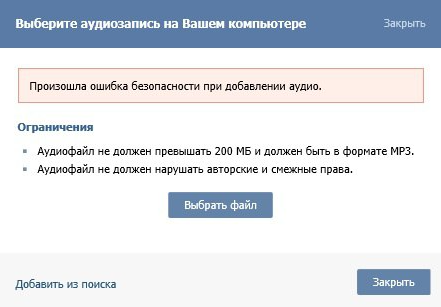
Если произошла ошибка безопасности при добавлении аудио в ВК, то необходимо изначально разобраться с возможными причинами. Специалисты выделяют несколько возможных факторов возникновения такого сбоя:
- Неправильные параметры файла. В ВК аудио не может превышать размер 200 МБ и должно быть загружено в формате MP3. Если файл не соответствует этим параметрам, то загрузить его будет невозможно.
- Авторские права. Исполнители не получают средств за то, что пользователи слушают их музыку, хотя на ее создание уходило очень много времени и денег. Система не дает возможности загрузить те композиции, автор которых запретил это делать бесплатно. Ранее можно было переименовать файл и добавить его, но сегодня алгоритмы ВК способны распознавать музыку не только исходя из названия.
- Проблемы с интернетом или браузером. Файл находится на компьютере пользователя, чтобы загрузить его на сервис, используется подключение к сети и возможности приложения. Каждый пользователь имеет право выбирать свой любимый браузер, но именно из-за разных алгоритмов обработки данных часто происходят проблемы.
Независимо от того, что стало причиной возникновения ошибки, решить ее можно попытаться своими силами. Если параметры файла и авторские права позволяют выполнить загрузку, но возникает сбой безопасности, то следует перейти к решениям ниже.
Как исправить проблему?
Это довольно популярные способы, которые позволяют избавиться от возникающей ошибки безопасности при загрузке аудио в ВК. Кому-то помогает первый вариант, а остальные вынуждены испытывать все.
Решение 1: проверяем соединение с интернетом
Для того, чтобы загружать любые файлы, вам необходимо иметь стабильное и довольно быстрое соединение. Попробуйте работать с другими сайтами, все должно хорошо функционировать, а элементы обязаны располагаться на своих местах. Нужно чтобы интернет работал отлично, без разрывов и ошибок. Если с этим возникают проблемы, то вы можете попытаться перезагрузить свой роутер, к которому подключен кабель провайдера. Если и это не решает проблему, то необходимо обращаться к своей организации и создавать заявку на ремонт.
Решение 2: смотрим параметры подключения к ВК
Все сайты могут работать отлично, а проблемы возникать только в ВК. Чтобы убедиться в правильности подключения к приложению, необходимо выполнить такие действия:
- Возле строки состояния, где указан адрес сайта через «https://» есть замочек, нужно кликнуть на него.
- Здесь вы должны увидеть название сертификата и зеленую надпись «Защищенное соединение».
- В следующем пункте «Разрешения» будет указано: «Вы не давали этому сайту каких-либо специальных разрешений».
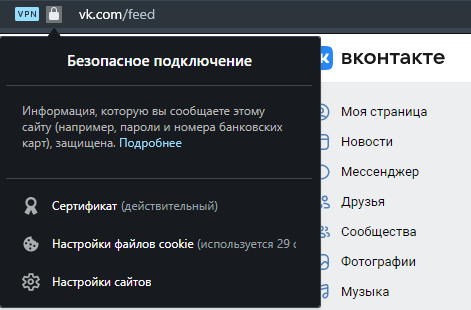
Если в данном разделе вы видите ошибки или другую информацию, то подключение небезопасное. Вышеуказанный сбой может возникать именно по этой причине. Обязательно проверьте сам адрес сайта, который есть в строке на странице с загрузкой аудиофайла. Он должен иметь вид типа «https://vk.com/audios12345678», но цифры композиции будут другими. Если ссылка другая, то это может свидетельствовать о том, что вы стали жертвой вирусного ПО.
Решение 3: сброс браузера
Проблема может заключаться в том, что в браузере установлено много различных расширений и установлены некорректные пользовательские параметры. Найти то, что именно стало причиной возникновения ошибки безопасности сложно, лучше сбросить веб-обозреватель. Чтобы это сделать, необходимо выполнить следующее:
- Зайти в настройки своего браузера.

- Перейти в пункт «Дополнительные настройки».

- Выбрать «Сброс настроек».

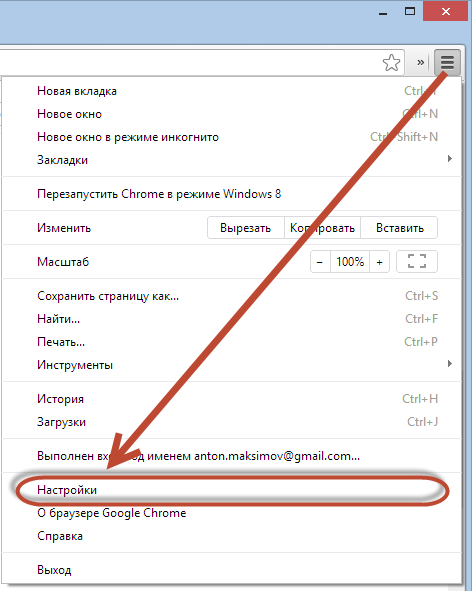
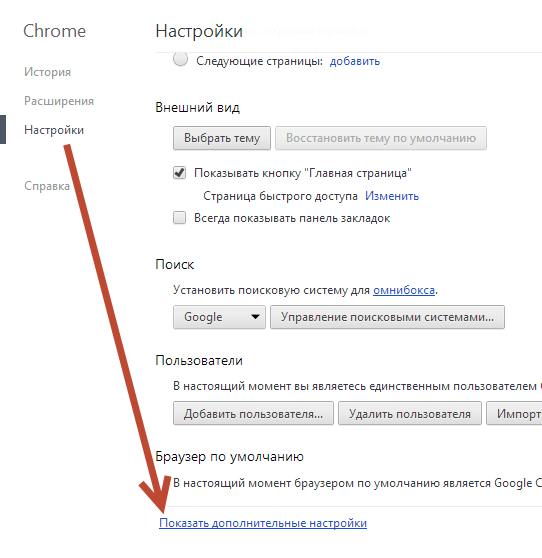
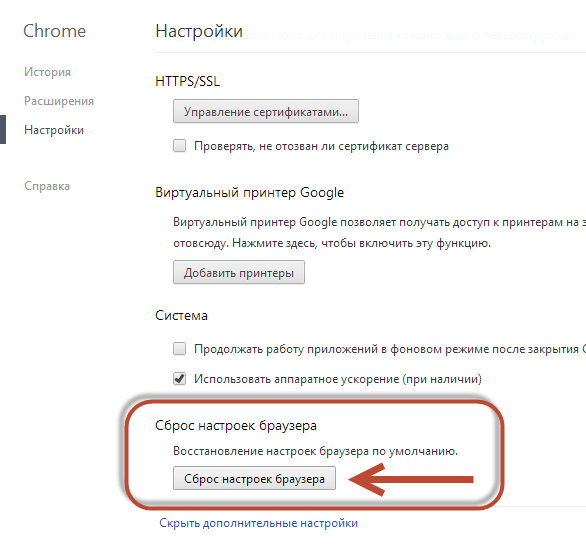
Все данные будут удалены, придется снова входить в свою учетную запись. Пункты меню могут немного отличаться, как и сами названия, все зависит от того, каким браузером вы пользуетесь.
Что делать, если не помогло?
Вам необходимо попробовать загрузить другой аудиофайл. Если с ним все хорошо и ошибка безопасности не появляется, то проблема именно в данных, необходимо загрузить заново или проверить на дефекты. Бывает так, что файл был загружен с ошибками, а теперь алгоритмы распознавания ВК не могут его проанализировать.
Если все вышеперечисленные пункты не помогли и ошибка остается, то придется обращаться в службу поддержки самого ВК. Специалисты проанализируют проблему и найдут причину на своей стороне, после чего функция загрузки аудио должна восстановиться.
Участились случаи когда при загрузке и добавлении песен во вконтакте у пользователей появляется надпись: «Произошла ошибка безопасности при добавлении аудио». Вот так выглядит скриншот ошибки:
При загрузке песен важно учитывать и перепроверить два указанных фактора:
- Аудиофайл не должен превышать 200 МБ и должен быть в формате MP3.
- Аудиофайл не должен нарушать авторские и смежные права.
Причина ошибки
Если с размером и форматом всё понятно, то с правами не так однозначно. Данная ошибка появляется как раз из-за второго пункта. По какой-то причине алгоритмы контакта воспринимают песню как плагиат. Раньше был способ обойти это: вместо оригинального названия исполнителя и песни писались другие авторы или просто менялись буквы. Теперь алгоритм анализирует саму звуковую дорожку и выдаёт ошибку.
Вторая причина – проблемы с браузером или его настройками. Изначально в настройках безопасности вк на странице https://vk.com/settings?act=privacy был пункт «Всегда использовать защищенное соединение (HTTPS)». С недавнего времени этот пункт из настроек убрали, так что ошибку с загрузкой можно связать с недоработками функционала нового сайта.
Ошибка стала часто выскакивать после обновления дизайна контакта и частичной замены функционала + постоянно ведется борьба с плагиатом. Что примечательно стали поступать жалобы даже при загрузке авторской музыки и песен. Люди не могли добавить собственноручно созданную музыку.
Как проверить соединение?
Вам нужно убедиться что сайт загружен по адресу https:// и горит значек «Защищенное соединение». Перейдите на страницу с вашей музыкой, где вы загружаете аудиозапись и нажмите на знакок замка. Должна появиться надпись с названием сертификата и подписью. Вот пример такого окошка из браузера Мозилла Firefox.
Внимательно посмотрите на следующие три пункта:
- Ссылка перед должна иметь формат «https://vk.com/audios23231323».
- Присутствует надпись «Защищенное соединение» и название сертификата «Подтверждено: GlobalSign nv-sa».
- Ниже в графе «Разрешения» должно быть написано «Вы не давали этому сайту каких-либо других специальных разрешений».
Исправляем ошибку
Если у вас по-другому это зависит от версии браузера и его настроек. Самое простое, что можно сделать – зайти на свою страницу и загрузить любую песню для проверки. Если проблема решена – сбросьте настройки браузера или переустановите его заново. Обязательно скачайте новую версию на официальном сайте!
Разработчики в контакте при обновлении сайта равняются на последние версии популярных браузеров: Edge от Майкрософт, Гугл Хром, Мозиллы. Поддержка старых версий постепенно прекращается и данная ошибка – дополнительный сигнал обновить программу.

Евгений Загорский
IT специалист. Автор информационных статей на тему Андроид смартфонов и IOS смартфонов. Эксперт в области решения проблем с компьютерами и программами: установка, настройка, обзоры, советы по безопасности ваших устройств. В свободное время занимается дизайном и разработкой сайтов.
Оценка статьи:

 (7 оценок, среднее: 2,00 из 5)
 Загрузка…
Самое читаемое:
 08.02.2023
Ошибка в Роблоксе Error Code: 529 – что обозначает, решение
Если вы столкнулись с ошибкой Error Code: 529 в игре Roblox, знайте, что причин ее возникновения может быть две. Первая —…
Далее
 08.02.2023
Ошибка 277 в Роблокс – что это, как исправить?
Ошибка Error Code: 277 является одной из самых распространенных, с которой сталкиваются игроки Roblox. Обычно она…
Далее
 08.02.2023
Ошибка 273 в Роблокс – что значит, как исправить?
Игроки Roblox нередко сталкиваются с ошибкой Error C0de: 273, которая приводит к отключению от серверов и невозможностью…
Далее
 03.02.2023
Госуслуги произошла неизвестная ошибка – что делать?
«Госуслуги» — это сервис, который пользуется широким спросом среди отечественных пользователей. Кто-то с его…
Далее
Music on VK is an integral part of the social network. Many users have their own playlists here, which they listen to through the phone and connect to the car audio system. In particular, this feature has received such widespread acceptance for the simple reason that the users themselves add the music. Here you can find the most current and trendy news. However, there are more cases when, during download, users began to see an error message with a red background “There was a security error while adding audio.” You can try to solve this failure yourself, without the help of specialists.
Why was there a security error when adding audio to VK?
If there was a security error when adding audio to VK, then you must initially figure out the possible reasons. Experts identify several possible factors for the occurrence of such a failure:
- Incorrect file parameters. In VK audio cannot exceed 200 MB and must be uploaded in MP3 format. If the file does not match these parameters, then it will be impossible to download it.
- Copyright. Artists don’t get paid for the fact that users listen to their music, although it took a lot of time and money to create it. The system does not provide an opportunity to download those songs, the author of which has forbidden to do so for free. Previously, it was possible to rename a file and add it, but today VK algorithms are able to recognize music not only from the name.
- Internet or browser problems. The file is located on the user’s computer, to upload it to the service, the network connection and application capabilities are used. Each user has the right to choose his favorite browser, but it is precisely because of the different data processing algorithms that problems often occur.
Regardless of what caused the error, you can try to solve it on your own. If the file’s copyright and file settings allow the download, but there is a security glitch, then you should proceed to the solutions below.
How do I fix the problem?
These are quite popular methods that allow you to get rid of the security error that occurs when uploading audio to VK. The first option helps someone, while others are forced to experience everything.
Solution 1: check your internet connection
In order to download any files, you need to have a stable and fairly fast connection. Try to work with other sites, everything should function well, and the elements must be in place. It is necessary for the Internet to work perfectly, without breaks and errors. If you have problems with this, then you can try to reboot your router to which the provider’s cable is connected. If this does not solve the problem, then you need to contact your organization and create a repair request.
Solution 2: look at the connection parameters to VK
All sites can work perfectly, and problems arise only in VK. To make sure that the connection to the application is correct, you need to do the following:
- There is a lock near the status bar, where the site address is indicated via “https: //”, you need to click on it.
- Here you should see the name of the certificate and the green text “Secure connection”.
- The next paragraph “Permissions” will state: “You have not given this site any special permissions.”
If you see errors or other information in this section, then the connection is insecure. The above failure can occur for this very reason. Be sure to check the site address itself, which is in the line on the page with the audio file download. It should look like “https://vk.com/audios12345678”, but the composition numbers will be different. If the link is different, then this may indicate that you have become a victim of a virus software.
Solution 3: reset browser
The problem may be that the browser has many different extensions installed and incorrect user settings. Finding what exactly caused the security error is difficult, it is better to reset your web browser. To do this, you need to do the following:
- Go to your browser settings.
- Go to the item “Additional settings”.
- Select “Reset settings”.
All data will be deleted, you will have to log in to your account again. Menu items may differ slightly, as may the names themselves, it all depends on which browser you are using.
What if it doesn’t help?
You need to try uploading another audio file. If everything is fine with it and the security error does not appear, then the problem is in the data, you need to download it again or check for defects. It so happens that the file was loaded with errors, and now the VK recognition algorithms cannot analyze it.
If all of the above points did not help and the error remains, then you will have to contact the support service of the VK itself. Experts will analyze the problem and find the cause on their side, after which the audio download function should be restored.
Earn points and exchange them for valuable prizes – details
Произошла ошибка безопасности при добавлении аудио в ВК: почему и что делать?
Музыка в ВК является неотъемлемой частью социальной сети. У многих пользователей есть здесь свои плейлисты, которые они прослушивают через телефон и подключают к автомобильной аудиосистеме. В частности данная функция получила такое широкое признание по той простой причине, что музыку добавляют сами пользователи. Здесь можно найти самые актуальные и трендовые новинки. Но участились случаи, когда во время загрузки пользователи начали видеть сообщение с ошибкой на красном фоне «Произошла ошибка безопасности при добавлении аудио». Этот сбой можно попытаться решить самостоятельно, без помощи специалистов.
Почему произошла ошибка безопасности при добавлении аудио в ВК?

Если произошла ошибка безопасности при добавлении аудио в ВК, то необходимо изначально разобраться с возможными причинами. Специалисты выделяют несколько возможных факторов возникновения такого сбоя:
- Неправильные параметры файла. В ВК аудио не может превышать размер 200 МБ и должно быть загружено в формате MP3. Если файл не соответствует этим параметрам, то загрузить его будет невозможно.
- Авторские права. Исполнители не получают средств за то, что пользователи слушают их музыку, хотя на ее создание уходило очень много времени и денег. Система не дает возможности загрузить те композиции, автор которых запретил это делать бесплатно. Ранее можно было переименовать файл и добавить его, но сегодня алгоритмы ВК способны распознавать музыку не только исходя из названия.
- Проблемы с интернетом или браузером. Файл находится на компьютере пользователя, чтобы загрузить его на сервис, используется подключение к сети и возможности приложения. Каждый пользователь имеет право выбирать свой любимый браузер, но именно из-за разных алгоритмов обработки данных часто происходят проблемы.
Независимо от того, что стало причиной возникновения ошибки, решить ее можно попытаться своими силами. Если параметры файла и авторские права позволяют выполнить загрузку, но возникает сбой безопасности, то следует перейти к решениям ниже.
Как исправить проблему?
Это довольно популярные способы, которые позволяют избавиться от возникающей ошибки безопасности при загрузке аудио в ВК. Кому-то помогает первый вариант, а остальные вынуждены испытывать все.
Решение 1: проверяем соединение с интернетом
Для того, чтобы загружать любые файлы, вам необходимо иметь стабильное и довольно быстрое соединение. Попробуйте работать с другими сайтами, все должно хорошо функционировать, а элементы обязаны располагаться на своих местах. Нужно чтобы интернет работал отлично, без разрывов и ошибок. Если с этим возникают проблемы, то вы можете попытаться перезагрузить свой роутер, к которому подключен кабель провайдера. Если и это не решает проблему, то необходимо обращаться к своей организации и создавать заявку на ремонт.
Решение 2: смотрим параметры подключения к ВК
Все сайты могут работать отлично, а проблемы возникать только в ВК. Чтобы убедиться в правильности подключения к приложению, необходимо выполнить такие действия:
- Возле строки состояния, где указан адрес сайта через «https://» есть замочек, нужно кликнуть на него.
- Здесь вы должны увидеть название сертификата и зеленую надпись «Защищенное соединение».
- В следующем пункте «Разрешения» будет указано: «Вы не давали этому сайту каких-либо специальных разрешений».
Если в данном разделе вы видите ошибки или другую информацию, то подключение небезопасное. Вышеуказанный сбой может возникать именно по этой причине. Обязательно проверьте сам адрес сайта, который есть в строке на странице с загрузкой аудиофайла. Он должен иметь вид типа «https://vk.com/audios12345678», но цифры композиции будут другими. Если ссылка другая, то это может свидетельствовать о том, что вы стали жертвой вирусного ПО.
Решение 3: сброс браузера
Проблема может заключаться в том, что в браузере установлено много различных расширений и установлены некорректные пользовательские параметры. Найти то, что именно стало причиной возникновения ошибки безопасности сложно, лучше сбросить веб-обозреватель. Чтобы это сделать, необходимо выполнить следующее:
- Зайти в настройки своего браузера.

- Перейти в пункт «Дополнительные настройки».
- Выбрать «Сброс настроек».
Все данные будут удалены, придется снова входить в свою учетную запись. Пункты меню могут немного отличаться, как и сами названия, все зависит от того, каким браузером вы пользуетесь.
Что делать, если не помогло?
Вам необходимо попробовать загрузить другой аудиофайл. Если с ним все хорошо и ошибка безопасности не появляется, то проблема именно в данных, необходимо загрузить заново или проверить на дефекты. Бывает так, что файл был загружен с ошибками, а теперь алгоритмы распознавания ВК не могут его проанализировать.
Если все вышеперечисленные пункты не помогли и ошибка остается, то придется обращаться в службу поддержки самого ВК. Специалисты проанализируют проблему и найдут причину на своей стороне, после чего функция загрузки аудио должна восстановиться.
Fix: An Error Occurred while Applying Security Information
This error usually appears when trying to change various security settings of a file or folder located on your computer or on an external media connected to it. The error message is usually preceded by an ‘access denied’ message appearing when trying to move, copy, or delete the files you don’t have proper access to.
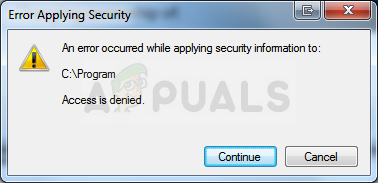 An Error Occurred while Applying Security Information
The error appears problematic because it prevents users from adding proper permissions for making the file available for use and it seems like there is no way out. Still, we have prepared several working methods for you to check out and we hope they will help you out!
What Causes the An Error Occurred while Applying Security Information?
- Read Only mode may be turned on, preventing any access to the file or folder
- You may need to be the owner of the file before you can perform any valid action over it
Solution 1: Disable the Read-Only Mode
Sometimes the file’s properties prevent it from being freely accessed, especially if the Read Only mode is active in the file’s or folder’s properties. The easiest way to resolve this specific error code is to disable the Read Only mode. It might not work for everyone but it’s the easiest way of resolving this issue.
- Open your Libraries entry on your PC or open any folder on your computer and click on This PC option from the left side menu.
- Navigate to the location where your problematic file or folder is located.
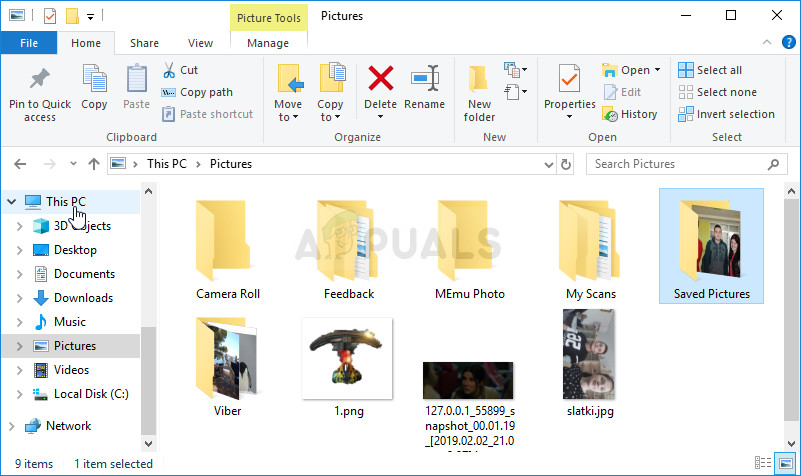 Opening This PC in Libraries
- Right-click on the problematic folder and click the Properties option from the context menu. Stay in the General tab and locate the Attributes section at the bottom. Clear the box next to the Read-only option and click on Apply before exiting. Check to see if the problem still appears.
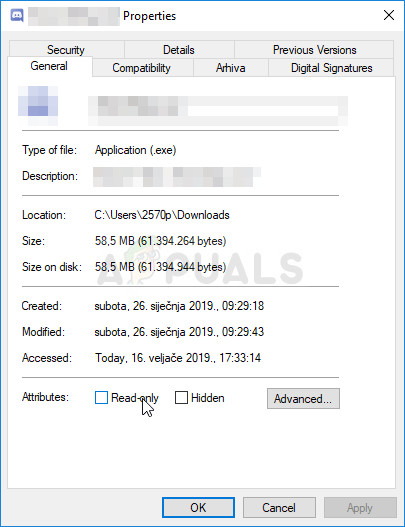 Disabling read-only in file’s Properties
Solution 2: Take Ownership of the File
Taking ownership of the file is sometimes vital if you want to add permissions to various user accounts to edit or copy the file. Changing the owner is generally an easy process and it will grant you full access to security properties of the file if you follow the instructions we have prepared below with great care.
- Open your Libraries entry on your PC or open any folder on your computer and click on This PC option from the left side menu.
- Navigate to the location where your problematic file or folder is located.
- You will need to take ownership of the file or folder located inside. Right-click the folder, click Properties, and then click the Security Click the Advanced button. The “Advanced Security Settings” window will appear. Here you need to change the Owner of the key.
- Click the Change link next to the “Owner:” label The Select User or Group window will appear.
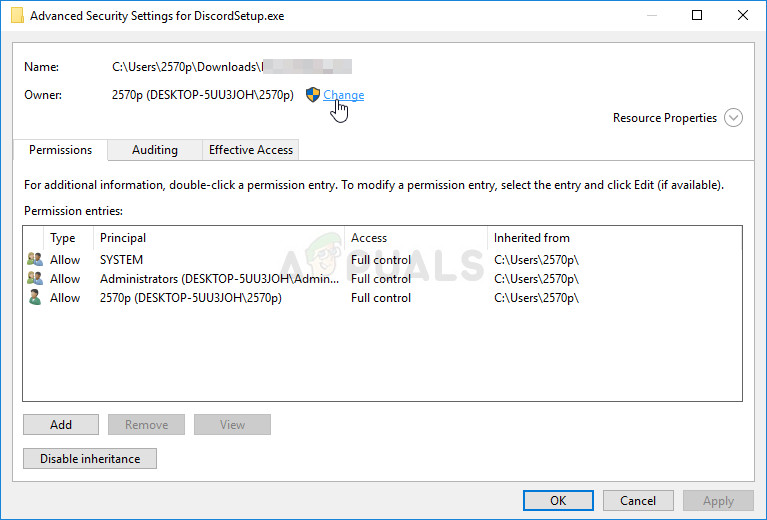 Changing the ownership of the file
- Select the user account via the Advanced button or just type your user account in the area which says ‘Enter the object name to select’ and click OK. Add your user account.
- Optionally, to change the owner of all subfolders and files inside the folder, select the check box “Replace owner on subcontainers and objects” in the “Advanced Security Settings” window. Click OK to change the ownership.
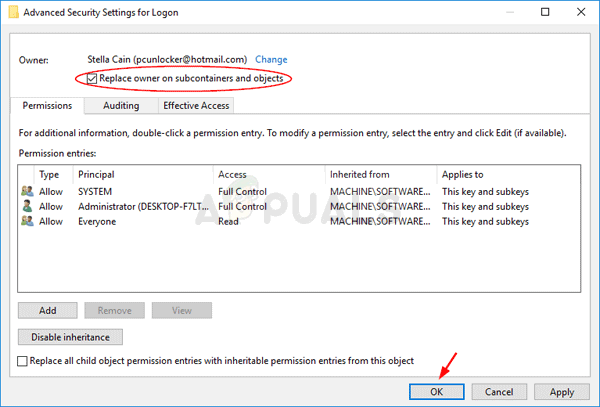 Replace owner on subcontainers and objects
- Now that you have complete control over the folder, open it, select everything you find inside and access the files properly. Restart your computer and the problem should be resolved.
Alternative: Since some users have still failed to take ownership of the file or folder via the means explained above because of lack of permissions or administrator access, the best alternative thing you can do is to use Command Prompt to resolve the problem. The end result is essentially the same!
- Search for “Command Prompt” by typing it either right in the Start menu or by pressing the search button right next to it. Right-click the first entry which will pop up as a search result and select the “Run as administrator” context menu entry.
- Additionally, you can also use the Windows Logo Key + R key combination in order to bring up the Run dialog box. Type in “cmd” in the dialog box which appears and use the Ctrl + Shift + Enter key combination for admin Command Prompt.
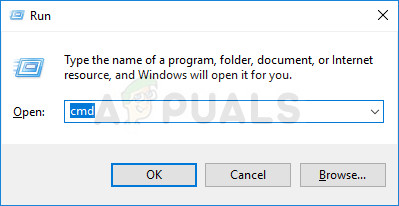 Running CMD as an admin
- Type in the following commands in the window and make sure you press Enter after typing each one. Wait for the “Operation completed successfully” message or something similar to know that the method worked.
- If the commands above report no errors, then you have managed to change the permissions and the ownership of the file or folder!
Solution 3: Changing Drive Ownership
If the whole external or internal is refusing to cooperate by displaying this exact same error message, you can try the fix below which will essentially use hidden administrator permissions in order to give ownership to the administrator account and fix things. The solution is lengthy but it worked for plenty of people!
- On the login screen of your computer, when the computer boots or after you log out, click on the Power icon and hold the Shift key while clicking restart.
- Instead of restarting, a blue screen will appear with a couple of options. Choose Troubleshoot >>Advanced Options >>Command Prompt.
- Of course, you can open Command Prompt simply by using the Windows Key + R key combination and typing “cmd” before clicking OK or by searching for it.
Run CMD as an admin
- Copy and paste the following command in Command Prompt and click Enter. You should be able to see the “The command completed successfully” message in no time.
- Log into this admin account and wait for a couple of minutes before everything is ready.
- Open the Disk Management utility by searching for it in the Start menu or the search bar and clicking the first option.
- The alternative is to either use the Windows Key + X key combination or right-click on the Start menu and choose the Disk Management option in order to open its console.
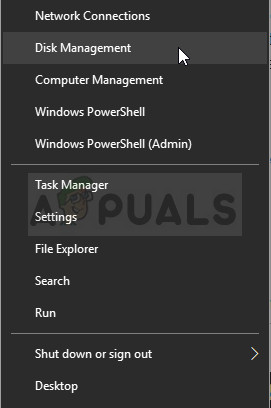 Opening Disk Management from within the Start Menu
- Locate the drive you want to fix by checking out its name under the Volume column or by checking under for it. Right-click on it and choose the Properties option from within the context menu which will appear.
- Navigate to the Security tab. Click the Advanced button. The “Advanced Security Settings” window will appear. Here you need to change the Owner of the key.
- Click the Change link next to the “Owner:” label The Select User or Group window will appear. Navigate to the Advanced tab and click Find Now.
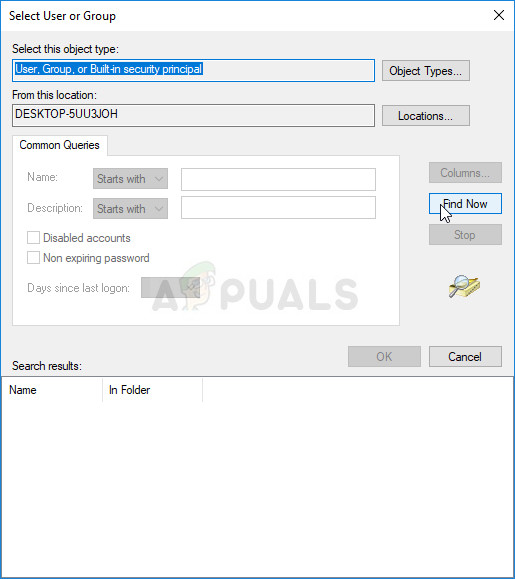 Find Now
- Select the Administrator user account via the Advanced button under your computer name and not your username.
- Also, to change the owner of all subfolders and files inside the folder, select the check box “Replace owner on subcontainers and objects” in the “Advanced Security Settings” window. Make sure you check the “Replace all child object permission entries with inheritable permission entries from this object” option at the bottom.
Make sure you check both boxes!
- Click OK and you’ll see a security window pop up but make sure you click yes for each appearance.
источники:
http://appuals.com/fix-an-error-occurred-while-applying-security-information/
If you’re having problems uploading your video, select the error message that you’re seeing and follow the troubleshooting steps to solve your issue.
‘We have encountered unexpected problems’
‘The server has rejected the file’
This error message occurs when you’re uploading a file in the wrong format. Make sure that you’re using a supported file type.
‘An error has occurred while sending data over the network’
‘Processing abandoned’
This error message may occur if the uploaded file is shortened or invalid. It can also occur on reduced upload speeds. Try playing your video back on your device and make sure that you’re using a supported file type, then upload again. If the problem remains, try uploading your video from a different platform.
‘A network error has occurred’
‘Can’t upload. Your channel status or account settings currently don’t support uploads.’
‘A security error has occurred’
This error message occurs when you have unusual security settings on your browser. The settings are likely to be from a firewall, anti-virus, anti-spyware or other related software. We recommend that you temporarily turn off this software and try to upload again.
‘Rejected (file too small)’
This error message occurs when you’ve tried to upload a file that is smaller than 2 KB. Make sure that your video file is at least 2 KB and try to upload it again.
‘Failed (empty .mov file)’
This error message occurs when QuickTime movies are saved as reference movies. To make sure that your video is converted properly, select ‘Save as a self-contained movie’ and try to upload it again.
‘Daily upload limit reached. You can upload more videos in 24 hours.’
To ensure safety at YouTube, we limit how many videos a channel can upload in a 24-hour period across desktop, mobile and YouTube API.
If you get an error saying ‘Daily upload limit reached’ when trying to upload a video on YouTube, try again in 24 hours.
Other
You may get an error message when you upload a file in the wrong format. Make sure that you’re using a supported file type. You can also try changing your codecs or editing software.
Was this helpful?
How can we improve it?
На диске свободно 55ГБ. На права группы смотреть не буду, файл 25 КБ загрузился без проблем. Ограничение на максимальный размер загружаемого файла для Администраторов не установлено. В php.ini на upload_max_filesize и post_max_size установлено значение 256M. На каталог /uploads права 755, владелец www-root.
access.log:
[IPADDRESS] - - [10/Sep/2022:09:59:39 +0300] "GET /index.php?app=core&module=system&controller=ajax&do=getCsrfKey&path=/files/submit/ HTTP/1.0" 200 595 "https://domain.tld/index.php?app=core&module=system&controller=serviceworker&v=[KEY?]&type=front&loggedIn=false" "Mozilla/5.0 (Windows NT 10.0; Win64; x64) AppleWebKit/537.36 (KHTML, like Gecko) Chrome/105.0.0.0 Safari/537.36"
[IPADDRESS] - - [10/Sep/2022:09:59:41 +0300] "POST /files/submit/?do=submit&category=6 HTTP/1.0" 500 795 "https://domain.tld/files/submit/?do=submit&category=6" "Mozilla/5.0 (Windows NT 10.0; Win64; x64) AppleWebKit/537.36 (KHTML, like Gecko) Chrome/105.0.0.0 Safari/537.36"
error.log:
2022/09/10 09:59:39 [warn] 915#915: *1 a client request body is buffered to a temporary file /var/lib/nginx/body/0000000003, client: [IPADDRESS], server: domain.tld, request: "POST /files/submit/?do=submit&category=6 HTTP/1.1", host: "domain.tld", referrer: "https://domain.tld/files/submit/?do=submit&category=6"
[Sat Sep 10 09:59:41.685679 2022] [fcgid:warn] [pid 885] [client [IPADDRESS]:0] mod_fcgid: HTTP request length 20004864 (so far) exceeds MaxRequestLen (20000000), referer: https://domain.tld/files/submit/?do=submit&category=6
Изменено 10 сентября, 2022 пользователем tophacker
- Remove From My Forums
-
Вопрос
-
We have a fully functioning interactive Response Group for years now. Once a year we prepare audio files for holidays during that year. All audio files are made the same way. With Audacity the text is recorded and transformed to mono 11Khz 16bit (Microsoft)PCM
wav files. All files are between 500 and 1000kB small. Last Christmas I loaded the Christmas file without a problem. Now I have an almost identical file for Easter weekend. But it will not load with this message: «The file was not uploaded. An error occured
while trying to upload the file. The file may be too big.» It is 512kB in size.I recreated the audio file from the original Audacity recordings, with the same results: a 512kB sized file which will not load. Also the files that I succesfully used before are not accepted by Lync. I also tried to upload a file in another Response Group
with the same result.In the event log on the server I see an ASP.NET event ID 1314 with event code 4011:
Log Name: Application Source: ASP.NET 4.0.30319.0 Date: 4-4-2017 16:12:17 Event ID: 1314 Task Category: Web Event Level: Information Keywords: Classic User: N/A Computer: LYNCSERVER Description: Event code: 4011 Event message: An unhandled access exception has occurred. Event time: 4/4/2017 4:12:17 PM Event time (UTC): 4/4/2017 2:12:17 PM Event ID: e1c07357466d4ccc91758dd4baa67fd8 Event sequence: 61 Event occurrence: 6 Event detail code: 0 Application information: Application domain: /LM/W3SVC/34577/ROOT/RgsConfig-7-131357856318104471 Trust level: Full Application Virtual Path: /RgsConfig Application Path: C:Program FilesMicrosoft Lync Server 2013Web ComponentsRgsConfig Machine name: LYNCSERVER Process information: Process ID: 2792 Process name: w3wp.exe Account name: NT AUTHORITYNETWORK SERVICE Request information: Request URL: https://LYNCSERVER:443/RgsConfig/UploadFile.aspx?wfid=1b644e07-4b49-4b15-82f6-cf13622856f1&comp=HolidayMessage&compId=ea16823f-19f3-4c78-a2a6-c543481fff15 Request path: /RgsConfig/UploadFile.aspx User host address: fe80::9999:9999:9999:9999C:Program FilesMicrosoft Lync Server 2013Web ComponentsRgsConfig User: LYNCSERVERAdministrator Is authenticated: True Authentication Type: Negotiate Thread account name: NT AUTHORITYNETWORK SERVICE Custom event details: Event Xml: <Event xmlns="http://schemas.microsoft.com/win/2004/08/events/event"> <System> <Provider Name="ASP.NET 4.0.30319.0" /> <EventID Qualifiers="16384">1314</EventID> <Level>4</Level> <Task>3</Task> <Keywords>0x80000000000000</Keywords> <TimeCreated SystemTime="2017-04-04T14:12:17.000000000Z" /> <EventRecordID>151102</EventRecordID> <Channel>Application</Channel> <Computer>LYNCSERVER</Computer> <Security /> </System> <EventData> <Data>4011</Data> <Data>An unhandled access exception has occurred.</Data> <Data>4/4/2017 4:12:17 PM</Data> <Data>4/4/2017 2:12:17 PM</Data> <Data>e1c07357466d4ccc91758dd4baa67fd8</Data> <Data>61</Data> <Data>6</Data> <Data>0</Data> <Data>/LM/W3SVC/34577/ROOT/RgsConfig-7-131357856318104471</Data> <Data>Full</Data> <Data>/RgsConfig</Data> <Data>C:Program FilesMicrosoft Lync Server 2013Web ComponentsRgsConfig</Data> <Data>LYNCSERVER</Data> <Data> </Data> <Data>2792</Data> <Data>w3wp.exe</Data> <Data>NT AUTHORITYNETWORK SERVICE</Data> <Data>https://LYNCSERVER:443/RgsConfig/UploadFile.aspx?wfid=1b644e07-4b49-4b15-82f6-cf13622856f1&comp=HolidayMessage&compId=ea16823f-19f3-4c78-a2a6-c543481fff15</Data> <Data>/RgsConfig/UploadFile.aspx</Data> <Data>fe80::9999:9999:9999:9999%12</Data> <Data>LYNCSERVERAdministrator</Data> <Data>True</Data> <Data>Negotiate</Data> <Data>NT AUTHORITYNETWORK SERVICE</Data> </EventData> </Event>Anyone an idea why my files are not accepted?
Ответы
-
Hi Erdem,
I have only one Frontend server so I’m not using DFSR. Just using a local share.
Problem is that I am unable to upload a file, thus the file is not in the share. That brought me to the idea that the rights of the share were incorrect. So I republished the topology to repair share mistakes. That did not help.
I made a copy of the share and deleted the share. I recreated the share (with proper permissions) and republished the topo. Now I get antoher message when I update a workflow:
Cannot save audio files associated with workflow «IncomingMain». Error occurred while creating directory «\lyncserver.local.domain.comLyncShare1-ApplicationServer-1AppServerFilesRGSInstances2f382903-a406-43c4-9705-d563db1651f7».
Access to the path ‘\lyncserver.local.domain.comLyncShare1-ApplicationServer-1AppServerFilesRGSInstances2f382903-a406-43c4-9705-d563db1651f7’ is denied.Folder 1-ApplicationServer-1AppServerFilesRGS is and stays empty.
Regards, Randolf.
Randolf,
does the root folder have this permissions ?
Principal
Access NETWORK SERVICE Change RTCHSUniversalServices Change RTCComponentUniversalServices Change RTCUniversalServerAdmins Change RTCUniversalConfigReplicator Change RTC Local Administrators Change RTC Local Config Replicator Change RTC Server Local Group Change RTC Component Local Group Change
Greetings,
Erdem
Please mark as helpful if you find my contribution useful or as an answer if it does answer your question. That will encourage me — and others — to take time out to help you.
-
Помечено в качестве ответа
26 апреля 2017 г. 16:15
-
Помечено в качестве ответа
-
Hi Erdem, I even removed the workflow. But on recreating the workflow, I was still unable to add audio files to the workflow.
But nevertheless, it is solved now. It was in the security properties of some subfolders of the shared folder. Not all security settings were properly propagated to the subfolders. After correcting it, I was able to upload audio files.
Thanks to everybody for helping me out!
Regards, Randolf.
-
Помечено в качестве ответа
Randolf GSG
26 апреля 2017 г. 16:15
-
Помечено в качестве ответа
I get this error while tring to upload a file :
I’m using cpanel and the move_uploaded_file function and it works fine on localhost.
Security Alert

The file you are uploading was rejected by the server.
It probably contents viruses or trojans that can damage your website

Do not attempt to upload it again as your IP address may be blocked.
Can anyone help?

CDspace
2,61918 gold badges33 silver badges36 bronze badges
asked Jan 10, 2014 at 17:50

shikharsaxena30shikharsaxena30
1552 gold badges3 silver badges13 bronze badges
3
Configure your server to accept the file, whet to configure depends on your server setup.
It sounds like you are using a third party called cPanel for hosting. Then investigate your file and if you are sure it is none malicious. Try contact them about it. I doubt they will respond and provide a patch:(
answered Jan 10, 2014 at 19:34

1
Mant times this error occur due to mod_security function enable on linux server. So contact your server administrator for disable mod_security function…
answered Jan 16, 2014 at 3:59

1
-
Posts
-
Greetings!
We are trying to upload an 8mb MP3 file to the media library. After about a minute (due to a slow internet connection), we get the following message:
‘one file could not be uploaded because an error occurred while uploading’
I did some research on the web and the only thing I could come up with is that our MP3 headers may be wrong. This is an export from Audacity, so I don’t think that might be the case (it could be).
Have you run into the problem before, and what troubleshooting steps can I take to solve the problem?
Thanks!
Hi there!
Could you please confirm the address of the site you’re working on? You can upload the audio files to your site only if you have a paid plan and I don’t see any upgrade on your account.
Please note that these forums are for WordPress.com hosted sites only. If your site is using the open-source WordPress.org software, we won’t be able to help you out and you’ll want to seek help at these forums:
https://wordpress.org/support/forums/
Thank you.
That is correct. I (this email address) have the free plan, but I am writing on behalf of someone else who had upgraded to the Personal plan specifically to upload MP3 and MP4 files. That site is shadowwolfstudios.wordpress.com.
Hi there,
If you have a very slow internet connection, that very well could be the issue. Is it possible to try the upload on a different network (preferably a faster one), and see if that does the trick? Also, try the upload under a different browser to see if that changes anything.
Thanks,
- The topic ‘Error when uploading audio (MP3) file’ is closed to new replies.