

Ошибка 421 возникает по нескольким причинам. Каждая из ошибок не является фатальной и её легко исправить. В этой статье мы отметим 2 самые распространенные причины, по которым возникает error 421 и решение проблемы.
Чаще всего причины этой ошибки заключаются в следующем:
- Нет соединения с smtp сервером почтового хостинга. В комментариях к ошибке может писать прервано или отсутствует по неизвестной причине;
- FTP сервер занят или перегружен – причина в превышении количества разрешенных подключений;
- Грейлистинг – отсутствие ip-адреса в списке (белом) RCPT, почта с ip-адреса временно не принимается по причине подозрения в рассылке спама.
Причина номер 1: отсутствует соединение с SMPT-сервером
Ошибка 421 (SMTP-сервер) возникает, когда нет подключения к SMPT-серверу. В результате сбоя вы не можете обновлять списки писем или отправить новое письмо. Сбой часто возникает при работе с почтовыми клиентами, например, Outlook.
Причины ошибки и решения:
- Блокировка соединения антивирусом. Решается просто: отключаем на 5 минут антивирус и пробуем перезайти в программу. Обращаем внимание, что почтовый клиент нужно закрыть вообще, а затем снова открыть.
- VPN сервис. Особенно, если вы используете бесплатные варианты. Часто IP адреса таких сервисом занесены в бан. Поэтому, как бы вы ни старались, подключиться с их помощью не выйдет.
- Сбой работы почтового клиента. Нужно снова настроить клиент с нуля. К примеру, можно удалить и заново установить программу.
Причина номер 2: множественные подключения
Ошибка 421 (Too Many Connections) – это ошибка FTP соединения, которая не беспокоит обычных пользователей и чаще всего является информационным сигналом для вебмастера. Ошибка появляется при работе с программой FileZilla и для ее исправления нужно внести некоторые изменения в настройки. Также, иногда может потребоваться доступ к панели управления хостингом.
Возникает в случае, если у вас открыто активное соединение с сервером и вы параллельно пытаетесь создать еще одно подключение по тому же адресу. По сути ничего страшного в этом нет. Если с вашего IP уже есть соединение вы просто получите ошибку 421. На сам сайт это никак не влияет.
Как исправить ошибку 421?
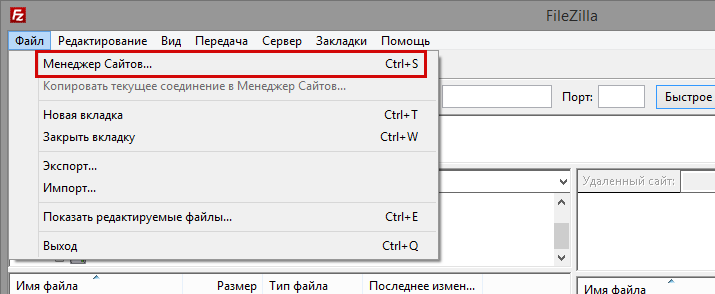
- Нужно ограничить количество одновременных подключение к серверу, чтобы избежать появление ошибки 421. Для этого заходим в программу-клиент FileZilla и нажимаем «Файл», затем открываем «Менеджер сайтов».
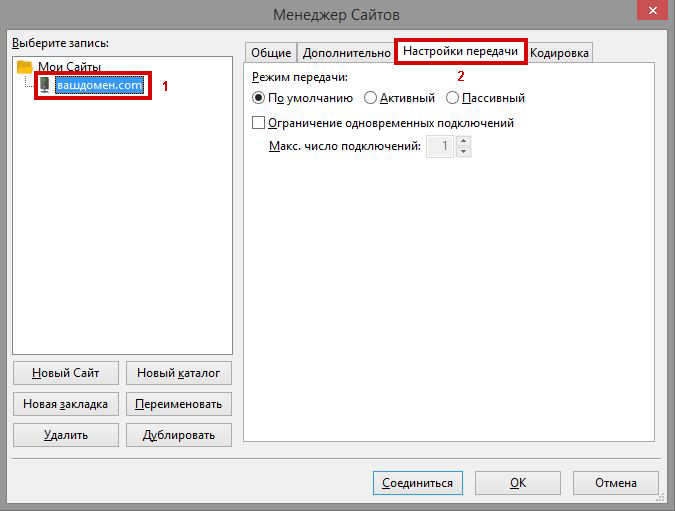
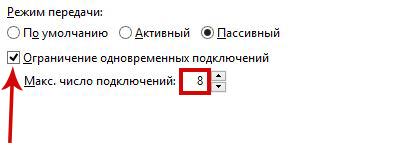
- Если у вас несколько сайтов, нужно выбрать тот, который выдаёт ошибку 421. Вы увидите вкладку «Настройки передачи», в которой нужно установить Макс. Число подключений максимально до 8-ми. Более точную информацию можно узнать у хостинг-партнера. Однако, изменяя данный параметр с единицы до большего числа есть риск, что к серверу будут подключаться взломщики и вы об этом не узнаете.
- Далее сохраняем и перезапускаем программу.
ВАЖНО: Если это не помогло – срочно смените пароль для FTP и имя пользователя. Вполне возможно, что доступ к FTP аккаунту получен посторонними людьми.
Альтернативный способ исправить ошибку 421
Заходим в административную панель хостинг-аккаунта. Переходим в раздел управления FTP и отключаем активные подключения. Затем можем снова устанавливать соединение через FTP-клиент.
Если нет функции снять все активные соединения, просто смените логин и пароль для FTP аккаунта. Активные соединения будут сброшены автоматически.
Другой способ, который срабатывает, если у вас открыты программы, но нет возможности найти то самое соединение. Просто перезагрузите свой компьютер. При повторном запуске будет сделано соединение заново. Однако, этот способ не сработает, если неправильно настроен FTP-клиент.
Причина номер 3: Грейлистинг
Как правило, MS Outlook используется корпоративными клиентами в офисах для упорядочивания переписки и ускорения отправки коммерческой корреспонденции. Поэтому исходящий трафик может быть довольно высок. Именно по этой причине многие программы могут ввести ip-адрес, с которого ведется рассылка в серые списки (грейлистинг).
Причиной внесения ip-адреса пользователя в серый список может стать слишком активная переписка через один из бесплатных smtp серверов: Mail.ru, Яндекс или Gmail. Которые лимитируют количество отправленных писем в сутки. При необходимости сохранения прежней интенсивности переписки данная проблема решается переходом на специализированные почтовые сервисы. К примеру, SendPulse SMTP Server.
Дальше по теме…
FTP errors are bothersome.
And, it becomes more troublesome when you spend the whole day resolving these errors.
One such FTP error is “421 service not available“.
At Bobcares, we help server owners resolve such FTP errors as part of our Dedicated Support Services.
Today, let’s discuss the top 3 reasons for this error and how we fix them.
FTP error 421 service not available – A Quick Glance
FTP error code 4xx means that the connection hasn’t been attempted and the requested action hasn’t taken place. But, this condition is temporary, and the action may be requested again.
And, FTP error 421 service not available means that the connection to the remote server can’t be established. FTP clients such as Filezilla returns the error like this:
421 Service not available, remote server has closed connection.
FTP error 421 service not available – Causes & Fixes
Now, let’s discuss the common reasons for this error and how our Dedicated Engineers fix them.
1) Invalid FTP host
This error can occur when the FTP server can’t determine the IP address of the server by the hostname. And, the server logs(/var/log/messages) show this error.
getaddrinfo 'Hostname_Is_Here' error: Name or service not known warning: unable to determine IP address of 'host.domain.com domain
How we fix?
Here, our Support Experts first check the connectivity to the FTP host using the ping command.
ping host.domain.comIf ping doesn’t respond, we add the correct hostname in the following server configuration files.
/etc/hosts
/etc/sysconfig/network
Most importantly, we restart the network service to reflect these changes.
/etc/init.d/networkOn the other hand, on Plesk servers, we change the hostname from Tools & Settings > Server Settings.
2) Firewall restrictions
Another probable reason for this error is the incorrect firewall configurations or firewall restrictions.
We’ve seen instances where the remote server blocks connections from an IP address or IP address range. The IP can be blocked due to abnormal activities, too many connections, etc.
Similarly, another possibility is that the user is being blocked from making outbound connections either at the ISP end or at their local firewall. We’ve seen cases where third party firewall or antivirus on the system blocking FTP connections. Also, ISPs can block the normal outbound FTP traffic.
How we fix?
Firstly, our Support Experts ensure that the customer’s IP address isn’t blocked in the remote server. For example, we use the below command to determine if the customer’s IP address xx.xx.xx.xx is blocked.
csf -g xx.xx.xx.xxAnd, if the IP is blocked, we’ll immediately remove the block and restore the FTP access. Later, we update the reason for the block and the remedial measures to the customer.
If there are no problems on the server side, we update customers to disable their security applications such as Antivirus, Windows firewall, etc. one by one. This helps us to identify which application is causing problems.
Alternatively, if the issue is at the ISP end, we get the traceroute results from the customer. This helps us to identify if the issue lies at the intermediate level.
Most importantly, if the customers are blocked at the ISP or local firewall level, we always suggest them to use SFTP for connection as it uses SSH for connecting.
3) FTP service configuration errors
Similarly, another variation of this error in ProFTP servers is given below.
test.com proftpd[130008] 127.0.0.1: Failed binding to ::, port 21: Address already in use
test.com proftpd[130008] 127.0.0.1: Check to see if inetd/xinetd, or another proftpd instance, is already using ::, port 21
This error usually occurs when port 21 is already used by another application. It can also happen when the ProFTP service is stuck on the server. Similarly, errors in the FTP service configuration file can also create problems.
How we fix?
Firstly, our Support Engineers check the services listening on FTP port 21 using the netstat command.
netstat -plnt | grep :21And, if we find that this port is used by multiple applications or another instance of proftpd, we’ll reconfigure these applications on alternate ports. For example, in plesk servers, we always ensure that the ServerType parameter is set to inetd in the ProFTP configuration file.
ServerType inetdHere, the inetd/xinetd service listens on port 21 for connection requests, then start the proftpd and pass the connection off.
In case if we find that the FTP service is stuck on the server, we kill the dead process and restart the service using the below commands.
ps aux | grep proftpd
kill -9 PID
service xinetd restart
In addition to that, we ensure that the FTP configuration files(/etc/proftpd.conf and /etc/vsftpd.conf) are intact.
Recently, we were contacted by a customer that he can’t connect to FTP. The logs showed missing /var/run/proftpd/ directory. When we checked, the ProFTPd configuration file(/etc/proftpd.conf) was referring to this folder. But, this folder wasn’t created in the server. So, our Support Engineers went ahead and created the folder /var/run/proftpd/ to fix the issue.
[Need an expert to resolve your ongoing FTP problems? Our Experienced Support Experts can help you here.]
Conclusion
In short, FTP error 421 service not available can occur due to firewall restrictions, invalid FTP host and more. Today, we’ve discussed the top 3 reasons for this error and how our Dedicated Engineers fix them.
PREVENT YOUR SERVER FROM CRASHING!
Never again lose customers to poor server speed! Let us help you.
Our server experts will monitor & maintain your server 24/7 so that it remains lightning fast and secure.
GET STARTED
var google_conversion_label = «owonCMyG5nEQ0aD71QM»;
Июн 22, 2017
Renat
2хв. читання

Введение
Главной причиной ошибки 421 too many connections являются неактивные FTP соединения, которые не были закрыты, перед открытием нового. Это случается из-за того, что провайдеры услуг хостинга ограничивают одновременные FTP соединения для предотвращения перегрузки сервера. В этом руководстве вы научитесь, как легко исправить ошибку 421 too many connections, установив правильные настройки в FTP-клиенте FileZilla и сбросив неактивные соединения в контрольной панели вашего хостинга.

Что вам понадобится
Перед тем, как мы начнем это руководство, вам понадобится следующее:
- FTP-клиент FileZilla
- Доступ к панели управления вашего хостинга
Шаг 1 — Исправление ошибки 421 too many connections в FTP-клиенте FileZilla
Первым и самым рекомендованным методом решения данной проблемы является ограничение количества одновременных соединений в вашем FTP-клиенте. Этапы ниже покажут вам, как правильно настроить FTP-клиент FileZilla и выставить максимальное число одновременных соединений:
- Запустите FTP-клиент FileZilla.
- Нажмите Файл и откройте Менеджер сайтов.
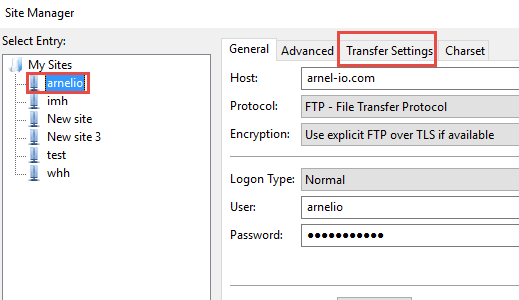
- Выберите сайт (1), для которого вы хотите установить лимит соединений и нажмите вкладку Настройки передачи (2).
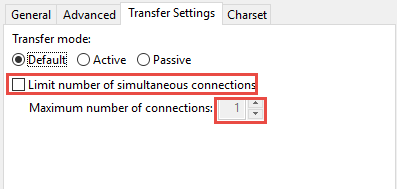
- Поставьте галочку напротив Ограничение одновременных подключений и введите Максимальное число подключений. Оно может быть разным и зависит от вашего хостинг провайдера. Если вы не уверены, сколько одновременных соединений разрешает ваш провайдер услуг хостинга, введите 8. Однако рекомендуется связаться со службой поддержки вашего хостинга для того, чтобы узнать максимальное количество.
- Нажмите кнопку OK для сохранения настроек.
Шаг 2 — Сброс неактивных соединений в сPanel (необязательно)
Если вы используете cPanel для управления вашим хостинг аккаунтом, вы можете легко сбросить неактивные FTP-соединения и временно решить ошибку 421 too many connections:
- Войдите в вашу cPanel и найдите раздел FTP соединения.

- Этот раздел cPanel отображает все FTP соединения вашей учетной записи. Если вы не видите никаких соединений, нажмите кнопку Перезагрузка для обновления страницы. Для того, чтобы сбросить соединение нажмите кнопку Отключить.
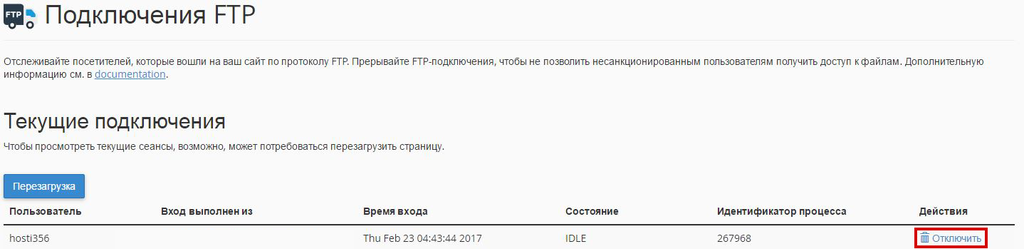
- Вылезет окно подтверждения для сброса FTP соединения. Снова нажмите кнопку Отключить.
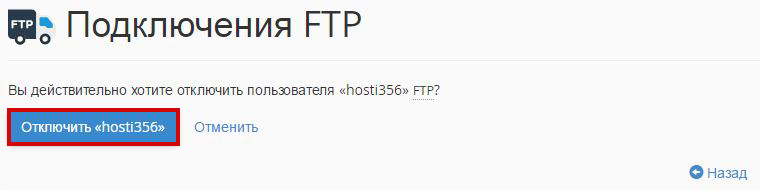
- Повторите шаги выше для других соединений, которые вы хотите закрыть.
Заключение
Закончив данное руководство вы научились, как отключать FTP соединения в cPanel и правильно настроить FTP-клиент FileZilla для предотвращения ошибки 421 too many connections. Если вы хотите больше узнать о FileZilla, то посмотрите данное руководство.
Resolving FTP 421 Error
Author: PhilS
What are the steps to resolve the error ‘421 service not available’ in case of ftp?
Hello, in this article we’ll cover several possible steps and solutions for resolving an error “421 service not available” when attempting to connect to your server via FTP. This article may also be helpful if you are finding other similar problems or issues when attempting to establish a successful connection while using your FTP client from your local workstation.
This article applies to systems running CentOS or linux distributions.
Step 1) Rule Out DNS Issue
If you are attempting to connect with your server hostname or domain, it is worth ruling out a possible DNS or resolution issue. To accomplish this, the easiest way is to simply use your server’s IP address instead of the hostname or domain.
Below are two examples of how this may look in your FTP Client. If you are unfamiliar with FTP, we recommend installing/using FileZilla. Best of all, it’s free! You can download the latest version through FileZilla’s official website.
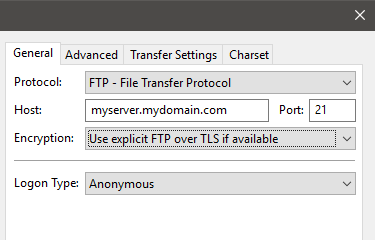
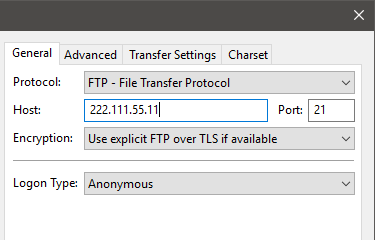
Step 2) Try SFTP
If you are still finding an issue when attempting to connect with your IP directly, we would recommend trying SFTP protocol and changing the connecting port to match your servers SSH port. By default this can be 22 but on many systems this can be different in order to enhance security and prevent common brute force attempts. If you want to connect to your server with root user and not a secondary or FTP user, some systems require the use of SFTP – this is a more secure protocol and we recommend consider using SFTP whenever possible for best practice.
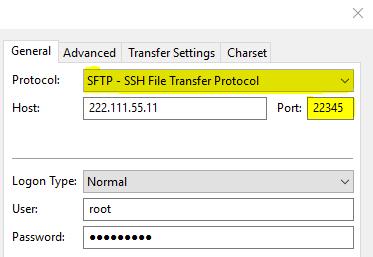
If you wish to learn more about further enhancing system security, check out some of our other enhancements we offer, including DDOS protection.
Step 3) Server Blocking or Service Configuration
If you find this issue with SFTP as well, this could be the result of firewall rules of the system or perhaps a system misconfiguration causing you to not be able to connect properly.
a) cPanel Systems
For other distributions, see b) Other Linux Distributions
If you are running a cPanel system, there are two likely places you would need to allow your IP address in order to allow yourself access to the system. Allowing your IP can be done from within your WHM panel.
First, gather your workstation IP using our free IP address checking tool. This is what you will use to replace “YourIPAddress” in the items below.

Next, you’ll need to access your WHM panel. This can be done in one of two ways:
WHM | https://YourServerIPAddressHere:2087 (ignore security warning and proceed)
or
WHM | https://YourServerHostname:2087
Once in your WHM panel, you’ll want to allow your IP in both of the following locations:
WHM -> ConfigServer Security & Firewall -> Quick allow
WHM -> CPhulkd -> Whitelist
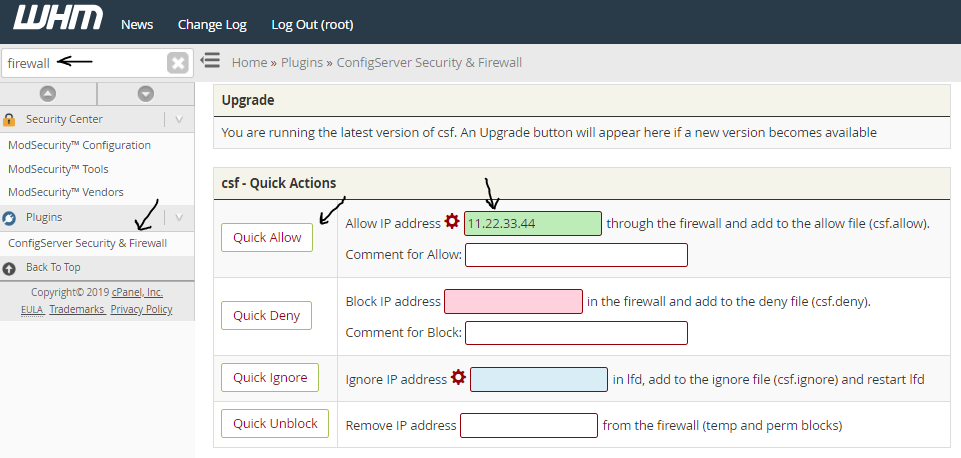
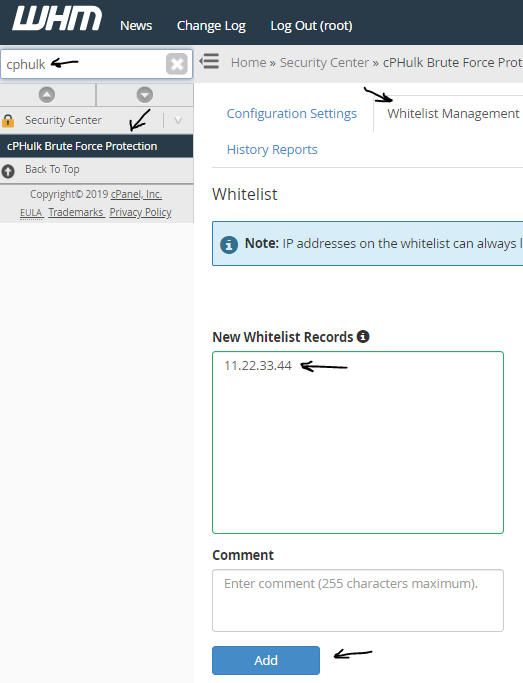
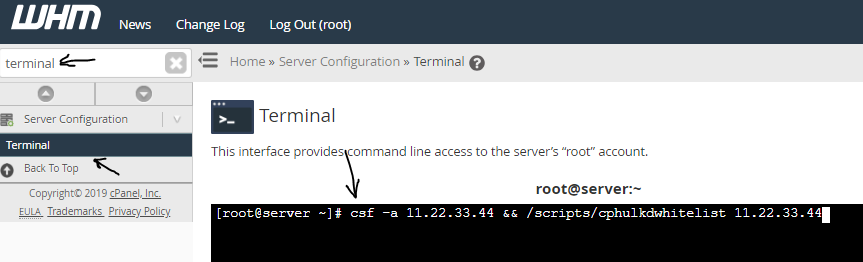
If you prefer to allow from SSH or Terminal instead of within WHM, you can perform the commands below to allow:
$ csf -a YourIPAddress
$ /scripts/cphulkdwhitelist YourIPAddress
b) Other Linux Distributions
Other linux systems or installations may use other firewalls. For example, Ubuntu may be running ufw while other non-panel Redhat or Centos may be using iptables or firewalld. It’s recommended to attempt to temporarily stop these or attempt to whitelist/allow
Step 4) Issue a Support Ticket
If you have exhausted your efforts or would like some assistance checking/replicating the issue further, if possible, please reach out to us from your my.hivelocity.net account -> Support and provide your server credentials within the Encrypted field for best possible security and support.
If you are unable to reach your my.hivelocity.net account or if you are on the go, please email us from your valid my.hivelocity.net account email to us here: support@hivelocity.net
We are also available to you through our phone and live chat systems 24x7x365
If you thought that was helpful, check out this article on How to mount your cloud storage drive on your CentOS, RHEL or Fedora systems from our Impressive Support staff
Popular Links
Looking for more information on FTP? Search our Knowledge Base!
Interested in more articles about Web Hosting? Navigate to our Categories page using the bar on the left or check out these popular articles:
- DNS Configuration: Everything You Need to Know
- What is Cron Job?
- What is the DNS Trailing Period?
Popular tags within this category include: DNS, FTP, IIS, MX Records, and more.
Don’t see what you’re looking for? Use the search bar at the top to search our entire Knowledge Base.
The Hivelocity Difference
Seeking a better Dedicated Server solution? In the market for Private Cloud or Colocation services? Check out Hivelocity’s extensive list of products for great deals and offers.
With best-in-class customer service, affordable pricing, a wide-range of fully-customizable options, and a network like no other, Hivelocity is the hosting solution you’ve been waiting for.
Unsure which of our services is best for your particular needs? Call or live chat with one of our sales agents today and see the difference Hivelocity can make for you.
In this tutorial, we will show you how to view and drop idle FTP connections in cPanel and limit your FTP connections in FileZilla. These steps should help fix or avoid the 421 Too many connections error.
- Idle FTP Connections
- What is / causes an idle FTP connection?
- Response: 421 Too many connections (8) from this IP
- Viewing / Closing Idle Connections in cPanel
- Limiting Simultaneous Connections in FileZilla
Idle FTP Connections
What is / causes an idle FTP connection?
Idle FTP connections are caused when an FTP client opens multiple connections without closing the previous ones, or due to an incorrect setting.
With VPS, and Dedicated hosting plans you can modify the number of simultaneous connections allowed in their WHM and the default setting is usually 8 or 10. Increasing this limit will prevent the error messages that we’ll review later in this tutorial. Our Shared and Reseller plans allow up to 8 simultaneous FTP connections from 1 IP address at a time, but you cannot raise this limit.
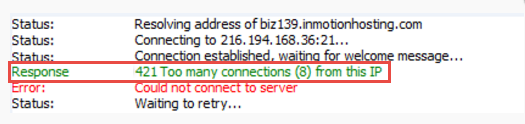
Response: 421 Too many connections (8) from this IP
If your FTP client is using more than 8 connections at the same time, you’ll get an error message similar to this:
Response: 421 Too many connections (8) from this IP Error: Could not connect to server
Viewing / Closing Idle Connections in cPanel
On a Shared Hosting Plan, there is currently no direct way to access cPanel’s FTP Connections tool and manually disconnect extra connections. If you’re having trouble with a particular user, you can always delete and recreate an FTP account with a different password, change an FTP password, or get in touch with our 24/7 Support Staff to help you resolve the issue.
- Login to cPanel on your VPS or Dedicated Server hosting account.
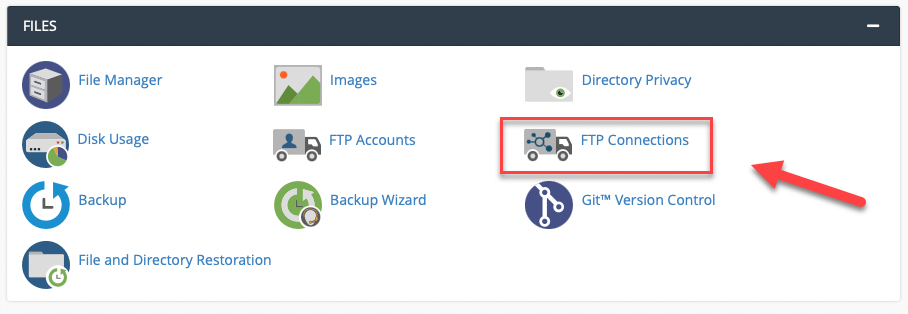
- Click on FTP Connections in the Files section.

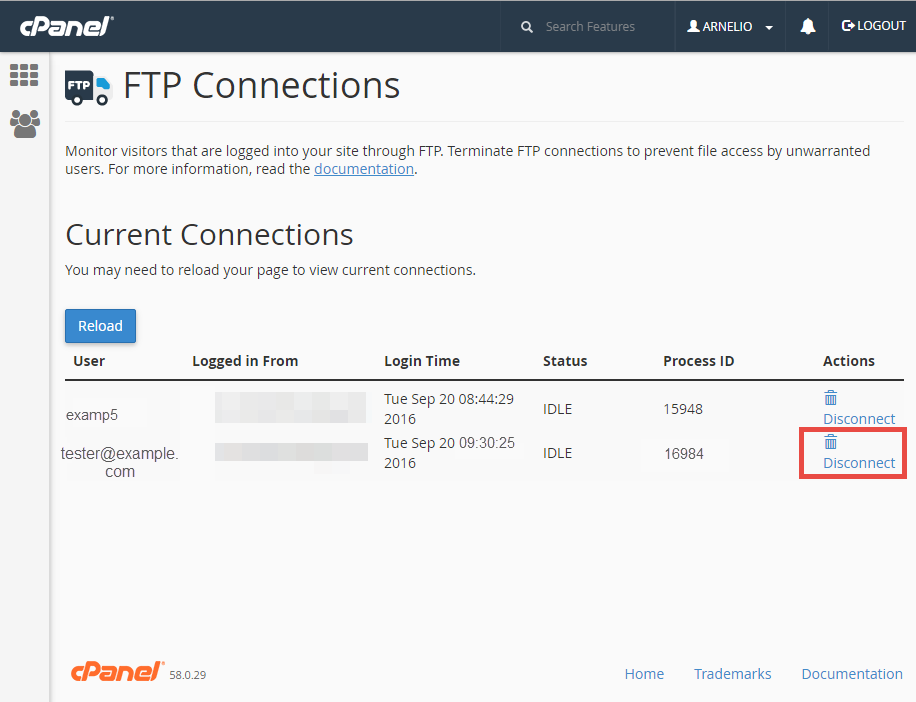
- You will then see a list of all your current FTP connections. Click the Disconnect link in the Actions column.

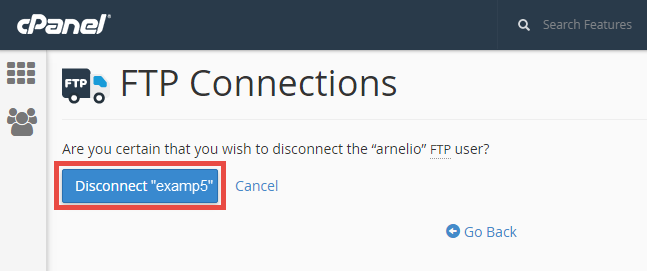
- You will see a message similar to “Are you sure you want to disconnect [email protected] FTP user?.” Click Disconnect to proceed.

- You are finished when you see a message like this: “The FTP session with PID 27510 was terminated.”
Limiting Simultaneous Connections in FileZilla
- Open FileZilla.
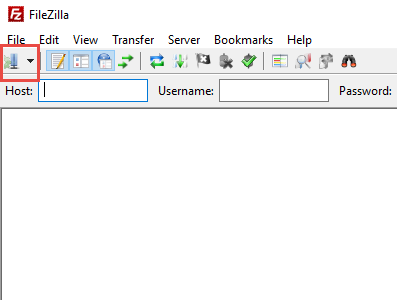
- Access the Site Manager.

- Click your site, then select the Transfer Settings tab.

- Check the box for Limit number of simultaneous connections and set the Maximum number of connections to 8.

- Click OK. Now when you are using FileZilla, it will not allow you to go over your limitation of 8 simultaneous FTP connections.
Congratulations, now you know how to drop idle FTP connections in cPanel and limit your FTP connections in FileZilla. We also have helpful guides on how to Enable Logging in FileZilla, Troubleshooting FileZilla Error Logs, and Managing your files in FileZilla.
FTP error 421: Too many connections (8) from this IP occurs when your FTP software continues to open a new FTP connections without closing inactive connections.
We allow 8 simultaneous connections from an IP at a time. If you receive this error, please do the following:
Quick Steps
Step 1: In FileZilla, go to File -> Site Manager
Step 2: Locate the Transfer Settings tab
Step 3: Click the checkbox next to “Limit number of simultaneous connections”
Step 4: Change “Max number of connections” to ‘1‘
Step 5: Access cPanel -> Files -> FTP Connections and drop all idle connections by clicking disconnect button
Step 6: If you still get the error, switch off your modem/router and turn it back on
Step 7: If you still get the error, reboot your computer
Note: We recommend using FileZilla, which is a free FTP client.
In Filezilla go to File > Site Manager, select “Transfer Setting” tab. Click on the checkmark box next to “Limit number of simultaneous connections”. You can keep “1″ in the box. (refer to the image below)
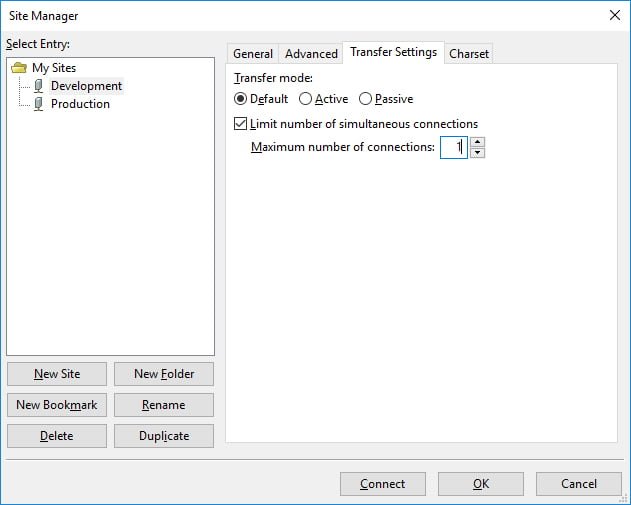
filezilla-transfer-settings-tab
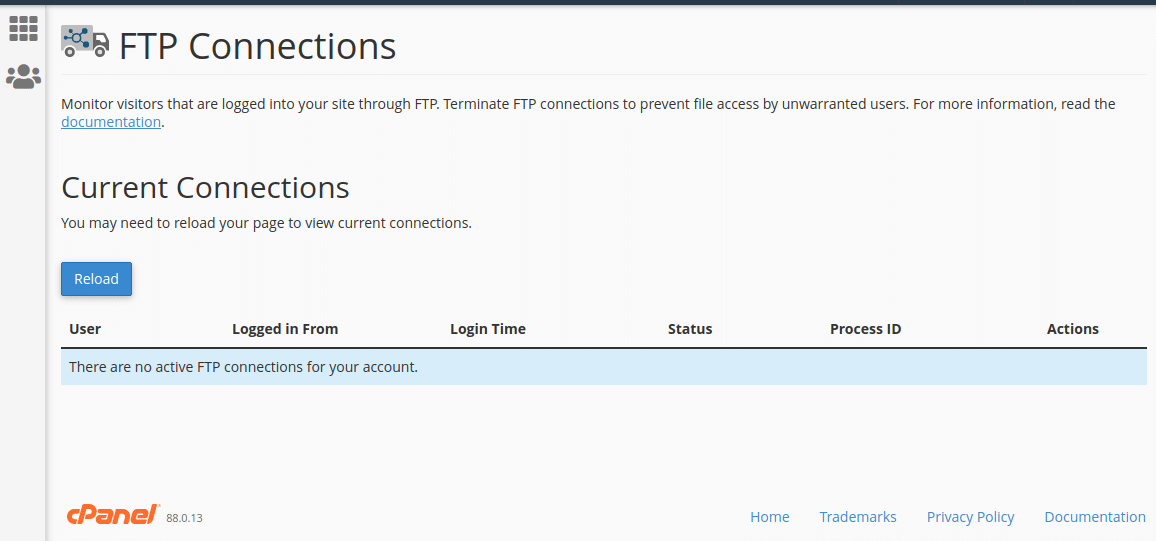
You can also flush Non-active FTP connections from cPanel if you still see issues. For that access cPanel -> Files -> FTP Connections. You will see the current connections listed there. If you are not able to see, just press the “Reload” button. In order to close the IDLE connections, you will see a disconnect button next to each connection in the Actions column. Click the button twice to drop that connection.
After doing the above steps and you still get the error “FTP error 421: Too many connections (8) from this IP”, there are possibilities that your modem or computer is caching or maintaining the connections before it actually times out. In that case, you may need to switch off/on your modem/router and/or reboot your computer.
Once you’ve resolved the FTP 421 error look through these other FTP articles in the FTP category to see if they can help as well.

If you have any web hosting questions please feel free to reach out to us.
We’re happy to help.
Our Guiding Principles
- Provide consistent, stable, and reliable web hosting services.
- Ensure rapid ticket response and quick resolutions to issues.
- Never saturate or over-provision servers to ensure stability and speed for our customers.
- Use only high-quality enterprise-class hardware to ensure minimal downtime from hardware failures.
- Provide clear pricing with no hidden fees or gotchas.
I’m trying to access an ftp from my web browser, but I get the following error : 421 Sorry, cleartext sessions are not accepted on this server. Any ideas?
asked Jul 7, 2012 at 3:07

1
«421 Sorry, cleartext sessions are not accepted on this server» means that the server is using «FTP Over Explicit TLS/SSL». This is a Good Thing.
You might be able to fix it by giving the protocol «ftpes:» instead of «ftp:»:
-
ftpes://ftp.somesite.com/some_folder… or …
-
ftps://ftp.somesite.com/some_folder
You’ll probably need to use another FTP client besides your default browser.
I don’t know if newer versions of IE support FTP over SSL.
Filezilla might be a good choice:
- https://filezilla-project.org/

Mihai Iorga
38.9k16 gold badges109 silver badges107 bronze badges
answered Jul 7, 2012 at 3:12

paulsm4paulsm4
112k16 gold badges135 silver badges187 bronze badges
4
In Filezilla.. under «File» click on the icon to open the «site manager».. then over to the right click on the «General» tab which is probably already open by default.
On the third line down where it says «Encryption».. choose «Require Explicit FTP over TLS»
That one worked fine for me.
answered Mar 29, 2013 at 4:08

RobRob
4114 silver badges2 bronze badges
0
Solution:
Just add a ftpes:// before the domain name
for example Old One,
host : domain.com
username : xxx
pass : yyy
port : 21
Now the new.
host : ftpes://domain.com
username : xxx
pass : yyy
port : 21
Advanced Option,
Login to Web Host Manager
Go To : Service Configuration
Go To : FTP Server Configuration
Check that :
TLS Encryption Support : set to “Optional”
Try that, it will work.
answered Jan 18, 2013 at 3:28

Manoj PrajapatManoj Prajapat
1,1171 gold badge14 silver badges26 bronze badges
I was also facing the same issue and resolved after doing the following thing. If you are using filezilla as ftp client, then try this.
Host: ftpes://mydomain.com
UserName: yourUsername
Password: yourPassword
You need to just modify the Host URL. add the ftpes:// before the domain name.
Basically this issue is only coming if you are trying to access you web server from your linux(Ubuntu) machine.
From windows system its working fine.
answered Jul 20, 2016 at 4:53

TabishTabish
1,50216 silver badges13 bronze badges
0
add a ftpes:// before the domain name

zzlalani
22.4k16 gold badges43 silver badges73 bronze badges
answered Nov 15, 2013 at 6:57

SourabhSourabh
4,1202 gold badges16 silver badges16 bronze badges
If this did not work with this changes do following change.
In Filezilla goto
  Edit=>Settings=>Connection=>FTP
  Here Change transfer mode from Active to Passive and press OK and try connecting again.
answered Mar 12, 2013 at 9:14

NileshNilesh
12710 bronze badges
1
Now-a-days, cpanel does not support FileZilla. You may find the reason here.
CPanel: After clicking on Configure FTP Client, you may find below

However, you can still be able to connect via FileZilla.
For my case, I followed below settings.
WHM Panel: Please follow the navigation. Log in to WHM Panel > Service Configuration > FTP Server Configuration
- TLS Encryption Support: Optional
- Allow Anonymous Logins: No
- Allow Anonymous Uploads: No
FileZilla: Below is the settings for FileZilla.

In FileZilla settings (Edit > Settings), please make sure if Transfer Mode is set to Passive.

And I am able to connect to FTP successfully 
answered Jul 17, 2022 at 20:59

Kuntal GhoshKuntal Ghosh
3,4982 gold badges16 silver badges21 bronze badges