
На чтение 4 мин. Просмотров 2.3k. Опубликовано 03.09.2019
Сервер ответил: 421 не может подключиться к SMTP-серверу. Ошибка в основном связана с учетными записями Microsoft Outlook и часто встречается при попытке отправить электронное письмо через платформу. Хотя существует множество факторов, которые могут вызвать эту ошибку, мы рассмотрим некоторые из наиболее известных из них, с акцентом на то, как решить проблему.
Что делать, если Outlook не подключается к SMTP-серверу? Во-первых, заново настройте параметры SMTP, чтобы устранить проблему. Распространенной причиной является неправильная настройка SMTP (Simple Mail Transfer Protocol). Кроме того, проверьте настройки VPN и антивируса. При необходимости внесите в белый список Outlook, чтобы избежать блокировки антивирусным брандмауэром.
Подробнее о наших решениях читайте ниже.
Содержание
- Как исправить ошибку 421 не удается подключиться к SMTP-серверу в Outlook
- 1. Переконфигурируйте настройки SMTP
- 2. Проверьте виртуальную частную сеть (VPN) помехи в Outlook
- 3. Проверьте наличие антивирусных помех в Outlook
Как исправить ошибку 421 не удается подключиться к SMTP-серверу в Outlook
- Изменить настройки SMTP
- Проверьте наличие помех в виртуальной частной сети (VPN) в Outlook
- Проверить наличие антивирусных помех в Outlook
1. Переконфигурируйте настройки SMTP
Когда эта ошибка встречается в MS Outlook, наиболее вероятная причина, как было указано ранее, это неправильная настройка параметров SMTP (сервера передачи электронной почты). Следовательно, это первый метод устранения неполадок, который мы будем рекомендовать в этом руководстве.
Чтобы перенастроить настройки SMTP в MS Outlook, выполните следующие действия:
- Запустите MS Outlook .
-
Найдите и нажмите Файл .

-
Выберите Настройки аккаунта .
-
Нажмите на свою учетную запись, а затем нажмите Изменить .
-
Найдите « Сервер исходящей почты (SMTP) » и введите адрес (предоставленный вашим веб-хостингом).
- Найдите и нажмите Дополнительные настройки .
-
Перейдите на вкладку Исходящий сервер
. - Убедитесь, что Мой исходящий сервер (SMTP) требует проверки подлинности .
-
Выберите Использовать те же настройки, что и для сервера входящей почты.
-
Вернитесь в окно Дополнительные настройки и перейдите на вкладку Дополнительно
. -
На вкладке «Дополнительно» найдите и измените свой номер порта , предоставленный поставщиком услуг Интернета.
- Сохранить настройки и закройте программу.
- Проверьте, исправлена ли ошибка: откройте Outlook и попробуйте отправить электронное письмо.


Если проблема не устранена, вы можете попробовать следующее исправление.
Примечание. Вышеуказанные шаги можно применить к Microsoft Outlook 2016 (и выше).
2. Проверьте виртуальную частную сеть (VPN) помехи в Outlook
VPN в основном используется для маскировки местоположений и получения доступа к геоблокированным/географически ограниченным сайтам и контенту, особенно в зонах с ограниченным доступом. В некоторой степени это влияет на ваше поведение в Интернете, в том числе на доступ и передачу электронной почты в Outlook.
Несмотря на то, что VPN практически не влияют на передачу электронной почты напрямую или нет, были зарегистрированы случаи, когда службы VPN вмешивались в программы на базе Интернета, такие как Outlook. Следовательно, вы можете проверить, не вызвана ли ошибка из-за помех от вашего VPN.
Чтобы проверить, является ли VPN причиной ошибки, просто отключите службу VPN; Затем вы можете попробовать отправить электронное письмо. Если электронная почта проходит без проблем, VPN, вероятно, является причиной ошибки. В противном случае вы можете попытаться проверить, есть ли другие мешающие стороны.
3. Проверьте наличие антивирусных помех в Outlook
Самые продвинутые антивирусные и другие программы безопасности оборудованы для выполнения проверок действий в браузере и, где необходимо, накладывают ограничения. В редких случаях это может быть проблемой, когда сервер ответил: 421 не может подключиться к SMTP сервер , возникает ошибка.
Вы можете проверить, чтобы убедиться в виновности программы безопасности в вашей системе, отключив ее, а затем попытаться отправить электронное письмо. Если электронная почта проходит без проблем, программа безопасности, очевидно, виновна.
Чтобы решить эту проблему, вы можете перенастроить вашу AV или программу безопасности для предоставления разрешений или исключить почтовый SMTP-сервер из всех расширенных проверок и ограничений безопасности. Если вы не знаете, как это сделать, вы можете легко отключить брандмауэр или AV в любое время, когда захотите отправить электронное письмо.
Содержание
- Email Error 421
- Common variations of the 421 email error
- Resolving a 421 email error
- 65 Comments
Email Error 421
1 Minute, 35 Seconds to Read
A 421 email error is typically a temporary routing issue on the receiving mail server’s end. These should usually be resolved automatically, and you should receive a final bounce-back message if the message completely fails.
You usually would not receive a bounce-back message for this type of error. If your message is going to be delayed more than 24 hours, then sometimes a “delivery has been delayed” soft bounce will be returned to you, to let you know that the delivery has yet to complete succesfully.
Common variations of the 421 email error
- 421 4.2.1 : (DYN:T1) https://postmaster.info.aol.com/errors/421dynt1.html
- 421 4.3.1 Out of disk space for temp file
- 421 4.3.2 All server ports are busy
- 421 4.3.2 All server ports are busy
- 421 4.4.2 mx.aol.com Error: timeout exceeded
- 421 #4.4.5 Too many connections from your host.
- 421 #4.4.5 Too many connections to this host.
- 421 4.7.0 mx.aol.com Error: too many errors
- 421 4.7.1 : (DYN:T1) https://postmaster.info.aol.com/errors/421dynt1.html
- 421 4.7.1 POL-T2 https://postmaster.facebook.com/response_codes?ip=74.124.194.252#pol-t Connection refused
- 421 4.7.1 POL-T2 https://postmaster.facebook.com/response_codes?ip=74.124.194.252#pol-t Connection refused
- 421 Downstream server error
- 421 Fork failed
- 421 Greylisting enabled, please try later.
- 421 LDAP verification agent temporarily unavailable: Connection failed
- 421 mail.RemoteDomain.com out of connection slots
- 421 mx.aol.com Service unavailable – try again later
- 421 Service not available – too busy
- 421 Server busy, try again later – psmtp
- 421 service temporarily unavailable
- 421 Temporary error (#4.3.0)
- 421 Too many concurrent SMTP connections; please try again later.
- 421 Unexpected failure, please try later
Resolving a 421 email error
Because errors in the 421 series don’t bounceback right away they would be considered a soft bounce. To better understand soft and hard bounces, and general email bounceback errors you can read why does email bounce, bounceback, or error?
Seeing a large amount of 421 email errors in your server’s mail logs could be an indication that a lot of your mail users are having difficulties getting their e-mails delivered out successfully on the first attempt.
InMotion Hosting contributors are highly knowledgeable individuals who create relevant content on new trends and troubleshooting techniques to help you achieve your online goals!
Enjoyed reading the article above , really explains everything in detail,the article is very interesting and effective.Thank you and good luck for the upcoming articles
My office keeps getting mail delivery failed emails being sent. They started months ago with just aol email addresses. We would receive the following error messages:
SMTP error from remote mail server after end of data:
Now we are receiving errors for other email accounts outside of aol that say:
Delay reason: SMTP error from remote mail server after initial connection:
This looks most likely like a graylisting. Graylisting is a method implemented by some email servers to protect against spam. When you send an email to a person that uses a gray listing spam filter, that mail will be checked against an approved list. If the address is not on the approved list then the message will be sent back with a “try again later” message. This happens at the SMTP layer and is transparent to the end user therefore, the person you are trying to send to will not know the message failed. The receiving system will then wait to see if you try and resend the message.
Ensure you have DMARC records setup, as well as SPF Records and DKIM. This will give your email the best chance at successful delivery.
If the emails finally fail/bounce, they should provide a more detailed error message.
Thank you,
John-Paul
Hi guys, I got this error when sending out to our email list.
421 Too many concurrent SMTP connections
Is there a way to correct this error?
It depends. If you’re on shared hosting and sent out a mass email from one email username it’s possible that the resources were expended. I’d suggest using a program like phpList. Or, even easier, a third-party email marketing service like MailChimp/
Need anyone to help.
Your message has encountered delivery problems to the following recipient(s):
(Was addressed to [email protected] ) Delivery failed after 1 attempts within 0 minutes
550 Too busy for PTRless hosts
No recipients were successfully delivered to.
You will need to request a PTR from our live technical support team. You can do this by submitting a verified support ticket. Make sure to include your verification info and the domain you need the PTR for.
If you have any further questions or comments, please let us know.
Regards,
Arnel C.
Please help – I am trying to run a business and have had this problem for four days. Both my btinternet account and my work based (gmail) account are affected. My husbands similar accounts are not. All emails are soft bouncing back over a few days.
What practically do I need to do? I am stuck without email.
Jenny, I’m sorry to hear that you’re having this issue. I would recommend contacting your email host for more direct, specific assistance with the issues you are having.
An unknown error has occurred.
Subject ‘Test 4test4’
Server Error: 421
Server Response: 421 service not available (configuration error, try again later)
Windows Live Mail Error ID: 0x800CCC67
I have still the avove error, I wrok with windows live Email
please help how can I resolve this problem
Since this is a temporary error, it may be delivered once the issue is resolved. I recommend checking your mail logs for additional errors, or record of your transmissions.
Thank you,
John-Paul
Well, i try again and i have the same issue:
Identity: VM-EXCHANGE20595321603685499442
Subject: Test 2
Internet Message ID:
From Address: [email protected]*****.com
Status: Ready
Size (KB): 8
Message Source Name: SMTP:Default VM-EXCHANGE
Source IP: 172.16.9.19
SCL: -1
Date Received: 6/10/2016 9:53:24 AM
Expiration Time: 6/12/2016 9:53:24 AM
Last Error: 421 dalifep04.*****.net connection refused from [201.151.62.115]
Queue ID: VM-EXCHANGE205953
Recipients: [email protected];2;2;[;;;];0;CN=Correo a Internet 2013,CN=Connections,CN=Exchange Routing Group (DWBGZMFD01QNBJR),CN=Routing Groups,CN=Exchange Administrative Group (FYDIBOHF23SPDLT),CN=Administrative Groups,CN=*****,CN=Microsoft Exchange,CN=Services,CN=Configuration,DC=*****mty,DC=local;0
Identity: VM-EXCHANGE20595321603685499442
Subject: Test 2
Internet Message ID:
From Address: [email protected]*****.com
Status: Ready
Size (KB): 8
Message Source Name: SMTP:Default VM-EXCHANGE
Source IP: 172.16.9.19
SCL: -1
Date Received: 6/10/2016 9:53:24 AM
Expiration Time: 6/12/2016 9:53:24 AM
Last Error: 421 dalifep04.*****.net connection refused from [201.151.62.115]
Queue ID: VM-EXCHANGE205953
Recipients: [email protected];2;2;[;;;];0;CN=Correo a Internet 2013,CN=Connections,CN=Exchange Routing Group (DWBGZMFD01QNBJR),CN=Routing Groups,CN=Exchange Administrative Group (FYDIBOHF23SPDLT),CN=Administrative Groups,CN=*****,CN=Microsoft Exchange,CN=Services,CN=Configuration,DC=*****mty,DC=local;0
and its in only this domain :/
Exchange 2013 is an email server that uses Windows Servers. We are a linux-based hosting service and we do not support Exchange 2013. You may want to consult with Microsoft for further assistance if your error persists. You will find more support for Exchange here.
If you have any further questions, please let us know.
Kindest regards,
Arnel C.
Hi! i got this error with only one domain. I have Exchange 2013.
Remote Server at mail.suddenlinkmail.com (208.180.40.132) returned ‘451 4.4.0 Primary target IP address responded with: “421 dalifep05.suddenlink.net connection refused from [myEmailServerIP].” Attempted failover to alternate host, but that did not succeed. Either there are no alternate hosts, or delivery failed to all alternate hosts. The last endpoint attempted was 208.180.40.132:25′
Thank you for contacting us. Since this seems to be an issue on the recipient server, I recommend resending the email at a later time.
When/if the email completely fails, it should provide a more detailed bounced message.
Thank you,
John-Paul
421 .x.x.x is a temporary rate limiting by ISP because your sending IP does not have adequate or good reputation.
You should first build reputation on those IP’s and then start sending faster in time.
I advise sending your message again to see if the issue has corrected itself. These are typically temporary errors.
Hi! How about error 421 4.3.0: Cannot write? I’ve been searching for this error but unable to find any answer. Please assist.
your email message was unable to be sent because your mail server rejected the message: 421 4.3.0 collect: Cannot write .dfu37H6eot023017 (sm_io_flush | |sm_io_error, uid=0, gid=51): Input/output error
Thanks in advance!
It looks like there are several possibilities. However, I did find a post explaining the main possibility: Sendmail not working: permissions issue. Check out the post and see if it doesn’t help you resolve the error.
If you have any further questions or comments, please let us know.
Regards,
Arnel C.
when i sent e-statement to cardmember I’m getting this error. what should I do to prevent recurrence.
421 4.4.5 System rule action set to defer or all IP Addresses have reached their throttle limits for this time period
I have two identical VPSs. Identical diagnostic message are sent daily from both. Error messages keep showing up in the mailq: D6D3980758 1896 Tue Jan 19 06:01:27 [email protected] (host mx.suddenlink.net[208.180.40.132] said: 421 dalifep01.suddenlink.net connection refused from [my.se.rv.er] (in reply to end of DATA command)) [email protected] Suddenlink tells me to check my server. 208.180.40.132 has ACCEPT before a DROP 208.0.0.0/8 record. Both servers are setup this way. Does this look like a suddenlink problem to you? Their email system went down once this month but is supposed to be fixed. Thanks.
The IP listed in that error is blacklisted and refusing connections. The hostname is mail2.infospacesg.com.
Likewise, as in the above comment, the IP address listed is blacklisted with an anti-spam service and refusing connections. It’s possible this is temporary and may resolve itself soon.
Can any help me? I can’t send my email out. t=The error message that bounce back is:
Reason: Mail Server for kodoinc.com could not accept your email at this
time. MailEnable will keep trying to deliver this message and will notify
you of any progress.
The remote mail server returned the error:
421 dalifep05.suddenlink.net connection refused from [103.31.228.142]
We have recieved NDR while sending mail to aol.com domains.
Error Code: Queued: 152.163.0.99, 442 Bad Connection. (Timed out)
In order for us to troubleshoot this issue we would need more information. We need the fool bounce-back message as well the email address involved in the bounce. Please provide us with more info and we can investigate. If you want to handle it privately, then please submit a verified support ticket or call/chat with our live technical support team.
If you have any further questions or comments, please let us know.
Regards,
Arnel C.
Please I need help so badly and urgently.
Anyone to help, I will be very grateful.
Each time i try to send an email, I get an error message
[ SMTP Error: [421] Unexpected failure, please try later]
I can’t even receive emails and besides orders place by our customers can not be delivered to our email address because of this error.
Can anyone help me, I will be very grateful.
Thanks in advance and looking forward to your humble explanation/solution.
Email bounce issues will require a conversation involving account specific and personal information. If you are one of our customers, you will want to contact our Live Support team so they can work with you, check server logs, etc.
Kindest Regards,
Scott M
Thank you for your reply.
I get this error message from one address. I have tried sending mail twice with one week in between.
This message was created automatically by mail delivery software.
A message that you sent could not be delivered to one or more of its recipients. This is a permanent error. The following address(es) failed:
host mx4.hanmail.net [180.70.93.98]
SMTP error from remote mail server after initial connection:
421 4.4.5 CCRT 79.172.204.140: Connection refused. Server is busy(RT):
retry timeout exceeded
I’m sorry to hear that you’re having problems with your email being delivered. When I looked, it appears that you’re not hosted with us (at least per the information that I could see in your post). The message is not showing the entire email address, so I’m not sure if you took it out, if the address was not correct. If the error is occurring between you and another host, you would need to contact the email administrator of the destination server to see why your message is not being delivered – since you’re not getting a clear reason why. They may have your domain blocked. It does not appear that you are hosted with us, but if you are, we would need more information about your account in order to determine the reason for the delivery failure.
I hope this helps to answer your question, please let us know if you require any further assistance.
Regards,
Arnel C.
Yes, I’m getting this error to a certain email server only.
Thank you for contacting us. Since it is just a delay at this point, I recommend allowing additional time for the delivery to complete. You should get a returned/bounced email if it fails to deliver.
If it fails, I recommend reading our guide on What to do if an email is returned.
If your problems to persist, review the mail logs on the server that is failing. You may have to contact the recipient to complete this.
Thank you,
John-Paul
This is a weird one. I get “421 esmtp protocol deviation”. This only happen around 1% of the time.
As per the definition above, the 421 message you’re seeing is the same error definition as above. Typically, it means that there’s an interruption in connecting to your email server. If you want more information than what is provided above, then check out : smpt error codes.
I hope that helps to answer your question! If you require further assistance, please let us know!
Regards,
Arnel C.
Thank you for contacting us. This email is being delivered, but the recipient server is denying it due to the following reason:
421 Service Temporarily Unavailable Giving up on 216.82.251.230
It is a possible spam rule, or blacklisting that is denying the email. Unfortunately, the recipient will have to whitelist you, or review their mail logs for more information.
Thank you,
John-Paul
I wonder if you can help. I get the following error message to only one address (although it occurs with the different names in the address ie [email protected] and [email protected]). But it does not happen consistenlty – every now and then one gets through.
216.82.251.230 does not like recipient.
Remote host said: 421 Service Temporarily Unavailable
Giving up on 216.82.251.230.
I’m not going to try again; this message has been in the queue too long.
Can you post the full email header (while modifying the email address) so we may try to help you figure out the issue at hand.
Best Regards,
TJ Edens
I’m getting following error message:
“ Delay reason: SMTP error from remote mail server after end of data:
421 Read data from client error “
What does it means?
This can be caused for many reasons. Does this happen every time you try to send an email? Does this happen on many recipients or just certain ones?
Best Regards,
TJ Edens
Inmotionhosting (IMH) is hosting our mail server. We are getting occasional AOL soft bounces, as
Delay reason: SMTP error from remote mail server after end of data:
host mailin-04.mx.aol.com [64.12.88.132]: 421 4.2.1
(DYN:T1) https://postmaster.info.aol.com/errors/421dynt1.html
which AOL claims is due to
- The IP address you are sending from has been temporarily rate limited due to lack of whitelisting, unexpected changes in volume, or poor IP reputation.
1. Since AOL is bouncing based on our IP address, is this a function of IMH’s server’s IP, or our specific account? I would think the former.
2. If the former, then what might IMH do to alleviate this problem?
3. If the latter, what might we have done to cause this, and how might we alleviate it? To the best of my knowledge, we do not email in bulk.
4. Additionally, occasional emails from AOL to us go missing, but I have not yet traced that problem.
I will try to answer you questions as best I can:
1. Since AOL is bouncing based on our IP address, is this a function of IMH’s server’s IP, or our specific account? I would think the former.
– It is likely the former, particularly if you are on a shared server. If you are on a VPS or Dedicated, then it would be both.
2. If the former, then what might IMH do to alleviate this problem?
– You can email the bounces to our Live Support department and they will check out the situation. If they can repeat it from the server, then it would go to our Systems team to be handled.
3. If the latter, what might we have done to cause this, and how might we alleviate it? To the best of my knowledge, we do not email in bulk.
– If it is the latter, it would have to do with their own set of rules, but we would not have any way to identify them. You would need to reach out to AOL and ask them which rules your emails are violating. But again, the odds are with the server IP being the issue.
4. Additionally, occasional emails from AOL to us go missing, but I have not yet traced that problem.
– If you have incomgin emails missing, you can contact our Live Support and provide the email address and approximate time the email was sent to you. They can then check the server logs to see if any contact was made from AOL side and if so, see how our server dealt with the email.
Kindest Regards,
Scott M
We just received notice that people are getting the bounce back with this:
Failed to connect to xx.xx.xxx.xxx Server temporarily not accepting mail at Greeting – 421 4.3.2 Service not available, closing transmission channelServer refused mail at MAIL FROM – 530 5.7.1 Client was not authenticated
I have never seen this before so not sure where to look for the problem. Any help or guideance would be appreciated. Thanks.
This error is stating that the client was not authenticated, this means that you need to make sure you are passing your email accounts password for outgoing mail authentication. Depending on the client you are using it can be done in a few different areas.
Best Regards,
TJ Edens
Looks like some changes happened since the last time we talked. There are some new features and yes, there error issue is gone. Thanks for the help.
It happens with every email I send. Every person that accesses their email via a computer or laptop, has this issue. (in our company that is). As far as timing out, the instant I click send, the error pops up, literally 1 second later I can hit send again and it goes through. As far as the outgoing client settings, no one has made any chages to anything nor would anyone attempt to do so. Additionally, I use my laptop on the road using a wireless connection complete separate and different than any connection at the office and I still have the same issue. It is also a different OS than the computers at work. It seems the only common denominator, is the mail server.
The problem on a whole isnt that serious, but it does sometimes slowly send the email after the error. Sometimes taking over a minute to send a plain text email.
Okay, if you’re getting the problem across the board with everything connecting to the account, then it’s definitely an issue with the mail server. I was able to test here and duplicate the error as well. One thing that may have been causing it is the list maintained for handling remote and local domains for email. Yours is set to local domain – meaning that email is handled by our server. The suggestion given to me by one of our senior techs was to remove your domain temporarily (very briefly), and then re-add it. When I did this, I logged off of my webmail test account, then attempted to re-duplicate the error by logging in and re-sending a test email. The error did not reappear at this point.
Try testing it on your end now. Please let us know if you continue to see any errors. Hopefully, this issue has been resolved.
Kindest regards,
Arnel C.
I use multiple devices and have been using the same mail settings for years. I use an Imac at the office and an HP laptop in the field. Also, my CFO and receivables manager are having the same problems. I havent noticed issues send from my phone or tablets only desktops and laptops.
As far as bounceback, I havent received any as of yet, but like I said, it usually goes through a second later.
“And what specific settings are you using?” I dont know what you mean specifically, but nothing has changed in the passed week except the errors.
Ill look through the reference guide as well. Its just weird that after not having anything like this ever, then have it happening to multiple people on different accounts, on different computers.
I can understand the concern and the confusion on the issue. The problem here is that your device/computer is trying to make the connection to the server. When it does this, anything that causes a delay or interruption in that attempt to deliver could be causing the error. Since we do not have control of your network (only the servers), it’s difficult for us to determine what factor could be affecting only the computers of your system. It could be an internal network issue, an ISP (internet service provider) issue, or maybe you are making a connection, but it is slow to synchronize causing a timeout. The settings I’m referring to are the outbound email client settings that you are using to connect to the server. So, if it’s a computer, does the problem happen consistently from specific accounts? That information would be invaluable for testing on our end, so that we can determine if the problem does exist on the email server.
We appreciate your patience as we work toward resolving this issue.
Regards,
Arnel C.
Been getting this for the last week on mulitple accounts here. When you first attempt to send an email to a wide varity of servers this message will pop up every time. Most times you can just click send again a second later and it will go through but sometimes it will lock you out for almost a full minute. Any idea what caused this and/or how to fix it.
SMTP Error (421): Connection to server failed.
Sorry to hear you’re having problems with the server connection when you’re trying send an email. We need a little more information though. When I checked the server, I found no error messages or problems with connection. I also checked on the server history, and it appear to be okay. There are a large variety of possible factors for this kind of problem, so we need more info in order to help pinpoint the problem. Are you using a computer or device to connect to email? And what specific settings are you using? Do you get any bounceback messages? I’m seeing no error messages in the logs on this end.
Also, please reference Problem with sending email for further help in troubleshooting the issue.
If you can please provide us more information, then we can get back to you after investigating the issue in more depth..
Kindest regards,
Arnel C.
Thanks, sure…will try to do that…
I am getting an error when I am trying to send emails to some domains(ocscmb.com, falco.lk).
This is the mail system at host relay.mailchannels.net.
I’m sorry to have to inform you that your message could not be delivered to one or more recipients. It’s attached below.
For further assistance, please send mail to postmaster.
If you do so, please include this problem report. You can delete your own text from the attached returned message.
The mail system
talk to me: 421 Downstream server error
The error I am getting is in bold above. Please explain me the reason and a solution for this.
Thank you very much.
It appears that the remote mail server that you are sending to is closing the connection. Unfortunately, as their mail server is outside of our network, we do not have the specific reasoning as to why. For this, I recommend speaking with the individual that you are attempting to send to by other means to identify what on their server may be causing the issue.
I am getting the error accompanied by an Unexpected log failure
Can anyone please help me>
Could you provide us with the exact error that you are getting?
different email addresses. similar messages – as I work for a charity and I send membership packs by email. I have been using outlook 2007 to do this for years and only now is it a problem
How big is the mailing list? Are you sending them all at once? A specific service provider is most likely seeing a lot of messages coming in to their users and blocking based on that to prevent spam.
this has been happening for about a week now. I send lots of mail and have done for years but I am only getting these error messages for the past week.
the worst pop up box is the grey one that says do you want to save this password in the list, it pops up every two seconds, it is so annoying. i dont know what to do about it.
I am not at all technical and I dont have anyone that can help me 🙁
Are you sending multiple messages in succession to the same email address or to a bulk mailing list?
I am getting 421 error – too many messages? what does that mean. also I am getting a grey pop up box that says do you want to save this password in the list, everytime I send sonmeone an email, what does that mean?
I am able to send and receive emails OK, just these annoying two pop up boxes that wont go away. please help
This error is typically from the receiving server so it should not be a result of your account. It seems that the receiving server may be getting more mail than it is set to expect, so it is giving the “too many messages” message. You may want to try resending the email again at a later time to see if it will accept it.
Kindest Regards,
Scott M
I keep getting “too many simultaneous connections” for my AOL account. I have a multitude of phones, tablets, and computers that have my AOL account attached. Is there a limit to how many “connections” I can have? If so
Hello Kady, and thanks for your comment.
Are you getting this error just when trying to send email to an AOL email account? This guide itself is on 421 errors, and you would typically see it in a bounce-back message after a message you sent to a AOL user failed to send. In this case you would want to try to send the message again at a later time as the AOL server could be temporarily overloaded.
If you are just getting this error in your mail client, and you are using your AOL account in multiple devices at once, you might be having an issue with IMAP usage on their server.
You might need to stagger the times your different devices check your mail. For instance, have your phone check every 5 minutes, tablets every 7 minutes, first computer every 9 minutes, and so on. You might also want to reduce the total number of messages stored in your main Inbox folder, and archive away messages you don’t need to access often. Some email clients will tie up IMAP connections by trying to download lots of old message headers from the server for a message that’s older than 30 days and you might not be reading anyways.
Hope that helps, please let us know if you still have any questions at all!
Источник
A 421 email error is typically a temporary routing issue on the receiving mail server’s end. These should usually be resolved automatically, and you should receive a final bounce-back message if the message completely fails.
You usually would not receive a bounce-back message for this type of error. If your message is going to be delayed more than 24 hours, then sometimes a “delivery has been delayed” soft bounce will be returned to you, to let you know that the delivery has yet to complete succesfully.
Common variations of the 421 email error
- 421 4.2.1 : (DYN:T1) https://postmaster.info.aol.com/errors/421dynt1.html
- 421 4.3.1 Out of disk space for temp file
- 421 4.3.2 All server ports are busy
- 421 4.3.2 All server ports are busy
- 421 4.4.2 mx.aol.com Error: timeout exceeded
- 421 #4.4.5 Too many connections from your host.
- 421 #4.4.5 Too many connections to this host.
- 421 4.7.0 mx.aol.com Error: too many errors
- 421 4.7.1 : (DYN:T1) https://postmaster.info.aol.com/errors/421dynt1.html
- 421 4.7.1 POL-T2 https://postmaster.facebook.com/response_codes?ip=74.124.194.252#pol-t Connection refused
- 421 4.7.1 POL-T2 https://postmaster.facebook.com/response_codes?ip=74.124.194.252#pol-t Connection refused
- 421 Downstream server error
- 421 Fork failed
- 421 Greylisting enabled, please try later.
- 421 LDAP verification agent temporarily unavailable: Connection failed
- 421 mail.RemoteDomain.com out of connection slots
- 421 mx.aol.com Service unavailable – try again later
- 421 Service not available – too busy
- 421 Server busy, try again later – psmtp
- 421 service temporarily unavailable
- 421 Temporary error (#4.3.0)
- 421 Too many concurrent SMTP connections; please try again later.
- 421 Unexpected failure, please try later
Resolving a 421 email error
Because errors in the 421 series don’t bounceback right away they would be considered a soft bounce. To better understand soft and hard bounces, and general email bounceback errors you can read why does email bounce, bounceback, or error?
Seeing a large amount of 421 email errors in your server’s mail logs could be an indication that a lot of your mail users are having difficulties getting their e-mails delivered out successfully on the first attempt.
InMotion Hosting Contributor
InMotion Hosting contributors are highly knowledgeable individuals who create relevant content on new trends and troubleshooting techniques to help you achieve your online goals!
More Articles by InMotion Hosting

Ошибка 421 возникает по нескольким причинам. Каждая из ошибок не является фатальной и её легко исправить. В этой статье мы отметим 2 самые распространенные причины, по которым возникает error 421 и решение проблемы.
Чаще всего причины этой ошибки заключаются в следующем:
- Нет соединения с smtp сервером почтового хостинга. В комментариях к ошибке может писать прервано или отсутствует по неизвестной причине;
- FTP сервер занят или перегружен – причина в превышении количества разрешенных подключений;
- Грейлистинг – отсутствие ip-адреса в списке (белом) RCPT, почта с ip-адреса временно не принимается по причине подозрения в рассылке спама.
Причина номер 1: отсутствует соединение с SMPT-сервером
Ошибка 421 (SMTP-сервер) возникает, когда нет подключения к SMPT-серверу. В результате сбоя вы не можете обновлять списки писем или отправить новое письмо. Сбой часто возникает при работе с почтовыми клиентами, например, Outlook.
Причины ошибки и решения:
- Блокировка соединения антивирусом. Решается просто: отключаем на 5 минут антивирус и пробуем перезайти в программу. Обращаем внимание, что почтовый клиент нужно закрыть вообще, а затем снова открыть.
- VPN сервис. Особенно, если вы используете бесплатные варианты. Часто IP адреса таких сервисом занесены в бан. Поэтому, как бы вы ни старались, подключиться с их помощью не выйдет.
- Сбой работы почтового клиента. Нужно снова настроить клиент с нуля. К примеру, можно удалить и заново установить программу.
Причина номер 2: множественные подключения
Ошибка 421 (Too Many Connections) – это ошибка FTP соединения, которая не беспокоит обычных пользователей и чаще всего является информационным сигналом для вебмастера. Ошибка появляется при работе с программой FileZilla и для ее исправления нужно внести некоторые изменения в настройки. Также, иногда может потребоваться доступ к панели управления хостингом.
Возникает в случае, если у вас открыто активное соединение с сервером и вы параллельно пытаетесь создать еще одно подключение по тому же адресу. По сути ничего страшного в этом нет. Если с вашего IP уже есть соединение вы просто получите ошибку 421. На сам сайт это никак не влияет.
Как исправить ошибку 421?
- Нужно ограничить количество одновременных подключение к серверу, чтобы избежать появление ошибки 421. Для этого заходим в программу-клиент FileZilla и нажимаем «Файл», затем открываем «Менеджер сайтов».
- Если у вас несколько сайтов, нужно выбрать тот, который выдаёт ошибку 421. Вы увидите вкладку «Настройки передачи», в которой нужно установить Макс. Число подключений максимально до 8-ми. Более точную информацию можно узнать у хостинг-партнера. Однако, изменяя данный параметр с единицы до большего числа есть риск, что к серверу будут подключаться взломщики и вы об этом не узнаете.
- Далее сохраняем и перезапускаем программу.
ВАЖНО: Если это не помогло – срочно смените пароль для FTP и имя пользователя. Вполне возможно, что доступ к FTP аккаунту получен посторонними людьми.
Альтернативный способ исправить ошибку 421
Заходим в административную панель хостинг-аккаунта. Переходим в раздел управления FTP и отключаем активные подключения. Затем можем снова устанавливать соединение через FTP-клиент.
Если нет функции снять все активные соединения, просто смените логин и пароль для FTP аккаунта. Активные соединения будут сброшены автоматически.
Другой способ, который срабатывает, если у вас открыты программы, но нет возможности найти то самое соединение. Просто перезагрузите свой компьютер. При повторном запуске будет сделано соединение заново. Однако, этот способ не сработает, если неправильно настроен FTP-клиент.
Причина номер 3: Грейлистинг
Как правило, MS Outlook используется корпоративными клиентами в офисах для упорядочивания переписки и ускорения отправки коммерческой корреспонденции. Поэтому исходящий трафик может быть довольно высок. Именно по этой причине многие программы могут ввести ip-адрес, с которого ведется рассылка в серые списки (грейлистинг).
Причиной внесения ip-адреса пользователя в серый список может стать слишком активная переписка через один из бесплатных smtp серверов: Mail.ru, Яндекс или Gmail. Которые лимитируют количество отправленных писем в сутки. При необходимости сохранения прежней интенсивности переписки данная проблема решается переходом на специализированные почтовые сервисы. К примеру, SendPulse SMTP Server.
Дальше по теме…
What is the Error 421?
Error 421 is a common SMTP (Simple Mail Transfer Protocol) Outlook error message. MS Outlook is one of the best and popular email applications widely used by PC Windows users for sending and receiving emails within and outside workplaces.
It is most commonly used in offices by professionals for faster communication.
This error may occur while sending and receiving emails on the server. The error 421 messages is displayed in either of the following formats:
“An unknown error has occurred: Server error 421”
«Could not send your message. Error 421»
421 4.2.1 : (DYN:T1) http://postmaster.info.aol.com/errors/421dynt1.html
421 4.3.1 Out of disk space for temp file
421 4.3.2 All server ports are busy
421 Downstream server error
421 Fork failed
421 Greylisting enabled, please try later
“An unknown error has occurred. Subject ‘Testing’, Account: ‘pop.charter.net’, Server: ‘mail.charter.net’, Protocol: SMTP, Server Response:
’421 Message rejected’, Port: 25, Secure(SSL): No, Server Error: 421, Error Number: 0x800CCC67”
Solution
 Error Causes
 Error Causes
Some common causes for this critical Outlook error are:
- PST storage size exceeds 2GB file size
- Improper ISP settings
- Slow internet connection
- PST file corruption
- Trojan attack and viral infection
This is a critical Outlook error that should be resolved timely. If you delay, it may cause you a great deal of inconvenience.
The error code 421 hampers your ability to access your email account, send and receive emails, add new contacts, view emails, calendar entries, and journals. In other words, it just brings your email activities to a standstill locking you out of the account.
Further Information and Manual Repair
To resolve this error code on your system, you don’t always have to hire a professional or call the network personnel to do the job. It may be a critical error but the good news is that it is quite easy to fix. Even if you don’t have technical expertise, you can still repair it.
Here are some of the best methods to repair this issue on your system:
1. Change the Server Settings to its Maximum Limit
Try changing your server settings. Here set the inbound connections limit at the maximum limit.
- To do this, open the Microsoft Exchange Server Administrator utility. The access path of this utility will vary depending on the installation procedure used to set up Exchange Server.
- Once you open the MS Exchange Server Administrator utility, click the ‘Connections’ icon in the left side navigation pane. Now double click the internet mail service icon in the right side pane. As you click it, the Properties window will open.
- Now click the ‘Connections’ tab in the Properties window and then click the ‘Advanced’ button. This will open the configuration window.
- Here reset the number for ‘Maximum Number of Inbound Connections’ to a high number, its maximum limit. After changing the settings, close all open Exchange Server Administrator program windows to successfully complete the process.
After the process is complete, try accessing your Outlook email account again; if it works, then that’s great the error 421 is resolved. However, if it doesn’t, then the problem could be related to viral infection.
2. Download a PST Repair Tool
If the cause of the error is PST files corruption, then not only will you be locked out of your email account, you are also at risk of losing all the data stored in your email account.
However, the best way to resolve the error and ensure full data recovery is to download a reliable PST repair tool. By running a PST repair tool on your system, you can resolve the error 421 right away. It recovers your data, repairs corrupt and damaged PST files.
3. Scan Your PC with Restoro.
If viral infection and Trojans are causing the error 421 to pop up on your system, then it is recommended to download and scan your PC with Restoro.
This is an advanced, intuitive, and user-friendly PC fixer. It is not just an antivirus but also a system optimizer and a registry cleaner.
Unlike common antivirus software that only removes viruses and simultaneously slows down the system’s speed, Restoro removes all types of malicious software on your PC including malware, spyware, Trojans, and viruses, and also boosts the speed of your PC significantly.
It is safe, easy to operate, and a quick fixer. It is compatible with all Windows versions.
Click here to download Restoro and resolve error 421 today!
Advanced System Repair Pro
One-click automated PC repair solution

With Advanced System Repair Pro you can easily
DOWNLOAD
Advanced System Repair Pro is compatible with all versions of Microsoft Windows including Windows 11
Share this article:
You might also like
 Microsoft wants to escalate the situation from Australia to the EU, what a surprise.
Hello all and welcome to another news article, this time we are focusing on Microsoft pushing the EU to accept law proposition from Australia.
For all of you who are not familiar with the given situation let me quickly explain. The feud began when the Australian government proposed a new law that targeted Facebook and Google specifically. The government said that it believed that both of the tech giants were using content from news outlets without paying.
Have you ever seen the little news snippets that Google or Facebook sometimes show its users to keep them up to date? These are lifted directly from news websites, and the Australian government claimed that this practice meant that people didn’t bother visiting the news website. This then staved news websites of revenue.
As such, the government put forward a new law that would mean Google and Facebook would have to pay the source website for every time they displayed a news snippet. Facebook responded by removing its Australian news coverage in light of the law.
Google, however, put up a fight. It argued that its snippets encouraged people to click on it to read more, thus driving more traffic to the news website. It also said that such a law would be too expensive to maintain in the long run.
As such, Google threatened to remove itself from Australia if the law passed. This was likely a scare tactic, as 95 percent of Australian web users use Google; however, it actually opened the door for its rival, Microsoft.
Microsoft saw how it could push its own search engine BING to replace google. It of course went and reached the Australian government to assure them that BING is more than capable to fulfill its needs and fully abide by the proposed law.
Now Microsoft knows that if this law passes it could see a similar situation happening in Europe and it is pushing it. US News reported on how Microsoft plans to encourage EU countries to adopt this new law too. The company has teamed up with the European Publishers Council and News Media Europe to make the following statement:
Publishers might not have the economic strength to negotiate fair and balanced agreements with these gatekeeper tech companies, who might otherwise threaten to walk away from negotiations or exit markets entirely
Read More
Missing MSVCR80.dll Error — What is it?
Msvcr80.dll is a runtime dynamic link library file. This file is typically required to run programs written with Visual Studio.
Msvcr80.dll error messages might appear when using or installing certain programs on your PC, that are dependent on the Msvcr80.dll file to run and load.
This error message may appear on your computer screen in either of the following formats:
- «Msvcr80.dll Not Found»
- «This application failed to start because msvcr80.dll was not found. Re-installing the application may fix this problem.»
- «The file msvcr80.dll is missing.»
- «Cannot start [APPLICATION]. A required component is missing: msvcr80.dll. Please install [APPLICATION] again.
- «APSDaemon.exe — System Error — MSVCR80.dll is missing from your computer.»
- «Cannot find [PATH]msvcr80.dll»
Solution
Error Causes
Msvcr80.dll error is a common Windows PC error. This error code may occur due to multiple reasons. These include:
- Removal and corruption of Msvcr80.dll file
- Registry issues
- Viral infection
- Hardware failure
- Improper software installation
It is advisable to resolve this error code to avoid inconvenience. This error may hamper your ability to access and run your desired program.
Further Information and Manual Repair
Here are some of the best and easiest DIY solutions to fix the Msvcr80.dll error on your PC right away:
1. Check your Recycle Bin for the Missing Msvcr80.dll file or Download the Msvcr80.dll file from a Trusted Website
If you receive the error message ‘missing Msvcr80.dll file’ then first check the recycle bin. It is possible that you may have unknowingly deleted the Msvcr80.dll file while uninstalling a program from the PC.
Remember dll files are shared files. These files are used by a number of programs on your PC to run and load. There is a possibility that the program you uninstalled shared the same file to run on your PC. So, when removing that program from your PC it could have also deleted the Msvcr80.dll file.
Therefore, check your recycle bin to restore the missing file. Nonetheless, if in case you are unable to locate the missing Msvcr80.dll file, then try downloading it on your PC. However, when doing so, make sure you download the file from a reliable dll download website.
2. Uninstall and Reinstall Apple iTunes Program
This error commonly pops up when running Apple iTunes on your PC.
To resolve this issue, and ensure smooth access to Apple iTunes, here’s what you need to do: uninstall from Windows the following programs in this order: Apple iTunes, Software update, Apple Mobile device support, Bonjour, application support, iCloud and mobile me.
Skip over software that you haven’t installed already on your system. When uninstalling the programs, if you have two entries of the same software, then uninstall the older version first and then the newer one.
To do so, go to Applet in the Control Panel. It is called programs and features in Windows 7, 8, and Vista and add/remove programs in Windows XP. Once all Apple software is uninstalled, the next step is to download the latest version of iTunes from Apple. After the software is downloaded on your system successfully, run it. This is most likely to resolve the issue.
3. Scan for Viruses
If the issue still persists, then the underlying cause could be related to malware invasion. Therefore in such circumstances, it is advisable to scan for viruses and malware with a powerful antivirus on your PC and remove them right away.
Please note, using an antivirus may slow down your PC performance.
4. Perform Registry Scan and Repair
When the registry is overloaded with unnecessary and redundant files like junk files, cookies, invalid entries, and bad keys, it gets corrupted easily thereby generating errors like Msvcr80.dll errors. To resolve this issue, you must perform a registry scan and repair it with a powerful registry cleaner.
Whether the cause of the issue is a viral infection or the cause is related to registry problems, the best way to resolve the issue without compromising the speed of your system is to download Restoro.
This is an advanced, cutting-edge, and multi-functional PC repair tool. It is compatible with all Windows versions.
This software is embedded with multiple PC repair and performance-boosting utilities such as a registry cleaner, an antivirus, and a system optimizer. It has a high functional intuitive algorithm and a user-friendly interface.
The registry cleaning feature detects all registry issues, wipes unnecessary files, cleans and repairs the corrupt registry and damaged dll files.
The antivirus utility scans for all types of malware, viruses, Trojans, and spyware and removes them immediately. While the system optimizer module helps boost your computer’s performance to its optimal level. In just a few simple clicks, the Msvcr80.dll error is resolved.
To get started, click here to download Restoro on your PC today!
Read More
There are times when you encounter some issues while your Windows 10 computer. One of the errors you can encounter in the update process is the “Something went wrong, error code 0x8007042B”. This kind of error might be caused by several reasons and it could also pop up in lots of cases like upgrading to a new feature update or a new build using the Media Creation tool or Windows Update Assistant.
There are times when the Windows Update error code 0x8007042B is followed by another error code like 0x2000d. Whatever the extra error code that follows, the core issue still remains the same. To resolve the problem, here are some options that could help. And while going over these troubleshooting tips, you have to keep clicking the Update button right after you carry out a troubleshooting option.
Option 1 – Try to restart the Background Intelligent Transfer Service
The Background Intelligent Transfer Service or BITS is a part of the Windows Update service and is the one that manages the background download of Windows Update, as well as scans for new updates and so on. And if Windows Update is experiencing some problems, you can try restarting BITS but make sure that you have admin privileges to do so.
- Tap the Win + R keys to open the Run dialog box.
- Next, type “services.msc” in the field and hit Enter to open Windows Services.
- From the list of Services, look for the Background Intelligent Transfer Service and double-click on it to open Properties.
- After that, you need to set the Startup type to “Automatic (Delayed Start) and click on Apply.
- Now click the Stop button to stop BITS and then click the Start button to restart the service.
- Click OK to save the changes made and then restart your PC.
Option 2 – Try creating Windows 10 ISO media
In this option, you will have to create a Windows 10 bootable media and use it to install the latest Windows 10 version. The most user reported that this option works and the reason why it does have something to do with the Windows Update client since the Windows Updates downloaded from the regular Windows Update client seems to create issues such as the Windows Update error code 0x8007042B. However, issues like this one don’t occur when the very same Windows Updates are downloaded and installed via an ISO file. Take note that when using a Windows ISO file, you will be asked to choose what you want to do with the previous settings and apps. A lot of users opted for the “Not to keep the old Windows settings” option which has resolved the issue. So if you want to keep the previous settings then you must try to update Windows first while keeping the old settings. However, if it doesn’t work, you have to try installing the latest version of Windows without keeping the previous settings.
- Click this link and then click the Download Tool Now button.
- Next, click the “Use the tool to create installation media (USB flash drive, DVD, or ISO file)…” option and follow the next given instructions on the screen.
- Now select the ISO file option in step 5.
- After that, you should now have an ISO file.
- Next, go to the location where you’ve downloaded the ISO file.
- Then right-click on the Windows 10 ISO file and select the Open with option and then select File Explorer.
- Now click on “setup.exe” and follow the next instructions that appear on the screen. When asked, you have to select either the Nothing (clean install) or the Keep personal files only option. Take note that you must not select the “Keep personal files, apps, and Windows settings since it doesn’t really work.
Option 3 – Run the DISM tool
You can run the DISM tool as well to help fix the error code 0x8007042B during Windows Update. Using this built-in tool, you have various options such as the “/ScanHealth”, “/CheckHealth”, and “/RestoreHealth”.
- Open the Command Prompt with admin privileges.
- Then type in the following commands and make sure to hit Enter right after you type each one of them:
- Dism /Online /Cleanup-Image /CheckHealth
- Dism /Online /Cleanup-Image /ScanHealth
- exe /Online /Cleanup-image /Restorehealth
- Do not close the window if the process takes a while as it will probably take a few minutes to finish.
Option 4 – Perform a System File Checker scan
The SFC or System File Checker scan could detect and automatically repair damaged system files that could be causing the Windows Update Error 0x8007042B to appear. SFC is a built-in command utility that helps in restoring corrupted files as well as missing files. It replaces bad and corrupted system files with good system files. To run the SFC command, follow the steps given below.
- Tap Win + R to launch Run.
- Type in cmd in the field and tap Enter.
- After opening Command Prompt, type in sfc /scannow and hit Enter.
The command will start a system scan which will take a few whiles before it finishes. Once it’s done, you could get the following results:
- Windows Resource Protection did not find any integrity violations.
- Windows Resource Protection found corrupt files and successfully repaired them.
- Windows Resource Protection found corrupt files but was unable to fix some of them.
Option 5 – Run the Windows Update Troubleshooter
You might also want to run the Windows Update Troubleshooter as it could also help in fixing Windows Update Error 0x8007042B. To run it, go to Settings and then select Troubleshoot from the options. From there, click on Windows Update and then click the “Run the troubleshooter” button. After that, follow the next on-screen instructions and you should be good to go.
Option 6 – Contact Microsoft Support for assistance
If you’re at your wits’ end in trying to update your Windows 10 computer, you should consider contacting Microsoft Support for help as they can offer you various options that would make fixing Windows Update Error 0x8007042B a lot easier and faster.
Read More
If you were trying to run Windows Update or activate Windows Firewall or download from the Windows Store but encounter the Windows Update Error 0x80070422 instead, read on as this post will show you how you can resolve the problem.
This kind of Windows Update error occurs when the Windows Update or WUAUSERVE is not started or when the Background Intelligent Transfer Service or BITS can’t be started. It could be that they are disabled or because they have no enabled devices associated with them. Whichever the case is, you can check out the options given below to fix the Windows Update Error 0x80070422 and make sure that you create a System Restore point first before you start.
Option 1 – Check the status of some Windows Update Services
- Tap the Win + R keys to open the Run dialog box.
- Next, type “services.msc” in the field and hit Enter or click OK to open Services.
- From the list of Services, look for the following services and make sure that their Startup type is as follows:
- Windows Update – Manual (Triggered)
- Background Intelligent Transfer Service – Manual
- After that, check if the Service status of the listed services above is set to Running. If they’re not, click on the Start button to start these services and then check if you can now enable the Windows Update service or not.
Option 2 – Try to disable IPv6 in the Network Center
You might also want to disable IPv6 in the Network Center in order to fix the Windows Update Error 0x80070422. How? Follow these steps:
- Tap the Win + X key combination on your keyboard and click on Network Connections.
- This will open the Network Connections section under the Setting app. From there, click on the Network and Sharing Center link located at the right side of the panel which will open a Win32 version of the Windows settings known as Control Panel.
- In the Control Panel, click on the network your computer is connected to.
- A mini window will appear and in that window click on Properties which will open another mini window that will provide a list.
- From this list, uncheck the option that says, “Internet Protocol Version 6 (TCP/IPv6)”.
- Now click on OK and close all the other windows and see if it fixes the Windows Update error.
Option 3– Run the Windows Update Troubleshooter
If disabling IPv6 didn’t work, you could also try running the Windows Update Troubleshooter as it could also help in fixing any issues related to Windows Update including the Windows Update Error 0x80070422. To run it, go to Settings and then select Troubleshoot from the options. From there, click on Windows Update and then click the “Run the troubleshooter” button. After that, follow the next on-screen instructions and you should be good to go.
Option 4 – Try running the DISM tool
You can also try to run the Deployment Imaging and Servicing Management or DISM tool to fix the Windows Upgrade error. Using this built-in tool, you have various options such as the “/ScanHealth”, “/CheckHealth”, and “/RestoreHealth”.
- Open the Command Prompt with admin privileges.
- Then type in the following commands and make sure to hit Enter right after you type each one of them:
- Dism /Online /Cleanup-Image /CheckHealth
- Dism /Online /Cleanup-Image /ScanHealth
- exe /Online /Cleanup-image /Restorehealth
- Do not close the window if the process takes a while as it will probably take a few minutes to finish.
Option 5 – Run Microsoft’s online troubleshooter
Running Microsoft’s online troubleshooter might also help you fix the Windows Update Error 0x80070422. This online troubleshooter is known to help in fixing Windows Update errors, it scans your computer for issues that might be causing the problem and then fixes them automatically.
Read More
New Tab Aid is an extension for Google Chrome. It is published by Spigot Inc. It is classified as a potentially unwanted browser hijacker as it injects Yahoo search into your new tab windows. This extension also adds recently viewed tabs under the search bar. It also redirects all your searches to Yahoo instead of your default browser search engine. It is often found bundled with other software found on the internet and not installed directly by the user. For these reasons, numerous anti-malware utilities flag New Tab Aid as potentially unwanted or malicious.
About Browser Hijackers
Browser hijackers (sometimes called hijackware) are a kind of malicious software that changes internet browser configurations without the user’s knowledge or permission. These types of hijacks appear to be increasing at an alarming rate around the world, and they could be actually nefarious and often harmful too. Browser hijackers could do more than just modifying homepages. The idea is to force users to visit specific websites that are looking to improve their website visitor traffic and produce higher ad earnings. Even though it may seem naive, all browser hijackers are damaging and therefore always regarded as security risks. Browser hijackers can even allow other vicious programs without your knowledge to further damage your personal computer.
Major signs that your web browser has been hijacked
There are numerous signs of browser hijacking:
1. the home page of your respective web browser is changed all of a sudden
2. you see new unwanted bookmarks or favorites added, typically directed to advertisement-filled or pornography sites
3. the default web browser settings are changed and/or your default web engine is altered
4. unwanted new toolbars are added to your browser
5. you observe numerous ads show up on your browsers or computer screen
6. your web browser gets sluggish, buggy crashes regularly
7. Inability to navigate to particular websites, particularly anti-malware and other security software sites.
How does a browser hijacker infect a computer?
Browser hijackers might use drive-by downloads or file-sharing networks or even an email attachment in order to reach a targeted computer. Many web browser hijackings come from add-on applications, i.e., toolbars, browser helper objects (BHO), or plug-ins added to browsers to provide them additional features. Browser hijackers sneak into your computer in addition to free software application downloads also that you unintentionally install alongside the original. Popular examples of browser hijackers include Conduit, CoolWebSearch, Coupon Server, OneWebSearch, RocketTab, Searchult.com, Snap.do, and Delta Search.
Browser hijacking can result in severe privacy issues and also identity theft, affect your browsing experience by taking control of outgoing traffic, substantially slows down your personal computer by consuming a lot of resources, and cause system instability also.
How to fix a browser hijack
Certain browser hijacking could be quite easily stopped by discovering and eliminating the corresponding malware software through your control panel. However, most hijackers are hard to get rid of manually. No matter how much you attempt to remove it, it may come back again and again. Moreover, browser hijackers could modify the Windows registry therefore it can be very hard to repair manually, particularly when you’re not a very tech-savvy individual.
Virus Blocking Access To Safebytes Site And Preventing Anti-Malware Downloads — What To Do?
Malware can cause all kinds of damage if they invade your computer, from stealing sensitive information to deleting files on your computer system. Certain malware goes to great lengths to stop you from installing anything on your computer system, especially anti-malware software programs. If you’re reading this, you probably have affected by malware that prevents you from installing a computer security application like Safebytes Anti-Malware. Although this sort of issue will be tougher to get around, there are a few actions you can take.
Eliminate malware in Safe Mode
If any malware is set to load immediately when Microsoft Windows starts, getting into Safe Mode could block this attempt. Just minimal required applications and services are loaded whenever you start your personal computer into Safe Mode. The following are the steps you need to follow to take out viruses in Safemode.
1) Tap the F8 key repeatedly as soon as your PC boots, however, before the large Windows logo shows up. This should bring up the Advanced Boot Options menu.
2) Select Safe Mode with Networking with arrow keys and hit ENTER.
3) When this mode loads, you should have the internet. Now, obtain the malware removal application you want by using the web browser. To install the software, follow the directions within the installation wizard.
4) Once the application is installed, let the diagnostic scan run to eliminate viruses and other threats automatically.
Switch over to an alternate browser
Malicious program code may exploit vulnerabilities on a particular browser and block access to all anti-malware software sites. The most effective solution to avoid this issue is to choose a browser that is well known for its security measures. Firefox contains built-in Malware and Phishing Protection to keep you safe online.
Install and run antivirus from your USB drive
Another way is to download and transfer an antivirus application from a clean computer to run a scan on the affected system. Do these simple measures to clean up your affected computer using a portable antivirus.
1) Download the anti-malware program on a virus-free computer.
2) Insert the USB drive on the same system.
3) Double-click the exe file to open the installation wizard.
4) When asked, select the location of the pen drive as the place in which you want to put the software files. Follow the instructions on the computer screen to finish off the installation process.
5) Now, transfer the USB drive to the infected computer.
6) Double-click the Safebytes Anti-malware icon on the pen drive to run the software.
7) Run Full System Scan to detect and get rid of all sorts of malware.
Ensure the Safety of Your PC by Installing SafeBytes Anti-Malware
These days, anti-malware software can protect your computer from various types of internet threats. But exactly how to decide on the best one among many malware protection application that is available on the market? As you might be aware, there are several anti-malware companies and products for you to consider. Some of them are good, some are ok types, and some will destroy your computer themselves! When searching for antimalware software, pick one that provides reliable, efficient, and full protection against all known viruses and malware. One of the highly recommended software by industry experts is SafeBytes Anti-Malware, the most dependable program for Microsoft Windows.
SafeBytes anti-malware is a powerful, very effective protection tool designed to assist end-users of all levels of computer literacy in detecting and eliminating malicious threats out of their computer. This program could easily detect, remove, and protect your computer from the most advanced malware attacks including spyware, adware, trojan horses, ransomware, parasites, worms, PUPs, along with other possibly damaging software programs.
SafeBytes has excellent features when compared to various other anti-malware programs. Let’s look into some of them below:
Active Protection: Malware programs trying to get into the computer are discovered and stopped as and when detected by the SafeBytes real-time protection shields. This tool will constantly monitor your computer for any suspicious activity and updates itself continuously to keep current with the latest threats.
Antimalware Protection: With its enhanced and sophisticated algorithm, this malware removal tool can identify and remove the malware threats hiding in your PC effectively.
Web Security: Safebytes allots all websites a unique safety rating that helps you to get an idea of whether the webpage you’re about to visit is safe to browse or known to be a phishing site.
Lightweight: SafeBytes is well known for its minimal impact on computer resources and great detection rate of diverse threats. It operates quietly and efficiently in the background so you are free to utilize your personal computer at full power all of the time.
24/7 Customer Service: For any technical concerns or product assistance, you can get 24/7 professional assistance through chat and email.
Technical Details and Manual Removal (Advanced Users)
If you wish to manually remove NewTabAid without the use of an automated tool, it may be possible to do so by removing the program from the Windows Add/Remove Programs menu, or in cases of browser extensions, going to the browsers AddOn/Extension manager and removing it. You will likely also want to reset your browser.
To ensure the complete removal, manually check your hard drive and registry for all of the following and remove or reset the values accordingly. Please note that this is for advanced users only and may be difficult, with incorrect file removal causing additional PC errors. In addition, some malware is capable of replicating or preventing deletion. Doing this in Safe Mode is advised.
The following files, folders, and registry entries are created or modified by NewTabAid
Files:
C:windowssystem32services.exe
C:Windowswinsxsamd64_microsoft-windows-s..s-servicecontroller_31bf3856ad364e35_6.1.7600.16385_none_2b54b20ee6fa07b1services.exe
C:WindowsInstallerbbee3ba2-89af-930c-bb78-1fb4e17db3cc
C:DOCUME~1USER~1LOCALS~1Tempnsw1.tmp
C:c0b5e060b7e0becc89a6b6111a8644db7612072dc9a02f5bd32dc25dc459d7
C:DOCUME~1USER~1LOCALS~1Tempnsw2.tmp
C:DOCUME~1USER~1LOCALS~1Tempnsg3.tmp
C:DOCUME~1USER~1LOCALS~1Tempnsg3.tmpSM.dll
C:WINDOWSRegistrationR000000000007.clb
C:WINDOWSsystem32rsaenh.dll
C:c0b5e060b7e0becc89a6b6111a8644db7612072dc9a02f5bd32dc25dc459d7
C:DOCUME~1USER~1LOCALS~1Tempnsw2.tmp
C:WINDOWSRegistrationR000000000007.clb
C:WINDOWSsystem32rsaenh.dll
c:autoexec.bat
C:WINDOWSsystem32cmd.exe
C:DOCUME~1USER~1LOCALS~1Temp~sp4.tmp.exe
C:DOCUME~1USER~1LOCALS~1Tempnsb6.tmp
C:DOCUME~1USER~1LOCALS~1Tempnsw2.tmp
C:DOCUME~1USER~1LOCALS~1Tempnsg3.tmpSM.dll
C:DOCUME~1USER~1LOCALS~1Tempnsg3.tmpSystem.dll
C:DOCUME~1USER~1LOCALS~1Tempnsg3.tmp.dll
C:DOCUME~1USER~1LOCALS~1Tempnsg3.tmpNSISdl.dll
C:DOCUME~1USER~1LOCALS~1Tempnsg3.tmppixel
C:DOCUME~1USER~1LOCALS~1Temp~sp4.tmp.exe
C:DOCUME~1USER~1LOCALS~1Tempnsb6.tmp
C:DOCUME~1USER~1LOCALS~1Tempnsb7.tmpSystem.dll
C:DOCUME~1USER~1LOCALS~1Tempnsb7.tmpSM.dll
C:DOCUME~1USER~1LOCALS~1Tempnsw1.tmp
C:DOCUME~1USER~1LOCALS~1Tempnsg3.tmp
C:DOCUME~1USER~1LOCALS~1Tempnsg3.tmpNSISdl.dll
C:DOCUME~1USER~1LOCALS~1Tempnsg3.tmppixel
C:DOCUME~1USER~1LOCALS~1Tempnsg3.tmpSM.dll
C:DOCUME~1USER~1LOCALS~1Tempnsg3.tmpSystem.dll
C:DOCUME~1USER~1LOCALS~1Temp~sp4.tmp
C:DOCUME~1USER~1LOCALS~1Tempnsr5.tmp
C:DOCUME~1USER~1LOCALS~1Tempnsb7.tmp
C:DOCUME~1USER~1LOCALS~1Tempnsb7.tmpSM.dll
Registry:
HKEY_LOCAL_MACHINESOFTWAREWow6432NodeMicrosoftWindowsCurrentVersionRunRandom.exe
HKCUSOFTWAREMicrosoftWindowsCurrentVersionRunRandom.exe
HKEY_LOCAL_MACHINEsoftwaremicrosoftwindowscurrentversionpoliciesexplorerEnableShellExecuteHooks= 1 (0x1)
HKEY_LOCAL_MACHINESOFTWAREMicrosoftWindowsCurrentVersionpoliciesExplorerrunRandom.exe
Read More
If your Windows 10 computer is downloading or installing updates but suddenly an error pops up saying, “GWXUX has stopped working”, read on as this post will show you what you can do to resolve the problem. GWXUX is a process responsible for downloading and installing Windows updates and is installed on your computer via Windows Updates. That particular update is known as “KB3035583”. Through this process, the “Get Windows 10” pop-ups are installed and initiated by Microsoft. This process is also capable of checking the compatibility of your PC to run Windows 10 as well as preparing it for installation. However, this process might also result in excessive usage of Disk and sometimes, CPU. So in this post, you will be guided on how you can fix the issue with the GWXUX. Follow the instructions given below carefully.
Option 1 – Disable GWXUX in the Task Scheduler
You will have to disable the gwxux.exe process to run from the Task Scheduler. Thus, you need to follow the steps below to do so.
- Open the Cortana Search box and then type “task scheduler” in the field.
- Then click on Task Scheduler from the related search results that appear to open it.
- After opening the Task Scheduler, navigate to Microsoft > Windows > Setup > gwx on the left panel from the Task Scheduler Library.
- Once you select the GWX folder, you will see two tasks that are listed under that folder. Select both of these tasks and permanently disable them.
- Restart your computer to apply the changes made and check if the issue is now fixed or not.
Option 2 – Uninstall the KB3035583 Windows Update
- To uninstall the KB3035583 Windows Update, you need to go to Control Panel, and for you to do that, type “control panel” in the Cortana Search box.
- After that, click on Control Panel from the related search results given.
- Once Control Panel is pulled up, search for “View Installed Updates” in the search field from the top right part of the window.
- Next, click on a link labeled, “View Installed Updates” under the Programs and Features menu.
- After clicking the link, you will see the list of all the installed updates in your computer from the Windows Updates.
- Now look for an update named “KB3035583” and select it.
- You should notice the Uninstall button located at the top portion of the sub-menu ribbon as you can see on the snippet below. Click on that button to uninstall the KB3035583 Windows Update.
- After uninstalling the update, make sure to restart your computer to apply the changes made.
Option 3 – Try using the System File Checker
System File Checker or SFC is a built-in command utility that helps in restoring corrupted files as well as missing files. It replaces bad and corrupted system files with good system files that might be causing the error 0x80200056. To run the SFC command, follow the steps given below.
- Tap Win + R to launch Run.
- Type in cmd in the field and tap Enter.
- After opening Command Prompt, type in sfc /scannow
The command will start a system scan which will take a few whiles before it finishes. Once it’s done, you could get the following results:
- Windows Resource Protection did not find any integrity violations.
- Windows Resource Protection found corrupt files and successfully repaired them.
- Windows Resource Protection found corrupt files but was unable to fix some of them.
After running the System File Checker, restart your computer and check if the error with the GWXUX.exe file is now fixed or not.
Read More
Hello everyone and welcome to another quick tutorial for your Windows error, this time we will wrestle with error 0x8007000d.
Let’s begin:
1. Browse to «C:WindowsSoftwareDistributionDownload» and delete the contents of the folder.
2. Press ⊞ WINDOWS + X > Click Command Prompt (Admin) then type «wuauclt.exe /updatenow«.
Hit Enter
3. Open Control Panel > Windows Update and Windows 10 should begin downloading.
Press ⊞ WINDOWS + X
Click Command Prompt (Admin)
Type in at the prompt OR Copy and Paste these one at a time : (Hit ENTER after each)
Dism /Online /Cleanup-Image /CheckHealth
Dism /Online /Cleanup-Image /ScanHealth
Dism /Online /Cleanup-Image /RestoreHealth
also
Run the Windows Update Troubleshooter and check if it helps:
- Press “⊞ WINDOWS + X” and select the Control panel.
- In the search box, type troubleshooter, and then click Troubleshooting.
- Under System and Security, click Fix problems with Windows Updates.
Read More
0x000000A5 — What is this Error Code?
0x000000A5 is a stop error code also referred to as a blue screen of death error code. It is related to Advanced Configuration and Power Interface basic input/output system in Windows.
It often leads to a sudden system shut down or your system may restart unexpectedly. Blue error codes like 0x000000A5 are the most severe and dangerous types of errors Windows can encounter.
Ignoring 0x000000A5 error pop-ups and not repairing it timely can result in system crashes, valuable data loss and system failure.
Solution
Error Causes
The 0x000000A5 error code occurs particularly because of the ACPI BIOS error. This error message on your computer screen indicates that the Advanced Configuration and Power Interface (ACPI) BIOS of the computer is not compatible with your Windows system and is not fully compliant with the ACPI specifications.
BIOS is a set of software. Through this software, the operating system communicates with the computer’s hardware devices. The ACPI is a part of BIOS and the Windows operating system. It is the standard for the way BIOS works.
The presence of ACPI in the BIOS on a given Windows system determines whether the system can make full use of features such as Power Management or Plug and Play.
Here’s what happens: traditionally, ACPI BIOS implementation tries to manipulate hardware resources directly through BIOS code for hardware functionality nonetheless if the ACPI-based BIOS is not compliant with the ACPI standard on your system, it may not support workable communication between the operating system and the hardware.
This results in imbalance as the operations cannot be synchronized which results in system shut down, system instability, and machine failure. As a warning stop error 0x0000000A5 is displayed on the screen.
Further Information and Manual Repair
To fix the error message 0x0000005A on your PC you don’t need any professional assistance. Solving such blue screen errors in just a couple of clicks is not possible with Restoro
This is a multi-functional and feature-filled registry cleaner and system optimizer that helps PC users resolve practically every type of system instability issues and registry errors including BSoD errors like 0x000000A5.
It offers a comprehensive suite of utilities including registry cleaning, privacy issue detection and repair, system stability error identification, and Active X and Class issues detection.
This innovative and advanced PC fixer is designed to ensure and deliver optimum system performance. It scans and detects causes for 0x000000A5 error code and repairs them in seconds.
It has a neat and intuitive layout and easy navigation which makes this repair tool extremely user-friendly. Users of all levels are it novice or experienced can use it with ease and fix all types of PC-related errors like 0x000000A5 right away with no hassle. ACPI BIOS Error can be quickly resolved with this tool.
This error tool offers outstanding compatibility. It is practically compatible with all Windows versions.
Restoro download
To get started all you have to do is click here to install the Restoro on your computer. Once it is installed, run it to scan for 0x000000A5 error code. After scanning is complete, click the repair button to repair this issue immediately.
For user safety and data security, Restoro also creates backup files. This ensures that no valuable data is lost during system repair.
So, don’t delay in resolving error 0x000000A5 error code; install Restoro on your system today!
Read More
A slow PC startup can be pretty annoying. This usually results from various computer issues. If your computer is acting sluggishly, here are four ways to speed up your PC startup.
Read More
What Is Error 126?
Error 126 is a very commonly occurring error that is often the result of damaged system files of Windows. They usually occur during the installation of some Windows program or application. When Error 126 is generated, it terminates the installation process almost instantly.
It is important to take corrective measures immediately to ensure that no such problems are encountered again in the future.
Solution
Error Causes
There are a variety of conditions that may trigger Error 126. These conditions are listed below as follows.
- Corruption of the service-related DLL file
- Missing or damage service-related DLL file
- Corrupt, damaged, or Misconfigured system files
- Improper hardware or application installations or uninstallations
- Existence of viruses, malware, adware, or spyware in the system
- Corrupt or incorrect registry entries in the system files
When any of the above-listed conditions occur, the corrupt system files will go to the improper links or missing information.
Eventually, the problems with the files will keep the applications or programs from responding in the usual manner. Whatever are the reasons for error generation, it is of utmost importance that the error is removed to ensure smooth functioning of the system.
Further Information and Manual Repair
There are many different ways this error can be rectified. However, the two most effective solutions are listed below as follows.
- This solution is for the advanced user. Turn on the system and log on to it as the Administrator. Now click on the Start button. Now click on All programs -> Accessories -> System Tools. Here you will come across the option for System Restore. Click on it. A new window will appear. Select ‘restore my computer to an earlier time’ point. Now clock on Next. A list of restore points will now appear in front of you. Choose the latest restore point you come across from this list and click on ‘Next’. In the next window that opens, click on ‘Next’ again. This is the confirmation window. Once the restoration finishes, restart your computer.
- This solution is for novice users. Download an Error 126 repair utility program. Install it on your system. Now use it to scan your system for errors. Find out if there is an option to fix/repair error. When you come across it, click on it as soon as the scan is complete. Restart your computer. Your system is now free of Error 126.
Read More

Copyright © 2022, ErrorTools. All Rights Reserved
Trademarks: Microsoft Windows logos are registered trademarks of Microsoft. Disclaimer: ErrorTools.com is not affiliated with Microsoft, nor claim direct affiliation.
The information on this page is provided for information purposes only.

Repair your PC with one click
Please be aware that our software needs to be installed on a PC system with Windows on it, Open this website on a desktop PC and download the software for easy and quick elimination of your issues.
MailEnable has been humming along for me for months with no issues. Then yesterday I started receiving bounceback messages with this error, which I haven’t seen before.
From what I can gather, it means there is some low-level communications issue with the destination server for the recipient’s domain. But I have been sending to this domain without issue for months. What would have changed?
There have been no changes to MailEnable or the OS, as far as I know. They recipient doesn’t seem to have changed anything either.
Any suggestions regarding what to check? The log looks like this:
Fork/Split: Message ID [06BB632DD4A94BFDBE15D6F60299E6EC.MAI] requeued/split into 1 messages for delivery to target domains.
Queued: Message ID [06BB632DD4A94BFDBE15D6F60299E6EC.MAI] queued for delivery to the domain [«redacted».com] at the SMTP Outbound Queue with a new Message ID of [06BB632DD4A94BFDBE15D6F60299E6EC.MAI]
Status: SMTP Outbound Delivery details for Message ID [06BB632DD4A94BFDBE15D6F60299E6EC.MAI] to domain [«redacted».com] follow below:
02/01/19 13:50:01 SMTP-OU 06BB632DD4A94BFDBE15D6F60299E6EC.MAI 2044 123.456.789.012 CONN 421 Downstream server error 0 29 me@»redacted».com RE: Status / Questions
02/01/19 13:50:01 SMTP-OU 06BB632DD4A94BFDBE15D6F60299E6EC.MAI 2044 123.456.789.012 QUIT QUIT — 6 0 me@»redacted».com RE: Status / Questions
02/01/19 13:51:04 SMTP-OU 06BB632DD4A94BFDBE15D6F60299E6EC.MAI 2044 123.456.789.345 CONN 421 Downstream server error 0 29 me@»redacted».com RE: Status / Questions
02/01/19 13:51:04 SMTP-OU 06BB632DD4A94BFDBE15D6F60299E6EC.MAI 2044 123.456.789.345 QUIT QUIT — 6 0 me@»redacted».com RE: Status / Questions
02/01/19 14:50:00 SMTP-OU 06BB632DD4A94BFDBE15D6F60299E6EC.MAI 2000 123.456.789.678 CONN 421 Downstream server error 0 29 me@»redacted».com RE: Status / Questions
02/01/19 14:50:00 SMTP-OU 06BB632DD4A94BFDBE15D6F60299E6EC.MAI 2000 123.456.789.678 QUIT QUIT — 6 0 me@»redacted».com RE: Status / Questions
02/01/19 14:51:03 SMTP-OU 06BB632DD4A94BFDBE15D6F60299E6EC.MAI 2000 123.456.789.901 CONN 421 Downstream server error 0 29 me@»redacted».com RE: Status / Questions
02/01/19 14:51:03 SMTP-OU 06BB632DD4A94BFDBE15D6F60299E6EC.MAI 2000 123.456.789.901 QUIT QUIT — 6 0 me@»redacted».com RE: Status / Questions
Debug delivery information for Message ID [06BB632DD4A94BFDBE15D6F60299E6EC.MAI]
02/01/19 13:48:57 ME-I0018: [B5BEE68ACA0E45B4A7826480A2B8F34F.MAI] Outbound message from ([SMTP:me@»redacted».com]) requeued as [06BB632DD4A94BFDBE15D6F60299E6EC.MAI] to the target domain [«redacted».com]
02/01/19 13:48:58 ME-I0026: [06BB632DD4A94BFDBE15D6F60299E6EC.MAI] Sending message
02/01/19 13:48:58 ME-IXXXX: [06BB632DD4A94BFDBE15D6F60299E6EC.MAI] DNS resolved to the following record: IP Address=123.456.789.012, Family=2, Type=1, Protocol=6
02/01/19 13:50:01 ME-I0009: [06BB632DD4A94BFDBE15D6F60299E6EC.MAI] Remote server has closed connection after 0 milliseconds. Server Response: (-)
02/01/19 13:50:01 ME-I1350: [06BB632DD4A94BFDBE15D6F60299E6EC.MAI] Attempting to connect to MX 2 of 2 (us-smtp-inbound-1.mimecast.com).
02/01/19 13:50:01 ME-IXXXX: [06BB632DD4A94BFDBE15D6F60299E6EC.MAI] DNS resolved to the following record: IP Address=123.456.789.345, Family=2, Type=1, Protocol=6
02/01/19 13:51:04 ME-I0009: [06BB632DD4A94BFDBE15D6F60299E6EC.MAI] Remote server has closed connection after 0 milliseconds. Server Response: (-)
02/01/19 13:51:04 ME-E0059: [06BB632DD4A94BFDBE15D6F60299E6EC.MAI] Message Delivery Failure. Attempt (2): Domain («redacted».com) returned temporary error for email. Message has been requeued.
02/01/19 14:48:57 ME-I0026: [06BB632DD4A94BFDBE15D6F60299E6EC.MAI] Sending message
02/01/19 14:48:57 ME-IXXXX: [06BB632DD4A94BFDBE15D6F60299E6EC.MAI] DNS resolved to the following record: IP Address=123.456.789.678, Family=2, Type=1, Protocol=6
02/01/19 14:50:00 ME-I0009: [06BB632DD4A94BFDBE15D6F60299E6EC.MAI] Remote server has closed connection after 0 milliseconds. Server Response: (-)
02/01/19 14:50:00 ME-I1350: [06BB632DD4A94BFDBE15D6F60299E6EC.MAI] Attempting to connect to MX 2 of 2 (us-smtp-inbound-1.mimecast.com).
02/01/19 14:50:00 ME-IXXXX: [06BB632DD4A94BFDBE15D6F60299E6EC.MAI] DNS resolved to the following record: IP Address=123.456.789.901, Family=2, Type=1, Protocol=6
02/01/19 14:51:03 ME-I0009: [06BB632DD4A94BFDBE15D6F60299E6EC.MAI] Remote server has closed connection after 0 milliseconds. Server Response: (-)
02/01/19 14:51:03 ME-E0059: [06BB632DD4A94BFDBE15D6F60299E6EC.MAI] Message Delivery Failure. Attempt (5): Domain («redacted».com) returned temporary error for email. Message has been requeued.
02/01/19 14:51:03 [06BB632DD4A94BFDBE15D6F60299E6EC.MAI] caused a Delay Message to be generated with a Message ID of [E0591C4FA6D9494DAA90F4899EC36487.MAI]. The recipient of the delay is: me@»redacted».com
Thanks
На чтение 6 мин. Просмотров 181 Опубликовано 16.04.2021
Некоторые пользователи сообщали об ошибке «сервер ответил: 421 не может подключиться к SMT/SMTP-серверу» при попытке отправить электронное письмо в Outlook. Часто ошибка возникает из-за неправильных настроек для SMTP//SMT-сервера, но есть несколько других причин, которые вызывают такое поведение Outlook.
Ошибка довольно часто встречается в учетных записях Gmail. настроен в Outlook.

Ошибки SMTP/SMT, обнаруженные в Outlook, можно в целом разделить на следующие четыре категории:
- Ошибки конфигурации Outlook . Наиболее частой причиной ошибки Outlook не удается подключиться к SMTP/SMT-серверу является ошибка конфигурации в настройках Outlook. Но это применимо только в том случае, если проблема возникла с недавно настроенной учетной записью электронной почты.
- Проблемы, связанные с брандмауэром . Такое поведение неизвестно со встроенным в брандмауэре Windows. Однако некоторые сторонние брандмауэры и антивирусные пакеты настроены на блокировку подключения к некоторым диапазонам IP-адресов, в том числе к почтовому серверу. Это могло быть основной причиной получения ошибки при отправке электронного письма в Outlook.
- Фильтрованный трафик на порту 25 – одна из наиболее распространенных практик, применяемых интернет-провайдерами. Чтобы свести к минимуму автоматический спам, необходимо заблокировать трафик через порт 25 . Хотя это эффективно предотвращает использование зараженных компьютеров в качестве сетей для спама, это также создает множество проблем для конечного пользователя, включая ошибку 421 Не удается подключиться к SMTP-серверу .
- Помехи, вызванные подключением VPN . У некоторых поставщиков VPN (особенно новых продуктов) может не быть почтового сервера, который вы использовали, в белом списке. Известно, что это вызывает ошибку «сервер ответил, что 421 не может подключиться к серверу SMT» .
В зависимости от причины сообщения об ошибке пользователи следует использовать соответствующее решение. Ниже представлен набор методов, которые были успешно развернуты пользователями для решения проблемы « сервер ответил: 421 не может подключиться к SMT/SMTP-серверу» и нормально отправлять электронные письма в Outlook.
Примечание. Прежде чем приступить к устранению неполадок с помощью описанных ниже методов, убедитесь, что установка Outlook не повреждена. Чтобы убедиться, что проблема не вызвана неправильной установкой Outlook, переустановите версию Outlook и посмотрите, появляется ли сообщение об ошибке по-прежнему.
Если вы настроили только учетную запись Outlook, начните с Метод 1 и устранение ошибок конфигурации. Если раньше вы могли отправлять электронные письма в Outlook, начните с метода 2 и продолжайте дальше..
Если вы не уверены в причине проблемы, следуйте каждому методу по порядку, пока не найдете решение, которое успешно решает вашу проблему.
Содержание
- Метод 1. Устранение проблем с конфигурацией Outlook
- Метод 2: изменение порта SMTP номер
- Метод 3: Проверка на наличие помех брандмауэра
- Метод 4. Проверка помех от VPN
Метод 1. Устранение проблем с конфигурацией Outlook
Если вы недавно настроили свою учетную запись электронной почты в Outlook, скорее всего, ошибка вызвана ошибкой конфигурации. Имейте в виду, что из-за неправильного написания имени почтового сервера или неправильной настройки порта Outlook будет отображать ошибку « 421 не может подключиться к SMT/SMTP-серверу» при отправке или получении электронной почты.
Если вы вручную настроили параметры учетной записи электронной почты в первый раз, давайте попробуем повторно добавить вашу учетную запись и позволить Outlook автоматически добавить правильные параметры. В большинстве случаев Outlook хорошо выбирает правильные порты. Вот краткое руководство по автоматическому добавлению правильной конфигурации:
- Давайте начнем с удаления учетной записи, прежде чем позволить Outlook автоматически перенастроить настройки. Для этого откройте Outlook и перейдите в Файл> Настройки учетной записи , выберите нужную учетную запись и нажмите кнопку Удалить .
- После удаления учетной записи нажмите кнопку Создать , выберите Учетная запись электронной почты и снова введите свои учетные данные. Нажмите Далее и дождитесь настройки параметров и отправки тестового сообщения электронной почты.
- Если тестовое электронное письмо успешно отправлено, ваша учетная запись электронной почты должна быть успешно настроена.


Если вы получаете такое же сообщение об ошибке при отправке тестового электронного письма, перейдите к методу 2.
Метод 2: изменение порта SMTP номер
Если вы получаете такое же сообщение об ошибке, когда тестовое электронное письмо отправляется в Outlook, весьма вероятно, что проблема возникает из-за того, что порт SMTP (25) фильтруется вашим Интернет-провайдер. Известно, что некоторые интернет-провайдеры блокируют трафик через порт 25 , пытаясь свести к минимуму распространение автоматического спама.
Примечание: Этот сценарий применим только в том случае, если ваше соединение с сервером исходящей почты (SMTP) настроено через SSL .
Вы можете проверить если это причина ошибки, измените номер порта SMTP с 25 на 465 и посмотрите, возобновится ли нормальная работа. Для этого перейдите в Файл> Настройки учетной записи , выберите учетную запись электронной почты, в которой возникла проблема, и нажмите кнопку Изменить .

В мастере Изменить учетную запись перейдите в Дополнительные настройки и выберите Дополнительно . Затем введите 465 в поле рядом с Сервер исходящей почты (SMTP) и убедитесь, что тип зашифрованного соединения установлен на SSL .

Если проблема все еще не решена перейдите к Методу 3 .
Метод 3: Проверка на наличие помех брандмауэра
Брандмауэры – это дополнительные барьеры безопасности, которые защищают нас от злонамеренных атак и взломов. Но некоторые решения сторонних брандмауэров ошибочно блокируют определенные диапазоны IP-адресов на основе ряда шаблонов активности. Если немного не повезет, IP-адрес почтового сервера может оказаться в этом списке. , что приведет к ошибке «сервер ответил, что 421 не может подключиться к серверу SMT» . Известно, что антивирус Avast вызывает конфликты с Outlook.
Вы Вы можете проверить этот сценарий, отключив сторонний брандмауэр/антивирус и отправив тестовое электронное письмо через Outlook. Если электронное письмо отправлено успешно, начните просматривать настройки антивируса и посмотрите, можете ли вы добавить почтовый сервер в список исключений . Расположение списка исключений во многом зависит от вашего стороннего антивируса.
Примечание . Если вы используете надстройки Outlook, вы также можете воспользоваться посмотрите, какие надстройки у вас активны. Перейдите в Файл> Параметры> Надстройки и посмотрите, есть ли у вас какой-либо антивирусный плагин, который может помешать подключению к серверу. Если вы видите антивирусный плагин (например, Avast! Add-in ), нажмите кнопку Go рядом с Управление надстройкой COM- ins и снимите флажок рядом с плагином. Это должно предотвратить вмешательство антивирусного модуля в соединение с сервером.

Метод 4. Проверка помех от VPN
Если вы используете решение VPN для защиты своего веб-трафика и сохранения анонимности при просмотре веб-страниц в Интернете, вам может потребоваться чтобы проверить, не в этом ли причина проблемы. Некоторые пользователи сообщают, что обнаруживают, что их VPN-соединение препятствует обмену данными Outlook с почтовым сервером.
Вы можете легко проверить, так ли это, отключив сетевое соединение VPN и отправив электронное письмо через Outlook. Если электронное письмо было успешно отправлено, когда сеть VPN отключена, у вас есть два возможных пути вперед. Вы можете либо обратиться в службу поддержки сети VPN и попросить внести почтовый сервер в белый список, либо вообще искать другого поставщика VPN.
Возможные значения
- Сервер занят или перегружен;
- Грейлистинг;
- Соединение прервано, так как IP отсутствует в белом списке домена RCPT;
- С вашего IP-адреса часто поступает спам. Почта, отправляемая с вашего IP-адреса, временно не принимается;
- Временные неполадки в системе;
- Соединение прервано по неизвестной причине.
Способ решения
Решение данной ошибки может быть разным, исходя из дополнительного сообщения сервера, которые можно увидеть в логе. Может помочь следующее:
- Попробуйте установить соединение позднее. Это поможет, если причина — грейлистинг;
- Проверьте ваш IP-адрес на наличие его в RBL-базах и других чёрных и серых списках. Если он там — найдите метод по удалению;
- Очень возможно, что ошибка возникает наряду с грейлистингом при слишком интенсивном использовании SMTP-сервера. Такое часто возникает при использовании бесплатных SMTP-серверов, которые лимитирует число отправляемых через них сообщений в сутки. Это правильнее всего решить путём использования профессиональных высоко-нагруженных SMTP-серверов (например, SendPulse SMTP Server).
SMTP расшифровывается как Simple Mail Transfer Protocol, который разработан для передачи электронной почты. Согласно отчетам, в последнее время некоторые пользователи MS Outlook утверждали, что при отправке электронного письма их сервер ответил сообщением: «Сервер ответил: 421 Не удается подключиться к SMT / SMTP. сервер ». Эта ошибка связана только с учетной записью MS Outlook, несмотря на то, что она любой версии.
Поскольку мы знаем необходимость отправки и получения электронных писем в нашей повседневной жизни, включая личные и профессиональные вопросы. Зная это, нельзя позволить себе регулярно сталкиваться с подобной ошибкой; поэтому крайне важно избавиться от него как можно скорее. В эту статью мы включили 4 проверенных и протестированных исправления, которые помогут вам избавиться от указанной ошибки.
Содержание
-
1 ИСПРАВЛЕНИЯ для ошибки «Сервер ответил: 421 не удается подключиться к серверу SMT / SMTP».
- 1.1 ИСПРАВЛЕНИЕ 1. Измените настройки SMTP:
- 1.2 ИСПРАВЛЕНИЕ 2: Удалите, а затем снова добавьте учетную запись электронной почты:
- 1.3 ИСПРАВЛЕНИЕ 3: проверьте вмешательство VPN в Outlook:
- 1.4 ИСПРАВЛЕНИЕ 4: Отключите вмешательство межсетевого экрана:
ИСПРАВЛЕНИЯ для ошибки «Сервер ответил: 421 не удается подключиться к SMT / SMTP-серверу».
Ошибка SMT / SMTP может возникать по нескольким причинам. Ниже приведены все возможные причины и способы их устранения.
ИСПРАВЛЕНИЕ 1. Измените настройки SMTP:
Если в MS Outlook возникает ошибка «Сервер ответил: 421 не удается подключиться к SMT / SMTP-серверу», причиной этого, возможно, являются неправильные настройки конфигурации SMTP. Следовательно, перенастройка параметров STMPS поможет решить проблему с ошибкой. Для этого
НОТА: Эта процедура применима только к MS Outlook 2016 и выше.
- Во-первых, запустите MS Outlook.
- Теперь в верхнем левом углу нажмите на файл а затем выберите Настройки учетной записи.
- В окне настройки учетной записи нажмите на ваш счет а затем нажмите на + Изменить.
- В окне «Изменить учетную запись» найдите Сервер исходящей почты (SMTP) и введите адрес, предоставленный вашим веб-хостингом, в соседнее поле ввода.
- Теперь нажмите на Больше настроек. (справа внизу).
- В следующем запросе нажмите на Исходящий сервер вкладка из вертикального меню.
- Теперь поставьте галочку перед опцией Мой исходящий сервер (SMTP) требует аутентификации.
- Также щелкните значок круга, расположенный перед опцией. Используйте те же настройки, что и мой сервер входящей почты.
- Теперь нажмите на Продвинутая вкладка из того же вертикального меню, расположенного выше.
- В меню раздела Advanced измените Номер порта с тем, который предоставляется вашим интернет-провайдером.
- Наконец, нажмите на ОК для сохранения настроек.
- Закройте вкладку и откройте MS Outlook, чтобы отправить электронное письмо и проверить, устранена ли ошибка или сохраняется.

ИСПРАВЛЕНИЕ 2: Удалите, а затем снова добавьте учетную запись электронной почты:
Ошибка «Сервер ответил: 421 не удается подключиться к серверу SMT / SMTP» также может быть результатом неправильного написания имени сервера или неправильной настройки порта из-за некоторых текущих настроек конфигурации в MS Outlook. Если это так, то удаление и повторное добавление электронного письма может помочь в решении проблемы. Для этого
Для удаления учетной записи электронной почты:
- Запуск MS Outlook.
- В окне Outlook перейдите в верхний левый угол и выберите Файл.
- Теперь перейдите к Настройки аккаунта, щелкните по учетной записи, которую хотите удалить, а затем sизбрать Удалять.
- Наконец, нажмите на да чтобы подтвердить.
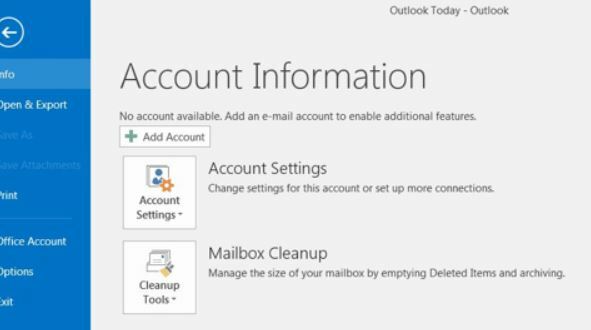
Для добавления учетной записи электронной почты:
- В окне MS Outlook перейдите в Настройки и выберите вариант Управлять учетными записями.
- Теперь нажмите на Добавить аккаунт и в следующем запросе выберите учетную запись, которую хотите добавить.
- Вот, введите учетные данные и затем нажмите войти в систему.
- Наконец, нажмите на Выполнено.
ИСПРАВЛЕНИЕ 3: проверьте вмешательство VPN в Outlook:
VPN (виртуальная частная сеть) образует частную сеть из общедоступного интернет-соединения для обеспечения анонимности пользователей и конфиденциальности в сети. Но в то время решение VPN может блокировать Outlook и удерживать его от взаимодействия с другими сетевыми серверами.
Чтобы отметить эту возможность, пользователи должны отключить свой VPN, а затем попытаться отправить электронное письмо через MS outlook. Если электронное письмо отправляется без сбоев, то очевидно, что VPN мешает Outlook.
Чтобы отключить VPN-сервер, выполните следующие действия:
В дальнейшем, если вы обнаружите, что VPN мешает работе Outlook, рассмотрите возможность подключения к группе поддержки вашего VPN-сервера и попросите их занести почтовый сервер в белый список.
ИСПРАВЛЕНИЕ 4: Отключите вмешательство межсетевого экрана:
Брандмауэр — это система сетевой безопасности, которая защищает ваши файлы и ресурсы, создавая барьер между безопасной и небезопасной сетью. Хотя некоторые сторонние брандмауэры могут блокировать некоторые диапазоны IP-адресов, что в результате может вызвать ошибку «Сервер ответил: 421 Не удается подключиться к серверу SMT / SMTP». Чтобы исключить такую возможность, может помочь отключение брандмауэра. Для этого
SMTP-сервер — важный элемент, используемый в нашей повседневной жизни для отправки электронной почты через Интернет. А когда возникает ошибка «Сервер ответил: 421 не может подключиться к SMTP-серверу», тогда пользователю может быть запрещено отправлять электронные письма через Интернет. В таких обстоятельствах исправления, упомянутые выше, помогут.
Надеюсь, благодаря этой статье вы получили полезную и актуальную информацию. Кроме того, поскольку отключение брандмауэра и любого стороннего программного обеспечения безопасности на долгое время может оказаться угрозой для вашей системы, мы советуем вам воздержаться от этого. Если у вас есть какие-либо вопросы или отзывы, напишите комментарий в поле для комментариев ниже.