

Что такое Ошибка 408 Request Timeout? Как устранить эту ошибку обычному пользователю? Как решить проблему вебмастеру?
Ошибка 408 Request Timeout – это превышение времени ожидания ответа сервера на запрошенную вами страницу. Например, вы нажали на ссылку и через пару минут вам выдало ошибку 408. Это и есть тот самый случай, когда ответ не получается получить в течении времени, которое определенно сервером.
Отметим, что это очень распространенная проблема среди всех пользователей сети Интернет. Часто из-за нее мы не можем получить доступ к любимым сайтам, но мало кто знает, как с ней бороться. Иногда, вроде проблему устранили, но через время она возвращается снова и снова. Поэтому важно знать главную причину возникновения ошибки, код которой 408. Эта статья полностью посвящена этому и может стать полезной для любого пользователя.
- Часто отображается в браузере при переходе на один или больше сайтов.
- Во время работы в Интернете, компьютер «тормозит», долго реагирует на ввод с клавиатуры.
- Устройство часто зависает.
Почему возникает ошибка 408? Основные причины
- Вредоносное программное обеспечение, которое изменило настройки браузера. Мало того, это несет за собой более серьезные последствия, после которых возможно нужно будет переустанавливать операционную систему.
- Различные ошибки в реестре операционной системы. Они могли быть результатом недавних изменений в самой системе, например, после установки драйверов или антивирусных программ.
Как устранить ошибку 408?
В начале хотелось бы предупредить, что если вы не достаточно опытный пользователей, то возможно вам лучше не делать этого самостоятельно. Так что прежде чем что-нибудь пытаться исправить, подумайте, что вы можете навредить.
Итак, для борьбы с ошибкой 408 вам необходимо:
- Сделайте полную проверку компьютера антивирусом. Рекомендуем бесплатную утилиту от Dr Web — Curelt. По итогам проверки примите нужные меры, анивирус подскажет какие именно. Кстати, проверять систему уже установленным антивирусом нет смысла.
- Попробуйте почистить компьютер от мусора. Программа ccleaner поможет вам в этом, а бесплатно скачать ее можно только с официального сайта разработчиков. Подойдет бесплатная версия.
- Обновите все устаревшие драйвера на вашем компьютере. Как это сделать? Можно воспользоваться сторонними программами или обновить через центр Обновлений в Windows.
- Обновите браузер до последней версии, либо скачайте новый. В идеале удалить текущий и скачать заново. Закладки можно сохранить, если сделать импорт данных.
- Проверьте операционную систему на наличие каких-нибудь ошибок. Это можно сделать с помощью поиска ошибок в реестре через программы CCleaner.
- Обновите Windows до последней версии, если это возможно. Пиратскую версию обновить не выйдет, кроме того, слетит активация.
- Проверьте все системные файлы на наличие ошибок.
- Попытаться восстановить файлы в реестре, которые связаны с данной ошибкой. Перед этим не забудьте создать резервную копию.
Для владельца сайта
Сразу обращайтесь к хостеру. Дело в том, что % вероятности ошибки на стороне сайте кране низок. Особенно, если вы используете стандартные CMS, вроед WordPress, Joomla или DLE. Конечно, если это происходит после установки плагина, тогда варианта два: снести к черту последний установленный плагин или откатить сайт по бэкапу.
Другой способ решения проблемы — перейти на VDS или сменить хостера. Но это более радикальные методы борьбы. Ошибка 408 может возникнуть по разным причинам, поэтому точно определитесь в хостере ли дело. Если до момента обнаружения проблемы все было хорошо, то скорее всего, проблема в сайте и настройках.
Стоит заметить, что после каждой из манипуляций, вы должны проверять не исчезла ли проблема. Настоятельно не рекомендуем выполнить все действия сразу и только потом попробовать посетить нужный ресурс. После каждого действия на сайте, очищайте кэш. Некоторые хостеры обеспечивают кэширование на своей стороне, поэтому очистить его можно в панели управления хостингом.
Если после проведения манипуляций ошибка 408 остается, то вам необходимо обратиться к специалистам. Ведь данная ошибка, в отличие от 400 и 401, она гораздо сложнее и прячется где-то внутри. Но в любом случае не расстраивайтесь. По крайней мере, от этого еще никто не умирал. Желаем не попадаться на скверную и загадочную ошибку, код которой 408.
Дальше по теме…
Содержание
- Ошибка 408. Что значит Request Timeout? Как решить ошибку?
- Первые признаки, что на вашем компьютере есть ошибка 408
- Почему возникает ошибка 408? Основные причины
- Как устранить ошибку 408?
- Для владельца сайта
- Как исправить ошибку времени ожидания запроса 408
- Методы исправления ошибки тайм-аута запроса 408
- Как исправить ошибку времени ожидания запроса 408
- Ошибки, как 408 Время ожидания запроса
- How to Fix The Ping Error Request Timed Out?
- Possible Reasons to get the Ping Error Message Request Timed Out
- How to Fix the Ping Error Request Timed Out?
- Why Do You Get Intermittent Request Timed Out Error?
- What is 408 Request Timeout error and How to fix it?
- What is 408 Request Timeout error
- How to fix 408 Request Timeout error
- 1] Check for errors in the URL
- 2] Check your Internet Connection
- 3] Reload the web page
- 4] Disable your browser extension
- 5] Retry after sometime
Ошибка 408. Что значит Request Timeout? Как решить ошибку?
Что такое Ошибка 408 Request Timeout? Как устранить эту ошибку обычному пользователю? Как решить проблему вебмастеру?
Ошибка 408 Request Timeout – это превышение времени ожидания ответа сервера на запрошенную вами страницу. Например, вы нажали на ссылку и через пару минут вам выдало ошибку 408. Это и есть тот самый случай, когда ответ не получается получить в течении времени, которое определенно сервером.
Отметим, что это очень распространенная проблема среди всех пользователей сети Интернет. Часто из-за нее мы не можем получить доступ к любимым сайтам, но мало кто знает, как с ней бороться. Иногда, вроде проблему устранили, но через время она возвращается снова и снова. Поэтому важно знать главную причину возникновения ошибки, код которой 408. Эта статья полностью посвящена этому и может стать полезной для любого пользователя.
Первые признаки, что на вашем компьютере есть ошибка 408
- Часто отображается в браузере при переходе на один или больше сайтов.
- Во время работы в Интернете, компьютер «тормозит», долго реагирует на ввод с клавиатуры.
- Устройство часто зависает.
Почему возникает ошибка 408? Основные причины
- Вредоносное программное обеспечение, которое изменило настройки браузера. Мало того, это несет за собой более серьезные последствия, после которых возможно нужно будет переустанавливать операционную систему.
- Различные ошибки в реестре операционной системы. Они могли быть результатом недавних изменений в самой системе, например, после установки драйверов или антивирусных программ.
Как устранить ошибку 408?
В начале хотелось бы предупредить, что если вы не достаточно опытный пользователей, то возможно вам лучше не делать этого самостоятельно. Так что прежде чем что-нибудь пытаться исправить, подумайте, что вы можете навредить.
Итак, для борьбы с ошибкой 408 вам необходимо:
- Сделайте полную проверку компьютера антивирусом. Рекомендуем бесплатную утилиту от Dr Web — Curelt. По итогам проверки примите нужные меры, анивирус подскажет какие именно. Кстати, проверять систему уже установленным антивирусом нет смысла.
- Попробуйте почистить компьютер от мусора. Программа ccleaner поможет вам в этом, а бесплатно скачать ее можно только с официального сайта разработчиков. Подойдет бесплатная версия.
- Обновите все устаревшие драйвера на вашем компьютере. Как это сделать? Можно воспользоваться сторонними программами или обновить через центр Обновлений в Windows.
- Обновите браузер до последней версии, либо скачайте новый. В идеале удалить текущий и скачать заново. Закладки можно сохранить, если сделать импорт данных.
- Проверьте операционную систему на наличие каких-нибудь ошибок. Это можно сделать с помощью поиска ошибок в реестре через программы CCleaner.
- Обновите Windows до последней версии, если это возможно. Пиратскую версию обновить не выйдет, кроме того, слетит активация.
- Проверьте все системные файлы на наличие ошибок.
- Попытаться восстановить файлы в реестре, которые связаны с данной ошибкой. Перед этим не забудьте создать резервную копию.
Для владельца сайта
Сразу обращайтесь к хостеру. Дело в том, что % вероятности ошибки на стороне сайте кране низок. Особенно, если вы используете стандартные CMS, вроед WordPress, Joomla или DLE. Конечно, если это происходит после установки плагина, тогда варианта два: снести к черту последний установленный плагин или откатить сайт по бэкапу.
Другой способ решения проблемы — перейти на VDS или сменить хостера. Но это более радикальные методы борьбы. Ошибка 408 может возникнуть по разным причинам, поэтому точно определитесь в хостере ли дело. Если до момента обнаружения проблемы все было хорошо, то скорее всего, проблема в сайте и настройках.
Стоит заметить, что после каждой из манипуляций, вы должны проверять не исчезла ли проблема. Настоятельно не рекомендуем выполнить все действия сразу и только потом попробовать посетить нужный ресурс. После каждого действия на сайте, очищайте кэш. Некоторые хостеры обеспечивают кэширование на своей стороне, поэтому очистить его можно в панели управления хостингом.
Если после проведения манипуляций ошибка 408 остается, то вам необходимо обратиться к специалистам. Ведь данная ошибка, в отличие от 400 и 401, она гораздо сложнее и прячется где-то внутри. Но в любом случае не расстраивайтесь. По крайней мере, от этого еще никто не умирал. Желаем не попадаться на скверную и загадочную ошибку, код которой 408.
Источник
Как исправить ошибку времени ожидания запроса 408
Методы исправления ошибки тайм-аута запроса 408
Ошибка 408 Request Timeout – это код состояния HTTP, который означает, что запрос, отправленный вами на сервер веб-сайта (например, запрос на загрузку веб-страницы), занял больше времени, чем сервер веб-сайта был готов ждать. Другими словами, ваше соединение с сайтом “истекло”.
Сообщения об ошибках 408 Request Timeout часто настраиваются каждым веб-сайтом, особенно очень большими, поэтому имейте в виду, что эта ошибка может проявляться в большем количестве случаев, чем перечисленные ниже:
Ошибка 408 Request Timeout отображается в окне интернет-браузера, как и веб-страницы.
Как исправить ошибку времени ожидания запроса 408
- Повторите попытку веб-страницы, нажав кнопку «Обновить/перезагрузить» или еще раз попробовав URL из адресной строки. Во многих случаях медленное соединение вызывает задержку, которая вызывает ошибку 408 Request Timeout, и это часто является только временным. Попытка повторить страницу часто будет успешной.
- Примечание . Если в процессе оформления заказа у интернет-продавца появляется сообщение об ошибке 408 «Время ожидания запроса», имейте в виду, что повторные попытки оформления заказа могут привести к созданию нескольких заказов – и нескольких сборов! У большинства продавцов есть автоматическая защита от подобных действий, но об этом еще нужно помнить.
- Возможно, у вас возникла проблема с подключением к Интернету, которая вызывает длительные задержки при доступе к страницам. Чтобы исключить это, посетите другой веб-сайт, например, Google или Yahoo.
- Если страницы загружаются так быстро, как вы привыкли их видеть, проблема, вызывающая ошибку 408 Request Timeout, вероятно, связана с веб-сайтом.
- Однако, если все веб-сайты работают медленно, возможно, у вас проблемы с интернет-соединением. Запустите тест скорости Интернета, чтобы проверить текущую пропускную способность, или обратитесь к поставщику услуг Интернета за технической поддержкой.
- Вернуться позже. Ошибка 408 Request Timeout является распространенным сообщением об ошибке на очень популярных веб-сайтах, когда огромное увеличение трафика посетителями (это вы!) Перегружает серверы.
- По мере того, как все больше и больше посетителей покидают сайт, шансы на успешную загрузку страницы для вас возрастают.
- Если ничего не помогает, вы можете попытаться связаться с веб-мастером или другим контактом сайта и сообщить им об ошибке 408 Request Timeout.
- С веб-мастером большинства веб-сайтов можно связаться по электронной почте по адресу: веб-мастер @ website.com , заменив website.com фактическим именем сайта.
Ошибки, как 408 Время ожидания запроса
Следующие сообщения также являются ошибками на стороне клиента и поэтому в некоторой степени связаны с ошибкой тайм-аута запроса 408: неверный запрос 400, несанкционированный 401, запрещенный 403 и не найденный 404.
Также существует несколько кодов HTTP-статуса на стороне сервера , например, часто встречающаяся внутренняя ошибка сервера (500 Internal Server Error). Просмотрите их все в нашем списке ошибок кода состояния HTTP.
Источник
How to Fix The Ping Error Request Timed Out?
When someone faces problems with network connectivity, the first thing he has to do is to ping the destination address to check the connectivity.
Ping is a network utility available in every Operating System. On a Windows computer, you can run ping utility from the Command Prompt.
When you ping a destination address, your computer sends echo requests to the destination and wait for the reply.
If the network connection is fine, your computer will receive a reply from the destination.
If there is a problem, your computer will not receive the correct ICMP reply from the destination address. Instead, you will get one of the many ICMP error messages.
Request Timed Out is one of the most common ICMP error messages to a failed ping. Let us check the meaning of this ICMP Echo Reply.
If you are not familiar with this ICMP Echo reply, have a look at the screenshot below.
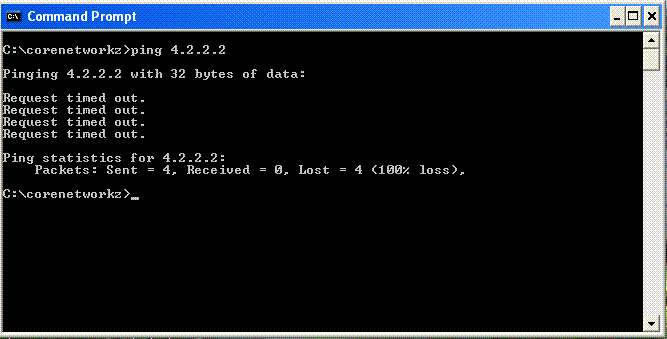
On Command Prompt, I ping the IP address 4.2.2.2, and you can see the reply I received.
Pinging 4.2.2.2 with 32 bytes of data:
Request timed out.
Request timed out.
Request timed out.
Request timed out.
Ping statistics for 4.2.2.2:
Packets: Sent = 4, Received = 0, Lost = 4 (100% loss),
Let us check why do you get the Request Timed Out while pinging a remote address.
Possible Reasons to get the Ping Error Message Request Timed Out
- Incorrect Network Adapter or Firewall Settings on your PC
The remote host might be down
There might not be a route back to your computer
The firewall installed on the destination host may be blocking your ICMP request
Your device did not have an Internet connection at the time of receiving replies
Let us check how to troubleshoot the ICMP Echo Reply Request Timed Out and how to resolve it.
How to Fix the Ping Error Request Timed Out?
- Ping Another address from your computer
You should check whether you can ping any other address from your computer. You can check it by ping another website or Google DNS address from your computer.
- Open Command Prompt
Type ping www.corenetworkz.com and press enter key. Check for the result.
Ping the Localhost
- Type cmd on Windows search
Open command prompt and type ping 127.0.0.1. Press the enter key.

If you do not get proper replies from the localhost, either the network adapter settings are corrupt, or the firewall is blocking the replies.
You can fix it by following the instructions below.
- Type command in the Windows search and right-click the command prompt, to open as an Administrator.
Type ipconfig /flushdns and press Enter key
Type netsh winsock reset and press Enter key
Type netsh int ip reset and press Enter key
Type netsh int ipv6 reset and press Enter key
Type netsh int ipv4 reset and press Enter key
Reboot your computer
Disable the Firewall and Check for the issue
An aggressive firewall on your computer can prevent it from receiving ICMP Echo replies to your ping.
If the firewall blocks the replies, your computer will show a Request Timed Out message on the command prompt.
Try to ping the Google DNS address to check for the issue after you disable the Firewall and other security tools on your PC.
Power Cycle the Network
A proper power cycle can fix most of the network connectivity issues. To do this, follow the instructions below.
- Switch off the devices on your network
Disconnect power cables from Modem and Router
Disconnect the Ethernet cables from Modem, Computer, and Router
Reconnect the power and ethernet cables
In this tutorial, you have learned how to fix the Request Timed Out Ping error message. However, it is not necessary to drop ICMP echo replies for every ping packets your computer sent.
Occasionally you may see Ping Request Timed Out intermittent replies. Out of four ICMP echo requests, one or two may receive replies successfully.
Why Do You Get Intermittent Request Timed Out Error?
Have a look at the ping reply given below.
Pinging 8.8.8.8 with 32 bytes of data:
Request timed out.
Reply from 8.8.8.8: bytes=32 time=132ms TTL=113
Request timed out.
Reply from 8.8.8.8: bytes=32 time=514ms TTL=113
Ping statistics for 8.8.8.8:
Packets: Sent = 4, Received = 2, Lost = 2 (50% loss),
Approximate round trip times in milli-seconds:
Minimum = 132ms, Maximum = 901ms, Average = 441ms
When you ping the Google DNS address, you received two replies and two Request timed out messages. Let us check why do I receive two intermittent Request timed out replies.
A loose network connection or old network components can cause this issue. In that case, I recommend you perform a complete network power cycle to fix it.
About The Author:
Alex George is a Cisco and Microsoft certified Network Engineer. He has been working in the Network Engineering field since 2006.
He has CCNA and MCSE certifications.
The author’s area of specialization is wireless and Cybersecurity.
Источник
What is 408 Request Timeout error and How to fix it?
It seems that you have encountered 408 Request Timeout error on your computer and now you’re persistently looking for its effective solution. Well, after reading this article your destination may end up. The 408 Request Timeout error occurs when the request of a webpage takes a longer time than what it should be taken. Here are some things that you may try.
What is 408 Request Timeout error
This error is an HTTP status code that mainly occurs when the request of a webpage takes a longer time than what it should be taken. That happens either due to having a slow internet connection or because of using an incorrect URL while loading a web page.
It suggests that the active server is not getting sufficient requests from the client within the designated timeout period of the server. That way, the connection between the server and the website gets terminated and result in 408 Request Timeout Error.
- Request Timeout
- 408 Request Time-out
- The Request Has Timed Out
- HTTP Error 408 – Request Timeout
How to fix 408 Request Timeout error
Errors related to the 4xx are often treated as the client-side error. Thus, for the end-user, it becomes quite challenging to find out the exact reason for this HTTP error code.
In this guide, we have explained all the effective methods that may help you to get rid of it. So, as an end-user, try these suggestions to resolve the issue.
- Check for errors in the URL
- Check your Internet Connection
- Reload the web page
- Disable your browser extension
- Retry after sometime
Let us see them in detail:
1] Check for errors in the URL
As it is said earlier that these types of errors can typically occur because of using an incorrect URL. Therefore to resolve this problem, you first need to make sure that the URL you’re using is correct.
2] Check your Internet Connection
Slow internet connection or network interruption is also one of the major causes to appear the 408 Request Timeout Error. To make it clear, open any other webpage and check your internet connection whether it is working fine there.
If the real culprit is related to your Internet connection then it may take a long time to complete the request. And as a result, if the timeout value of the server exceeds then it becomes cause to appear the error.
3] Reload the web page
Sometimes this error occurs temporarily and can be fixed only by reloading the web page. In order to reload the web page, you need to use the Ctrl+F5 (or F5) shortcut key. It depends upon your device variant.
To reload your web page, you can also use the reload button that is available near the address bar of your browser. It doesn’t surely fix the error but as it takes only a bit of time, you may try it.
4] Disable your browser extension
Using outdated and incompatible browser extension may also cause the 408 Request Timeout Error. To try out this possibility, disable your browser extensions for a while and then check whether it resolves the problem.
If it works then make the extension enable one by one and figure out which specific extension was responsible for this error code. Once you find, then check whether it is compatible with your browser.
5] Retry after sometime
If none of the above solutions works and you’re still persisting 408 Request Timeout Error, then wait for a while and then again try to access the webpage.
Источник
На чтение 3 мин. Просмотров 1.1k. Опубликовано 25.06.2019
Содержание
- Методы исправления ошибки тайм-аута запроса 408
- Как исправить ошибку времени ожидания запроса 408
- Ошибки, как 408 Время ожидания запроса
Методы исправления ошибки тайм-аута запроса 408
Ошибка 408 Request Timeout – это код состояния HTTP, который означает, что запрос, отправленный вами на сервер веб-сайта (например, запрос на загрузку веб-страницы), занял больше времени, чем сервер веб-сайта был готов ждать. Другими словами, ваше соединение с сайтом “истекло”.
Сообщения об ошибках 408 Request Timeout часто настраиваются каждым веб-сайтом, особенно очень большими, поэтому имейте в виду, что эта ошибка может проявляться в большем количестве случаев, чем перечисленные ниже:
408: время ожидания запроса
Ошибка HTTP 408 - время ожидания запроса
Ошибка 408 Request Timeout отображается в окне интернет-браузера, как и веб-страницы.
Как исправить ошибку времени ожидания запроса 408
-
Повторите попытку веб-страницы, нажав кнопку «Обновить/перезагрузить» или еще раз попробовав URL из адресной строки. Во многих случаях медленное соединение вызывает задержку, которая вызывает ошибку 408 Request Timeout, и это часто является только временным. Попытка повторить страницу часто будет успешной.
- Примечание . Если в процессе оформления заказа у интернет-продавца появляется сообщение об ошибке 408 «Время ожидания запроса», имейте в виду, что повторные попытки оформления заказа могут привести к созданию нескольких заказов – и нескольких сборов! У большинства продавцов есть автоматическая защита от подобных действий, но об этом еще нужно помнить.
-
Возможно, у вас возникла проблема с подключением к Интернету, которая вызывает длительные задержки при доступе к страницам. Чтобы исключить это, посетите другой веб-сайт, например, Google или Yahoo.
- Если страницы загружаются так быстро, как вы привыкли их видеть, проблема, вызывающая ошибку 408 Request Timeout, вероятно, связана с веб-сайтом.
- Однако, если все веб-сайты работают медленно, возможно, у вас проблемы с интернет-соединением. Запустите тест скорости Интернета, чтобы проверить текущую пропускную способность, или обратитесь к поставщику услуг Интернета за технической поддержкой.
-
Вернуться позже. Ошибка 408 Request Timeout является распространенным сообщением об ошибке на очень популярных веб-сайтах, когда огромное увеличение трафика посетителями (это вы!) Перегружает серверы.
- По мере того, как все больше и больше посетителей покидают сайт, шансы на успешную загрузку страницы для вас возрастают.
-
Если ничего не помогает, вы можете попытаться связаться с веб-мастером или другим контактом сайта и сообщить им об ошибке 408 Request Timeout.
- С веб-мастером большинства веб-сайтов можно связаться по электронной почте по адресу: веб-мастер @ website.com , заменив website.com фактическим именем сайта.
Ошибки, как 408 Время ожидания запроса
Следующие сообщения также являются ошибками на стороне клиента и поэтому в некоторой степени связаны с ошибкой тайм-аута запроса 408: неверный запрос 400, несанкционированный 401, запрещенный 403 и не найденный 404.
Также существует несколько кодов HTTP-статуса на стороне сервера , например, часто встречающаяся внутренняя ошибка сервера (500 Internal Server Error). Просмотрите их все в нашем списке ошибок кода состояния HTTP.
HTTP status code starting with 4XX is the client-side error code and 408 request timeout error is one of the client-side errors. In this, we will learn how to fix a 408 request timeout error. Before we dive into the solution let’s understand what does this error actually mean and how does it differ from the 504 bad gateway timeout error.
+
What does 408 Request Timeout mean?
A 408 Request Timeout error is an HTTP status code that is returned at the client-side when a server takes a longer time to process any particular request than the allocated timeout. So when this happens, the server terminates the connection and thus returns 408 Request Timeout error.
It is also possible that the server could be misconfigured and result in improper request handling which may also return a 408 Request Timeout error.
408 Request Timeout Indication
- 408 Request Timeout is displayed
- It crashes the active browser window
- Browser may respond to the request slowly
Different Ways to See a 408 Request Timeout Error
There are several different ways that you might see a 408 Request Timeout error. These errors may appear differently on different web servers or hosting. Although they show different error message, each one means the same.
- “408 Request Time-out”
- “408: Request Timeout”
- “Request Timeout”
- “The Request Has Timed Out”
- “HTTP Error 408 – Request Timeout”
How is a 408 Request Timeout error different from a 504 Gateway Timeout error?
You may have come across a similar error i.e. 504 Gateway Timeout error. Since these two errors are quite similar, you might be wondering that how it is different from one another.
The 504 Gateway Timeout error occurs while acting as a gateway or proxy. On the other hand, a 408 error is returned when a request to load the web page takes longer than the server was prepared to wait.
Learn how to fix 504 Gateway Timeout error.
According to RFC 2068, the 504 Gateway Timeout and 408 Request Timeout error are defined as follows:
504 Gateway Timeout
The server, while acting as a gateway or proxy, did not receive a timely response from the upstream server it accessed in attempting to complete the request.
408 Request Timeout:
The client did not produce a request within the time that the server was prepared to wait. The client MAY repeat the request without modifications at any later time.
In certain cases, it can be difficult to immediately determine the source of an HTTP error. Although 4xx errors are known to be client-side errors, this doesn’t mean that the server should be completely ruled out as the culprit. Below are a few things you can check, both on the client and server-side in order to try and resolve a 408 error.
+
Fix a 408 Request Timeout error at client-side
Reload the Web Page
There are instances when this error occurs temporarily at the client-side because of the browser. You can try to reload the web page or even reopen the browser to see if the error gets resolved.
Double check URL
Depending upon the configuration of your web server, the requested URL might throw a 408 request timeout error. Suppose, if you are requesting a URL that requires certain permissions or credentials to get the access, this might trigger a 408 error.
Check your internet connection
If there is any issue with your internet connection or it is running slow then the request made can take too long to complete. As a result, the server’s timeout exceeds and becomes idle that results in 408 request timeout error.
Fix a 408 Request Timeout error at server-side
Check your web server’s timeout settings
Most of the web servers like Apache and Nginx allow website developers to set certain timeout values in the configuration file which enables you to control the time required to certain requests.
So if you are receiving the 408 timeout error, the configured timeout value might be too low. You increase the timeout value and restart the server to see if the issue is resolved.
+
Apache
If you’re using the Apache web server, you need to check both the .htaccess file and the Apache server config file. Inside these files look for the KeepAliveTimeout or RequestReadTimeout directives. If either of these directives is defined, increase it’s value and reload the webserver.
If you don’t find these directives inside the configuration file, you can add them along with their values and test a few requests by reloading the web server.
NGINX
If you’re using Nginx as a web server, open the nginx.conf file and check for directives like client_body_timeout, client_header_timeoutand keepalive_timeout and then increase their values.
If you don’t find these directives, add them inside the http or server block aongwith their values.
You can test a few requests by increasing their values and reloading the web server.
Check the logs
While investigating any kind of a server error, it’s a good idea to check the error logs. It provides you with a whole lot of information about the error.
Other Fixes
- How to Fix 403 Forbidden Error in NGINX Ubuntu
- Fix 413 Request Entity Too Large Error on Nginx & Apache
- Fix 502 Bad Gateway Nginx Error in Ubuntu – 4 Simple Steps
- PHP5-FPM 502 Bad Gateway Error (connect() to unix:/var/run/php5-fpm.sock failed (2: No such file or directory)
- Fix 504 Gateway Timeout Nginx Error – 5 Simple Steps
Conclusion
A 408 Request Timeout error is fairly common and can be fixed quite easily most of the time. It simply passes the message on the client-side that the request timed out for the website and that the server has terminated the connection.
I hope you will find the solution on how to fix a 408 Request Timeout Error useful. Do put your views in the comment section below.
Encountering HTTP status code errors can be frustrating and stressful. This is especially true when you don’t know what the message means or what’s causing it. One of the errors you might be dealing with is HTTP 408 Request Timeout.
Fortunately, you can take a handful of steps to troubleshoot and resolve this issue. You’ll simply need a basic understanding of what could be causing the HTTP 408 error, then implement solutions to fix it.
In this post, we’ll explain the HTTP 408 status code and some common causes of the error. Then we’ll walk you through eight potential solutions for resolving it. Let’s jump in!
Check Out Our Video Guide to Fixing the HTTP 408 Error
What the HTTP 408 Status Code Is
HTTP status codes indicate the status of a client’s request. They can also redirect clients to different resources, depending on their requests.
The most common HTTP status code is 404, which indicates that the requested resource could not be found. Other common status codes include 200 (OK), 400 (Bad Request), and 500 (Internal Server Error).
Status codes are divided into five categories:
- Informational: The server is still processing the request.
- Successful: The request was completed successfully.
- Redirects: The client should be redirected to a different resource.
- Client Errors: There was an error with the request.
- Server Errors: There was an error with the server.
HTTP 408 falls into the category of client errors. The status code communicates that the server did not receive a timely response from the client and that the server timed out waiting for the request. This can happen if the client takes too long to send the request or the server is too busy to process it.
The HTTP 408 error is similar to the 504 Gateway Timeout status code. However, the former doesn’t come from a gateway or proxy server. Instead, it comes directly from the web server the client is connected to.
Encountering HTTP status code errors can be frustrating and stressful. 😰 This guide can help. 🛠Click to Tweet
Common Causes of the HTTP 408 Request Timeout Error
There are a handful of potential reasons behind the HTTP 408 request timeout error. These causes include:
- Network latency
- Clients timing out
- Servers being too busy to handle the request
The 408 Request Timeout error means the request you sent to the website server took longer than the server was prepared to wait. It can happen due to heavy traffic on the internet or a slow connection on your side.
The problem with this status code is that it can occur for both client-side and server-side-related reasons. In other words, although the 408 error is categorized as a client error, this doesn’t necessarily mean the issue stems from the browser or device. It’s possible that the server is misconfigured or isn’t handling requests correctly.
How To Fix the HTTP 408 Error (8 Solutions)
Now that we understand more about the HTTP 408 status code, let’s discuss how you can resolve it. Below are eight potential solutions you can use, separated into two categories: client-side and server-side.
Client-Side
Below are some client-side solutions you can use to resolve the HTTP 408 error!
1. Back Up Your Site
The first thing you should do before troubleshooting the HTTP 408 error is back up your website. Then, if anything goes wrong while trying to fix the issue, you will have a full, updated version of your files and database to restore.
There are several methods you can use to back up your site. One is the manual approach. This method involves using a Secure File Transfer Protocol (SFTP) client, such as FileZilla. After receiving your SFTP credentials from your host and connecting to the server, you can download your files from the root directory (public_html folder).
Next, you’ll need to download your database via phpMyAdmin. If you’re a Kinsta user, you can access this through MyKinsta > Sites > Info:

Then select Open phpMyAdmin to launch the database manager. Select your site’s database from the menu:

Next, click on Export at the top of the screen. Make sure to select SQL under Format, then click on Go. Your database file should begin downloading.
You can also use a backup plugin such as UpdraftPlus. After installing and activating the plugin, navigate to Settings > UpdraftPlus Backups in your WordPress dashboard, then click on Backup Now:

A third option is to back up your site through your web host. At Kinsta, you can view your existing backups by logging into MyKinsta and then navigating to the Backups tab:

You can create up to five manual backups, which are automatically stored for two weeks. We also offer DevKinsta, a free local WordPress development tool you can use for staging and backing up your site to a local environment.
You can do this by going to DevKinsta and selecting the Import from Kinsta option. You may need to verify your hosting credentials. Once you choose your site, DevKinsta handles the rest.
2. Check the URL
One of the reasons you may be seeing the HTTP 408 status code error is that you simply typed the wrong URL into the browser. Therefore, you should now double-check the URL to ensure you didn’t make any typos.
Pay close attention to the domain name, especially if there are slashes or hyphens. Try re-entering the URL and then reloading the page. If the timeout request error is still present, you can move on to the next solution.
3. Review Recent Database Changes
If you’ve made any recent changes to your database, they may be causing the HTTP 408 error. You’ll need to revert any changes you’ve made to fix the issue.
Recently installed extensions or updates to your database may have altered database records that are causing problems. To see if this is the case, we recommend opening your database (phpMyAdmin) and manually going through to check any tables or records that have been recently modified. If you find any, revert them to their original states.
4. Uninstall Extensions and Plugins
Adding extensions and plugins to your site can cause various incompatibility issues and errors, including the HTTP 408 status code. One of the easiest ways to see whether this is the case is to deactivate all of the plugins on your site.
If you have access to your WordPress dashboard, you can do this by navigating to Plugins from the admin area, selecting all of the installed plugins, then selecting Deactivate from the Bulk actions dropdown menu. Now click on Apply:

If you don’t have access to your dashboard, you can bulk deactivate your extensions by connecting to your site via SFTP, then renaming the plugins folder to something like “plugins_old”.
Revisit your site. You can assume a plugin was to blame if you no longer see the error message.
You’ll need to reactivate each plugin one by one, checking the site in between. Once you see the error message again, you’ll have to uninstall that extension and find a replacement (or contact the developer for more information).
5. Roll Back Recent Changes
If you’ve recently made any changes to your WordPress site, such as installing a new plugin or updating the WordPress software, you might be seeing the HTTP 408 error. New tools can sometimes lead to configuration problems. You can roll back recent changes by restoring your site to a previous version.
If you’re a Kinsta user, open your MyKinsta dashboard, then navigate to Sites and select your site. Next, click on Backups.
From the list of backups, find the version you want to restore, click on Restore to, then select Staging or Live:

Next, you can confirm the backup restoration and click on Restore backup. Once the backup is complete, you can check to see whether the error message is still displaying.
Server-Side
If none of the above solutions worked, the HTTP 408 error might be caused by a server-side issue. Let’s look at potential solutions you can use to resolve it.
6. Check Server Config Files
One of the ways you can determine the cause of the HTTP 408 error is to check your server configuration files via SFTP. The process for doing so will depend on your server software.
Chances are that your server is either running on Apache or Nginx. If you’re a Kinsta user, we use Nginx.
If you’re using Apache, you can look for the .htaccess file within your site’s root directory. When you locate the file, open it and look for the following lines:
- KeepAliveTimeout
- RequestReadTimeout
If you find these directives, you can comment them out by using the # symbol prefix before the line. Then you can save the file and reload the page in your browser.
If you’re a Kinsta user, you can check your .htaccess file by opening your MyKinsta dashboard and navigating to your website under Sites. Locate the SFTP/SSH section to get your credentials, then use them to connect to your site via an FTP client.
Next, navigate to the public_html folder, then locate and open the .htaccess file:

Look for either of the directives listed above. If you see any of these rules, comment them out and save your changes.
7. Review Application Logs
Your server-side logs can be invaluable for providing information about your applications, including what they did, the pages requested, the servers connected to, and more. If you’re a Kinsta user, you can check your error logs using the log viewer in MyKinsta.
If you’re not using a Kinsta hosting plan or your host doesn’t provide a logging tool, you can insert the following code into your wp-config.php file:
define( 'WP_DEBUG', true );

define( 'WP_DEBUG_LOG', true );

define( 'WP_DEBUG_DISPLAY', false );
This will enable WordPress debugging mode.
From MyKinsta, navigate to Sites > Logs:

Here, you’ll find the Log viewer that displays your error logs. You can click on access.log from the dropdown menu. This is where you can find all the HTTP requests from your website. You can also look for any HTTP 408 requests using the search bar.
If you locate any errors, you can use the information to pinpoint which web page is causing the issue. This can help you narrow down the source of the problem.
8. Debug Apps or Scripts
At this point, if you’re still seeing the HTTP 408 error, it’s time to debug your site. There are a handful of options you can use for this process.
One is to use a plugin such as Query Monitor:

This free plugin debugs your website’s performance and development. It enables you to check database queries, scripts, timing, and more.
Another option is using an Application Performance Monitoring (APM) tool. This software helps you monitor and optimize the performance of your website or application.
Using an APM tool can help you debug your site by giving insight into its performance and the location of any bottlenecks. This information can help you identify and fix any issues causing your website to run slowly or have other performance problems.
You can use our Kinsta APM Tool. It’s a custom-designed performance monitoring tool for WordPress sites that helps you identify performance issues. It’s also free for all sites hosted with us.
You can access the Kinsta AMP via your MyKinsta dashboard by navigating to Sites > Kinsta APM:

Once you enable the APM, you can use a variety of tools and features. These include diagnosing performance issues and monitoring results.
It’s easier than you may think to fix this pesky issue. 😌 Here’s how to get started… ✅Click to Tweet
Summary
HTTP status codes can provide a wide range of information about client and server requests. However, some of these messages indicate problems, such as the HTTP 408 Request Timeout error.
As we discussed in this post, the source of the issue may be either client- or server-side. To troubleshoot and resolve the status code error, you should review and roll back recent changes, check your server configuration file and application logs, and debug your apps and scripts.
Do you want to switch to hosting that provides easy access to software for identifying, testing, and fixing issues on your site? Check out our Kinsta hosting plans to learn more about our APM and development tools!
Get all your applications, databases and WordPress sites online and under one roof. Our feature-packed, high-performance cloud platform includes:
- Easy setup and management in the MyKinsta dashboard
- 24/7 expert support
- The best Google Cloud Platform hardware and network, powered by Kubernetes for maximum scalability
- An enterprise-level Cloudflare integration for speed and security
- Global audience reach with up to 35 data centers and 275 PoPs worldwide
Test it yourself with $20 off your first month of Application Hosting or Database Hosting. Explore our plans or talk to sales to find your best fit.

The HTTP Status Code starting with series digit 4xx are the client side error codes. The 408 Request Timeout Error code is one of the client-side code that occurs when the request time to load a webpage exceeds.
It is also possible that the server could be the cause of a 408 Request Timeout Error. In some cases, there is a chance that the server may be misconfigured and results in improper requests handling which in return may lead to 408 response code.
What Does 408 Request Timeout Mean?
The 408 Request Timeout Error code occurs when a connection with the website is timed out. It means the request you made to the web server is taking too much time as compared to the waiting time of the website’s server.
Client requests load time is much higher than the server’s waiting time for a particular request. In short, Request Time > Server Waiting Time.

In this case, the server will terminate the connection and thus return in 408 Request Timeout Error.
Symptoms of HTTP Error 408
1. It crashes the active window.
2. Request Timeout is displayed.
3. Windows runs sluggishly and responds slowly to input devices.
Different ways to See a 408 Request Timeout Error
You can see the 408 Request Timeout error in many different ways. Although the textual presentation is slightly different otherwise, each one has the same meaning.
1. “408 Request Time-out”
2. “Request Timeout”
3. “The Request Has Timed Out”
4. “408: Request Timeout”
5. “HTTP Error 408 – Request Timeout”
How Is a 408 Error Different From a 504 Error?
If you are a website owner, then there are 99% of the possibilities that you have encountered during the 504 Gateway Timeout error. You may also be wondering that how a 408 Request Timeout Error is different from the 504 Gateway Timeout error.
The HTTP status code 504 Gateway Timeout error is returned when a server is acting as a gateway or proxy and has timed out. While the 408 Error, returned as a direct message from the active server.
The 408 Request Timeout:
This error occurs when the server request wait time is lower than the server
request time.
While the 504 Gateway Timeout:
This error occurs when one server is not able to receive a timely response from
another server that may be acting as gateway or proxy.
Start With a Backup
Prevention is better than cure. It is better to walk on the safer side than not regret later.
It is recommended to take a full backup of your website, database and all other components before attempting any fixes. You can use Backup Bank to take a complete backup of your website and database. You can find it easily on wordpress.org plugins directory.
Different Methods to Fix a 408 Request Timeout Error
It is very difficult to detect the source of the HTTP error. Although the 4xx series error is known to be the client-side errors. But it doesn’t mean that the server is completely ruled out as the culprit.
Method 1) Client Side fixes
Below are a few things you can check on the client side in order to fix the 408 Request Timeout Error.
1. Double Check the URL
Sometimes, the cause behind the error is the URL you are requesting.
Now, suppose that you are requesting a URL that requires certain credentials to access and depending on how the server is configured, this could trigger a 408 response from the server. Or you are requesting a website URL from the saved bookmark that not exists.
2. Check your Internet Connection
Try to check your internet connection. If it is slow, then this could take too long to complete the request. As a result, the server timeout value exceeded and it becomes idle. This will returns 408 HTTP Status Code.
3. Try Reloading the Page
This is the easiest way to get rid of the error. Sometimes, there is a temporary problem on the client side or even the server side. Try to refresh the page that you are trying to access to see if the error has been resolved or not.
4. Rollback Recent Upgrades
If you have recently updated the WordPress just before the 408 Request Timeout appeared, you may need to rollback to the previous version.
Similarly, any extension, any modules or even any plugin or theme that you may have recently upgraded can also cause server-side issues, so retrieving to the previous version of those may also help.
Method 2) Server Side Fixes
Below are a few things you can check, on the server side in order to fix the 408 Request Timeout Error.
1. Check your Web Server’s Timeout Settings
It is possible that your web server’s timeout value is less than that of the client request time. Apache, Nginx is the web servers that allows web developers to set some timeout values so that the request is not open for a long time.
Moreover, if you are receiving a continuous 408 request timeout error then, this might be the small timeout value.
If we talk about the Apache Server, check for the .htaccess file as well as the Apache server config file. Look for: KeepAliveTimeout or RequestReadTimeout directives
In the case of the Nginx Server, Open the nginx.conf file and check for directives such as client_body_timeout, client_header_timeout or keepalive_timeout
If either of these directives is defined, try increasing their values, reload the web server and try again.
2. Check the Logs
It is always good to check the server’s error logs. This may provide you with information in order to help you resolve the issue ( like what is the nature of the error? or from where it is originated ).
Conclusion
WordPress Plugins
-
Backup Bank -
Captcha Bank -
Captcha Booster -
Clean Up Booster -
Clean Up Optimizer -
Coming Soon Booster -
Contact Bank -
Facebook Like Box -
Gallery Bank -
Gallery Master -
Google Maps Bank -
Limit Attempts Booster -
WP Mail Bank -
WP Mail Booster

Перейти к содержанию
Ошибка 408 Request Timeout – это код состояния HTTP, который означает, что запрос, отправленный вами на сервер веб-сайта, например запрос на загрузку веб-страницы, занял больше времени, чем сервер веб-сайта был готов ждать. Другими словами, ваше соединение с сайтом “истекло”.
Сообщения об ошибках 408 Request Timeout часто настраиваются каждым веб-сайтом индивидуально, поэтому эта ошибка может проявляться в разных вариациях ниже, представлен классический вариант:
408: ошибка тайм-аута запроса
408 - тайм-аут запроса
Ошибка 408 Request Timeout отображается в окне интернет-браузера, как и веб-страницы.
Причина 408 ошибок тайм-аута запроса

Самая распространенная причина ошибки 408 Request Timeout – неверный URL. Это также может быть вызвано медленным подключением к интернету или проблемами с подключением.
Как исправить ошибку 408 времени ожидания запроса
Следующие сообщения также являются ошибками на стороне клиента и поэтому в некоторой степени связаны с ошибкой тайм-аут запроса 408: неверный запрос 400, несанкционированный 401, запрещенный 403 и не найденный 404.
-
Повторите попытку загрузки веб-страницы, нажав кнопку обновления и еще раз проверив правильность написания URL в адресной строке. Бывают случаи, когда медленное соединение интернета вызывает задержку, соответственно она и вызывает ошибку 408 Request Timeout. Повторная попытка загрузки страницы часто бывает успешной.
Если во время оформления заказа у интернет-продавца появляется сообщение об ошибке 408 «Запрос тайм-аута», повторные попытки оформления заказа могут привести к созданию нескольких заказов – и повторных платежей! Большинство продавцов защищают от этих ошибок, но некоторые мелкие не могут.
- Ваше интернет-соединение может привести к задержке загрузки страницы. Посетите другой сайт, например Google или YouTube. Если страницы загружаются так же быстро как у вас загружались раньше, проблема с сообщением об ошибке 408 Request Timeout вероятно, связана с веб-сайтом.
-
Однако, если все веб-сайты работают медленно, это может отрицательно сказаться на вашем интернет-соединении. Выполнить тест скорости интернет для ориентира текущей пропускной способности или обратитесь к поставщику услуг Интернета для получения технической поддержки.
-
Вернуться позже. Ошибка 408 Request Timeout является распространенным сообщением об ошибке на очень популярных веб-сайтах, когда огромное увеличение трафика посетителями перегружает серверы. Когда посетители покидают сайт, шансы на успешную загрузку страницы для вас возрастают.
-
Свяжитесь с веб-мастером или другим контактным лицом по поводу сообщения об ошибке 408 Request Timeout.
Просмотров 14.1к.
Обновлено 18.04.2020
- The 408 Request Timeout Error is one of the client-side codes that occurs when the request timeout for loading a web page is exceeded.
- The load time of a client request is much longer than the server’s wait time for a particular request.
- There are more than 50 different HTTP status codes, more than half of which are error messages, but these messages often prove to be only a rough guide to the next problem.
In order to access websites online, you must use a web browser. HTTP (“Hypertext Transfer Protocol”) is the stateless protocol that describes the initial exchange of messages between a web server and browser, and is handled by default through TCP for this transmission. Client-server principle describes how a browser sends a request to a server, which then receives a response with a status code from the server.
When the request timeout for loading a web page surpasses the 400 seconds mark, an HTTP status code with the serial number 4xx appears on the client side. The 408 Request Timeout Error is one of these client-side error codes.
Request Timeout error is an HTTP response status code that indicates that the client did not send a complete request to the server. When the client forwards an incomplete request to the server, which causes it to time out, the server responds with the HTTP status code 408 Request Timeout. That implies that a server acting as a gateway or proxy has timed out. It’s common to experience this error no matter what browser you are using. However, if you’ve been seeing the error 408 Request Timeout too frequently, it’s time for you to fix it.
This error can be caused by a number of different factors, including:
A 408 Request Timeout error can also be caused by a server malfunction. Sometimes, a server will not be configured correctly, resulting in incorrect processing of the request, which results in a 408 error code.
What Does Request Timed Out Mean
You received an ICMP error message, Request Timed Out, which explains that your computer waited for an acceptable amount of time for a response from the destination host, but did not hear from it.
Server Timeout
A browser requests data at a predetermined time. The server is supposed to respond as soon as possible. When this error occurs, devices will not be able to wait endlessly for the server to respond. There are many possible reasons for this problem, including server issues, outdated browsers and caches, blacklisted sites, sporadic internet connections, and faulty extensions.
Sip 408
Communication sessions over the internet, such as Voice over IP calls, are controlled by the Session Initiation Protocol (SIP), which uses requests and responses. SIP operates similar to HTTP, in that it is based on request/response transactions. A transaction consists of a SIP request (which is either a request method, or a response):[1]: p11 
Incorrect URLs and slow connections/connectivity issues are the most common causes.
408 error codes (request timeouts) occur when the webserver does not respond to your request in the time the request server has set.
Timeout Status Code
In this error, our server times out and returns an error in the event that the server does not respond fast enough to our request.
In other words, client requests take much longer to load than server responses to those requests.
An error 408 Request Timeout is returned in this case as the server terminated the connection.
Which causes a 408 Request Timeout error
Despite the fact that there are over 50 different HTTP status codes, more than half of which are error messages, these messages can often provide only a rough idea of what next to do. A TCP/IP connection that has been established without any data being transmitted over it for a given period of time will also result in error code 408, which simply indicates that too much time has passed. There are, however, several reasons for this delay, including
- Bandwidth issues and dropped connections: HTTP 408 messages are often caused by problems with your Internet connection. For example, bandwidth may be so low that an HTTP request cannot be completed in a given amount of time. It is also possible that the Internet connection to the server was temporarily lost after the TCP/IP connection was established, so the request data may not have been sent completely.
- Attempting to access invalid or inaccessible URLs: The URLs of all Web sites are not accessible to visitors without encryption. If you accidentally try to access a page that you do not have permission to access, or if you try to access an HTTPS page that does not have SSL/TLS enabled, you may have a 408-minute wait. Also, many URLs have restrictions on what HTTP request methods are allowed (GET, POST, HEAD, PUT, etc.), so the wait time could also be the result of the wrong method being applied. In both cases, however, there are also standard messages indicating the problem (“403: Forbidden” for unauthorized access attempts and “405: Method not allowed” for HTTP methods not available).
- Incorrect configuration of the webserver: Regardless of the web server software used, the website operator specifies in the corresponding configuration file the number of seconds that an HTTP request should be rejected. There are separate values for the header and body of HTTP messages. If the server chooses too short a period of time to process one or both components of the packet, it may cause a 408 error on user pages.
- Plugins, extensions, modules, etc.: Using defective or outdated extensions is a problem that can occur on both the client and server sides. Thus, both browser plugins used by the site visitor and CMS modules used by the operator may be responsible for the HTTP timeout and cause a 408 HTTP error.
T-mobile Request Timeout
The 408 Request Timeout error usually occurs because of a slow connection, which results in a temporary delay, and retrying the page twice usually resolves the issue.
Check your Internet connection
You can check your Internet connection by opening any other website and seeing if it is working properly, as this is also a common cause of the 408 Request Timeout error.
When the server timeout value is exceeded, an error message can be displayed if the issue is related to your Internet connection.
Checking for errors in the URL
Generally, such errors are caused by incorrect URLs. Thus, it is essential that you fix the problem by checking the URL you are using.
Reload the web page
Depending on your device variant, you will have to hit Ctrl+F5 (or F5) in order to reload the website. This may fix the error temporarily.
Typically, request timeouts occur when data is sent in batches but not closed before the server expires.
In simple terms, this error means that your connection timed out with the website server, as compared to how long the website’s server was ready to wait.
This may not fix the problem, but it won’t take long to try it. Your browser might also have a “Reload” button that you can click.
Disable Browser Extension
It may also be caused by using outdated or incompatible browser extensions. Disable your extensions temporarily and see if that fixes the issue.
Once you’ve found the extension that causes the error code, test if it’s compatible with your browser by activating each extension one by one.
Frequently Asked Questions
- Check the correct URL: In some cases, the URL you are requesting may be causing a 408 error.
- Check your Internet connection: If your Internet connection is very slow, it may take too long to complete the request.
- Go to Start -> Run, type cmd, and press Enter.
- Type ping 127.0. 0.1 and press Enter.
- If that fails, troubleshoot your firewall.
A Hypertext Transfer Protocol (HTTP) 408 request timeout status code means that the server wants to close this unused connection. It is sent by some servers on an unused connection, even without a prior request from the client.
When a server takes so long to respond, a timeout error is displayed. The purpose of this error is to prevent the server from continually waiting for a response. Possible causes can be server problems, outdated browser, and cache, blacklisted sites, sporadic Internet connection, faulty extensions, etc.

Mark Ginter
Mark Ginter is a tech blogger with a passion for all things gadgets and gizmos. A self-proclaimed «geek», Mark has been blogging about technology for over 15 years. His blog, techquack.com, covers a wide range of topics including new product releases, industry news, and tips and tricks for getting the most out of your devices. If you’re looking for someone who can keep you up-to-date with all the latest tech news and developments, then be sure to follow him over at Microsoft.
When you visit websites on the internet, you access them through your web browser. The basis for this transmission, which is handled by default through TCP, is the stateless protocol HTTP (“Hypertext Transfer Protocol”), which describes the initial exchange of messages between web server and browser. According to the classic client-server principle, the browser issues an HTTP request, after which the server sends back a response which includes a status code.
While you don’t notice most of this communication as a user, the situation is usually different when it comes to HTTP error codes: if a problem occurs during the exchange, the browser often presents corresponding code in the 4xx and 5xx series, which stand for various client or server-side error sources. For example, the HTTP 408 message tells you that the client request timed out. How, exactly, this timeout occurs and how you can solve the problem will be explained in this guide.
What does the http 408 error code mean?
The HTTP error code 408 – like all members of the 4xx error series – is one of the messages that indicate a client-side problem. When you go into the background of this error message in more detail, however, it becomes clear that it does not necessarily have to be a browser malfunction: Error 408 is linked to “Request Timeout” information, which simply means that the request sent from the client to the web server took more time than the web server allows for. As a result, the browser receives the HTTP 408 message instead of the actual response. Of course, this may be due to problems with your internet connection, but it cannot be ruled out that the timeout is the result of an overload or incorrect configuration of the web server.
An overview of possible reasons for “408: Request Timeout” error messages
Although there are over 50 different HTTP status codes, more than half of which are error messages, these messages often only prove to be a rough guideline for the following problem solution. This also applies to error code 408, which basically just says that too much time has passed in a prescribed time interval after establishing at TCP/IP connection without data transferring through the connection. However, there are several possible causes for this delay, and for the subsequent error messages, for example:
- Bandwidth problems and disconnections: HTTP 408 messages often result from problems with your internet connection. For example, the bandwidth may be so low that the HTTP request fails due to the defined time interval. It is also possible that the internet connection to the server was temporarily interrupted after the TCP/IP connection was established, so the request data might not have been completely sent.
- Trying to access incorrect or inaccessible URLs: Not every website URL is available to visitors without encryption. If you inadvertently try to access a page that you have no authorization for, or you try to access an HTTPS page that doesn’t have an SSL/TLS activated, a 408 timeout could certainly occur. In addition, many URLs have restrictions regarding the permitted HTTP request methods (GET, POST, HEAD, PUT, and so on), so the timeout can also be the result of an incorrectly applied method. In both cases, however, there are also standard messages that indicate the problem (“403: Forbidden“ for unauthorized access attempts and “405: Method Not Allowed” for unavailable HTTP methods).
- Incorrect web server configuration: Regardless of the web server software used, the website runner specifies how many seconds an HTTP request should be rejected in the respective configuration file. There are separate values for the header and the body of the HTTP messages. If the server chooses too short a time interval for processing one or both package components, this may well be the reason for the 408 error on user pages.
- Plugins, extensions, modules, etc.: A problem that can be both a client-side and a server-side problem is the use of faulty or outdated extensions. Therefore, both the browser plugins used by the website visitor and the CMS modules used by the operator could be responsible for the HTTP timeout and cause the HTTP 408 error.
HTTP-408: how to solve the http timeout problem as a browser user
If you are confronted with a “408: Request Timeout” message when visiting a website, you are naturally interested in the quickest possible solution to the problem. However, you cannot always fix the problem on your own. If the error is exclusively on the client side, chances are good that you can correct the 408 error using one of the following approaches.
Solution 1: check URL
Before you go on more intensive troubleshooting, your very first look should be at the URL you entered. The URL you have chosen might no longer be accessible to you. This happens in particular if you try to access the targeted website using old bookmarks. If the website in question has made changes to permissions or permitted request methods in the interim, or has switched to HTTPS, it is very likely that the saved link will no longer lead to the website, but instead the HTTP-408 or comparable error messages. So make sure that the URL you entered is correct and up to date to avoid this error source.
Solution 2: check internet connection and restart router
Problems with an internet connection are always a nerve-racking affair. Sometimes, the connection no longer works at all, so access to the web remains completely closed. While you will inevitably notice these complete failures, in most cases you won’t notice any temporary fluctuations or connection interruptions. So, the cause for slow loading times and error messages during loading – like the 408 error – should be quick to find on the visited website. For this reason, it is recommended that you check your own network connection by visiting other websites or performing a DSL speed test, for example.
If you find that there are technical difficulties with your access, you should reboot your router. If the connection problem persists, you should contact your internet provider.
In order to protect your privacy, the video will not load until you click on it.
Solution 3: disable browser extensions
With plugins, addons, or extensions, web browser functions can be extended with just a few clicks. However, the practical extensions do not always work as desired – in the worst case, they make the surfing experience worse and cause error messages like HTTP-408, often because the extensions are outdated and/or no longer compatible with the current browser version, since they are no longer actively developed. To test whether the timeout error is due to one or more included extensions, temporarily deactivate them completely. Once the problem is resolved, you can turn on the plugins one by one to find out which was responsible for the HTTP error message.
Solution 4: try to access the website at a later time
The “408: Request Timeout” error cannot always be corrected using the suggestions listed above – e.g. if it is due to prolonged problems with your network connection. In this case, it is advisable that you wait and try again at a later date. If the HTTP exchange still fails, it is highly likely that the cause of the error lies in the web server. If the responsible website has provided appropriate contact data, you can find out whether they are aware of the problem and when the page will be available as usual again.
In order to protect your privacy, the video will not load until you click on it.
How to fix HTTP Error 408 if you run a website
While the HTTP timeout problem is primarily annoying for visitors because the target page cannot be opened, its impact on website operators can be much bigger. If many users are confronted with the error message over a longer time, this not only has a negative effect on traffic, but also on the website’s reputation. In addition, there is also the threat of punishment by search engines if HTTP 408 errors occur more frequently of if a correction takes too long. If you are responsible for a website, you should take immediate action once you discover the issue.
Solution 1: check web server configuration
Incorrect settings are among the most common server-side HTTP error code causes (like “408: Request Timeout”). You should check the respective file first, either on Apache (httpd.conf; apache2.conf), NGINX (nginx.conf), or others. In Apache web server settings, for example, the directives “KeepAliveTimeout” and “RequestReadTimeout” deserve special attention. Both specify a time interval for incoming HTTP requests, which may be too low (15 or even 30 seconds is recommended). If your website runs on an NGINX server, the directives are “keepalive_timeout,” “client_body_timeout,” and “client_header_timeout.” Do not forget to save the changes to the respective configuration file before starting the web server to finally resolve the HTTP 408 problem.
Solution 2: inspect server logs and customize problematic pages
As mentioned above, HTTP error 408 only occurs on one page or individual pages on a website because those pages have configuration errors with their action rights and permitted HTTP methods. So if you discover a timeout problem, it is recommended to check which URL(s) are causing the HTTP error. To avoid having to access each page manually, just take a look at your web server’s error log file, where all the HTTP errors are automatically archived. Once you have identified the problematic pages, you can search for specific causes for the timeout and, if necessary, make changes to the access rights and methods.
Note
You can usually also view the web server error logs if you are hosting your website with a web hosting provider. To do this, log onto the respective customer account, which should include a section with server statistics including downloadable server logs. If you cannot find the corresponding menu item on your own, the FAQ area or provider’s service team should be able to help.
Solution 3: deactivate obsolete, faulty modules, templates, and plugins in the CMS
Content management systems are in high demand as a basis for websites. A major advantage of these platforms is their high degree of extensibility through modules, templates, and plugins, which provide additional functions, layouts, and designs. These extensions, like their client-side counterparts, can also be responsible for the 408 request timeout. In the abundance of additional modules and plugins, there are always representatives who promise a huge added value for their own product, but in the end they don’t work the way they should or stop being developed at a certain point. This is especially true for extensions from third-party vendors, where there may be problems with every new CMS version. The simple solution is to disable plugins (and modules if necessary).
Note
Even if all modules and plugins work properly, the extensions can cause errors like the HTTP-408 error: if you use too many extensions in your CMS, this can negatively affect the performance of your website. Make sure you switch off any unnecessary or no longer required additional functions and design components in time to be able to exclude these scenarios.
Solution 4: check and repair code
Of course, the error does not always have to be traced back to an external source, but can just as easily be hidden in your own code. If you are dealing with error code 408 and have not yet found a solution, either during the web server configuration file inspection or during the content management system check, it is advisable to look at the HTML framework, as well as the built-in CSS snippets and scripts (JavaScript, PHP, etc.). Do not hesitate to perform a complete debugging process with the appropriate software if the timeout problem cannot be solved any other way. This allows you to efficiently locate and repair faulty code.
In order to protect your privacy, the video will not load until you click on it.
Solution 5: increase server resources
The more HTTP requests reach the web server, the more resources it needs for processing. If the available computing power is not sufficient to handle the incoming traffic, error messages like “408: Request Timeout” are not uncommon. If your budget allows, you should consider increasing processor performance and memory.
Note
If your server’s performance is poor despite having sufficient resources, this may indicate technical problems with your hosting provider. Under these circumstances, you cannot correct an HTTP error 408 by posting additional service components. Your only option is to contact the provider directly to get detailed information for possible troubleshooting.