

Что такое Ошибка 408 Request Timeout? Как устранить эту ошибку обычному пользователю? Как решить проблему вебмастеру?
Ошибка 408 Request Timeout – это превышение времени ожидания ответа сервера на запрошенную вами страницу. Например, вы нажали на ссылку и через пару минут вам выдало ошибку 408. Это и есть тот самый случай, когда ответ не получается получить в течении времени, которое определенно сервером.
Отметим, что это очень распространенная проблема среди всех пользователей сети Интернет. Часто из-за нее мы не можем получить доступ к любимым сайтам, но мало кто знает, как с ней бороться. Иногда, вроде проблему устранили, но через время она возвращается снова и снова. Поэтому важно знать главную причину возникновения ошибки, код которой 408. Эта статья полностью посвящена этому и может стать полезной для любого пользователя.
- Часто отображается в браузере при переходе на один или больше сайтов.
- Во время работы в Интернете, компьютер «тормозит», долго реагирует на ввод с клавиатуры.
- Устройство часто зависает.
Почему возникает ошибка 408? Основные причины
- Вредоносное программное обеспечение, которое изменило настройки браузера. Мало того, это несет за собой более серьезные последствия, после которых возможно нужно будет переустанавливать операционную систему.
- Различные ошибки в реестре операционной системы. Они могли быть результатом недавних изменений в самой системе, например, после установки драйверов или антивирусных программ.
Как устранить ошибку 408?
В начале хотелось бы предупредить, что если вы не достаточно опытный пользователей, то возможно вам лучше не делать этого самостоятельно. Так что прежде чем что-нибудь пытаться исправить, подумайте, что вы можете навредить.
Итак, для борьбы с ошибкой 408 вам необходимо:
- Сделайте полную проверку компьютера антивирусом. Рекомендуем бесплатную утилиту от Dr Web — Curelt. По итогам проверки примите нужные меры, анивирус подскажет какие именно. Кстати, проверять систему уже установленным антивирусом нет смысла.
- Попробуйте почистить компьютер от мусора. Программа ccleaner поможет вам в этом, а бесплатно скачать ее можно только с официального сайта разработчиков. Подойдет бесплатная версия.
- Обновите все устаревшие драйвера на вашем компьютере. Как это сделать? Можно воспользоваться сторонними программами или обновить через центр Обновлений в Windows.
- Обновите браузер до последней версии, либо скачайте новый. В идеале удалить текущий и скачать заново. Закладки можно сохранить, если сделать импорт данных.
- Проверьте операционную систему на наличие каких-нибудь ошибок. Это можно сделать с помощью поиска ошибок в реестре через программы CCleaner.
- Обновите Windows до последней версии, если это возможно. Пиратскую версию обновить не выйдет, кроме того, слетит активация.
- Проверьте все системные файлы на наличие ошибок.
- Попытаться восстановить файлы в реестре, которые связаны с данной ошибкой. Перед этим не забудьте создать резервную копию.
Для владельца сайта
Сразу обращайтесь к хостеру. Дело в том, что % вероятности ошибки на стороне сайте кране низок. Особенно, если вы используете стандартные CMS, вроед WordPress, Joomla или DLE. Конечно, если это происходит после установки плагина, тогда варианта два: снести к черту последний установленный плагин или откатить сайт по бэкапу.
Другой способ решения проблемы — перейти на VDS или сменить хостера. Но это более радикальные методы борьбы. Ошибка 408 может возникнуть по разным причинам, поэтому точно определитесь в хостере ли дело. Если до момента обнаружения проблемы все было хорошо, то скорее всего, проблема в сайте и настройках.
Стоит заметить, что после каждой из манипуляций, вы должны проверять не исчезла ли проблема. Настоятельно не рекомендуем выполнить все действия сразу и только потом попробовать посетить нужный ресурс. После каждого действия на сайте, очищайте кэш. Некоторые хостеры обеспечивают кэширование на своей стороне, поэтому очистить его можно в панели управления хостингом.
Если после проведения манипуляций ошибка 408 остается, то вам необходимо обратиться к специалистам. Ведь данная ошибка, в отличие от 400 и 401, она гораздо сложнее и прячется где-то внутри. Но в любом случае не расстраивайтесь. По крайней мере, от этого еще никто не умирал. Желаем не попадаться на скверную и загадочную ошибку, код которой 408.
Дальше по теме…
When you visit websites on the internet, you access them through your web browser. The basis for this transmission, which is handled by default through TCP, is the stateless protocol HTTP (“Hypertext Transfer Protocol”), which describes the initial exchange of messages between web server and browser. According to the classic client-server principle, the browser issues an HTTP request, after which the server sends back a response which includes a status code.
While you don’t notice most of this communication as a user, the situation is usually different when it comes to HTTP error codes: if a problem occurs during the exchange, the browser often presents corresponding code in the 4xx and 5xx series, which stand for various client or server-side error sources. For example, the HTTP 408 message tells you that the client request timed out. How, exactly, this timeout occurs and how you can solve the problem will be explained in this guide.
What does the http 408 error code mean?
The HTTP error code 408 – like all members of the 4xx error series – is one of the messages that indicate a client-side problem. When you go into the background of this error message in more detail, however, it becomes clear that it does not necessarily have to be a browser malfunction: Error 408 is linked to “Request Timeout” information, which simply means that the request sent from the client to the web server took more time than the web server allows for. As a result, the browser receives the HTTP 408 message instead of the actual response. Of course, this may be due to problems with your internet connection, but it cannot be ruled out that the timeout is the result of an overload or incorrect configuration of the web server.
An overview of possible reasons for “408: Request Timeout” error messages
Although there are over 50 different HTTP status codes, more than half of which are error messages, these messages often only prove to be a rough guideline for the following problem solution. This also applies to error code 408, which basically just says that too much time has passed in a prescribed time interval after establishing at TCP/IP connection without data transferring through the connection. However, there are several possible causes for this delay, and for the subsequent error messages, for example:
- Bandwidth problems and disconnections: HTTP 408 messages often result from problems with your internet connection. For example, the bandwidth may be so low that the HTTP request fails due to the defined time interval. It is also possible that the internet connection to the server was temporarily interrupted after the TCP/IP connection was established, so the request data might not have been completely sent.
- Trying to access incorrect or inaccessible URLs: Not every website URL is available to visitors without encryption. If you inadvertently try to access a page that you have no authorization for, or you try to access an HTTPS page that doesn’t have an SSL/TLS activated, a 408 timeout could certainly occur. In addition, many URLs have restrictions regarding the permitted HTTP request methods (GET, POST, HEAD, PUT, and so on), so the timeout can also be the result of an incorrectly applied method. In both cases, however, there are also standard messages that indicate the problem (“403: Forbidden“ for unauthorized access attempts and “405: Method Not Allowed” for unavailable HTTP methods).
- Incorrect web server configuration: Regardless of the web server software used, the website runner specifies how many seconds an HTTP request should be rejected in the respective configuration file. There are separate values for the header and the body of the HTTP messages. If the server chooses too short a time interval for processing one or both package components, this may well be the reason for the 408 error on user pages.
- Plugins, extensions, modules, etc.: A problem that can be both a client-side and a server-side problem is the use of faulty or outdated extensions. Therefore, both the browser plugins used by the website visitor and the CMS modules used by the operator could be responsible for the HTTP timeout and cause the HTTP 408 error.
HTTP-408: how to solve the http timeout problem as a browser user
If you are confronted with a “408: Request Timeout” message when visiting a website, you are naturally interested in the quickest possible solution to the problem. However, you cannot always fix the problem on your own. If the error is exclusively on the client side, chances are good that you can correct the 408 error using one of the following approaches.
Solution 1: check URL
Before you go on more intensive troubleshooting, your very first look should be at the URL you entered. The URL you have chosen might no longer be accessible to you. This happens in particular if you try to access the targeted website using old bookmarks. If the website in question has made changes to permissions or permitted request methods in the interim, or has switched to HTTPS, it is very likely that the saved link will no longer lead to the website, but instead the HTTP-408 or comparable error messages. So make sure that the URL you entered is correct and up to date to avoid this error source.
Solution 2: check internet connection and restart router
Problems with an internet connection are always a nerve-racking affair. Sometimes, the connection no longer works at all, so access to the web remains completely closed. While you will inevitably notice these complete failures, in most cases you won’t notice any temporary fluctuations or connection interruptions. So, the cause for slow loading times and error messages during loading – like the 408 error – should be quick to find on the visited website. For this reason, it is recommended that you check your own network connection by visiting other websites or performing a DSL speed test, for example.
If you find that there are technical difficulties with your access, you should reboot your router. If the connection problem persists, you should contact your internet provider.
In order to protect your privacy, the video will not load until you click on it.
Solution 3: disable browser extensions
With plugins, addons, or extensions, web browser functions can be extended with just a few clicks. However, the practical extensions do not always work as desired – in the worst case, they make the surfing experience worse and cause error messages like HTTP-408, often because the extensions are outdated and/or no longer compatible with the current browser version, since they are no longer actively developed. To test whether the timeout error is due to one or more included extensions, temporarily deactivate them completely. Once the problem is resolved, you can turn on the plugins one by one to find out which was responsible for the HTTP error message.
Solution 4: try to access the website at a later time
The “408: Request Timeout” error cannot always be corrected using the suggestions listed above – e.g. if it is due to prolonged problems with your network connection. In this case, it is advisable that you wait and try again at a later date. If the HTTP exchange still fails, it is highly likely that the cause of the error lies in the web server. If the responsible website has provided appropriate contact data, you can find out whether they are aware of the problem and when the page will be available as usual again.
In order to protect your privacy, the video will not load until you click on it.
How to fix HTTP Error 408 if you run a website
While the HTTP timeout problem is primarily annoying for visitors because the target page cannot be opened, its impact on website operators can be much bigger. If many users are confronted with the error message over a longer time, this not only has a negative effect on traffic, but also on the website’s reputation. In addition, there is also the threat of punishment by search engines if HTTP 408 errors occur more frequently of if a correction takes too long. If you are responsible for a website, you should take immediate action once you discover the issue.
Solution 1: check web server configuration
Incorrect settings are among the most common server-side HTTP error code causes (like “408: Request Timeout”). You should check the respective file first, either on Apache (httpd.conf; apache2.conf), NGINX (nginx.conf), or others. In Apache web server settings, for example, the directives “KeepAliveTimeout” and “RequestReadTimeout” deserve special attention. Both specify a time interval for incoming HTTP requests, which may be too low (15 or even 30 seconds is recommended). If your website runs on an NGINX server, the directives are “keepalive_timeout,” “client_body_timeout,” and “client_header_timeout.” Do not forget to save the changes to the respective configuration file before starting the web server to finally resolve the HTTP 408 problem.
Solution 2: inspect server logs and customize problematic pages
As mentioned above, HTTP error 408 only occurs on one page or individual pages on a website because those pages have configuration errors with their action rights and permitted HTTP methods. So if you discover a timeout problem, it is recommended to check which URL(s) are causing the HTTP error. To avoid having to access each page manually, just take a look at your web server’s error log file, where all the HTTP errors are automatically archived. Once you have identified the problematic pages, you can search for specific causes for the timeout and, if necessary, make changes to the access rights and methods.
Note
You can usually also view the web server error logs if you are hosting your website with a web hosting provider. To do this, log onto the respective customer account, which should include a section with server statistics including downloadable server logs. If you cannot find the corresponding menu item on your own, the FAQ area or provider’s service team should be able to help.
Solution 3: deactivate obsolete, faulty modules, templates, and plugins in the CMS
Content management systems are in high demand as a basis for websites. A major advantage of these platforms is their high degree of extensibility through modules, templates, and plugins, which provide additional functions, layouts, and designs. These extensions, like their client-side counterparts, can also be responsible for the 408 request timeout. In the abundance of additional modules and plugins, there are always representatives who promise a huge added value for their own product, but in the end they don’t work the way they should or stop being developed at a certain point. This is especially true for extensions from third-party vendors, where there may be problems with every new CMS version. The simple solution is to disable plugins (and modules if necessary).
Note
Even if all modules and plugins work properly, the extensions can cause errors like the HTTP-408 error: if you use too many extensions in your CMS, this can negatively affect the performance of your website. Make sure you switch off any unnecessary or no longer required additional functions and design components in time to be able to exclude these scenarios.
Solution 4: check and repair code
Of course, the error does not always have to be traced back to an external source, but can just as easily be hidden in your own code. If you are dealing with error code 408 and have not yet found a solution, either during the web server configuration file inspection or during the content management system check, it is advisable to look at the HTML framework, as well as the built-in CSS snippets and scripts (JavaScript, PHP, etc.). Do not hesitate to perform a complete debugging process with the appropriate software if the timeout problem cannot be solved any other way. This allows you to efficiently locate and repair faulty code.
In order to protect your privacy, the video will not load until you click on it.
Solution 5: increase server resources
The more HTTP requests reach the web server, the more resources it needs for processing. If the available computing power is not sufficient to handle the incoming traffic, error messages like “408: Request Timeout” are not uncommon. If your budget allows, you should consider increasing processor performance and memory.
Note
If your server’s performance is poor despite having sufficient resources, this may indicate technical problems with your hosting provider. Under these circumstances, you cannot correct an HTTP error 408 by posting additional service components. Your only option is to contact the provider directly to get detailed information for possible troubleshooting.
Кто-то очень внимательный подметил, что ошибка 408 в Apex Legends появилась в 9-м сезоне, то есть аж в 2021 году. И с тех самых пор в игре она случается просто с выдающейся регулярностью.
Впрочем, раз этот пост вы нагуглили, значит уже в курсе.
И почти наверняка в курс, что обычный перезапуск игры и даже с перезагрузкой компа/консоли от этой ошибки спасают не каждый раз (тем не менее, когда наблюдаете код 408, то сначала попробуйте именно перезапустить игру и/или перезагрузить комп).
Однако проблемка не такая сложная, как может показаться. Есть минимум пара более-менее действенных способов её устранить. И сейчас расскажем, что и как надо делать.
Не пропустите: ПРОБЛЕМЫ APEX LEGENDS: КАКИЕ БЫВАЮТ И КАК УСТРАНЯТЬ [ДОПОЛНЕНО]
Итак,..
ошибка 408 в Apex Legends — способ #1
Начнем с варианта решения, который быстрее и проще:
- открываем настройки подключения компьютера (в Windows 10: Параметры > Сеть и Интернет > Wi-Fi или Ethernet > Настройки параметров адаптера);
- в списке сетей находим свою, т.е. ту, через которую игра в настоящее время подключается к серверам;
- отключаем все прочие (пкп по названию сети — и потом в меню жмем «Отключить«);
- перезапускаем Apex Legends и проверяем, как будет работать игра.
Если и запускается, и работает нормально, без ошибки 408, то ОК. В противном же случае придется применить более комплексный подход и повозить еще немного.
Не пропустите: ЕСЛИ ПРОПАДАЕТ СВЯЗЬ С СЕРВЕРОМ APEX LEGENDS: КАК УСТРАНИТЬ ПРОБЛЕМУ
ошибка 408 в Apex Legends — способ #2
Чуть сложнее и дольше, но в целом тоже ничего особенного:
- снова открываем настройки подключения компьютера (см. выше) и точно так же в списке сетей находим свою, т.е. ту, через которую игра в настоящее время подключается к серверам;
- кликаем по названию правой кнопкой мыши и в открывшемся меню жмем «Свойства«;
- в следующем окне в списке компонентов выделяем «Протокол интернета версии 4 (TCP/IPv4)» и чуть ниже жмем кнопку «Свойства«;
- далее в следующем окне жмем кнопку «Дополнительно» (внизу окна) и в следующем за ним окне («Дополнительные параметры TCP/IP«) отключаем опцию «Автоматическое назначение метрики«;
- после этого чуть ниже в поле «Метрика интерфейса» прописываем значение больше, чем то, которое там было (и таким образом повышаем приоритет выбранного подключения);
- жмем ОК во всех окнах, выходим из настроек и перезапускаем игру.
Теперь ошибка 408 в Apex Legends больше мешать не будет (не должна). В следующий раз действуем по этой же схеме: сначала просто перезагрузка, затем способ #1, и только если он не сработает — тогда #2-й.
Код ошибки 408 Apex Legends — это новая проблема, с которой сталкиваются многие игроки с момента запуска 9-го сезона. Эта ошибка невероятно раздражает, потому что она не позволяет вам играть в игру, и все это ожидает новый контент. Люди хотят знать, как исправить ошибку 408. В нашем руководстве по исправлению ошибки 408 Apex Legends мы предложим несколько потенциальных решений.
Чтобы исправить код ошибки Apex Legends 408, вы можете попробовать две вещи. Первый — зайти в панель управления, затем в «Сетевые подключения». В этом новом меню вы найдете подключения к Ethernet и Wi-Fi. Щелкните правой кнопкой мыши тот, который вы не используете для игры, и выберите параметр «Отключить». Интересно, что если вы используете соединение Ethernet, вам не нужно проделывать эту чепуху; похоже, это помогает только пользователям Wi-Fi. Этот метод, кажется, помогает большому количеству людей, но это не гарантированное исправление, поэтому давайте предложим вам второй вариант.
Зайдите в Центр управления сетями общим доступом и щелкните ссылку «Изменить настройки адаптера». Вы также можете войти в это меню, набрав ncpa.cpl в строке поиска меню «Пуск».
- Выберите сетевую карту, приоритет которой необходимо изменить;
- Щелкните ее правой кнопкой мыши и выберите «Свойства»;
- Выберите «Протокол Интернета версии 4»;
- Снова нажмите «Свойства»;
- В новом окне нажмите кнопку «Дополнительно»;
- Снимите флажок «Автоматическая метрика»;
- Введите число в текстовое поле «Метрика интерфейса», чтобы повысить приоритет предпочитаемого оборудования для подключения к Интернету.
Если вы используете исправление ошибки Code 408 Apex Legends, имейте в виду, что вам не следует связываться с этими настройками, если вы не получили сообщение об ошибке. На самом деле, мы рекомендуем не возиться с тем, с чем вы не знакомы, так как это может вызвать больше проблем. Вместо этого было бы лучше расслабиться и немного подождать, пока разработчики позаботятся об этом.
Encountering HTTP status code errors can be frustrating and stressful. This is especially true when you don’t know what the message means or what’s causing it. One of the errors you might be dealing with is HTTP 408 Request Timeout.
Fortunately, you can take a handful of steps to troubleshoot and resolve this issue. You’ll simply need a basic understanding of what could be causing the HTTP 408 error, then implement solutions to fix it.
In this post, we’ll explain the HTTP 408 status code and some common causes of the error. Then we’ll walk you through eight potential solutions for resolving it. Let’s jump in!
Check Out Our Video Guide to Fixing the HTTP 408 Error
What the HTTP 408 Status Code Is
HTTP status codes indicate the status of a client’s request. They can also redirect clients to different resources, depending on their requests.
The most common HTTP status code is 404, which indicates that the requested resource could not be found. Other common status codes include 200 (OK), 400 (Bad Request), and 500 (Internal Server Error).
Status codes are divided into five categories:
- Informational: The server is still processing the request.
- Successful: The request was completed successfully.
- Redirects: The client should be redirected to a different resource.
- Client Errors: There was an error with the request.
- Server Errors: There was an error with the server.
HTTP 408 falls into the category of client errors. The status code communicates that the server did not receive a timely response from the client and that the server timed out waiting for the request. This can happen if the client takes too long to send the request or the server is too busy to process it.
The HTTP 408 error is similar to the 504 Gateway Timeout status code. However, the former doesn’t come from a gateway or proxy server. Instead, it comes directly from the web server the client is connected to.
Encountering HTTP status code errors can be frustrating and stressful. 😰 This guide can help. 🛠Click to Tweet
Common Causes of the HTTP 408 Request Timeout Error
There are a handful of potential reasons behind the HTTP 408 request timeout error. These causes include:
- Network latency
- Clients timing out
- Servers being too busy to handle the request
The 408 Request Timeout error means the request you sent to the website server took longer than the server was prepared to wait. It can happen due to heavy traffic on the internet or a slow connection on your side.
The problem with this status code is that it can occur for both client-side and server-side-related reasons. In other words, although the 408 error is categorized as a client error, this doesn’t necessarily mean the issue stems from the browser or device. It’s possible that the server is misconfigured or isn’t handling requests correctly.
How To Fix the HTTP 408 Error (8 Solutions)
Now that we understand more about the HTTP 408 status code, let’s discuss how you can resolve it. Below are eight potential solutions you can use, separated into two categories: client-side and server-side.
Client-Side
Below are some client-side solutions you can use to resolve the HTTP 408 error!
1. Back Up Your Site
The first thing you should do before troubleshooting the HTTP 408 error is back up your website. Then, if anything goes wrong while trying to fix the issue, you will have a full, updated version of your files and database to restore.
There are several methods you can use to back up your site. One is the manual approach. This method involves using a Secure File Transfer Protocol (SFTP) client, such as FileZilla. After receiving your SFTP credentials from your host and connecting to the server, you can download your files from the root directory (public_html folder).
Next, you’ll need to download your database via phpMyAdmin. If you’re a Kinsta user, you can access this through MyKinsta > Sites > Info:

Then select Open phpMyAdmin to launch the database manager. Select your site’s database from the menu:

Next, click on Export at the top of the screen. Make sure to select SQL under Format, then click on Go. Your database file should begin downloading.
You can also use a backup plugin such as UpdraftPlus. After installing and activating the plugin, navigate to Settings > UpdraftPlus Backups in your WordPress dashboard, then click on Backup Now:

A third option is to back up your site through your web host. At Kinsta, you can view your existing backups by logging into MyKinsta and then navigating to the Backups tab:

You can create up to five manual backups, which are automatically stored for two weeks. We also offer DevKinsta, a free local WordPress development tool you can use for staging and backing up your site to a local environment.
You can do this by going to DevKinsta and selecting the Import from Kinsta option. You may need to verify your hosting credentials. Once you choose your site, DevKinsta handles the rest.
2. Check the URL
One of the reasons you may be seeing the HTTP 408 status code error is that you simply typed the wrong URL into the browser. Therefore, you should now double-check the URL to ensure you didn’t make any typos.
Pay close attention to the domain name, especially if there are slashes or hyphens. Try re-entering the URL and then reloading the page. If the timeout request error is still present, you can move on to the next solution.
3. Review Recent Database Changes
If you’ve made any recent changes to your database, they may be causing the HTTP 408 error. You’ll need to revert any changes you’ve made to fix the issue.
Recently installed extensions or updates to your database may have altered database records that are causing problems. To see if this is the case, we recommend opening your database (phpMyAdmin) and manually going through to check any tables or records that have been recently modified. If you find any, revert them to their original states.
4. Uninstall Extensions and Plugins
Adding extensions and plugins to your site can cause various incompatibility issues and errors, including the HTTP 408 status code. One of the easiest ways to see whether this is the case is to deactivate all of the plugins on your site.
If you have access to your WordPress dashboard, you can do this by navigating to Plugins from the admin area, selecting all of the installed plugins, then selecting Deactivate from the Bulk actions dropdown menu. Now click on Apply:

If you don’t have access to your dashboard, you can bulk deactivate your extensions by connecting to your site via SFTP, then renaming the plugins folder to something like “plugins_old”.
Revisit your site. You can assume a plugin was to blame if you no longer see the error message.
You’ll need to reactivate each plugin one by one, checking the site in between. Once you see the error message again, you’ll have to uninstall that extension and find a replacement (or contact the developer for more information).
5. Roll Back Recent Changes
If you’ve recently made any changes to your WordPress site, such as installing a new plugin or updating the WordPress software, you might be seeing the HTTP 408 error. New tools can sometimes lead to configuration problems. You can roll back recent changes by restoring your site to a previous version.
If you’re a Kinsta user, open your MyKinsta dashboard, then navigate to Sites and select your site. Next, click on Backups.
From the list of backups, find the version you want to restore, click on Restore to, then select Staging or Live:

Next, you can confirm the backup restoration and click on Restore backup. Once the backup is complete, you can check to see whether the error message is still displaying.
Server-Side
If none of the above solutions worked, the HTTP 408 error might be caused by a server-side issue. Let’s look at potential solutions you can use to resolve it.
6. Check Server Config Files
One of the ways you can determine the cause of the HTTP 408 error is to check your server configuration files via SFTP. The process for doing so will depend on your server software.
Chances are that your server is either running on Apache or Nginx. If you’re a Kinsta user, we use Nginx.
If you’re using Apache, you can look for the .htaccess file within your site’s root directory. When you locate the file, open it and look for the following lines:
- KeepAliveTimeout
- RequestReadTimeout
If you find these directives, you can comment them out by using the # symbol prefix before the line. Then you can save the file and reload the page in your browser.
If you’re a Kinsta user, you can check your .htaccess file by opening your MyKinsta dashboard and navigating to your website under Sites. Locate the SFTP/SSH section to get your credentials, then use them to connect to your site via an FTP client.
Next, navigate to the public_html folder, then locate and open the .htaccess file:

Look for either of the directives listed above. If you see any of these rules, comment them out and save your changes.
7. Review Application Logs
Your server-side logs can be invaluable for providing information about your applications, including what they did, the pages requested, the servers connected to, and more. If you’re a Kinsta user, you can check your error logs using the log viewer in MyKinsta.
If you’re not using a Kinsta hosting plan or your host doesn’t provide a logging tool, you can insert the following code into your wp-config.php file:
define( 'WP_DEBUG', true );

define( 'WP_DEBUG_LOG', true );

define( 'WP_DEBUG_DISPLAY', false );
This will enable WordPress debugging mode.
From MyKinsta, navigate to Sites > Logs:

Here, you’ll find the Log viewer that displays your error logs. You can click on access.log from the dropdown menu. This is where you can find all the HTTP requests from your website. You can also look for any HTTP 408 requests using the search bar.
If you locate any errors, you can use the information to pinpoint which web page is causing the issue. This can help you narrow down the source of the problem.
8. Debug Apps or Scripts
At this point, if you’re still seeing the HTTP 408 error, it’s time to debug your site. There are a handful of options you can use for this process.
One is to use a plugin such as Query Monitor:

This free plugin debugs your website’s performance and development. It enables you to check database queries, scripts, timing, and more.
Another option is using an Application Performance Monitoring (APM) tool. This software helps you monitor and optimize the performance of your website or application.
Using an APM tool can help you debug your site by giving insight into its performance and the location of any bottlenecks. This information can help you identify and fix any issues causing your website to run slowly or have other performance problems.
You can use our Kinsta APM Tool. It’s a custom-designed performance monitoring tool for WordPress sites that helps you identify performance issues. It’s also free for all sites hosted with us.
You can access the Kinsta AMP via your MyKinsta dashboard by navigating to Sites > Kinsta APM:

Once you enable the APM, you can use a variety of tools and features. These include diagnosing performance issues and monitoring results.
It’s easier than you may think to fix this pesky issue. 😌 Here’s how to get started… ✅Click to Tweet
Summary
HTTP status codes can provide a wide range of information about client and server requests. However, some of these messages indicate problems, such as the HTTP 408 Request Timeout error.
As we discussed in this post, the source of the issue may be either client- or server-side. To troubleshoot and resolve the status code error, you should review and roll back recent changes, check your server configuration file and application logs, and debug your apps and scripts.
Do you want to switch to hosting that provides easy access to software for identifying, testing, and fixing issues on your site? Check out our Kinsta hosting plans to learn more about our APM and development tools!
Get all your applications, databases and WordPress sites online and under one roof. Our feature-packed, high-performance cloud platform includes:
- Easy setup and management in the MyKinsta dashboard
- 24/7 expert support
- The best Google Cloud Platform hardware and network, powered by Kubernetes for maximum scalability
- An enterprise-level Cloudflare integration for speed and security
- Global audience reach with up to 35 data centers and 275 PoPs worldwide
Test it yourself with $20 off your first month of Application Hosting or Database Hosting. Explore our plans or talk to sales to find your best fit.
Содержание
- Support
- How to Fix a 408 Request Timeout Error
- What does 408 Request Timeout mean?
- How is a 408 error different from a 504 error?
- How you might see a 408 Request Timeout error
- How to fix a 408 Request Timeout error
- Client side
- Server side
- Summary
- Ошибка 408 — что это значит и как исправить
- Причина 408 ошибок тайм-аута запроса
- Как исправить ошибку 408 времени ожидания запроса
- Ошибка 408. Что значит Request Timeout? Как решить ошибку?
- Первые признаки, что на вашем компьютере есть ошибка 408
- Почему возникает ошибка 408? Основные причины
- Как устранить ошибку 408?
- Для владельца сайта
- Как исправить ошибку времени ожидания запроса 408
- Методы исправления ошибки тайм-аута запроса 408
- Как исправить ошибку времени ожидания запроса 408
- Ошибки, как 408 Время ожидания запроса
Support
Find answers, guides, and tutorials to supercharge your content delivery.
How to Fix a 408 Request Timeout Error
What does 408 Request Timeout mean?
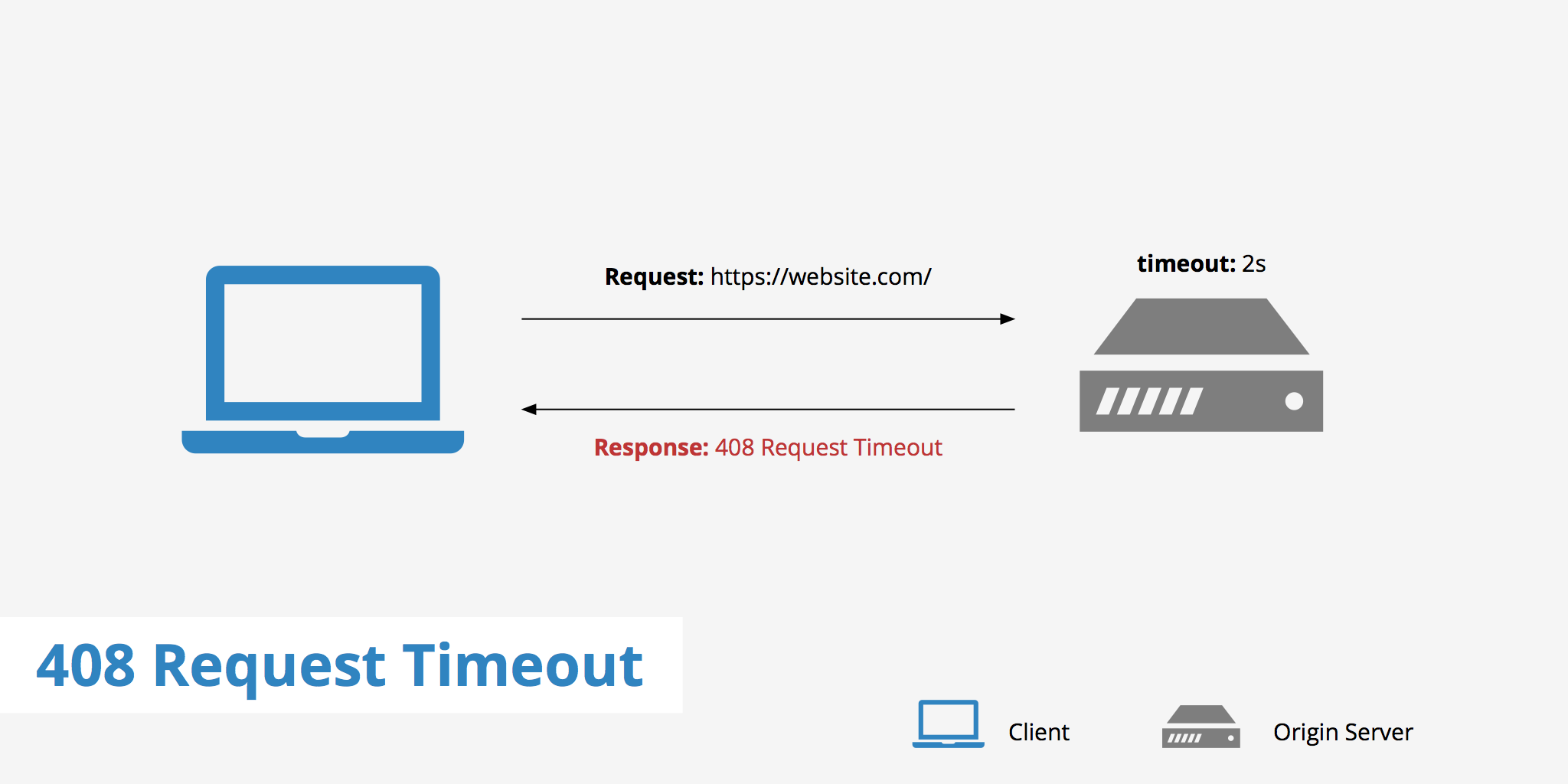
A 408 Request Timeout message is an HTTP status code that is returned to the client when a request to the server takes longer than the server’s allocated timeout window. In this case, the server will terminate the connection if it is idle and thus return the 408 Request Timeout message.
How is a 408 error different from a 504 error?
You may have come across a 504 Gateway Timeout error in the past and now wonder how that differs from a 408 Request Timeout error. Although the difference is subtle, there are still differences between both error messages. The 504 Gateway Timeout error is returned when a server is acting as a gateway or proxy and has timed out. On the other hand, a 408 error is returned as a direct message from the active server itself. According to RFC 2068, the 408 Request Timeout error is defined as follows:
The client did not produce a request within the time that the server was prepared to wait. The client MAY repeat the request without modifications at any later time.
While the 504 Gateway Timeout is defined as:
The server, while acting as a gateway or proxy, did not receive a timely response from the upstream server it accessed in attempting to complete the request.
How you might see a 408 Request Timeout error
There are a few different ways that you might see a 408 Request Timeout error. The following list outlines a few of these variations that you may see depending upon the web server that is being used. Although they are slightly different, each one means the same thing.
- 408 Request Time-out
- Request Timeout
- The Request Has Timed Out
- 408: Request Timeout
- HTTP Error 408 — Request Timeout
How to fix a 408 Request Timeout error
In certain cases, it can be difficult to immediately determine the source of an HTTP error. Although 4xx errors are known to be client side errors, this doesn’t mean that the server should be completely ruled out as the culprit. Below are a few things you can check, both on the client and server side in order to try and resolve a 408 error.
Client side
- Double check that the URI is correct: In some cases the URI you request could actually be the cause of the 408 error. Let’s say you accidentally request a URL that requires certain credentials to access, depending on how the server is configured, this could trigger a 408 response from the server.
- Check your internet connection: If there is an issue with your Internet connection or it is very slow, this could cause the request to take too long to complete. Thus, if the server’s timeout value is exceeded, a 408 error may be returned.
- Try reloading the page: There may be either a temporary issue on the client side or even the server side, try refreshing the page that you are trying to access to see if the issue gets resolved.
Server side
- Check your web server’s timeout settings: Web servers such as Apache and Nginx allow web developers to define certain timeout values so that a request isn’t open for too long. However, if you are receiving a steady stream of 408 errors, your timeout value might be too small. In the case of Apache, check both the .htaccess file as well as the Apache server config file and look for either the KeepAliveTimeout or RequestReadTimeout directives. If either of these directives are defined, try increasing their values, reload the web server and try again. As for Nginx users, open the nginx.conf file and check for directives such as client_body_timeout , client_header_timeout , or keepalive_timeout . Same as above, if any of these are found, try increasing their values, reloading the web server and test a few requests.
- Check the logs: Whenever you’re investigating any sort of HTTP error code it’s always a good idea to check your server’s error logs. These may provide you with more information about the error and where it is originating from in order to help you resolve the issue.
Summary
A 408 Request Timeout error is fairly self-explanatory in nature. It essentially tells the client that the request timed out and that the server terminated the connection. If you’re experiencing a 408 error, try using the troubleshooting suggestions mentioned in the sections above to hopefully resolve the issue.
Источник
Ошибка 408 — что это значит и как исправить
Ошибка 408 Request Timeout – это код состояния HTTP, который означает, что запрос, отправленный вами на сервер веб-сайта, например запрос на загрузку веб-страницы, занял больше времени, чем сервер веб-сайта был готов ждать. Другими словами, ваше соединение с сайтом “истекло”.
Сообщения об ошибках 408 Request Timeout часто настраиваются каждым веб-сайтом индивидуально, поэтому эта ошибка может проявляться в разных вариациях ниже, представлен классический вариант:
Ошибка 408 Request Timeout отображается в окне интернет-браузера, как и веб-страницы.
Причина 408 ошибок тайм-аута запроса

Самая распространенная причина ошибки 408 Request Timeout – неверный URL. Это также может быть вызвано медленным подключением к интернету или проблемами с подключением.
Как исправить ошибку 408 времени ожидания запроса
Следующие сообщения также являются ошибками на стороне клиента и поэтому в некоторой степени связаны с ошибкой тайм-аут запроса 408: неверный запрос 400, несанкционированный 401, запрещенный 403 и не найденный 404.
Серверные коды состояния HTTP иногда всплывают, в том числе 500 Внутренняя ошибка сервера. Просмотрите их все в нашем списке ошибок кода состояния HTTP.
Повторите попытку загрузки веб-страницы, нажав кнопку обновления и еще раз проверив правильность написания URL в адресной строке. Бывают случаи, когда медленное соединение интернета вызывает задержку, соответственно она и вызывает ошибку 408 Request Timeout. Повторная попытка загрузки страницы часто бывает успешной.
Если во время оформления заказа у интернет-продавца появляется сообщение об ошибке 408 «Запрос тайм-аута», повторные попытки оформления заказа могут привести к созданию нескольких заказов – и повторных платежей! Большинство продавцов защищают от этих ошибок, но некоторые мелкие не могут.
Однако, если все веб-сайты работают медленно, это может отрицательно сказаться на вашем интернет-соединении. Выполнить тест скорости интернет для ориентира текущей пропускной способности или обратитесь к поставщику услуг Интернета для получения технической поддержки.
Вернуться позже. Ошибка 408 Request Timeout является распространенным сообщением об ошибке на очень популярных веб-сайтах, когда огромное увеличение трафика посетителями перегружает серверы. Когда посетители покидают сайт, шансы на успешную загрузку страницы для вас возрастают.
Свяжитесь с веб-мастером или другим контактным лицом по поводу сообщения об ошибке 408 Request Timeout.
Источник
Ошибка 408. Что значит Request Timeout? Как решить ошибку?
Что такое Ошибка 408 Request Timeout? Как устранить эту ошибку обычному пользователю? Как решить проблему вебмастеру?
Ошибка 408 Request Timeout – это превышение времени ожидания ответа сервера на запрошенную вами страницу. Например, вы нажали на ссылку и через пару минут вам выдало ошибку 408. Это и есть тот самый случай, когда ответ не получается получить в течении времени, которое определенно сервером.
Отметим, что это очень распространенная проблема среди всех пользователей сети Интернет. Часто из-за нее мы не можем получить доступ к любимым сайтам, но мало кто знает, как с ней бороться. Иногда, вроде проблему устранили, но через время она возвращается снова и снова. Поэтому важно знать главную причину возникновения ошибки, код которой 408. Эта статья полностью посвящена этому и может стать полезной для любого пользователя.
Первые признаки, что на вашем компьютере есть ошибка 408
- Часто отображается в браузере при переходе на один или больше сайтов.
- Во время работы в Интернете, компьютер «тормозит», долго реагирует на ввод с клавиатуры.
- Устройство часто зависает.
Почему возникает ошибка 408? Основные причины
- Вредоносное программное обеспечение, которое изменило настройки браузера. Мало того, это несет за собой более серьезные последствия, после которых возможно нужно будет переустанавливать операционную систему.
- Различные ошибки в реестре операционной системы. Они могли быть результатом недавних изменений в самой системе, например, после установки драйверов или антивирусных программ.
Как устранить ошибку 408?
В начале хотелось бы предупредить, что если вы не достаточно опытный пользователей, то возможно вам лучше не делать этого самостоятельно. Так что прежде чем что-нибудь пытаться исправить, подумайте, что вы можете навредить.
Итак, для борьбы с ошибкой 408 вам необходимо:
- Сделайте полную проверку компьютера антивирусом. Рекомендуем бесплатную утилиту от Dr Web — Curelt. По итогам проверки примите нужные меры, анивирус подскажет какие именно. Кстати, проверять систему уже установленным антивирусом нет смысла.
- Попробуйте почистить компьютер от мусора. Программа ccleaner поможет вам в этом, а бесплатно скачать ее можно только с официального сайта разработчиков. Подойдет бесплатная версия.
- Обновите все устаревшие драйвера на вашем компьютере. Как это сделать? Можно воспользоваться сторонними программами или обновить через центр Обновлений в Windows.
- Обновите браузер до последней версии, либо скачайте новый. В идеале удалить текущий и скачать заново. Закладки можно сохранить, если сделать импорт данных.
- Проверьте операционную систему на наличие каких-нибудь ошибок. Это можно сделать с помощью поиска ошибок в реестре через программы CCleaner.
- Обновите Windows до последней версии, если это возможно. Пиратскую версию обновить не выйдет, кроме того, слетит активация.
- Проверьте все системные файлы на наличие ошибок.
- Попытаться восстановить файлы в реестре, которые связаны с данной ошибкой. Перед этим не забудьте создать резервную копию.
Для владельца сайта
Сразу обращайтесь к хостеру. Дело в том, что % вероятности ошибки на стороне сайте кране низок. Особенно, если вы используете стандартные CMS, вроед WordPress, Joomla или DLE. Конечно, если это происходит после установки плагина, тогда варианта два: снести к черту последний установленный плагин или откатить сайт по бэкапу.
Другой способ решения проблемы — перейти на VDS или сменить хостера. Но это более радикальные методы борьбы. Ошибка 408 может возникнуть по разным причинам, поэтому точно определитесь в хостере ли дело. Если до момента обнаружения проблемы все было хорошо, то скорее всего, проблема в сайте и настройках.
Стоит заметить, что после каждой из манипуляций, вы должны проверять не исчезла ли проблема. Настоятельно не рекомендуем выполнить все действия сразу и только потом попробовать посетить нужный ресурс. После каждого действия на сайте, очищайте кэш. Некоторые хостеры обеспечивают кэширование на своей стороне, поэтому очистить его можно в панели управления хостингом.
Если после проведения манипуляций ошибка 408 остается, то вам необходимо обратиться к специалистам. Ведь данная ошибка, в отличие от 400 и 401, она гораздо сложнее и прячется где-то внутри. Но в любом случае не расстраивайтесь. По крайней мере, от этого еще никто не умирал. Желаем не попадаться на скверную и загадочную ошибку, код которой 408.
Источник
Как исправить ошибку времени ожидания запроса 408
Методы исправления ошибки тайм-аута запроса 408
Ошибка 408 Request Timeout – это код состояния HTTP, который означает, что запрос, отправленный вами на сервер веб-сайта (например, запрос на загрузку веб-страницы), занял больше времени, чем сервер веб-сайта был готов ждать. Другими словами, ваше соединение с сайтом “истекло”.
Сообщения об ошибках 408 Request Timeout часто настраиваются каждым веб-сайтом, особенно очень большими, поэтому имейте в виду, что эта ошибка может проявляться в большем количестве случаев, чем перечисленные ниже:
Ошибка 408 Request Timeout отображается в окне интернет-браузера, как и веб-страницы.
Как исправить ошибку времени ожидания запроса 408
- Повторите попытку веб-страницы, нажав кнопку «Обновить/перезагрузить» или еще раз попробовав URL из адресной строки. Во многих случаях медленное соединение вызывает задержку, которая вызывает ошибку 408 Request Timeout, и это часто является только временным. Попытка повторить страницу часто будет успешной.
- Примечание . Если в процессе оформления заказа у интернет-продавца появляется сообщение об ошибке 408 «Время ожидания запроса», имейте в виду, что повторные попытки оформления заказа могут привести к созданию нескольких заказов – и нескольких сборов! У большинства продавцов есть автоматическая защита от подобных действий, но об этом еще нужно помнить.
- Возможно, у вас возникла проблема с подключением к Интернету, которая вызывает длительные задержки при доступе к страницам. Чтобы исключить это, посетите другой веб-сайт, например, Google или Yahoo.
- Если страницы загружаются так быстро, как вы привыкли их видеть, проблема, вызывающая ошибку 408 Request Timeout, вероятно, связана с веб-сайтом.
- Однако, если все веб-сайты работают медленно, возможно, у вас проблемы с интернет-соединением. Запустите тест скорости Интернета, чтобы проверить текущую пропускную способность, или обратитесь к поставщику услуг Интернета за технической поддержкой.
- Вернуться позже. Ошибка 408 Request Timeout является распространенным сообщением об ошибке на очень популярных веб-сайтах, когда огромное увеличение трафика посетителями (это вы!) Перегружает серверы.
- По мере того, как все больше и больше посетителей покидают сайт, шансы на успешную загрузку страницы для вас возрастают.
- Если ничего не помогает, вы можете попытаться связаться с веб-мастером или другим контактом сайта и сообщить им об ошибке 408 Request Timeout.
- С веб-мастером большинства веб-сайтов можно связаться по электронной почте по адресу: веб-мастер @ website.com , заменив website.com фактическим именем сайта.
Ошибки, как 408 Время ожидания запроса
Следующие сообщения также являются ошибками на стороне клиента и поэтому в некоторой степени связаны с ошибкой тайм-аута запроса 408: неверный запрос 400, несанкционированный 401, запрещенный 403 и не найденный 404.
Также существует несколько кодов HTTP-статуса на стороне сервера , например, часто встречающаяся внутренняя ошибка сервера (500 Internal Server Error). Просмотрите их все в нашем списке ошибок кода состояния HTTP.
Источник
How to fix the HTTP 408 (SOLVED)
System Information:
Your PC is currently running: …
special offer
HTTP 408 can often appear due to incorrectly configured system settings or through violations of the Windows registry. This error is relatively quick and easy to fix if you use PC Repair, configured to solve all common registry problems.

- Error name: HTTP 408
- Applies to: Windows XP, Vista, 7, 8, 10, 11
- HTTP 408 is appearing and starting to break a window of the active program;
- HTTP 408 appears on the screen;
- The message ‘A problem has been detected, and Windows has been shut down to prevent damage to your computer. The problem seems to be caused by the following file…’;
- The user’s computer stops working, showing a HTTP 408 error while starting the program;
- Windows is functioning poorly, responding slowly to commands;
- The user’s PC hangs frequently
HTTP 408 error messages can appear due to a clogged Windows registry and erroneous entries of non-existent programs because the user usually removes software incorrectly. Other common causes are incorrect data entry, missing files that were accidentally deleted from the registry, causing problems with the system.
- 1. Download PC Repair.
- 2. Install and run the program.
- 3. Press Scan Now to detect errors and different deviations from the optimal level.
- 4. Press Repair All to fix each problem.
This page is available in other languages:
Deutsch |
Español |
Italiano |
Français |
Indonesia |
Nederlands |
Nynorsk |
Português |
Русский |
Українська |
Türkçe |
Malay |
Dansk |
Polski |
Română |
Suomi |
Svenska |
Tiếng việt |
Čeština |
العربية |
ไทย |
日本語 |
简体中文 |
한국어
The Apex Legends error code 408 is a new problem that a lot of players have been running into since the launch of Season 9. This error is incredibly annoying, because it doesn’t let you play the game, and with all that new content waiting just around the corner, people want to know how to fix the 408 error. In our Code 408 Apex Legends Error Fix guide, we’ll offer some potential solutions.

To fix the Apex Legends Error Code 408, there are two things that you can try. The first one is to go into your Control Panel, then Network Connections. In this new menu, you’ll find your Ethernet and Wi-Fi connections. Right-click on the one that you’re not using to play the game and click the Disable option. Interestingly, if you’re using an Ethernet connection, you don’t have to go through this rigmarole; it seems to only help Wi-Fi users. This method seems to help a bunch of people, but it’s not a guaranteed fix, so let’s give you a second option.
Go into the Network and Sharing Center and click the Change adapter settings link. You can also enter this menu by typing ncpa.cpl into the Start Menu search bar. Select the network card whose priority you need to change, right-click it, and select Properties, and then pick Internet Protocol Version 4 and click Properties again. In the new window, click on the Advanced button and uncheck the box for Automatic Metric. Type in a number into the Interface Metric textbox to increase the priority of your preferred web connectivity hardware.
If you’re using this Code 408 Apex Legends Error Fix, keep in mind that you shouldn’t mess with these settings unless you’re getting the error. In fact, I recommend not messing with anything you’re not at least somewhat familiar with, as it can cause more problems. Instead, it might be better to sit back and wait a bit for the developers to take care of it. I know that it sucks, but it’s better than causing more annoying problems on your computer.
На чтение 3 мин. Просмотров 1.1k. Опубликовано 25.06.2019
Содержание
- Методы исправления ошибки тайм-аута запроса 408
- Как исправить ошибку времени ожидания запроса 408
- Ошибки, как 408 Время ожидания запроса
Методы исправления ошибки тайм-аута запроса 408
Ошибка 408 Request Timeout – это код состояния HTTP, который означает, что запрос, отправленный вами на сервер веб-сайта (например, запрос на загрузку веб-страницы), занял больше времени, чем сервер веб-сайта был готов ждать. Другими словами, ваше соединение с сайтом “истекло”.
Сообщения об ошибках 408 Request Timeout часто настраиваются каждым веб-сайтом, особенно очень большими, поэтому имейте в виду, что эта ошибка может проявляться в большем количестве случаев, чем перечисленные ниже:
408: время ожидания запроса
Ошибка HTTP 408 - время ожидания запроса
Ошибка 408 Request Timeout отображается в окне интернет-браузера, как и веб-страницы.
Как исправить ошибку времени ожидания запроса 408
-
Повторите попытку веб-страницы, нажав кнопку «Обновить/перезагрузить» или еще раз попробовав URL из адресной строки. Во многих случаях медленное соединение вызывает задержку, которая вызывает ошибку 408 Request Timeout, и это часто является только временным. Попытка повторить страницу часто будет успешной.
- Примечание . Если в процессе оформления заказа у интернет-продавца появляется сообщение об ошибке 408 «Время ожидания запроса», имейте в виду, что повторные попытки оформления заказа могут привести к созданию нескольких заказов – и нескольких сборов! У большинства продавцов есть автоматическая защита от подобных действий, но об этом еще нужно помнить.
-
Возможно, у вас возникла проблема с подключением к Интернету, которая вызывает длительные задержки при доступе к страницам. Чтобы исключить это, посетите другой веб-сайт, например, Google или Yahoo.
- Если страницы загружаются так быстро, как вы привыкли их видеть, проблема, вызывающая ошибку 408 Request Timeout, вероятно, связана с веб-сайтом.
- Однако, если все веб-сайты работают медленно, возможно, у вас проблемы с интернет-соединением. Запустите тест скорости Интернета, чтобы проверить текущую пропускную способность, или обратитесь к поставщику услуг Интернета за технической поддержкой.
-
Вернуться позже. Ошибка 408 Request Timeout является распространенным сообщением об ошибке на очень популярных веб-сайтах, когда огромное увеличение трафика посетителями (это вы!) Перегружает серверы.
- По мере того, как все больше и больше посетителей покидают сайт, шансы на успешную загрузку страницы для вас возрастают.
-
Если ничего не помогает, вы можете попытаться связаться с веб-мастером или другим контактом сайта и сообщить им об ошибке 408 Request Timeout.
- С веб-мастером большинства веб-сайтов можно связаться по электронной почте по адресу: веб-мастер @ website.com , заменив website.com фактическим именем сайта.
Ошибки, как 408 Время ожидания запроса
Следующие сообщения также являются ошибками на стороне клиента и поэтому в некоторой степени связаны с ошибкой тайм-аута запроса 408: неверный запрос 400, несанкционированный 401, запрещенный 403 и не найденный 404.
Также существует несколько кодов HTTP-статуса на стороне сервера , например, часто встречающаяся внутренняя ошибка сервера (500 Internal Server Error). Просмотрите их все в нашем списке ошибок кода состояния HTTP.