
«403 Forbidden» — наиболее распространенная ошибка при работе с NGINX. В этой статье мы расскажем о причинах возникновения 403 forbidden NGINX, а также о том, как найти ее причину и исправить основную проблему.
- Об ошибке
- Поиск файла конфигурации NGINX
- Некорректный индексный файл
- Автоиндекс
- Права доступа к файлам
- Идентификация пользователя NGINX
- Установите права собственности на файл
- Установите права доступа
«403 Forbidden» — это универсальная ошибка NGINX, которая указывает на то, что вы запросили что-то, а NGINX (по ряду причин) не может это предоставить. «403» является кодом состояния HTTP, который означает, что веб-сервер получил и понял ваш запрос, но не может предпринять никаких дальнейших действий.
По умолчанию файлы конфигурации NGINX находятся в папке /etc/nginx. Если вы просмотрите этот каталог, то найдете несколько конфигурационных файлов для различных модулей сервера.
Главный файл конфигурации — /etc/nginx/nginx.conf. Он содержит основные директивы для NGINX и является аналогом файла httpd.conf для Apache.
Чтобы отредактировать этот файл, используйте команду:
CentOS 7: sudo nano /etc/nginx/conf.d/test.example.com.conf
Ubuntu 16.04: sudo nano /etc/nginx/sites-available/test.example.com.conf
Одна из наиболее распространенных причин ошибки 403 forbidden NGINX — некорректная настройка индексного файла.
nginx.conf указывает, какие индексные файлы должны загружаться, и в каком порядке. Например, приведенная ниже строка указывает NGINX искать index.html, затем index.htm, затем index.php:
index index.html index.htm index.php;
Если ни один из этих трех файлов не будет найден в каталоге, NGINX вернет ошибку «403 Forbidden».
Примечание. Имена файлов чувствительны к регистру. Если nginx.conf указывает index.html, а файл называется Index.html, это приведет к ошибке «403 Forbidden».
Если вы хотите использовать имя индексного файла, которое ваш веб-сервер NGINX не распознает, отредактируйте nginx.conf и добавьте имя файла в строку конфигурации индекса.
Например, чтобы добавить index.py в список распознаваемых индексных файлов, отредактируйте эту строку следующим образом:
index index.html index.htm index.php index.py;
Сохраните изменения, а затем перезапустите NGINX командой:
Альтернативным решением является разрешение индекса директории. Индекс директории означает, что если индексный файл не найден, сервер отобразит все содержимое директории.
По соображениям безопасности индекс директории в NGINX по умолчанию отключен.
При «403 forbidden NGINX», если вы хотите показать индекс директории в ситуациях, когда NGINX не может найти (идентифицировать) файл, отредактируйте nginx.conf, как описано выше, и добавьте в него две следующие директивы:
Autoindex on;
Autoindex_exact_size off;
Эти директивы должны быть добавлены в блок location. Можно либо добавить их в существующий блок location/, либо добавить новый. Окончательный результат должен выглядеть так:
location / {
  [pre-existing configurations, if applicable]
  autoindex on;
  autoindex_exact_size off;
  }
Также можно активировать индексирование директории в определенной папке, если не хотите, чтобы она была доступна для всего сайта:
location /myfiles {
  autoindex on;
  autoindex_exact_size off;
  }
Сохраните изменения в файле, затем перезапустите NGINX командой:
Некорректные права доступа к файлам являются еще одной причиной ошибки «403 Forbidden NGINX». Для использования с NGINX рекомендуется стандартная настройка: для каталогов — 755 и для файлов — 644. Пользователь NGINX также должен быть владельцем файлов.
Для начала нужно определить, от имени какого пользователя запущен NGINX. Для этого используйте команду:
В этом примере рабочий процесс NGINX работает от имени пользователя nginx.
Перейдите на уровень выше корневой директории документа сайта. Например, если корневая директория вашего сайта /usr/share/nginx/example.com, перейдите в /usr/share/nginx с помощью команды:
Измените права собственности на все файлы в директориях нижних уровней на пользователя nginx с помощью команды:
sudo chown -R nginx:nginx *
403 forbidden NGINX — как исправить: установите права доступа для каждой директории на 755 с помощью команды:
sudo chmod 755 [имя директории]
Например, чтобы установить права доступа для директории example.com, используется команда:
sudo chmod 755 example.com
Затем перейдите в корневой каталог веб-документа:
sudo chmod 755 example.com
Измените права доступа для всех файлов в этой директории с помощью команды:
При работе с серверами и веб-ресурсами мы сталкиваемся с ошибками, которые вызываем при обслуживании и настройке. Когда вы сталкиваетесь с такими ошибками, вам необходимо как можно быстрее диагностировать и устранить проблему, чтобы избежать простоев и потери данных.
В этой краткой статье рассматривается типичная ошибка при работе с серверами (403 Forbidden), ее причины и способы ее устранения.
Ошибка Nginx 403 Forbidden – это код состояния, сгенерированный и отображаемый пользователю, когда клиент пытается получить доступ к части веб-сервера с недостаточными разрешениями. Например, NGINX защищает список каталогов и приведет к ошибке 403.
Причины ошибки Nginx 403 на стороне сервера
Прежде чем мы начнем, стоит отметить, что ошибка может исходить от клиента, а не от самого сервера. Сначала мы рассмотрим ошибки на стороне сервера, а затем ошибки на стороне клиента.
Причина 1: неправильный индексный файл
Самая первая и частая причина ошибки NGINX 403 Forbidden – это неправильная конфигурация индексного файла.
Файл конфигурации Nginx указывает, какие индексные файлы загружать и в каком порядке их загружать. Однако, если указанные индексные файлы отсутствуют в каталоге, Nginx вернет ошибку 403 Forbidden.
Например, конфигурация ниже определяет индексные файлы и способ их загрузки.
location / {
index index.html index.htm index.html inde.php;
}
Один из способов решения этой проблемы – добавить индексный файл, указанный в файле конфигурации, или добавить доступный индексный файл в файл конфигурации.
Другой способ решить эту проблему – разрешить Nginx отображать каталоги, если индексный файл недоступен. Включите этот модуль, добавив следующую запись в файл конфигурации.
location / {
autoindex on;
autoindex_exact_size on;
}
Примечание
Мы не рекомендуем этот метод на общедоступных серверах.
Для получения дополнительной информации о том, как обслуживать статический контент, рассмотрите ресурс документации Nginx, представленный ниже:
https://docs.nginx.com/nginx/admin-guide/web-server/serving-static-content/
Причина 2: неправильно настроенные разрешения
ошибка Nginx 403Forbidden также может возникать из-за неверно установленных разрешений для файлов и каталогов. Чтобы Nginx мог успешно передать клиенту определенный файл и ресурс, Nginx должен иметь разрешения RWX – чтение, запись и выполнение – на всем пути.
Чтобы устранить эту ошибку, измените разрешение каталогов на 755 и разрешение файла на 644. Убедитесь, что пользователь, запускающий процесс Nginx, владеет файлами. Например, установите пользователя на www-data:
sudo chown -R www-data:www-data *
Наконец, установите права доступа к каталогу и файлу как:
sudo chmod 755 {dir}
sudo chmod 644 {files}
Причина ошибки на стороне клиента 403
Как уже упоминалось, в других случаях ошибка 403 может быть вызвана пользователем, а не на стороне сервера. Чтобы решить такие проблемы на стороне клиента, выполните следующие операции.
- Убедитесь, что вы получаете доступ к правильному веб-адресу
- Очистить кеш браузера
- Убедитесь, что брандмауэр или прокси-сервер разрешает вам доступ к веб-ресурсу.
Заключение
В этой краткой статье обсуждаются причины ошибки NGIX 403 Forbidden и различные способы ее устранения. Прежде чем пытаться использовать какие-либо методы устранения неполадок, рекомендуется просмотреть журналы сервера.
Если вы нашли ошибку, пожалуйста, выделите фрагмент текста и нажмите Ctrl+Enter.
I have 3 domain names and am trying to host all 3 sites on one server (a Digital Ocean droplet) using Nginx.
mysite1.name
mysite2.name
mysite3.name
Only 1 of them works. The other two result in 403 errors (in the same way).
In my nginx error log, I see: [error] 13108#0: *1 directory index of "/usr/share/nginx/mysite2.name/live/" is forbidden.
My sites-enabled config is:
server {
        server_name www.mysite2.name;
        return 301 $scheme://mysite2.name$request_uri;
}
server {
        server_name     mysite2.name;

        root /usr/share/nginx/mysite2.name/live/;
        index index.html index.htm index.php;

        location / {
                try_files $uri $uri/ /index.html index.php;
        }

        location ~ .php$ {
                fastcgi_split_path_info ^(.+.php)(/.+)$;
                fastcgi_pass unix:/var/run/php5-fpm.sock;
                fastcgi_index index.php;
                include fastcgi_params;
        }
}
All 3 sites have nearly identical config files.
Each site’s files are in folders like /usr/share/nginx/mysite1.name/someFolder, and then /usr/share/nginx/mysite1.name/live is a symlink to that. (Same for mysite2 and mysite3.)
I’ve looked at Nginx 403 forbidden for all files but that didn’t help.
Any ideas on what might be wrong?

asked Oct 10, 2013 at 1:00

5
If you have directory indexing off, and is having this problem, it’s probably because the try_files you are using has a directory option:
location / {
  try_files $uri $uri/ /index.html index.php;
}                 ^ that is the issue
Remove it and it should work:
location / {
  try_files $uri /index.html index.php;
}
Why this happens
TL;DR: This is caused because nginx will try to index the directory, and be blocked by itself. Throwing the error mentioned by OP.
try_files $uri $uri/ means, from the root directory, try the file pointed by the uri, if that does not exists, try a directory instead (hence the /). When nginx access a directory, it tries to index it and return the list of files inside it to the browser/client, however by default directory indexing is disabled, and so it returns the error «Nginx 403 error: directory index of [folder] is forbidden».
Directory indexing is controlled by the autoindex option: https://nginx.org/en/docs/http/ngx_http_autoindex_module.html
answered Jun 27, 2016 at 4:49

jonathancardosojonathancardoso
11.3k7 gold badges54 silver badges71 bronze badges
11
Here is the config that works:
server {
    server_name www.mysite2.name;
    return 301 $scheme://mysite2.name$request_uri;
}
server {
    #This config is based on https://github.com/daylerees/laravel-website-configs/blob/6db24701073dbe34d2d58fea3a3c6b3c0cd5685b/nginx.conf
    server_name mysite2.name;

     # The location of our project's public directory.
    root /usr/share/nginx/mysite2/live/public/;

     # Point index to the Laravel front controller.
    index           index.php;

    location / {
        # URLs to attempt, including pretty ones.
        try_files   $uri $uri/ /index.php?$query_string;
    }

    # Remove trailing slash to please routing system.
    if (!-d $request_filename) {
            rewrite     ^/(.+)/$ /$1 permanent;
    }

    # pass the PHP scripts to FastCGI server listening on 127.0.0.1:9000
    location ~ .php$ {
        fastcgi_split_path_info ^(.+.php)(/.+)$;
    #   # NOTE: You should have "cgi.fix_pathinfo = 0;" in php.ini
    #   # With php5-fpm:
        fastcgi_pass unix:/var/run/php5-fpm.sock;
        fastcgi_index index.php;
        include fastcgi_params;
        fastcgi_param                   SCRIPT_FILENAME $document_root$fastcgi_script_name;
    }

}
Then the only output in the browser was a Laravel error: “Whoops, looks like something went wrong.”
Do NOT run chmod -R 777 app/storage (note). Making something world-writable is bad security.
chmod -R 755 app/storage works and is more secure.
answered Oct 10, 2013 at 17:46
RyanRyan
21.5k29 gold badges172 silver badges342 bronze badges
4
If you’re simply trying to list directory contents use autoindex on; like:
location /somedir {
       autoindex on;
}
server {
        listen   80;
        server_name  example.com www.example.com;
        access_log  /var/...........................;
        root   /path/to/root;
        location / {
                index  index.php index.html index.htm;
        }
        location /somedir {
               autoindex on;
        }
}

answered Nov 15, 2013 at 18:11

mazmaz
7,8544 gold badges24 silver badges25 bronze badges
4
I encountered similar error
— «403 Forbidden» in the webpage
— «13: Permission denied» in the error log at /var/log/nginx/error.log
Below 3 Steps worked for me:
1: Open Terminal, saw something like below
user1@comp1:/home/www/
So, my user name is «user1» (from above)
2: Changed user in /etc/nginx/nginx.conf
# user www-data;
user user1;
3: Reloaded the nginx
sudo nginx -s reload
Additionally, I have applied file/folder permissions (before I did above 3 steps)
(755 to my directory, say /dir1/) & (644 for files under that directory):
(I am not sure, if this additional step is really required, just above 3 steps might be enough):
chmod 755 ./dir1/
chmod 644 ./dir1/*.*
Hope this helps quick someone. Best of luck.

Matt
43.9k8 gold badges74 silver badges110 bronze badges
answered Aug 19, 2015 at 7:22

2
In fact there are several things you need to check.
1. check your nginx’s running status
ps -ef|grep nginx

ps aux|grep nginx|grep -v grep
Here we need to check who is running nginx. please remember the user and group
-
check folder’s access status
ls -alt
-
compare with the folder’s status with nginx’s
(1) if folder’s access status is not right
sudo chmod 755 /your_folder_path
(2) if folder’s user and group are not the same with nginx’s running’s
sudo chown your_user_name:your_group_name /your_folder_path
and change nginx’s running username and group
nginx -h
to find where is nginx configuration file
sudo vi /your_nginx_configuration_file

//in the file change its user and group
user your_user_name your_group_name;

//restart your nginx
sudo nginx -s reload
Because nginx default running’s user is nobody and group is nobody. if we haven’t notice this user and group, 403 will be introduced.
answered Feb 24, 2015 at 4:23

HaimeiHaimei
12.3k3 gold badges49 silver badges35 bronze badges
I had the same problem, the logfile showed me this error:
2016/03/30 14:35:51 [error] 11915#0: *3 directory index of "path_scripts/viewerjs/" is forbidden, client: IP.IP.IP.IP, server: domain.com, request: "GET /scripts/viewerjs/ HTTP/1.1", host: "domain", referrer: "domain.com/new_project/do_update"
I am hosting a PHP app with codeignitor framework. When i wanted to view uploaded files i received a 403 Error.
The problem was, that the nginx.conf was not properly defined. Instead of
index index.html index.htm index.php
i only included
index index.php
I have an index.php in my root and i thought that was enough, i was wrong 
The hint gave me NginxLibrary
answered Mar 30, 2016 at 13:21

theDriftertheDrifter
1,5596 gold badges22 silver badges40 bronze badges
1
Here’s how I managed to fix it on my Kali machine:
-
Locate to the directory:
cd /etc/nginx/sites-enabled/ -
Edit the ‘default’ configuration file:
sudo nano default -
Add the following lines in the
locationblock:location /yourdirectory { autoindex on; autoindex_exact_size off; } -
Note that I have activated auto-indexing in a specific directory
/yourdirectoryonly. Otherwise, it will be enabled for all of your folders on your computer and you don’t want it. -
Now restart your server and it should be working now:
sudo service nginx restart
answered Dec 29, 2020 at 12:27

RAZ0229RAZ0229
1843 silver badges14 bronze badges
You might get this because of Nginx policy (eg. «deny»), or you might get this because of Nginx misconfiguration, or you might get this because of filesystem restrictions.
You can determine if its the later (and possibly see evidence of a misconfiguration by using strace (except, the OP won’t have access to that):
# pidof nginx
11853 11852

# strace -p 11853 -p 11852 -e trace=file -f
Process 11853 attached - interrupt to quit
Process 11852 attached - interrupt to quit
[pid 11853] stat("/var/www/html/kibanaindex.html", 0x7ffe04e93000) = -1 ENOENT (No such file or directory)
[pid 11853] stat("/var/www/html/kibana", {st_mode=S_IFDIR|0755, st_size=4096, ...}) = 0
^CProcess 11853 detached
Process 11852 detached
Here I’m inspecting the filesystem activity done by nginx while a ran a test (I had the same error as you).
Here’s a selected part of my config at the time
    location /kibana/3/ {
        alias /var/www/html/kibana;
        index index.html;
    }
In my case, as strace quite clearly shows, the joining of in the «alias» to the «index» was not what I had expected, and it seems I need to get into the habit of always appending directory names with a /, so in my case, the following worked:
    location /kibana/3/ {
        alias /var/www/html/kibana/;
        index index.html;
    }
answered Sep 26, 2015 at 19:06

Cameron KerrCameron Kerr
1,65514 silver badges23 bronze badges
3
It look’s like some permissions problem.
Try to set all permisions like you did in mysite1 to the others site.
By default file permissions should be 644 and dirs 755.
Also check if the user that runs nginx have permission to read that files and dirs.
answered Oct 10, 2013 at 1:21

TomahockTomahock
4703 silver badges11 bronze badges
change the try_files to point to the index.php path, in the «Laravel» that you mentioned it should be something like this
location / {
    try_files $uri $uri/ /public/index.php$request_uri;
}
And in the «codeigniter» project try it like this
location / {
    try_files $uri $uri/ /public_web/index.php$request_uri;
}
answered Oct 10, 2013 at 8:13

Mohammad AbuShadyMohammad AbuShady
39.8k10 gold badges76 silver badges89 bronze badges
For me the problem was that any routes other than the base route were working, adding this line fixed my problem:
index index.php;
Full thing:
server {

    server_name example.dev;
    root /var/www/example/public;
    index           index.php;

    location / {
        try_files $uri $uri/ /index.php?$query_string;
    }

    location ~ .php$ {
        include /etc/nginx/fastcgi_params;
        fastcgi_pass  127.0.0.1:9000;
        fastcgi_index index.php;
        fastcgi_param SCRIPT_FILENAME $document_root$fastcgi_script_name;
    }
}
answered Feb 12, 2018 at 5:50

zeros-and-oneszeros-and-ones
4,0836 gold badges34 silver badges54 bronze badges
Because you’re using php-fpm, you should make sure that php-fpm user is the same as nginx user.
Check /etc/php-fpm.d/www.conf and set php user and group to nginx if it’s not.
The php-fpm user needs write permission.
answered Apr 8, 2017 at 19:58

Ali HashemiAli Hashemi
3,0283 gold badges34 silver badges47 bronze badges
You need execute permission on your static files directory. Also they need to be chown’ed by your nginx user and group.
answered Oct 11, 2013 at 7:44

RhysRhys
2,7897 gold badges45 silver badges68 bronze badges
1
location ~* .php$ {
    ...
    fastcgi_param SCRIPT_FILENAME $document_root$fastcgi_script_name;
}
Change default
fastcgi_param SCRIPT_FILENAME /scripts$fastcgi_script_name;
to
fastcgi_param SCRIPT_FILENAME $document_root$fastcgi_script_name;
solved my problem.

m0nhawk
22.6k9 gold badges44 silver badges72 bronze badges
answered Mar 12, 2015 at 12:49

In my case I was using hhvm listening on port 9000 and the fastcgi_pass line in nginx config was incorrect.
Also, if you are using mysql and the connections from hhvm to the database don’t work check if you have apparmor installed.
answered Jun 22, 2019 at 11:18

user9869932user9869932
6,1233 gold badges55 silver badges47 bronze badges
6833#0: *1 directory index of "/path/to/your/app" is forbidden, client: 127.0.0.1, server: lol.com, request: "GET / HTTP/1.1", host: "localhost"
I was running Ubuntu 15.10 and encountered the 403 Forbidden error due to a simple reason.
In the nginx.conf(configuration file for nginx), the user was ‘www-data’.
Once I changed the username to [my username], it worked fine assuming the necessary permissions were given to my username.
Steps followed by me:
chmod 755 /path/to/your/app
My configuration file looks like this:
**user [my username]**;#I made the change here.
worker_processes auto;
pid /run/nginx.pid;
events {
worker_connections 768;
# multi_accept on;
}

http {

##
# Basic Settings
##

sendfile on;
tcp_nopush on;
tcp_nodelay on;
keepalive_timeout 65;
types_hash_max_size 2048;
# server_tokens off;

# server_names_hash_bucket_size 64;
# server_name_in_redirect off;

include /etc/nginx/mime.types;
default_type application/octet-stream;

##
# SSL Settings
##

ssl_protocols TLSv1 TLSv1.1 TLSv1.2; # Dropping SSLv3, ref: POODLE
ssl_prefer_server_ciphers on;

##
# Logging Settings
##

access_log /var/log/nginx/access.log;
error_log /var/log/nginx/error.log;

##
# Gzip Settings
##

gzip on;
gzip_disable "msie6";

# gzip_vary on;
# gzip_proxied any;
# gzip_comp_level 6;
# gzip_buffers 16 8k;
# gzip_http_version 1.1;
# gzip_types text/plain text/css application/json application/javascript text/xml application/xml application/xml+rss text/javascript;

##
# Virtual Host Configs
##

include /etc/nginx/conf.d/*.conf;
include /etc/nginx/sites-enabled/*;


server {
    listen 80;

    server_name My_Server;

    access_log  /var/log/nginx/access.log;
    error_log  /var/log/nginx/error.log;

    location / {
        proxy_pass         http://127.0.0.1:8000;
        proxy_redirect     off;

        proxy_set_header   Host             $host;
        proxy_set_header   X-Real-IP        $remote_addr;
        proxy_set_header   X-Forwarded-For  $proxy_add_x_forwarded_for;
    }
}
}
answered Feb 17, 2016 at 12:45

Raunaq KocharRaunaq Kochar
1,0243 gold badges15 silver badges24 bronze badges
I resolved my problem, if i configure like follow:
location = /login {
    index  login2.html;
}
It’ll show the 403 error.
[error] 4212#2916: *2 directory index of "D:path/to/login/" is forbidden
I’ve tried autoindex on, but not working.
If i change my configure like this, it works.
location = /login/ {
    index  login2.html;
}
I think the exact matching, if it’s a path should be a directory.
answered Mar 18, 2019 at 3:58

In my case it was related to SELinux in CentOS 7:
You can check if it is enabled running the following command:
cat /etc/selinux/config
Sample outputs:
SELINUX=enforcing
SELINUXTYPE=targeted
Disabling SELinux permanently
Edit the /etc/selinux/config file, run:
sudo vi /etc/selinux/config
Set SELINUX to disabled:
SELINUX=disabled
Save and close the file in vi/vim. Reboot the Linux system:
sudo reboot
answered Sep 22, 2020 at 14:34

In my case I didn’t run this command
sudo apt-get install php7.4-fpm
answered Nov 15, 2020 at 8:09

ekponoekpono
1744 bronze badges
-
Check that index.html or index.php is not missing in the directory
-
See the error log file which is located in /var/log/nginx and then open
vim error.log
answered Aug 10, 2020 at 17:59

Ahmad SharifAhmad Sharif
4,0535 gold badges36 silver badges48 bronze badges
when you want to keep the directory option,you can put the index.php ahead of $uri like this.
try_files /index.php $uri $uri/
answered Jun 17, 2019 at 14:02

xoyabcxoyabc
1271 silver badge10 bronze badges
1
- Private Cloud
- Public Cloud
-
- Cloud Servers
- Cloud Networks
- Cloud Load Balancers
- DNS
-
- Object Storage
- Cloud Block Storage
- Cloud File Sharing
-
- Identity Authentication
- Cloud Image Service
- Key Management
-
- Certified Kubernetes
-
- Orchestration
-
- Big Data Services
-
- Solutions
-
- OpenStack Consulting
- OpenStack Upgrades
-
- Kubernetes Enablement
- Managed Zuul
-
- Resources
-
- Blog
- Ebooks & White Papers
- Tutorials
-
- Success Stories
- FAQs
- Videos
-
- VEXXHOST
-
- Company
- Data Center Locations
- Brand Guide
-
- Newsroom
- Events
- Careers
-
HTTP errors are pesky and typically hard to resolve without the right tools. However, with proper investigation and tools, you can easily identify the source of a problem and fix it just as fast. In order to debug or fix 403 Forbidden Nginx errors, all you have to do is check the correct error logs and take the proper action to resolve it. We’ll go over how to check the error logs and the possible scenarios that typically cause these errors.
Finding Error Logs
If you know exactly where the error logs of your Nginx server are, you can skip onto the next section. If you’re not sure where to find the error logs of your Nginx server, then be sure to continue this section.
The path for error logs can change a lot depending on how Nginx was installed on the server and the Linux distribution. If you do not know where your error logs are and you have a hard time going through Nginx configuration, we can use a very small and useful Linux tool with the name of lsof which gives us all the open files associated to a specific process. This will help us find the error log for your web server.
The first step of this is to check for the process ID of the main Nginx process, you can run the following command and except output somewhat similar to the one indicated below:
$ ps x | grep nginx
29229 ?        S      0:00 nginx: master process /usr/sbin/nginx
The first column of each row is the process ID, as we can see, the main/master process ID is 29229 in this case, however this will change in every system. Once you have the process ID, you will be able to use the lsof too to get all open files associated to this process by running the following. We’ve trimmed the output to the part you should be looking for, as there might be a lot more data when you run that command:
$ lsof -p 29229
COMMAND   PID USER   FD   TYPE             DEVICE SIZE/OFF     NODE NAME
nginx   29229 root  cwd    DIR              202,1     4096        2 /
nginx   29229 root  rtd    DIR              202,1     4096        2 /
nginx   29229 root  txt    REG              202,1   843656     1182 /usr/sbin/nginx
...
nginx   29229 root    2w   REG              202,1        0   262748 /var/log/nginx/error.log
...
As you can see from the above output, we can see that one of the files that are open by this Nginx installation is /var/log/nginx/error.log which (by the file name) does look like an error log. We’ve now identified the path of our Nginx error log and we can move onto finding the reason behind our pesky HTTP error.
Fixing Nginx HTTP errors
Once you have the correct error log file, it’s time to watch for errors. In our experience, the best way to do this is by running a continuous stream of the error log in your shell screen using the tail utility.
$ tail -f /var/log/nginx/error.log
Once you’ve ran this command, tail will continuously output any newly appended content to the error.log as it comes in until you hit Control + C. We recommend that you clear the entire shell screen to make it easy to identify newly appended content. You can do this in Windows (PuTTY) by right clicking the PuTTY menu bar and clicking on “Clear Scrollback” or on Mac OS X by clicking Command + K.
Now, you will need to replicate the issue that you are getting. The error should be printed out right away after you replicate the issue. For example, if you have a 403 Forbidden error, then you should refresh the page that is causing the problem so that a new error log entry can be appended. Once that is done, you’ll see a new line in the error log which should hopefully lead you to the right path to fixing the issue. We’re going to cover a few of the most common issues below.
Incorrect Directory Settings
The error below can be caused by two different reasons: incorrect directory index or disallowed directory listing.
2013/08/31 15:03:43 [error] 29231#0: *2098806 directory index of "/usr/share/nginx/static/" is forbidden, client: 1.1.1.1, server: domain.com, request: "GET / HTTP/1.1", host: "domain.com"
If you are trying to list all the files in a folder, you will get that error if the directory does not have directory listing enabled. You can enable directory listing by adding the following line to your Nginx configuration, you can read more about this option here: http://nginx.org/en/docs/http/ngx_http_autoindex_module.html
autoindex on;
The other possibility for that error to come up is if your index setting is incorrect, so for example, you have a index.php file in that folder, however, your index setting is setup to index.htm and index.html. This means that only these files are checked if no specific file is provided. If you alter it to something like the following, your index.php file should work:
index index.htm index.html index.php;
Incorrect Permissions
The error below is generally caused by incorrect Unix permissions, you will need to make sure you have the correct permissions for the entire path.
2013/09/01 00:31:57 [error] 29231#0: *2115270 open() "/usr/share/nginx/static/forbidden" failed (13: Permission denied), client: 1.1.1.1, server: domain.com, request: "GET /forbidden HTTP/1.1", host: "domain.com"
As you see, the file that we are trying to access is /usr/share/nginx/static/forbidden. In order for Nginx to access it with no problems at all, Nginx must have read permissions for that specific file as well as execute for all the folders above it. This means that /, /usr, /usr/share, /usr/share/nginx and /usr/share/nginx/static must be executable by Nginx and the file /usr/share/nginx/static/forbidden must be readable by Nginx in this case.
Conclusion
We’ve gone through quite a few tools such as tail and lsof. These are just one of the tools which are offered by Linux which allow system administrators to resolve and debug issues much faster and easier. The most important factor in resolving system issues is being able to identify the issue properly, resolution is usually the easiest part once the problem is identified. The larger the toolset of the system administrator, the faster they can identify and fix those problems.
Would you like to know about Zuul, a CI/CD project gating tool? Download our white paper and get reading!

Nginx – очень популярный веб-сервер в наши дни.
В этой статье мы расскажем вам о некоторых распространенных ошибках при работе веб-сервера Nginx и возможных решениях.
Это не полный список.
Если вы все еще не можете устранить ошибку, попробовав предложенные решения, пожалуйста, проверьте логи сервера Nginx в каталоге /var/log/nginx/ и поищите в Google, чтобы отладить проблему.
Содержание
- Unable to connect/Refused to Connect
- The Connection Has Timed Out
- 404 Not Found
- 403 Forbidden
- 500 Internal Server Error
- Nginx показывает страницу по умолчанию
- 504 Gateway time-out
- Размер памяти исчерпан
- PR_END_OF_FILE_ERROR
- Resource temporarily unavailable
- Два файла виртуального хоста для одного и того же сайта
- PHP-FPM Connection reset by peer
- Утечки сокетов Nginx
- Заключение
Unable to connect/Refused to Connect
Если при попытке получить доступ к вашему сайту вы видите следующую ошибку:
Firefox can’t establish a connection to the server at www.example.com
или
www.example.com refused to connect
или
The site can't be reached, www.example.com unexpectedly closed the connection.
Это может быть потому, что:
- Nginx не запущен. Вы можете проверить состояние Nginx с помощью sudo systemctl status nginx. Запустите Nginx с помощью sudo systemctl start nginx. Если Nginx не удается запустить, запустите sudo nginx -t, чтобы выяснить, нет ли ошибок в вашем конфигурационном файле. И проверьте логи (sudo journalctl -eu nginx), чтобы выяснить, почему он не запускается.
- Брандмауэр блокирует порты 80 и 443. Если вы используете брандмауэр UFW на Debian/Ubuntu, выполните sudo ufw allow 80,443/tcp, чтобы открыть TCP порты 80 и 443. Если вы используете Firewalld на RHEL/CentOS/Rocky Linux/AlmaLinux, выполните sudo firewall-cmd –permanent –add-service={http,https}, затем sudo systemctl reload firewalld, чтобы открыть TCP порты 80 и 443.
- Fail2ban. Если ваш сервер использует fail2ban для блокировки вредоносных запросов, возможно, fail2ban запретил ваш IP-адрес. Выполните команду sudo journalctl -eu fail2ban, чтобы проверить, не заблокирован ли ваш IP-адрес. Вы можете добавить свой IP-адрес в список fail2ban ignoreip, чтобы он больше не был забанен.
- Nginx не прослушивает нужный сетевой интерфейс. Например, Nginx не прослушивает публичный IP-адрес сервера.
The Connection Has Timed Out
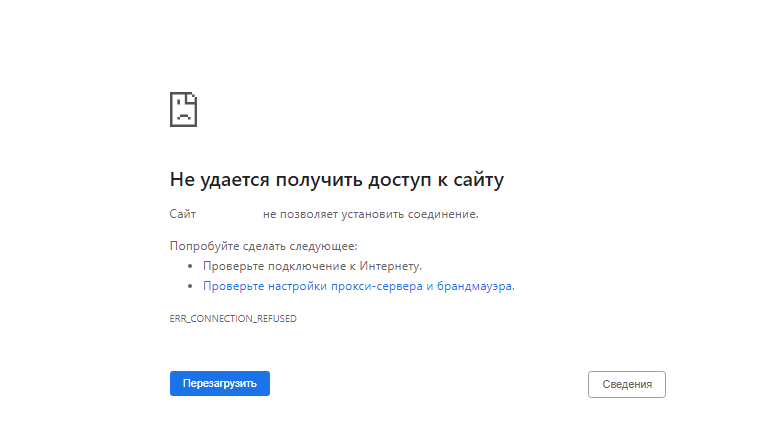
Это может означать, что ваш сервер находится в автономном режиме или Nginx работает неправильно.
Однажды у меня возникла проблема нехватки памяти, из-за чего Nginx не смог запустить рабочие процессы.
Если вы увидите следующее сообщение об ошибке в файле /var/log/nginx/error.log, вашему серверу не хватает памяти:
fork() failed while spawning "worker process" (12: Cannot allocate memory)
404 Not Found
404 not found означает, что Nginx не может найти ресурсы, которые запрашивает ваш веб-браузер.
🌐 Как создать пользовательскую страницу ошибки 404 в NGINX
Причина может быть следующей:
- Корневой каталог web не существует на вашем сервере. В Nginx корневой веб-каталог настраивается с помощью директивы root, например, так: root /usr/share/nginx/linuxbabe.com/;. Убедитесь, что файлы вашего сайта (HTML, CSS, JavaScript, PHP) хранятся в правильном каталоге.
- PHP-FPM не запущен. Вы можете проверить статус PHP-FPM с помощью sudo systemctl status php7.4-fpm (Debian/Ubuntu) или sudo systemctl status php-fpm.
- Вы забыли включить директиву try_files $uri /index.php$is_args$args; в конфигурационный файл сервера Nginx. Эта директива необходима для обработки PHP-кода.
- На вашем сервере нет свободного дискового пространства. Попробуйте освободить немного дискового пространства. Вы можете использовать утилиту ncdu (sudo apt install ncdu или sudo dnf install ncdu), чтобы узнать, какие каталоги занимают огромное количество дискового пространства.
403 Forbidden
Эта ошибка означает, что вам не разрешен доступ к ресурсам запроса.
Возможный сценарий включает:
- Администратор сайта блокирует публичный доступ к запрашиваемым ресурсам с помощью белого списка IP-адресов или других методов.
- На сайте может использоваться брандмауэр веб-приложения, например ModSecurity, который обнаружил атаку вторжения, поэтому заблокировал запрос.
Некоторые веб-приложения могут показывать другое сообщение об ошибке, когда происходит запрет 403. Оно может сказать вам, что “secure connection failed, хотя причина та же.
500 Internal Server Error
Это означает, что в веб-приложении произошла какая-то ошибка.
Это может быть следующее
- Сервер базы данных не работает. Проверьте состояние MySQL/MariaDB с помощью sudo systemctl status mysql. Запустите его с помощью sudo systemctl start mysql. Запустите sudo journalctl -eu mysql, чтобы выяснить, почему он не запускается. Процесс MySQL/MariaDB может быть завершен из-за проблем с нехваткой памяти.
- Вы не настроили Nginx на использование PHP-FPM, поэтому Nginx не знает, как выполнять PHP-код.
- Если ваше веб-приложение имеет встроенный кэш, вы можете попробовать очистить кэш приложения, чтобы исправить эту ошибку.
- Ваше веб-приложение может создавать свой собственный журнал ошибок. Проверьте этот файл журнала, чтобы отладить эту ошибку.
- Возможно, в вашем веб-приложении есть режим отладки. Включите его, и вы увидите более подробные сообщения об ошибках на веб-странице. Например, вы можете включить режим отладки в почтовом сервере хостинг-платформы Modoboa, установив DEBUG = True в файле /srv/modoboa/instance/instance/settings.py.
- PHP-FPM может быть перегружен. Проверьте журнал PHP-FPM (например, /var/log/php7.4-fpm.log). Если вы обнаружили предупреждение [pool www] seems busy (возможно, вам нужно увеличить pm.start_servers, или pm.min/max_spare_servers), вам нужно выделить больше ресурсов для PHP-FPM.
- Иногда перезагрузка PHP-FPM (sudo systemctl reload php7.4-fpm) может исправить ошибку.
Nginx показывает страницу по умолчанию
Если вы пытаетесь настроить виртуальный хост Nginx и при вводе доменного имени в веб-браузере отображается страница Nginx по умолчанию, это может быть следующее
- Вы не использовали реальное доменное имя для директивы server_name в виртуальном хосте Nginx.
- Вы забыли перезагрузить Nginx.
504 Gateway time-out
Это означает, что апстрим, такой как PHP-FPM/MySQL/MariaDB, не может обработать запрос достаточно быстро.
Вы можете попробовать перезапустить PHP-FPM, чтобы временно исправить ошибку, но лучше начать настраивать PHP-FPM/MySQL/MariaDB для более быстрой работы.
Вот конфигурация InnoDB в моем файле /etc/mysql/mariadb.conf.d/50-server.cnf.
Это очень простая настройка производительности.
innodb_buffer_pool_size = 1024M
innodb_buffer_pool_dump_at_shutdown = ON
innodb_buffer_pool_load_at_startup  = ON
innodb_log_file_size = 512M
innodb_log_buffer_size = 8M

#Improving disk I/O performance
innodb_file_per_table = 1
innodb_open_files = 400
innodb_io_capacity = 400
innodb_flush_method = O_DIRECT
innodb_read_io_threads = 64
innodb_write_io_threads = 64
innodb_buffer_pool_instances = 3
Где:
- InnoDB buffer pool size должен быть не менее половины вашей оперативной памяти. (Для VPS с небольшим объемом оперативной памяти я рекомендую установить размер буферного пула на меньшее значение, например 400M, иначе ваш VPS будет работать без оперативной памяти).
- InnoDB log file size должен составлять 25% от размера буферного пула.
- Установите потоки ввода-вывода для чтения и записи на максимум (64).
- Заставьте MariaDB использовать 3 экземпляра буферного пула InnoDB. Количество экземпляров должно соответствовать количеству ядер процессора в вашей системе.
- После сохранения изменений перезапустите MariaDB.
После сохранения изменений перезапустите MariaDB.
sudo systemctl restart mariadb
Вы также можете установить более длительное значение тайм-аута в Nginx, чтобы уменьшить вероятность тайм-аута шлюза.
Отредактируйте файл виртуального хоста Nginx и добавьте следующие строки в блок server {…}.
  proxy_connect_timeout       600;
  proxy_send_timeout          600;
  proxy_read_timeout          600;
  send_timeout                600;
Если вы используете Nginx с PHP-FPM, то установите для параметра fastcgi_read_timeout большее значение, например 300 секунд.
По умолчанию это 60 секунд.
 location ~ .php$ {
     try_files $uri /index.php$is_args$args;
     include snippets/fastcgi-php.conf;
     fastcgi_split_path_info ^(.+.php)(/.+)$;

     fastcgi_pass unix:/var/run/php/php7.4-fpm.sock;
     fastcgi_param SCRIPT_FILENAME $document_root$fastcgi_script_name;
     include fastcgi_params;
     fastcgi_read_timeout 300;
 }
Затем перезагрузите Nginx.
sudo systemctl reload nginx
PHP-FPM также имеет максимальное время выполнения для каждого скрипта.
Отредактируйте файл php.ini.
sudo nano /etc/php/7.4/fpm/php.ini
Вы можете увеличить это значение до 300 секунд.
max_execution_time = 300
Затем перезапустите PHP-FPM
sudo systemctl restart php7.4-fpm
Размер памяти исчерпан
Если вы видите следующую строку в журнале ошибок Nginx, это означает, что PHP достиг лимита памяти в 128 МБ.
PHP Fatal error: Allowed memory size of 134217728 bytes exhausted (tried to allocate 57134520 bytes)
Вы можете отредактировать файл php.ini (/etc/php/7.4/fpm/php.ini) и увеличить лимит памяти PHP.
memory_limit = 512M
Затем перезапустите PHP7.4-FPM.
sudo systemctl restart php7.4-fpm
Если ошибка все еще существует, скорее всего, в вашем веб-приложении плохой PHP-код, который потребляет много оперативной памяти.
PR_END_OF_FILE_ERROR
- Вы настроили Nginx на перенаправление HTTP-запросов на HTTPS, но в Nginx нет блока сервера, обслуживающего HTTPS-запросы.
- Может быть, Nginx не запущен?
- Иногда основной бинарник Nginx запущен, но рабочий процесс может не работать и завершиться по разным причинам. Для отладки проверьте логи ошибок Nginx (/var/log/nginx/error.log).
Resource temporarily unavailable
Некоторые пользователи могут найти следующую ошибку в файле логов ошибок Nginx (в разделе /var/log/nginx/).
connect() to unix:/run/php/php7.4-fpm.sock failed (11: Resource temporarily unavailable)
Обычно это означает, что на вашем сайте много посетителей и PHP-FPM не справляется с обработкой огромного количества запросов.
Вы можете изменить количество дочерних процессов PHP-FPM, чтобы он мог обрабатывать больше запросов.
Отредактируйте файл PHP-FPM www.conf.
(Путь к файлу зависит от дистрибутива Linux).
sudo /etc/php/7.4/fpm/pool.d/www.conf
По умолчанию конфигурация дочернего процесса выглядит следующим образом:
pm = dynamic
pm.max_children = 5
pm.start_servers = 2
pm.min_spare_servers = 1
pm.max_spare_servers = 3
Приведенная выше конфигурация означает.
- PHP-FPM динамически создает дочерние процессы. Нет фиксированного количества дочерних процессов.
- Создается не более 5 дочерних процессов.
- При запуске PHP-FPM запускаются 2 дочерних процесса.
- Есть как минимум 1 незанятый процесс.
- Максимум 3 неработающих процесса.
pm = dynamic
pm.max_children = 20
pm.start_servers = 8
pm.min_spare_servers = 4
pm.max_spare_servers = 12
Убедитесь, что у вас достаточно оперативной памяти для запуска дополнительных дочерних процессов.
Сохраните и закройте файл.
Затем перезапустите PHP-FPM. (Возможно, вам потребуется изменить номер версии).
sudo systemctl restart php7.4-fpm
Чтобы следить за состоянием PHP-FPM, вы можете включить страницу status .
Найдите следующую строку в файле PHP-FPM www.conf.
Обратите внимание, что
;pm.status_path = /status
Уберите точку с запятой, чтобы включить страницу состояния PHP-FPM.
Затем перезапустите PHP-FPM.
sudo systemctl restart php7.4-fpm
Затем отредактируйте файл виртуального хоста Nginx.
Добавьте следующие строки.
Директивы allow и deny используются для ограничения доступа.
Только IP-адреса из “белого списка” могут получить доступ к странице состояния.
location ~ ^/(status|ping)$ {
        allow 127.0.0.1;
        allow your_other_IP_Address;
        deny all;

        fastcgi_param SCRIPT_FILENAME $document_root$fastcgi_script_name;
        fastcgi_index index.php;
        include fastcgi_params;
        #fastcgi_pass 127.0.0.1:9000;
        fastcgi_pass   unix:/run/php/php7.4-fpm.sock;
}
Сохраните и закройте файл. Затем протестируйте конфигурацию Nginx.
sudo nginx -t
Если проверка прошла успешно, перезагрузите Nginx, чтобы изменения вступили в силу.
sudo systemctl reload nginx
В файле PHP-FPM www.conf дается хорошее объяснение того, что означает каждый параметр.
Если PHP-FPM очень занят и не может обслужить запрос немедленно, он поставит его в очередь.
По умолчанию может быть не более 511 ожидающих запросов, определяемых параметром listen.backlog.
listen.backlog = 511
Если вы видите следующее значение на странице состояния PHP-FPM, это означает, что в очереди еще не было ни одного запроса, т.е. ваш PHP-FPM может быстро обрабатывать запросы.
listen queue:         0
max listen queue:     0
Если в очереди 511 ожидающих запросов, это означает, что ваш PHP-FPM очень загружен, поэтому вам следует увеличить количество дочерних процессов.
Вам также может понадобиться изменить параметр ядра Linux net.core.somaxconn, который определяет максимальное количество соединений, разрешенных к файлу сокетов в Linux, например, к файлу сокетов PHP-FPM Unix.
По умолчанию его значение равно 128 до ядра 5.4 и 4096 начиная с ядра 5.4.
$ sysctl net.core.somaxconn
net.core.somaxconn = 128
Если у вас сайт с высокой посещаемостью, вы можете использовать большое значение.
Отредактируйте файл /etc/sysctl.conf.
sudo nano /etc/sysctl.cnf
Добавьте следующие две строки.
net.core.somaxconn = 20000
net.core.netdev_max_backlog = 65535
Сохраните и закройте файл. Затем примените настройки.
sudo sysctl -p
Примечание: Если ваш сервер имеет достаточно оперативной памяти, вы можете выделить фиксированное количество дочерних процессов для PHP-FPM, как показано ниже.
Два файла виртуального хоста для одного и того же сайта
Если вы запустите sudo nginx -t и увидите следующее предупреждение.
nginx: [warn] conflicting server name "example.com" on [::]:443, ignored
nginx: [warn] conflicting server name "example.com" on 0.0.0.0:443, ignored
Это означает, что есть два файла виртуальных хостов, содержащих одну и ту же конфигурацию server_name.
Не создавайте два файла виртуальных хостов для одного сайта.
PHP-FPM Connection reset by peer
В файле логов ошибок Nginx отображается следующее сообщение.
recv() failed (104: Connection reset by peer) while reading response header from upstream
Это может быть вызвано перезапуском PHP-FPM.
Если он перезапущен вручную самостоятельно, то вы можете игнорировать эту ошибку.
Утечки сокетов Nginx
Если вы обнаружили следующее сообщение об ошибке в файле /var/log/nginx/error.log, значит, у вашего Nginx проблема с утечкой сокетов.
2021/09/28 13:27:41 [alert] 321#321: *120606 open socket #16 left in connection 163
2021/09/28 13:27:41 [alert] 321#321: *120629 open socket #34 left in connection 188
2021/09/28 13:27:41 [alert] 321#321: *120622 open socket #9 left in connection 213
2021/09/28 13:27:41 [alert] 321#321: *120628 open socket #25 left in connection 217
2021/09/28 13:27:41 [alert] 321#321: *120605 open socket #15 left in connection 244
2021/09/28 13:27:41 [alert] 321#321: *120614 open socket #41 left in connection 245
2021/09/28 13:27:41 [alert] 321#321: *120631 open socket #24 left in connection 255
2021/09/28 13:27:41 [alert] 321#321: *120616 open socket #23 left in connection 258
2021/09/28 13:27:41 [alert] 321#321: *120615 open socket #42 left in connection 269
2021/09/28 13:27:41 [alert] 321#321: aborting
Вы можете перезапустить ОС, чтобы решить эту проблему.
Если это не помогает, вам нужно скомпилировать отладочную версию Nginx, которая покажет вам отладочную информацию в логах.
Заключение
Надеюсь, эта статья помогла вам исправить распространенные ошибки веб-сервера Nginx.
см. также:
- 🌐 Как контролировать доступ на основе IP-адреса клиента в NGINX
- 🐉 Настройка http-сервера Kali Linux
- 🌐 Как парсить логи доступа nginx
- 🌐 Ограничение скорости определенных URL-адресов с Nginx
- 🛡️ Как использовать обратный прокси Nginx для ограничения внешних вызовов внутри веб-браузера
- 🔏 Как настроить Nginx с Let’s Encrypt с помощью ACME на Ubuntu
- 🌐 Как собрать NGINX с ModSecurity на Ubuntu сервере
I have 3 domain names and am trying to host all 3 sites on one server (a Digital Ocean droplet) using Nginx.
mysite1.name
mysite2.name
mysite3.name
Only 1 of them works. The other two result in 403 errors (in the same way).
In my nginx error log, I see: [error] 13108#0: *1 directory index of "/usr/share/nginx/mysite2.name/live/" is forbidden.
My sites-enabled config is:
server {
        server_name www.mysite2.name;
        return 301 $scheme://mysite2.name$request_uri;
}
server {
        server_name     mysite2.name;

        root /usr/share/nginx/mysite2.name/live/;
        index index.html index.htm index.php;

        location / {
                try_files $uri $uri/ /index.html index.php;
        }

        location ~ .php$ {
                fastcgi_split_path_info ^(.+.php)(/.+)$;
                fastcgi_pass unix:/var/run/php5-fpm.sock;
                fastcgi_index index.php;
                include fastcgi_params;
        }
}
All 3 sites have nearly identical config files.
Each site’s files are in folders like /usr/share/nginx/mysite1.name/someFolder, and then /usr/share/nginx/mysite1.name/live is a symlink to that. (Same for mysite2 and mysite3.)
I’ve looked at Nginx 403 forbidden for all files but that didn’t help.
Any ideas on what might be wrong?
asked Oct 10, 2013 at 1:00
5
If you have directory indexing off, and is having this problem, it’s probably because the try_files you are using has a directory option:
location / {
  try_files $uri $uri/ /index.html index.php;
}                 ^ that is the issue
Remove it and it should work:
location / {
  try_files $uri /index.html index.php;
}
Why this happens
TL;DR: This is caused because nginx will try to index the directory, and be blocked by itself. Throwing the error mentioned by OP.
try_files $uri $uri/ means, from the root directory, try the file pointed by the uri, if that does not exists, try a directory instead (hence the /). When nginx access a directory, it tries to index it and return the list of files inside it to the browser/client, however by default directory indexing is disabled, and so it returns the error «Nginx 403 error: directory index of [folder] is forbidden».
Directory indexing is controlled by the autoindex option: https://nginx.org/en/docs/http/ngx_http_autoindex_module.html
answered Jun 27, 2016 at 4:49
jonathancardosojonathancardoso
11.3k7 gold badges54 silver badges71 bronze badges
11
Here is the config that works:
server {
    server_name www.mysite2.name;
    return 301 $scheme://mysite2.name$request_uri;
}
server {
    #This config is based on https://github.com/daylerees/laravel-website-configs/blob/6db24701073dbe34d2d58fea3a3c6b3c0cd5685b/nginx.conf
    server_name mysite2.name;

     # The location of our project's public directory.
    root /usr/share/nginx/mysite2/live/public/;

     # Point index to the Laravel front controller.
    index           index.php;

    location / {
        # URLs to attempt, including pretty ones.
        try_files   $uri $uri/ /index.php?$query_string;
    }

    # Remove trailing slash to please routing system.
    if (!-d $request_filename) {
            rewrite     ^/(.+)/$ /$1 permanent;
    }

    # pass the PHP scripts to FastCGI server listening on 127.0.0.1:9000
    location ~ .php$ {
        fastcgi_split_path_info ^(.+.php)(/.+)$;
    #   # NOTE: You should have "cgi.fix_pathinfo = 0;" in php.ini
    #   # With php5-fpm:
        fastcgi_pass unix:/var/run/php5-fpm.sock;
        fastcgi_index index.php;
        include fastcgi_params;
        fastcgi_param                   SCRIPT_FILENAME $document_root$fastcgi_script_name;
    }

}
Then the only output in the browser was a Laravel error: “Whoops, looks like something went wrong.”
Do NOT run chmod -R 777 app/storage (note). Making something world-writable is bad security.
chmod -R 755 app/storage works and is more secure.
answered Oct 10, 2013 at 17:46
RyanRyan
21.5k29 gold badges172 silver badges342 bronze badges
4
If you’re simply trying to list directory contents use autoindex on; like:
location /somedir {
       autoindex on;
}
server {
        listen   80;
        server_name  example.com www.example.com;
        access_log  /var/...........................;
        root   /path/to/root;
        location / {
                index  index.php index.html index.htm;
        }
        location /somedir {
               autoindex on;
        }
}
answered Nov 15, 2013 at 18:11
mazmaz
7,8544 gold badges24 silver badges25 bronze badges
4
I encountered similar error
— «403 Forbidden» in the webpage
— «13: Permission denied» in the error log at /var/log/nginx/error.log
Below 3 Steps worked for me:
1: Open Terminal, saw something like below
user1@comp1:/home/www/
So, my user name is «user1» (from above)
2: Changed user in /etc/nginx/nginx.conf
# user www-data;
user user1;
3: Reloaded the nginx
sudo nginx -s reload
Additionally, I have applied file/folder permissions (before I did above 3 steps)
(755 to my directory, say /dir1/) & (644 for files under that directory):
(I am not sure, if this additional step is really required, just above 3 steps might be enough):
chmod 755 ./dir1/
chmod 644 ./dir1/*.*
Hope this helps quick someone. Best of luck.
Matt
43.9k8 gold badges74 silver badges110 bronze badges
answered Aug 19, 2015 at 7:22
2
In fact there are several things you need to check.
1. check your nginx’s running status
ps -ef|grep nginx

ps aux|grep nginx|grep -v grep
Here we need to check who is running nginx. please remember the user and group
-
check folder’s access status
ls -alt
-
compare with the folder’s status with nginx’s
(1) if folder’s access status is not right
sudo chmod 755 /your_folder_path
(2) if folder’s user and group are not the same with nginx’s running’s
sudo chown your_user_name:your_group_name /your_folder_path
and change nginx’s running username and group
nginx -h
to find where is nginx configuration file
sudo vi /your_nginx_configuration_file

//in the file change its user and group
user your_user_name your_group_name;

//restart your nginx
sudo nginx -s reload
Because nginx default running’s user is nobody and group is nobody. if we haven’t notice this user and group, 403 will be introduced.
answered Feb 24, 2015 at 4:23
HaimeiHaimei
12.3k3 gold badges49 silver badges35 bronze badges
I had the same problem, the logfile showed me this error:
2016/03/30 14:35:51 [error] 11915#0: *3 directory index of "path_scripts/viewerjs/" is forbidden, client: IP.IP.IP.IP, server: domain.com, request: "GET /scripts/viewerjs/ HTTP/1.1", host: "domain", referrer: "domain.com/new_project/do_update"
I am hosting a PHP app with codeignitor framework. When i wanted to view uploaded files i received a 403 Error.
The problem was, that the nginx.conf was not properly defined. Instead of
index index.html index.htm index.php
i only included
index index.php
I have an index.php in my root and i thought that was enough, i was wrong
The hint gave me NginxLibrary
answered Mar 30, 2016 at 13:21
theDriftertheDrifter
1,5596 gold badges22 silver badges40 bronze badges
1
Here’s how I managed to fix it on my Kali machine:
-
Locate to the directory:
cd /etc/nginx/sites-enabled/ -
Edit the ‘default’ configuration file:
sudo nano default -
Add the following lines in the
locationblock:location /yourdirectory { autoindex on; autoindex_exact_size off; } -
Note that I have activated auto-indexing in a specific directory
/yourdirectoryonly. Otherwise, it will be enabled for all of your folders on your computer and you don’t want it. -
Now restart your server and it should be working now:
sudo service nginx restart
answered Dec 29, 2020 at 12:27
RAZ0229RAZ0229
1843 silver badges14 bronze badges
You might get this because of Nginx policy (eg. «deny»), or you might get this because of Nginx misconfiguration, or you might get this because of filesystem restrictions.
You can determine if its the later (and possibly see evidence of a misconfiguration by using strace (except, the OP won’t have access to that):
# pidof nginx
11853 11852

# strace -p 11853 -p 11852 -e trace=file -f
Process 11853 attached - interrupt to quit
Process 11852 attached - interrupt to quit
[pid 11853] stat("/var/www/html/kibanaindex.html", 0x7ffe04e93000) = -1 ENOENT (No such file or directory)
[pid 11853] stat("/var/www/html/kibana", {st_mode=S_IFDIR|0755, st_size=4096, ...}) = 0
^CProcess 11853 detached
Process 11852 detached
Here I’m inspecting the filesystem activity done by nginx while a ran a test (I had the same error as you).
Here’s a selected part of my config at the time
    location /kibana/3/ {
        alias /var/www/html/kibana;
        index index.html;
    }
In my case, as strace quite clearly shows, the joining of in the «alias» to the «index» was not what I had expected, and it seems I need to get into the habit of always appending directory names with a /, so in my case, the following worked:
    location /kibana/3/ {
        alias /var/www/html/kibana/;
        index index.html;
    }
answered Sep 26, 2015 at 19:06
Cameron KerrCameron Kerr
1,65514 silver badges23 bronze badges
3
It look’s like some permissions problem.
Try to set all permisions like you did in mysite1 to the others site.
By default file permissions should be 644 and dirs 755.
Also check if the user that runs nginx have permission to read that files and dirs.
answered Oct 10, 2013 at 1:21
TomahockTomahock
4703 silver badges11 bronze badges
change the try_files to point to the index.php path, in the «Laravel» that you mentioned it should be something like this
location / {
    try_files $uri $uri/ /public/index.php$request_uri;
}
And in the «codeigniter» project try it like this
location / {
    try_files $uri $uri/ /public_web/index.php$request_uri;
}
answered Oct 10, 2013 at 8:13
Mohammad AbuShadyMohammad AbuShady
39.8k10 gold badges76 silver badges89 bronze badges
For me the problem was that any routes other than the base route were working, adding this line fixed my problem:
index index.php;
Full thing:
server {

    server_name example.dev;
    root /var/www/example/public;
    index           index.php;

    location / {
        try_files $uri $uri/ /index.php?$query_string;
    }

    location ~ .php$ {
        include /etc/nginx/fastcgi_params;
        fastcgi_pass  127.0.0.1:9000;
        fastcgi_index index.php;
        fastcgi_param SCRIPT_FILENAME $document_root$fastcgi_script_name;
    }
}
answered Feb 12, 2018 at 5:50
zeros-and-oneszeros-and-ones
4,0836 gold badges34 silver badges54 bronze badges
Because you’re using php-fpm, you should make sure that php-fpm user is the same as nginx user.
Check /etc/php-fpm.d/www.conf and set php user and group to nginx if it’s not.
The php-fpm user needs write permission.
answered Apr 8, 2017 at 19:58
Ali HashemiAli Hashemi
3,0283 gold badges34 silver badges47 bronze badges
You need execute permission on your static files directory. Also they need to be chown’ed by your nginx user and group.
answered Oct 11, 2013 at 7:44
RhysRhys
2,7897 gold badges45 silver badges68 bronze badges
1
location ~* .php$ {
    ...
    fastcgi_param SCRIPT_FILENAME $document_root$fastcgi_script_name;
}
Change default
fastcgi_param SCRIPT_FILENAME /scripts$fastcgi_script_name;
to
fastcgi_param SCRIPT_FILENAME $document_root$fastcgi_script_name;
solved my problem.
m0nhawk
22.6k9 gold badges44 silver badges72 bronze badges
answered Mar 12, 2015 at 12:49
In my case I was using hhvm listening on port 9000 and the fastcgi_pass line in nginx config was incorrect.
Also, if you are using mysql and the connections from hhvm to the database don’t work check if you have apparmor installed.
answered Jun 22, 2019 at 11:18
user9869932user9869932
6,1233 gold badges55 silver badges47 bronze badges
6833#0: *1 directory index of "/path/to/your/app" is forbidden, client: 127.0.0.1, server: lol.com, request: "GET / HTTP/1.1", host: "localhost"
I was running Ubuntu 15.10 and encountered the 403 Forbidden error due to a simple reason.
In the nginx.conf(configuration file for nginx), the user was ‘www-data’.
Once I changed the username to [my username], it worked fine assuming the necessary permissions were given to my username.
Steps followed by me:
chmod 755 /path/to/your/app
My configuration file looks like this:
**user [my username]**;#I made the change here.
worker_processes auto;
pid /run/nginx.pid;
events {
worker_connections 768;
# multi_accept on;
}

http {

##
# Basic Settings
##

sendfile on;
tcp_nopush on;
tcp_nodelay on;
keepalive_timeout 65;
types_hash_max_size 2048;
# server_tokens off;

# server_names_hash_bucket_size 64;
# server_name_in_redirect off;

include /etc/nginx/mime.types;
default_type application/octet-stream;

##
# SSL Settings
##

ssl_protocols TLSv1 TLSv1.1 TLSv1.2; # Dropping SSLv3, ref: POODLE
ssl_prefer_server_ciphers on;

##
# Logging Settings
##

access_log /var/log/nginx/access.log;
error_log /var/log/nginx/error.log;

##
# Gzip Settings
##

gzip on;
gzip_disable "msie6";

# gzip_vary on;
# gzip_proxied any;
# gzip_comp_level 6;
# gzip_buffers 16 8k;
# gzip_http_version 1.1;
# gzip_types text/plain text/css application/json application/javascript text/xml application/xml application/xml+rss text/javascript;

##
# Virtual Host Configs
##

include /etc/nginx/conf.d/*.conf;
include /etc/nginx/sites-enabled/*;


server {
    listen 80;

    server_name My_Server;

    access_log  /var/log/nginx/access.log;
    error_log  /var/log/nginx/error.log;

    location / {
        proxy_pass         http://127.0.0.1:8000;
        proxy_redirect     off;

        proxy_set_header   Host             $host;
        proxy_set_header   X-Real-IP        $remote_addr;
        proxy_set_header   X-Forwarded-For  $proxy_add_x_forwarded_for;
    }
}
}
answered Feb 17, 2016 at 12:45
Raunaq KocharRaunaq Kochar
1,0243 gold badges15 silver badges24 bronze badges
I resolved my problem, if i configure like follow:
location = /login {
    index  login2.html;
}
It’ll show the 403 error.
[error] 4212#2916: *2 directory index of "D:path/to/login/" is forbidden
I’ve tried autoindex on, but not working.
If i change my configure like this, it works.
location = /login/ {
    index  login2.html;
}
I think the exact matching, if it’s a path should be a directory.
answered Mar 18, 2019 at 3:58
In my case it was related to SELinux in CentOS 7:
You can check if it is enabled running the following command:
cat /etc/selinux/config
Sample outputs:
SELINUX=enforcing
SELINUXTYPE=targeted
Disabling SELinux permanently
Edit the /etc/selinux/config file, run:
sudo vi /etc/selinux/config
Set SELINUX to disabled:
SELINUX=disabled
Save and close the file in vi/vim. Reboot the Linux system:
sudo reboot
answered Sep 22, 2020 at 14:34
In my case I didn’t run this command
sudo apt-get install php7.4-fpm
answered Nov 15, 2020 at 8:09
ekponoekpono
1744 bronze badges
-
Check that index.html or index.php is not missing in the directory
-
See the error log file which is located in /var/log/nginx and then open
vim error.log
answered Aug 10, 2020 at 17:59
Ahmad SharifAhmad Sharif
4,0535 gold badges36 silver badges48 bronze badges
when you want to keep the directory option,you can put the index.php ahead of $uri like this.
try_files /index.php $uri $uri/
answered Jun 17, 2019 at 14:02
xoyabcxoyabc
1271 silver badge10 bronze badges
1
I have 3 domain names and am trying to host all 3 sites on one server (a Digital Ocean droplet) using Nginx.
mysite1.name
mysite2.name
mysite3.name
Only 1 of them works. The other two result in 403 errors (in the same way).
In my nginx error log, I see: [error] 13108#0: *1 directory index of "/usr/share/nginx/mysite2.name/live/" is forbidden.
My sites-enabled config is:
server {
        server_name www.mysite2.name;
        return 301 $scheme://mysite2.name$request_uri;
}
server {
        server_name     mysite2.name;

        root /usr/share/nginx/mysite2.name/live/;
        index index.html index.htm index.php;

        location / {
                try_files $uri $uri/ /index.html index.php;
        }

        location ~ .php$ {
                fastcgi_split_path_info ^(.+.php)(/.+)$;
                fastcgi_pass unix:/var/run/php5-fpm.sock;
                fastcgi_index index.php;
                include fastcgi_params;
        }
}
All 3 sites have nearly identical config files.
Each site’s files are in folders like /usr/share/nginx/mysite1.name/someFolder, and then /usr/share/nginx/mysite1.name/live is a symlink to that. (Same for mysite2 and mysite3.)
I’ve looked at Nginx 403 forbidden for all files but that didn’t help.
Any ideas on what might be wrong?
asked Oct 10, 2013 at 1:00
5
If you have directory indexing off, and is having this problem, it’s probably because the try_files you are using has a directory option:
location / {
  try_files $uri $uri/ /index.html index.php;
}                 ^ that is the issue
Remove it and it should work:
location / {
  try_files $uri /index.html index.php;
}
Why this happens
TL;DR: This is caused because nginx will try to index the directory, and be blocked by itself. Throwing the error mentioned by OP.
try_files $uri $uri/ means, from the root directory, try the file pointed by the uri, if that does not exists, try a directory instead (hence the /). When nginx access a directory, it tries to index it and return the list of files inside it to the browser/client, however by default directory indexing is disabled, and so it returns the error «Nginx 403 error: directory index of [folder] is forbidden».
Directory indexing is controlled by the autoindex option: https://nginx.org/en/docs/http/ngx_http_autoindex_module.html
answered Jun 27, 2016 at 4:49
jonathancardosojonathancardoso
11.3k7 gold badges54 silver badges71 bronze badges
11
Here is the config that works:
server {
    server_name www.mysite2.name;
    return 301 $scheme://mysite2.name$request_uri;
}
server {
    #This config is based on https://github.com/daylerees/laravel-website-configs/blob/6db24701073dbe34d2d58fea3a3c6b3c0cd5685b/nginx.conf
    server_name mysite2.name;

     # The location of our project's public directory.
    root /usr/share/nginx/mysite2/live/public/;

     # Point index to the Laravel front controller.
    index           index.php;

    location / {
        # URLs to attempt, including pretty ones.
        try_files   $uri $uri/ /index.php?$query_string;
    }

    # Remove trailing slash to please routing system.
    if (!-d $request_filename) {
            rewrite     ^/(.+)/$ /$1 permanent;
    }

    # pass the PHP scripts to FastCGI server listening on 127.0.0.1:9000
    location ~ .php$ {
        fastcgi_split_path_info ^(.+.php)(/.+)$;
    #   # NOTE: You should have "cgi.fix_pathinfo = 0;" in php.ini
    #   # With php5-fpm:
        fastcgi_pass unix:/var/run/php5-fpm.sock;
        fastcgi_index index.php;
        include fastcgi_params;
        fastcgi_param                   SCRIPT_FILENAME $document_root$fastcgi_script_name;
    }

}
Then the only output in the browser was a Laravel error: “Whoops, looks like something went wrong.”
Do NOT run chmod -R 777 app/storage (note). Making something world-writable is bad security.
chmod -R 755 app/storage works and is more secure.
answered Oct 10, 2013 at 17:46
RyanRyan
21.5k29 gold badges172 silver badges342 bronze badges
4
If you’re simply trying to list directory contents use autoindex on; like:
location /somedir {
       autoindex on;
}
server {
        listen   80;
        server_name  example.com www.example.com;
        access_log  /var/...........................;
        root   /path/to/root;
        location / {
                index  index.php index.html index.htm;
        }
        location /somedir {
               autoindex on;
        }
}
answered Nov 15, 2013 at 18:11
mazmaz
7,8544 gold badges24 silver badges25 bronze badges
4
I encountered similar error
— «403 Forbidden» in the webpage
— «13: Permission denied» in the error log at /var/log/nginx/error.log
Below 3 Steps worked for me:
1: Open Terminal, saw something like below
user1@comp1:/home/www/
So, my user name is «user1» (from above)
2: Changed user in /etc/nginx/nginx.conf
# user www-data;
user user1;
3: Reloaded the nginx
sudo nginx -s reload
Additionally, I have applied file/folder permissions (before I did above 3 steps)
(755 to my directory, say /dir1/) & (644 for files under that directory):
(I am not sure, if this additional step is really required, just above 3 steps might be enough):
chmod 755 ./dir1/
chmod 644 ./dir1/*.*
Hope this helps quick someone. Best of luck.
Matt
43.9k8 gold badges74 silver badges110 bronze badges
answered Aug 19, 2015 at 7:22
2
In fact there are several things you need to check.
1. check your nginx’s running status
ps -ef|grep nginx

ps aux|grep nginx|grep -v grep
Here we need to check who is running nginx. please remember the user and group
-
check folder’s access status
ls -alt
-
compare with the folder’s status with nginx’s
(1) if folder’s access status is not right
sudo chmod 755 /your_folder_path
(2) if folder’s user and group are not the same with nginx’s running’s
sudo chown your_user_name:your_group_name /your_folder_path
and change nginx’s running username and group
nginx -h
to find where is nginx configuration file
sudo vi /your_nginx_configuration_file

//in the file change its user and group
user your_user_name your_group_name;

//restart your nginx
sudo nginx -s reload
Because nginx default running’s user is nobody and group is nobody. if we haven’t notice this user and group, 403 will be introduced.
answered Feb 24, 2015 at 4:23
HaimeiHaimei
12.3k3 gold badges49 silver badges35 bronze badges
I had the same problem, the logfile showed me this error:
2016/03/30 14:35:51 [error] 11915#0: *3 directory index of "path_scripts/viewerjs/" is forbidden, client: IP.IP.IP.IP, server: domain.com, request: "GET /scripts/viewerjs/ HTTP/1.1", host: "domain", referrer: "domain.com/new_project/do_update"
I am hosting a PHP app with codeignitor framework. When i wanted to view uploaded files i received a 403 Error.
The problem was, that the nginx.conf was not properly defined. Instead of
index index.html index.htm index.php
i only included
index index.php
I have an index.php in my root and i thought that was enough, i was wrong
The hint gave me NginxLibrary
answered Mar 30, 2016 at 13:21
theDriftertheDrifter
1,5596 gold badges22 silver badges40 bronze badges
1
Here’s how I managed to fix it on my Kali machine:
-
Locate to the directory:
cd /etc/nginx/sites-enabled/ -
Edit the ‘default’ configuration file:
sudo nano default -
Add the following lines in the
locationblock:location /yourdirectory { autoindex on; autoindex_exact_size off; } -
Note that I have activated auto-indexing in a specific directory
/yourdirectoryonly. Otherwise, it will be enabled for all of your folders on your computer and you don’t want it. -
Now restart your server and it should be working now:
sudo service nginx restart
answered Dec 29, 2020 at 12:27
RAZ0229RAZ0229
1843 silver badges14 bronze badges
You might get this because of Nginx policy (eg. «deny»), or you might get this because of Nginx misconfiguration, or you might get this because of filesystem restrictions.
You can determine if its the later (and possibly see evidence of a misconfiguration by using strace (except, the OP won’t have access to that):
# pidof nginx
11853 11852

# strace -p 11853 -p 11852 -e trace=file -f
Process 11853 attached - interrupt to quit
Process 11852 attached - interrupt to quit
[pid 11853] stat("/var/www/html/kibanaindex.html", 0x7ffe04e93000) = -1 ENOENT (No such file or directory)
[pid 11853] stat("/var/www/html/kibana", {st_mode=S_IFDIR|0755, st_size=4096, ...}) = 0
^CProcess 11853 detached
Process 11852 detached
Here I’m inspecting the filesystem activity done by nginx while a ran a test (I had the same error as you).
Here’s a selected part of my config at the time
    location /kibana/3/ {
        alias /var/www/html/kibana;
        index index.html;
    }
In my case, as strace quite clearly shows, the joining of in the «alias» to the «index» was not what I had expected, and it seems I need to get into the habit of always appending directory names with a /, so in my case, the following worked:
    location /kibana/3/ {
        alias /var/www/html/kibana/;
        index index.html;
    }
answered Sep 26, 2015 at 19:06
Cameron KerrCameron Kerr
1,65514 silver badges23 bronze badges
3
It look’s like some permissions problem.
Try to set all permisions like you did in mysite1 to the others site.
By default file permissions should be 644 and dirs 755.
Also check if the user that runs nginx have permission to read that files and dirs.
answered Oct 10, 2013 at 1:21
TomahockTomahock
4703 silver badges11 bronze badges
change the try_files to point to the index.php path, in the «Laravel» that you mentioned it should be something like this
location / {
    try_files $uri $uri/ /public/index.php$request_uri;
}
And in the «codeigniter» project try it like this
location / {
    try_files $uri $uri/ /public_web/index.php$request_uri;
}
answered Oct 10, 2013 at 8:13
Mohammad AbuShadyMohammad AbuShady
39.8k10 gold badges76 silver badges89 bronze badges
For me the problem was that any routes other than the base route were working, adding this line fixed my problem:
index index.php;
Full thing:
server {

    server_name example.dev;
    root /var/www/example/public;
    index           index.php;

    location / {
        try_files $uri $uri/ /index.php?$query_string;
    }

    location ~ .php$ {
        include /etc/nginx/fastcgi_params;
        fastcgi_pass  127.0.0.1:9000;
        fastcgi_index index.php;
        fastcgi_param SCRIPT_FILENAME $document_root$fastcgi_script_name;
    }
}
answered Feb 12, 2018 at 5:50
zeros-and-oneszeros-and-ones
4,0836 gold badges34 silver badges54 bronze badges
Because you’re using php-fpm, you should make sure that php-fpm user is the same as nginx user.
Check /etc/php-fpm.d/www.conf and set php user and group to nginx if it’s not.
The php-fpm user needs write permission.
answered Apr 8, 2017 at 19:58
Ali HashemiAli Hashemi
3,0283 gold badges34 silver badges47 bronze badges
You need execute permission on your static files directory. Also they need to be chown’ed by your nginx user and group.
answered Oct 11, 2013 at 7:44
RhysRhys
2,7897 gold badges45 silver badges68 bronze badges
1
location ~* .php$ {
    ...
    fastcgi_param SCRIPT_FILENAME $document_root$fastcgi_script_name;
}
Change default
fastcgi_param SCRIPT_FILENAME /scripts$fastcgi_script_name;
to
fastcgi_param SCRIPT_FILENAME $document_root$fastcgi_script_name;
solved my problem.
m0nhawk
22.6k9 gold badges44 silver badges72 bronze badges
answered Mar 12, 2015 at 12:49
In my case I was using hhvm listening on port 9000 and the fastcgi_pass line in nginx config was incorrect.
Also, if you are using mysql and the connections from hhvm to the database don’t work check if you have apparmor installed.
answered Jun 22, 2019 at 11:18
user9869932user9869932
6,1233 gold badges55 silver badges47 bronze badges
6833#0: *1 directory index of "/path/to/your/app" is forbidden, client: 127.0.0.1, server: lol.com, request: "GET / HTTP/1.1", host: "localhost"
I was running Ubuntu 15.10 and encountered the 403 Forbidden error due to a simple reason.
In the nginx.conf(configuration file for nginx), the user was ‘www-data’.
Once I changed the username to [my username], it worked fine assuming the necessary permissions were given to my username.
Steps followed by me:
chmod 755 /path/to/your/app
My configuration file looks like this:
**user [my username]**;#I made the change here.
worker_processes auto;
pid /run/nginx.pid;
events {
worker_connections 768;
# multi_accept on;
}

http {

##
# Basic Settings
##

sendfile on;
tcp_nopush on;
tcp_nodelay on;
keepalive_timeout 65;
types_hash_max_size 2048;
# server_tokens off;

# server_names_hash_bucket_size 64;
# server_name_in_redirect off;

include /etc/nginx/mime.types;
default_type application/octet-stream;

##
# SSL Settings
##

ssl_protocols TLSv1 TLSv1.1 TLSv1.2; # Dropping SSLv3, ref: POODLE
ssl_prefer_server_ciphers on;

##
# Logging Settings
##

access_log /var/log/nginx/access.log;
error_log /var/log/nginx/error.log;

##
# Gzip Settings
##

gzip on;
gzip_disable "msie6";

# gzip_vary on;
# gzip_proxied any;
# gzip_comp_level 6;
# gzip_buffers 16 8k;
# gzip_http_version 1.1;
# gzip_types text/plain text/css application/json application/javascript text/xml application/xml application/xml+rss text/javascript;

##
# Virtual Host Configs
##

include /etc/nginx/conf.d/*.conf;
include /etc/nginx/sites-enabled/*;


server {
    listen 80;

    server_name My_Server;

    access_log  /var/log/nginx/access.log;
    error_log  /var/log/nginx/error.log;

    location / {
        proxy_pass         http://127.0.0.1:8000;
        proxy_redirect     off;

        proxy_set_header   Host             $host;
        proxy_set_header   X-Real-IP        $remote_addr;
        proxy_set_header   X-Forwarded-For  $proxy_add_x_forwarded_for;
    }
}
}
answered Feb 17, 2016 at 12:45
Raunaq KocharRaunaq Kochar
1,0243 gold badges15 silver badges24 bronze badges
I resolved my problem, if i configure like follow:
location = /login {
    index  login2.html;
}
It’ll show the 403 error.
[error] 4212#2916: *2 directory index of "D:path/to/login/" is forbidden
I’ve tried autoindex on, but not working.
If i change my configure like this, it works.
location = /login/ {
    index  login2.html;
}
I think the exact matching, if it’s a path should be a directory.
answered Mar 18, 2019 at 3:58
In my case it was related to SELinux in CentOS 7:
You can check if it is enabled running the following command:
cat /etc/selinux/config
Sample outputs:
SELINUX=enforcing
SELINUXTYPE=targeted
Disabling SELinux permanently
Edit the /etc/selinux/config file, run:
sudo vi /etc/selinux/config
Set SELINUX to disabled:
SELINUX=disabled
Save and close the file in vi/vim. Reboot the Linux system:
sudo reboot
answered Sep 22, 2020 at 14:34
In my case I didn’t run this command
sudo apt-get install php7.4-fpm
answered Nov 15, 2020 at 8:09
ekponoekpono
1744 bronze badges
-
Check that index.html or index.php is not missing in the directory
-
See the error log file which is located in /var/log/nginx and then open
vim error.log
answered Aug 10, 2020 at 17:59
Ahmad SharifAhmad Sharif
4,0535 gold badges36 silver badges48 bronze badges
when you want to keep the directory option,you can put the index.php ahead of $uri like this.
try_files /index.php $uri $uri/
answered Jun 17, 2019 at 14:02
xoyabcxoyabc
1271 silver badge10 bronze badges
1